


New article
Recently updated
Setting an inspection schedule for a room type

Who is this article for?
Inspectors who need to set pending inspections based on room type.
Inspector role is required.
This article explains how to configure pending inspections according to room types within SafetyStratus.
You will learn the steps to create templates and apply filters to manage inspections effectively.
1. Configure pending inspections by room type
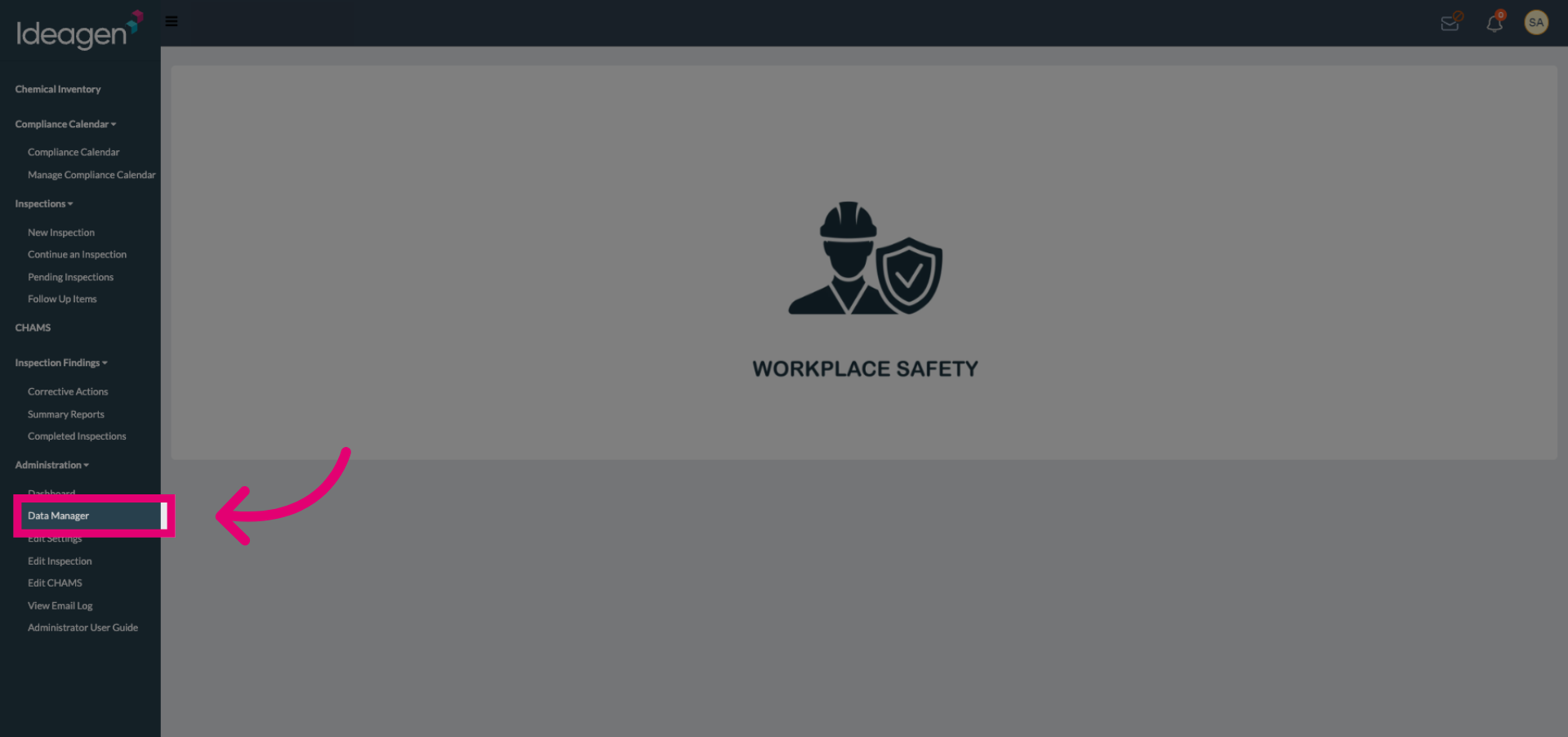
Select the Data Manager to access data configuration options.
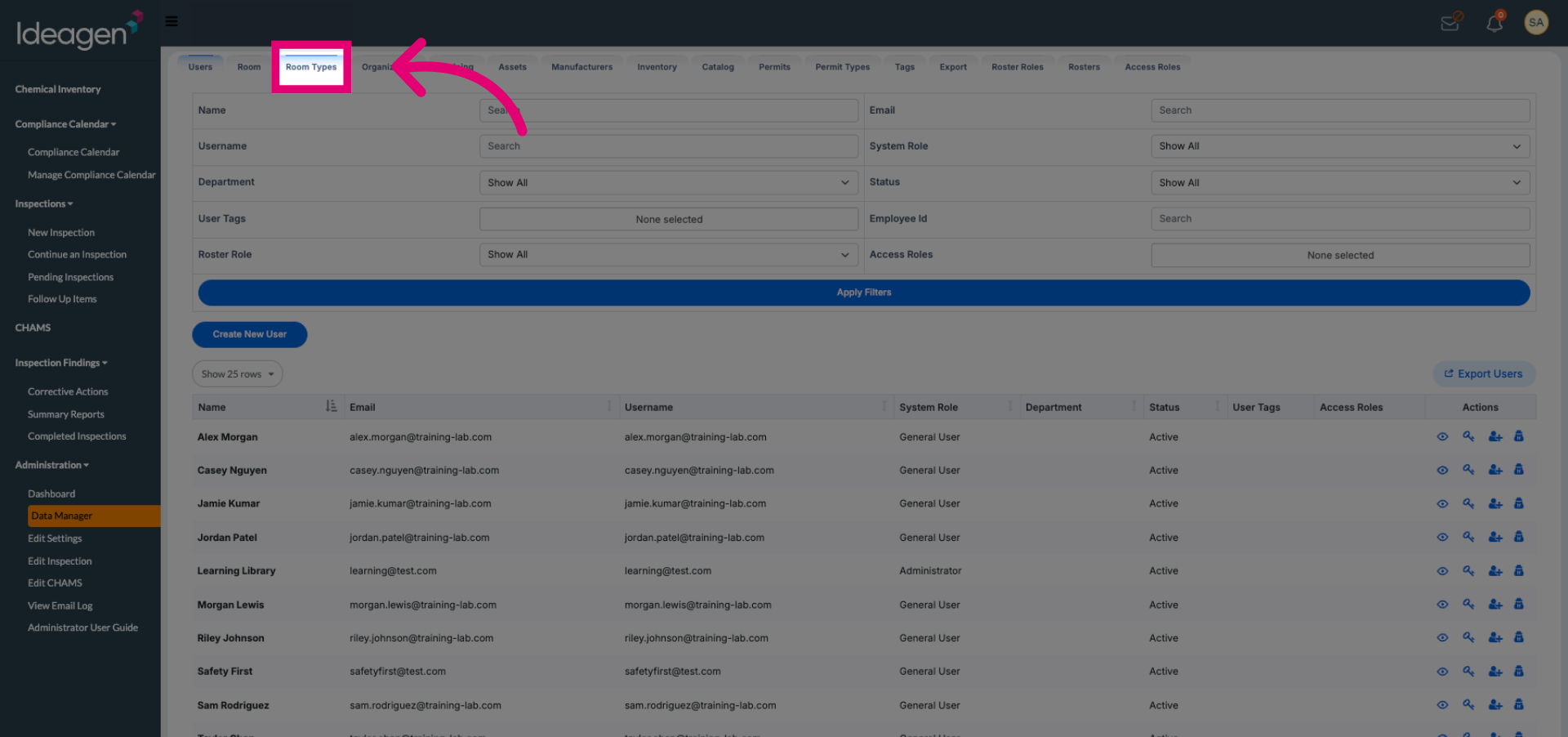
Select Room Types to view and manage different room types.
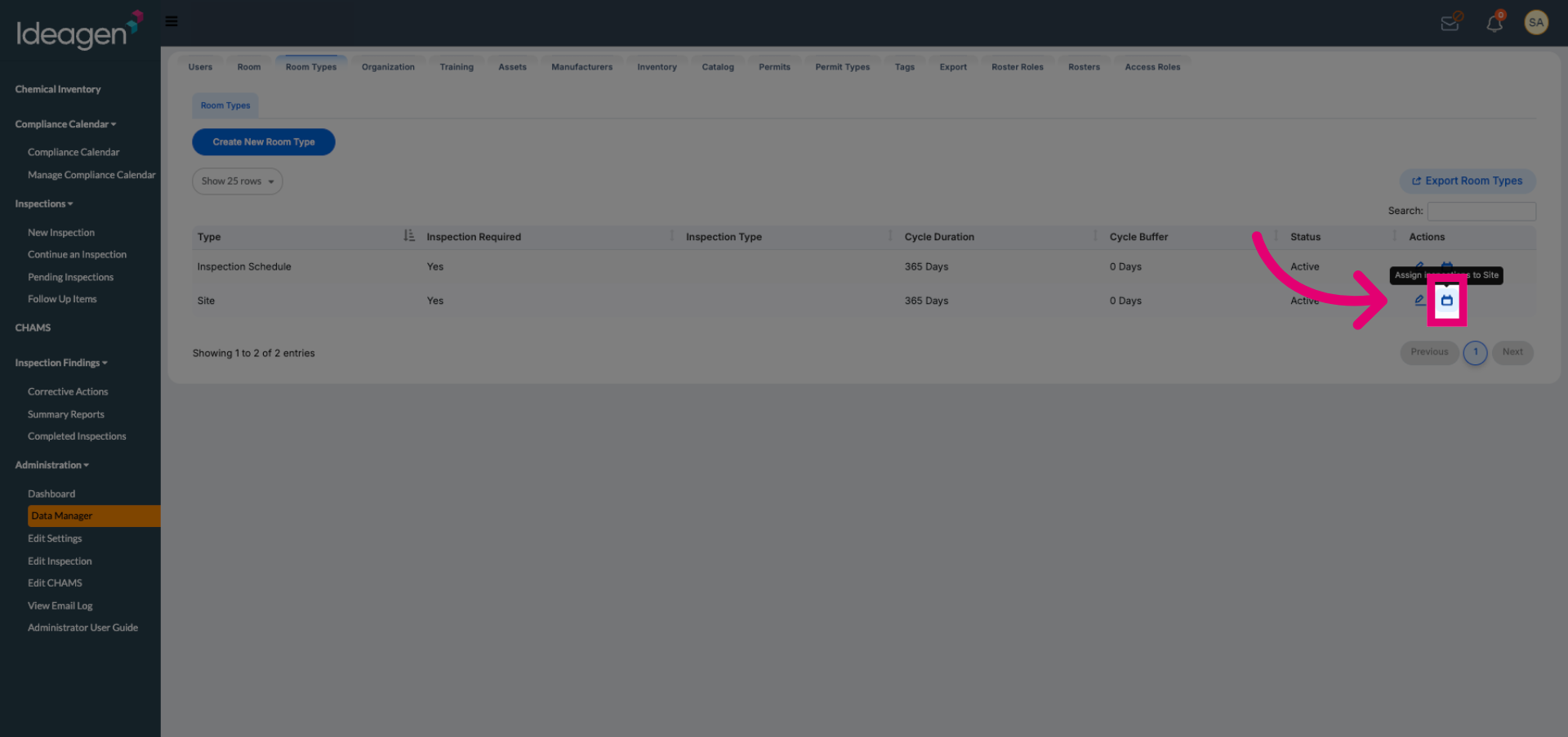
Click the designated area to open and assign inspections based on room type.
Select an Inspection Template from the available options.
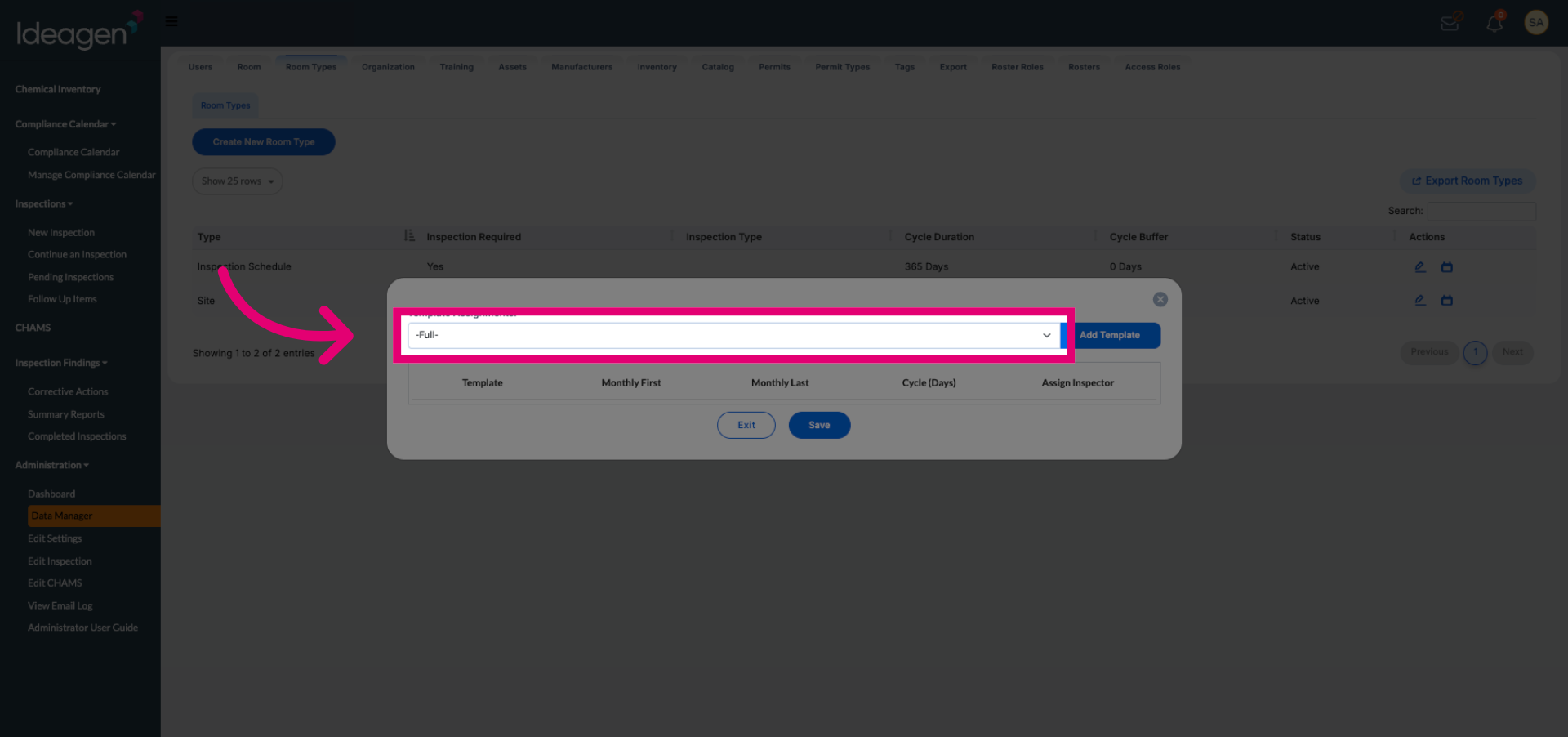
Click Add Template to begin creating a new inspection schedule.
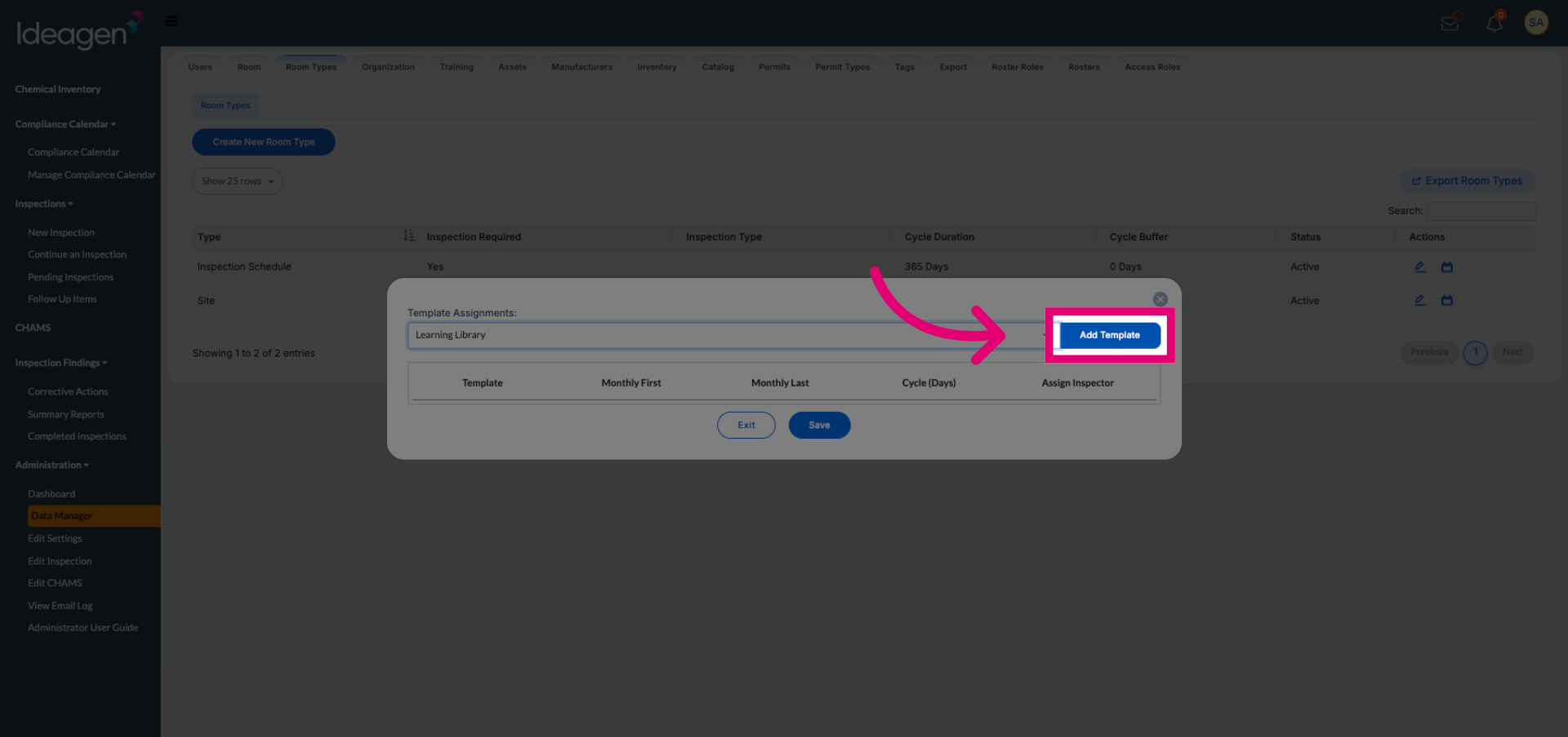
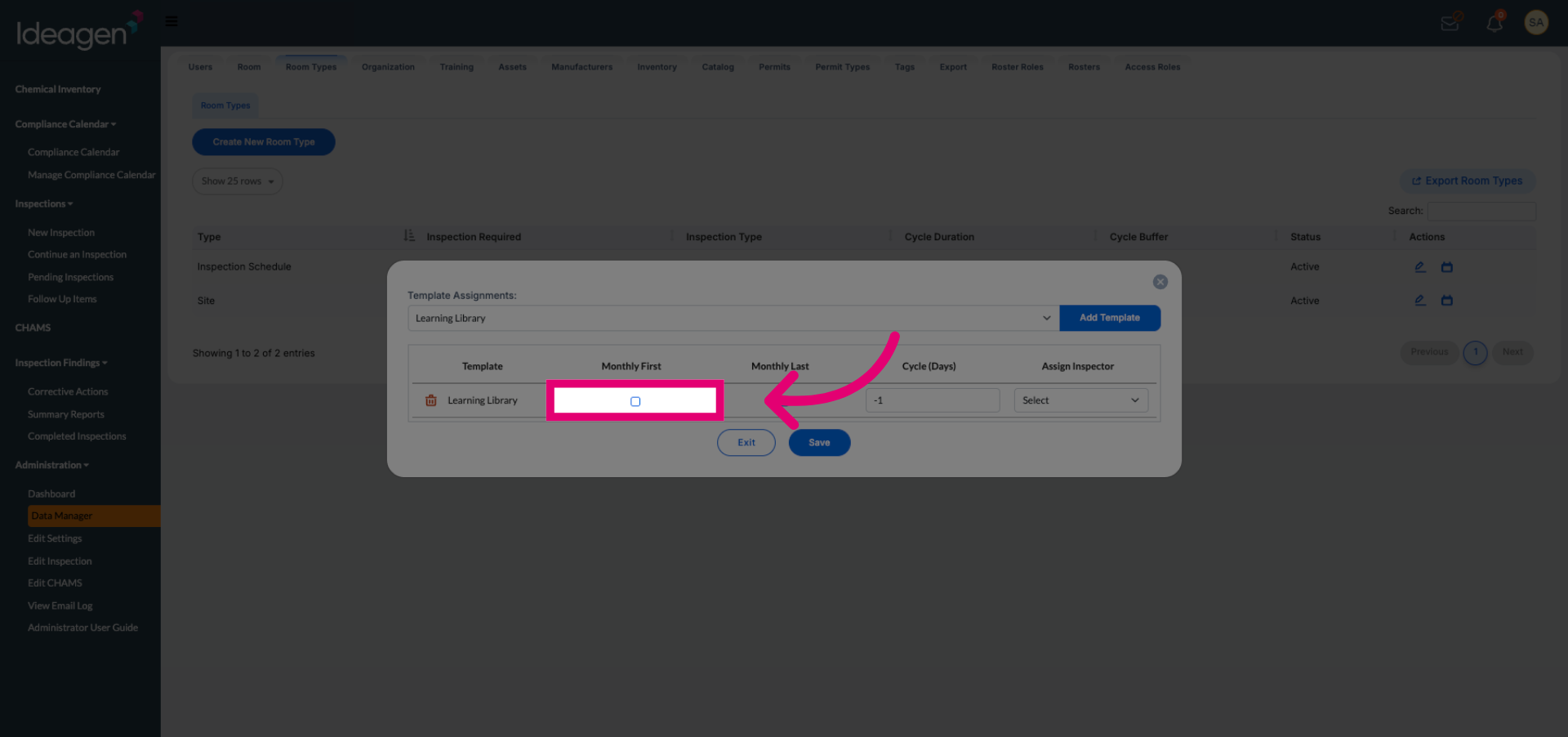
Set the inspection frequency based on Monthly First option.
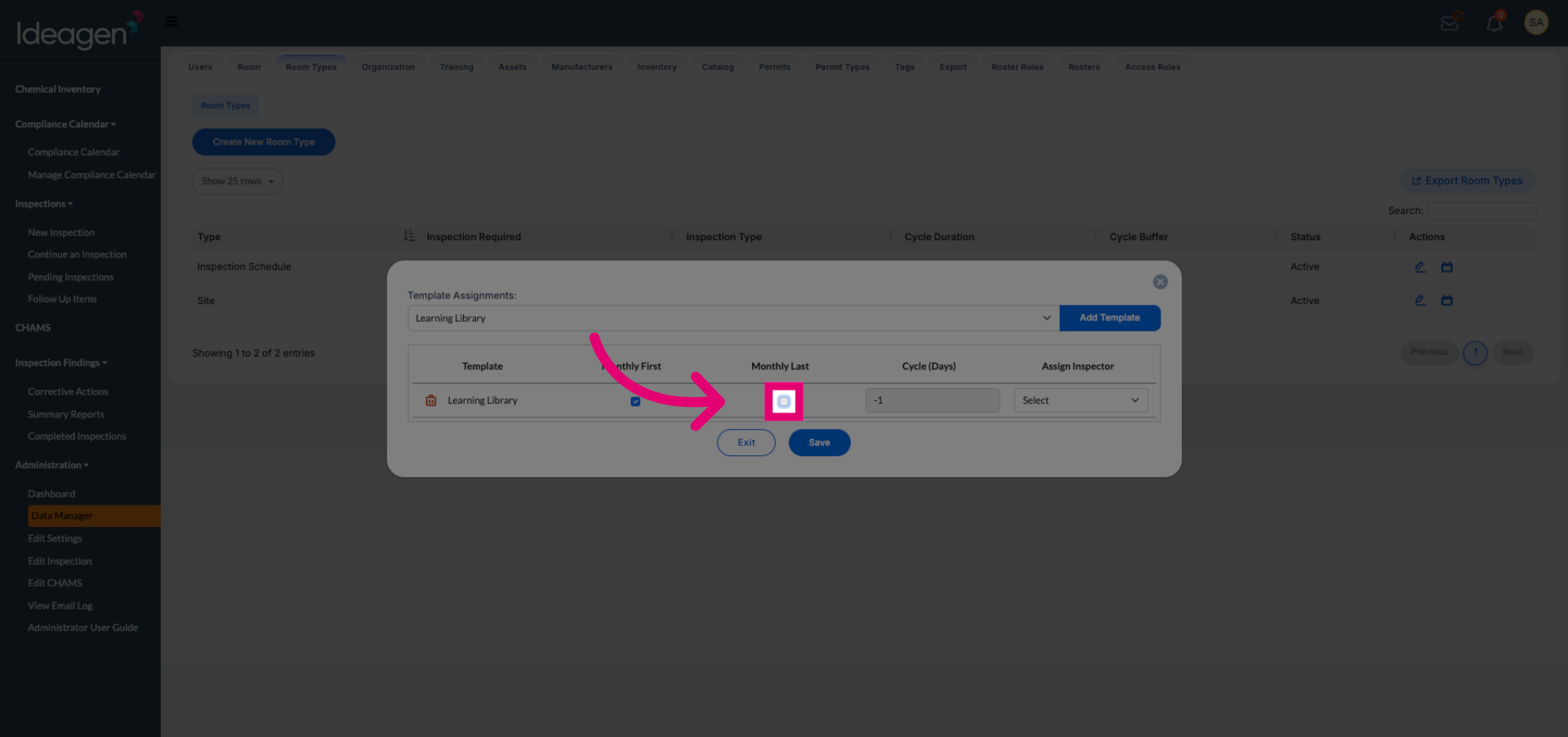
Alternatively, select Monthly Last as the template frequency.
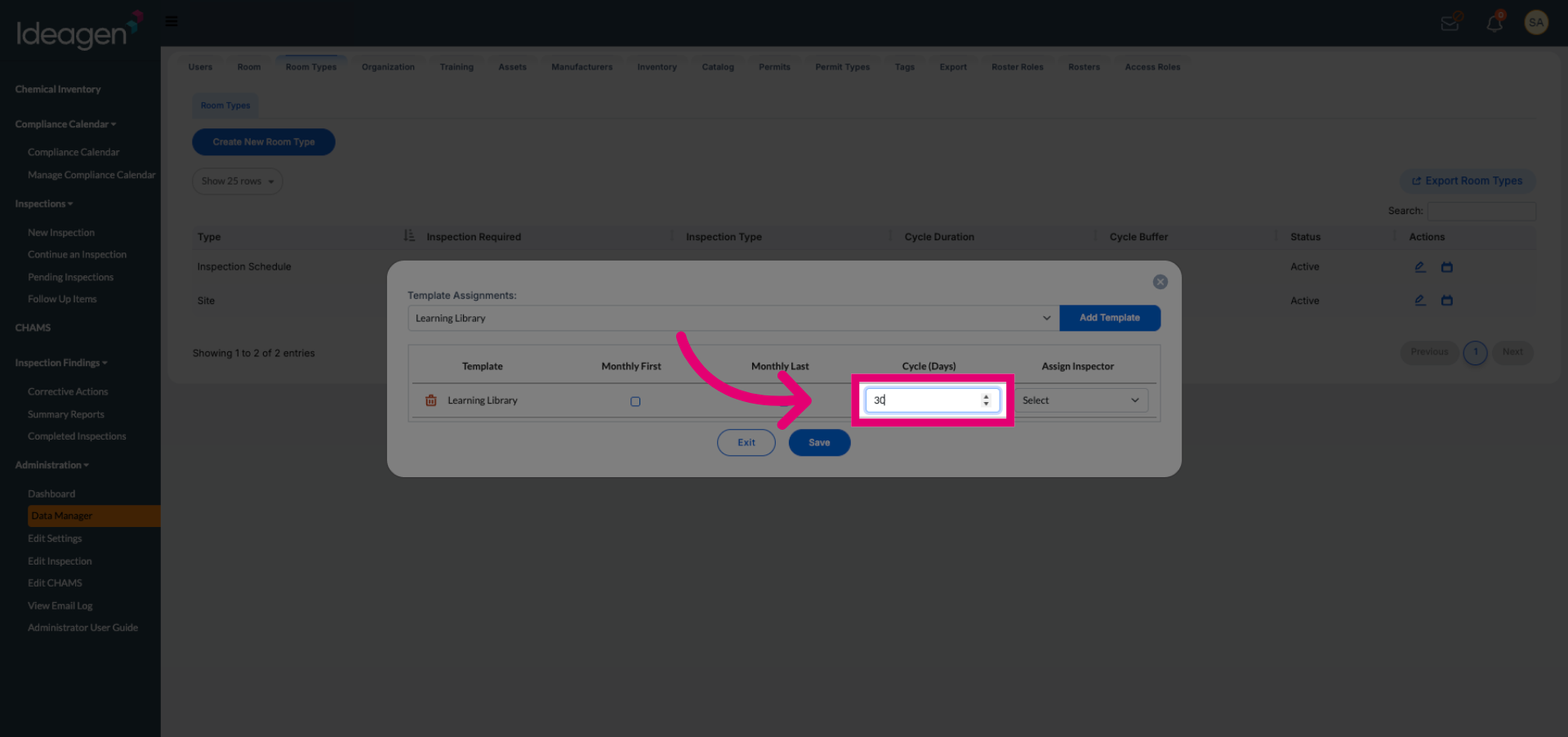
Enter the desired days between inspections to specify the inspection interval in days.
Click Save to apply and store the new inspection settings.
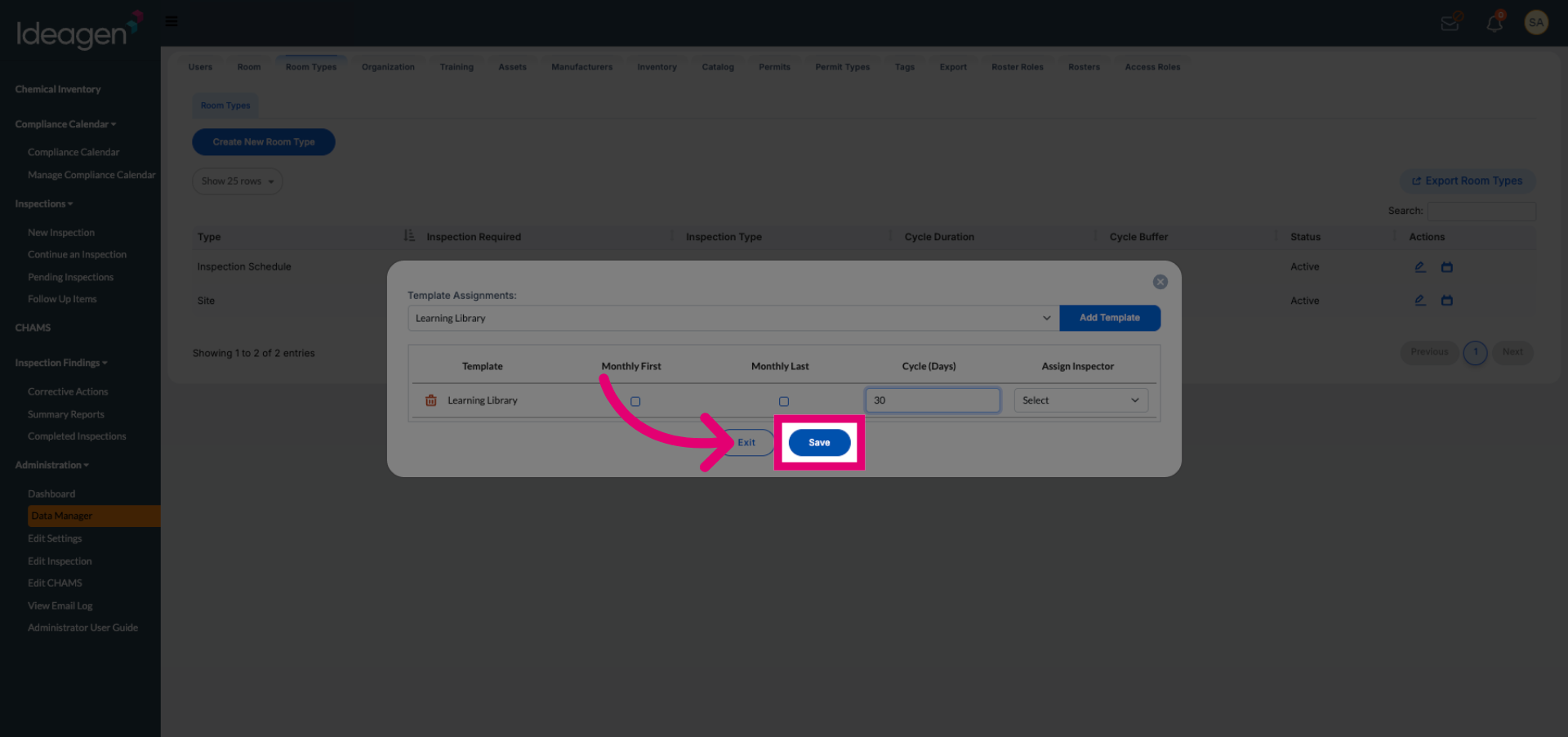
Once saved, all rooms assigned to that room type will automatically follow the same inspection schedule.