New article
Recently updated
Adding users to an inspection roster

Who is this article for?
Inspectors who want to learn how to add a user to an inspection roster.
Inspector permissions are required to add a user, but users can access when carrying out an inspection.
This article explains how to add users to a roster before and during an inspection.
You will learn the steps to search for users, add them to the roster, and manage their participation during the inspection.
1. Adding users to the inspection roster
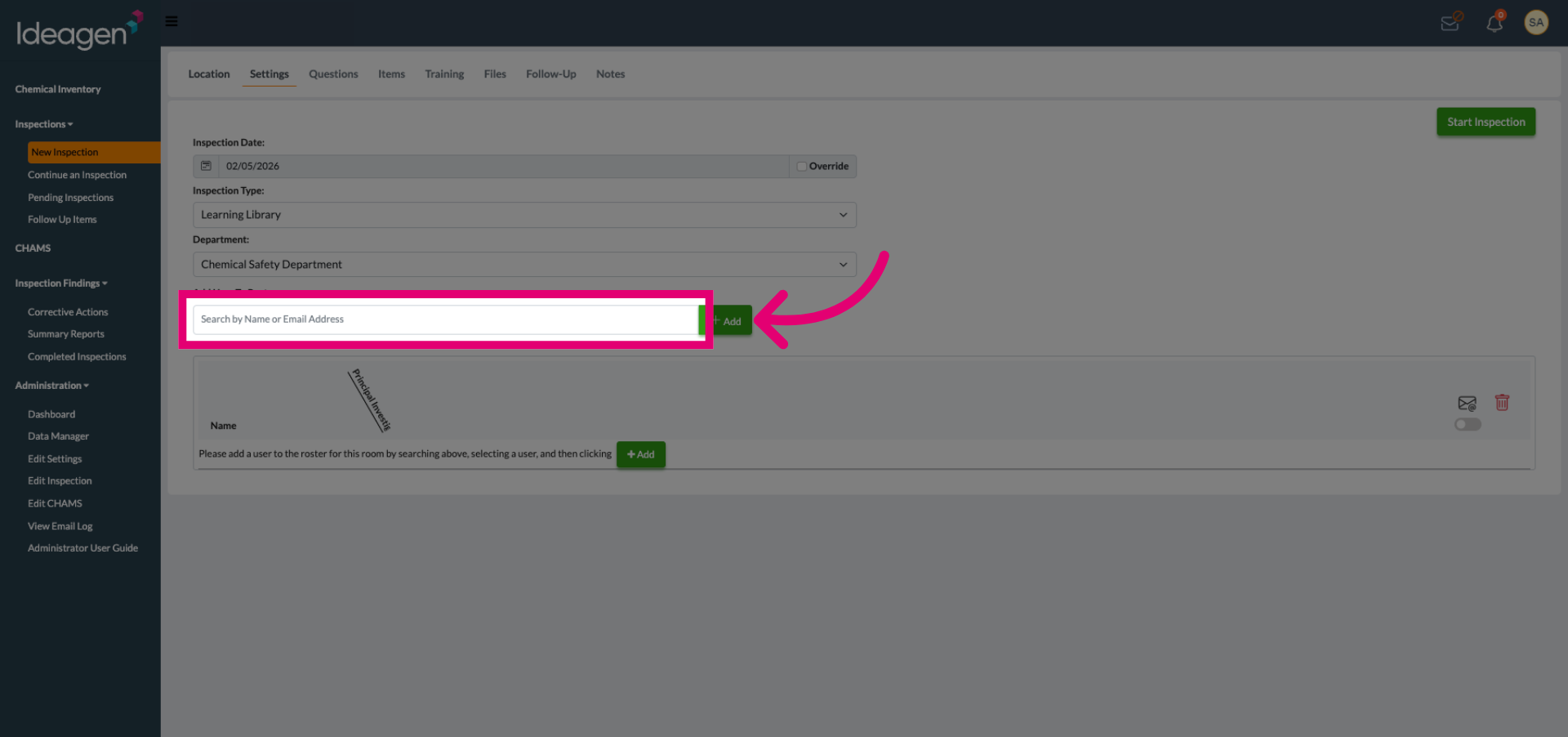
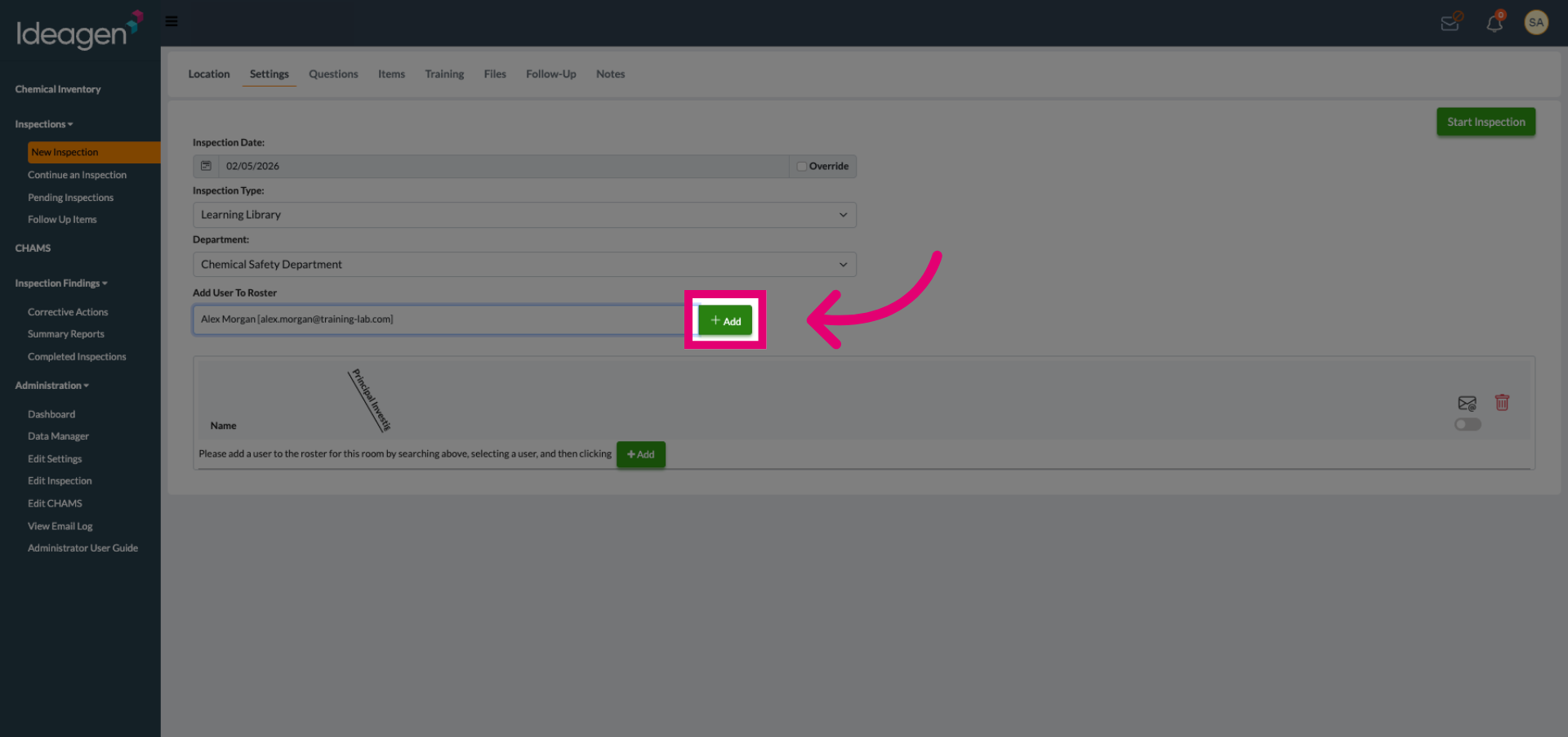
Click the Search by Name or Email Address field to begin finding a user to add to the inspection roster.
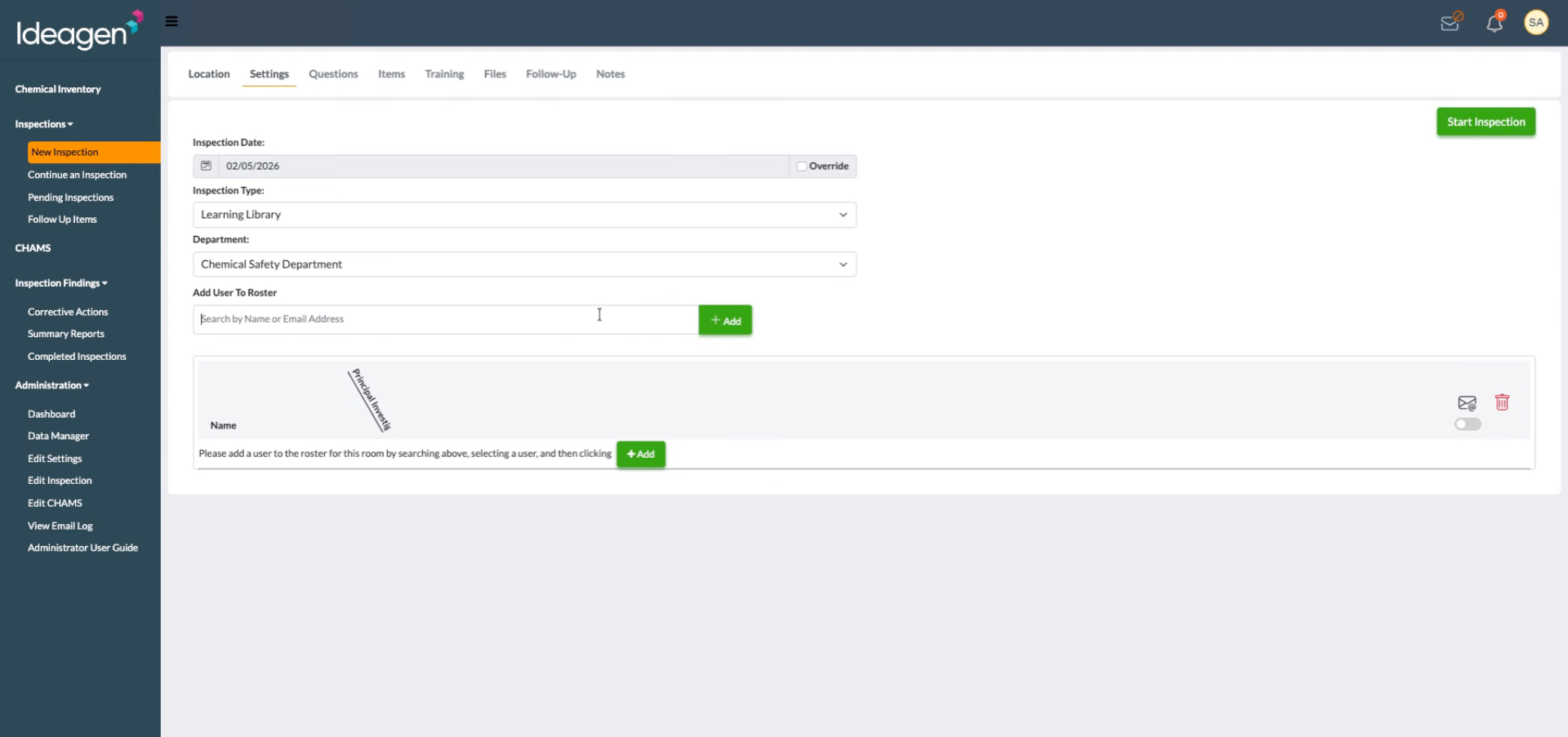
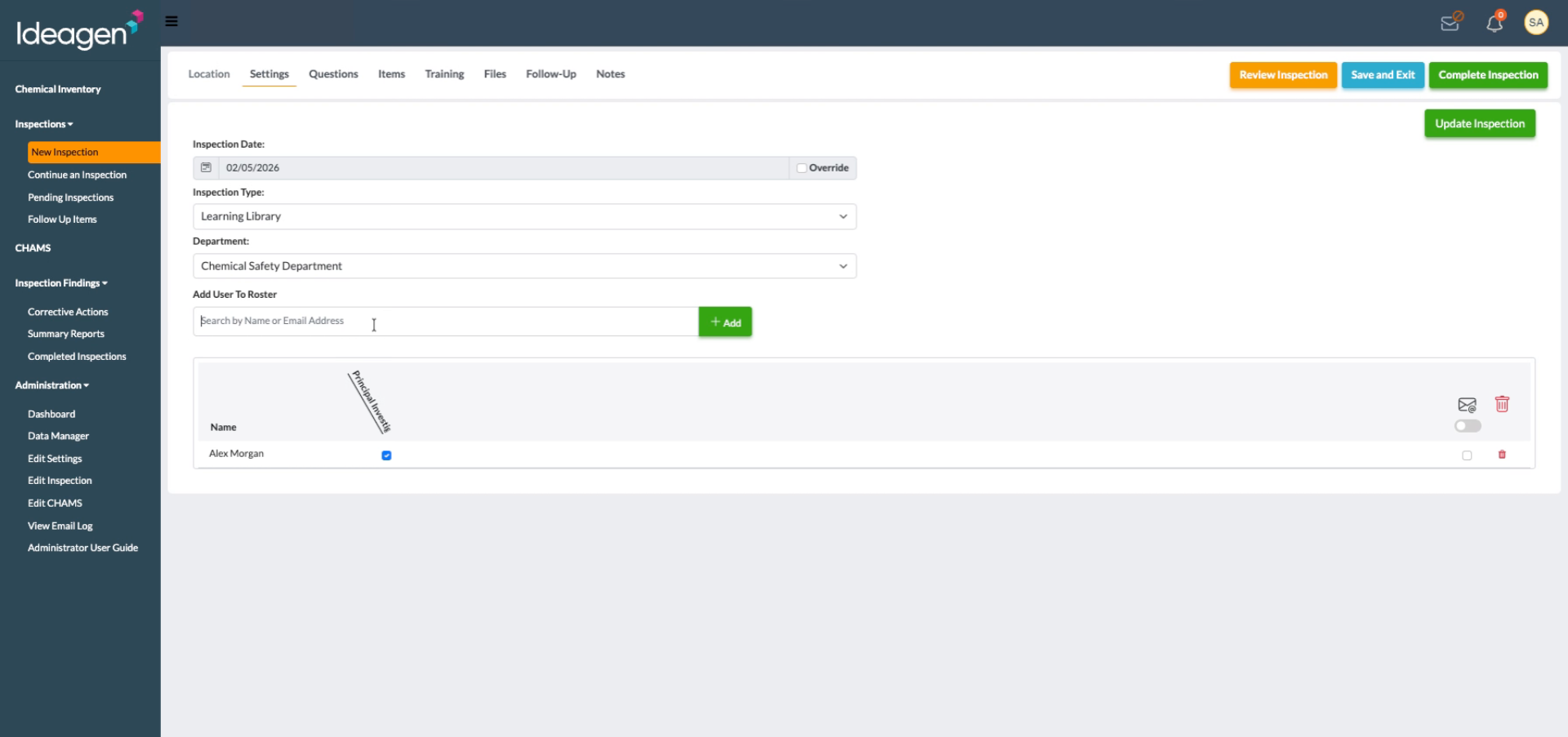
Enter the user's information to filter the search results and locate the correct user.
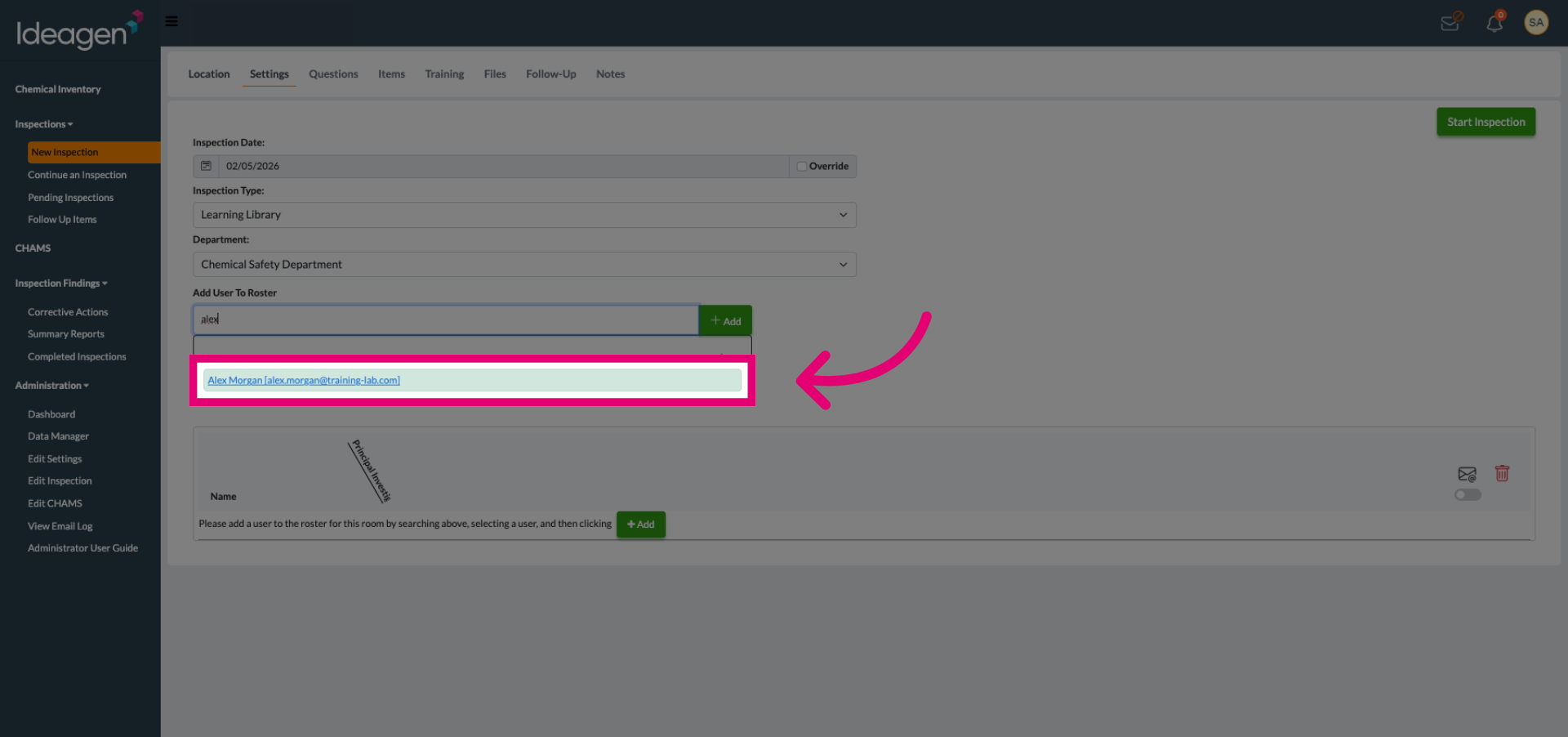
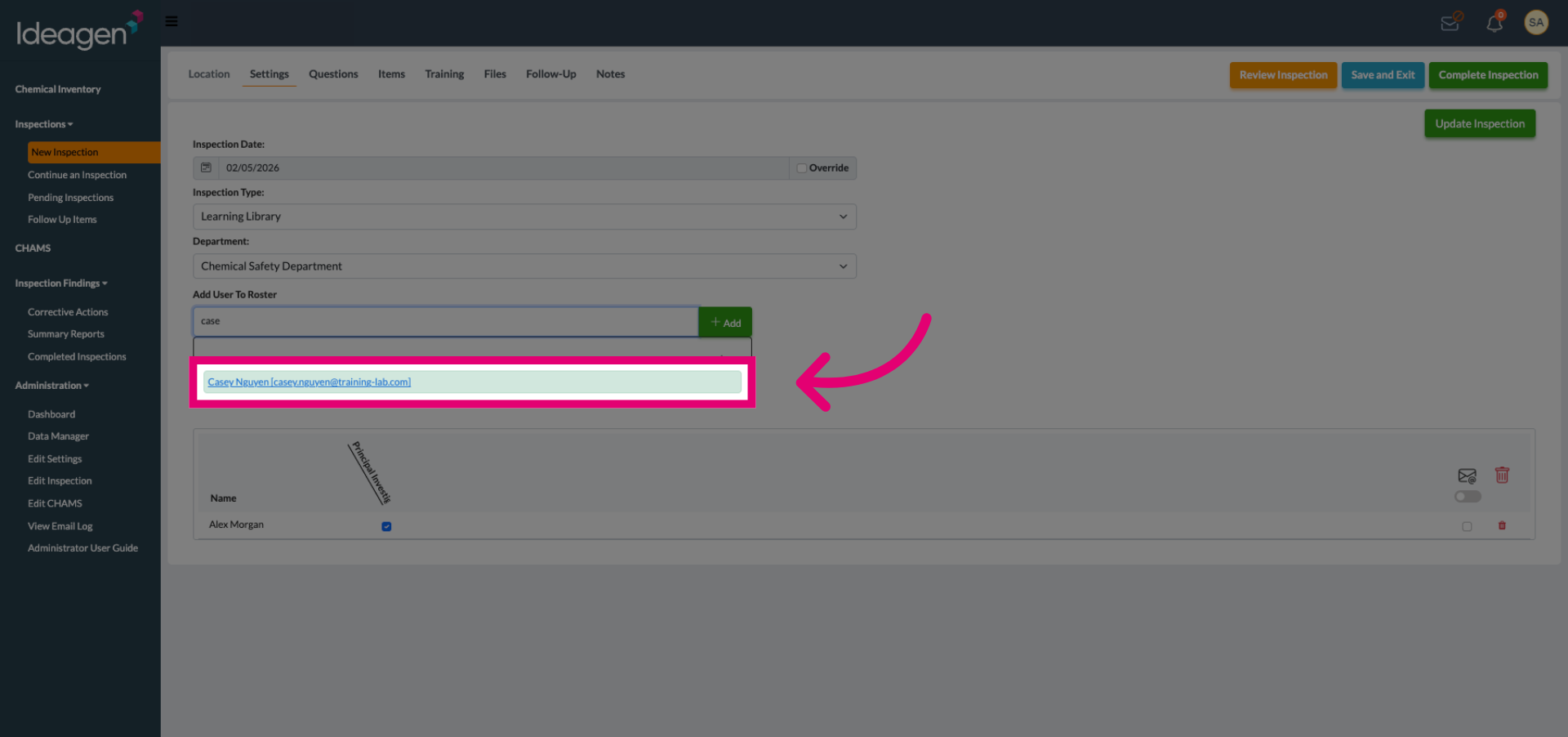
Select the user from the search results by clicking their details from the list.
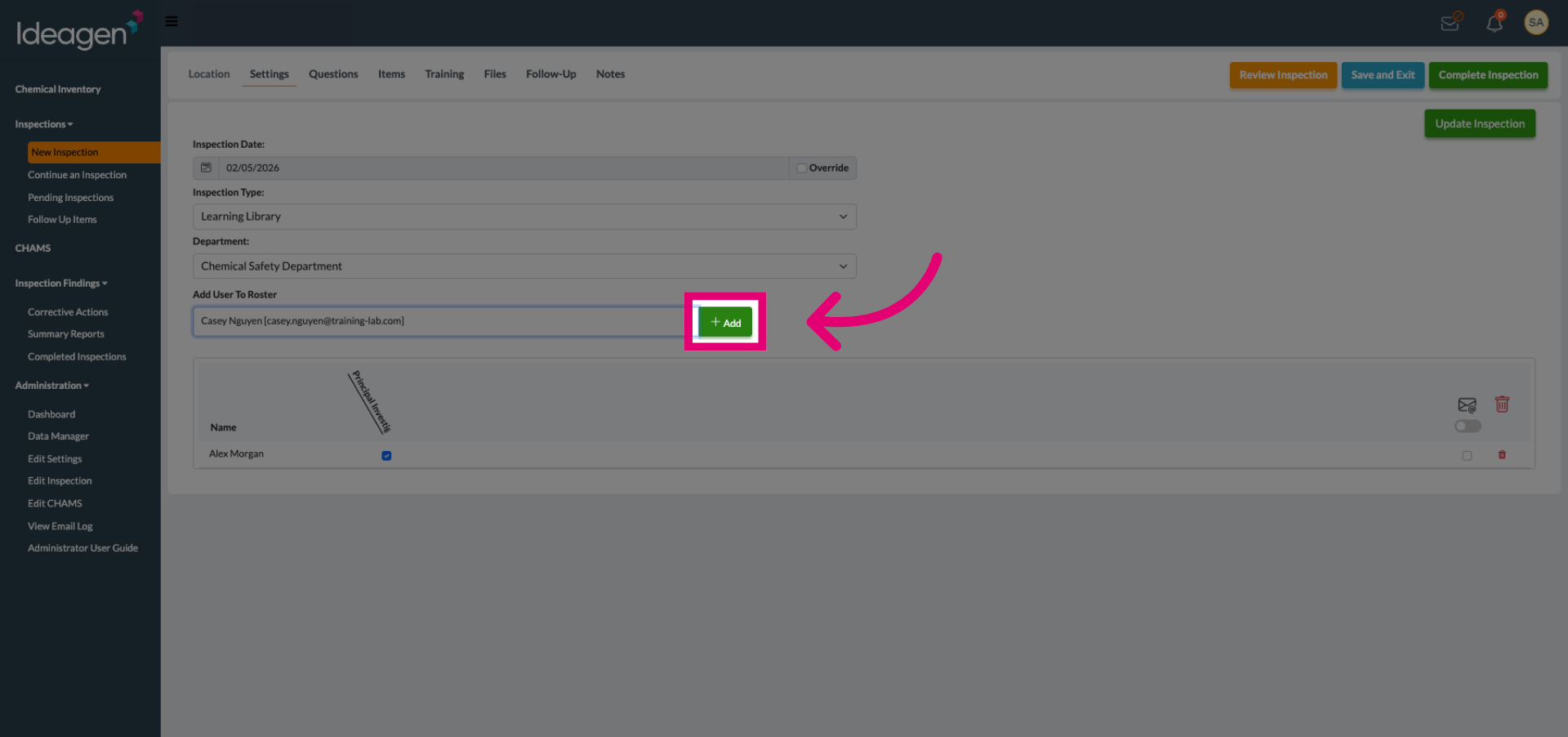
Click the Add button to include the selected user in the inspection roster.
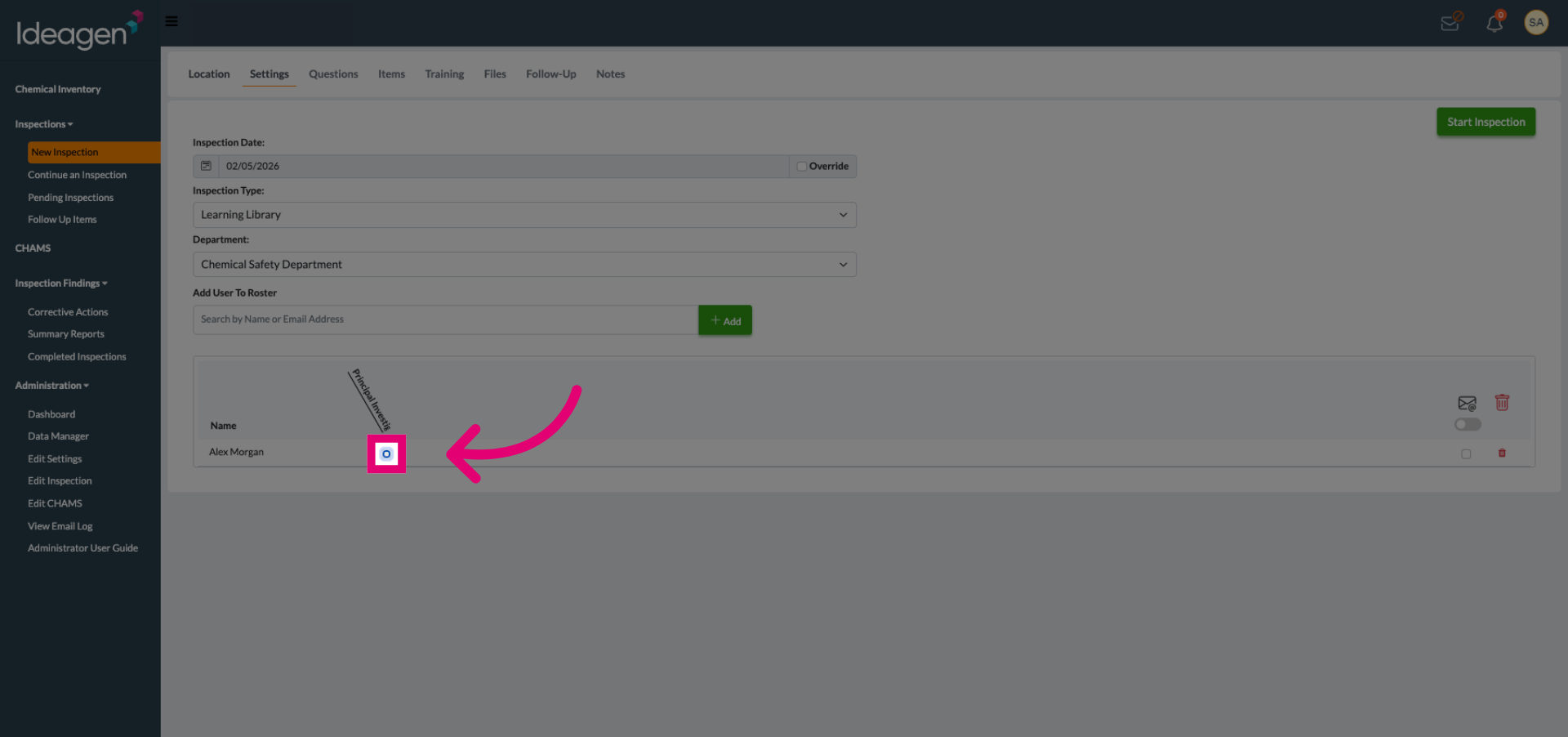
Select the check box next to the user's name under the correct roster role. There can be more than one selection.
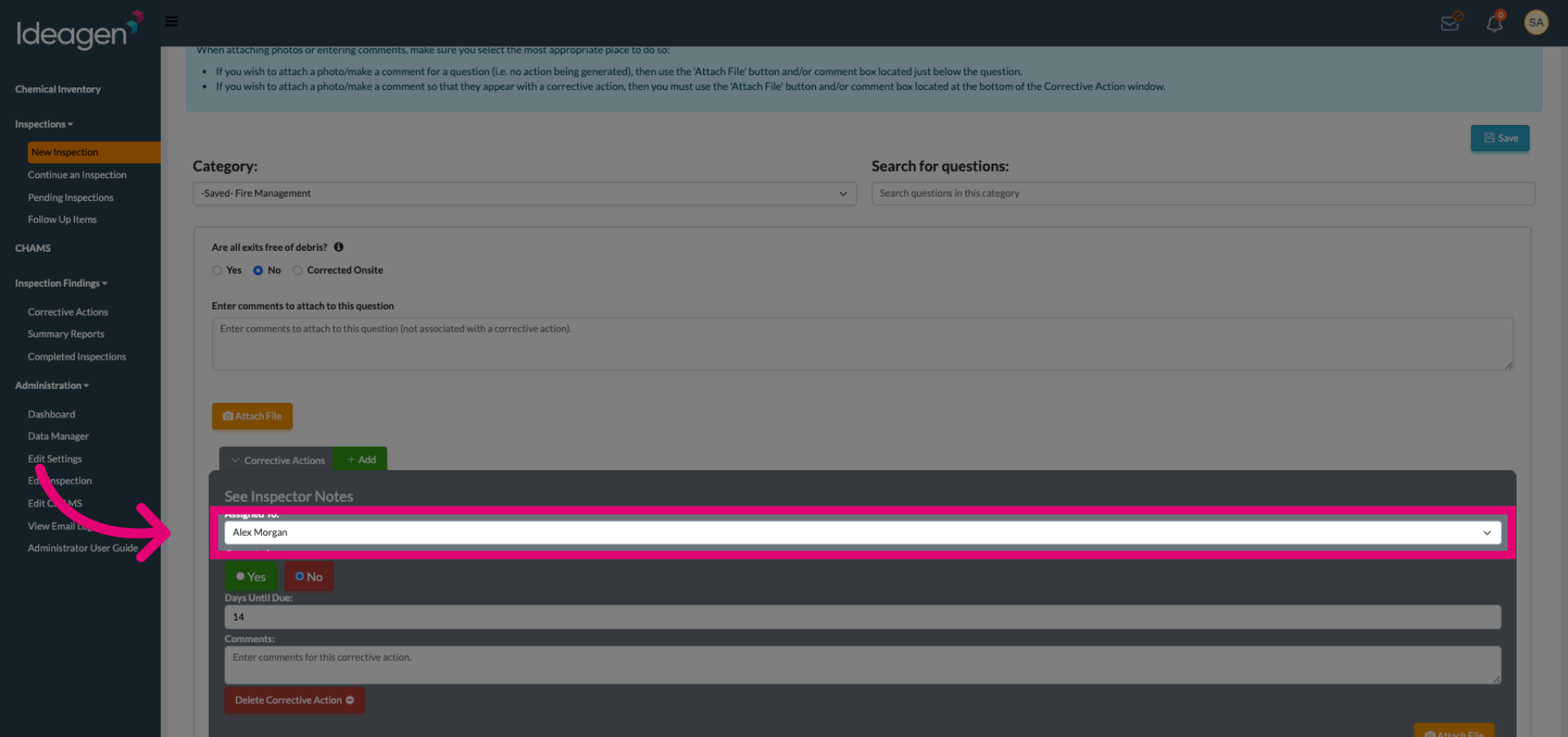
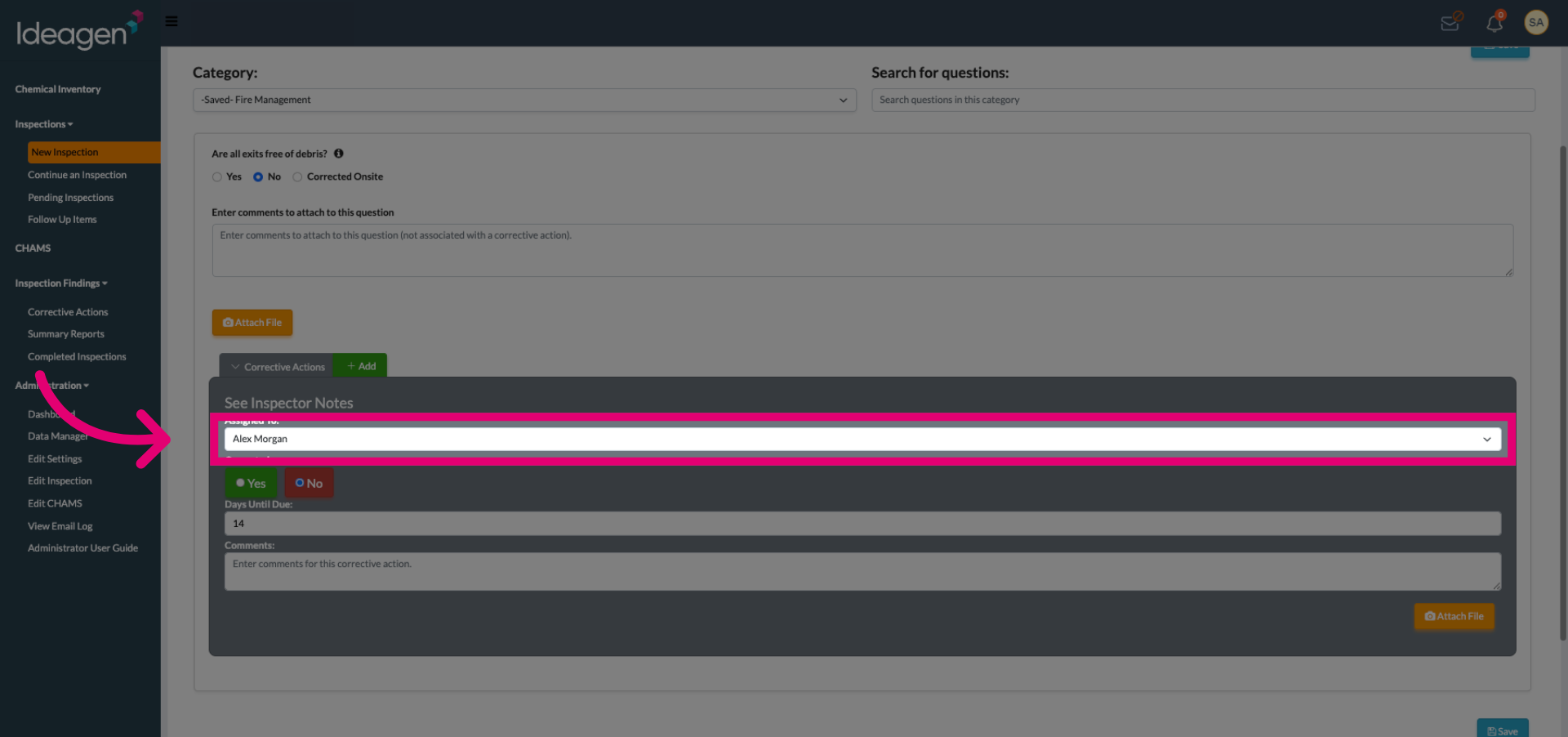
If a Corrective Action is generated, the user can now be assigned the action.
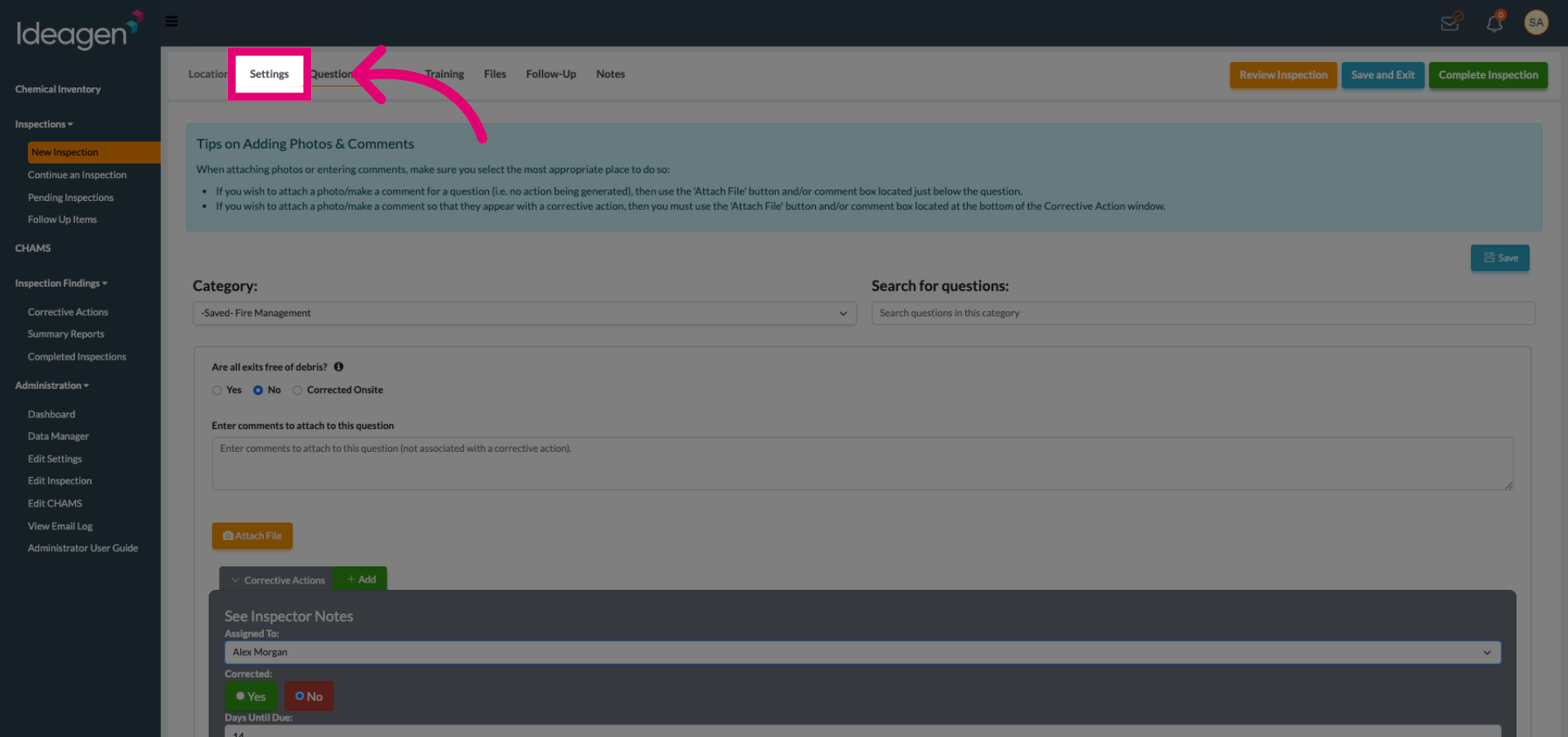
If you need to add a user during the inspection, navigate back to the settings tab.
Click the Search by Name or Email Address field again to add another user to the roster.
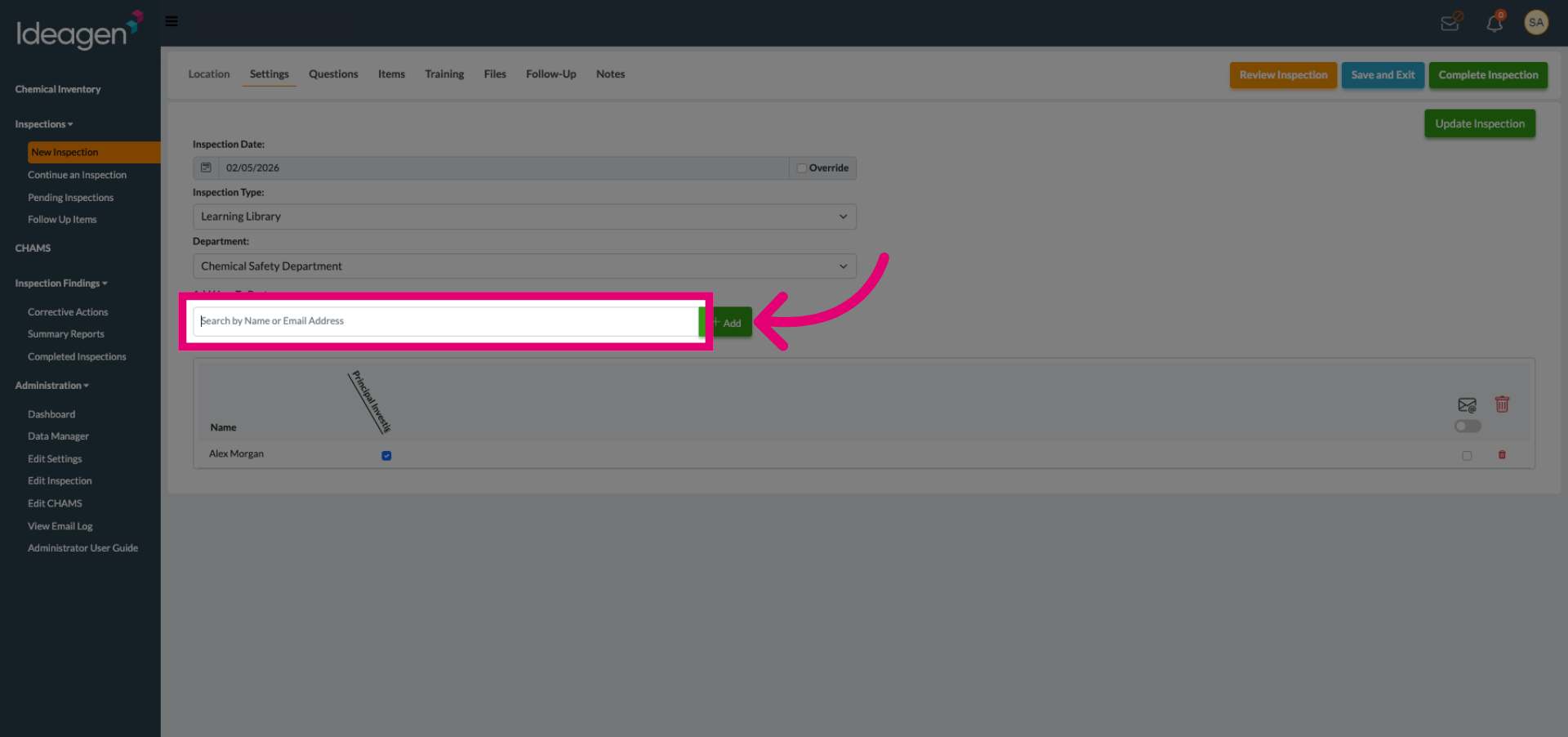
Enter the second user's details to locate them in the system for addition to the roster.
Select the second user from the search results by clicking their user details.
Click the Add button to include the second user in the inspection roster.
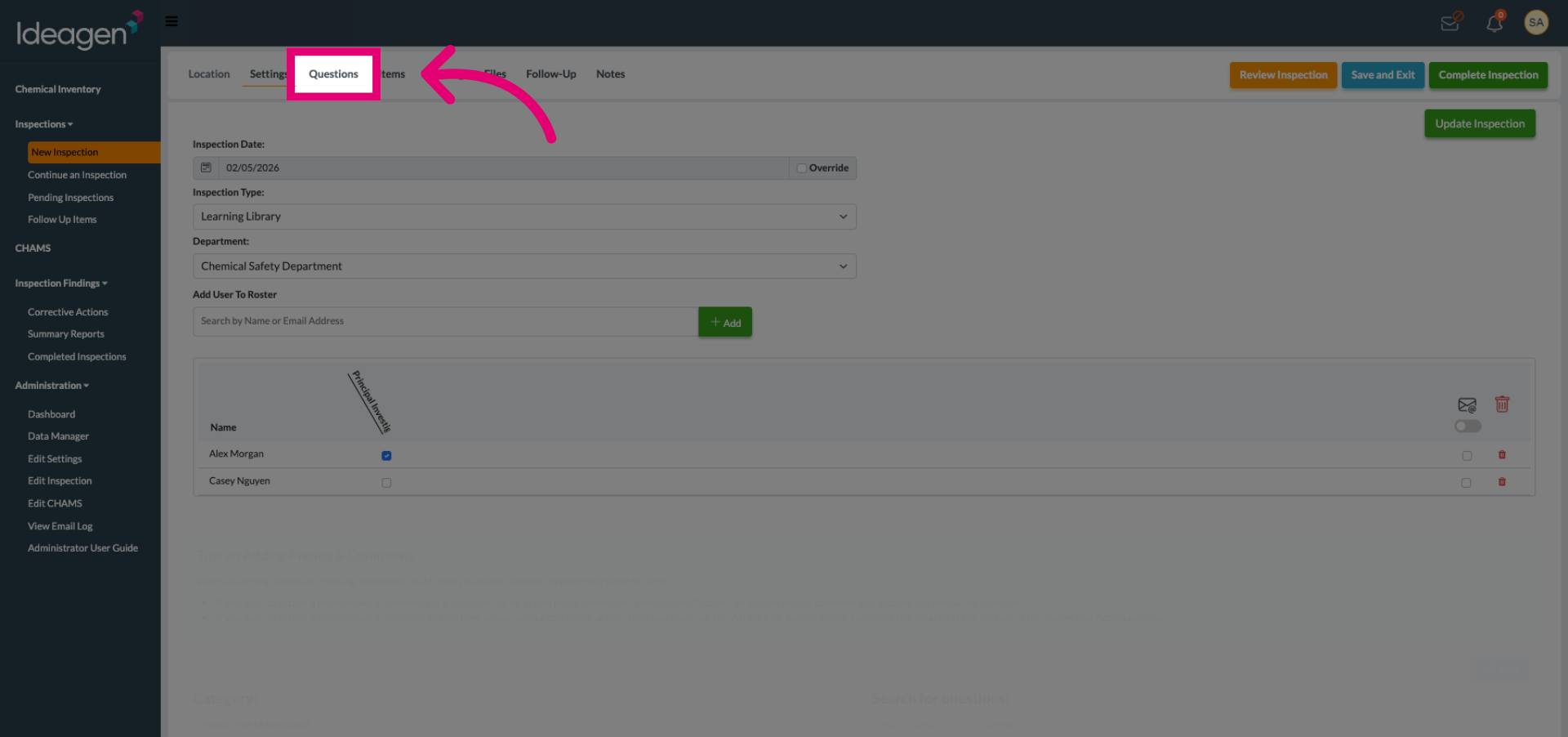
Click the Questions tab to return to the inspection questions.
Now, both users are available to be selected for the corrective action.