New article
Recently updated
Adding users to a group inspection roster

Who is this article for?
Inspectors and administrators that want to learn to add users to a group inspection roster.
Inspector or administrator access is required, users may access during inspections.
This article explains how to add users to the inspection roster of a group within LabCliQ.
You will learn the steps to navigate the Data Manager and update group rosters effectively.
1. Adding users to the inspection roster
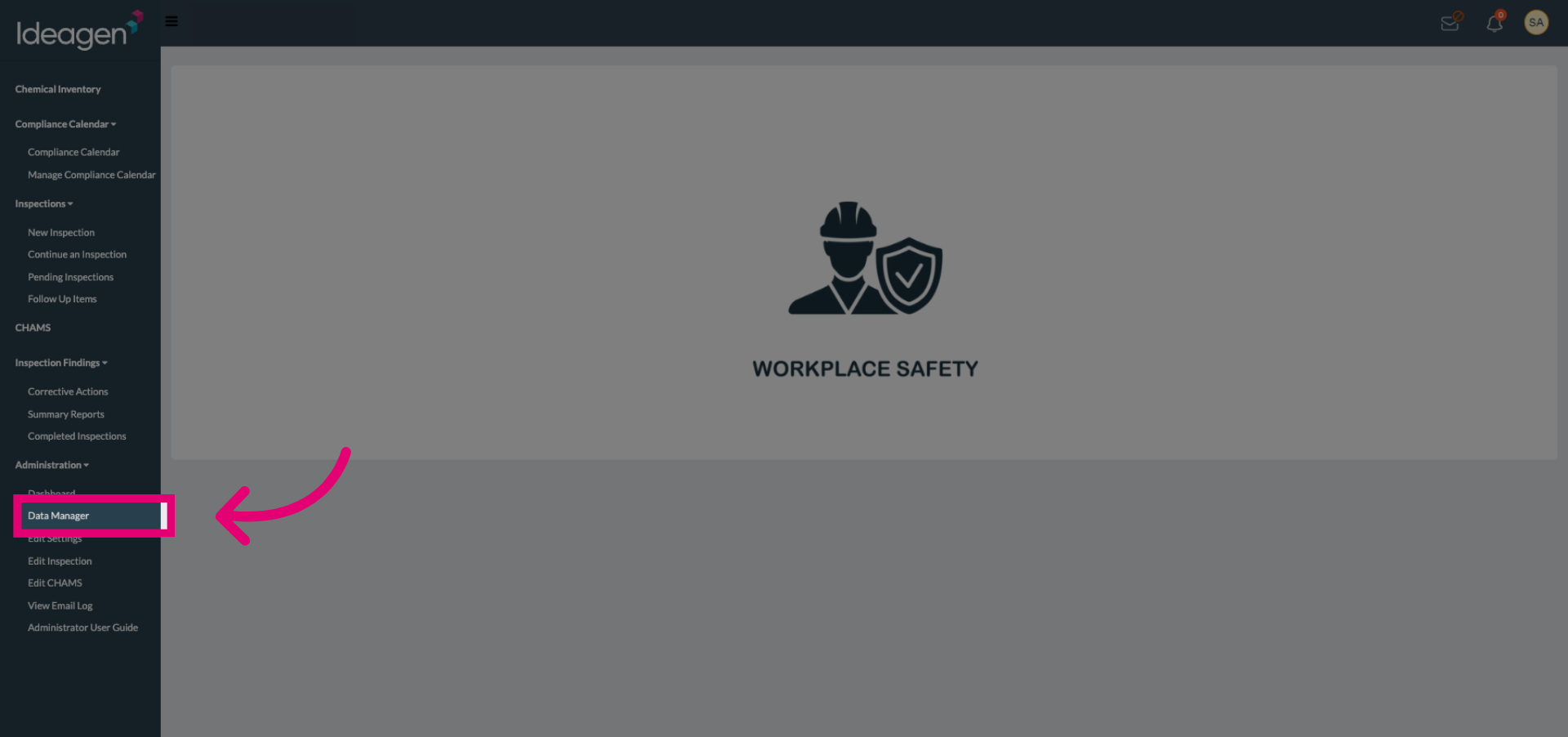
Click the Data Manager to access the main management interface where you can control data and user settings.
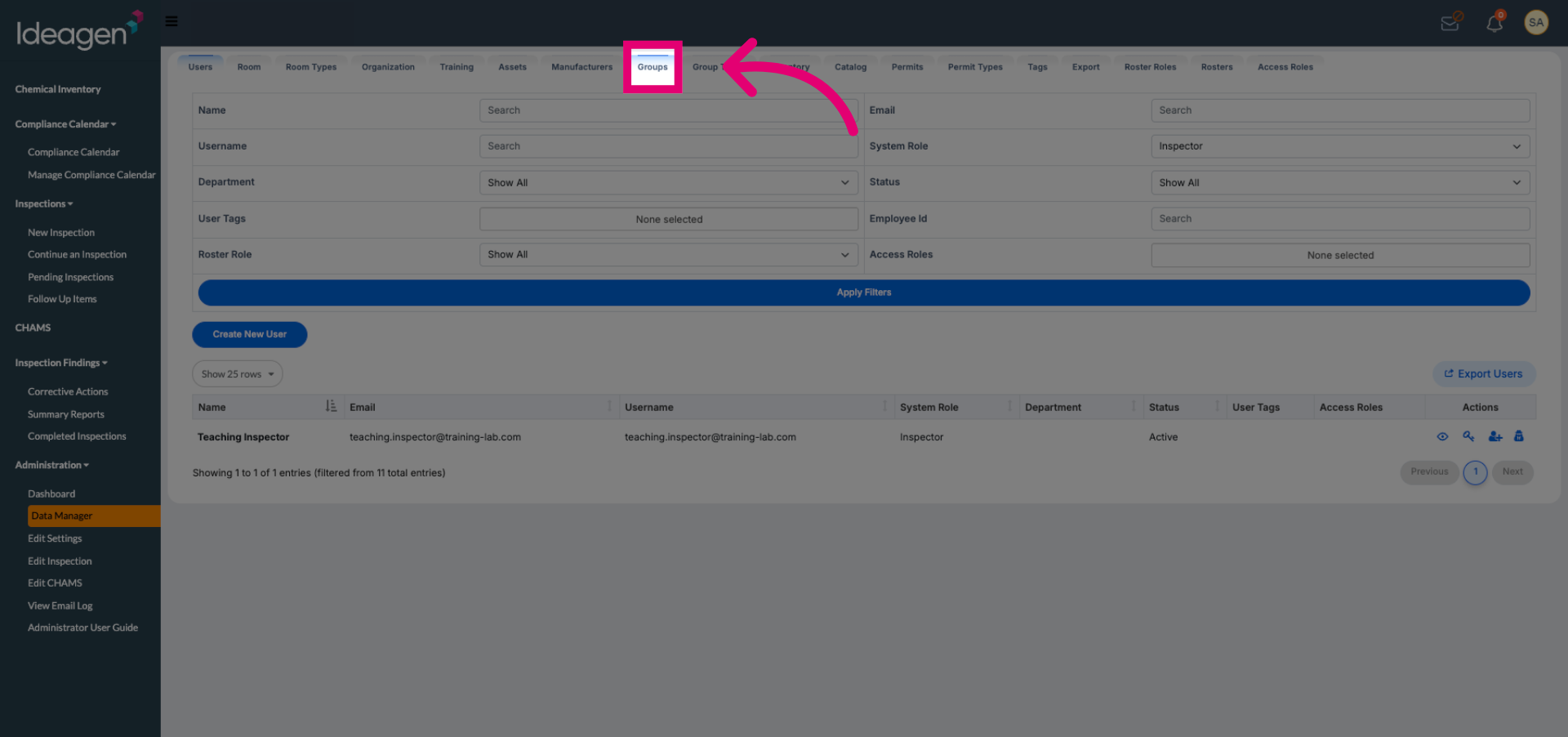
Click Groups to view and manage the different user groups available in the system.
Click the appropriate area to begin managing the specific group you want to update.
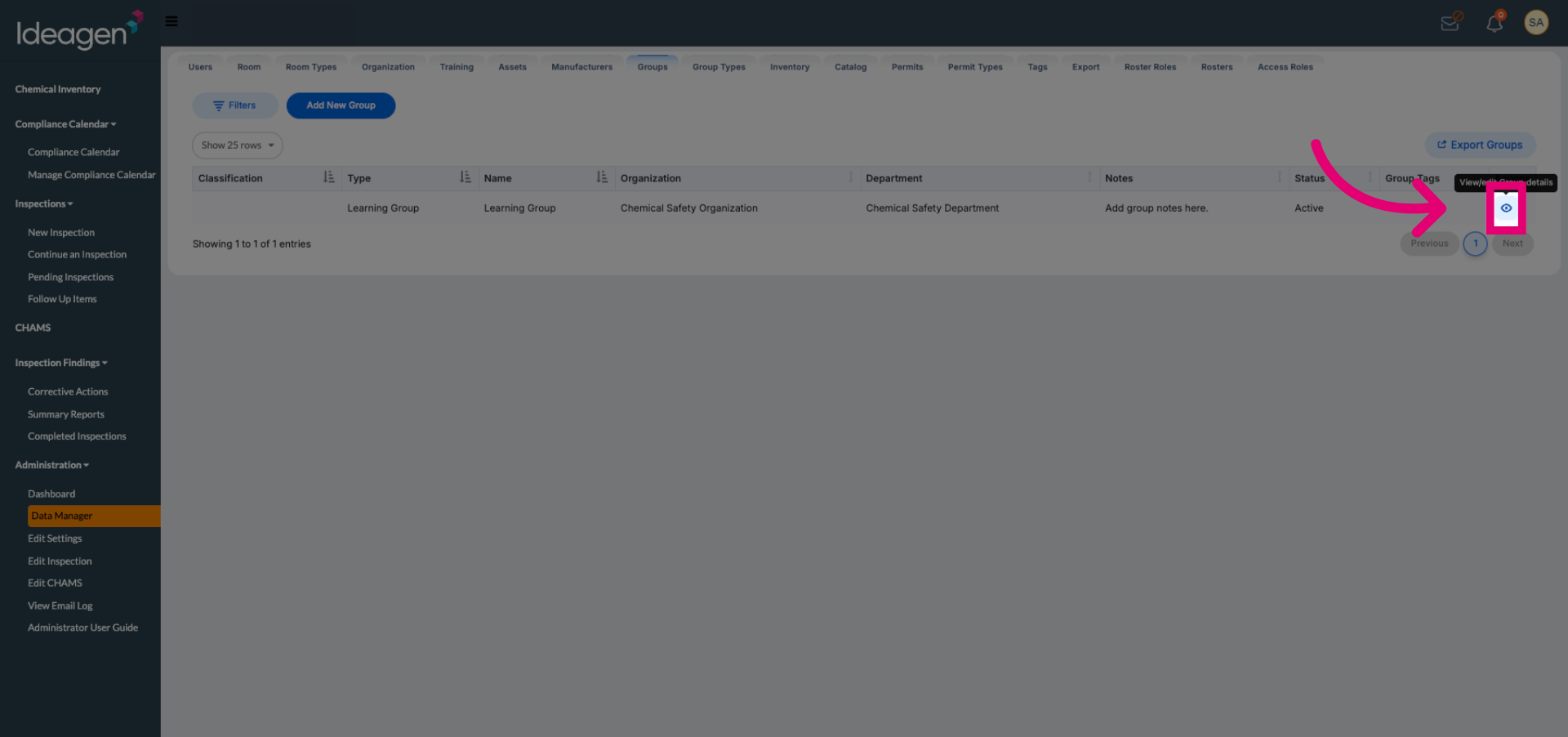
Click the designated section to open detailed settings for the selected group.
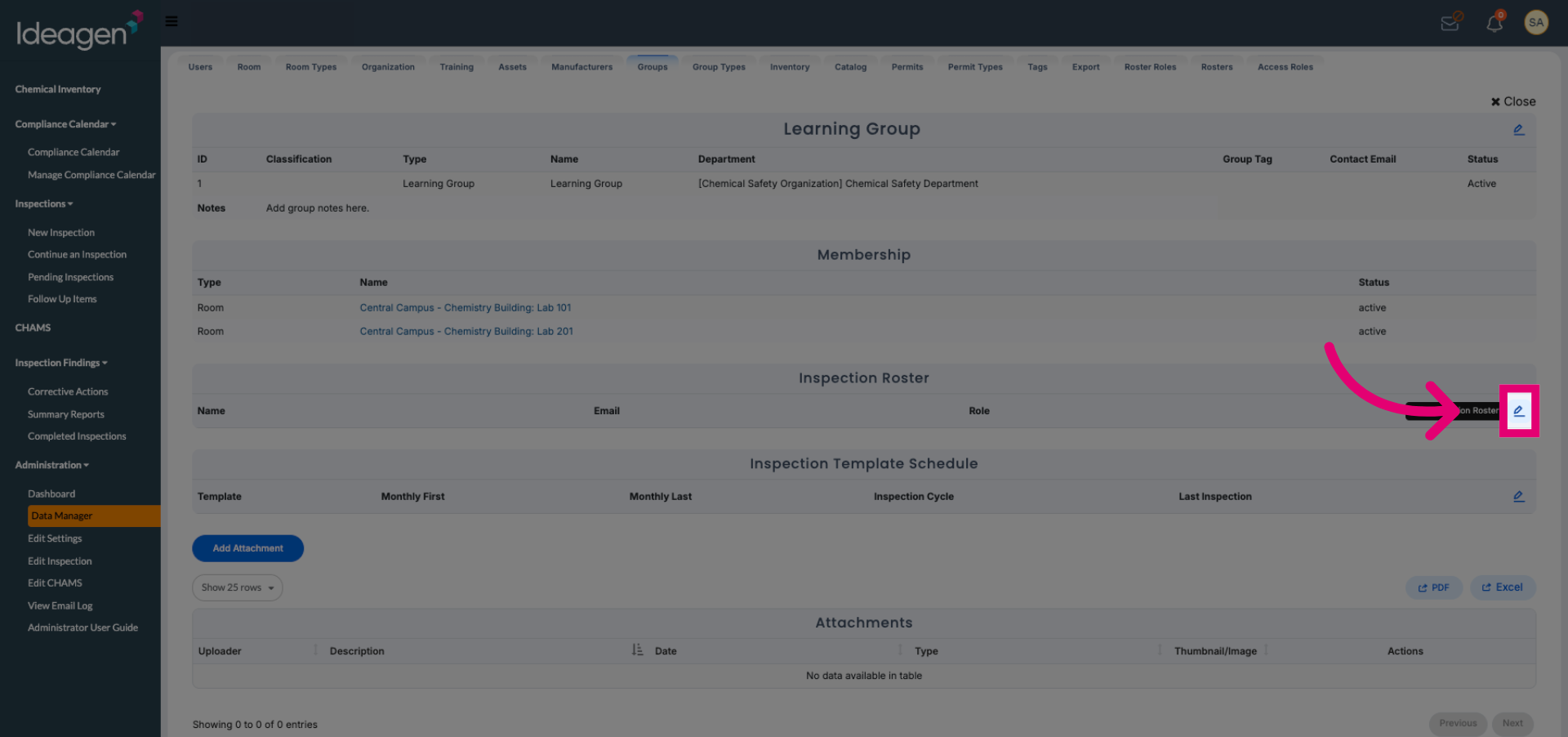
Click the SafetyStratus Administrator account to view and modify its associated settings.
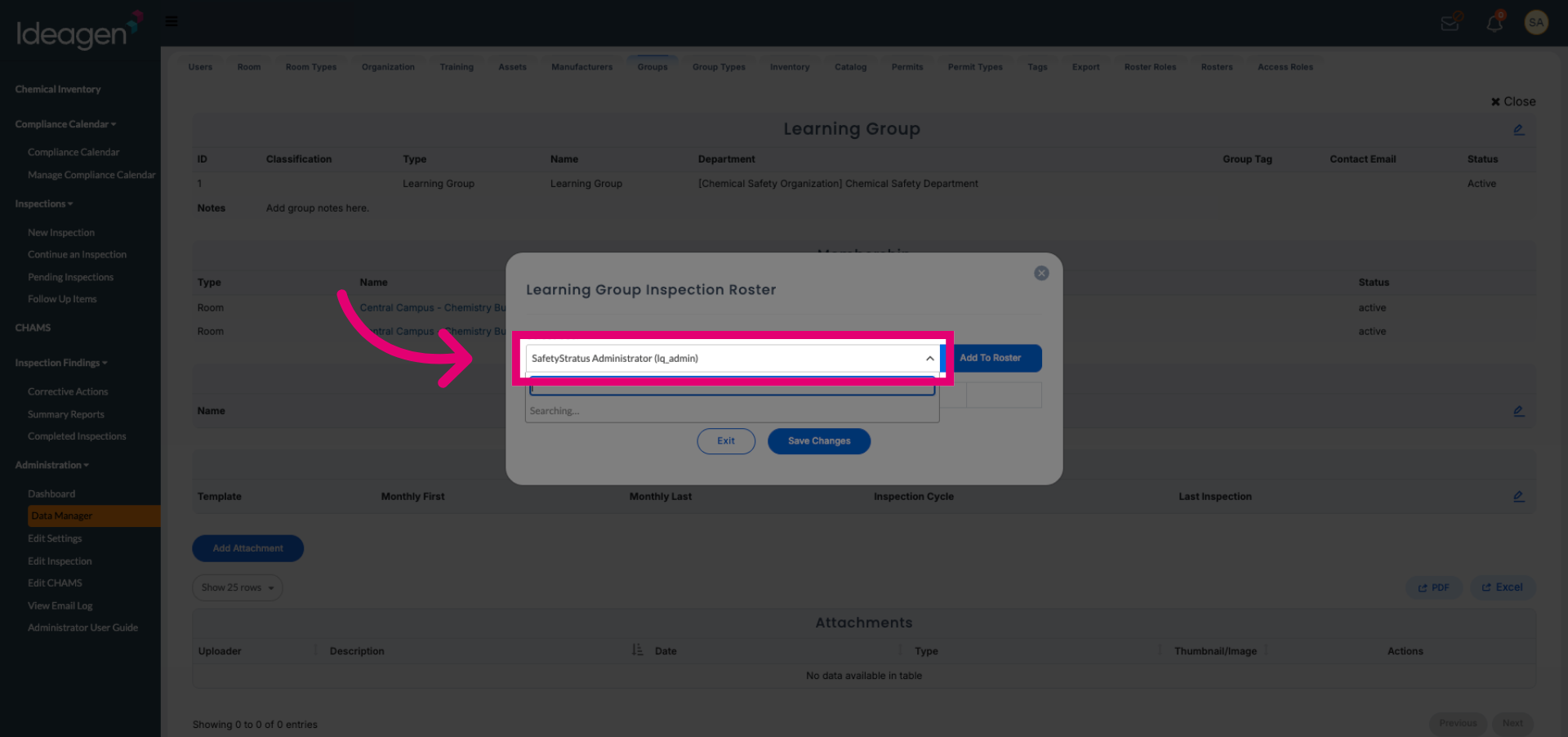
Click the Learning Library user to add them to the inspection roster for the group.
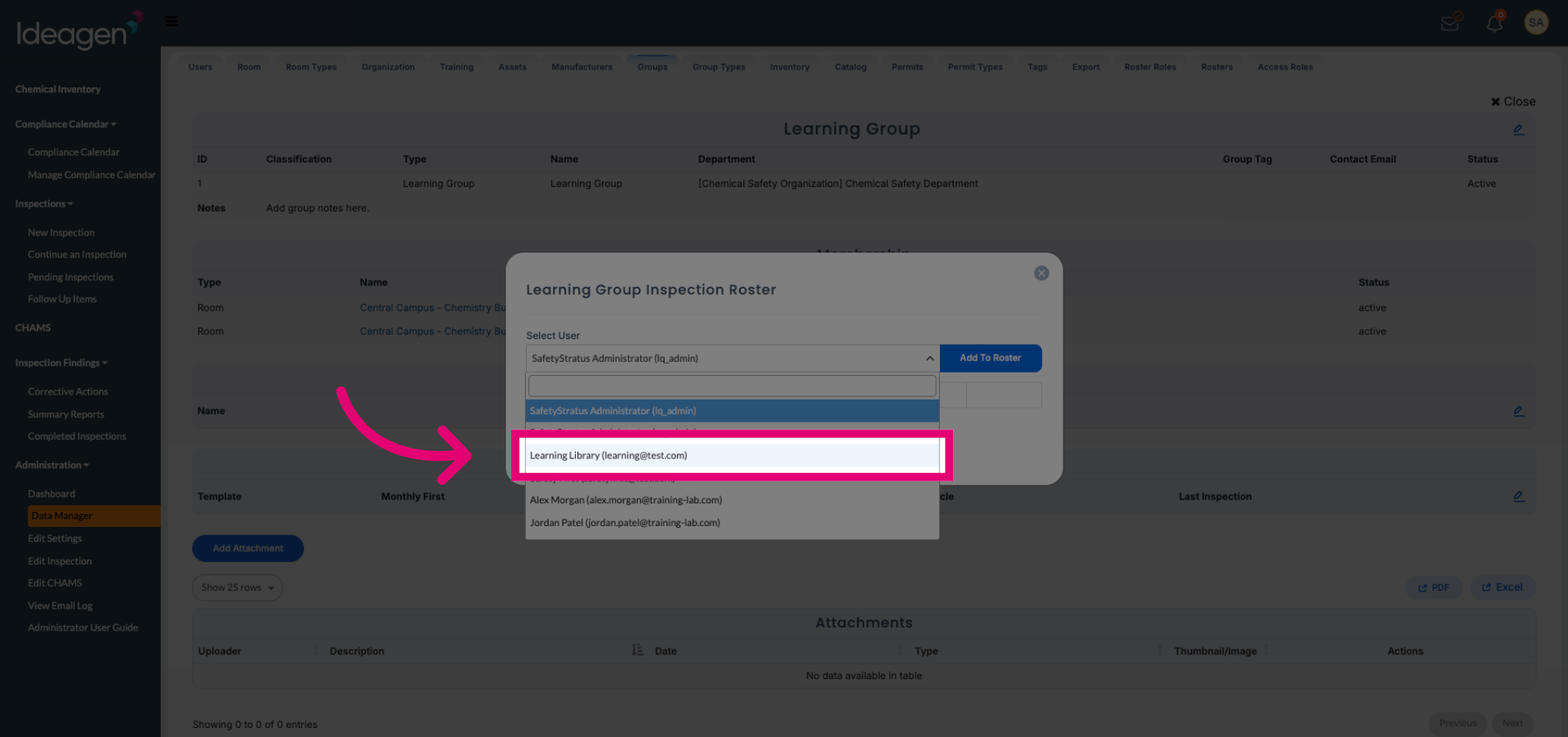
Click Add to Roster to start the process of including the selected user in the group's inspection list.
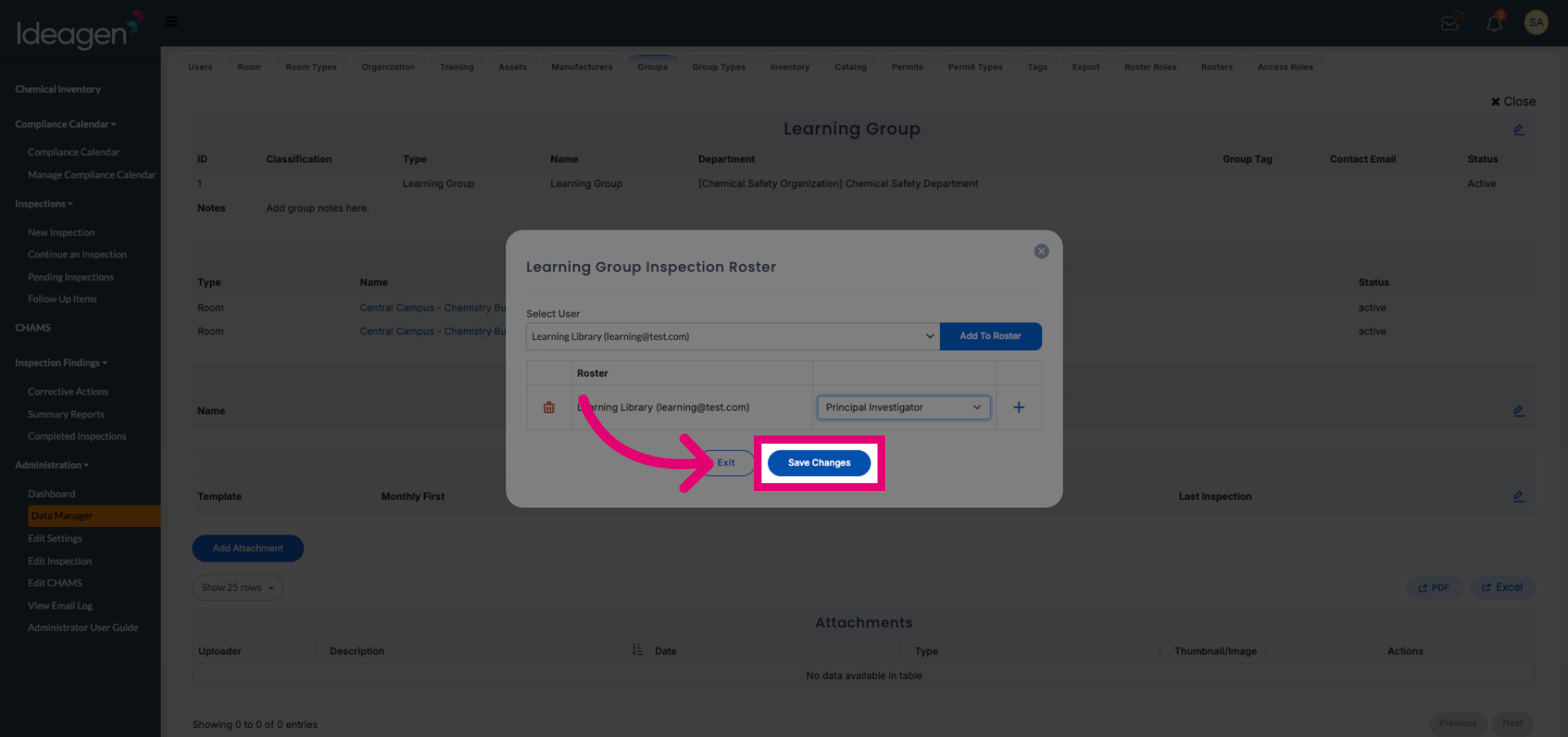
Click the role dropdown to choose the appropriate role for the user within the inspection roster.
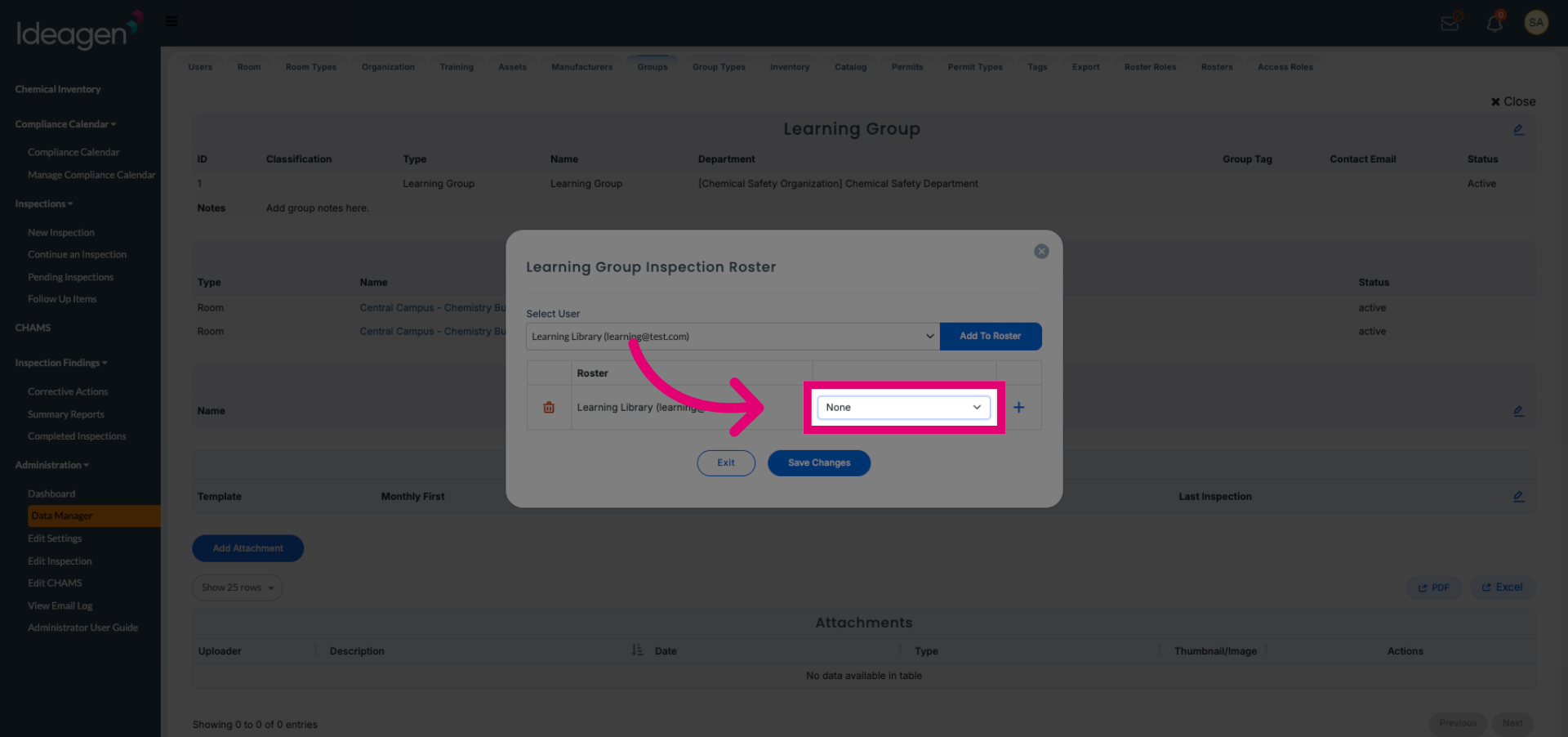
Enter the user's role by selecting from options such as EHS or Principal Investigator to define their responsibilities.
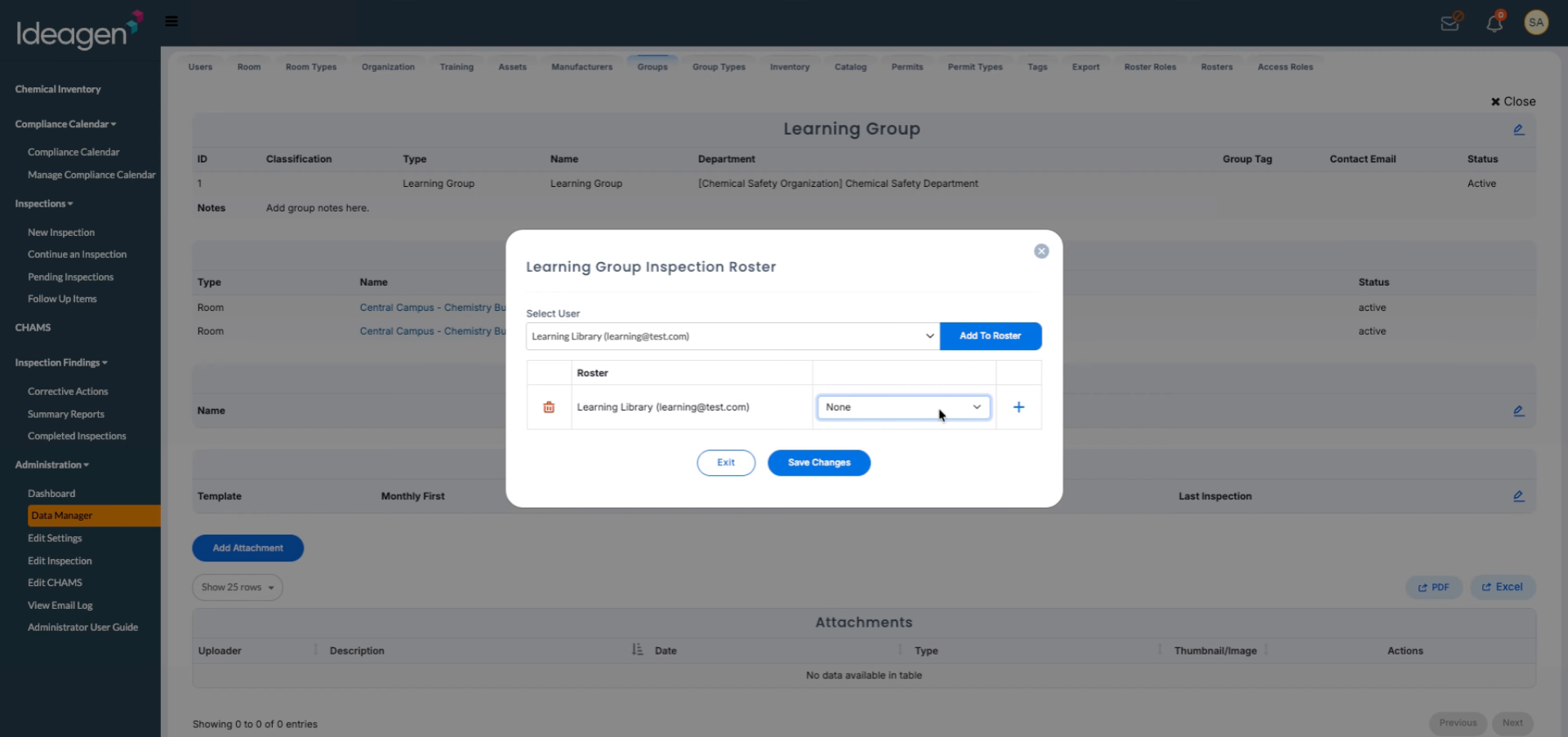
Click Save Changes to confirm and apply the updates to the inspection roster for the group.