New article
Recently updated
Assigning inspection permissions

Who is this article for?
Inspectors who want to learn to assign inspection permissions.
Inspection permissions are required.
This article explains how to assign inspection permissions to an inspector.
You will learn the steps to filter users, select inspection templates, and save permissions effectively.
1. Assigning inspection permissions
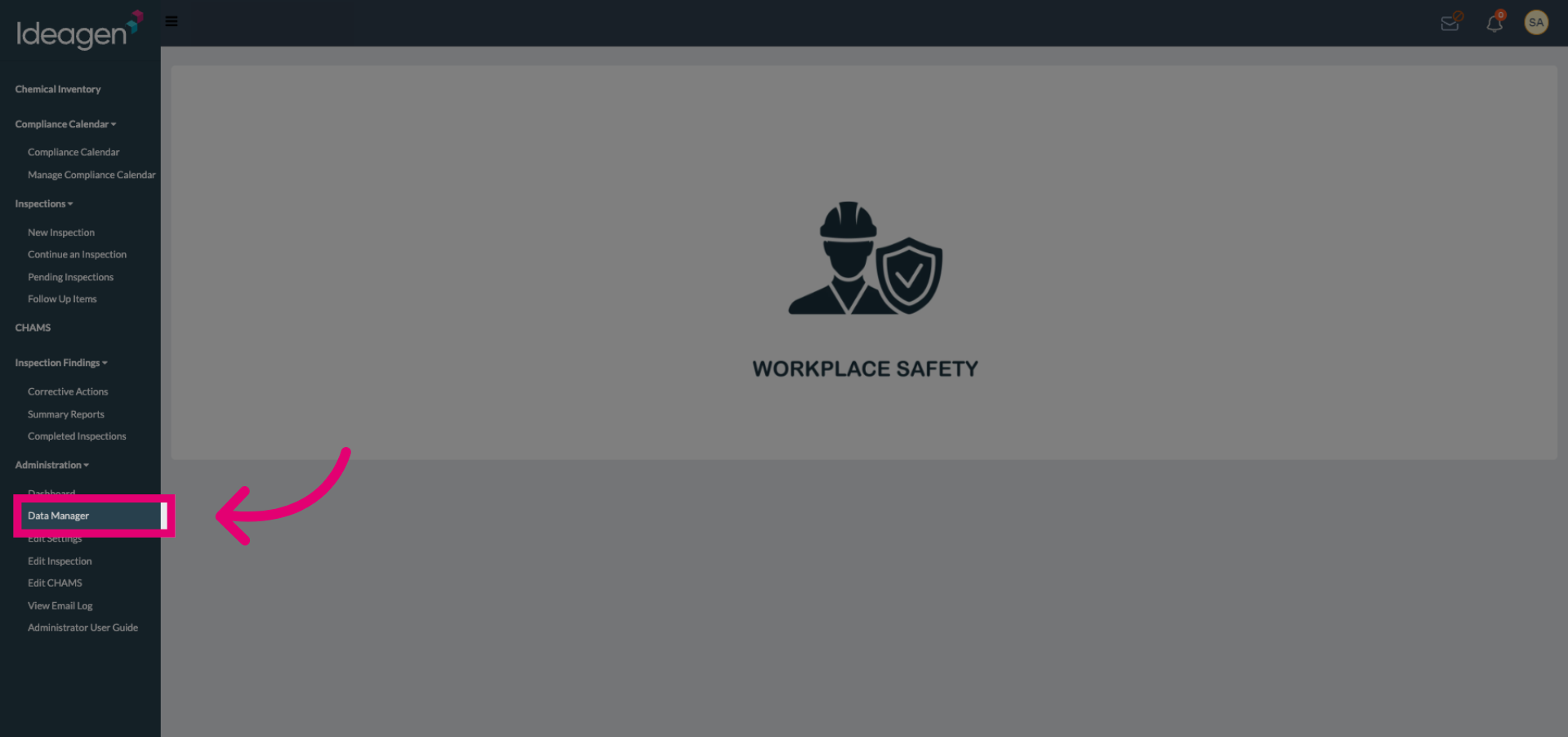
Click the Data Manager to access user and permission settings.
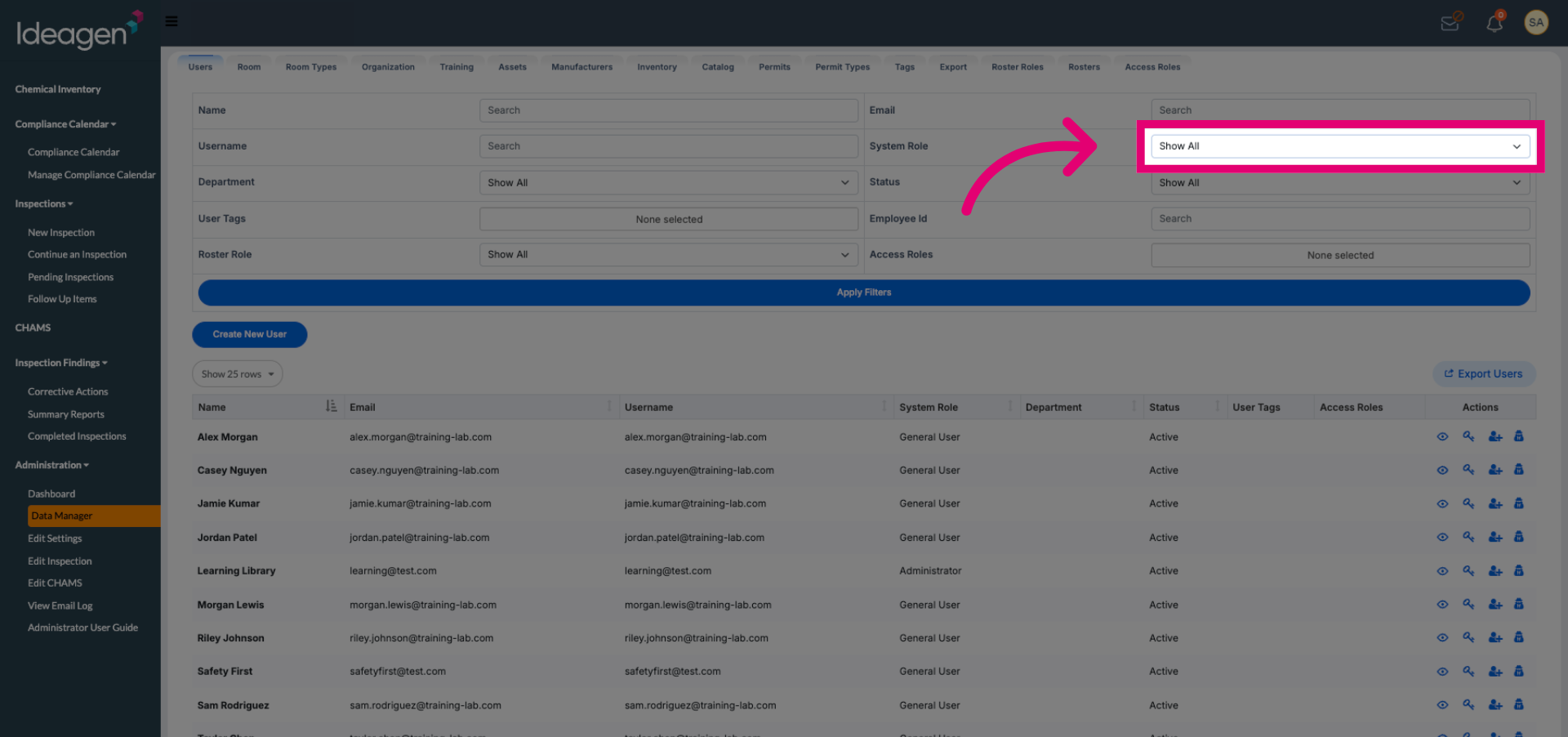
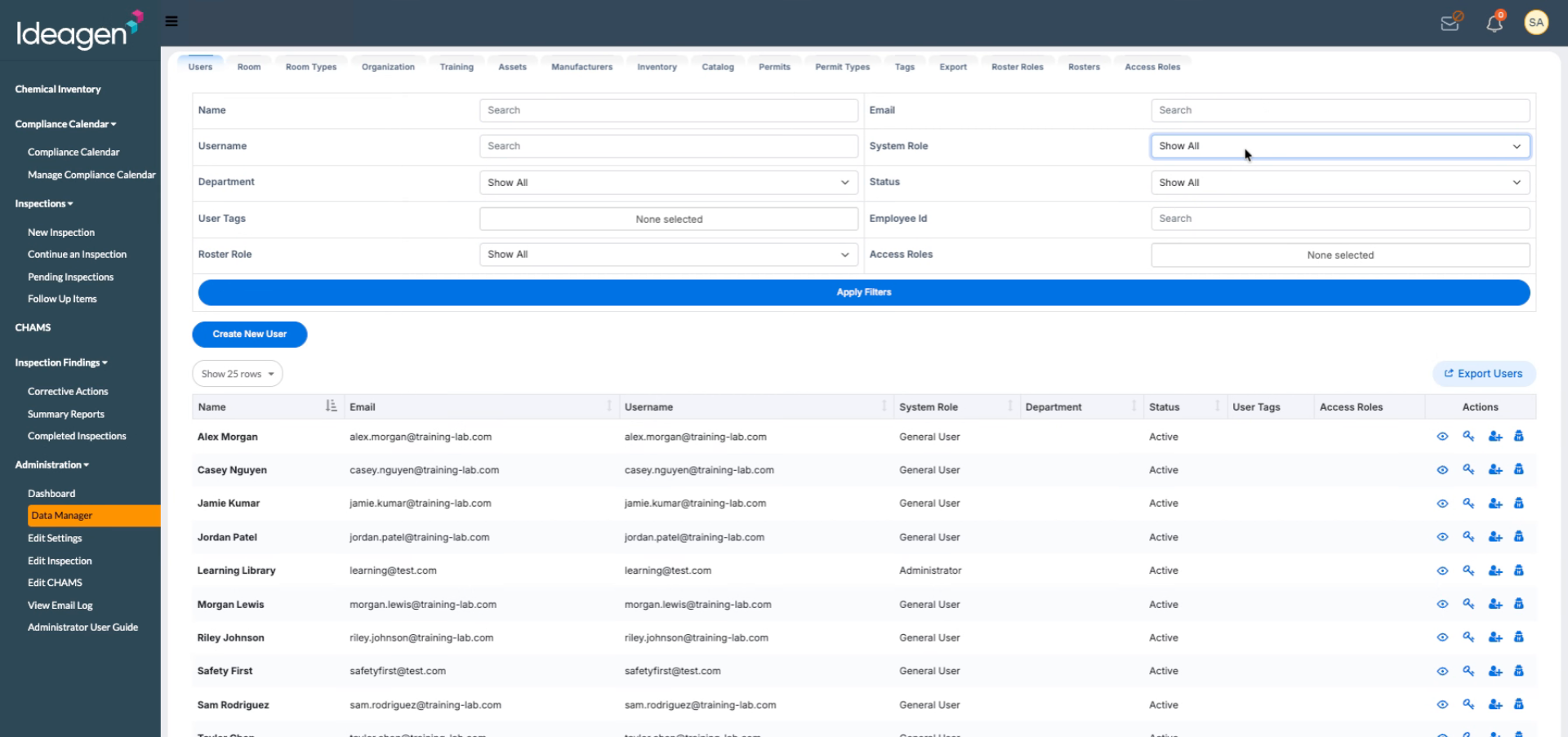
Click the filter dropdown to display all user roles including Administrator, Area Manager, General User, and Inspector.
Enter the inspector role in the filter field to narrow down the user list to inspectors.
Click Apply Filters to update the list and show only users with the inspector role.
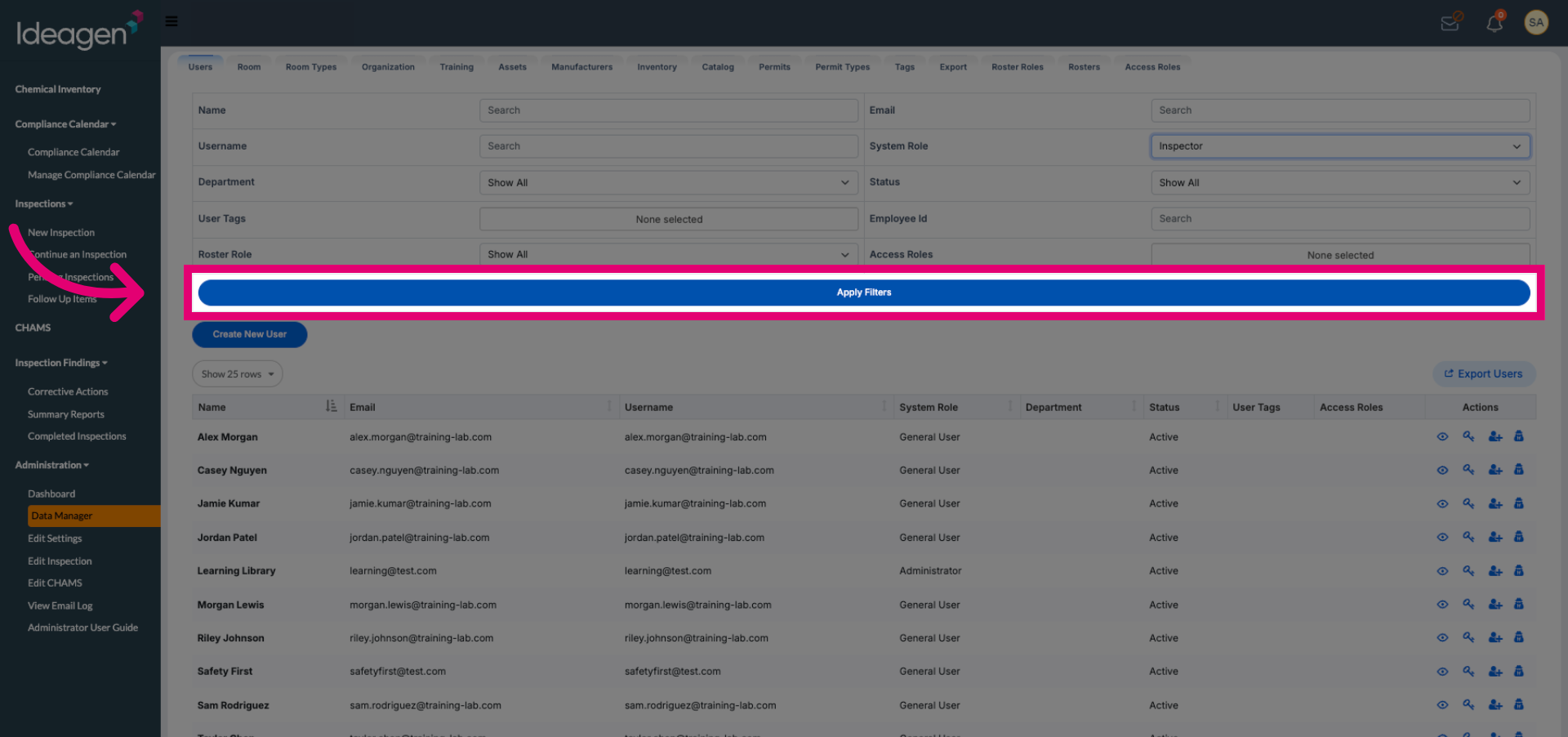
Click the desired inspector from the filtered user list to manage their permissions.
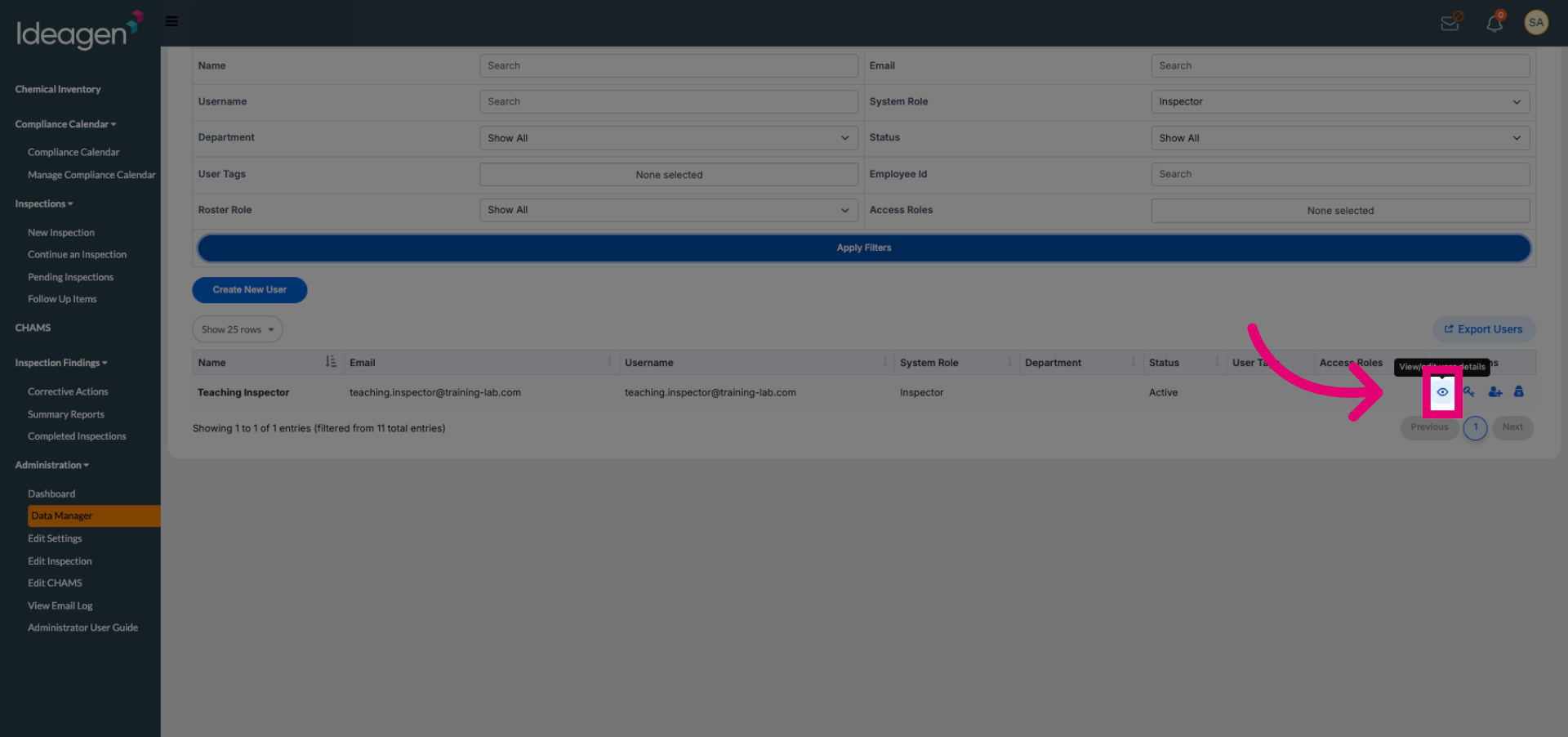
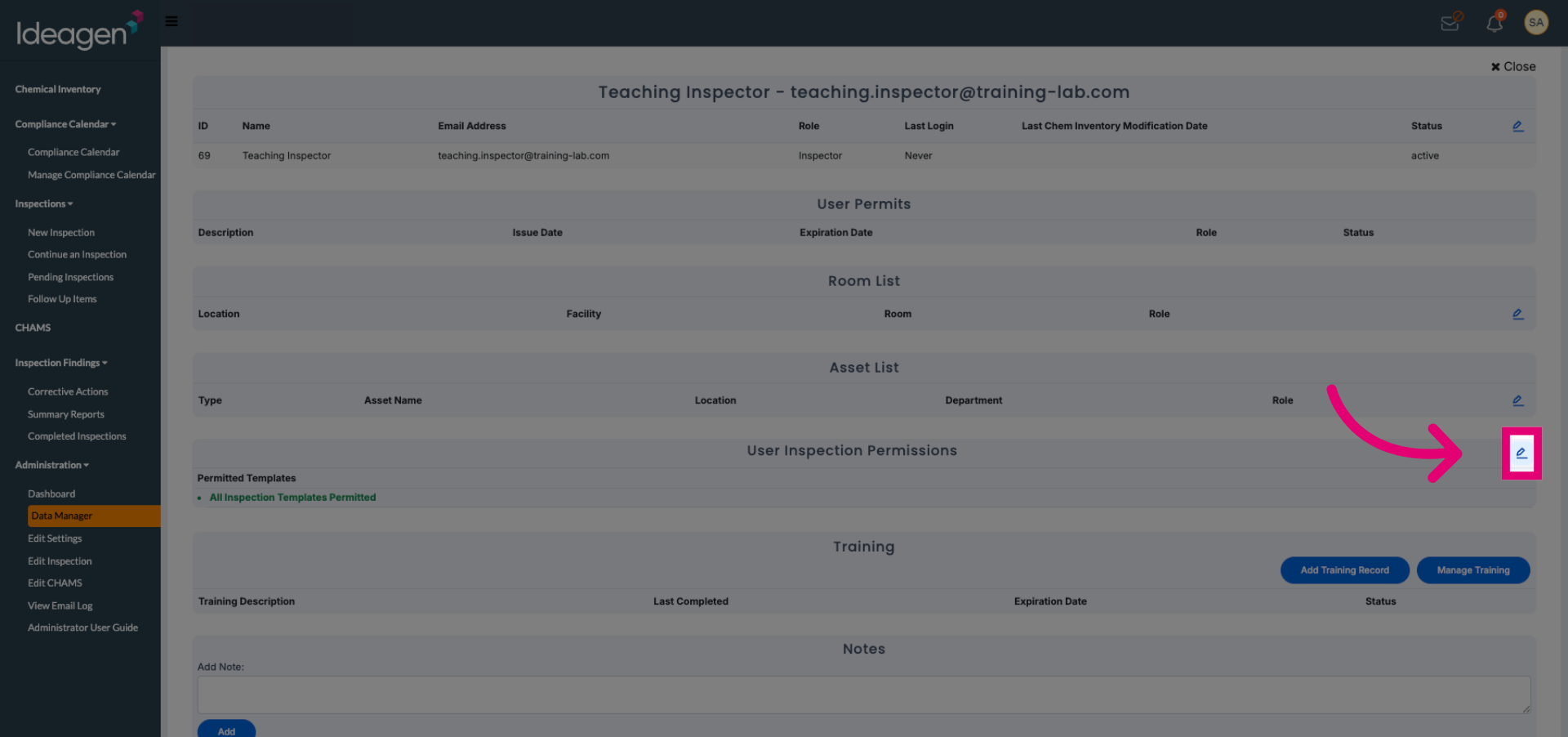
Click the permissions settings area to begin assigning inspection templates to the selected inspector.
Click All Inspection Templates Permitted to view and manage the inspection templates available for assignment.
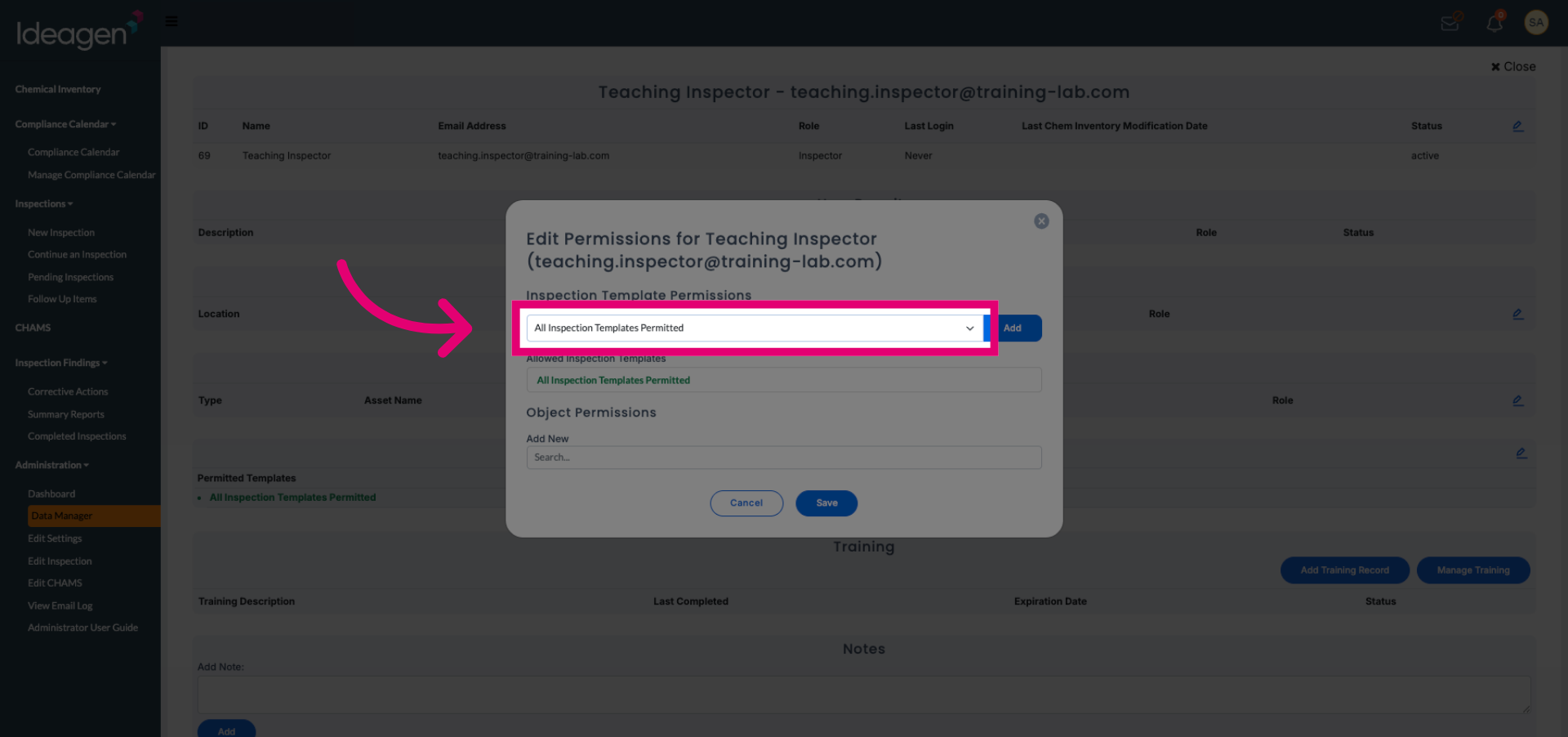
Click Allowed Inspection Templates to specify which templates the inspector can access.
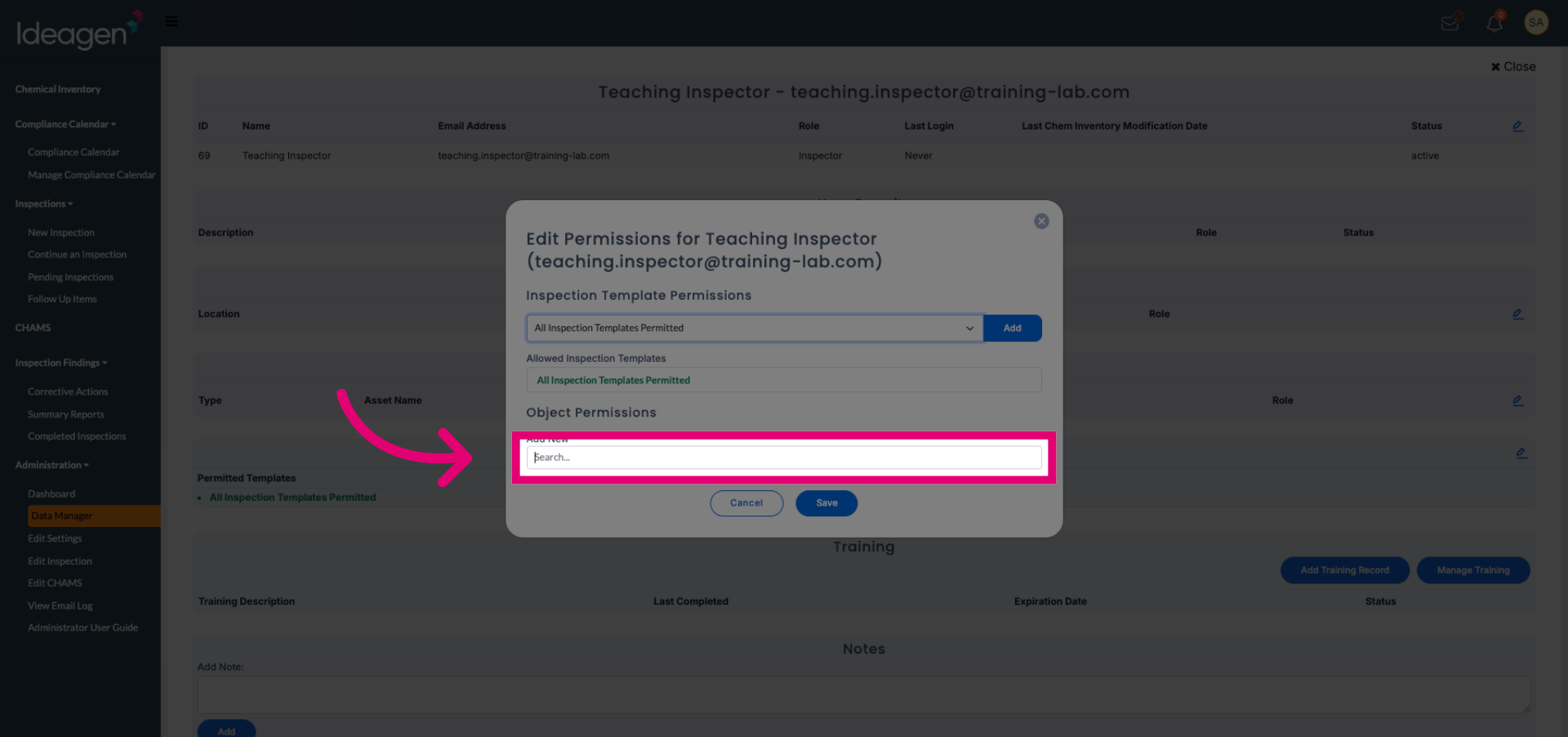
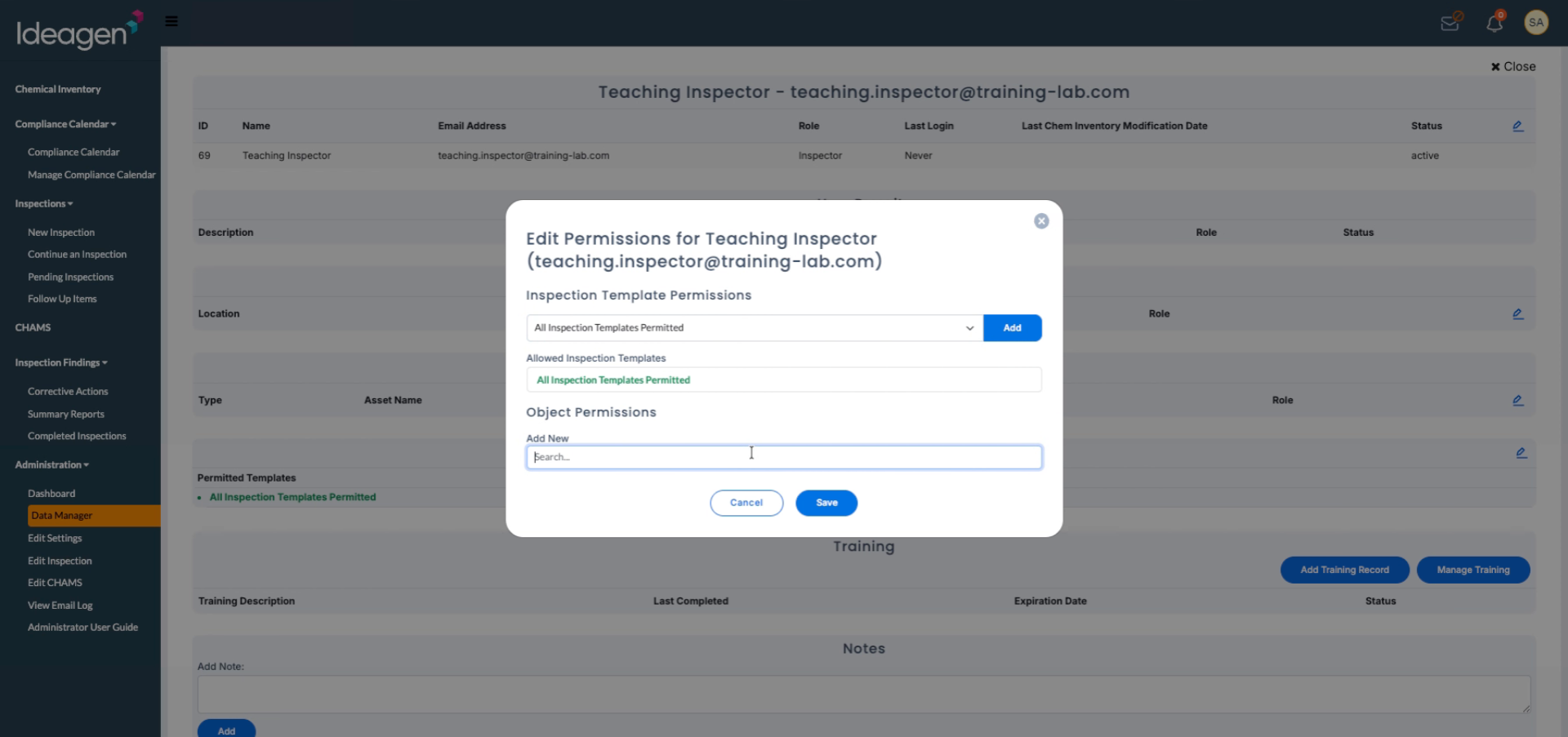
Enter the keyword room to filter inspection templates related to specific locations or areas.
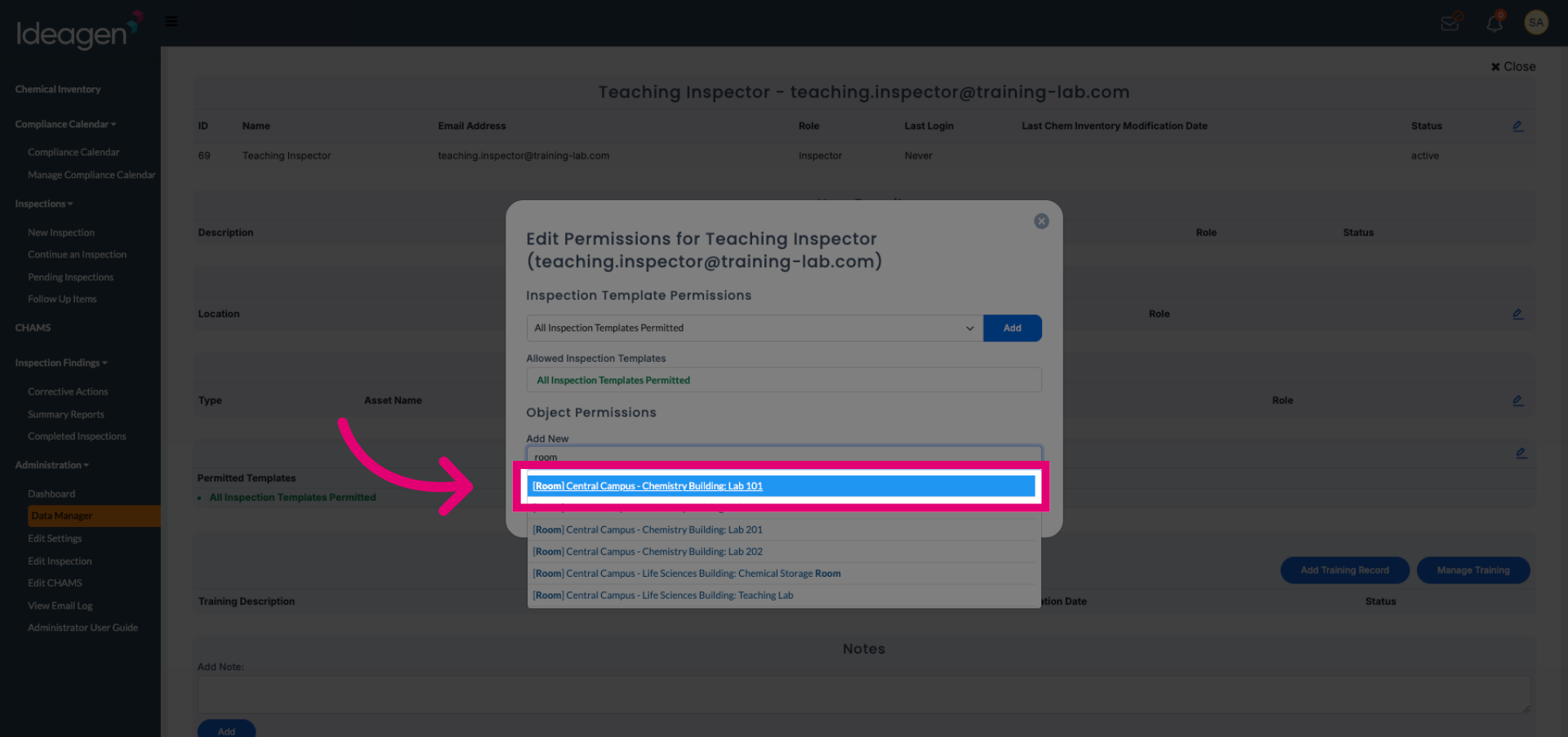
Click the template labeled Central Campus - Chemistry Building: Lab 101 to assign it to the inspector.
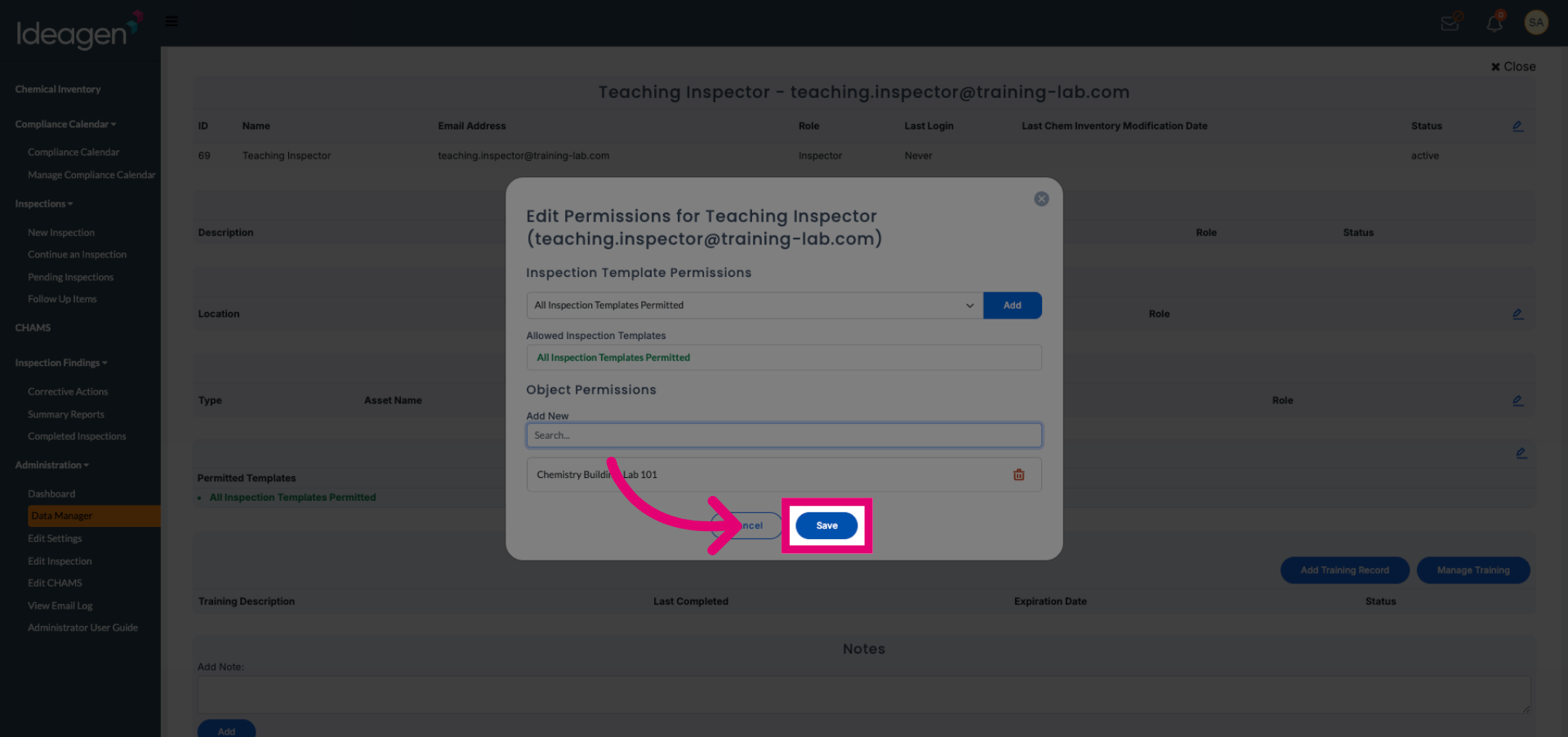
Click Save to confirm and apply the inspection permissions assigned to the inspector.
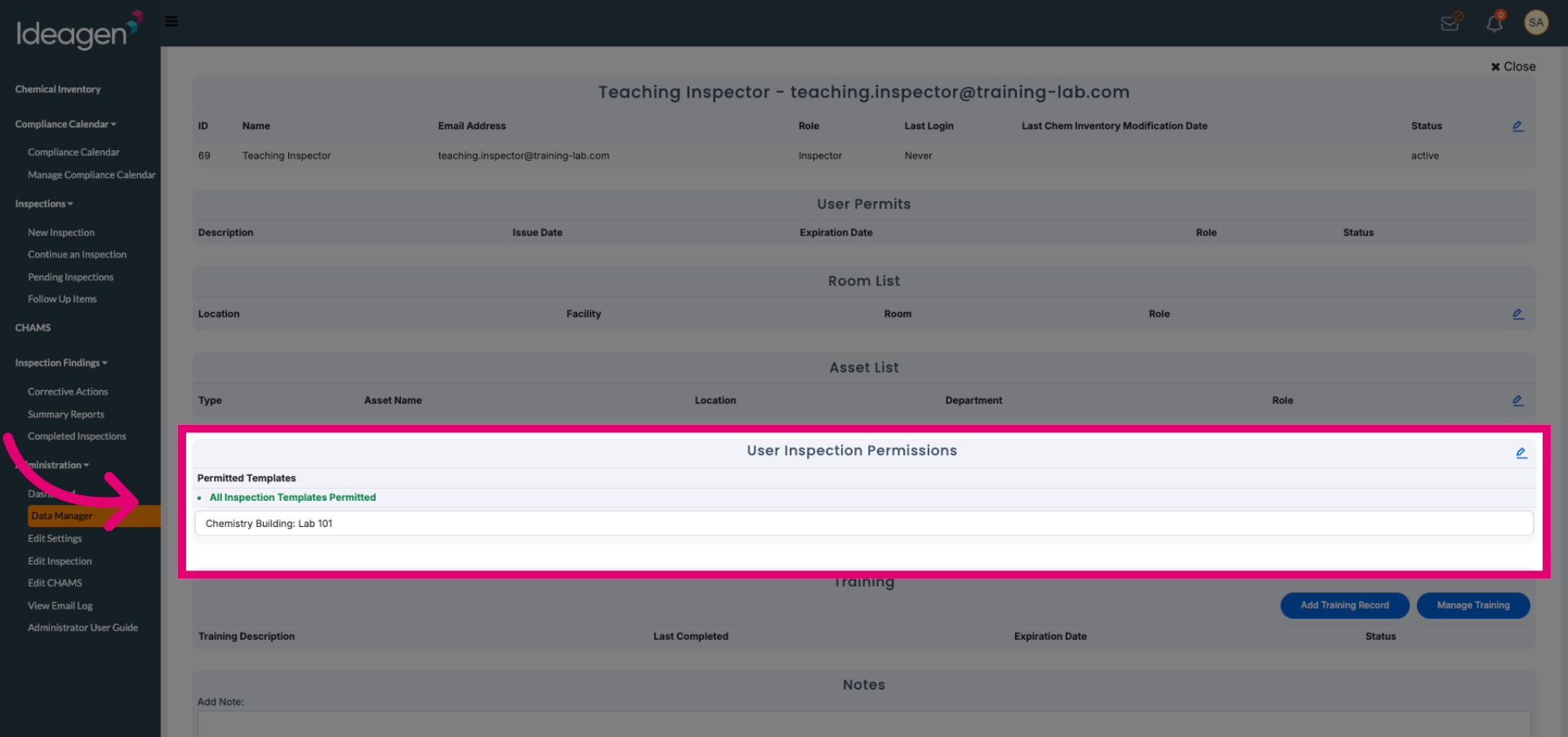
Click User Inspection Permissions to review all permitted templates and verify the inspector's assigned permissions.