New article
Recently updated
Configuring an inspection template

Who is this article for?
Inspectors who want to learn to configure an inspection template.
Inspector permissions are required.
This article explains how to configure a basic inspection template.
You will learn to navigate the interface and customize inspection criteria effectively.
1. Configuring an inspection template
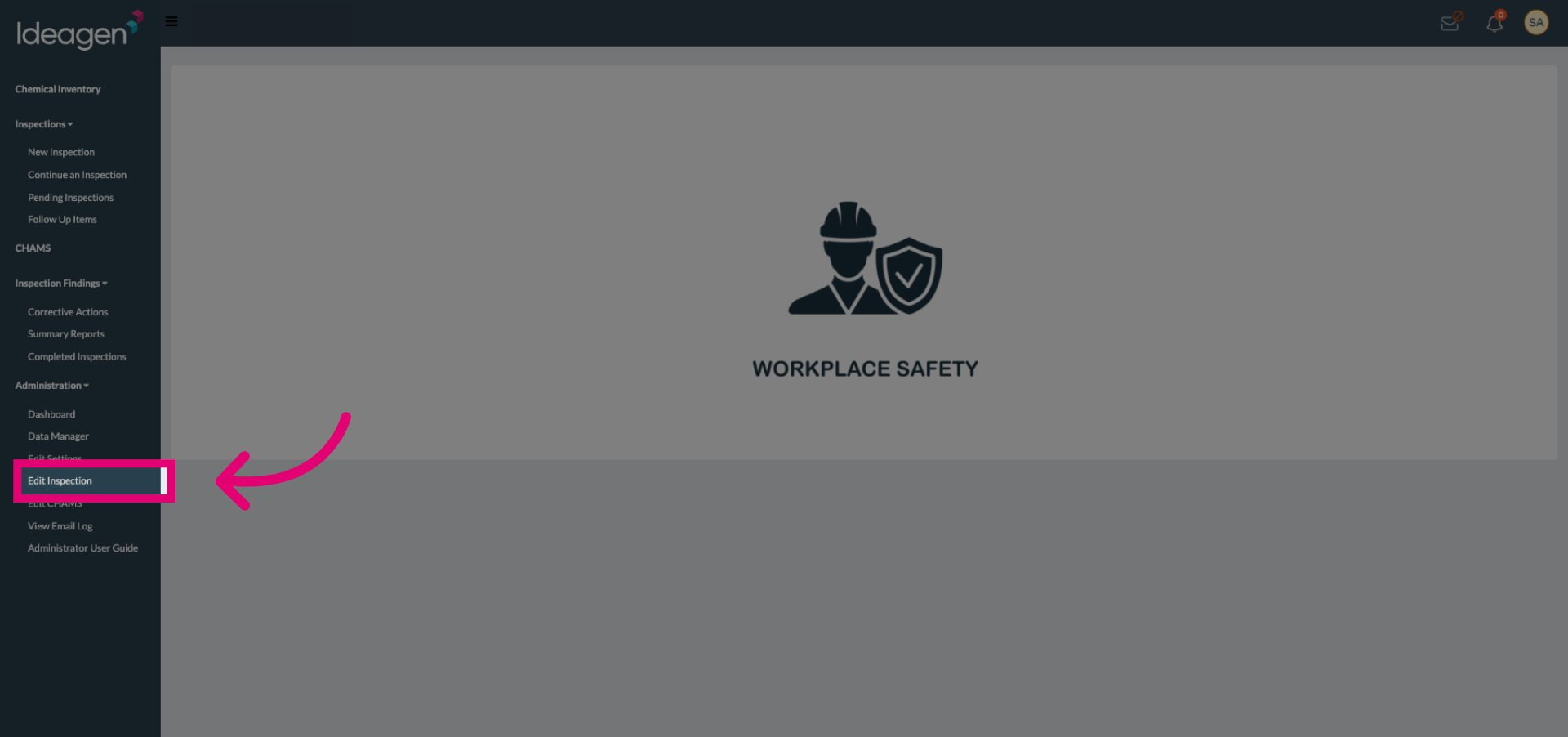
Select the Edit Inspection button to begin modifying an existing inspection template within SafetyStratus.
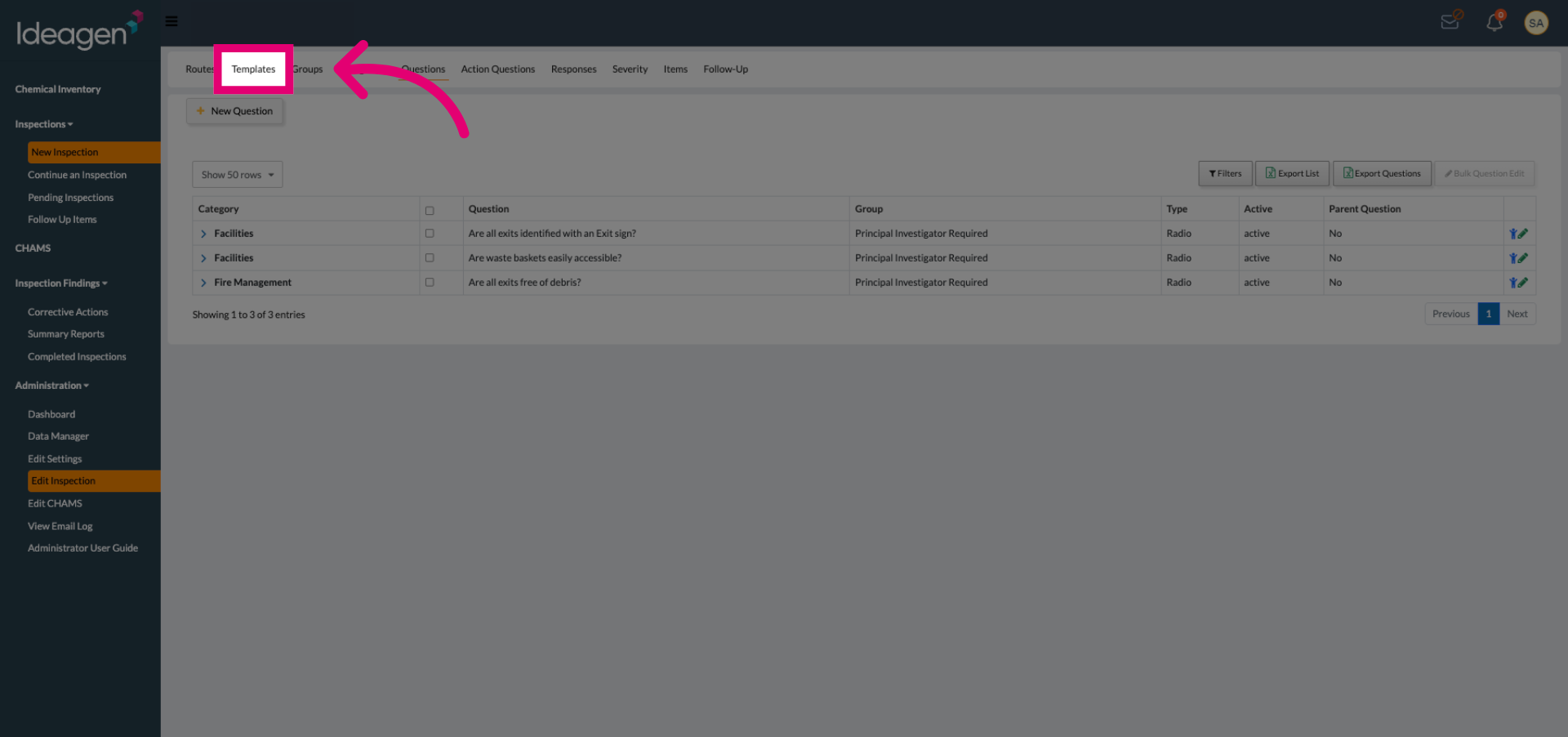
Select the Templates tab to access the list of available inspection templates for editing.
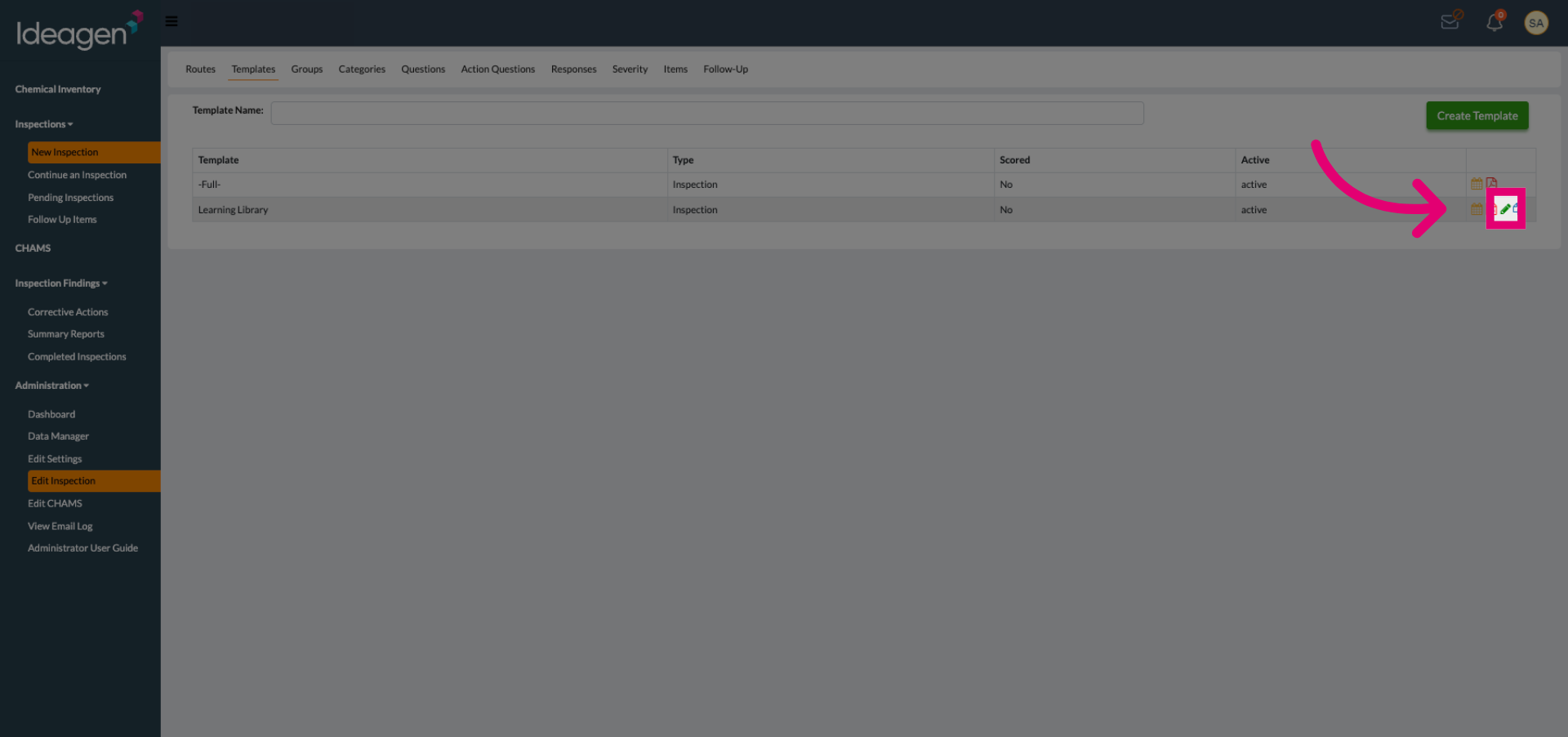
Select the pencil icon to open the template options menu, where you can manage template details.
Click the Category section to view and edit inspection questions related to this category.
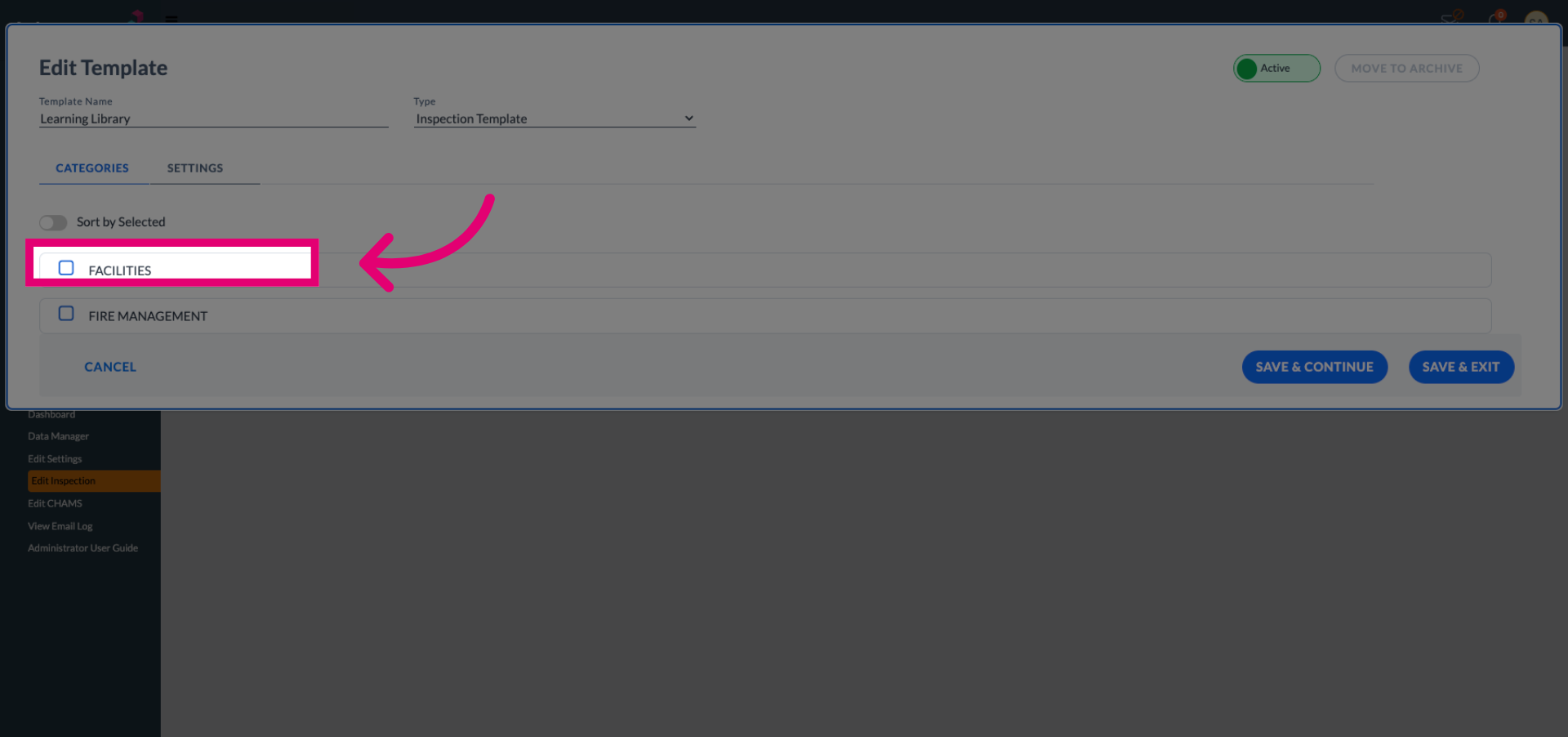
Choose the question to be included in the inspection. Select all that apply for each category.
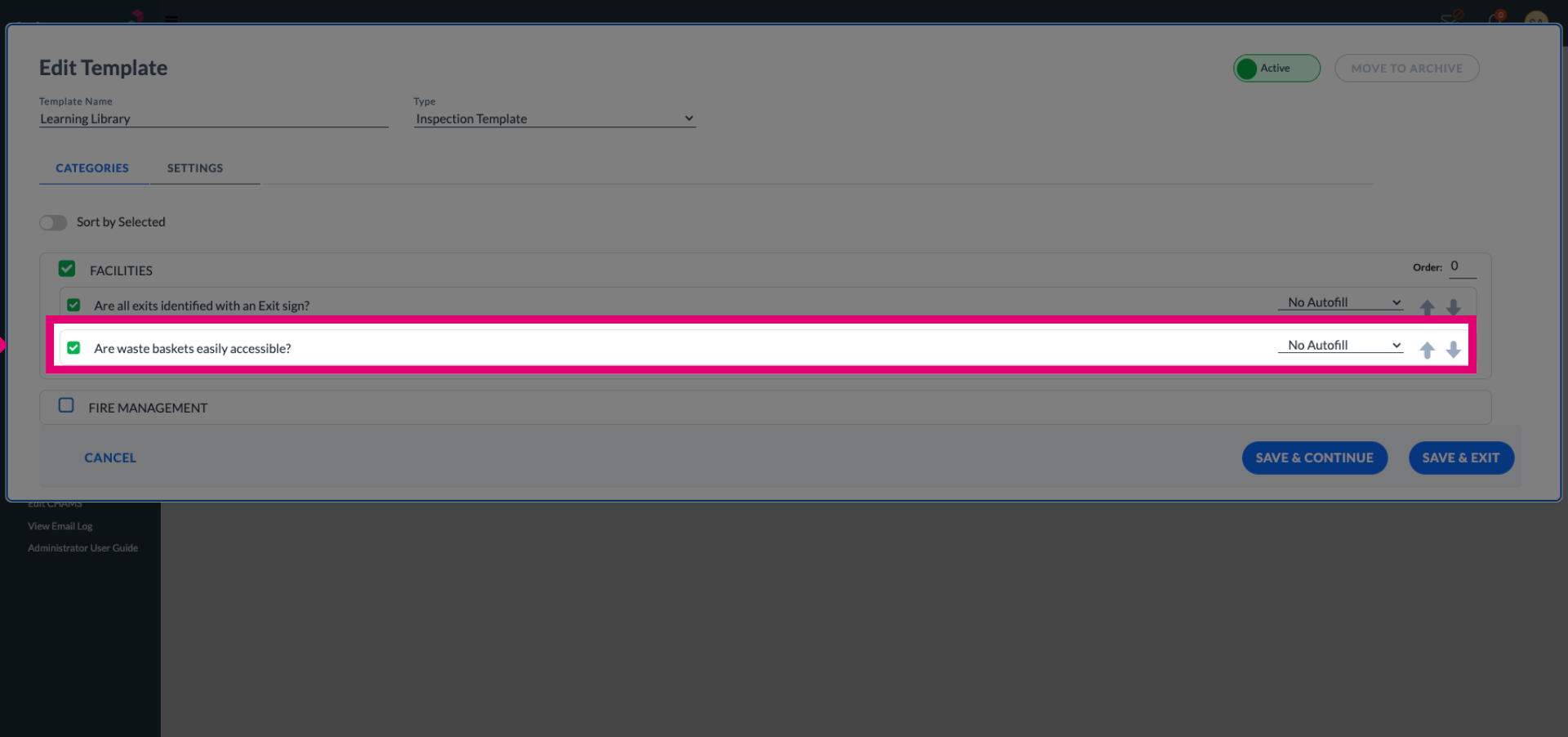
Repeat the previous step for each category to be included in the inspection.
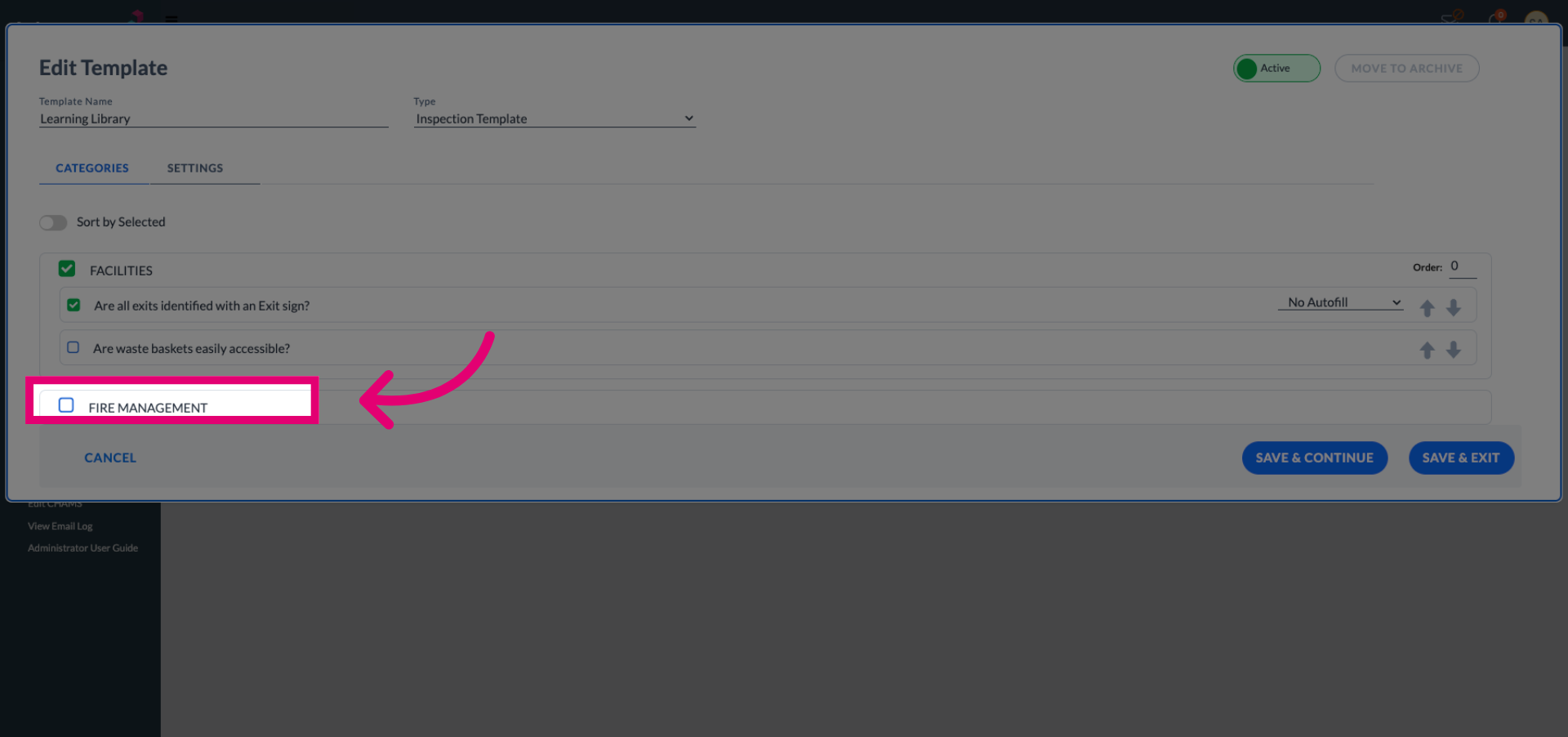
Select the order option to set or adjust the order in which each category is displayed during the inspection. (This step is not required)
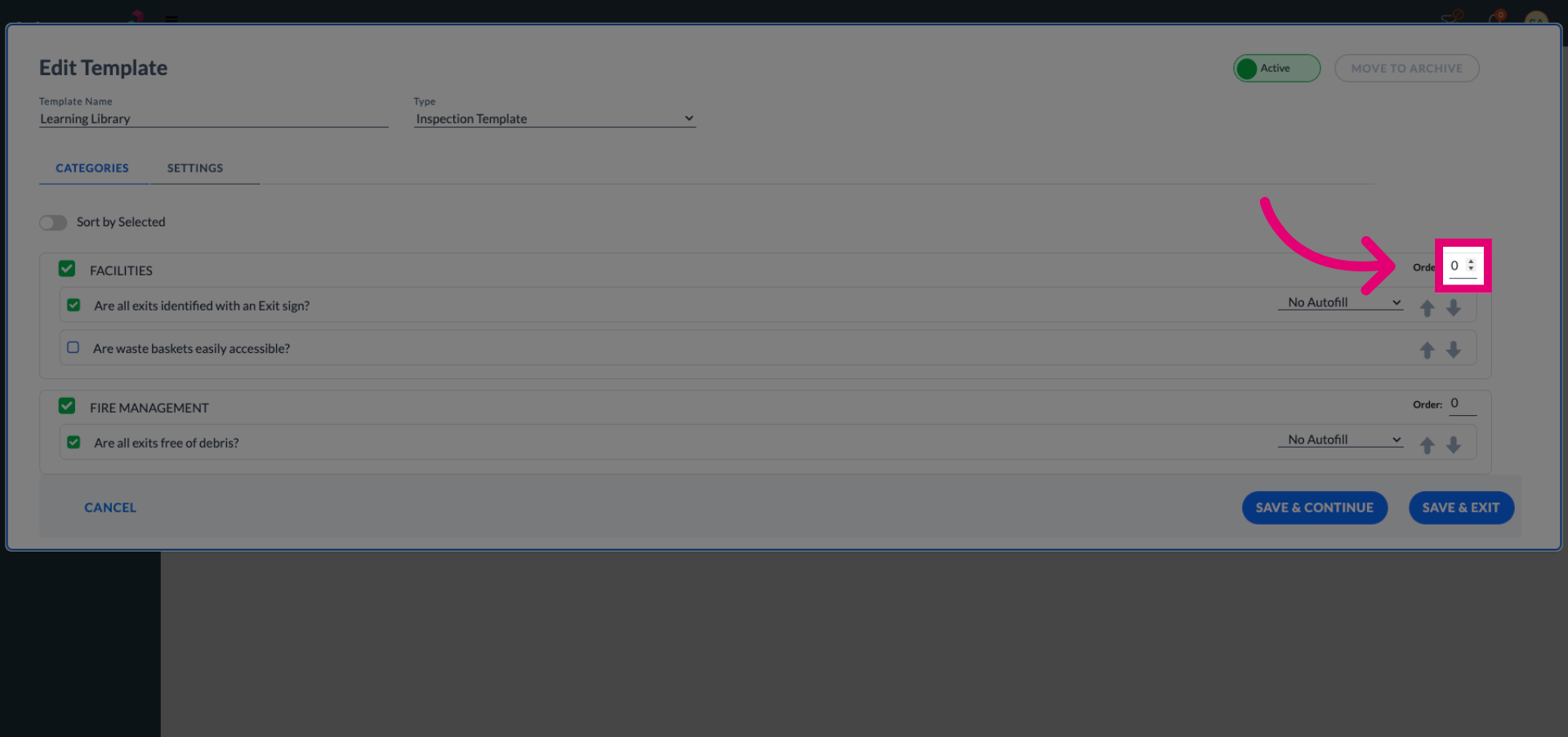
Tip: Use increments of 10. In case you would like to add more categories later, you would then be able to insert that category without having to adjust the order for each category.
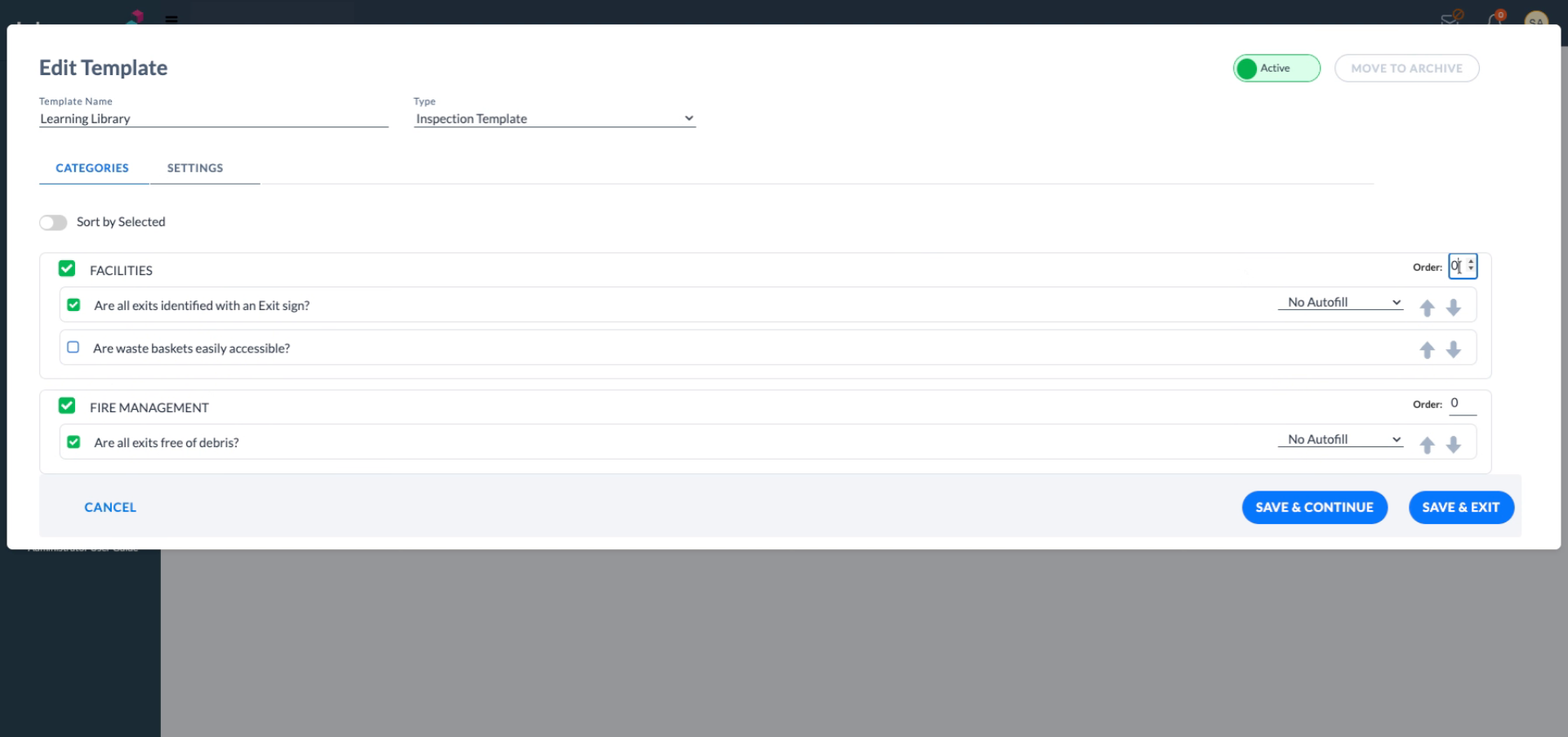
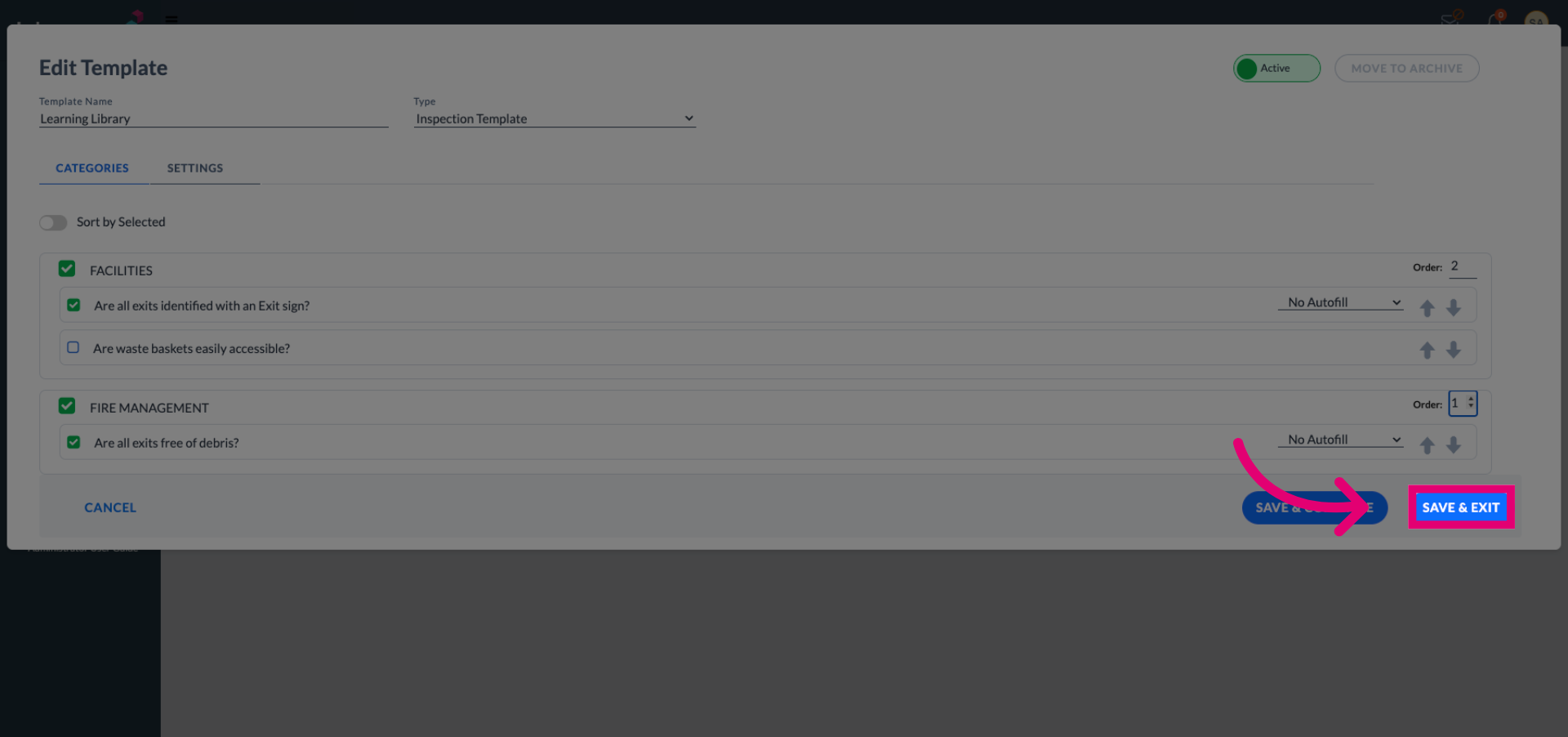
Click the SAVE & EXIT button to save all changes made to the inspection template and exit the editor.