New article
Recently updated
Configuring custom fields for an asset

Who is this article for?
Administrators who want to learn configure custom fields for an asset.
Administrator permissions are required.
This tutorial explains how to configure custom fields for assets.
You will learn how to navigate to the Data Manager, create new custom fields, define field properties, and manage existing custom fields for your asset records.
1. Configure custom fields for assets
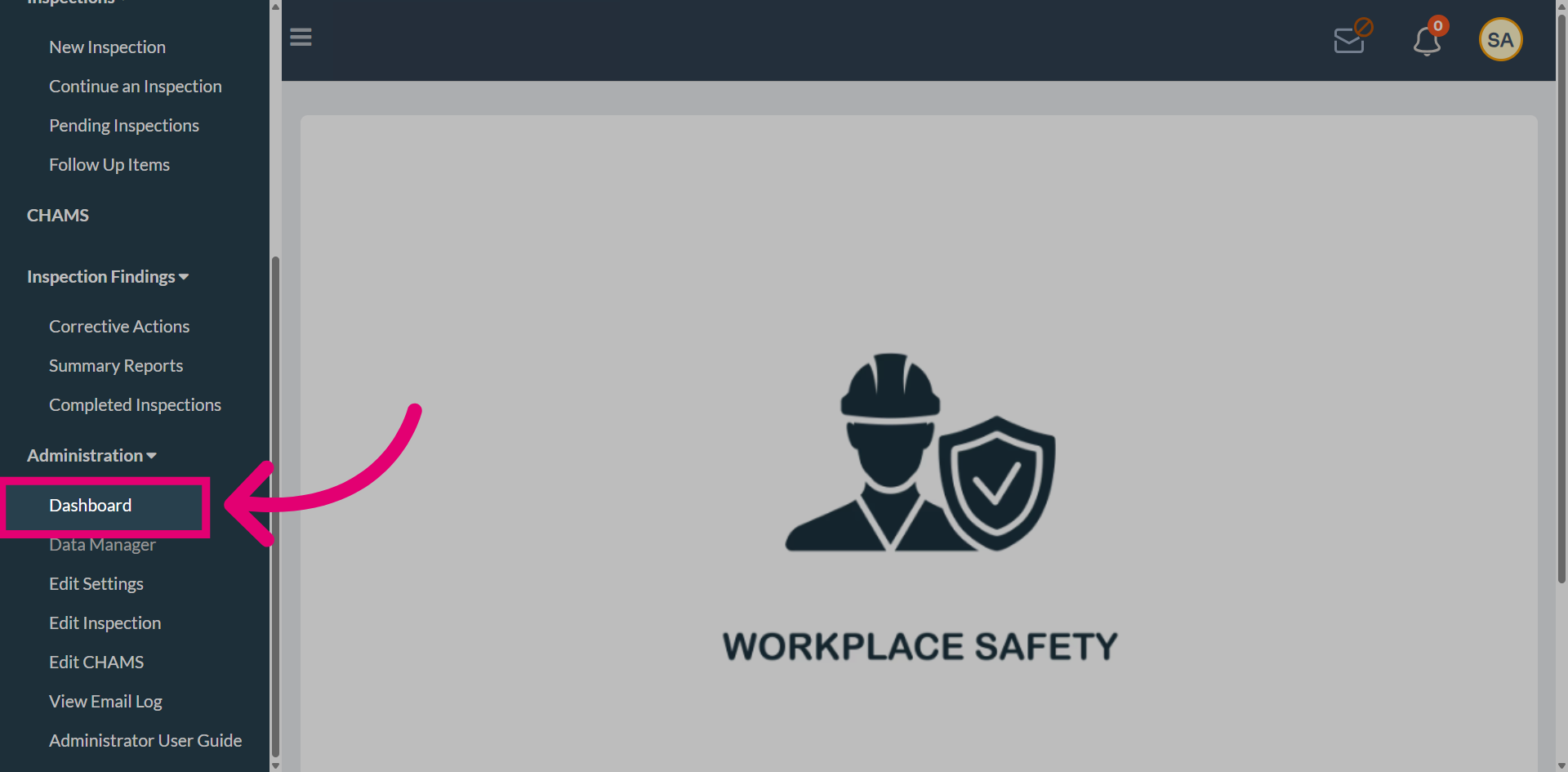
Navigate to Data Manager to manage asset-related configurations.
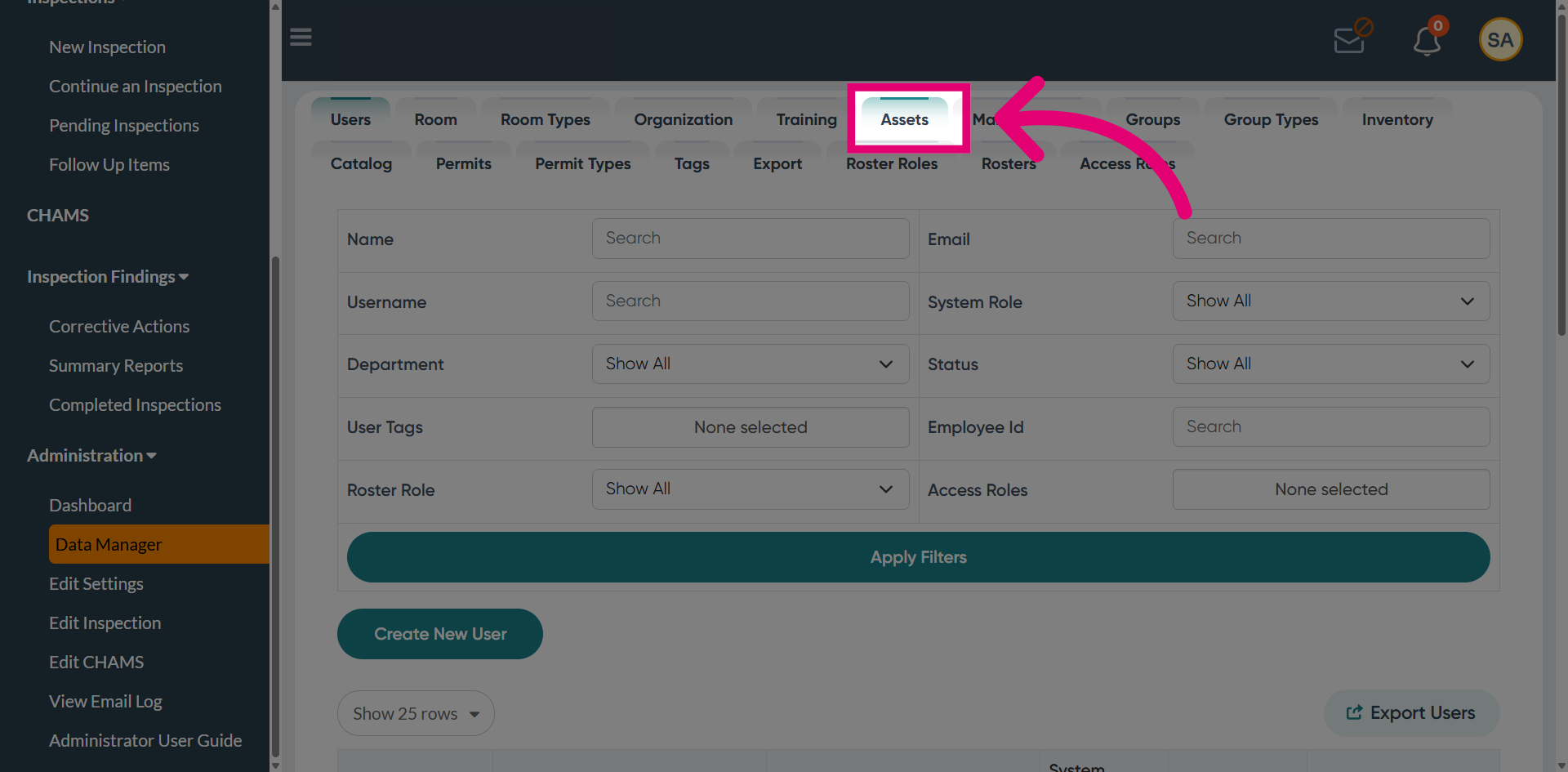
Select Assets to access and manage asset records.
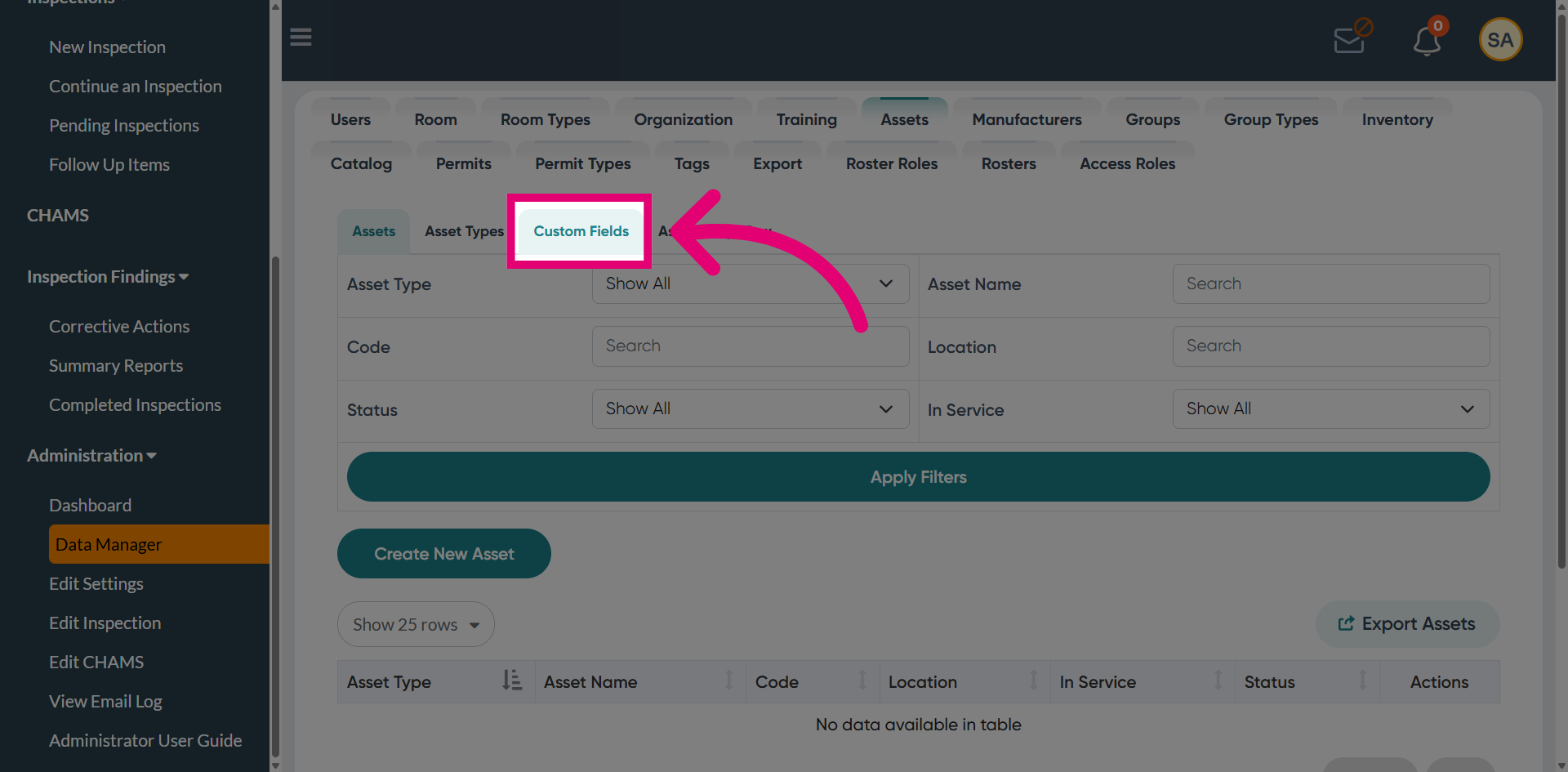
Open Custom Fields to configure asset data fields.
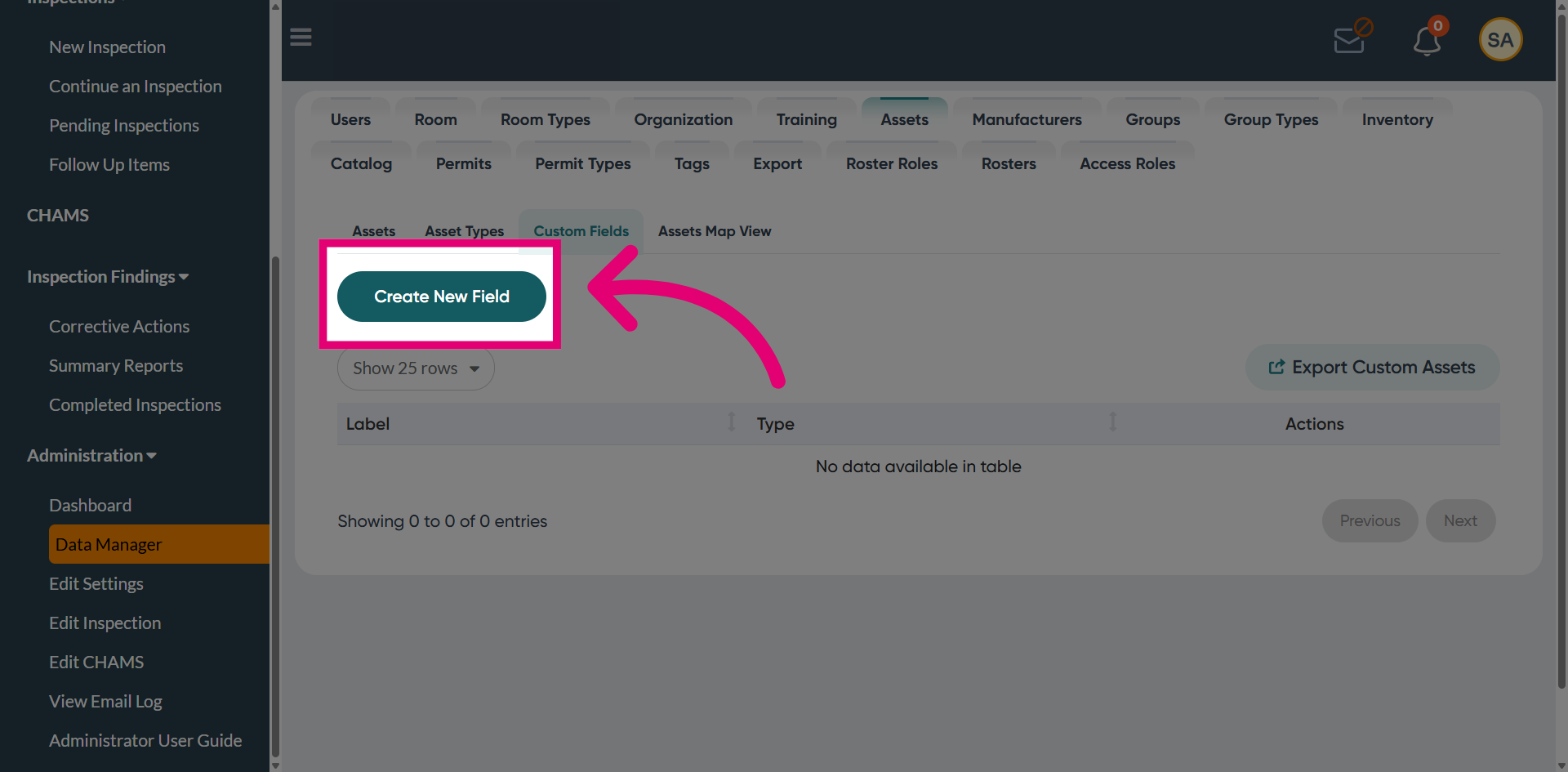
Select Create New Field to add a new custom field for assets.
Provide a name to define the custom asset field.
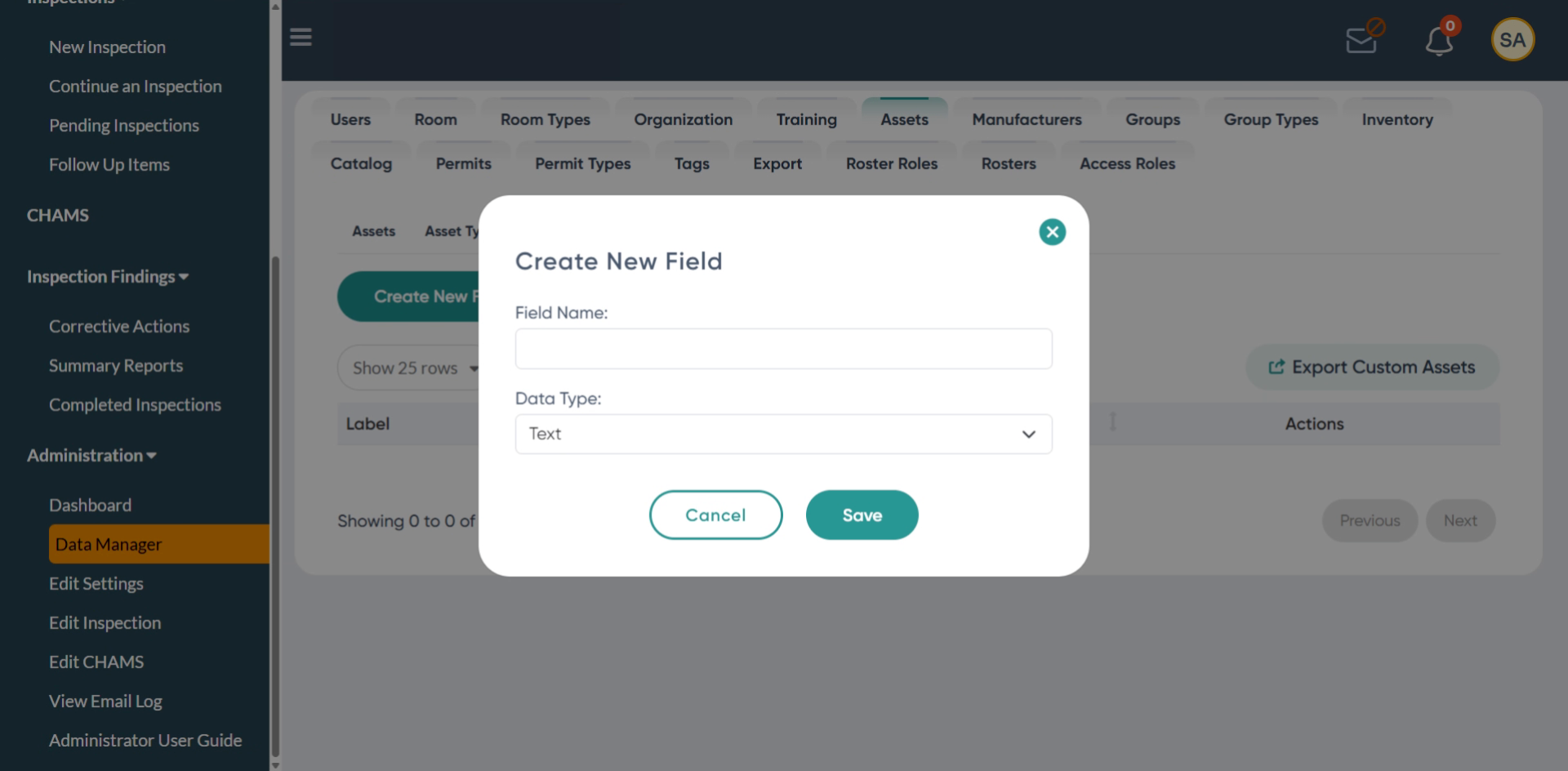
Choose the data type based on the type of information the field will store, such as text, number, or date.
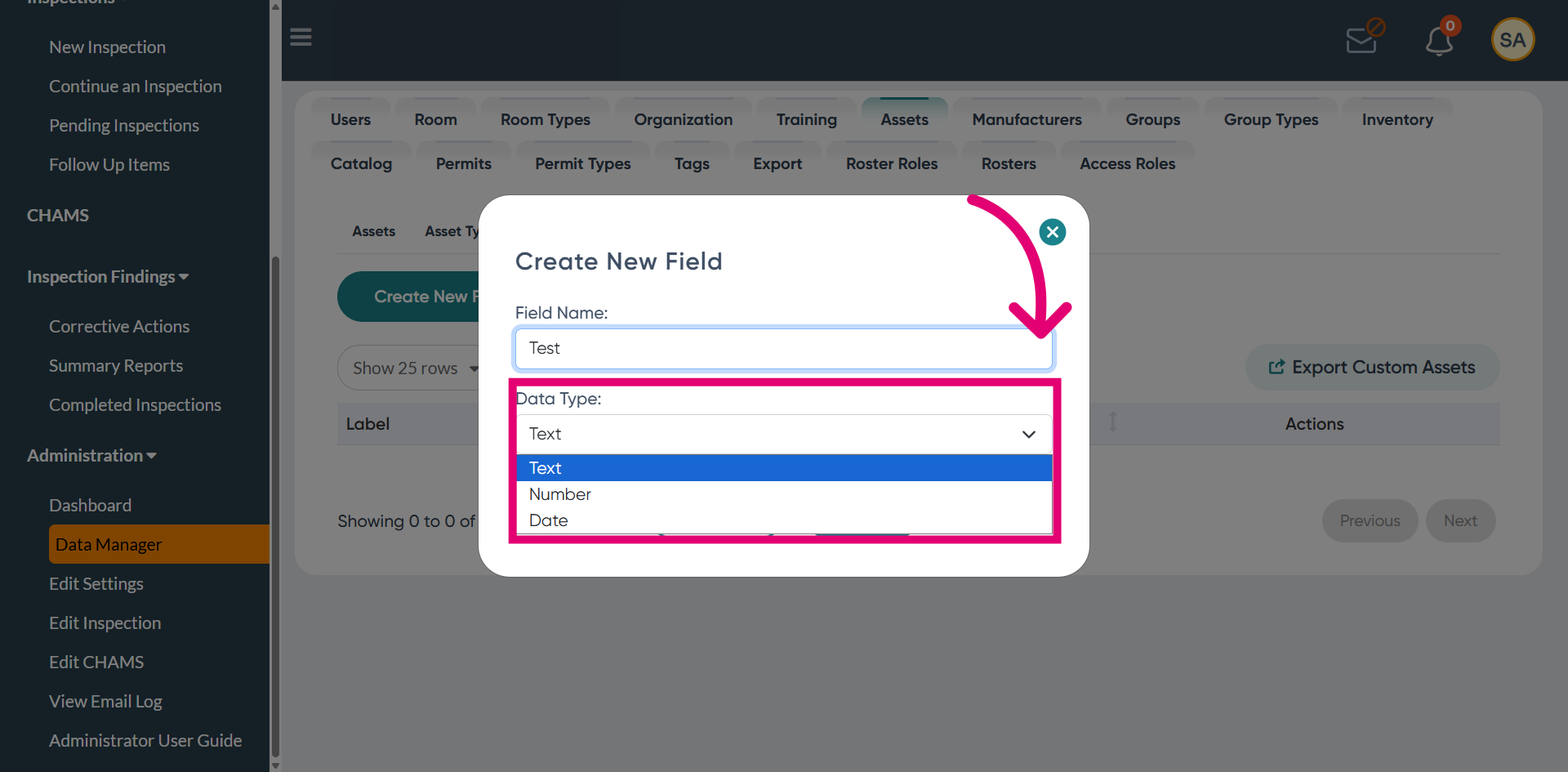
Click Save to store the new custom asset field in the system.
Use the Edit option to make changes to the custom field.
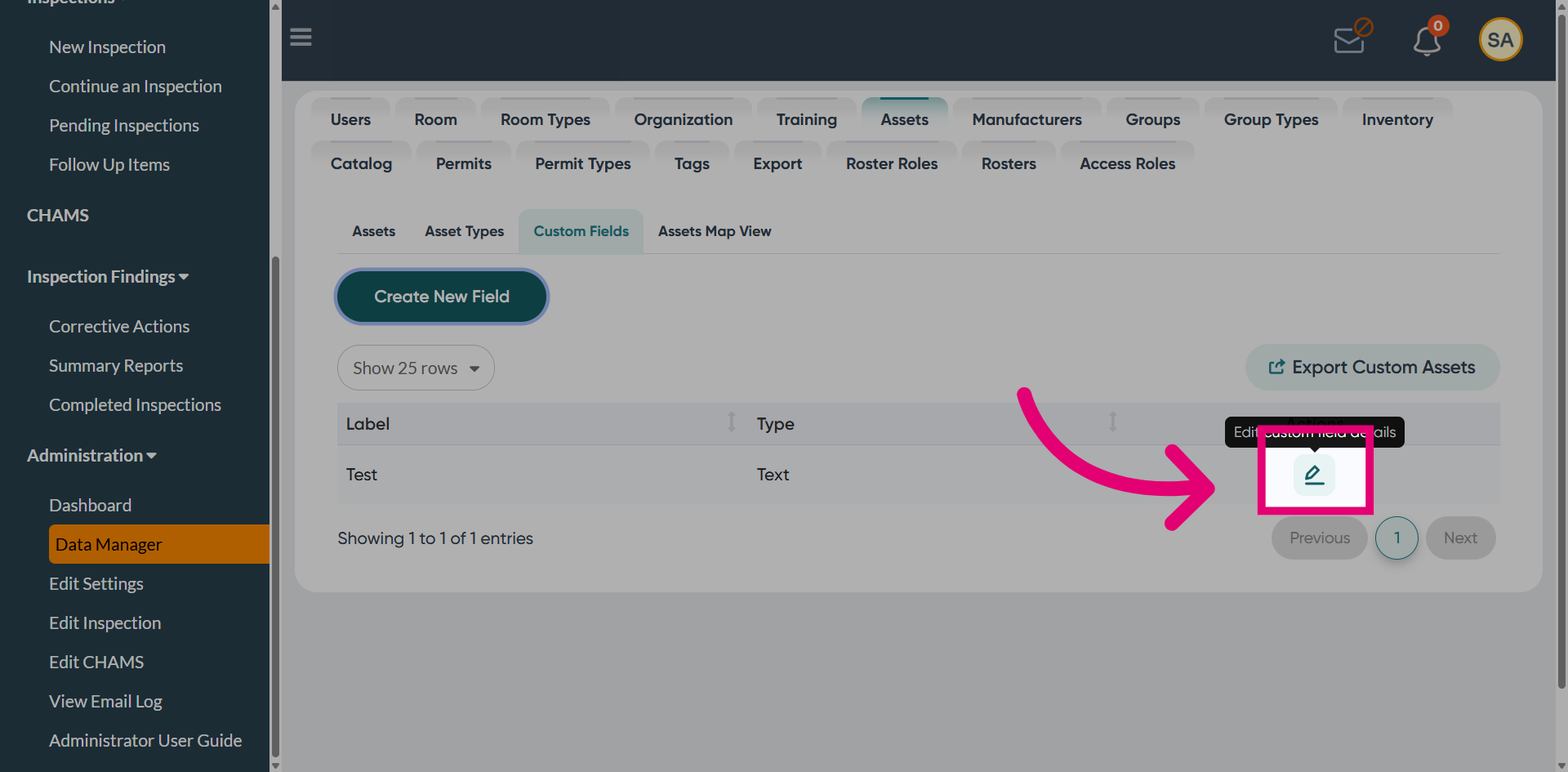
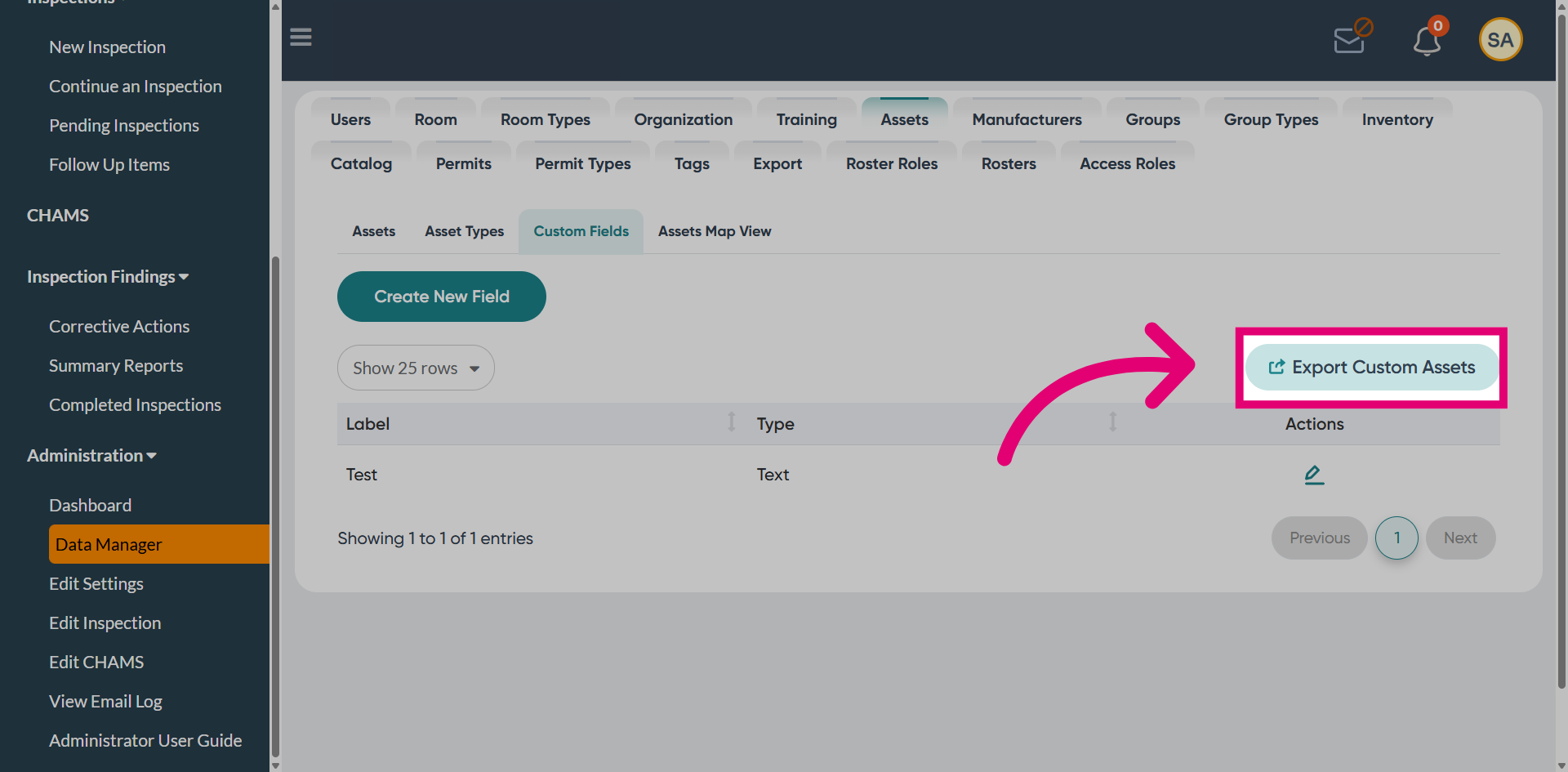
Click Export Custom Assets to download custom fields.