New article
Recently updated
Creating a basic response question

Who is this article for?
Administrators who want to learn to create a basic response question.
Administrator permissions are required.
This article explains how to create a basic response question.
You will learn the steps to add and configure a question for inspections effectively.
1. Creating a basic response question
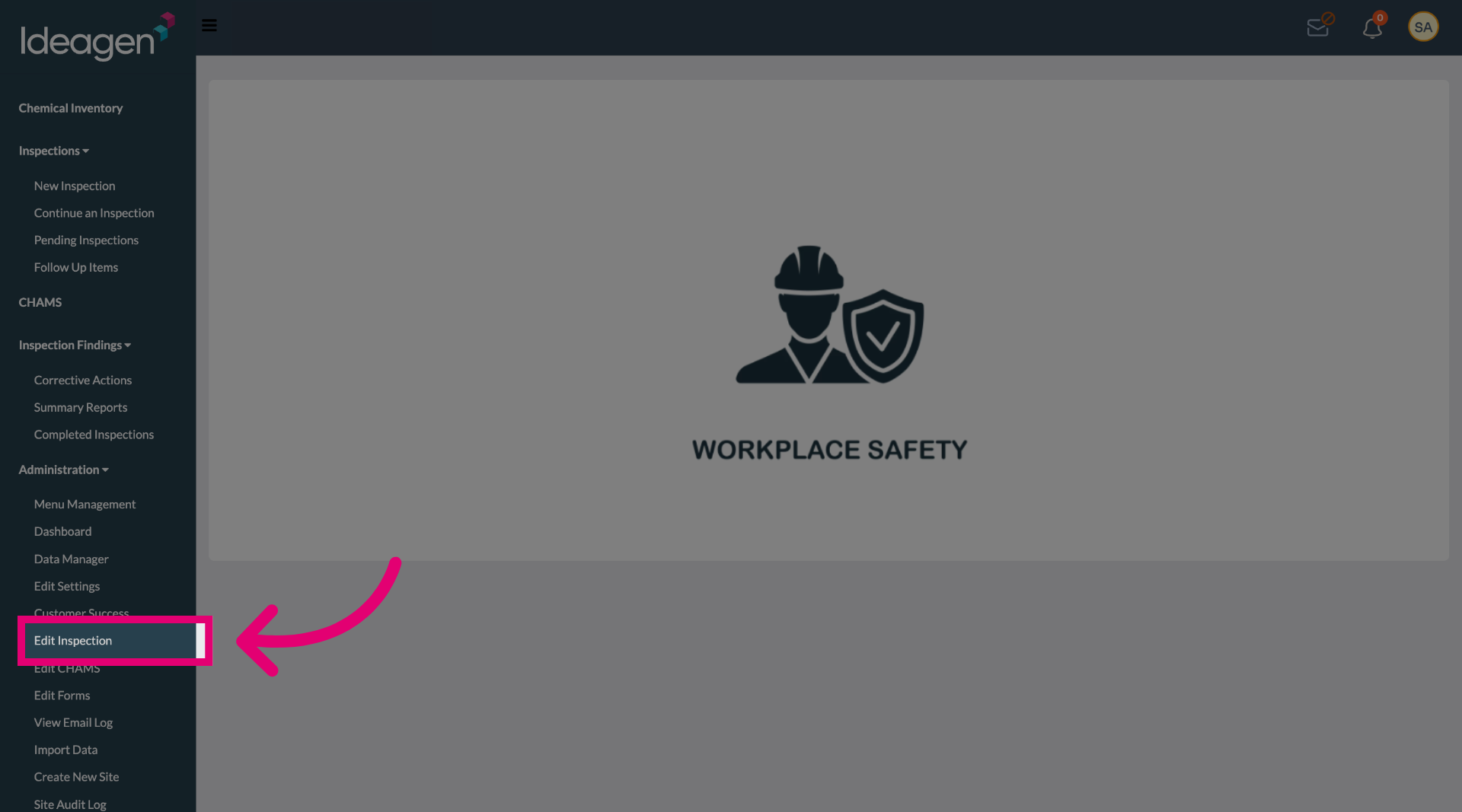
Select the Edit Inspection option to begin modifying the inspection form.
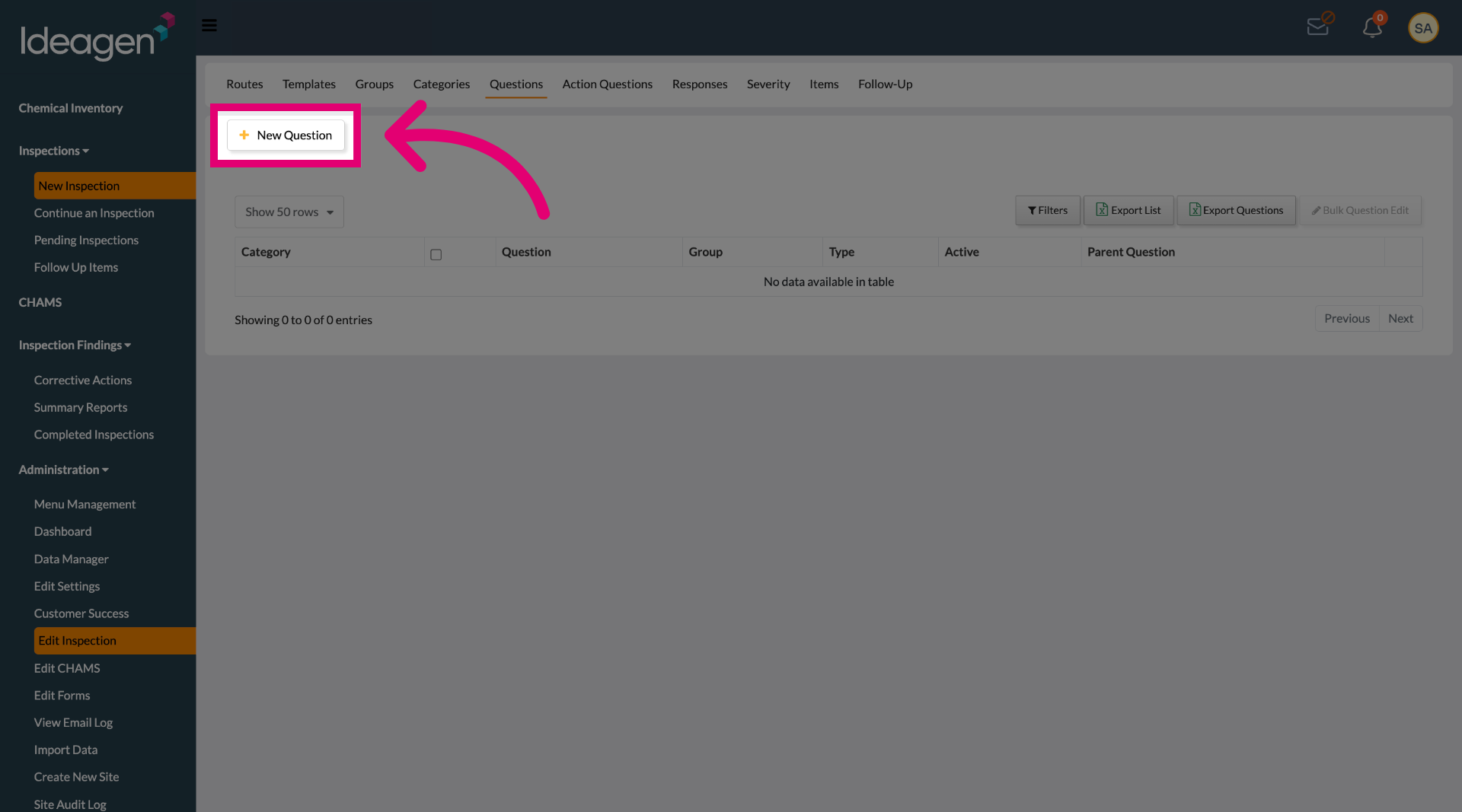
Select the New Question button to add a new question to the inspection.
Click the Question field to start entering the question text.
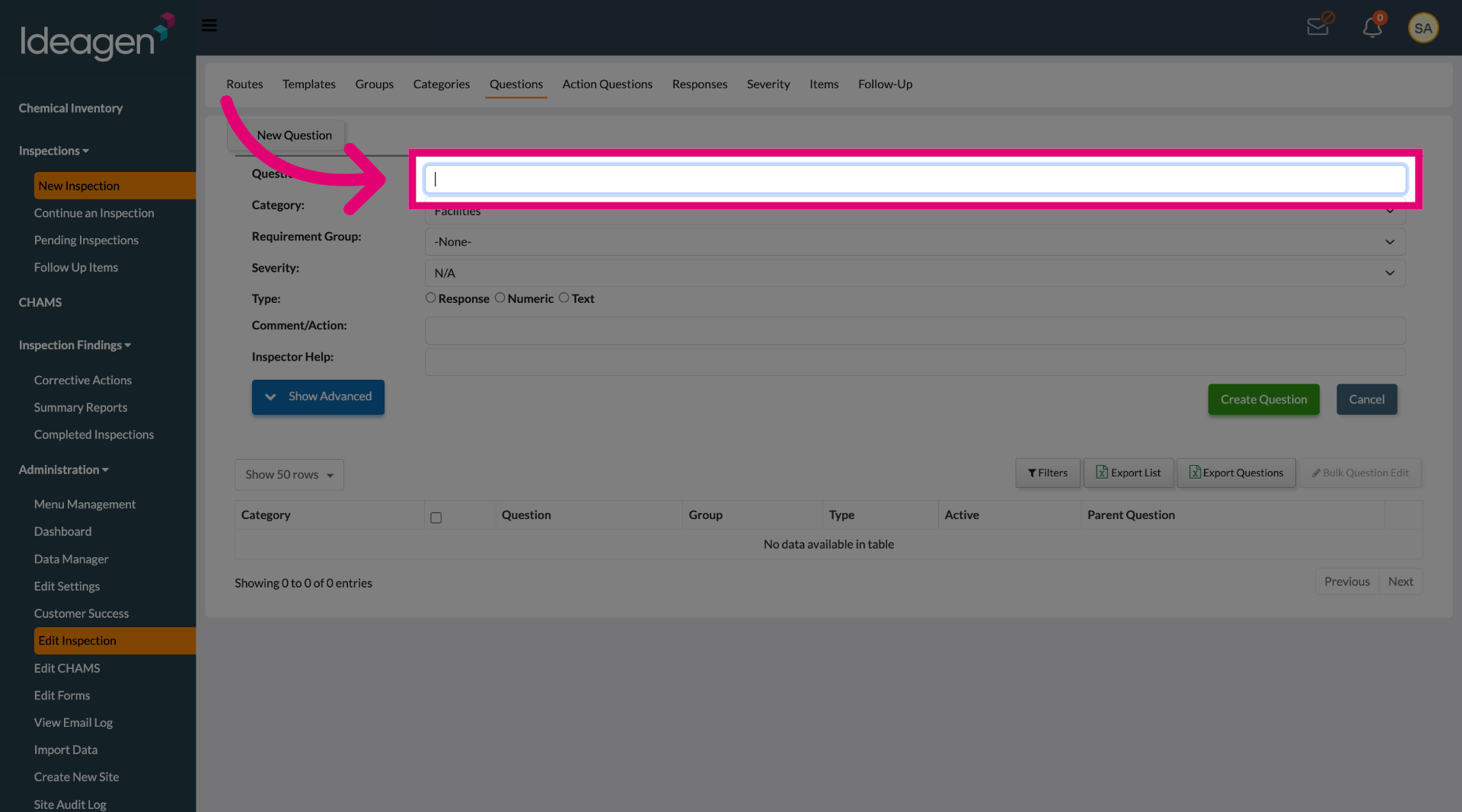
Enter your question in the text field.
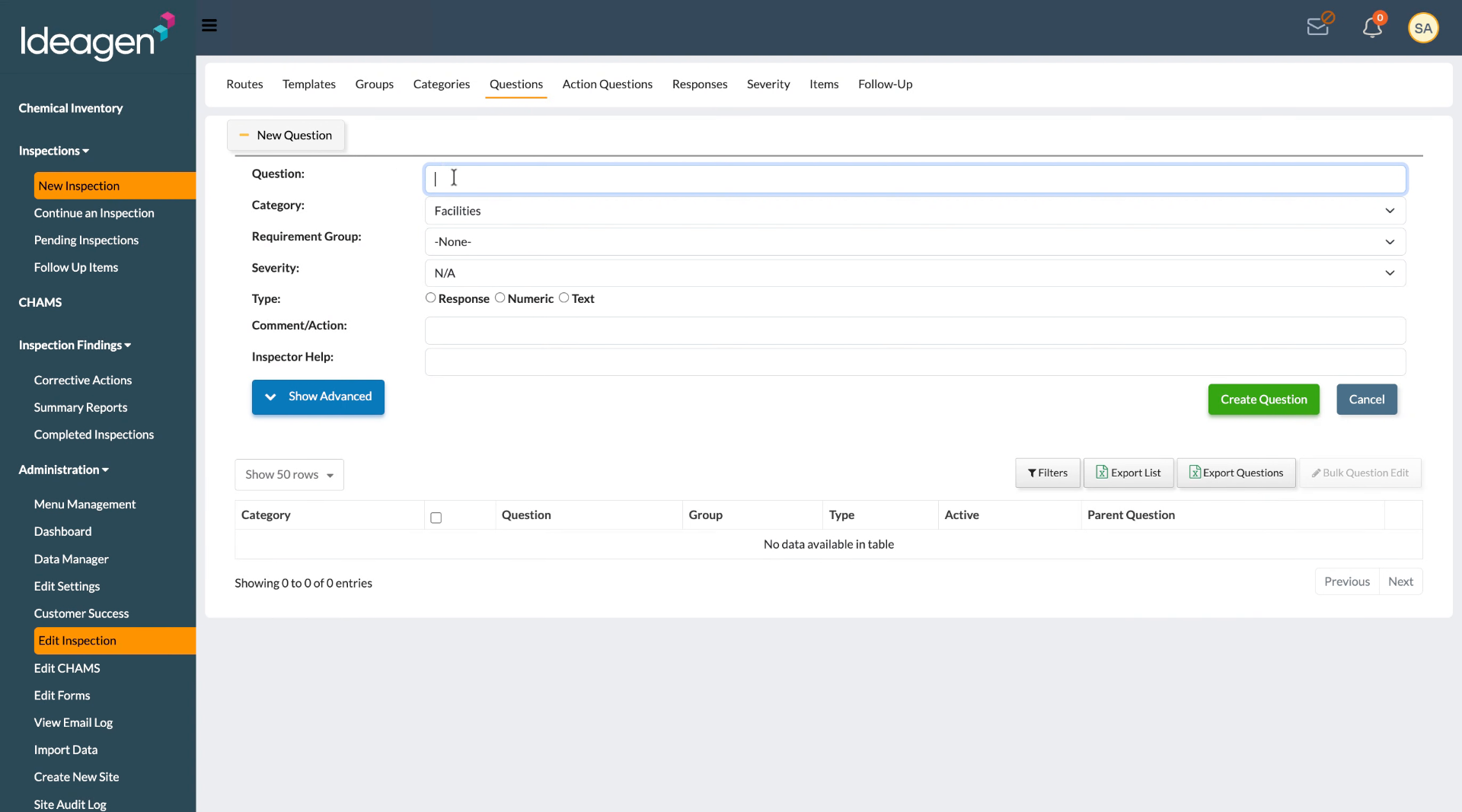
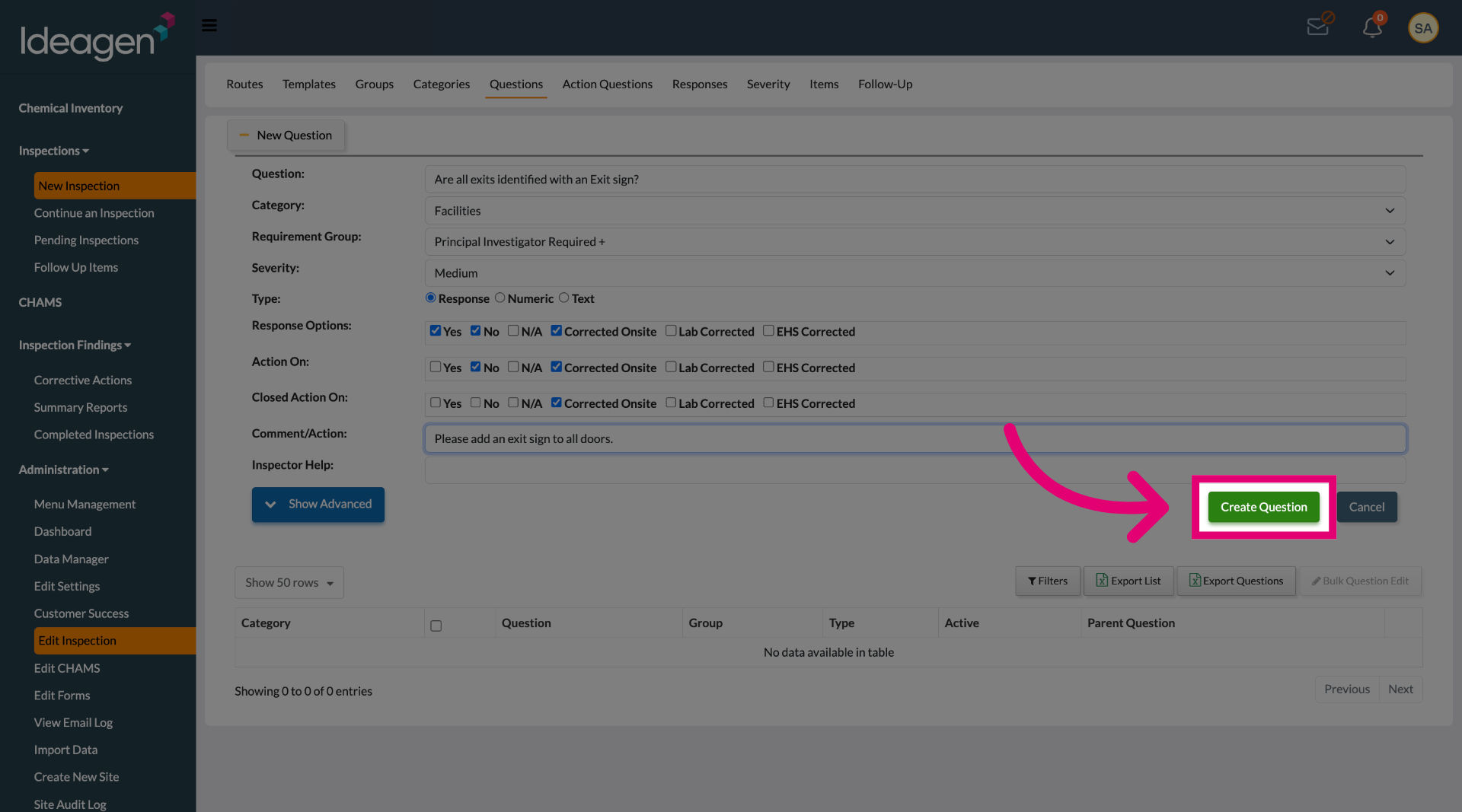
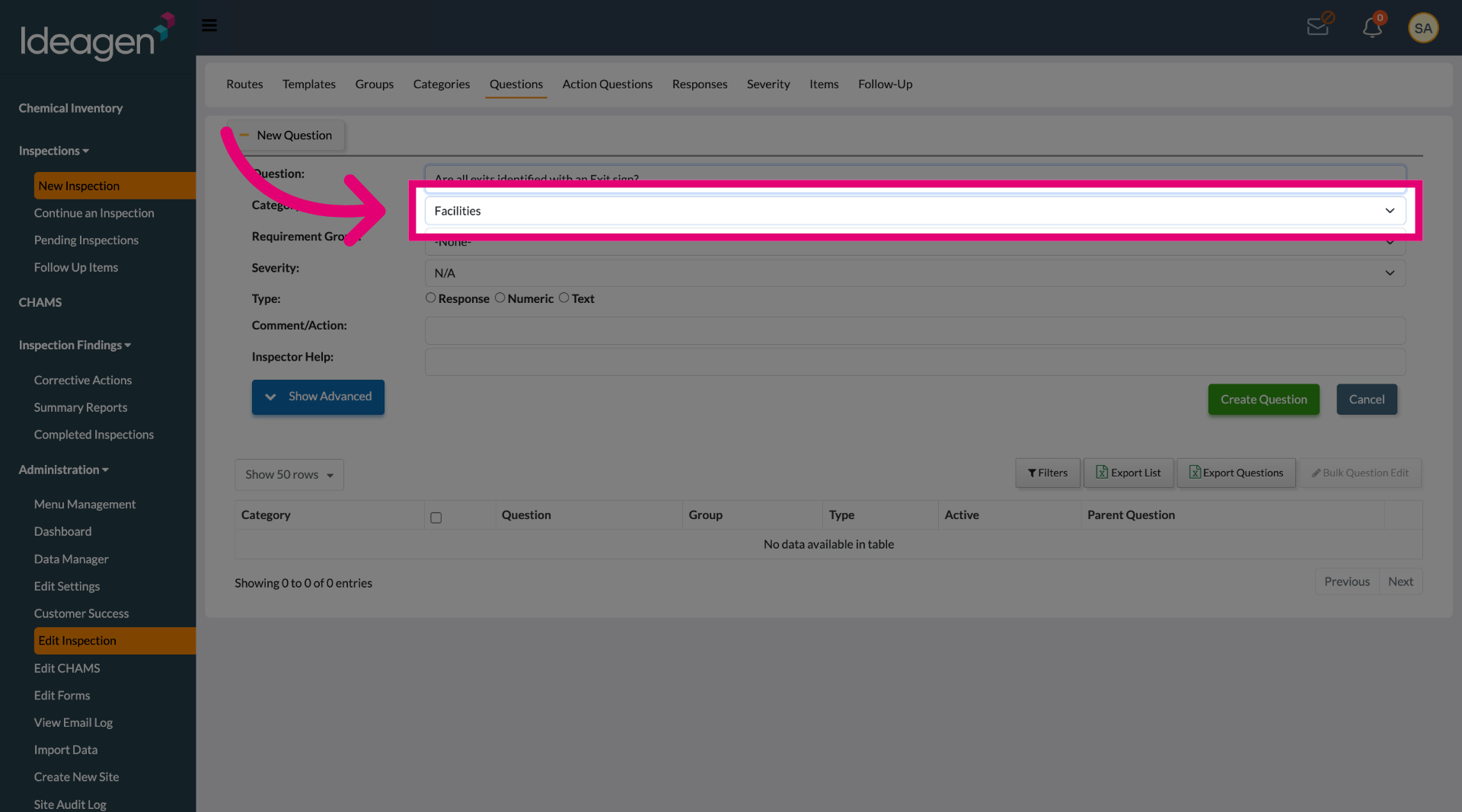
Click the category section, then choose the category to classify the question appropriately.
Click the requirement group (roster role) options to select the appropriate roster role type for the question.
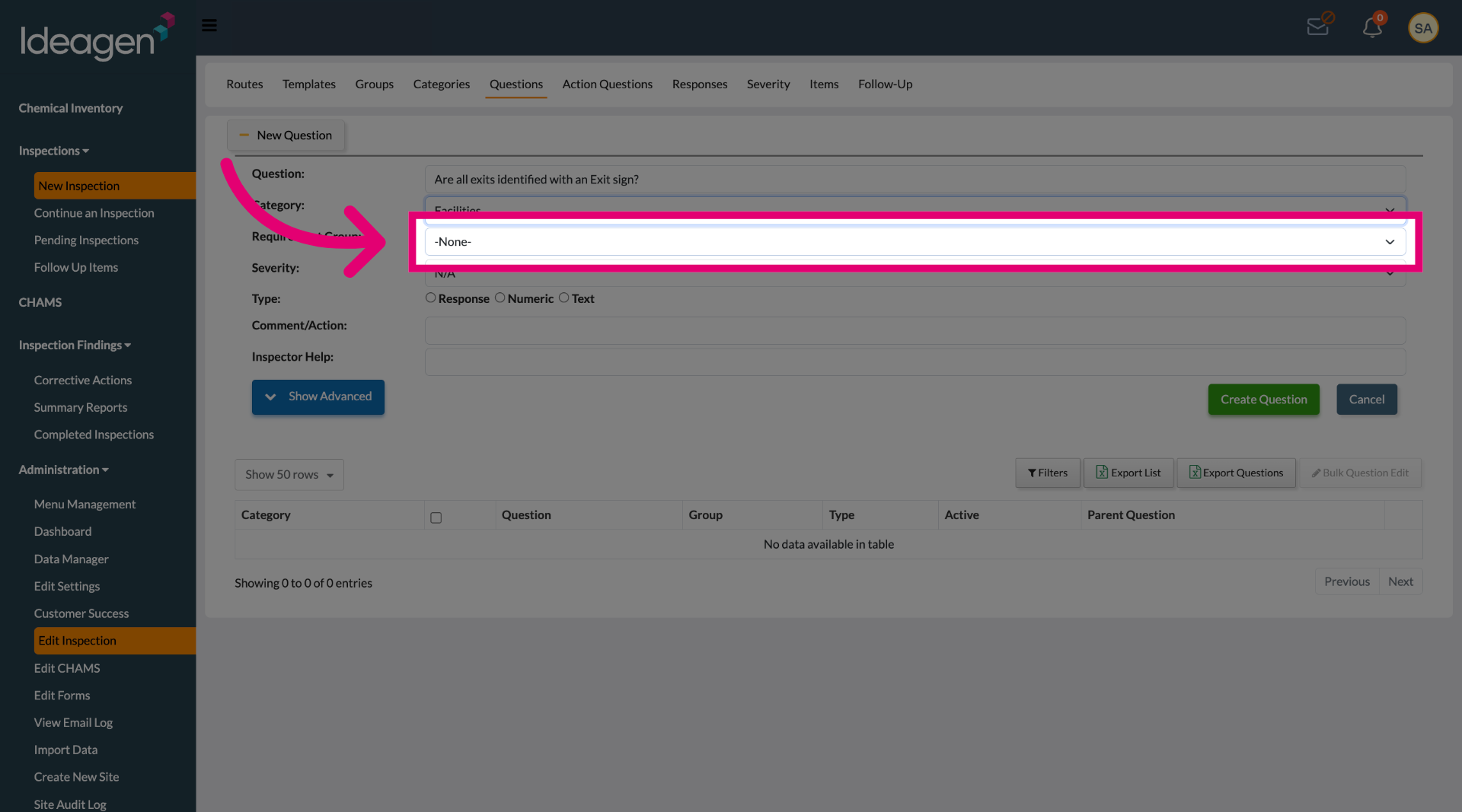
Select the role responsible for any corrective actions. Note that only the required will generate a corrective action. Recommended will not have a Corrective Action.
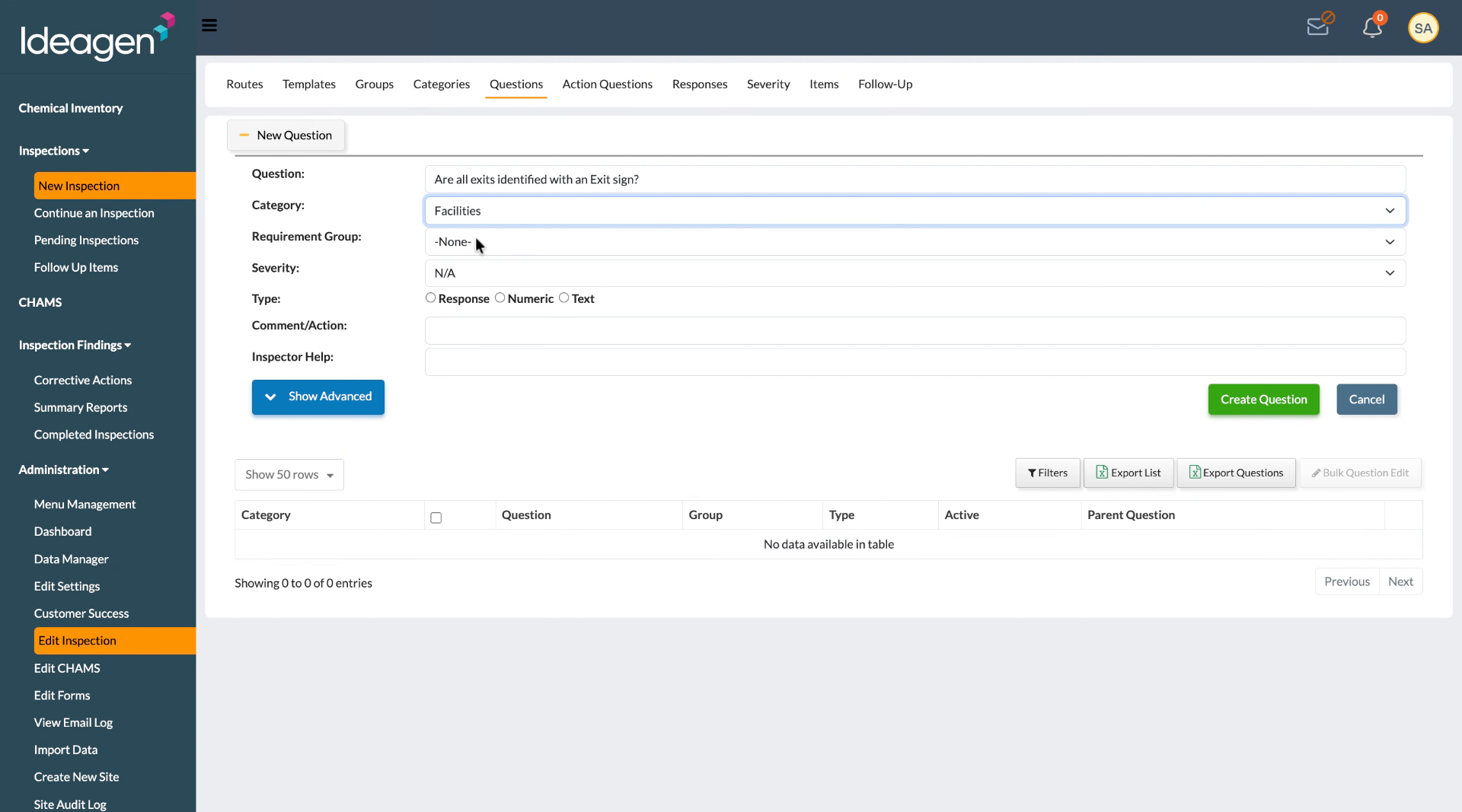
Select the severity level dropdown and choose the appropriate severity.
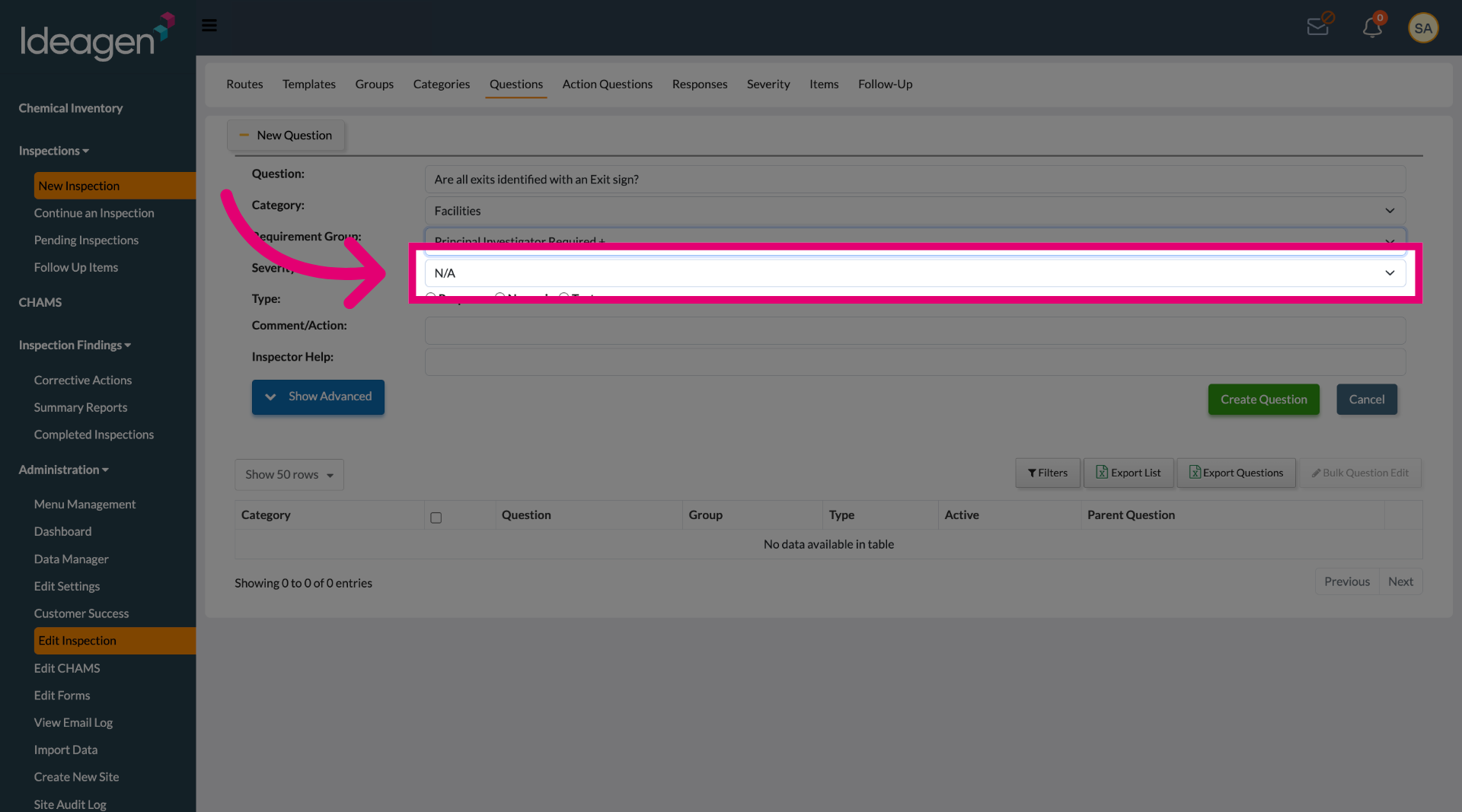
Click the Response field to define the type of response expected for this question.
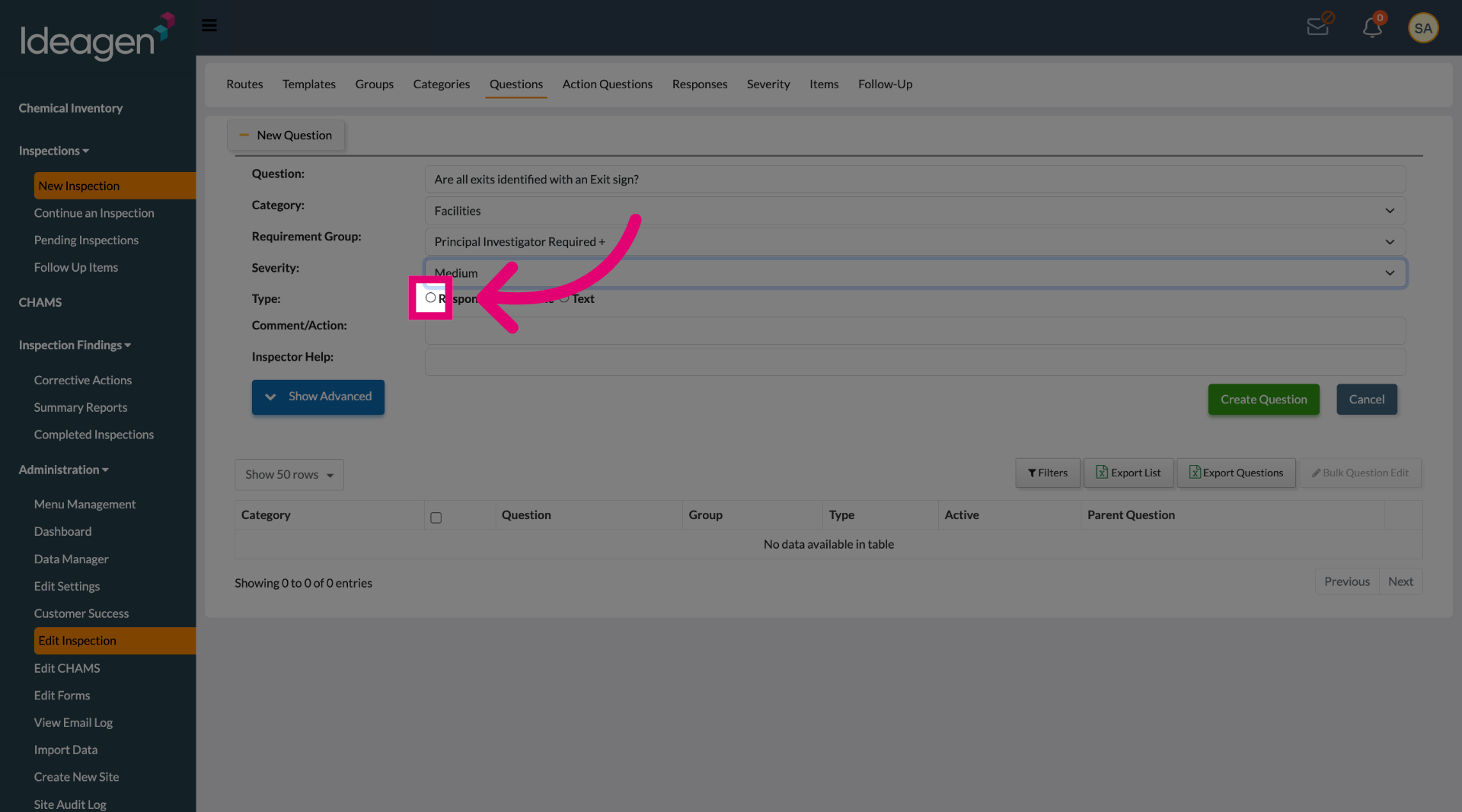
Select all answer options you wish to have available during the inspection.
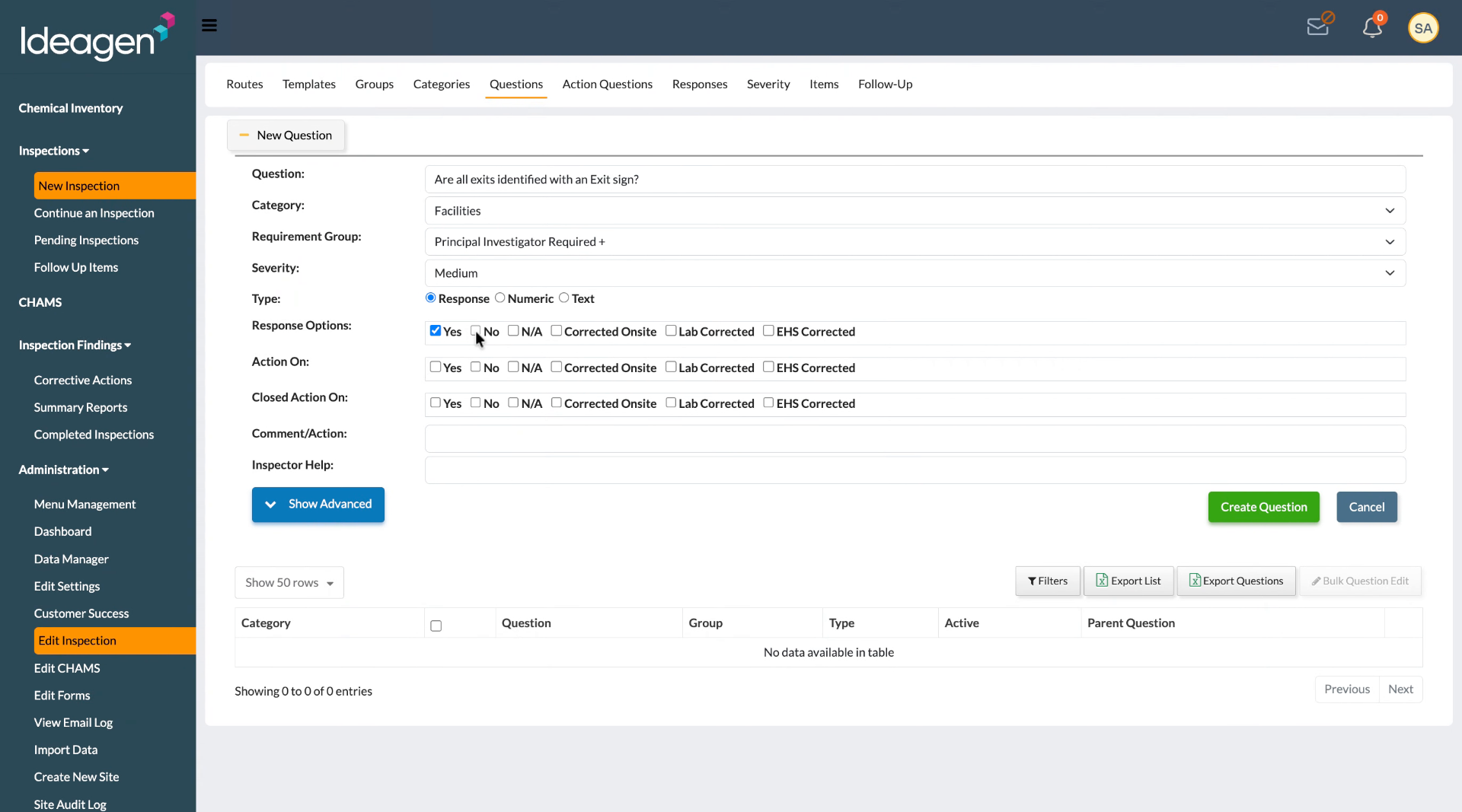
Select the action on option for any answer you wish to generate a Corrective Action.
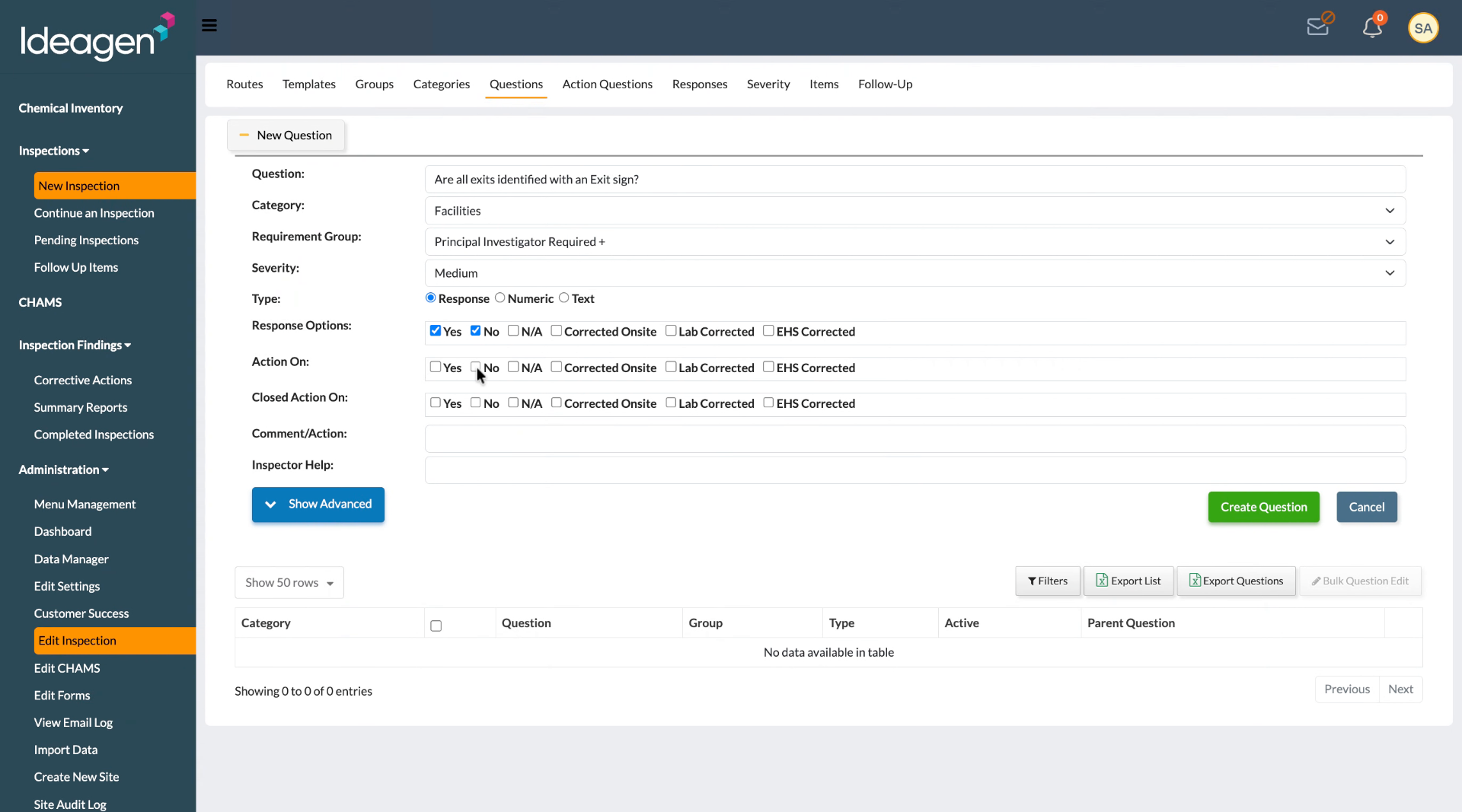
Select the Close Action on option for any responses you wish to have an action generated, but closed right away. This is great for items you wish to track, but no further action is needed.
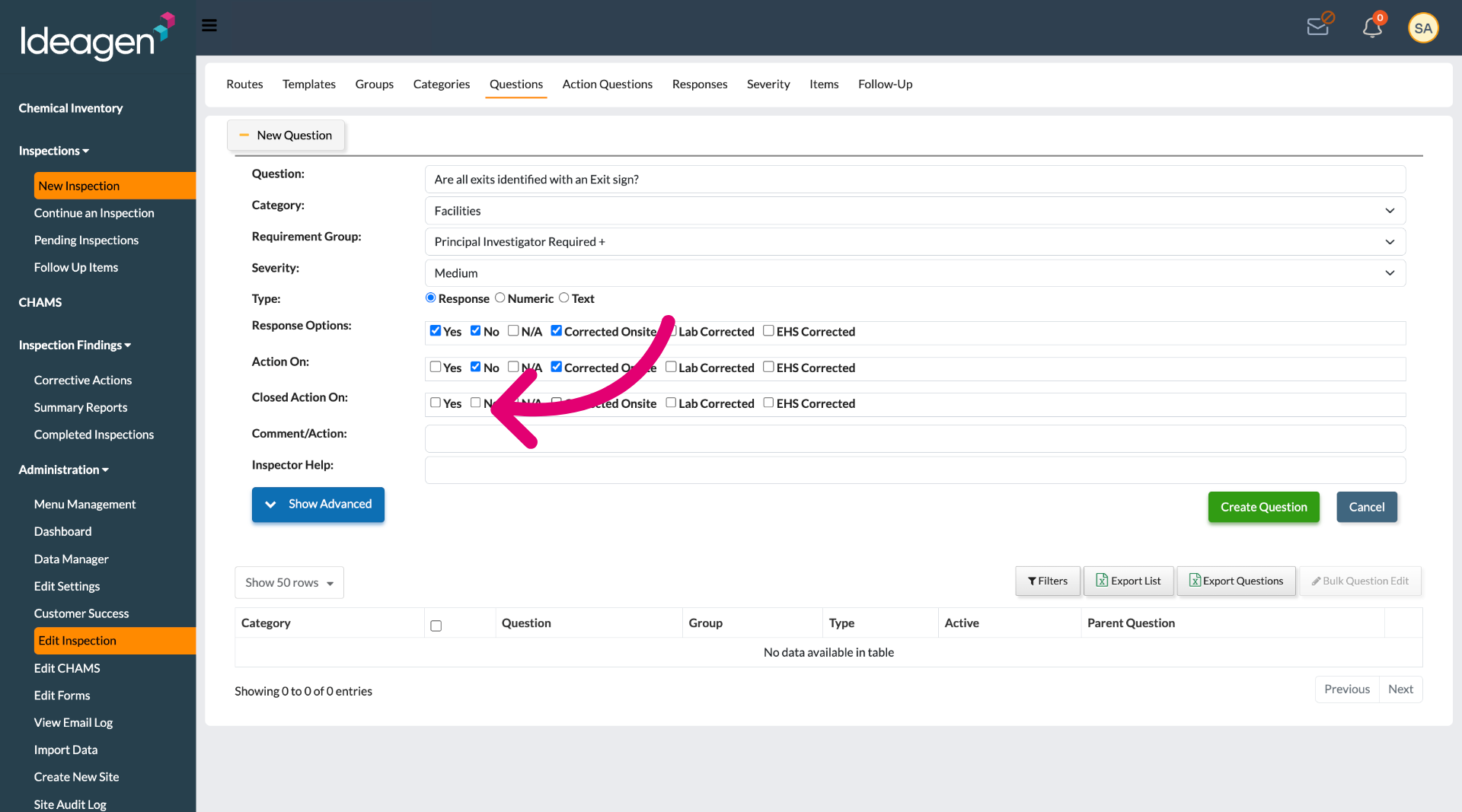
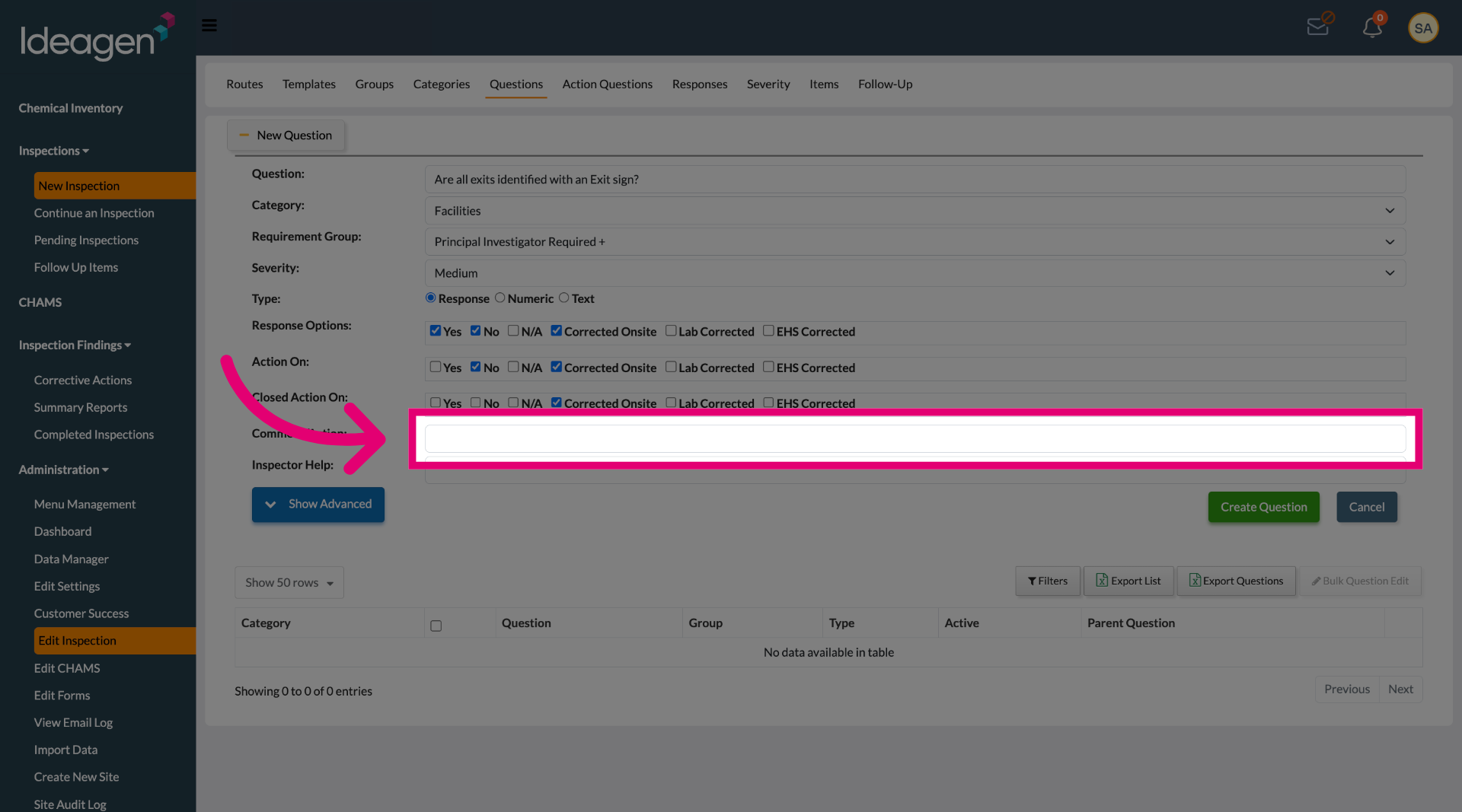
Click the Comment/Action field to add additional notes or instructions related to the Corrective Action. This is required for any question that will have a Corrective Action.
Click the Create Question button to save and add the new question to the inspection form.