New article
Recently updated
Creating a chemical inventory

Who is this article for?
Administrators who want to learn to create a chemical inventory.
Administration permissions are required.
This tutorial guides you through creating a new chemical inventory.
You will learn how to navigate the chemical inventory system, search for chemicals in local and global catalogs, assign responsible personnel, specify storage locations, and record essential details such as quantities, dates, and classification codes.
1. Creating a new chemical inventory entry
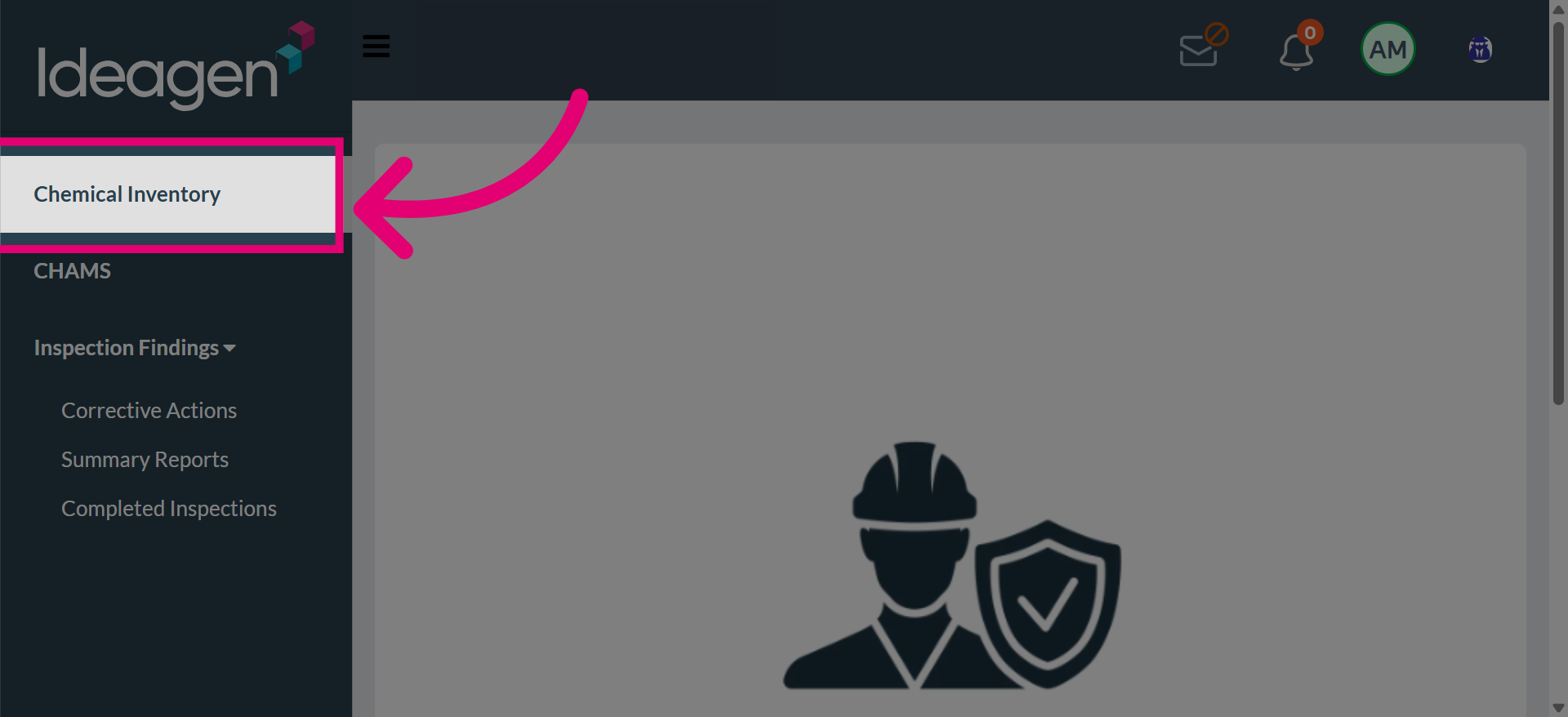
From the main page, choose Chemical Inventory from the left hand side menu.
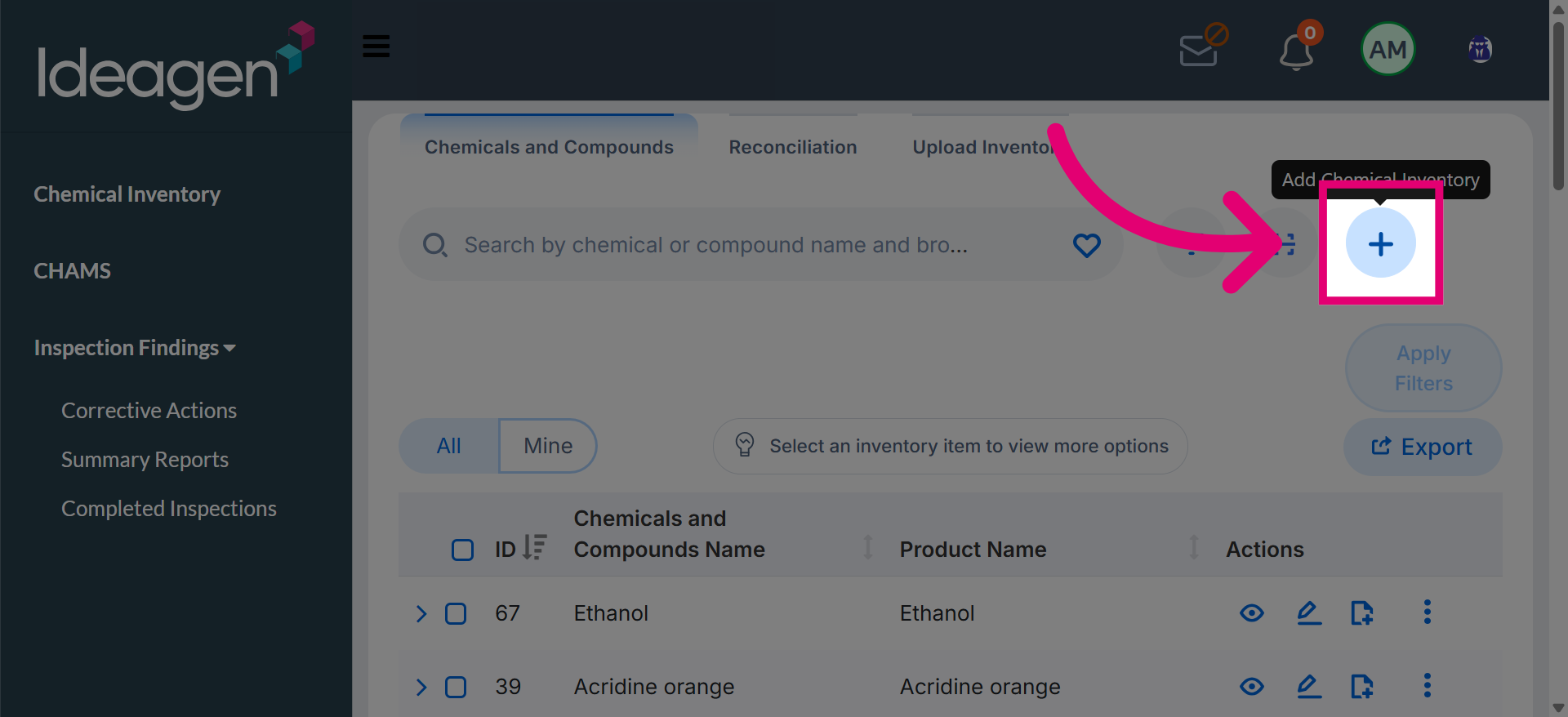
Click Add Chemical Inventory to initiate the process of adding a new chemical.
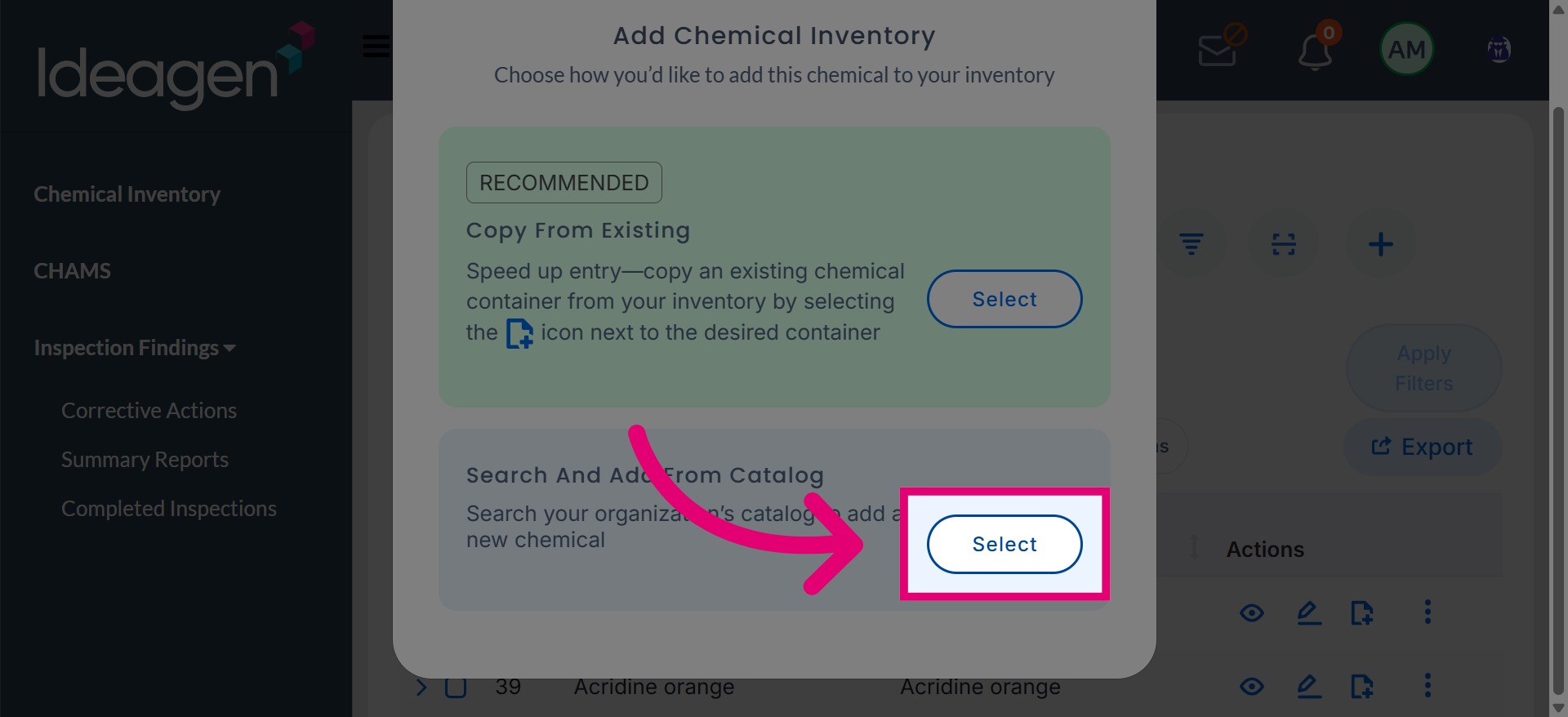
Click Select to confirm your choice for adding the chemical inventory.
Click Local to search within your organization's chemical catalog.
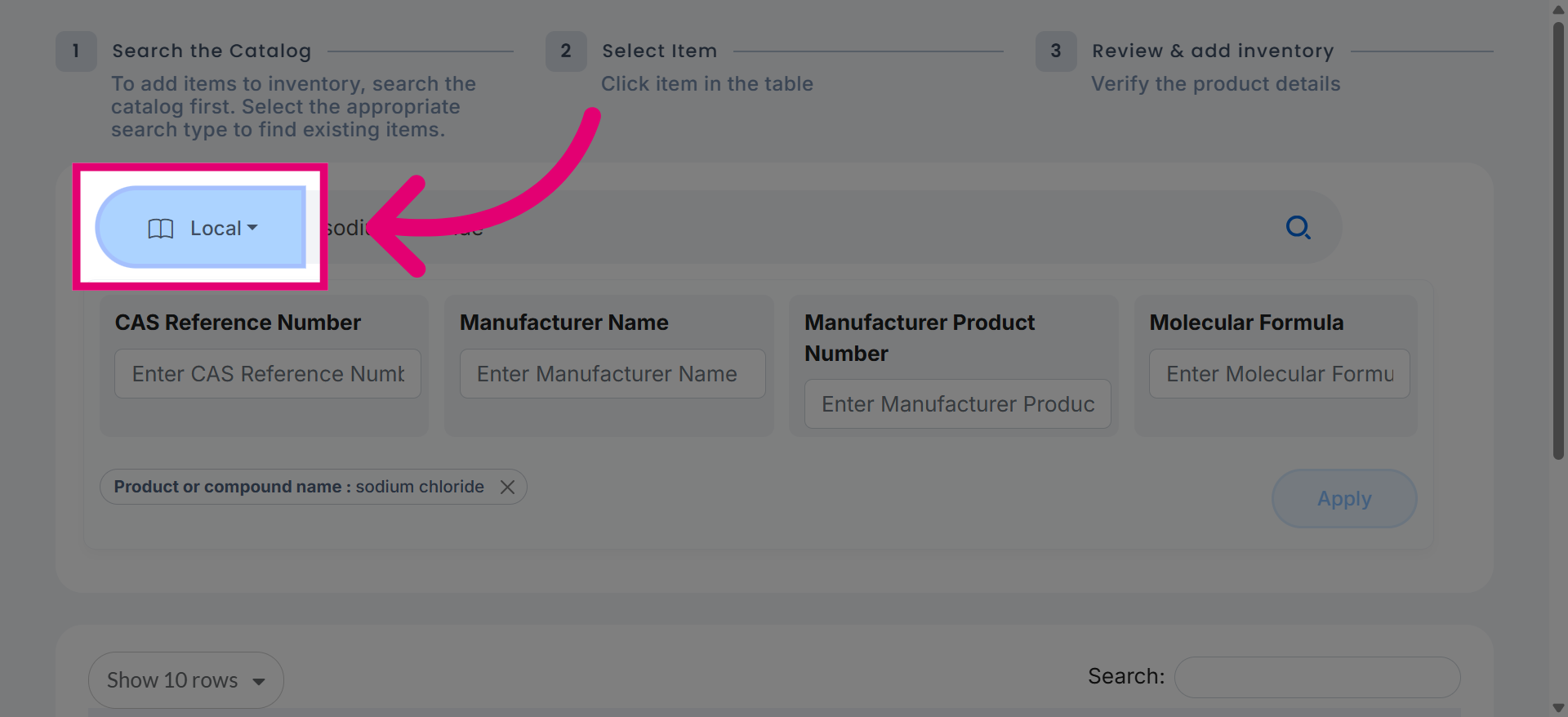
Click Catalog to search for chemicals available in the system database.
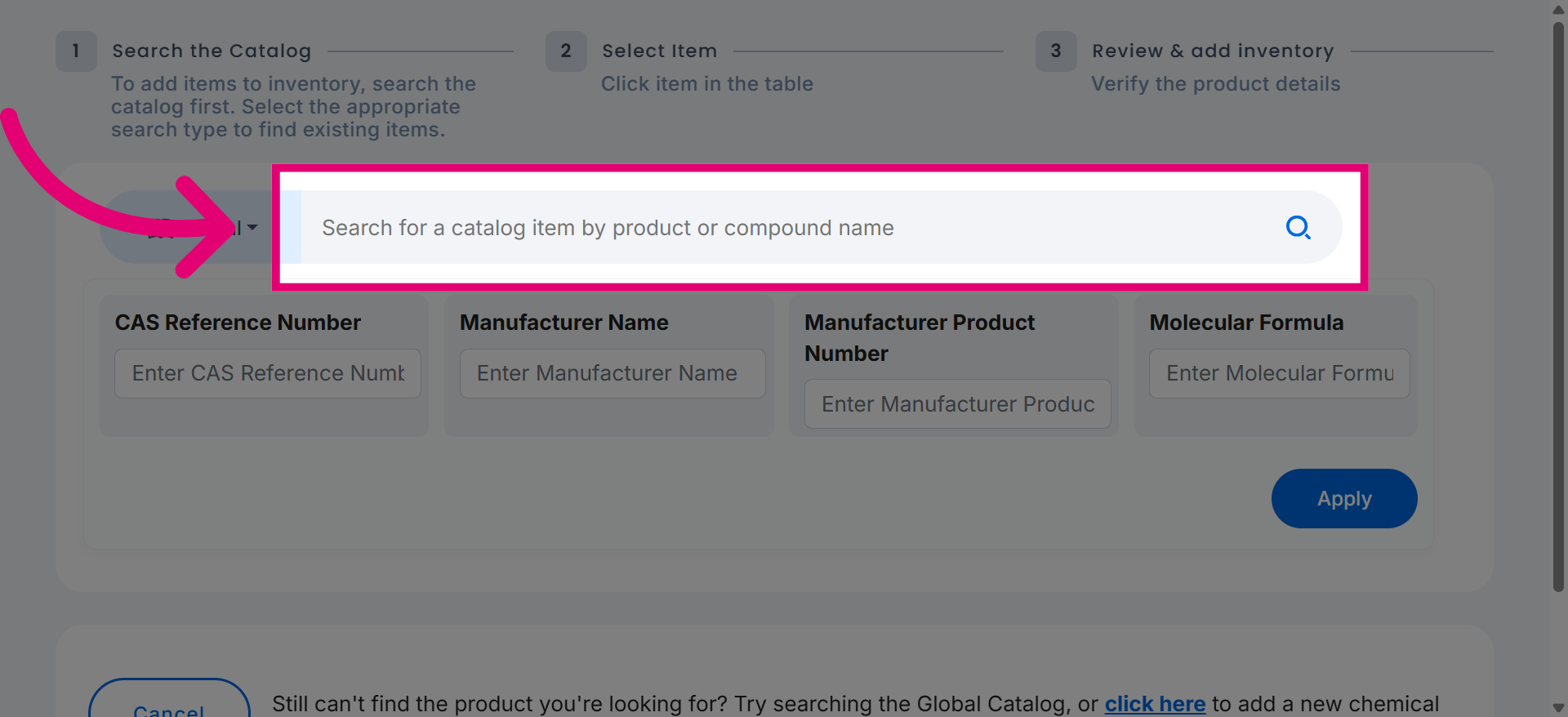
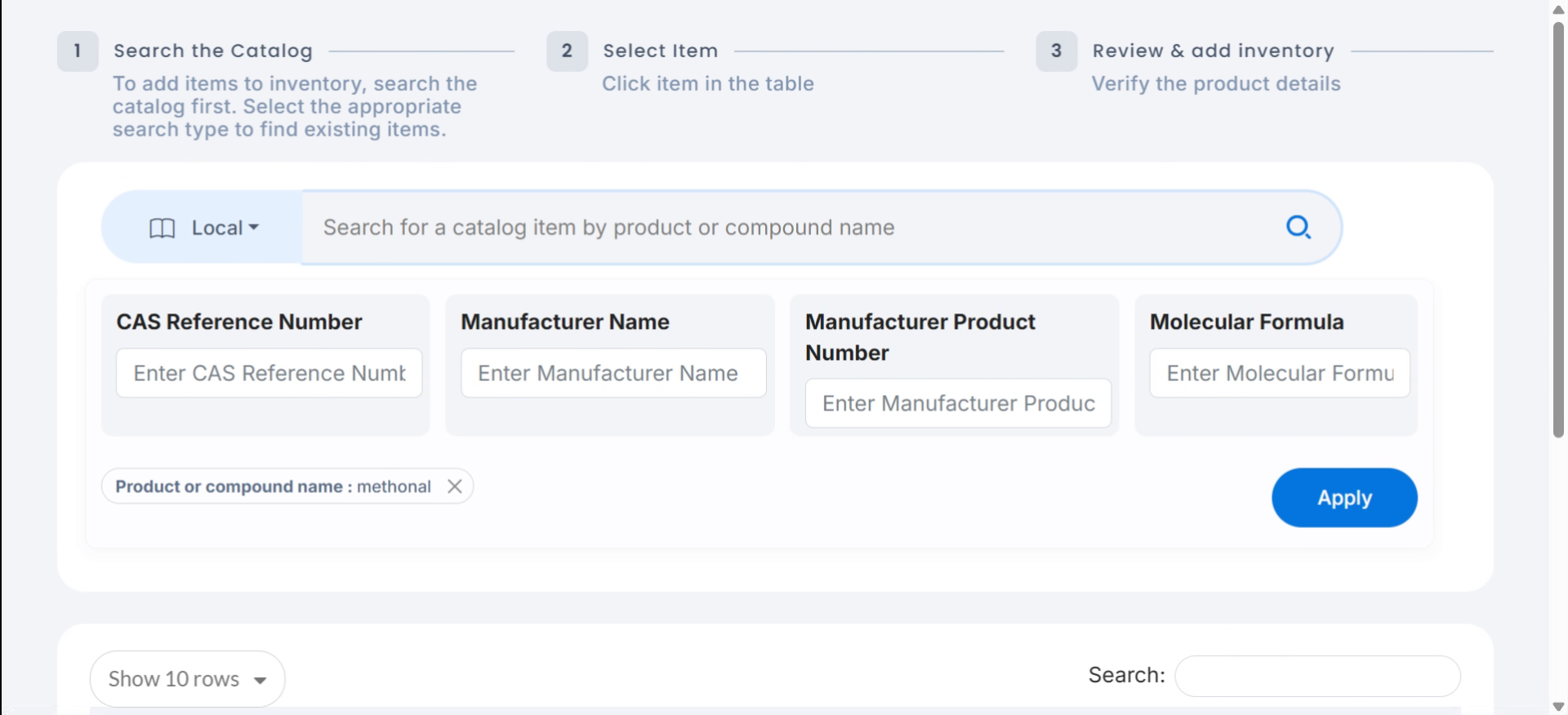
Enter the chemical name to locate it within the catalog.
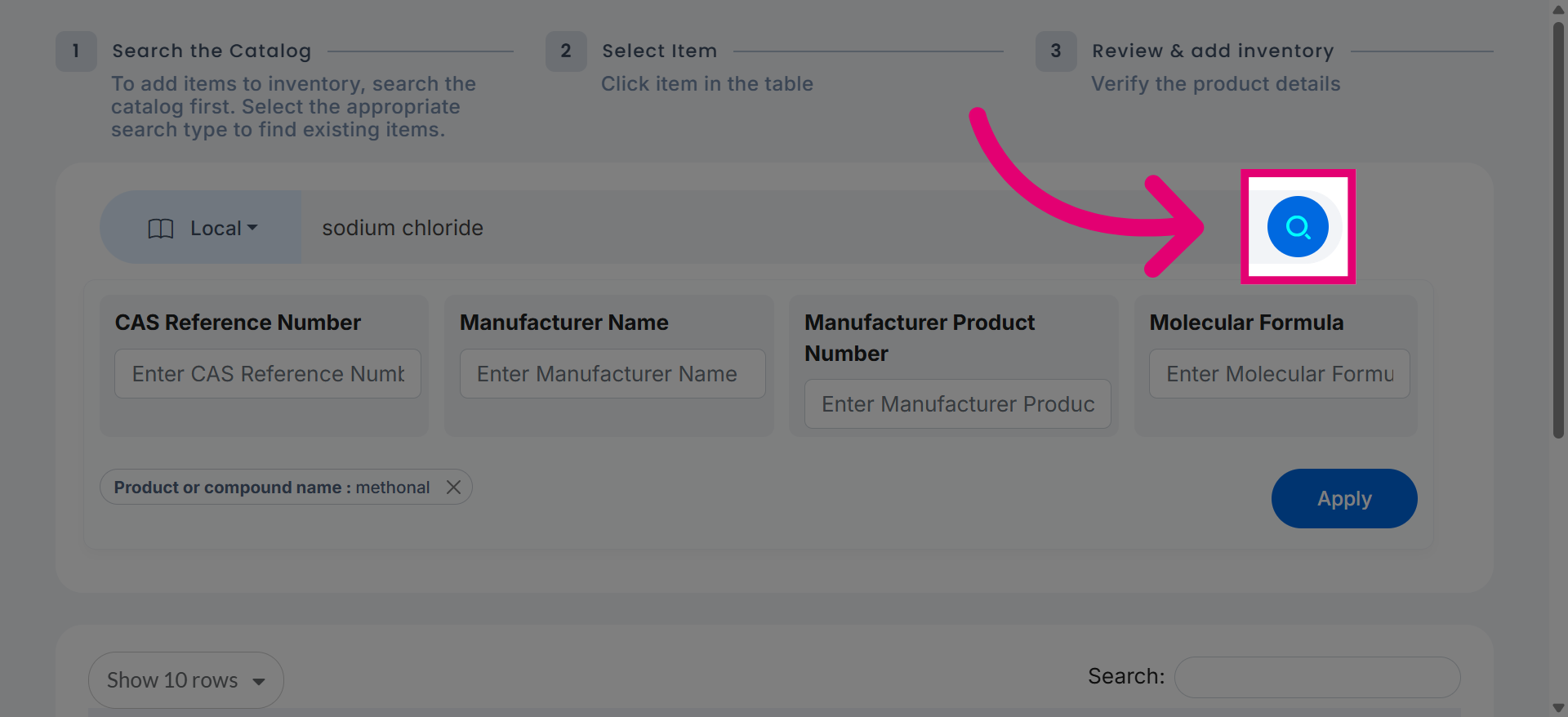
Click Search Catalog to find the chemical based on the entered name.
Click Global to search the broader chemical catalog database.
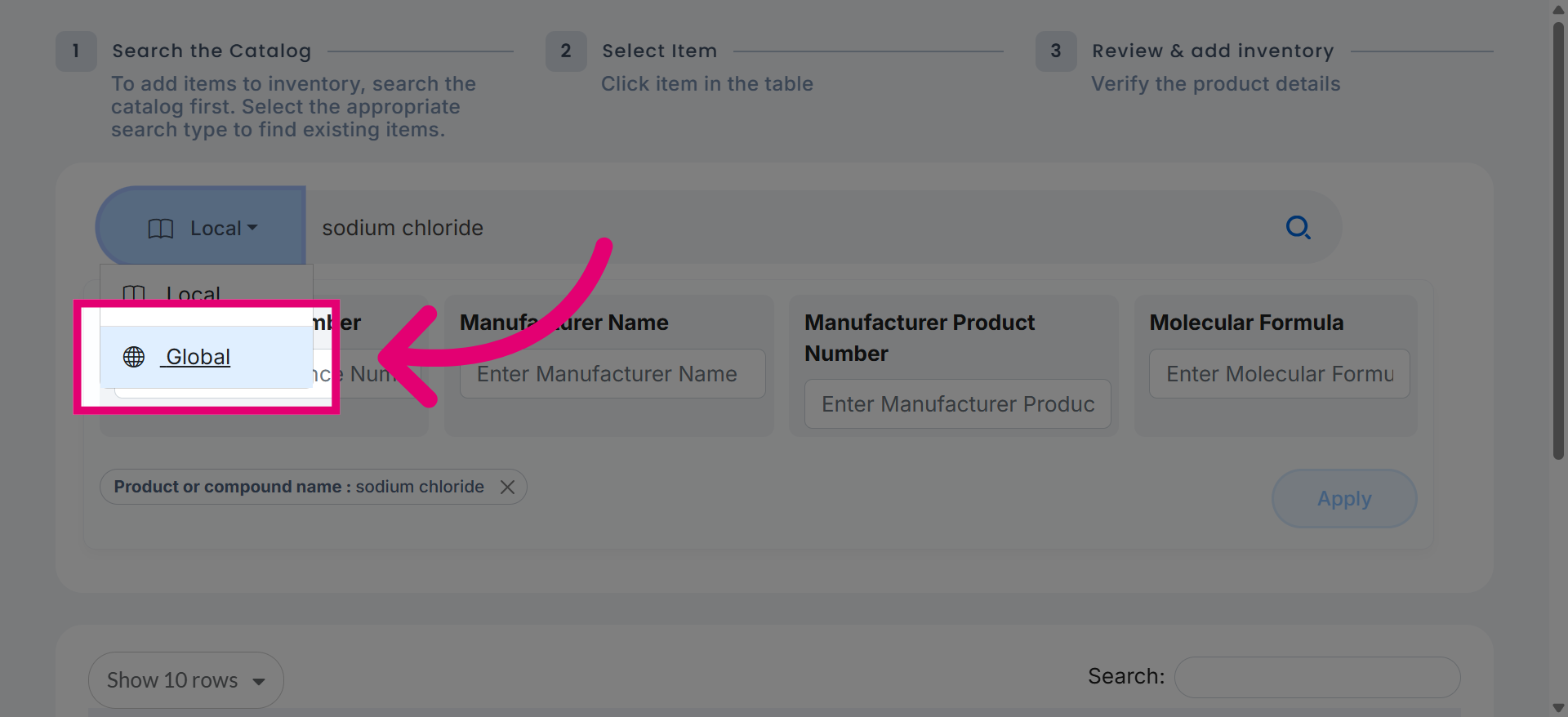
Click Safety Data to review or add safety information for the chemical.
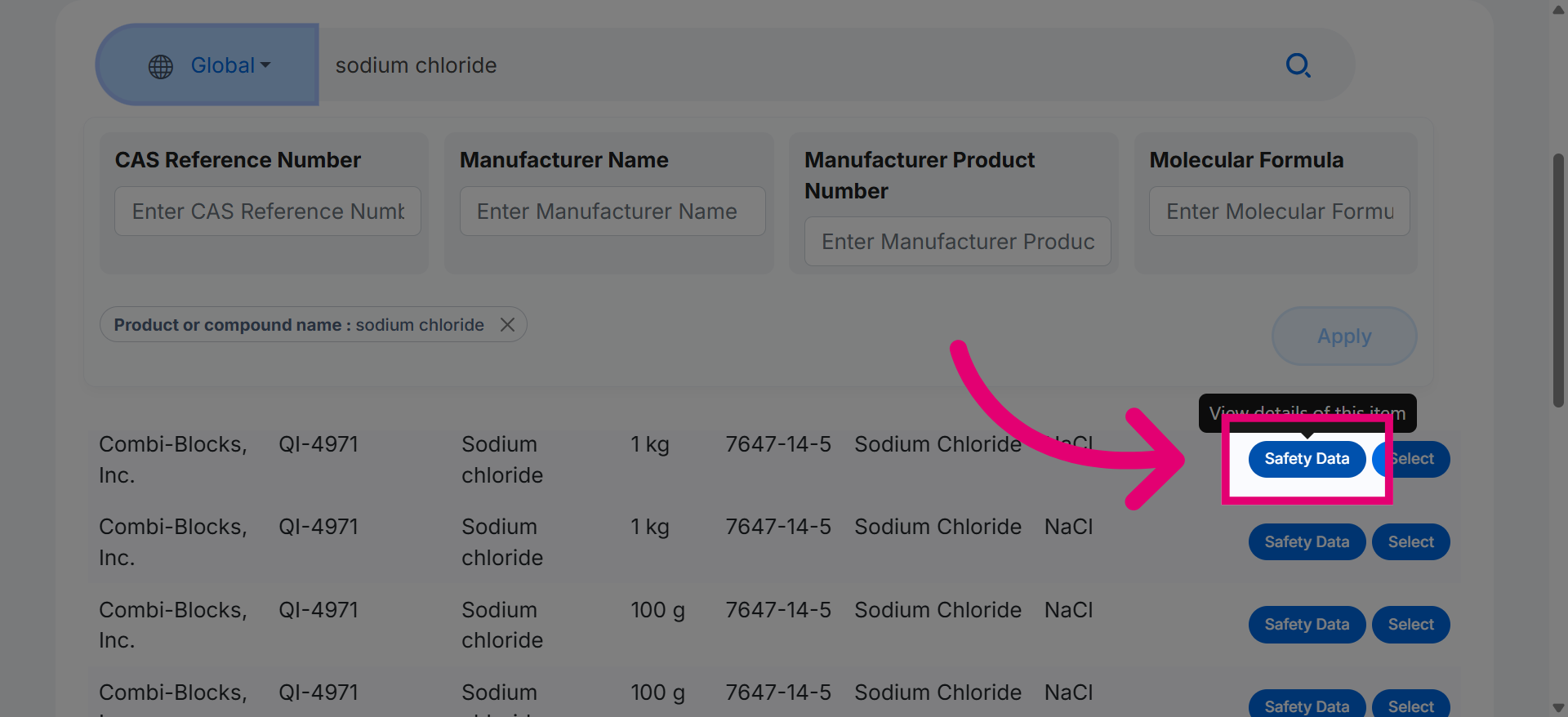
Click Select to confirm the chosen chemical for your inventory entry.
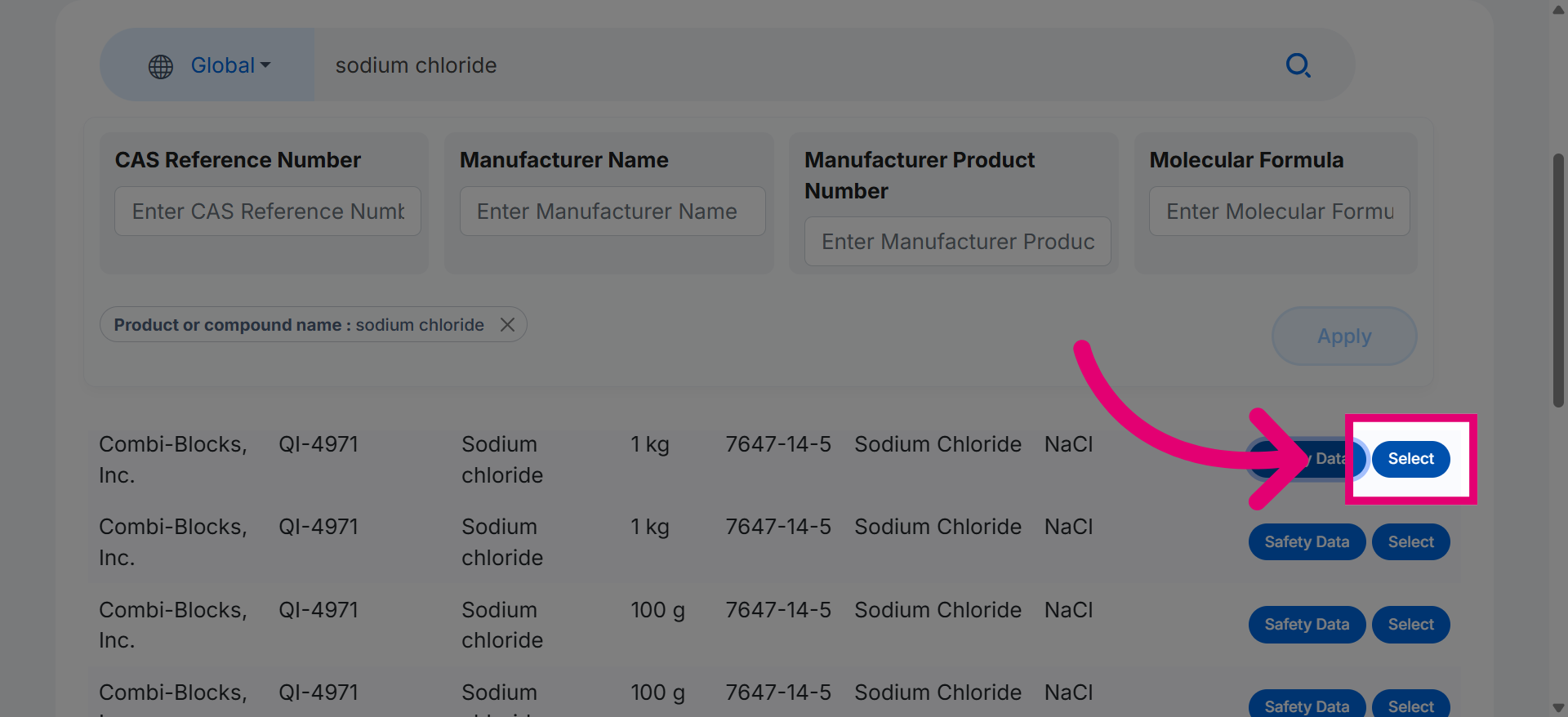
Click Principal Investigator to assign the responsible researcher for this chemical.
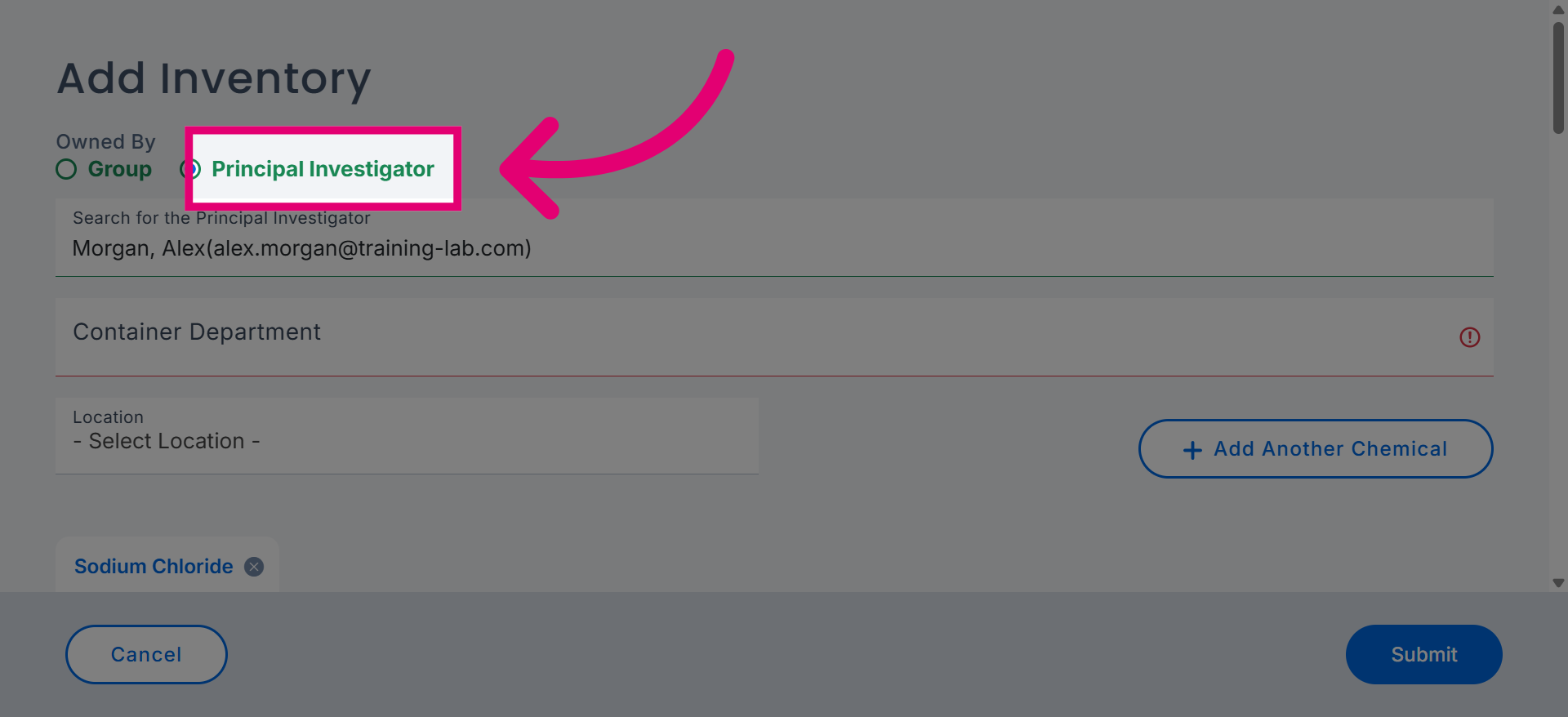
Click Search for the Principal Investigator to find and select the appropriate person.
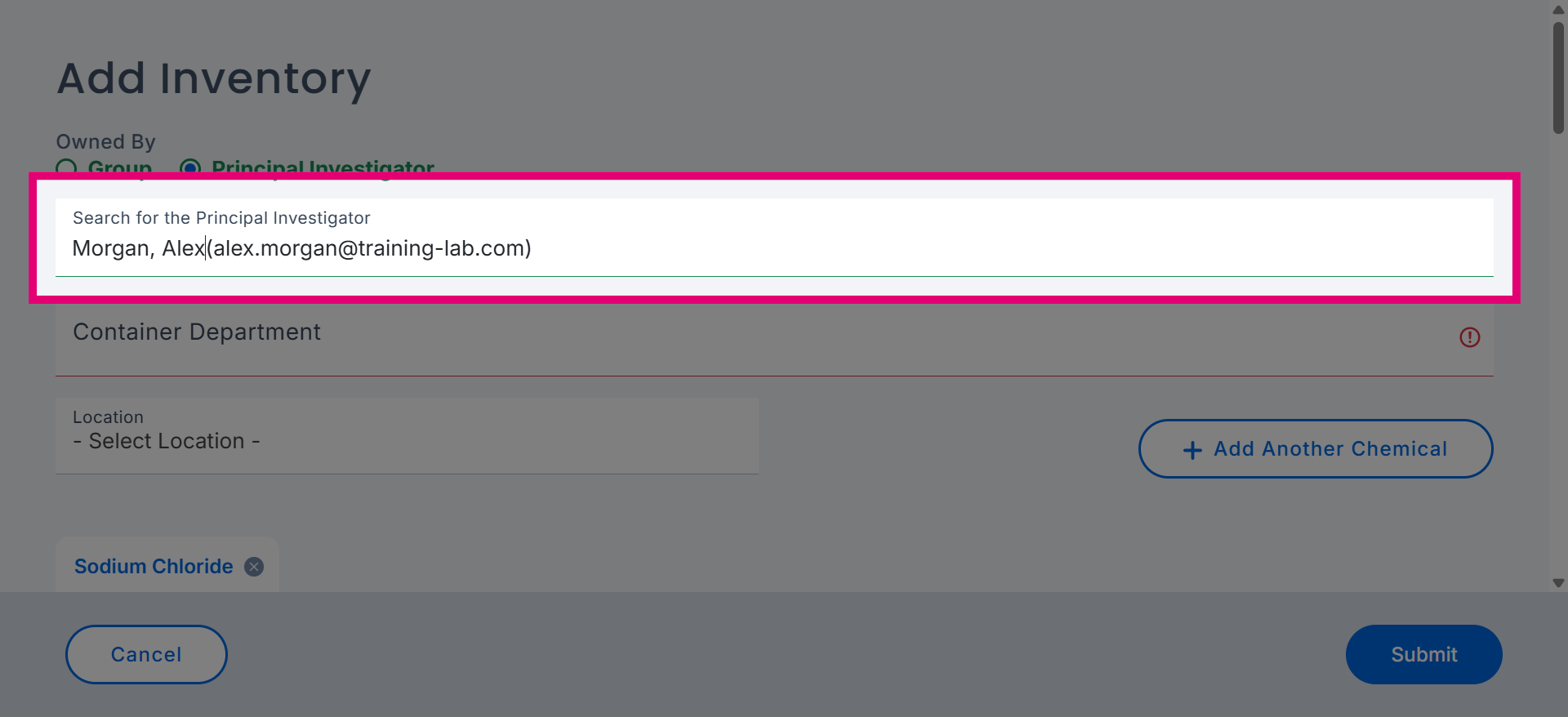
Click Container Department to specify the department responsible for the chemical container.
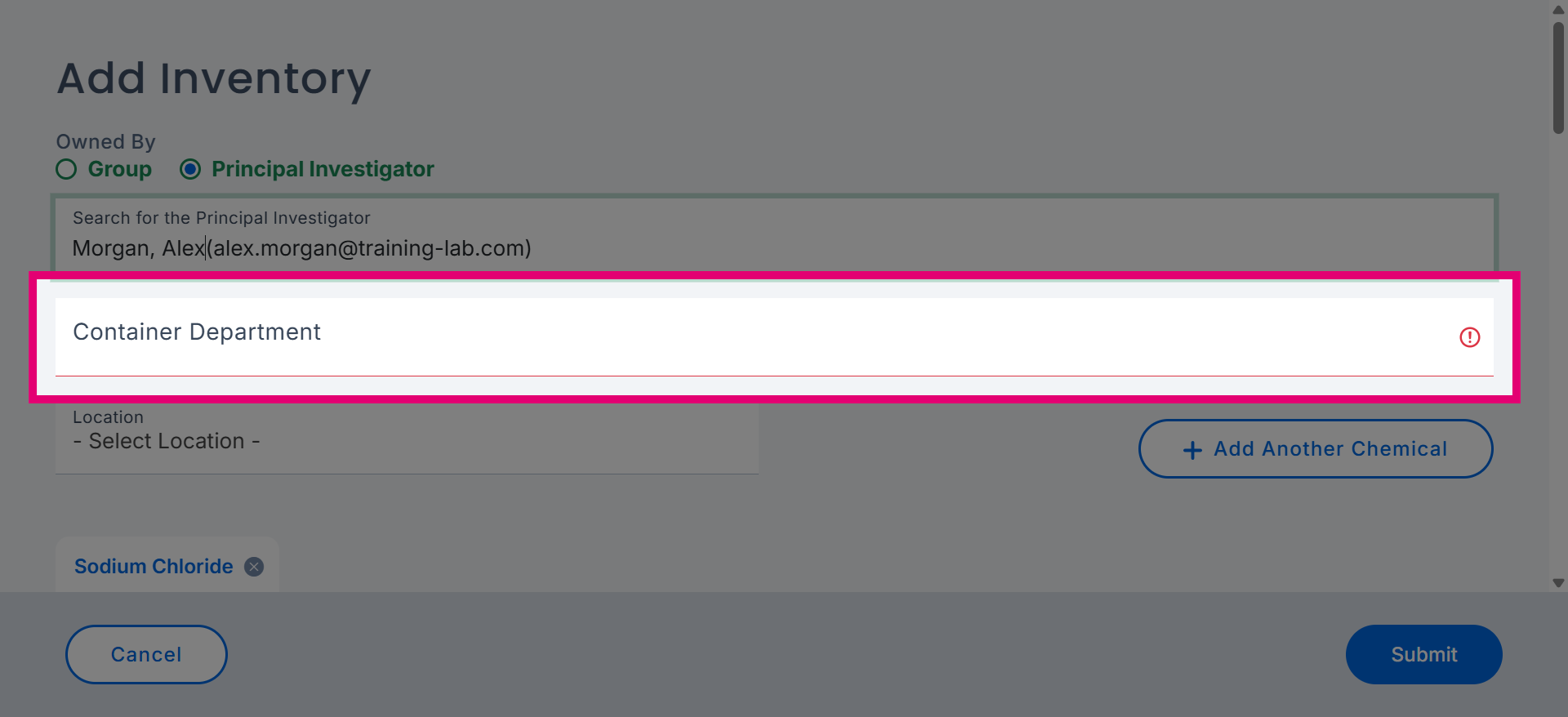
Enter the department name to filter and select the correct container department.
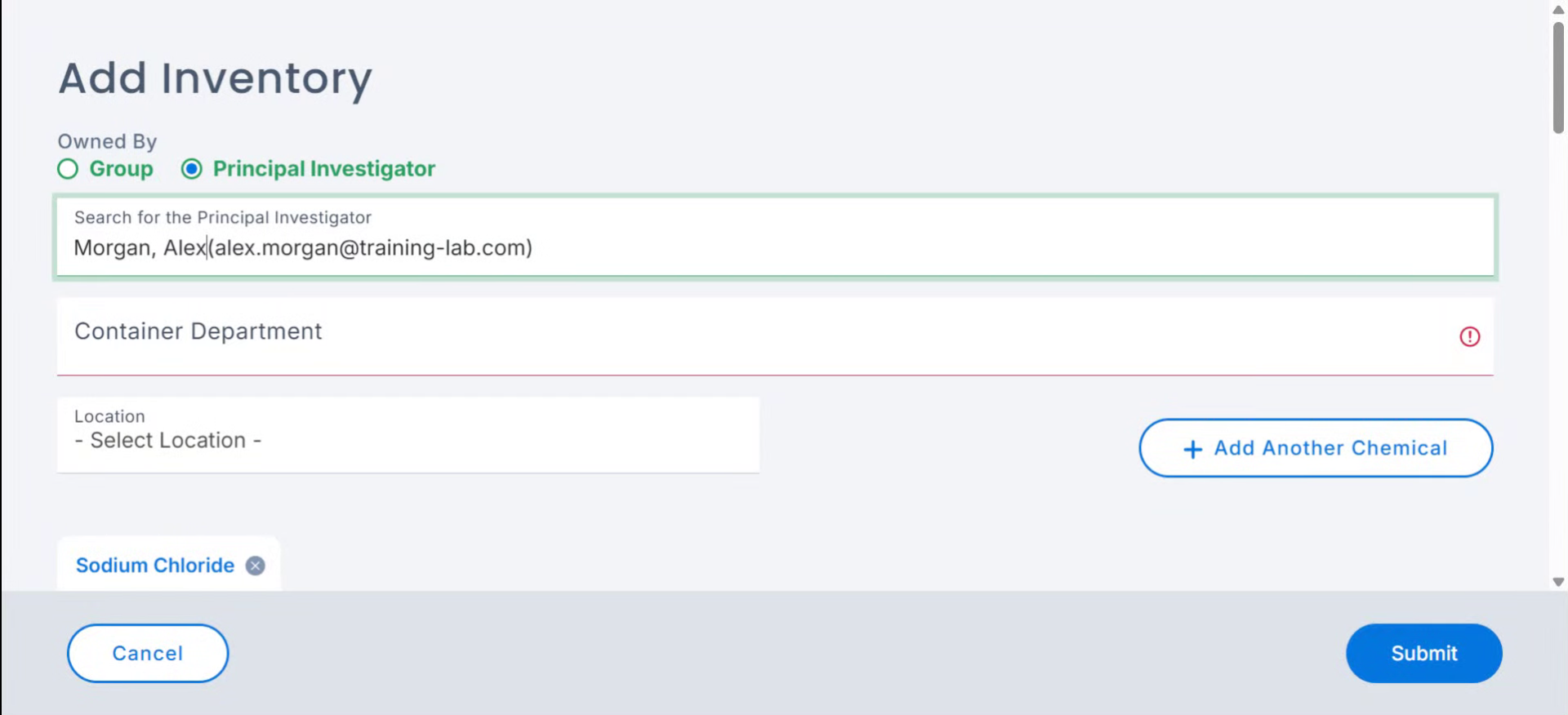
Click Select Location to choose the physical location of the chemical inventory.
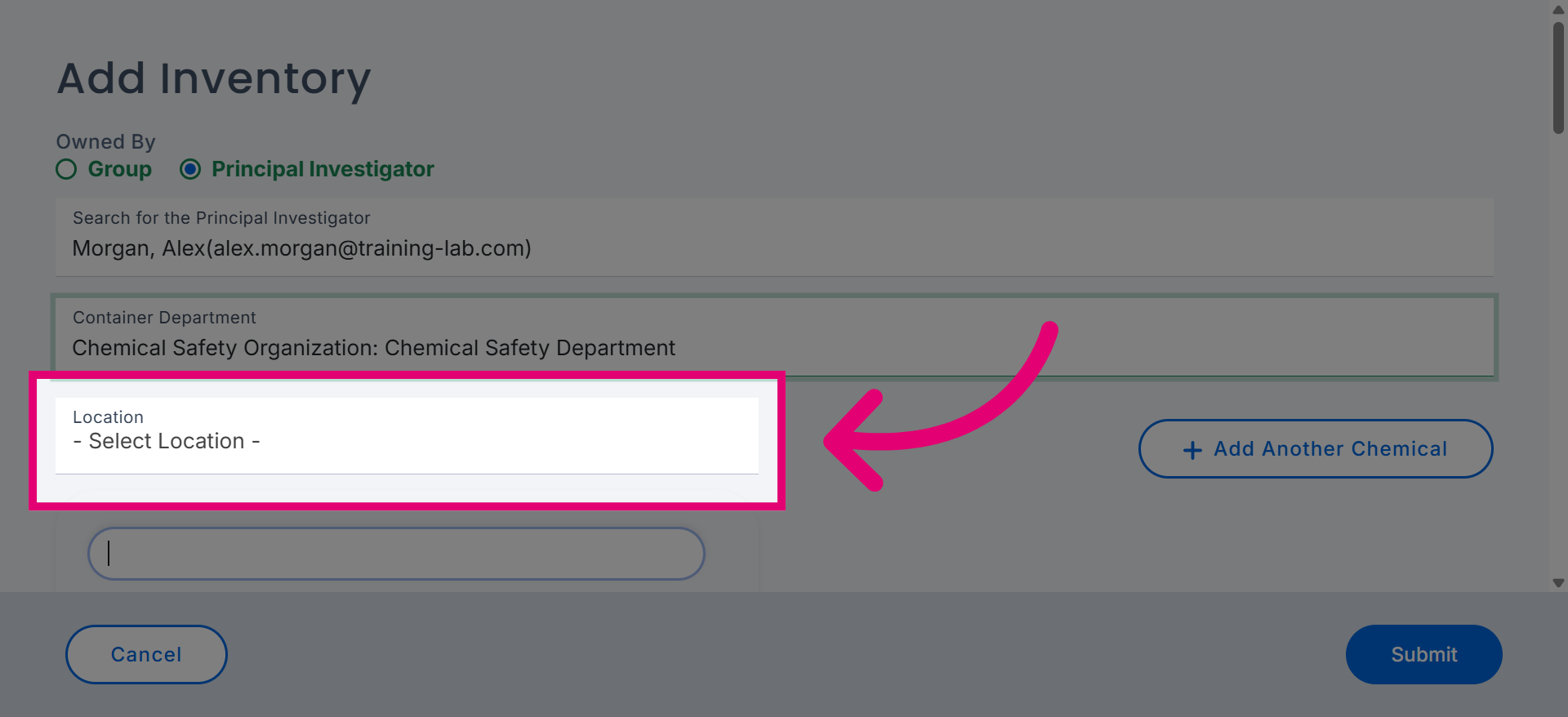
Click Quantity to specify the amount of chemical in the container.
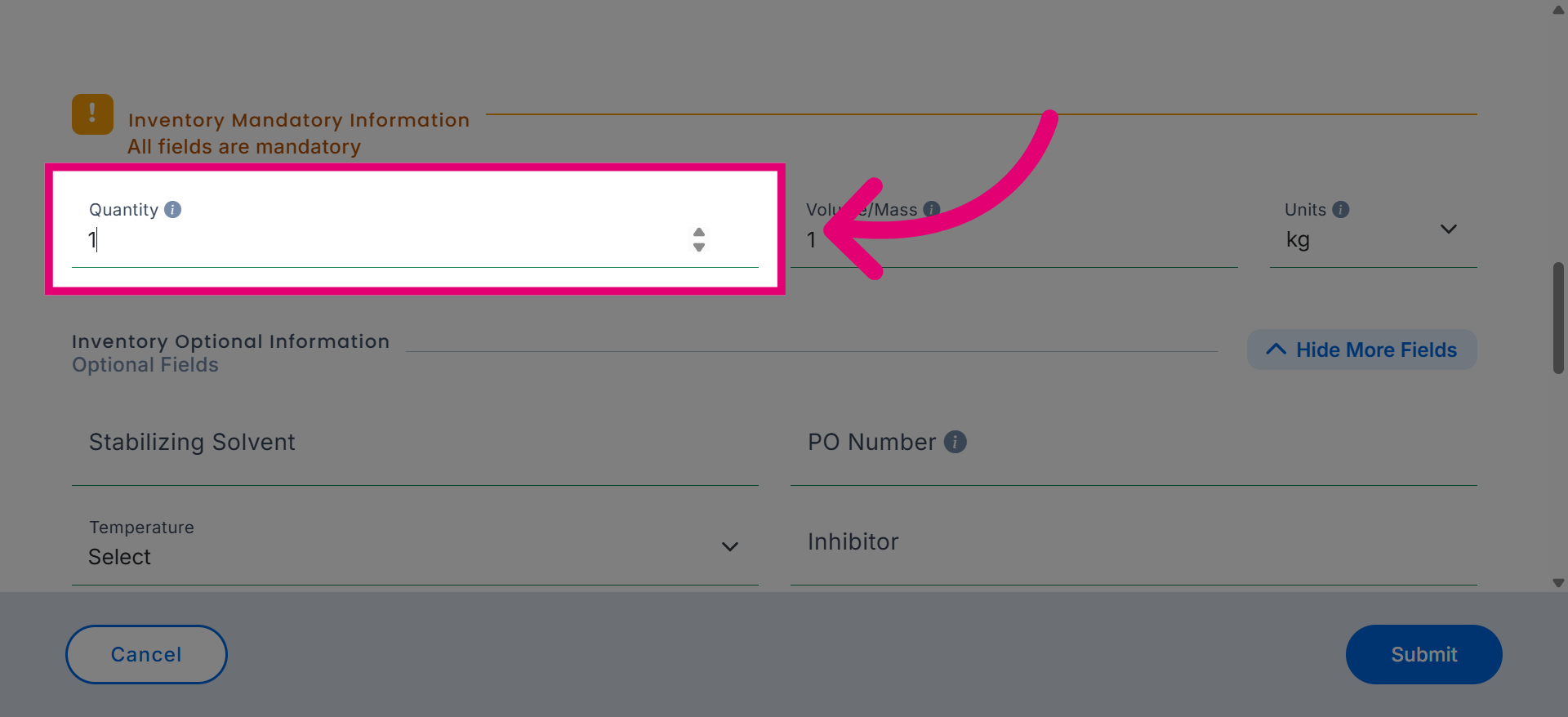
Click Volume/Mass to define the measurement unit for the chemical quantity.
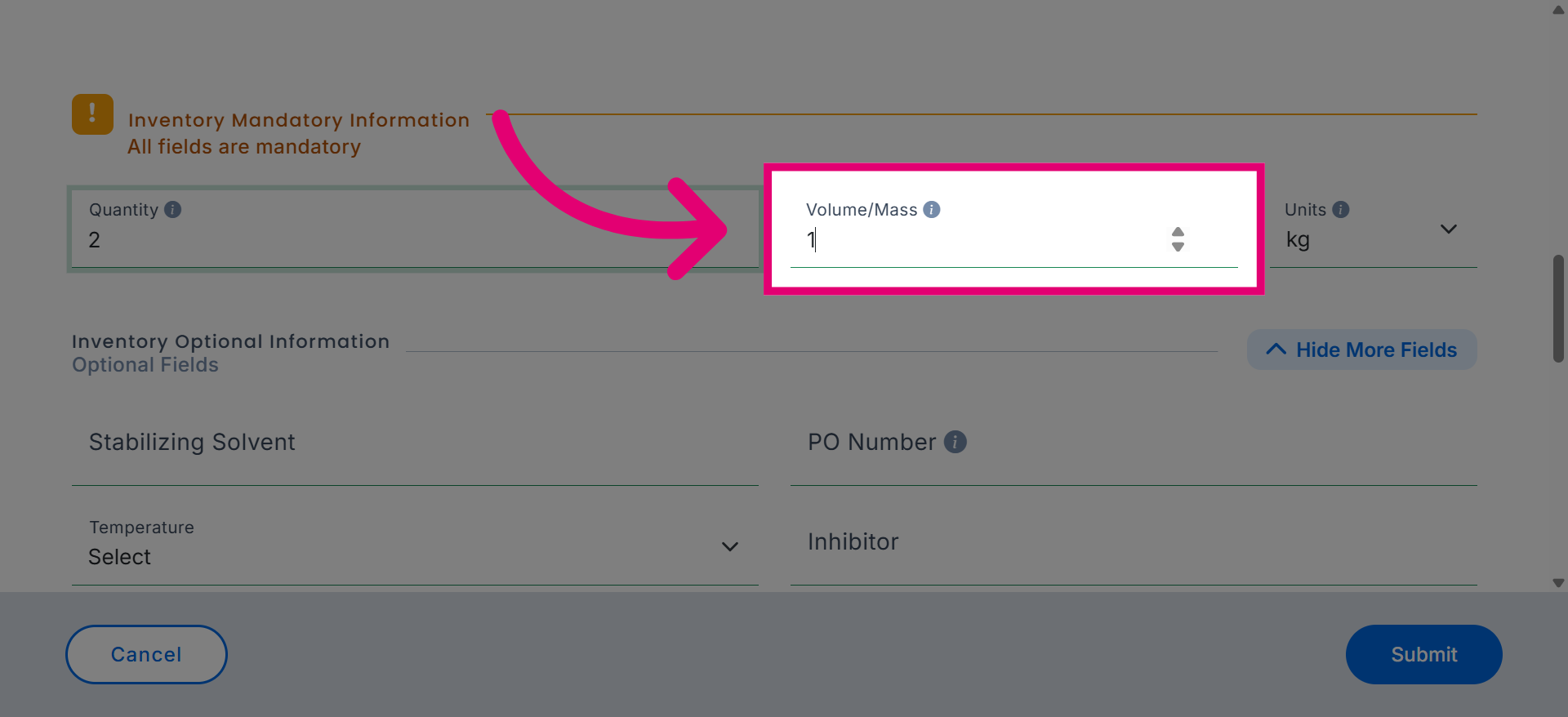
Click Select Unit to choose the appropriate unit of measurement for the chemical.
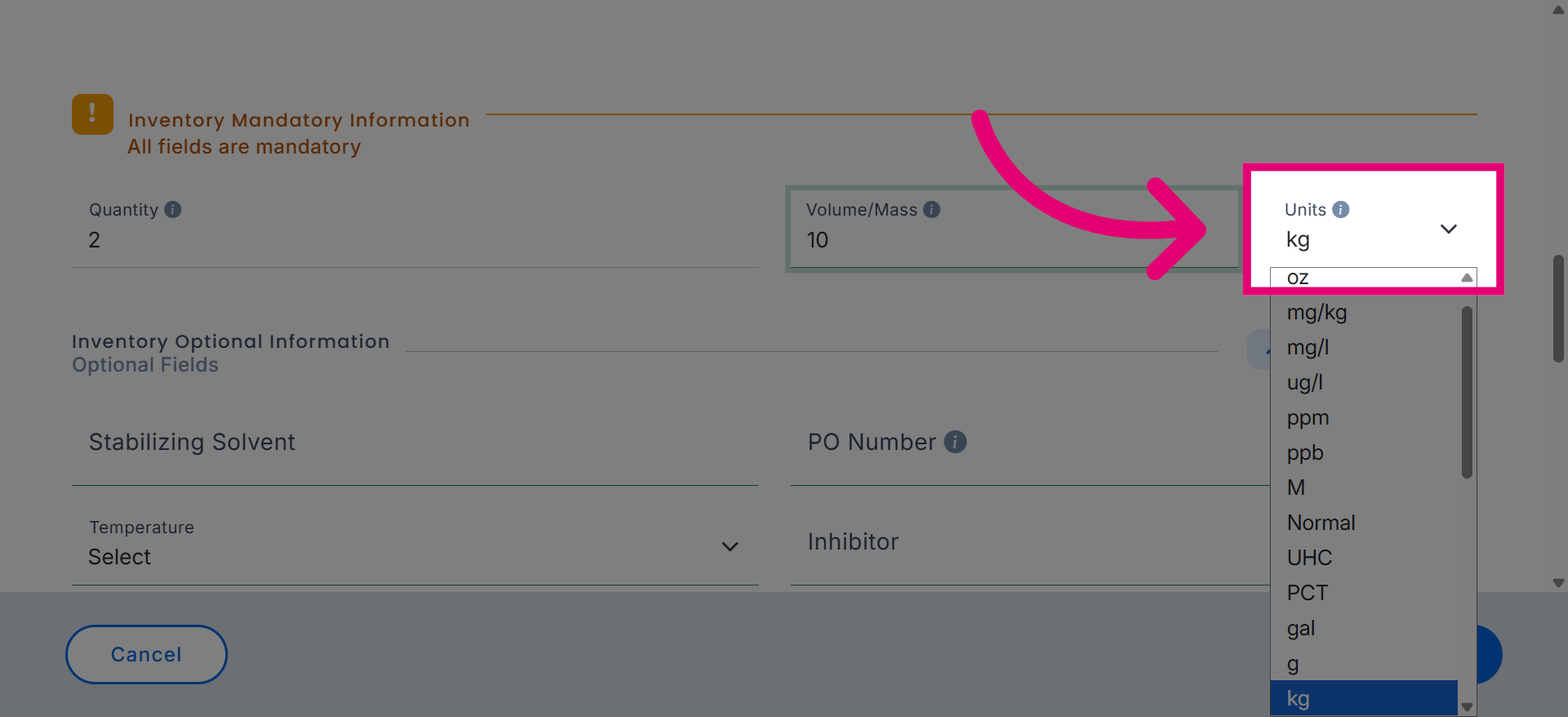
Click Add Inventory to save the chemical quantity and measurement details.
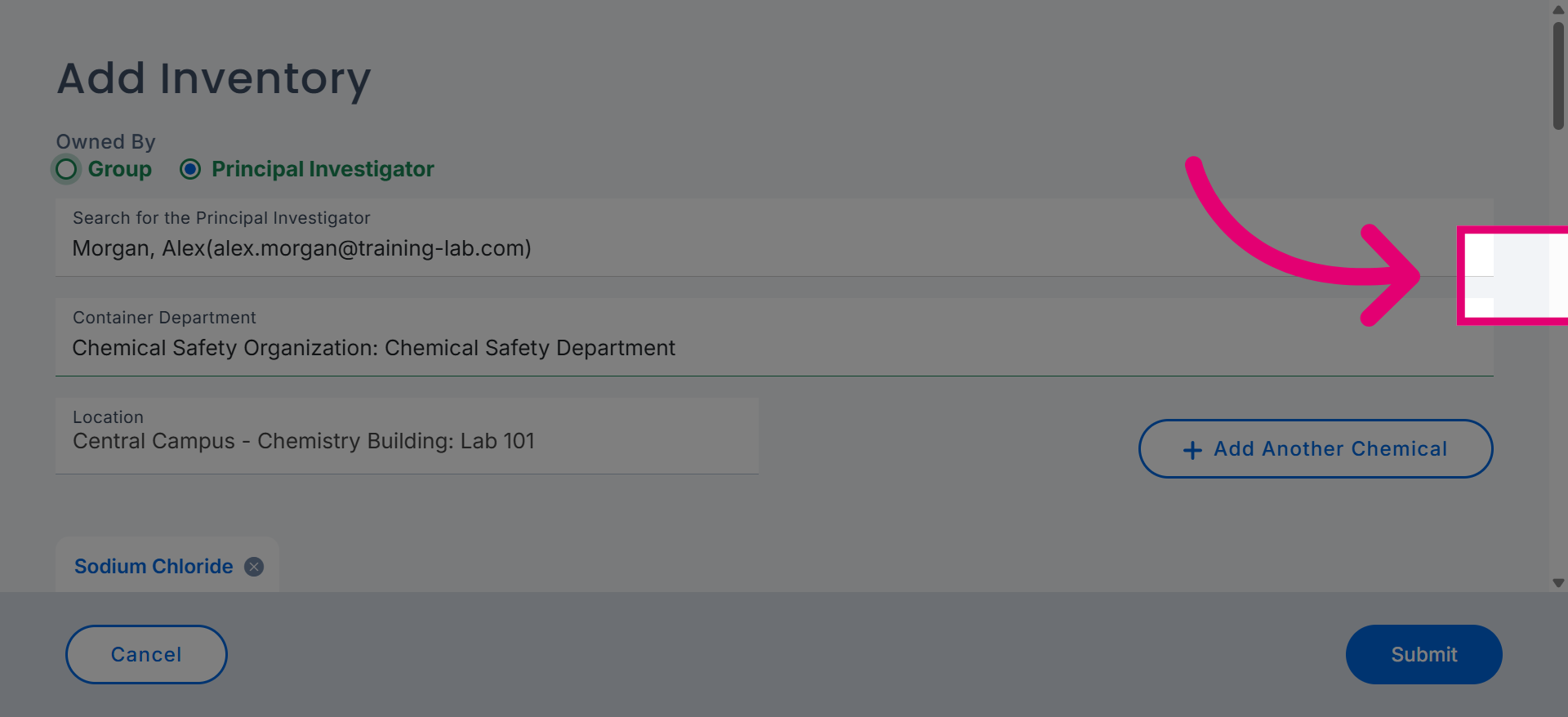
Click Purchase Date to specify when the chemical was acquired.
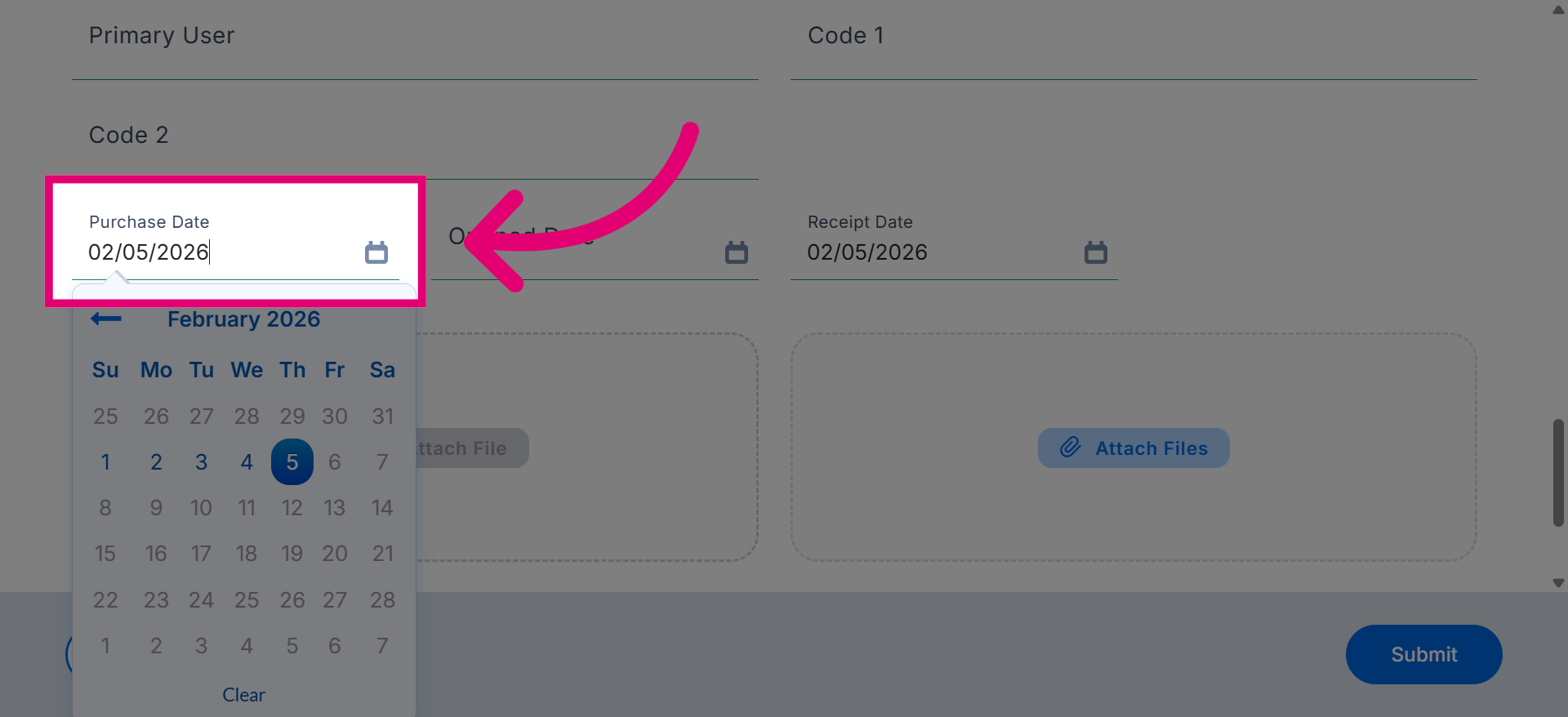
Click Code 1 to enter or select the primary classification code for the chemical.
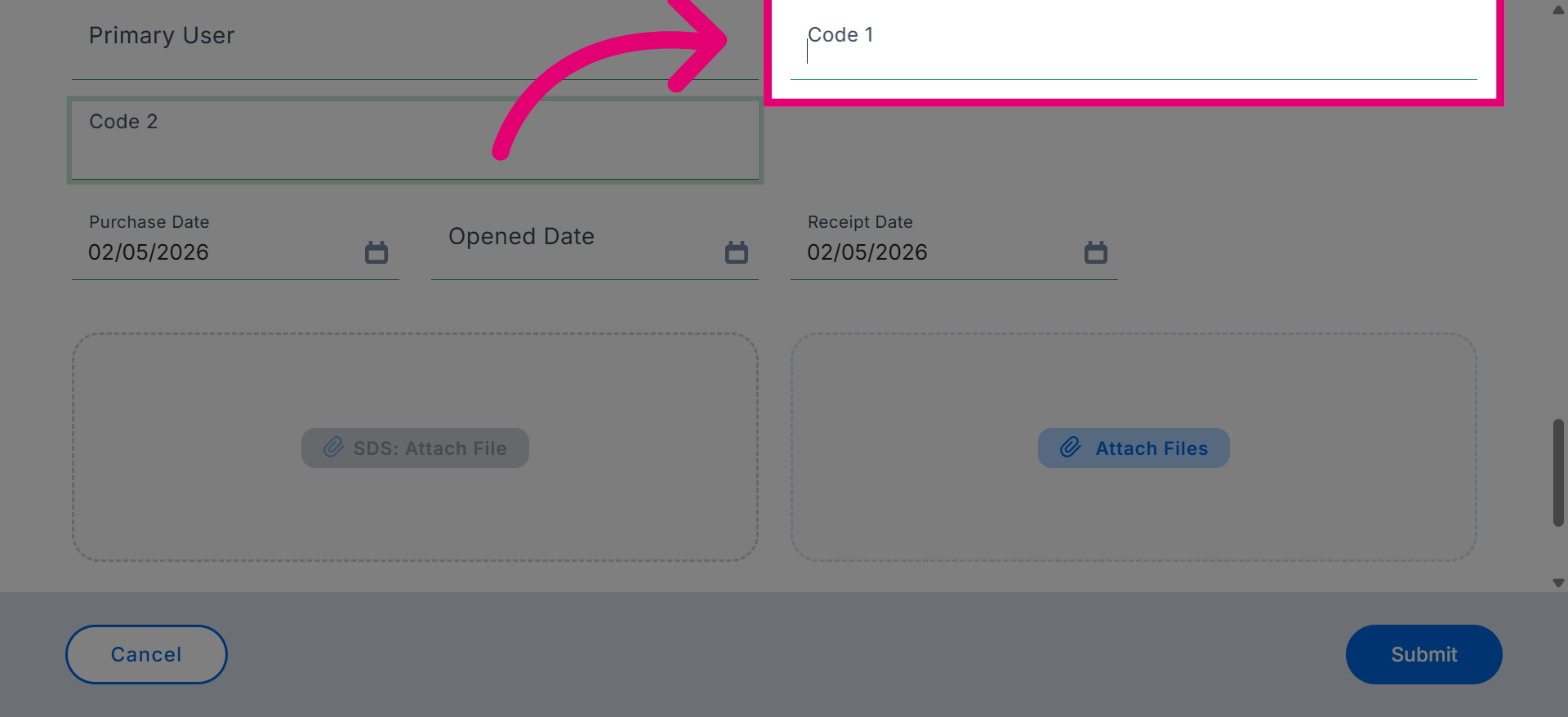
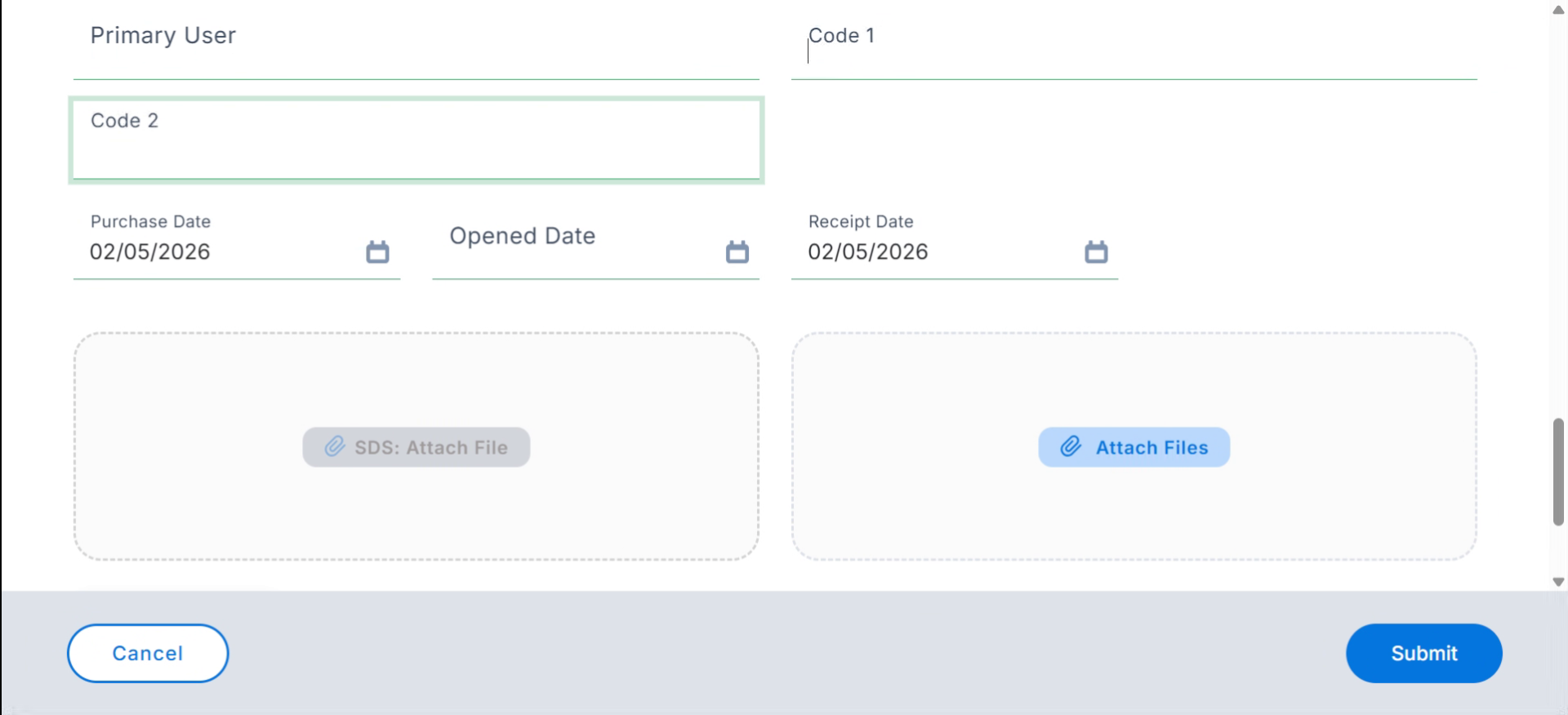
Enter the chemical identifier code to uniquely label this inventory item.
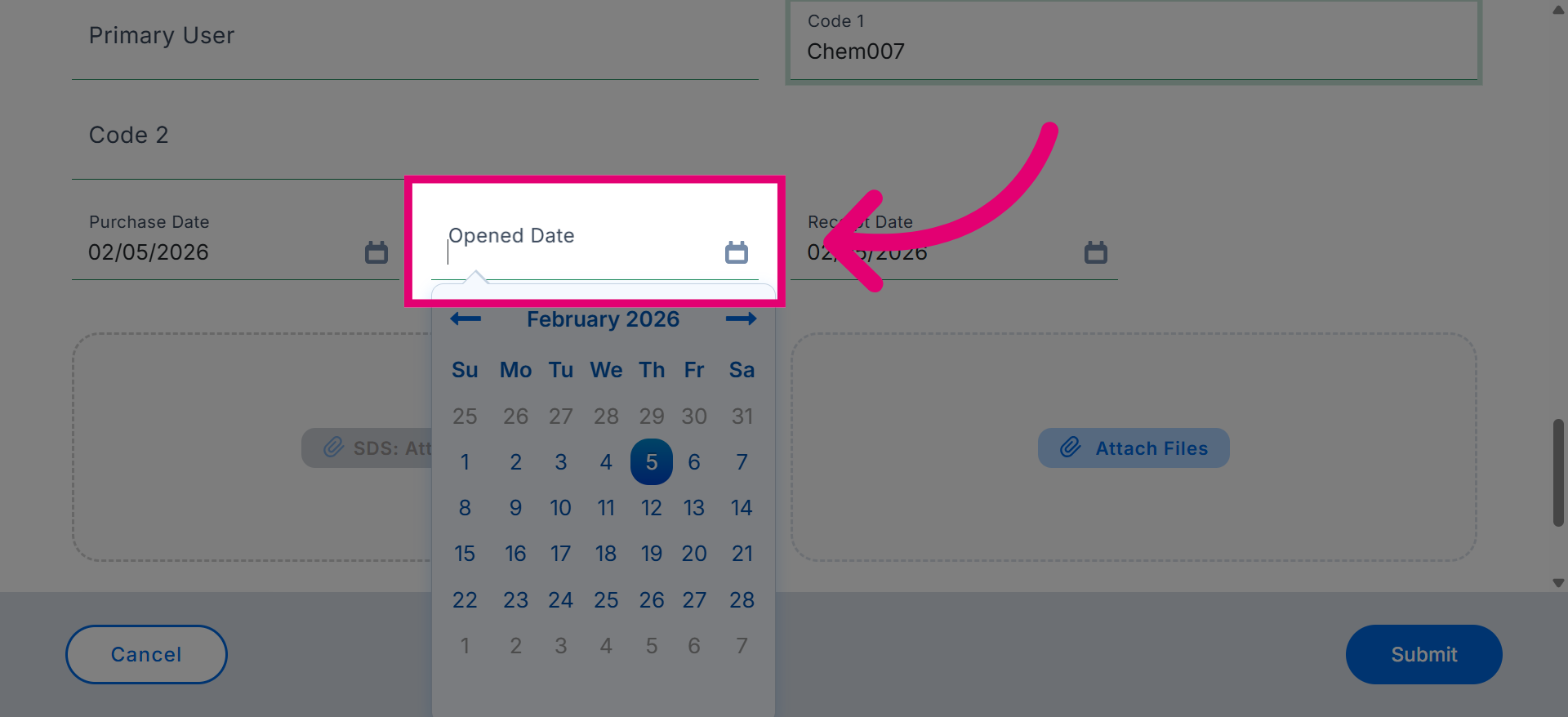
Click Opened Date to record when the chemical container was first opened.
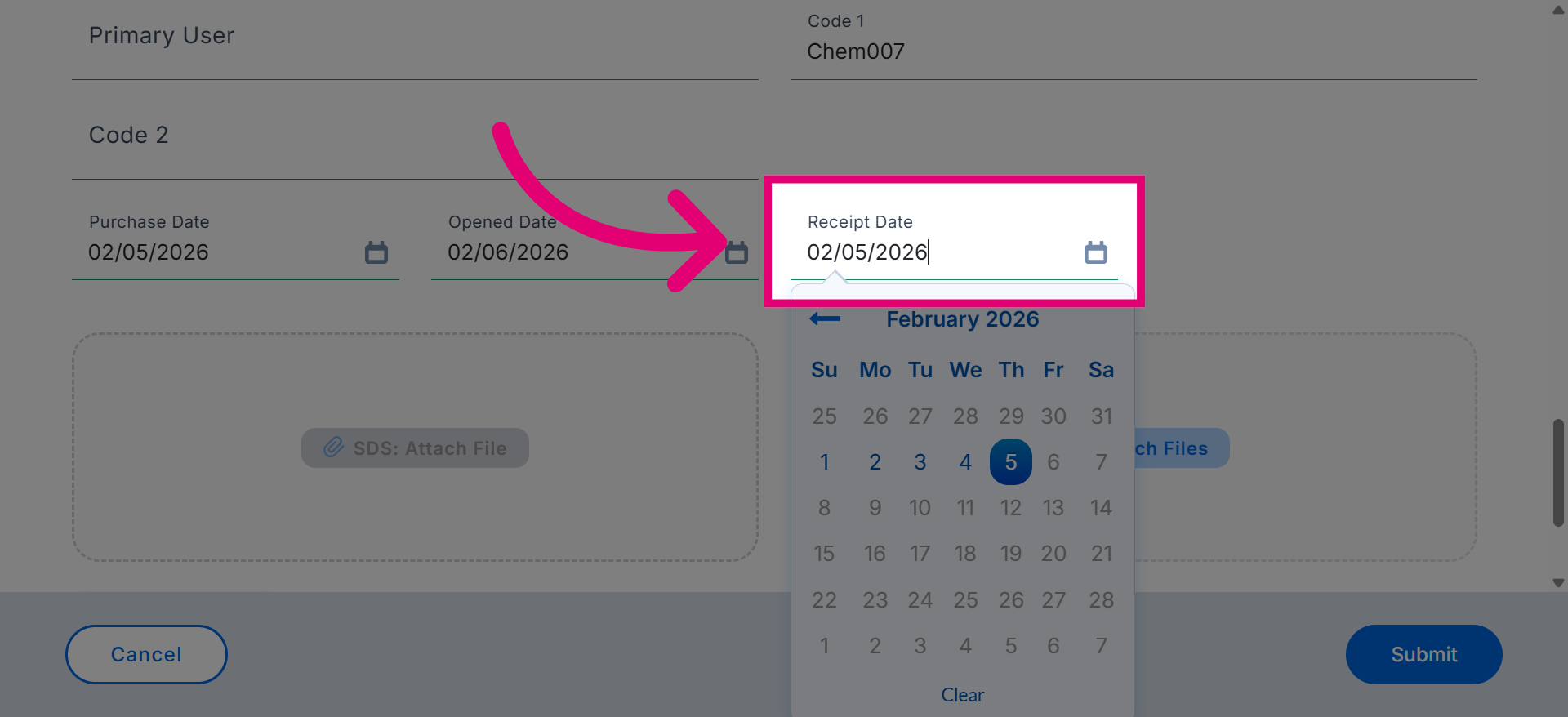
Click Receipt Date to indicate when the chemical was received into inventory.
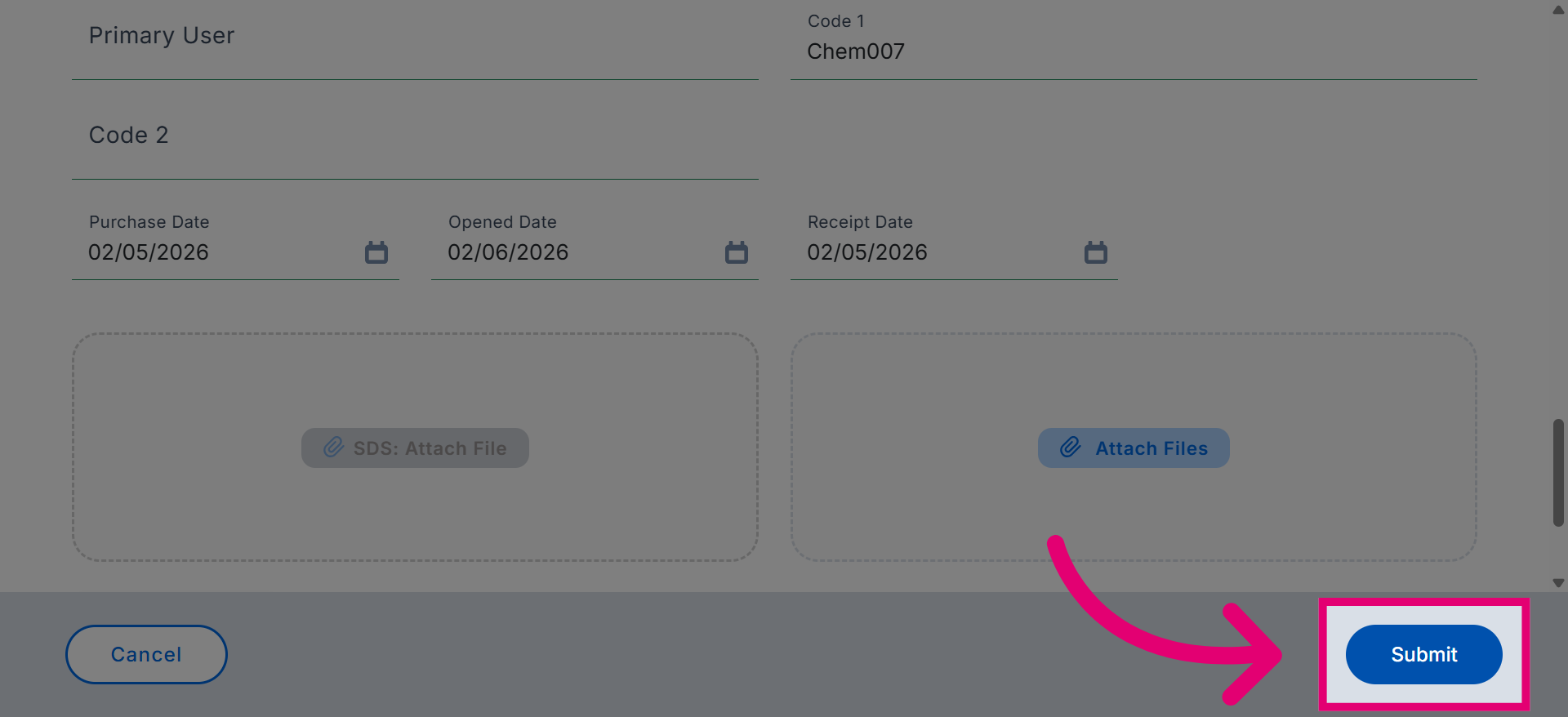
Click Submit to save the new chemical inventory record and complete the process.
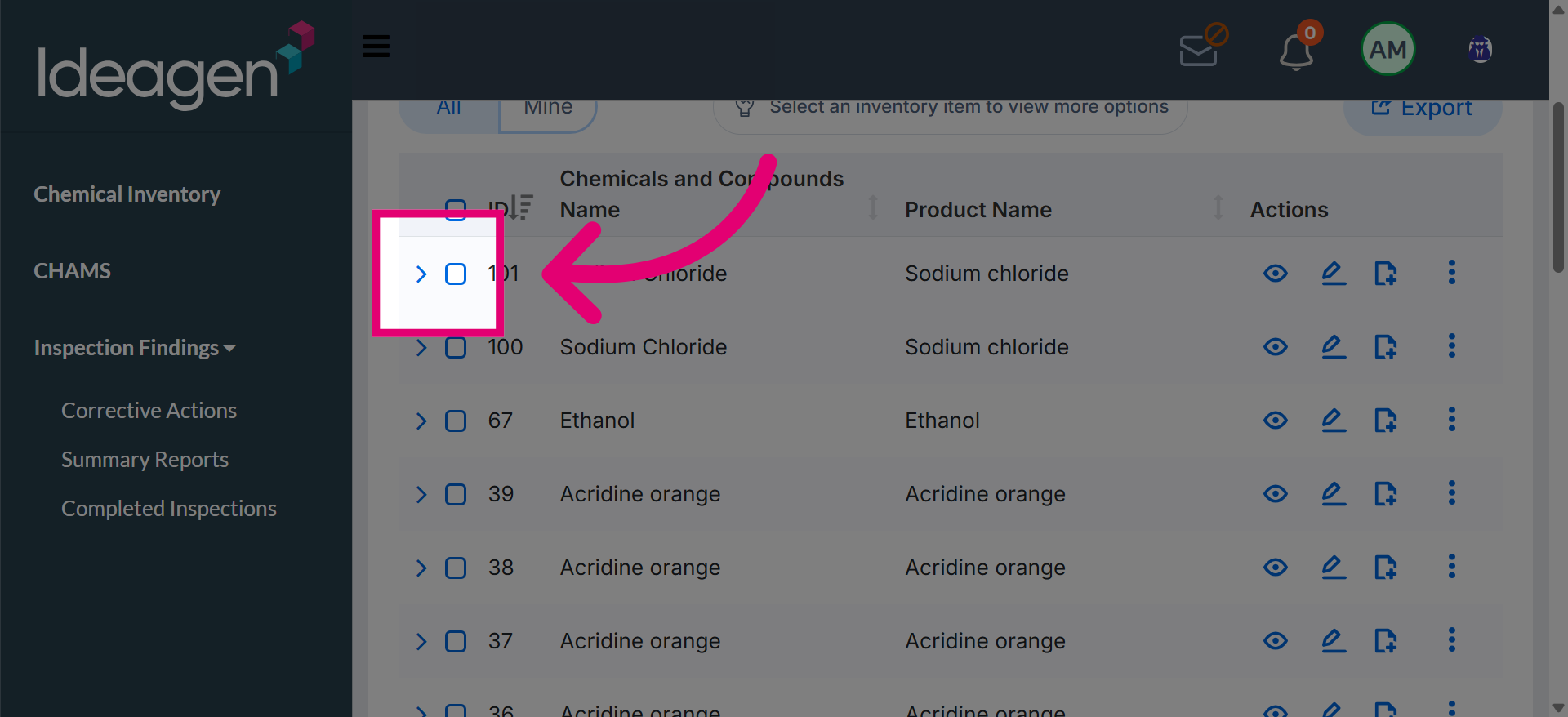
Click Select this row for Bulk Actions to enable batch operations on inventory items.