New article
Recently updated
Managing an asset type

Who is this article for?
Users who need to manage an asset type.
No special access or permissions are required.
This article explains how to manage asset types within the Data Manager module.
You will learn how to navigate to asset types, assign inspection templates, configure cycle settings, and save your changes.
1. Managing an Asset Type
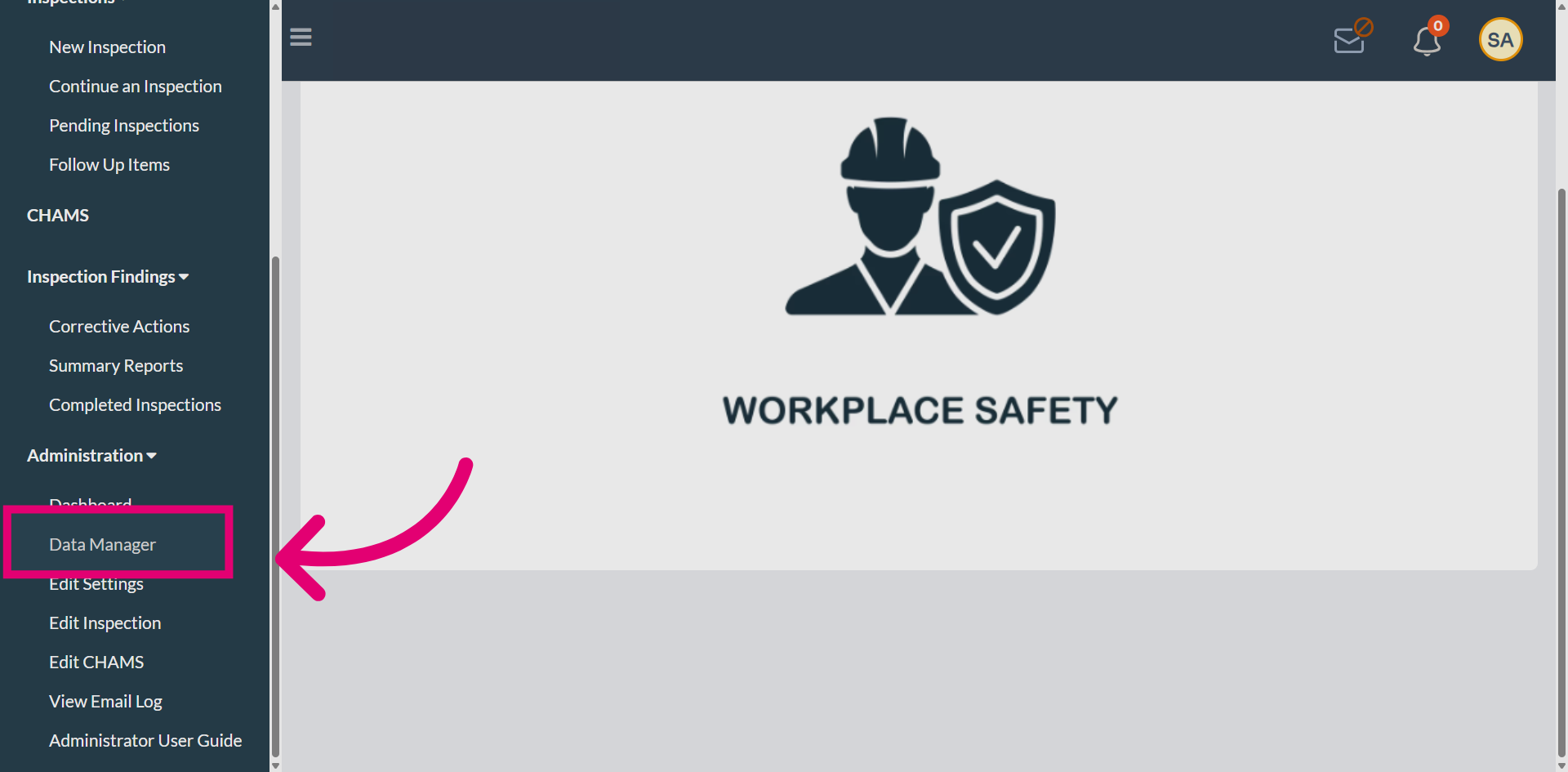
Navigate to Data Manager from the main menu.
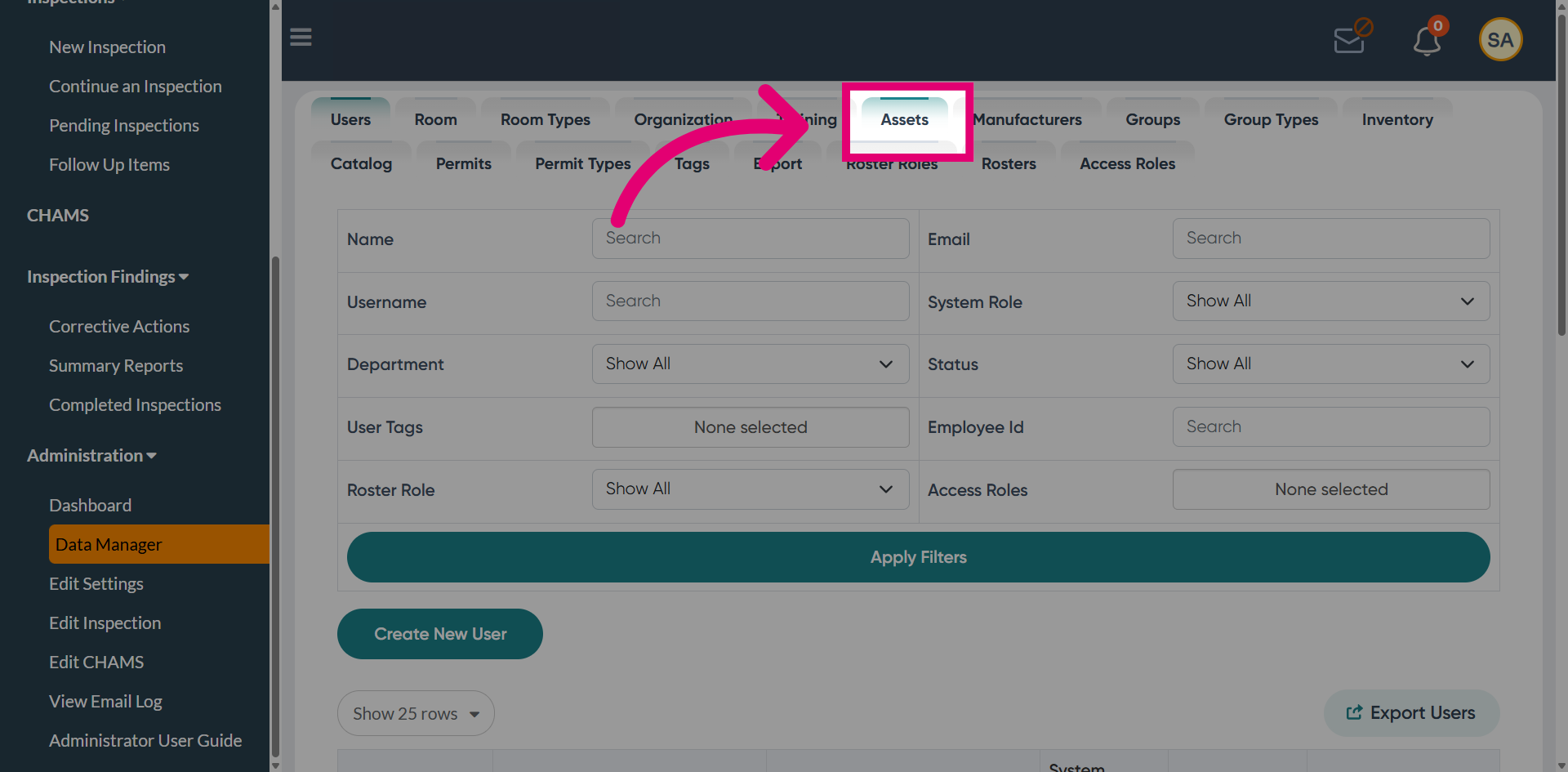
Open the Assets section to view asset management options.
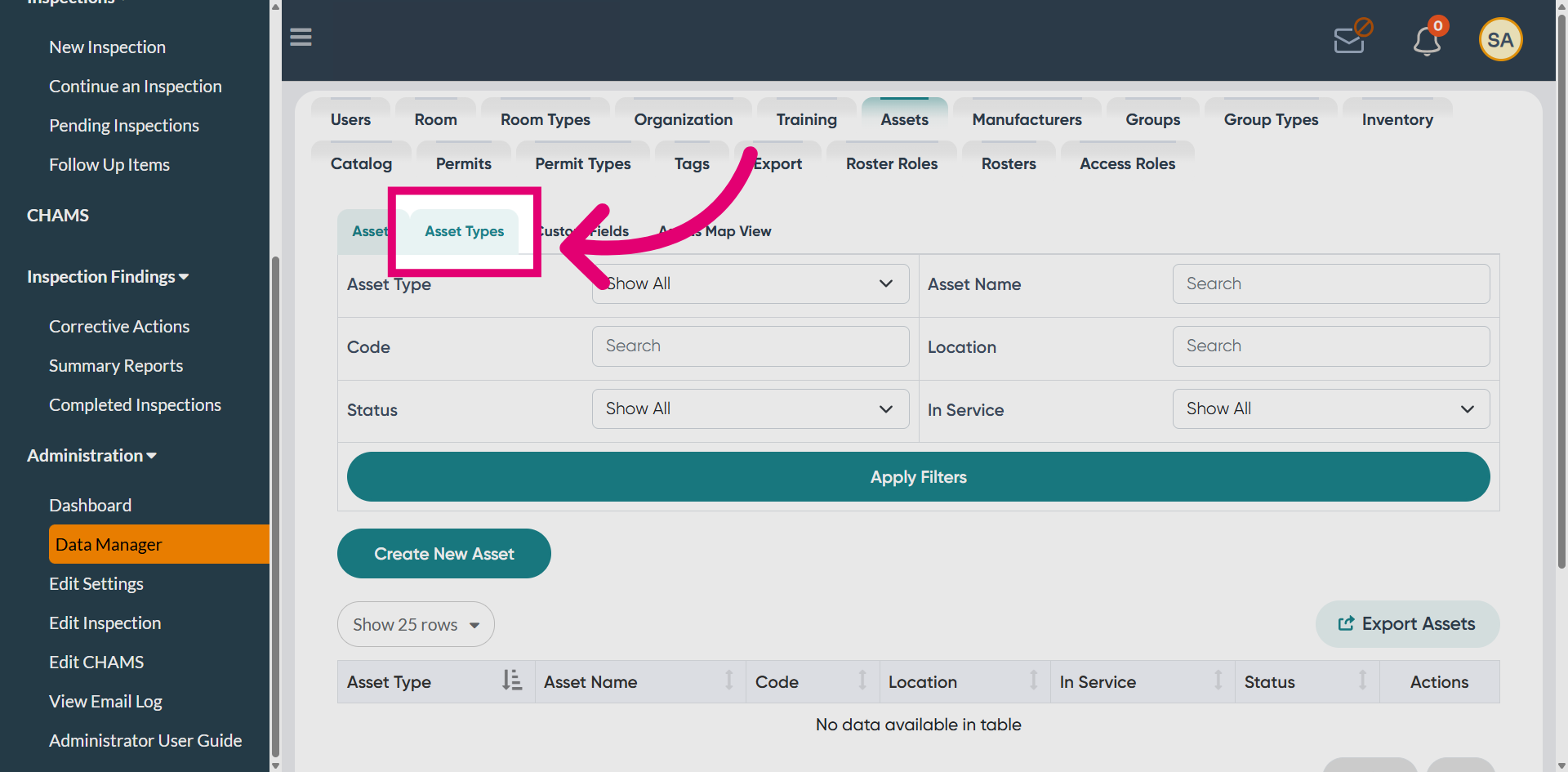
Access Asset Types from the Assets menu.
Select the asset type option you want to configure.
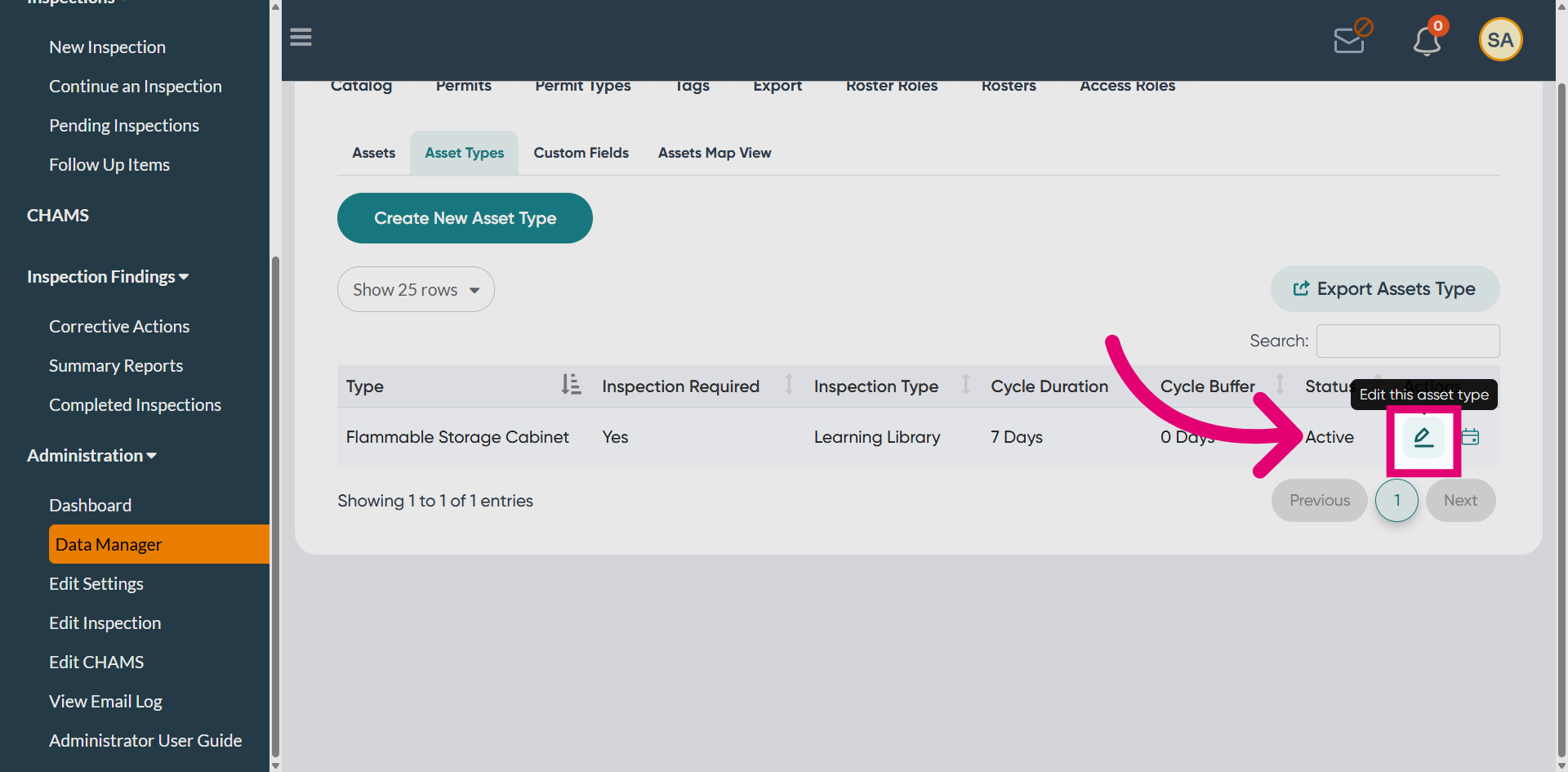
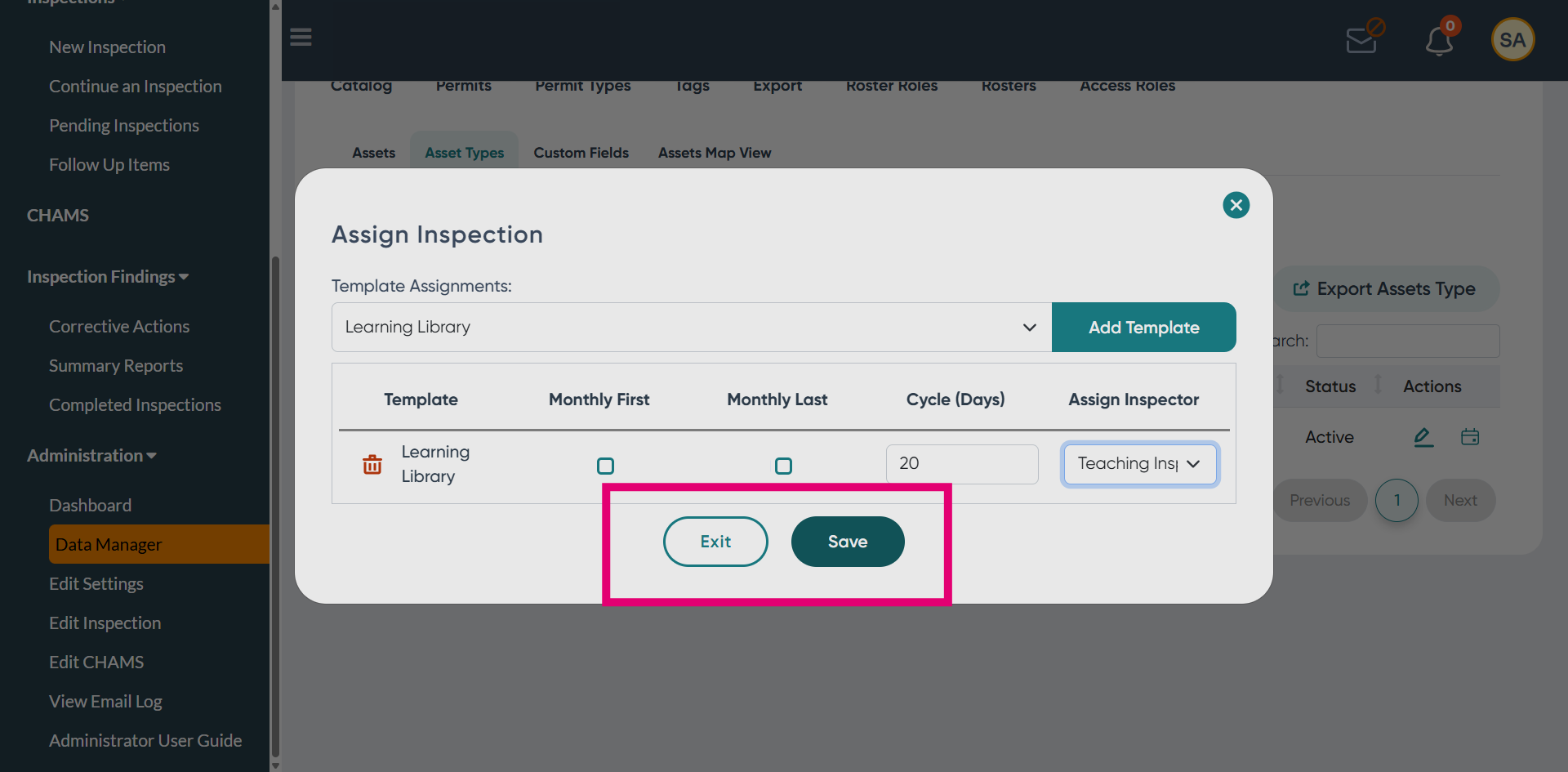
Assign the Inspection asset type to the selected asset.
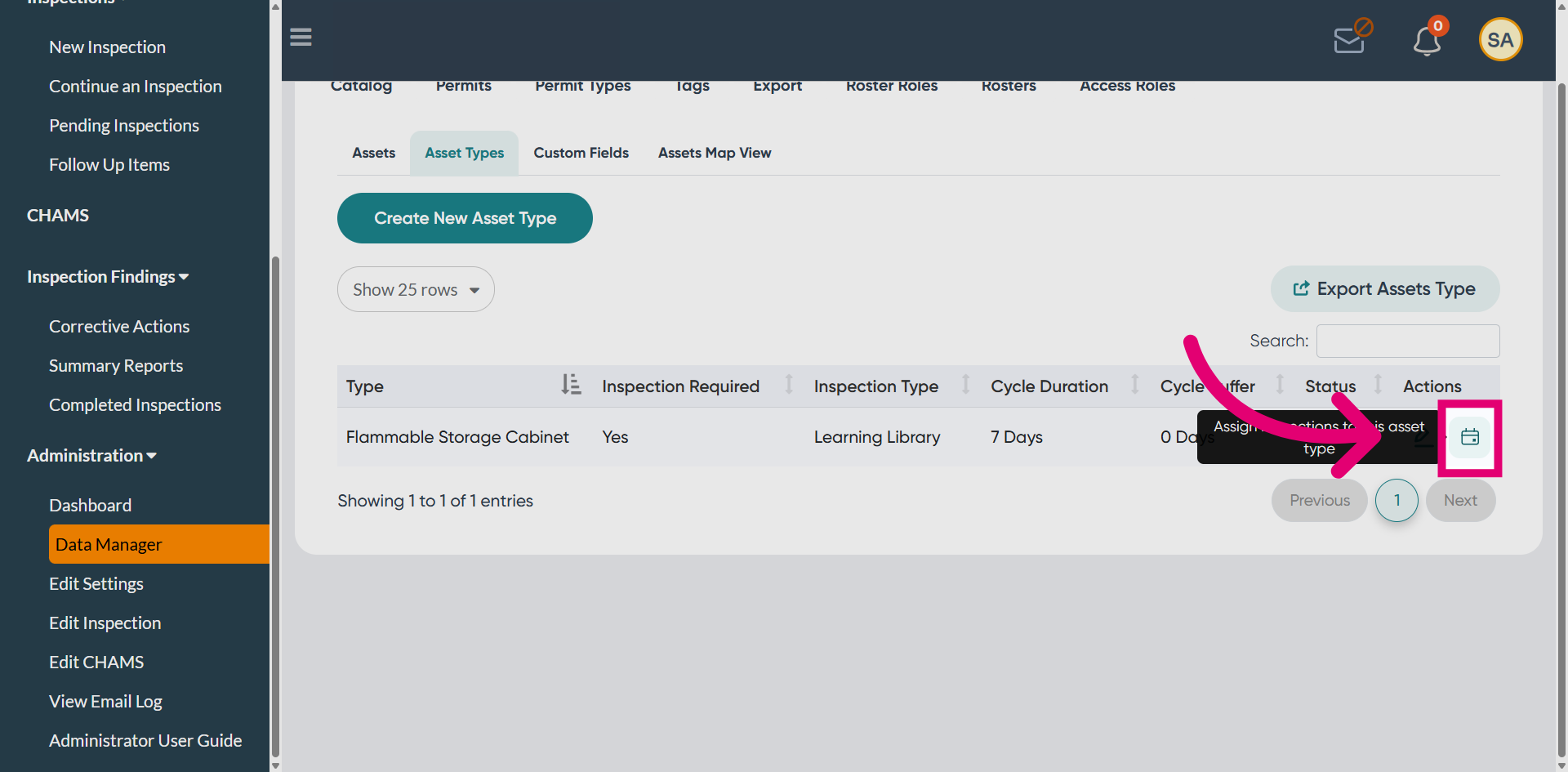
Open the Template dropdown to view available templates.
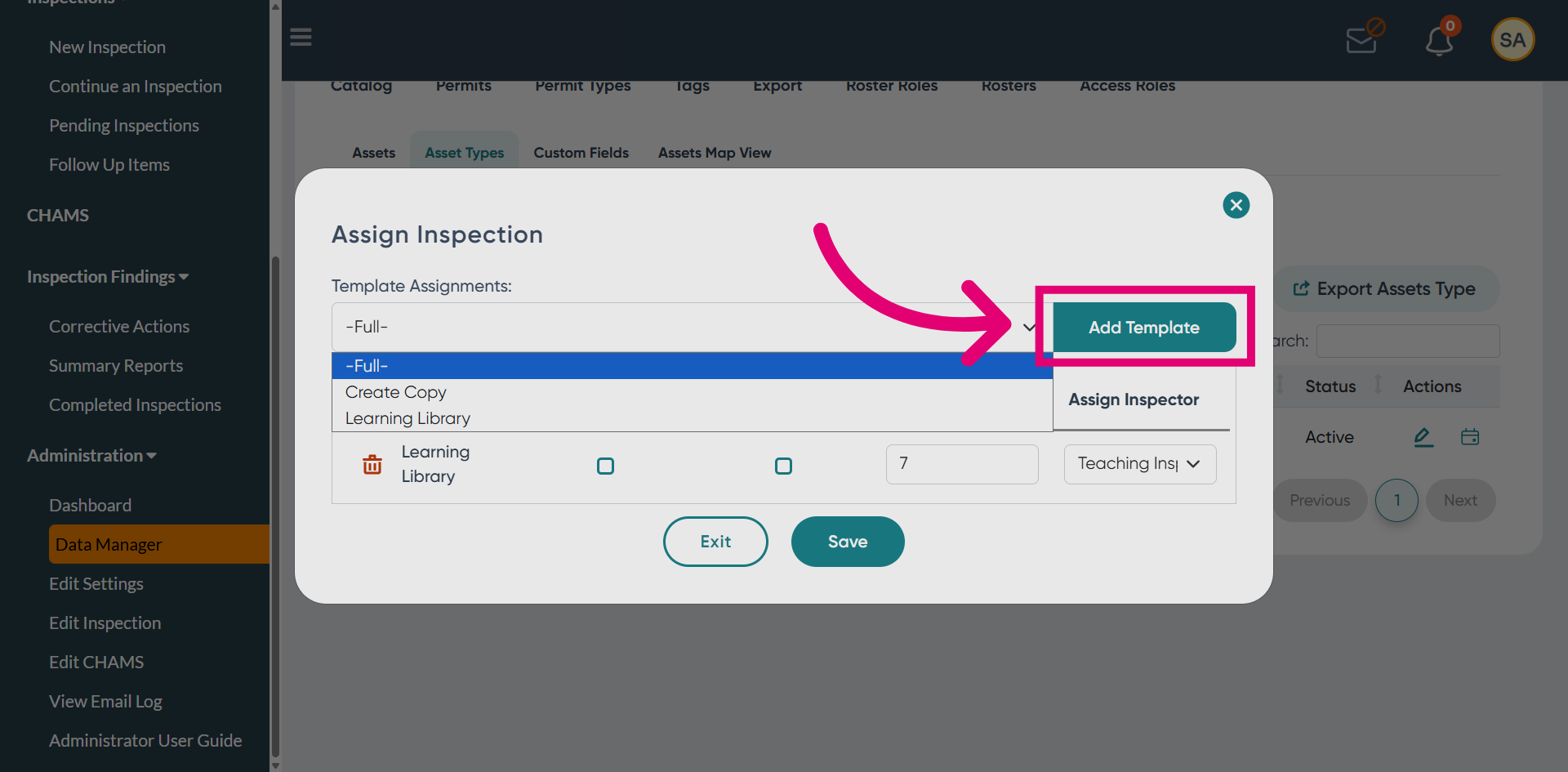
Choose the template option that matches your inspection requirements.
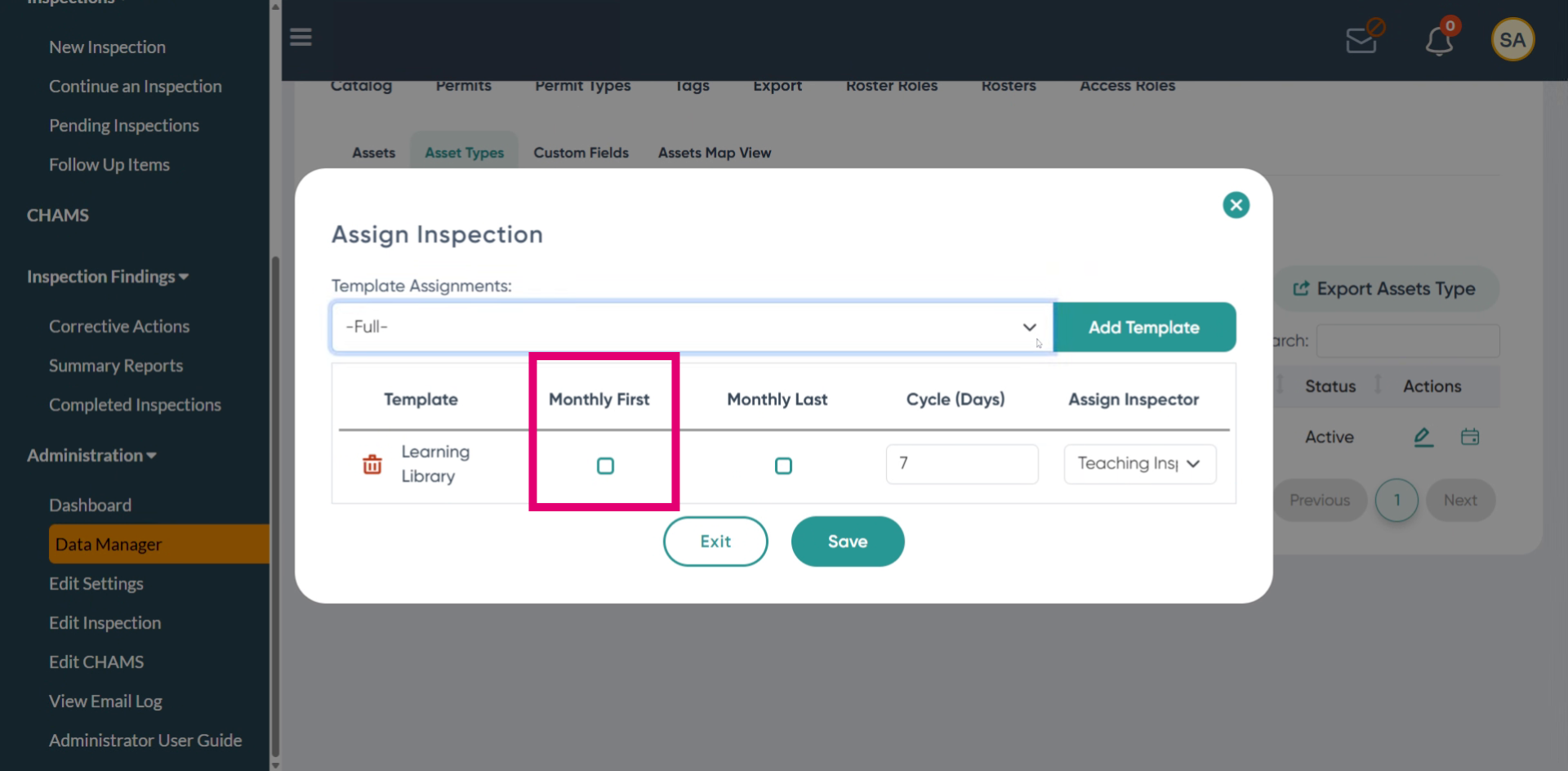
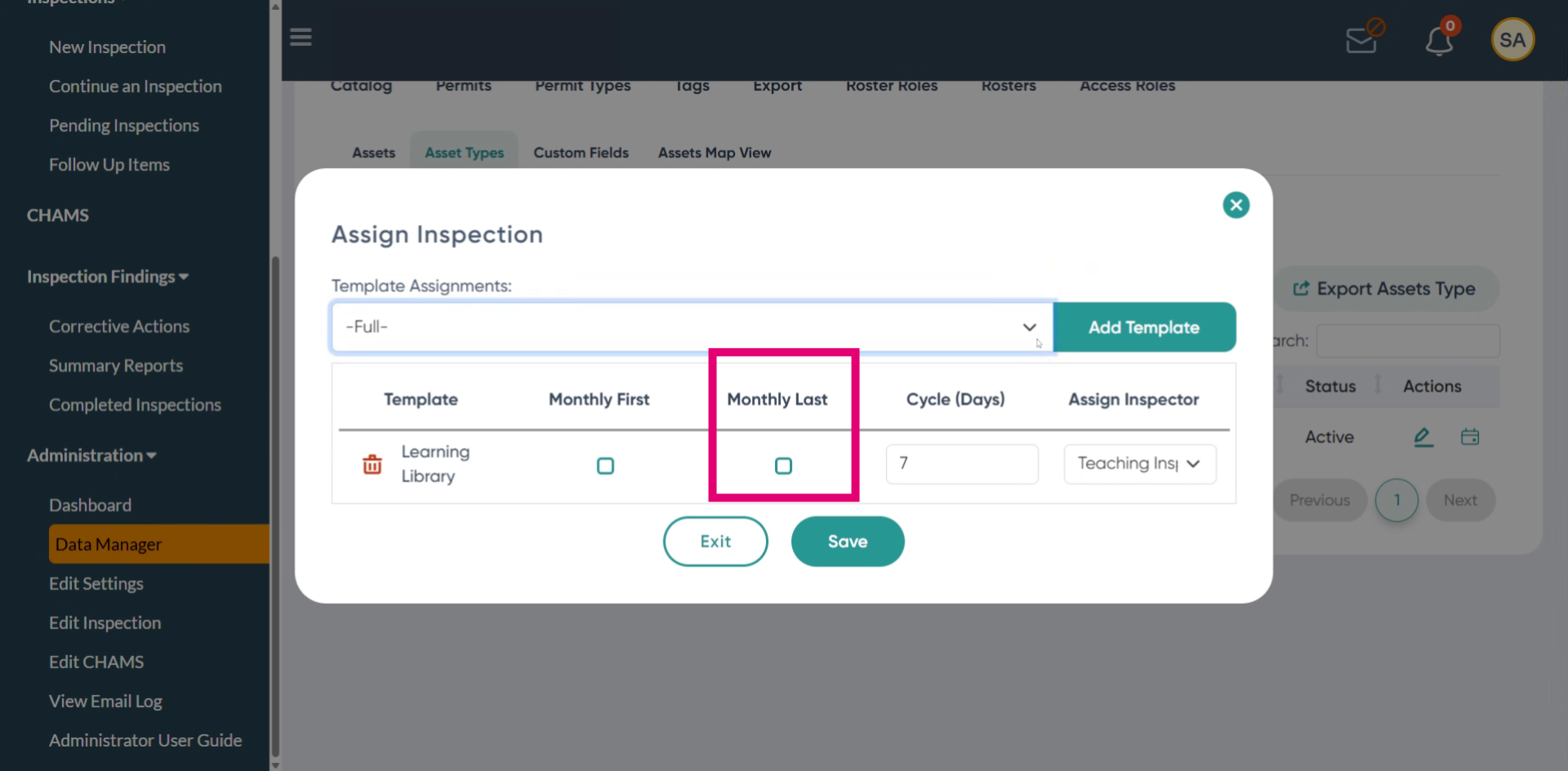
Configure the Monthly Last setting for the inspection cycle.
Set the Cycle Days parameter for the inspection schedule.
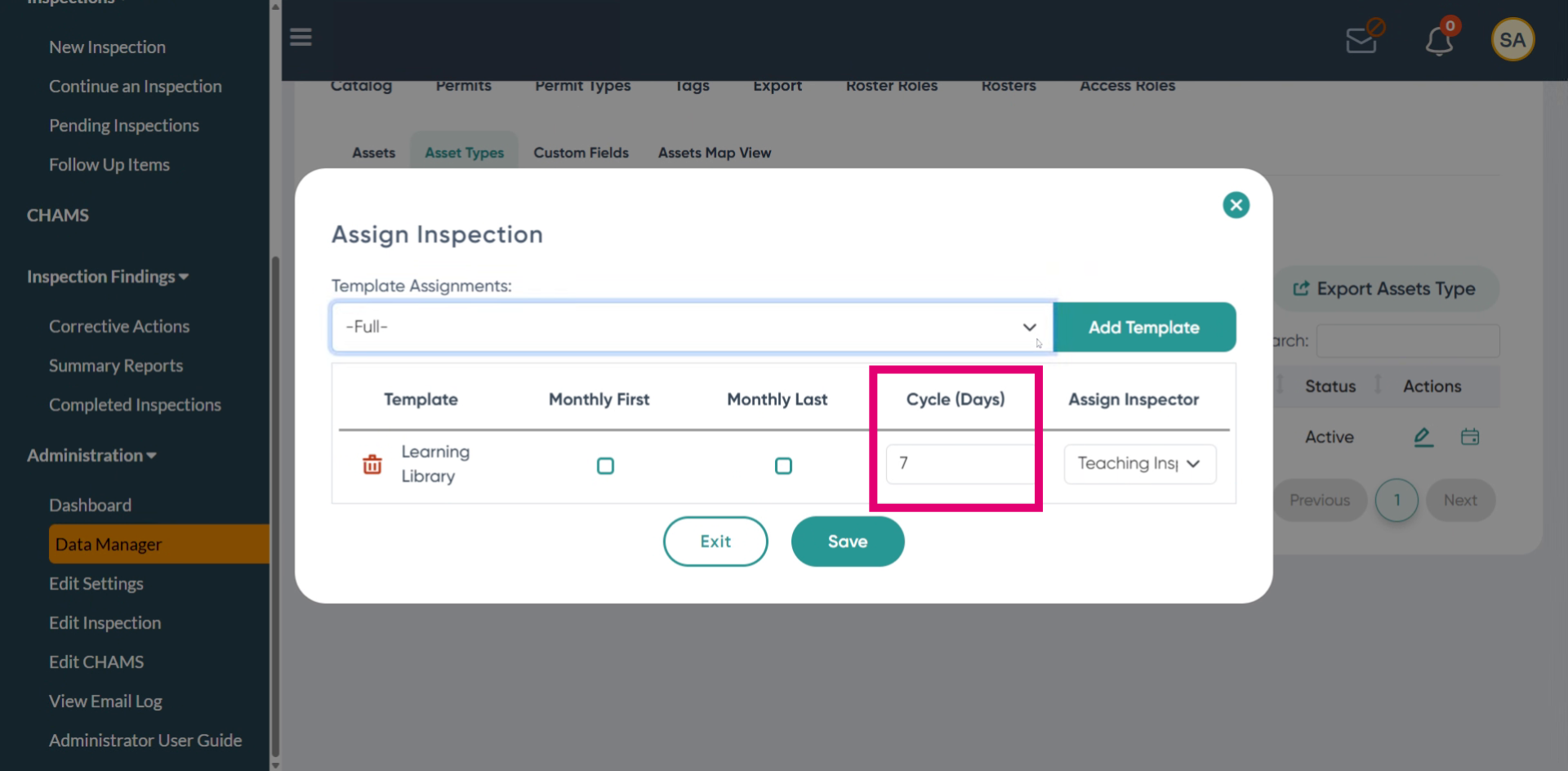
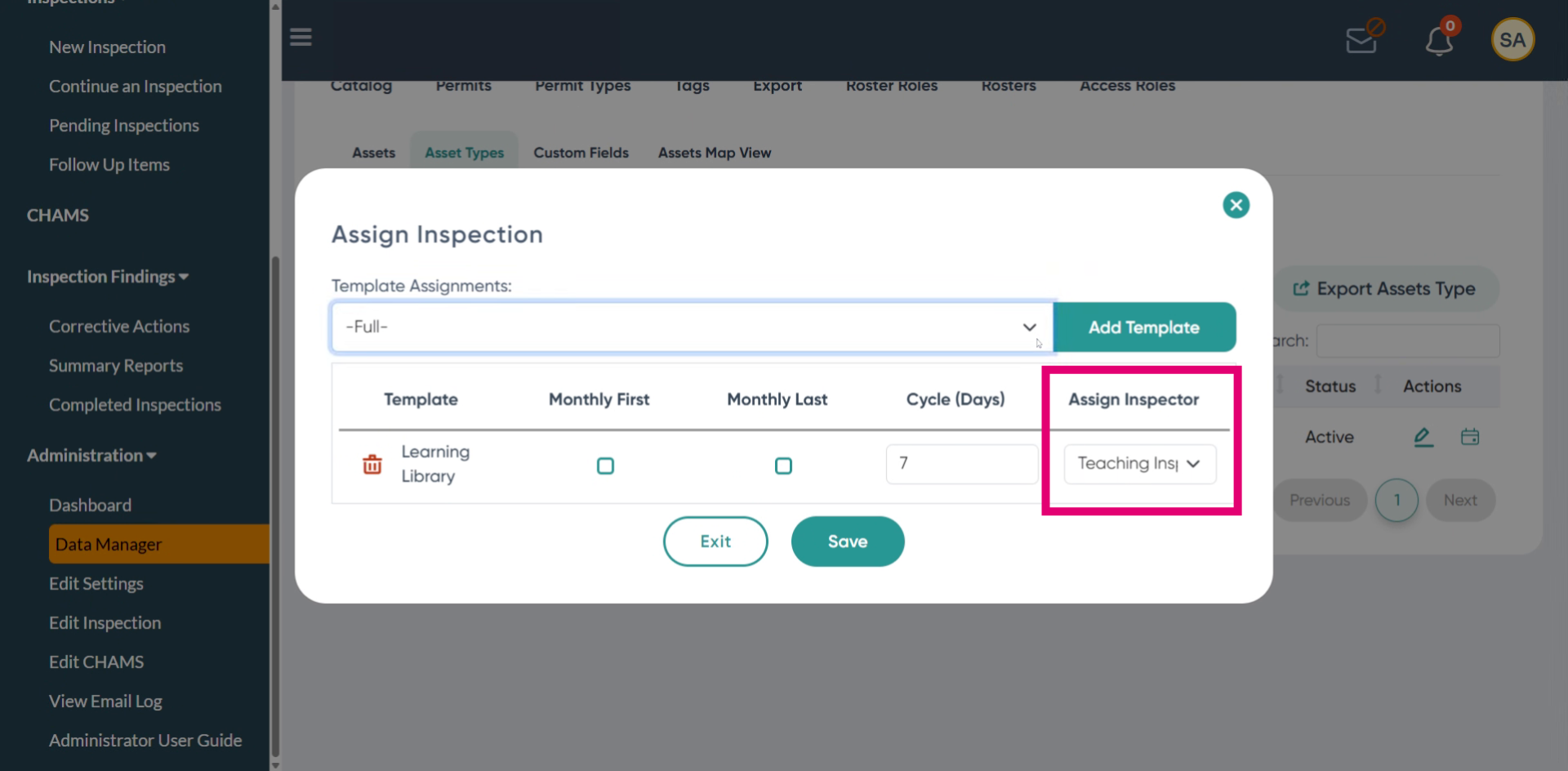
Adjust the Cycle Days value as needed for your inspection frequency.
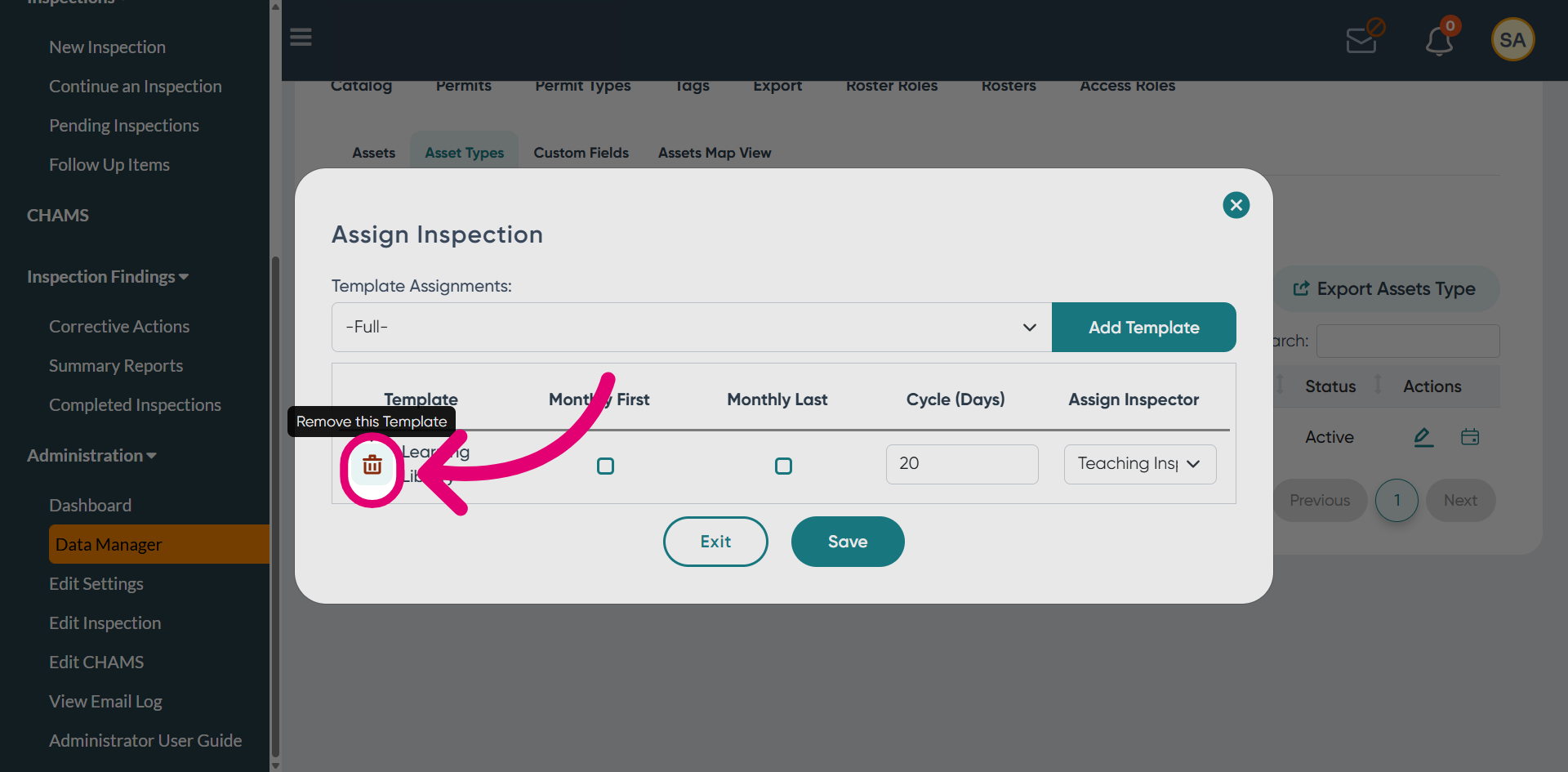
Remove the template if you need to unassign it from the asset type.
Save the asset type changes to apply your configuration.