New article
Recently updated
Creating an asset type

Who is this article for?
Administrators who want to learn to create an asset type.
Administrator permissions are required.
This tutorial walks through the process of creating and configuring asset types.
You will learn how to set up inspection requirements, cycles, and buffer days for your asset types.
1. Creating and configuring an asset type
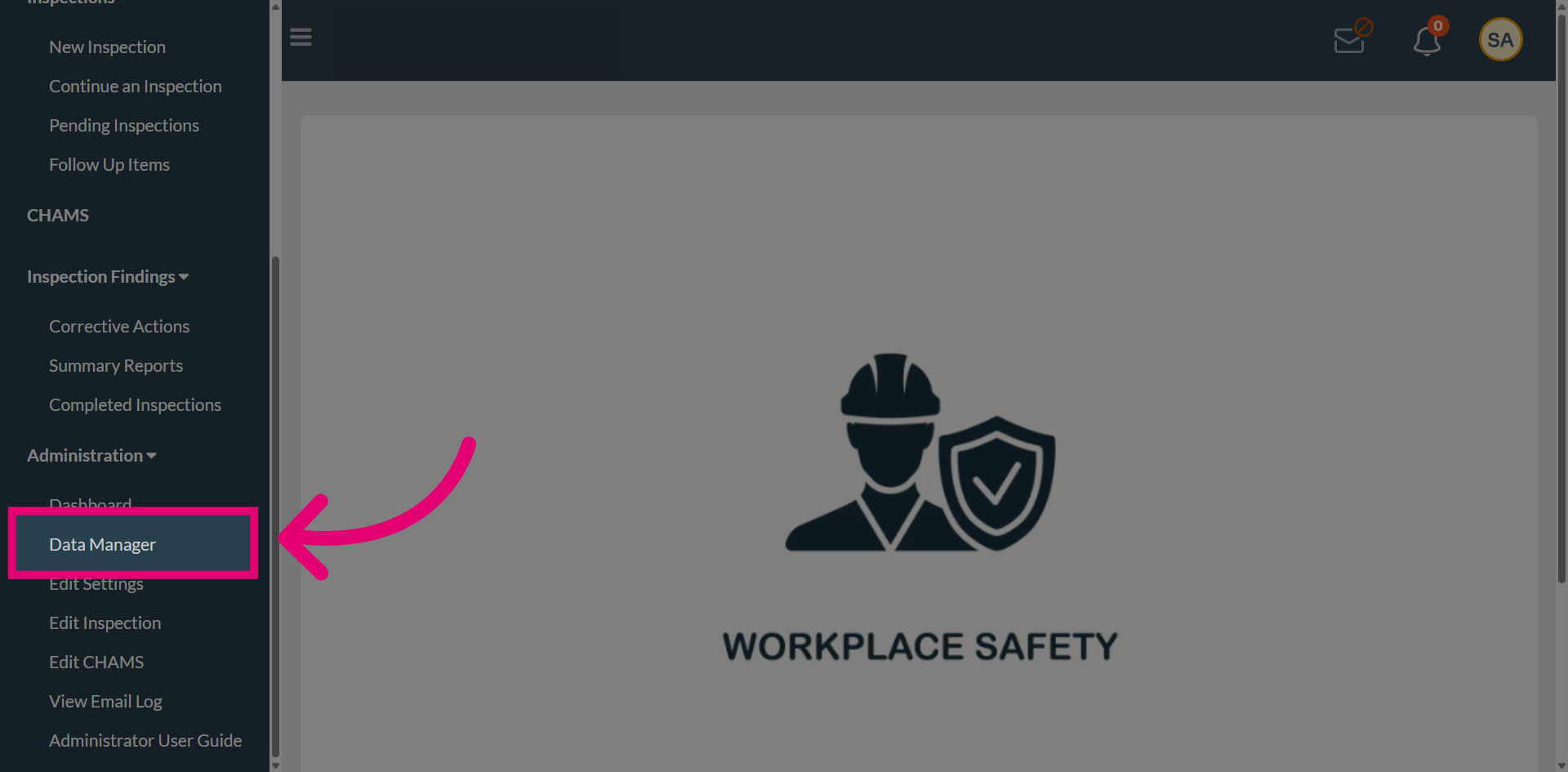
Open Data Manager to access the asset management section.
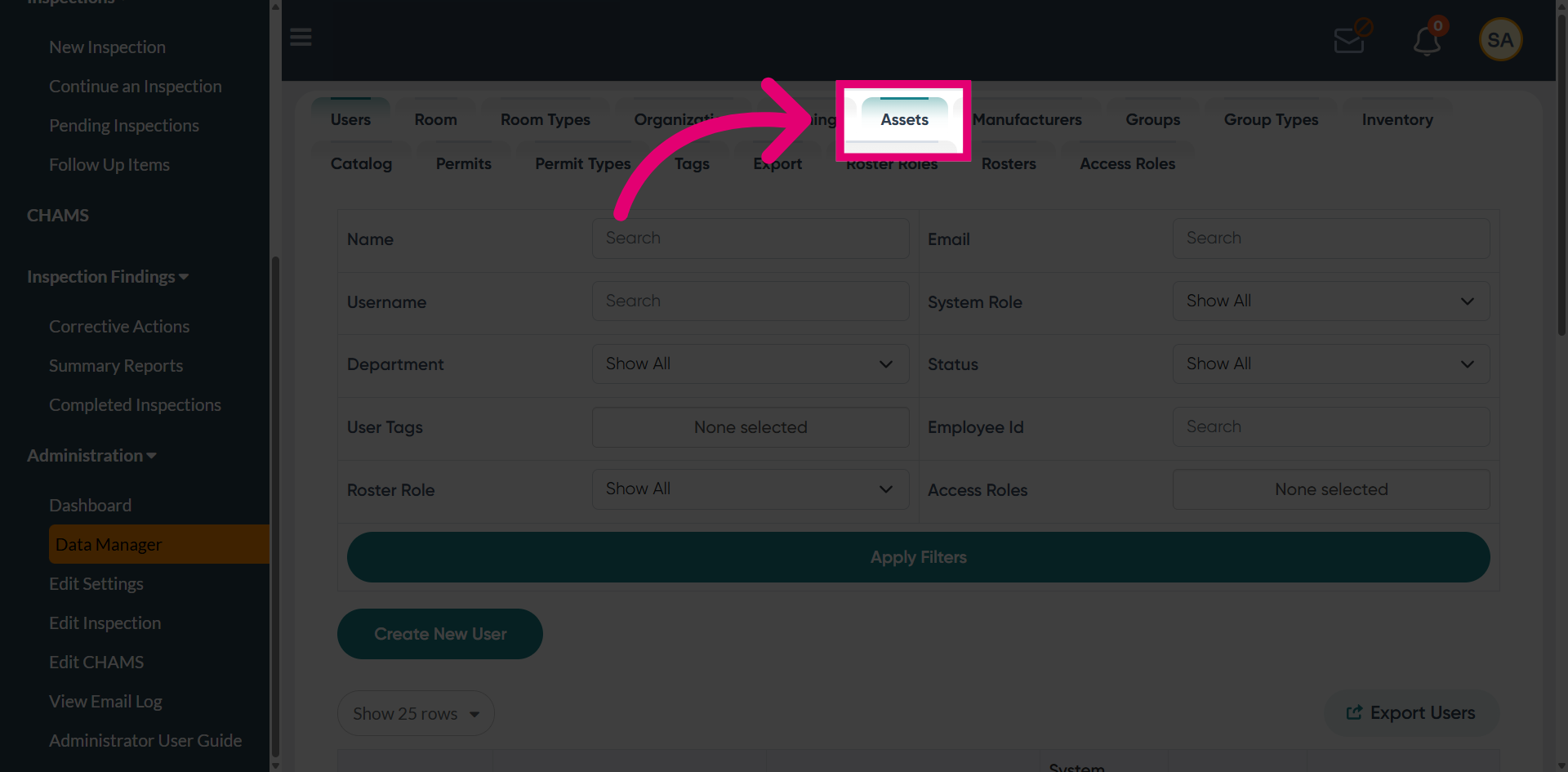
Click Assets to view all asset-related data and configurations.
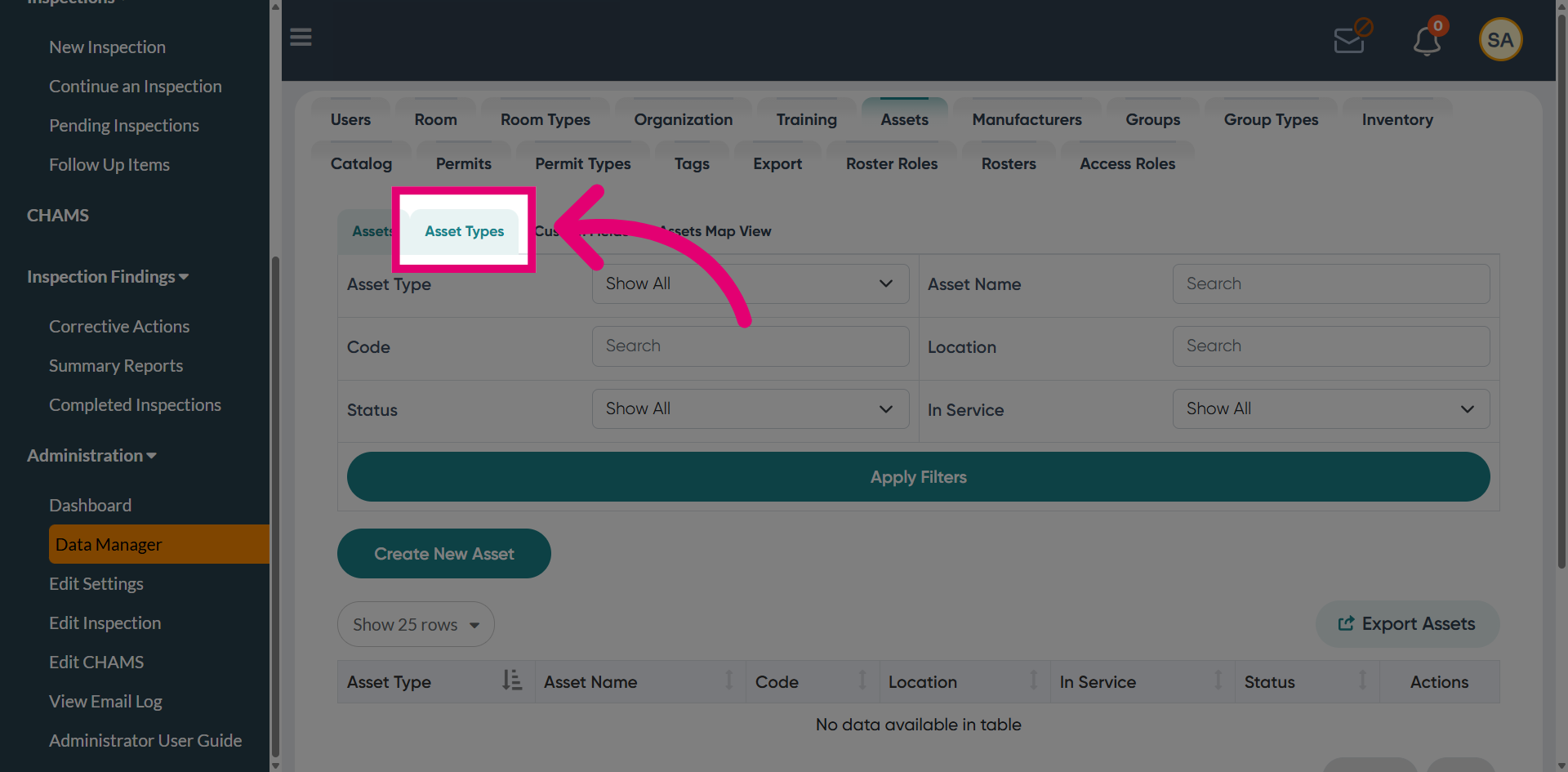
Select Asset Types to create a new asset.
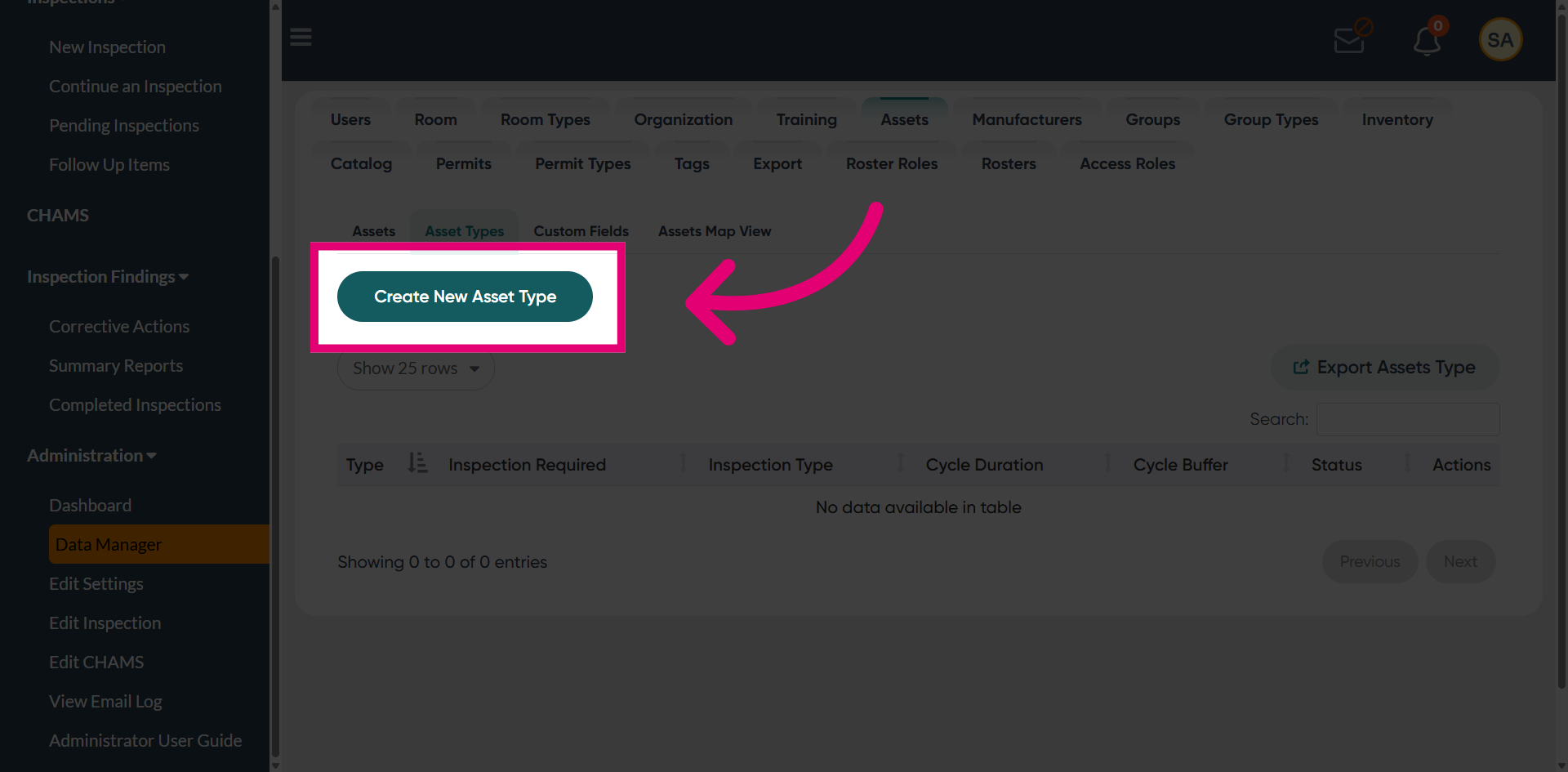
Click Create New Asset Type to start setting up a new asset type.
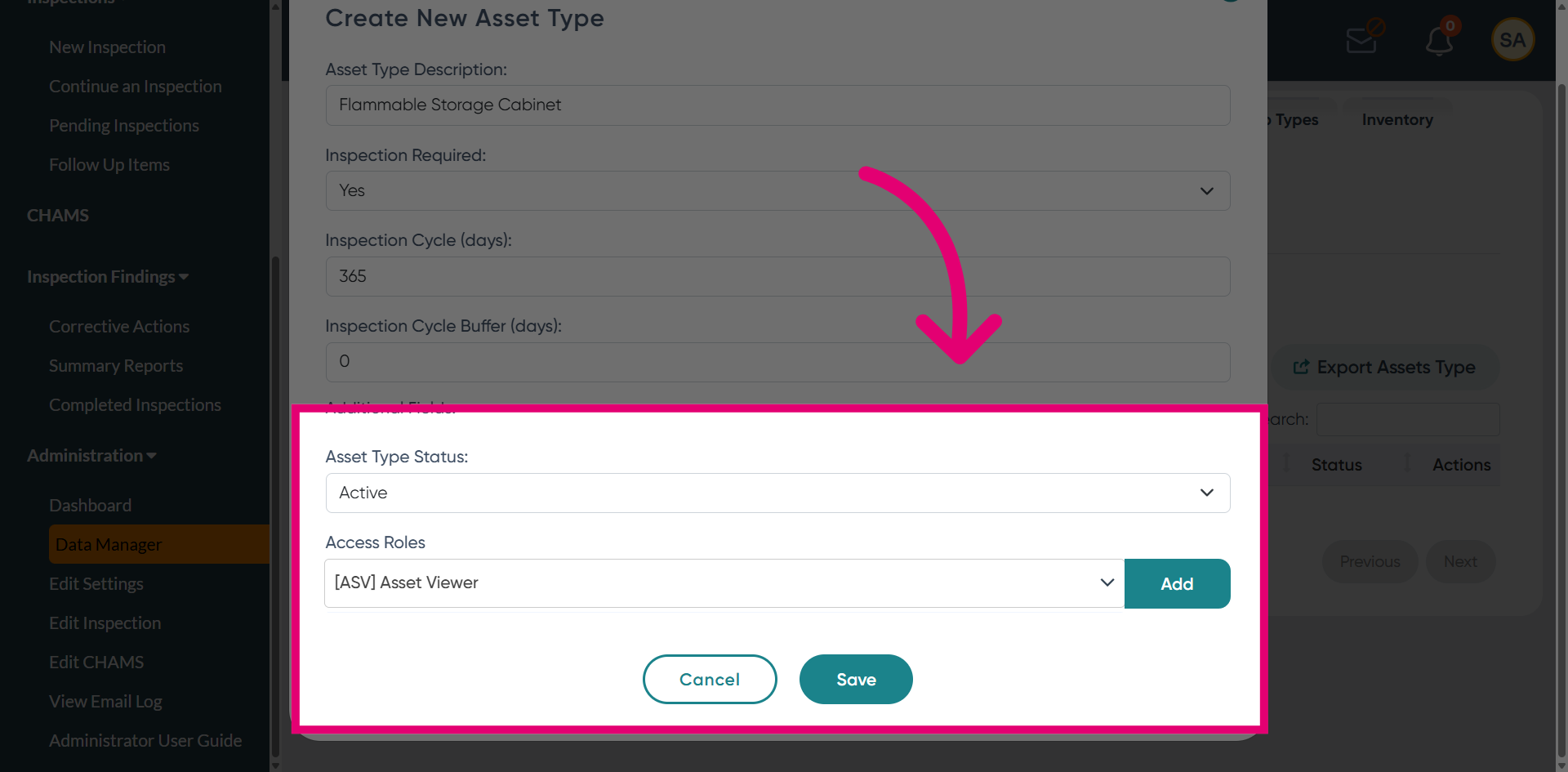
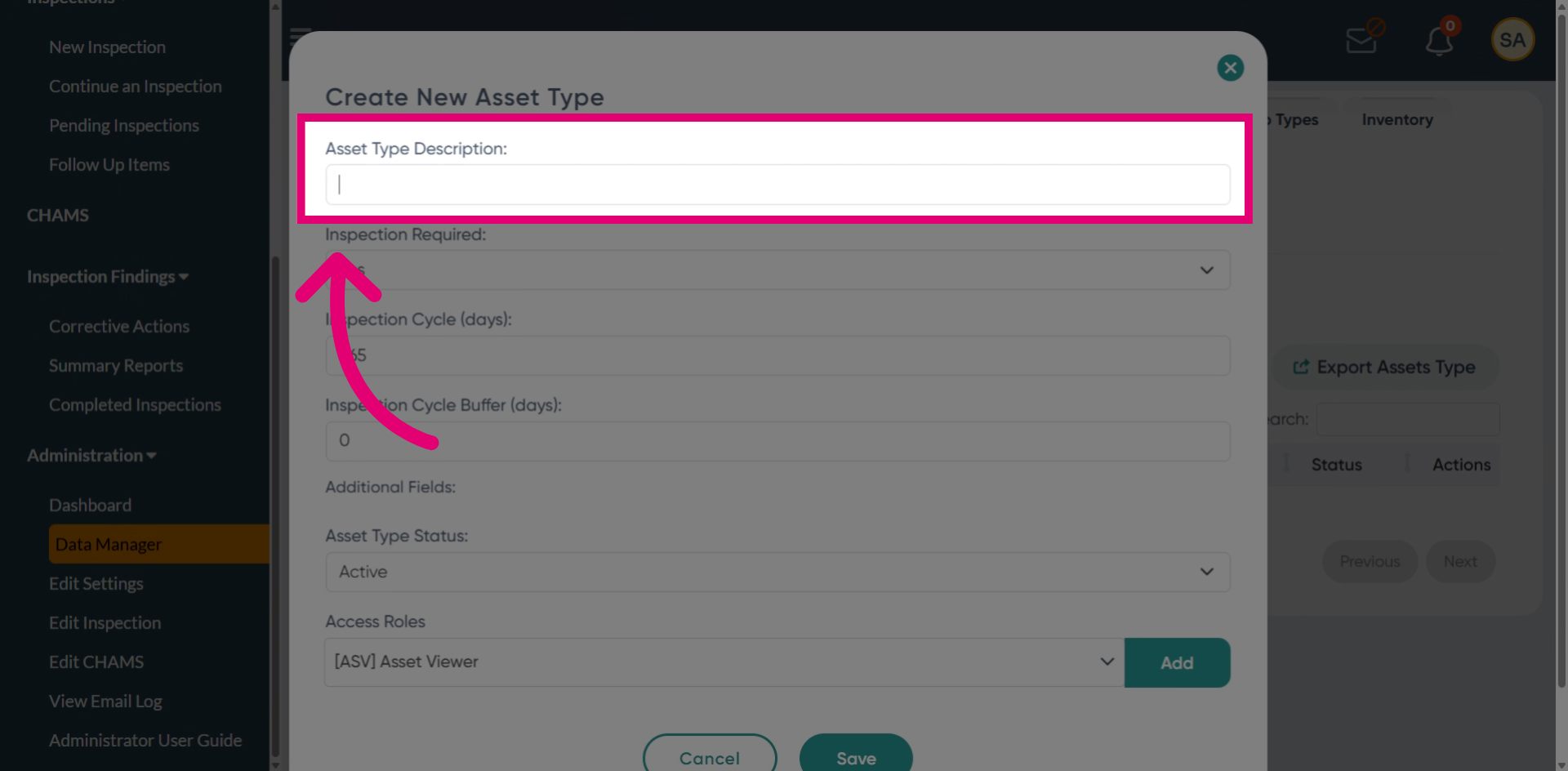
Enter the asset type description, such as Biological Safety Cabinet.
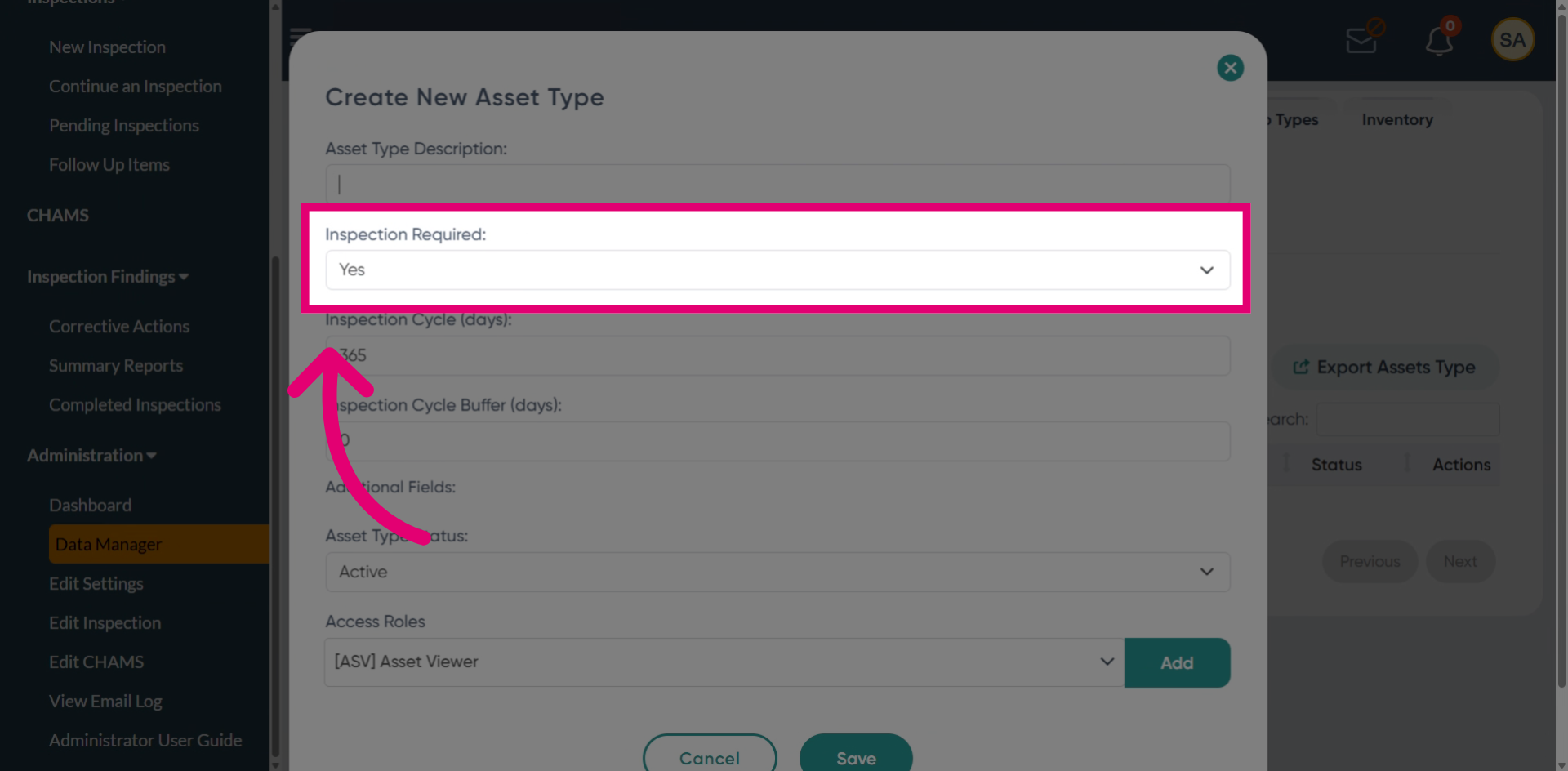
Set the Inspection field to Yes if this asset type requires inspection, or select No if inspections are not required for this asset type.
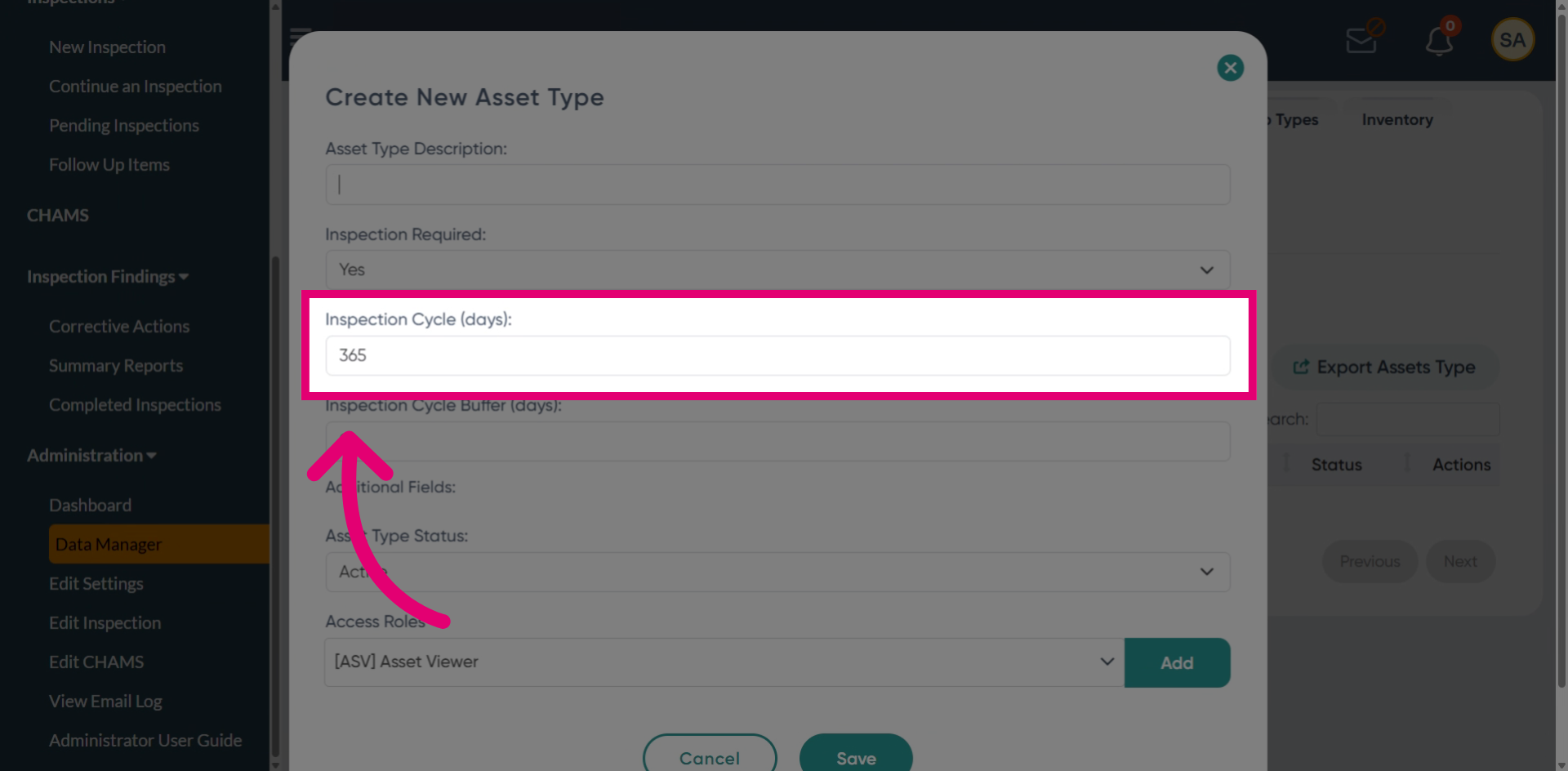
Enter the inspection cycle in days to define how often the asset must be inspected. For example, entering 365 schedules the inspection annually.
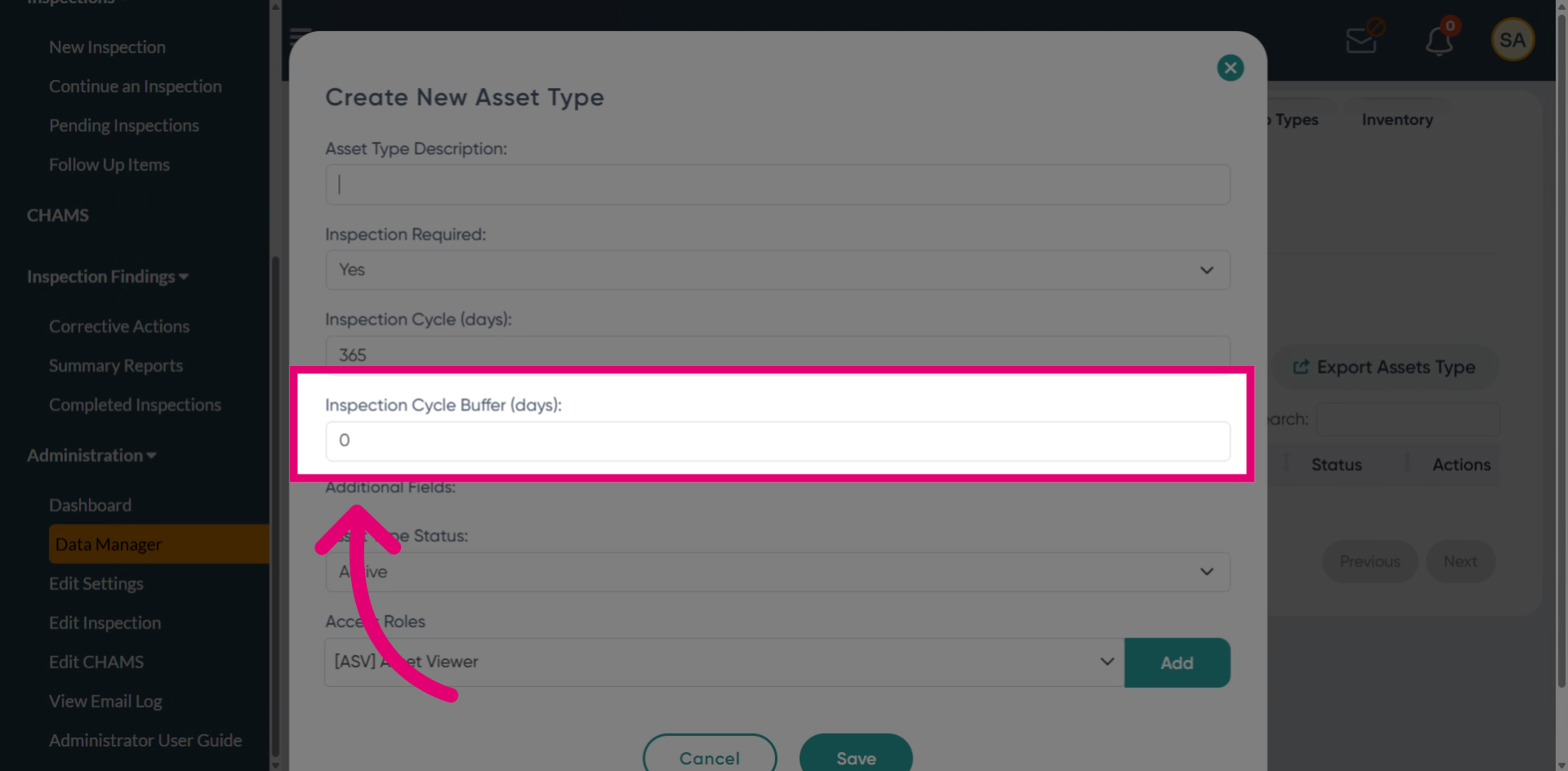
Configure Buffer Days to send notifications a specified number of days before an inspection is due.
Set the Asset Type Status to Active, then click Save to confirm and create the asset type, or select Cancel to return without saving.