New article
Recently updated
Managing bulk actions in chemical inventory

Who is this article for?
Users who need to manage bulk actions in chemical inventory.
Administrator role is required.
This article covers the process of performing bulk actions on chemical inventory items in LabCLIQ.
You will learn how to select multiple inventory items, edit them in bulk, generate barcodes, transfer items, and dispose of chemicals efficiently.
1. Performing Bulk Actions on Chemical Inventory
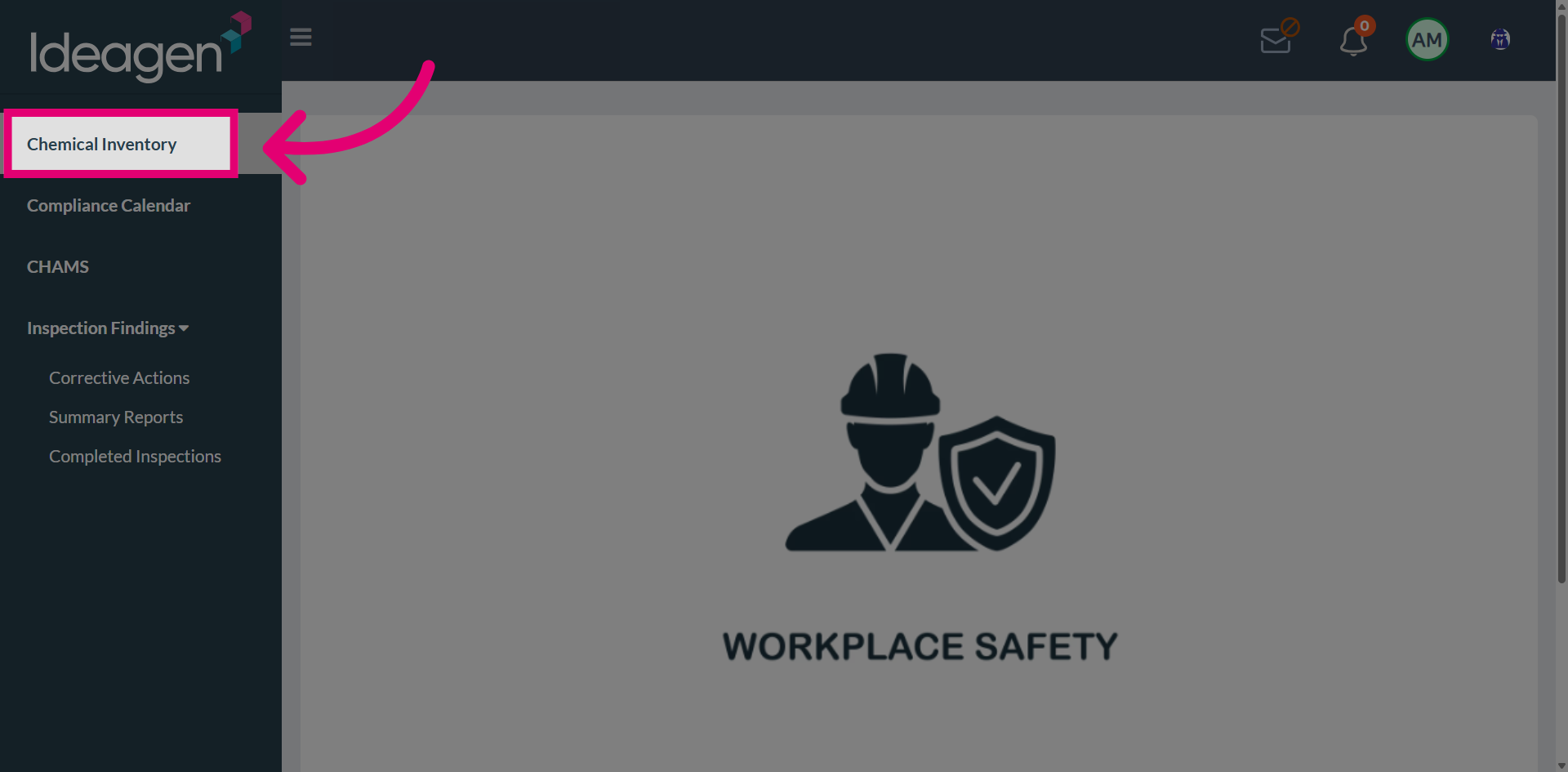
Navigate to Chemical Inventory.
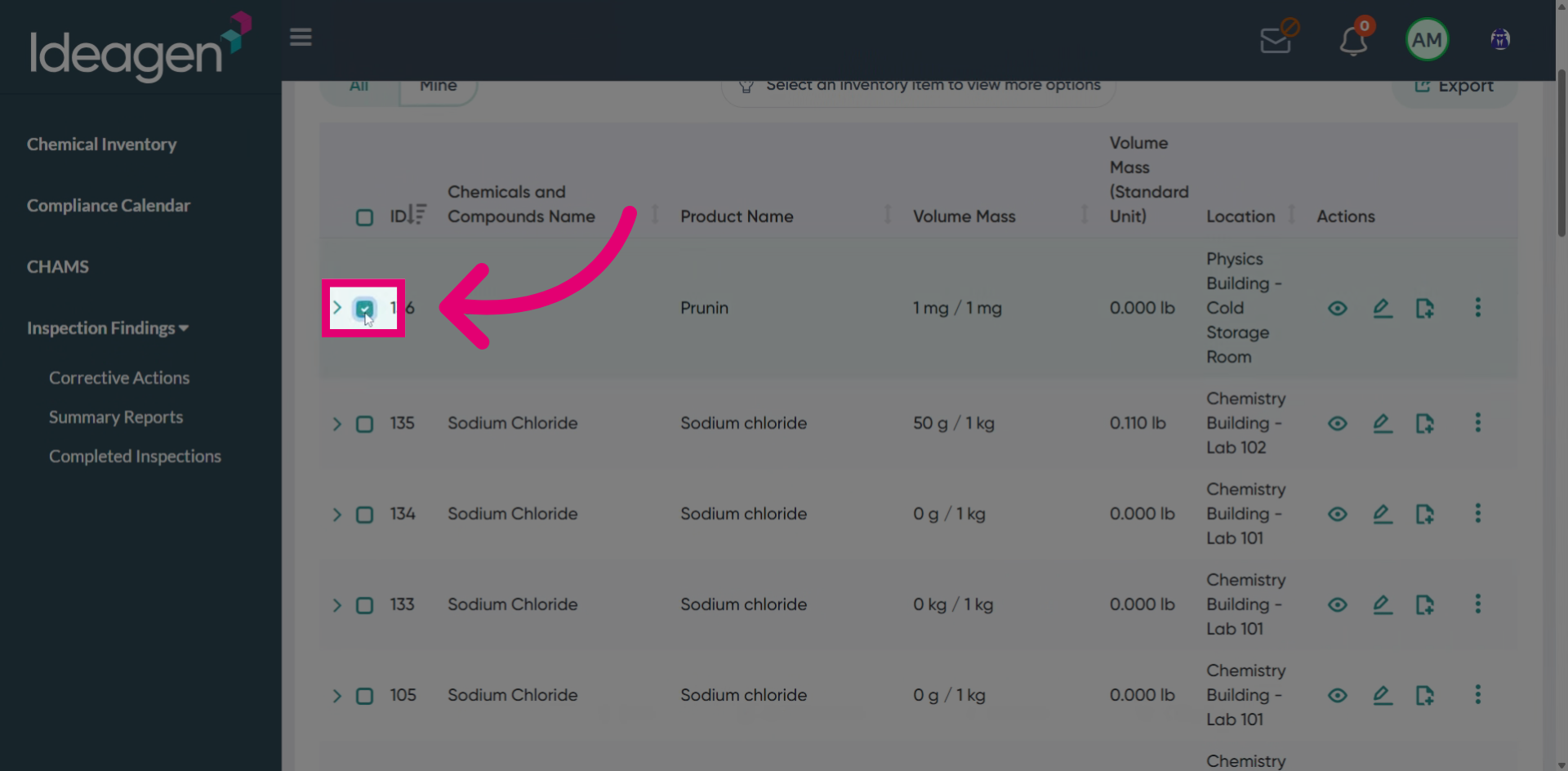
Choose the inventory rows you want to perform bulk actions on by selecting the checkboxes.
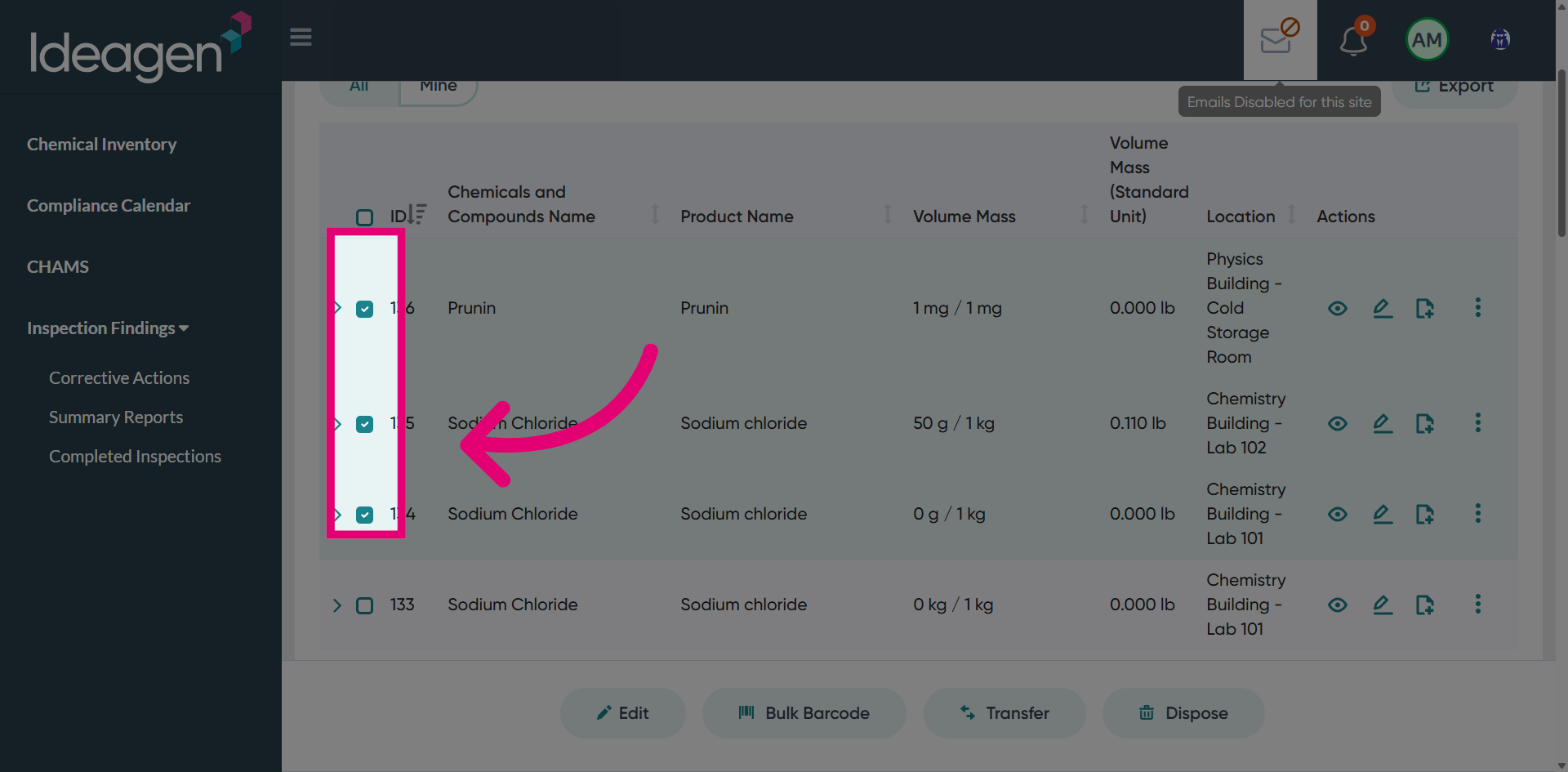
Review the Chemical Inventory List to ensure you have selected the correct items.
Click Edit to modify the selected items in bulk.
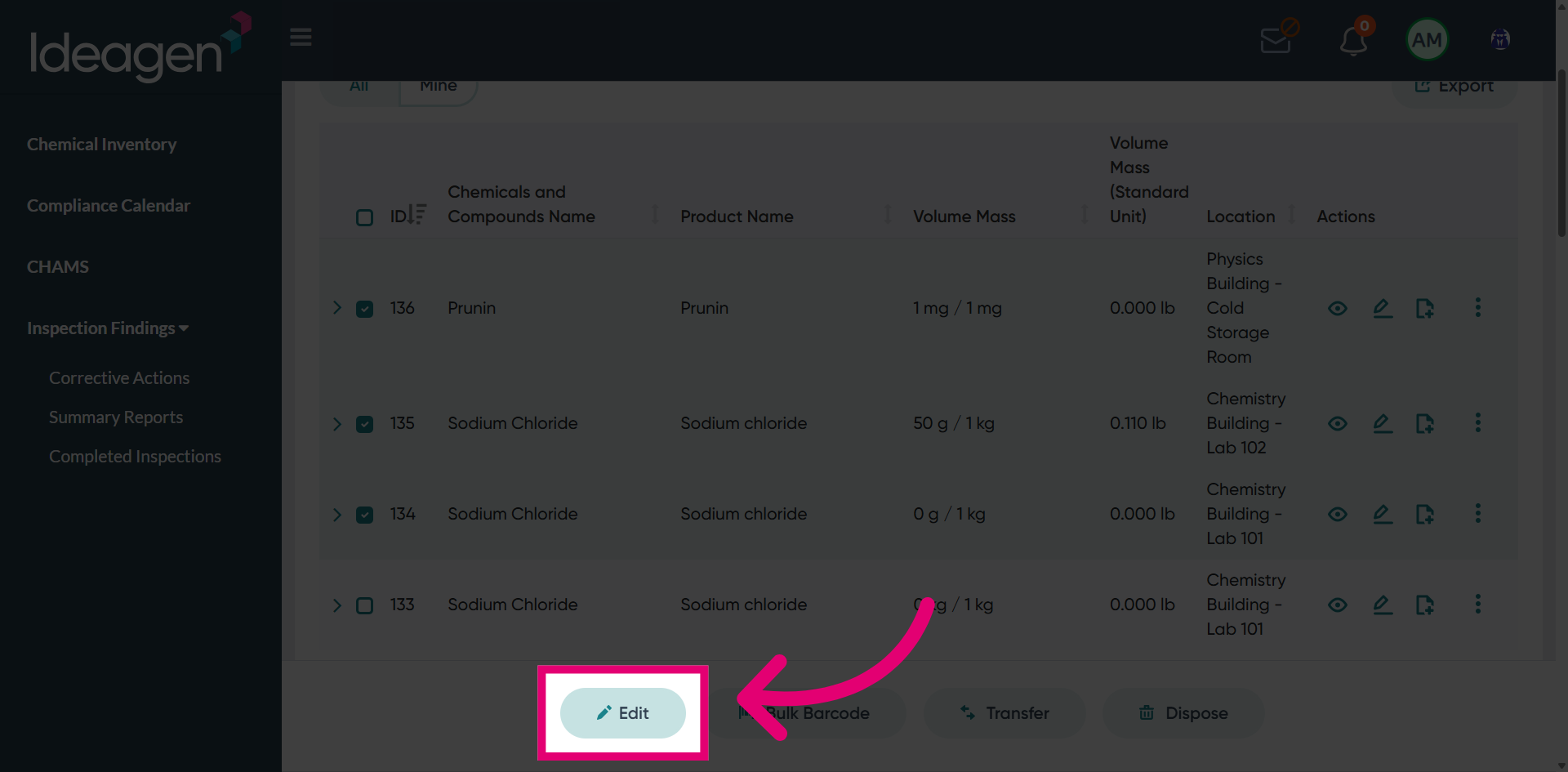
View the Bulk Edit Interface where you can make changes to multiple items simultaneously.
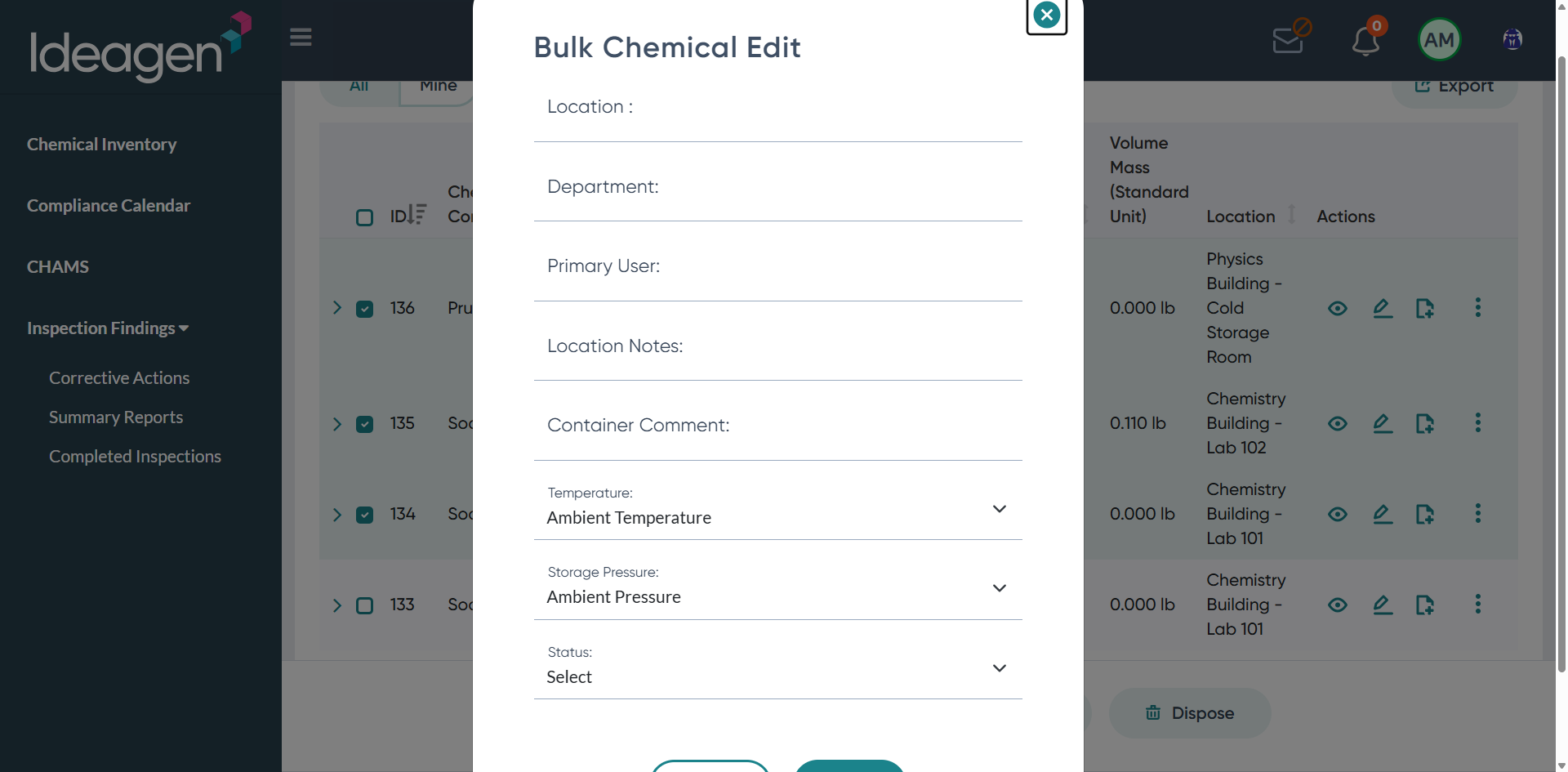
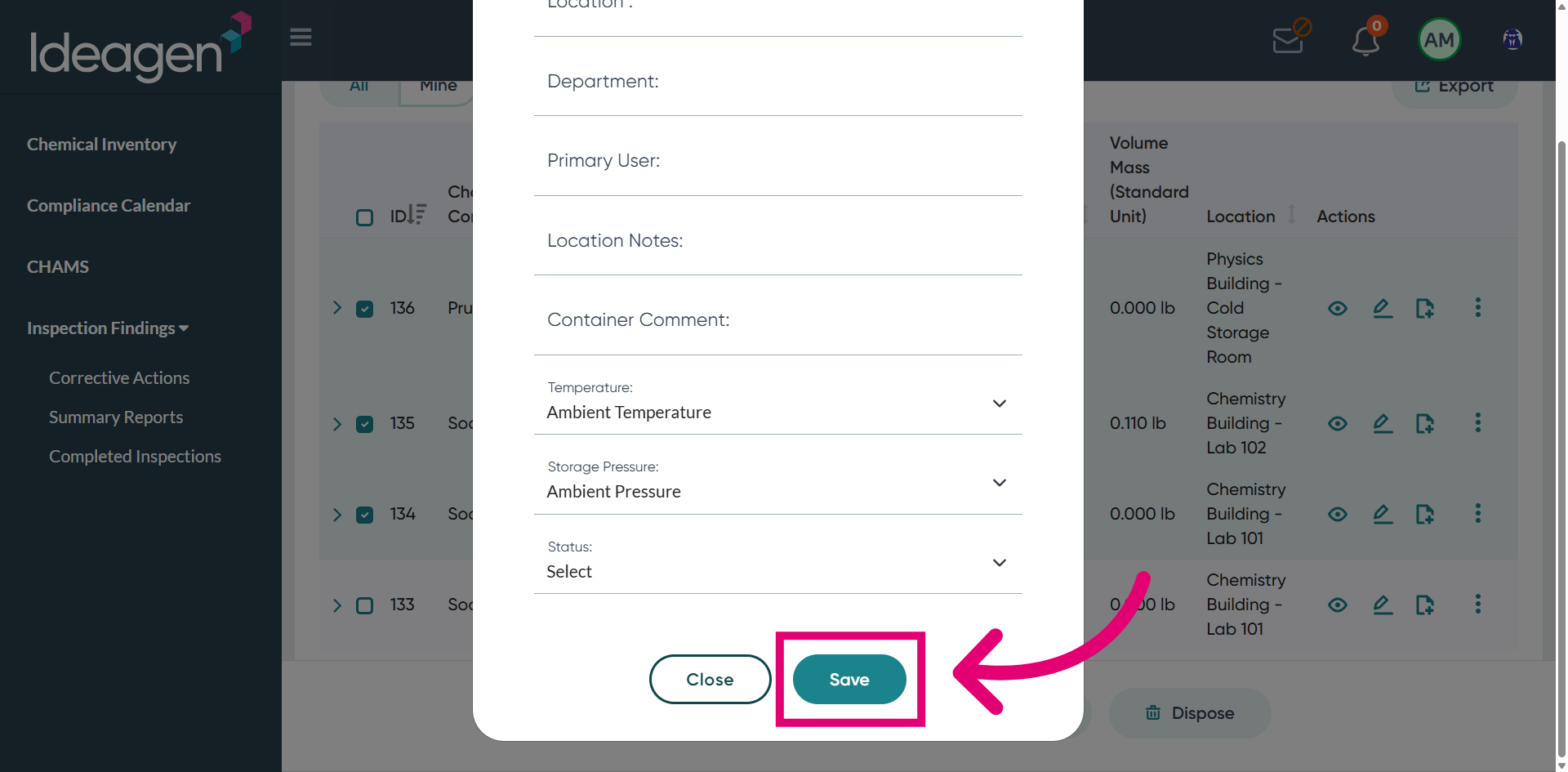
Close or save the Bulk Edit Interface after making your changes.
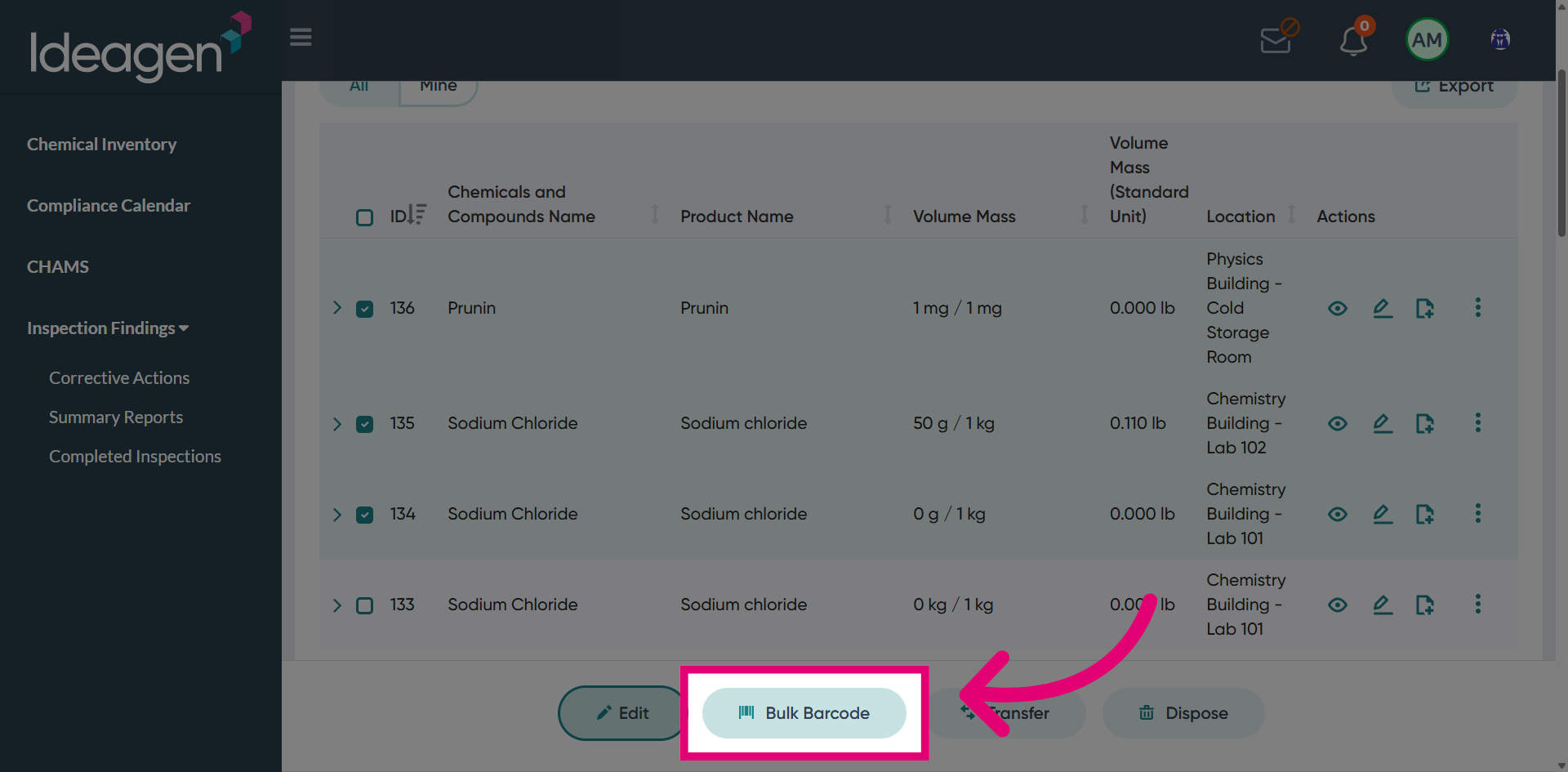
Access the Bulk Barcode Feature to generate barcodes for the selected inventory items.
Initiate the Transfer Process to move selected items to a different location.
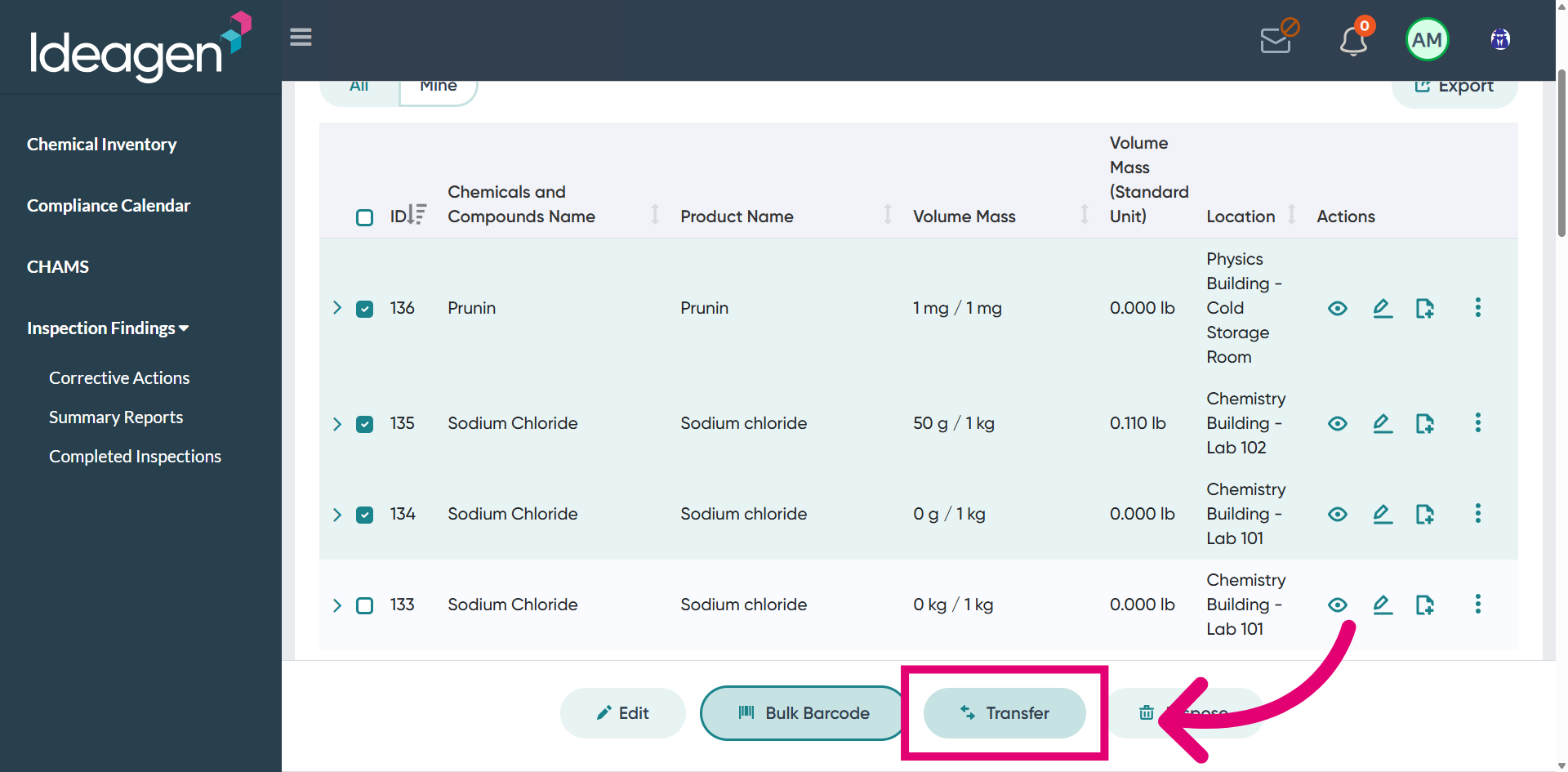
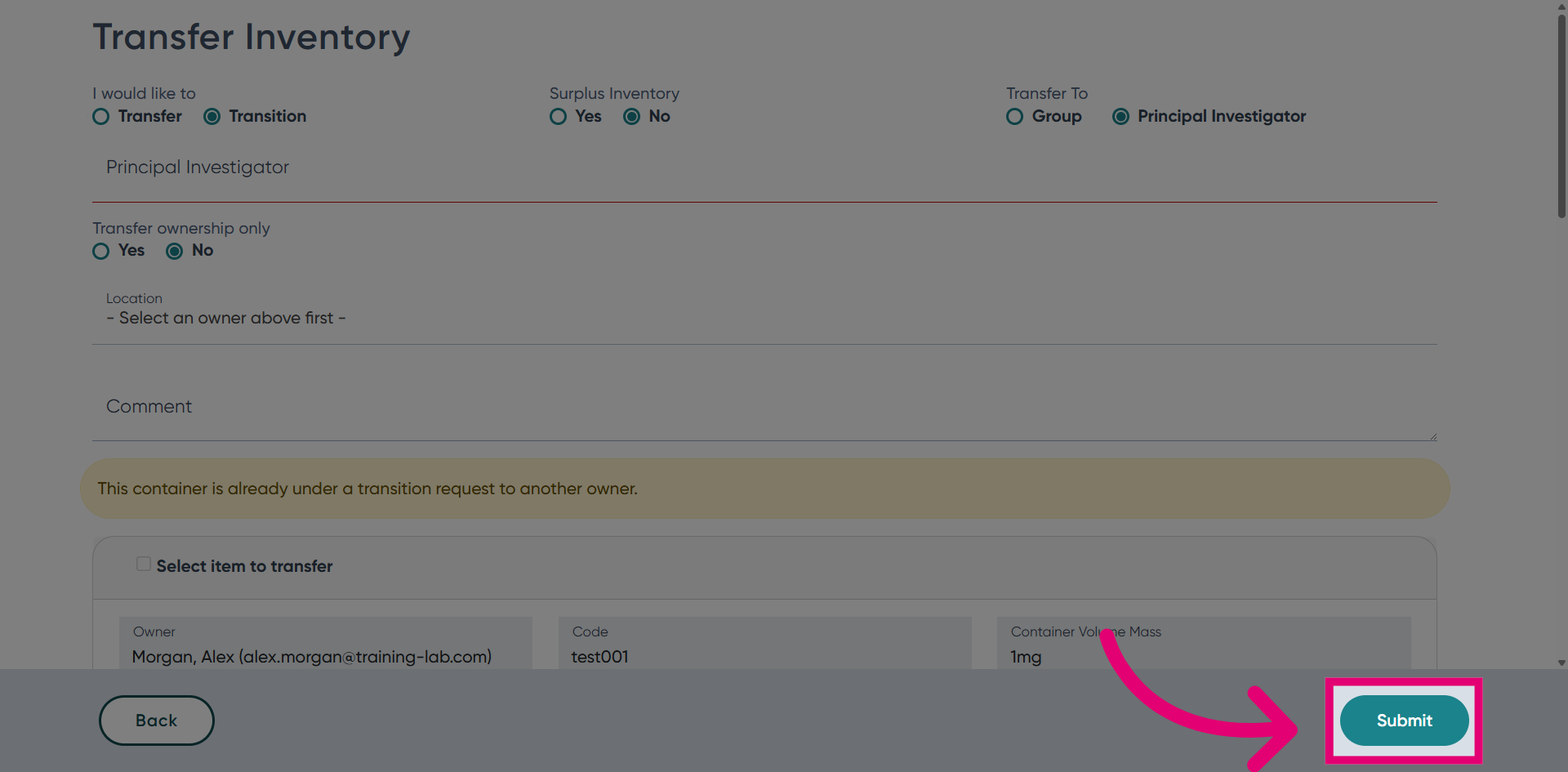
Review the Transfer Options available for the selected inventory items.
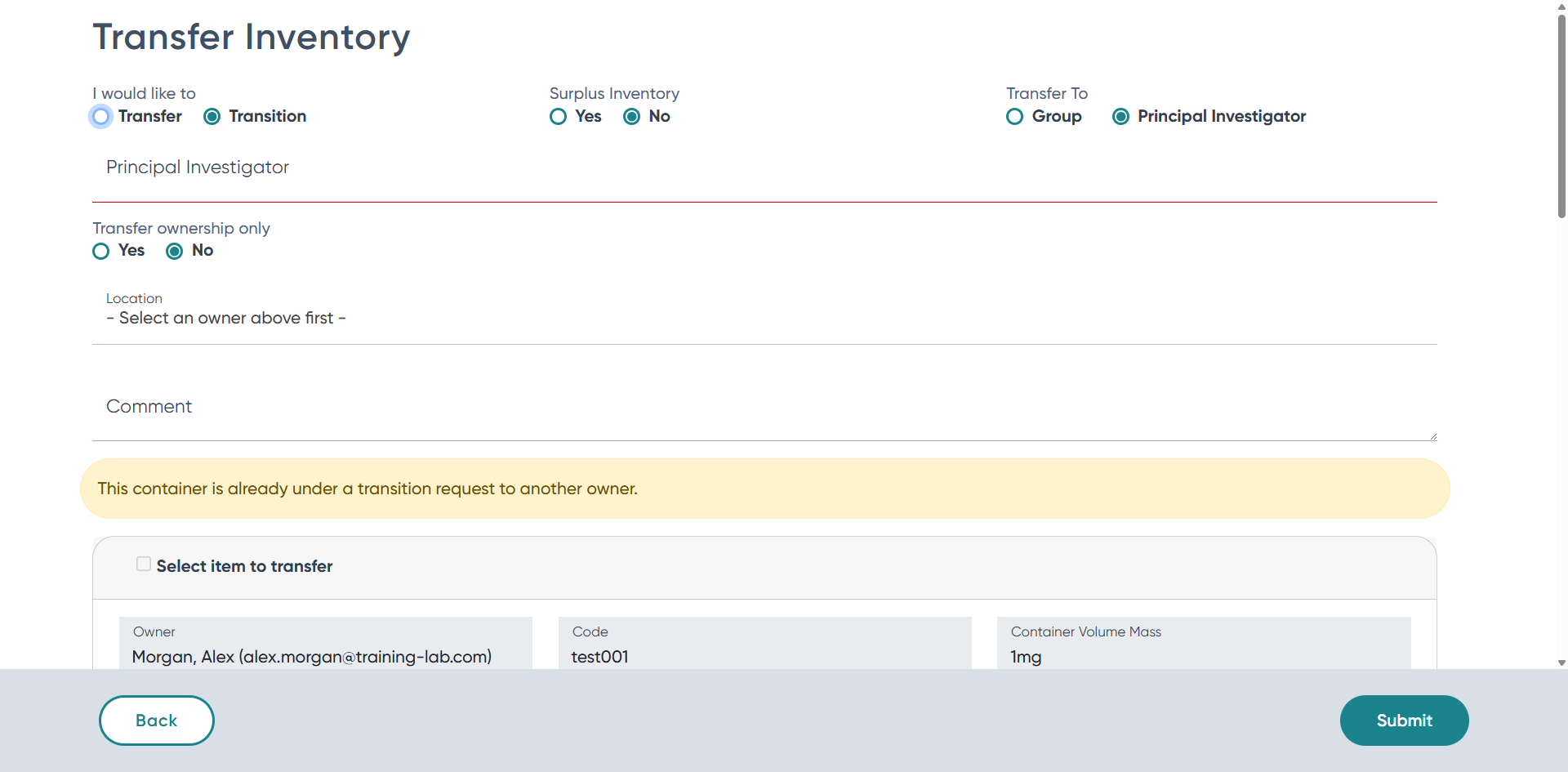
Return to the previous screen if you need to make additional selections or changes.
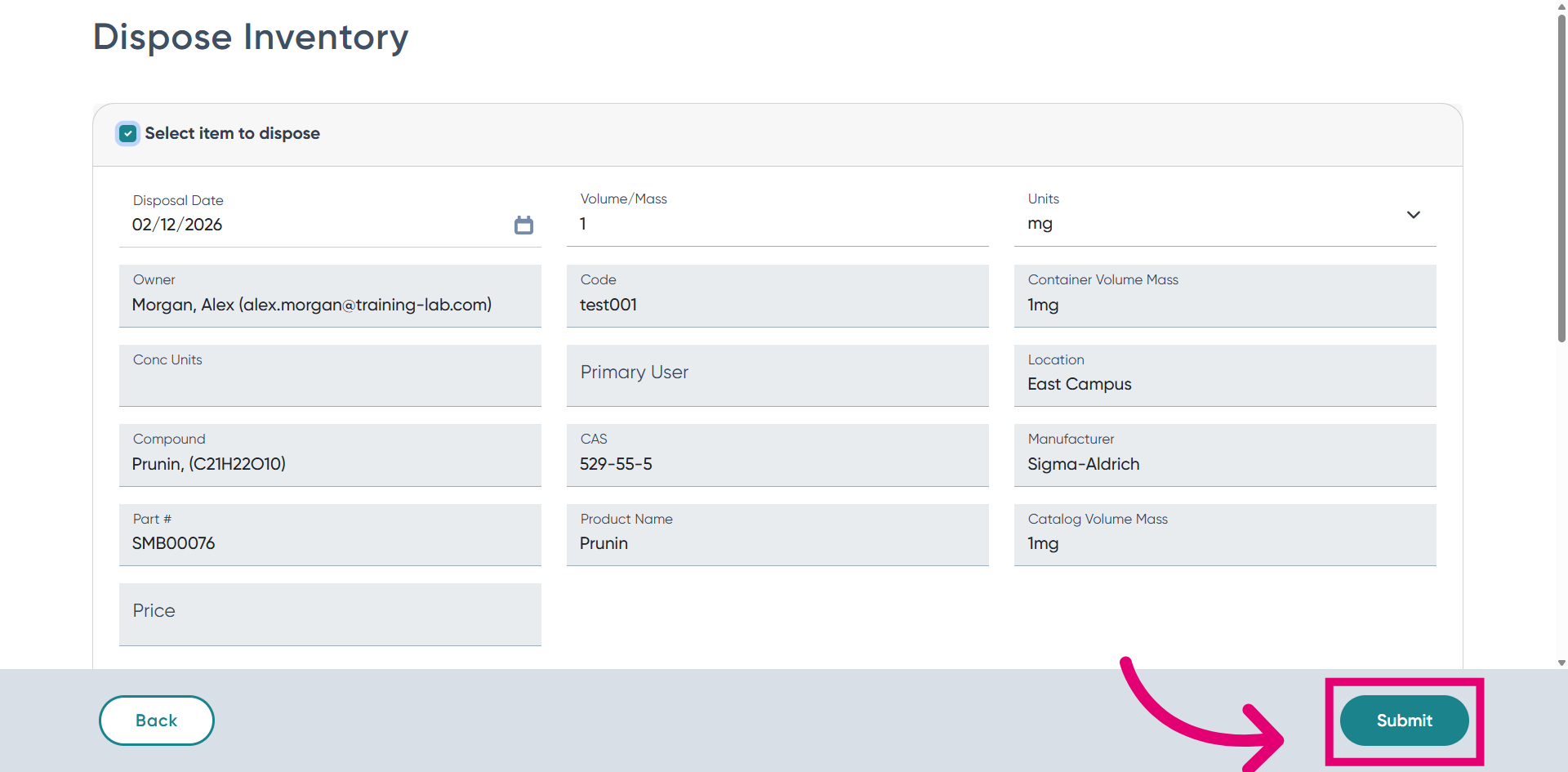
Select the Dispose Option to mark items for disposal.
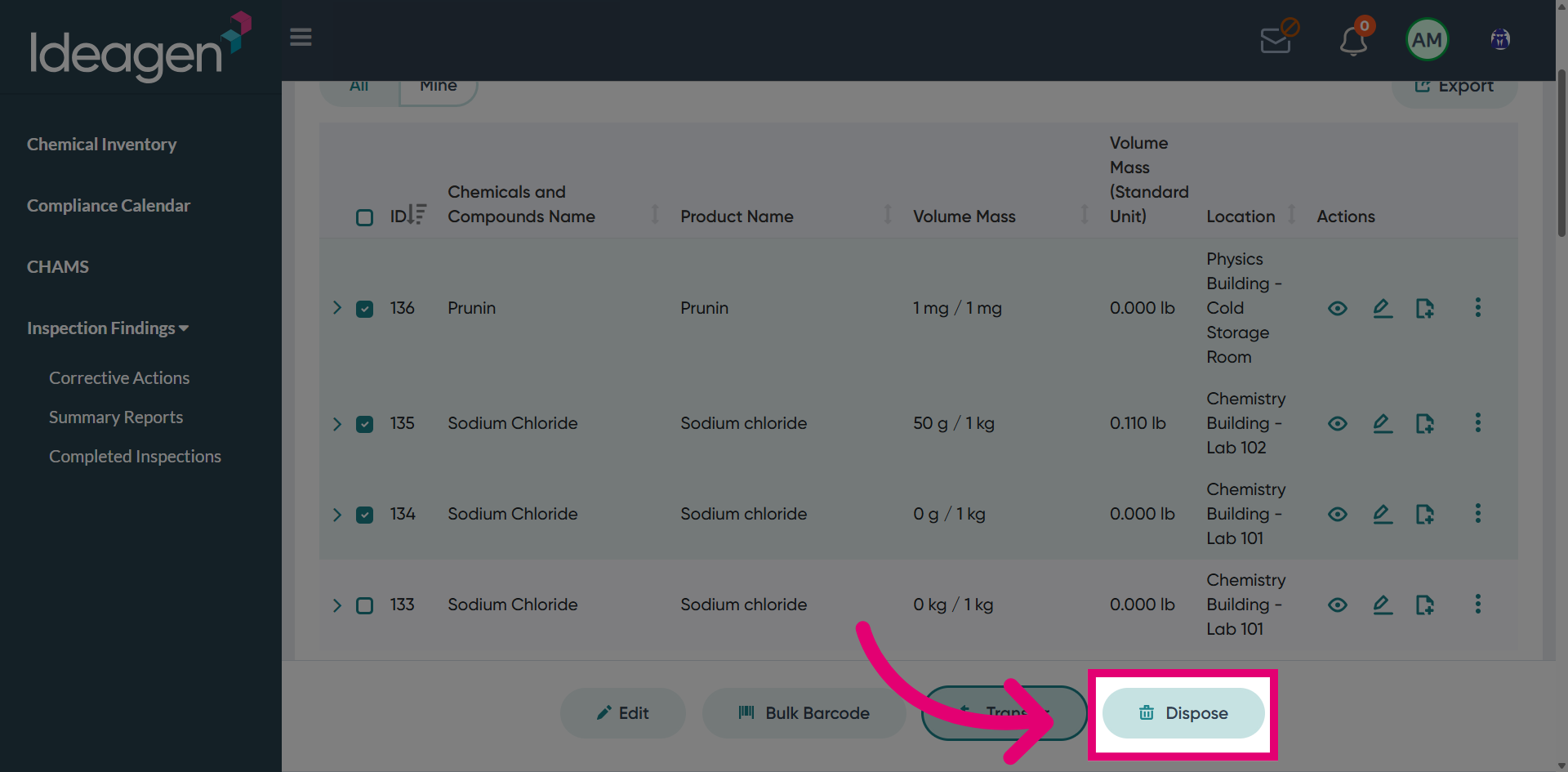
Review the Disposal Summary to confirm the items being disposed of before finalizing.