New article
Recently updated
Creating an asset

Who is this article for?
Administrators who want to learn to create an asset.
Administrator permissions are required.
This tutorial explains how to create a new asset in the system.
You will learn how to navigate to the Data Manager, access the Assets section, and complete all required fields to successfully create a new asset.
1. Creating a new asset
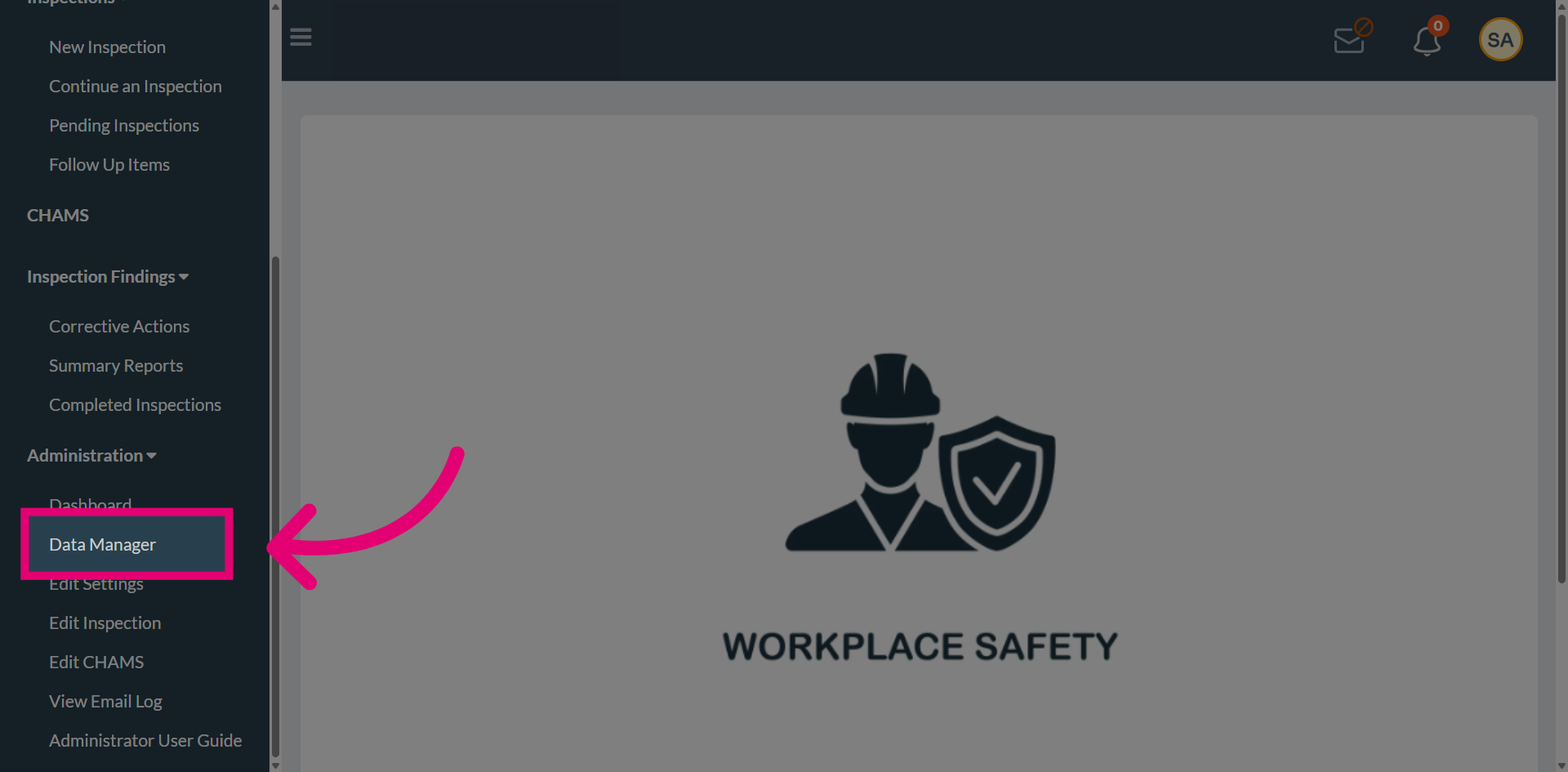
Select Data Manager to open the asset management section.
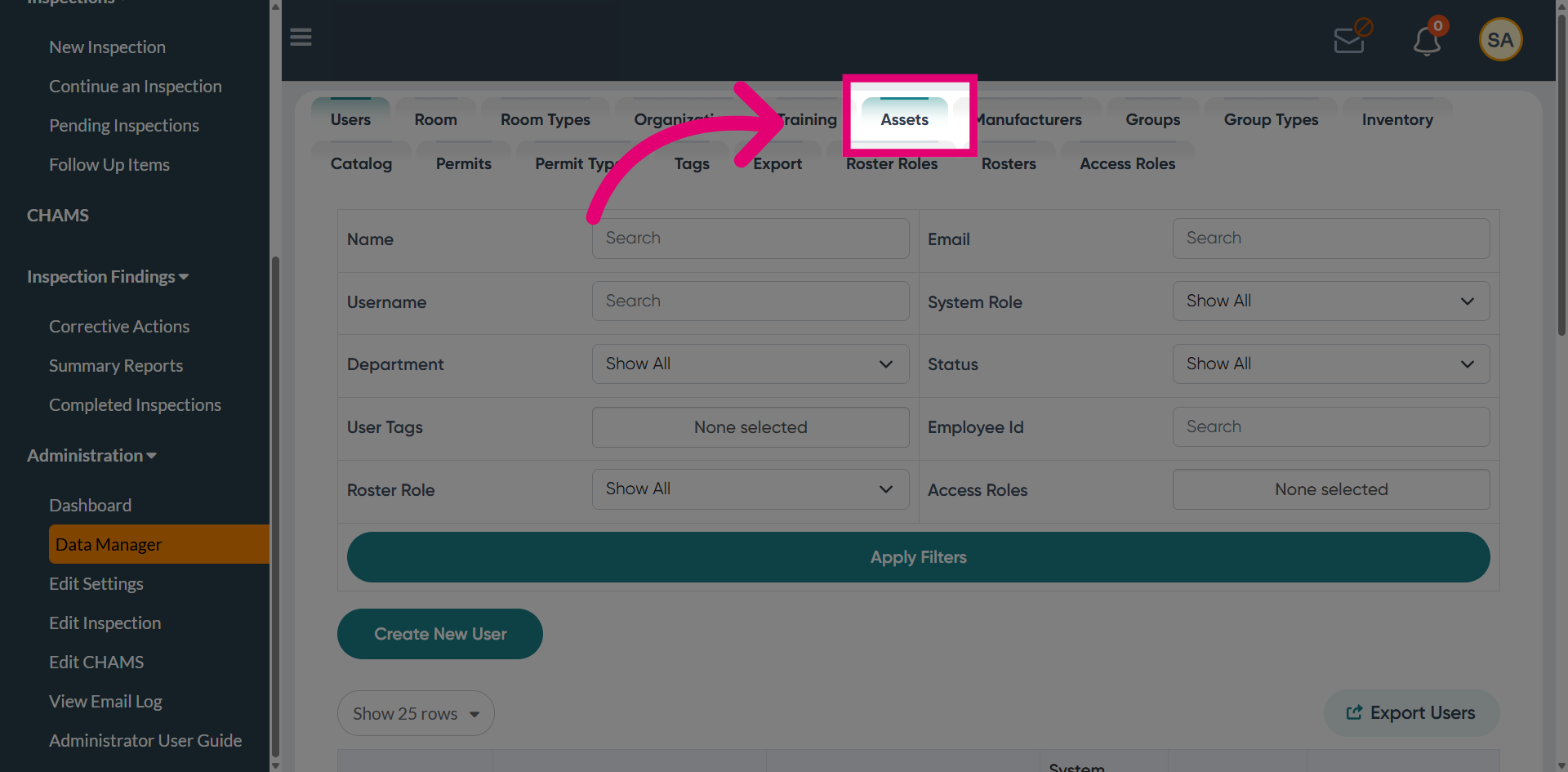
Access Assets to add new assets to the system.
Select the assets tab.
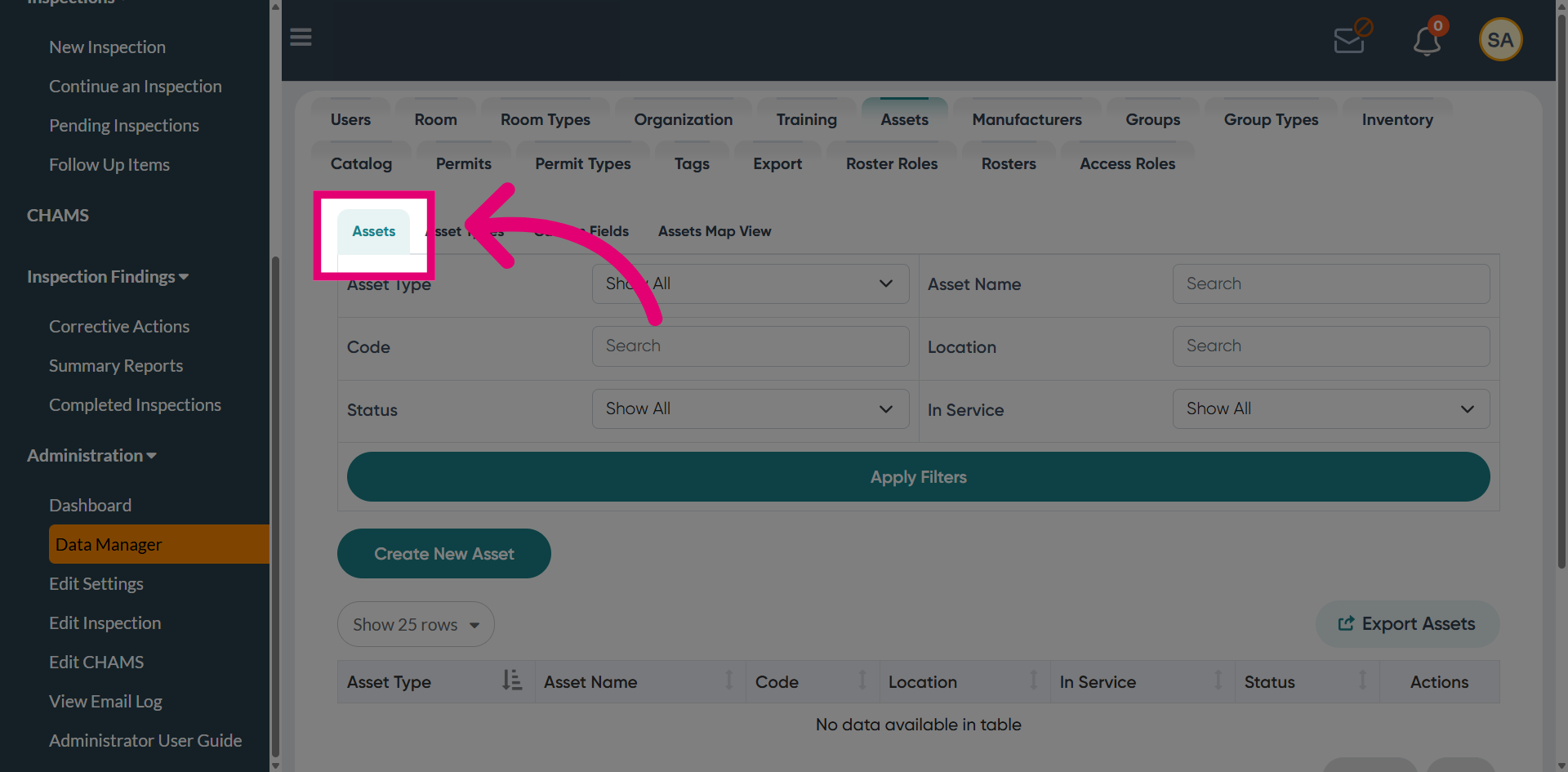
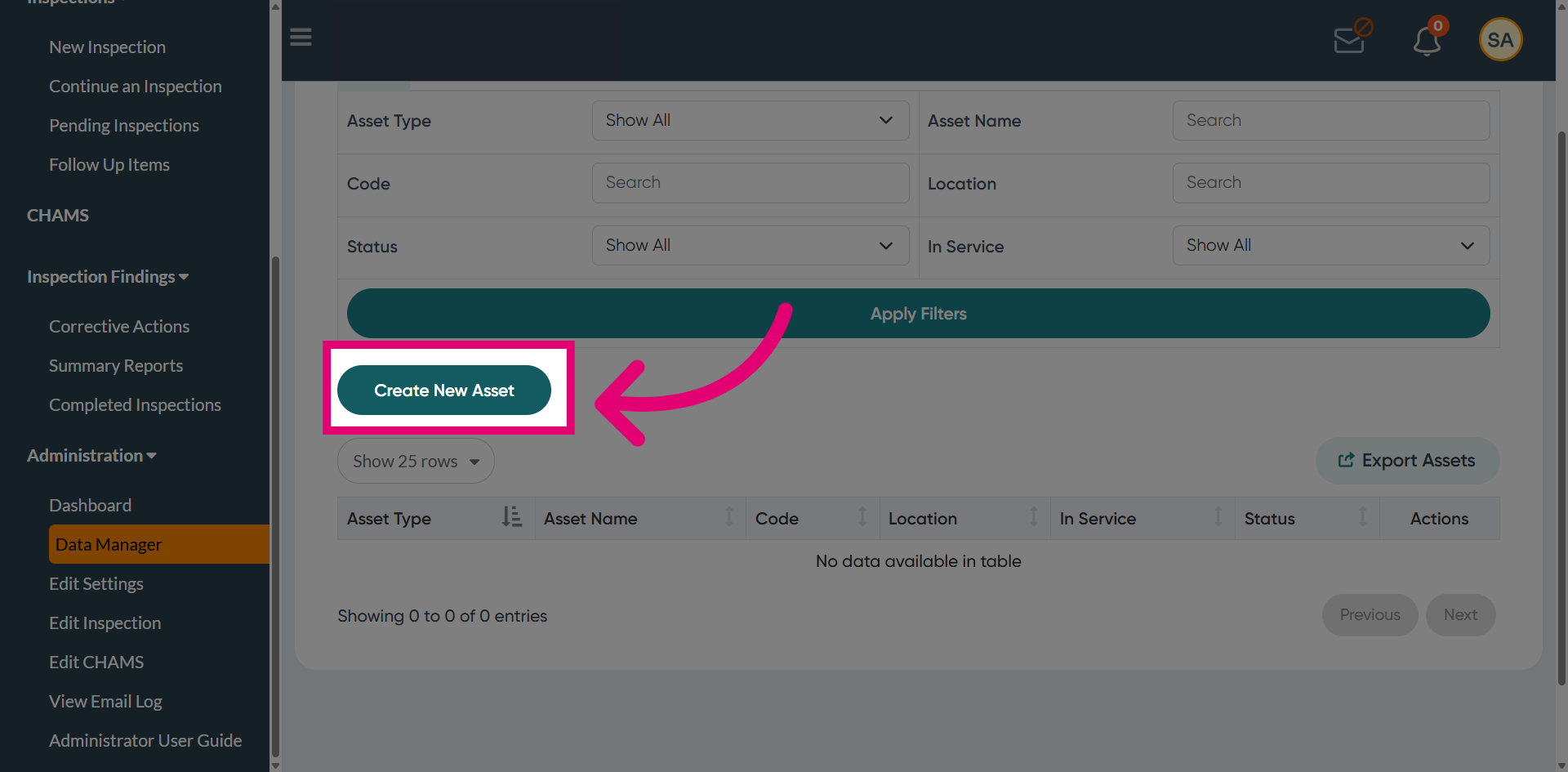
Click Create New Asset to start creating a new asset.
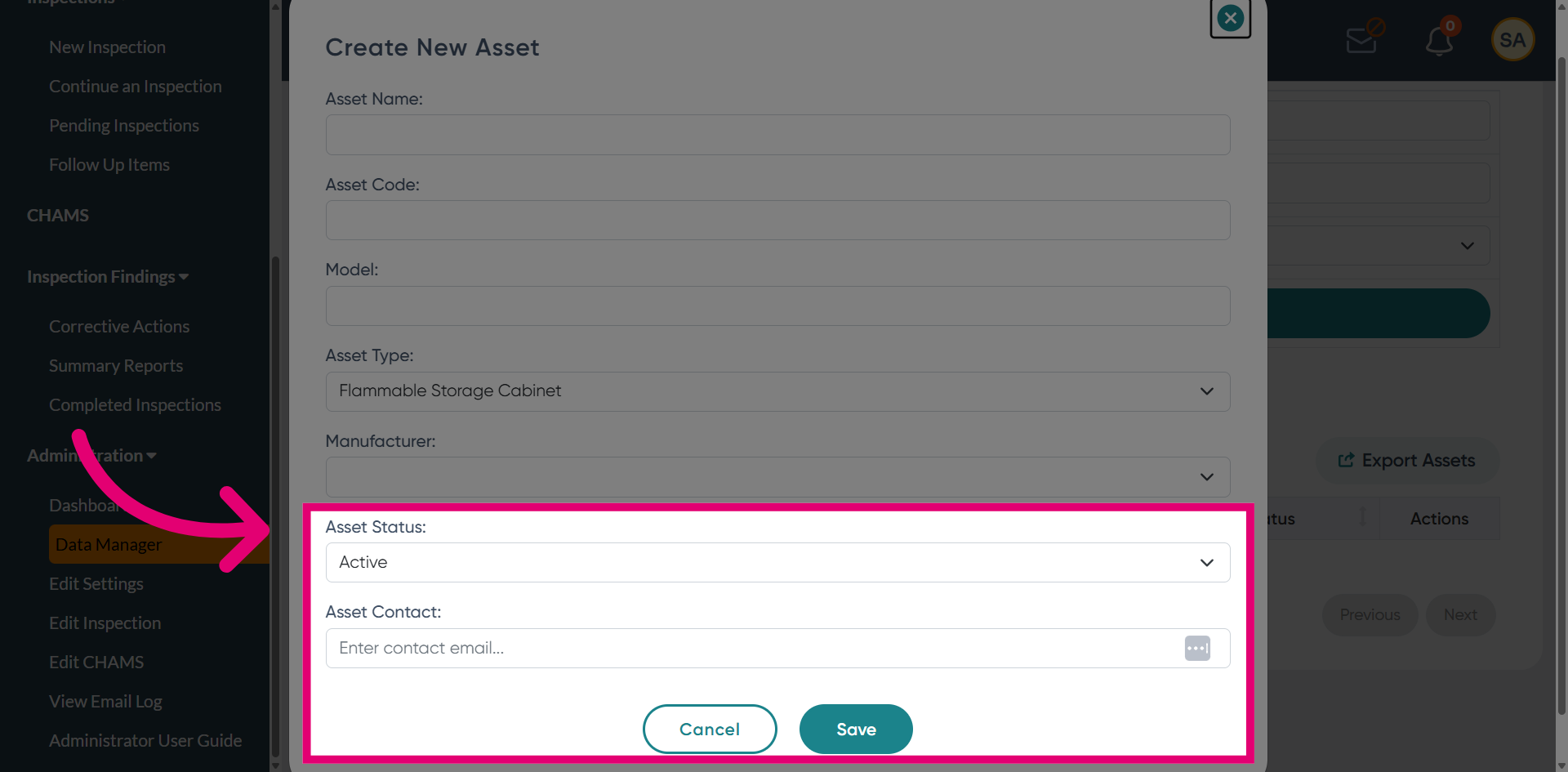
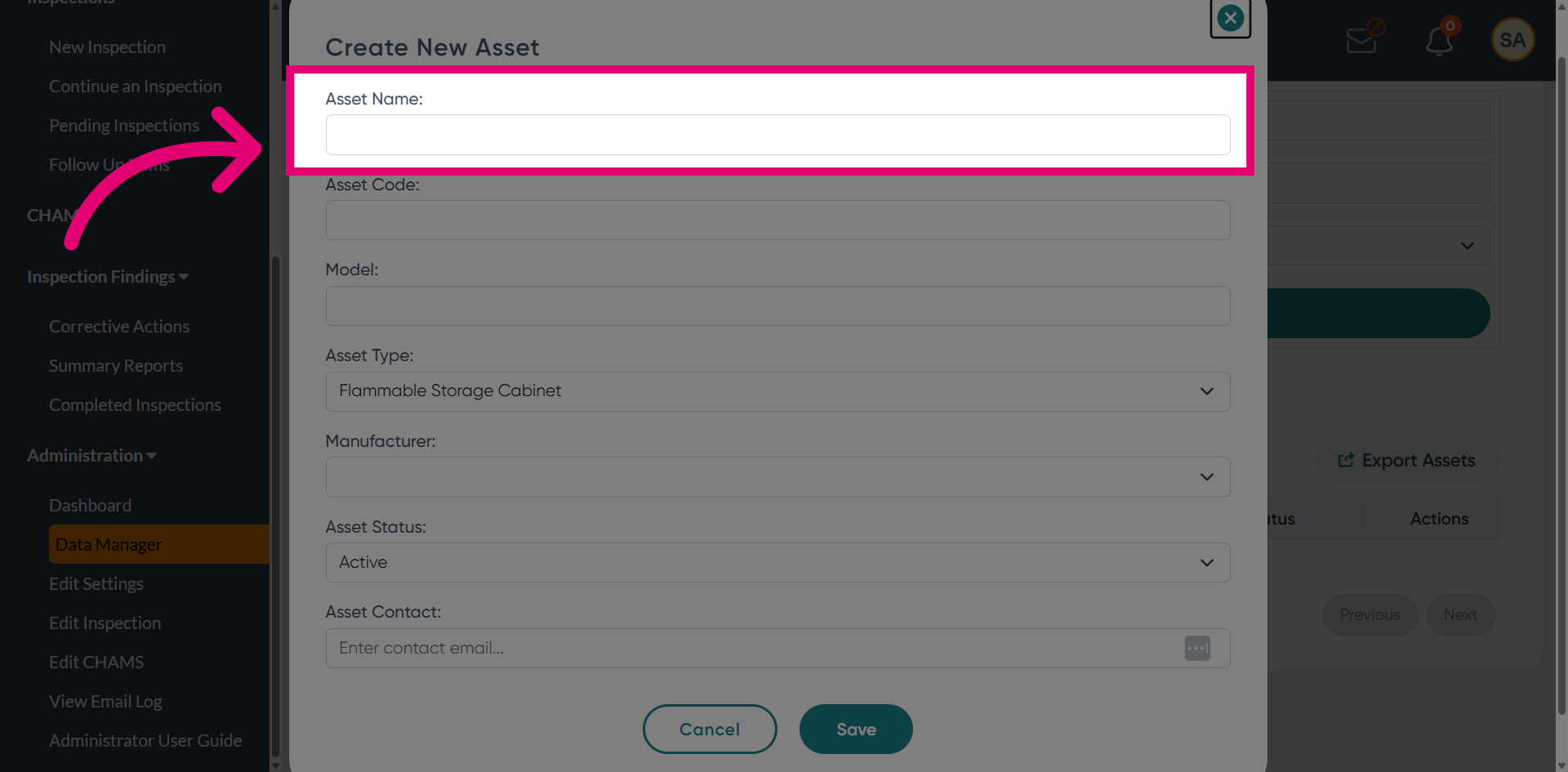
Provide the Asset Name which defines how the asset appears in the system and should clearly describe the asset, often matching the asset type.
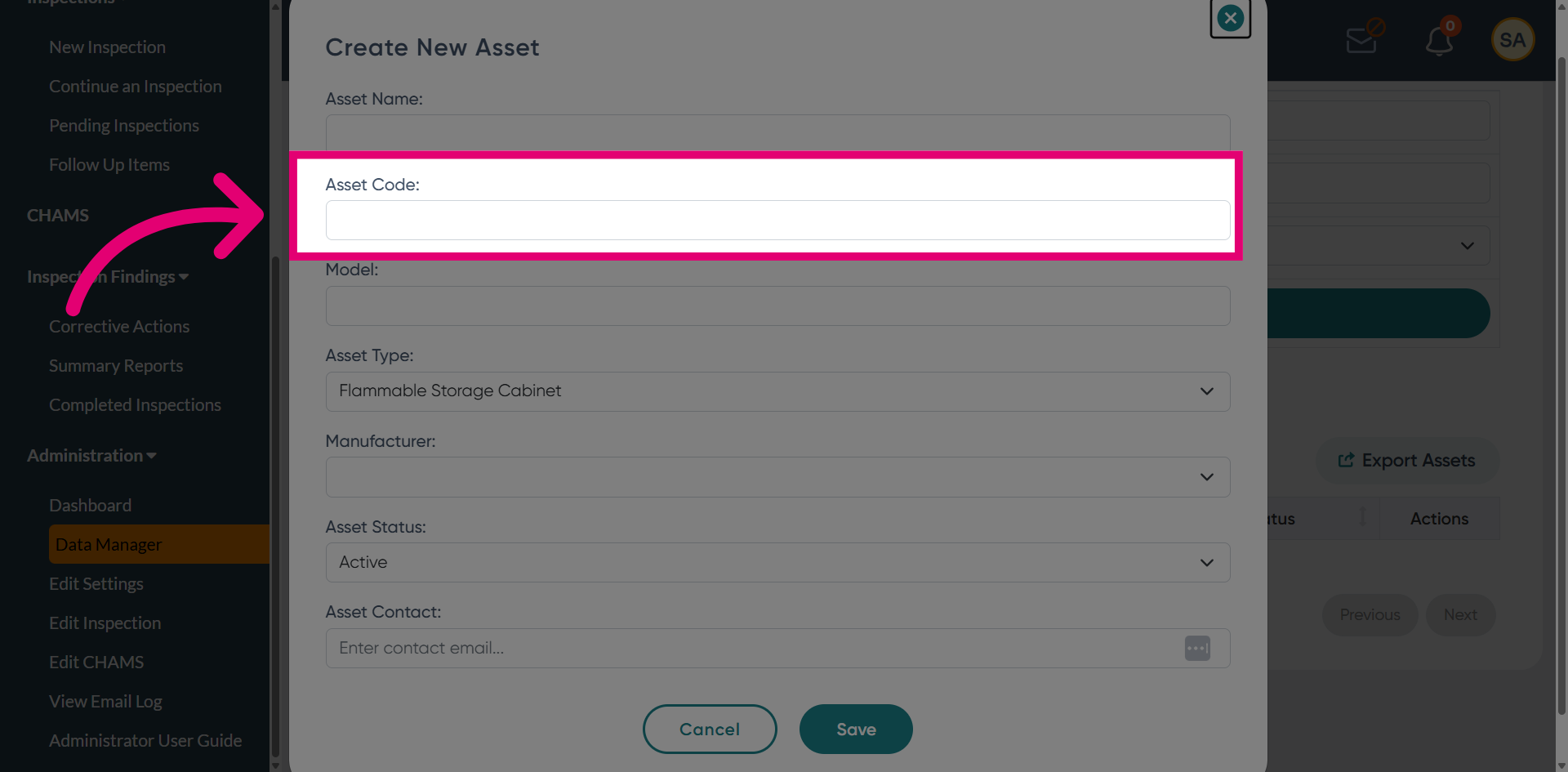
Give the Asset Code which is a unique internal identifier.
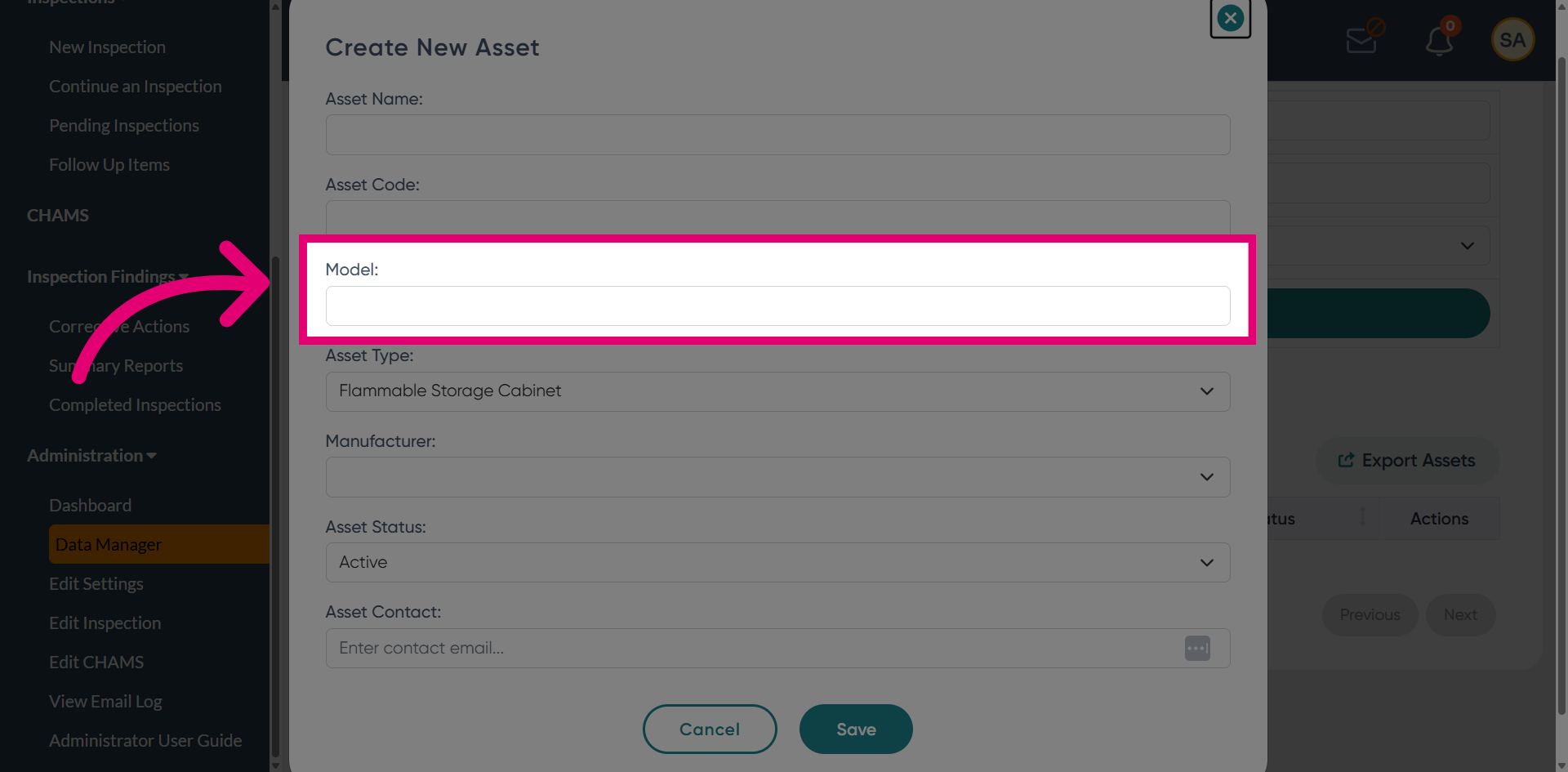
Enter the model name or number associated with the asset.
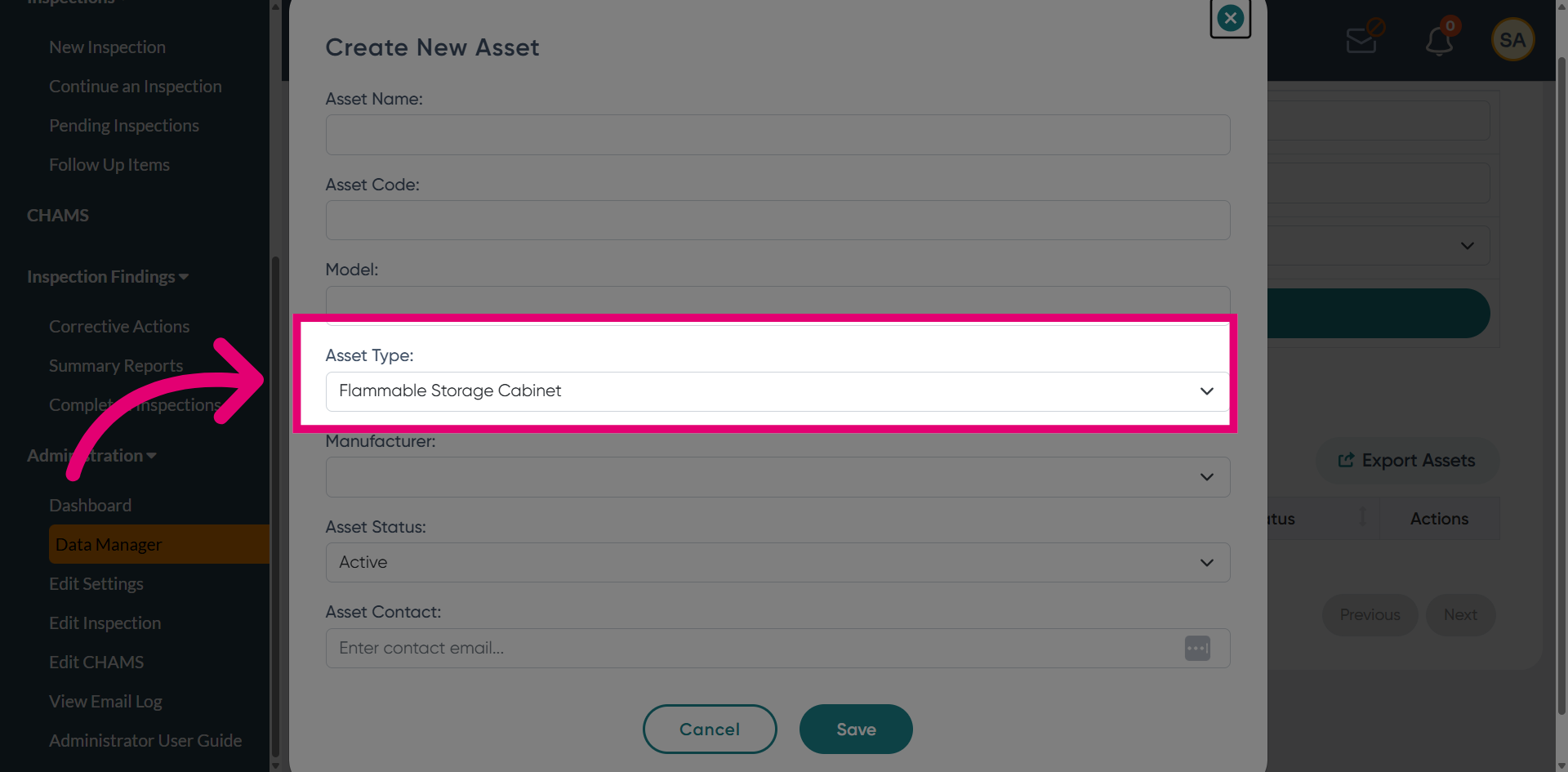
Select the appropriate Asset Type from the dropdown, which groups similar assets into a common category.
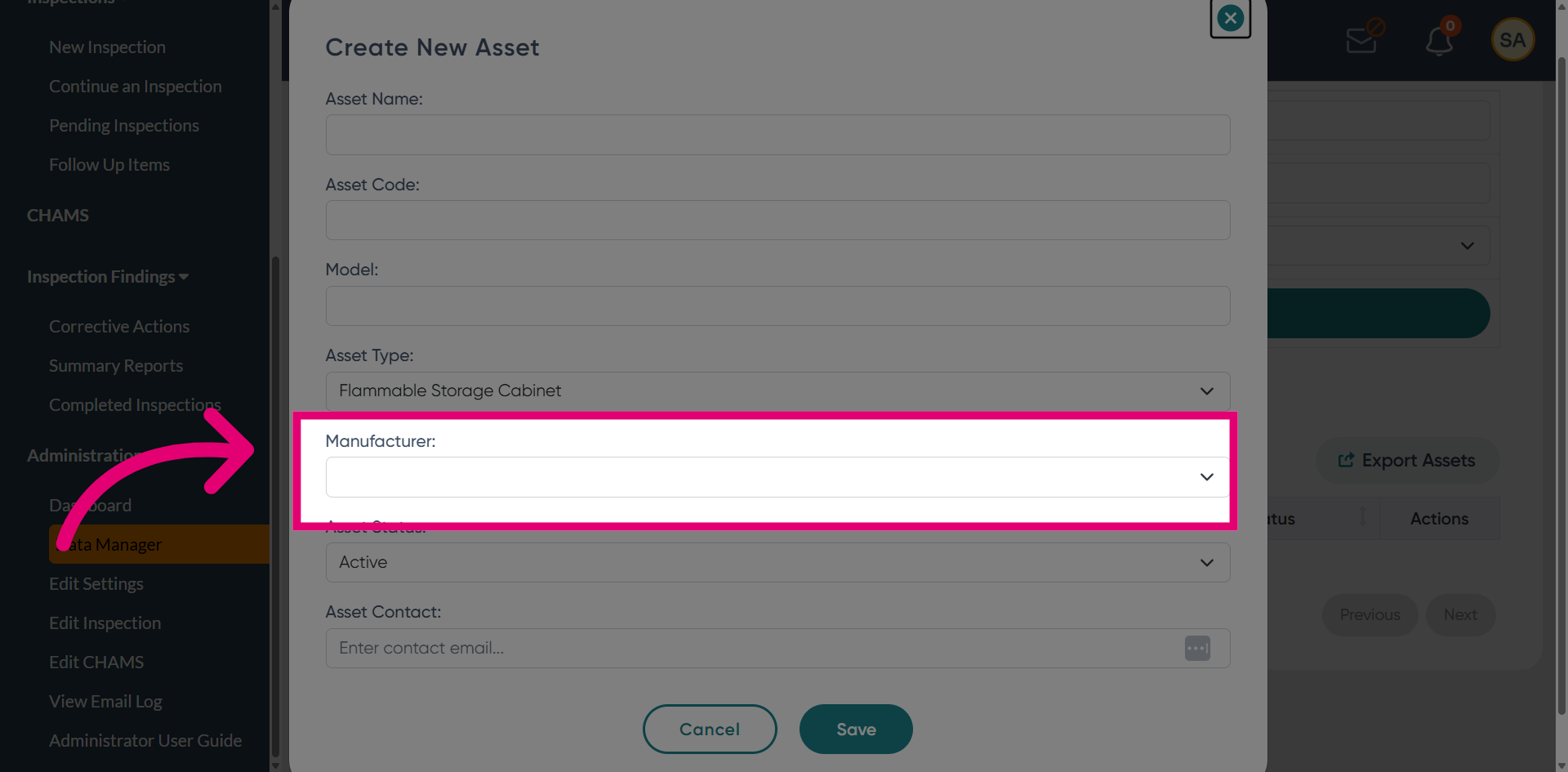
Provide the name of the manufacturer associated with the asset.
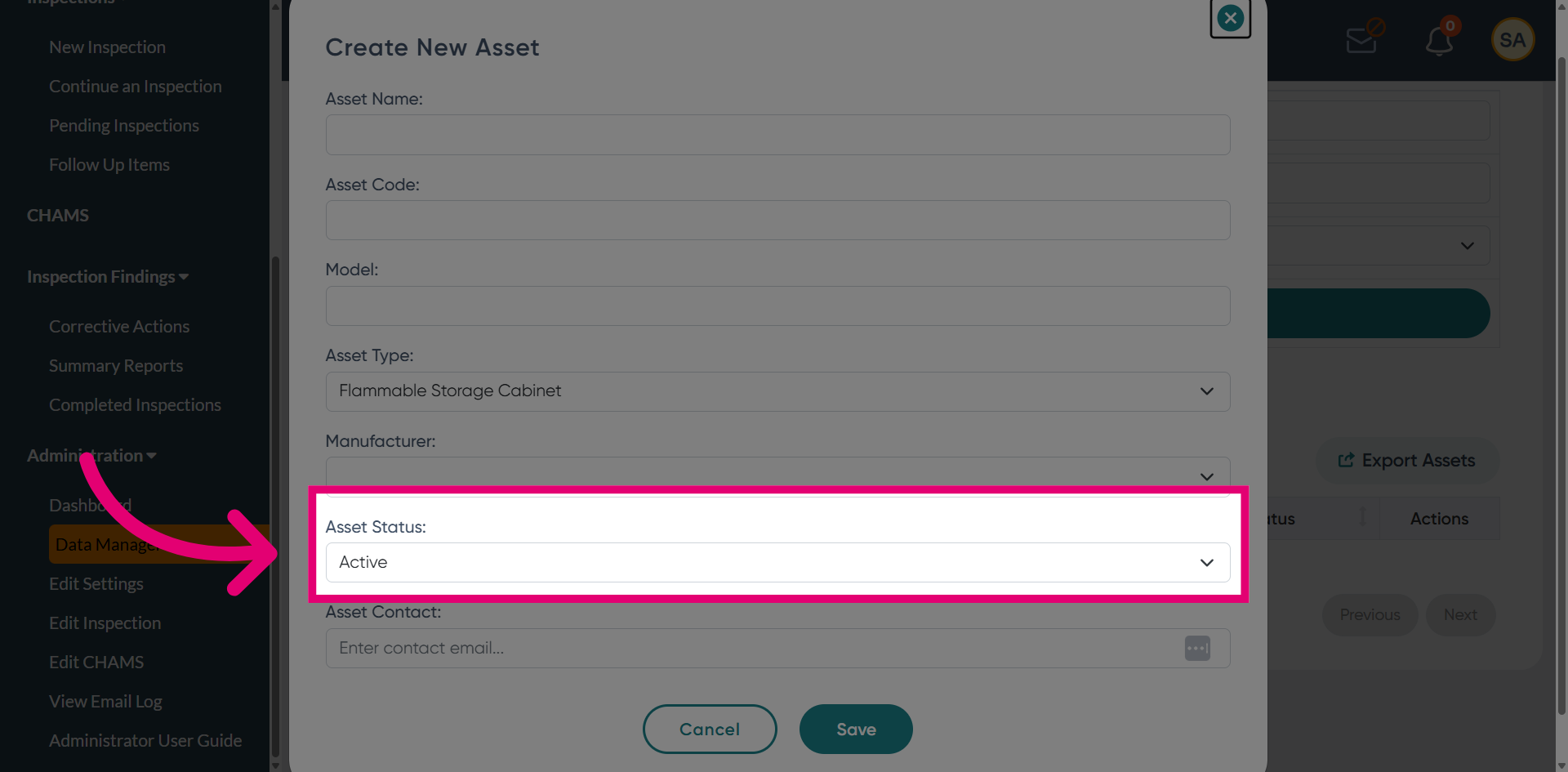
Set Asset Status to Active.
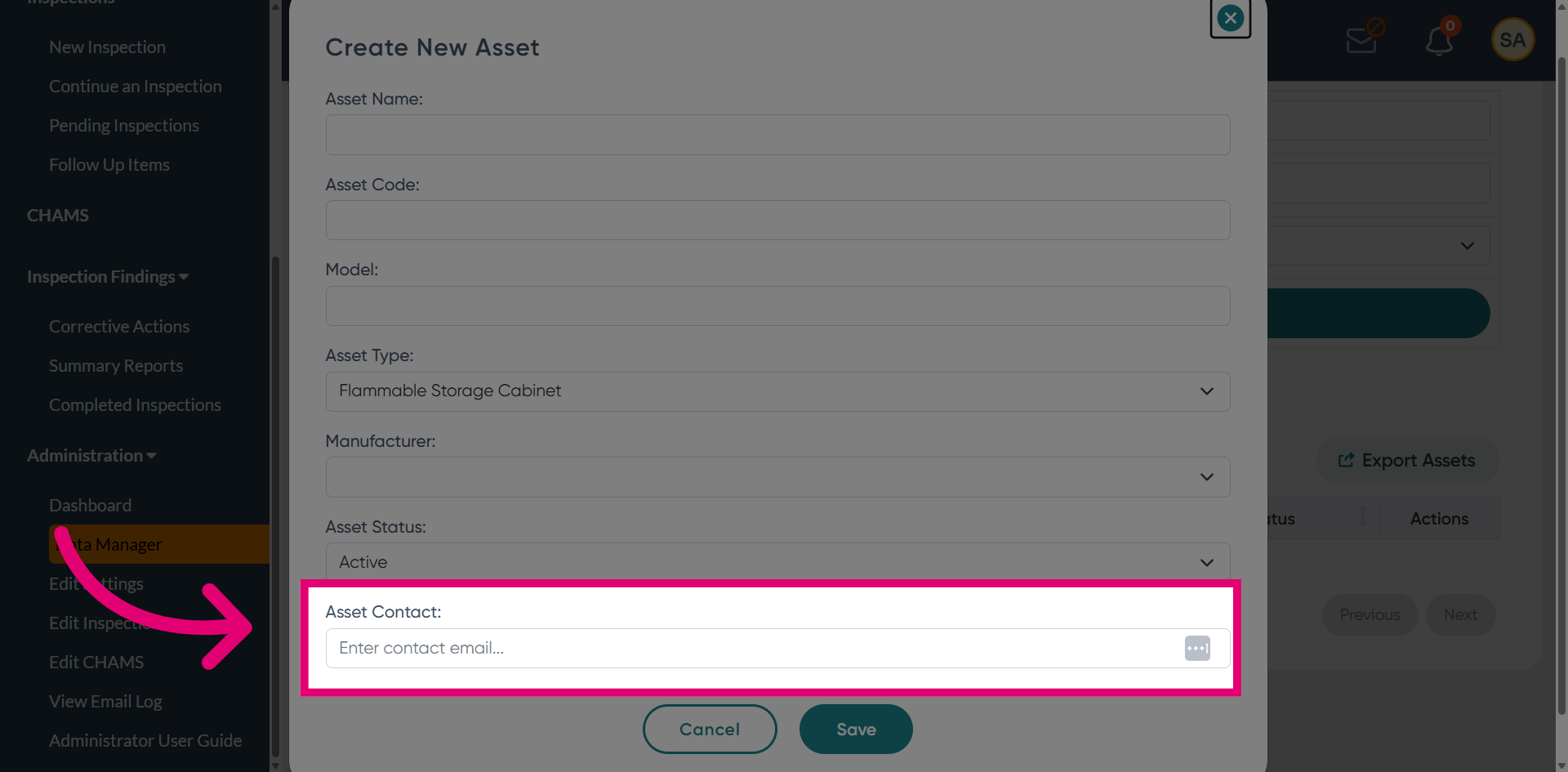
Enter the Asset Contact, if applicable, to identify the person responsible for the asset.
Use Save to confirm and create the asset, or choose Cancel to stop the process.