New article
Recently updated
Managing inventory transitions

Who is this article for?
Users who need to manage inventory transitions.
Administrators role is required.
This article explains how to manage inventory transitions in the chemical inventory system.
You will learn how to initiate transition requests, submit them for approval, and process incoming transition requests.
1. Initiating and Processing Inventory Transitions
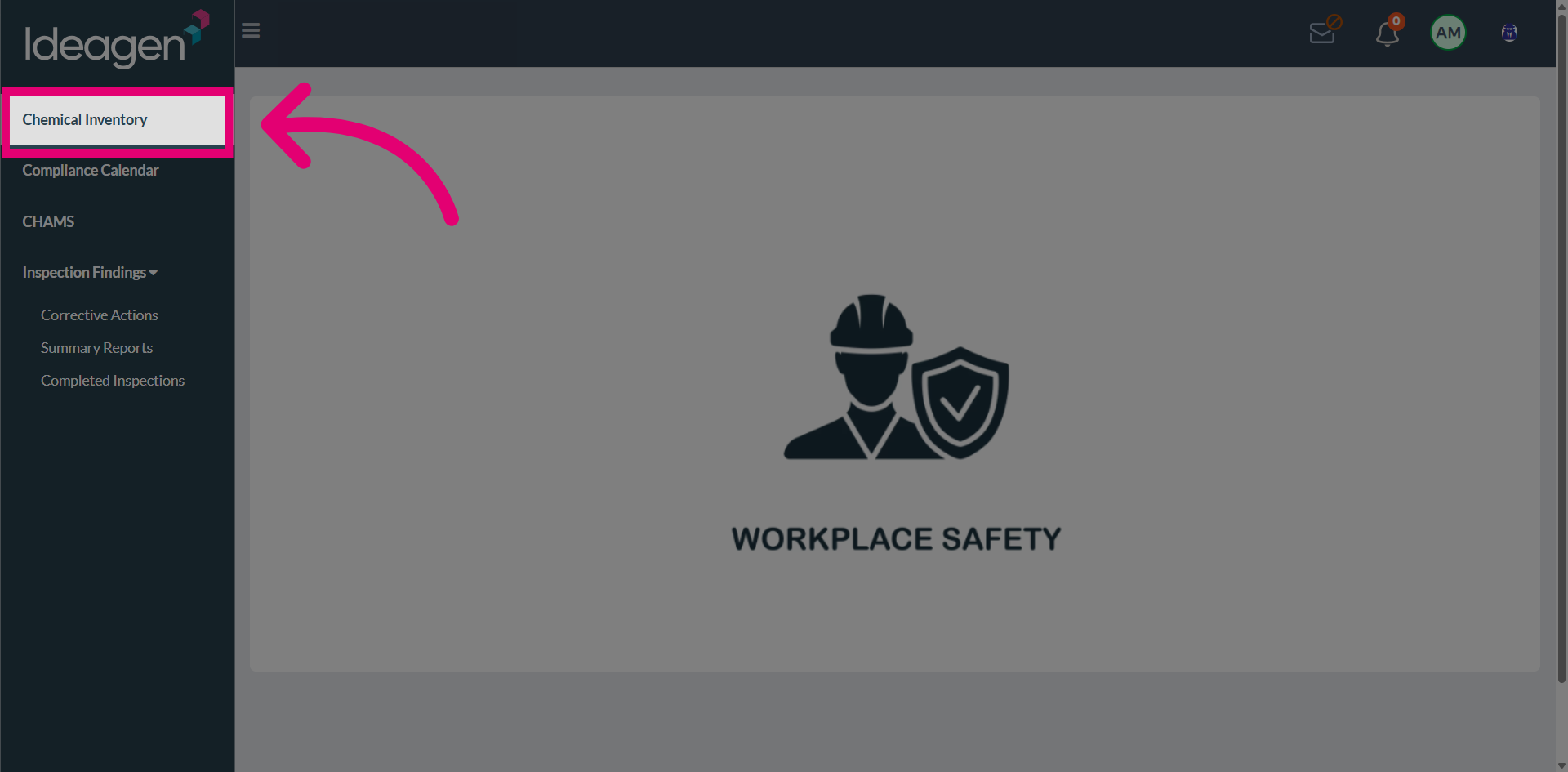
Navigate to Chemical Inventory.
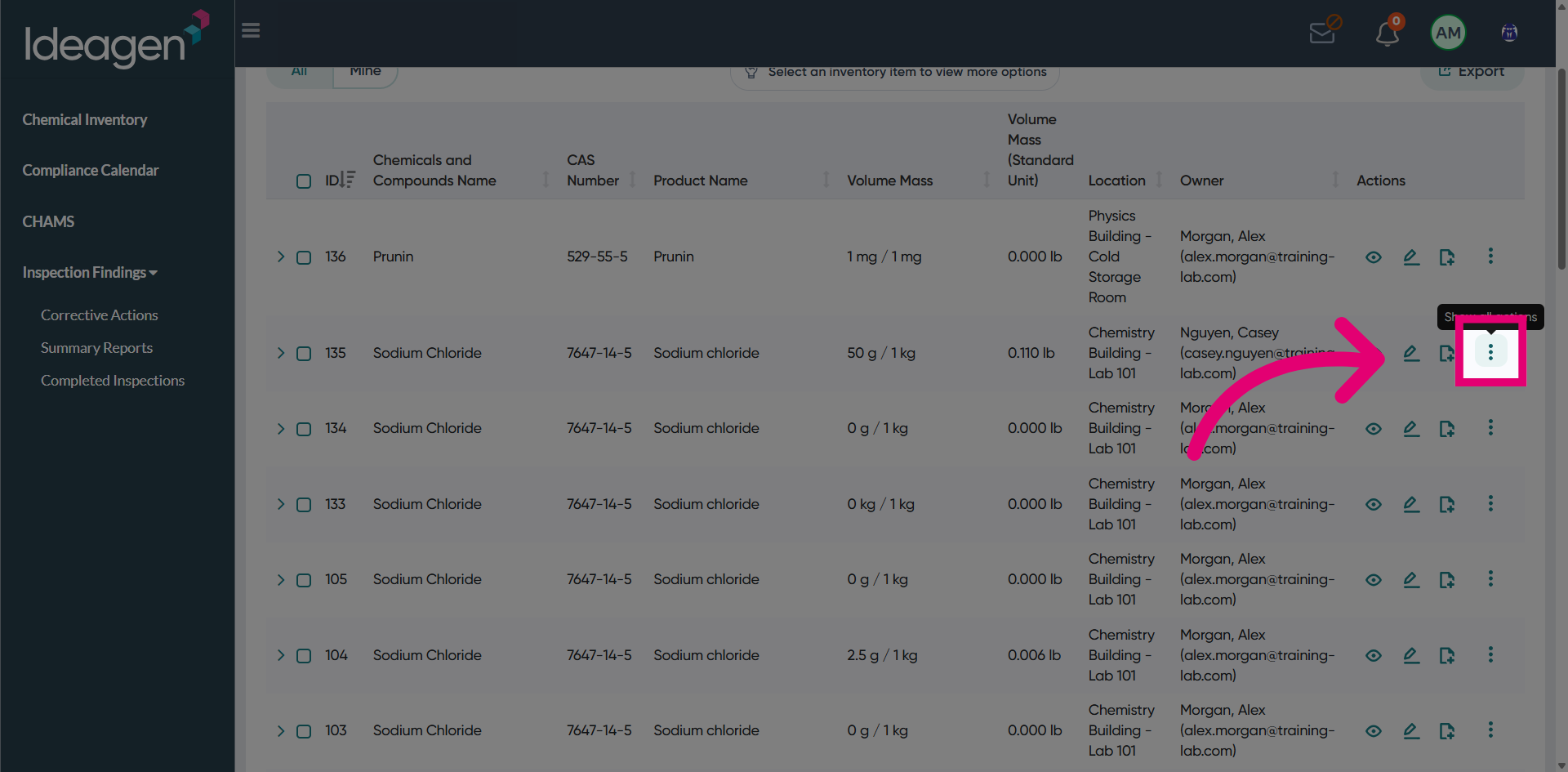
Open the Transfer Options menu.
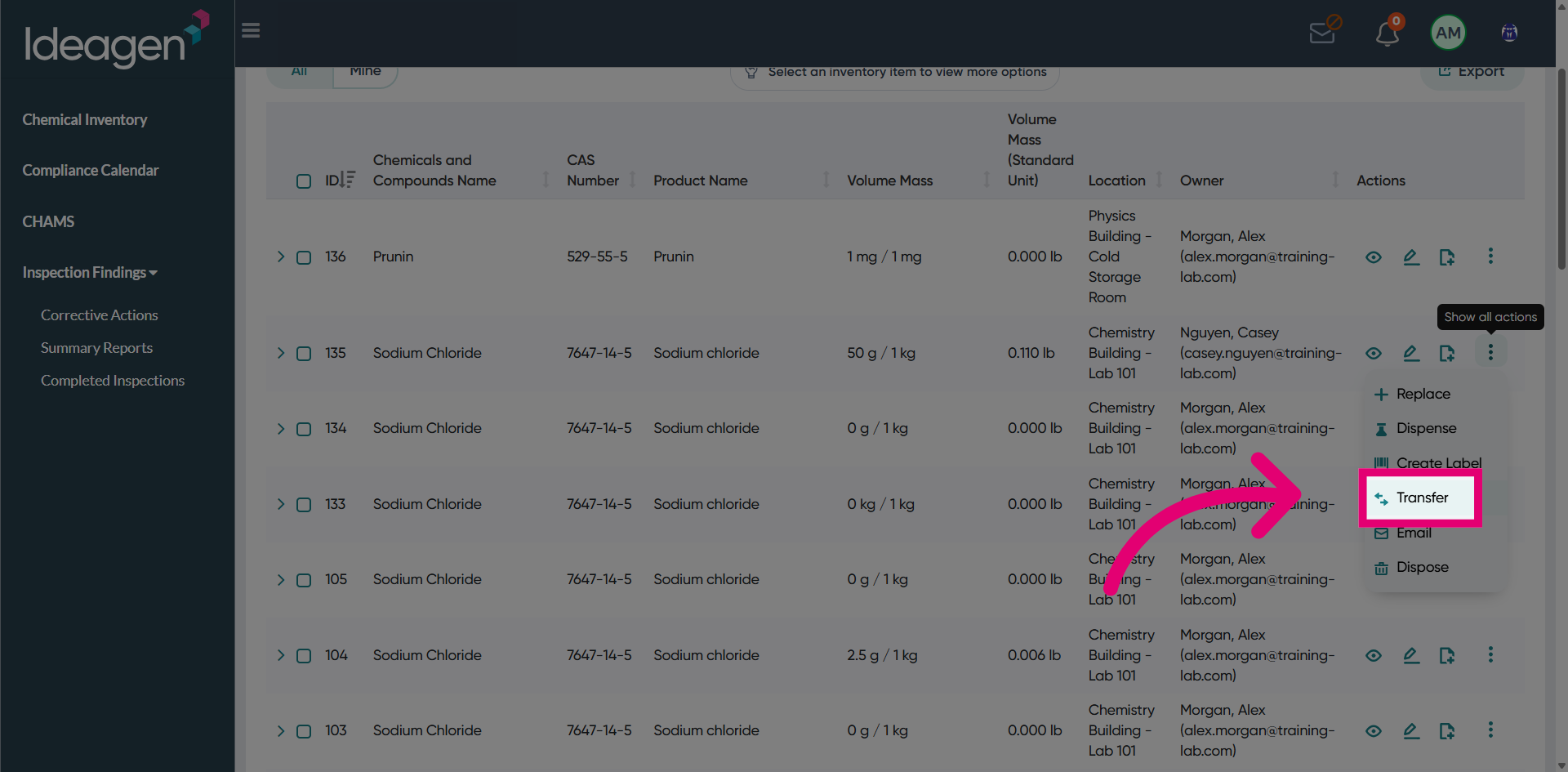
Select the Transfer Feature from the available options.
Choose the Transition Option to begin the transfer process.
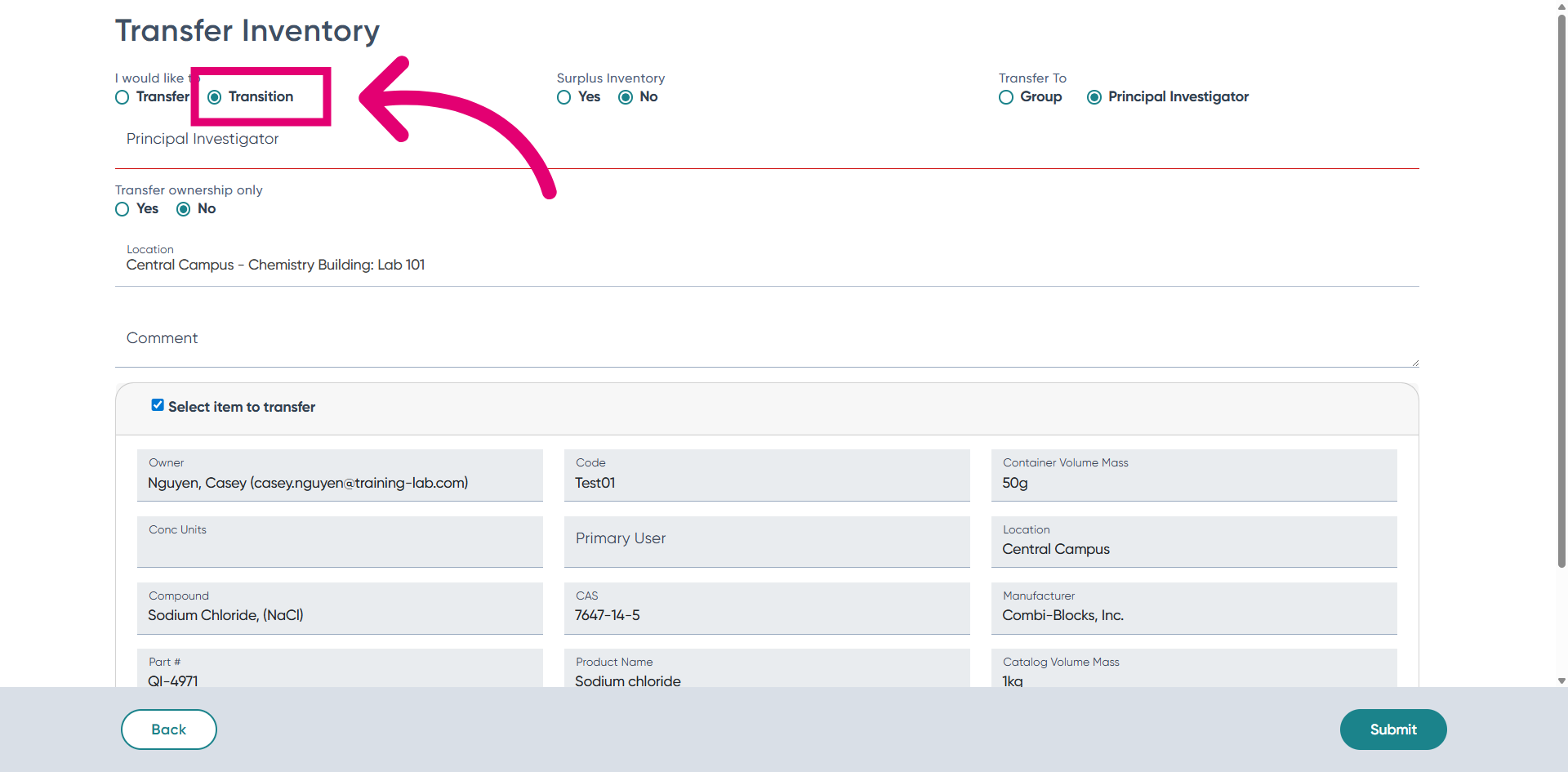
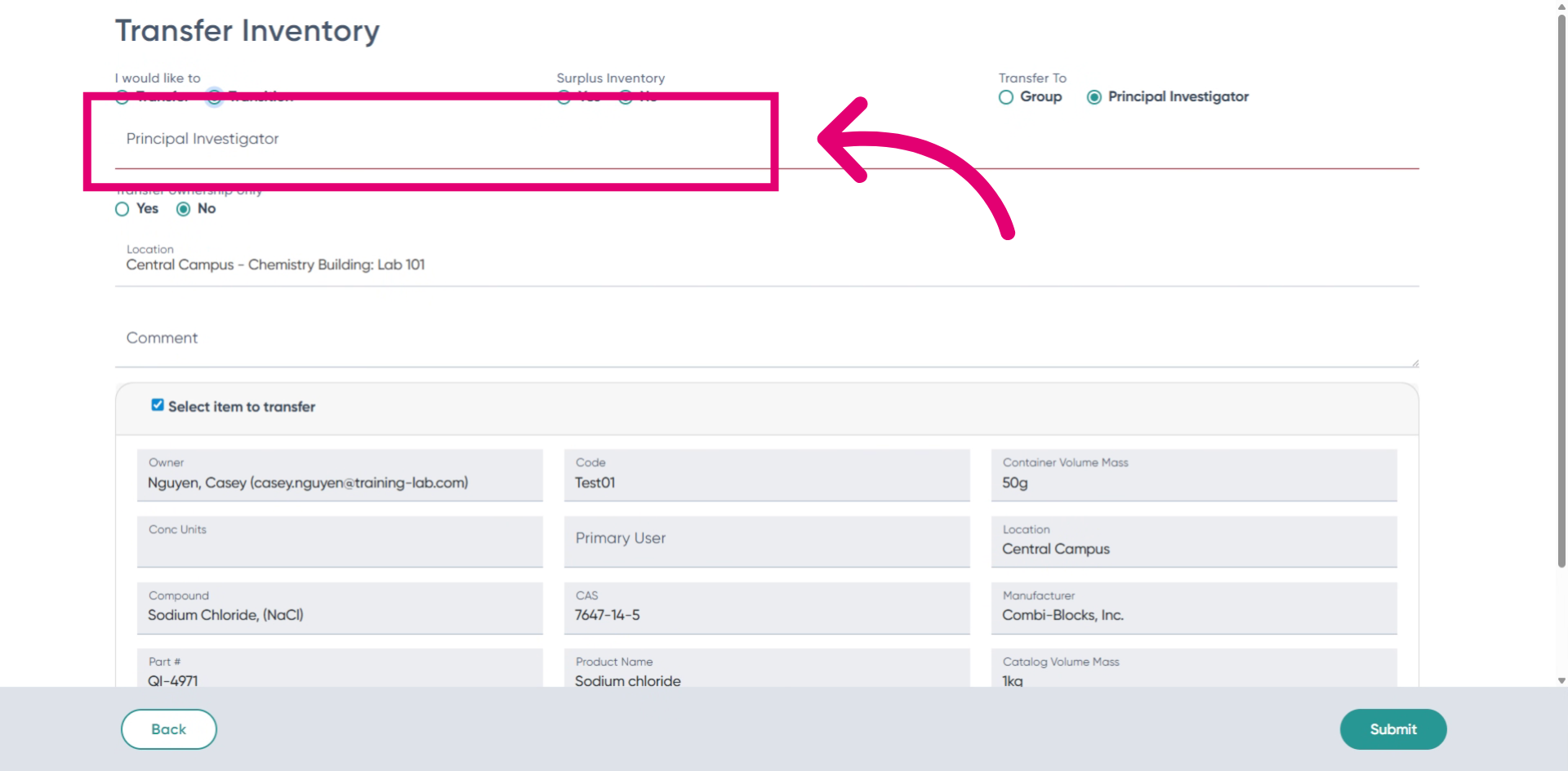
Enter the Investigator Name in the search field.
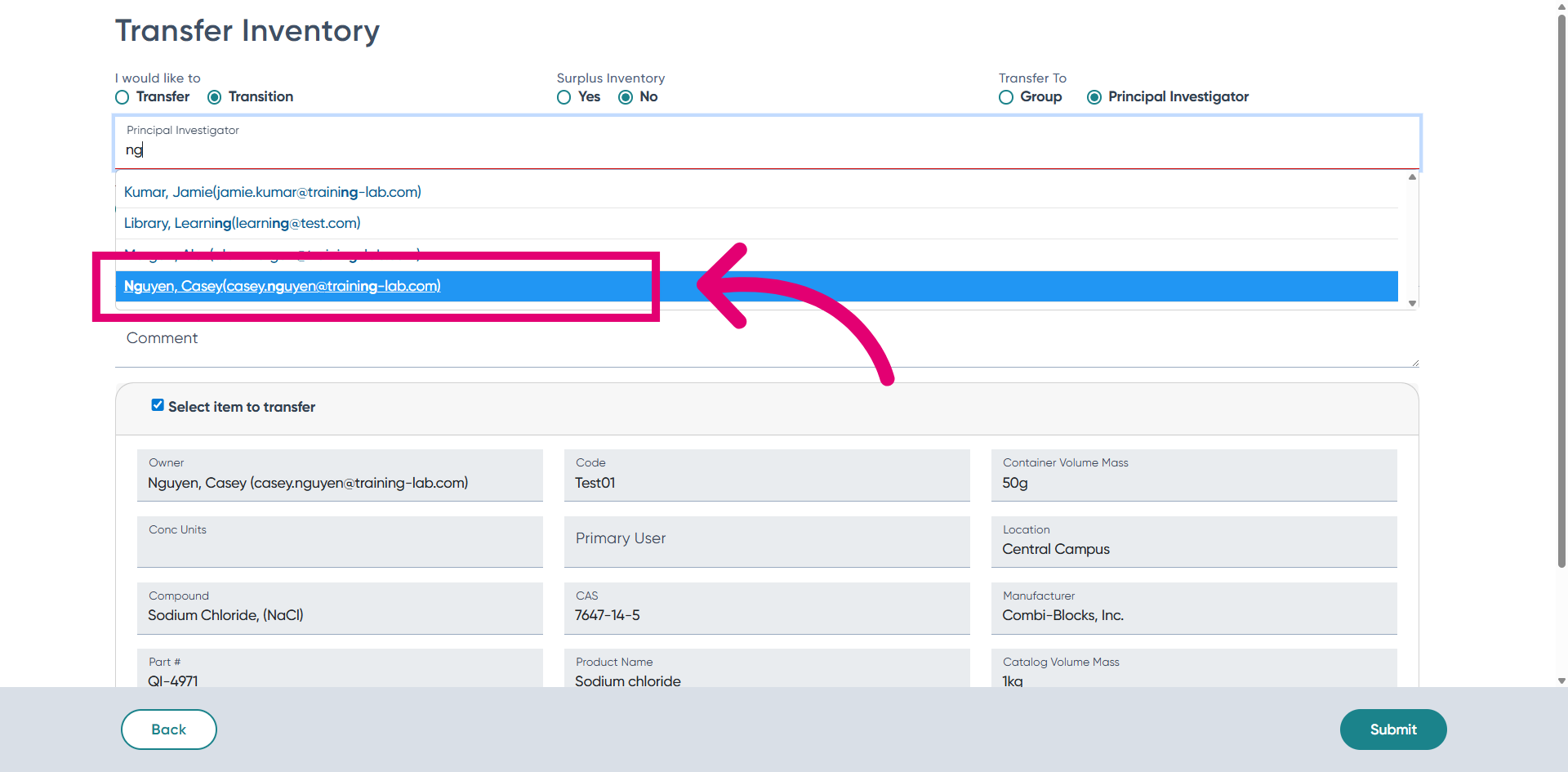
Select the Investigator from List that appears.
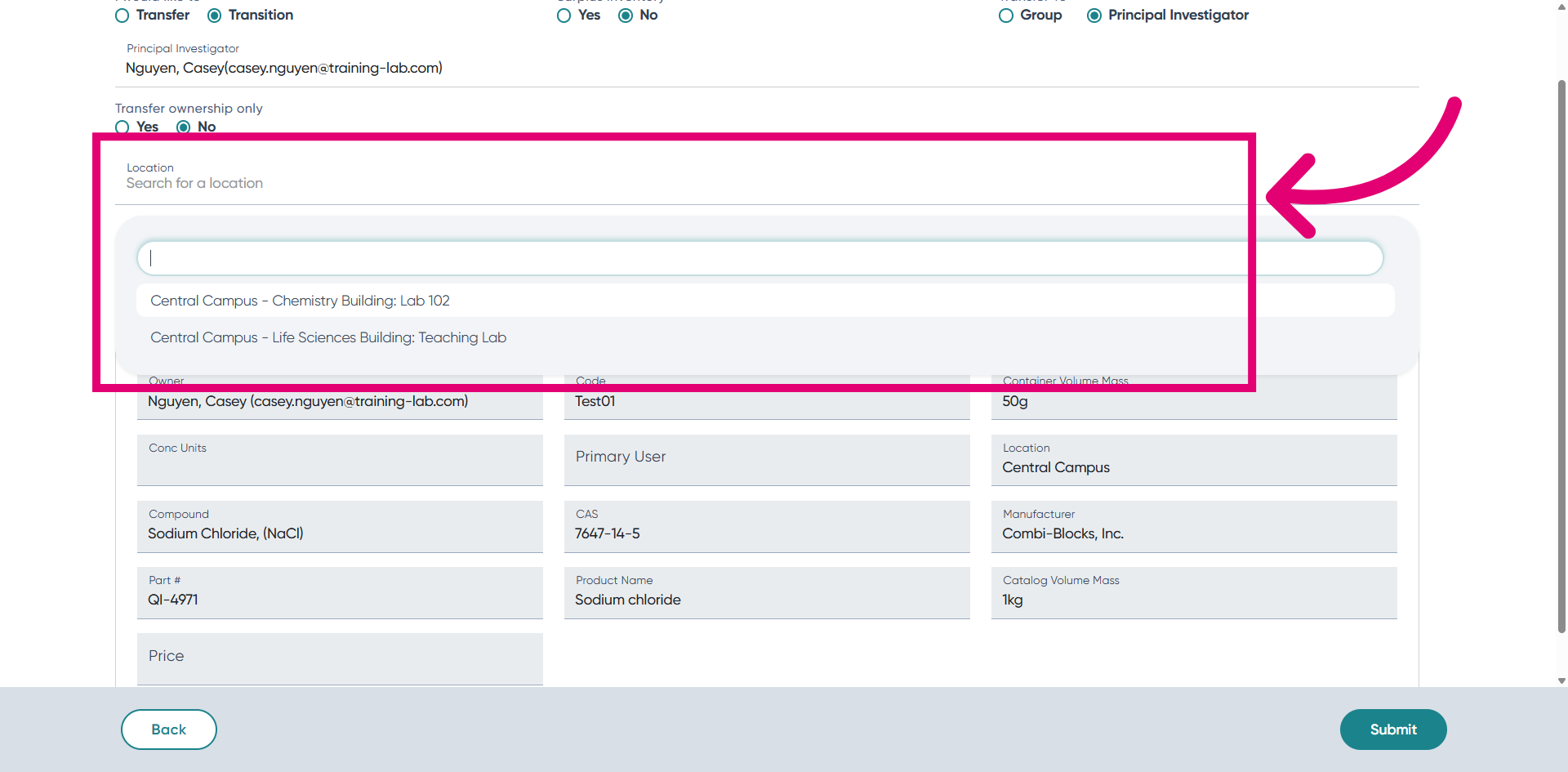
Choose the Transfer Location where the inventory will be moved.
Submit the Transition Request by clicking the submit button.
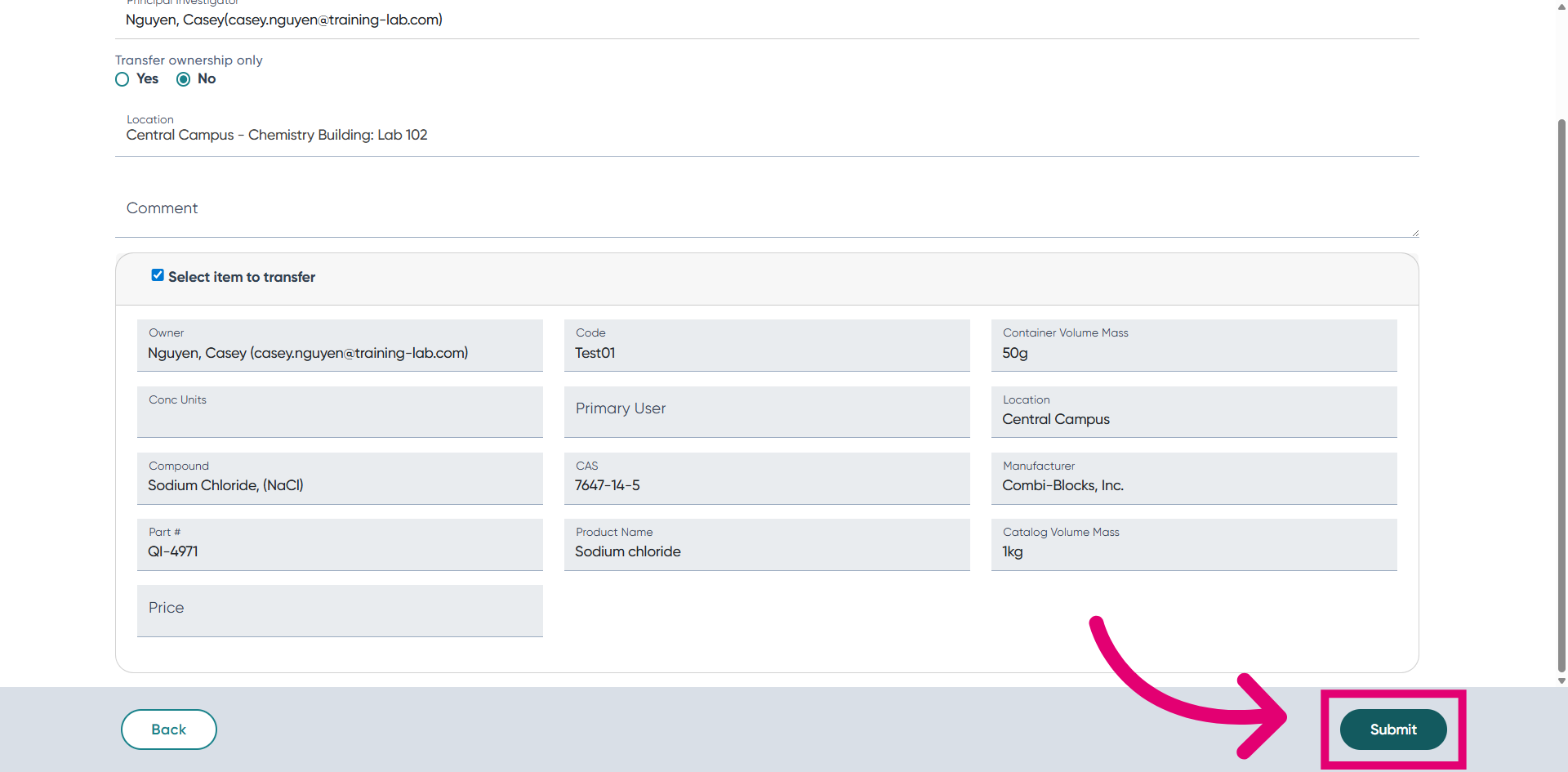
Confirm the Submission when prompted.
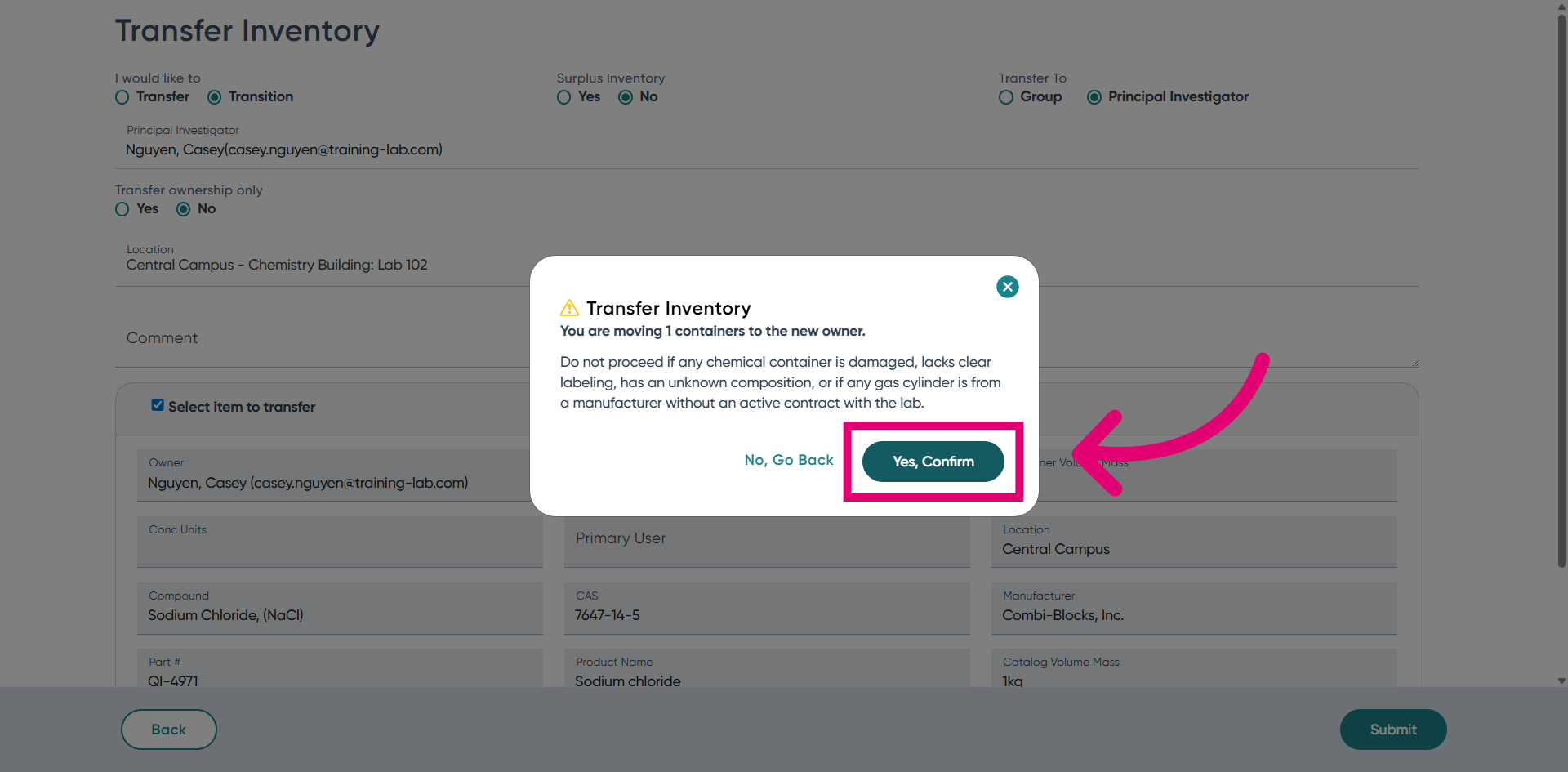
Finalize the Confirmation to complete the initial request.
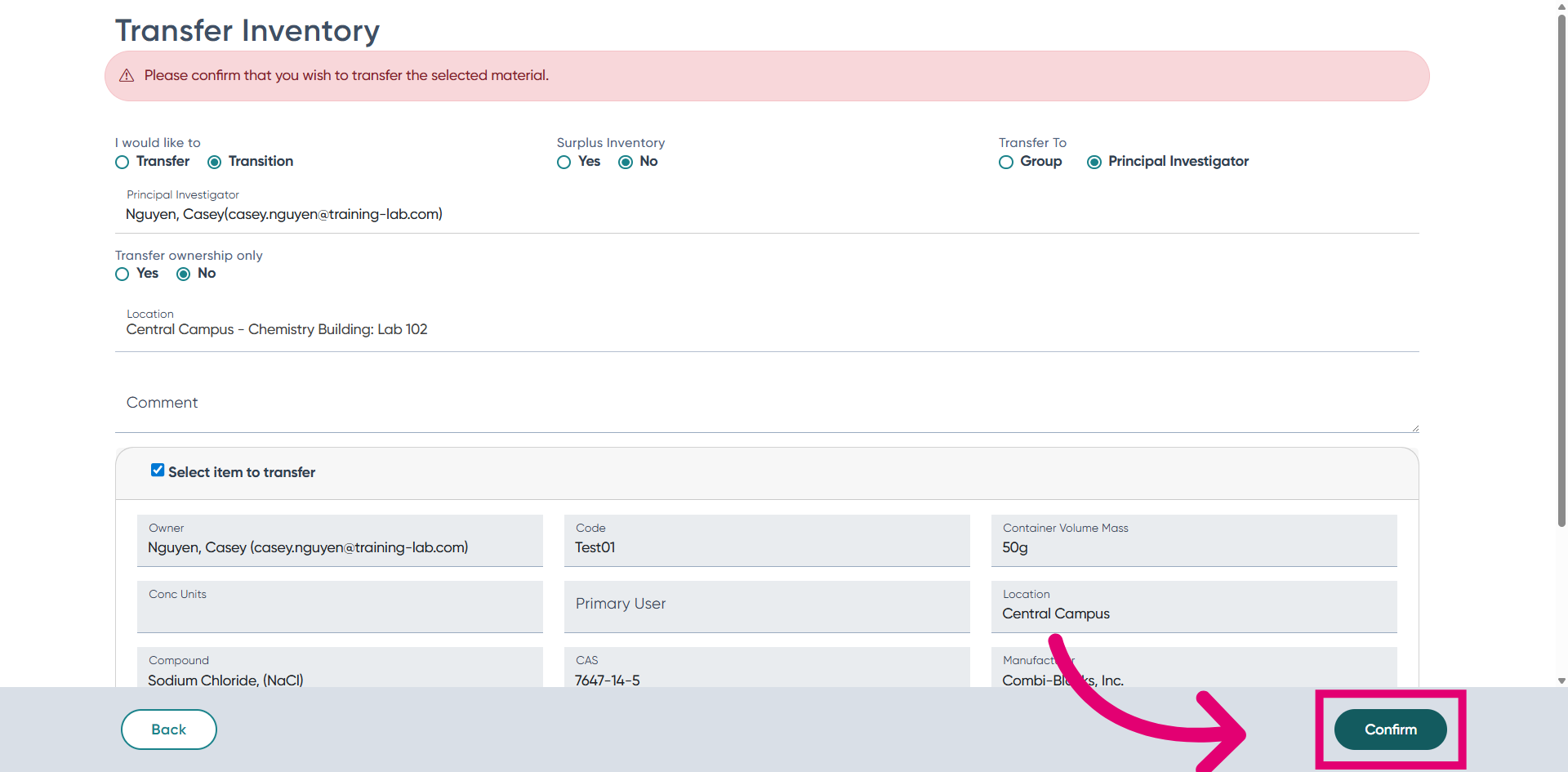
Acknowledge the Confirmation message.
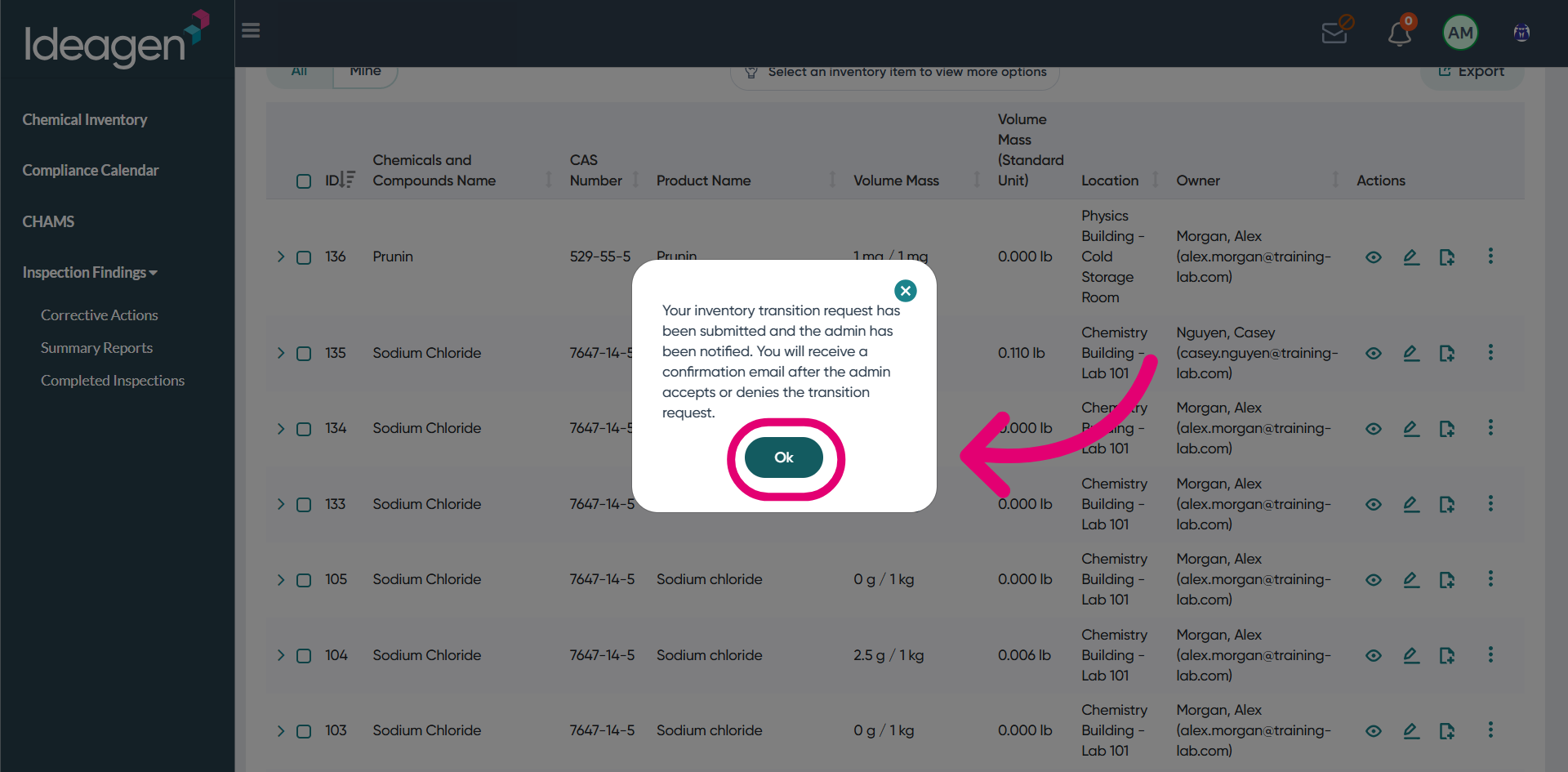
Return to Chemical Inventory to view the updated status.
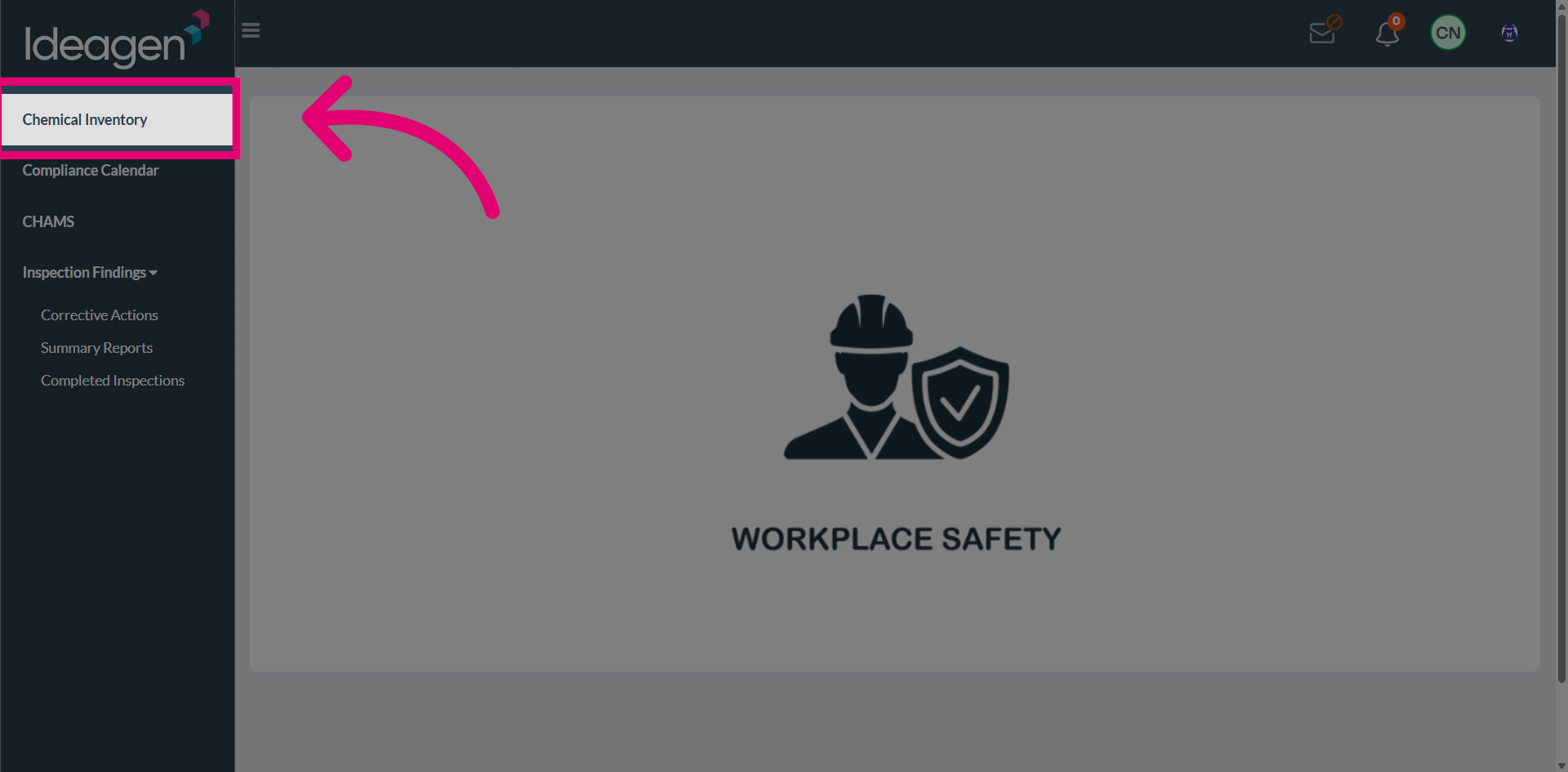
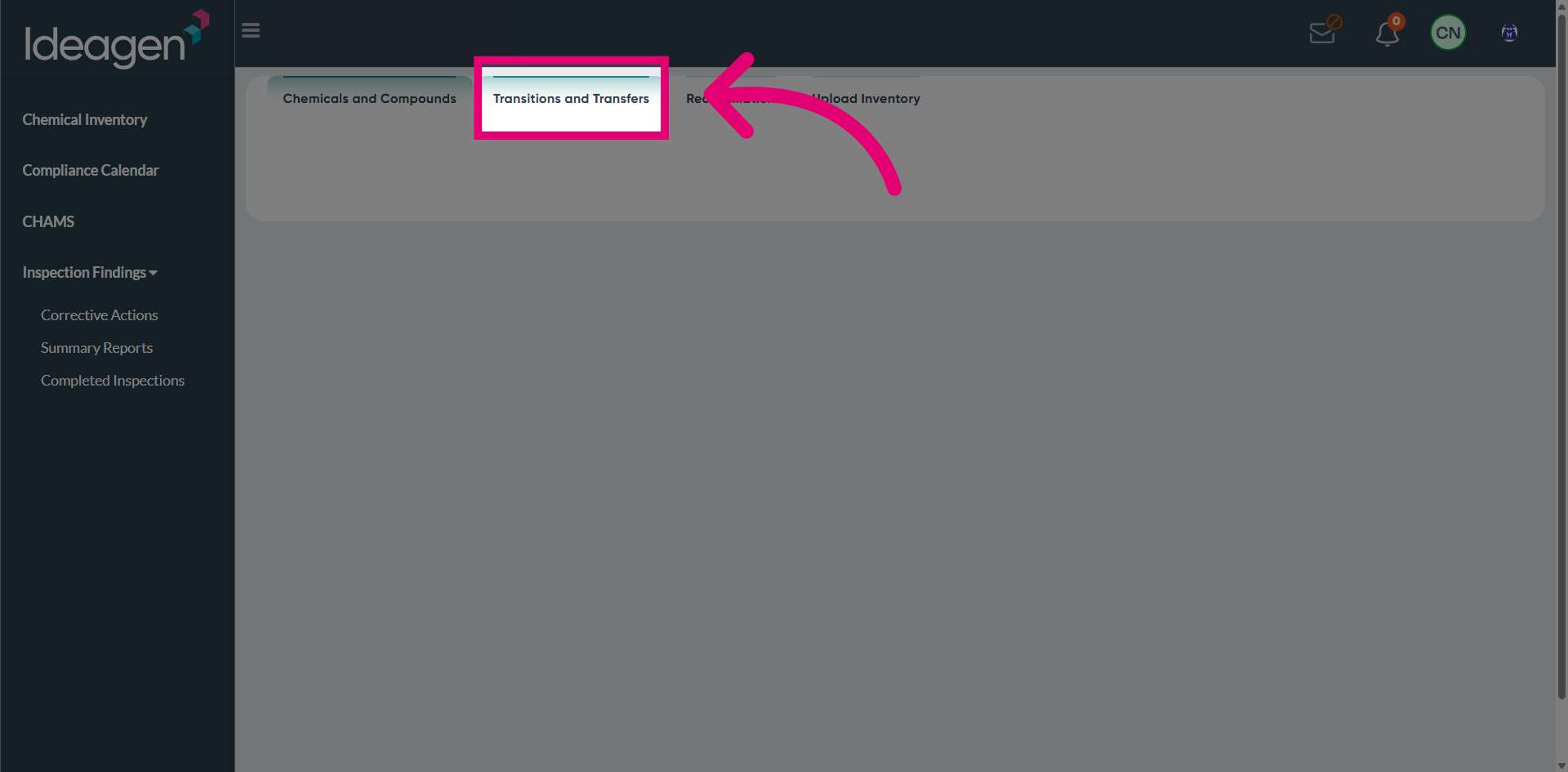
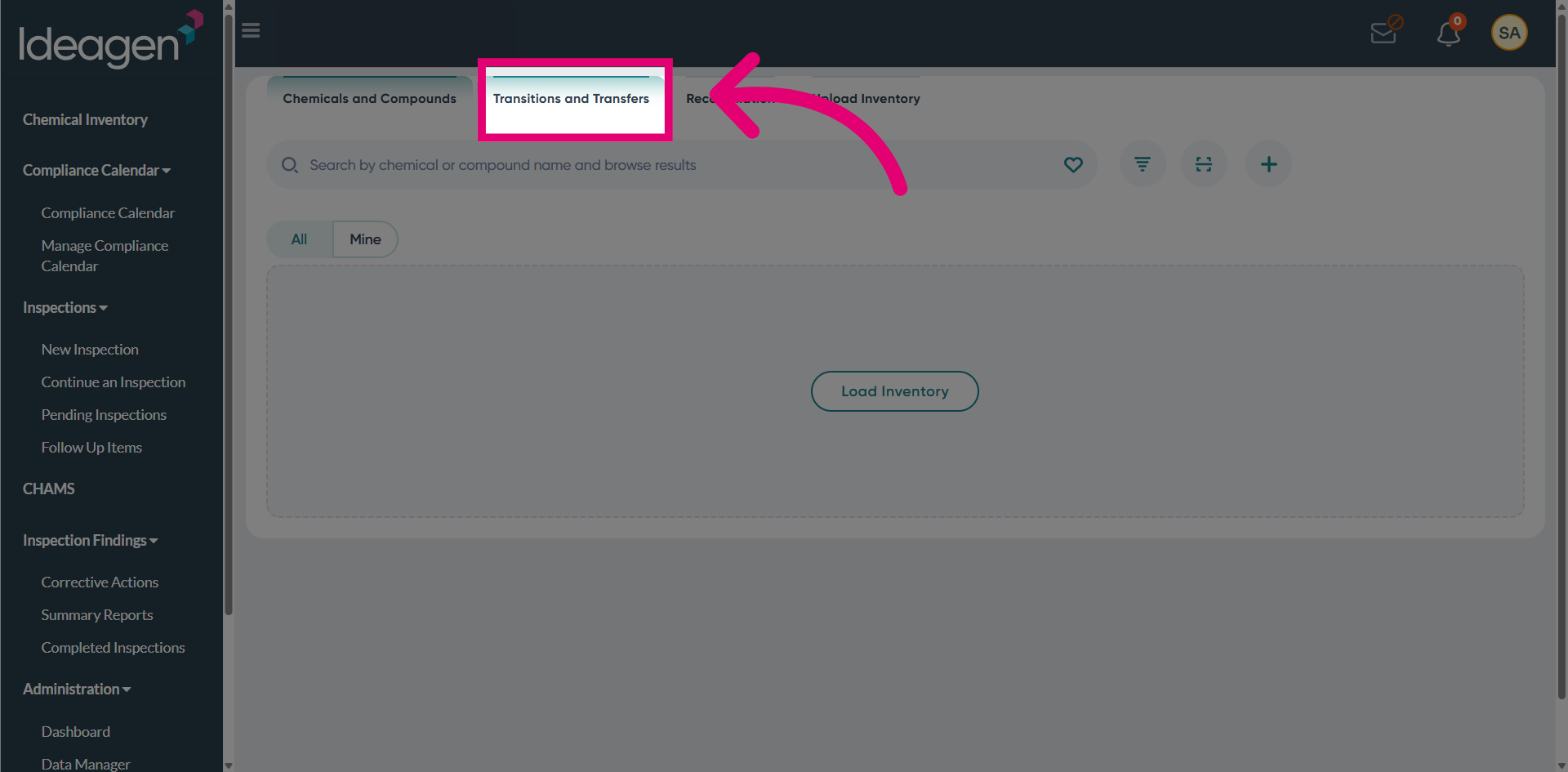
Access Transitions and Transfers from the menu.
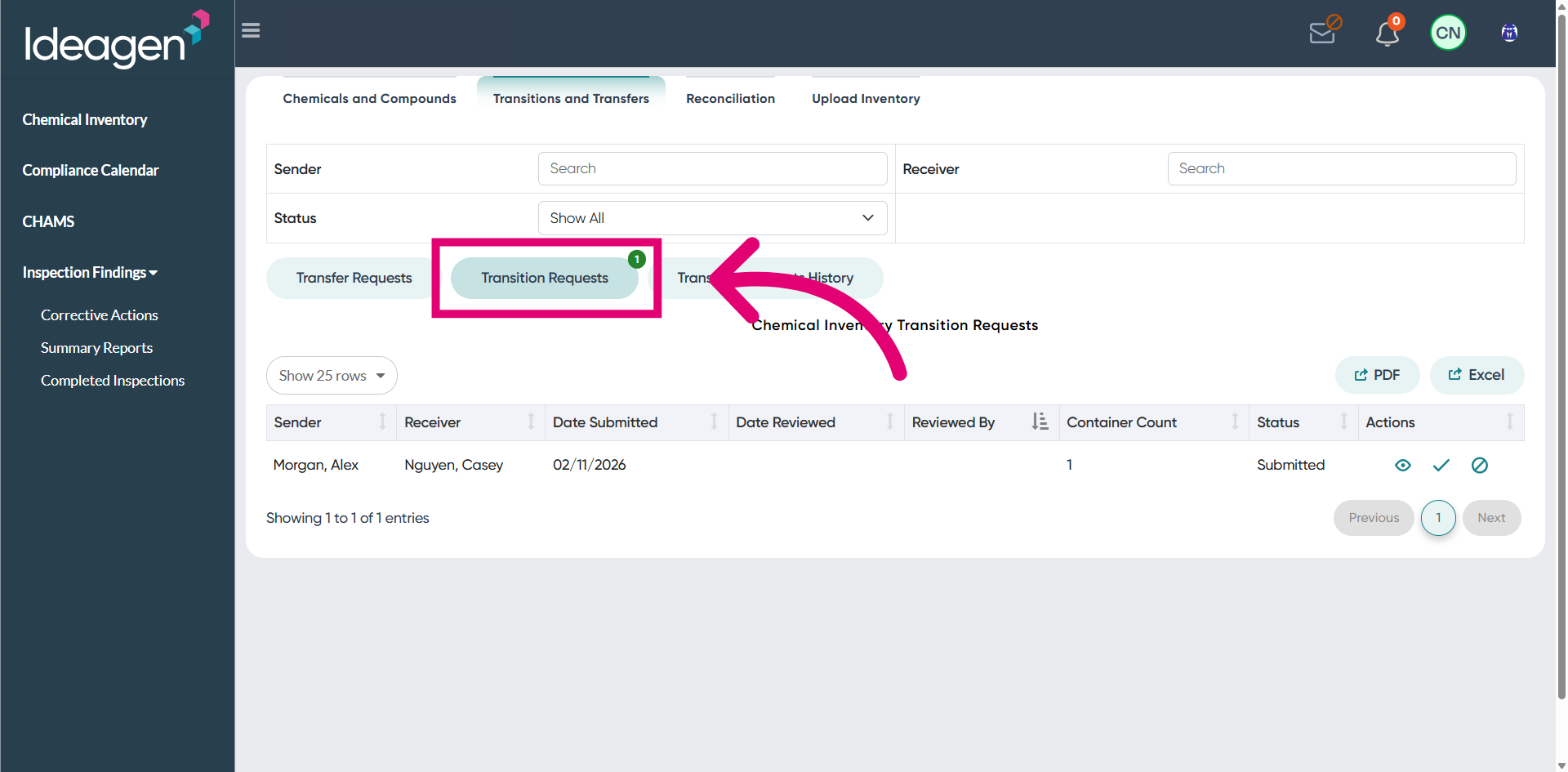
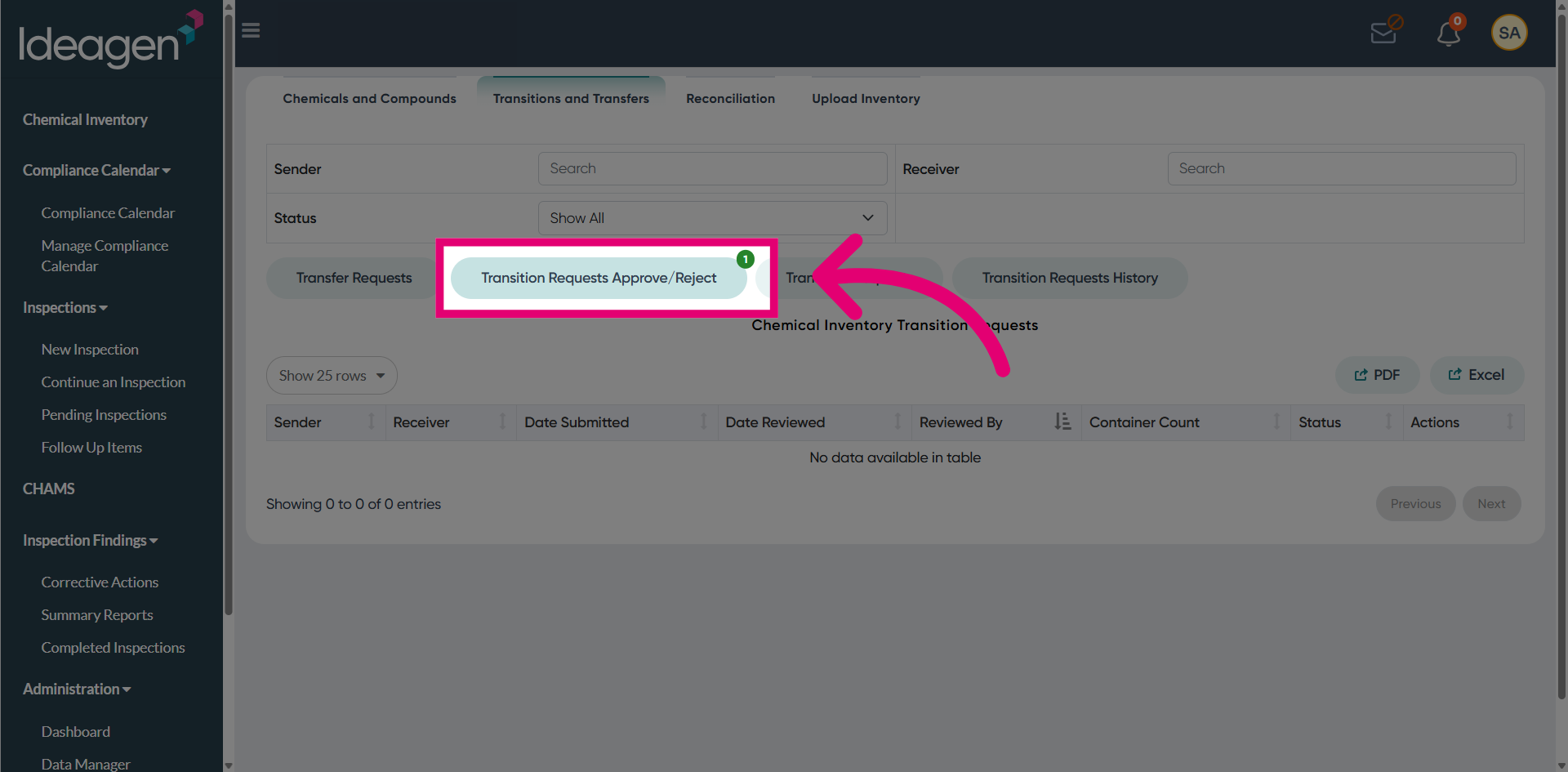
View the Transition Requests list.
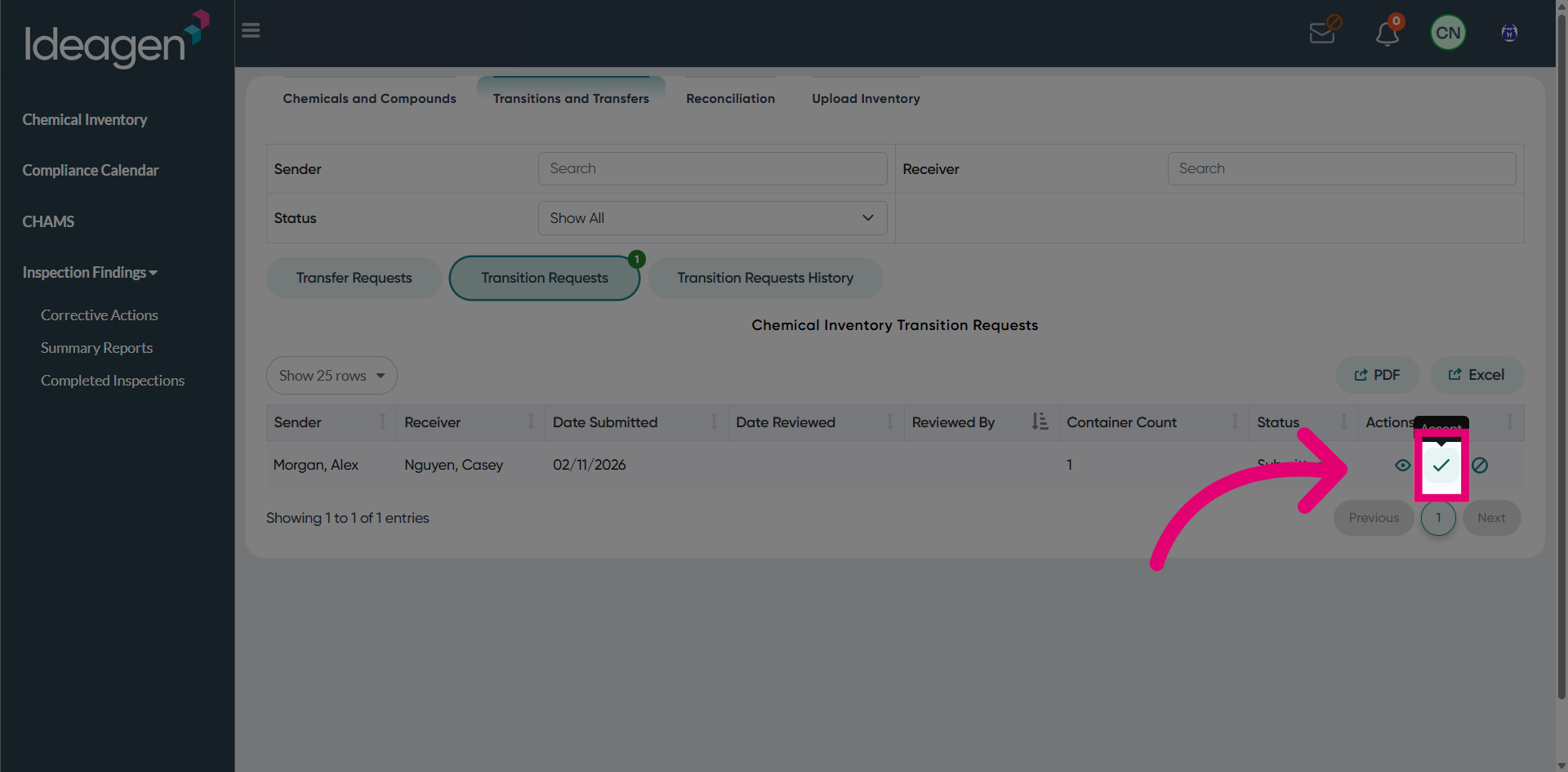
Open the Specific Request you need to process.
Enter the Activity Details for the transition.
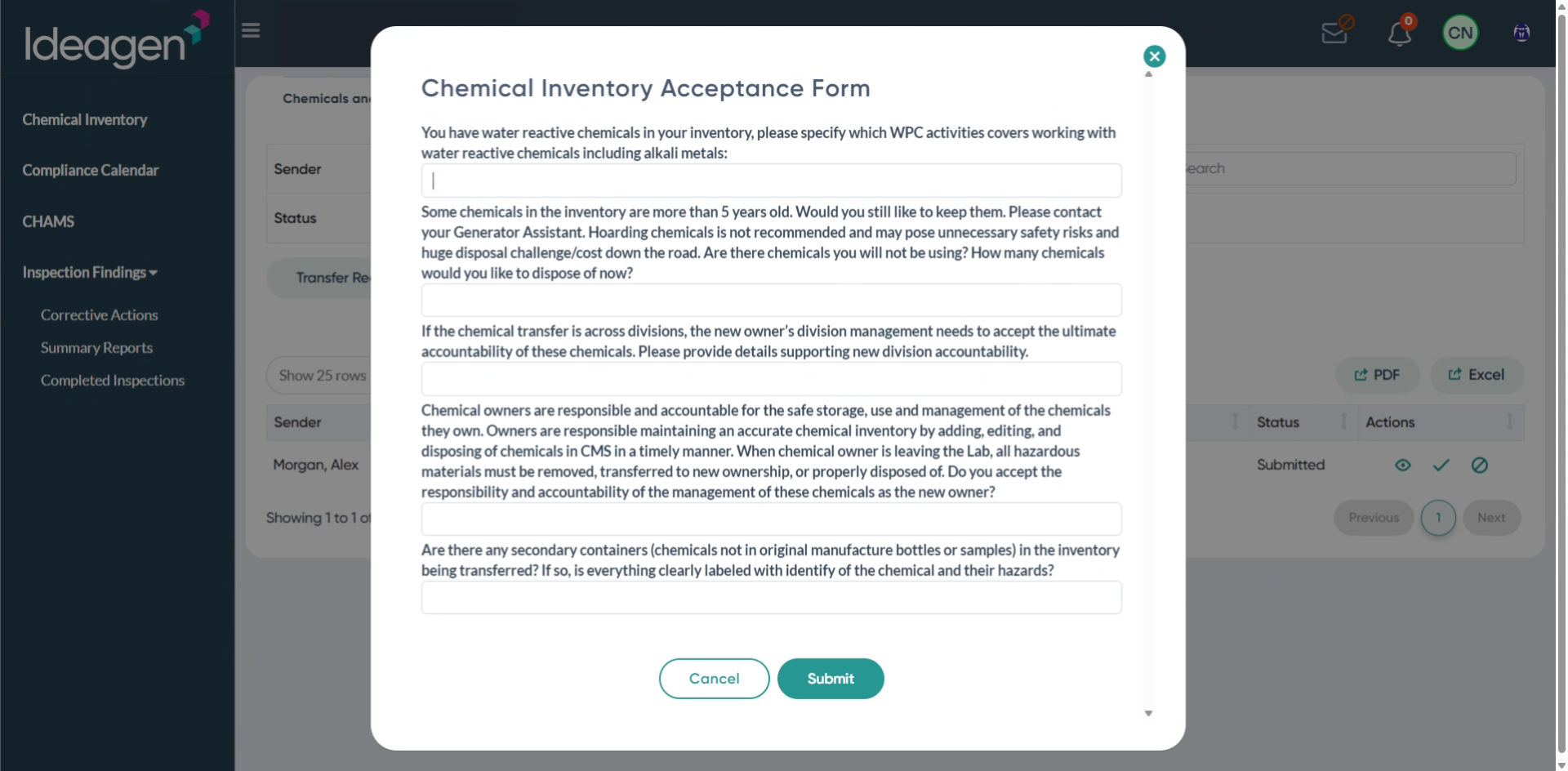
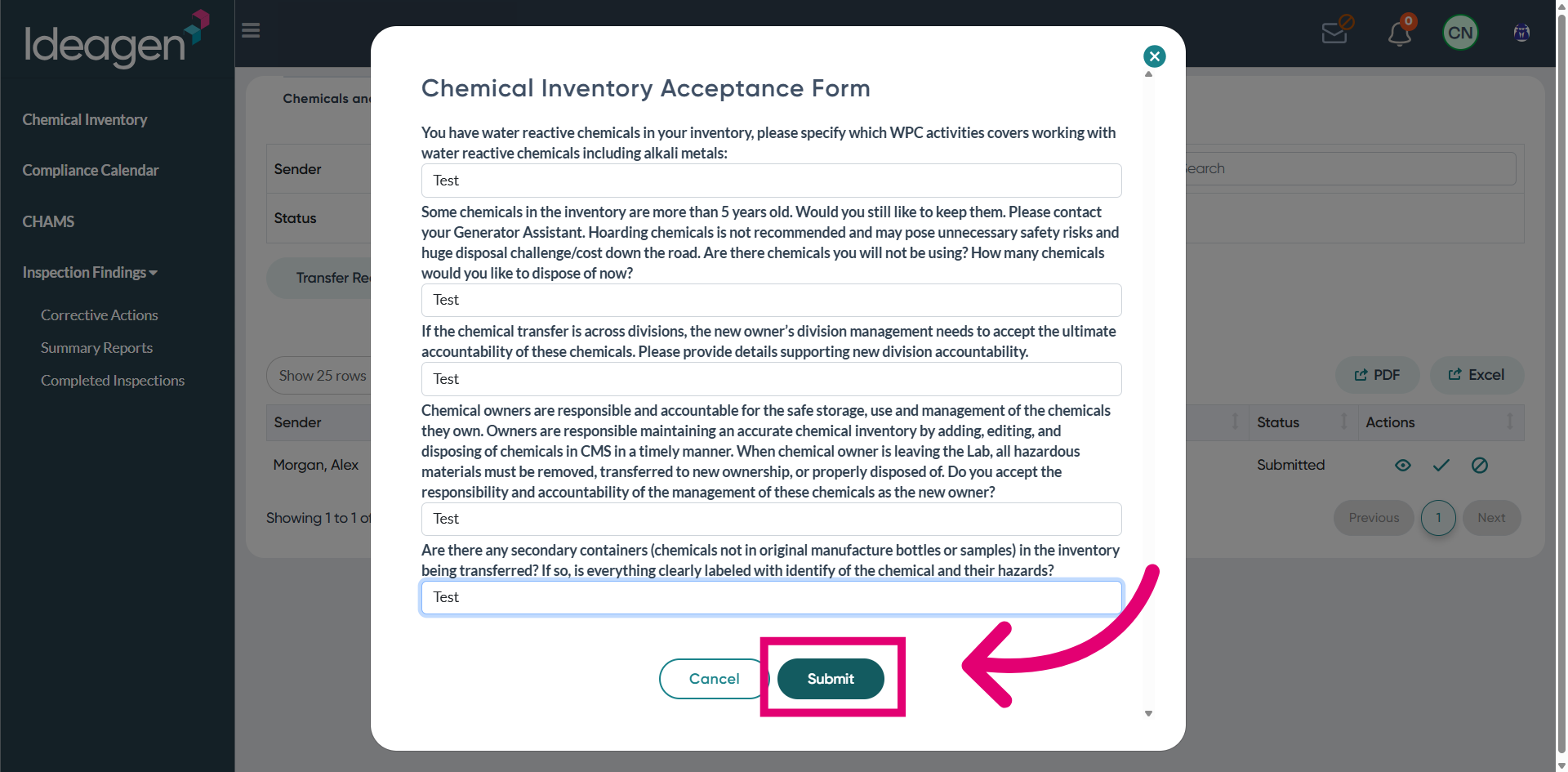
Submit the Transition Details to proceed.
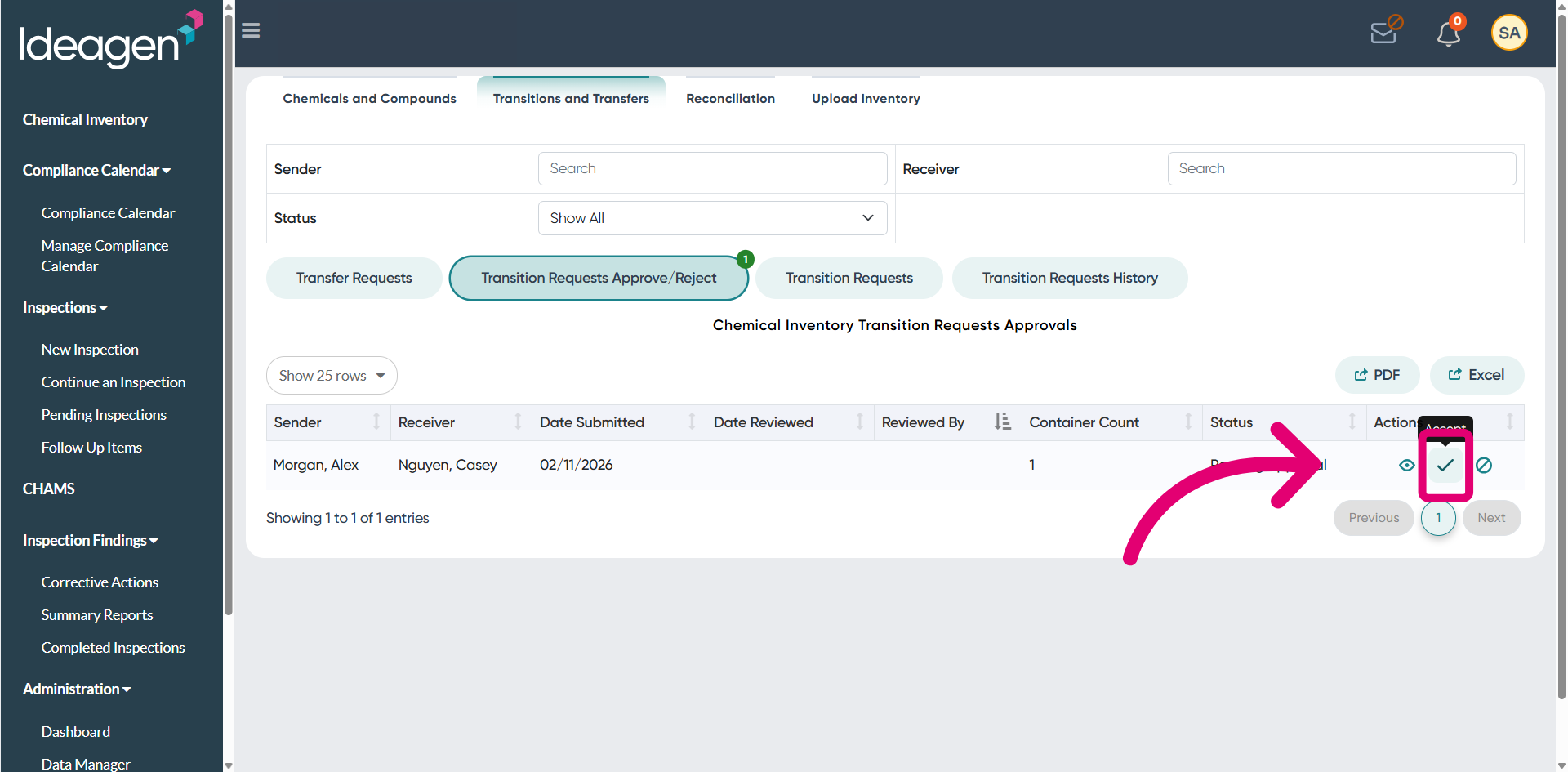
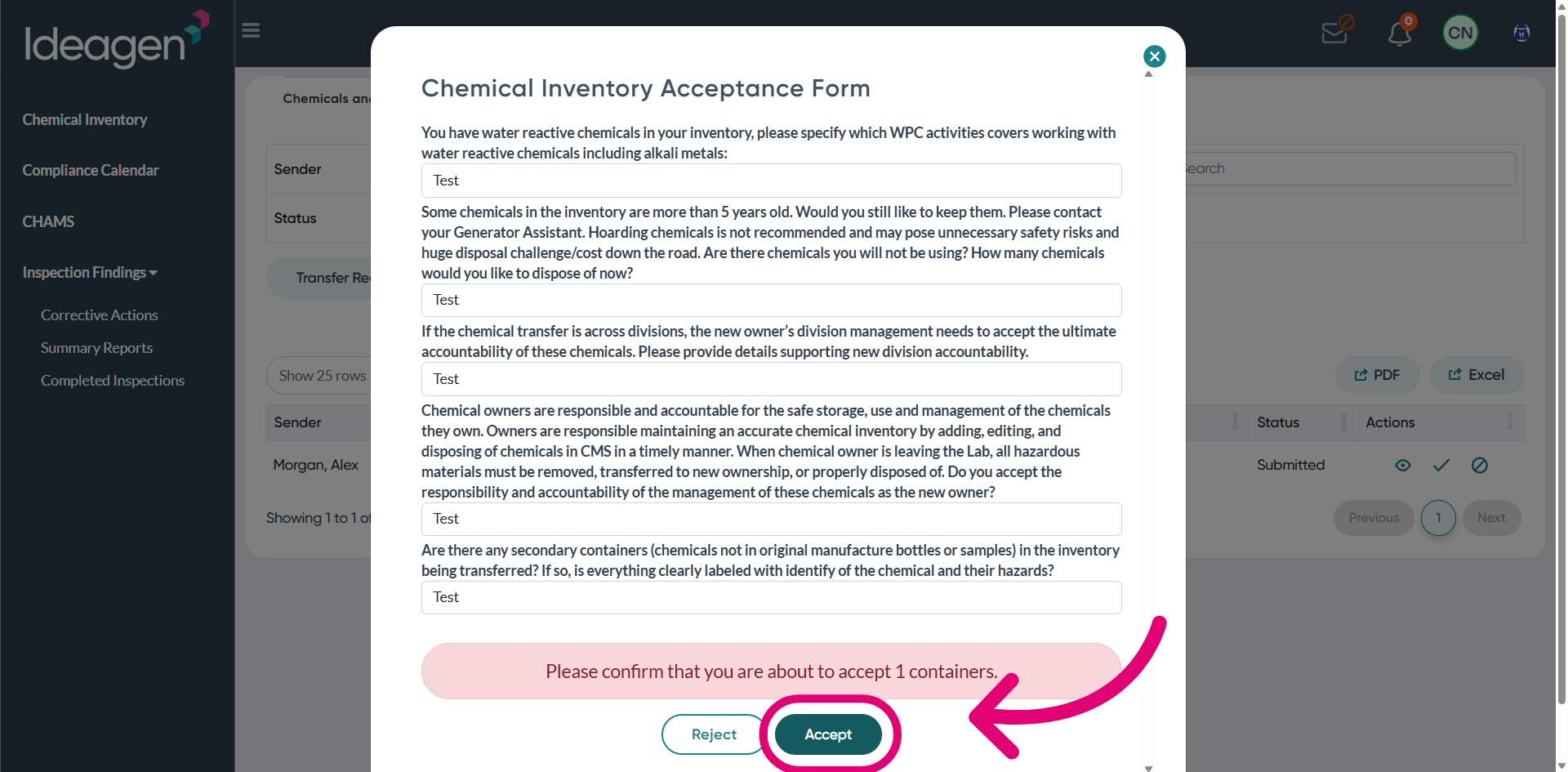
Accept the Transition Request to finalize the transfer.
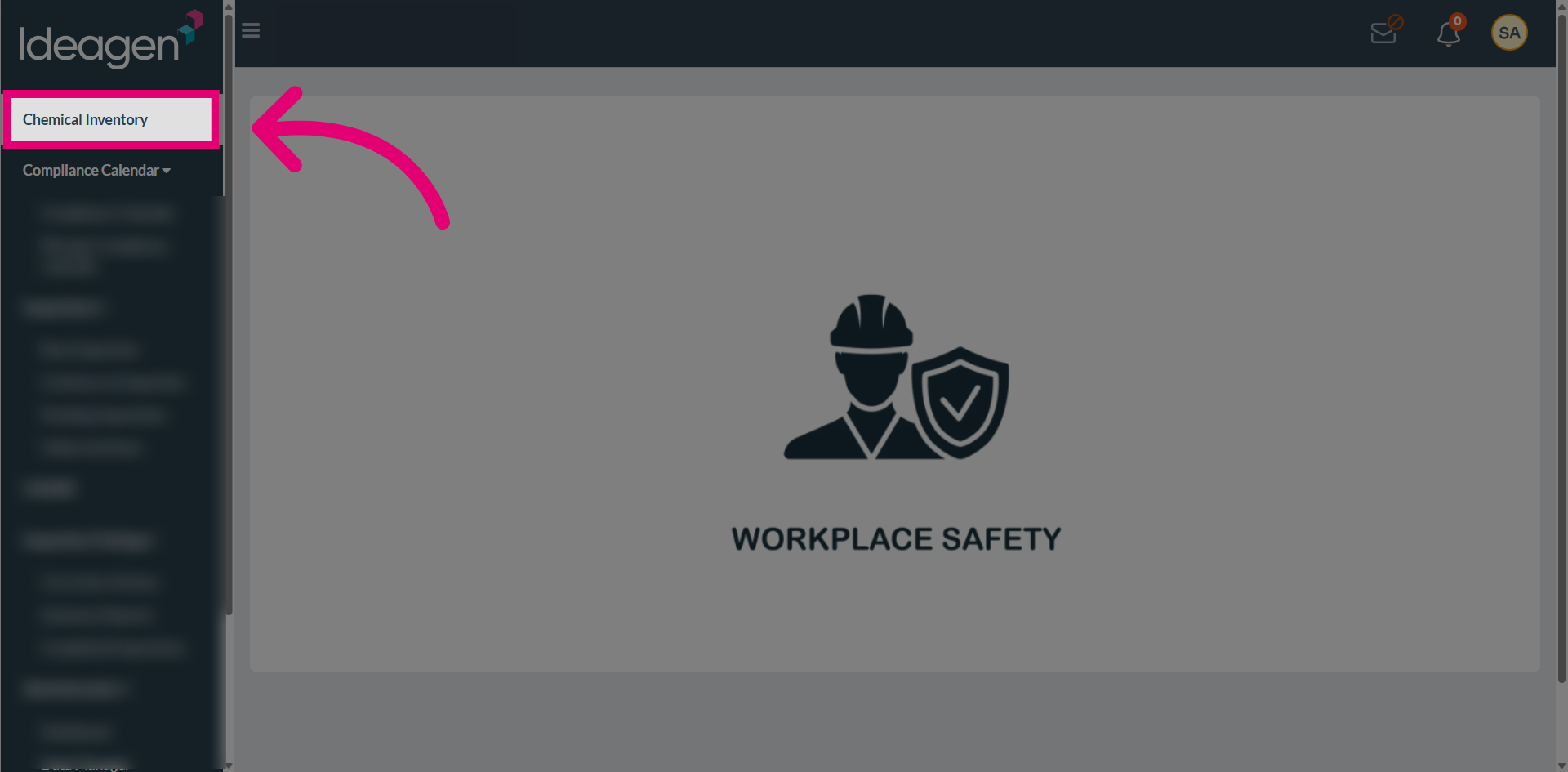
Return to Chemical Inventory to verify the completed transition.
Open Transitions and Transfers to review all requests.
View the Approve/Reject Requests section.
Open the Request Details to review the complete information.