New article
Recently updated
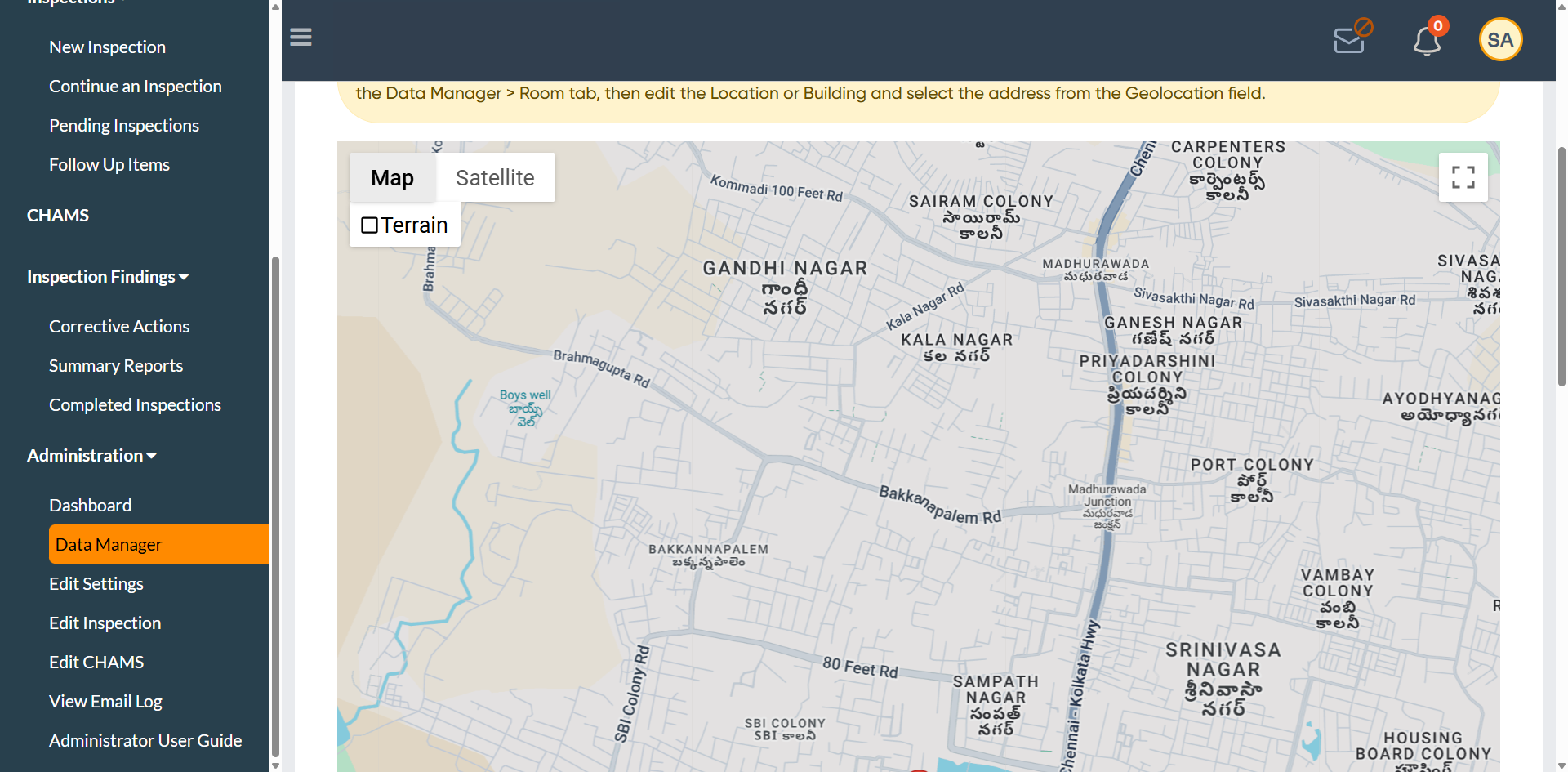
Navigating the Asset Map view

Who is this article for?
Users who need to navigate the Asset Map view.
Administrator role is required.
This tutorial provides an overview of the Asset Map feature.
You will learn how to access and navigate the Asset Map view to manage and view asset locations geographically.
1. Navigating the Asset Map View
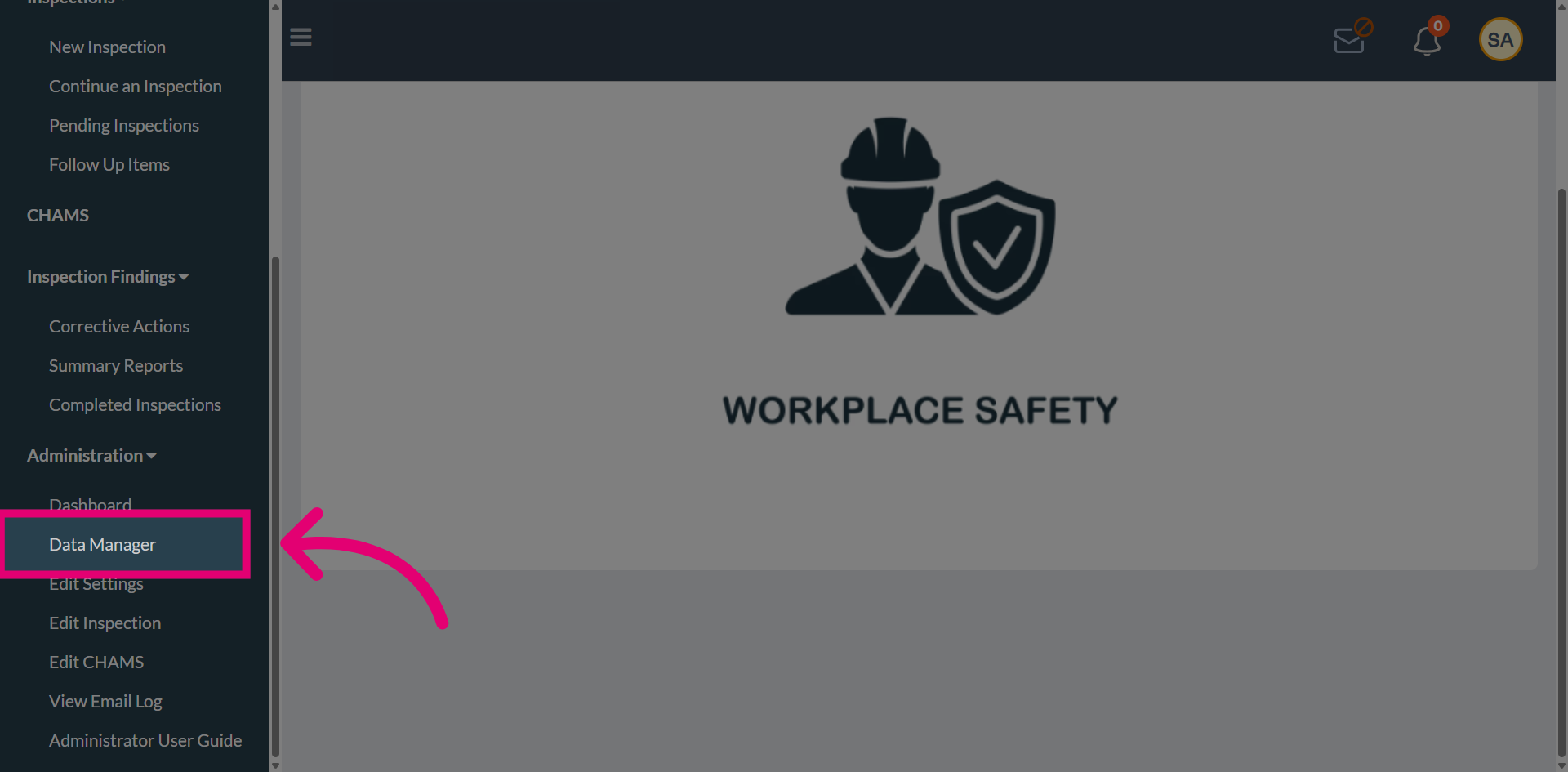
Navigate to Data Manager to access and manage assets.
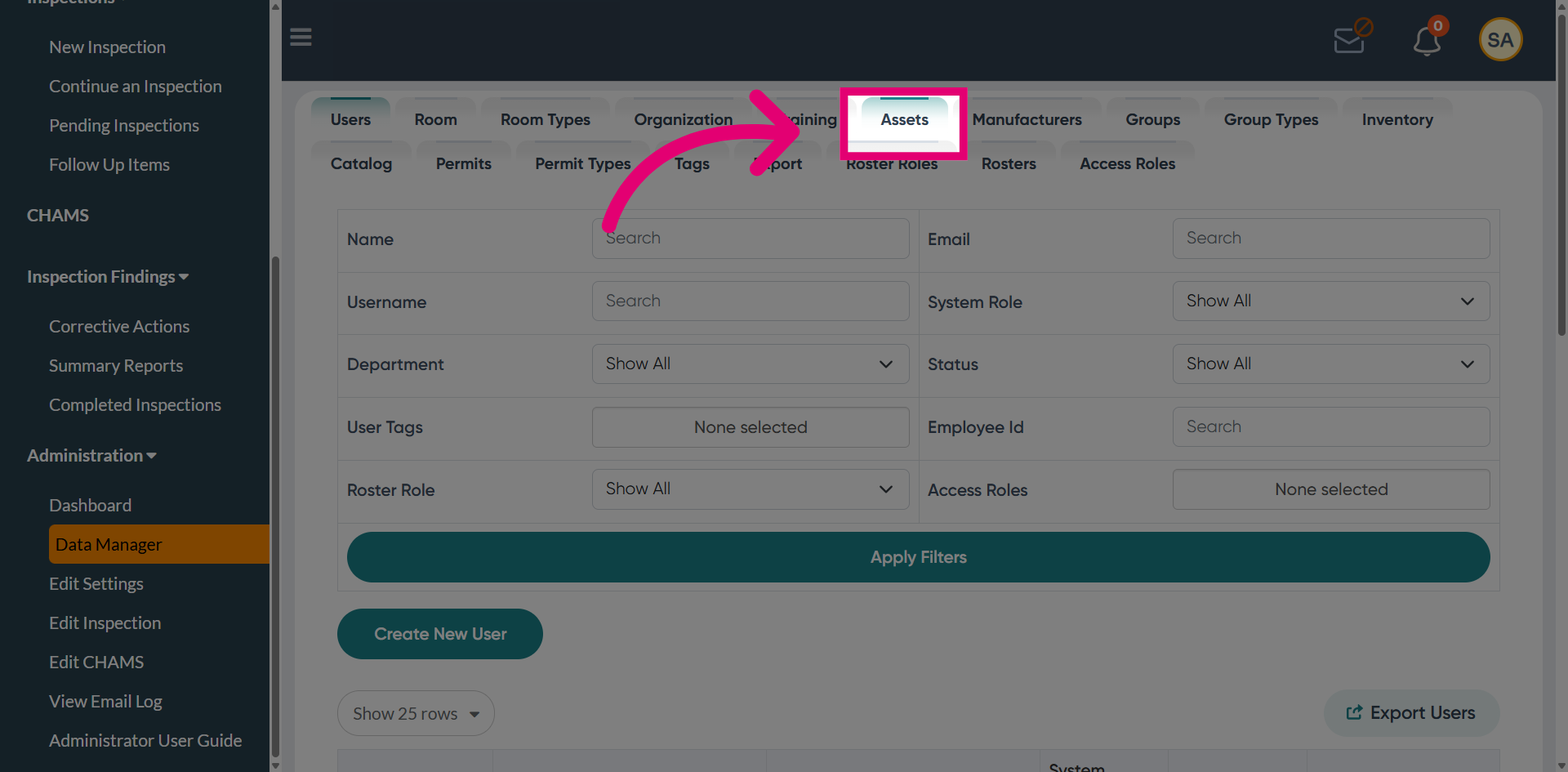
Select Assets to access and manage asset records.
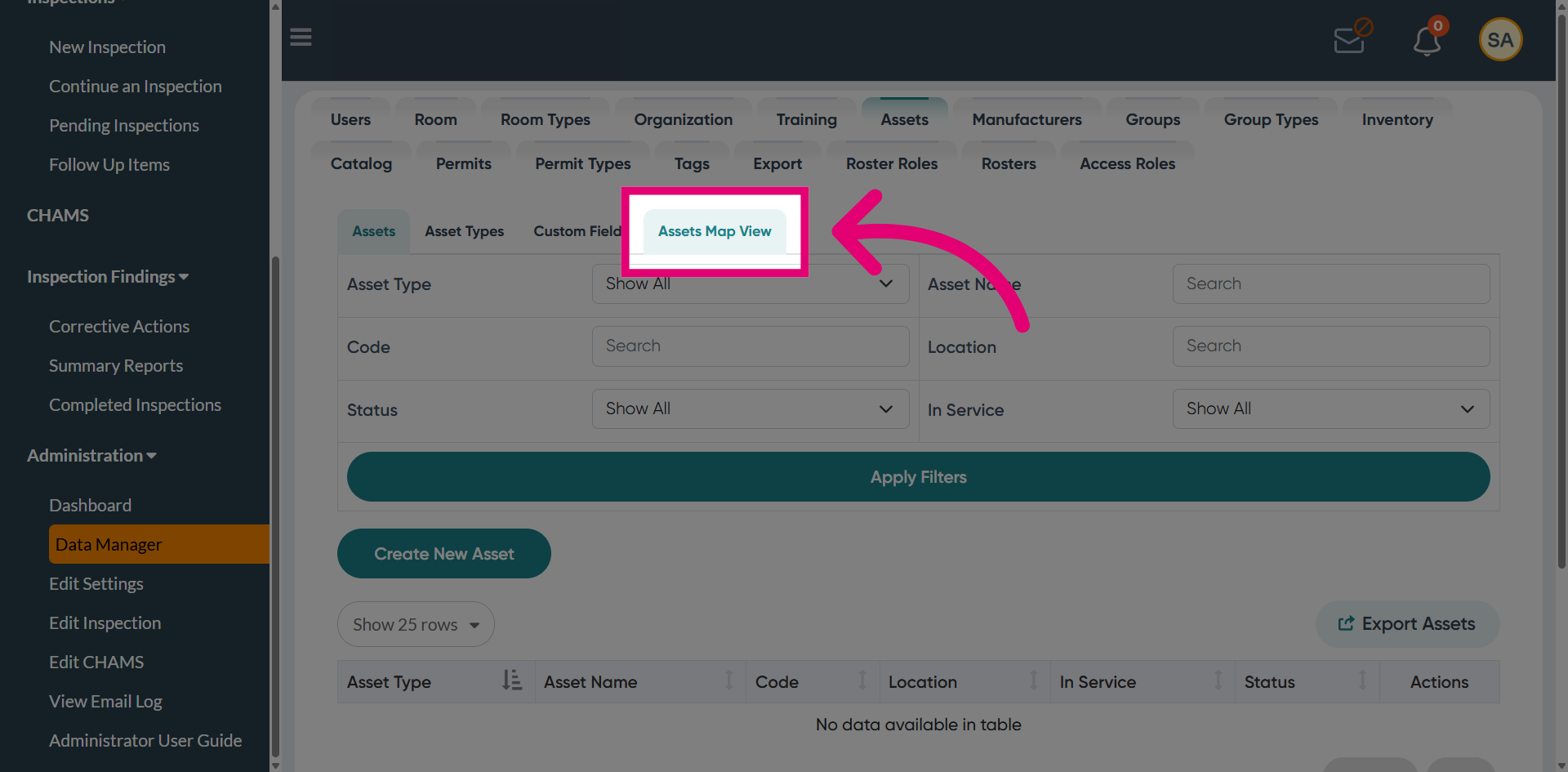
Open Assets Map View to view asset locations geographically.
Select Flammable Storage Cabinets to view asset counts based on the applied filters. The Map View displays asset counts for buildings and asset types, allowing you to view counts based on selected filters.
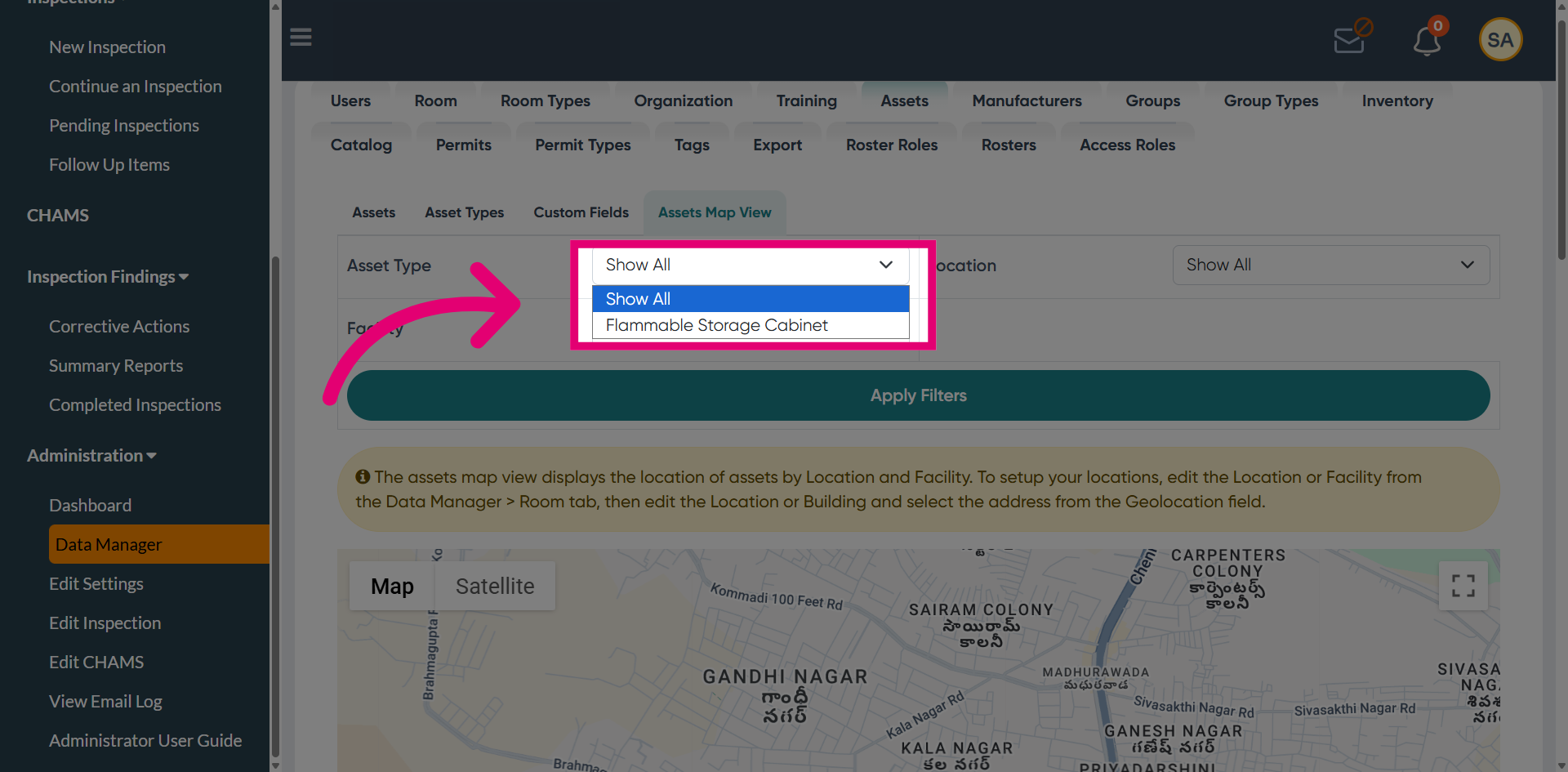
Choose Campus Locations to display asset counts based on the applied filters. For example, selecting a specific location shows the number of assets in that location when the icon is selected on the map.
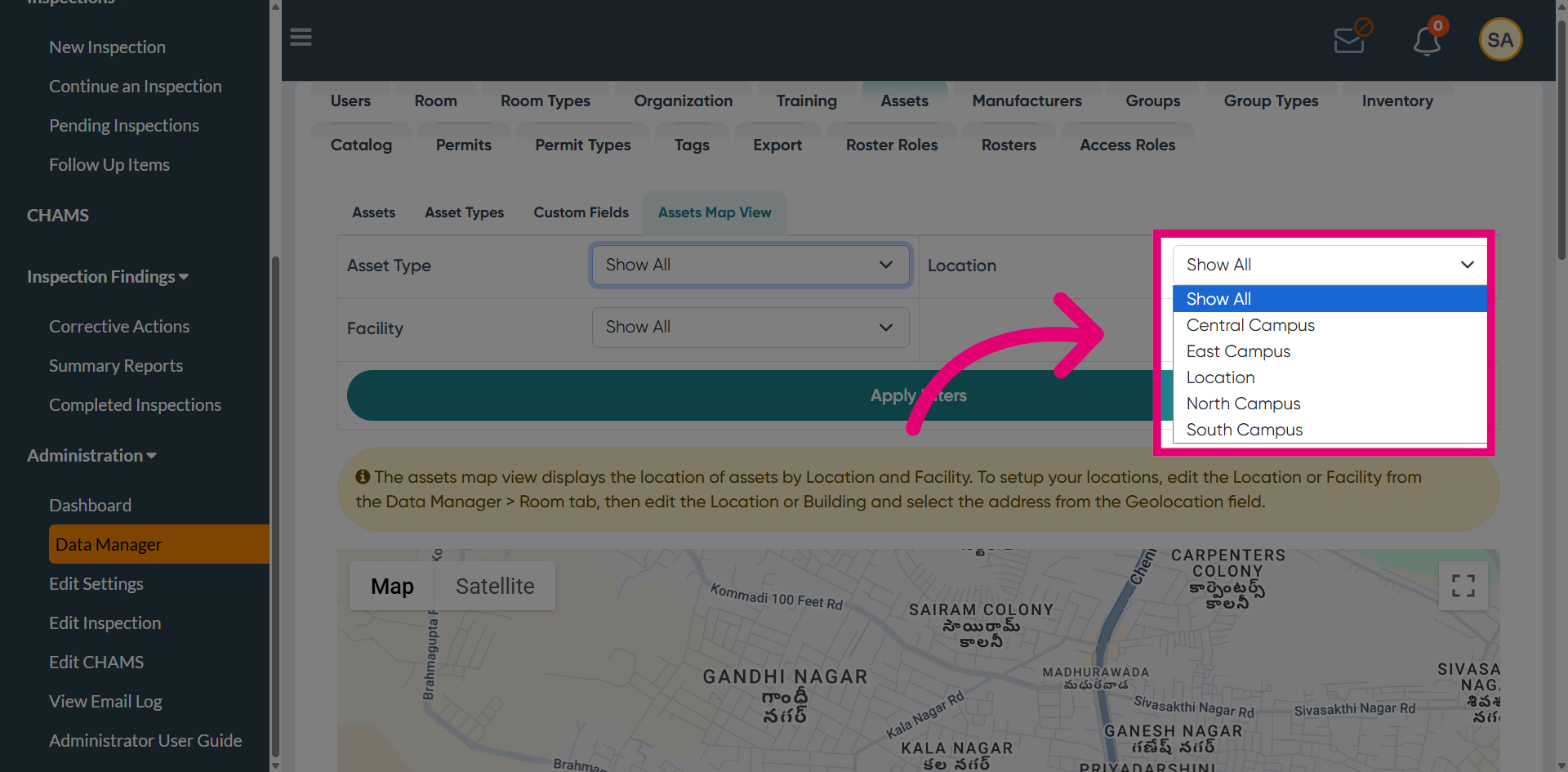
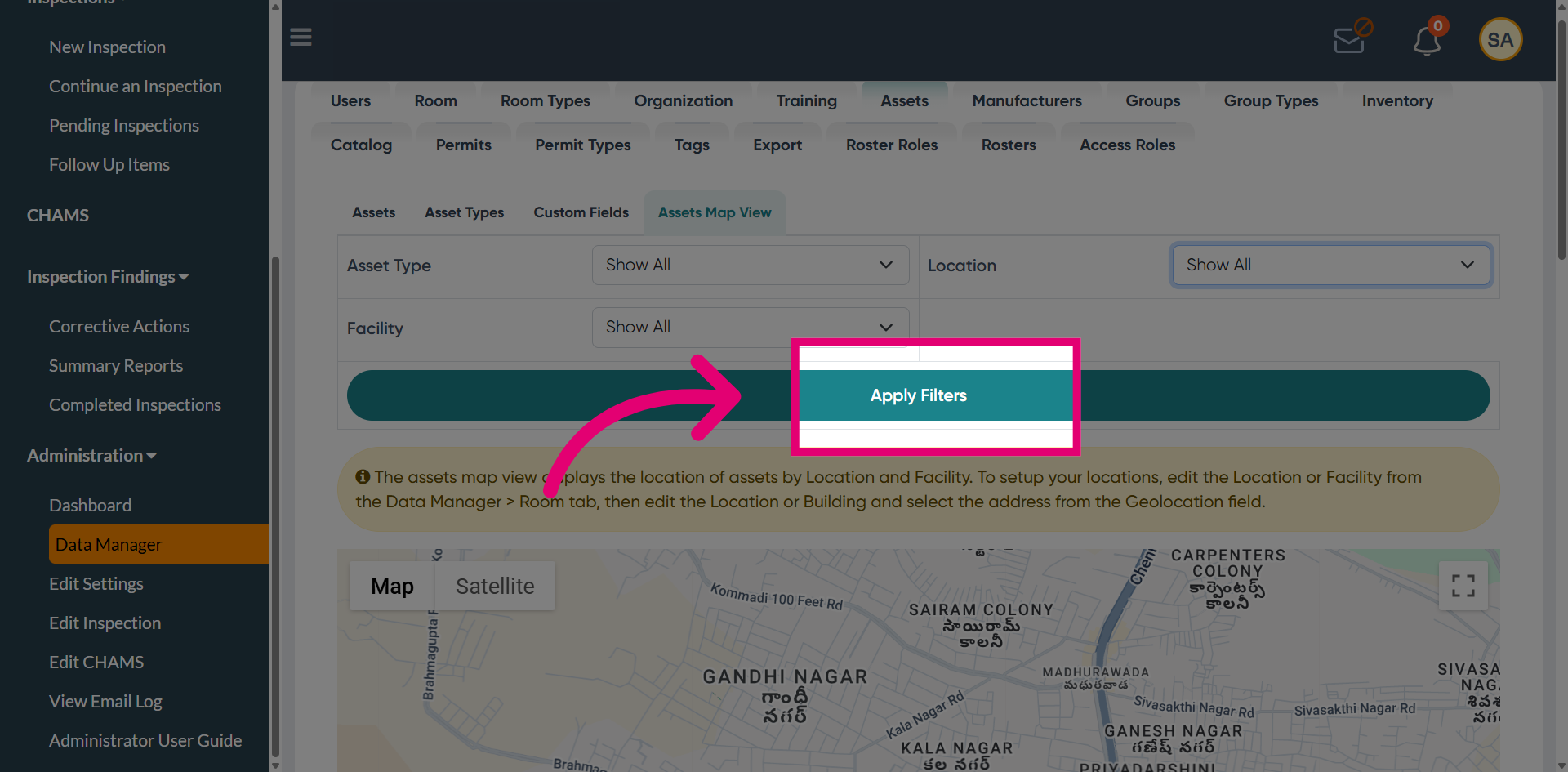
Open the Asset Type Filter and click Apply Filters to display accurate data based on the selected criteria.
Enable Street Map View to display the assets matching the selected location on the map.