New article
Recently updated
Reconciling validated/confirmed items

Who is this article for?
Users performing an inventory reconciliation.
Standard role and Reconciliation permissions are required.
Validated/confirmed containers are ones found in the correct location, in-stock, and matching system records.
This article explains how to complete the reconciliation of these items in your chemical inventory.
1. Completing a reconciliation
To complete a reconciliation of valid/confirmed items:
- Navigate to Chemical Inventory.
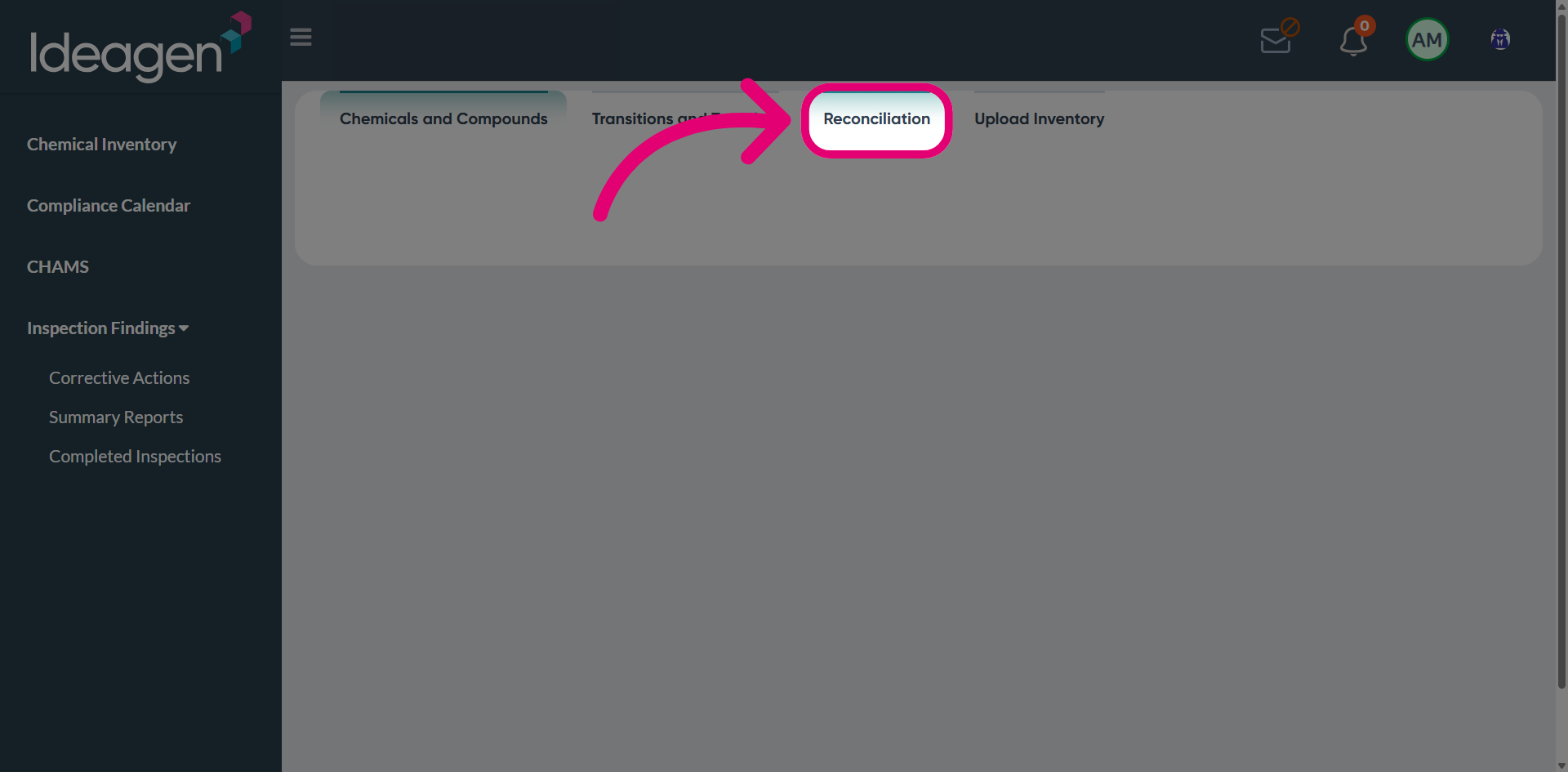
- Switch to the Reconciliation tab.
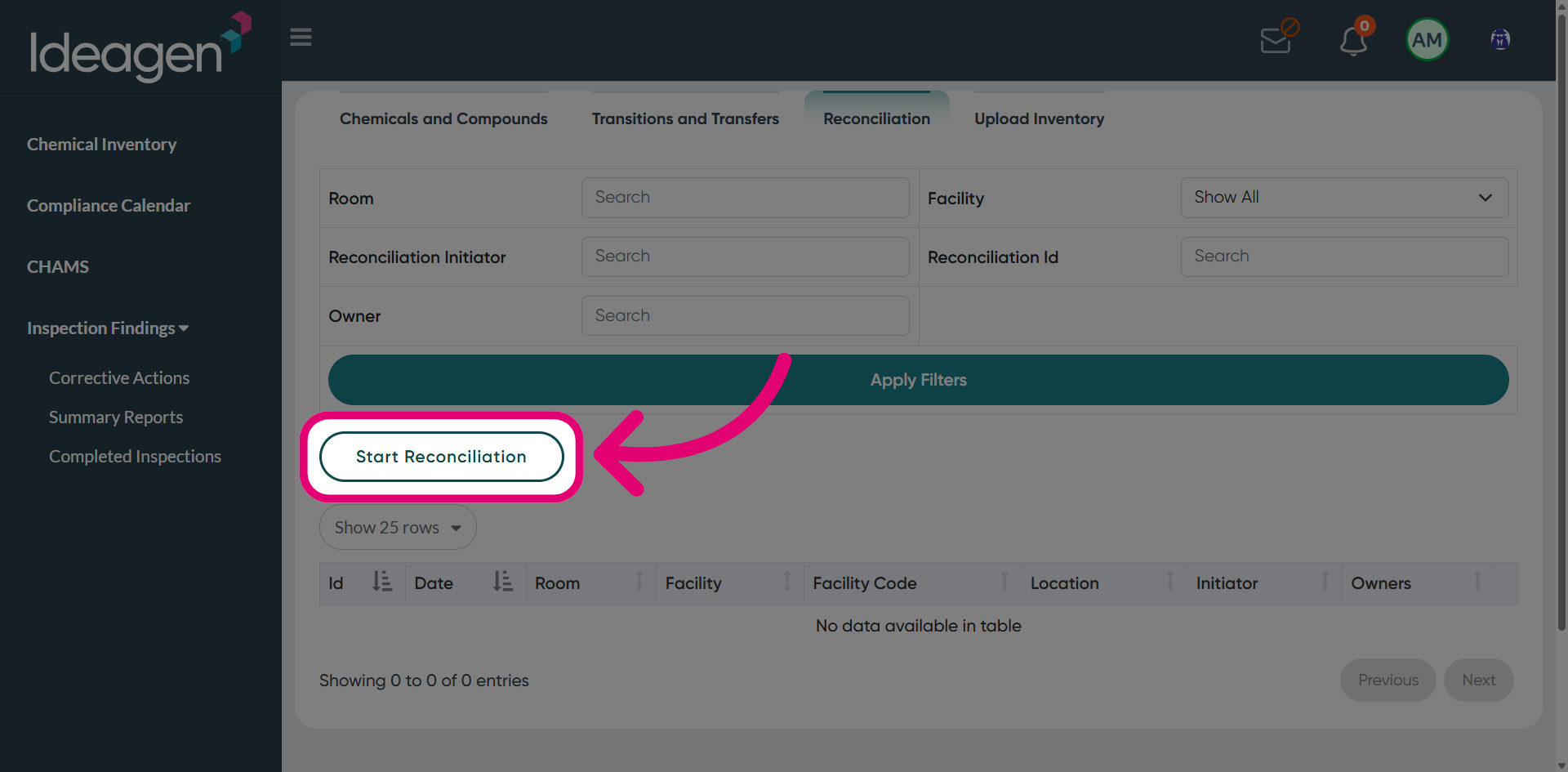
- Click Start Reconciliation.
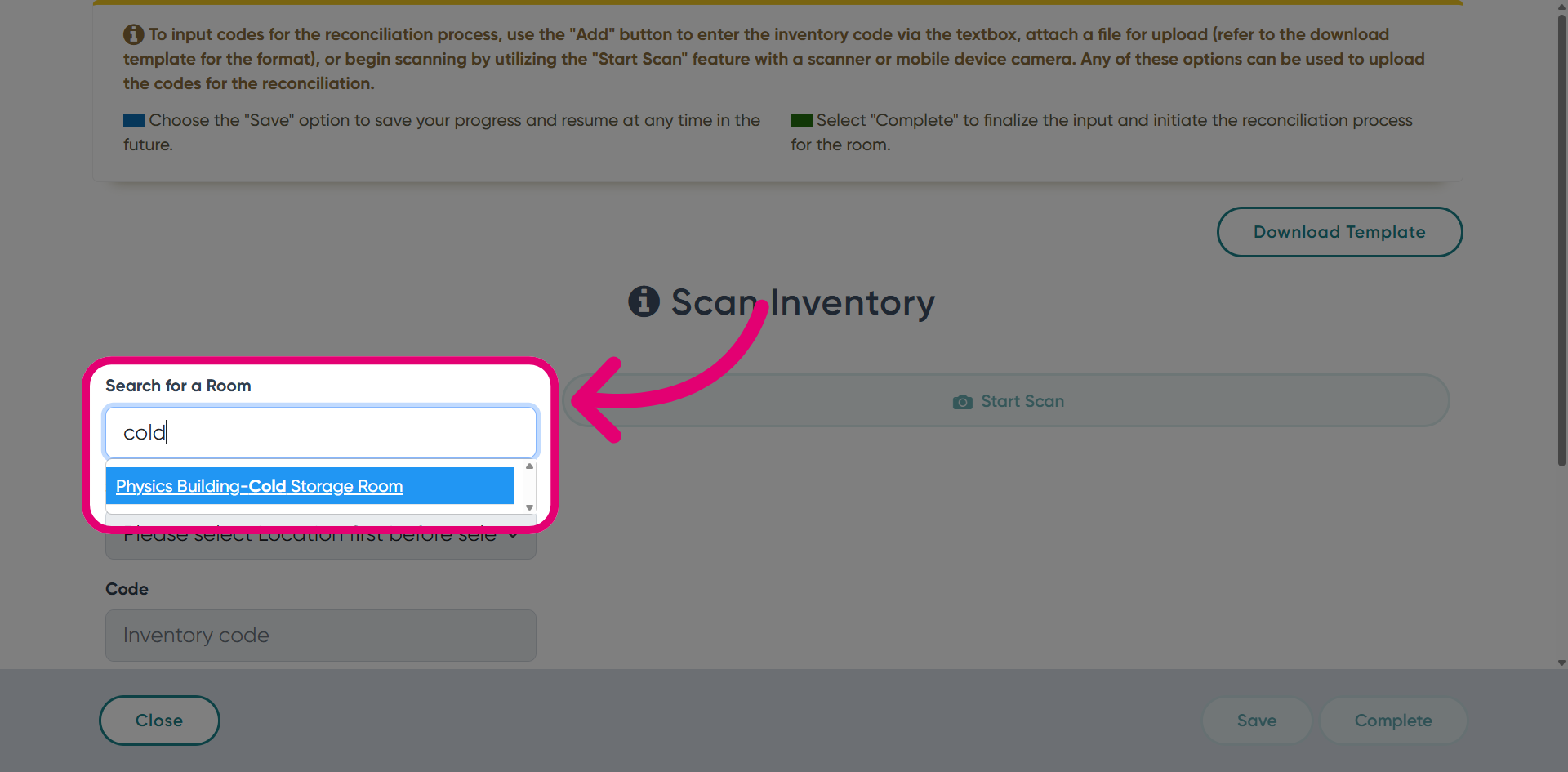
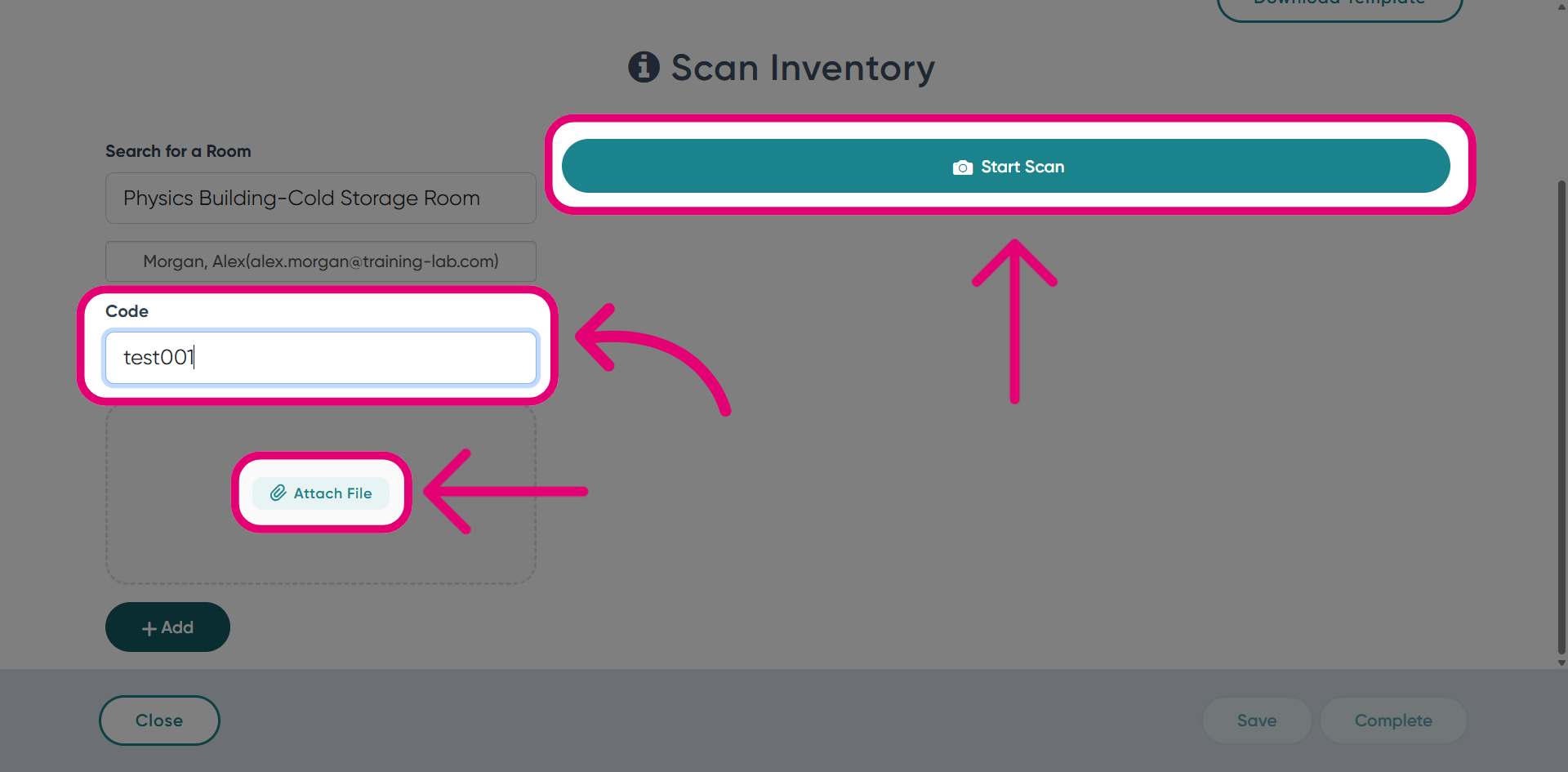
- Select a Room to specify the location for reconciliation.
- Enter the Code.
Inventory codes can be entered manually, uploaded in bulk via attachment, or scanned.
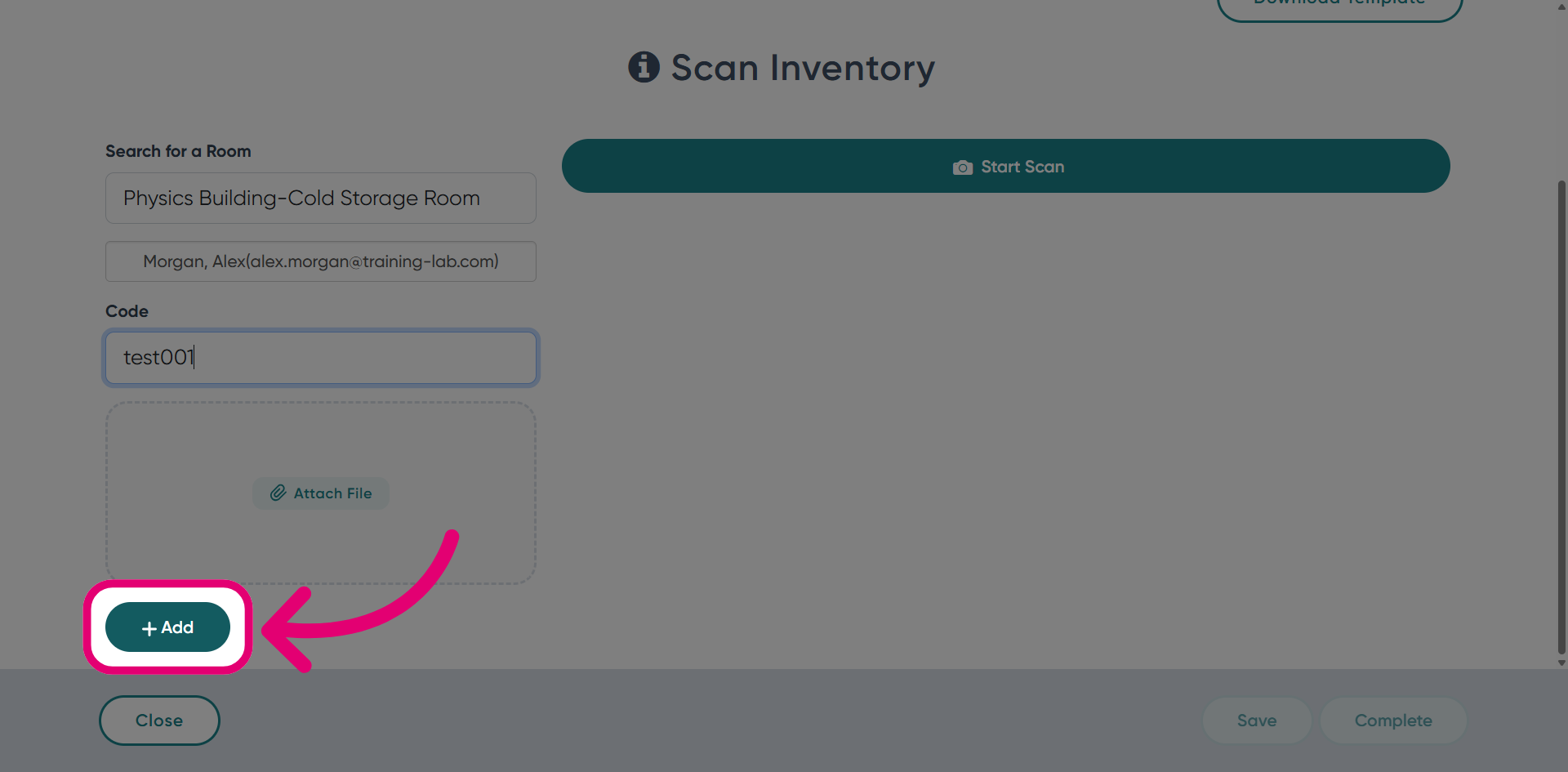
- Click Add to include the item in the reconciliation.
- Click Complete to proceed to review.
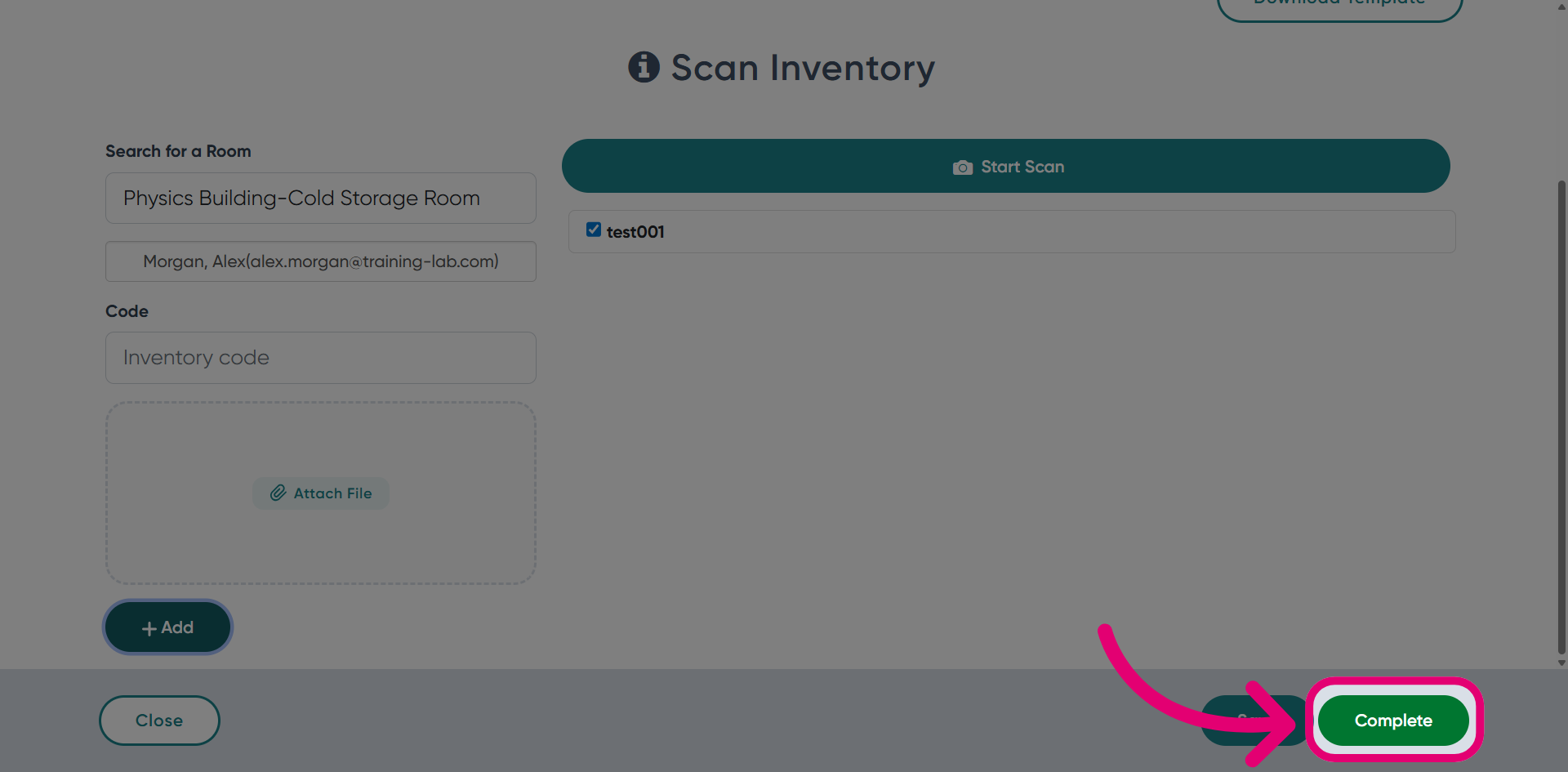
You can now proceed with the next reconciliation step.
2. Viewing a reconciliation
To view completed reconciliation details:
- Clicking View Inventories.
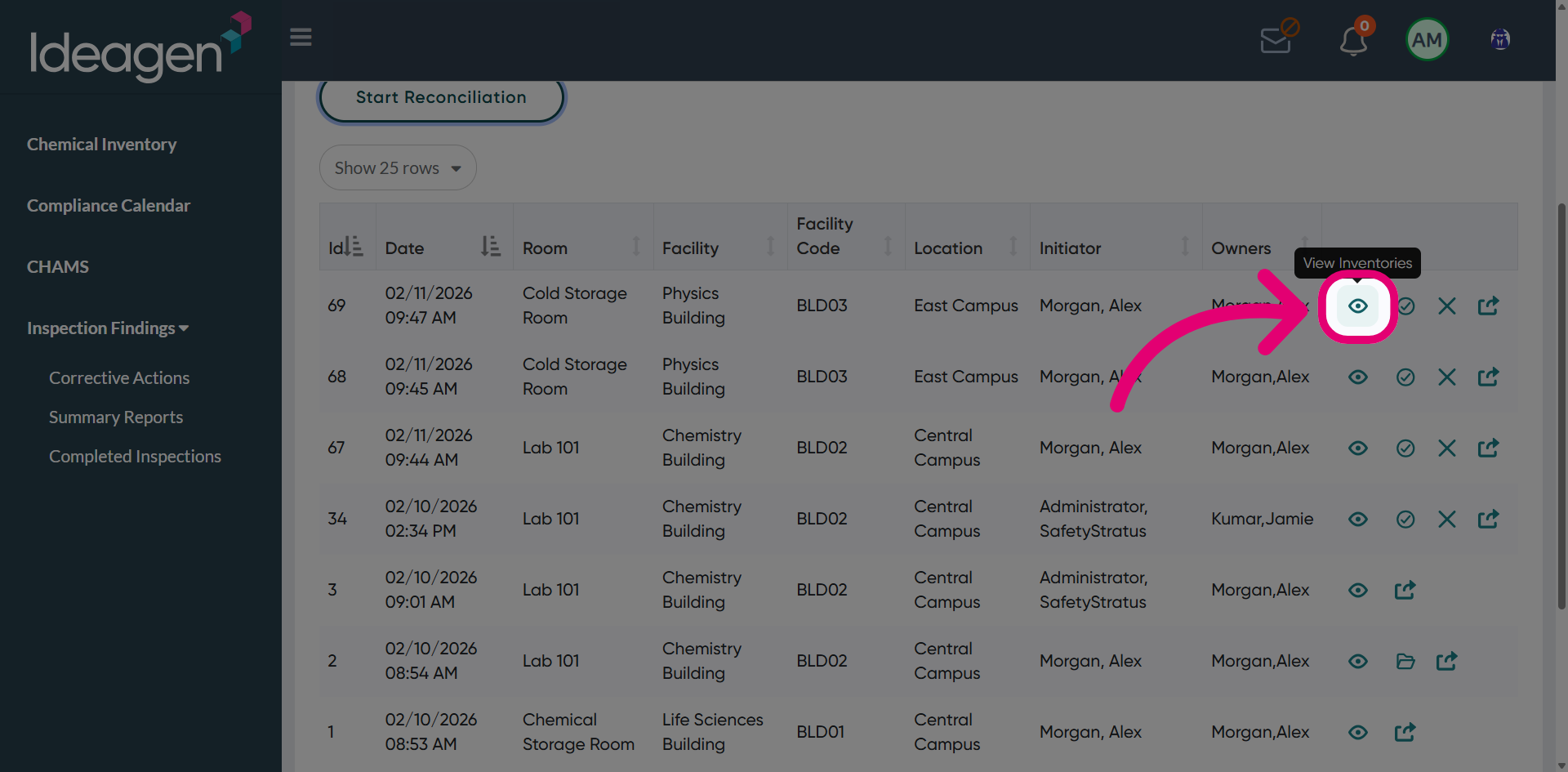
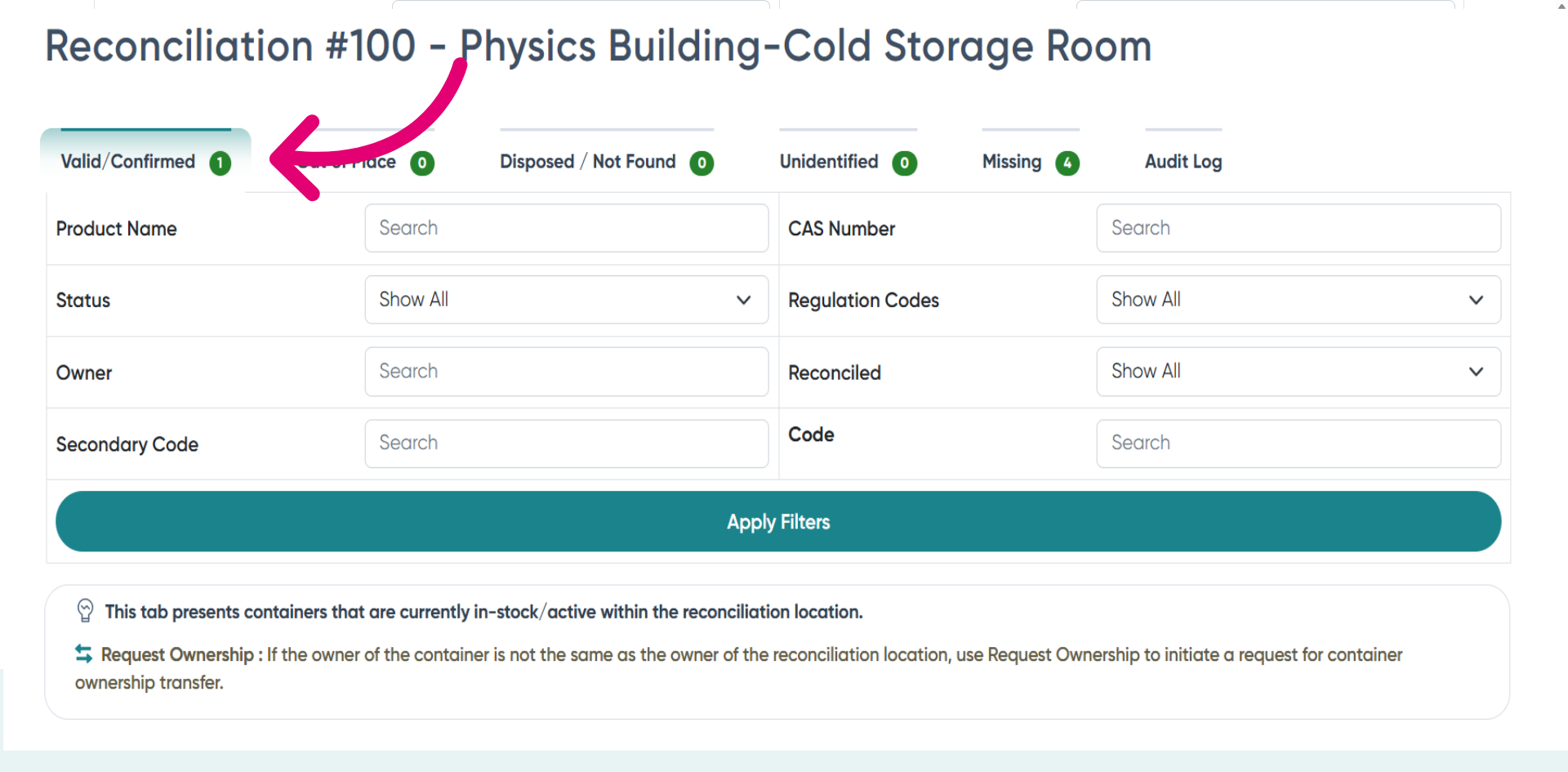
- Switch to the Valid/Confirmed tab to view items in this reconciliation phase.
This status means the inventory code, owner, and location match, confirming the container item is in the correct place.
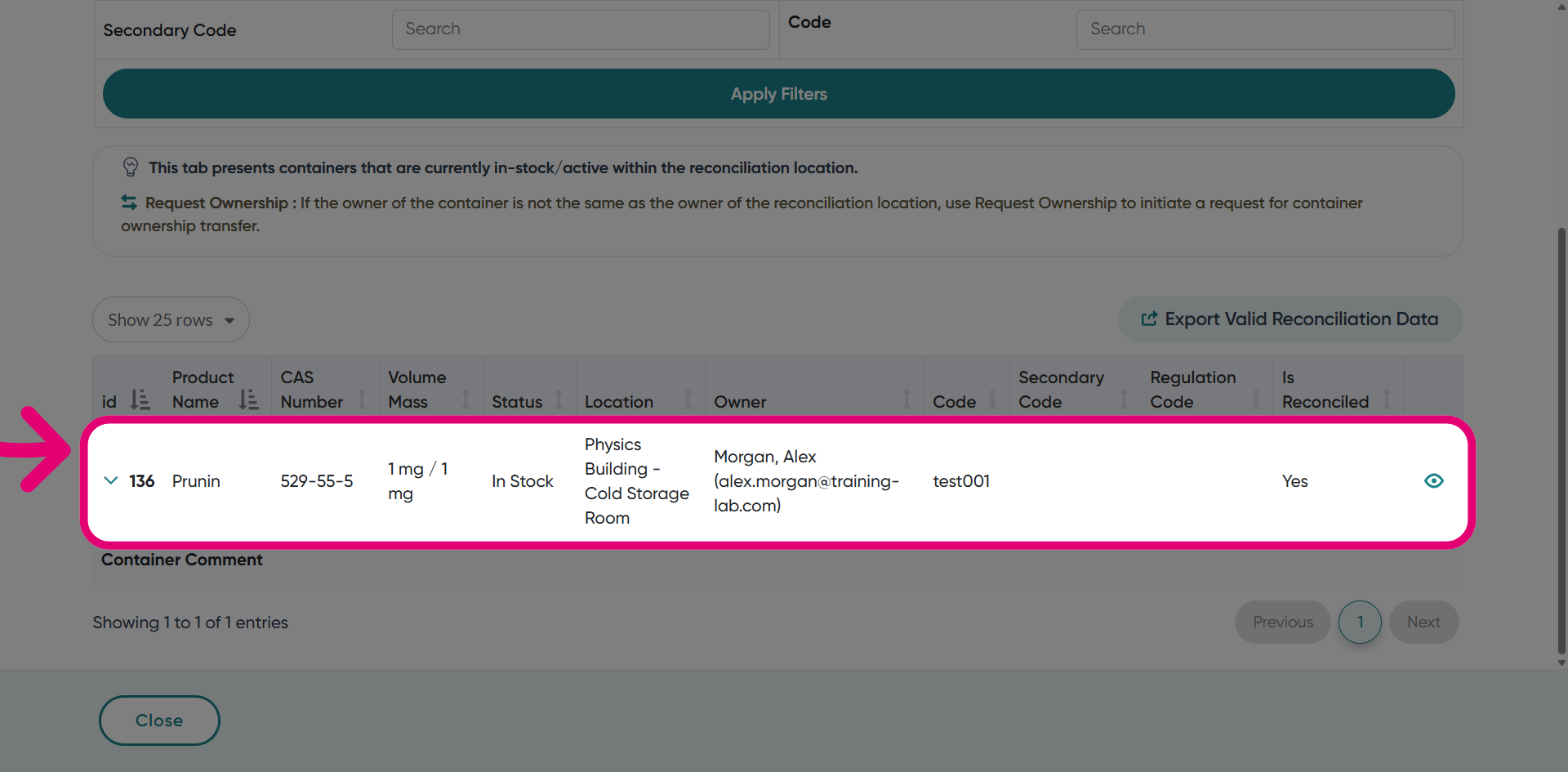
- Scroll down to view the reconciled item in the table below.
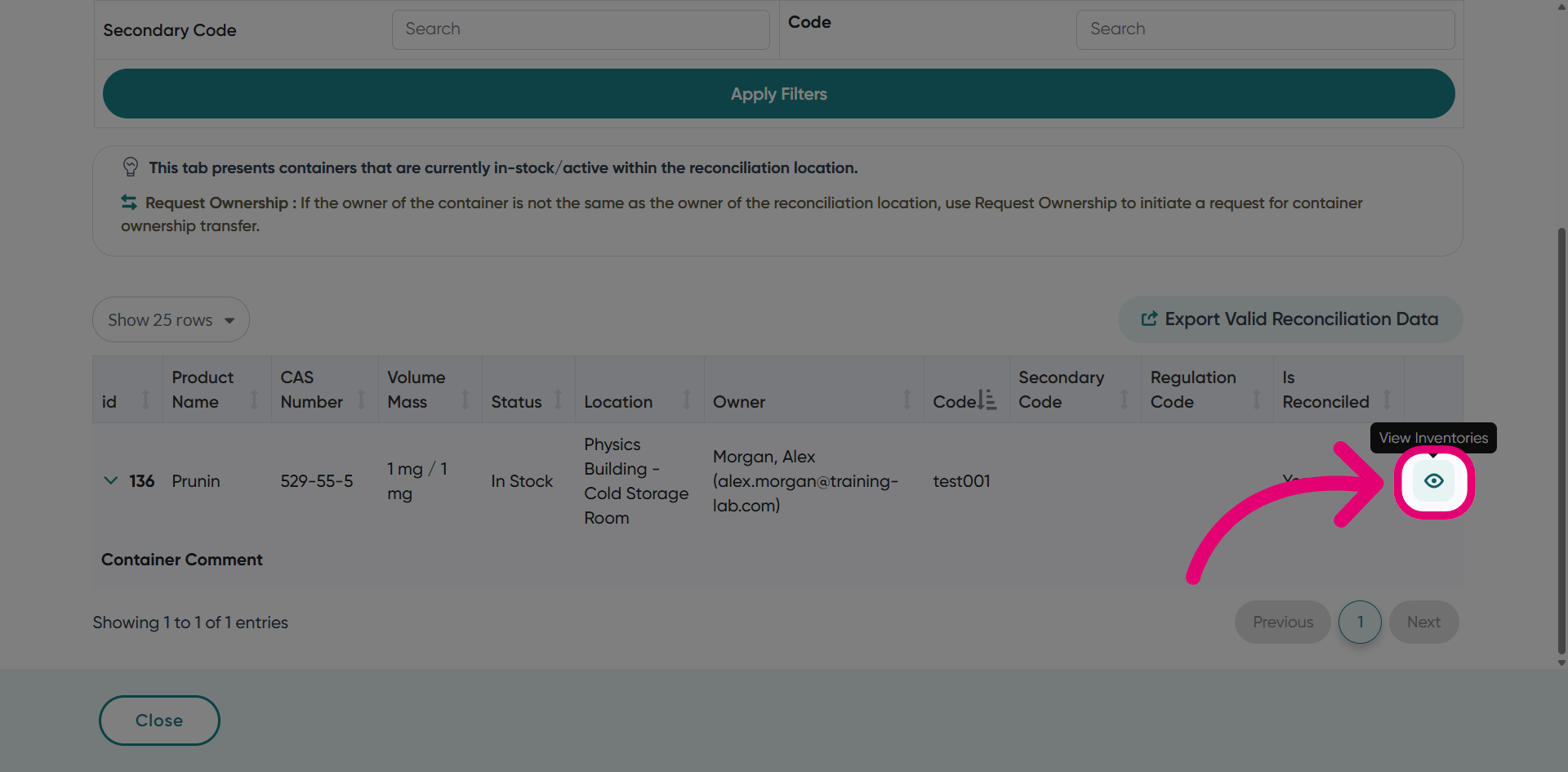
- Click the View option to see detailed information about the inventory record.
3. Exporting a reconciliation
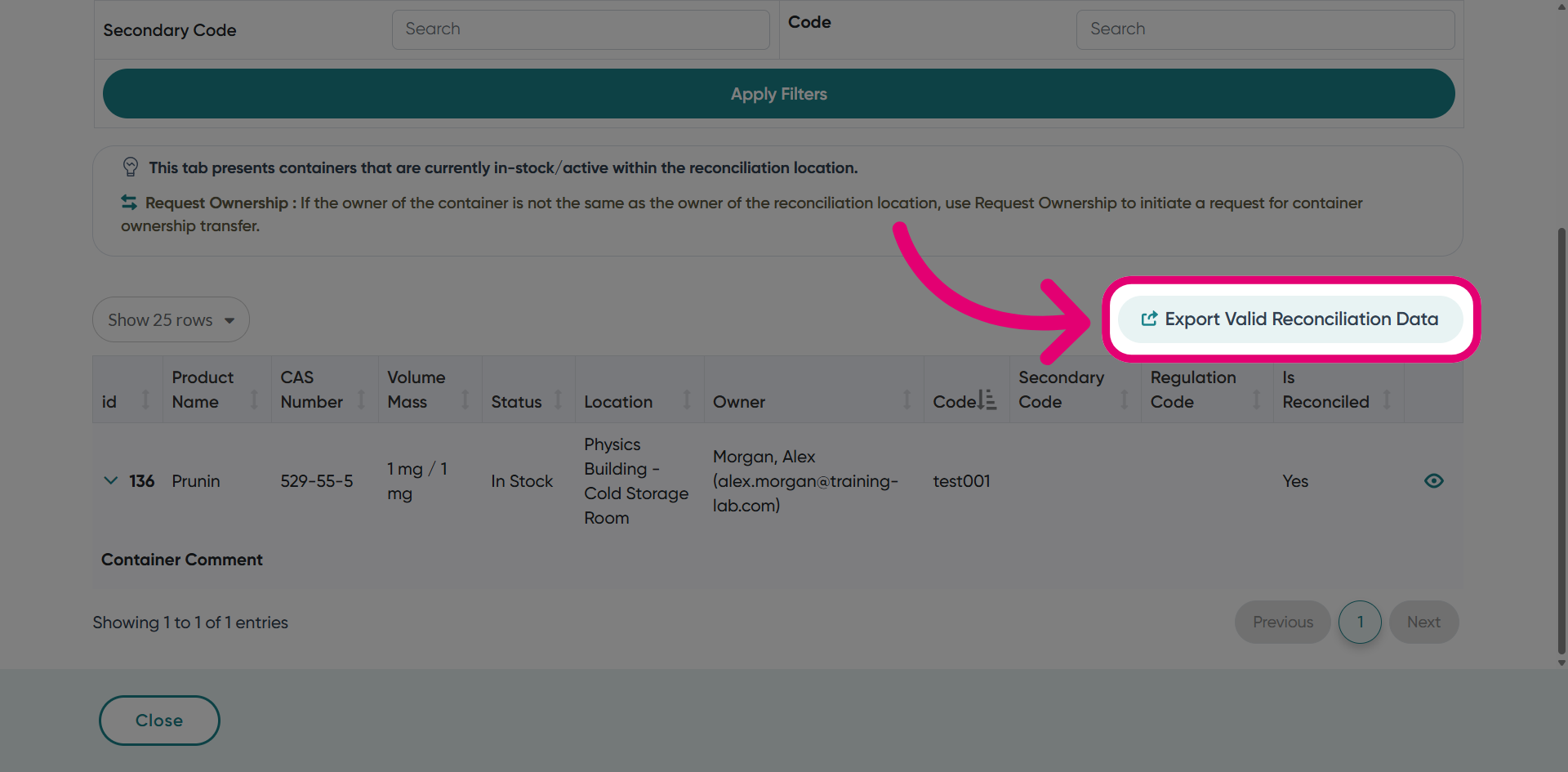
To download reconciliation data, click Export valid reconciliation data.