New article
Recently updated
Creating an inventory barcode label

Who is this article for?
Users who want to learn to create an inventory barcode label.
Users permissions are required.
This tutorial covers how to select inventory items and generate barcode labels for effective inventory management.
You will learn how to navigate to the chemical inventory, access label management, and create barcode labels that display unique inventory codes and receipt dates.
1. Creating a barcode label for inventory items
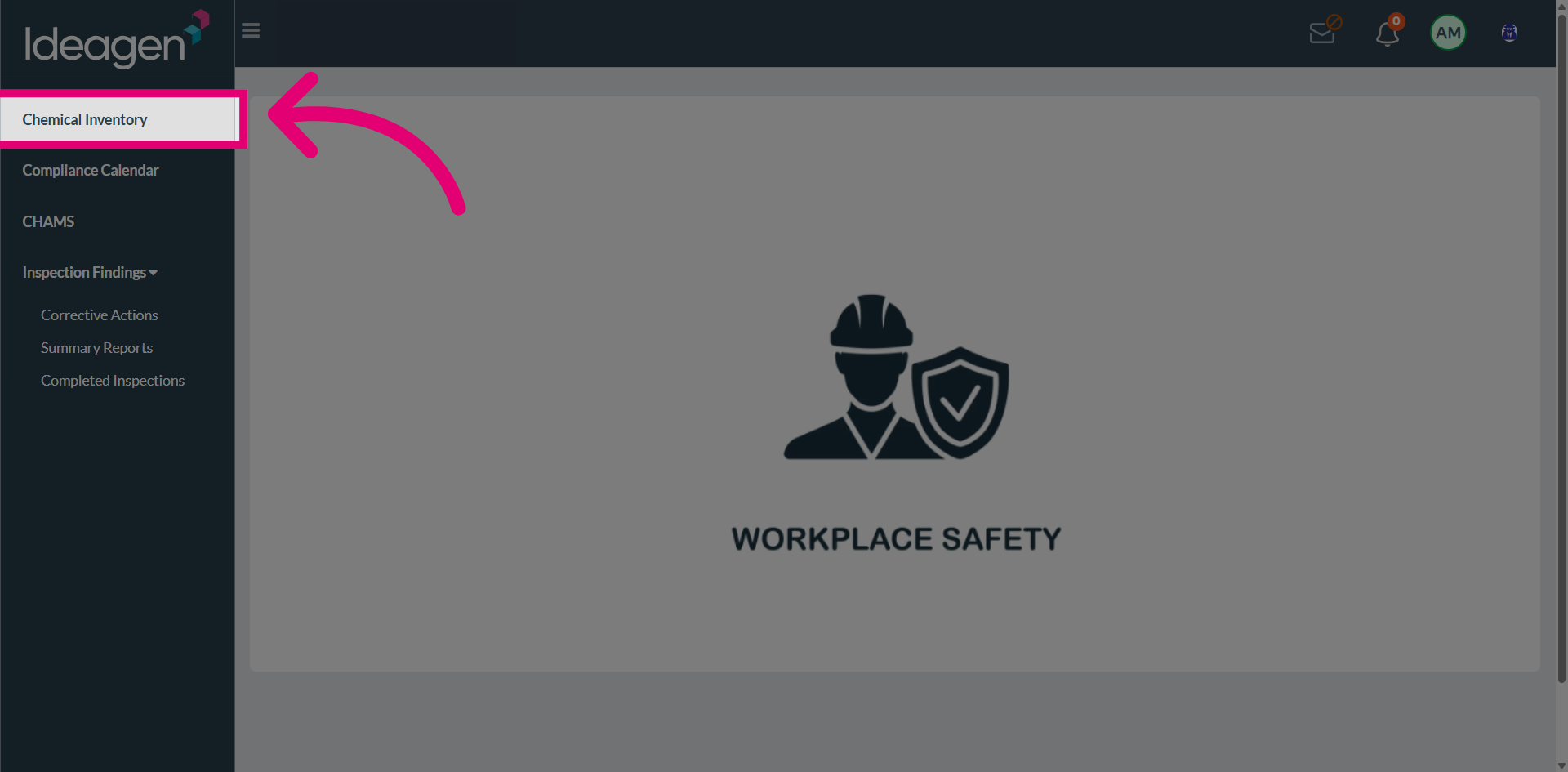
Navigate to the Chemical Inventory section to access your inventory list for barcode label generation.
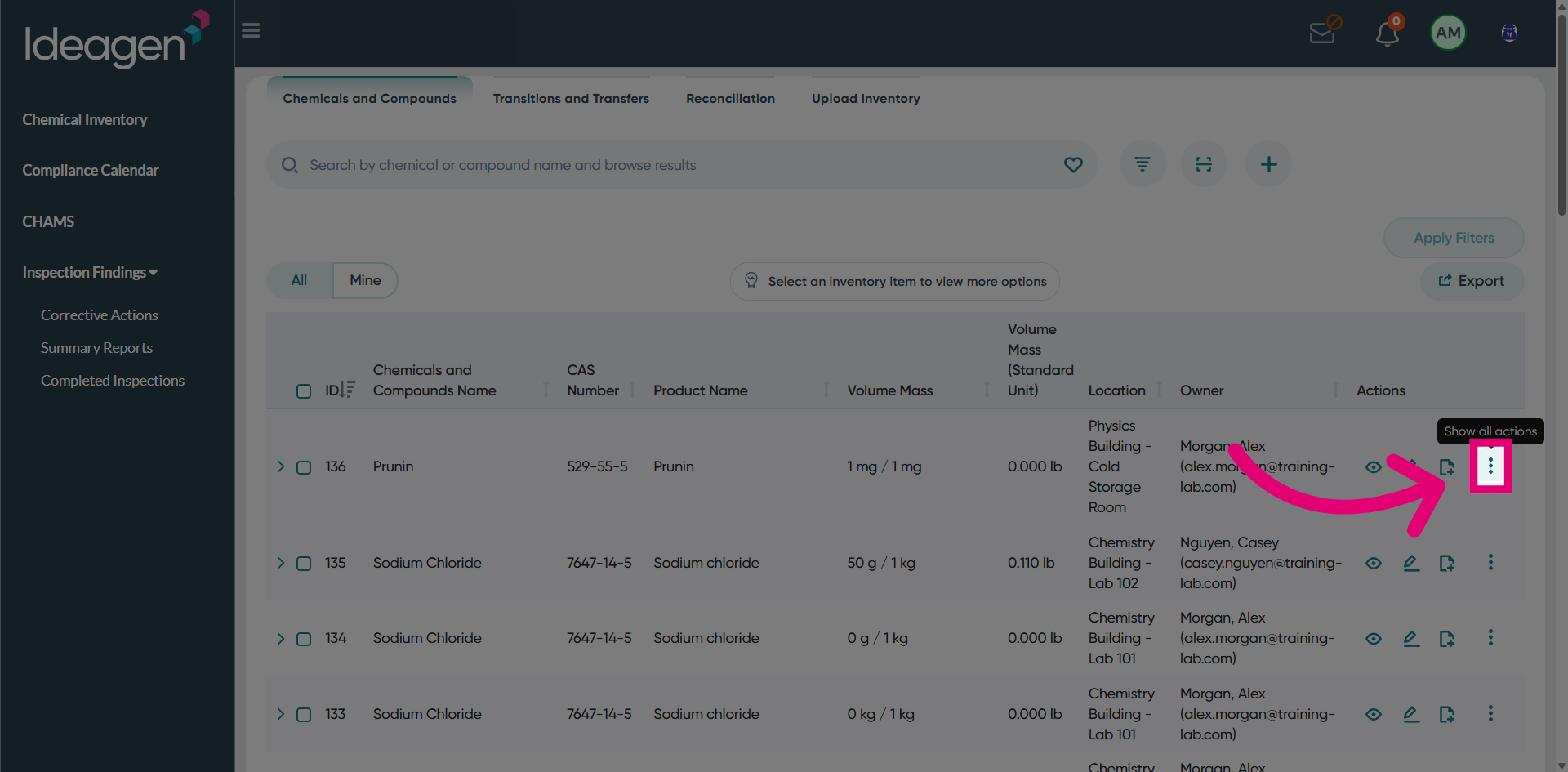
Select Show All Actions to access the label management interface and create new barcode labels.
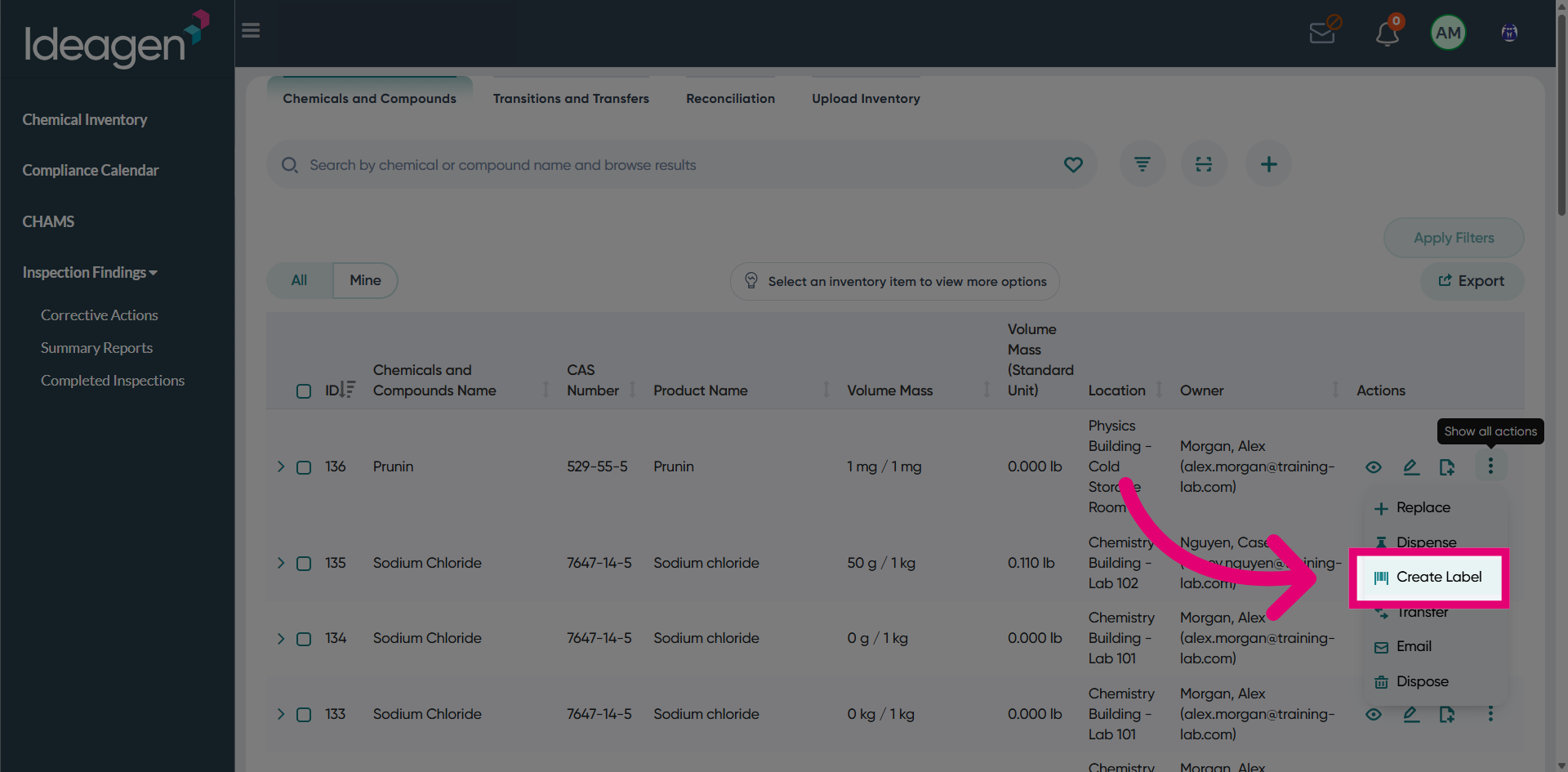
Click the Create Label button to begin generating a new barcode label for the selected inventory items.
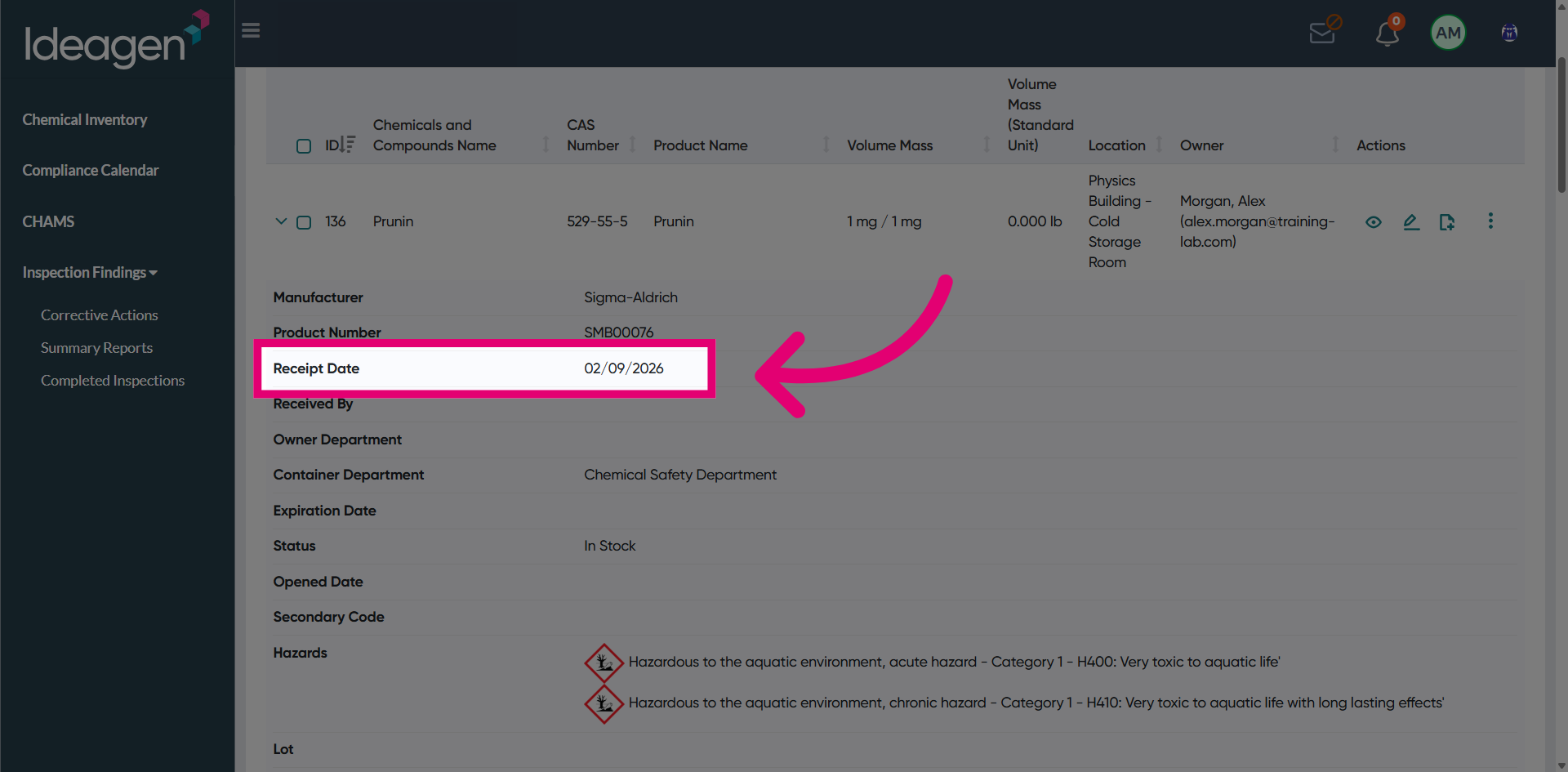
Review the generated barcode label which displays two key details: the unique inventory code and the receipt date.
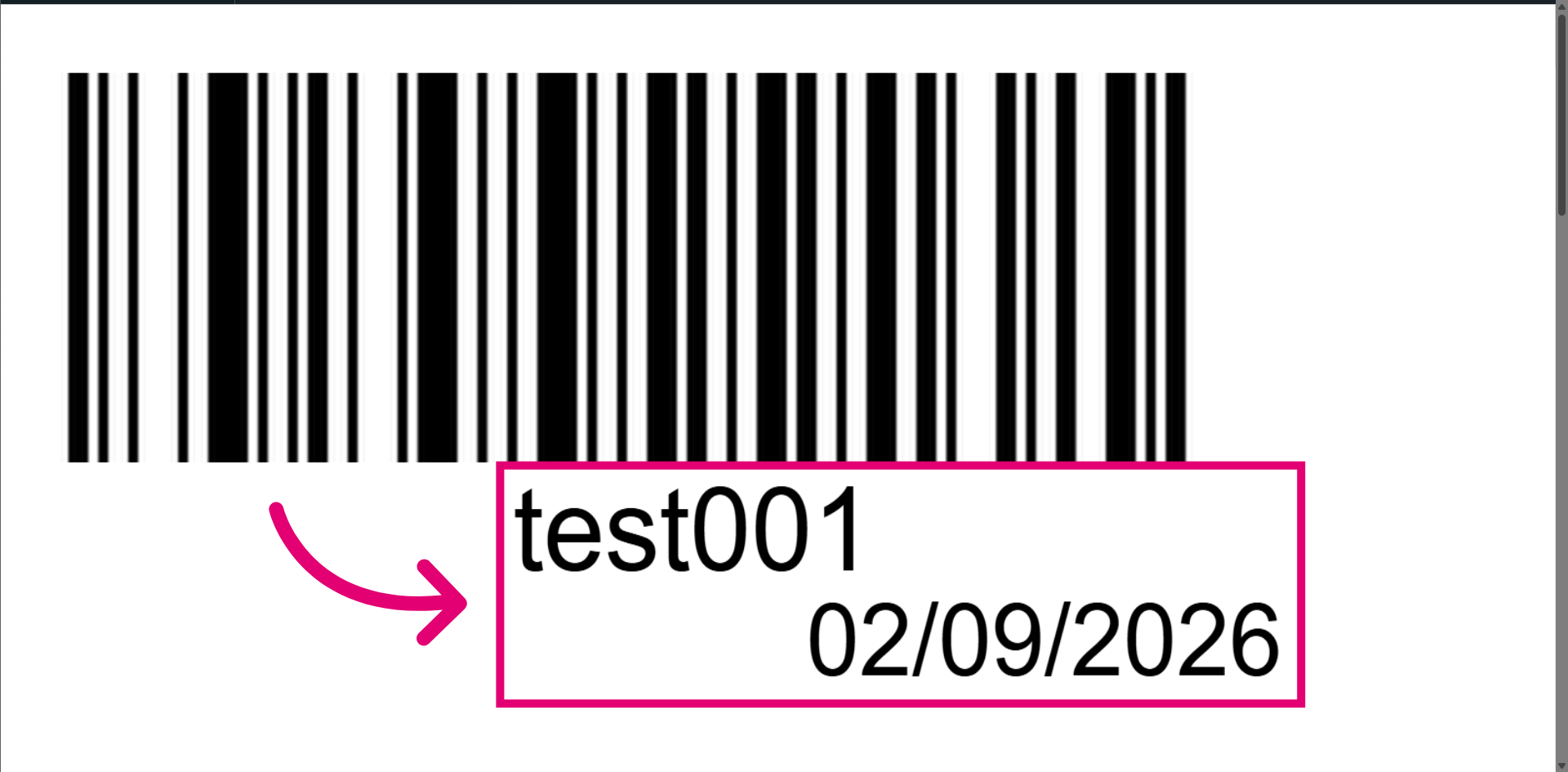
Note that the code shown on the barcode label can be accessed from the Inventory page.
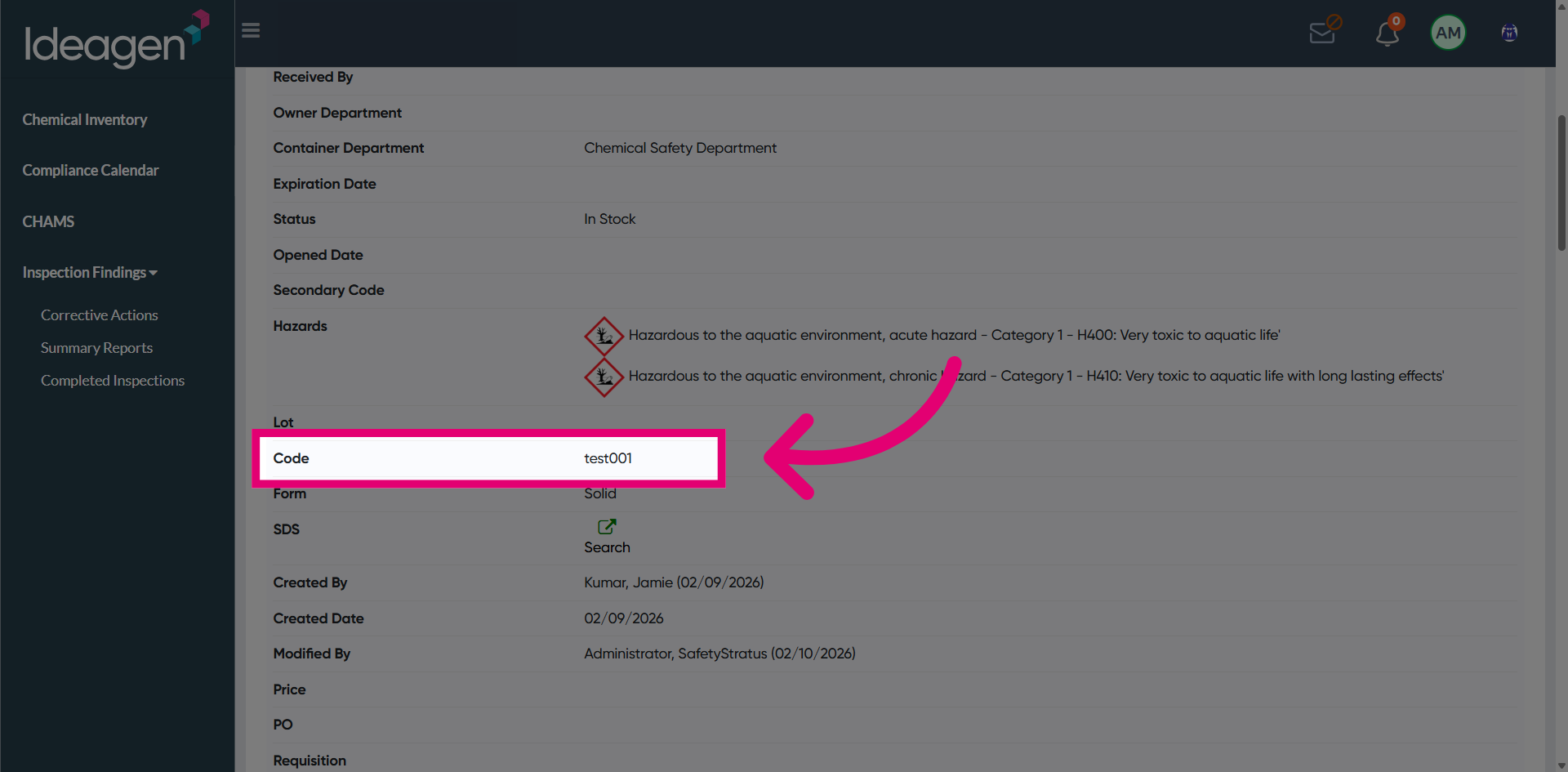
Verify that the receipt date displayed on the label can also be viewed from the Inventory page.