New article
Recently updated
Creating an order

Who is this article for?
Users who want to learn to create an order.
Standard system role and General User module role are required.
This tutorial guides you through creating a new order in the system.
You will learn how to enter order details, add items, and submit the order successfully.
1. Creating an order
To create an order:
Click the Orders section to view existing orders and start managing new ones.
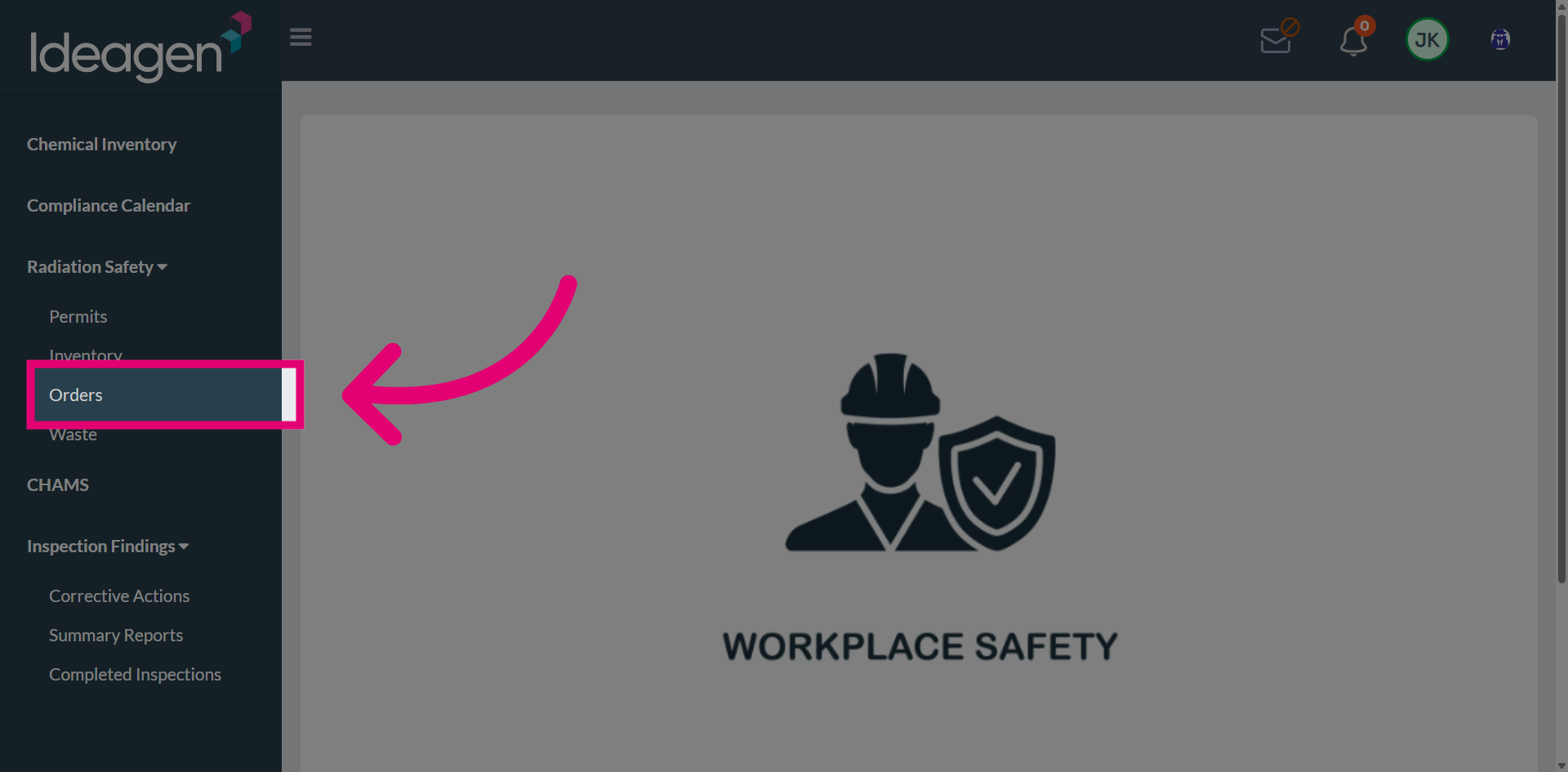
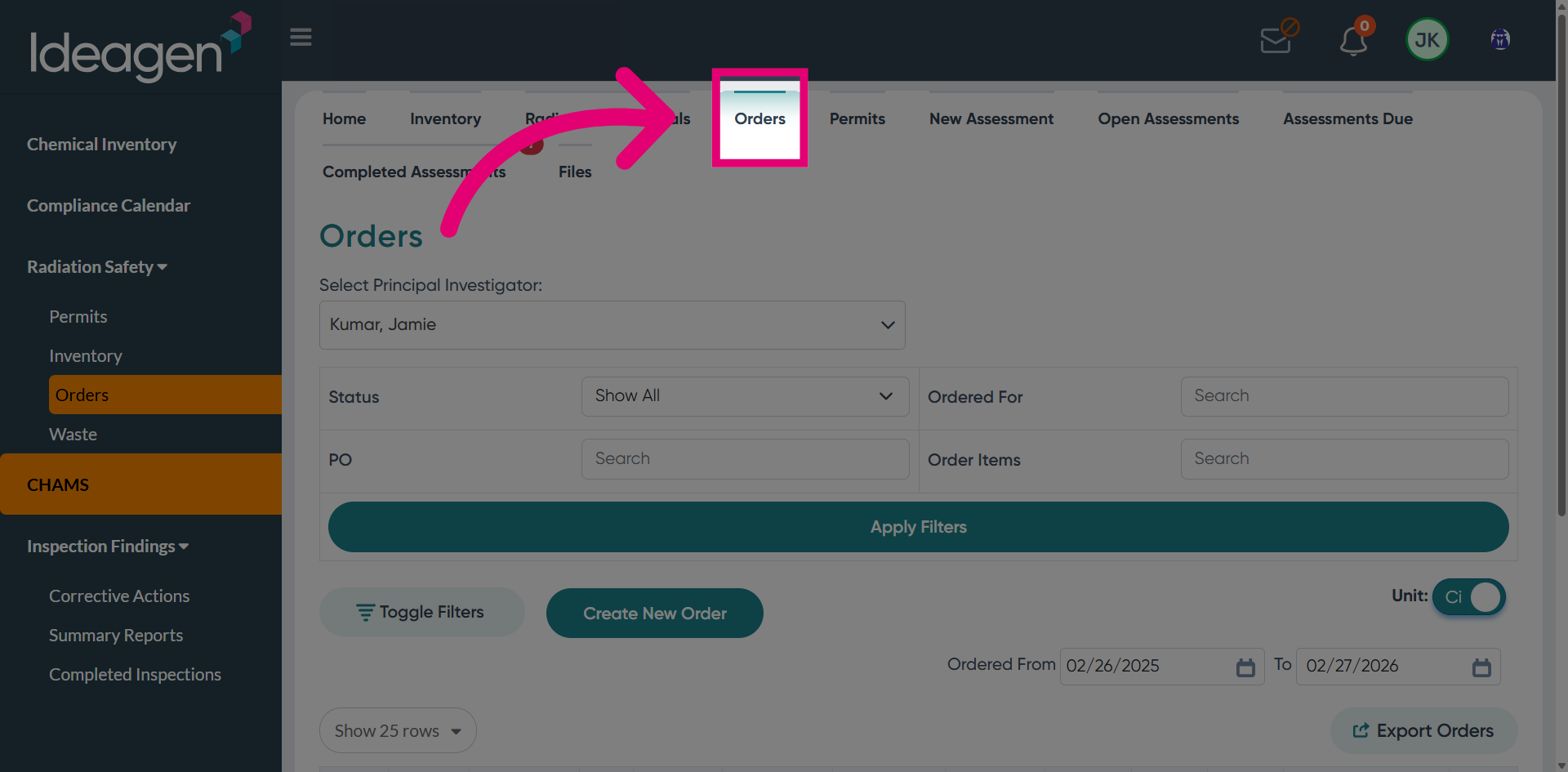
Click Orders again to ensure you are on the main orders page where you can create new orders.
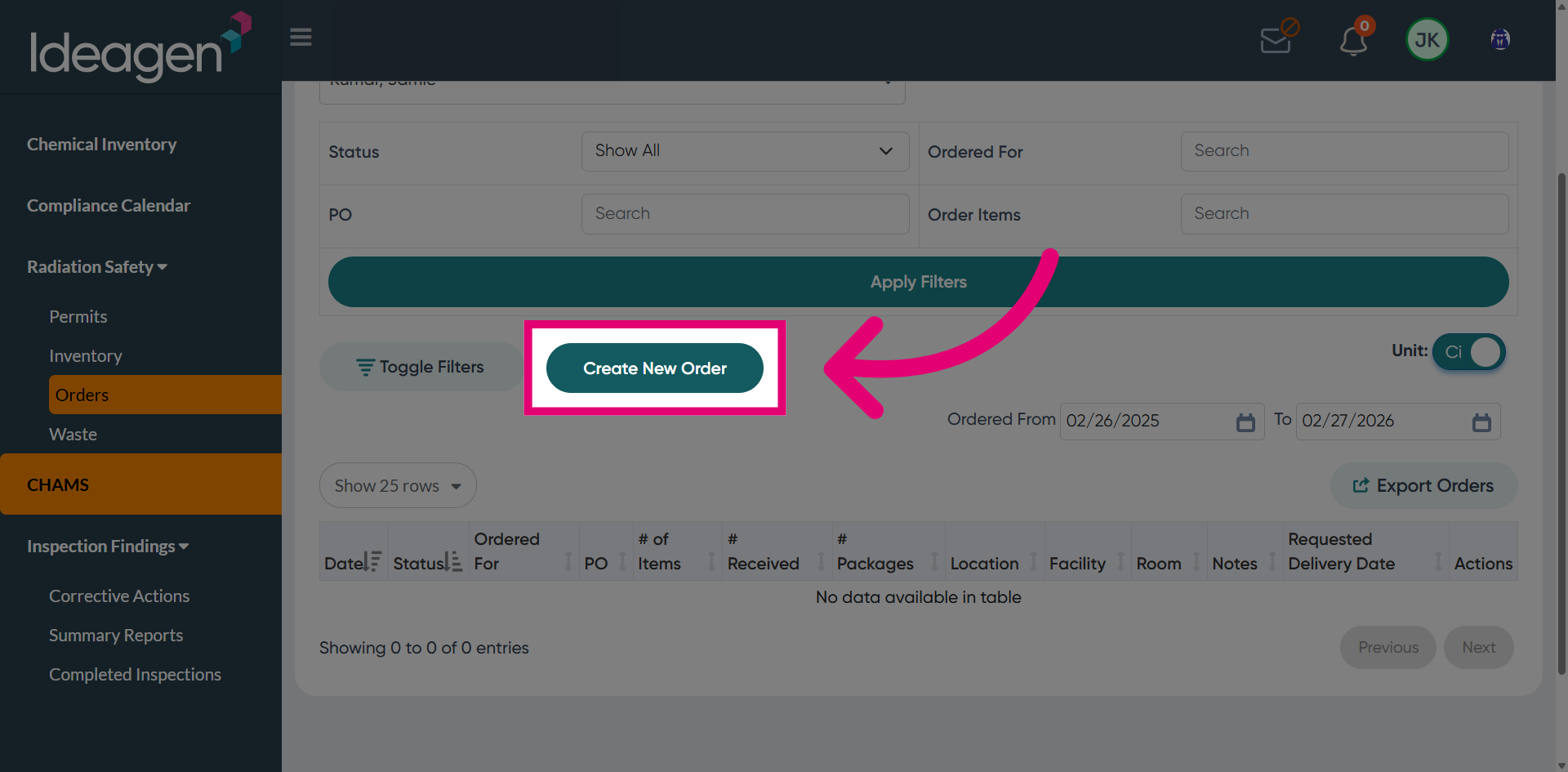
Click Create New Order to begin entering details for a new purchase order.
Click the PO Number field to specify the purchase order identifier.
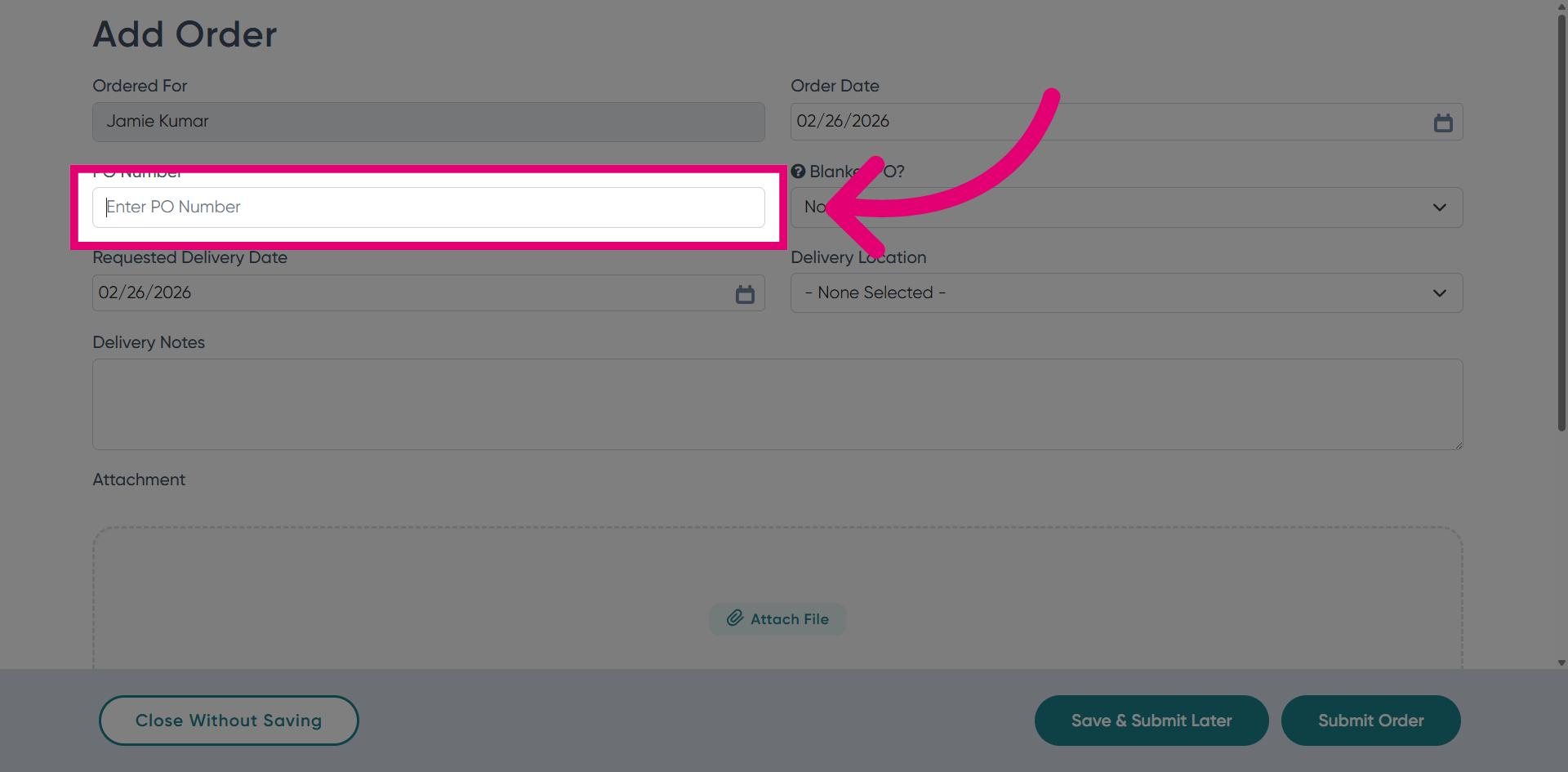
Enter your purchase order number to uniquely identify this order.
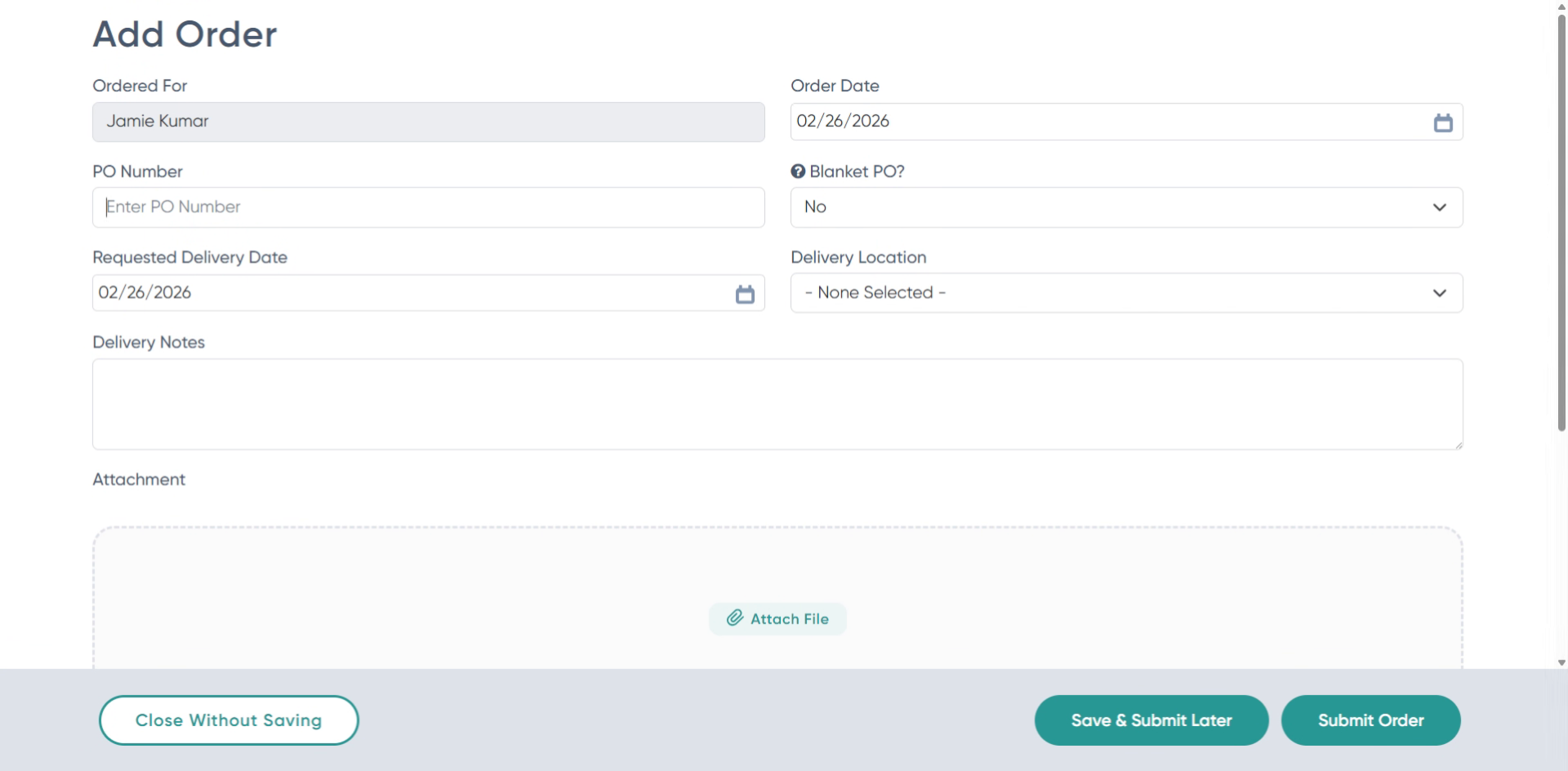
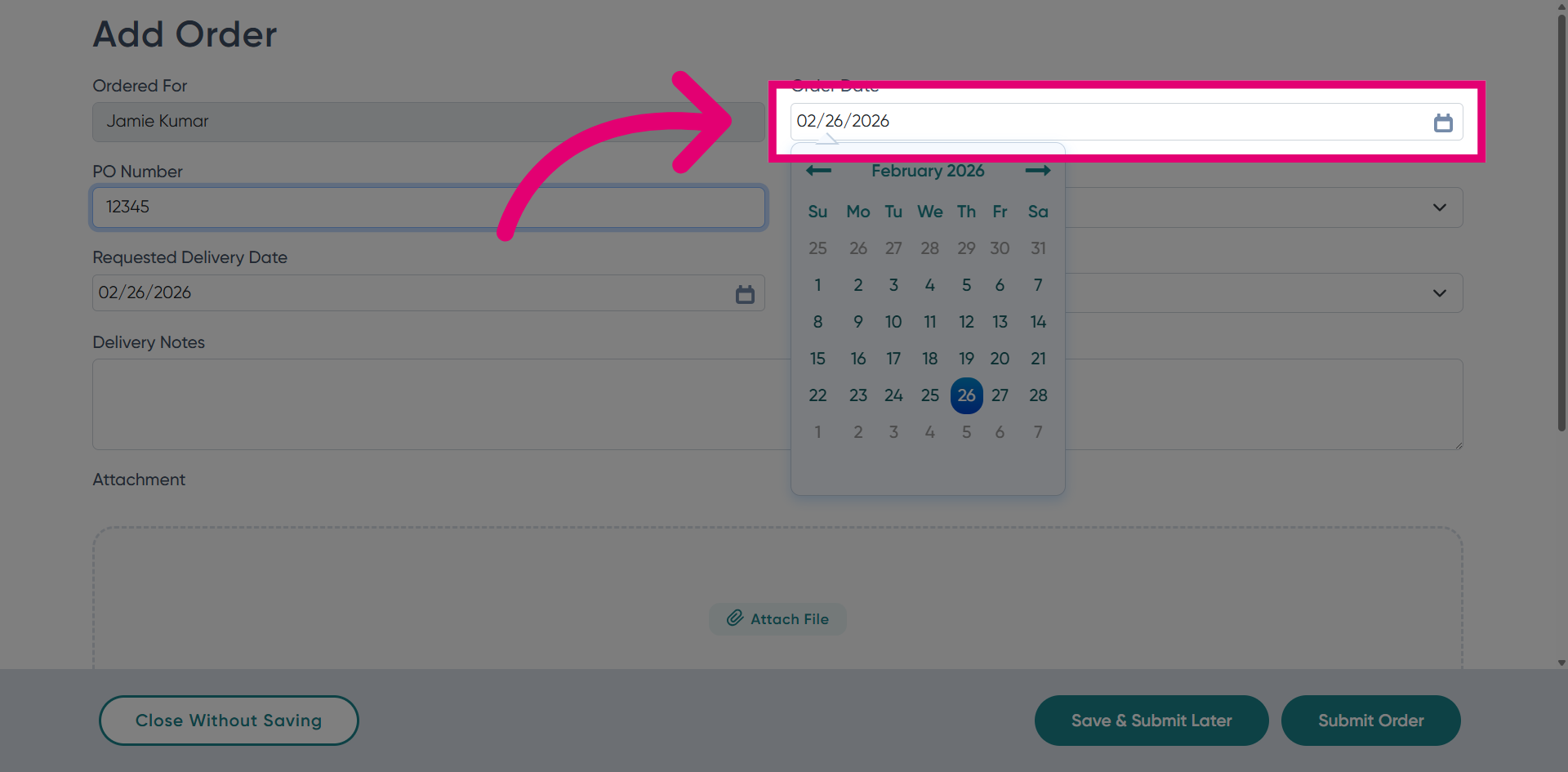
Click the Order Date field to select the date when the order is placed.
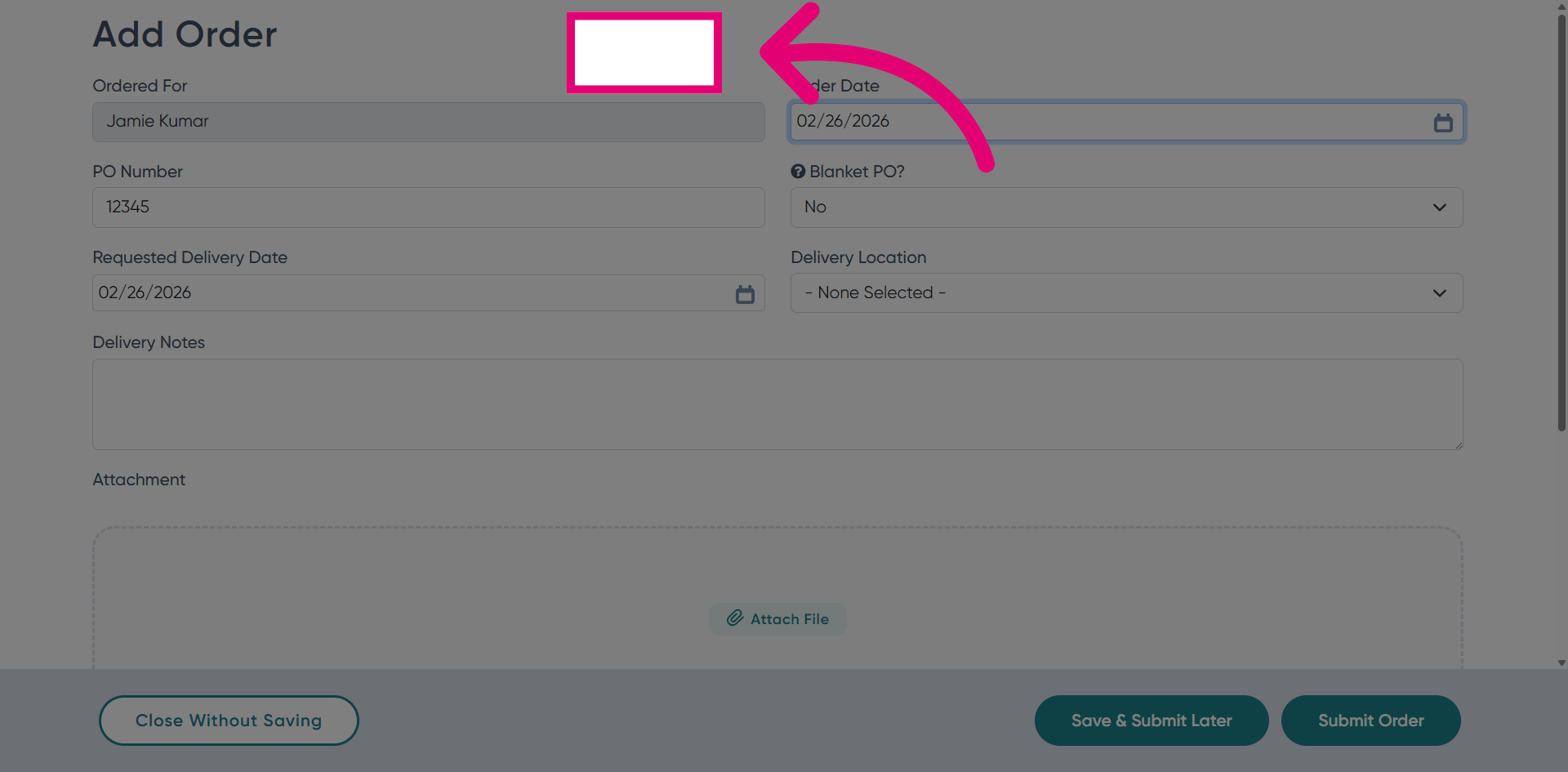
Click the Ordered For section to specify who the order is intended for.
Click Requested Delivery Date to choose when you want the order delivered.
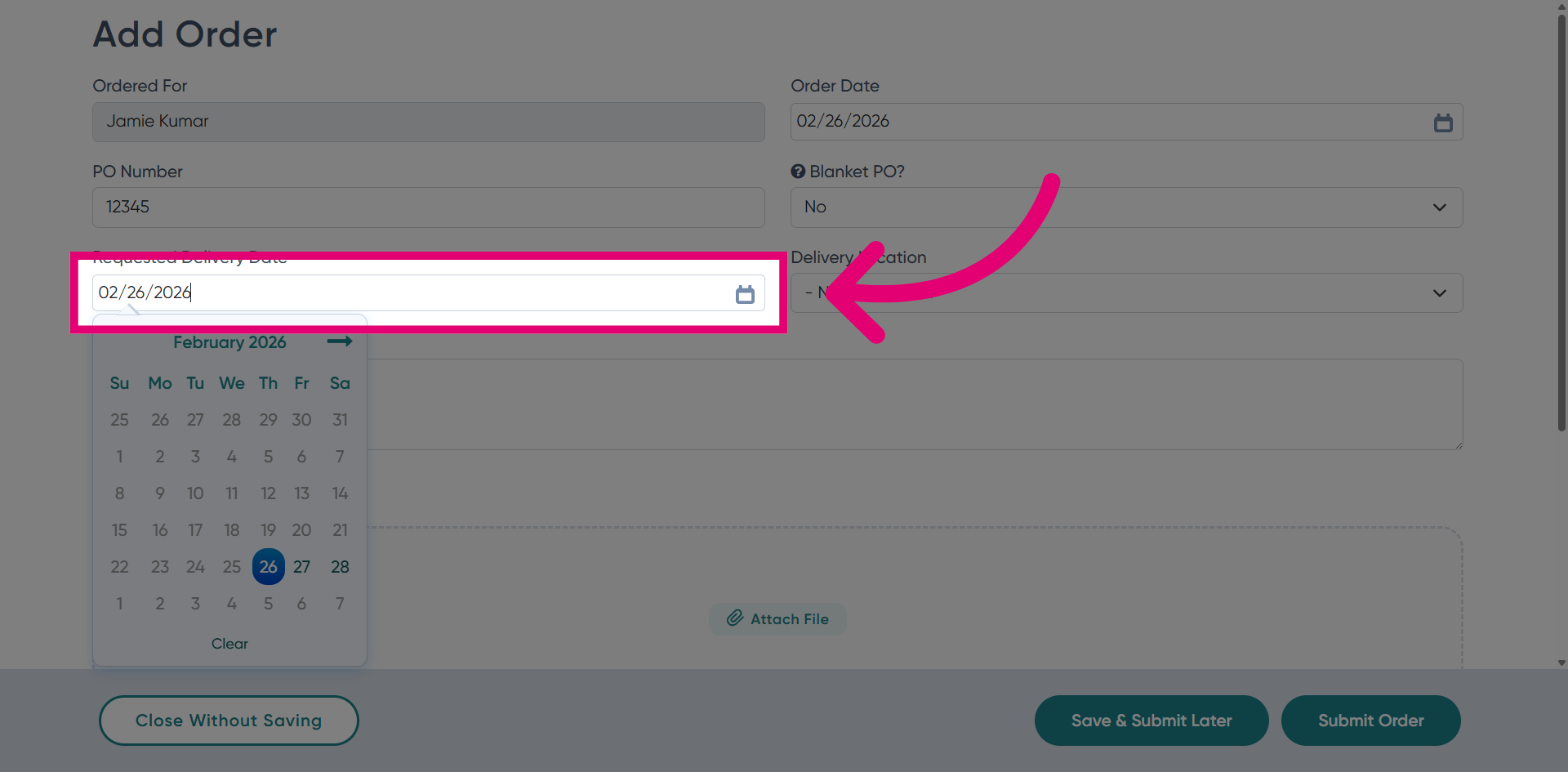
Click to access additional order details and options for customization.
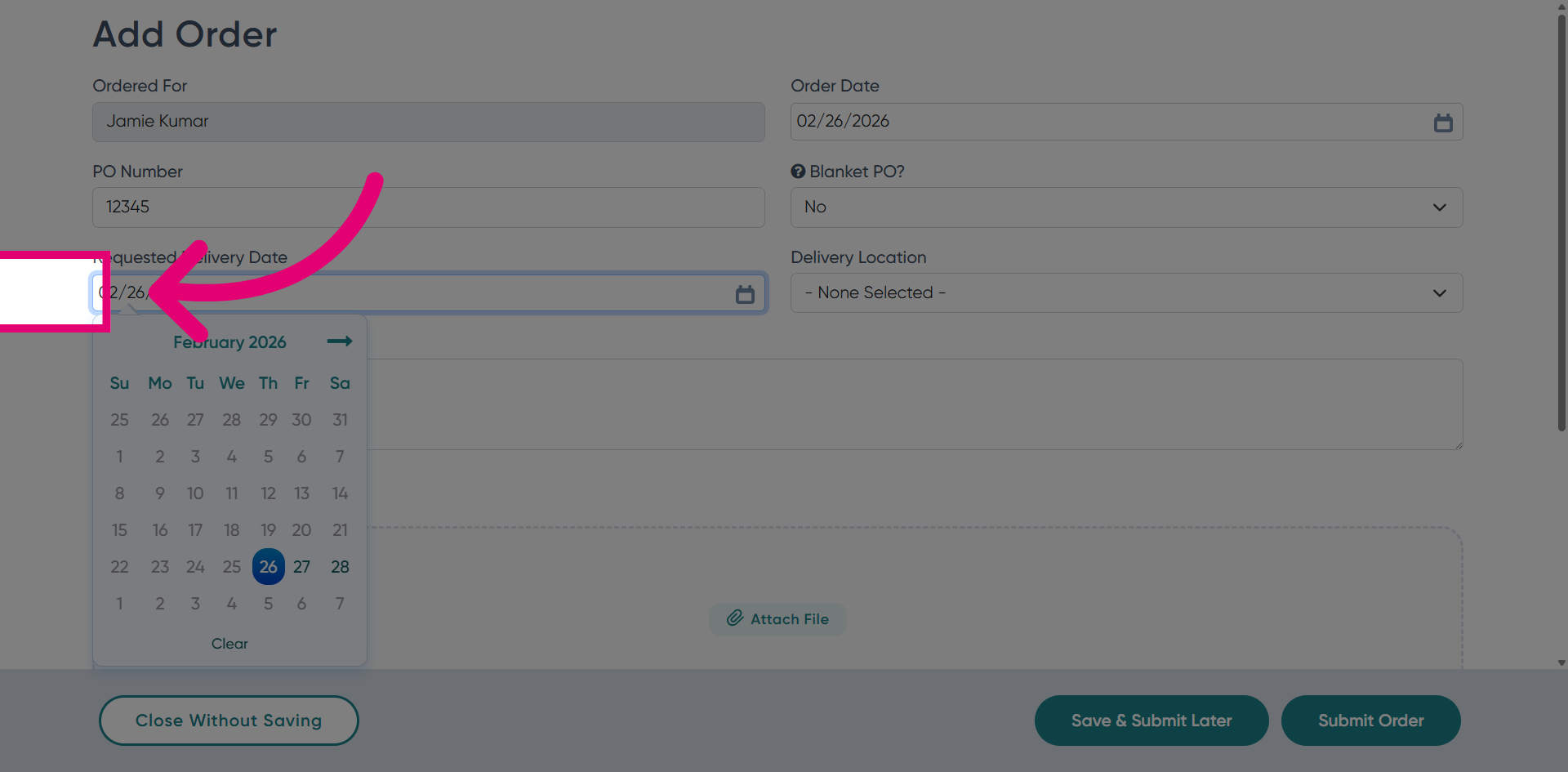
Click the delivery location dropdown to select where the order should be sent.
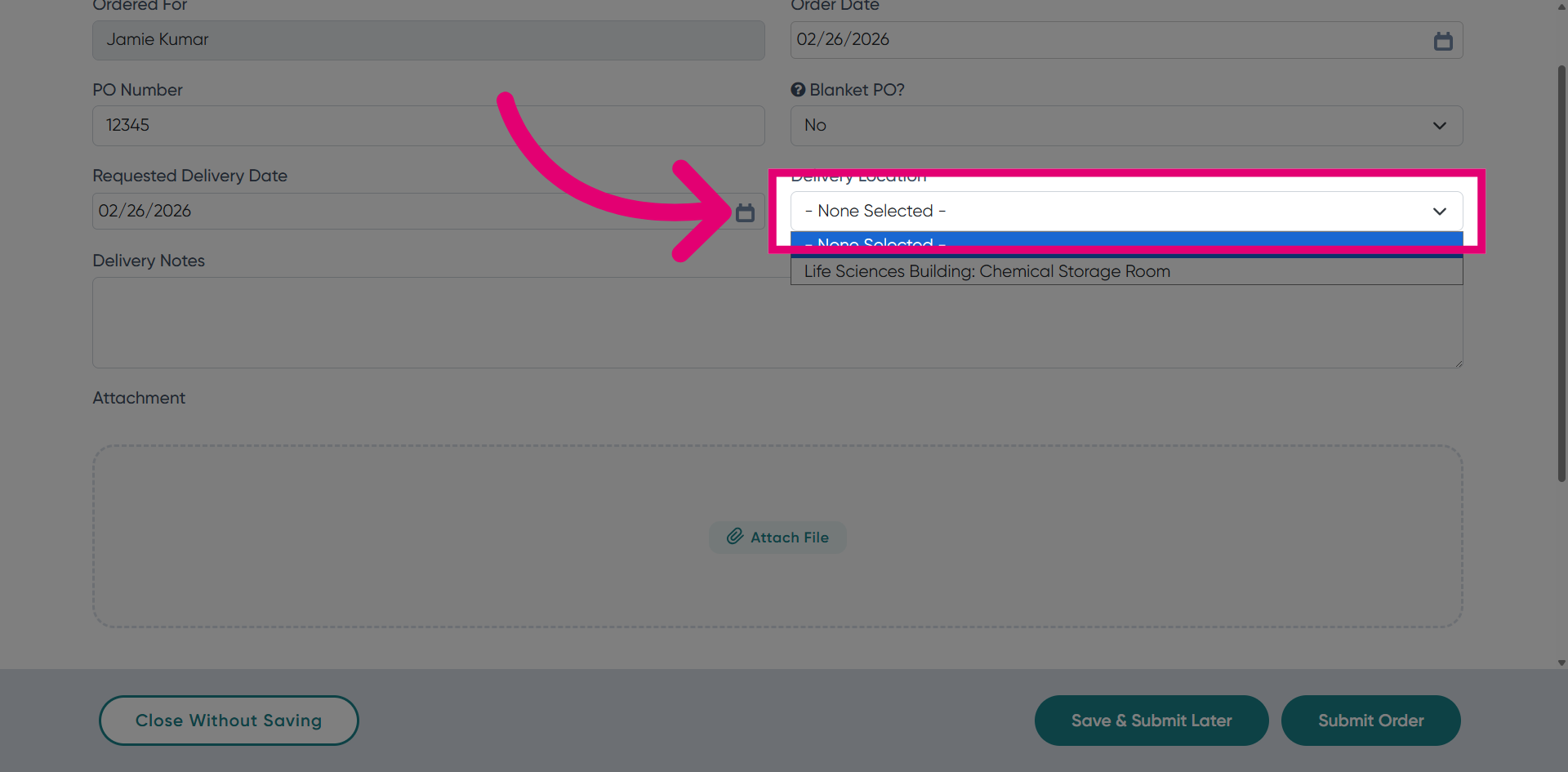
Fill in the delivery location to ensure accurate shipment of your order.
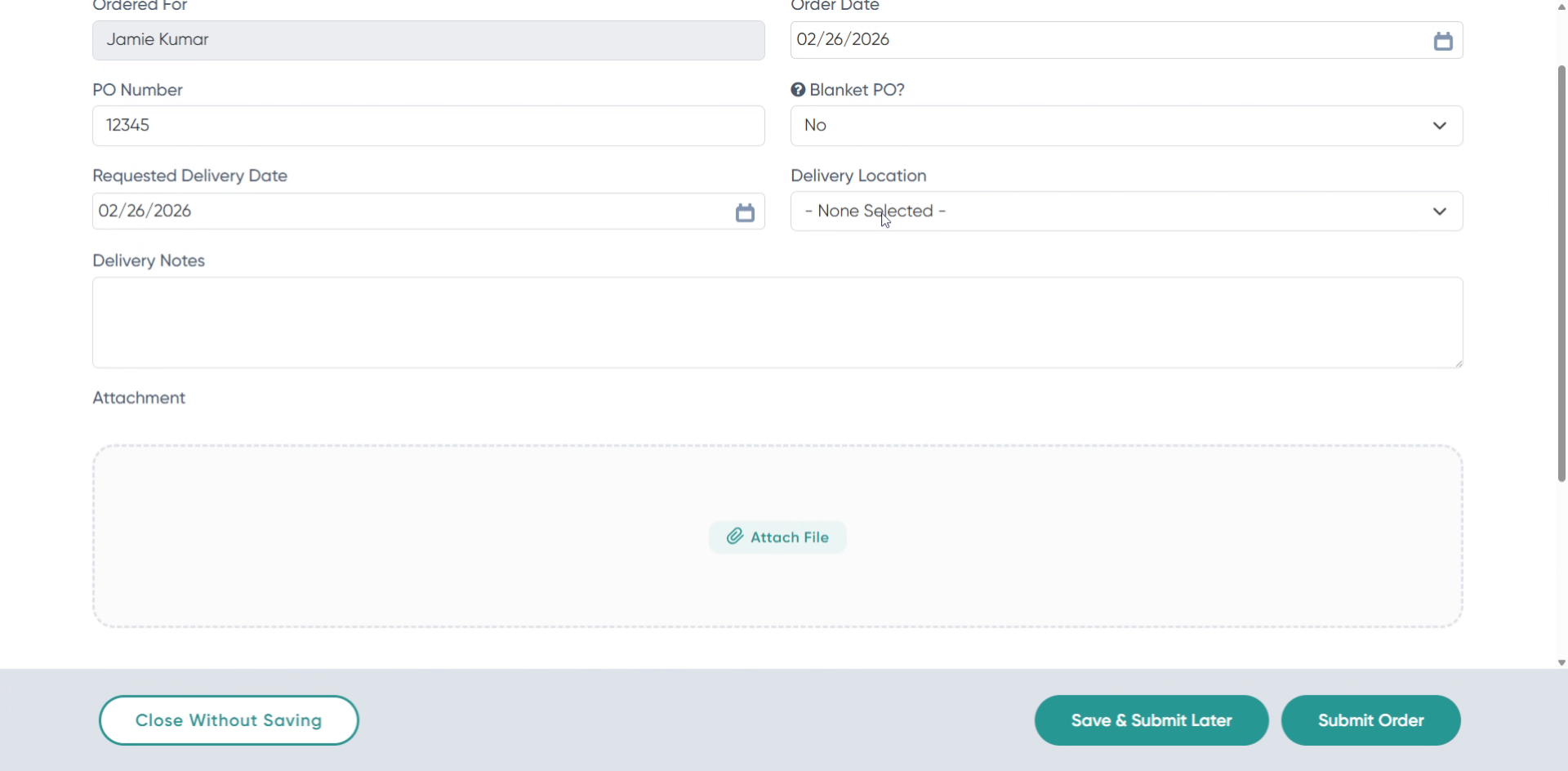
Click Delivery Notes to add any special instructions or comments about the order.
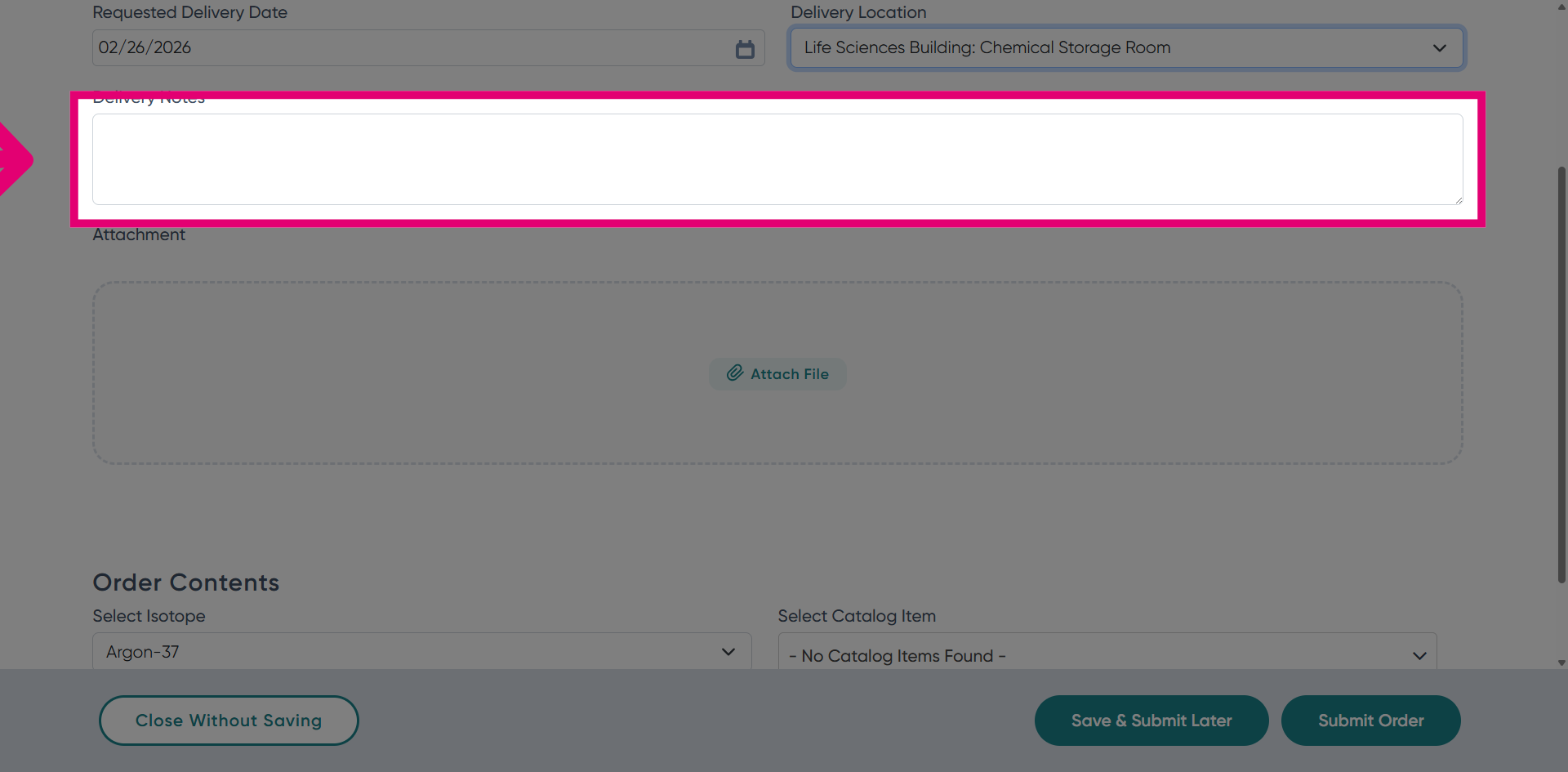
Enter notes such as ordering Argon on 26/2 to provide context for the delivery.
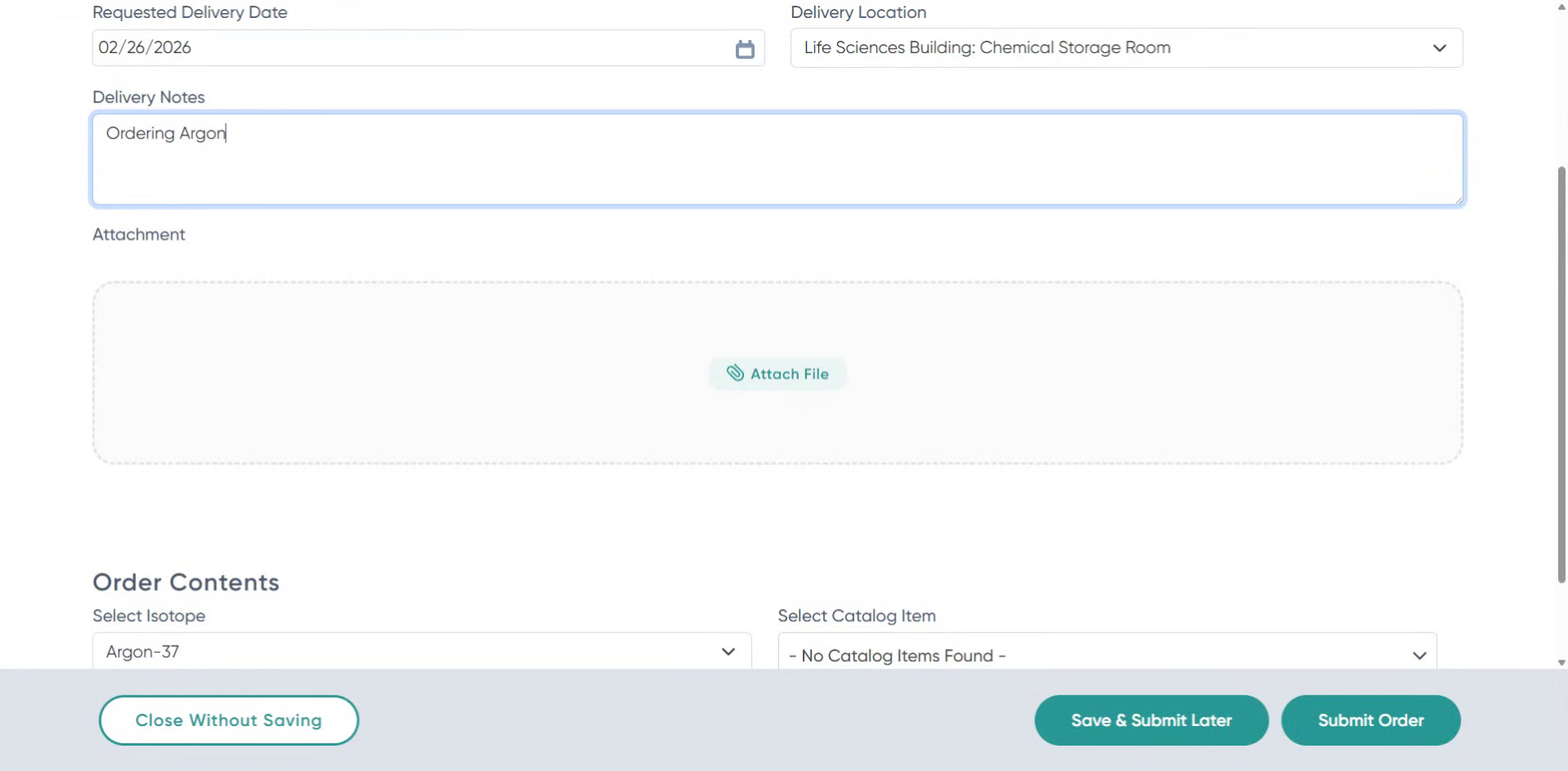
Click Add Item to Order to include products or materials in your purchase order.
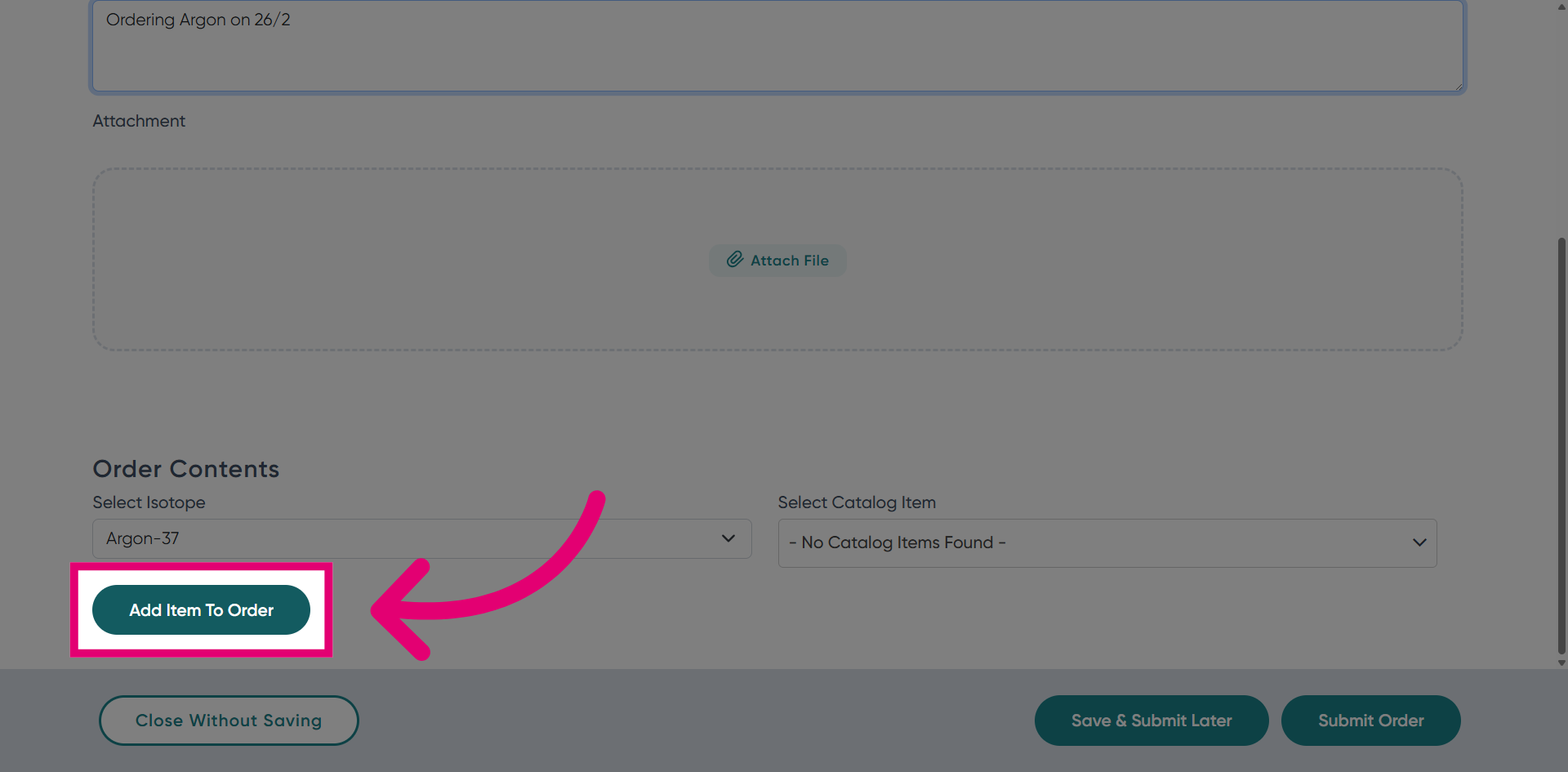
Click Number of Units Ordered to specify the quantity of the item.
Enter the number of units you want to order, such as 2.
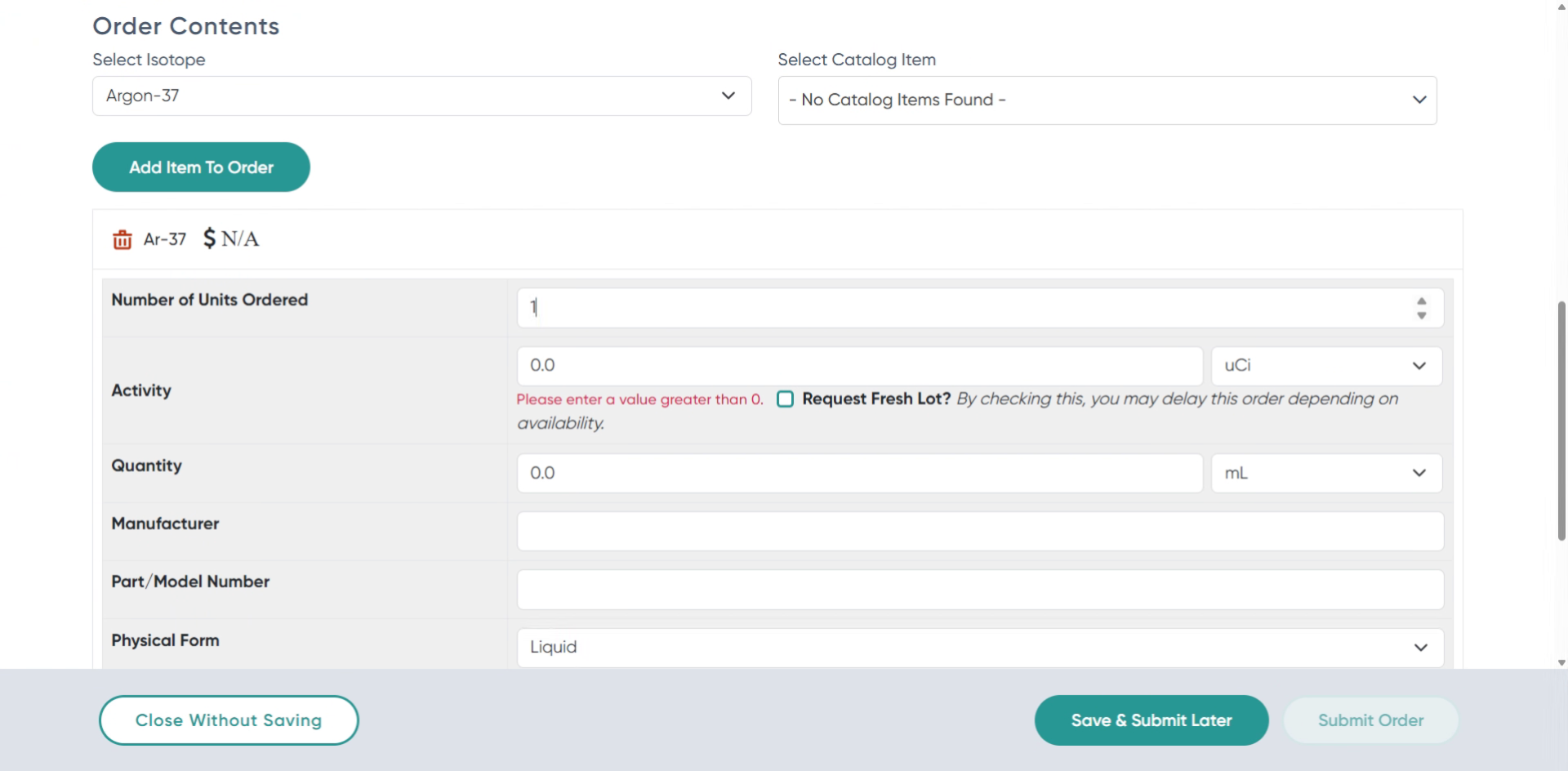
Click the Activity field to input relevant activity details for the order item.
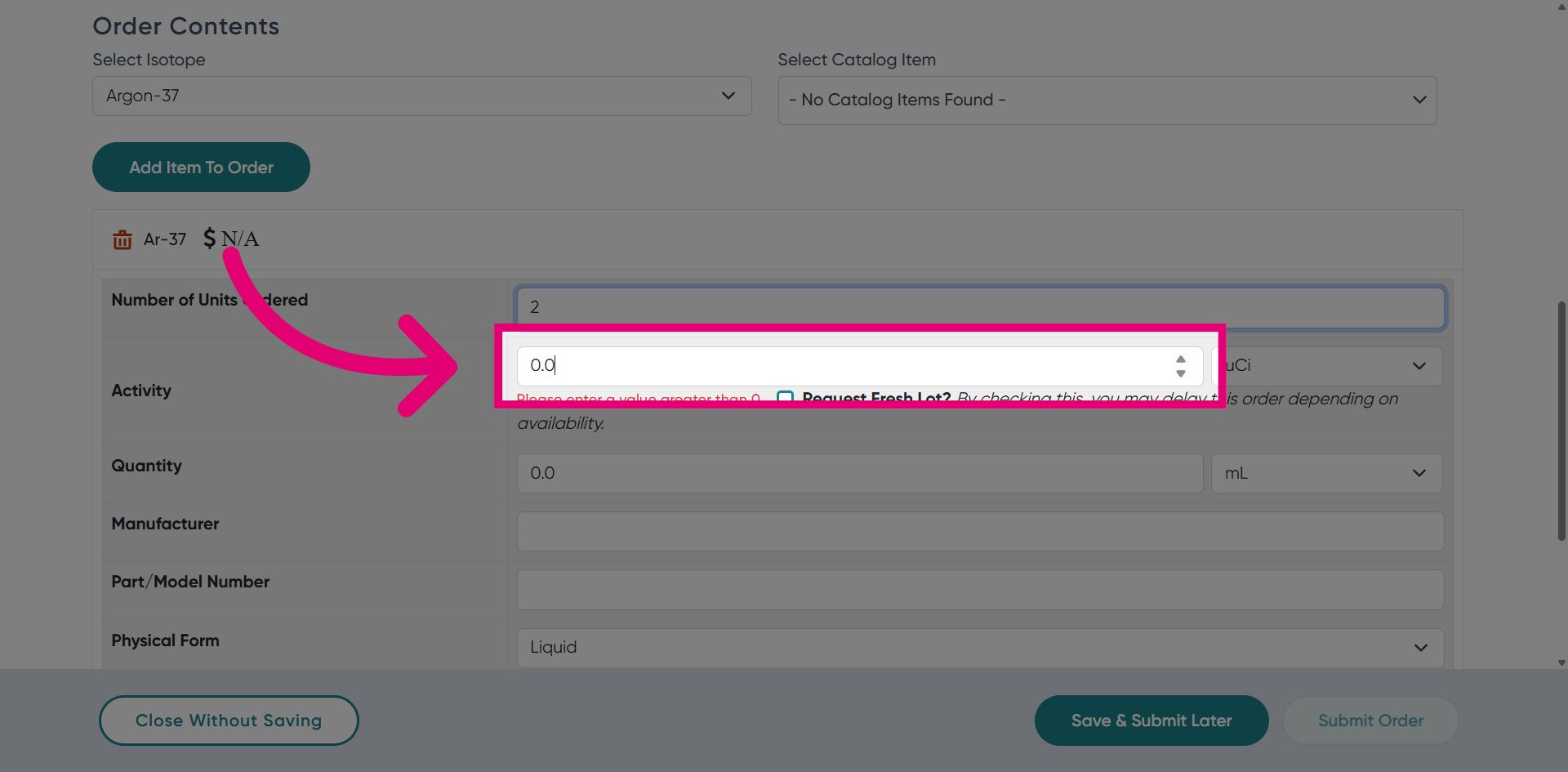
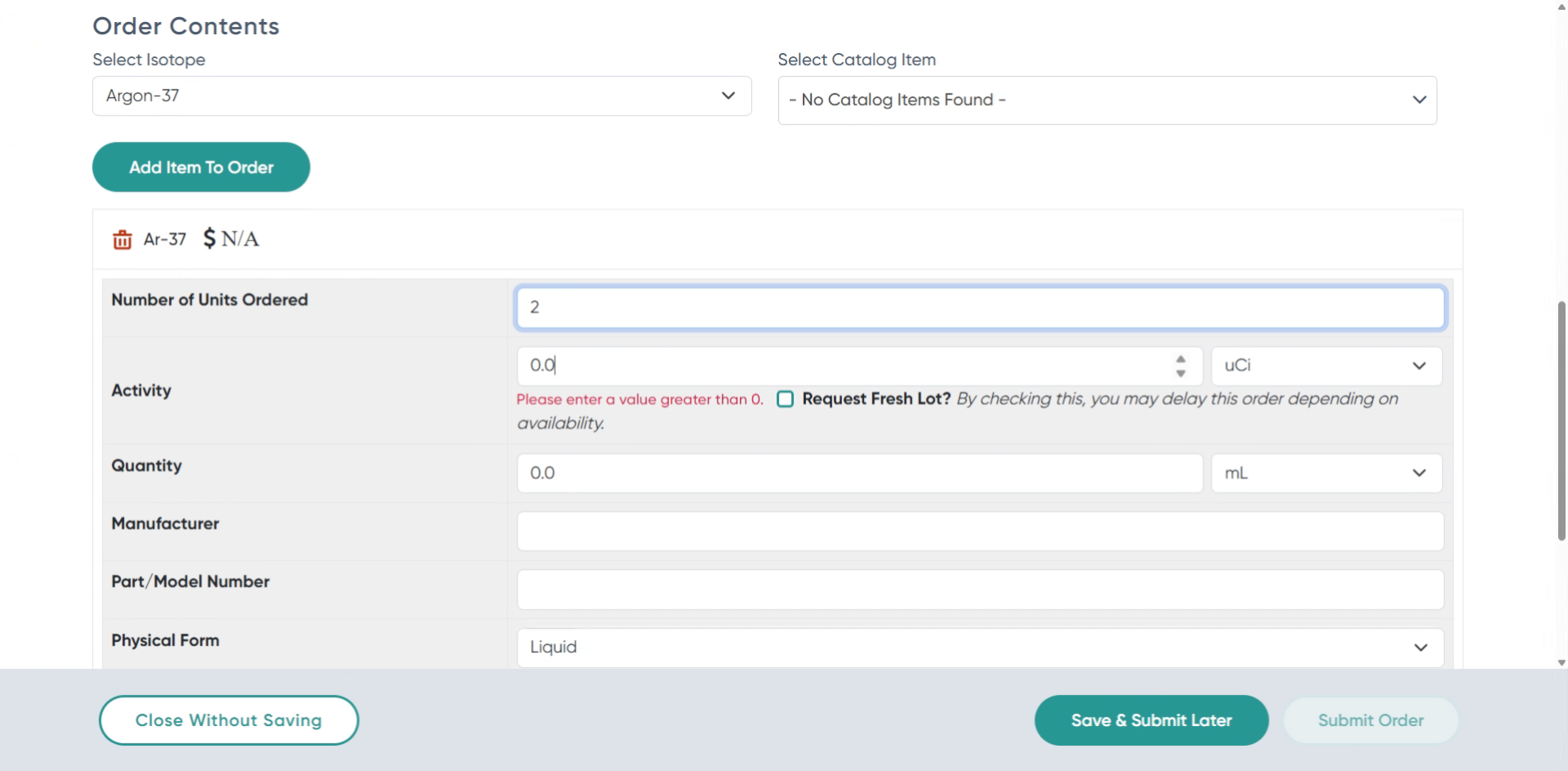
Fill in the activity value, for example, 10, to specify the activity level.
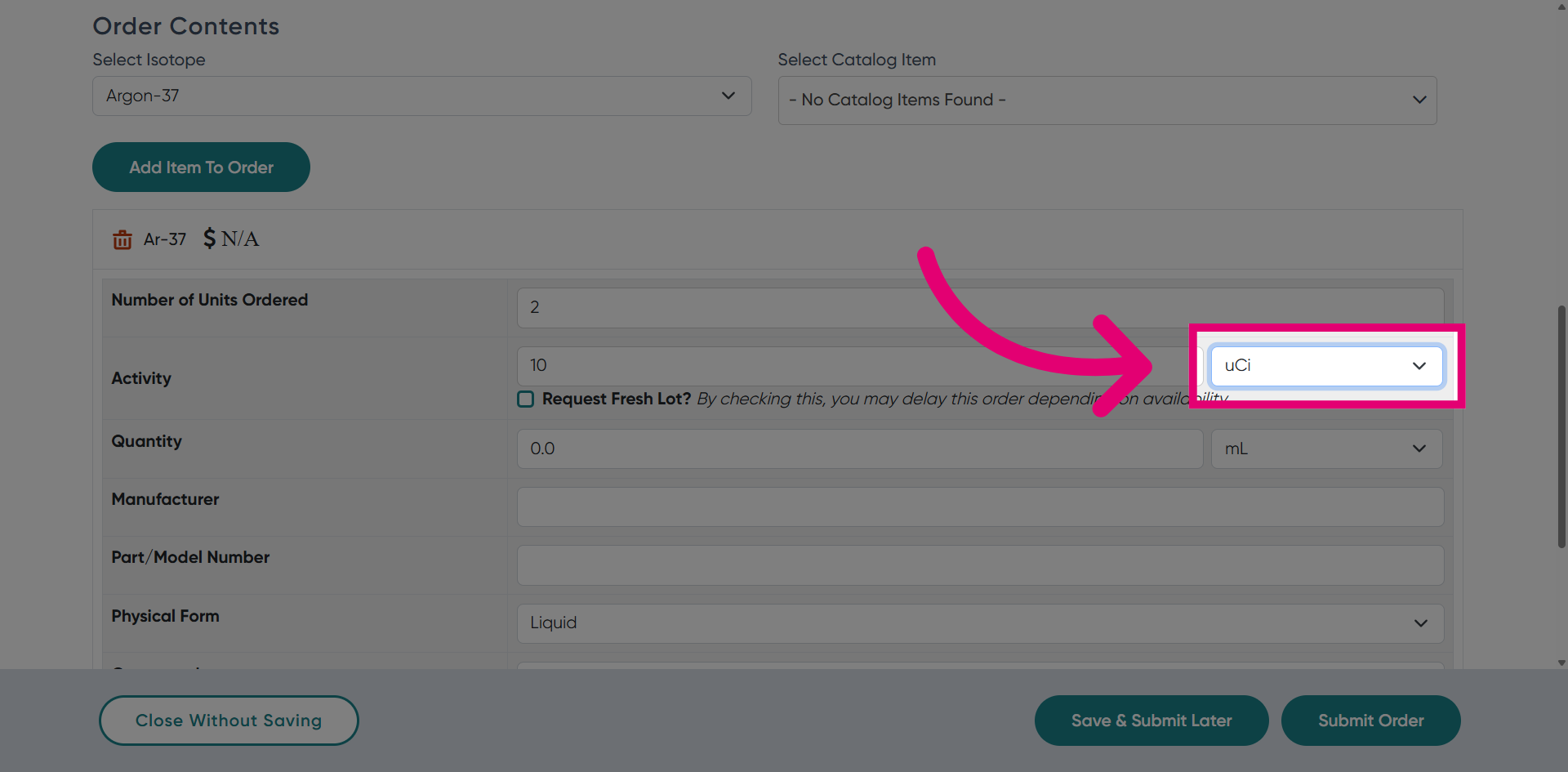
Click the unit measurement dropdown to select the appropriate unit for the order quantity.
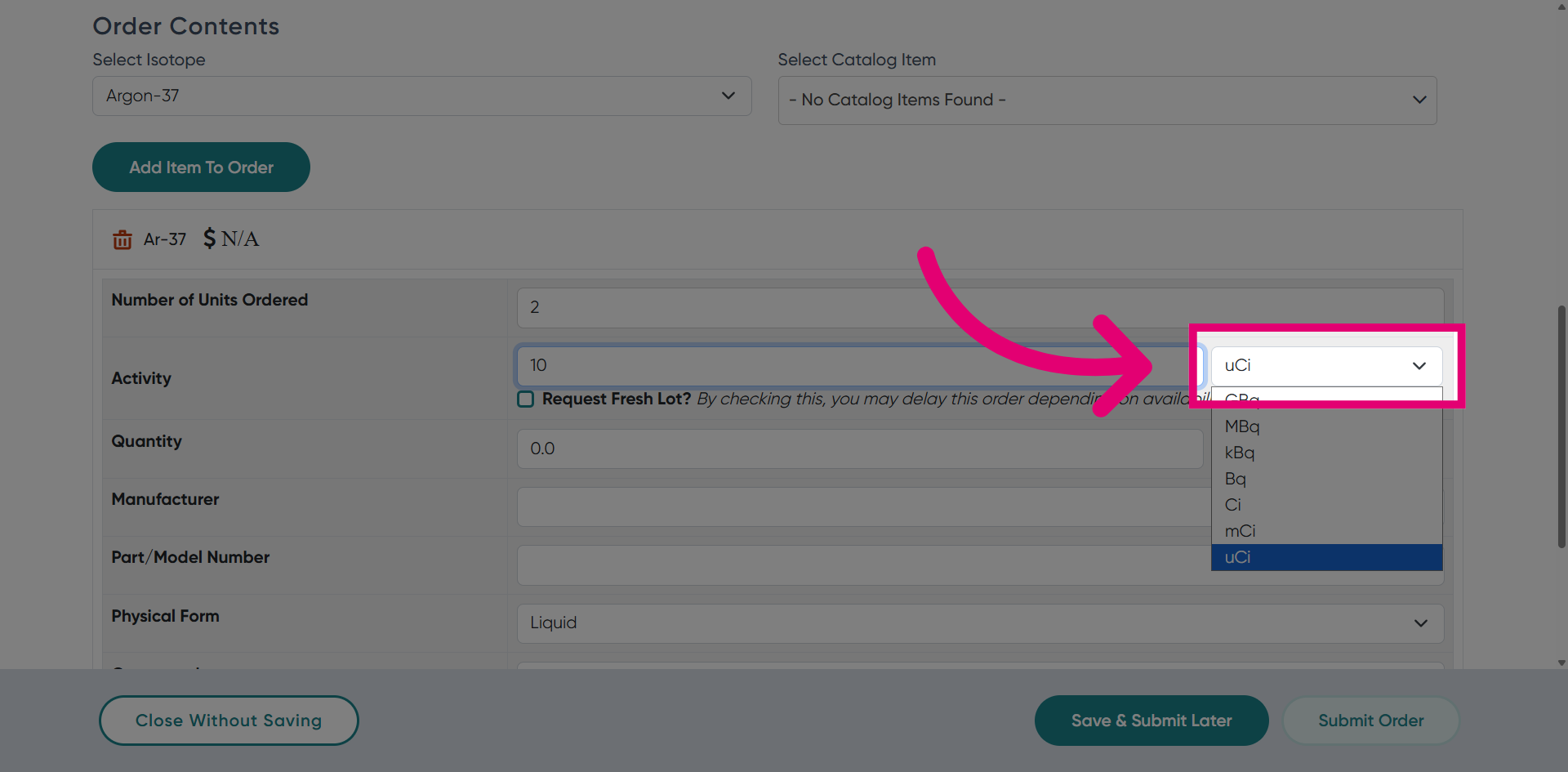
Click again to confirm your choice of unit measurement for the order item.
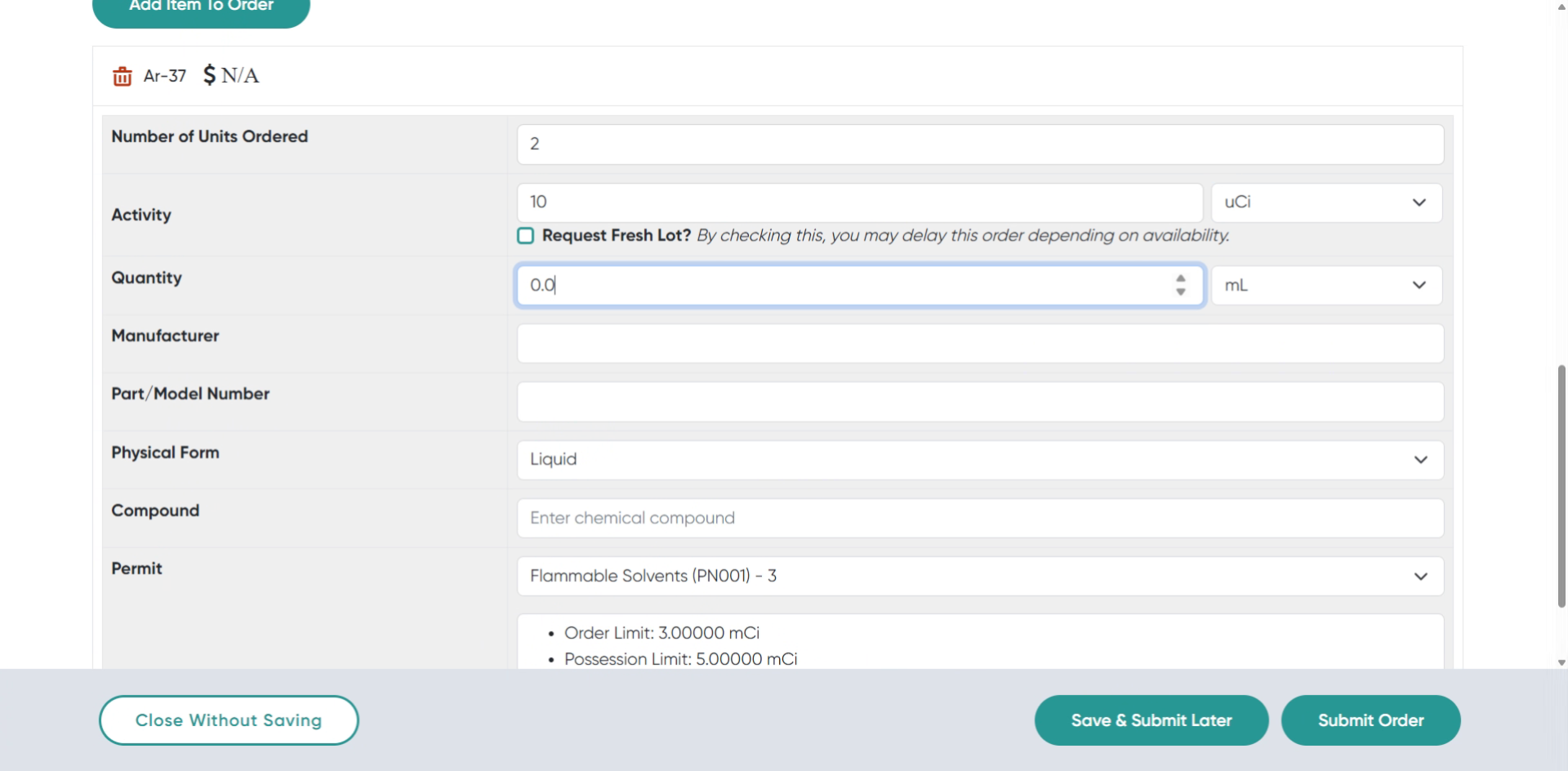
Click the Quantity field to specify the amount of the item to be ordered.
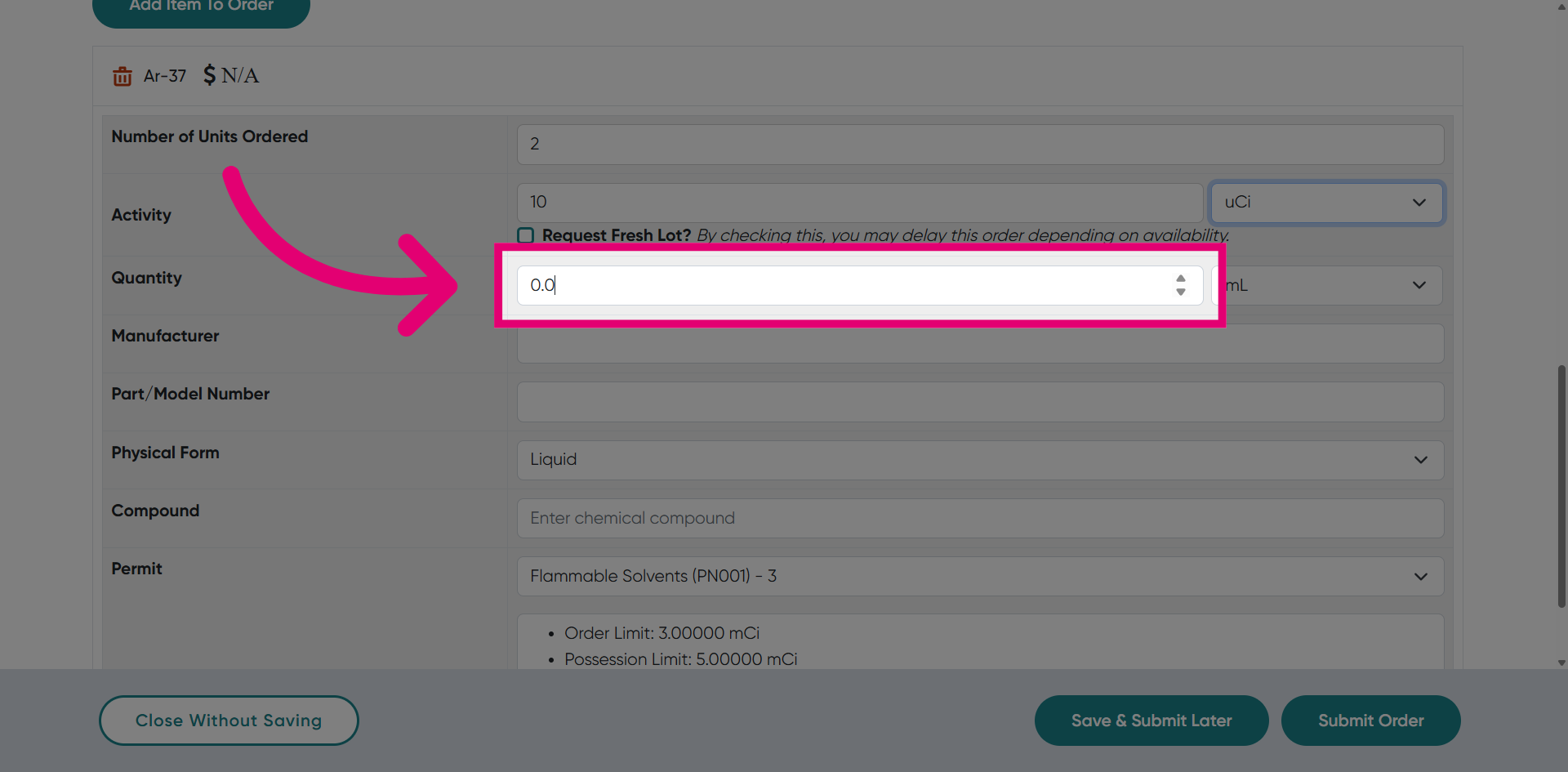
Enter the quantity number, such as 3, to indicate how many items you need.
Click the Sealed Source dropdown to choose the physical state of the item ordered.
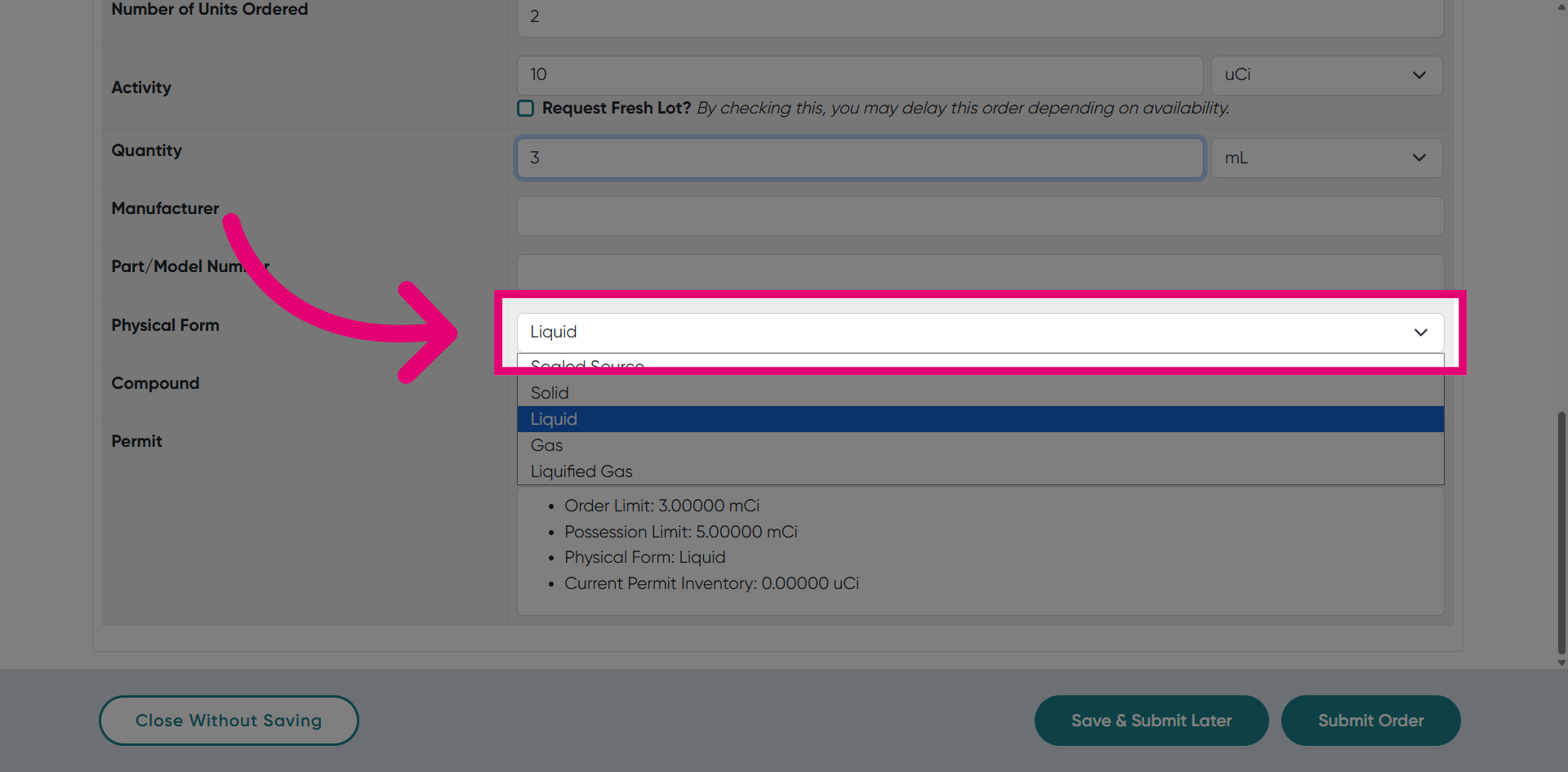
Click again to confirm your selection of the sealed source state, such as solid or liquid.
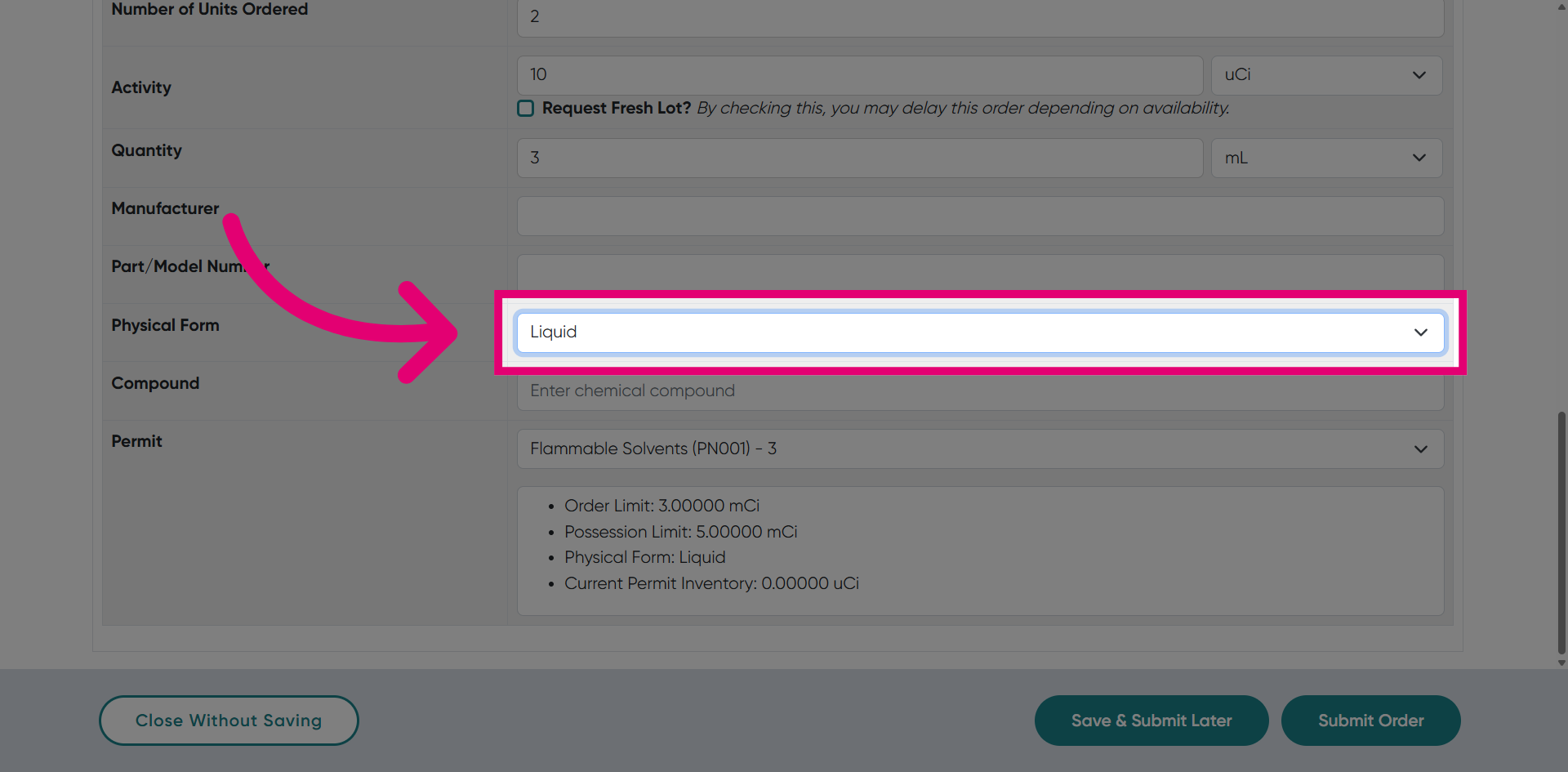
Click Flammable Solvents (PN001) - 3 to specify the chemical category for the order item.
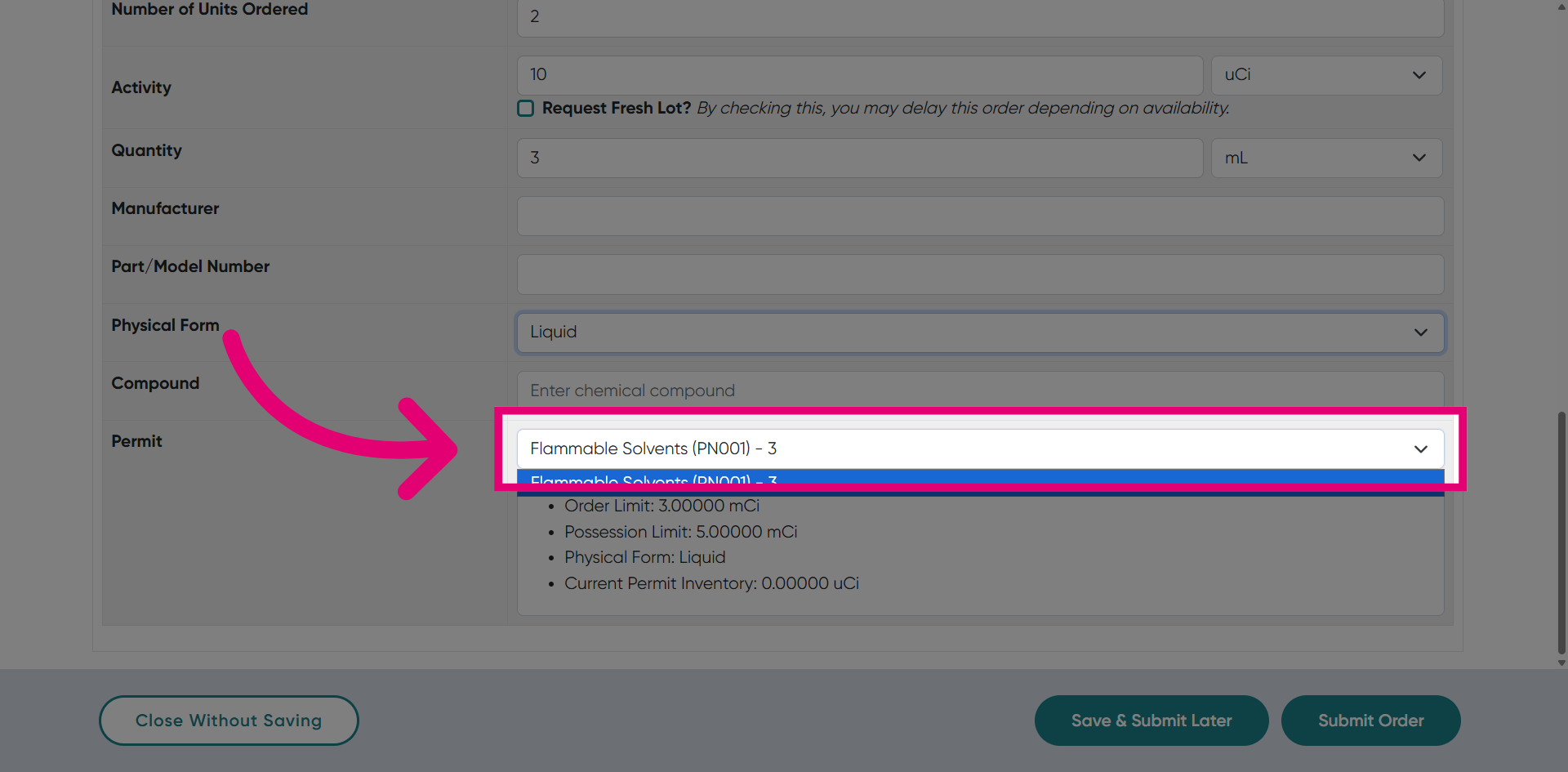
Click again to confirm the selection of the flammable solvents category for the item.
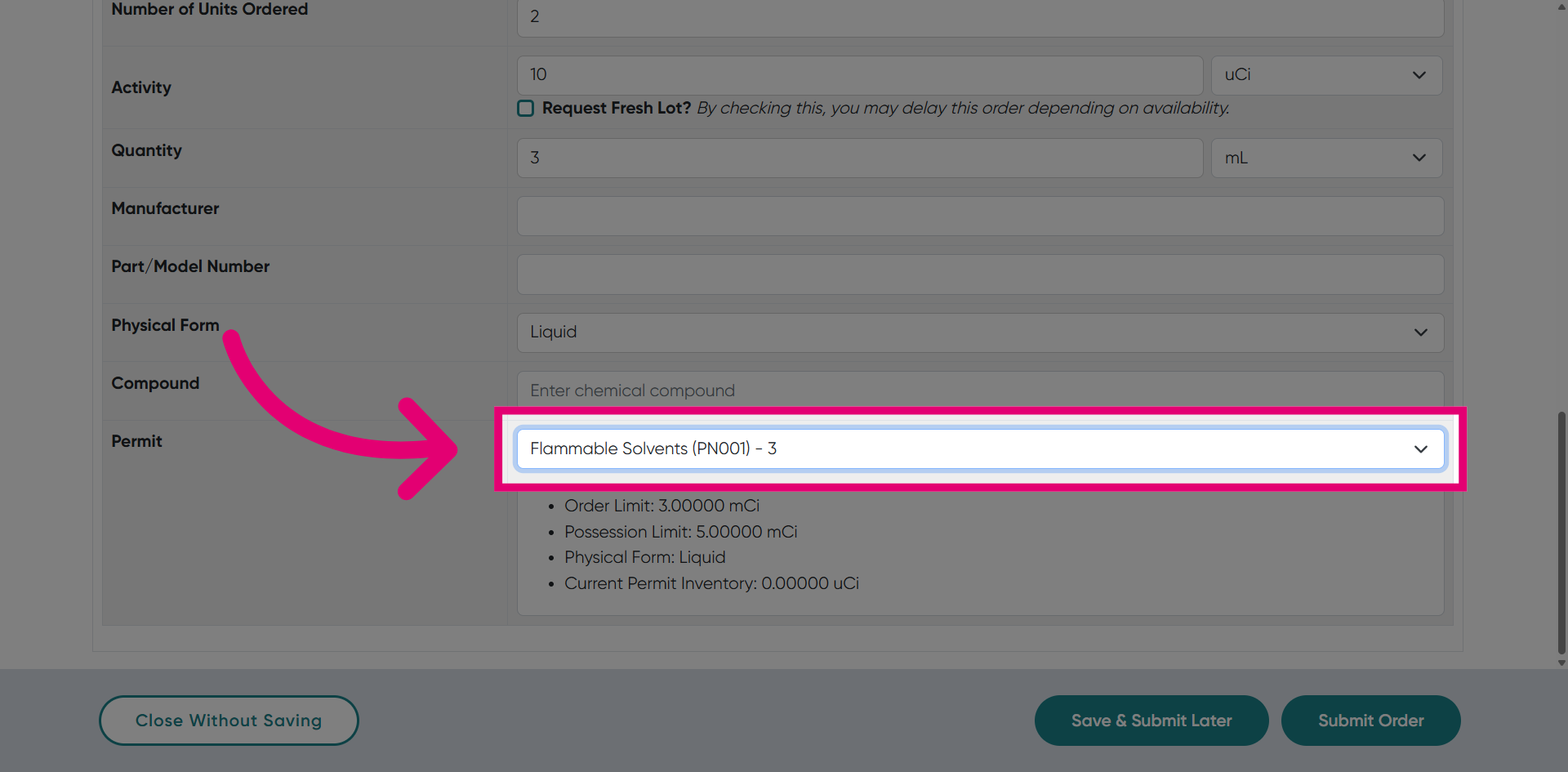
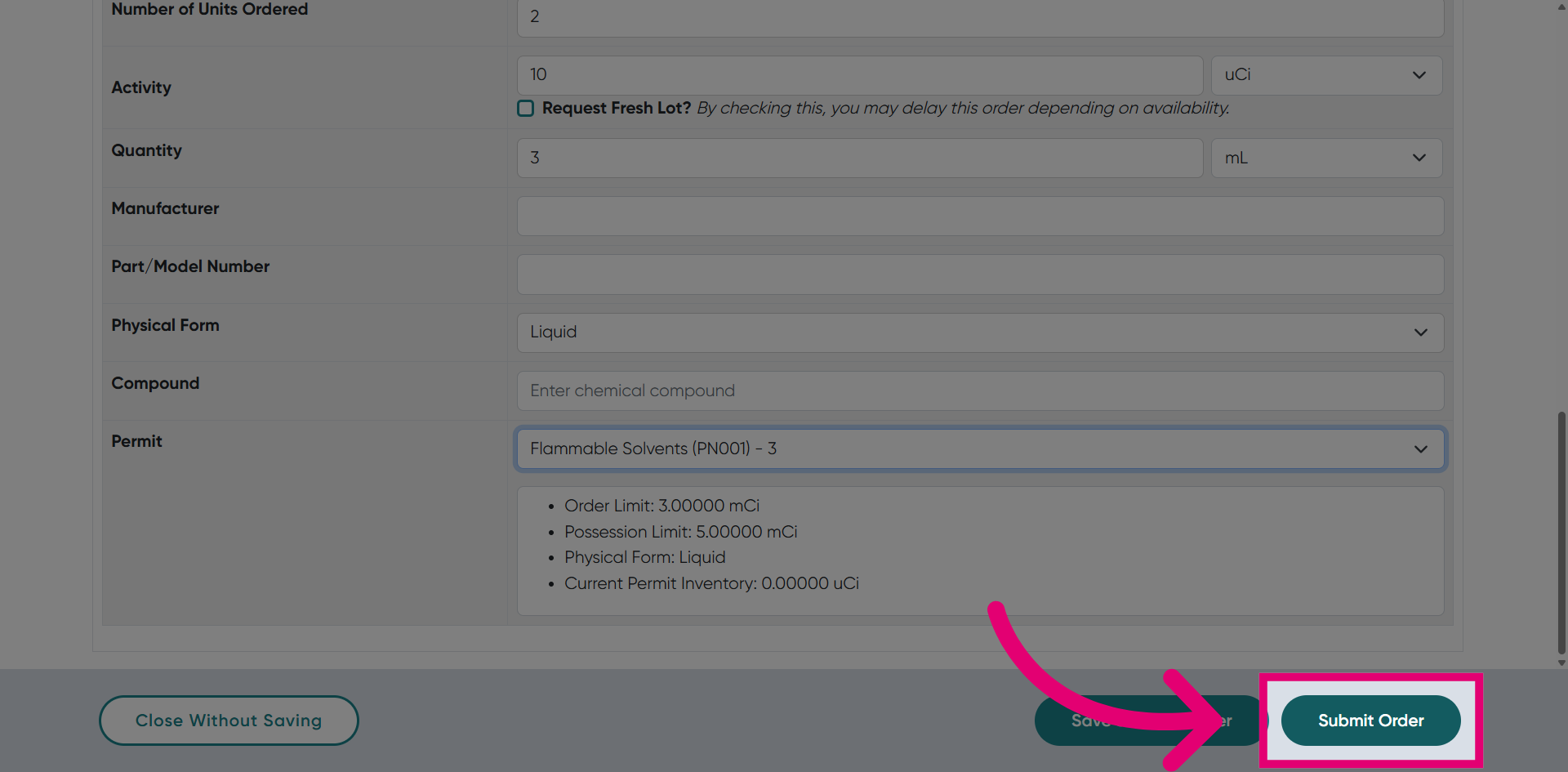
Click Submit Order to finalize and send your new order for processing.