New article
Recently updated
Performing chemical inventory replacement

Who is this article for?
Users who need to performing chemical inventory replacement.
Administrators role is required.
This tutorial demonstrates how to manage chemical inventory replacement.
It explains how to dispose of existing inventory and replace it with updated inventory.
1. Managing Chemical Inventory Replacement
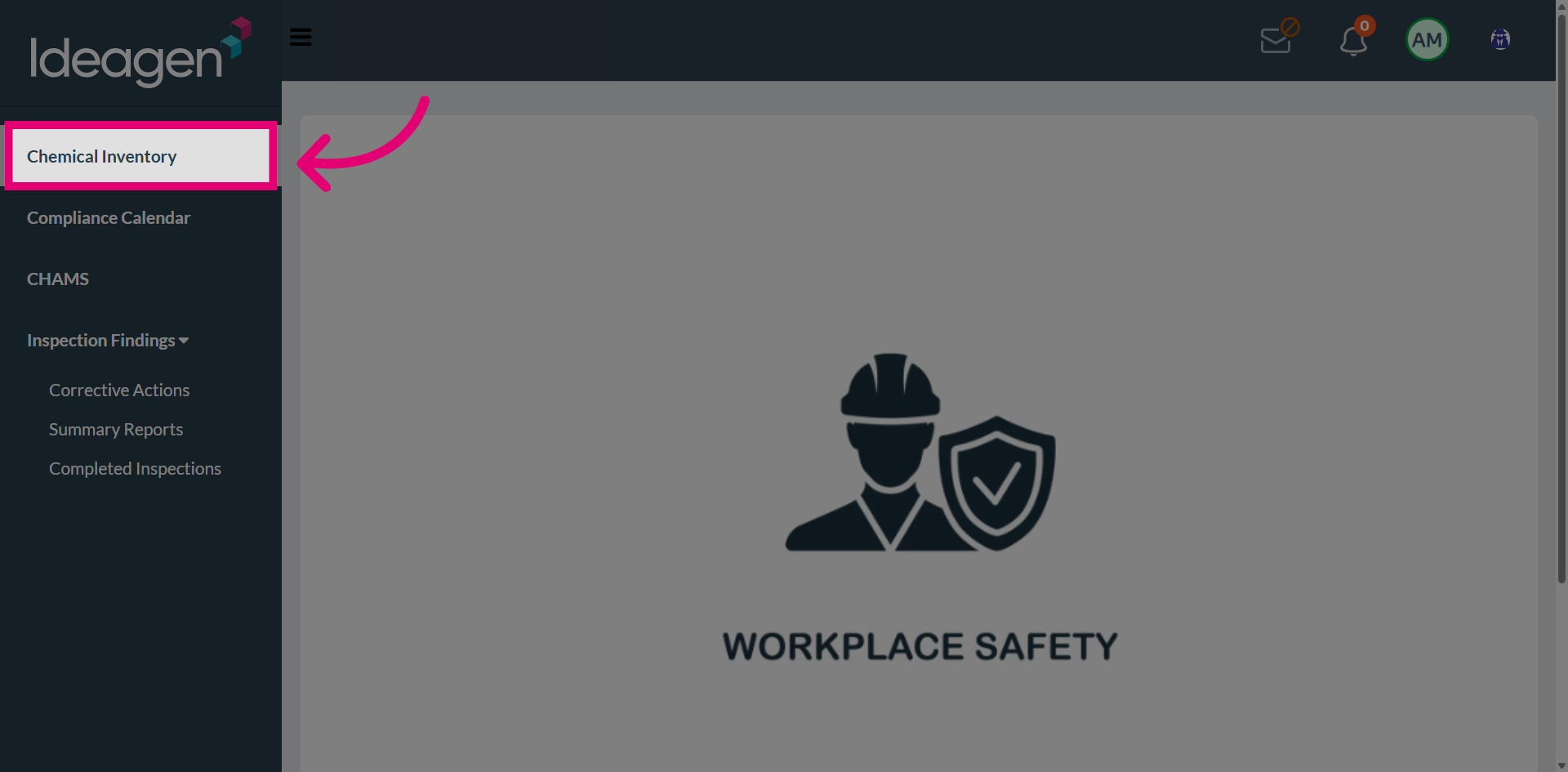
Navigate to Chemical Inventory section from the left hand side menu.
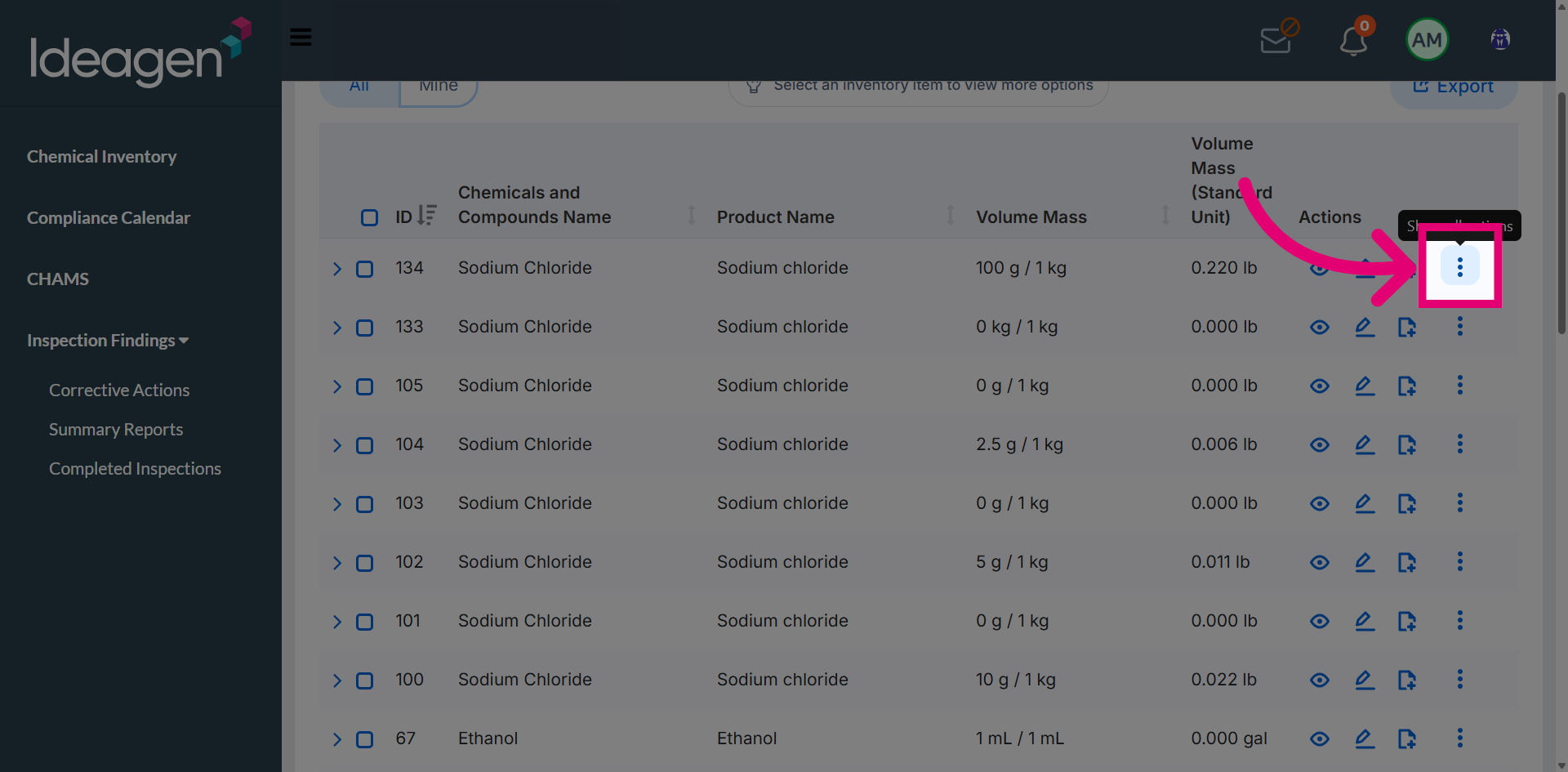
Open the Show all actions menu to access disposal and replacement options for the selected chemical record.
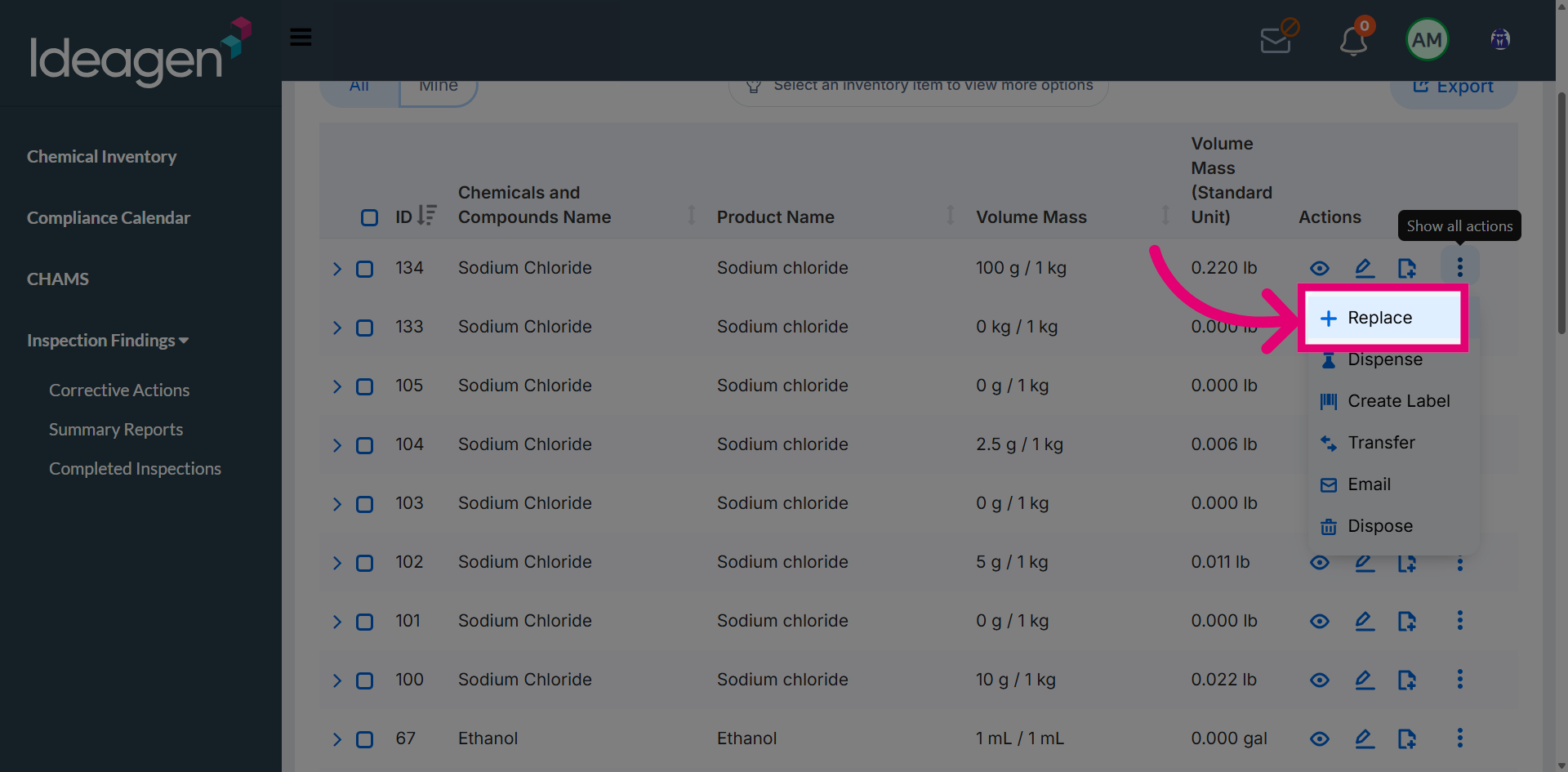
Select the Replace option to dispose an existing chemical inventory and seamlessly replace it with a new inventory item.
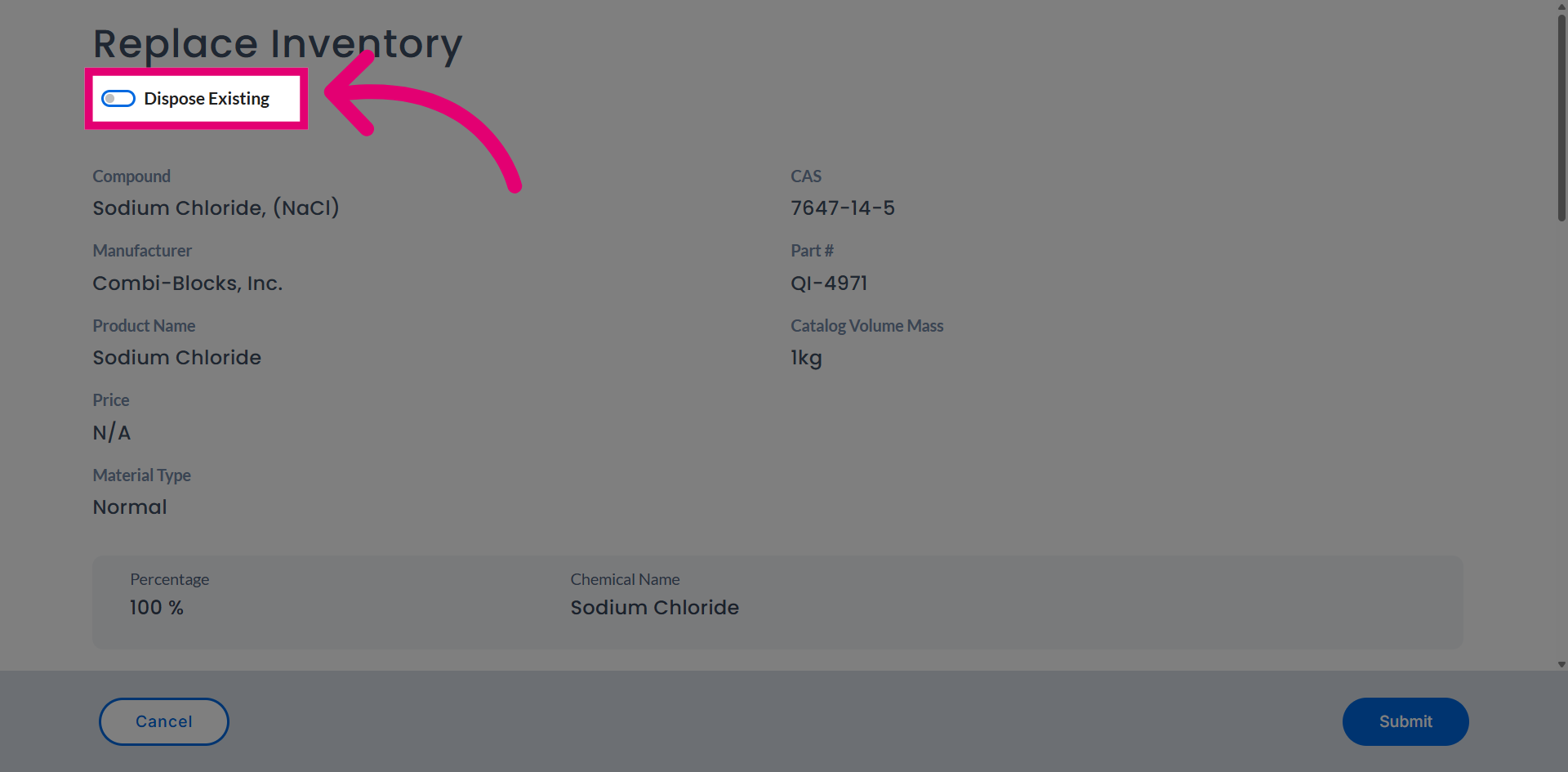
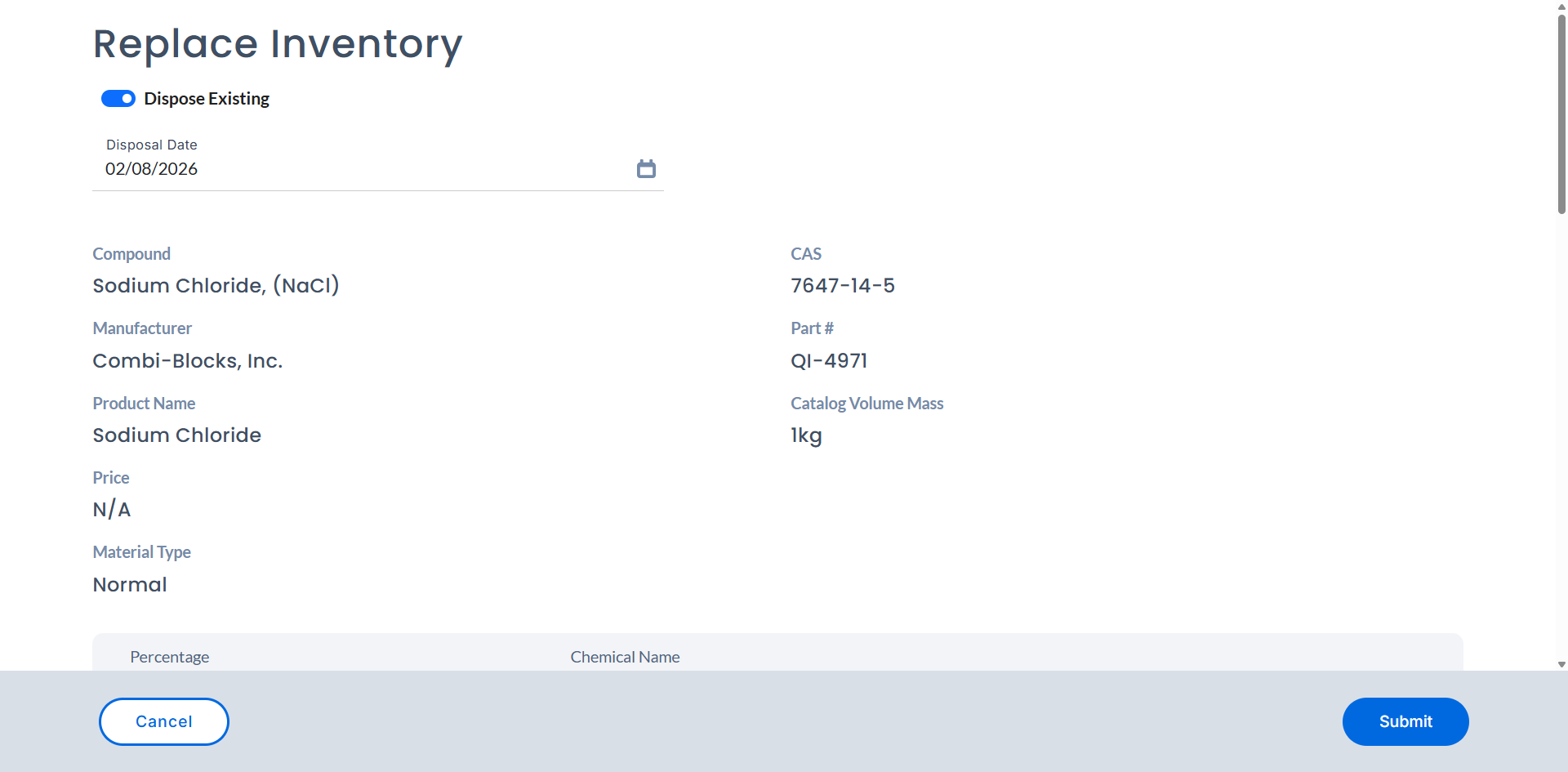
Choose Dispose Existing to specify that the existing chemical inventory will be disposed of prior to replacement.
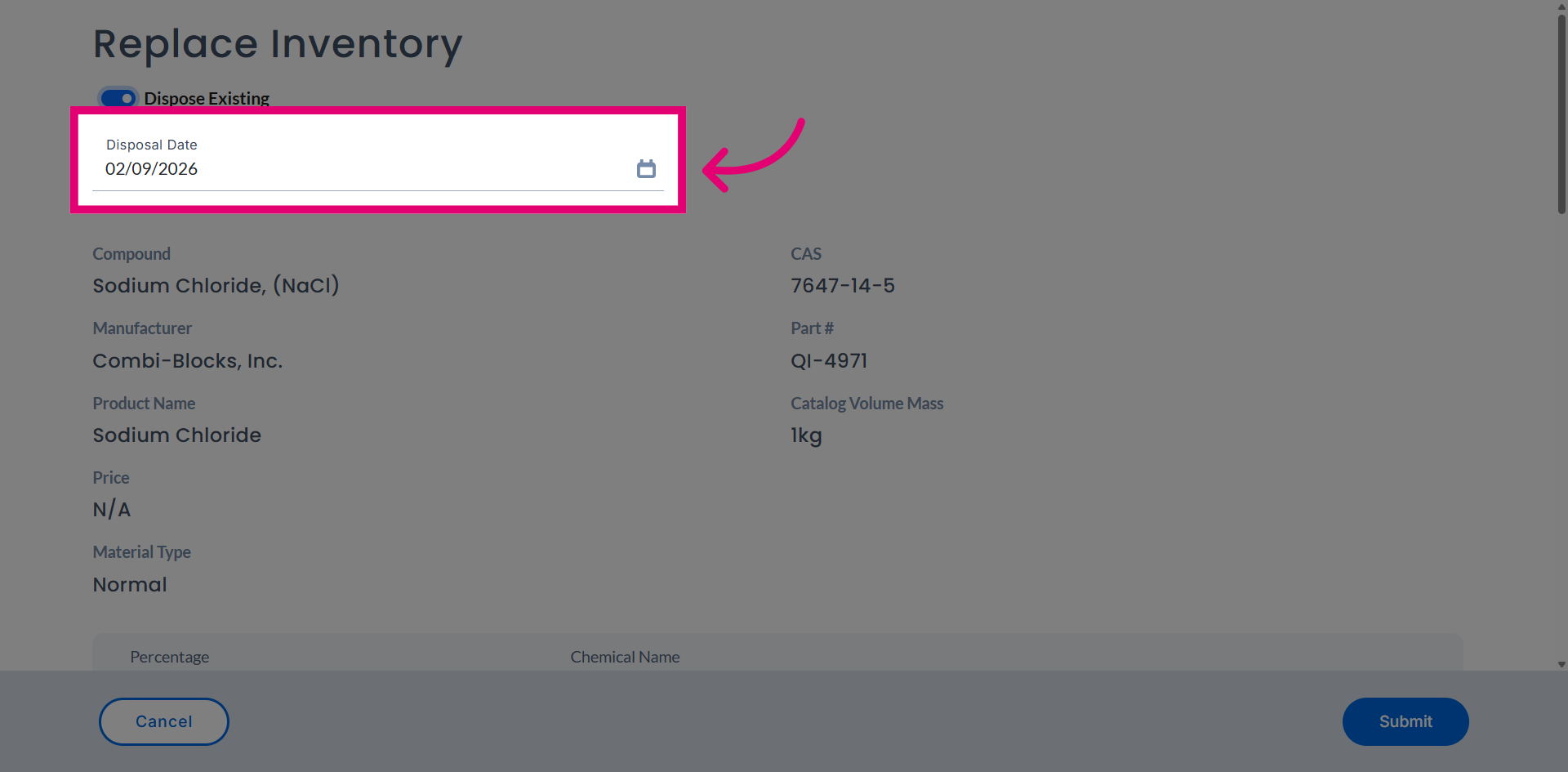
Access the Disposal Date field to set the date when the chemical will be disposed.
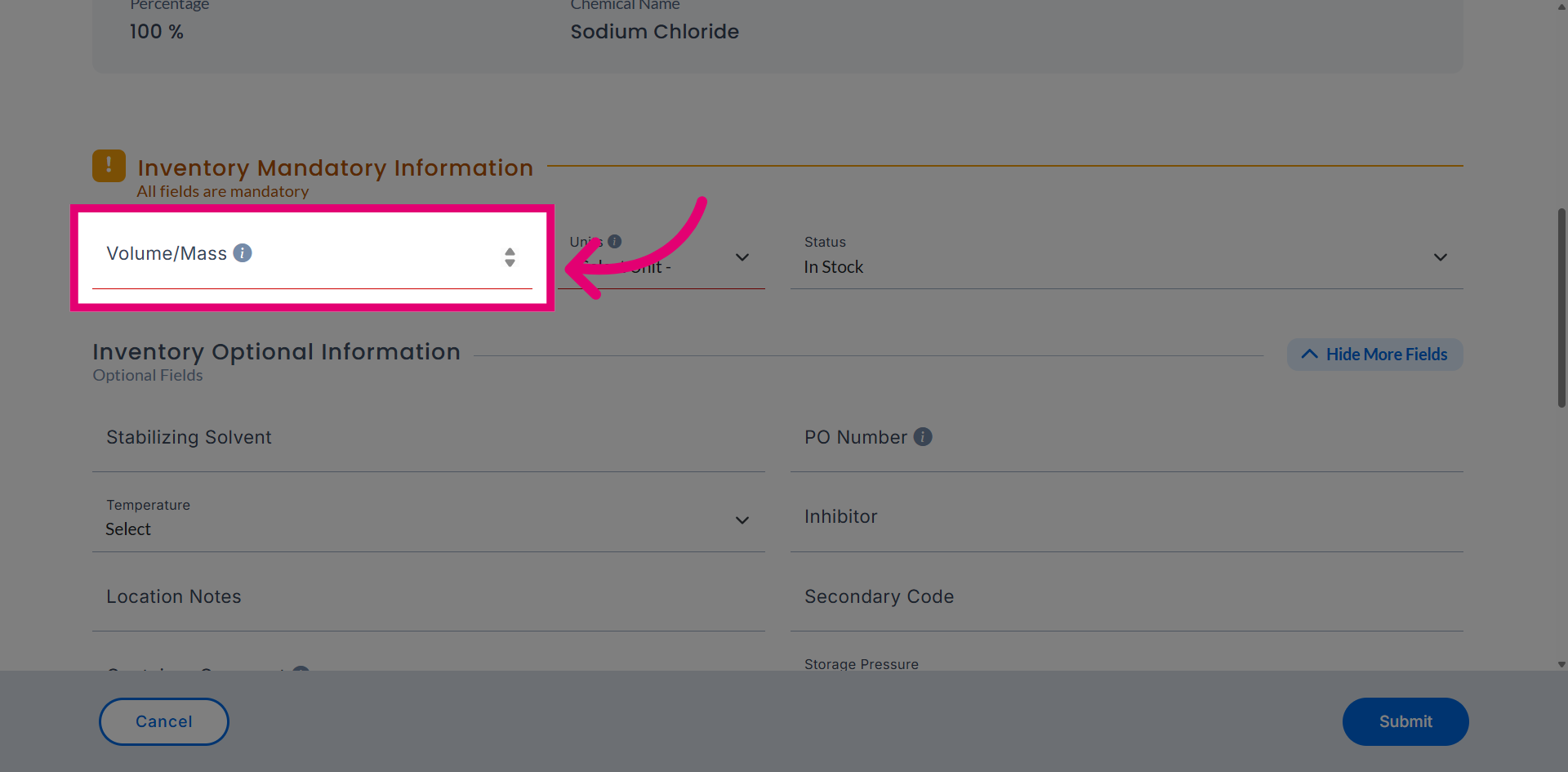
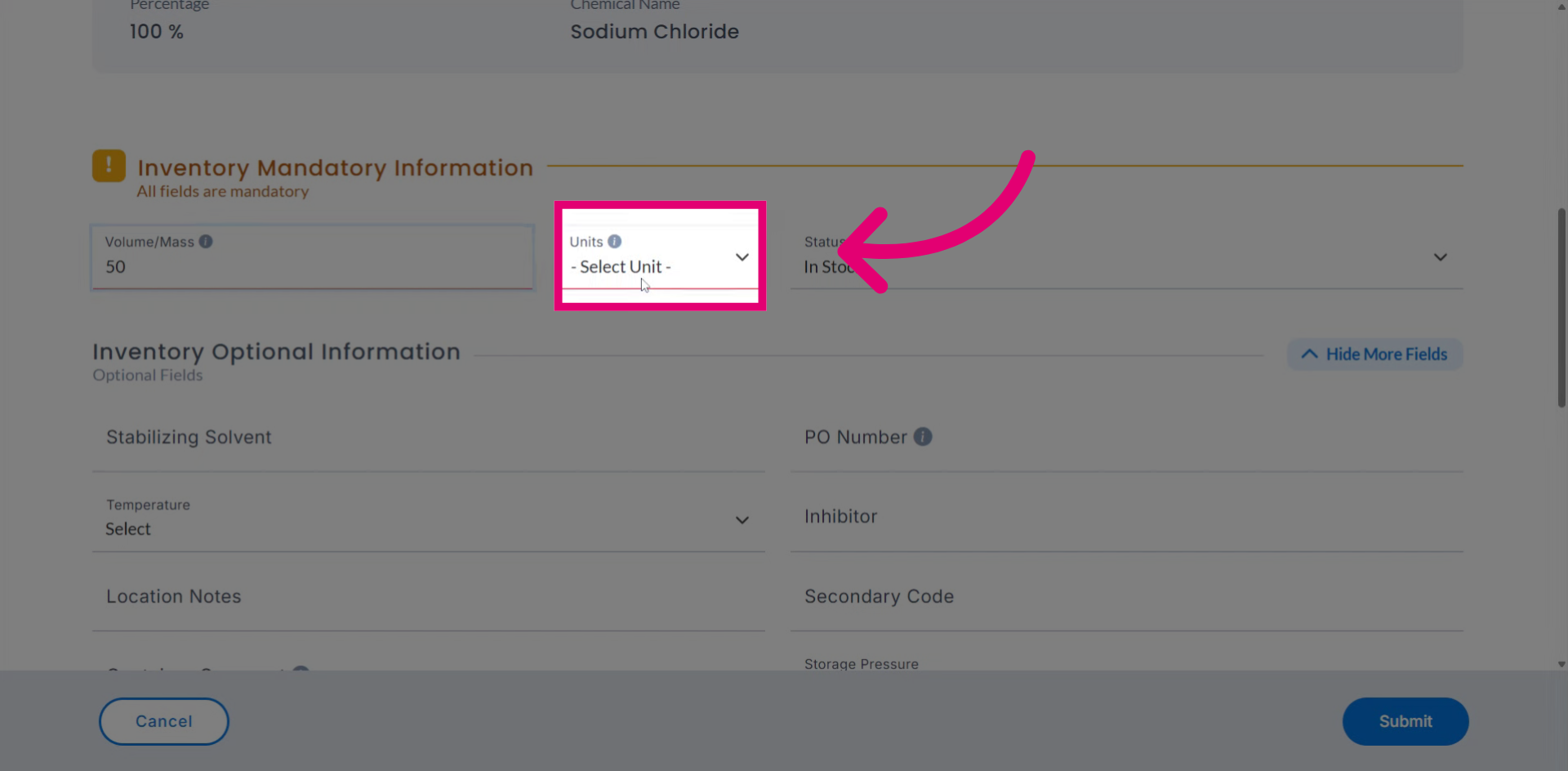
Open the Volume field to specify the amount of chemical that will be replaced.
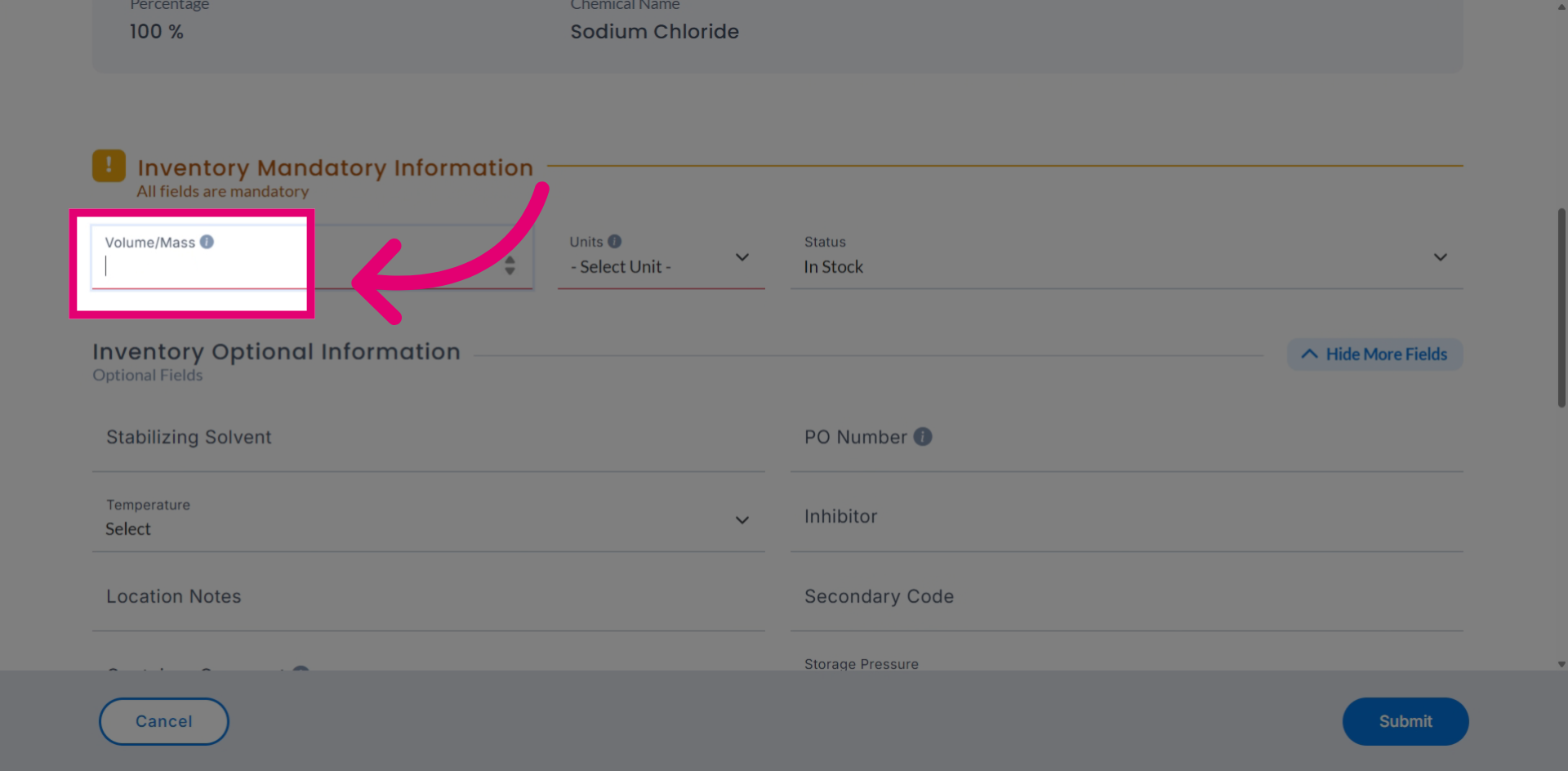
Enter 50 as the quantity of the chemical to be replaced.
Confirm the Unit field specifies the unit of measurement for the chemical being replaced.
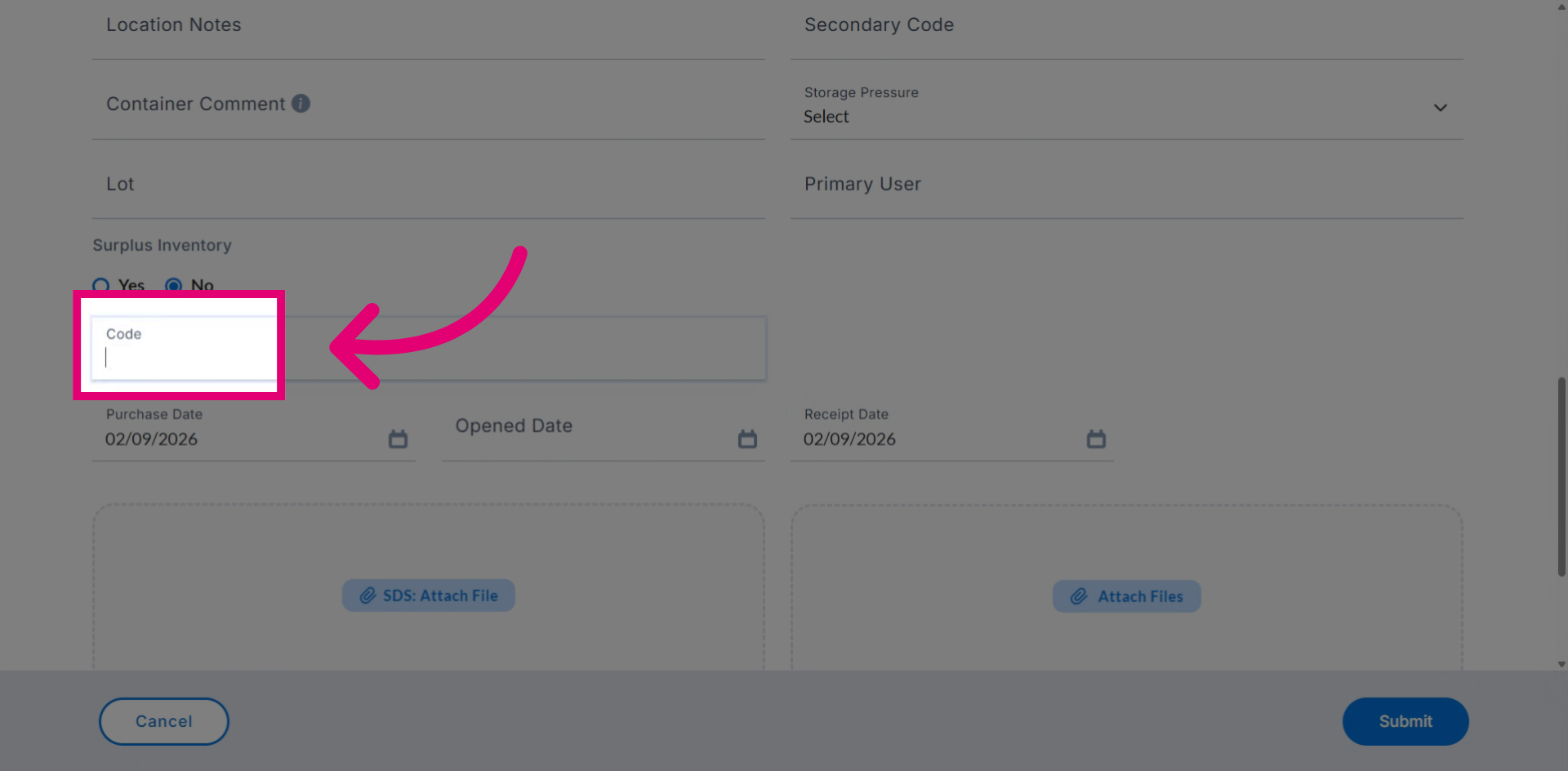
Enter the chemical code to uniquely identify the new created inventory record.
Verify all details of the new inventory record before submission.
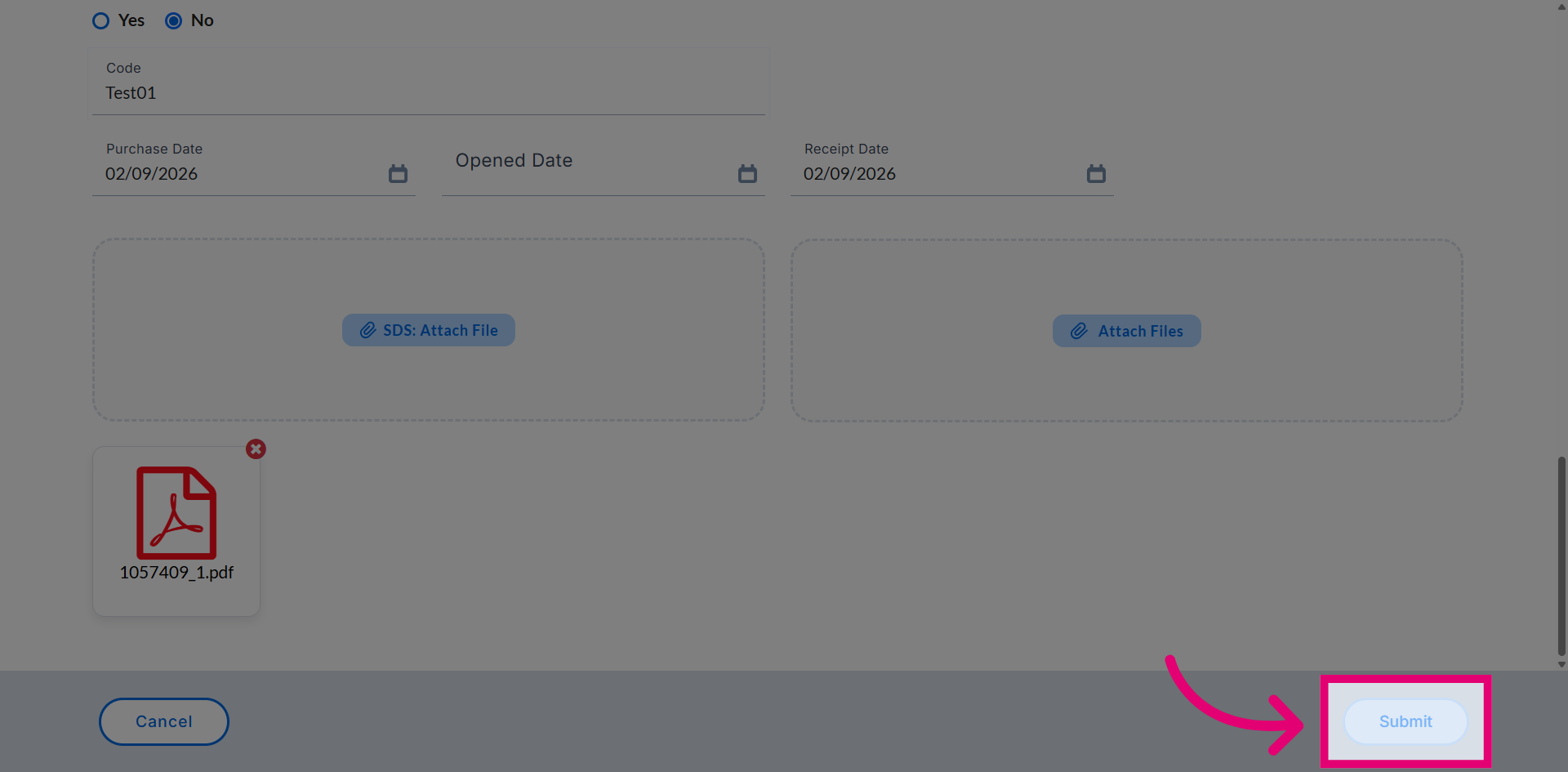
Click Submit to save the disposal information and replace it with the new inventory record.
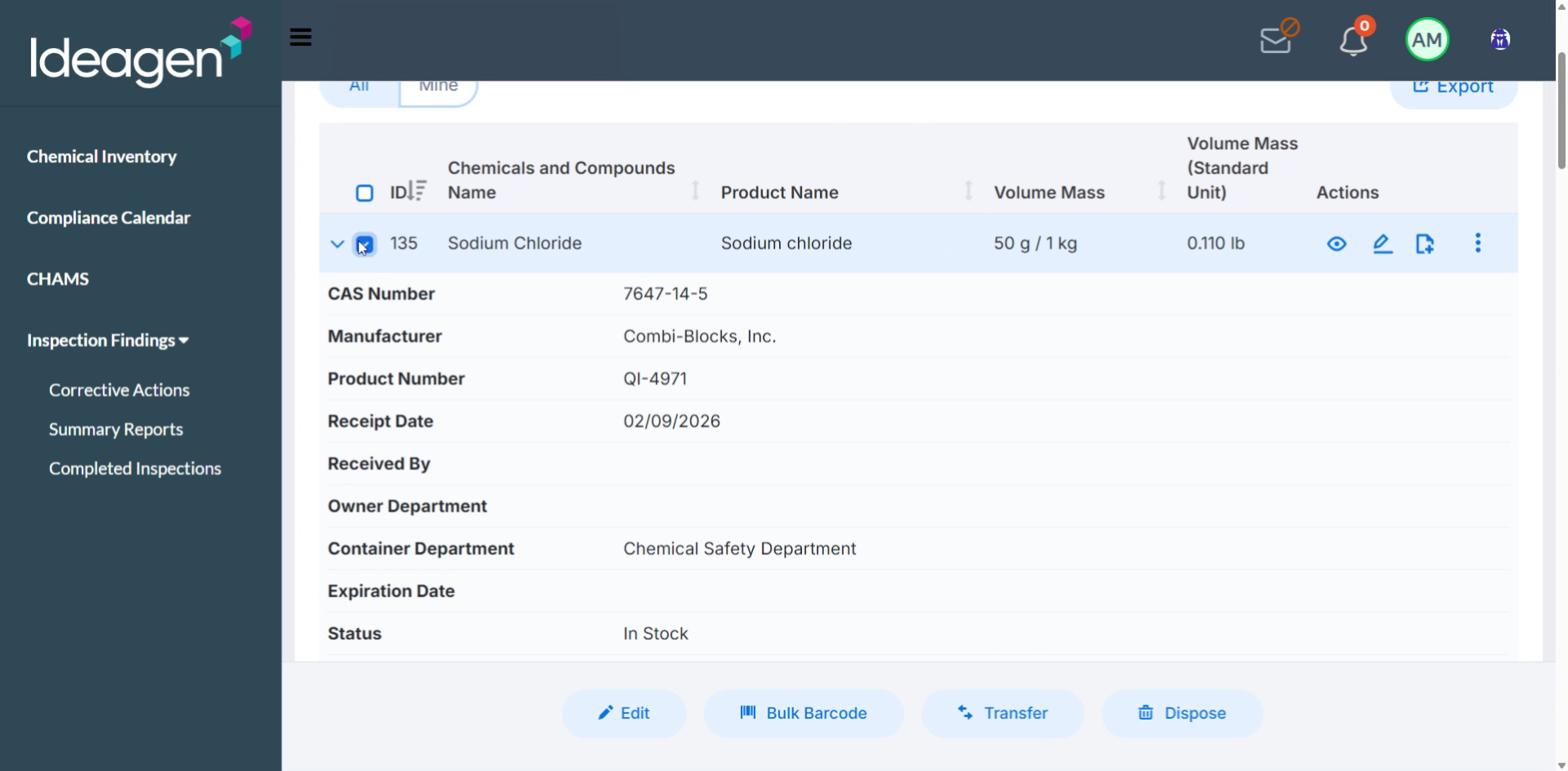
Review the Inventory page showing the newly replaced inventory, allowing you to review details including volume, code, and date.