New article
Recently updated
Sending email notifications from the inventory page

Who is this article for?
Users who need to send email notifications from the inventory page.
No special access or permissions are required.
This tutorial shows how email notifications are sent from the inventory page for a specific inventory item.
You will learn how to navigate to the chemical inventory, select recipients, compose messages, and send email notifications to inform stakeholders about inventory status or updates.
1. Sending Email Notifications from Chemical Inventory
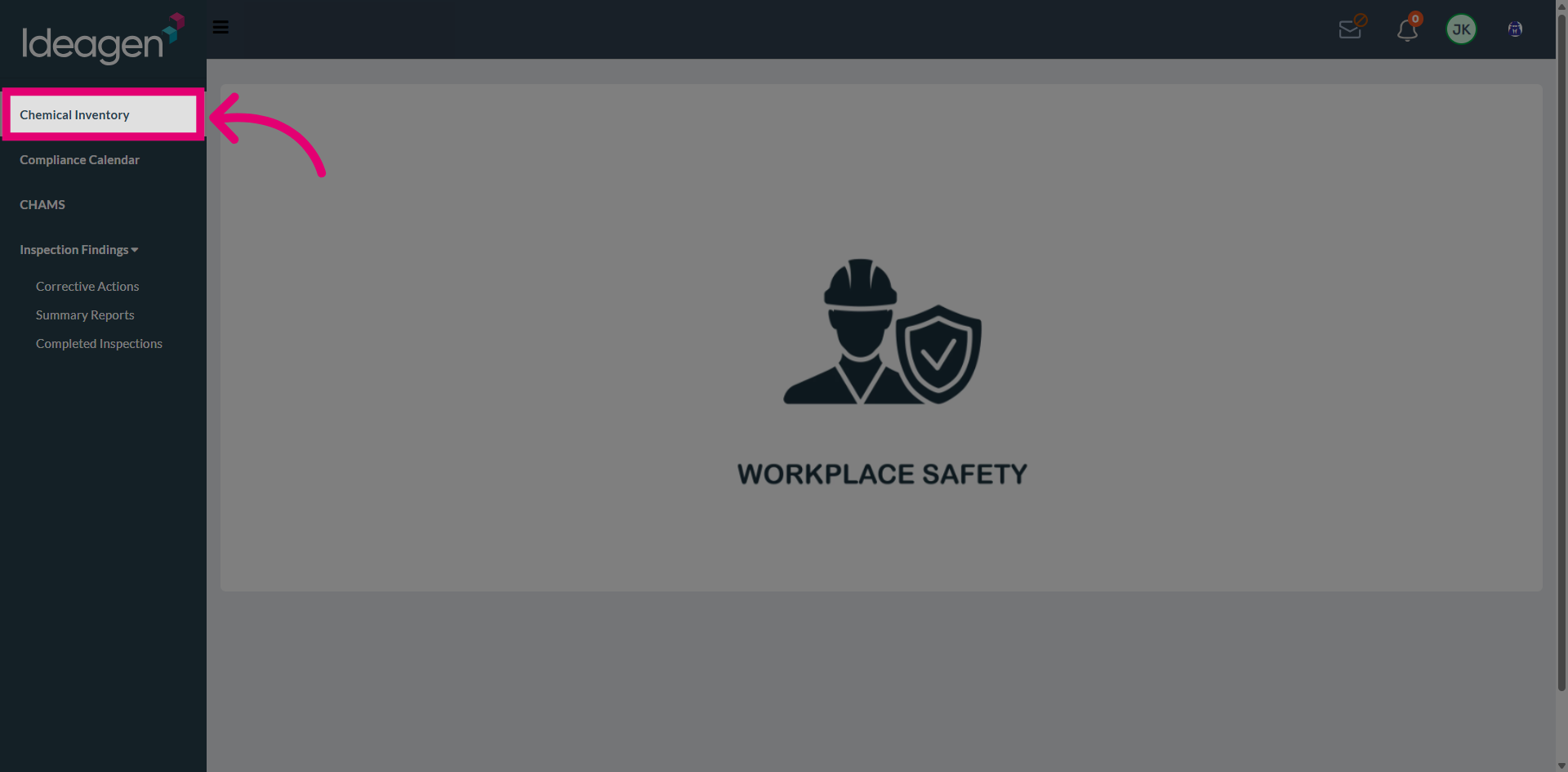
Navigate to Chemical Inventory to access inventory records.
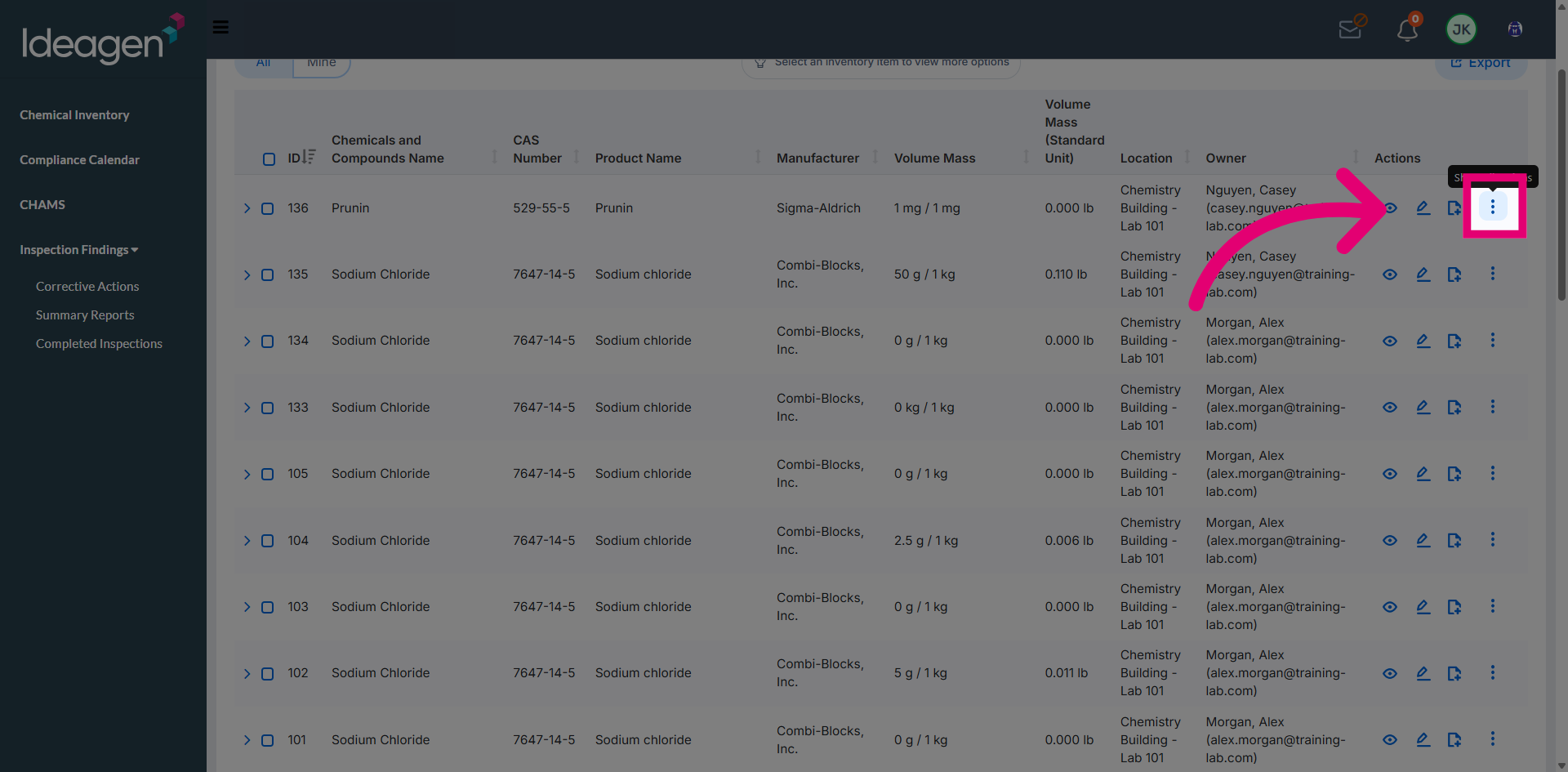
Select Show all Actions for the inventory record to view additional management options, including sending email notifications.
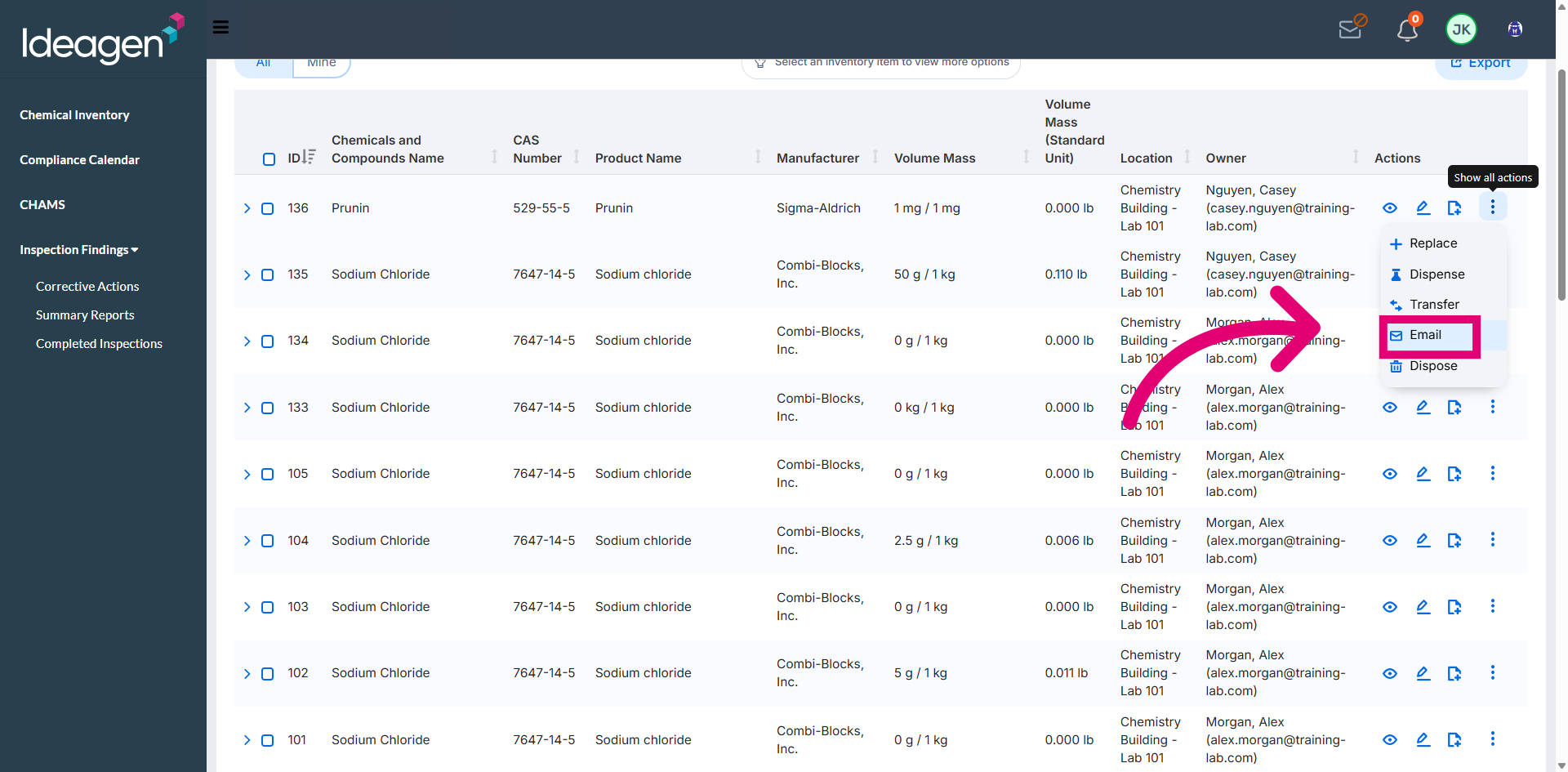
Select the Email option to send a notification to the recipient for the selected inventory record.
Select the desired recipient from the search results to add them to the email notification list.
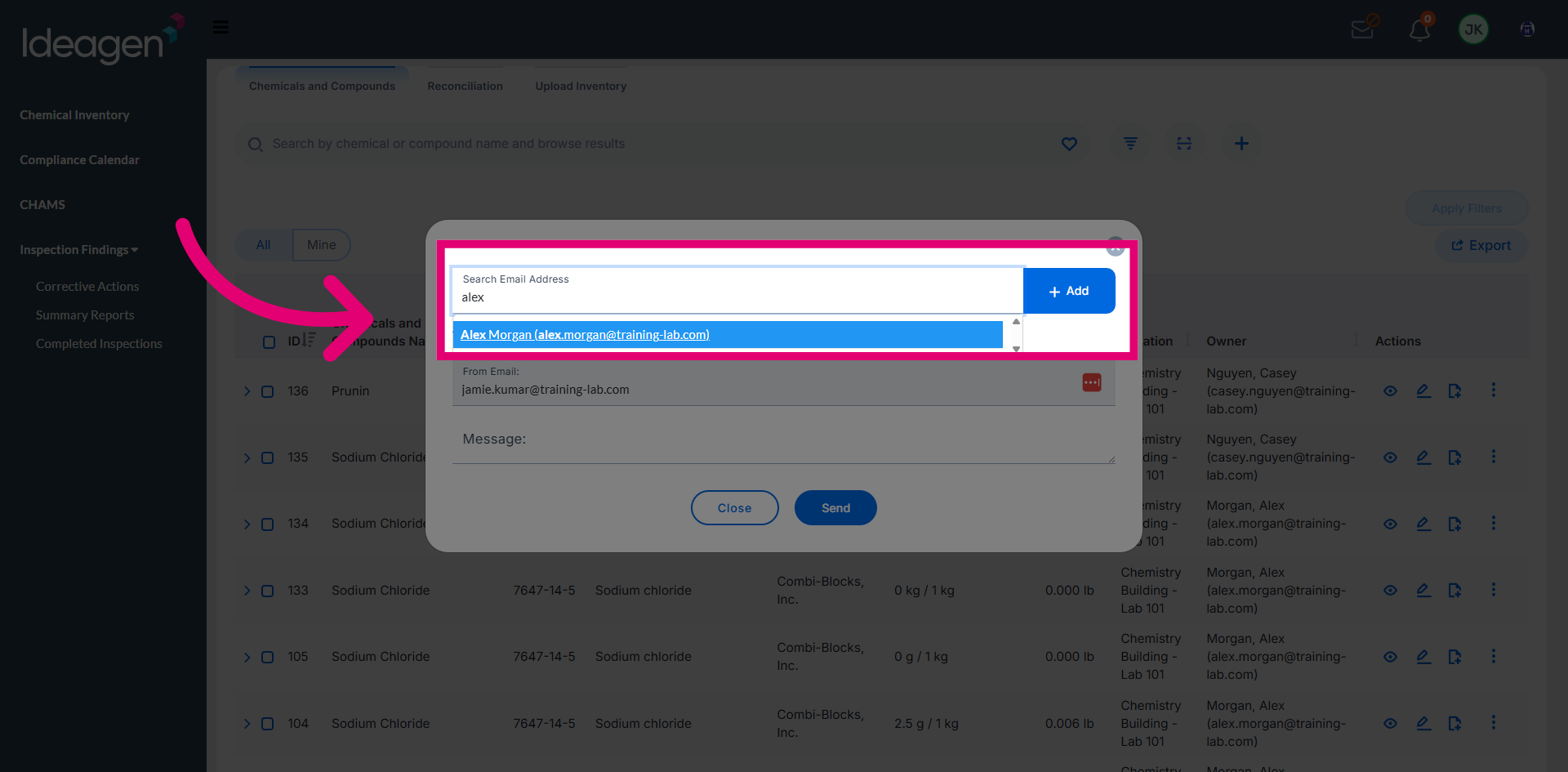
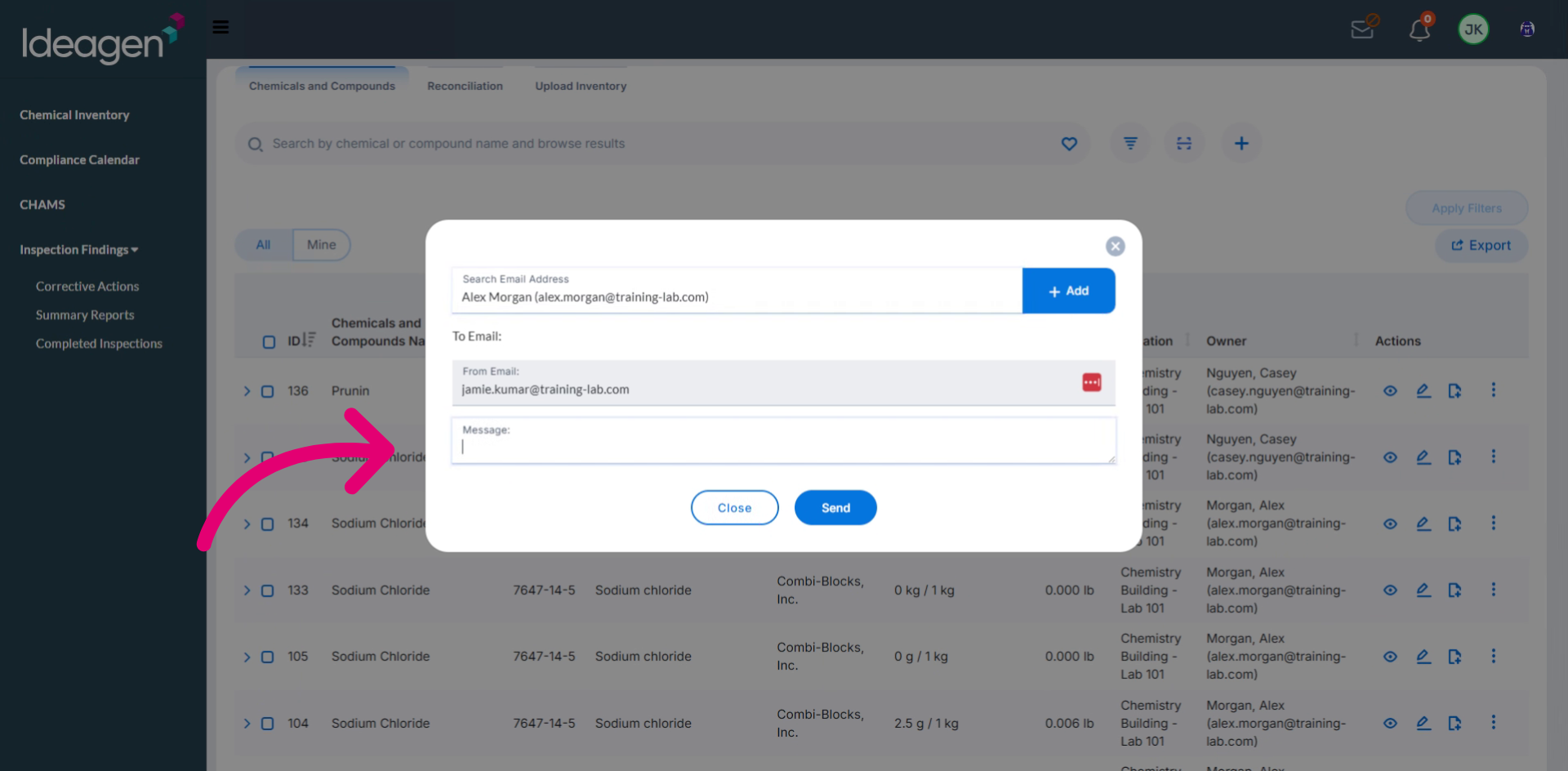
Enter your message content to inform recipients about the chemical inventory status or updates.
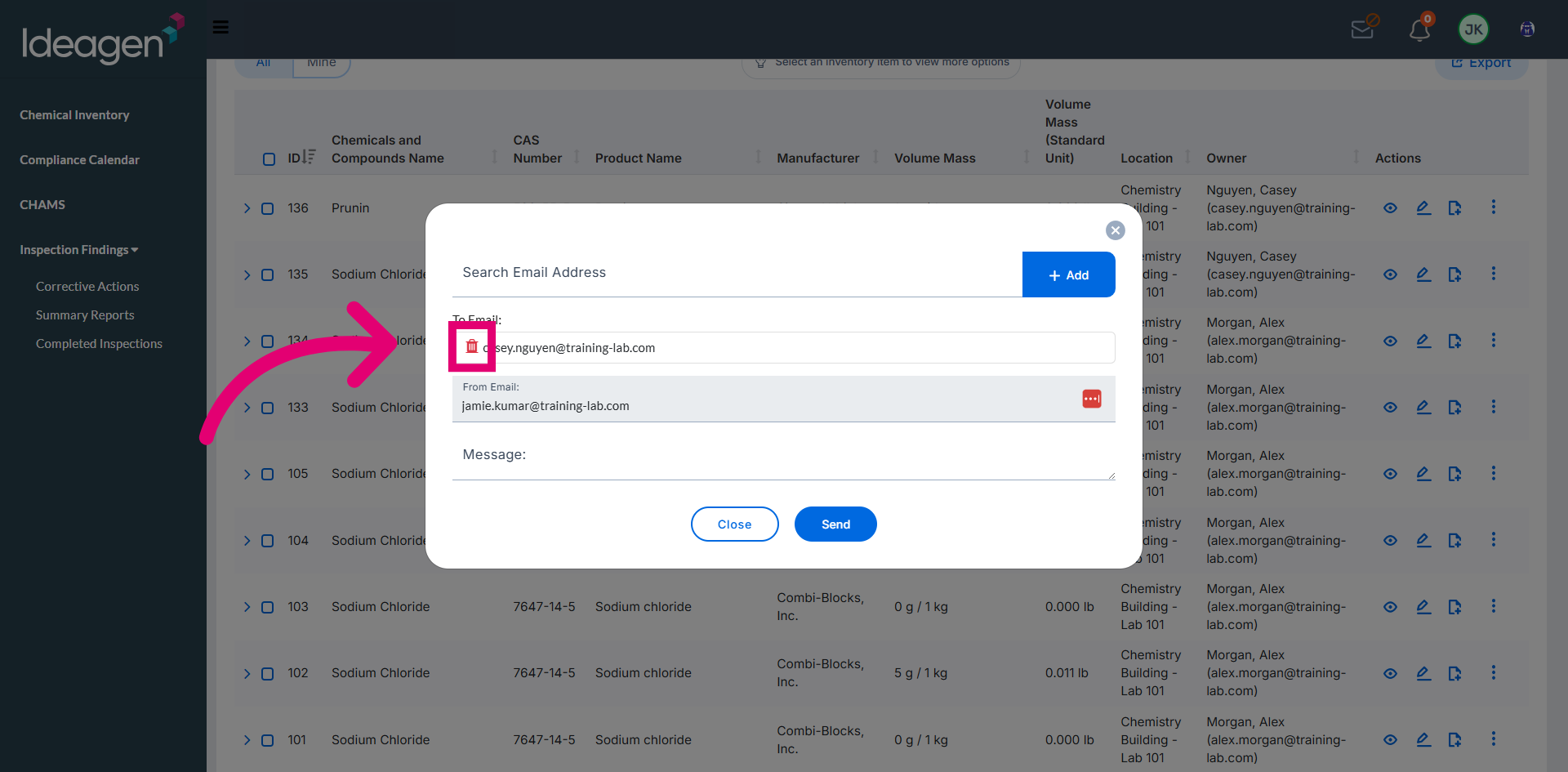
Select the Delete option to remove recipients from the notification list.
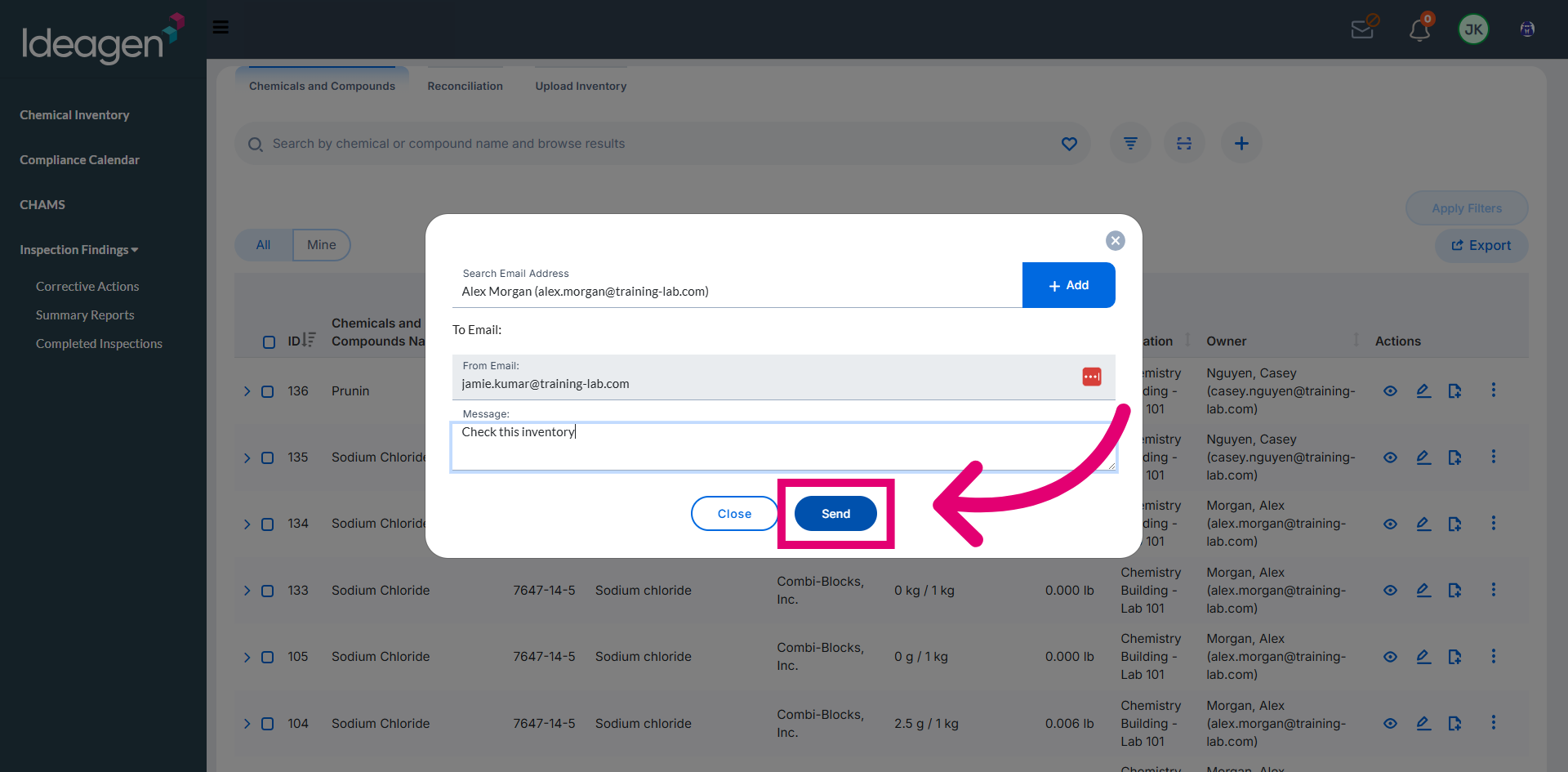
Select Send to dispatch the composed email notification to the selected recipients.
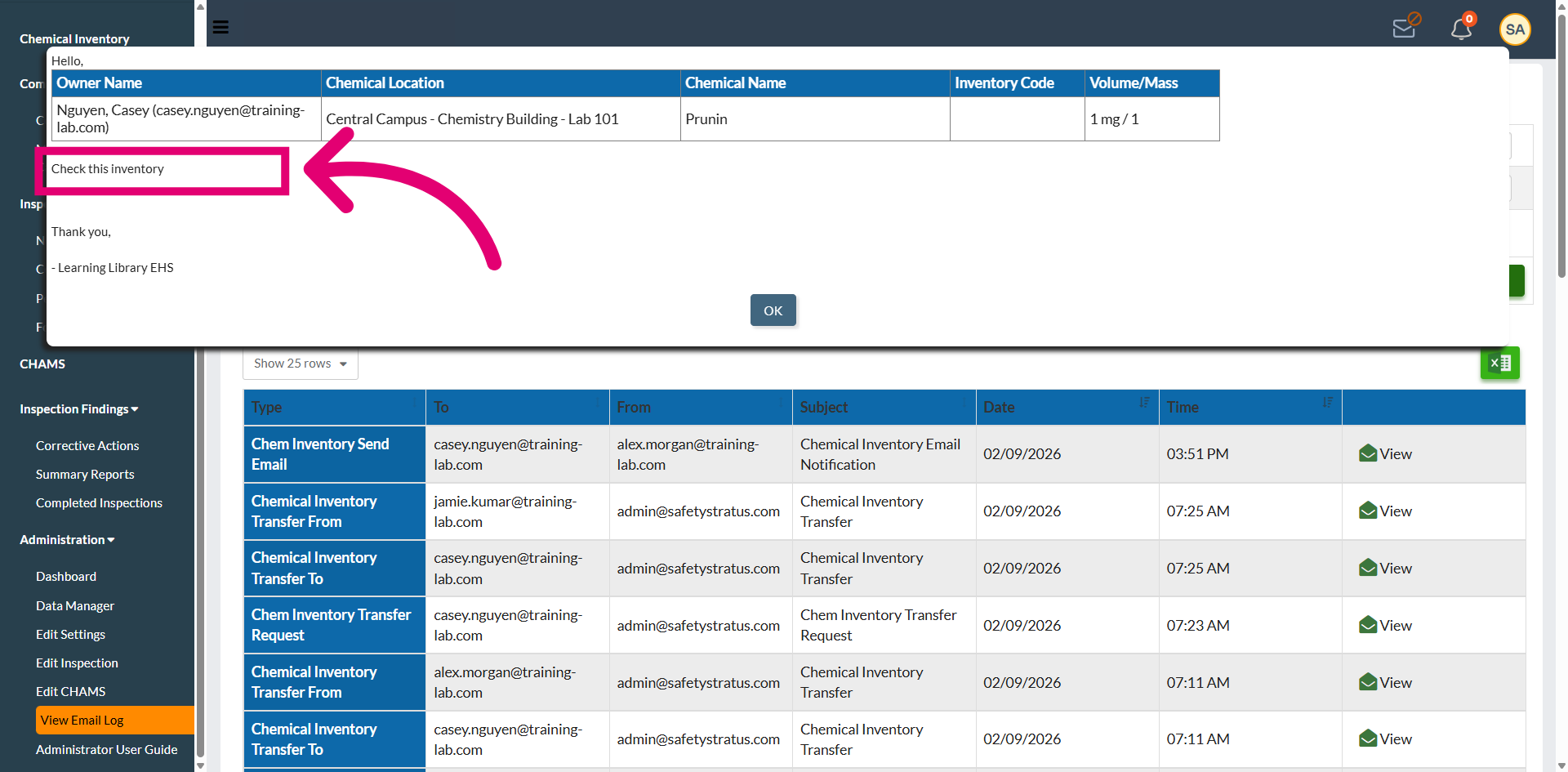
An email notification is delivered to the recipient for review and tracking. The message includes the owner name, location, chemical details, and the comment added during notification.