New article
Recently updated
Deactivating an inspection template

Who is this article for?
Administrators who want to learn to deactivate an inspection template.
Administrator permissions are required.
This article explains how to make an inspection template inactive.
You will learn the necessary steps to update and save the template status to inactive effectively.
1. Deactivating an inspection template
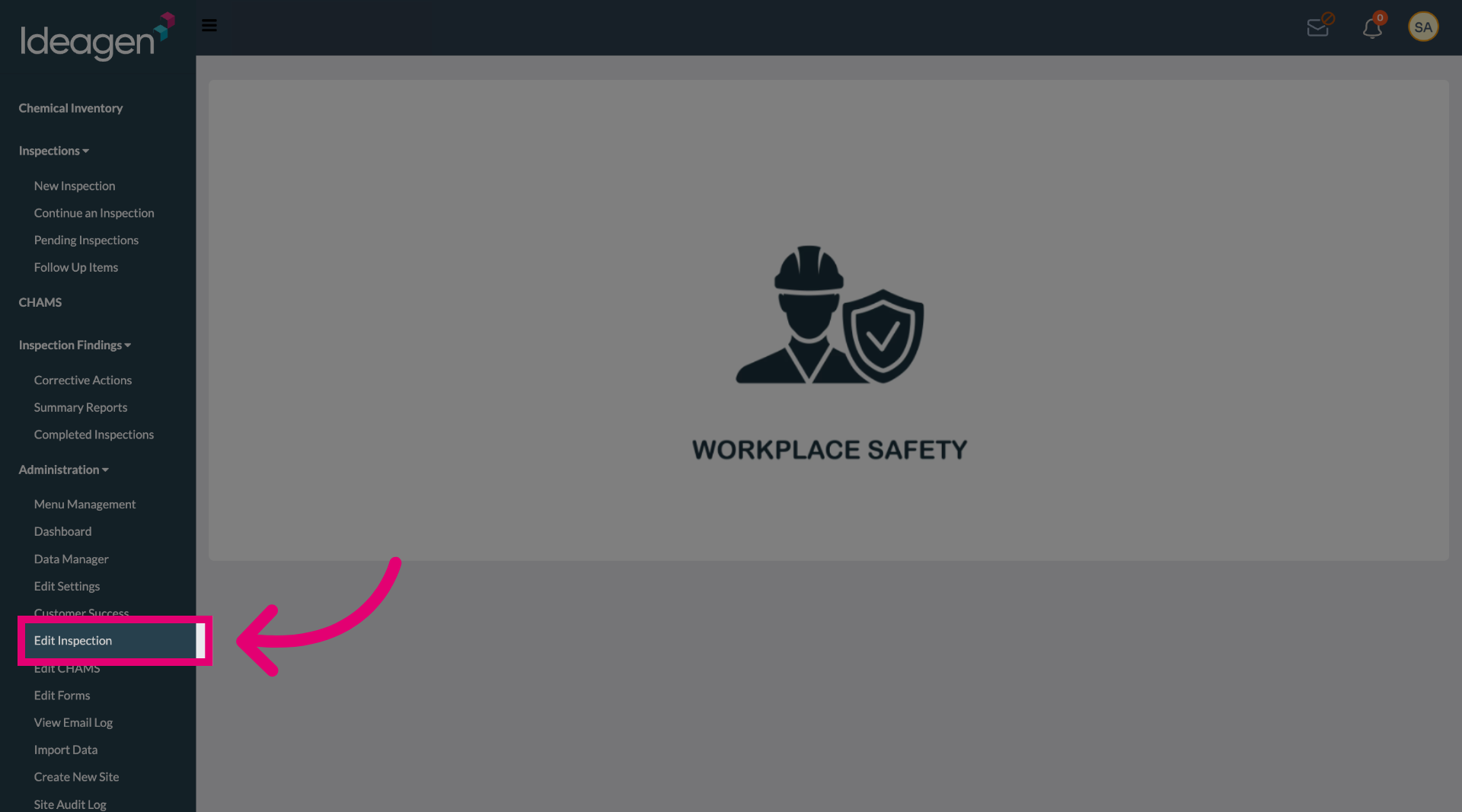
Select the Edit Inspection option to begin modifying the inspection template.
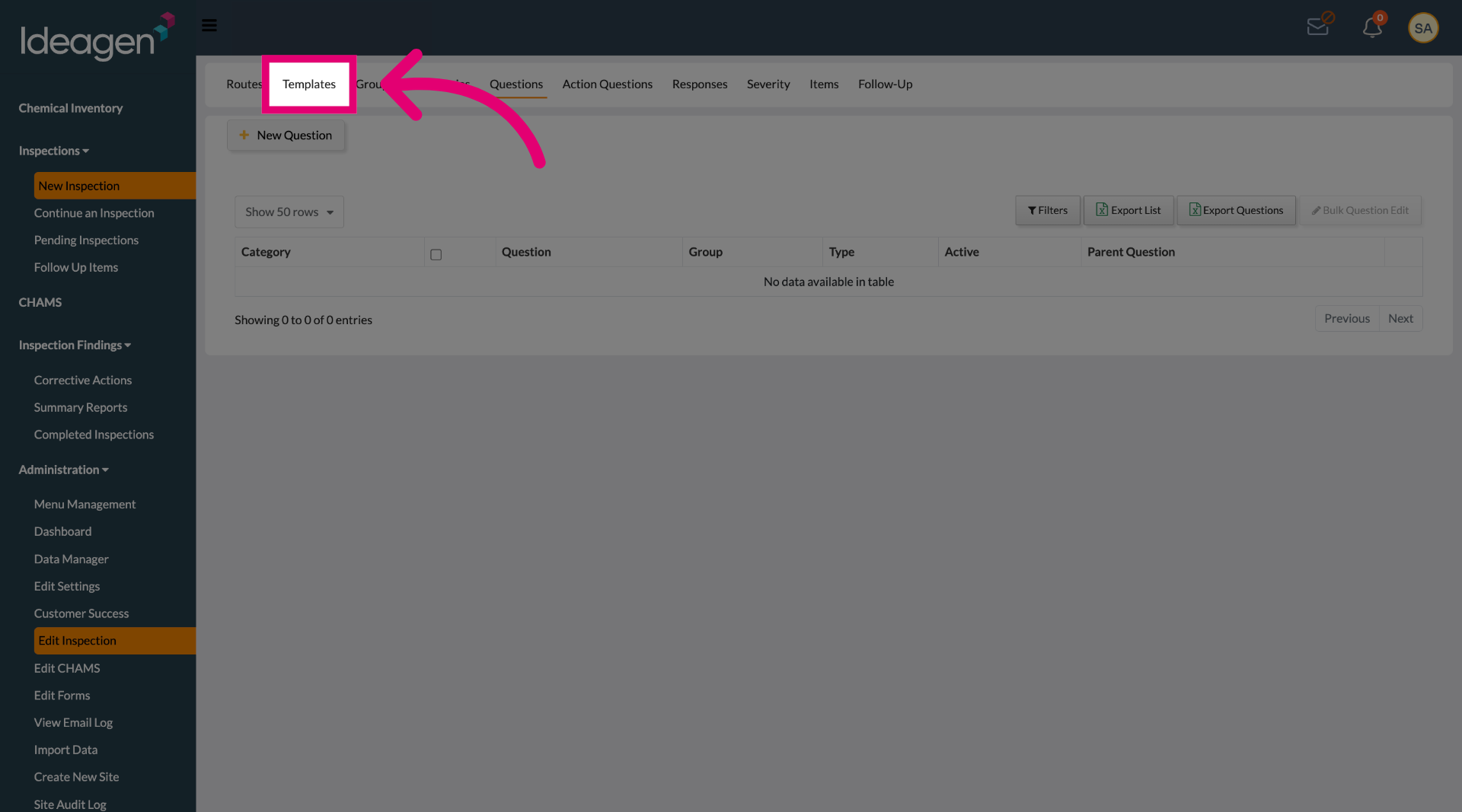
Select the Templates tab to access the list of available inspection templates.
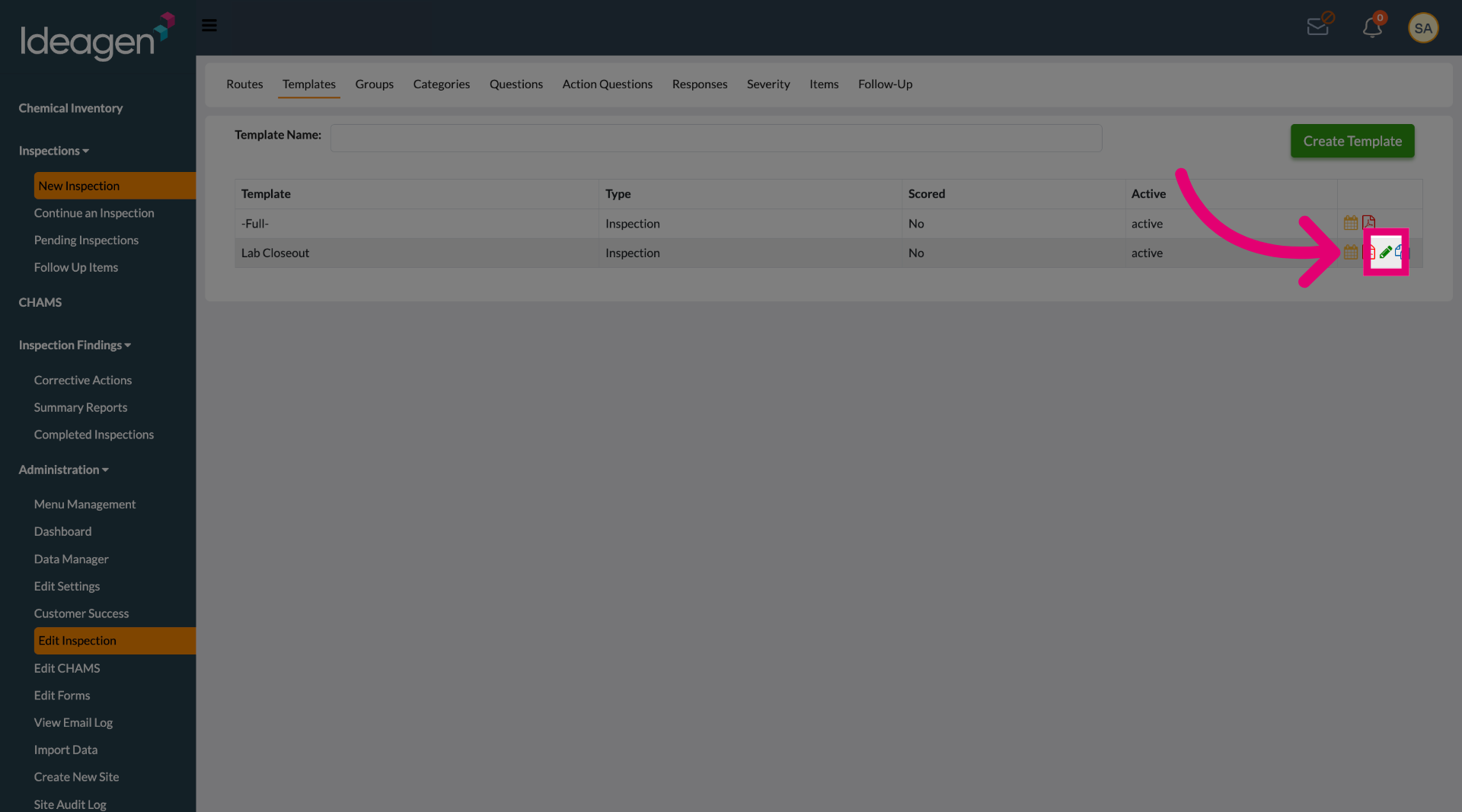
Click the pencil icon to open the options for the specific inspection template you want to modify.
Click the Active status toggle to change the template's current activation state.
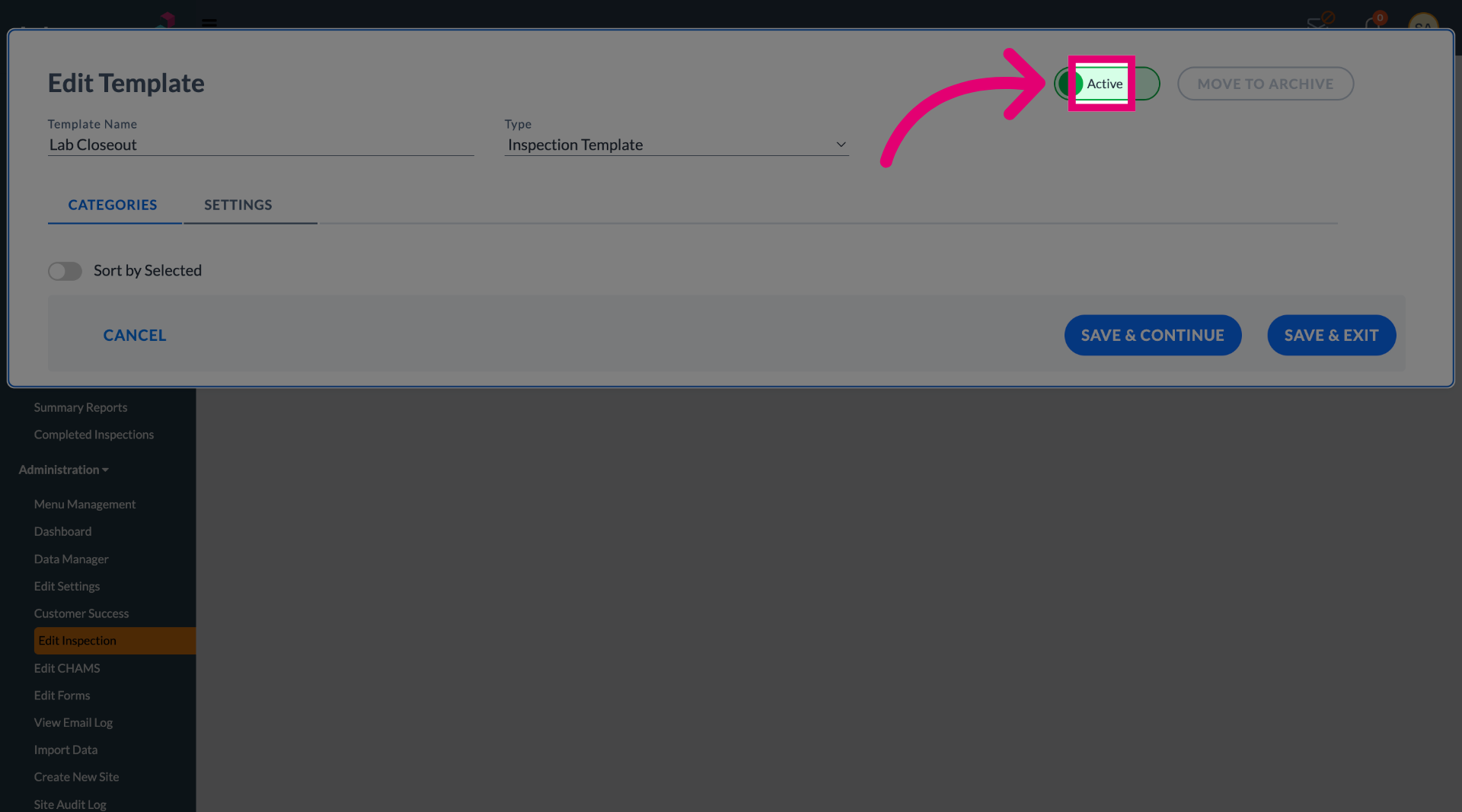
Change the status from active to inactive by adjusting the toggle accordingly.
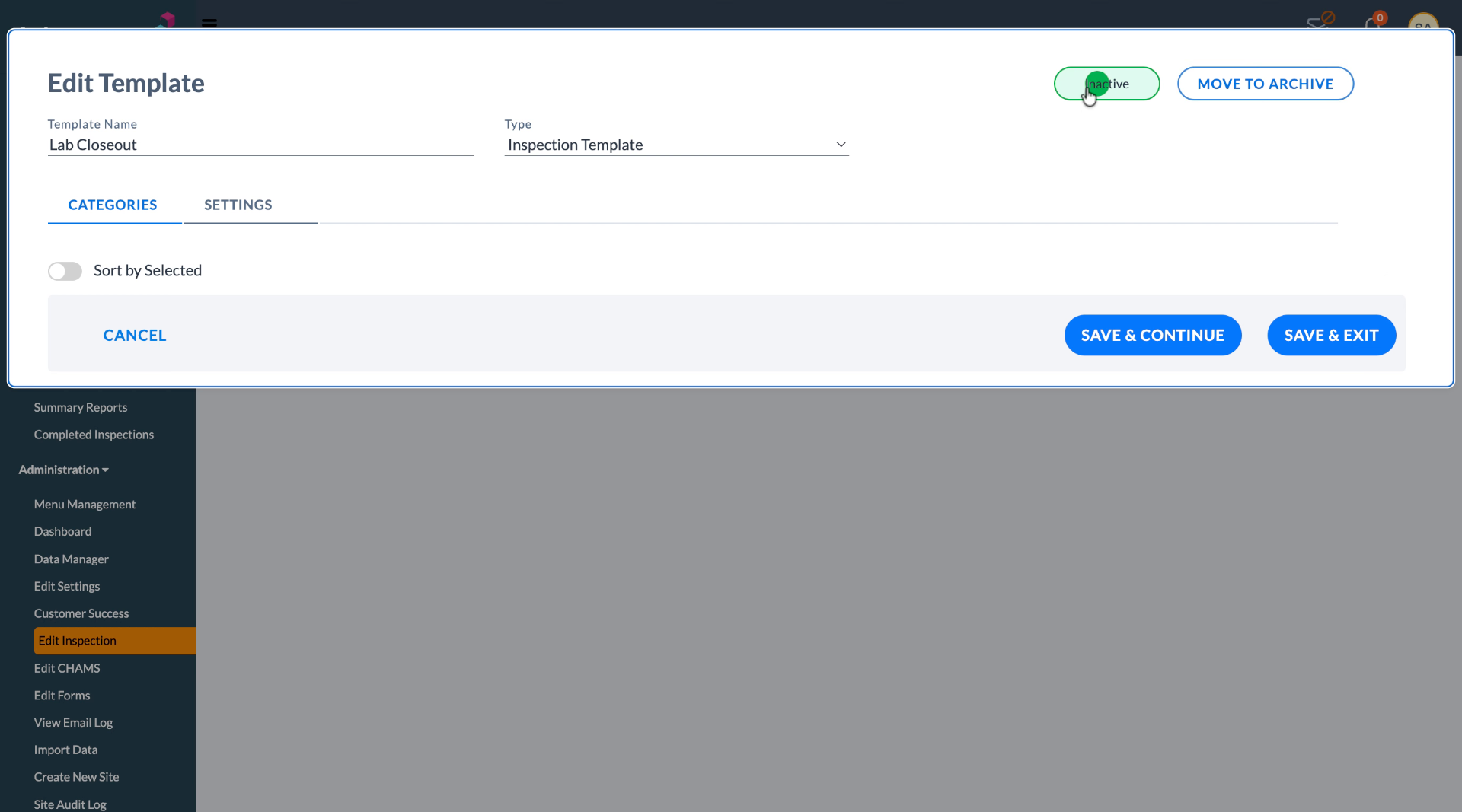
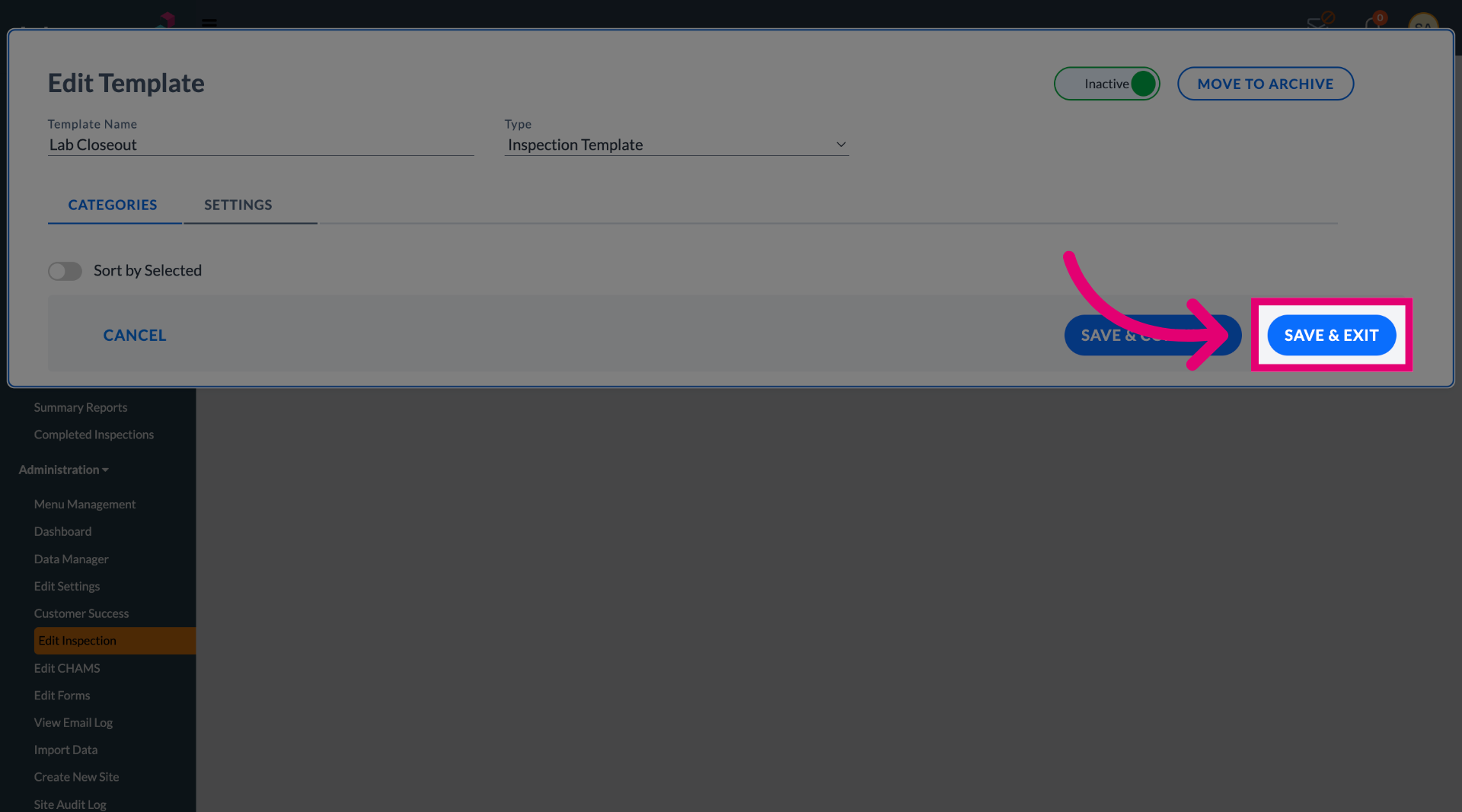
Click the SAVE & EXIT button to save your changes and exit the editing interface.