New article
Recently updated
Setting an inspection schedule for a space

Who is this article for?
Users who need to set an inspection schedule for an individual room.
Administrator role is required.
This article explains how to set an inspection schedule for a specific room.
You will learn how to navigate to the room settings, configure inspection templates, set frequencies, and assign responsible users.
1. Setting Up an Inspection Schedule
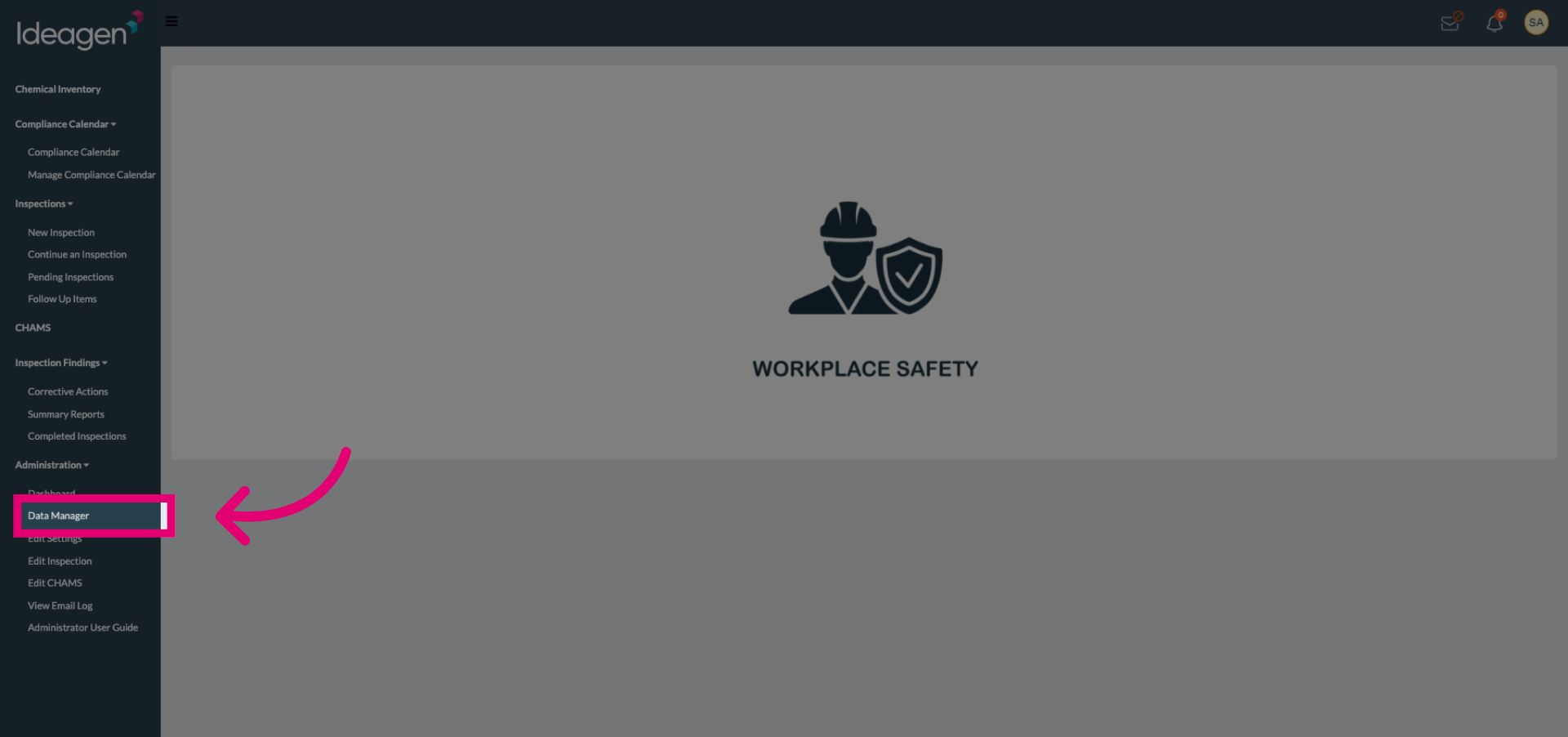
Click the Data Manager to access the main management interface.
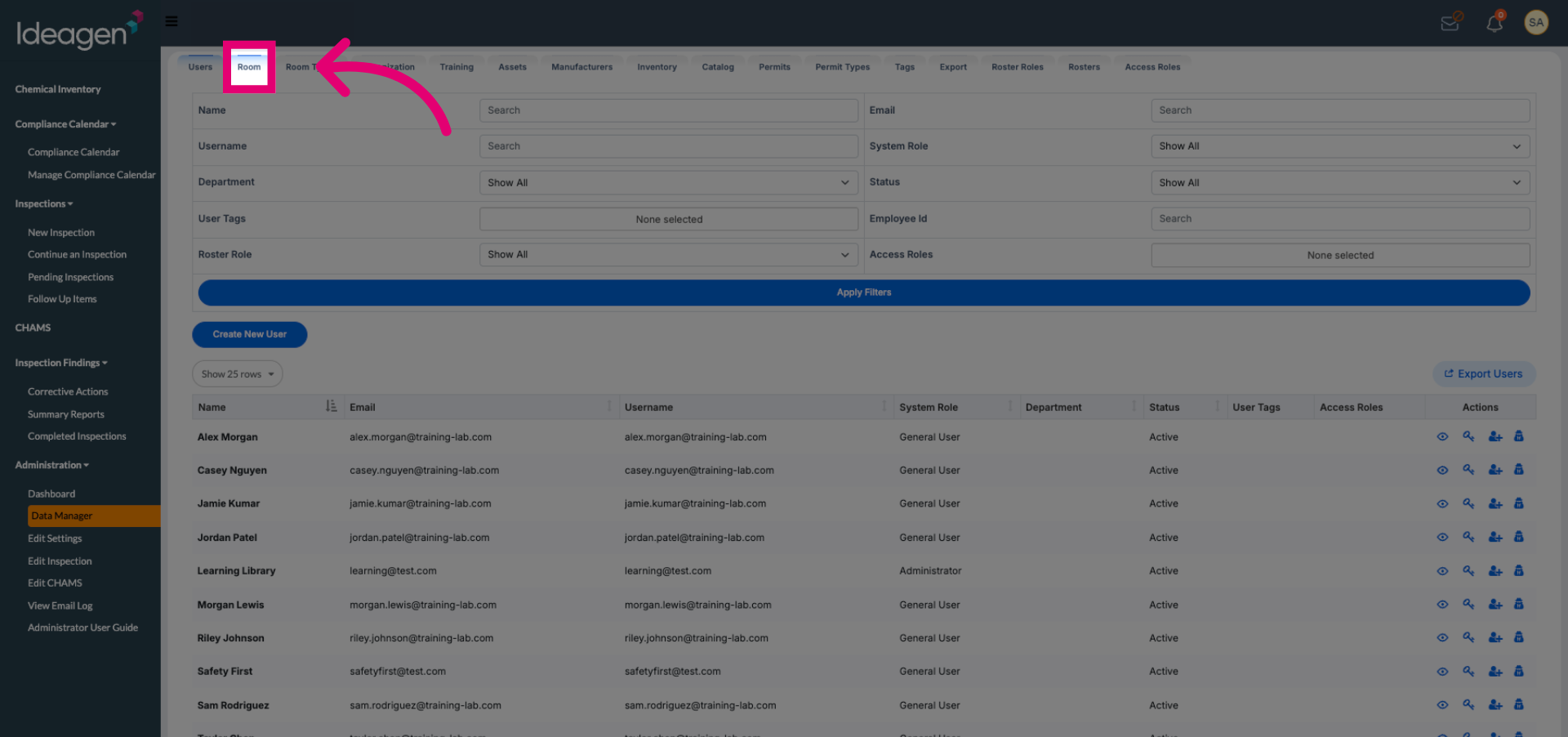
Select the Room option to view and manage individual room settings.
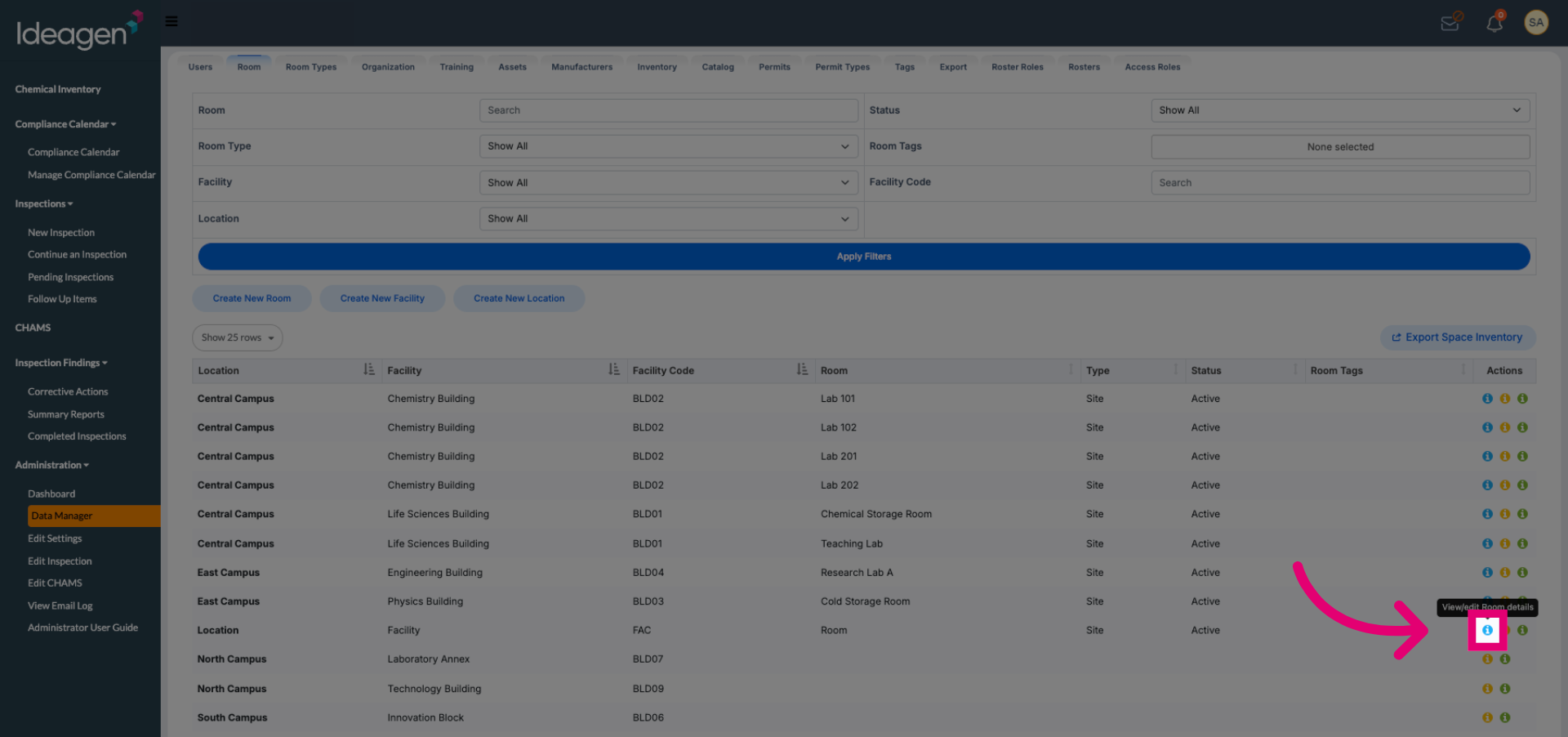
Click the view to open the details for the selected room.
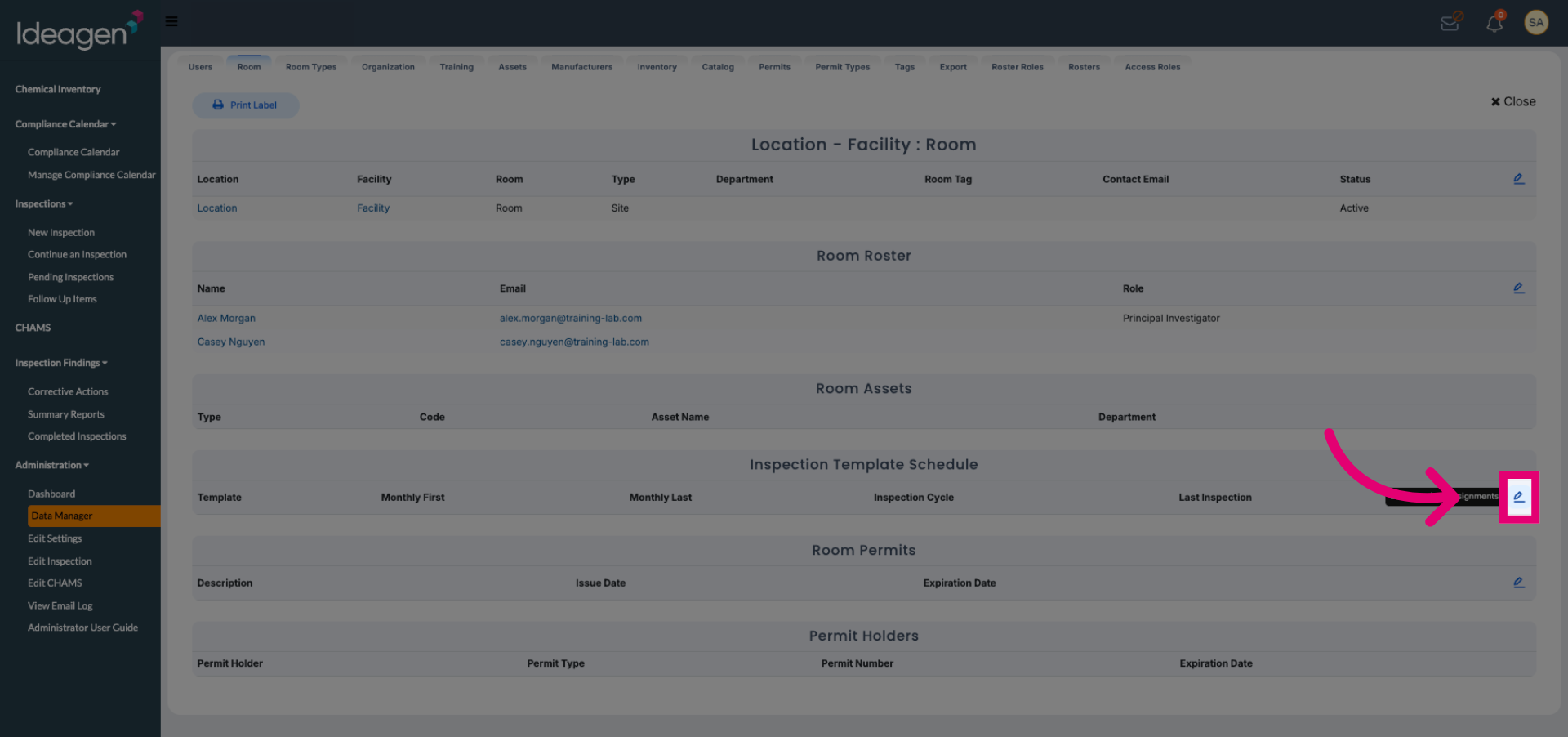
Select the pencil icon for Inspection Template Schedule.
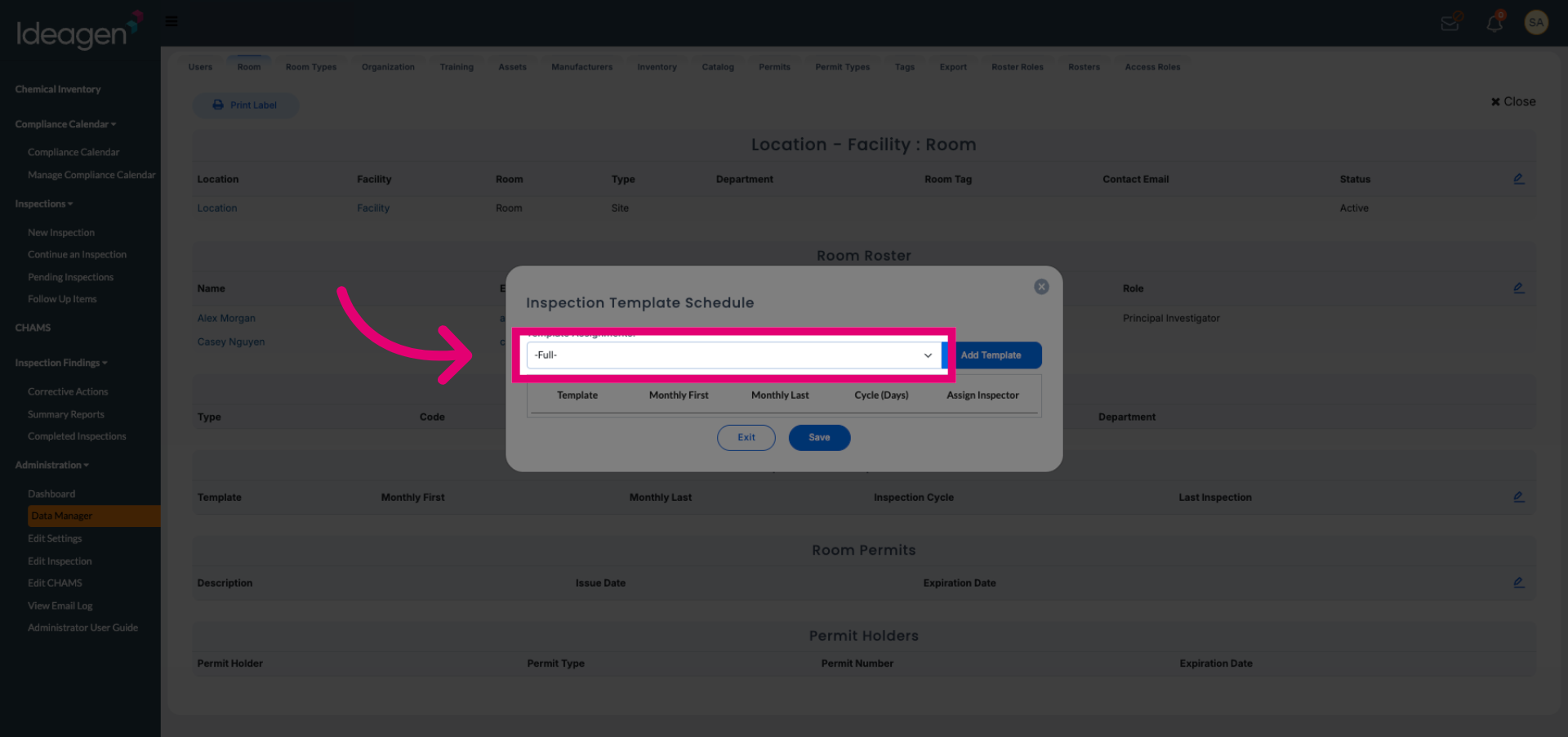
Click the template dropdown menu to view available inspection templates.
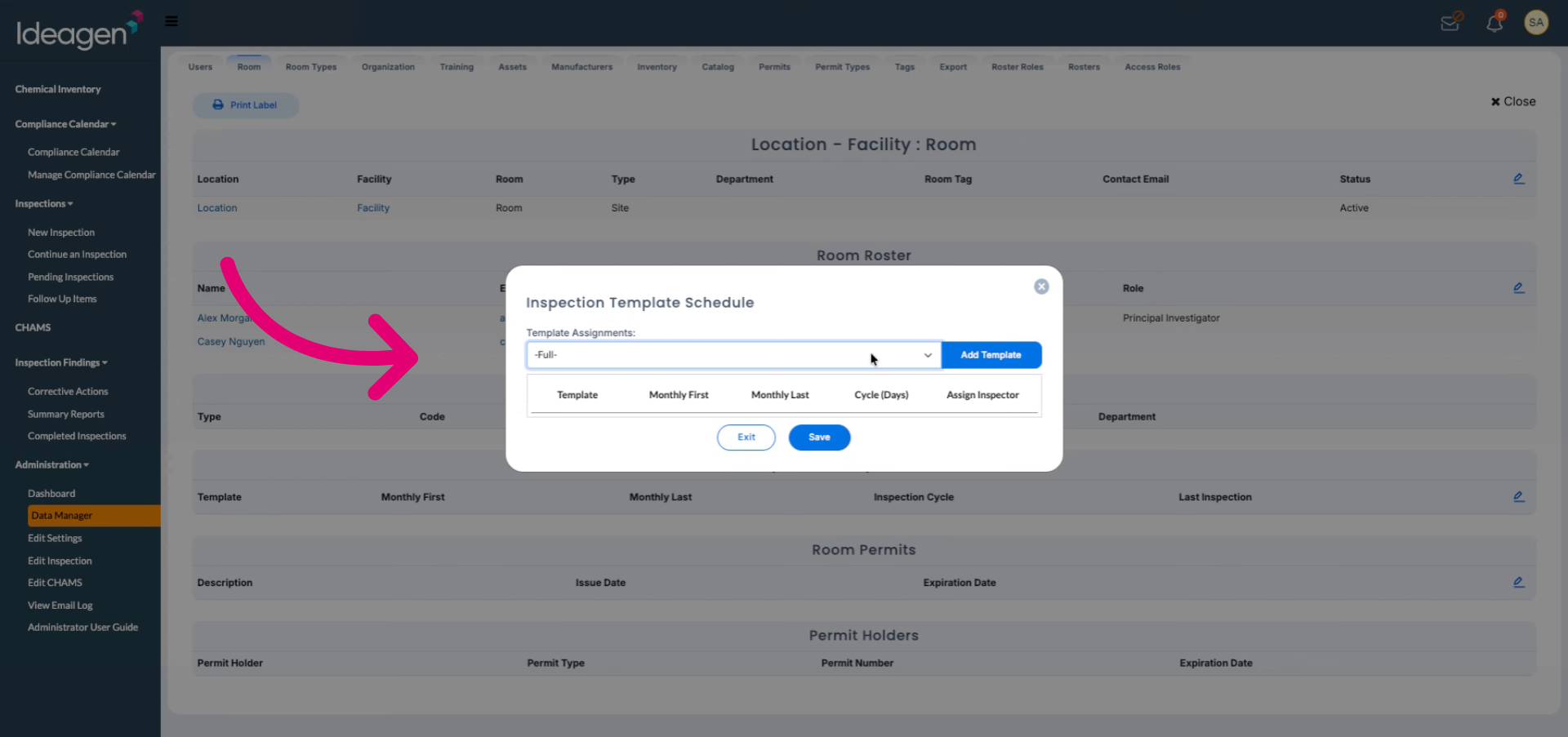
Select the appropriate inspection template from the dropdown list.
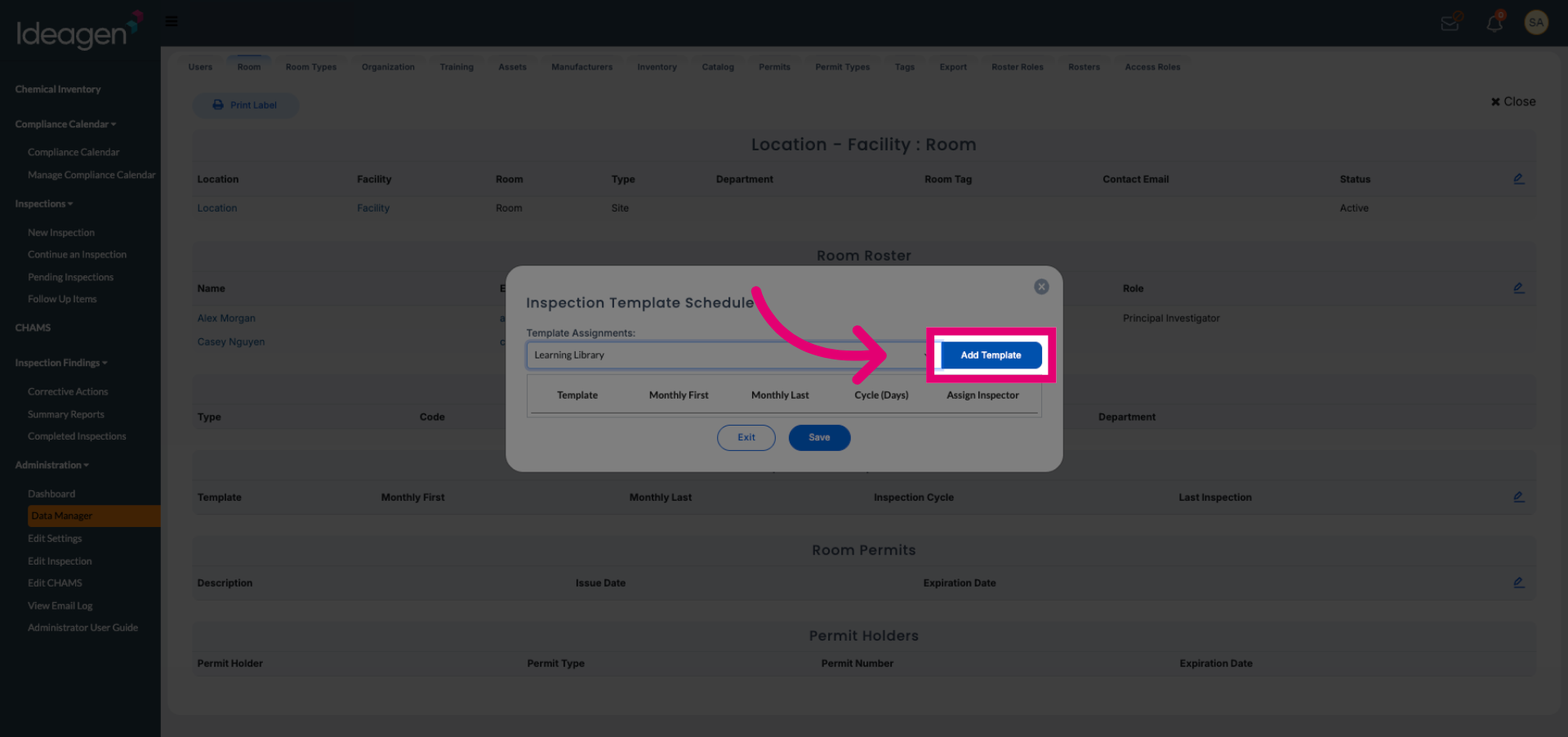
Click Add Template to create a new inspection schedule template.
Choose the inspection frequency Monthly First option.
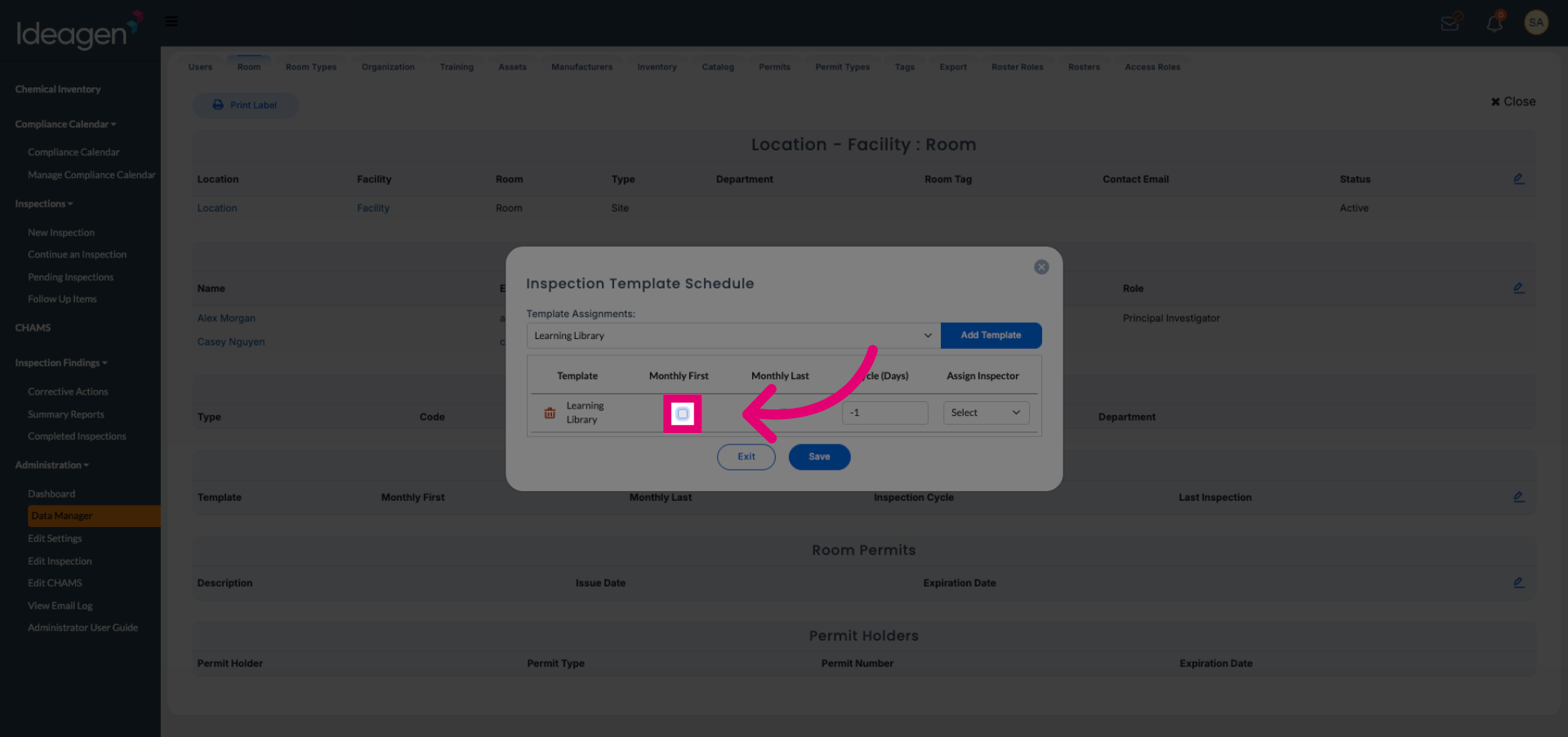
Alternatively, select Monthly Last as the inspection frequency.
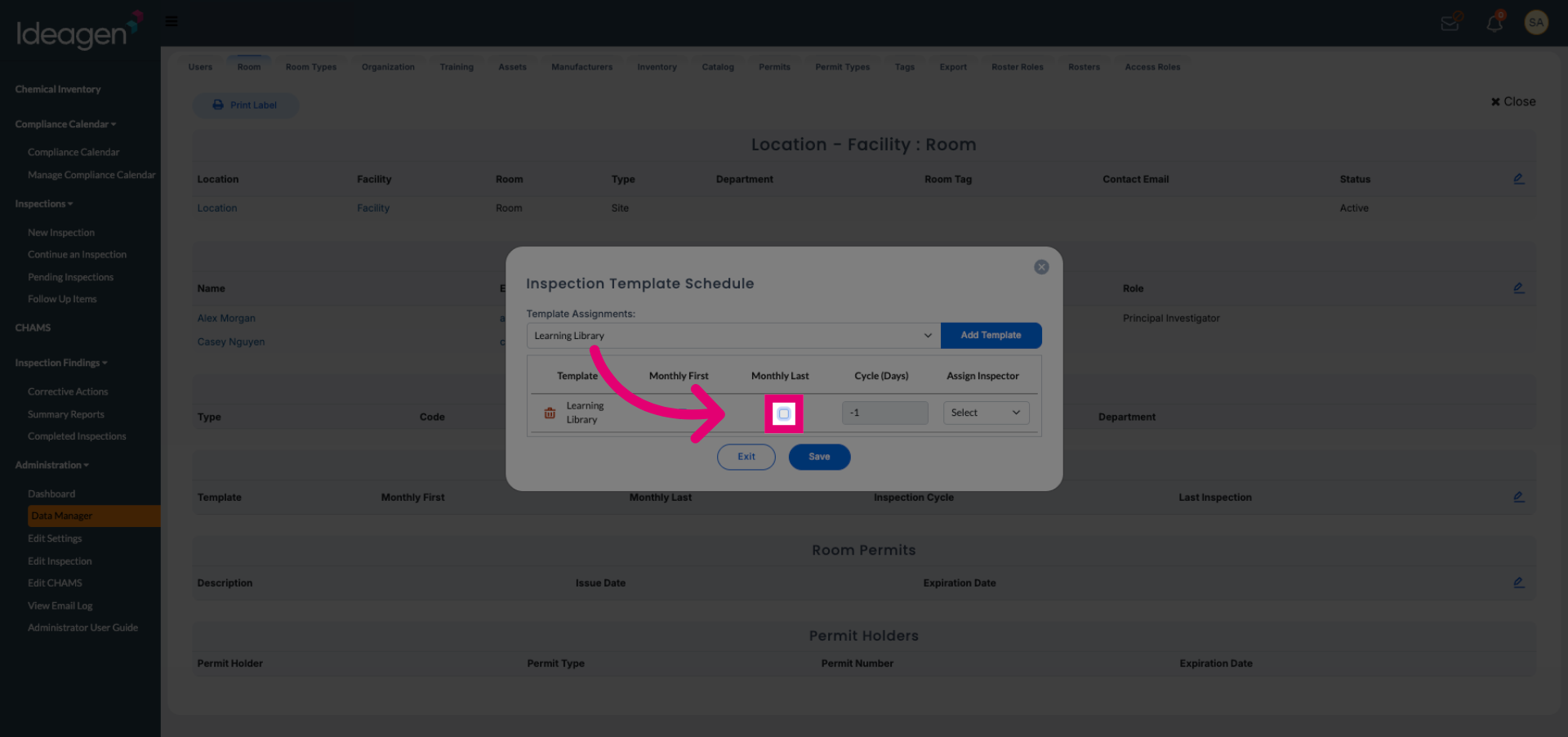
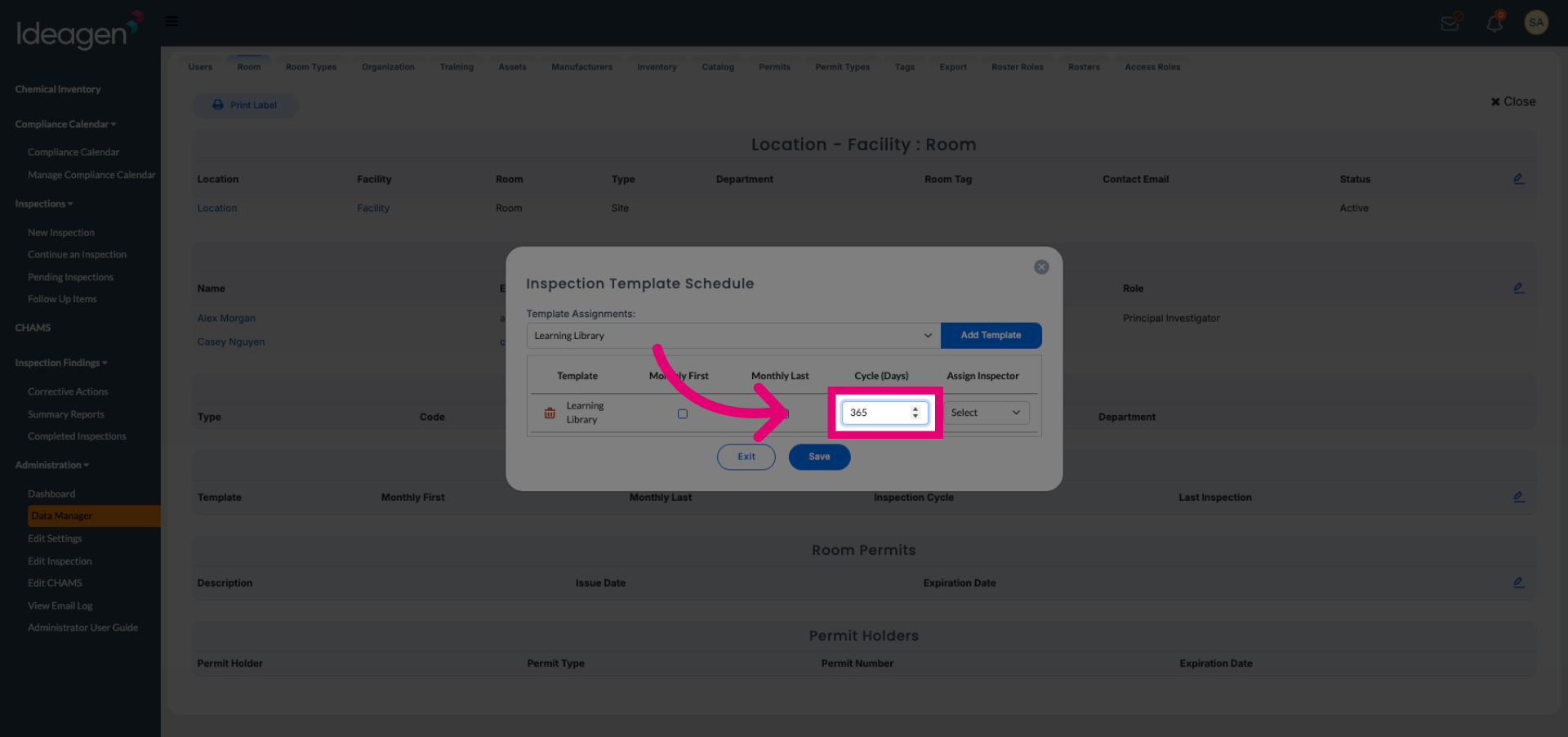
Or enter the inspection frequency in days to define how often inspections occur.
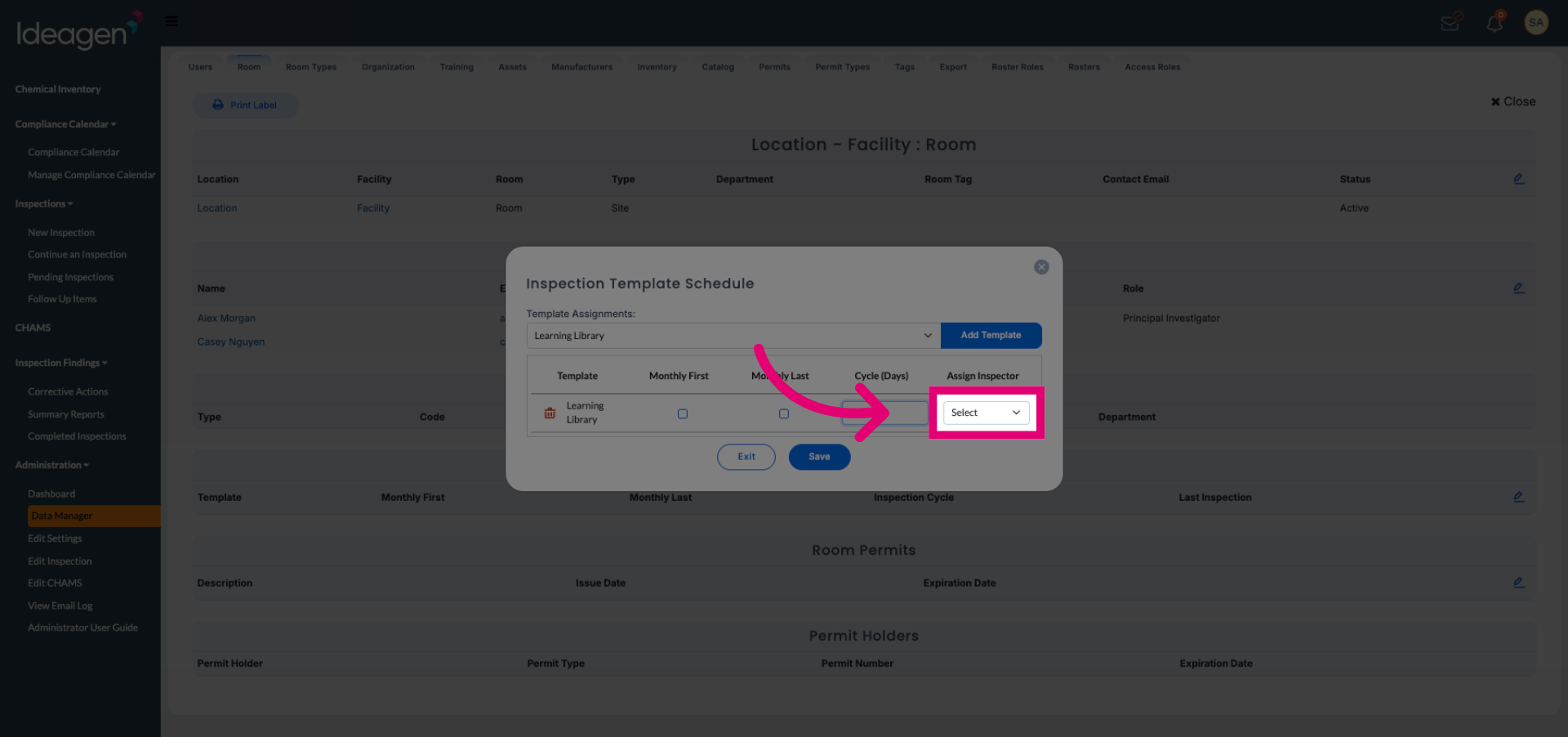
Choose the user responsible for conducting the inspections (optional).
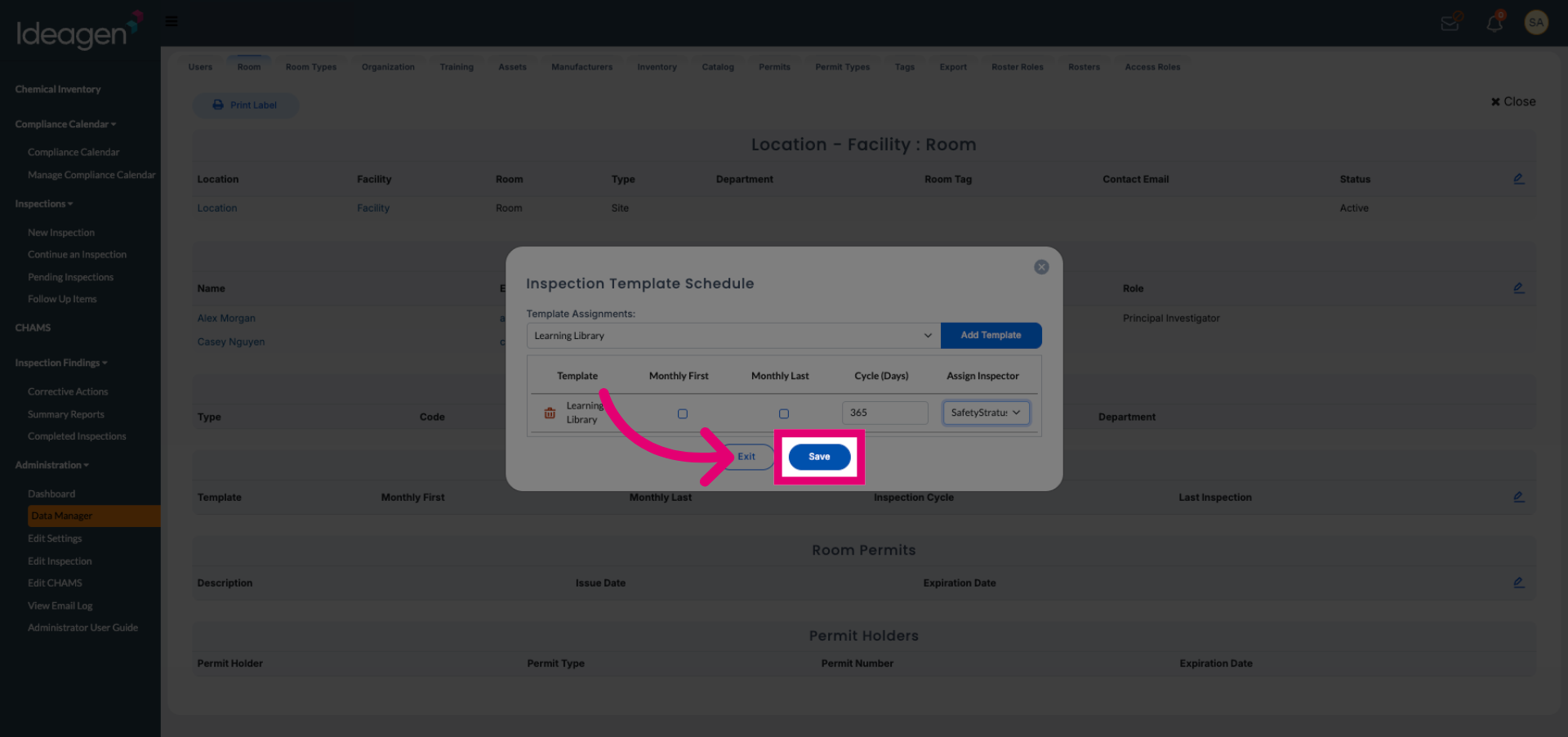
Click Save to store the configured inspection schedule template.
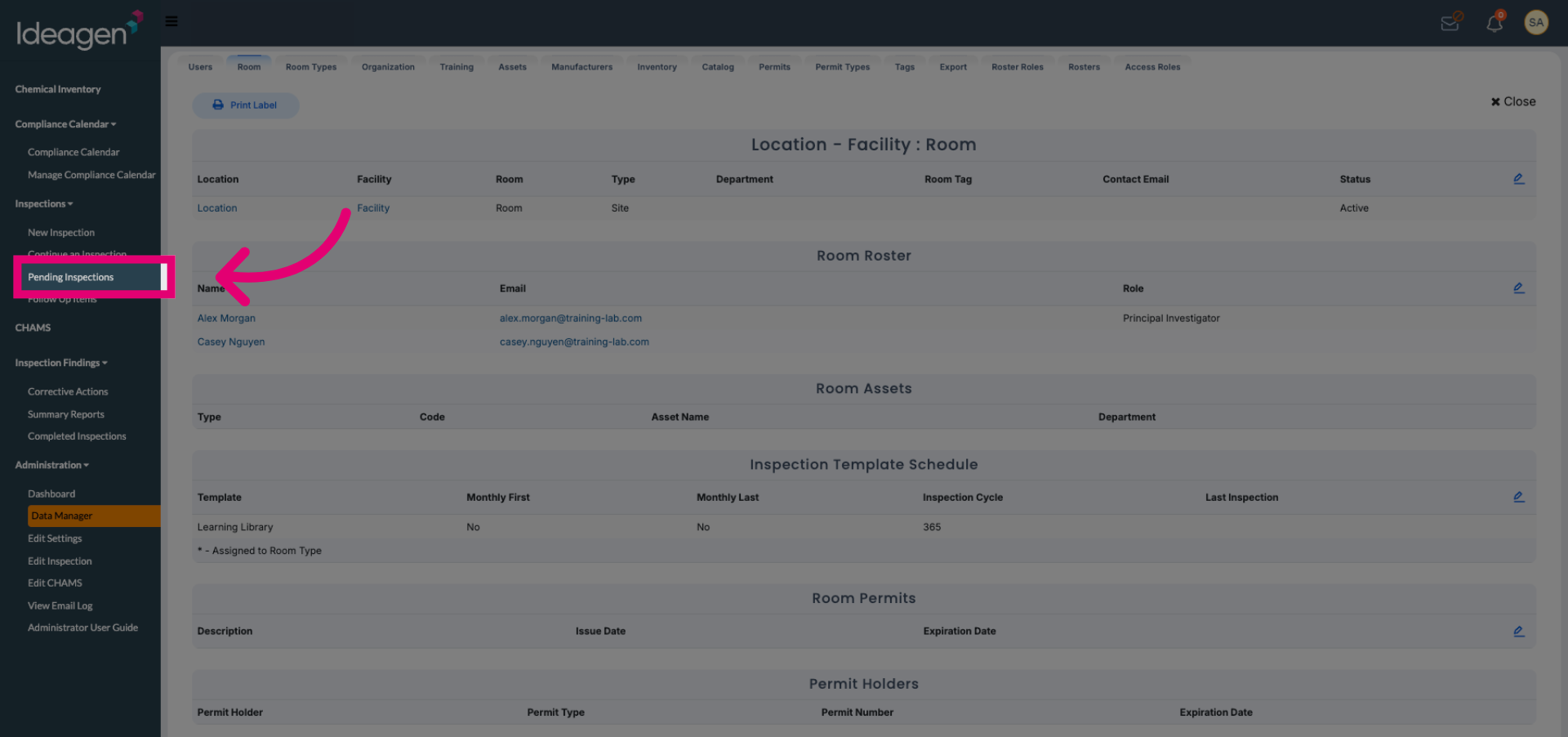
Click Pending Inspections to review scheduled inspections awaiting completion.