New article
Recently updated
Using saved queries and favourite filters

Who is this article for?
Users who need to use saved queries and favourite filters.
No special access or permissions are required.
This tutorial explains how to save queries and create favorite filters within the Chemical Inventory module.
You will learn how to configure, save, and manage custom filters to streamline your chemical inventory searches.
1. Saving and Managing Queries in Chemical Inventory
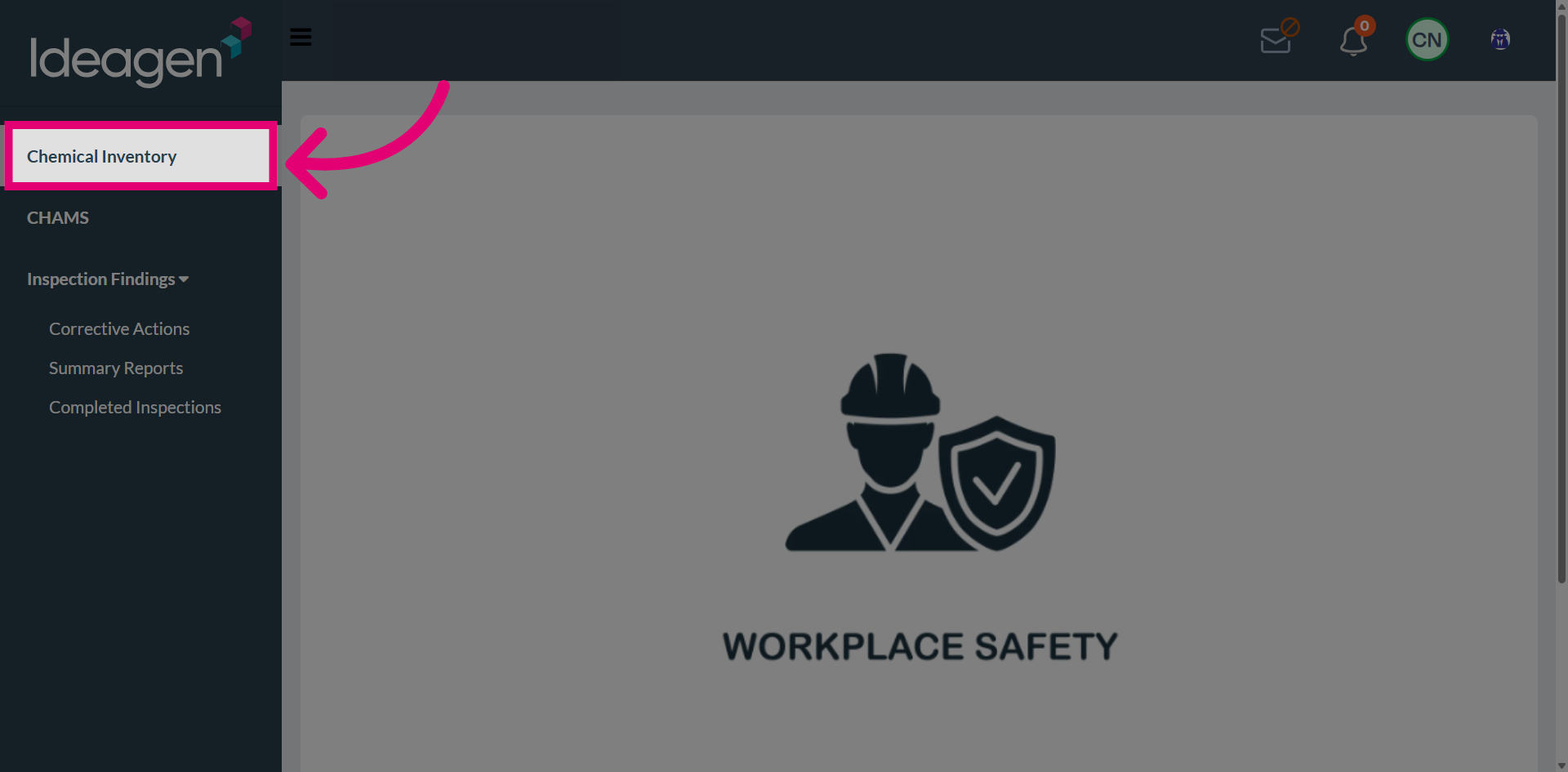
Navigate to Chemical Inventory from the main navigation to view and manage your chemical records.
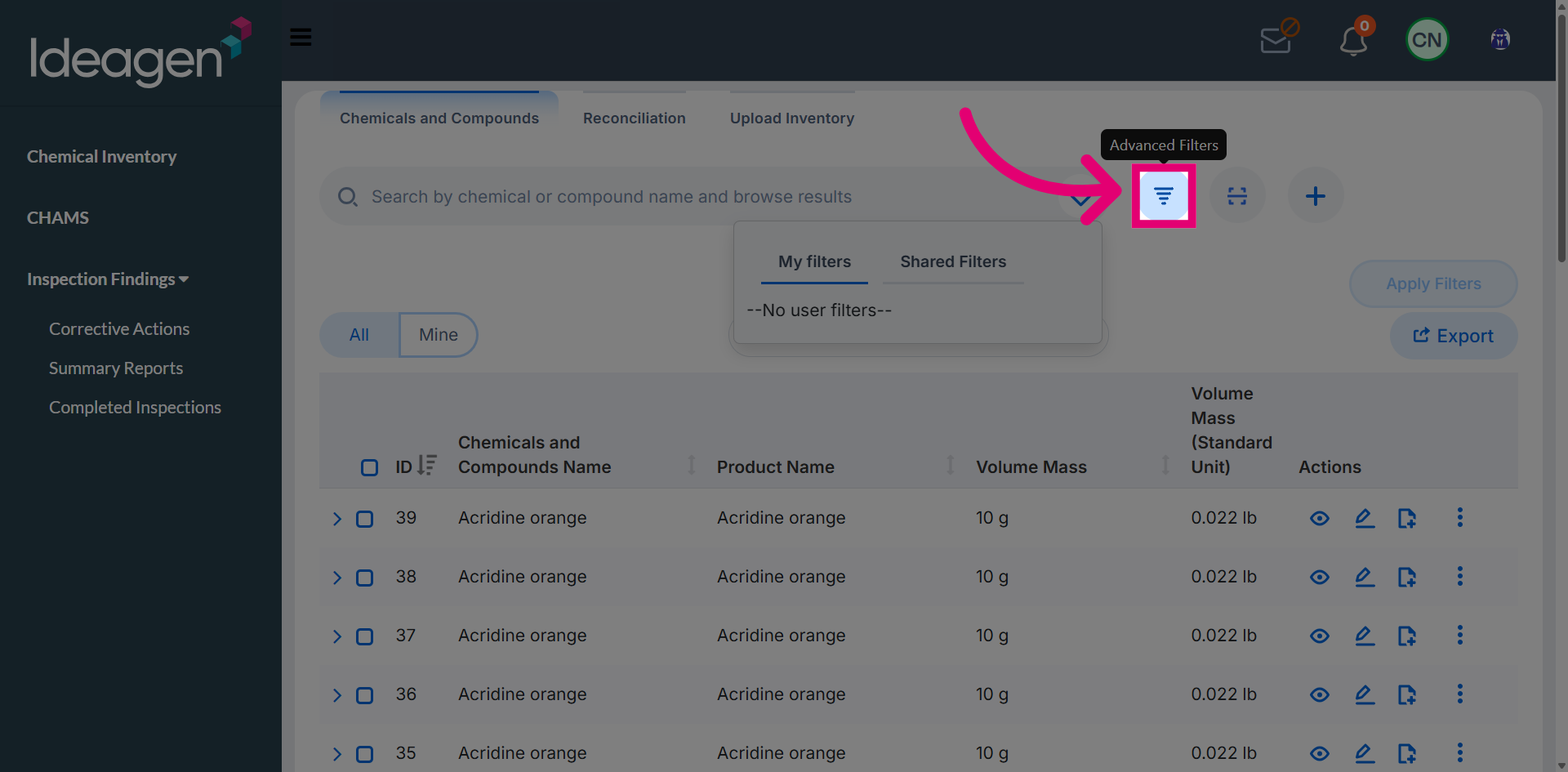
Click to open the filter settings where you can specify criteria for your query.
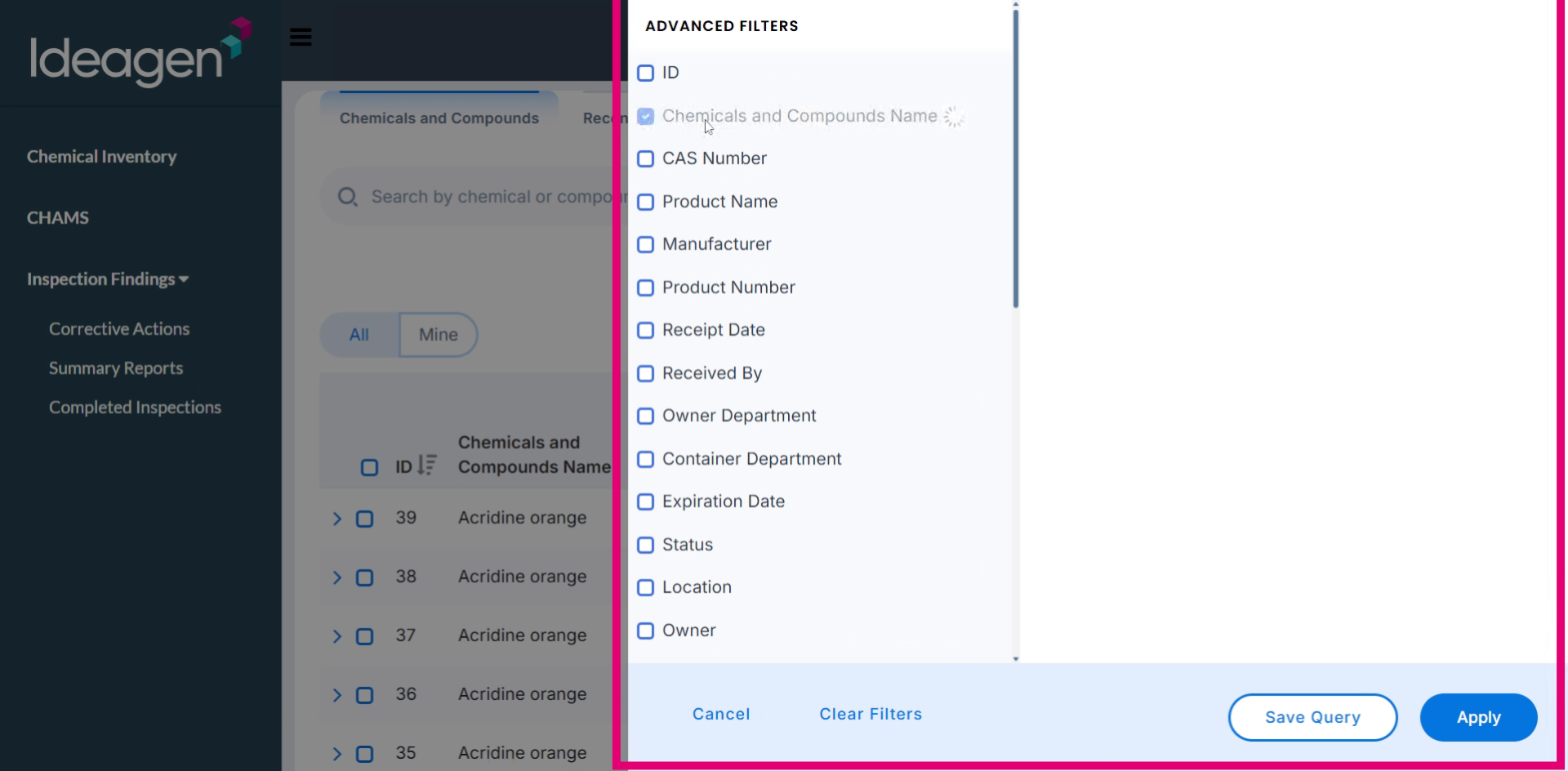
Use the filter panel to begin defining your search criteria. Filters allow you to narrow down inventory records based on chemical details, ownership, location, status and so on.
Apply a location filter to view chemicals stored in a specific area or laboratory.
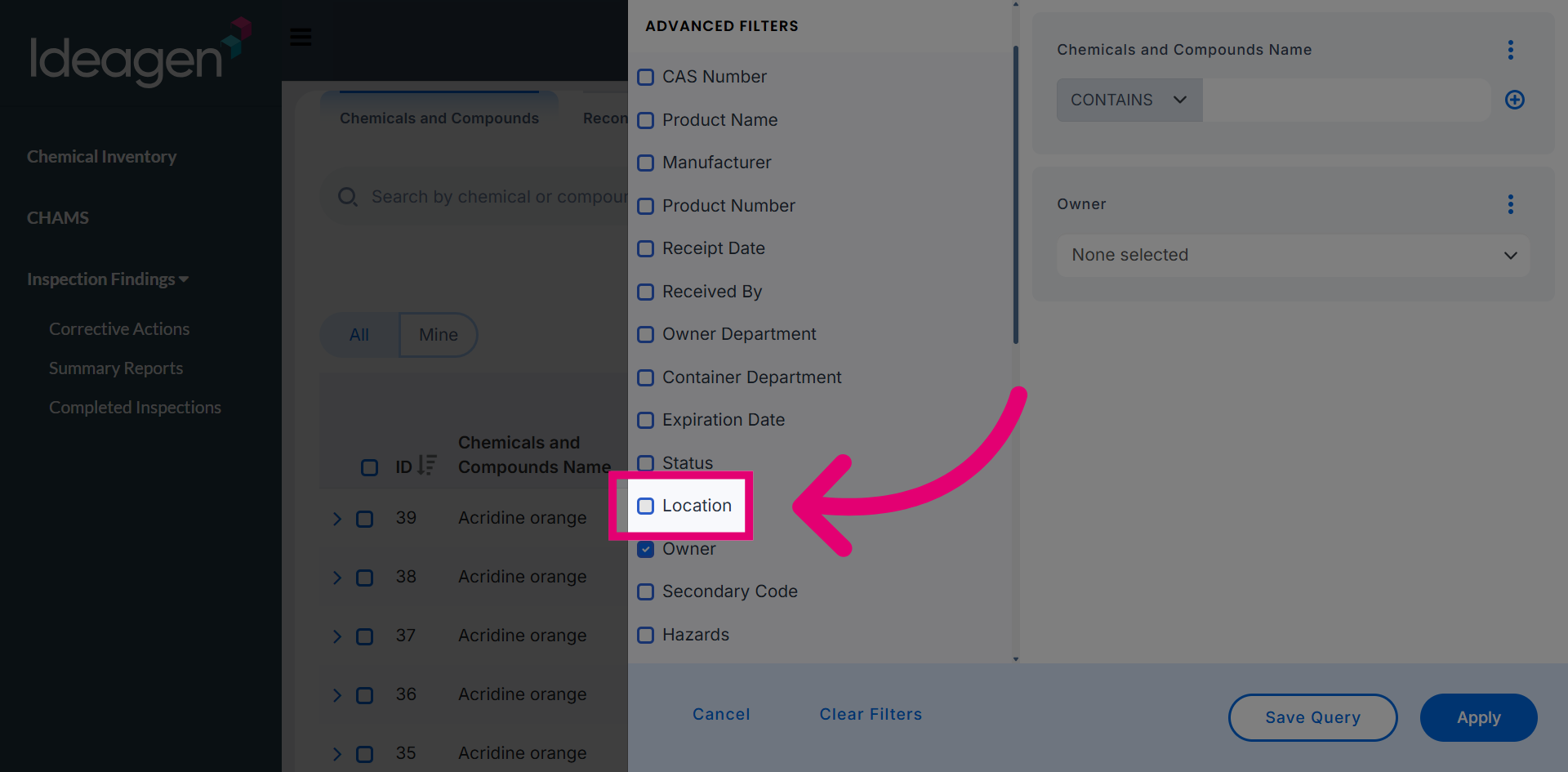
Click the Status filter to define the chemical availability or condition.
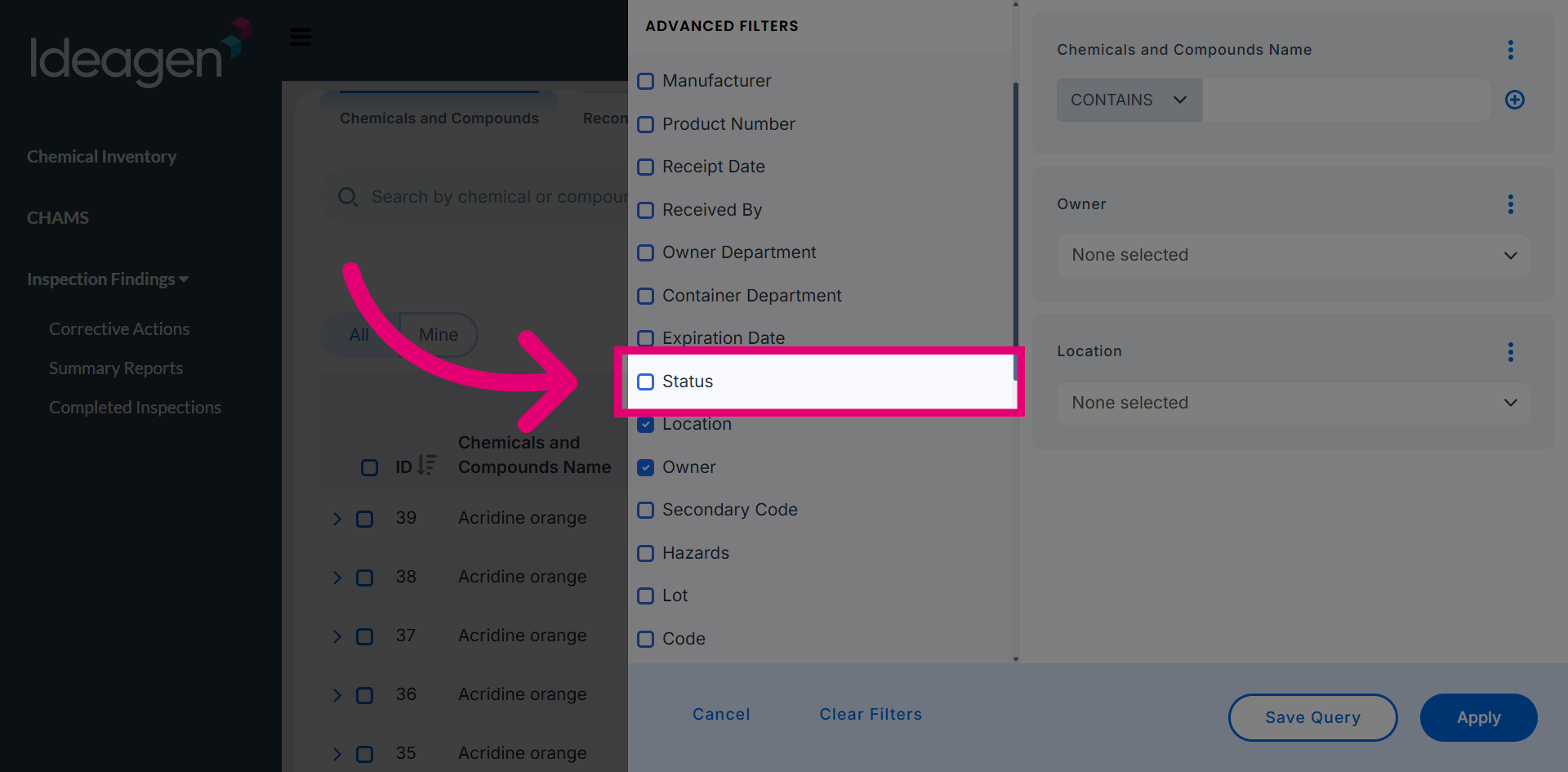
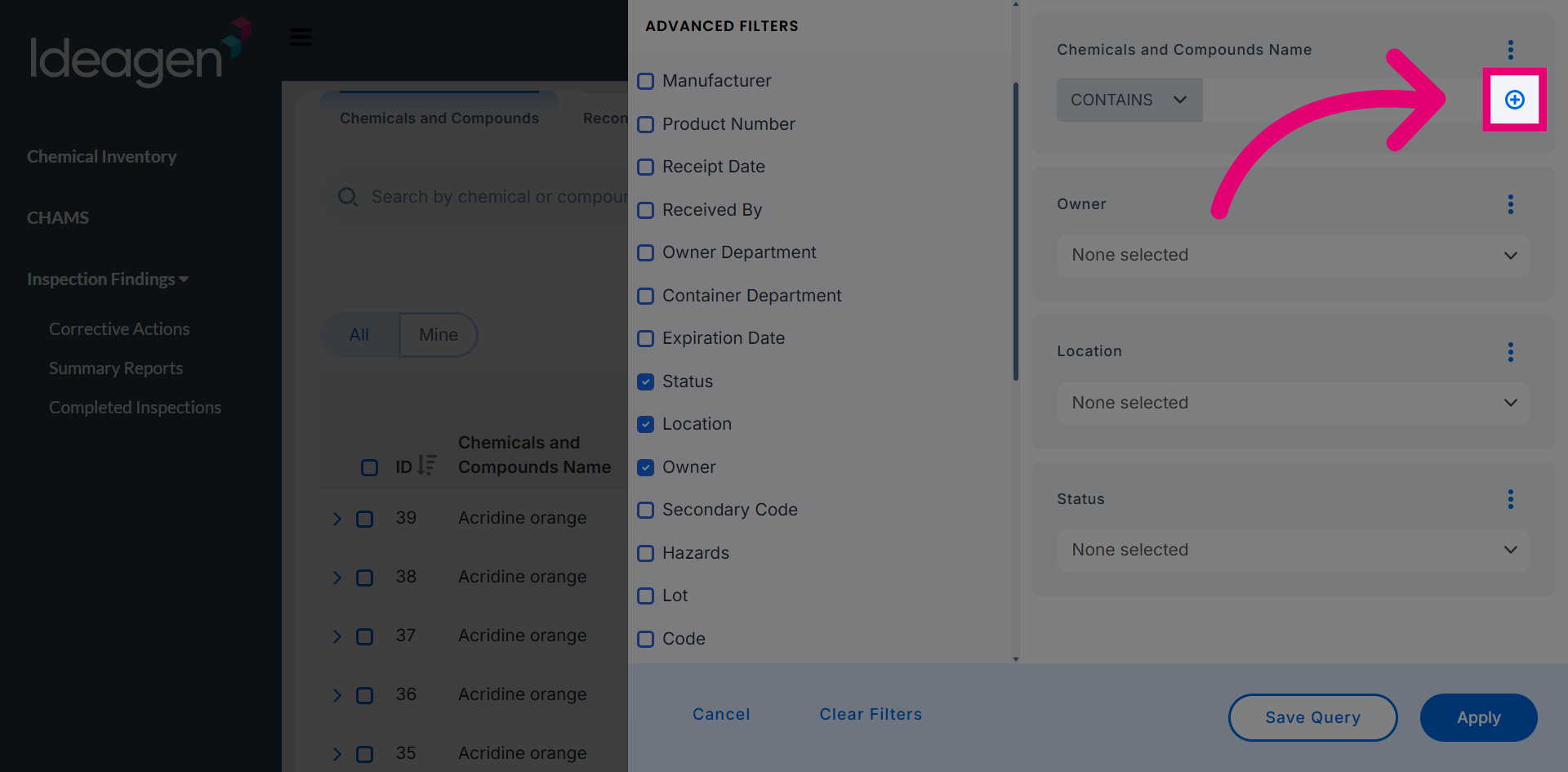
When needed, add additional conditions using logical operators to broaden or refine your search.
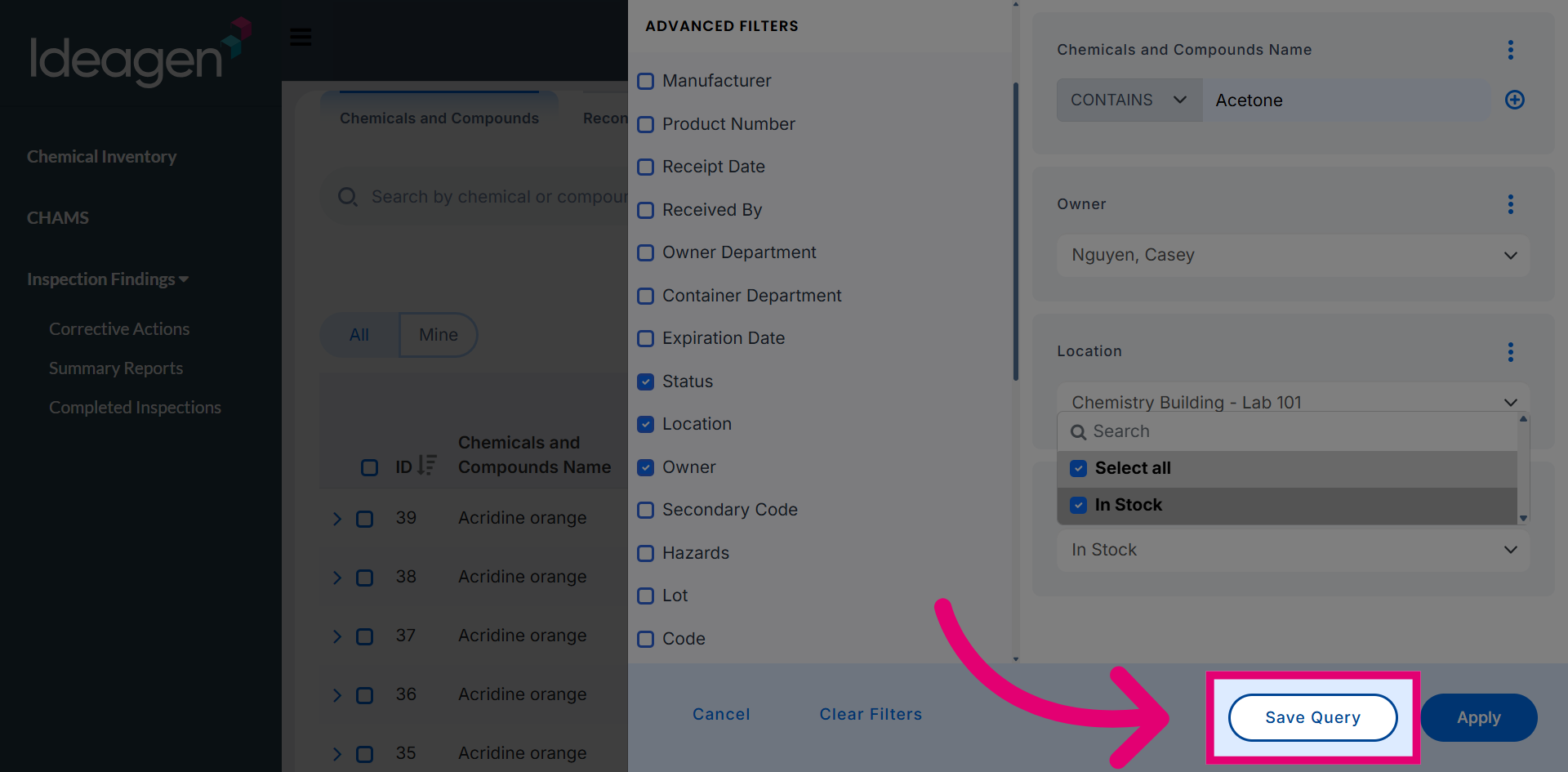
Save the configured filters as a new query so they can be reused in the future without reconfiguration.
Assign a clear and meaningful name to the query.
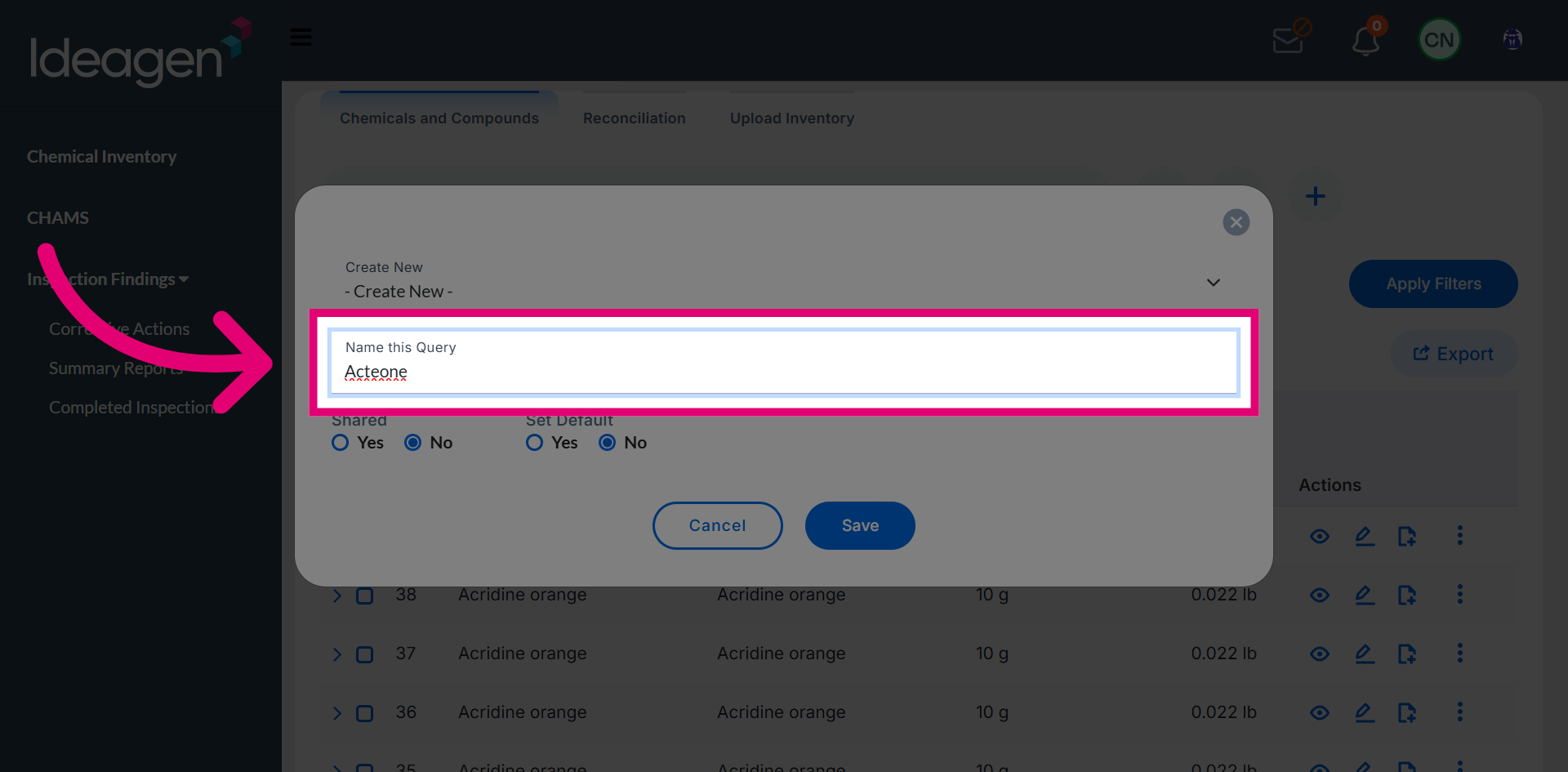
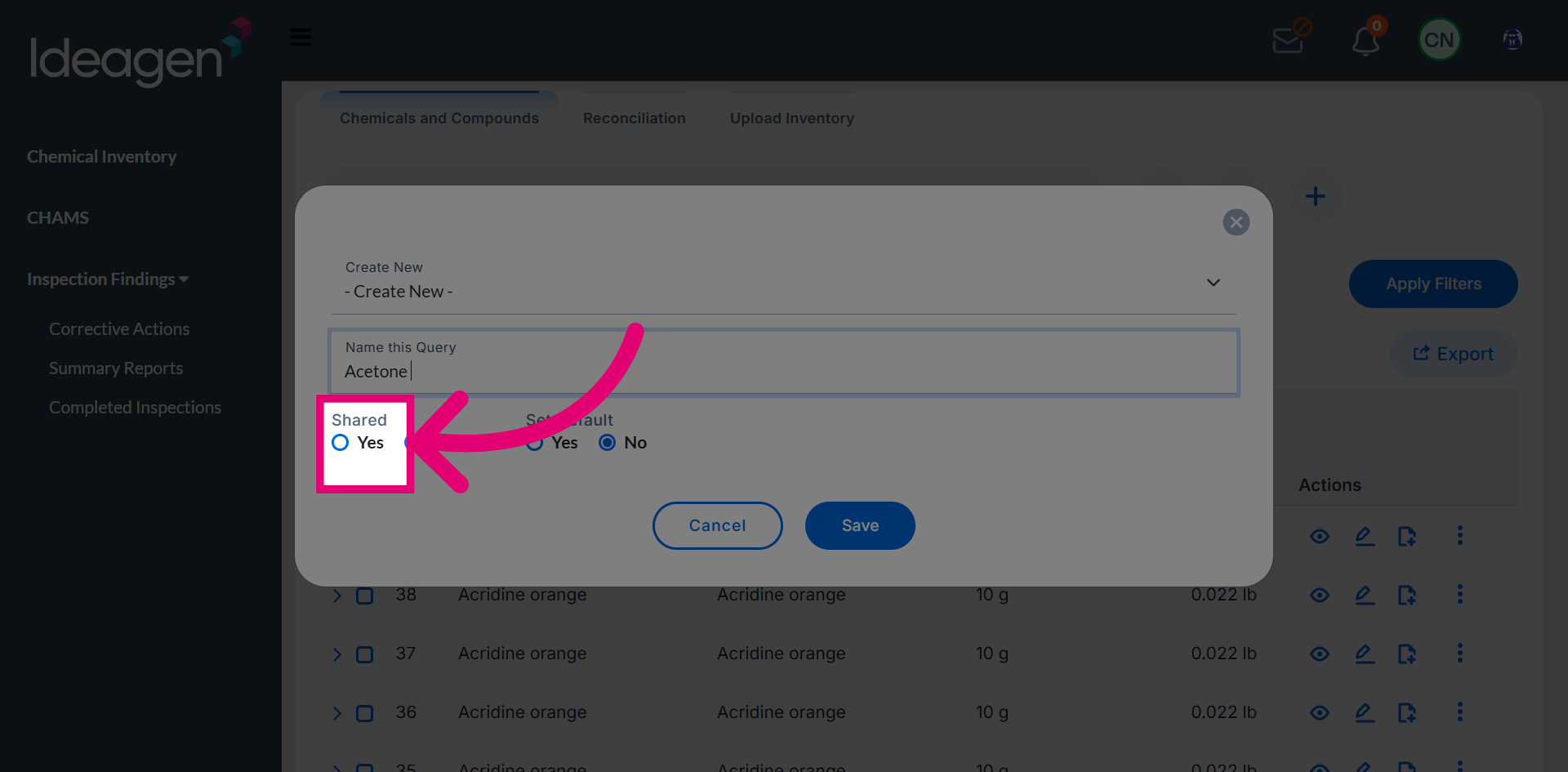
View shared filters to access queries created by other users within your organization.
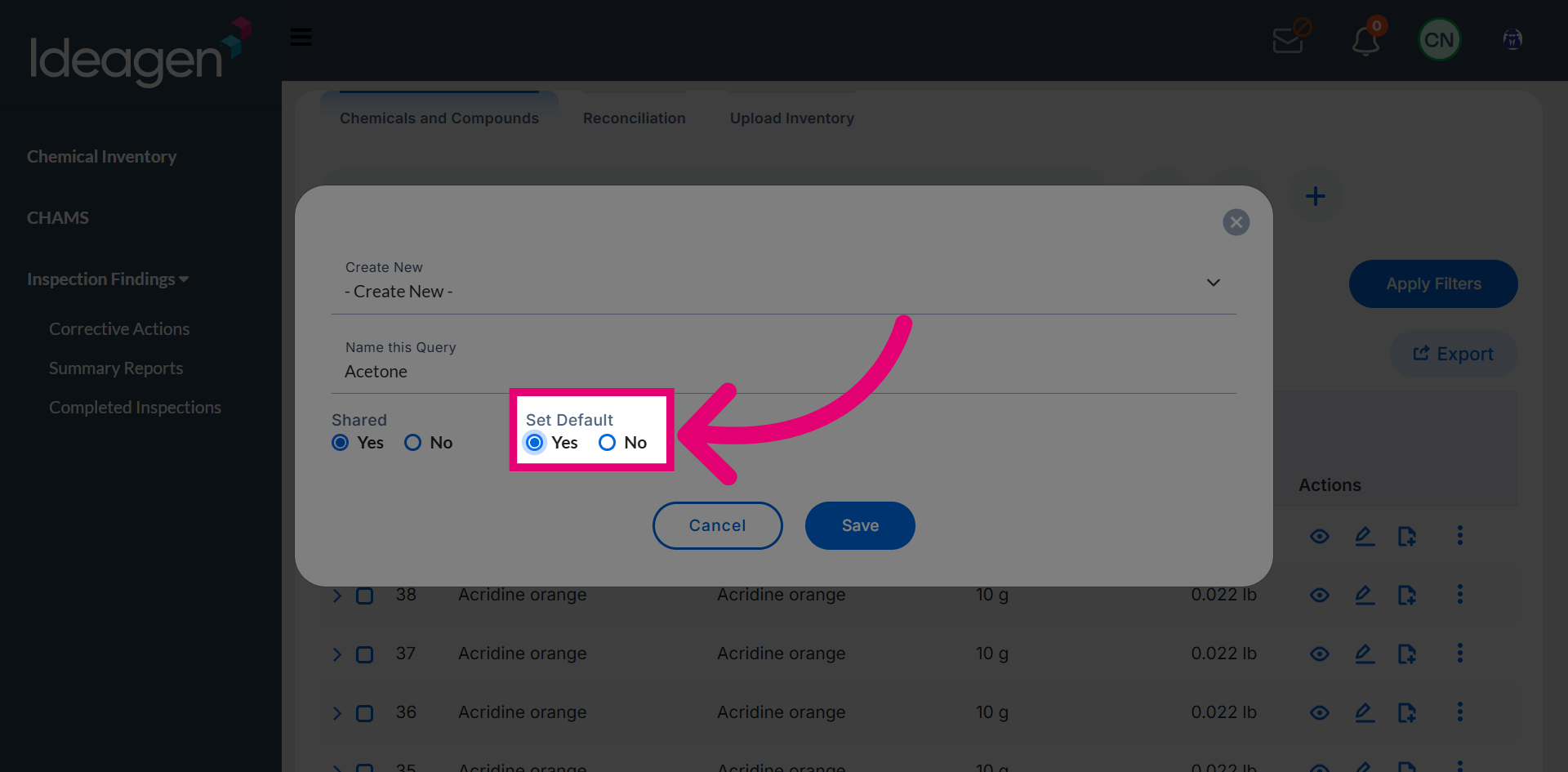
Select Yes if this needs to be set as the default filter.
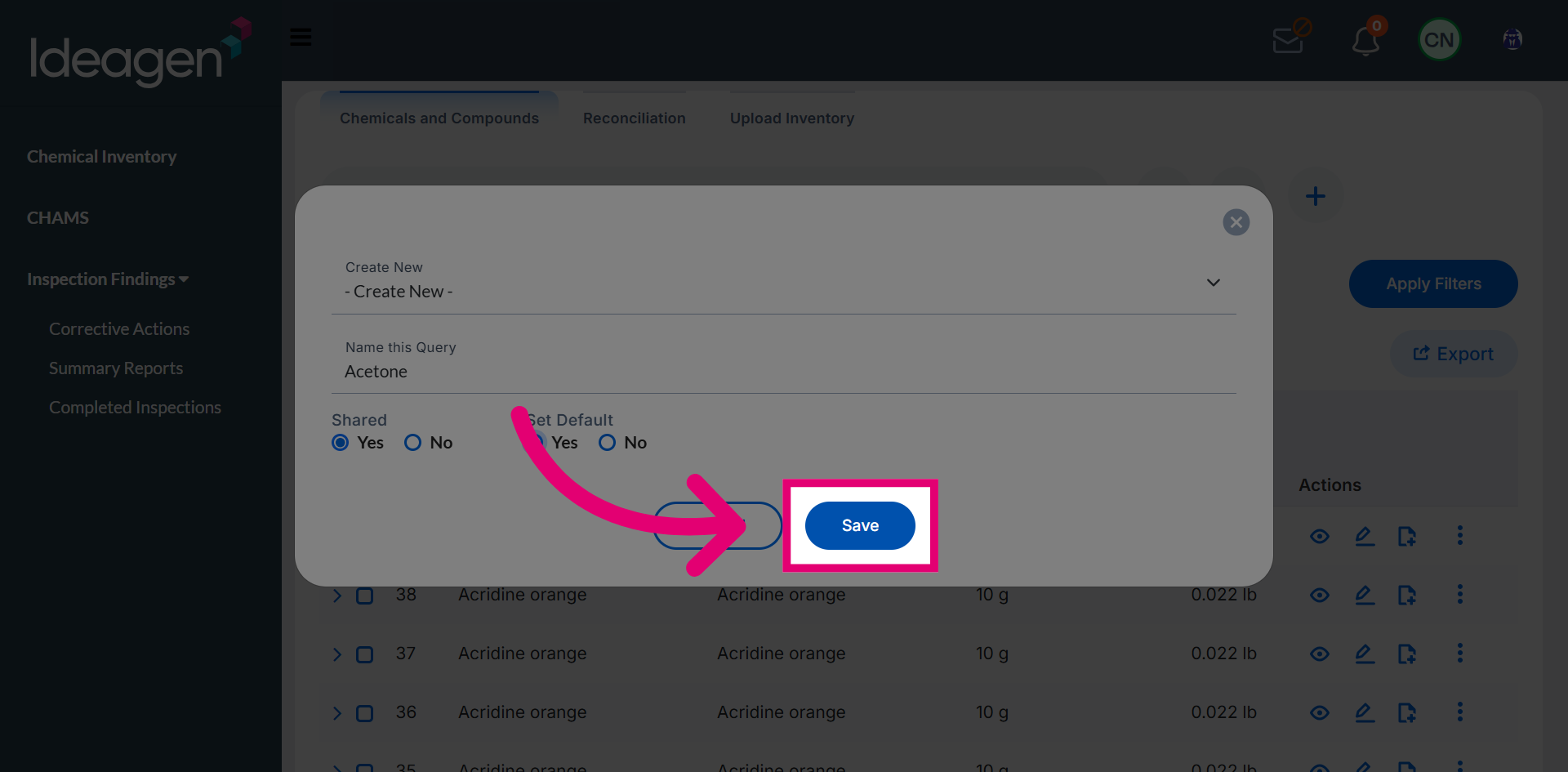
Click Save to finalize saving your query and favorite filters.
Select to open additional options related to saved queries and filters.
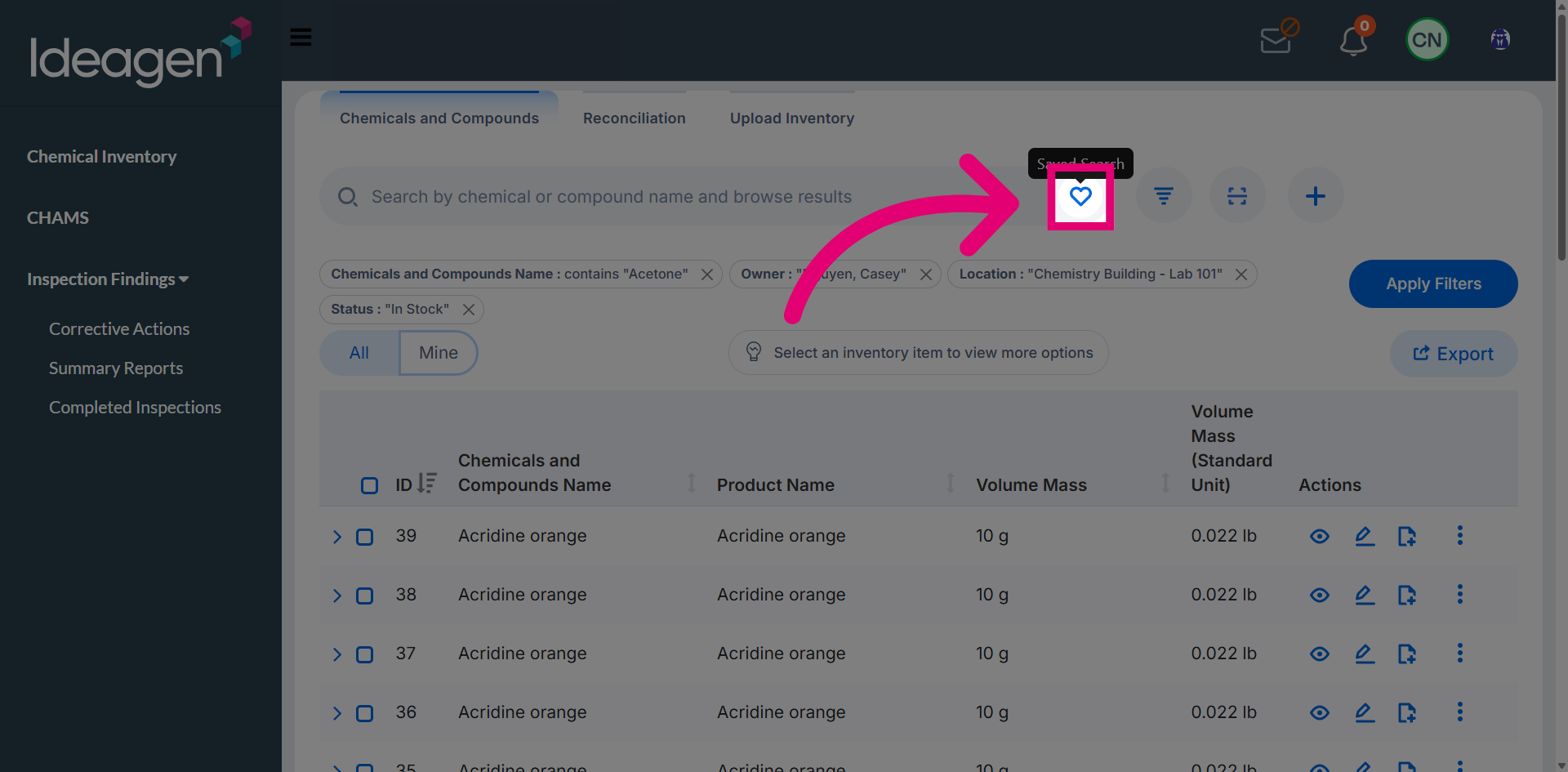
Click Shared Filters to view filters shared with other users.
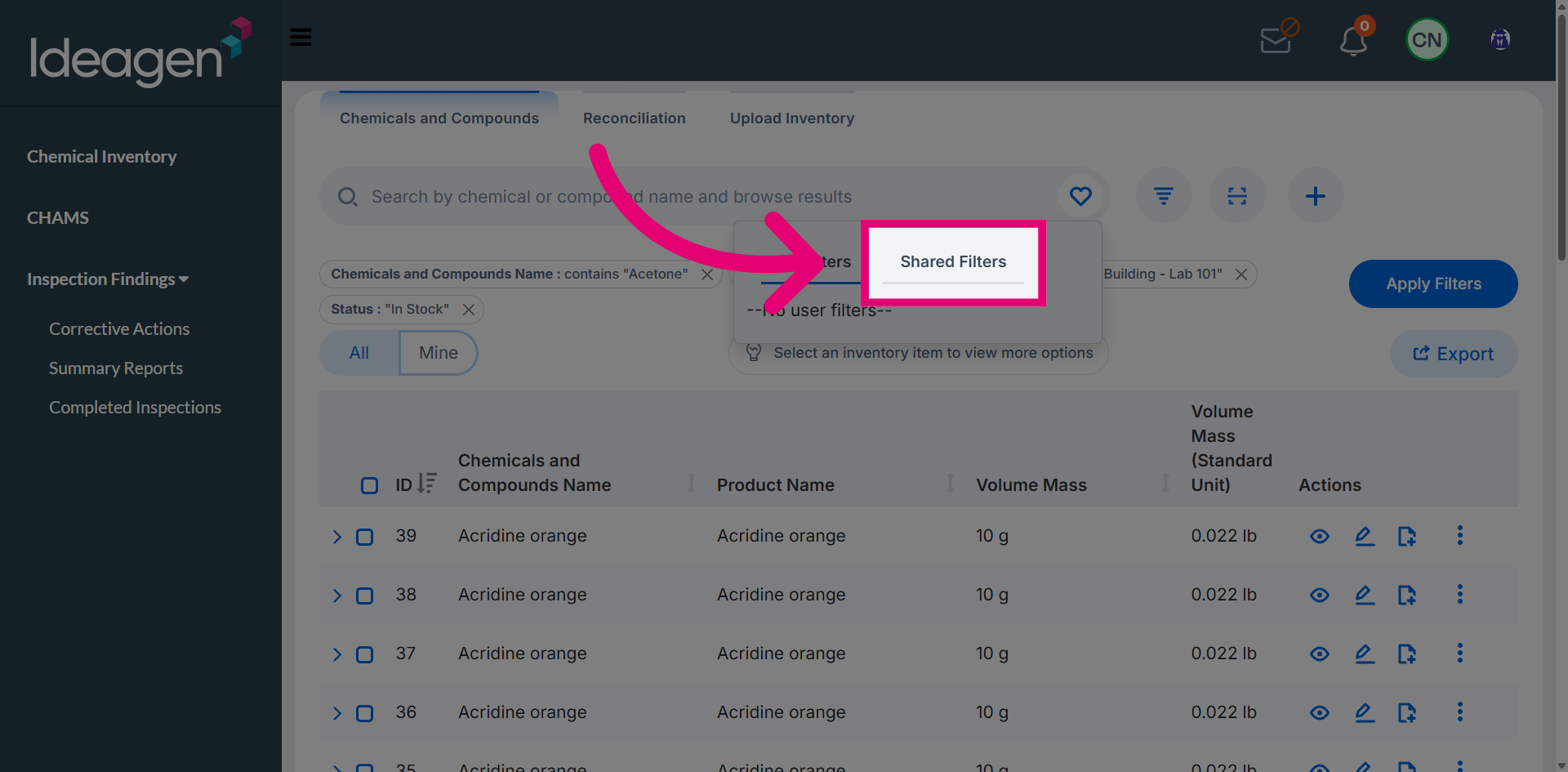
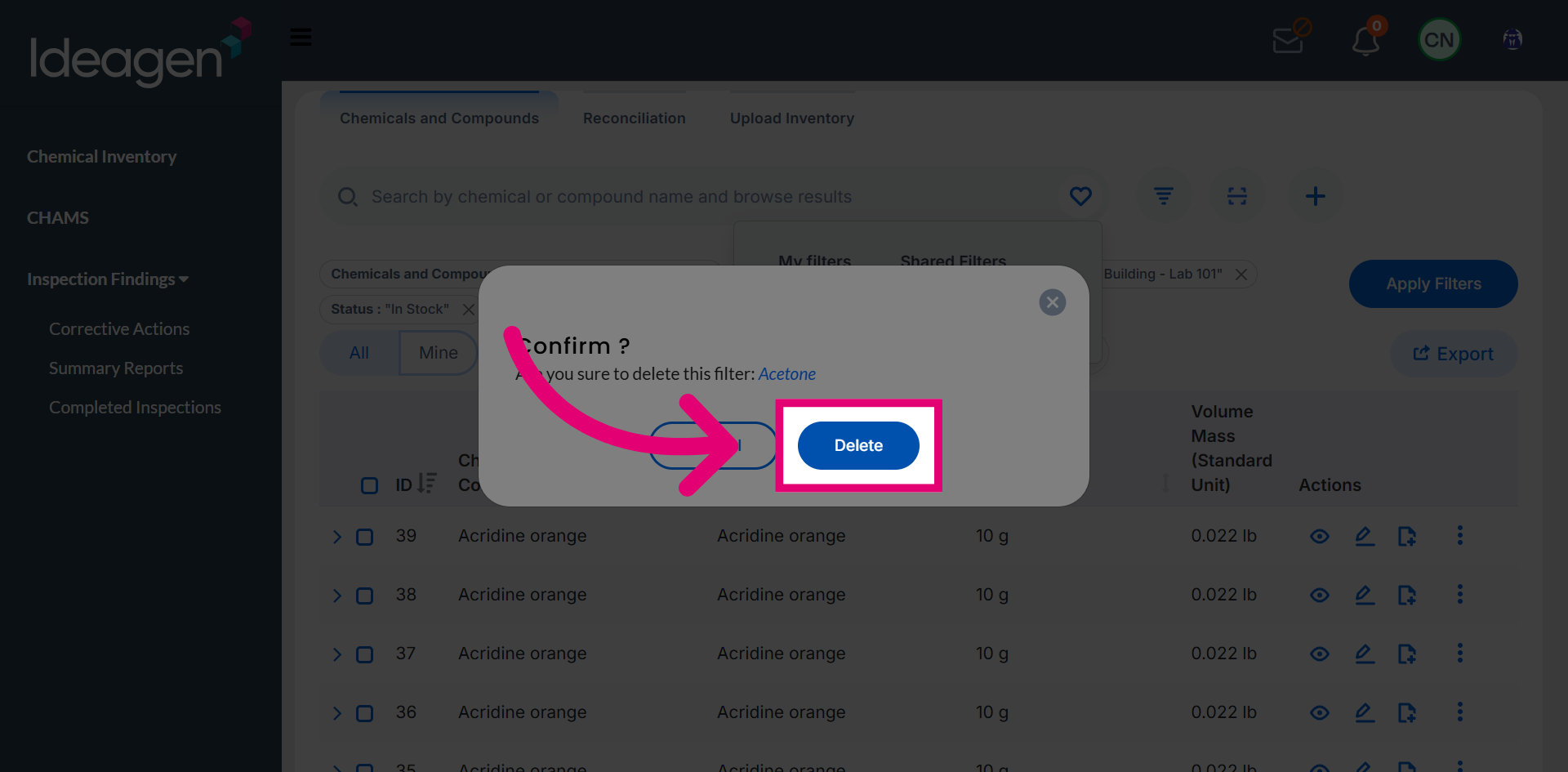
Click Delete to remove the selected filter from your saved list.