New article
Recently updated
Approving a review inspection

Who is this article for?
Users who need to approve a review inspection.
Administrator role is required.
This tutorial walks you through the steps to review and approve an inspection.
You will learn how to access pending inspections, add review comments, and complete the approval process.
1. Reviewing and Approving an Inspection
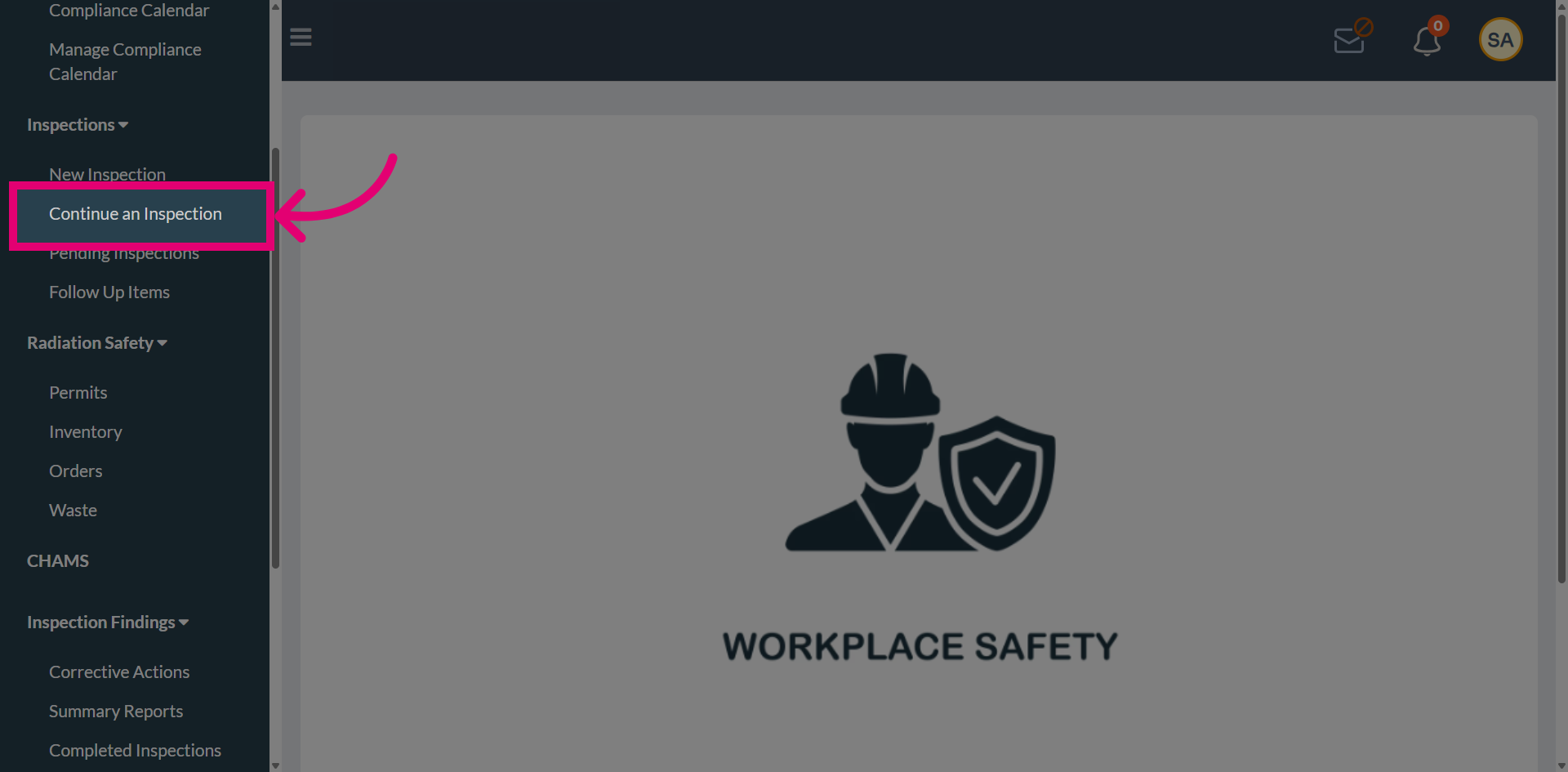
Select the Continue an Inspection option to access the inspection awaiting review.
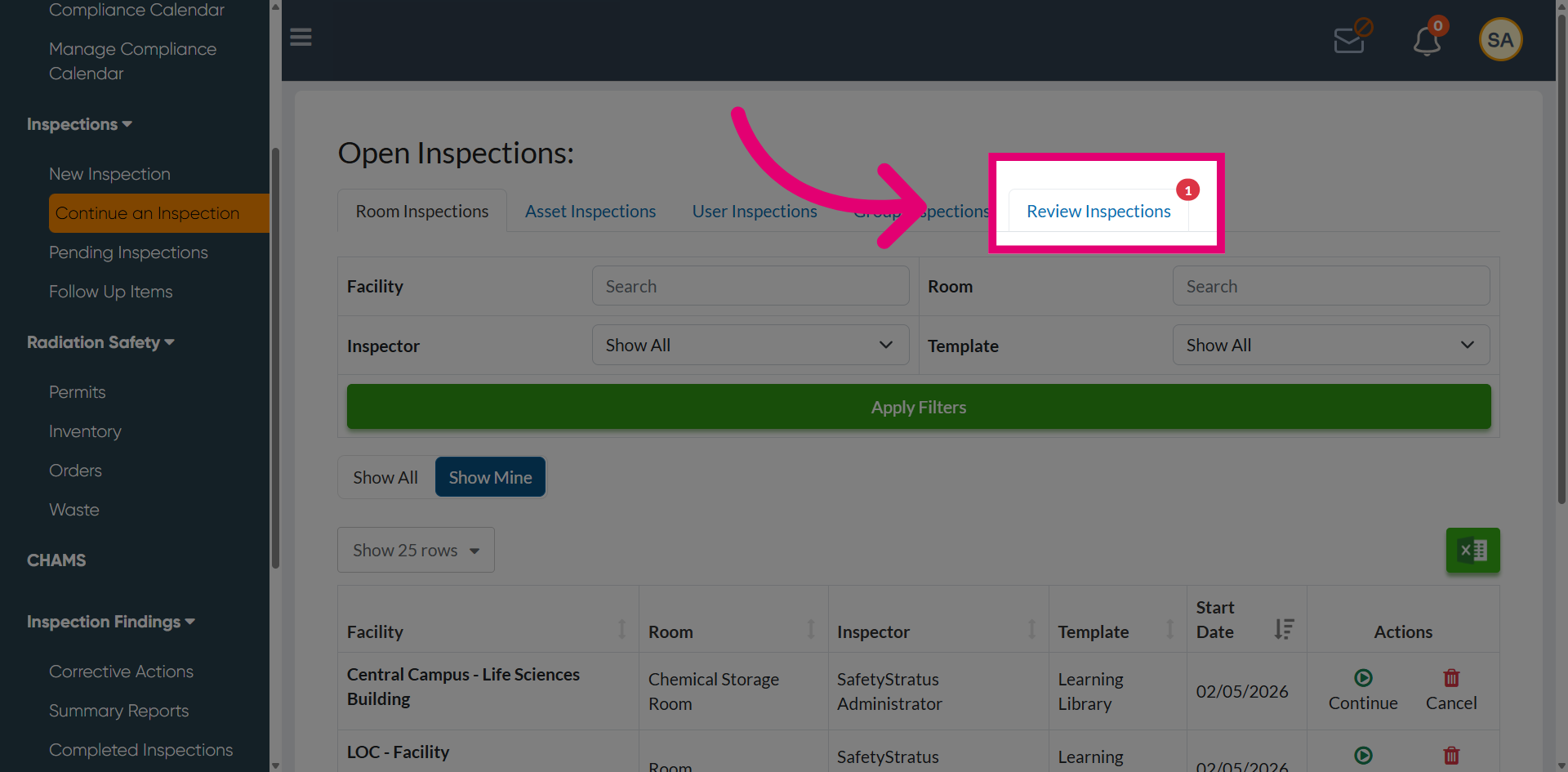
Navigate to the Review Inspections tab to access inspections that require your review. The number 1 indicates the count of newly added inspections currently awaiting review.
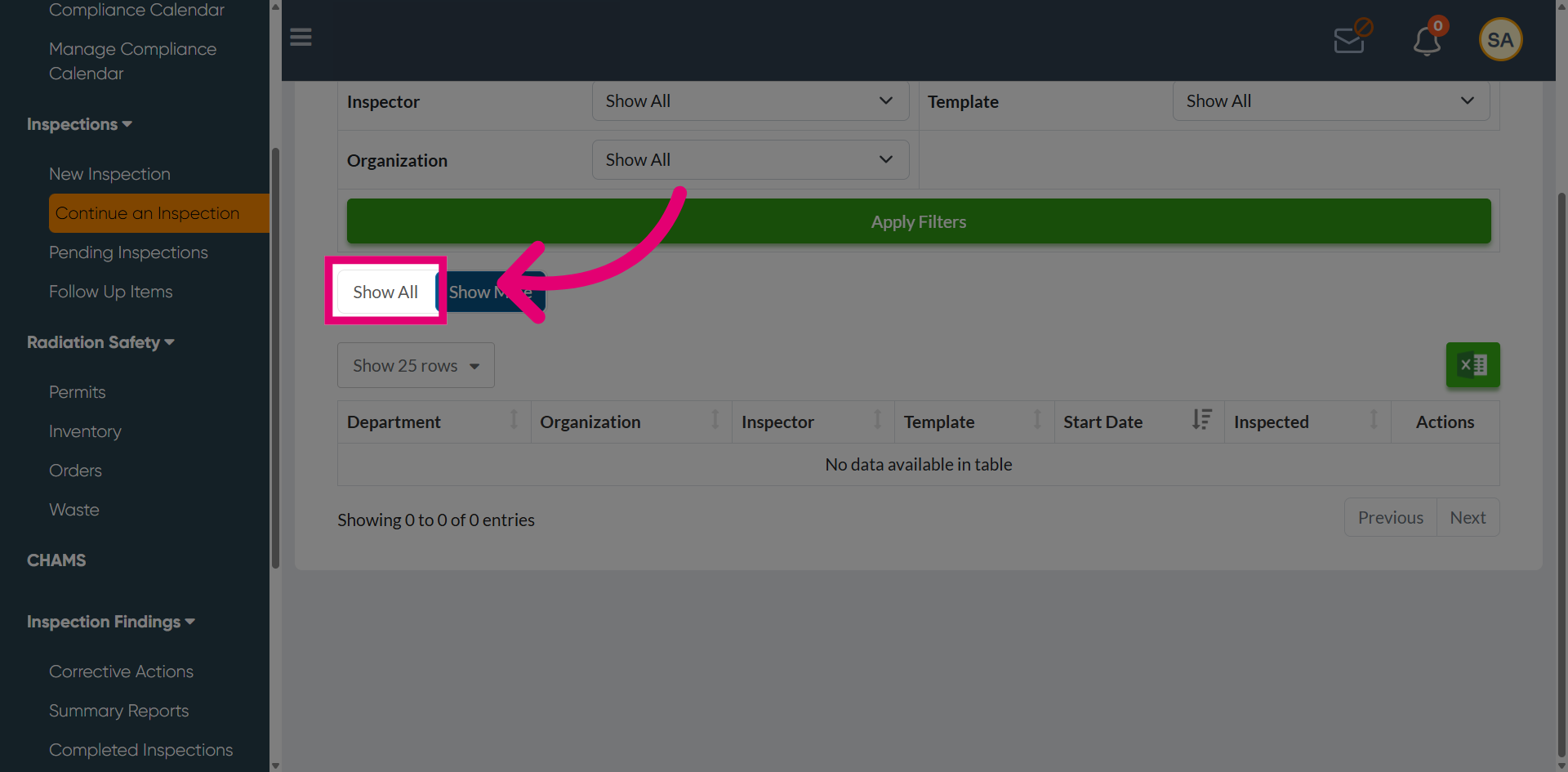
Select Show All to view all inspection items, allowing you to perform a comprehensive review of the inspection details.
Review the page displaying all inspections pending review, along with two available actions: Review to proceed with the inspection review, and Cancel to withdraw the inspection.
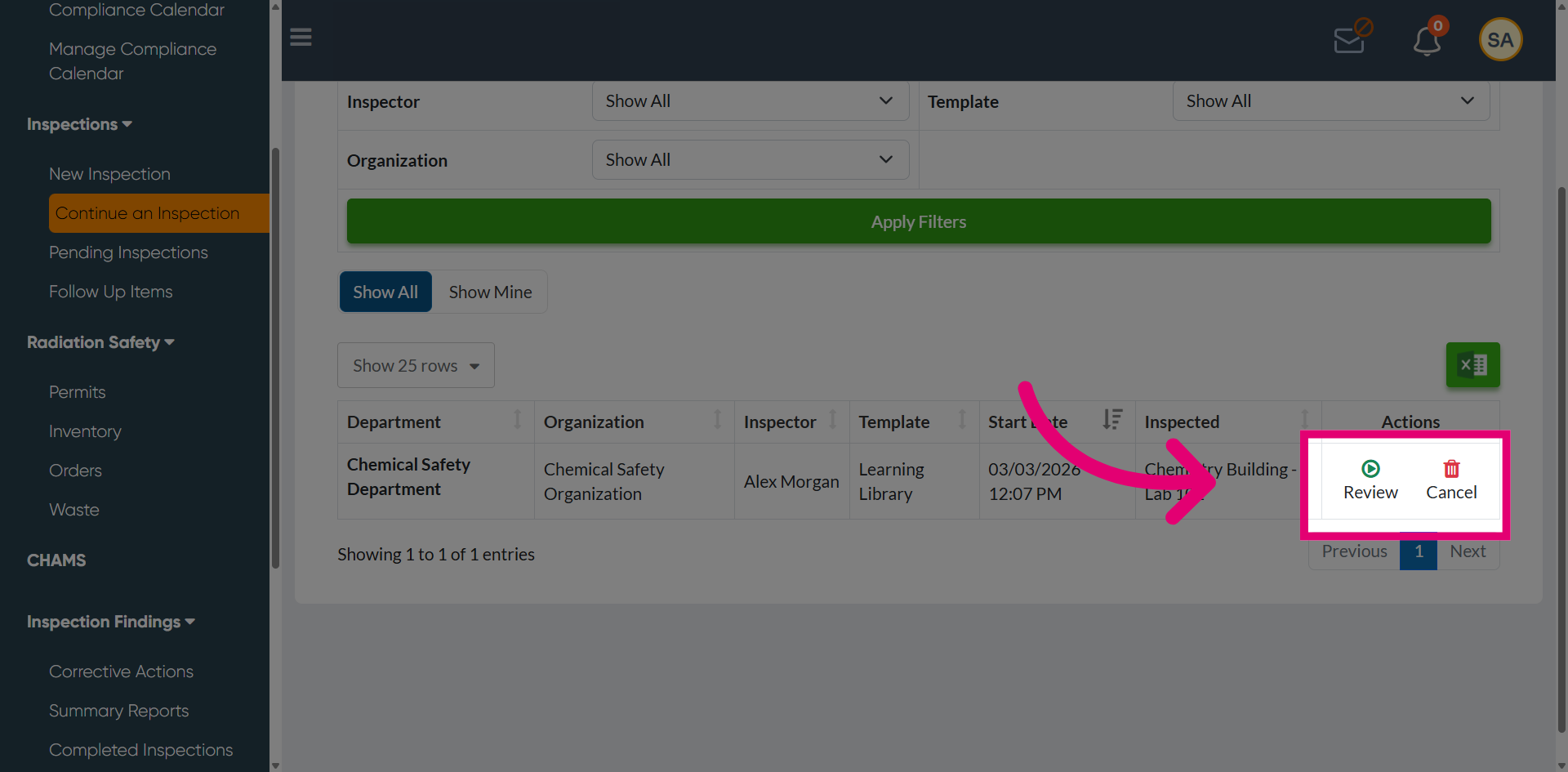
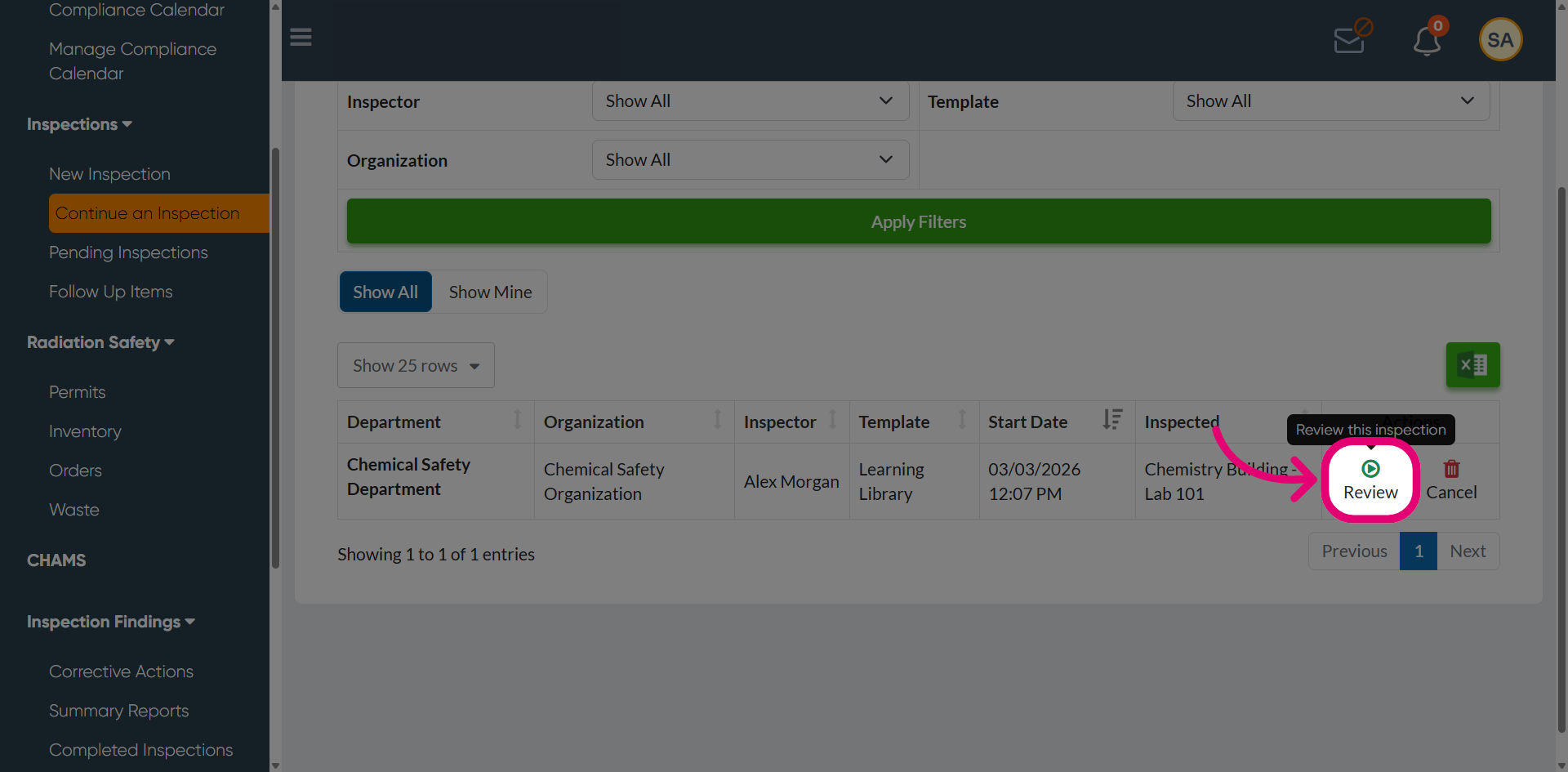
Select the Review option to open the inspection item you want to review in detail.
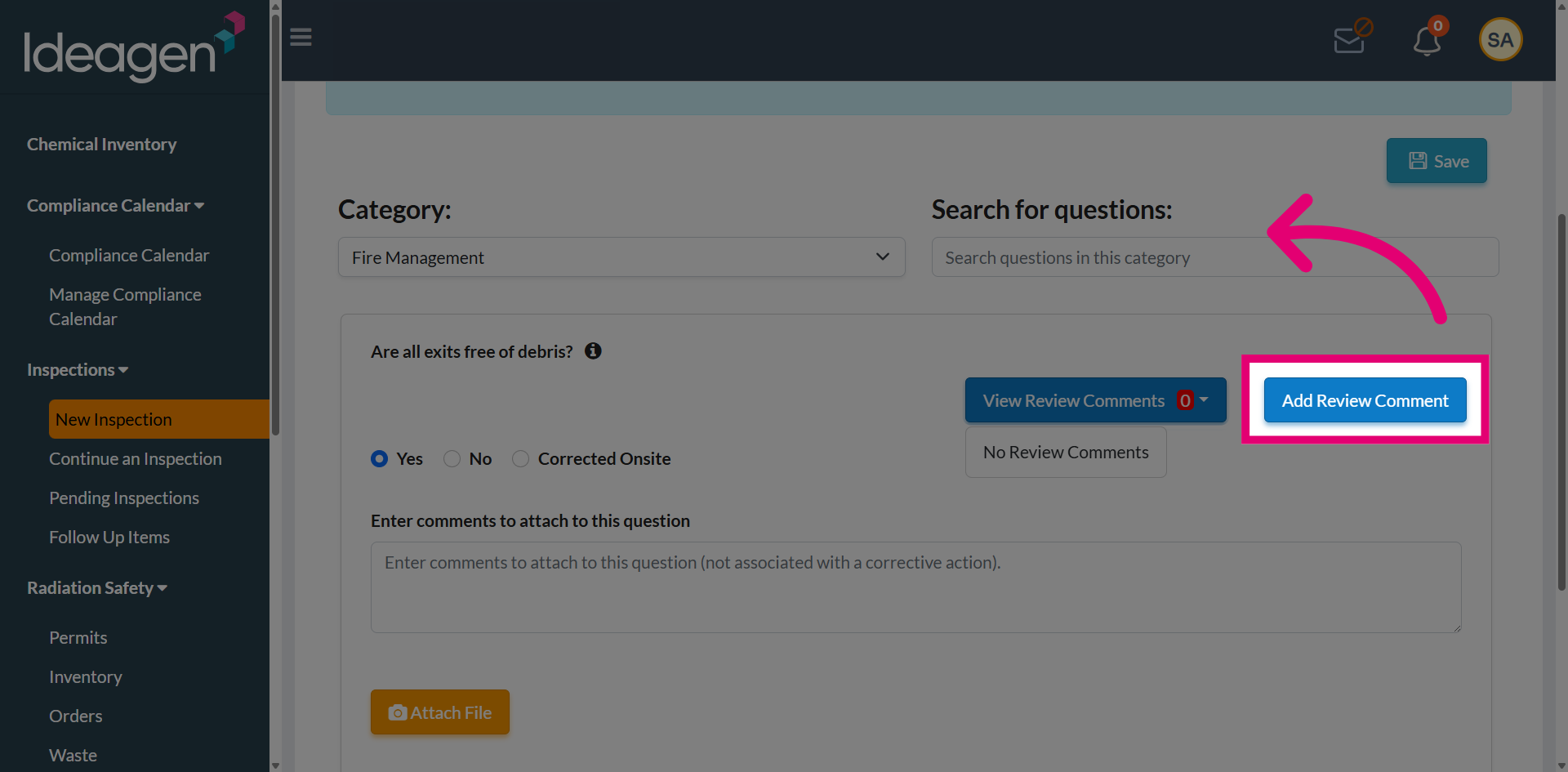
Use the Add Review Comment option to record your feedback or observations related to the inspection.
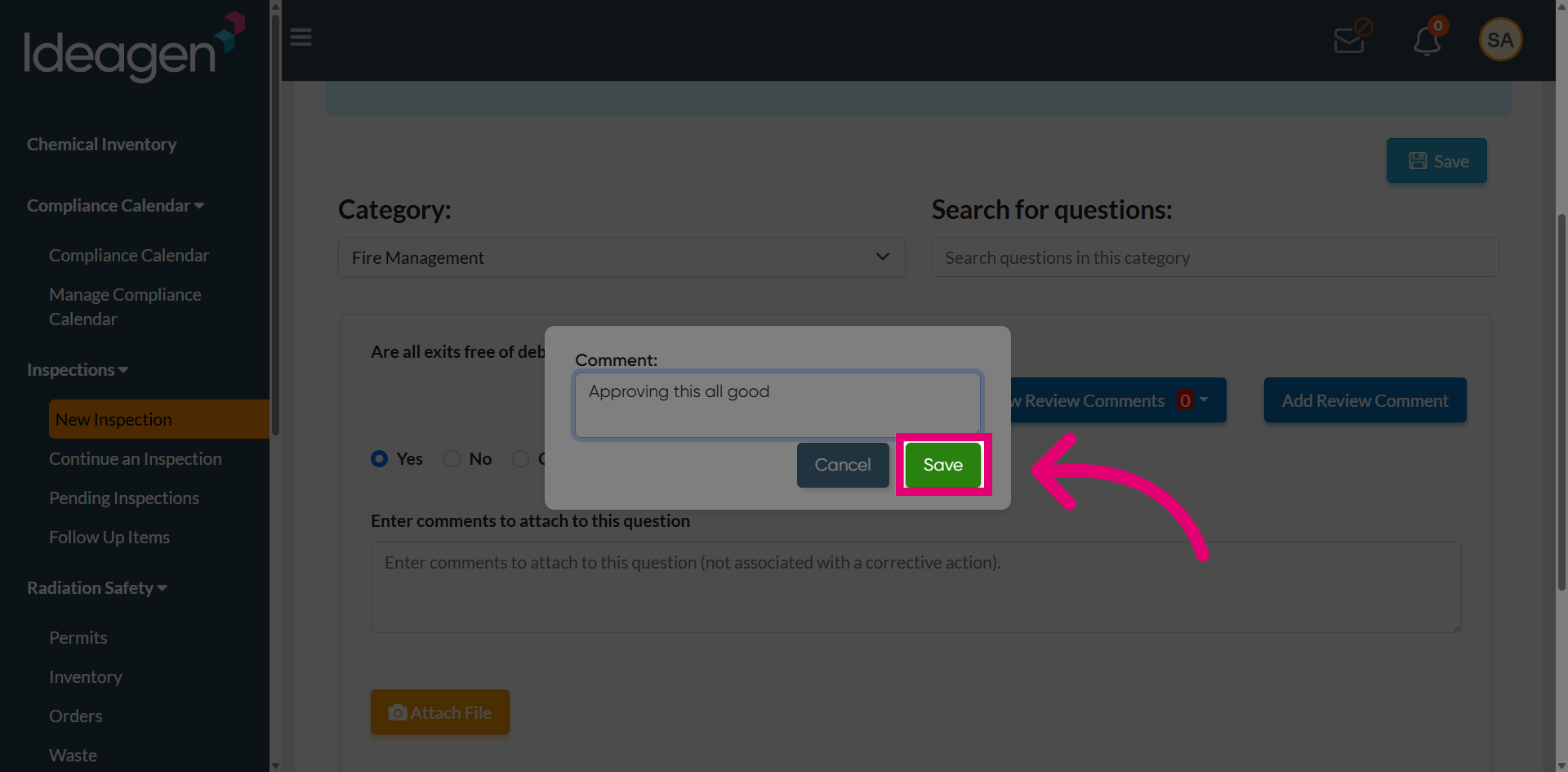
Provide your review comments in the designated field to document your feedback on the inspection.
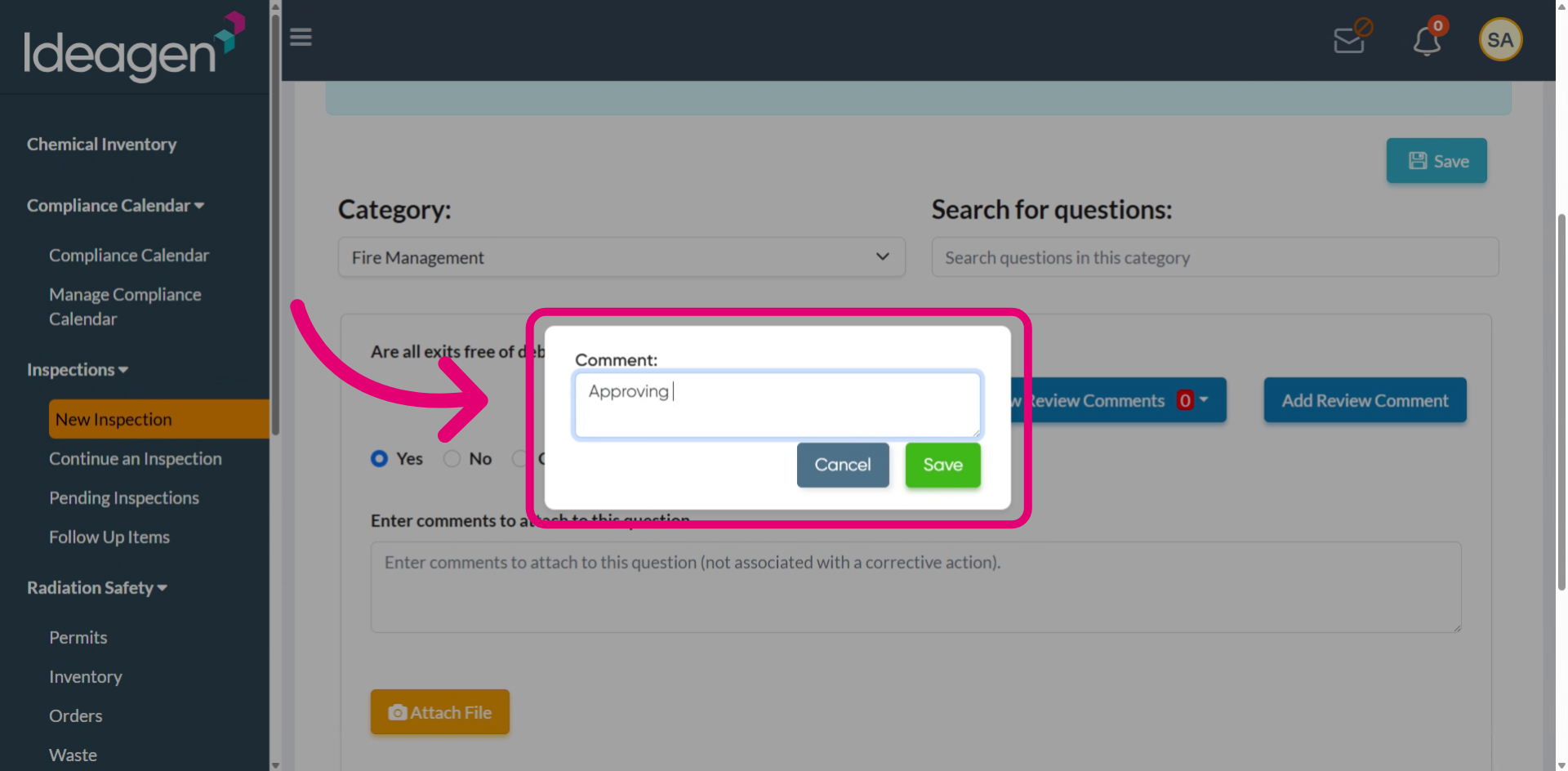
After entering your feedback, save the comment to ensure it is recorded and reflected in the inspection record.
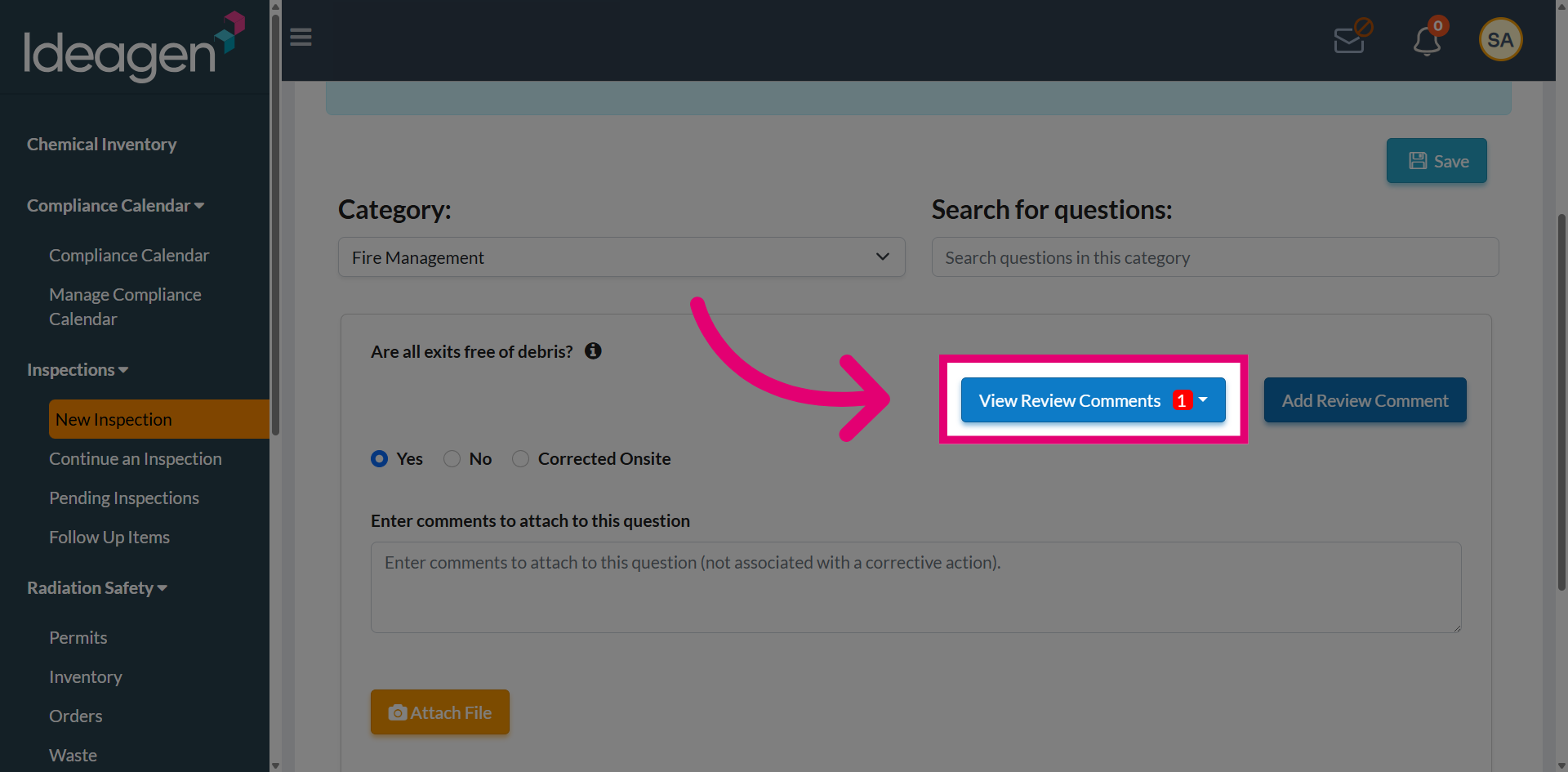
Select View Review Comments to review the most recent comments in detail.
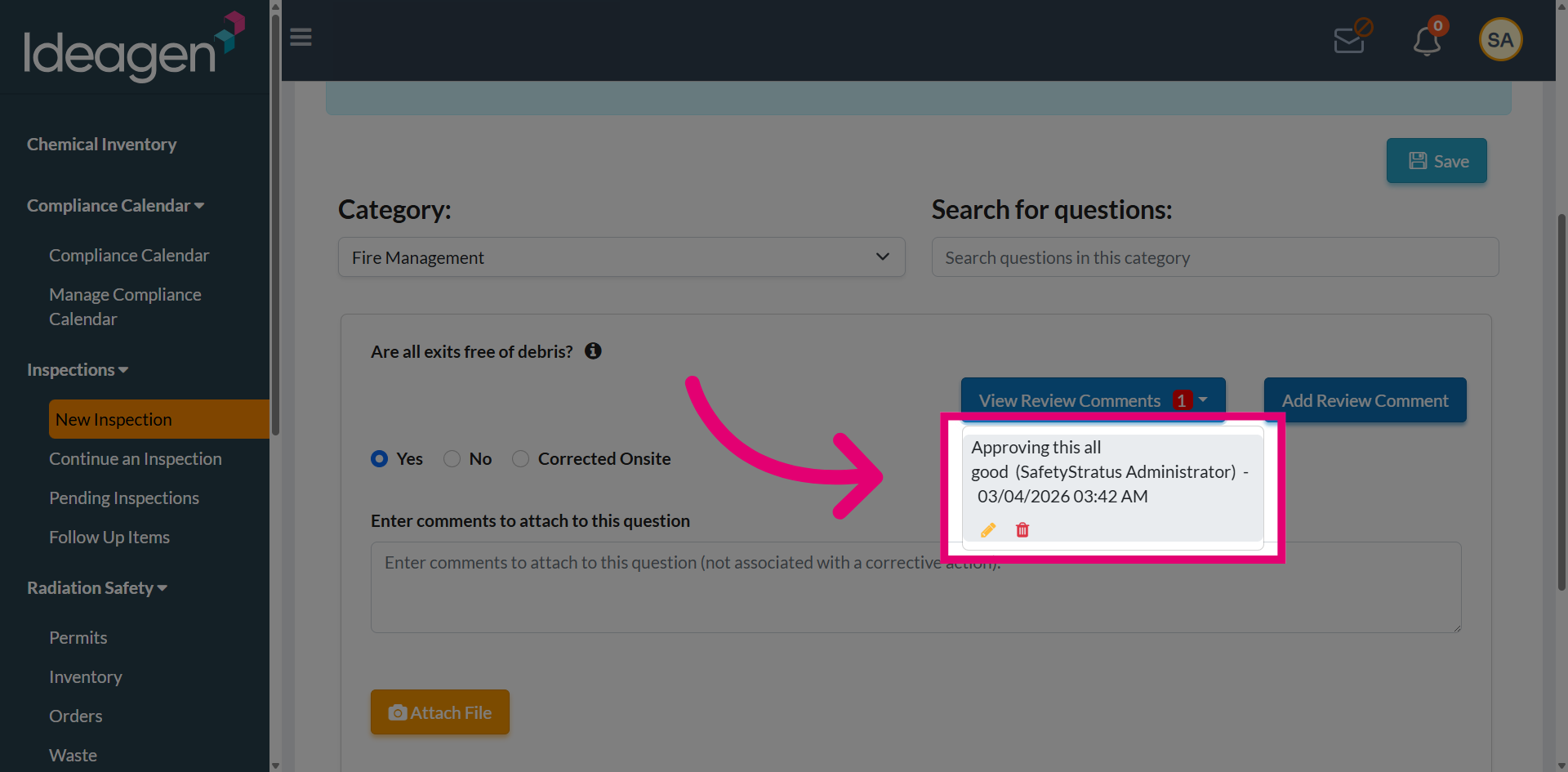
Review the available options: Edit to modify the existing comment or Delete to remove the comment from the inspection record.
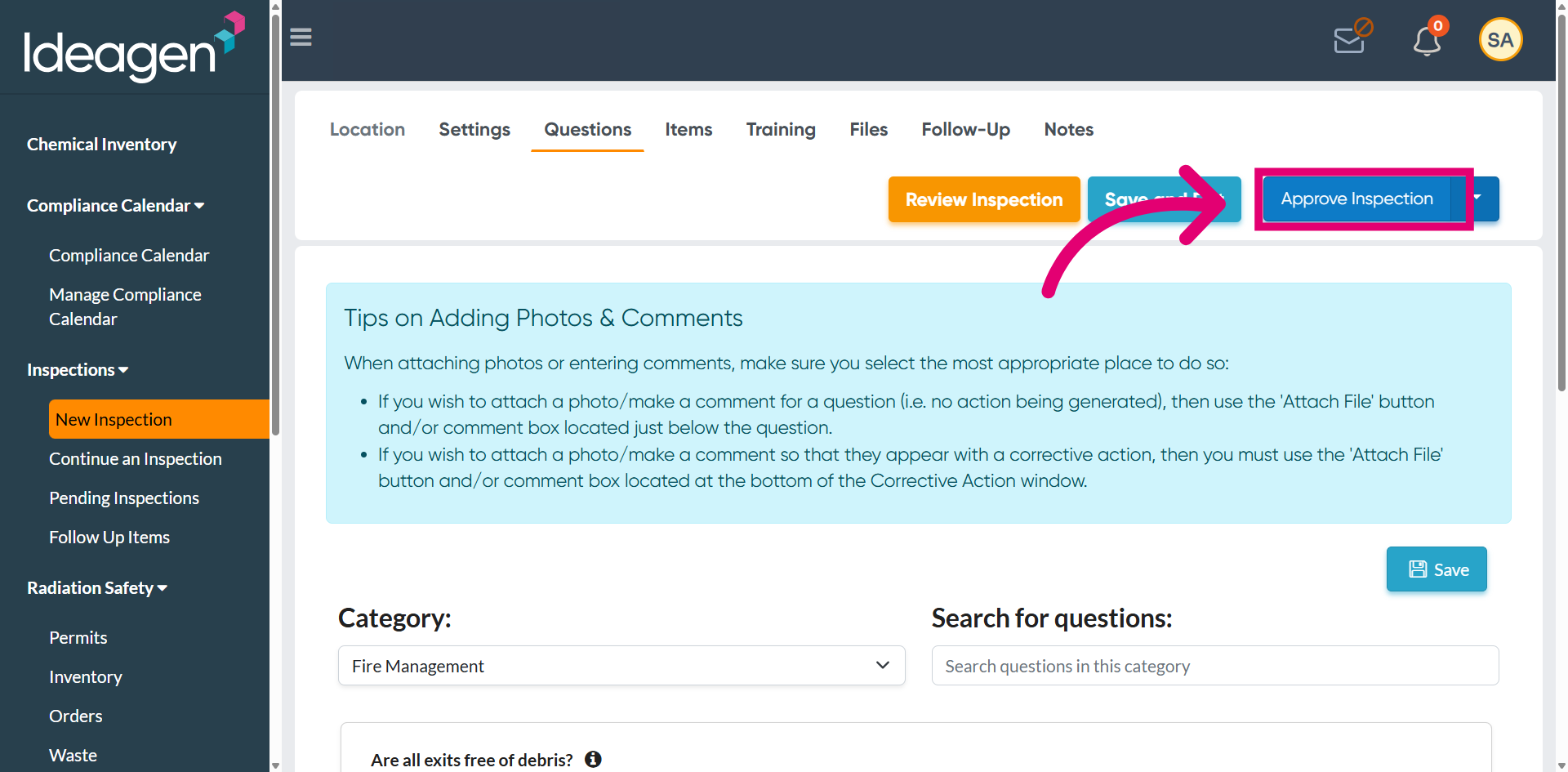
Once the review is complete and all requirements are satisfied, proceed with the Approve Inspection option.
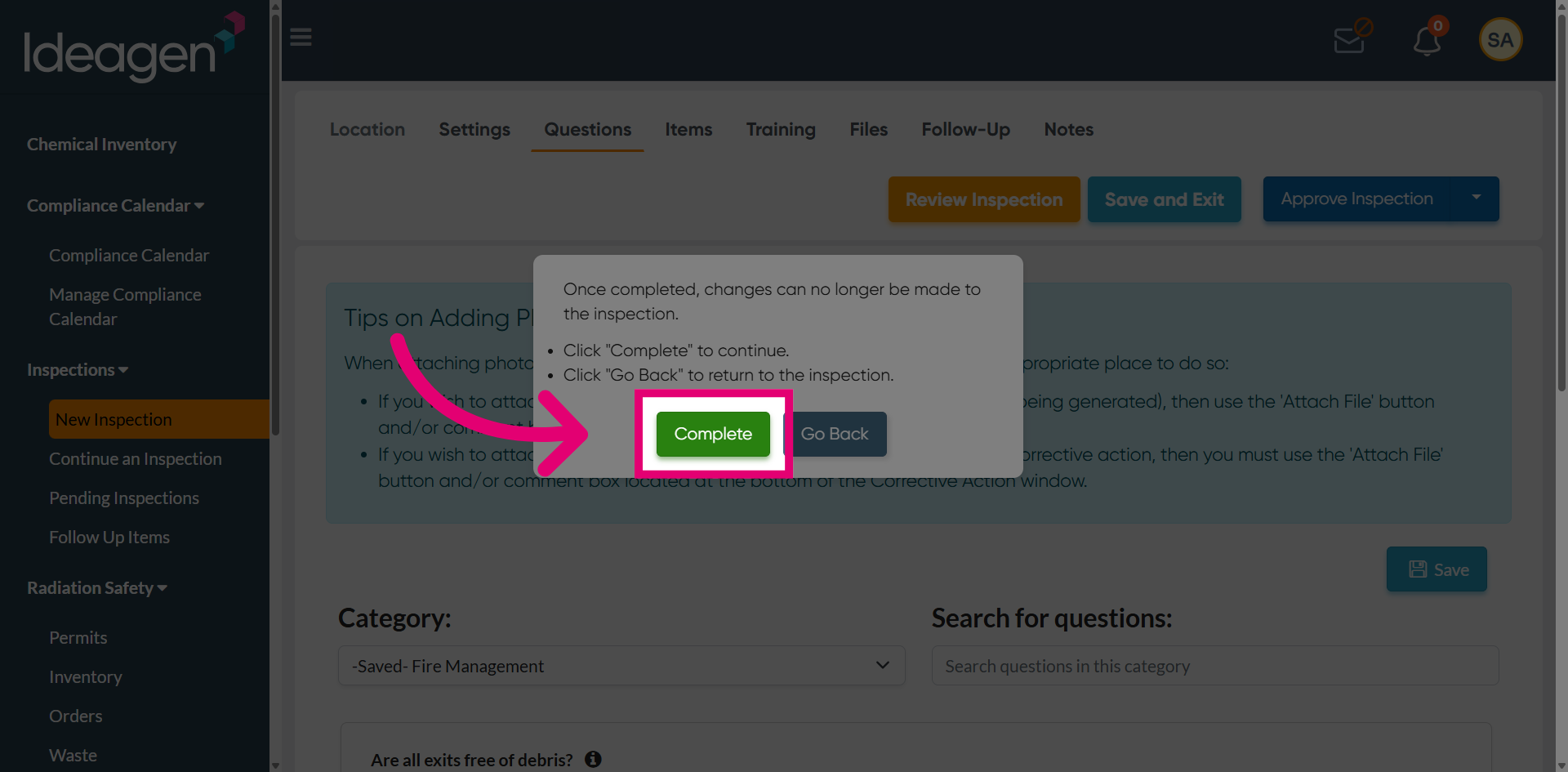
Finalize the approval by selecting Complete, which will close the review process and mark the inspection as approved.
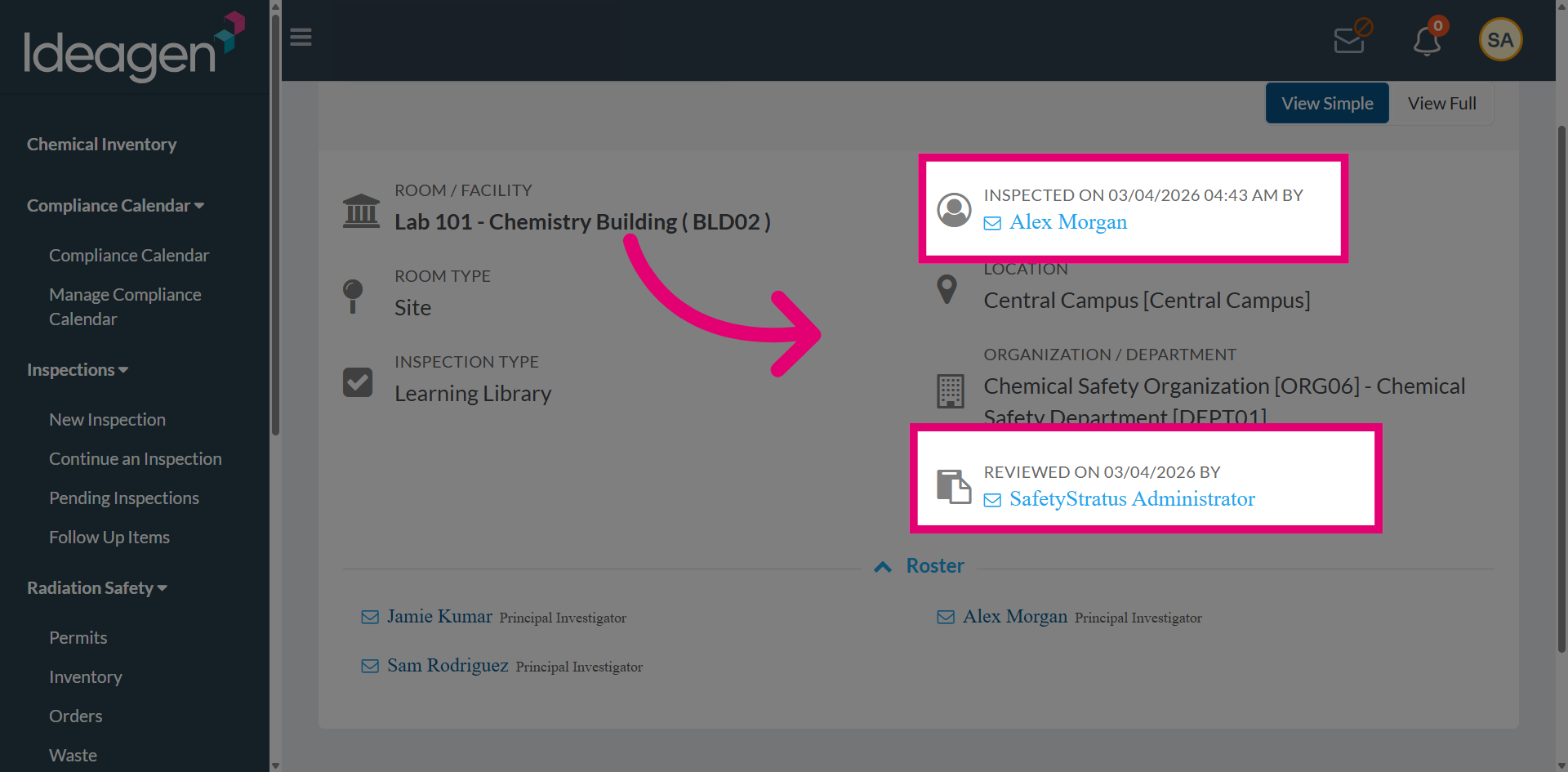
Review the completed inspection. The inspection report will display the details, including the Inspected By user with the corresponding date and time, as well as the Reviewed By user along with the review date and timestamp.