New article
Recently updated
Completing a review inspection

Who is this article for?
Users who need to complete a review inspection.
Administrator role is required.
This tutorial walks you through how to perform a review inspection.
You will learn how to create a new inspection record, select the appropriate room and template, complete the inspection checklist, and submit it for review.
Performing a Review Inspection
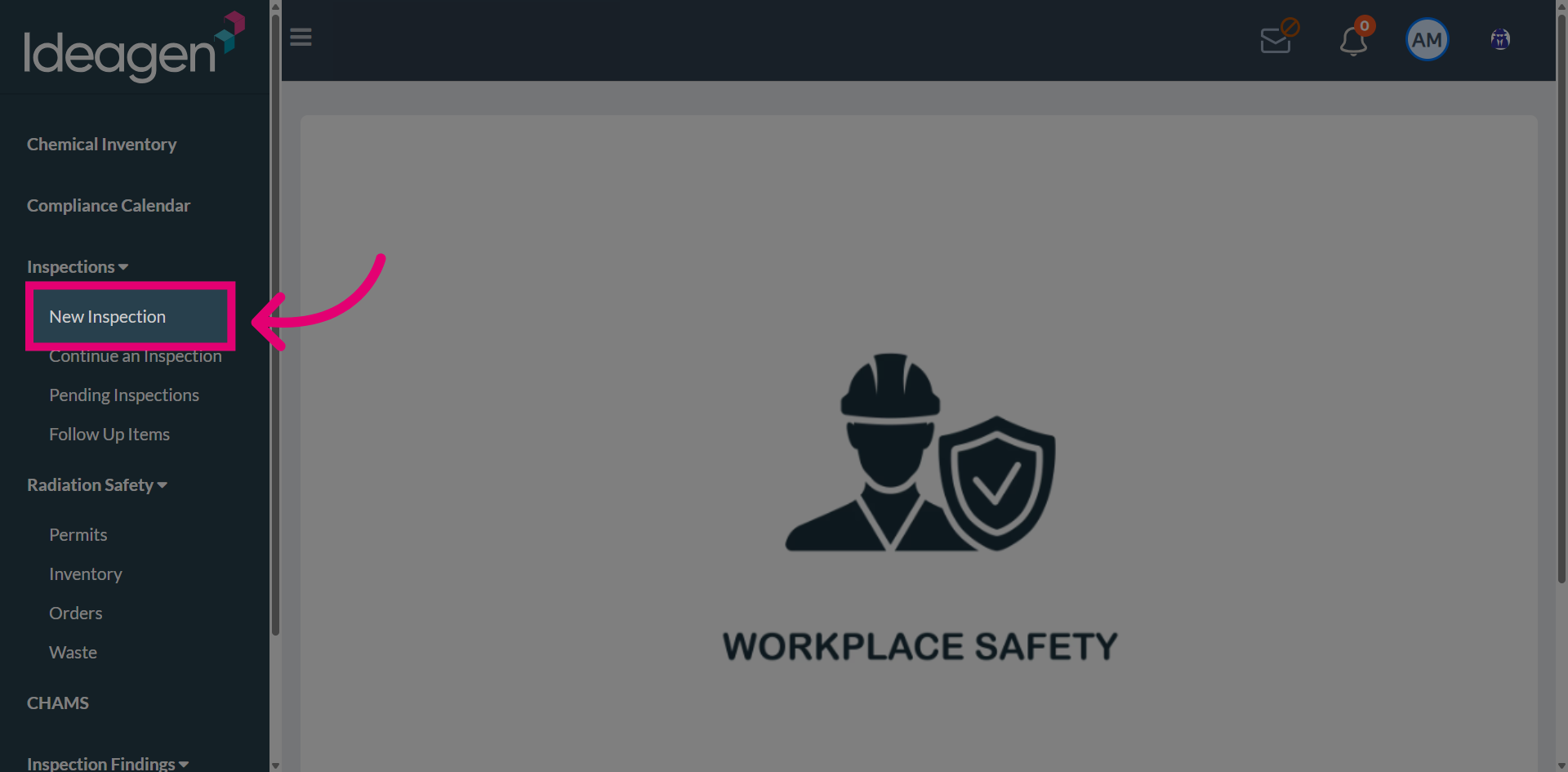
Select the New Inspection option to begin creating a new inspection record.
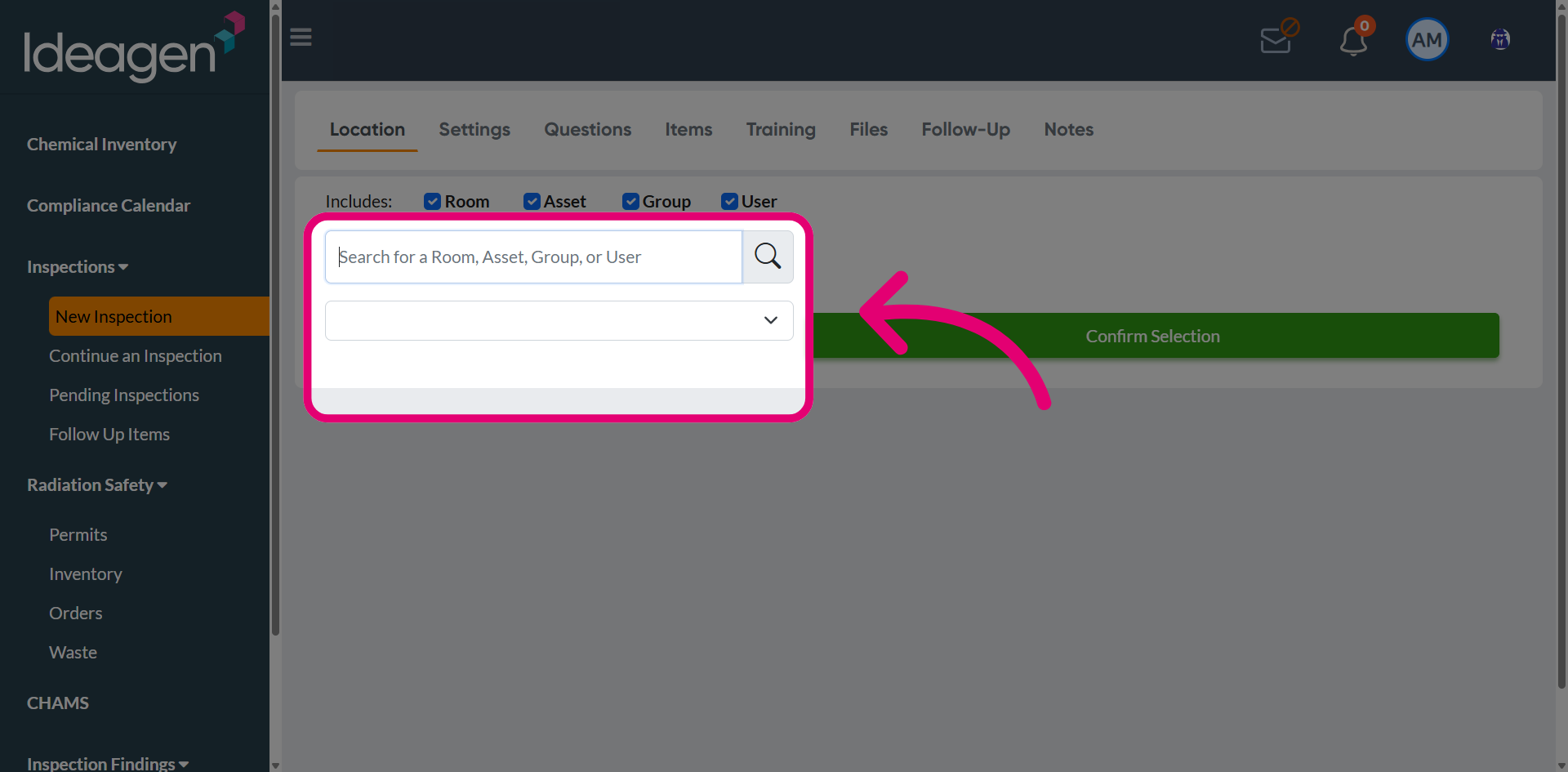
Use the search field to search and select the room from the dropdown where the review inspection will be conducted.
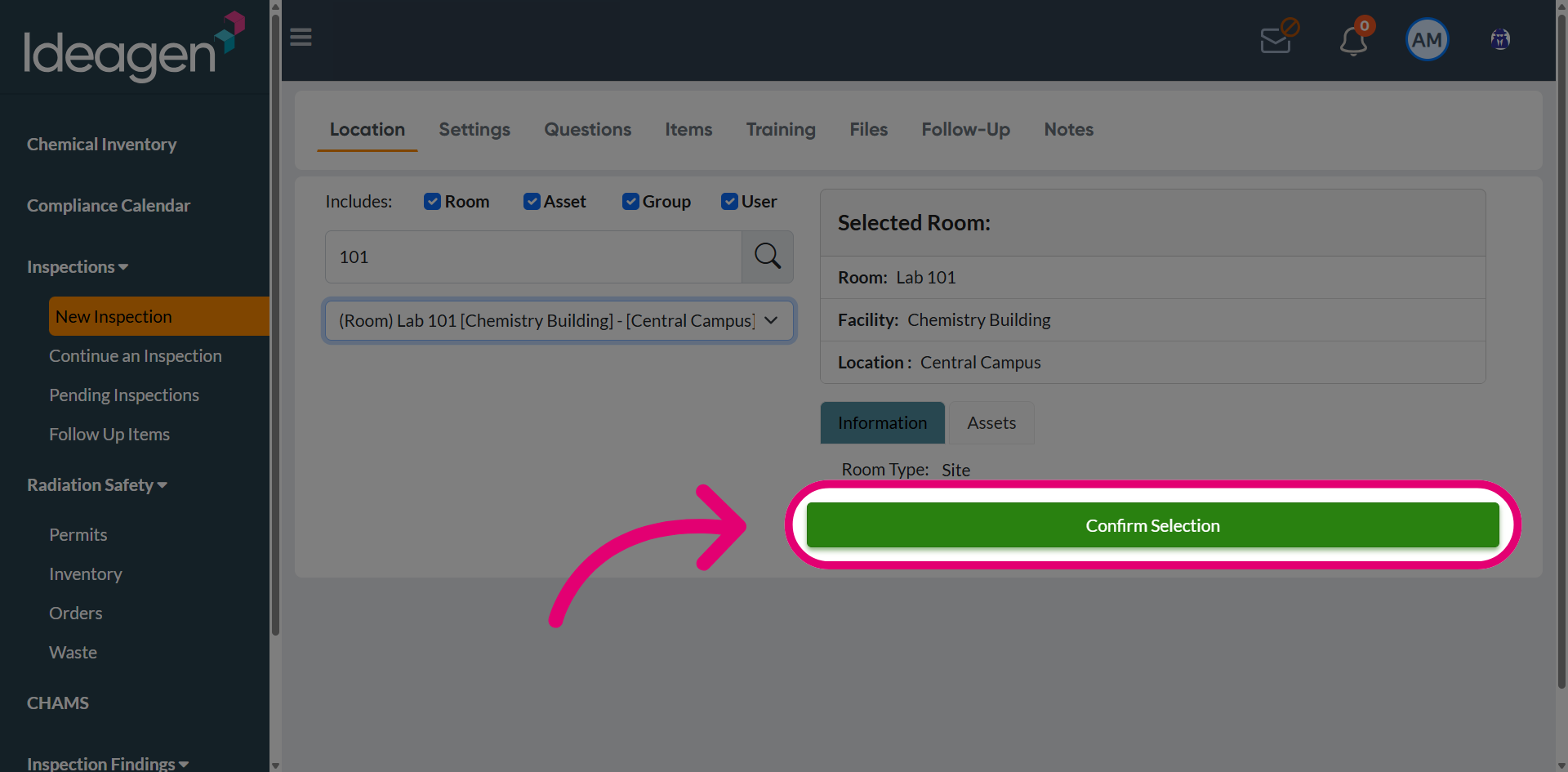
Once the appropriate inspection target has been selected, proceed by confirming the selection to finalize the inspection setup.
Choose the inspection template from the available options. In this case, select the Review Inspection Template, labeled as Learning Library.
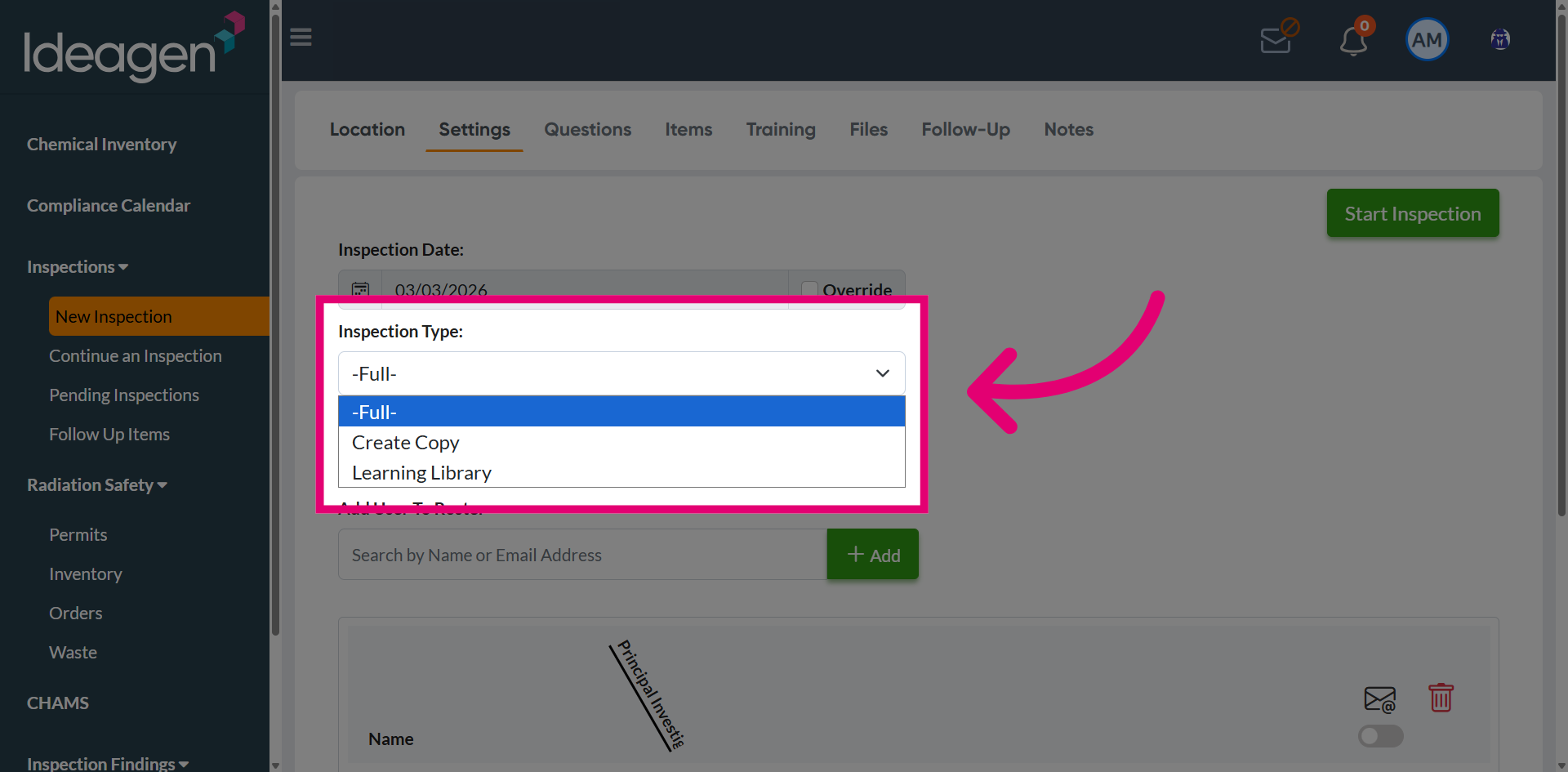
Select the review inspection template from the dropdown.
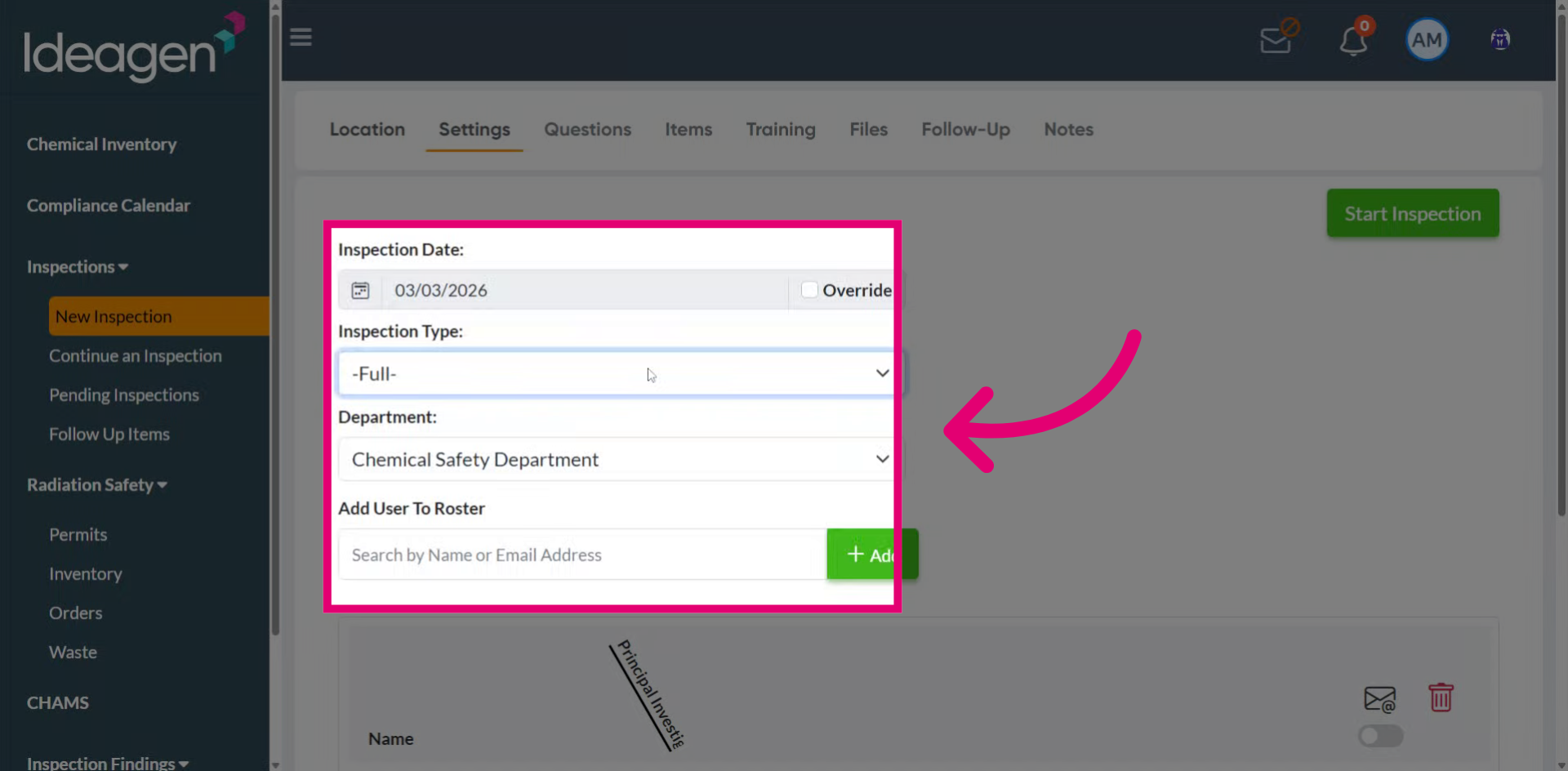
After completing the required selections, initiate the inspection process by proceeding with the Start Inspection option.
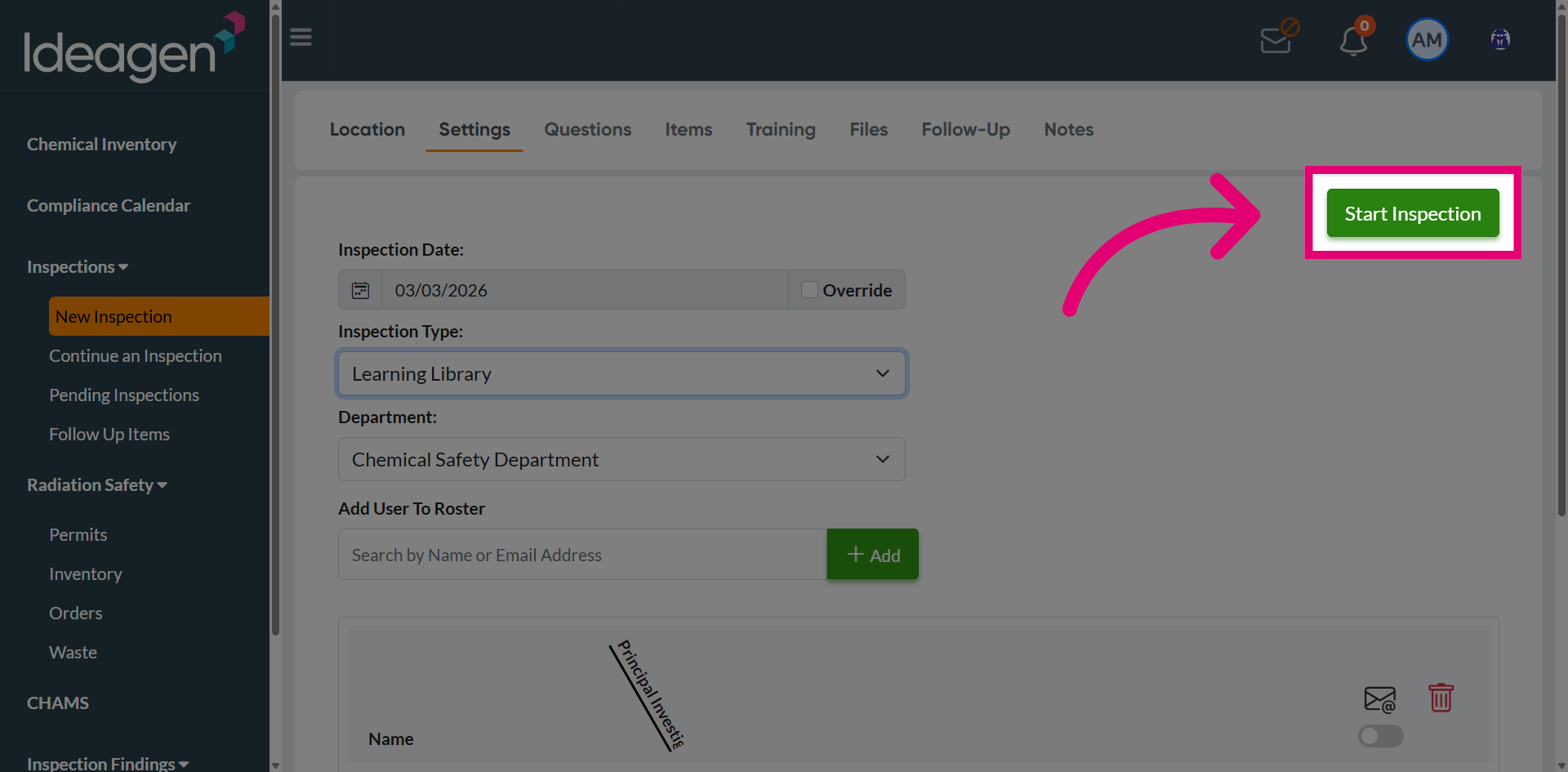
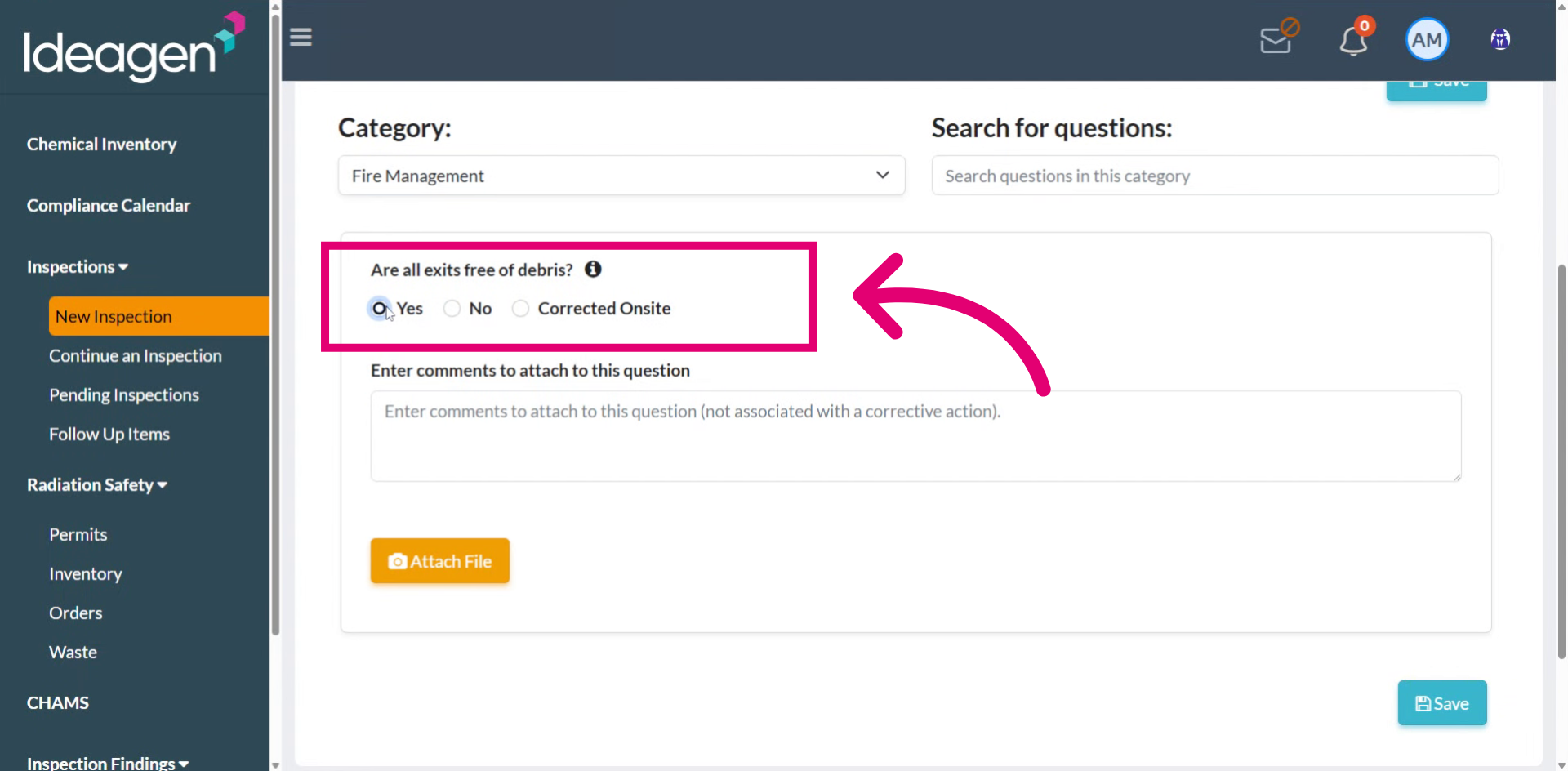
Provide responses to the relevant checklist questions.
Proceed with the Complete Inspection option to finalize and submit the inspection.
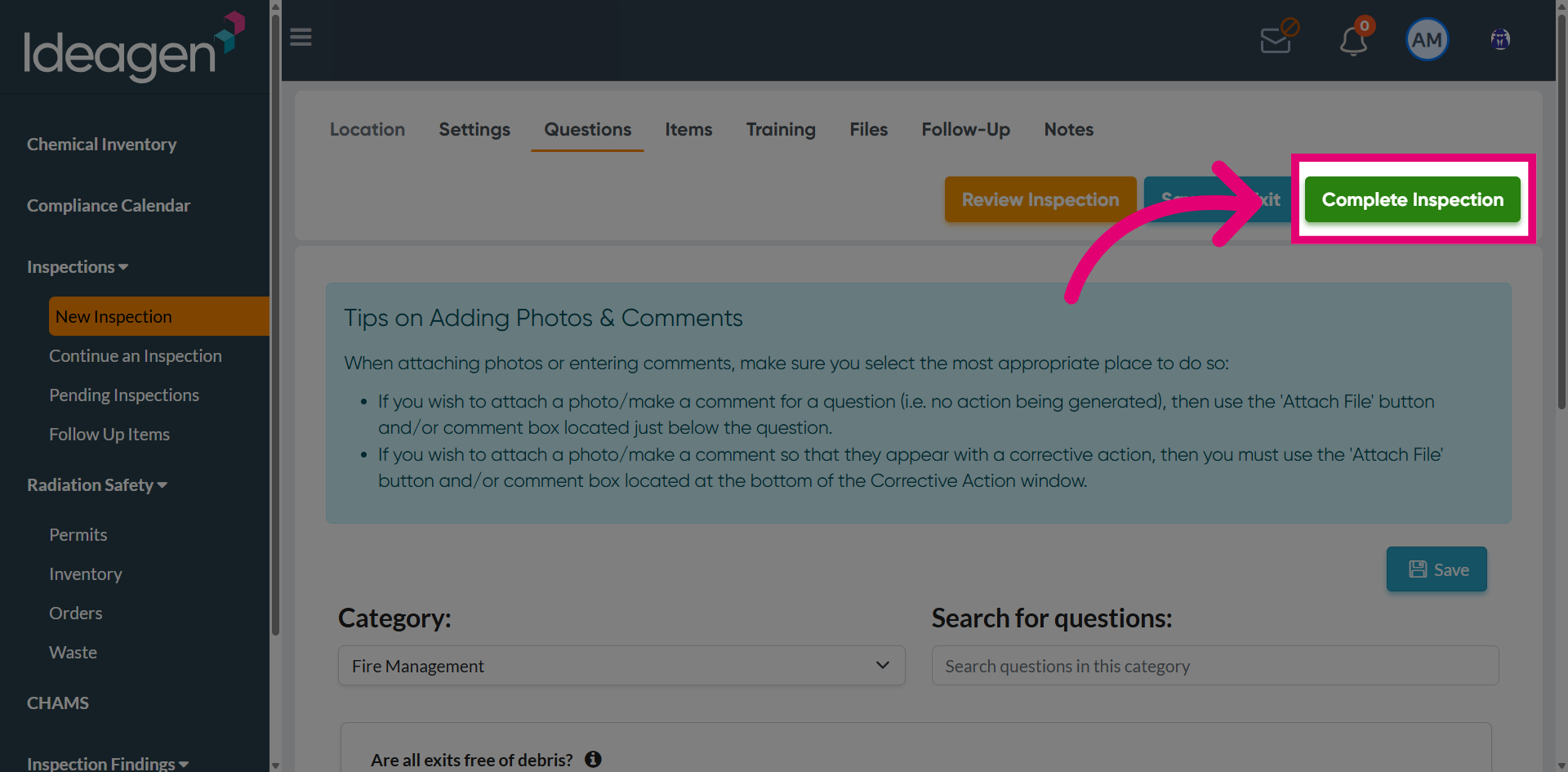
A confirmation message will appear indicating that the inspection requires review. The system will automatically send an email notification to the designated reviewers. The inspection will remain in an open status until it has been reviewed and approved.
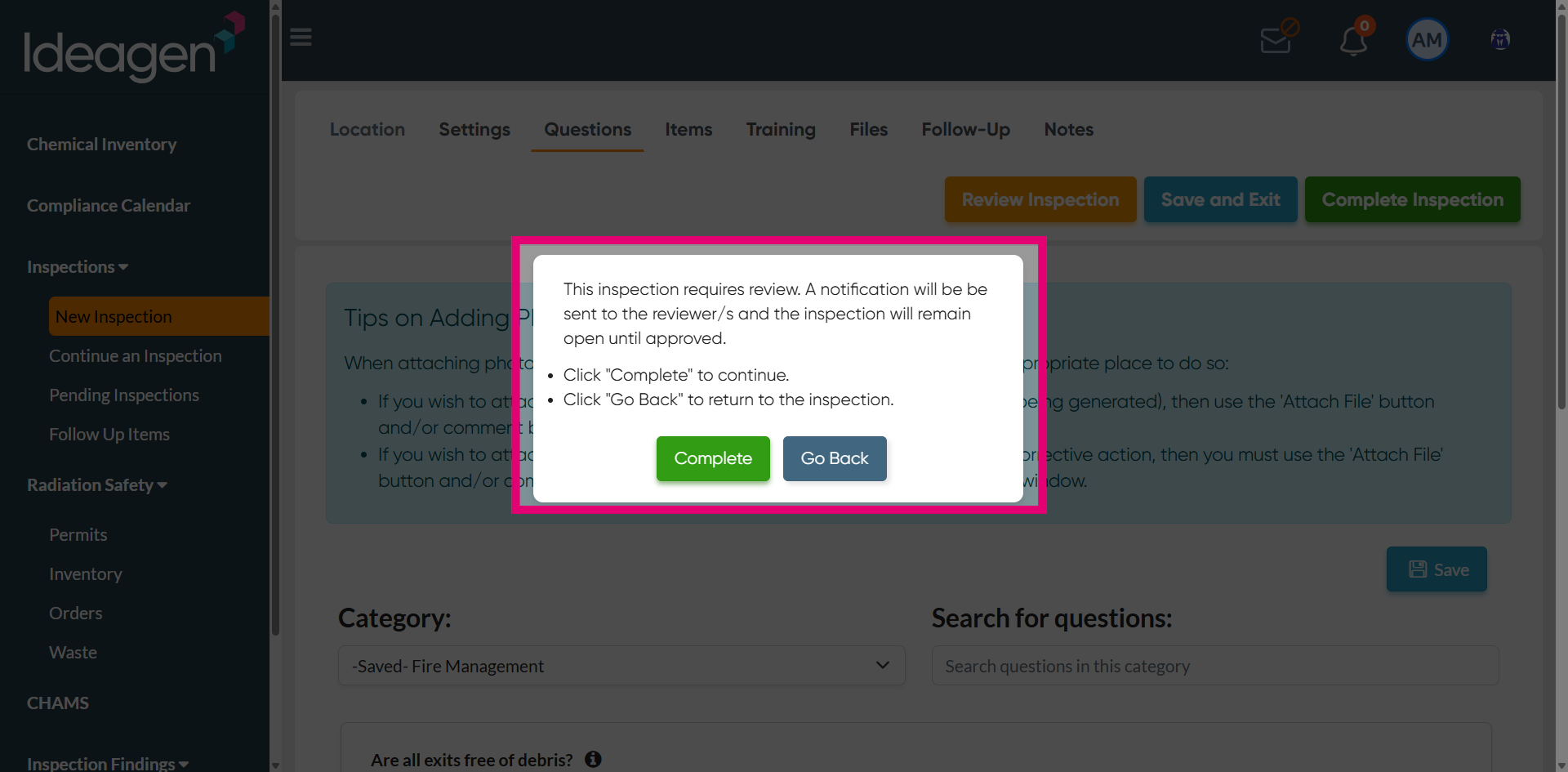
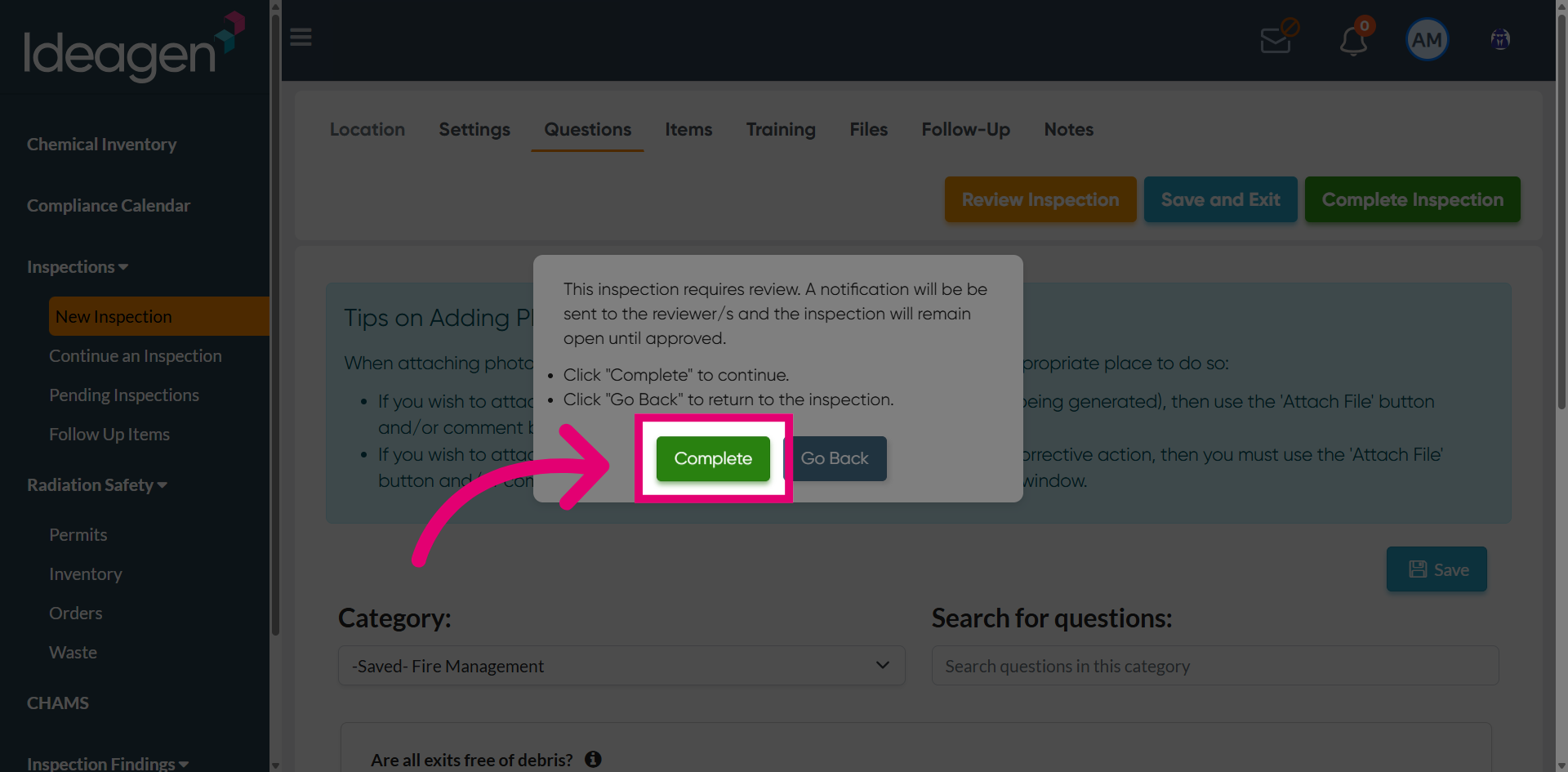
After reviewing the confirmation message, acknowledge it by selecting Complete to proceed.
View the updated New Inspection - LabCliQ by SafetyStratus page to confirm changes.
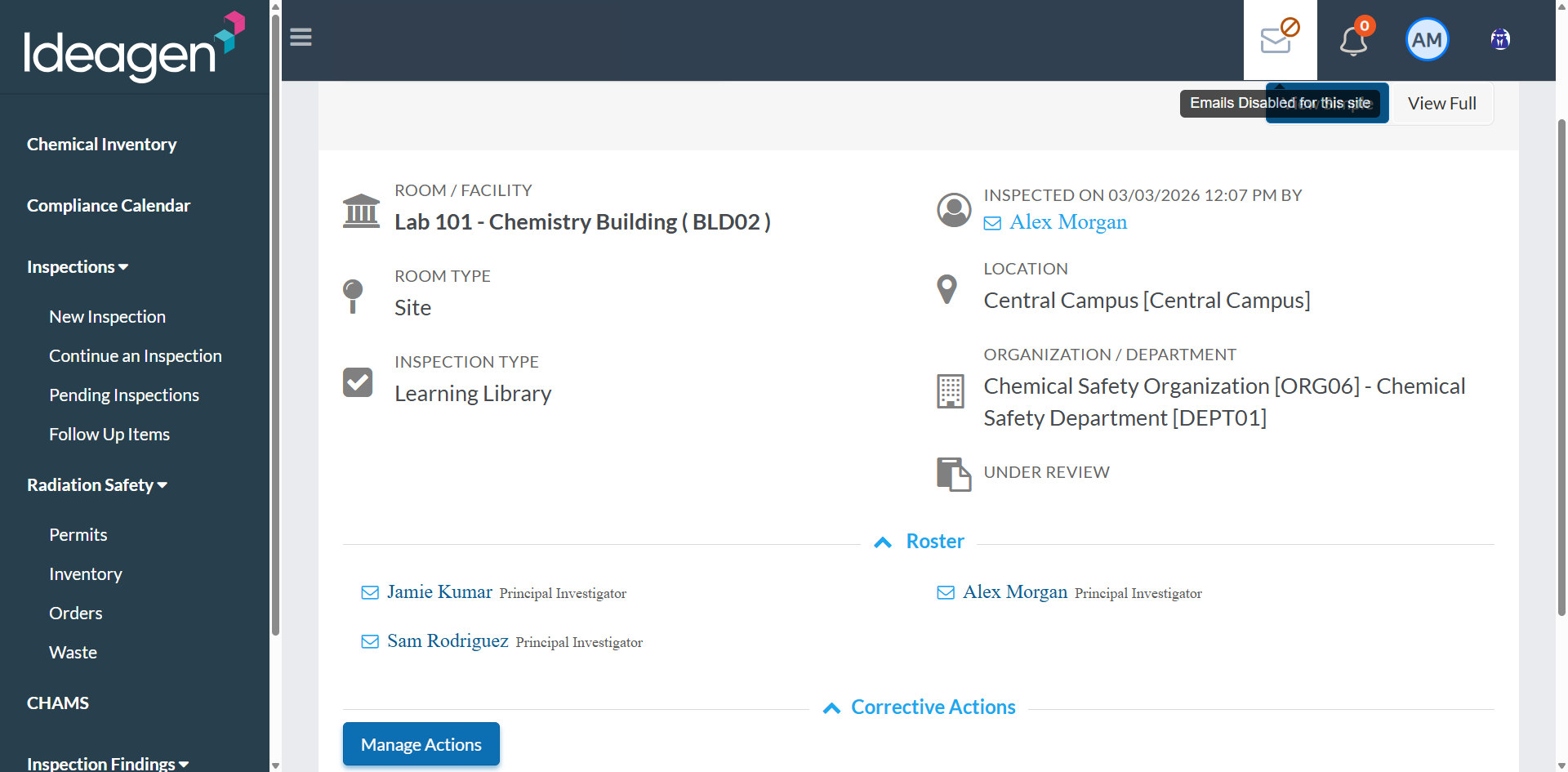
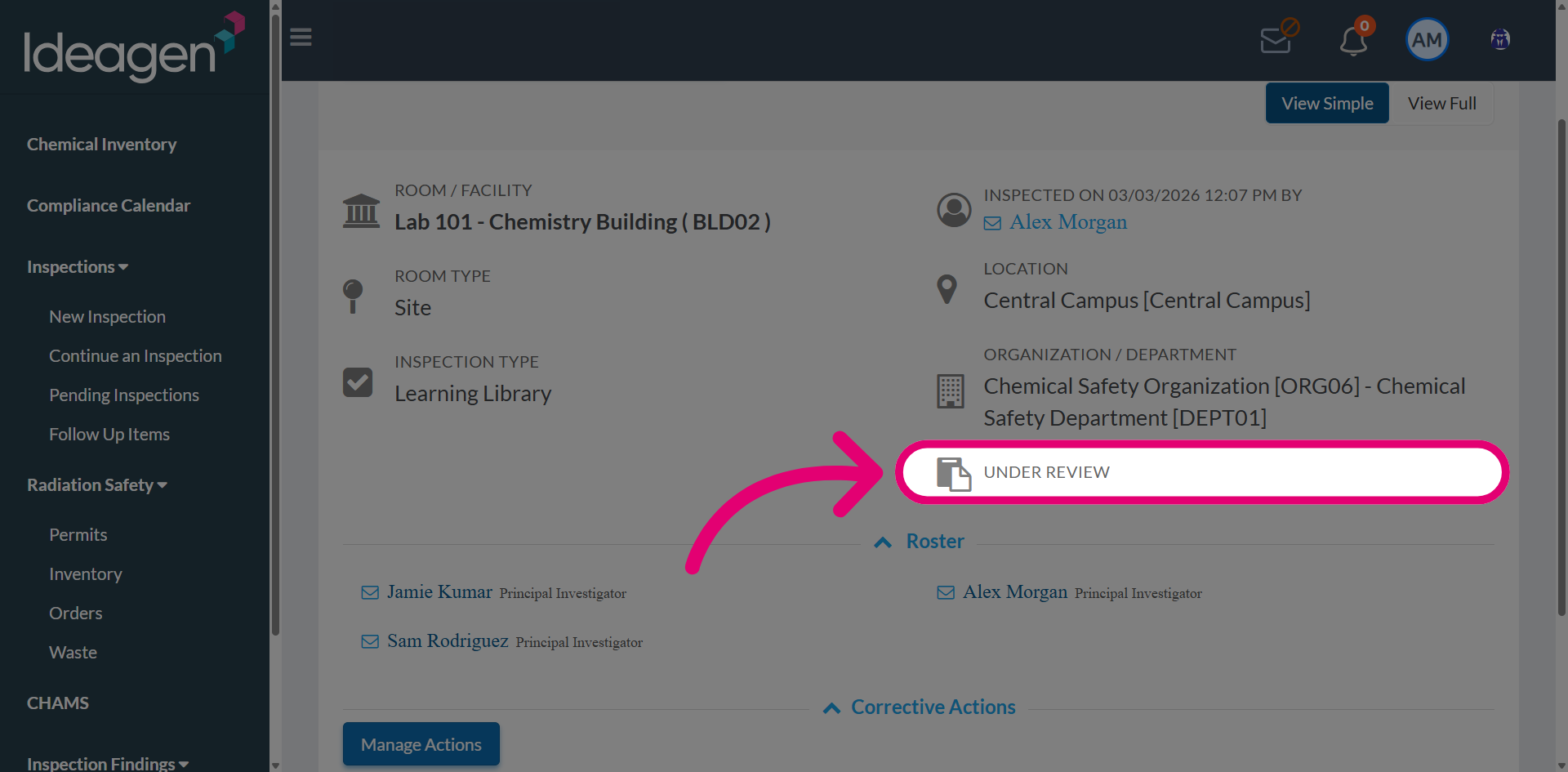
Within the Inspection Report, the current status will now be displayed as Under Review, indicating that the inspection is pending reviewer action.