New article
Recently updated
Generating a door sign

Who is this article for?
Laboratory managers and safety coordinators who need to create door signs for labs and rooms.
No special access or permissions are required.
This tutorial walks you through the process of creating and generating a door sign in the CHAMS module.
You will learn how to select locations, add hazard and PPE images, and generate a printable door sign for your lab or room.
1. Creating a Door Sign
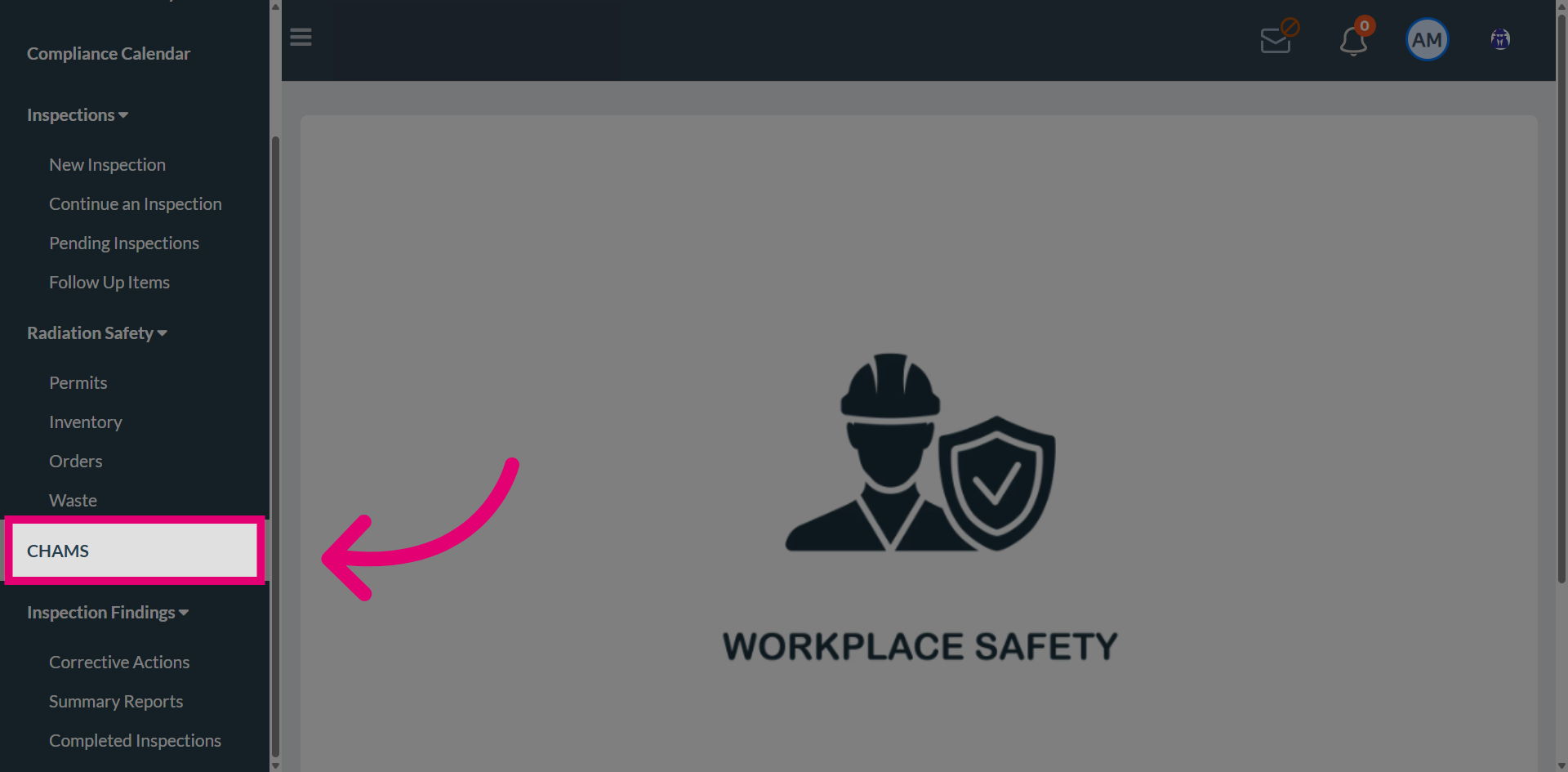
Navigate to the CHAMS module to begin the process of generating a door sign.
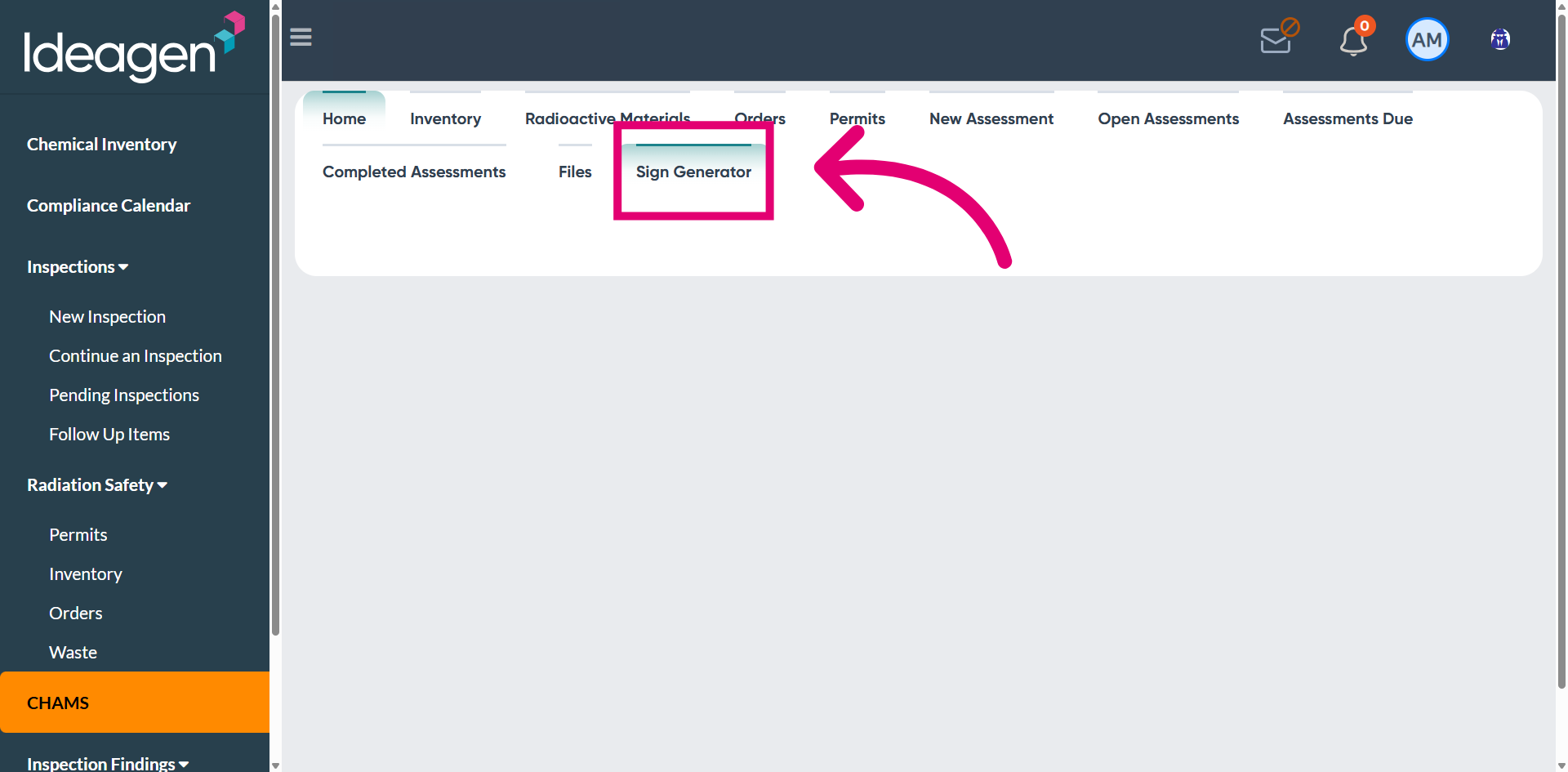
Navigate to the Sign Generator tab to access the door sign creation tool.
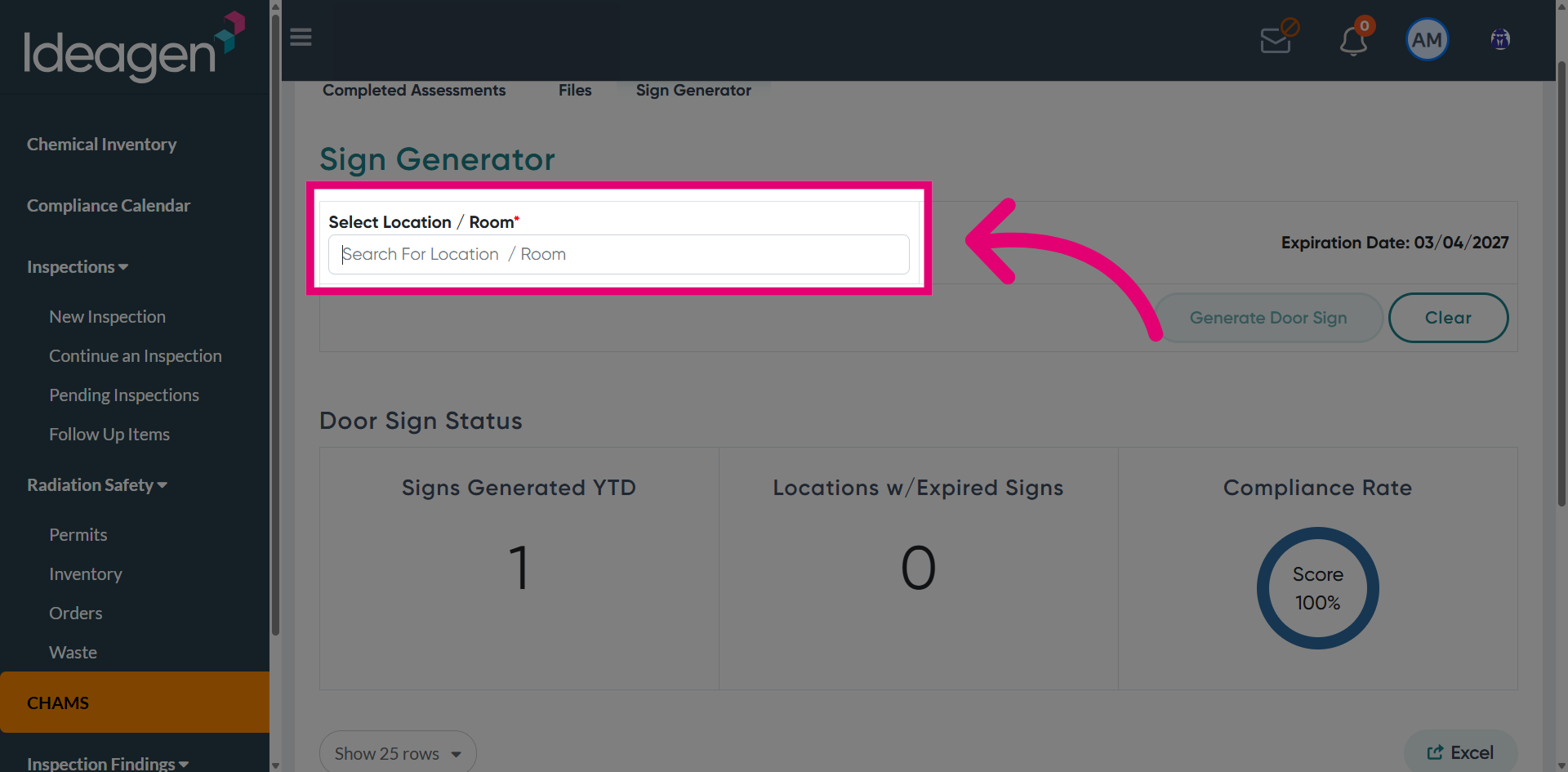
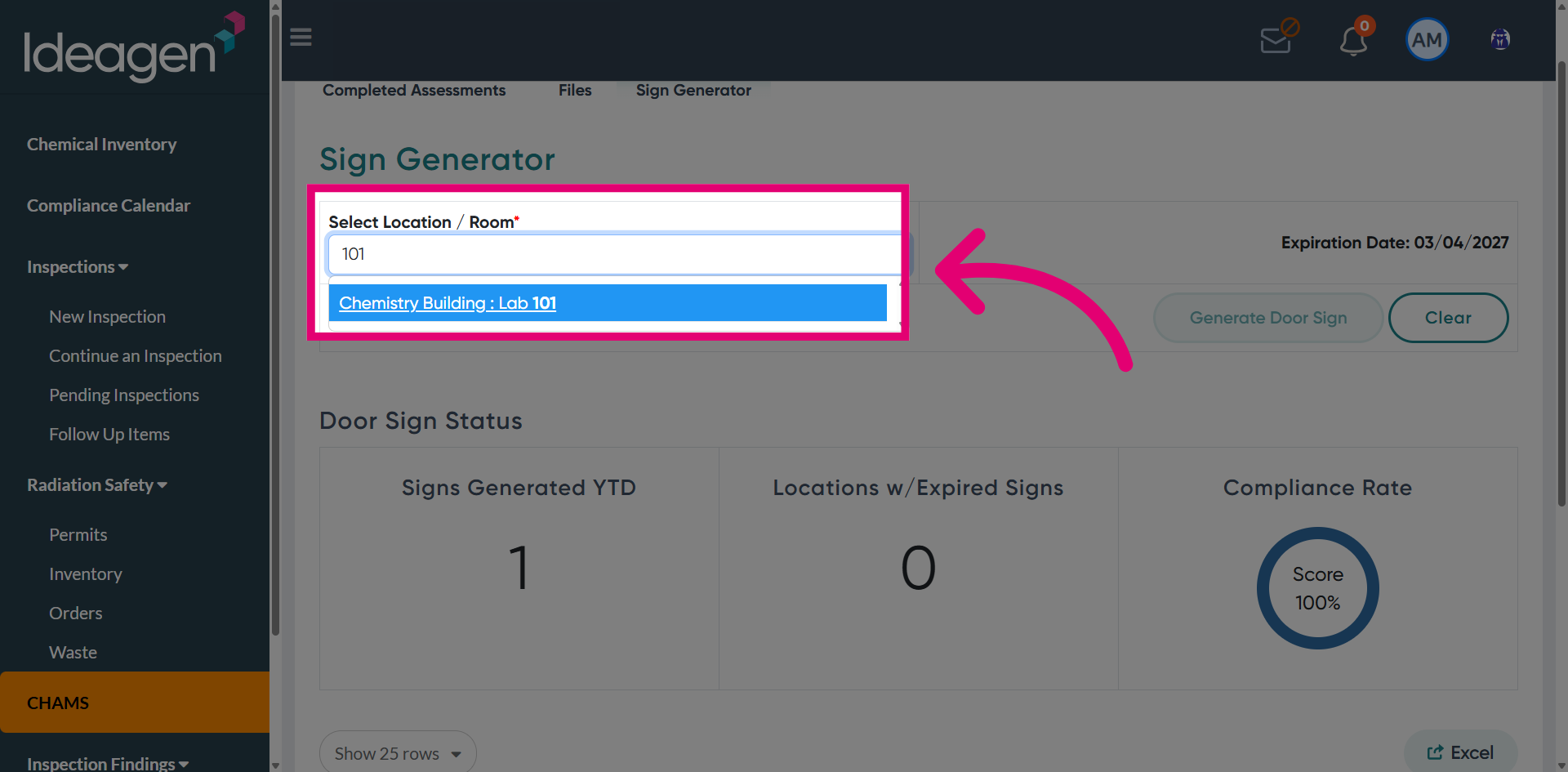
Use the Select Location / Room option to choose the specific area for which the door sign will be generated.
Choose the appropriate room from the dropdown list to specify the exact location for the door sign.
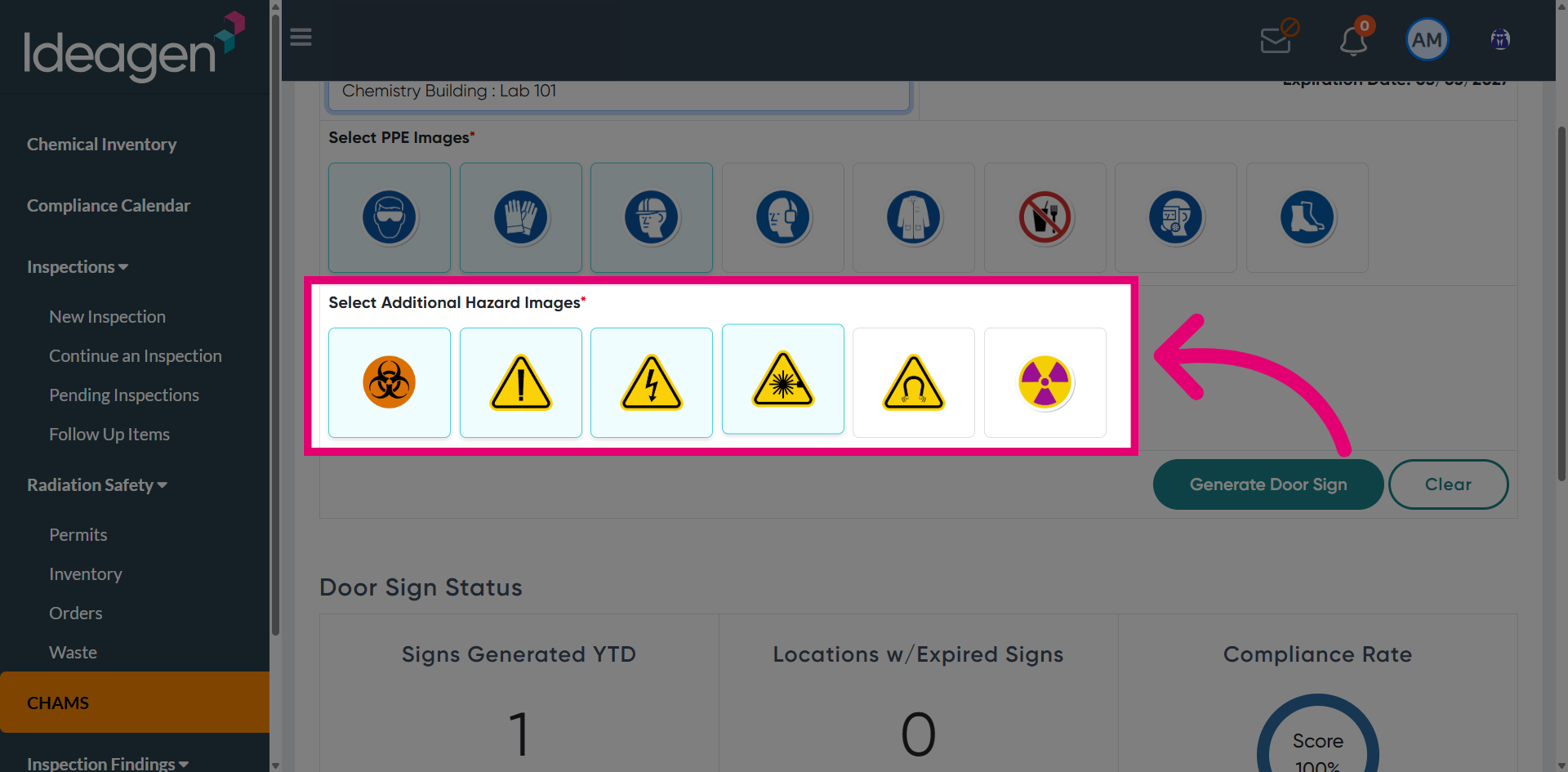
If necessary, select additional hazard images to include on the door sign.
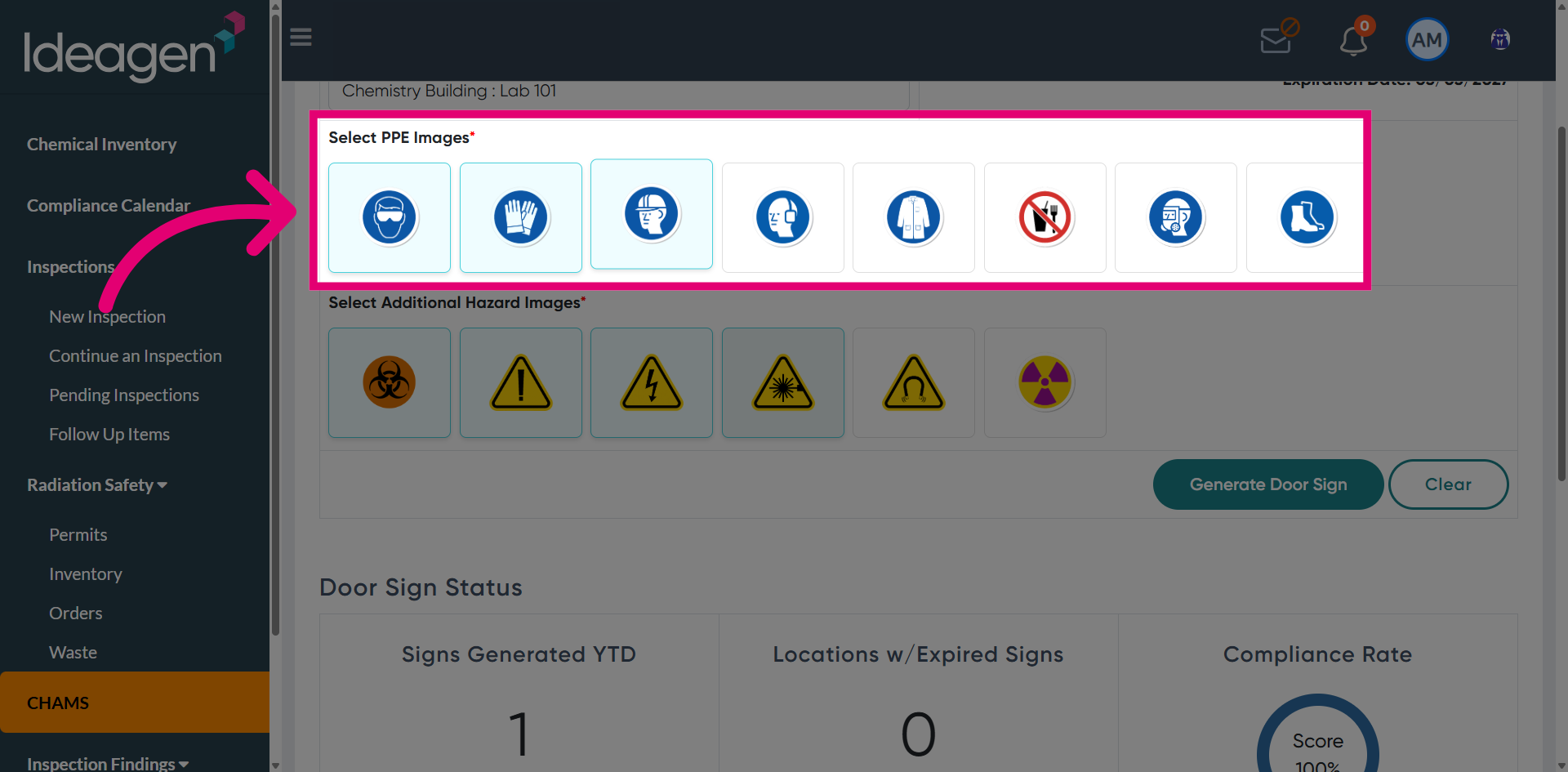
Select one or more PPE images to include on the door sign, ensuring that all required protective equipment is clearly indicated.
Once all required selections have been made, click Generate Door Sign to create the door sign based on the chosen details.
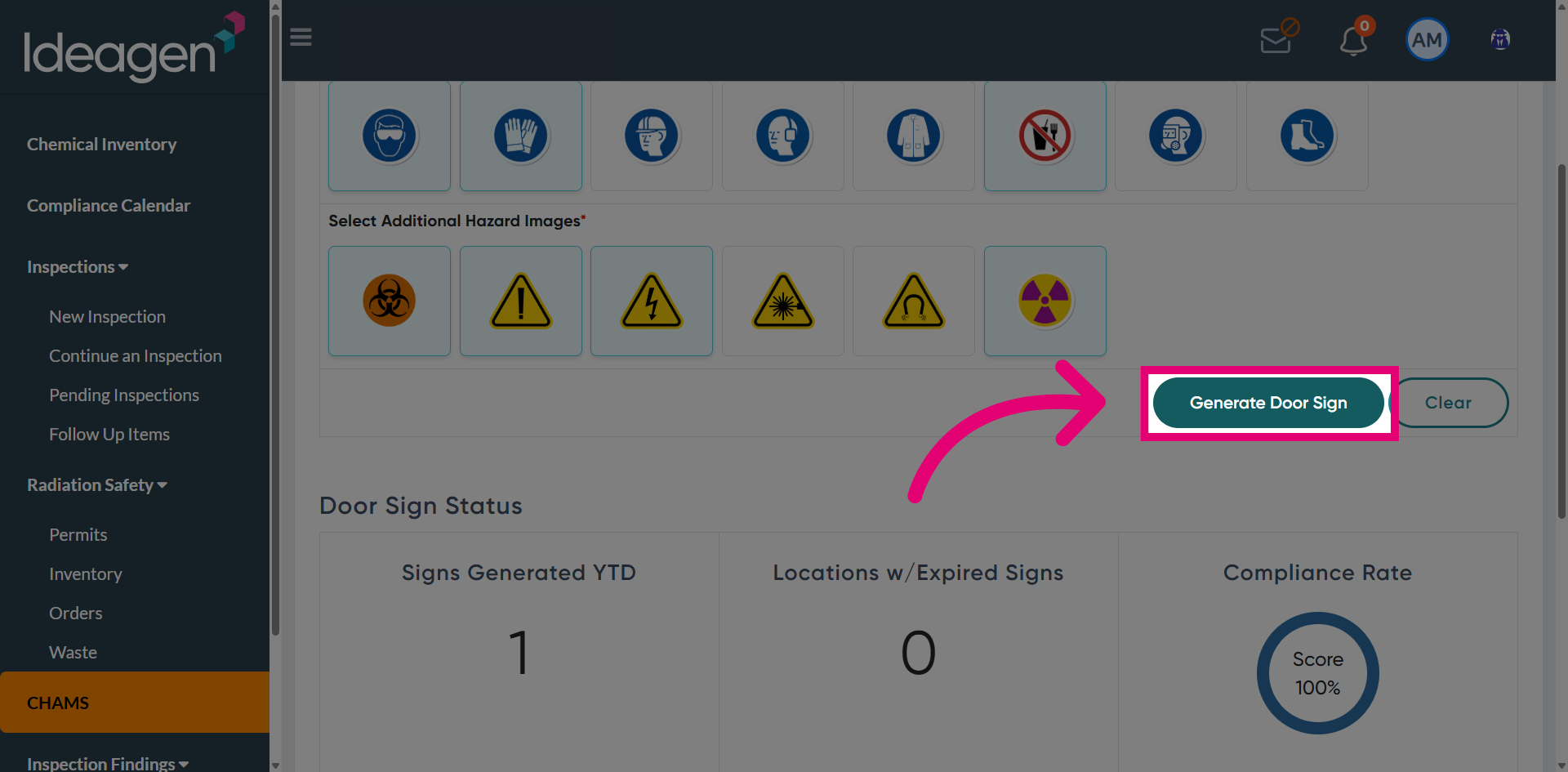
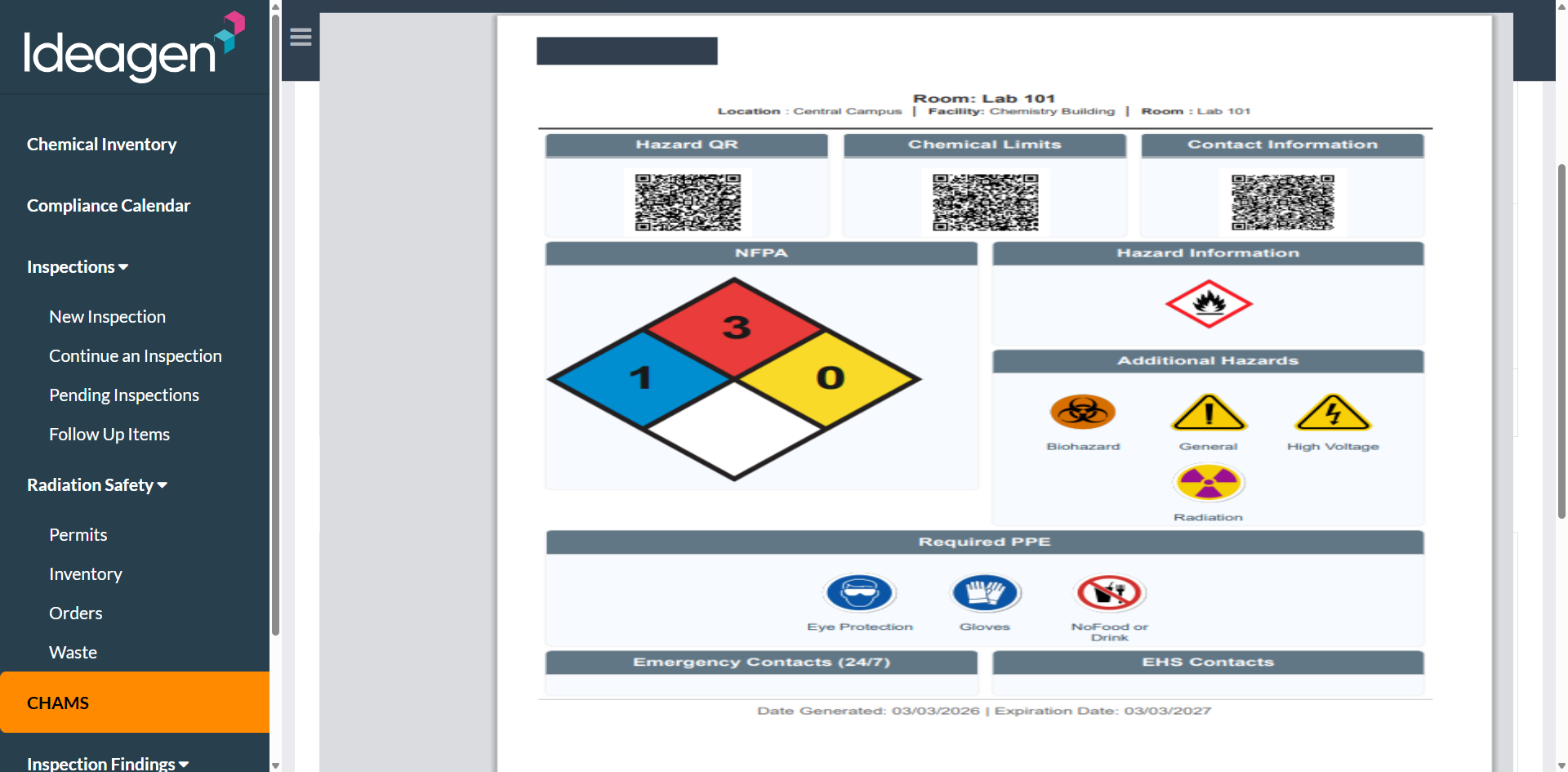
A new door sign will be generated, which can be printed and displayed on the room or lab door, showing all the selected safety and hazard information.