New article
Recently updated
Renotifying a corrective action

Who is this article for?
Users who need to renotify a corrective action.
No special access or permission are required.
This article explains how to resend notification emails for corrective actions that require follow-up reminders.
You will learn how to access corrective actions, filter by inspection, and send renotification emails to responsible parties.
Renotifying a Corrective Action
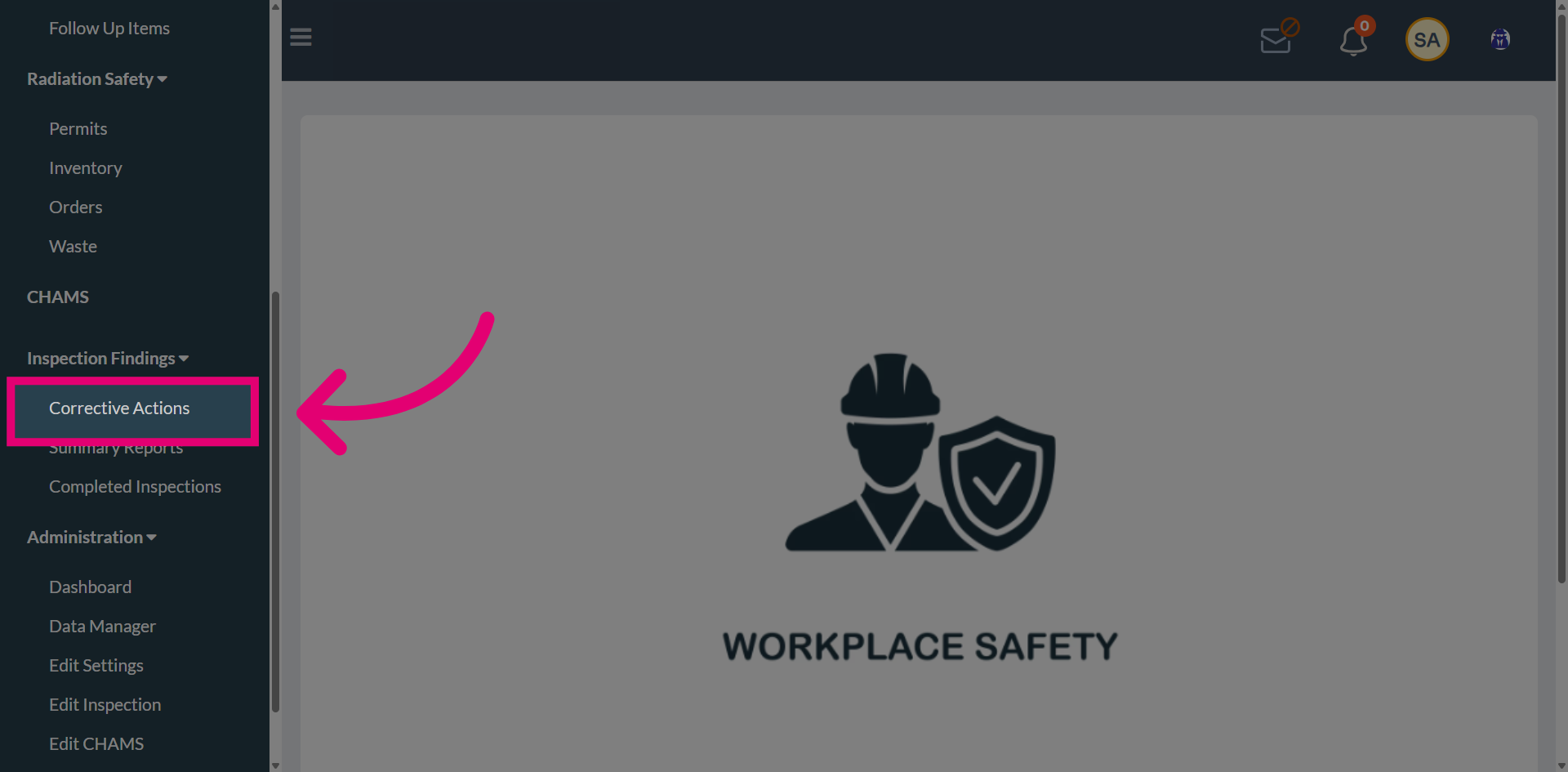
Navigate to Corrective Actions to open the main section for managing corrective tasks within the system.
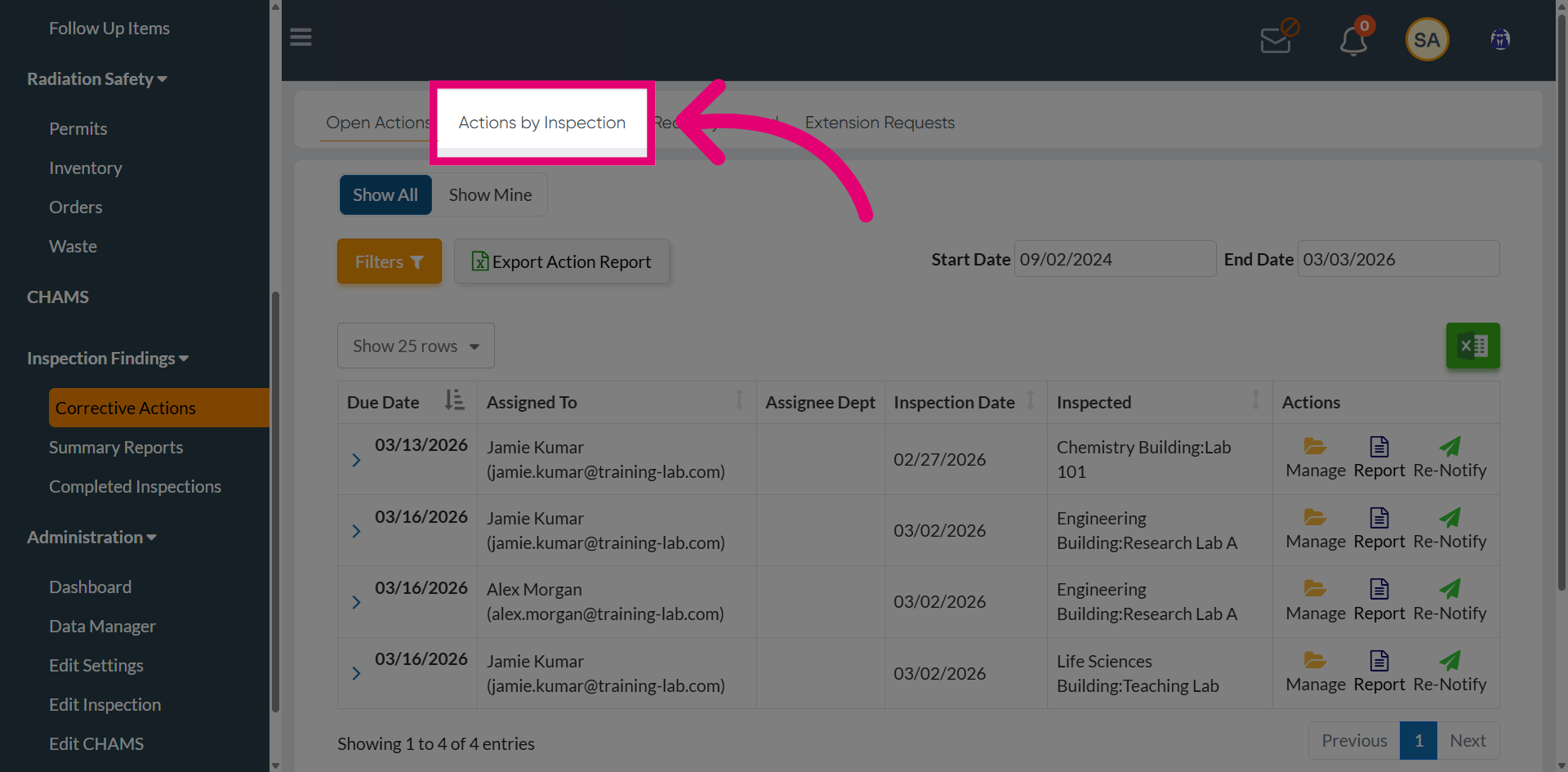
Access Actions by Inspection to filter corrective actions based on their associated inspection.
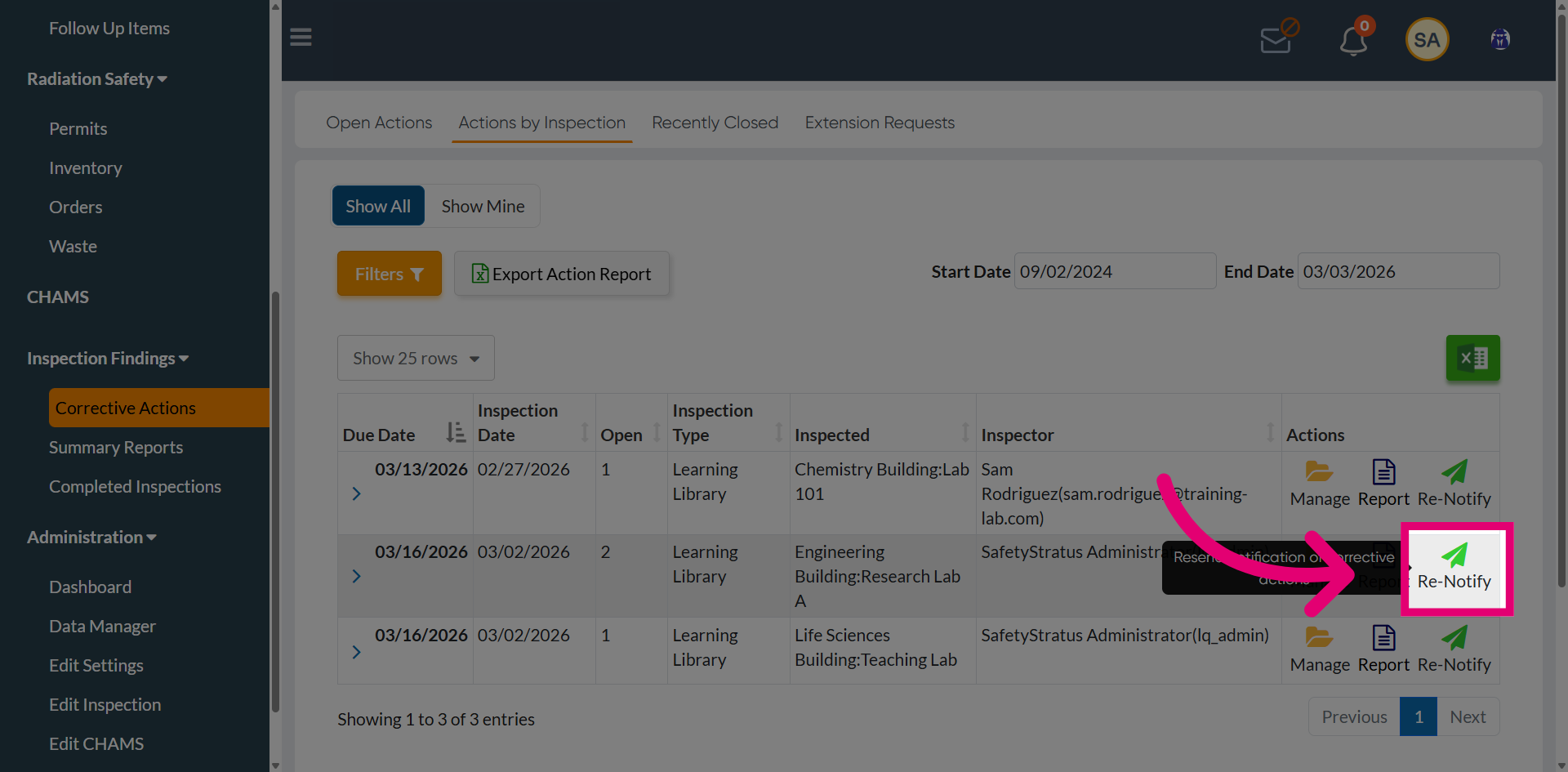
From the available corrective actions from an inspection, choose Renotify for the item that requires a follow-up reminder.
Review the confirmation message indicating that you are about to resend notifications to all users of the open corrective actions associated with this inspection.
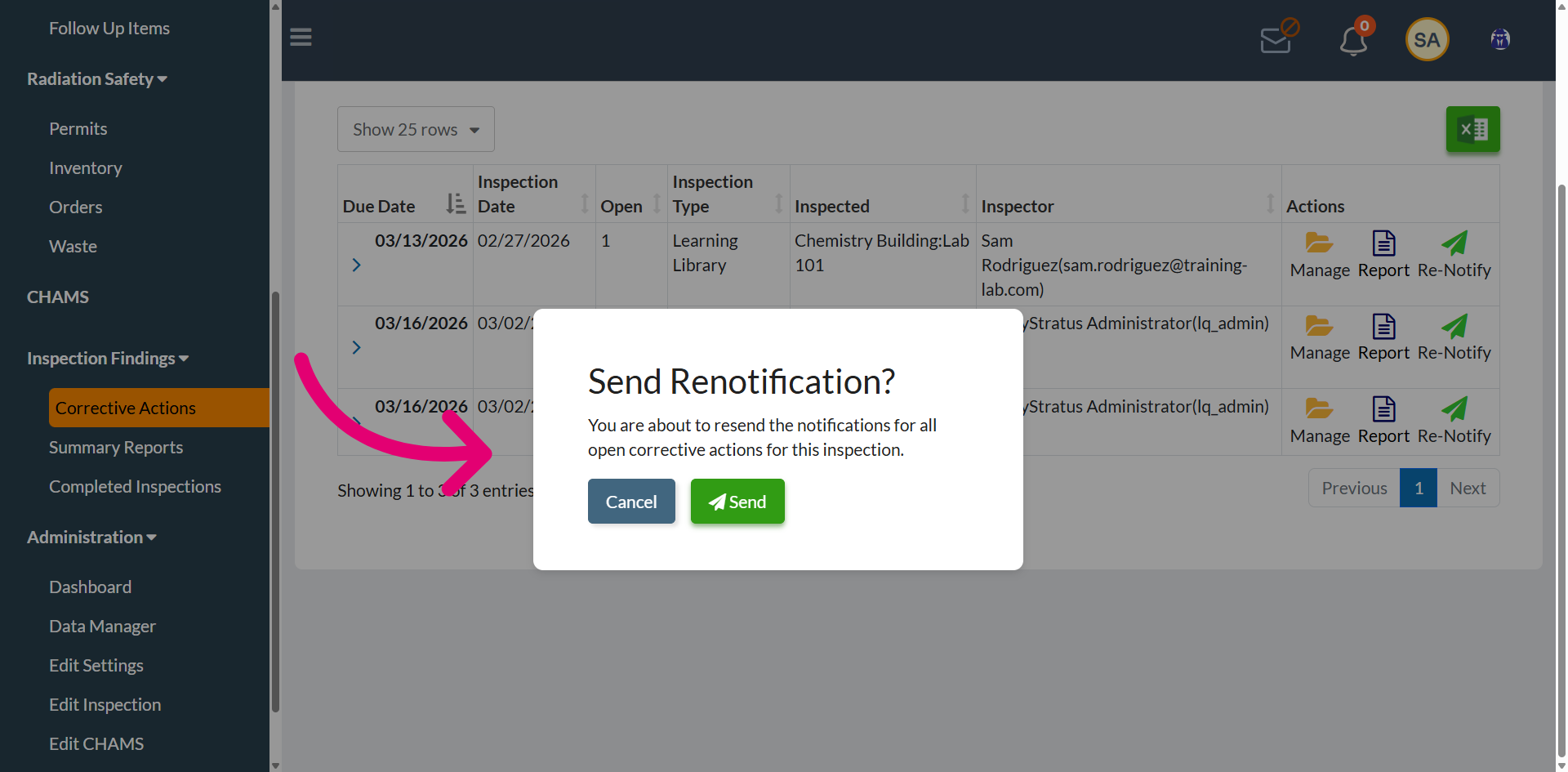
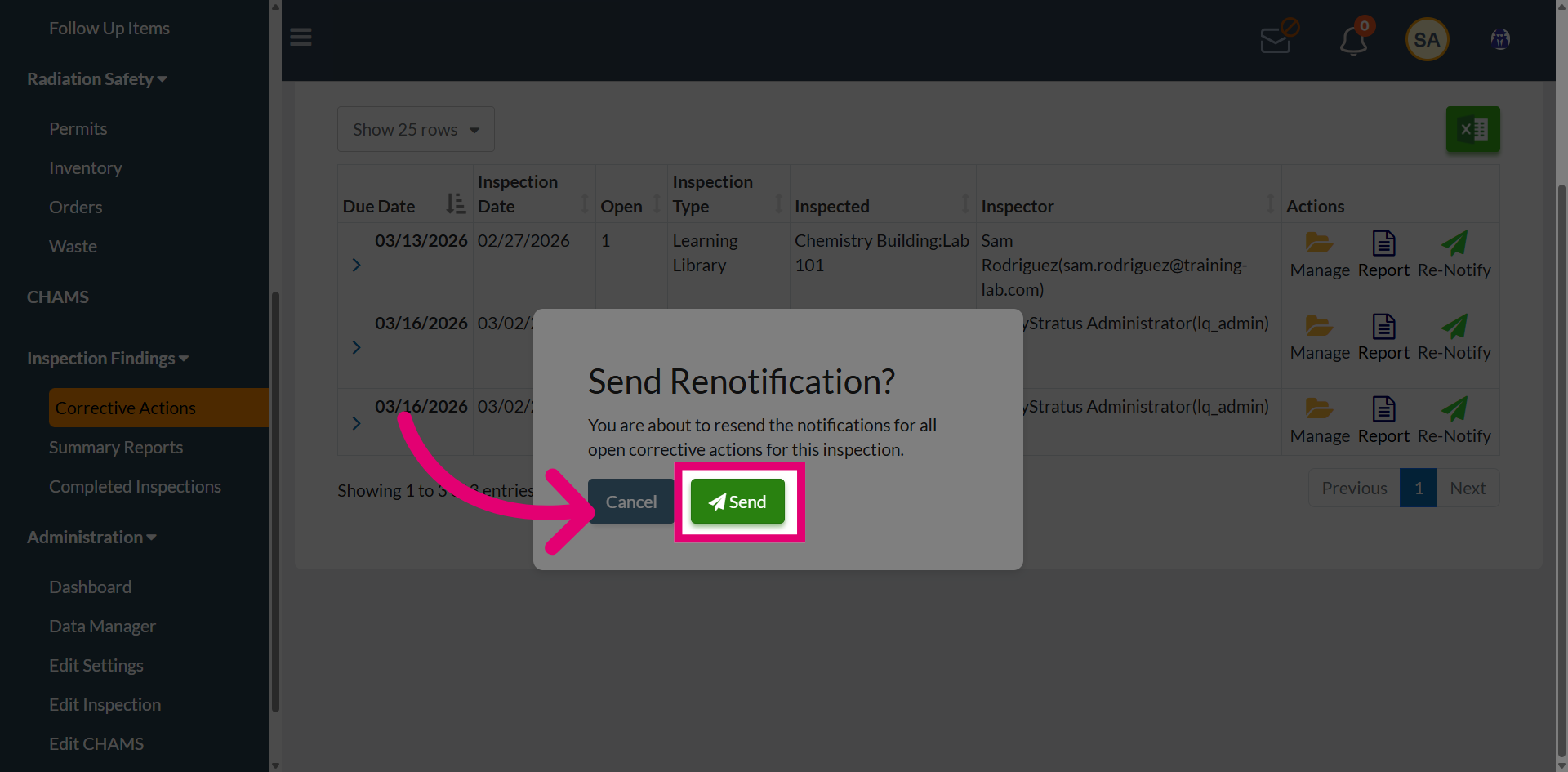
Click Send to resend the notification email regarding the corrective action to the responsible parties.
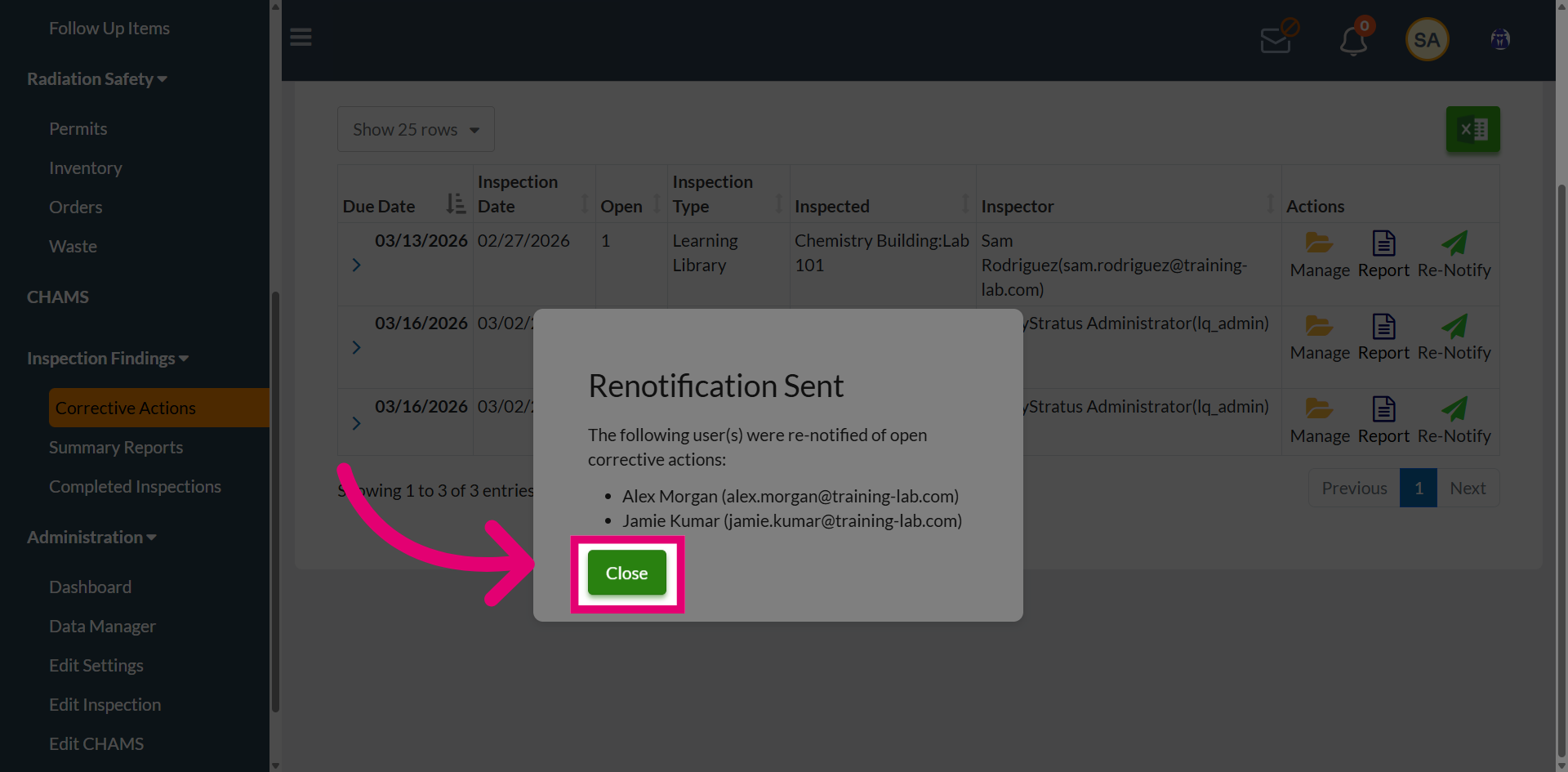
A confirmation message appears indicating that the notification has been successfully sent to the selected users. The email includes a direct link that guides recipients to the Manage page, where they can review and close the corrective action.
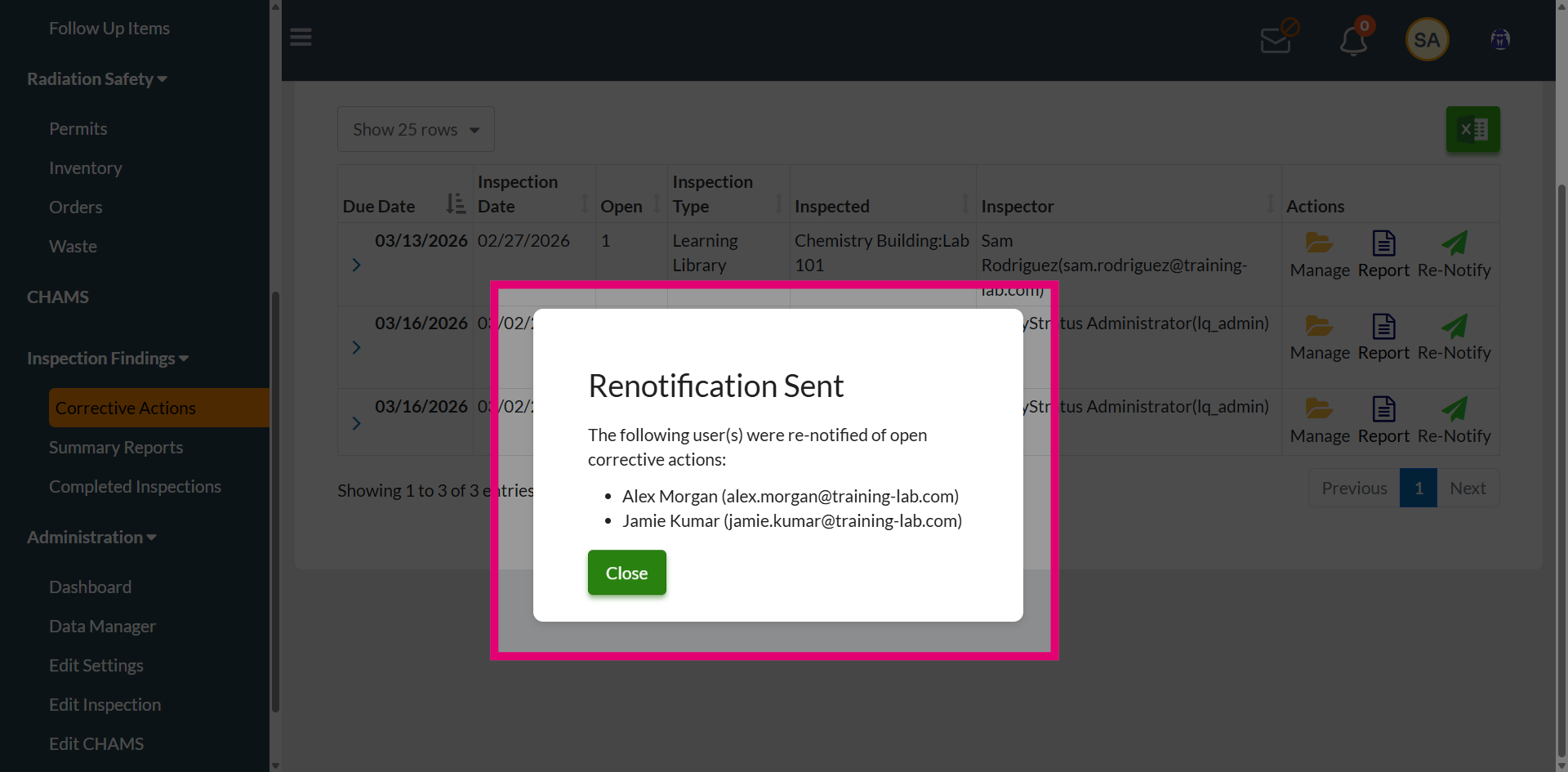
After sending the renotification email, click Close to exit the notification window and return to the main screen.