New article
Recently updated
Reopening a corrective action

Who is this article for?
Users who need to reopen a corrective action.
No special access or permission are required.
This article explains how to reopen a corrective action that has been previously closed in the system.
You will learn how to navigate to recently closed actions, select the appropriate corrective action, add justification comments, and complete the reopening process.
1. Reopening a Corrective Action
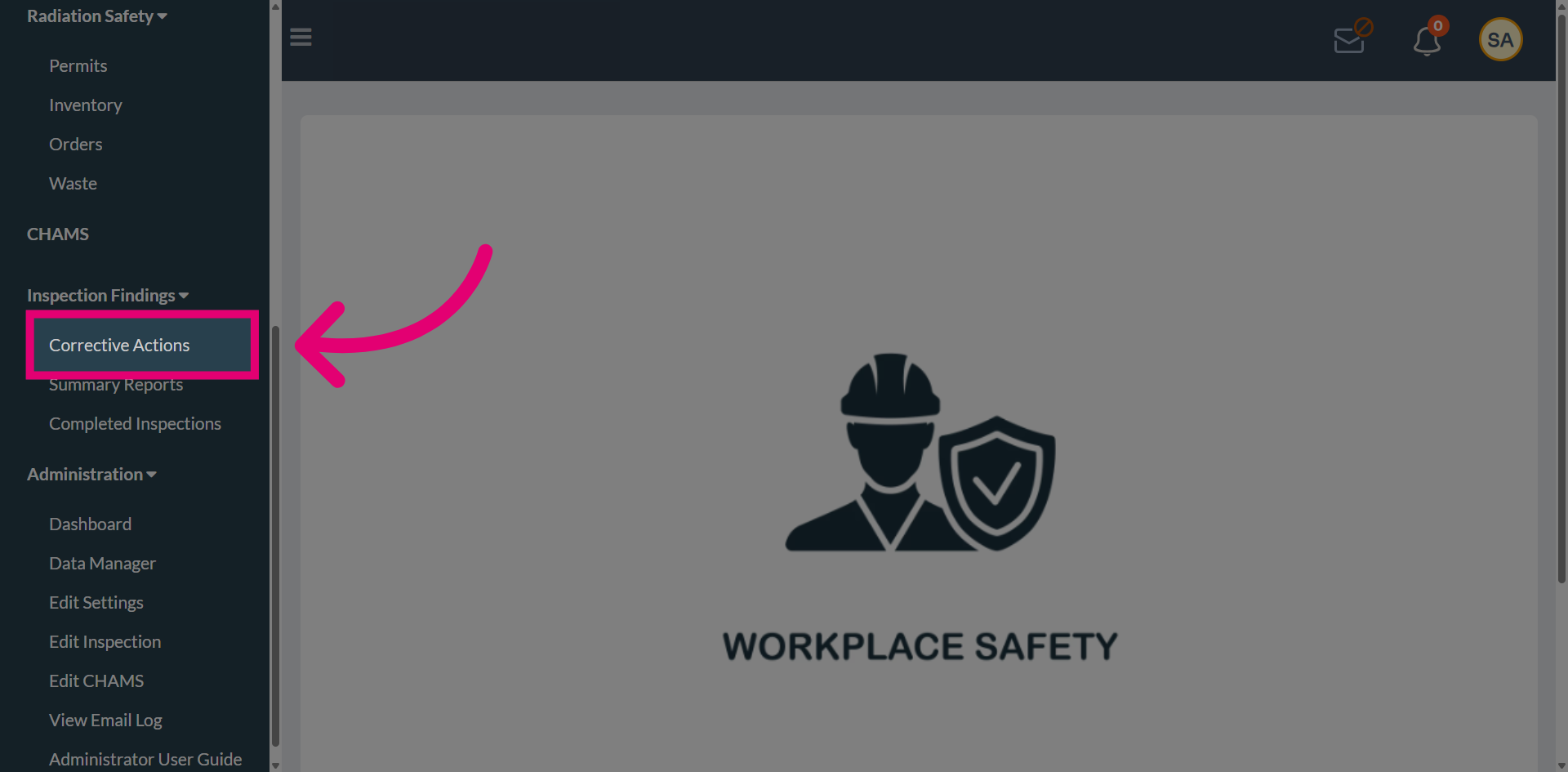
Navigate to Corrective Actions to open the main section for managing corrective tasks within the system.
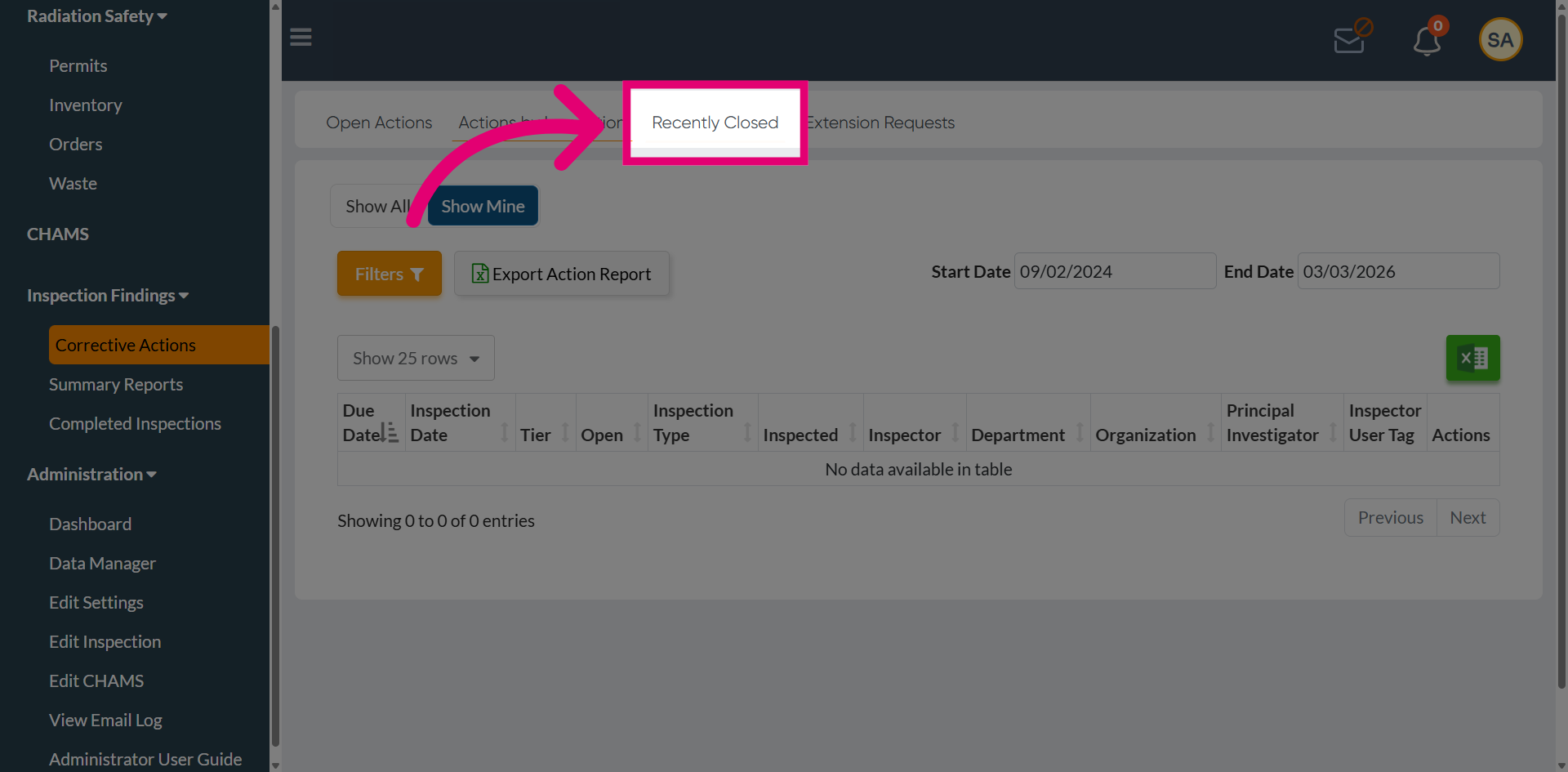
Use the Recently Closed option to review corrective actions that were recently marked as completed.
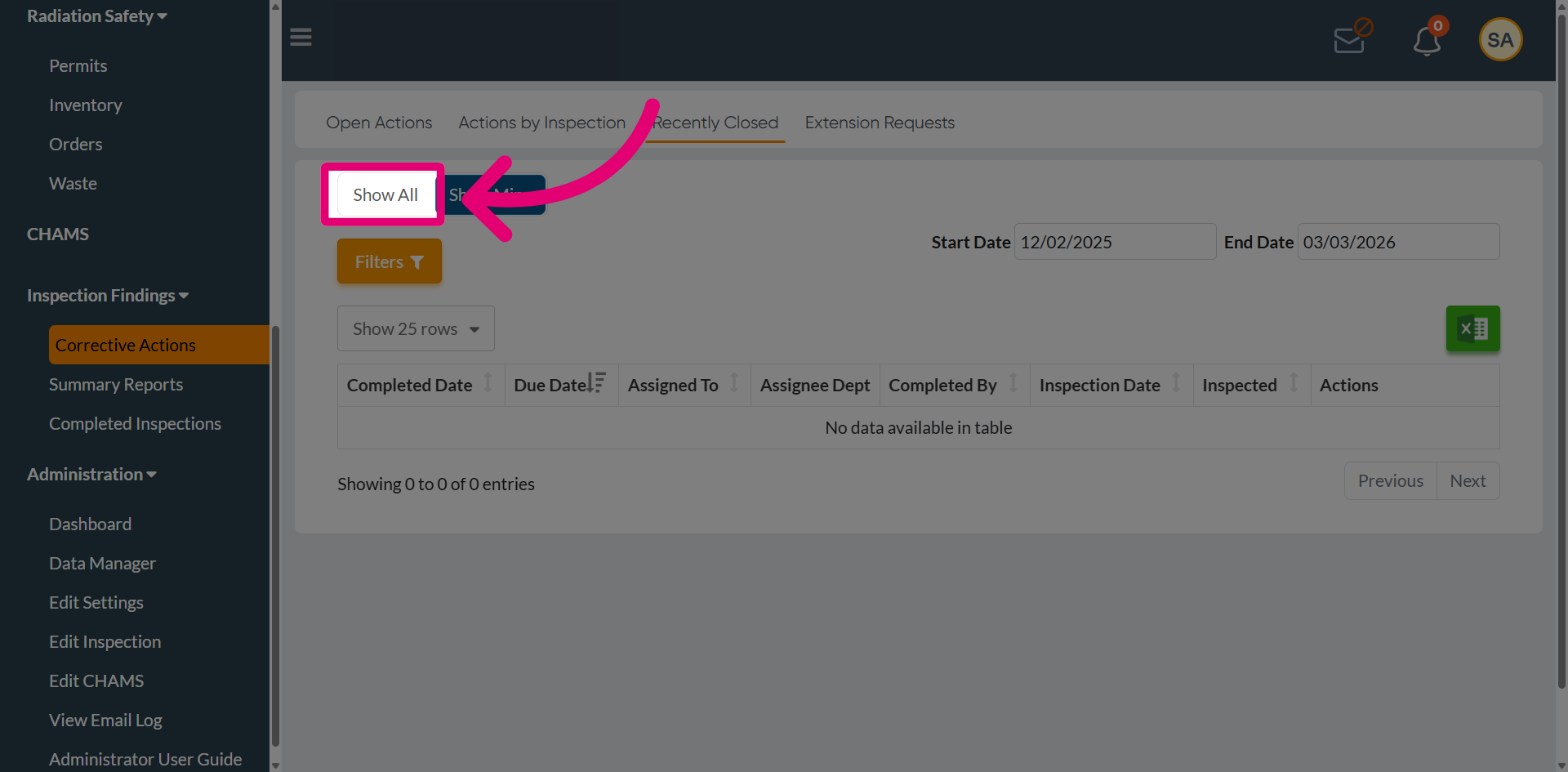
Select the Show All option to display every corrective action in the system, including those not assigned to the currently logged-in user.
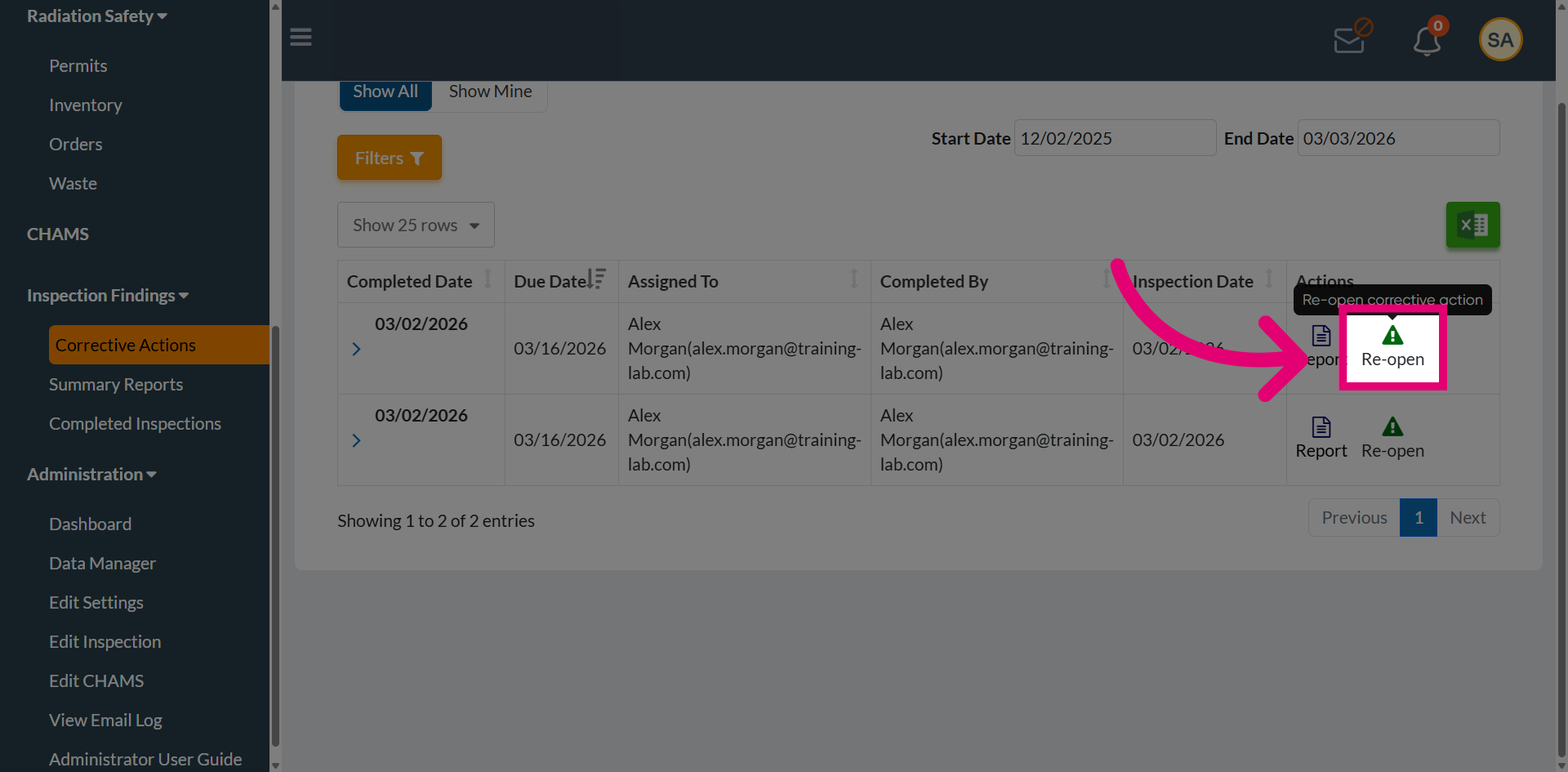
Locate the corrective action from the list and use the Reopen option that needs to be reinstated.
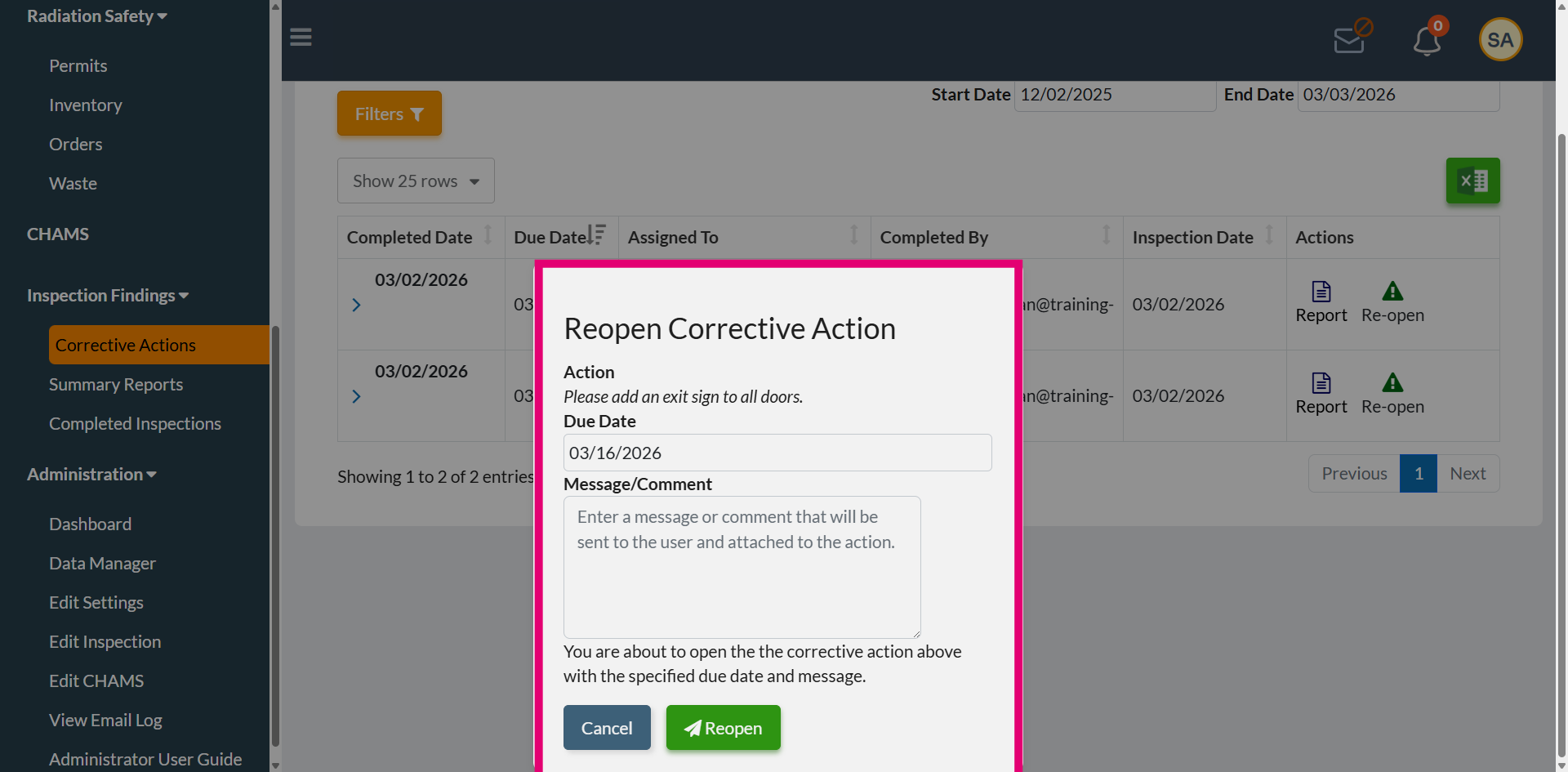
A pop-up window appears displaying the corrective action details, including the action description, due date, and the associated message or comment.
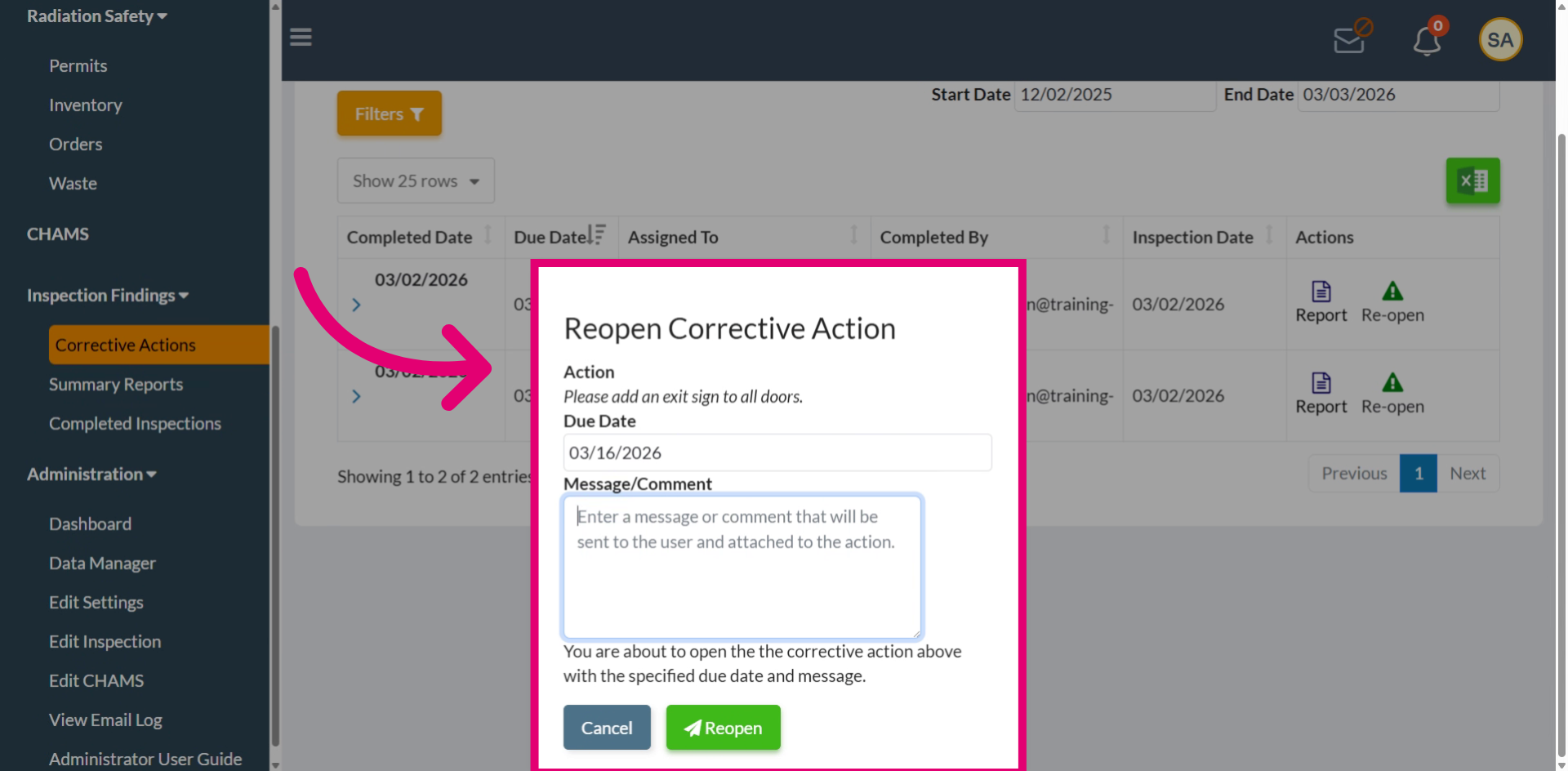
Add a justification in the comments section to clearly document why the corrective action is being reopened.
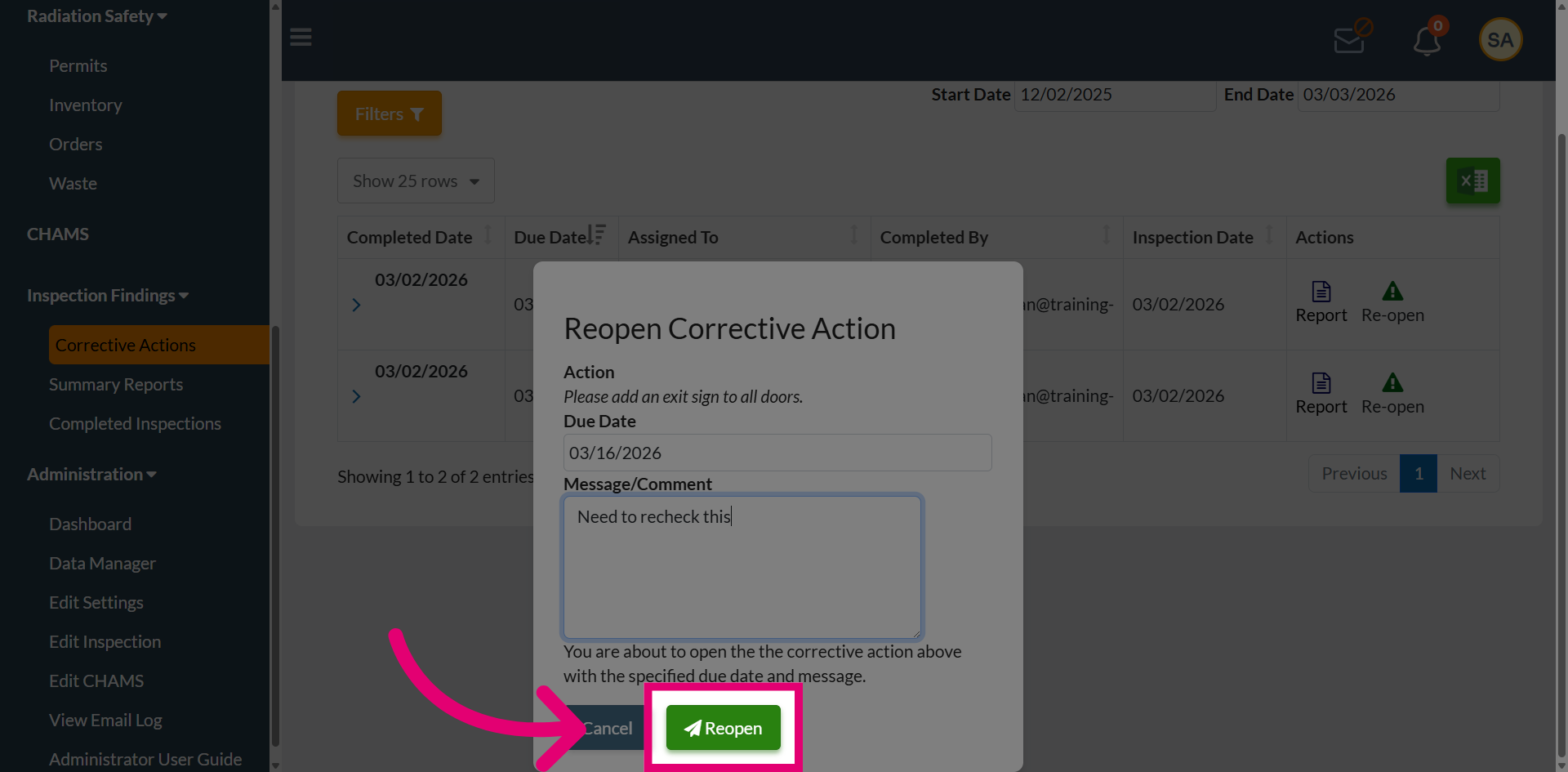
Proceed with the Reopen option to update the corrective action status back to Open, allowing further review and action.
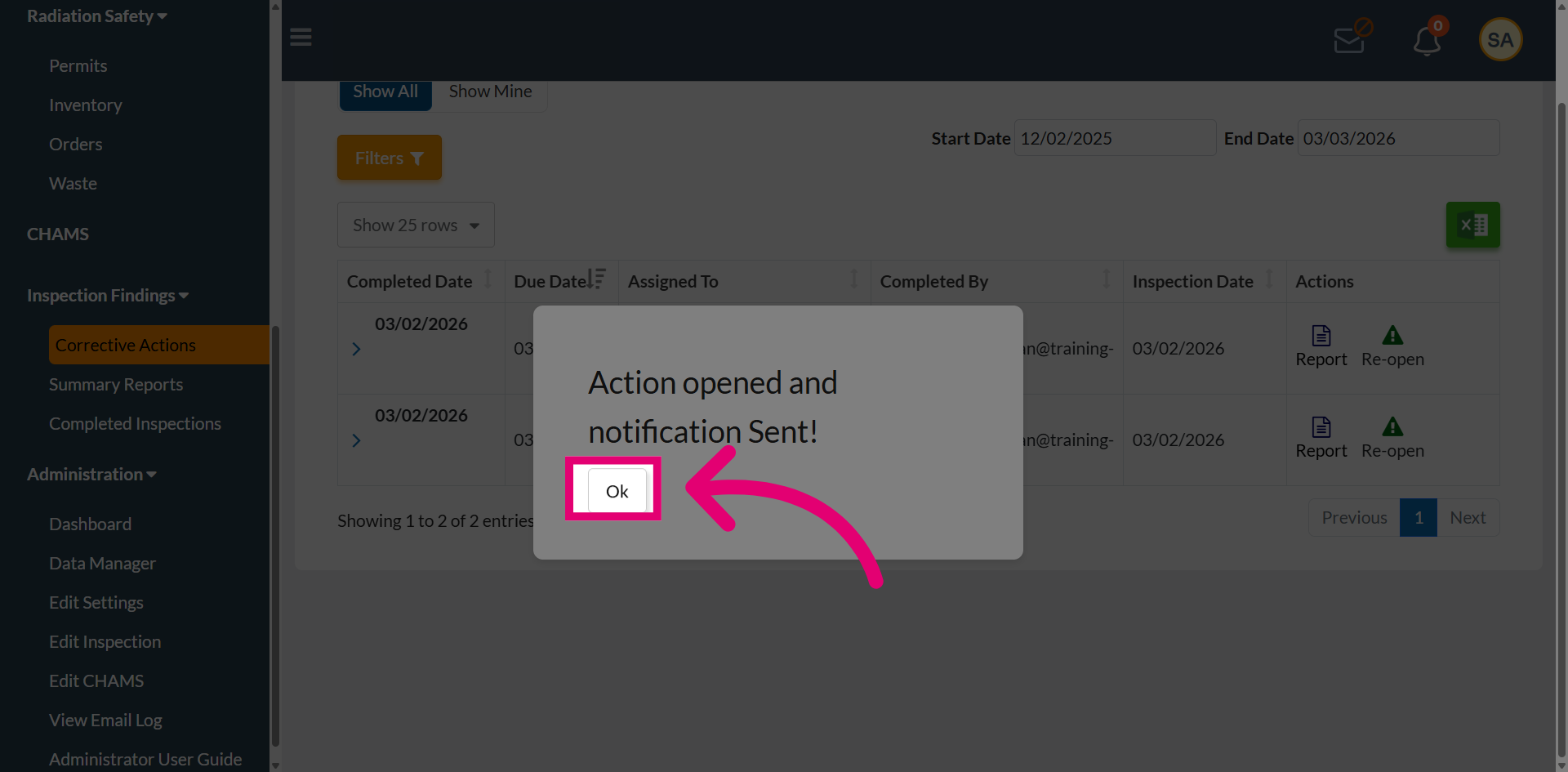
When the confirmation message appears indicating that the action has been reopened and notification has been sent, choose OK to proceed.
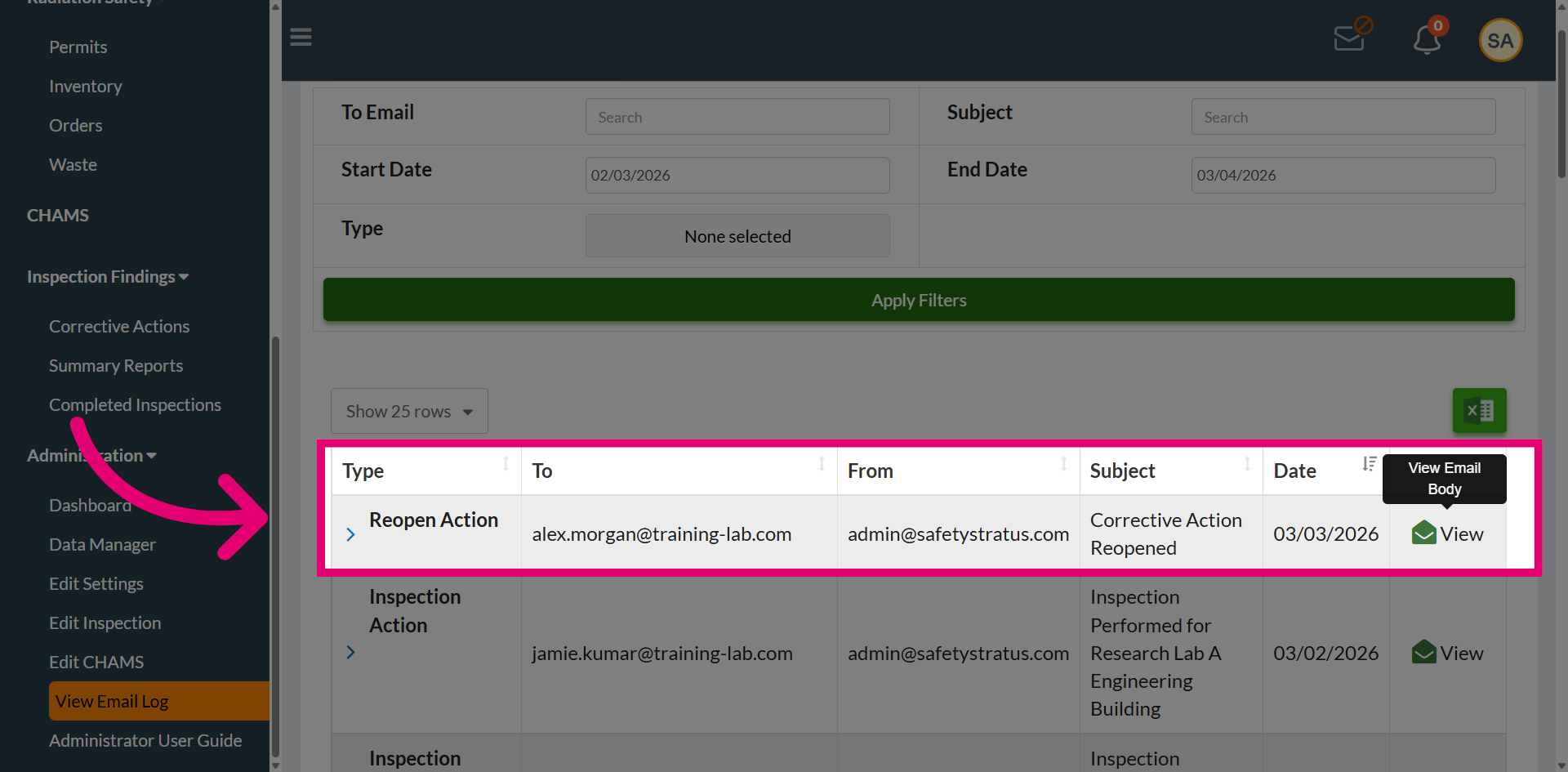
Access View Email Log to review the email communications related to the corrective action.
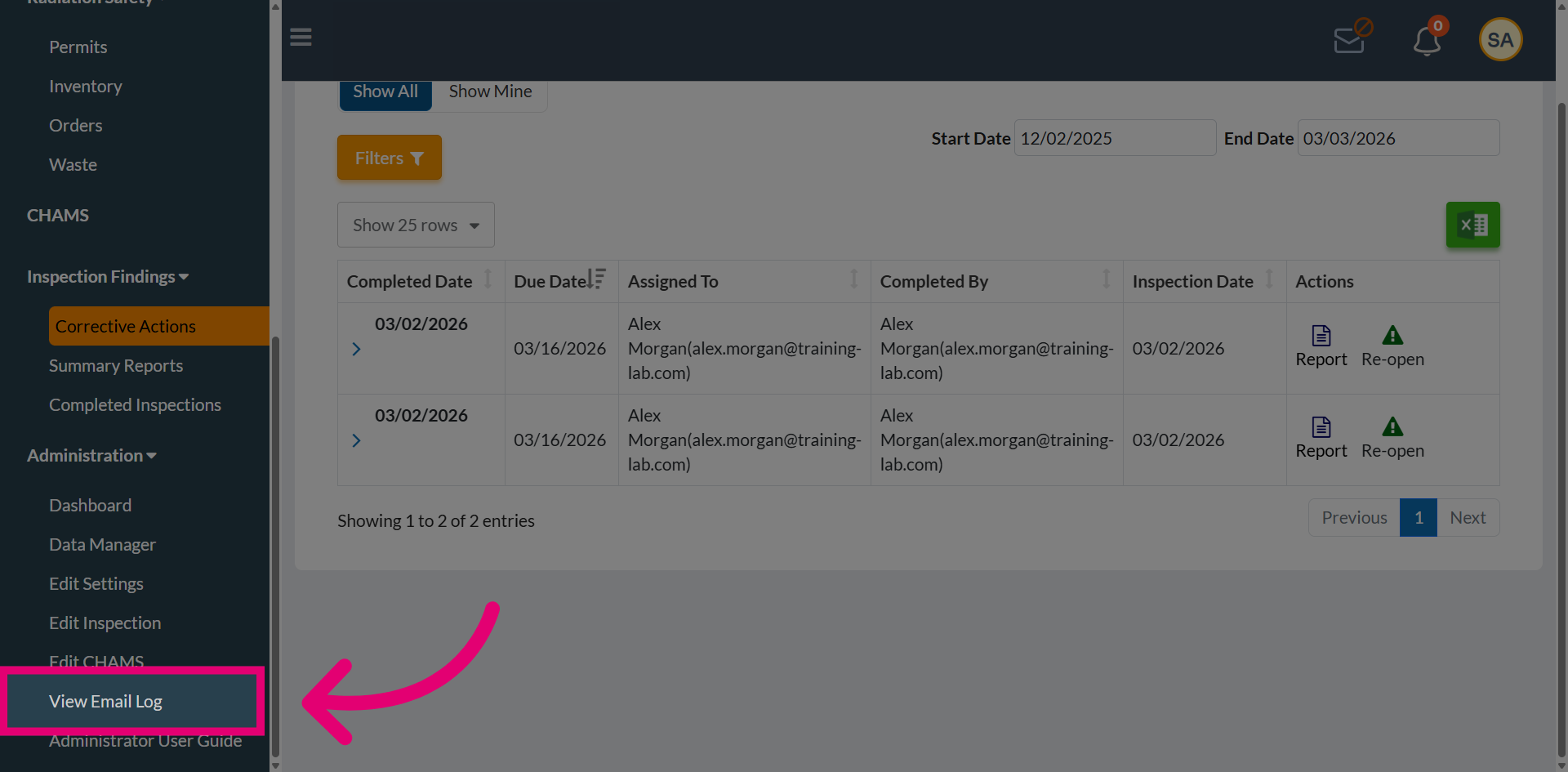
An email notification is sent to the respective user. The email includes a direct link to the corrective action, allowing the recipient to access and manage it within the system.