New article
Recently updated
Submitting an inspection review change request

Who is this article for?
Users who need to submit an inspection review change request.
No special access or permissions are required.
This tutorial walks you through the process of requesting changes during a review inspection.
You will learn how to access inspections awaiting review, add review comments, and submit change requests to notify inspectors of required updates.
1. Submitting a Change Request
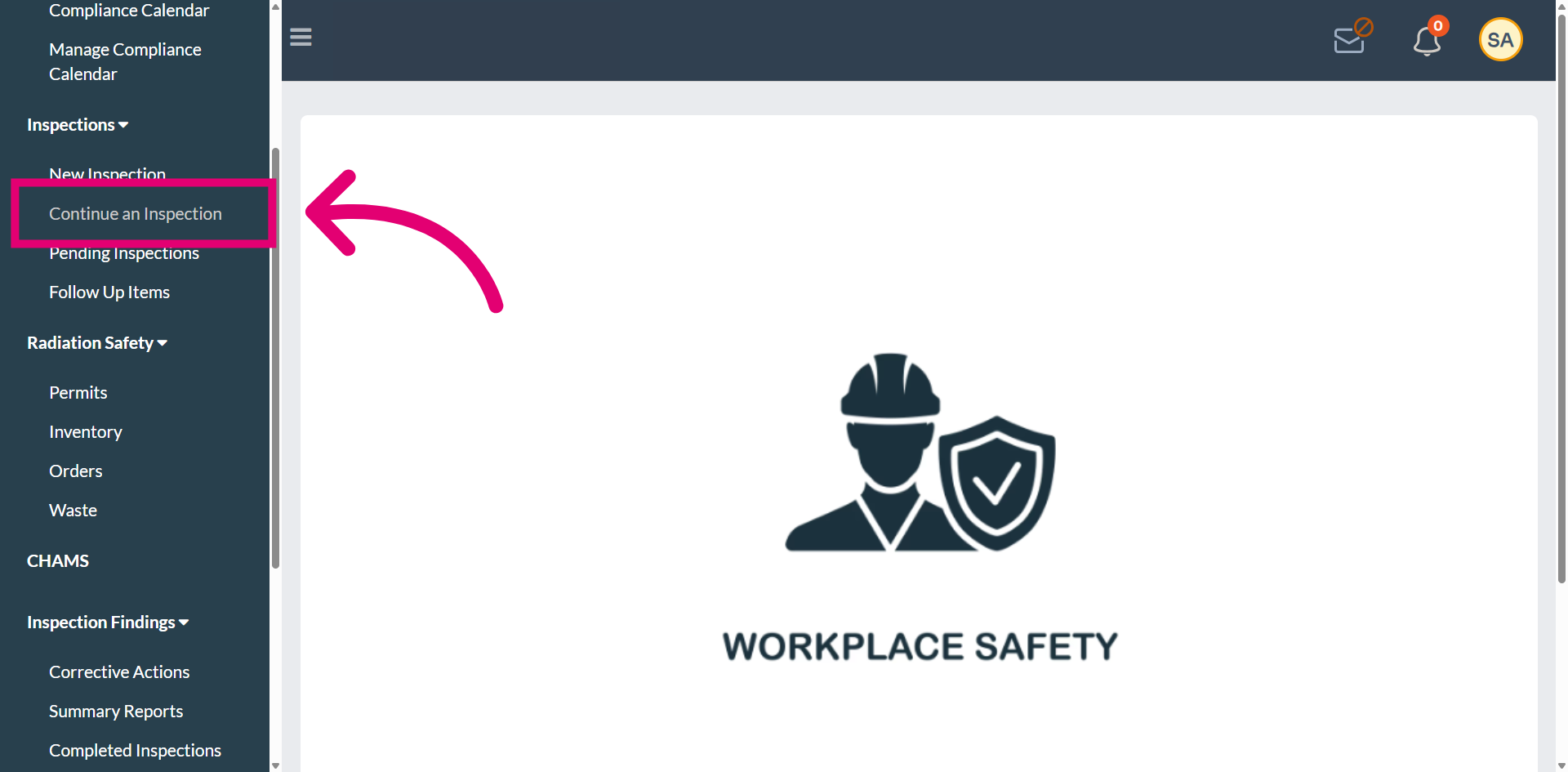
Select the Continue an Inspection option to access the inspection awaiting review.
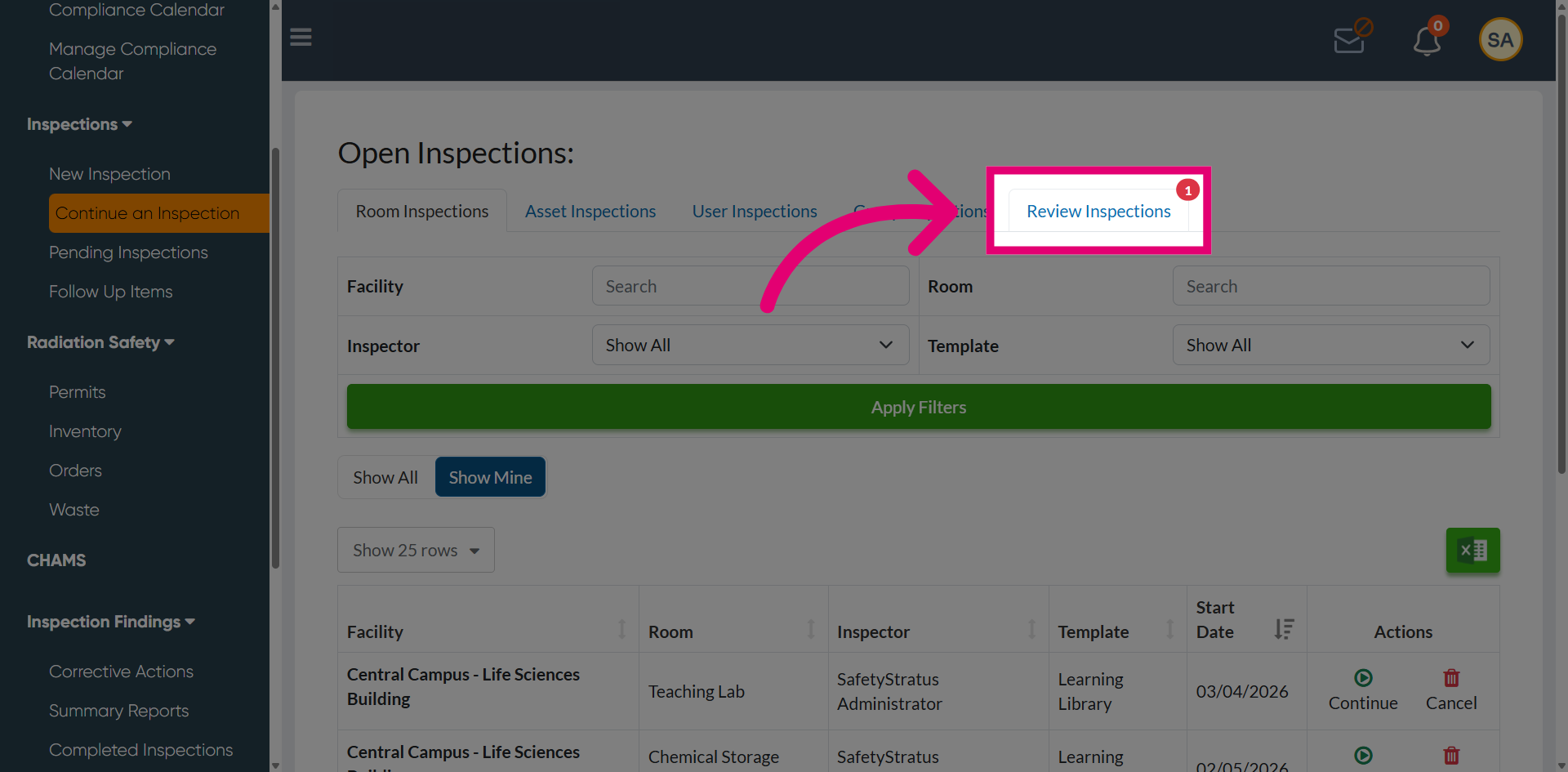
Navigate to the Review Inspections tab to access inspections that require your review. The number 1 indicates the count of newly added inspections currently awaiting review.
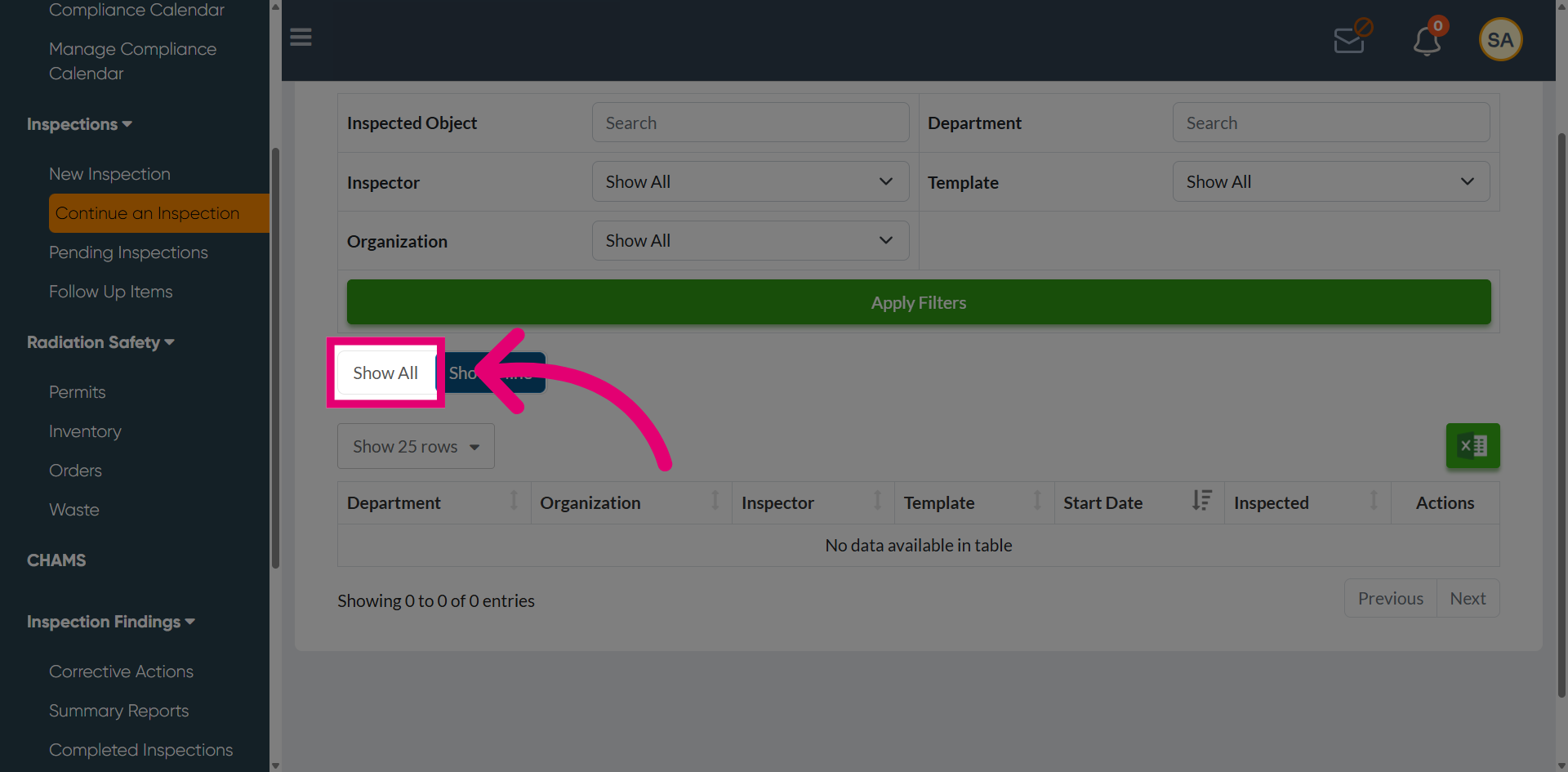
Select Show All to view all inspection items, allowing you to perform a comprehensive review of the inspection details.
Select the Review option to open the inspection item and examine its details more closely.
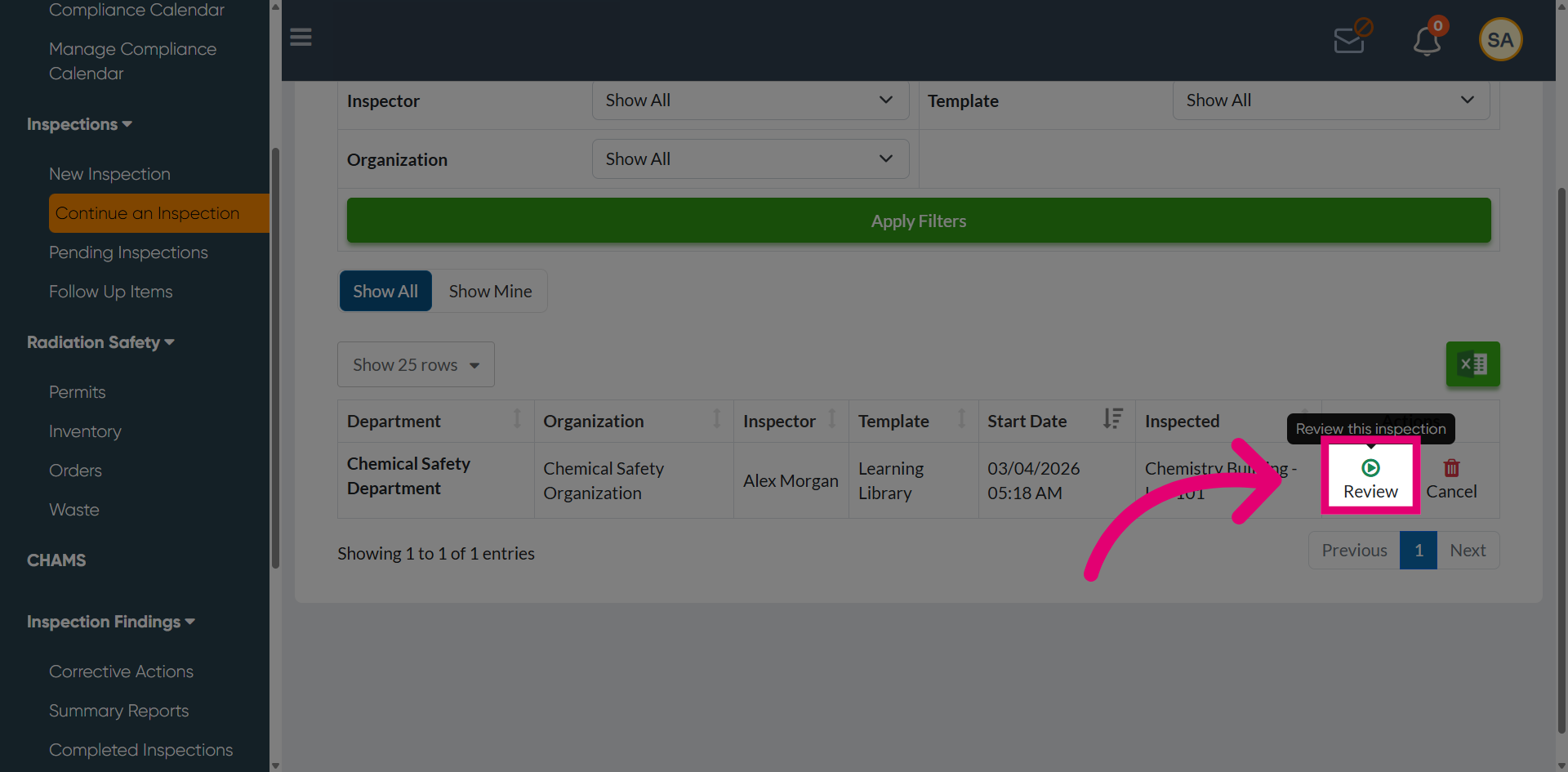
Access the detailed inspection view to review the submitted responses.
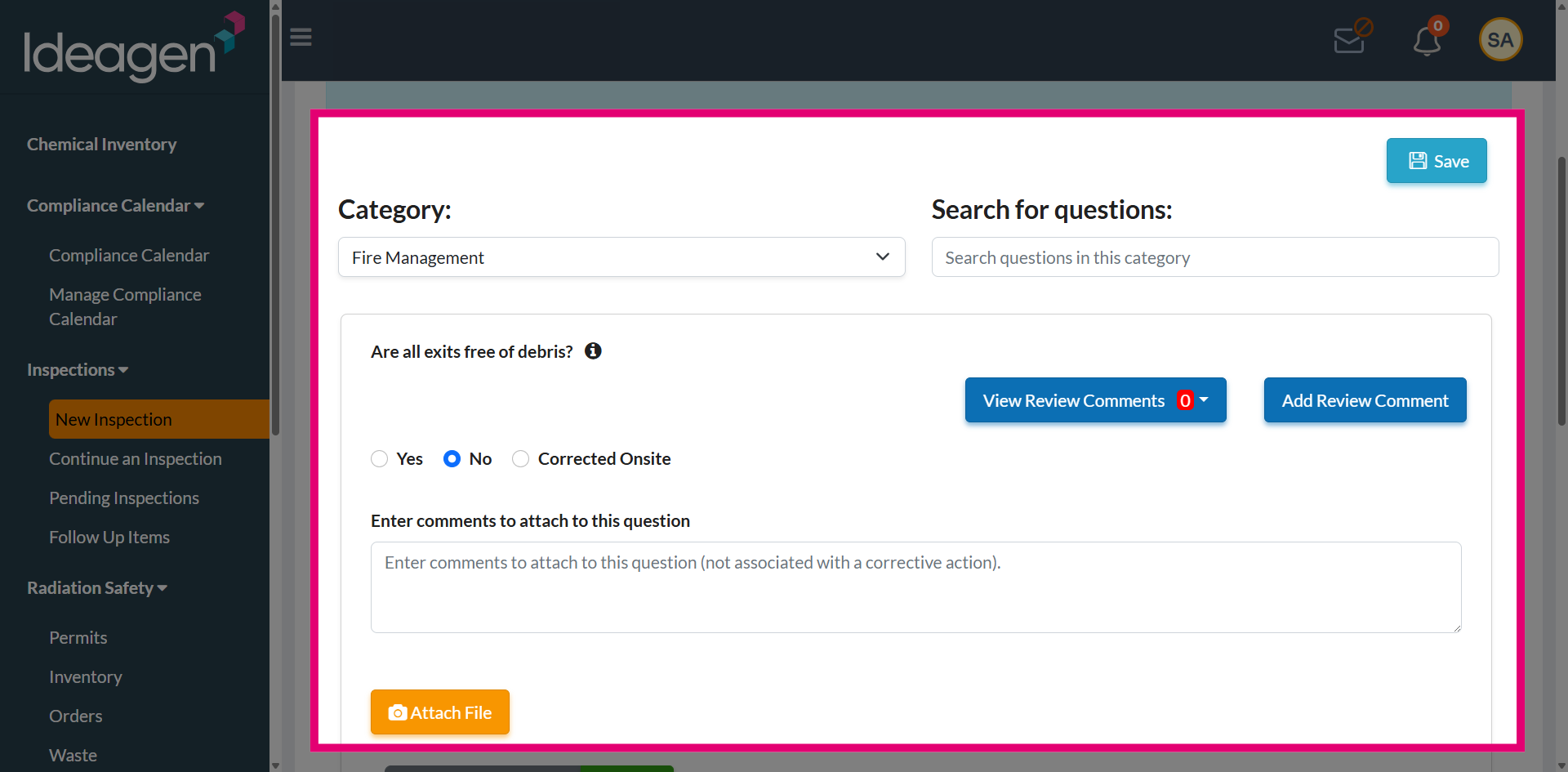
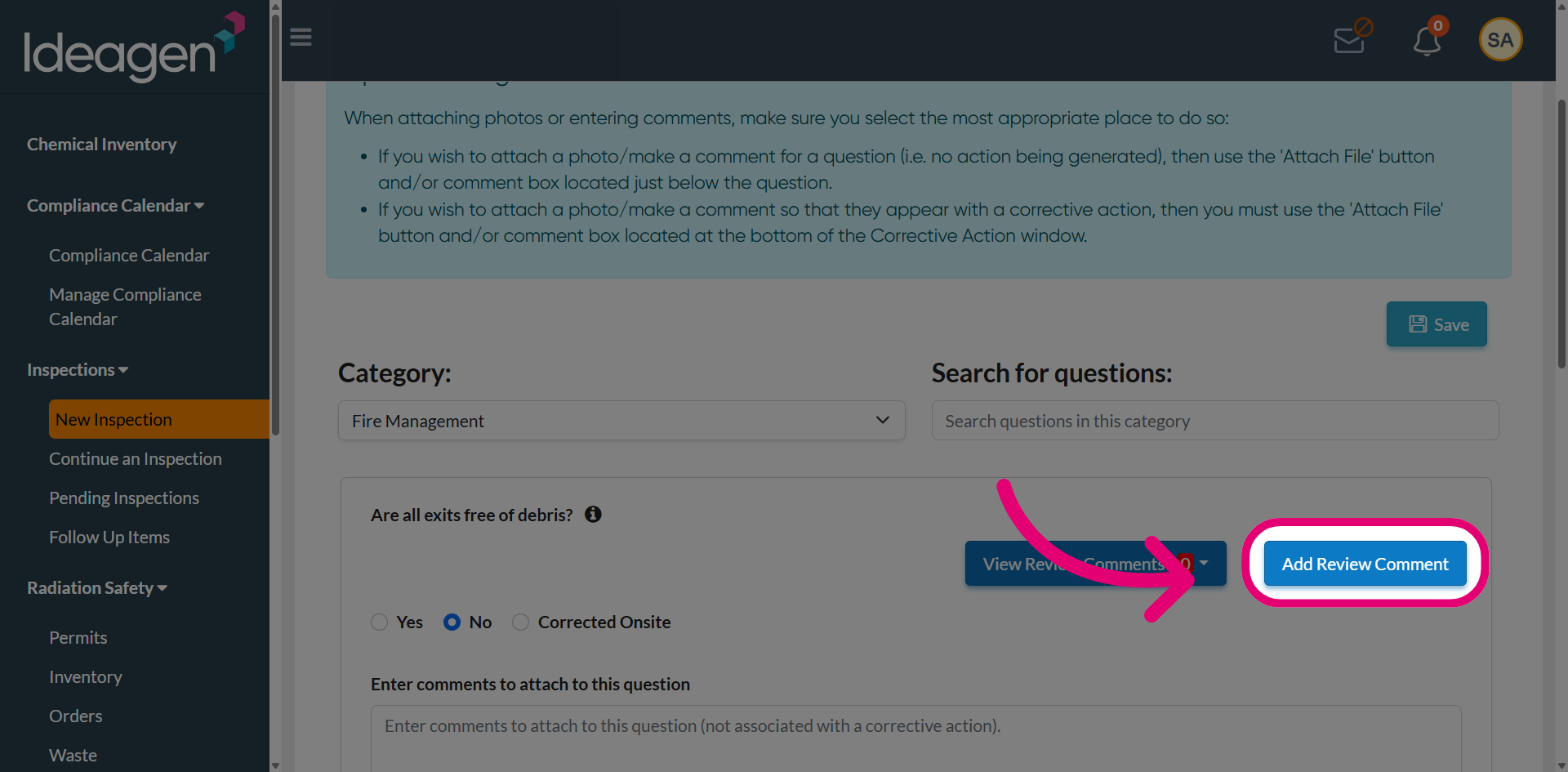
Use the Add Review Comment option to record your feedback and clearly specify the changes being requested for the inspection.
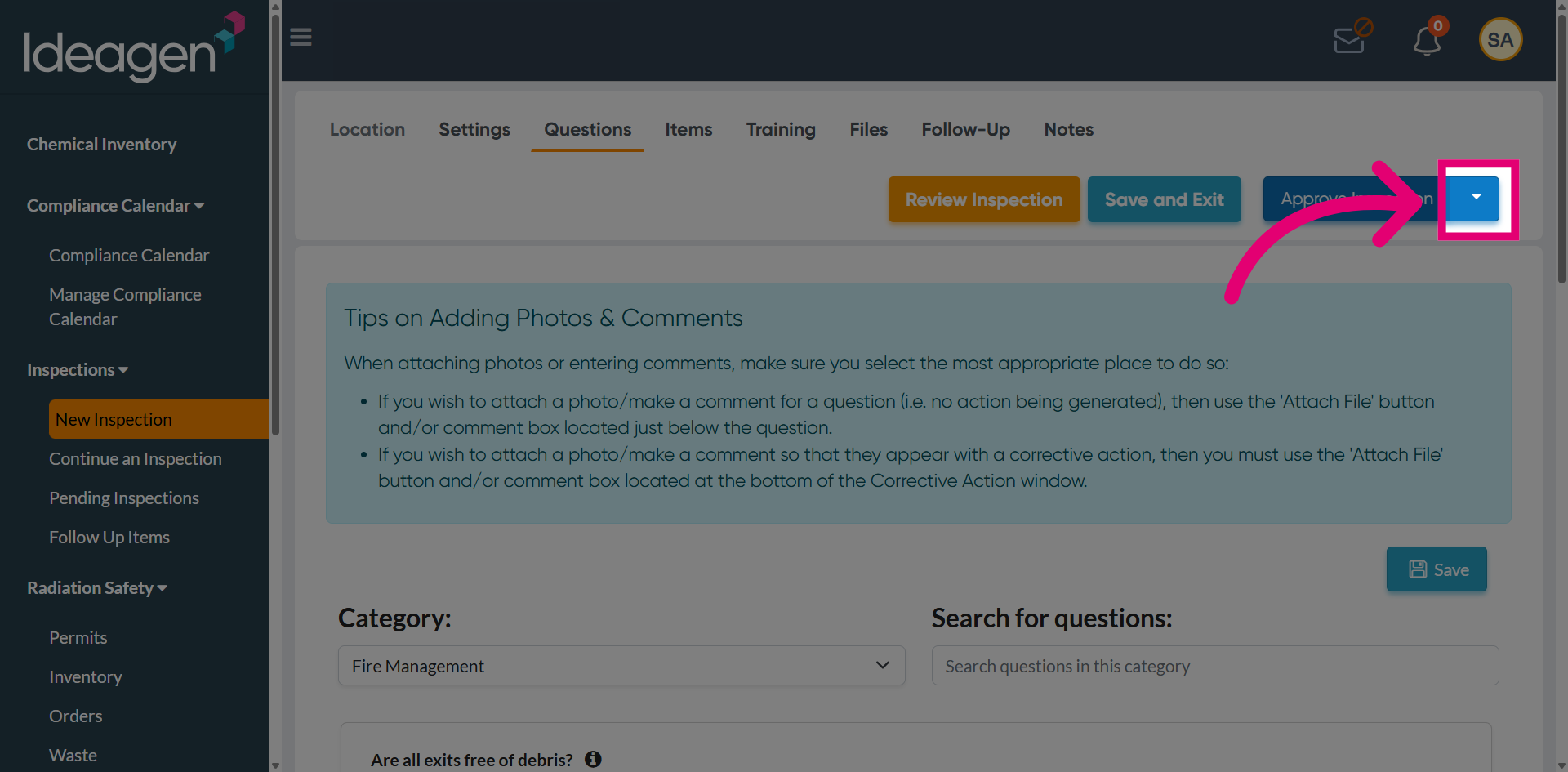
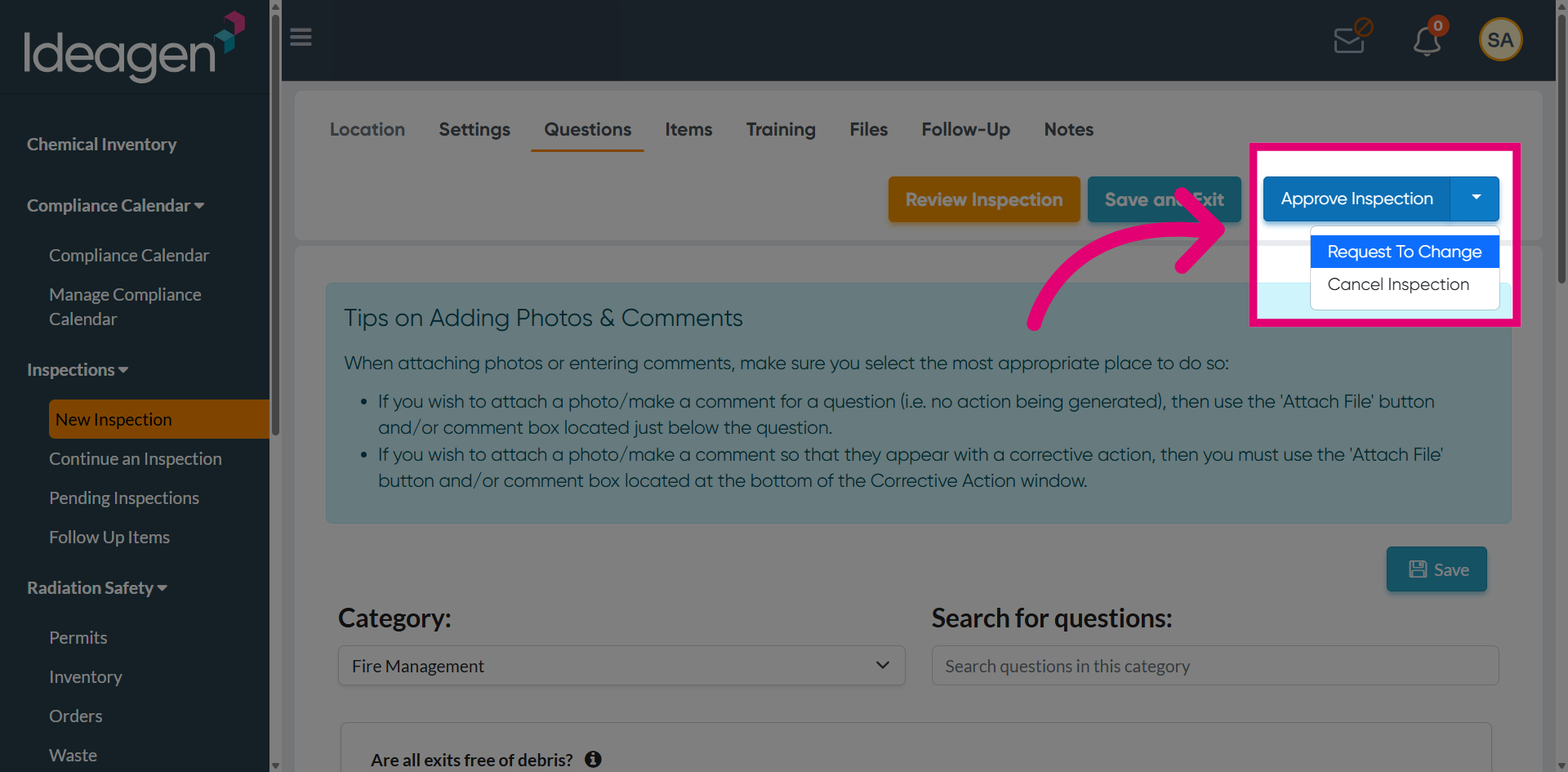
Use the dropdown to access additional action options for requesting changes to the inspection.
Select Request to Change to initiate a change request for the inspection item.
Enter a comment explaining the required changes to notify the inspector that updates are needed for this inspection.
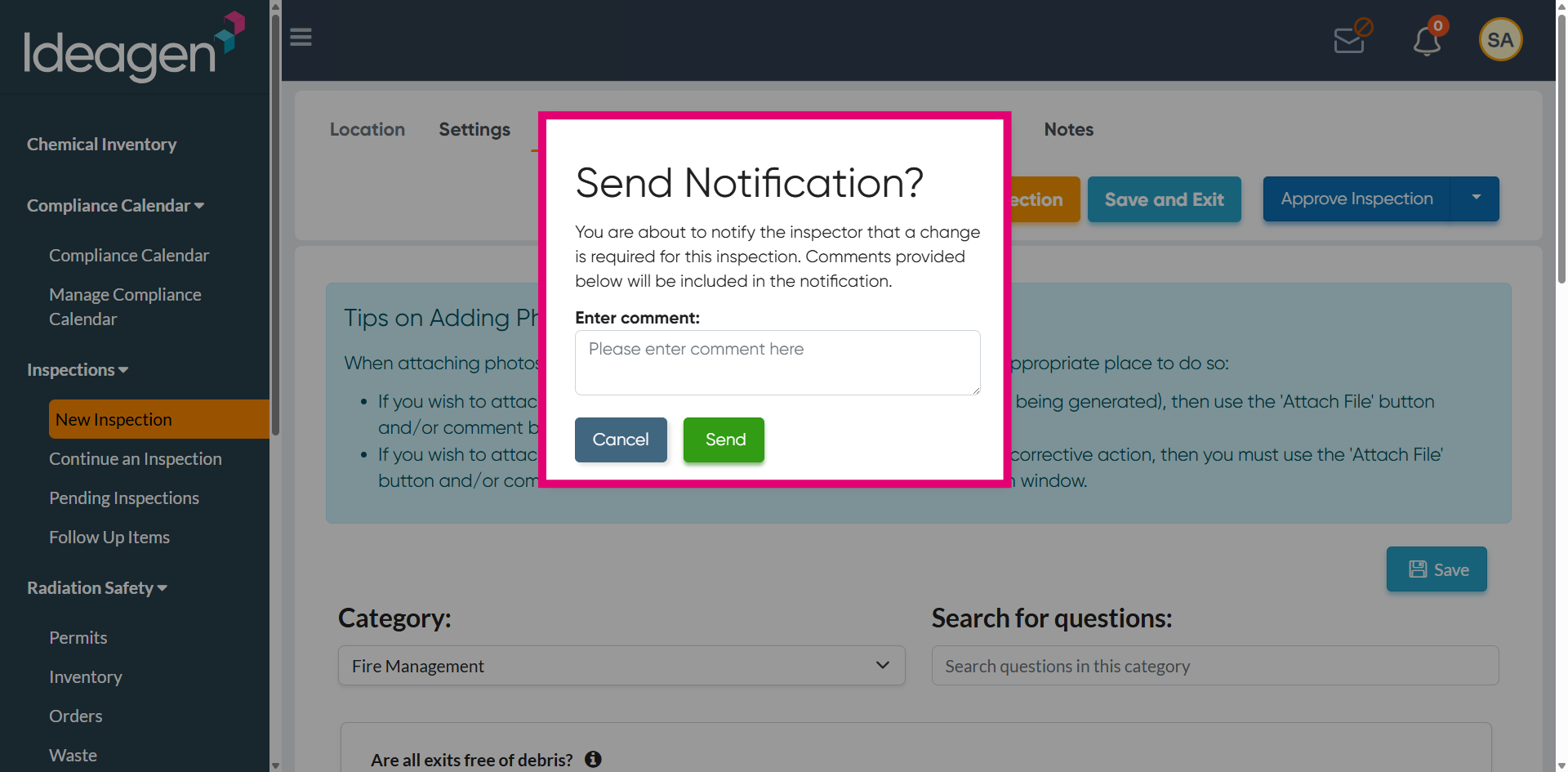
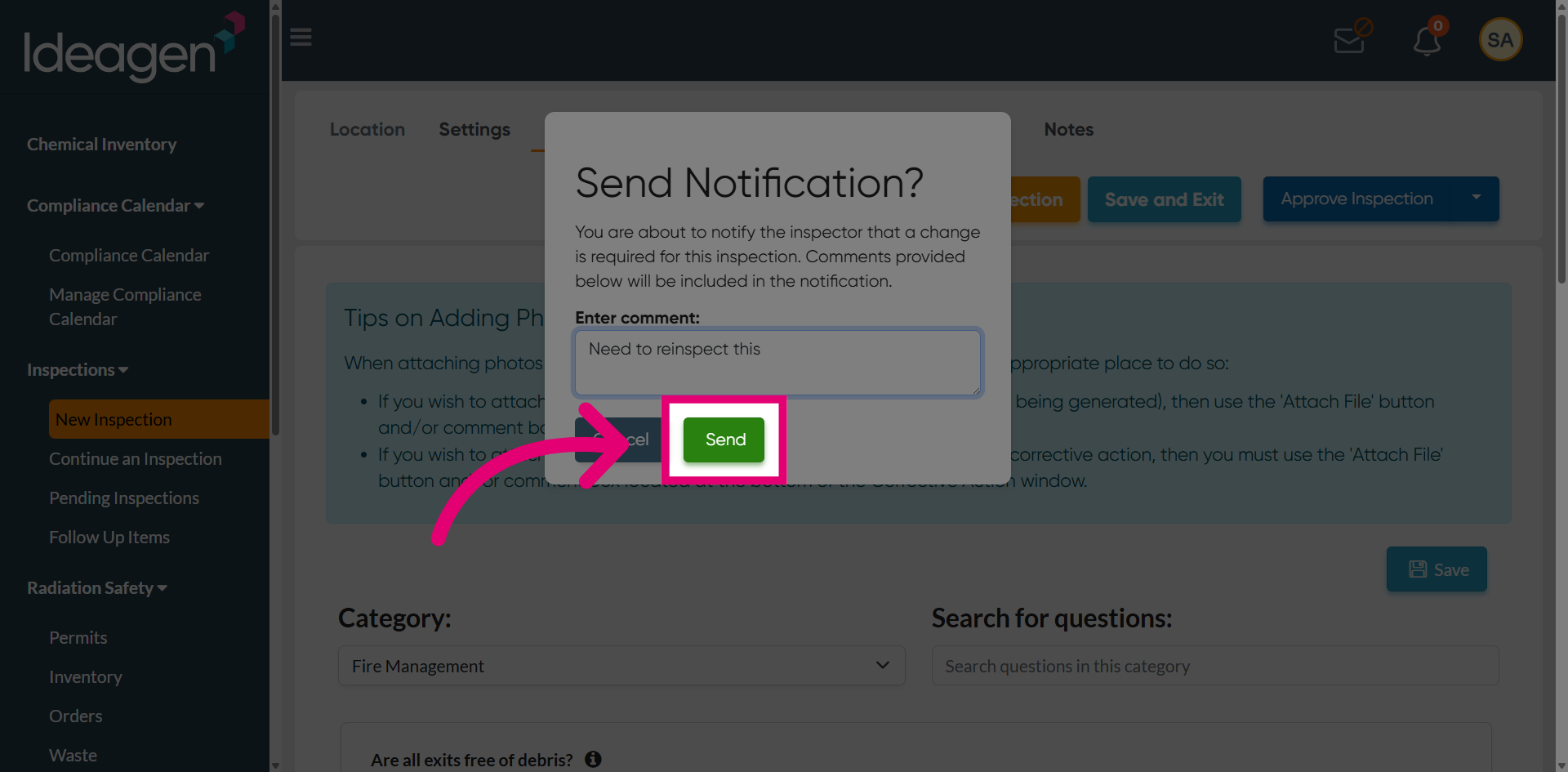
Once the comment has been entered, select Send to submit the change request and notify the relevant parties.
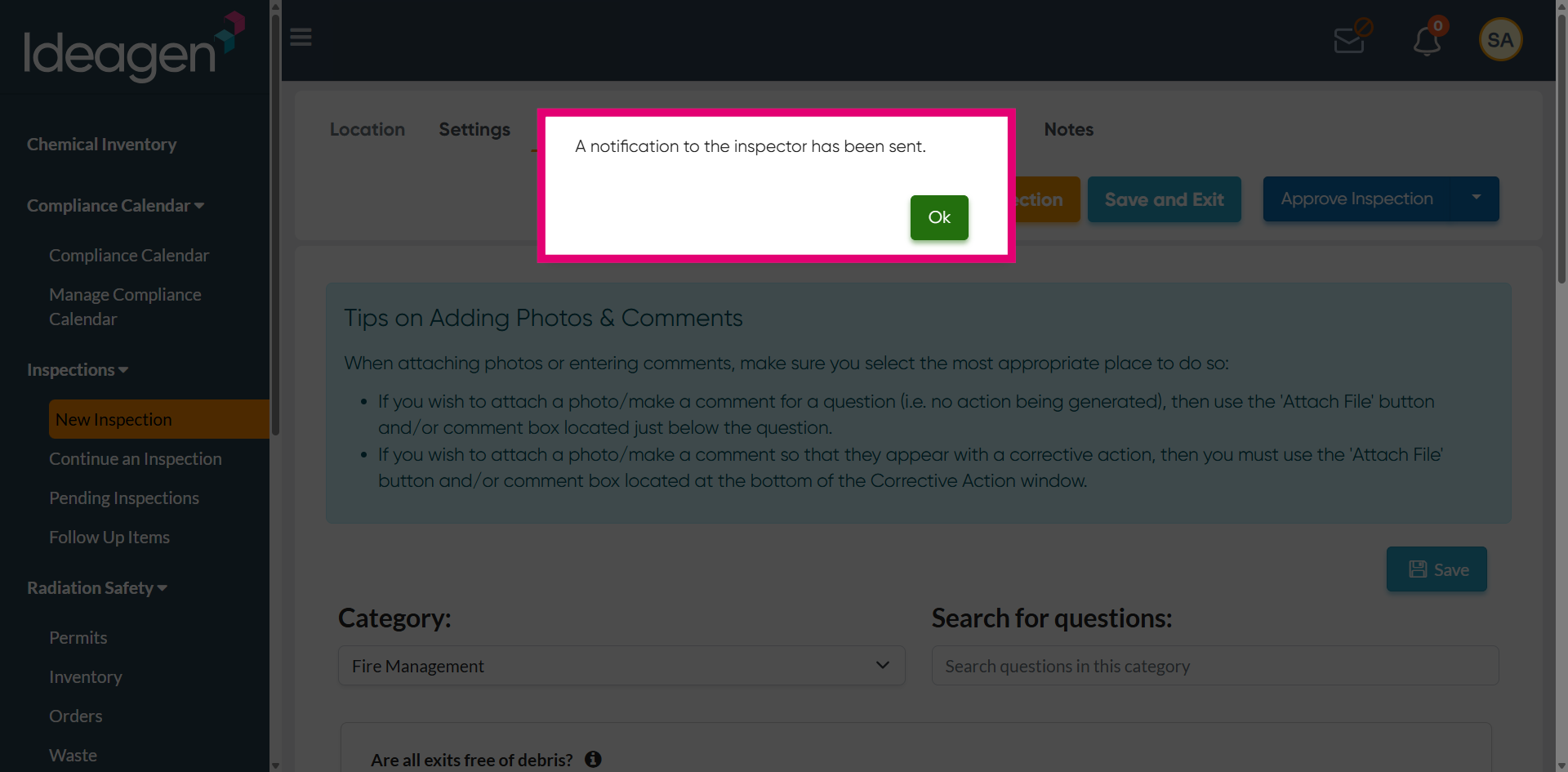
Acknowledge the confirmation message by selecting OK to proceed after sending your request. A notification will be sent to the inspector, and the status of the inspection will change to Continue Inspection, indicating that updates are required before it can proceed further.