New article
Recently updated
Viewing inspection summary reports

Who is this article for?
Users who need to view inspection summary reports.
No special access or permissions are required.
This article explains how to access and view inspection summary reports in the system.
You will learn how to navigate to the summary reports section, apply filters, and view detailed inspection data for specific buildings.
1. Accessing and Viewing Inspection Summary Reports
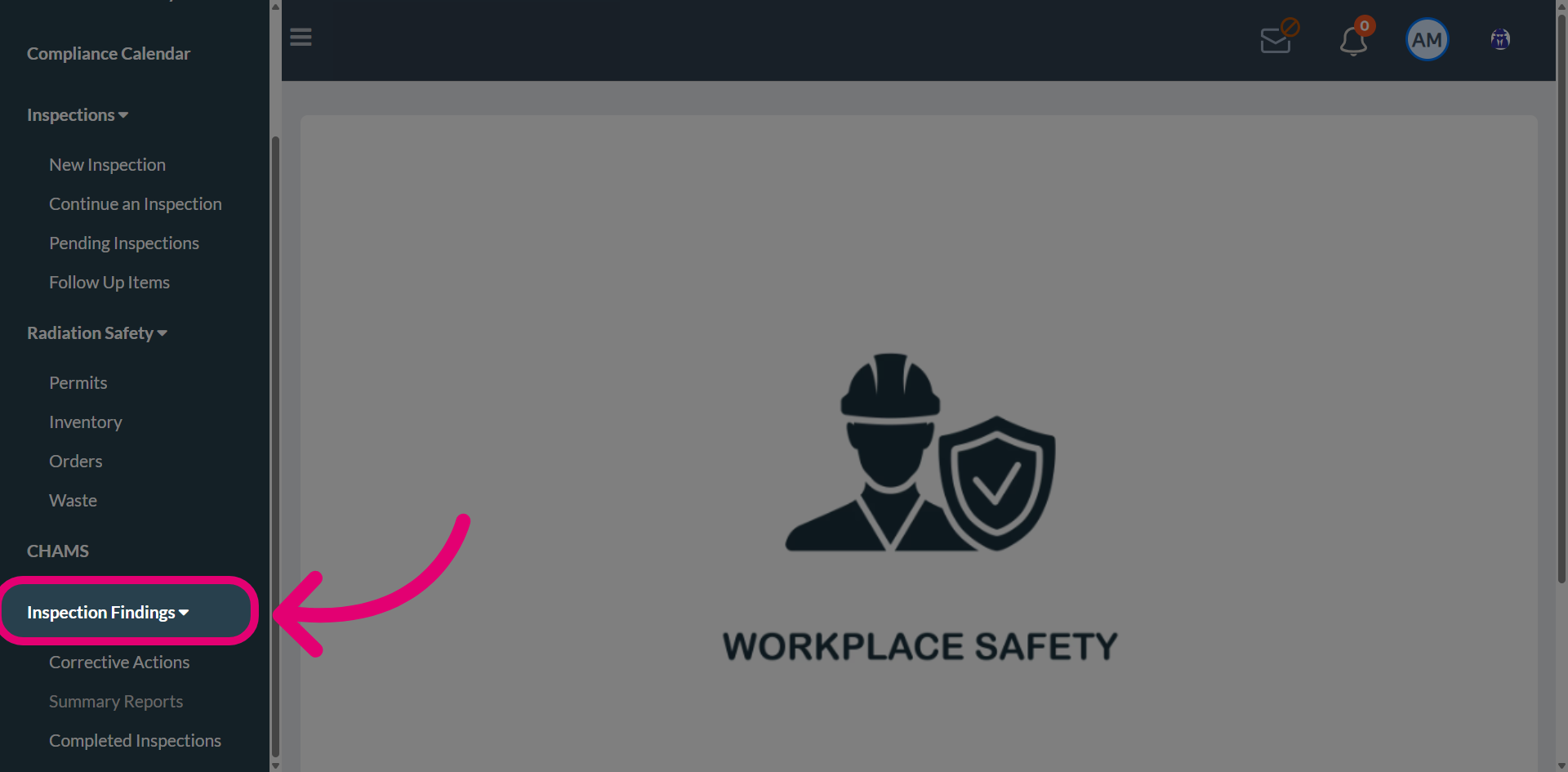
Access the Summary Reports Section from the main navigation.
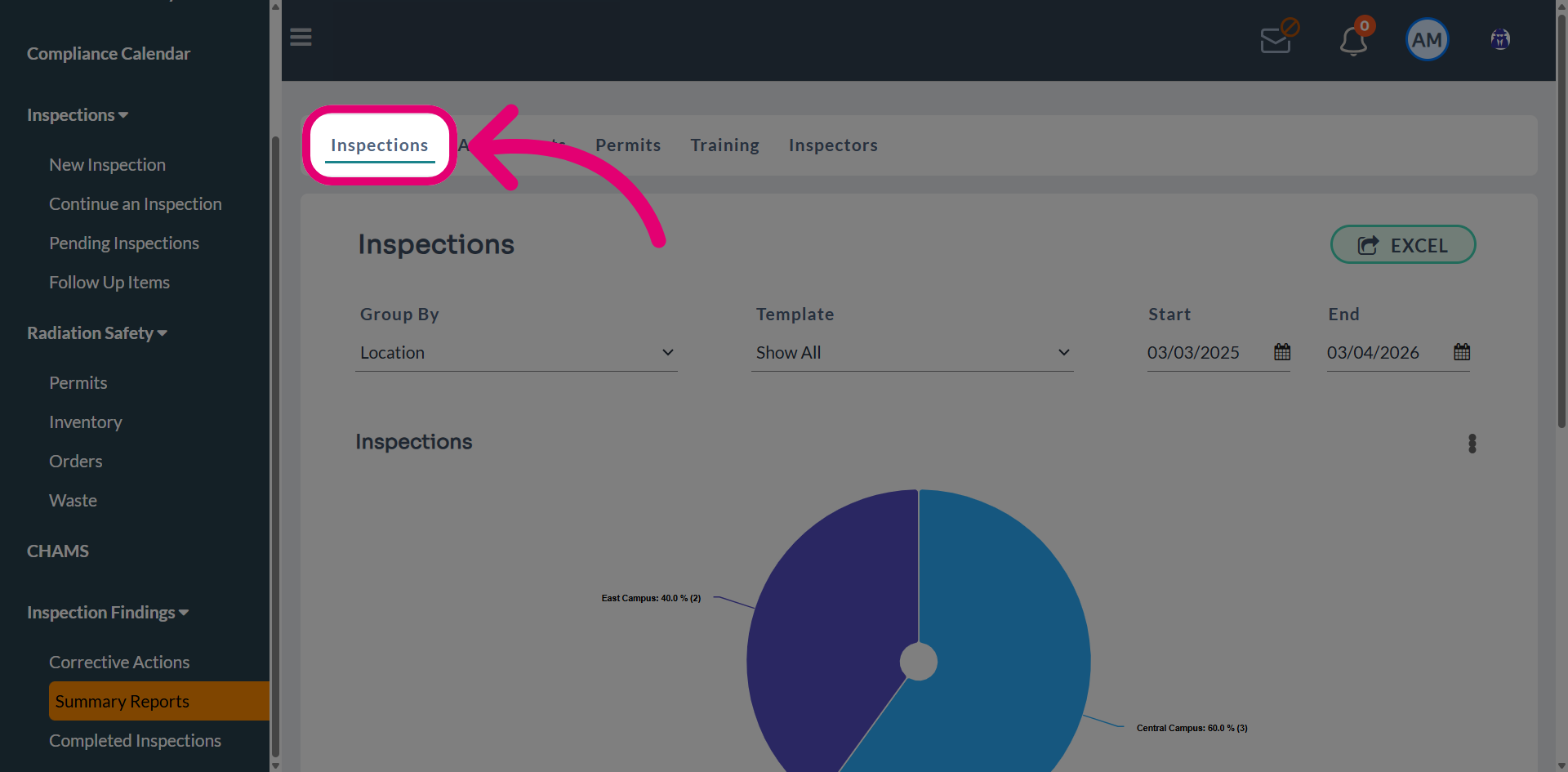
Open the Inspections Tab to view inspection-related reports.
Open the Filter Options to customize your report view.
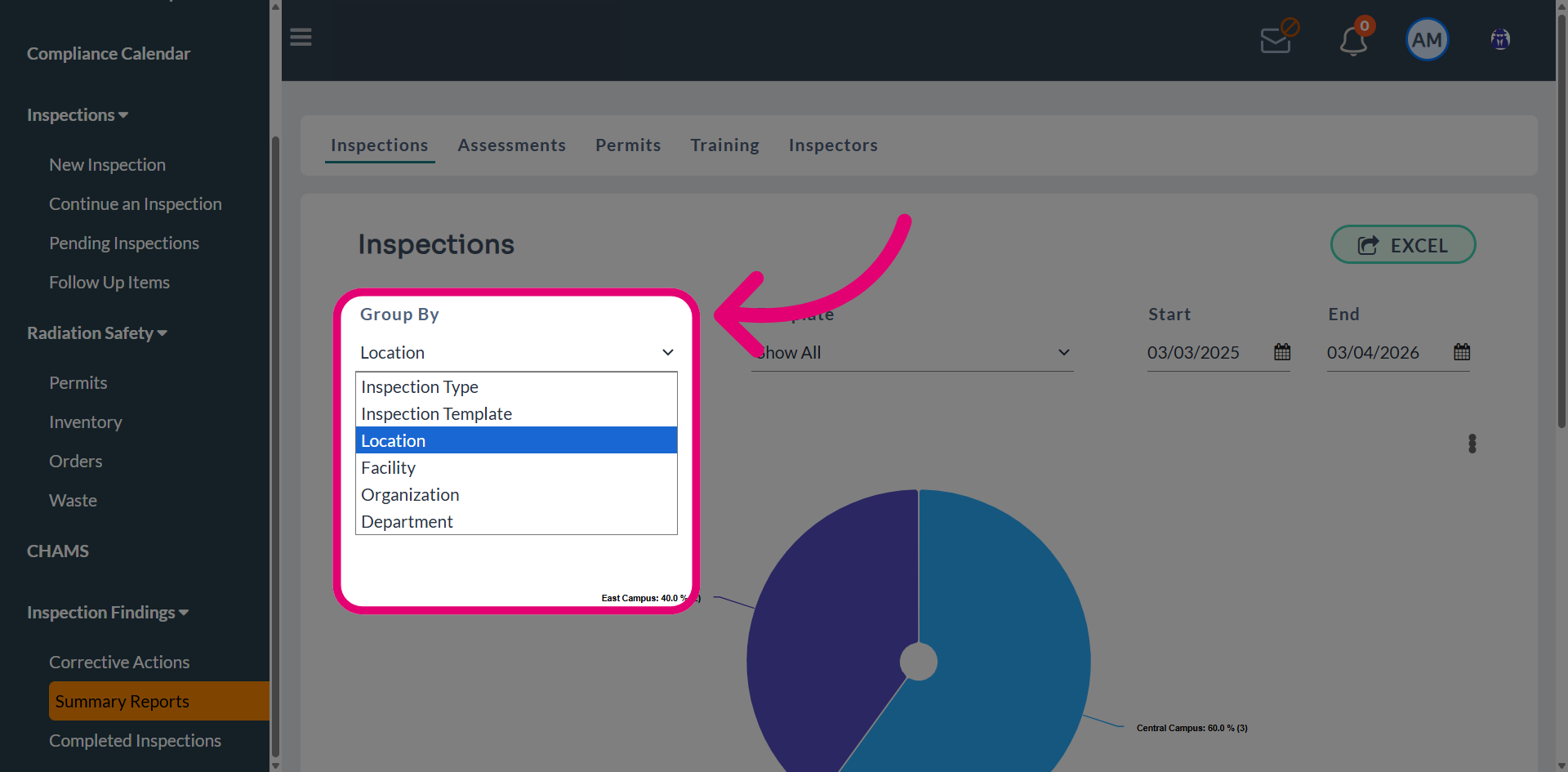
Select the Report View Options that best suit your needs.
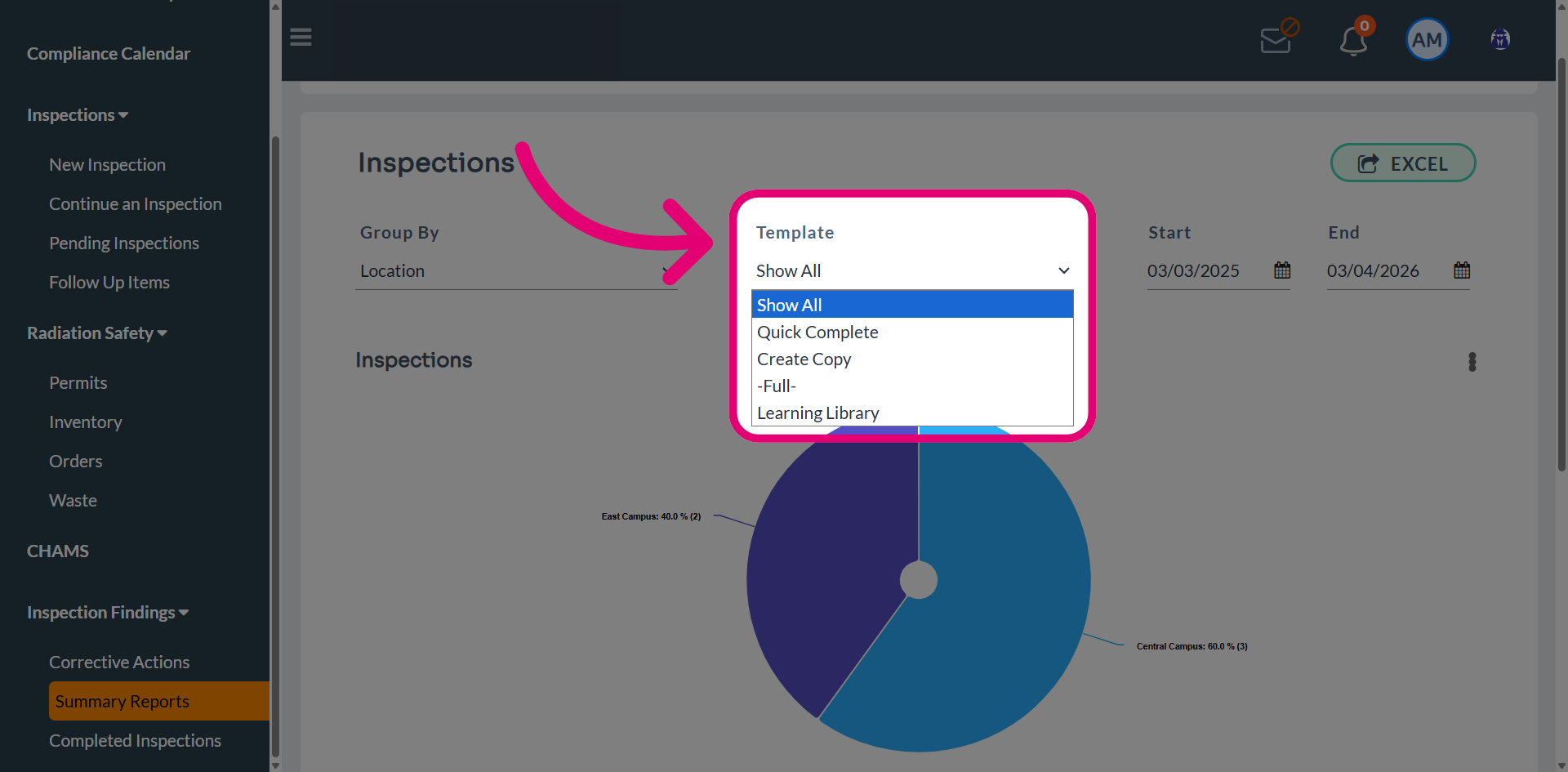
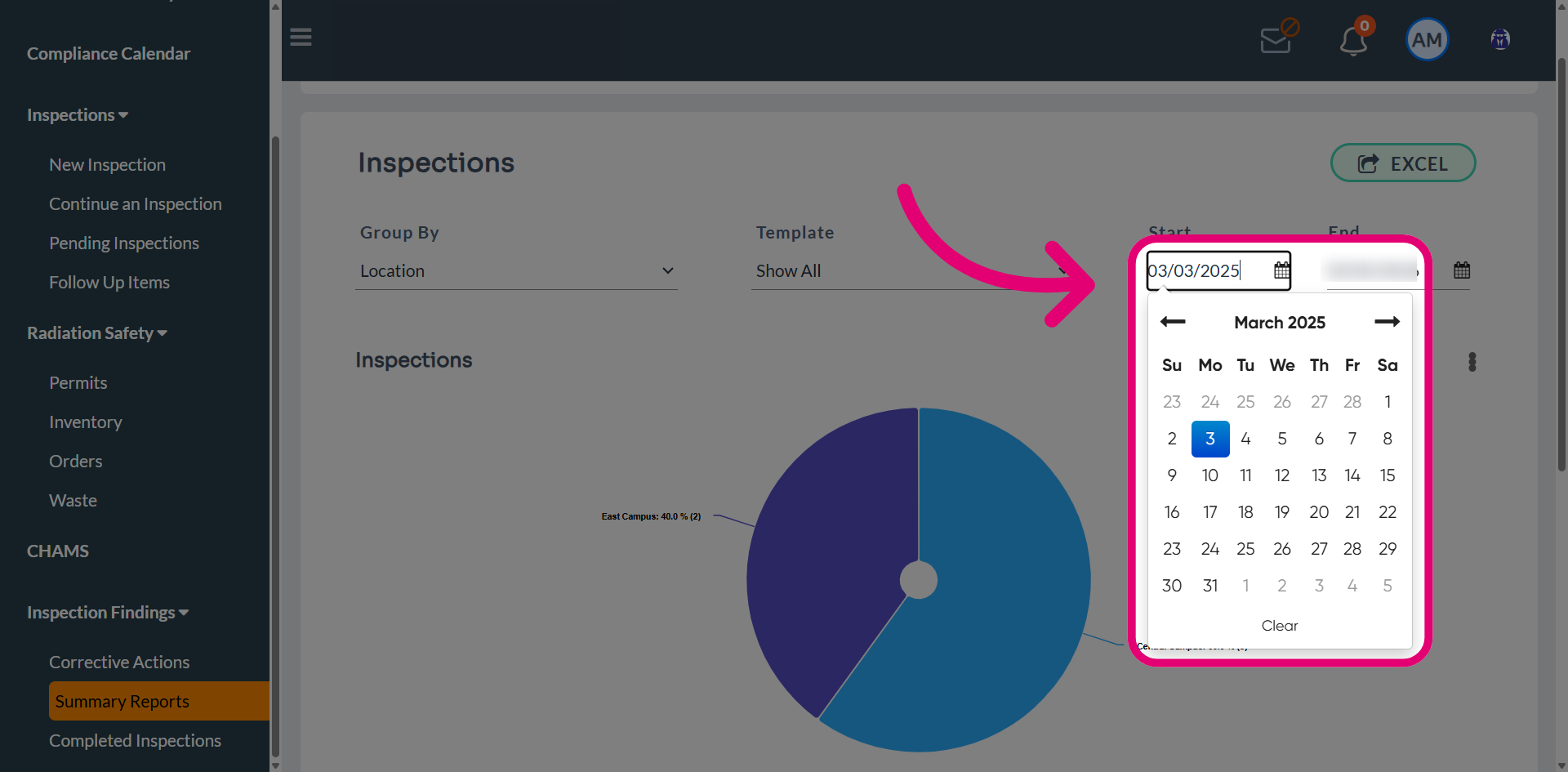
Choose the Start Date for your report period.
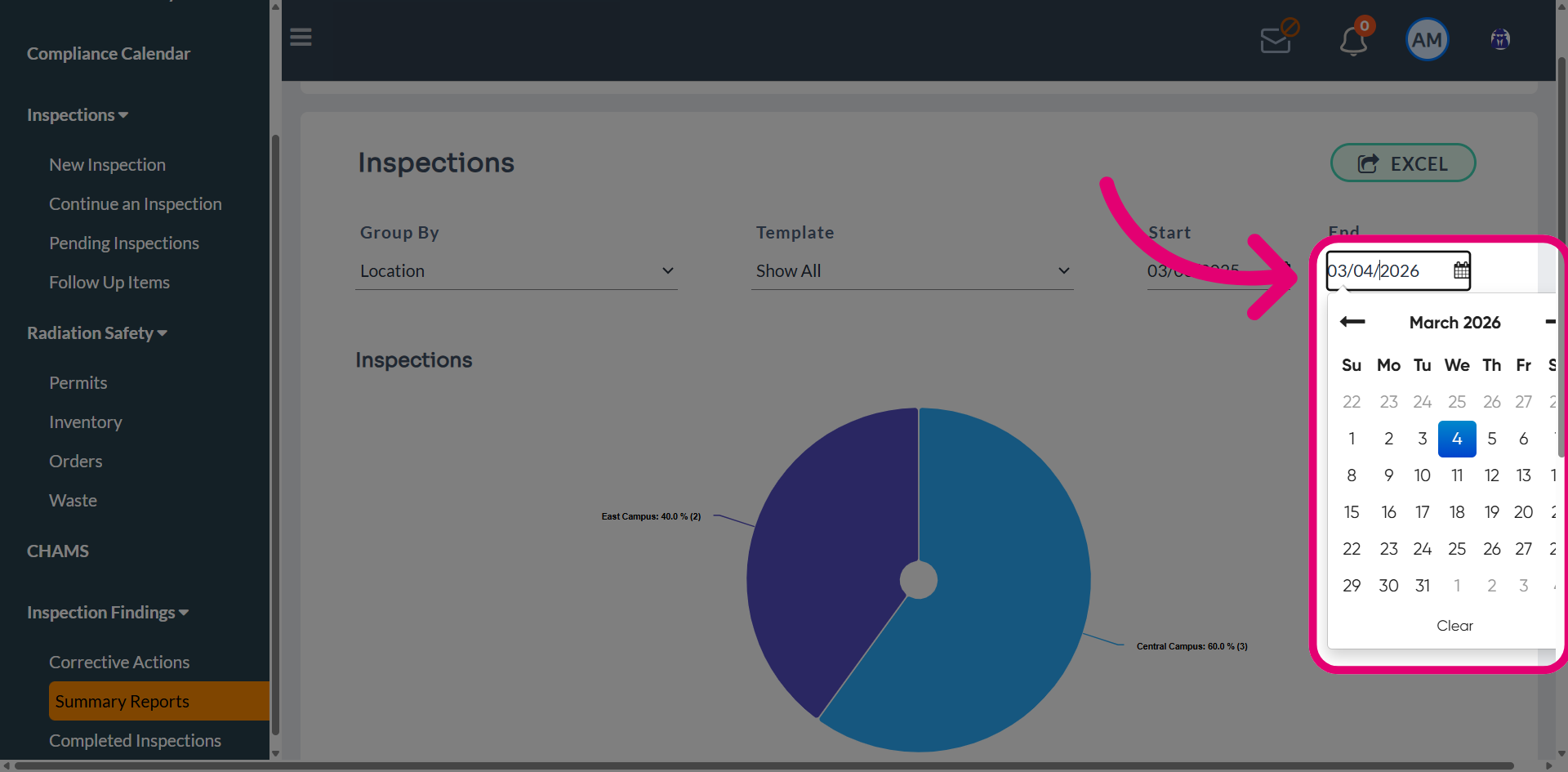
Choose the End Date to complete your date range selection.
View the dashboard displaying your filtered inspection data.
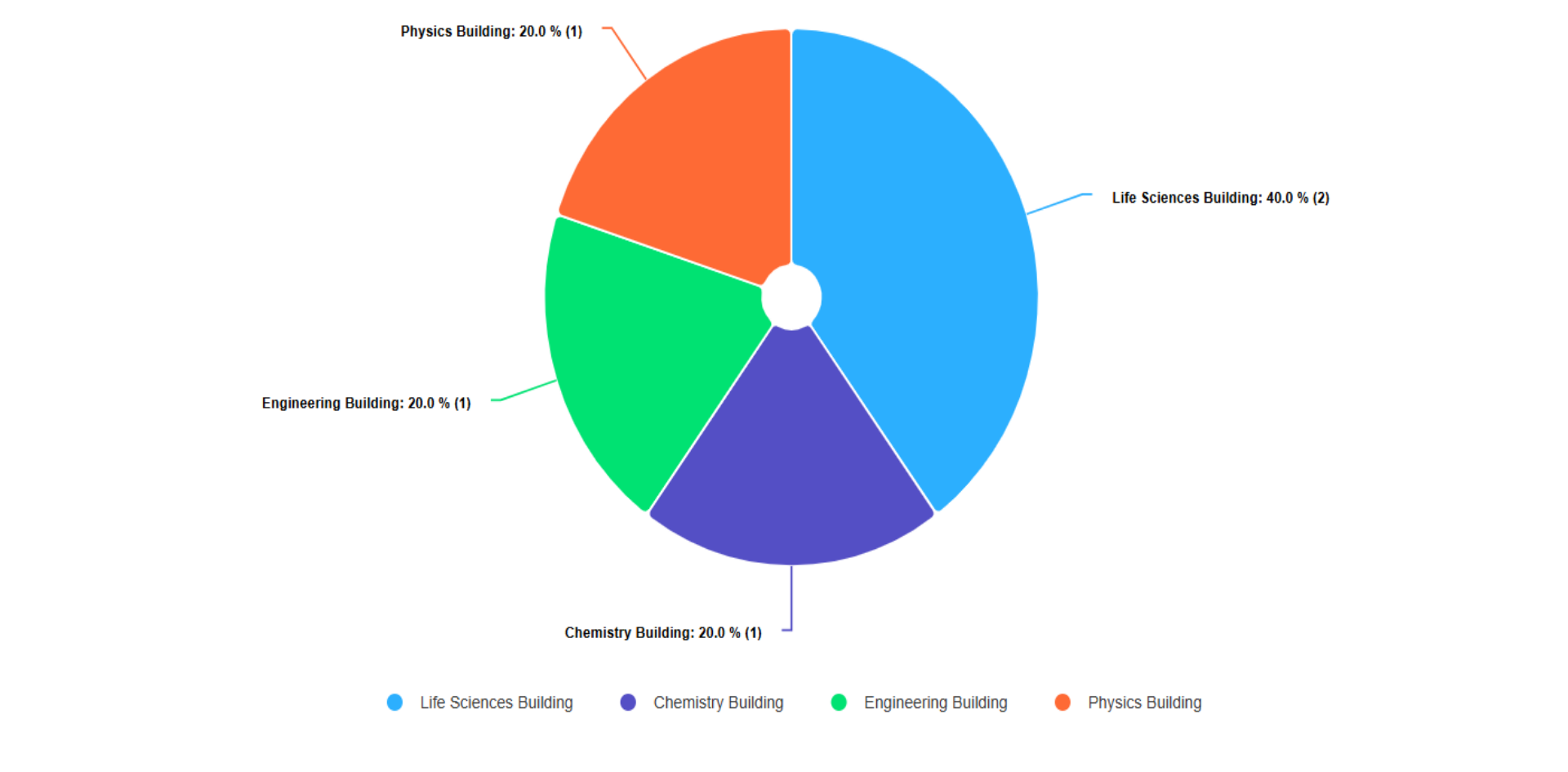
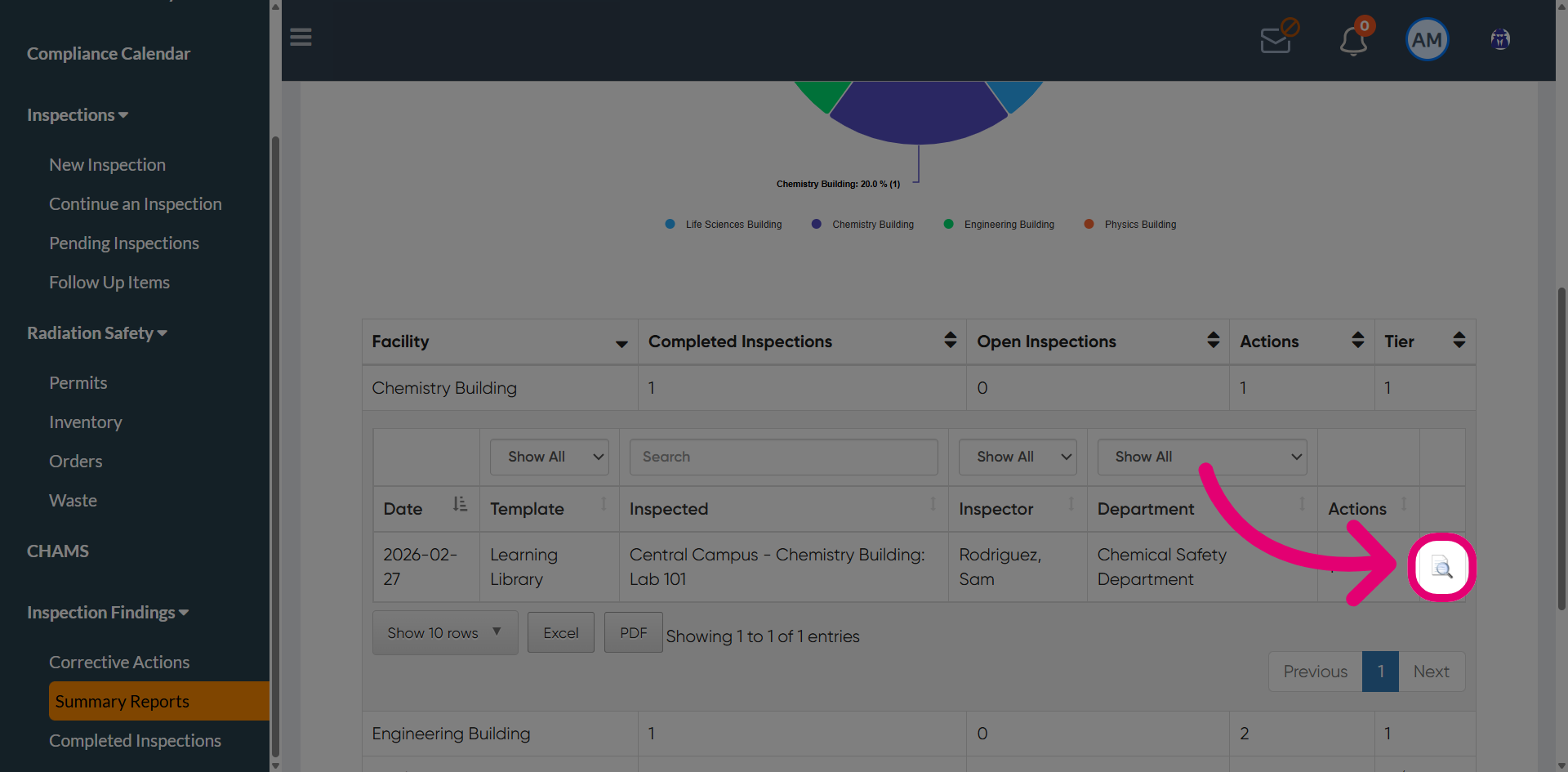
Select the Chemistry Building or your desired building to view specific inspection details.
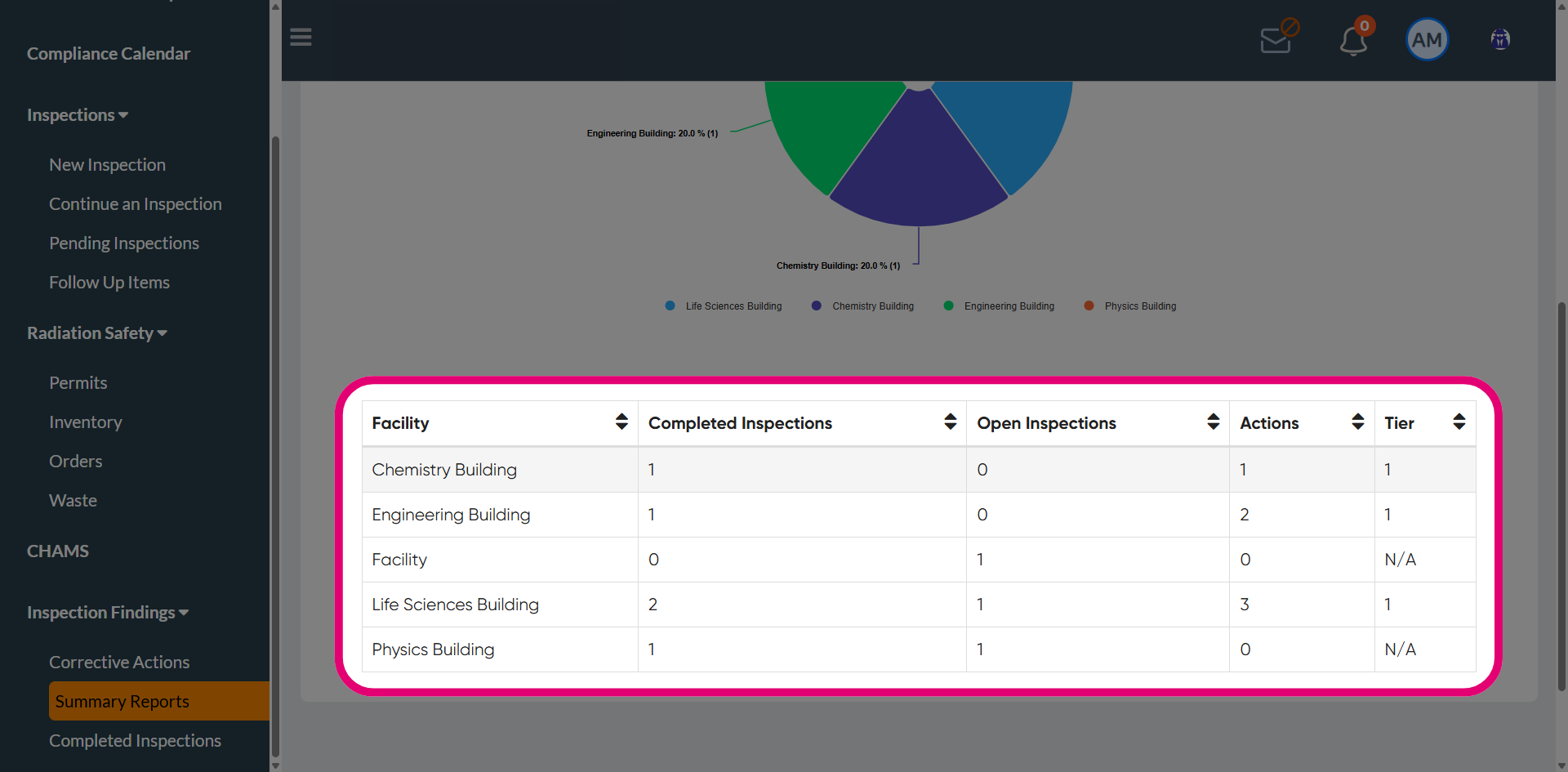
View the Summary Reports Page with detailed inspection information for the selected building.
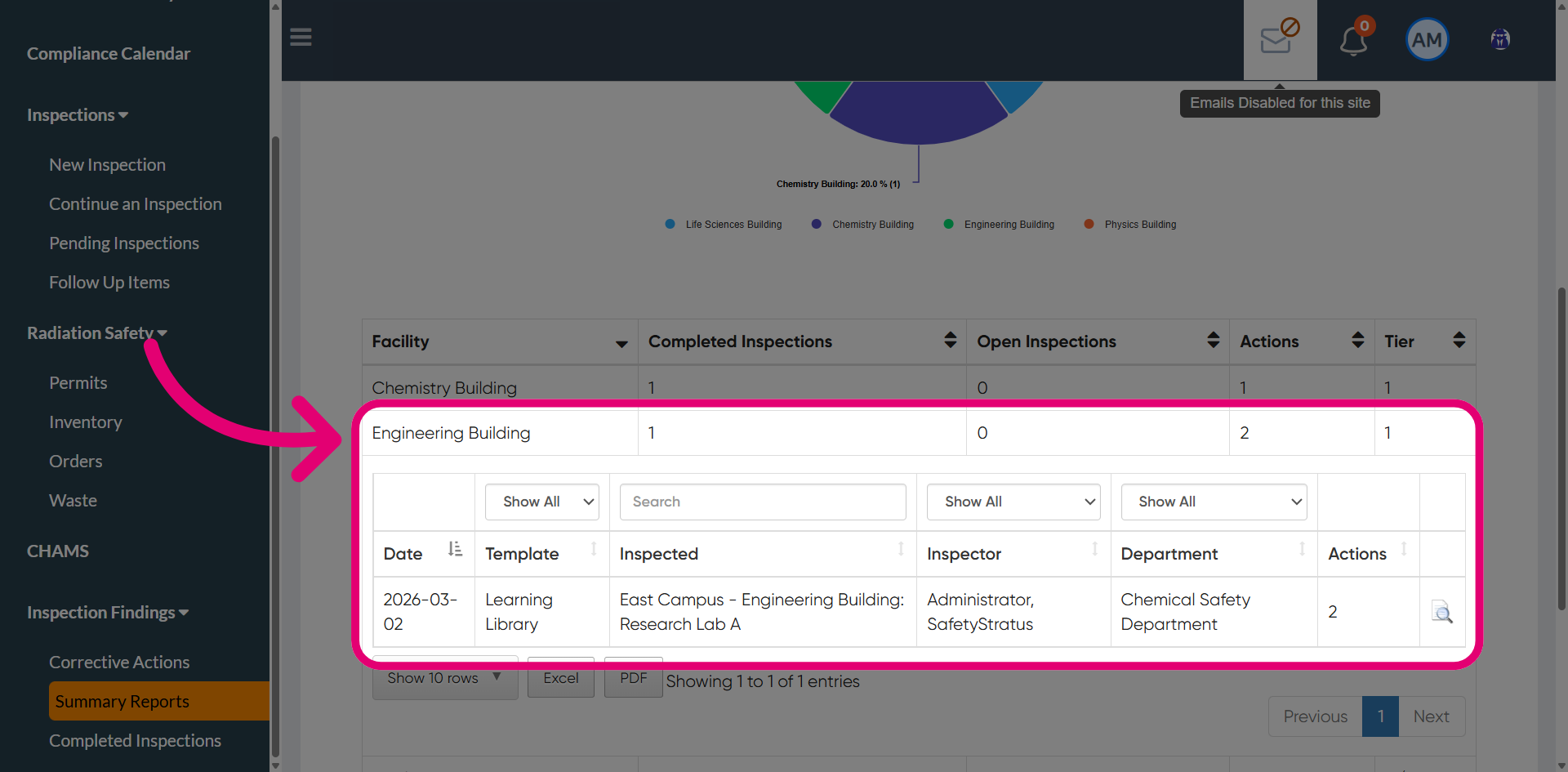
Proceed with any necessary actions based on the inspection summary data.