New article
Recently updated
Sending an email bulletin

Who is this article for?
Administrators who want to learn to send an email bulletin.
Administrator permissions are required.
This tutorial guides you through creating and sending email bulletins.
You will learn how to compose, configure recipients, and deliver email notifications to your users.
1. Creating and sending an email bulletin
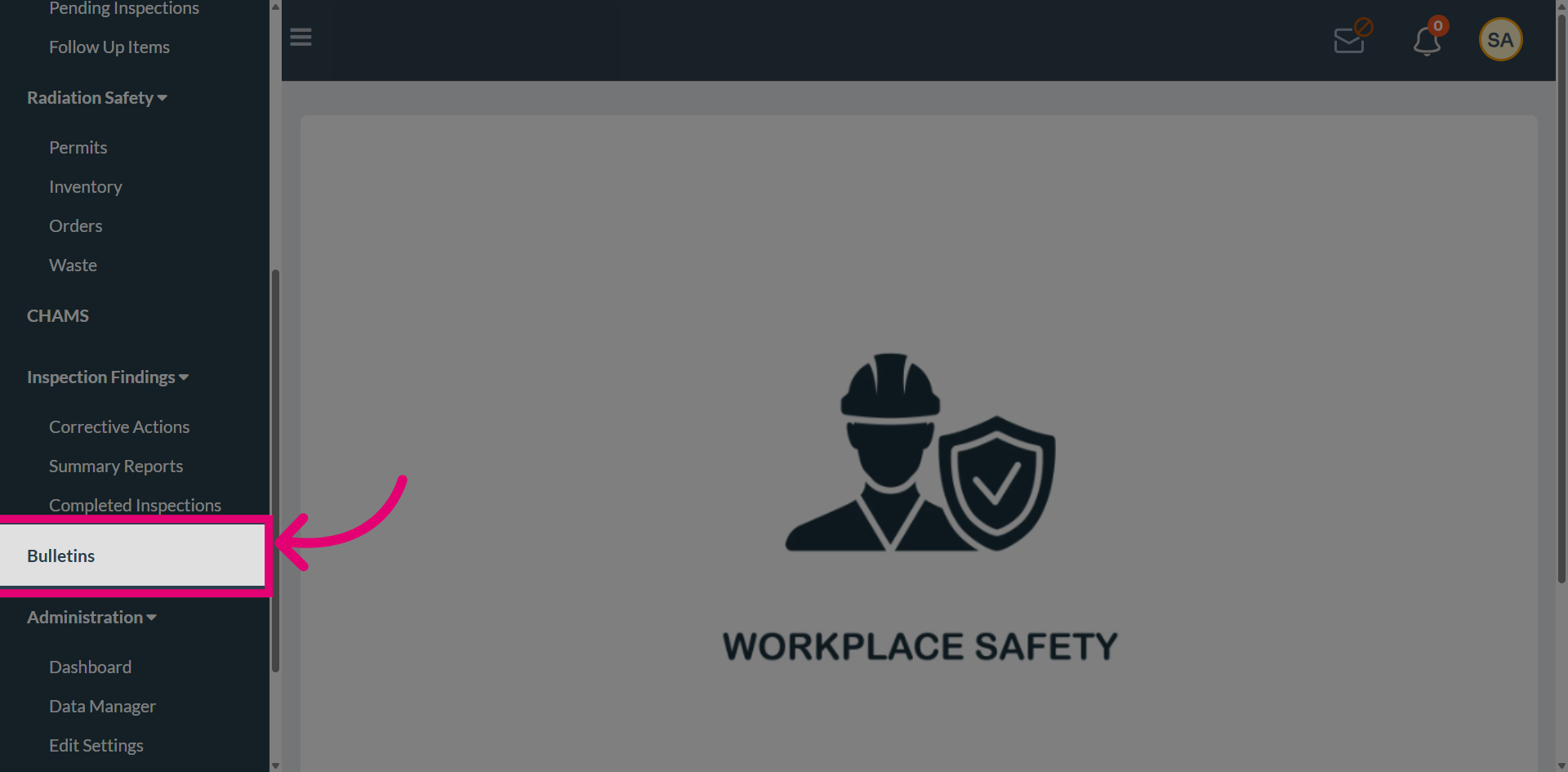
Navigate to Bulletins to access the bulletin management section.
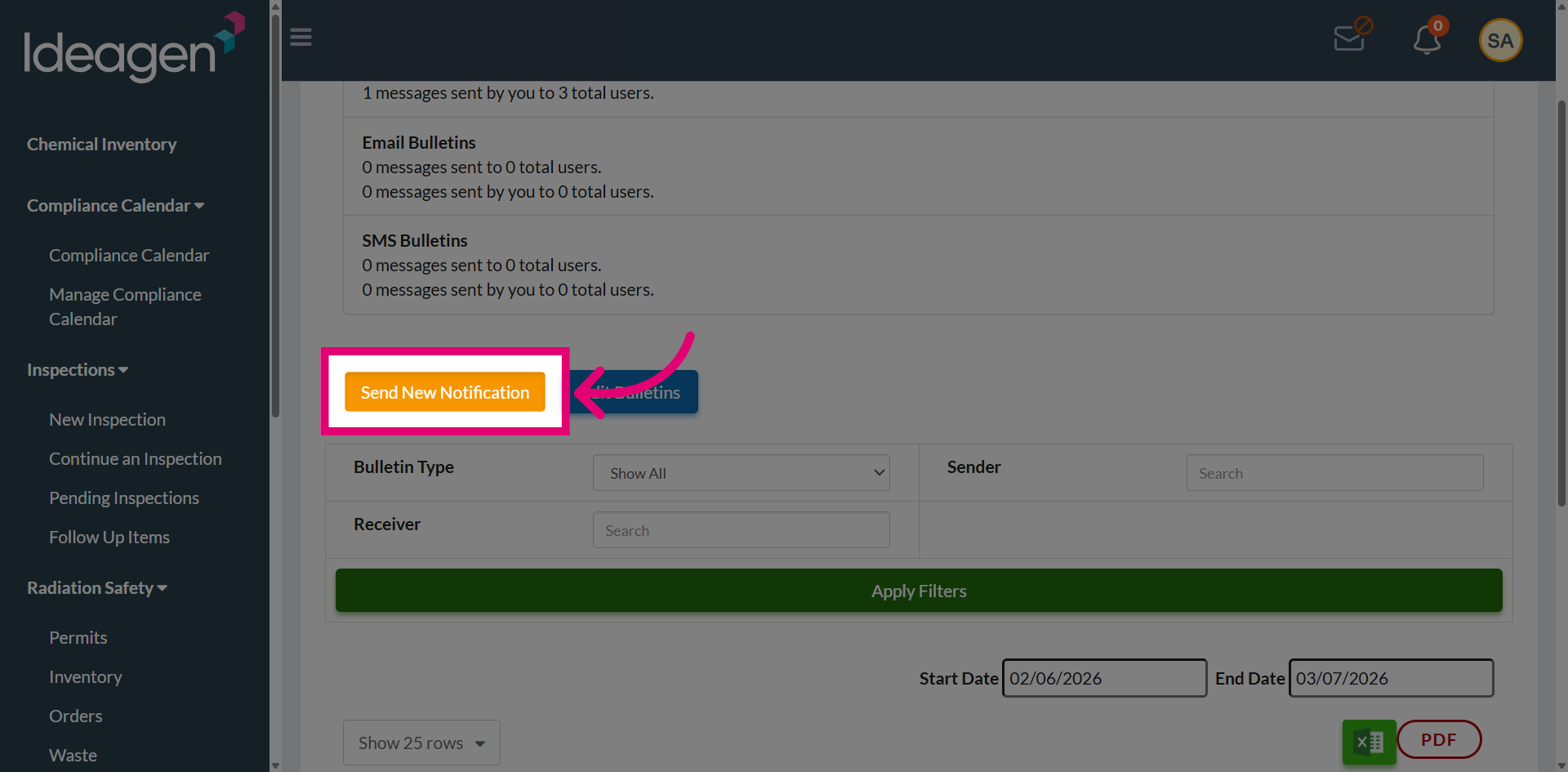
Select Send New Notification to begin composing a new bulletin.
Select Email Bulletins to indicate that the notification will be sent via email.
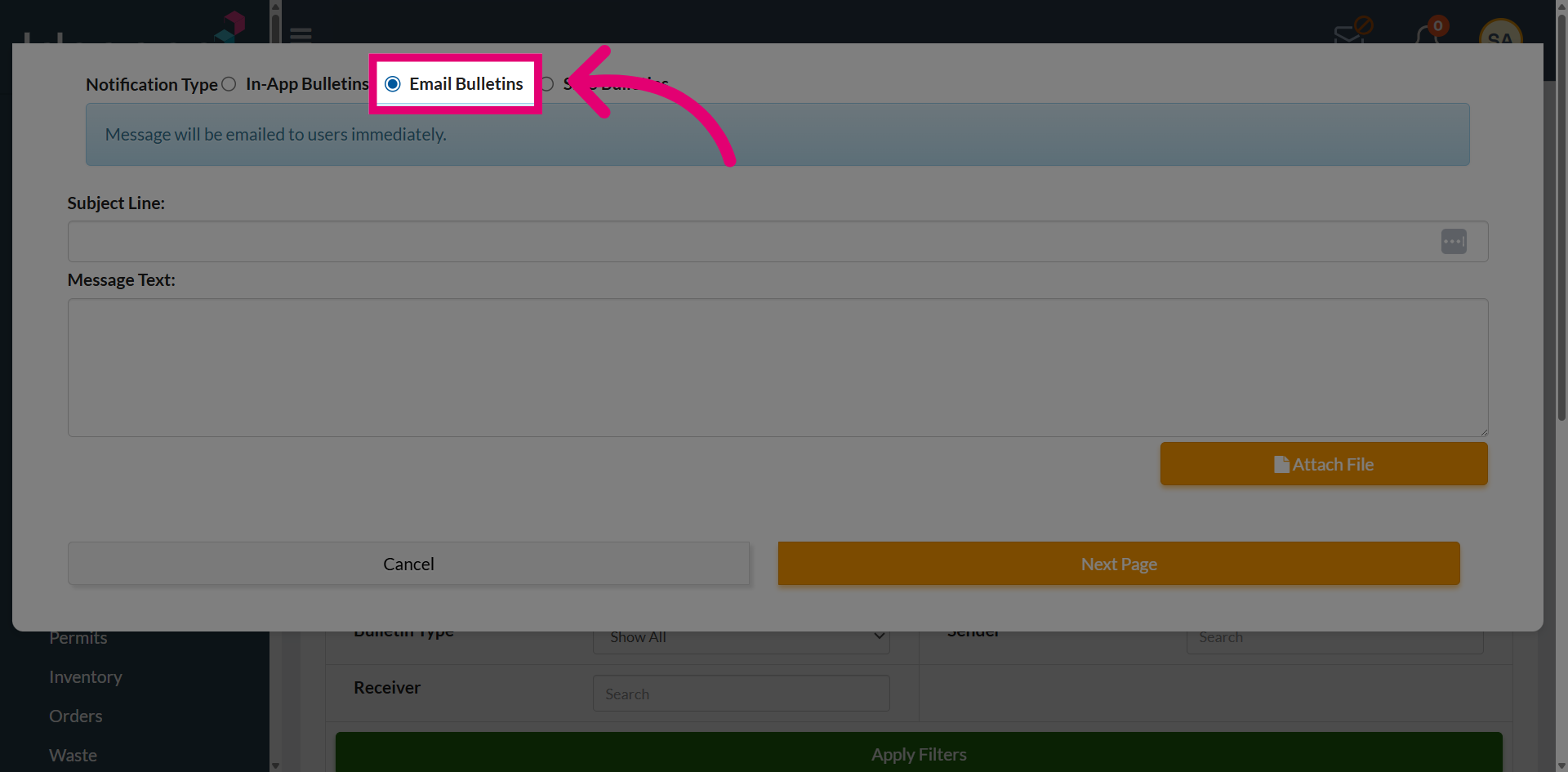
Enter the subject line to specify the title of the email bulletin.
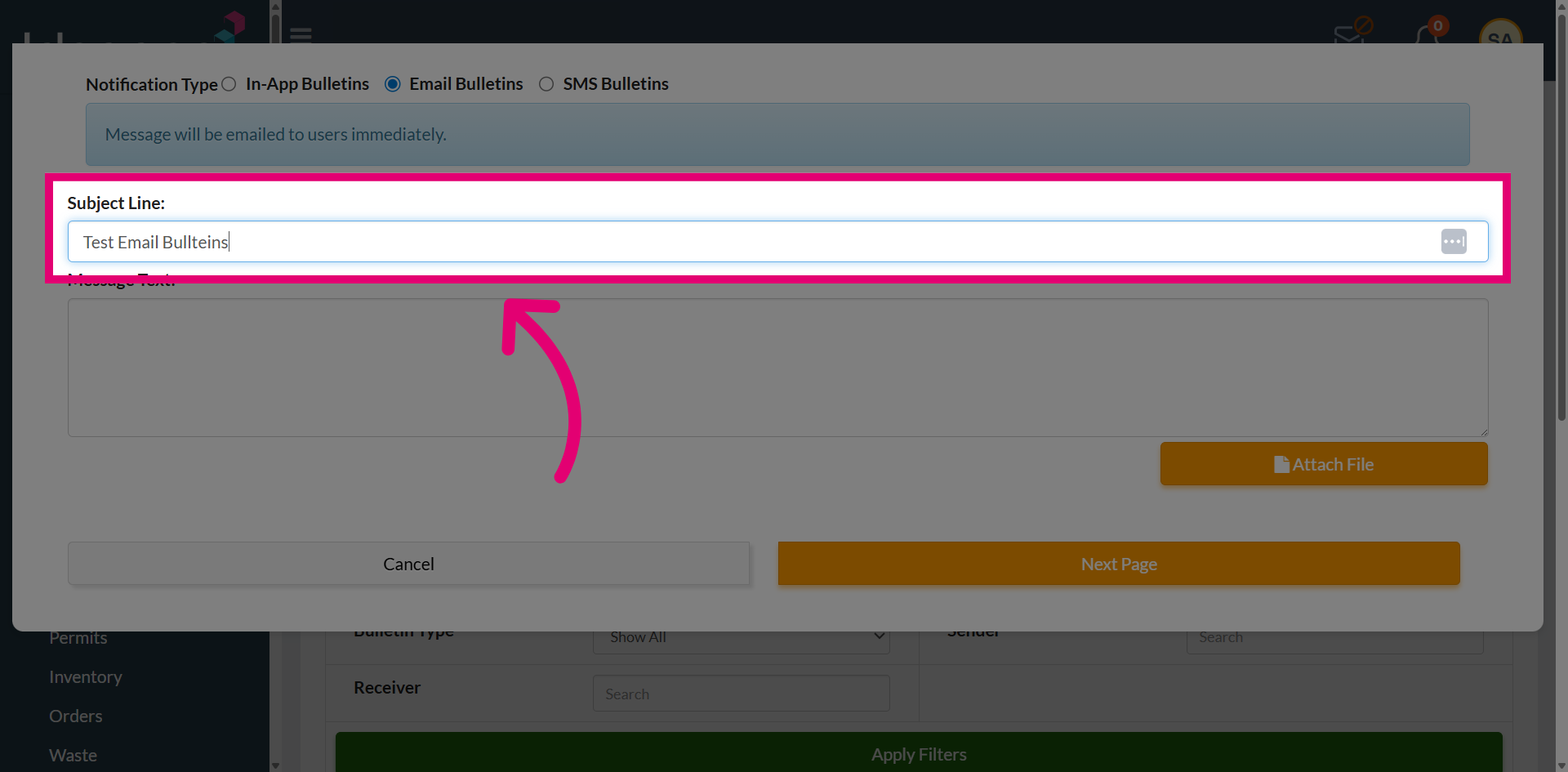
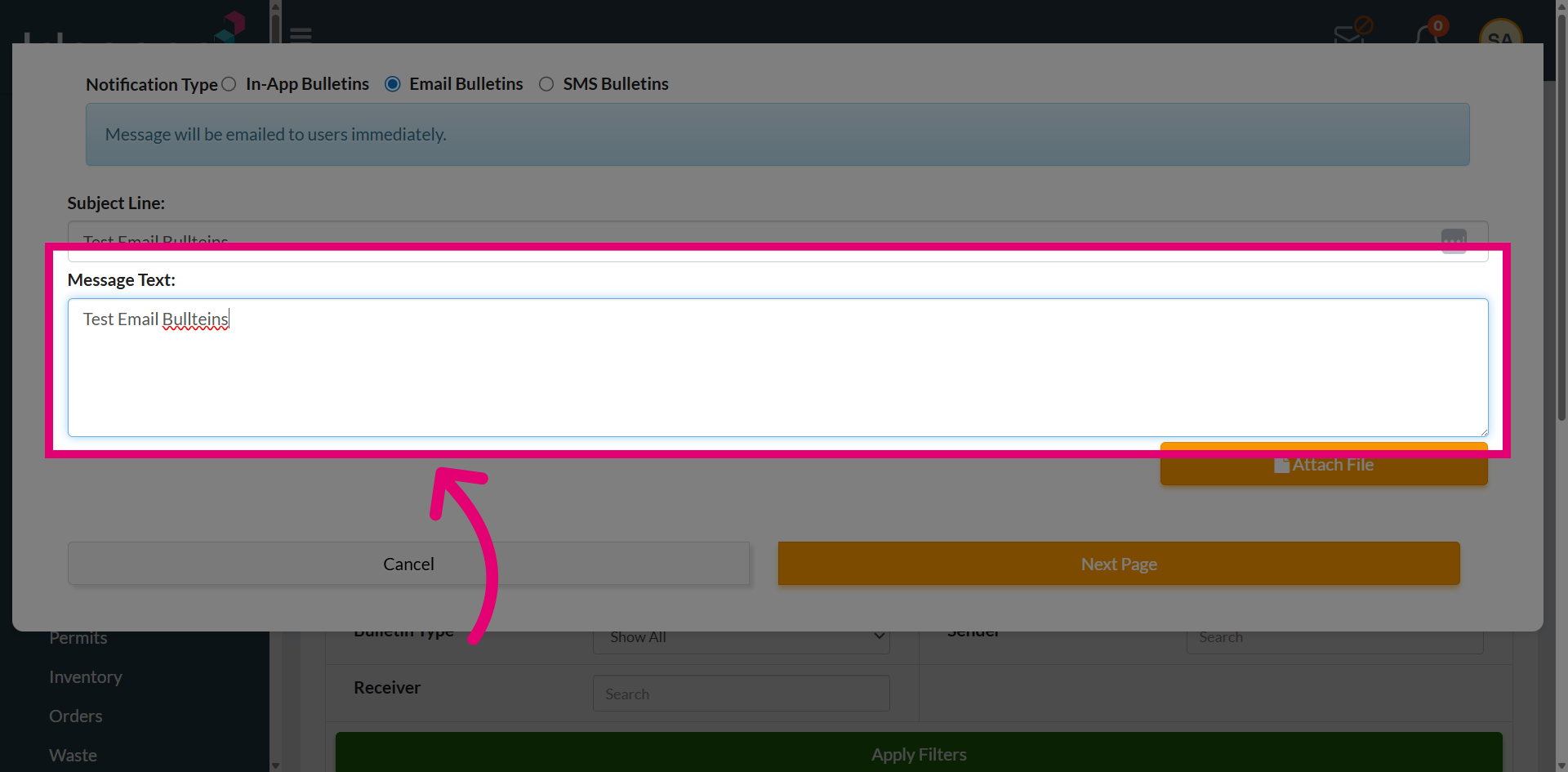
Enter the main message content for the email bulletin.
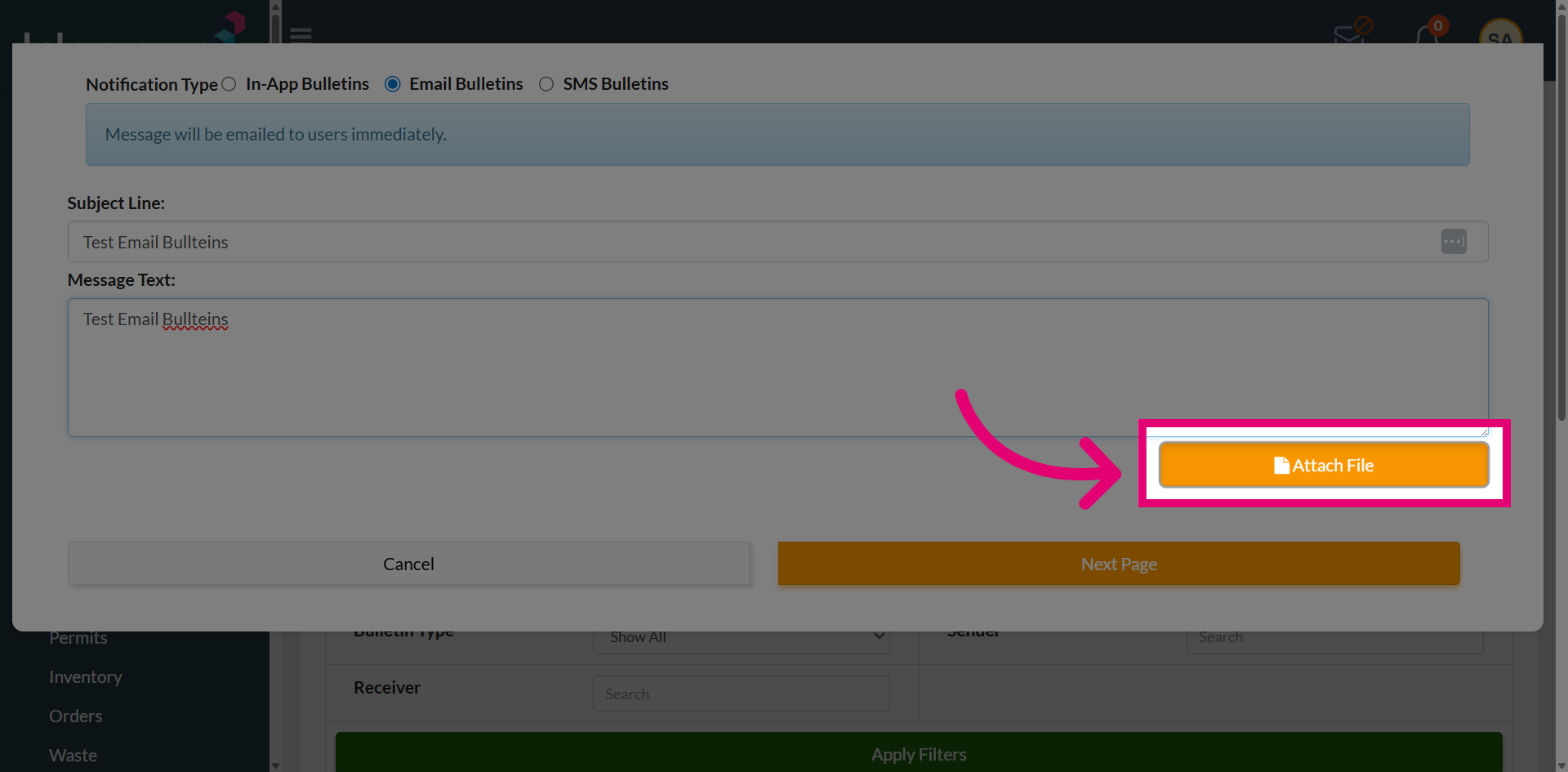
Use the Attach File option to add any relevant documents or images to bulletins.
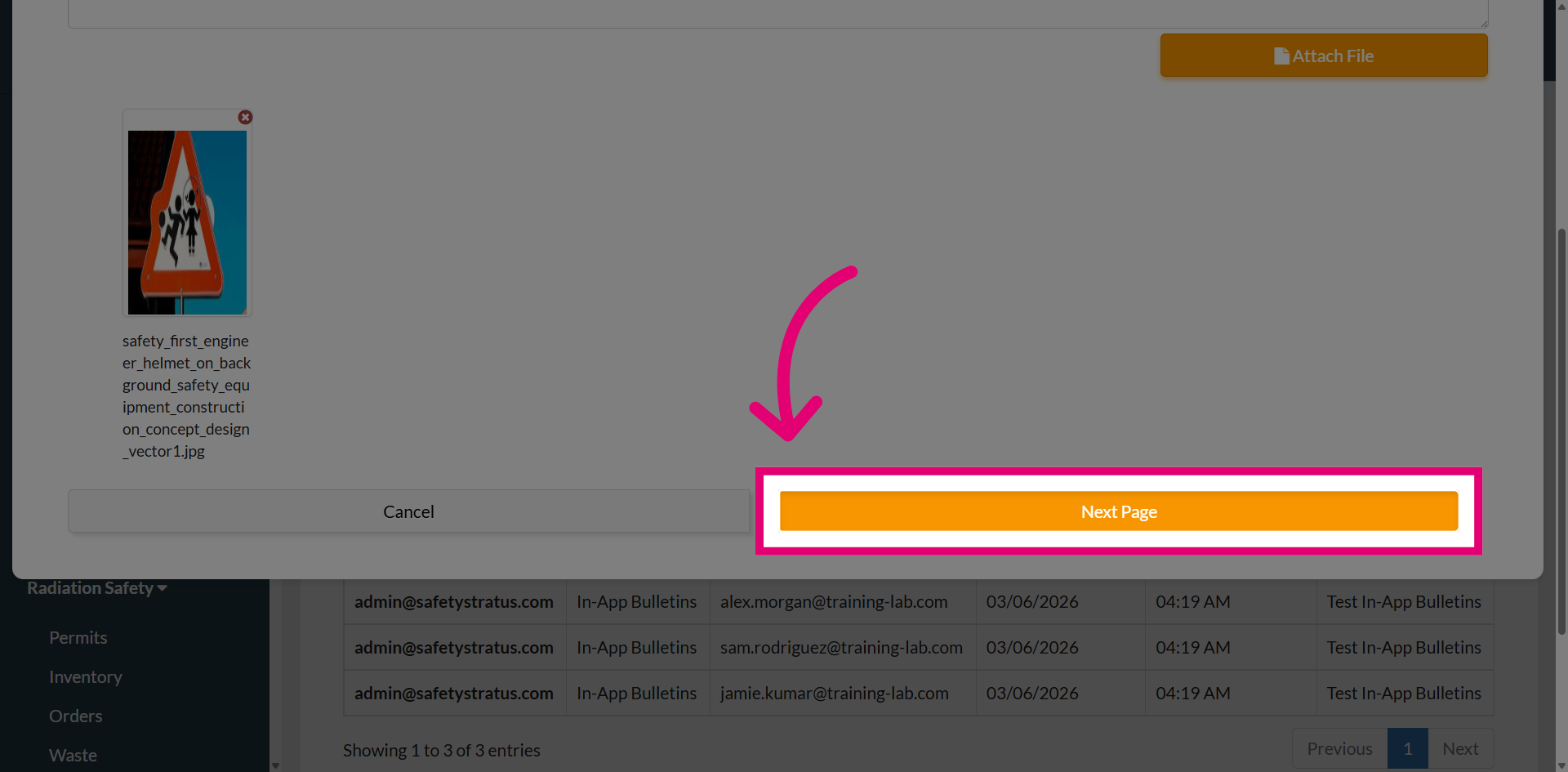
Select Next Page to move to the recipient selection step.
The Recipient Selection page will open, displaying various options that help you choose the appropriate audience for sending the bulletin.
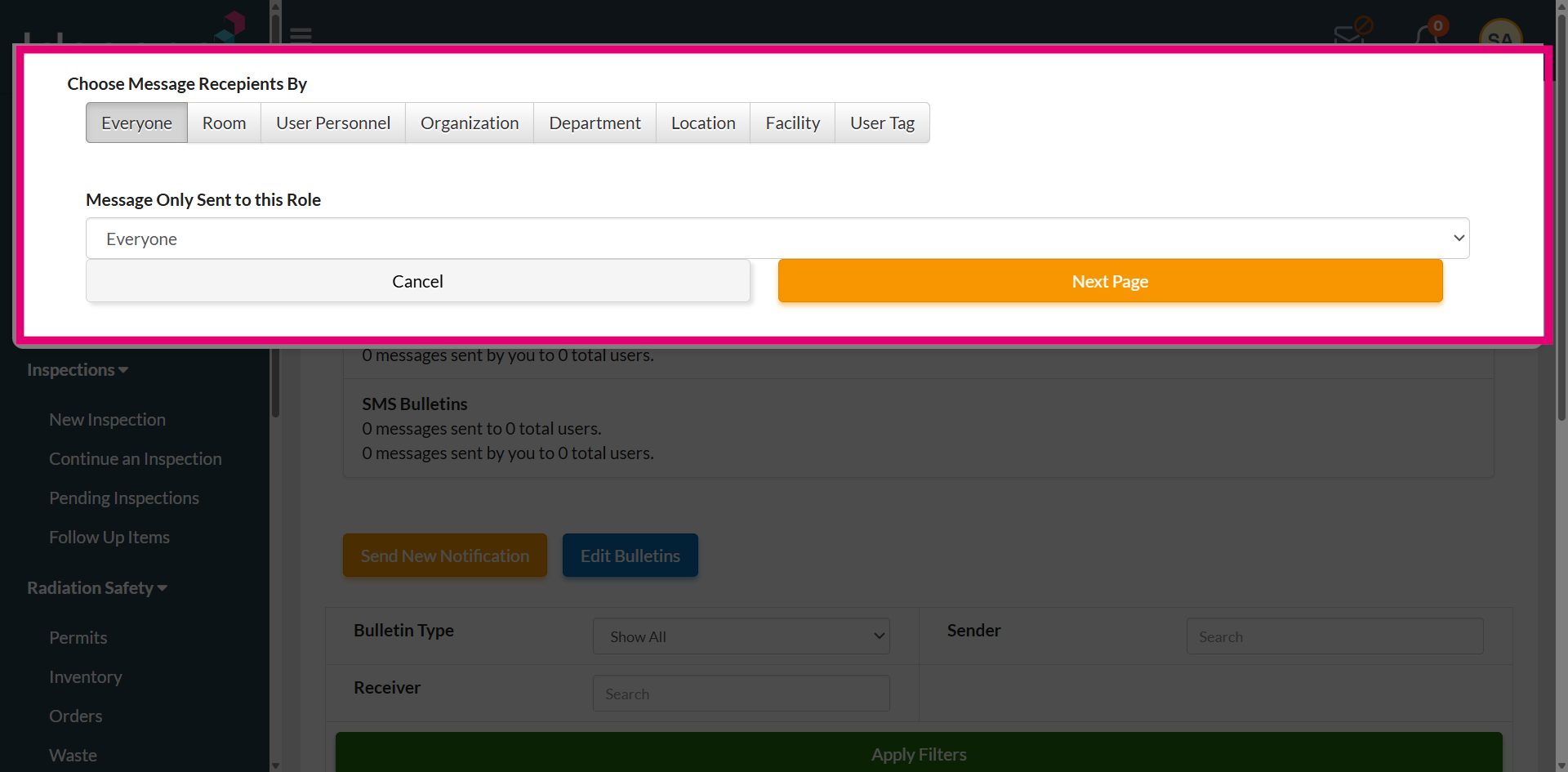
Select Everyone to send the bulletin to all users, or choose the appropriate recipient group or role to target the intended audience.
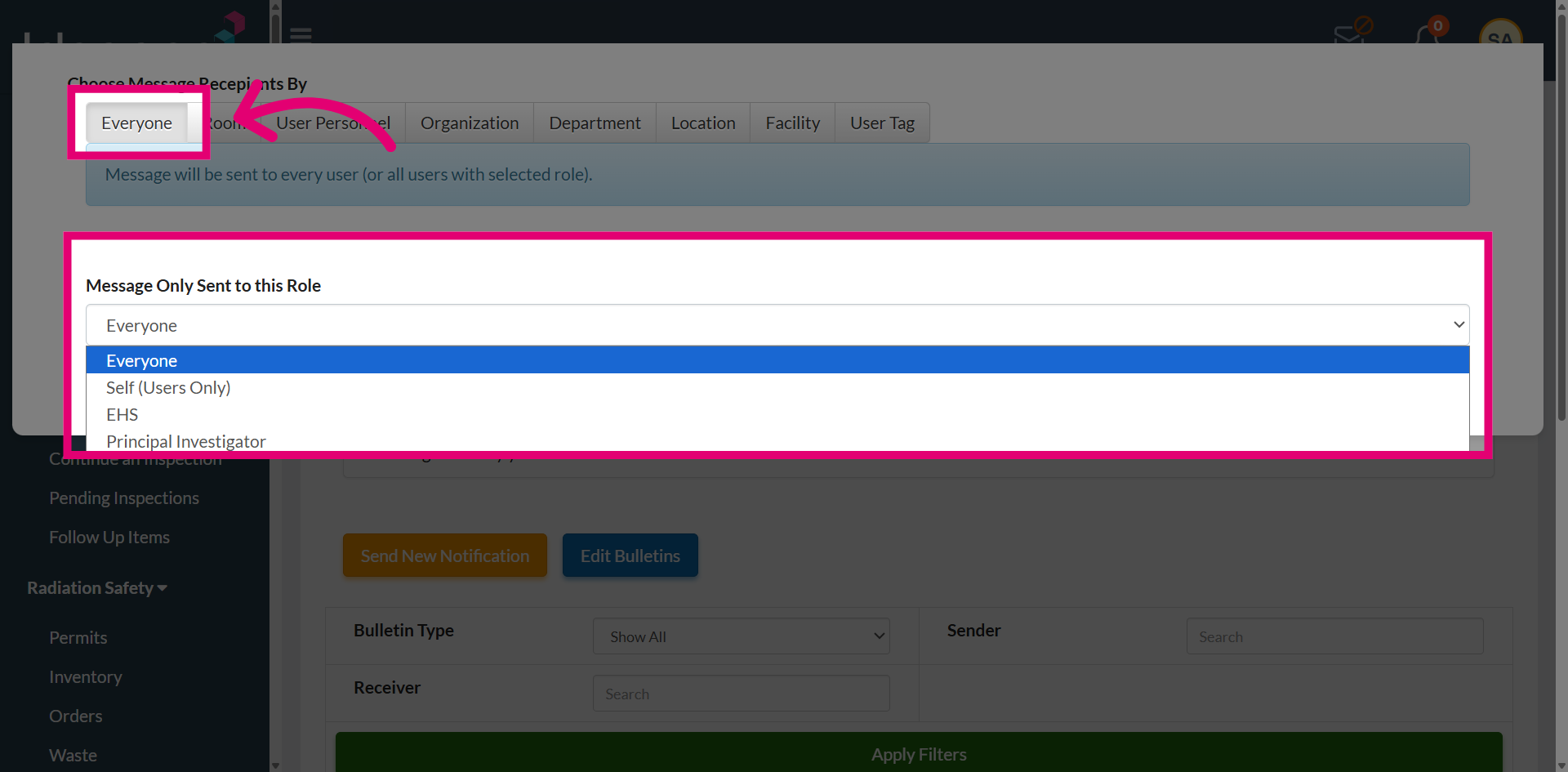
To send an email bulletin for a specific room, search for the room and select it from the dropdown menu, then choose the appropriate recipient role to ensure the bulletin is sent to the intended audience.
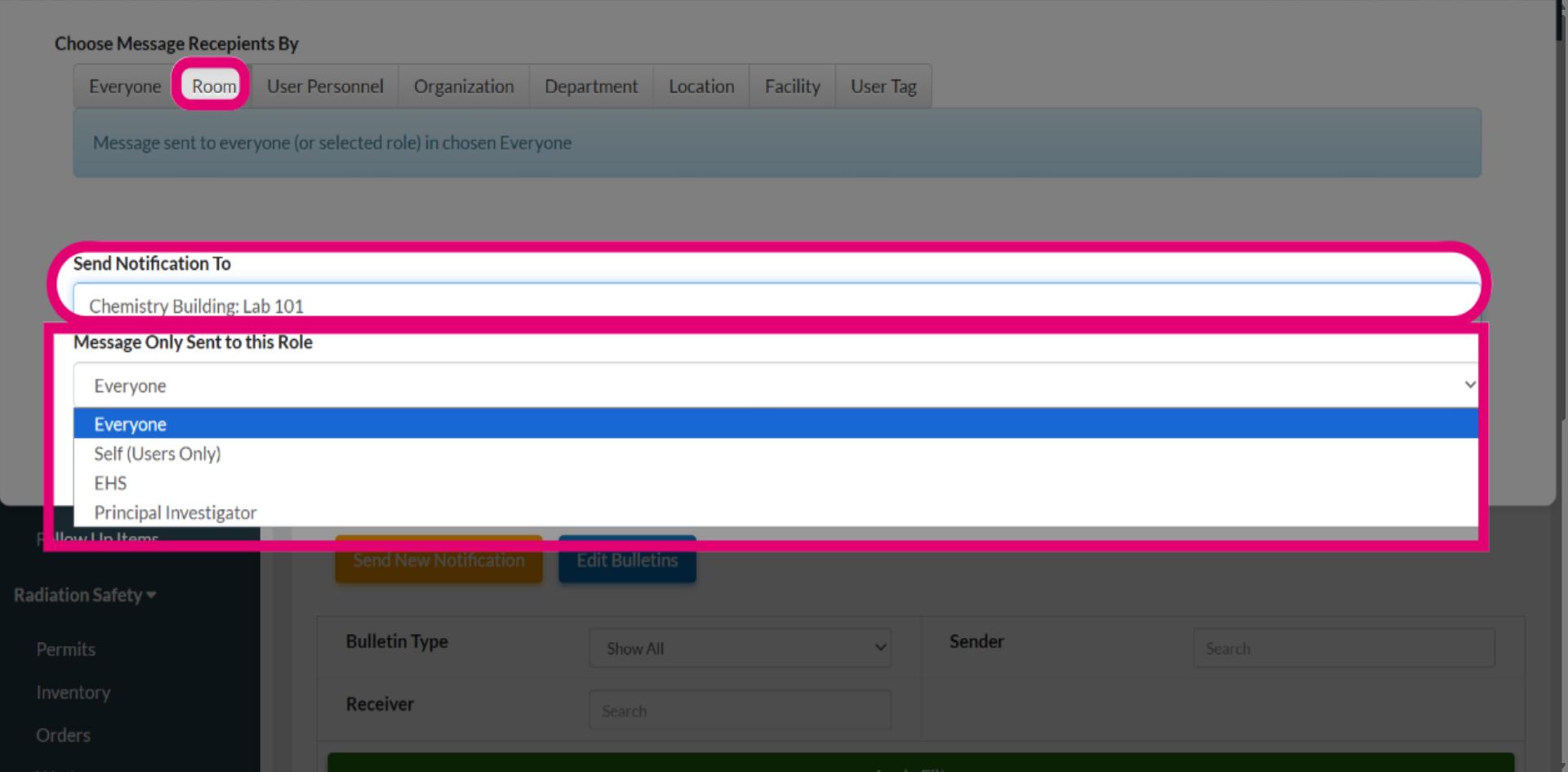
To send an email bulletin for a specific User Personnel, search for the user and select the appropriate user from the dropdown list. The bulletin will then be sent to Everyone or to the selected role, based on the chosen user's personal roster.
Notifications can also be sent based on organization, department, location, facility, or user tags. Select the desired locations or groups, and the message will be delivered to everyone within the selected organizations or to users with specific roles.
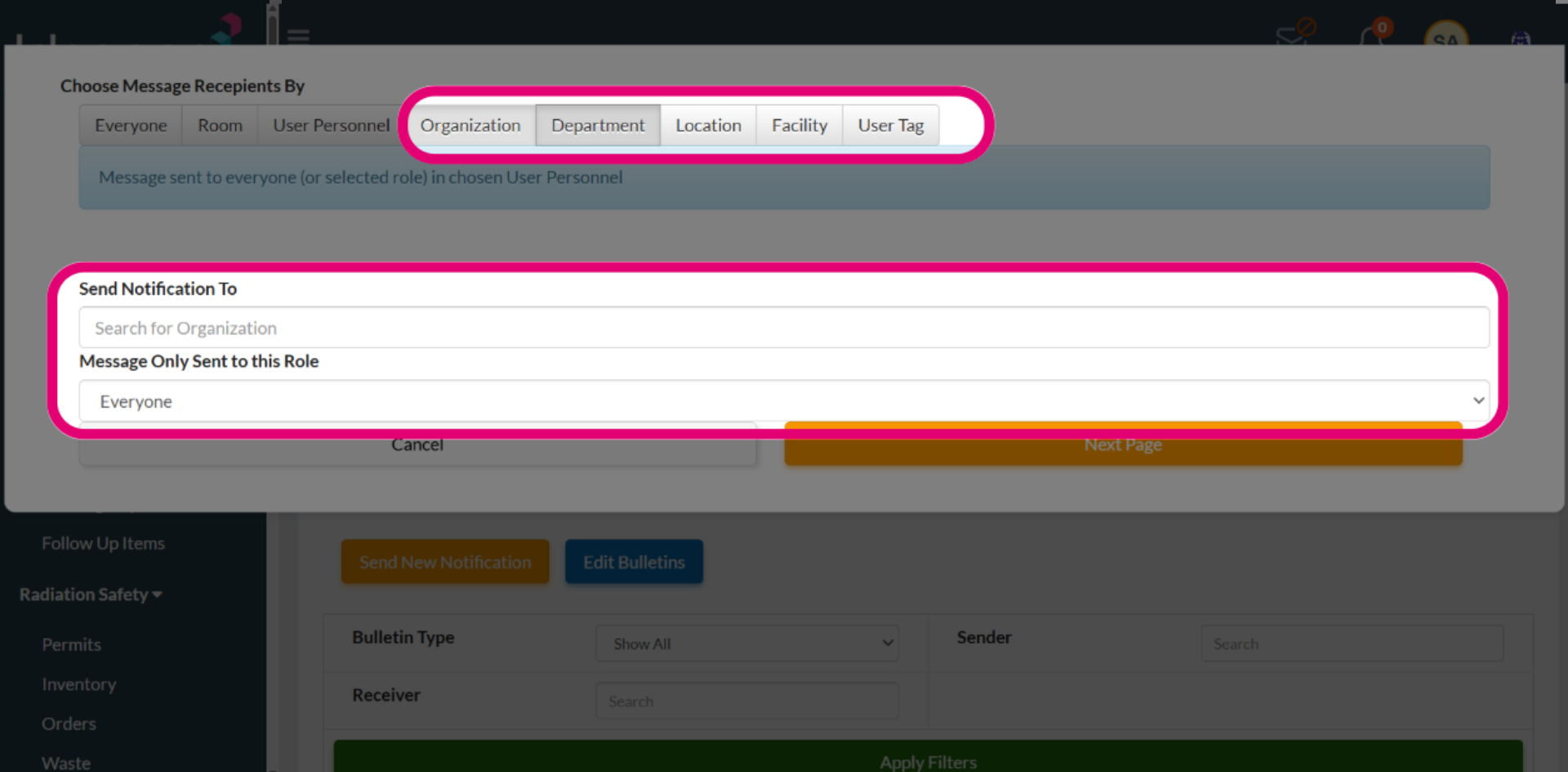
Select Next Page to continue with the bulletin creation process.
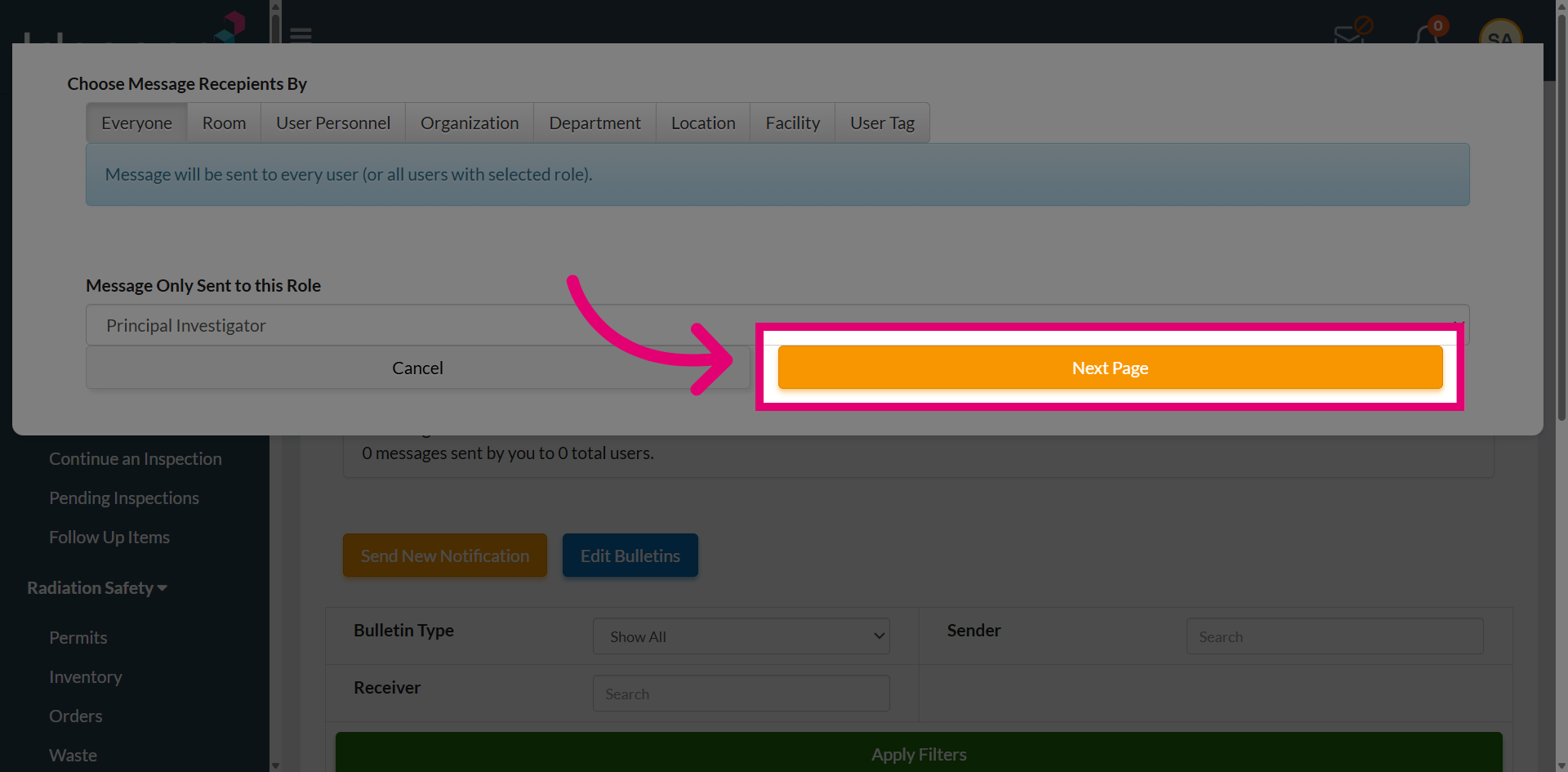
Review the notification details to confirm the selected users, locations, and recipient roles, along with the Subject Line and the email message text.
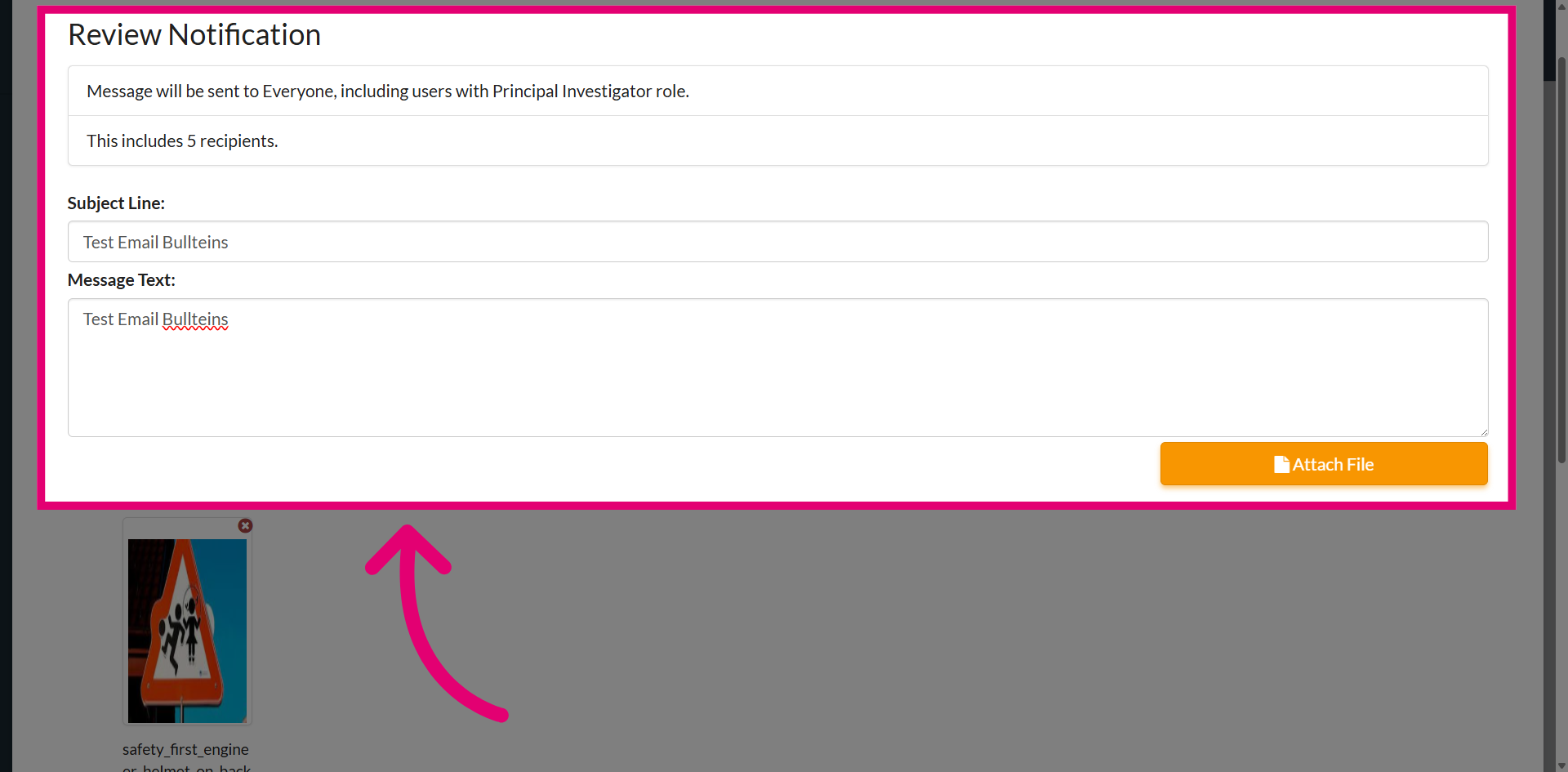
At this stage, three options are available: Previous, which allows you to return to the previous page to make changes; Cancel, which cancels the notification; and Confirm, which proceeds to the next step in the process.
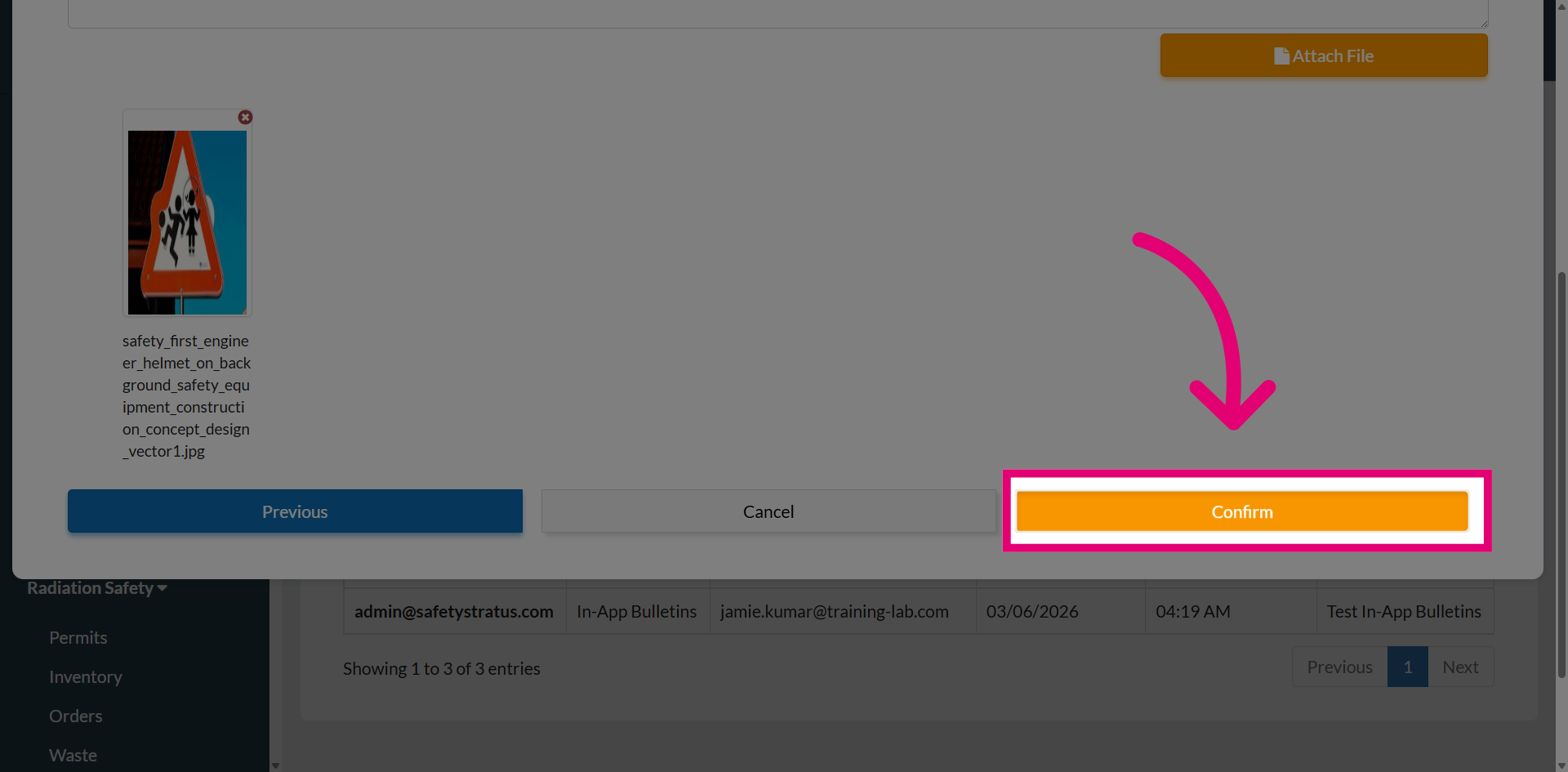
Select Send Message to deliver the email bulletin to the selected recipients.
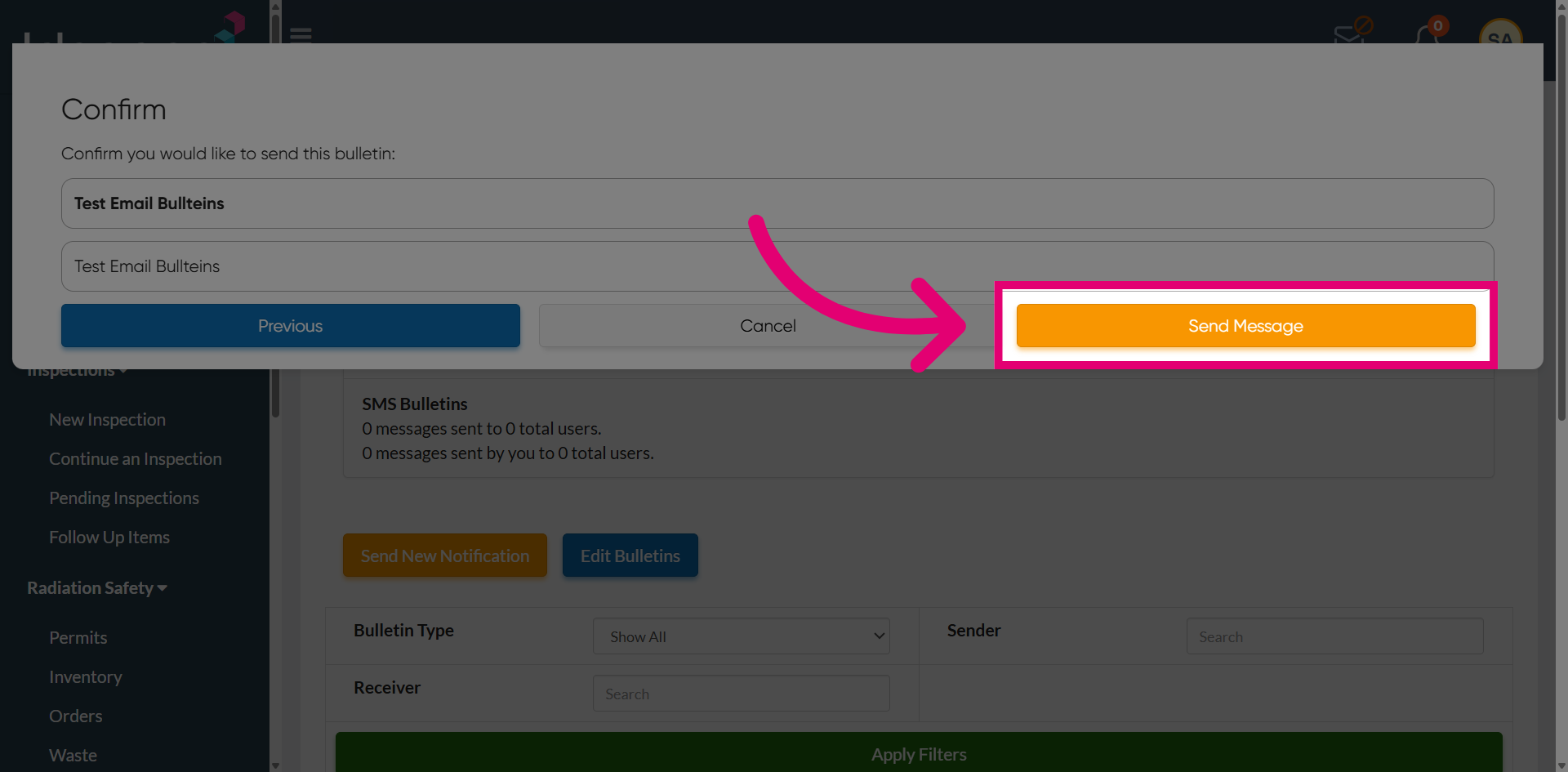
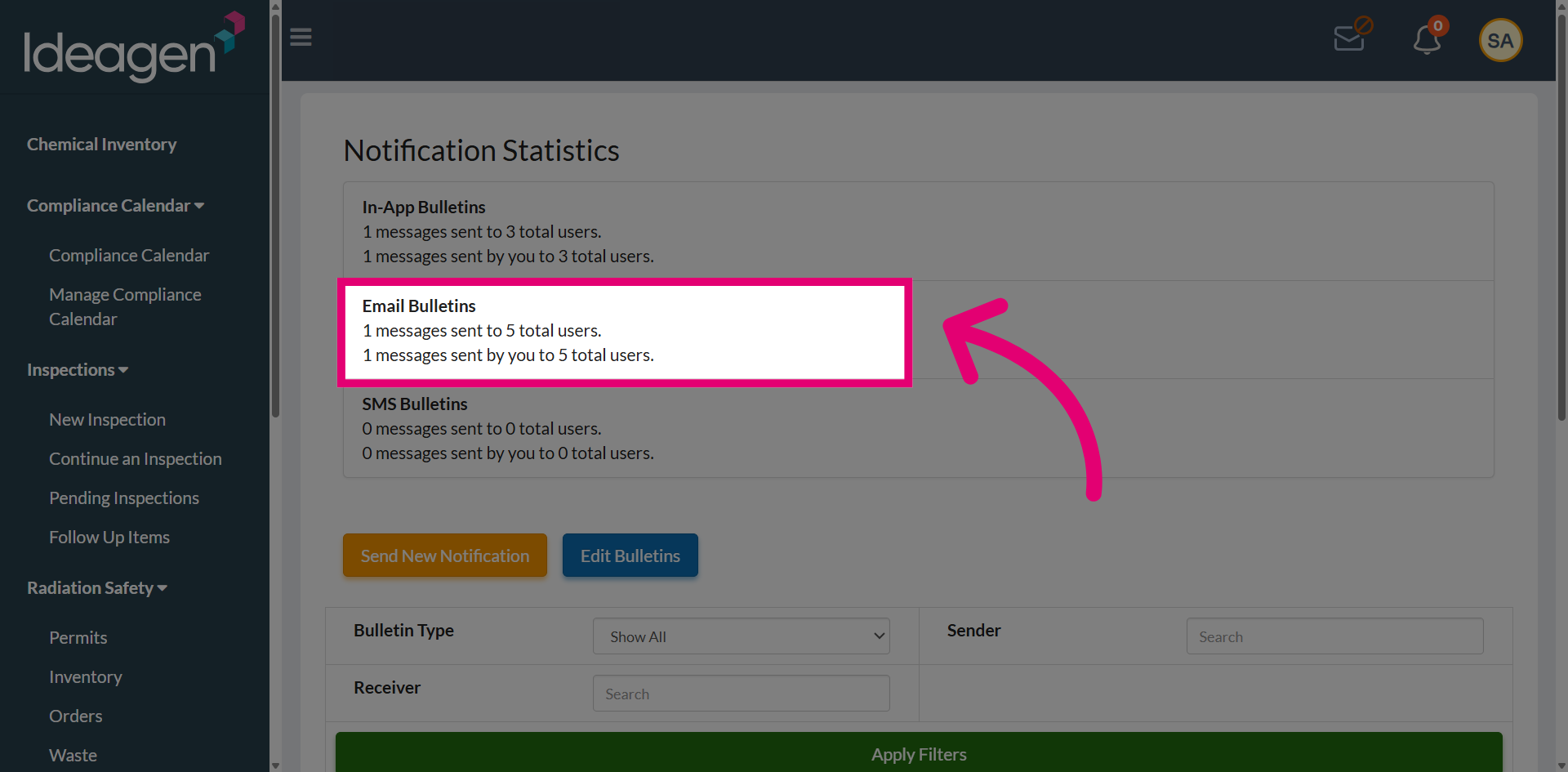
The email bulletin is now created, and the page will display statistics showing how many messages were sent and the number of users who received them.