


New article
Recently updated
Cancelling an inspection

Who is this article for?
Users responsible for inspection management.
General User role is required.
This article walks you through the process of cancelling an ongoing inspection.
1. Cancelling an inspection
To cancel an inspection:
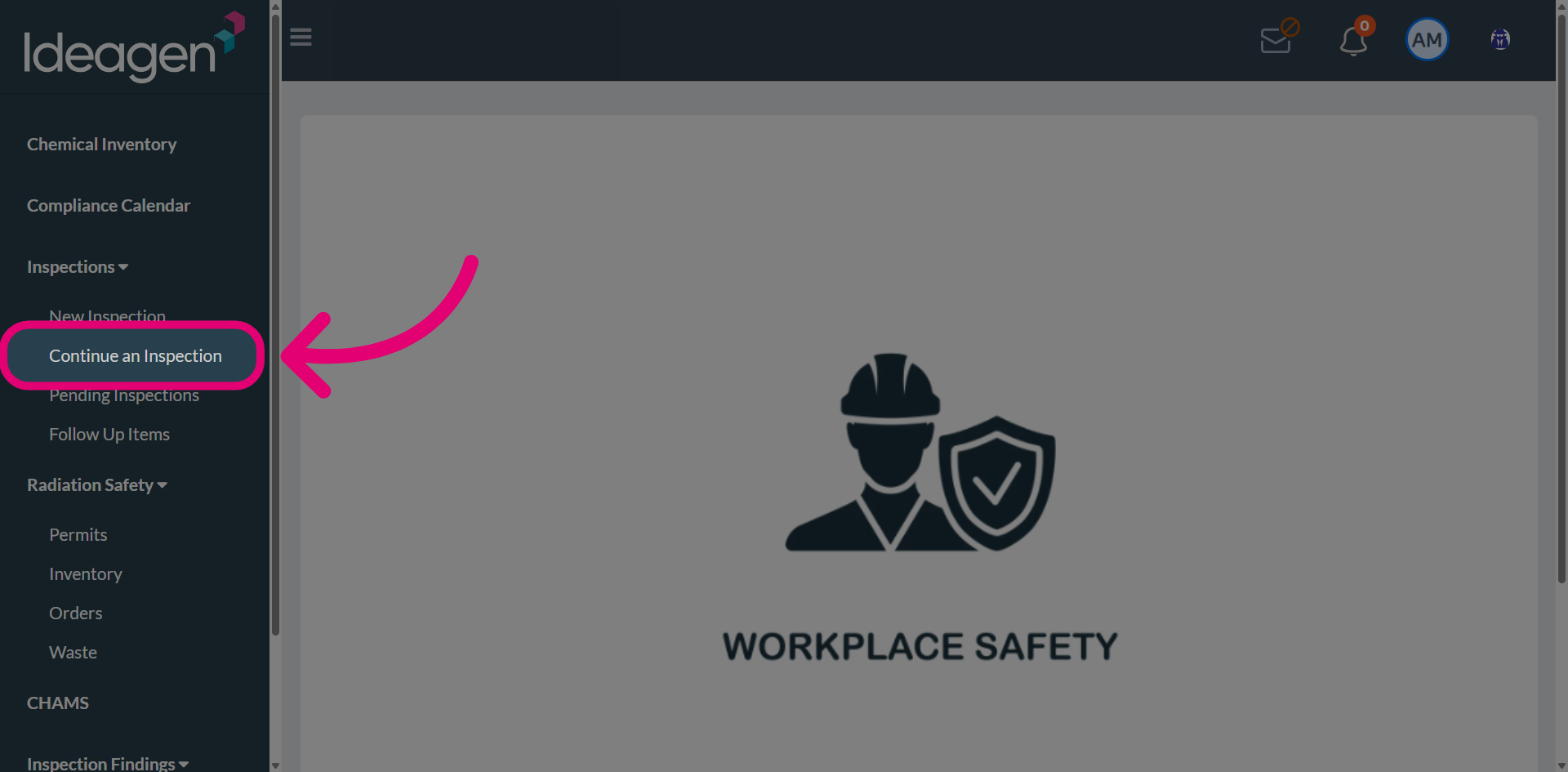
- Open the Inspections menu.
- Select Continue an Inspection.
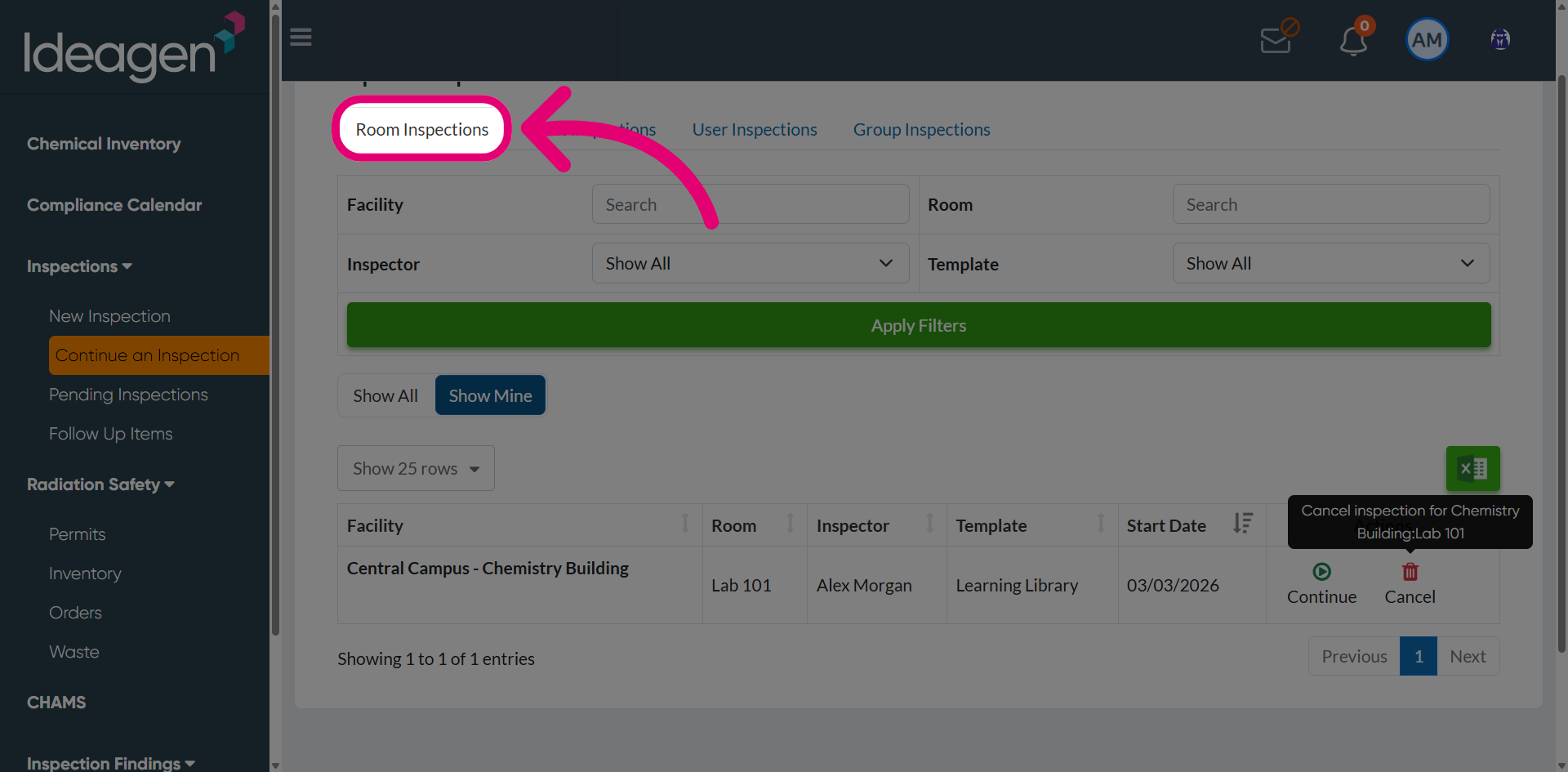
- Go to the Inspections tab for your inspection's type.
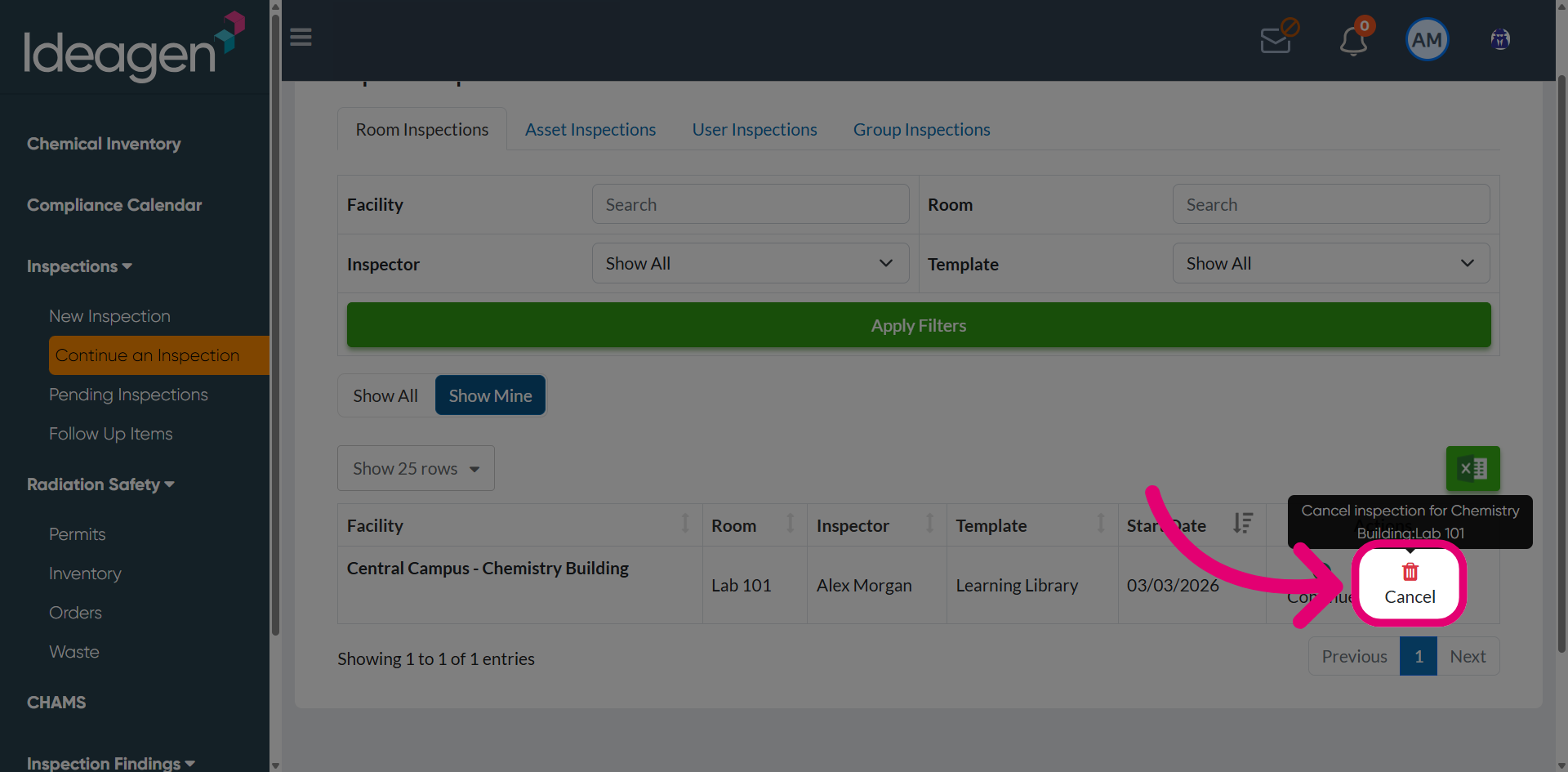
- Click Cancel next to the inspection.
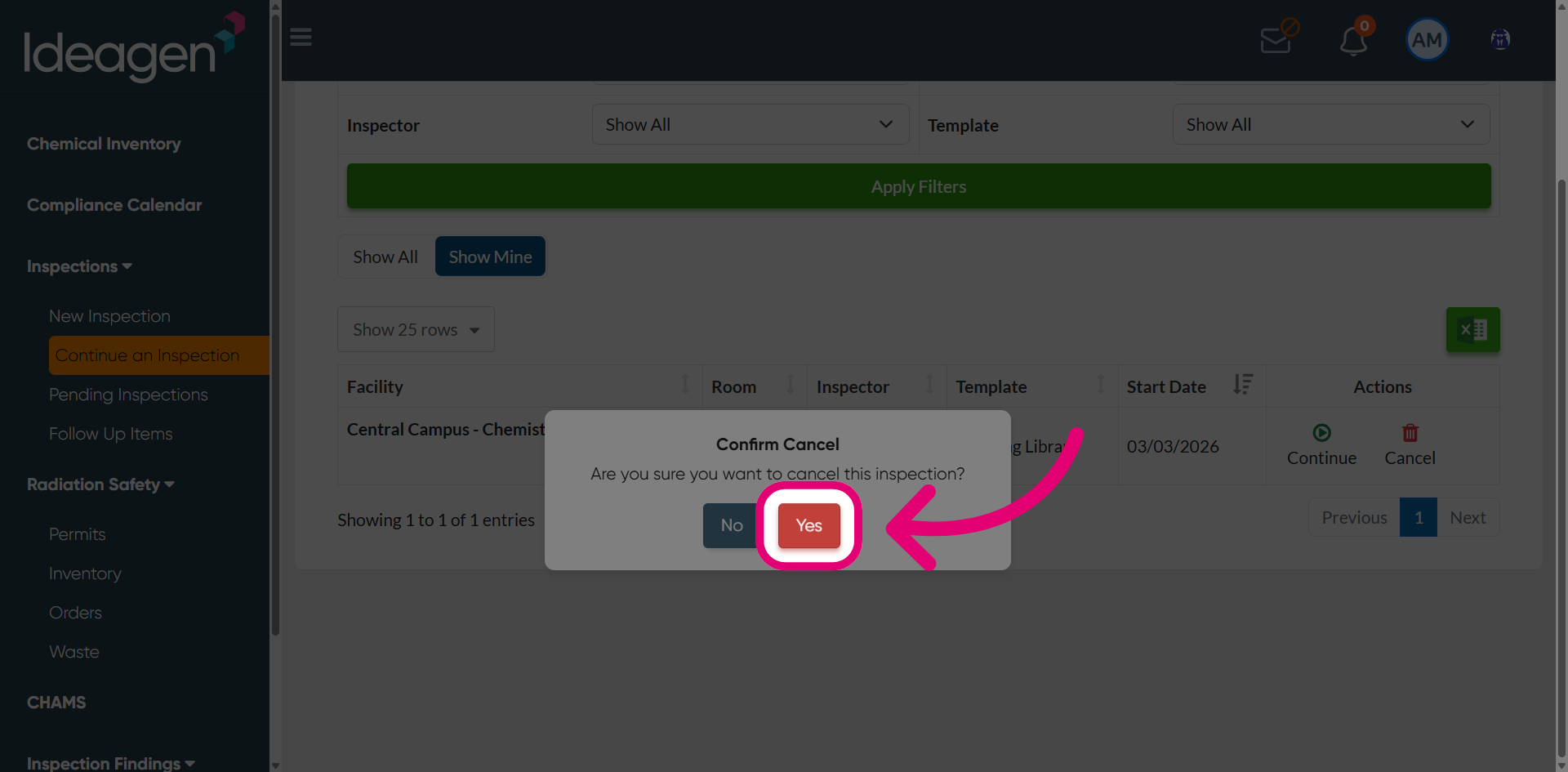
This will show a confirmation prompt.
- Click Yes to finalise the cancellation of the inspection.
Important
Once canceled, the inspection cannot be retrieved or restored.