New article
Recently updated
Completing a corrective action

Who is this article for?
Users responsible for corrective action management.
General User role is required.
Before you can complete a corrective action, you need to attach relevant files or add relevant comments that confirm the action has been carried out.
This article explains how to complete corrective actions using each method.
1. Completing a corrective action
To complete a corrective action with attachments:
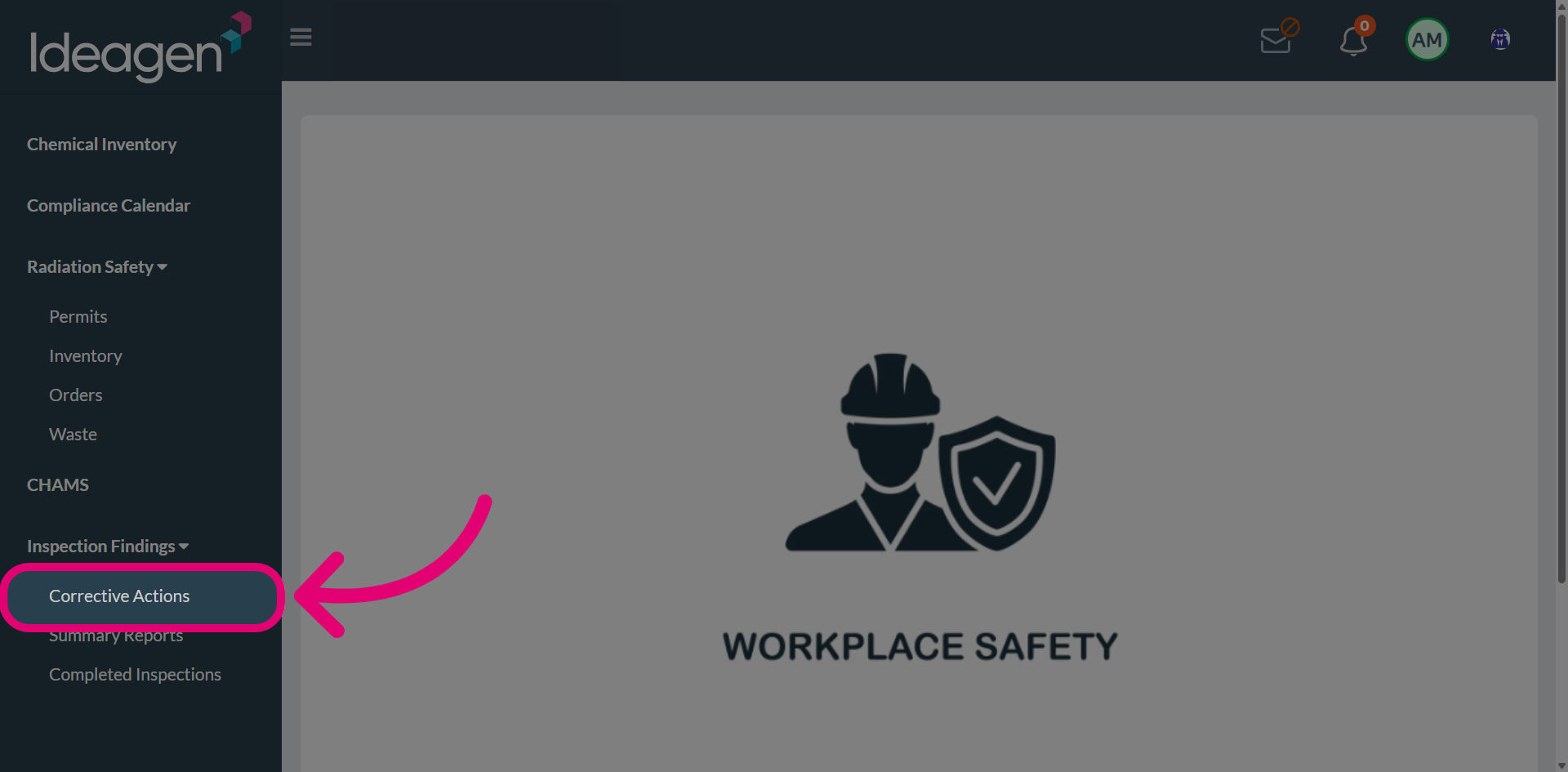
- Open Inspection Findings.
- Select Corrective Actions.
-
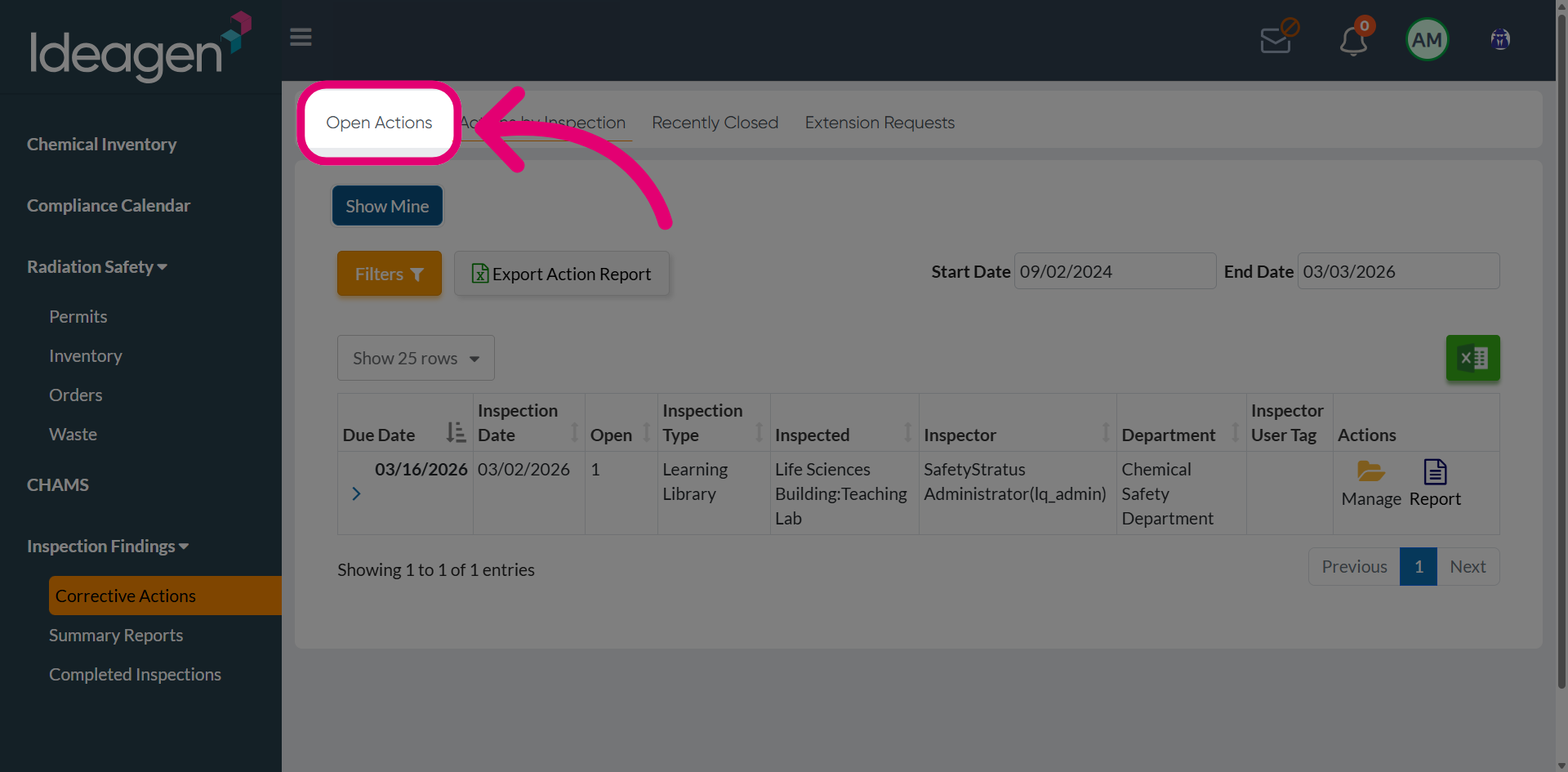
Switch to the Open Actions tab.
This will take you to all corrective actions that are currently active and require attention.
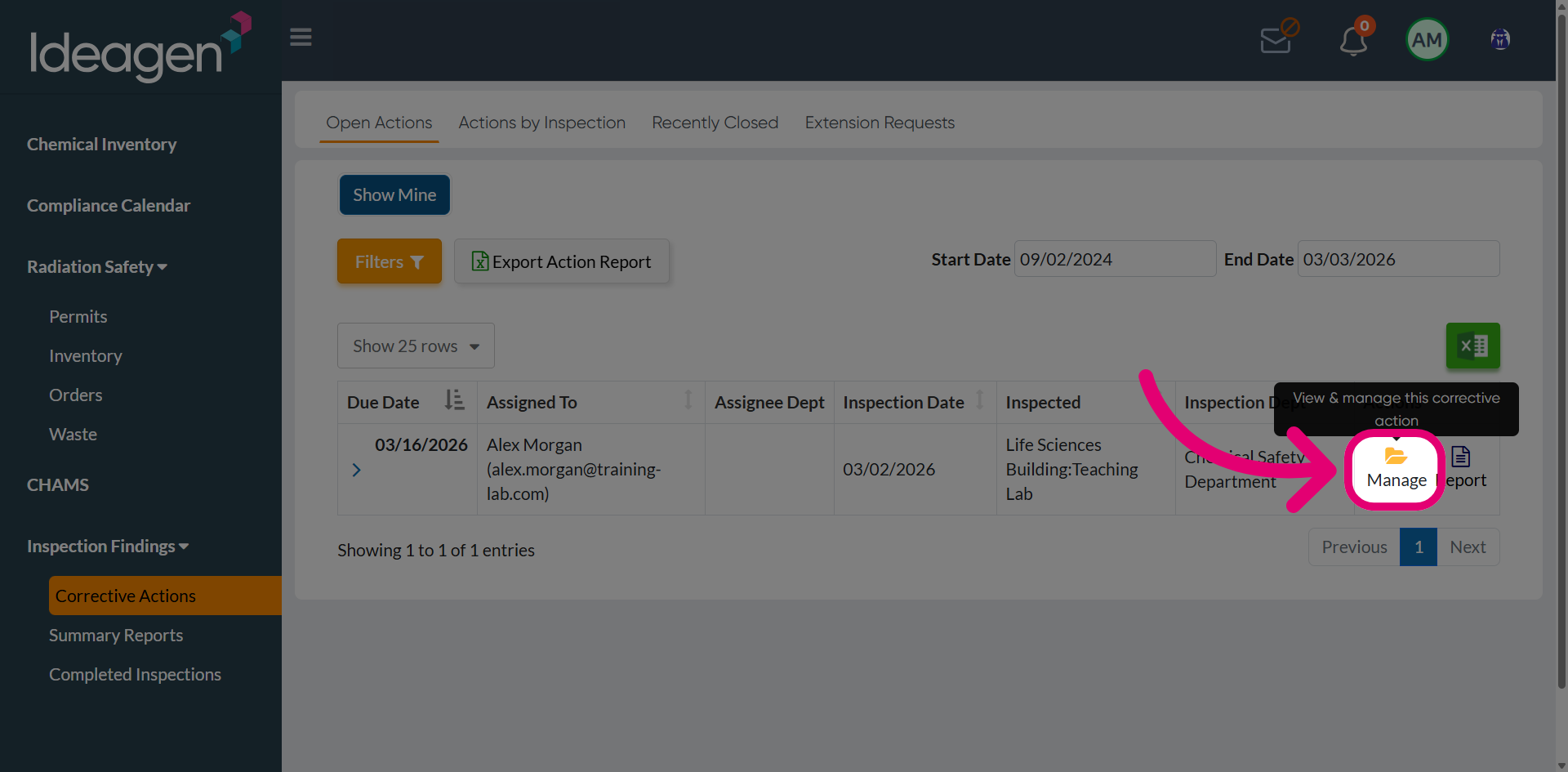
- Click Manage next to the action you want to complete.
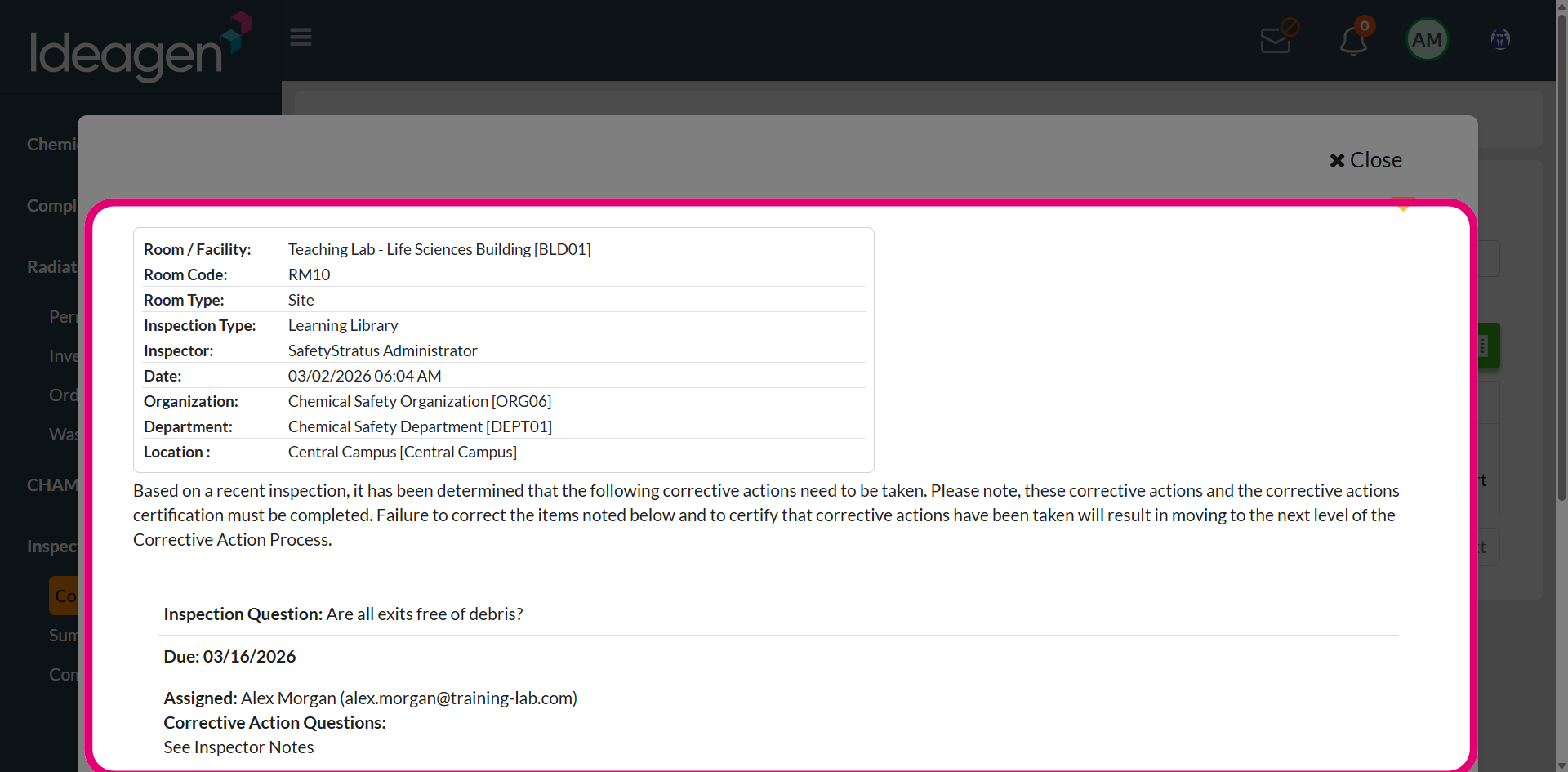
- Review the corrective action details.
-
Click Attach File.
Supported file formats include:- PDF files (.pdf)
- Document files (.doc, .docx)
- Spreadsheet files (.xls and .xlsx)
- XML files
- Image files (.png, .jpg, and .jpeg)
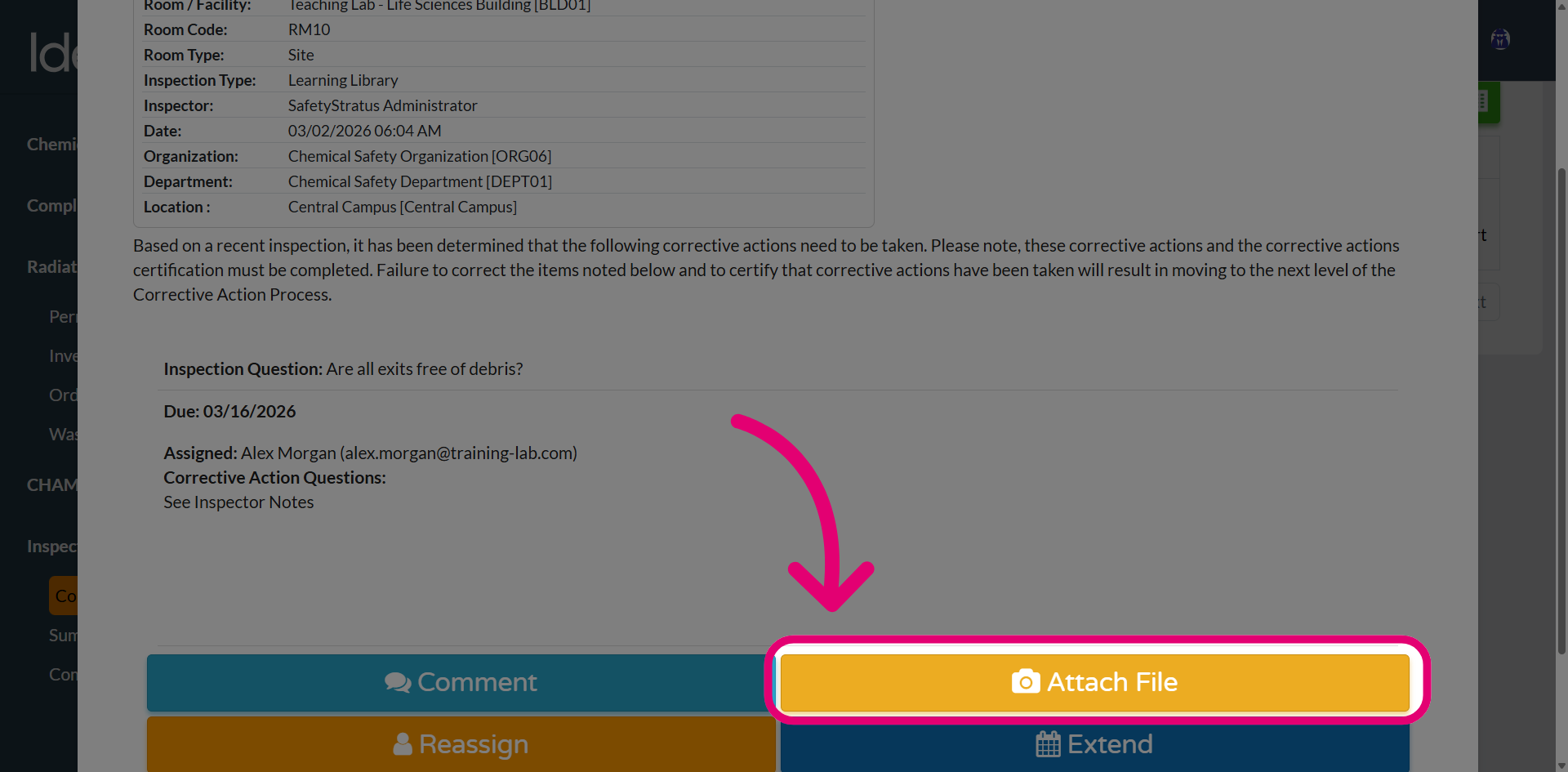
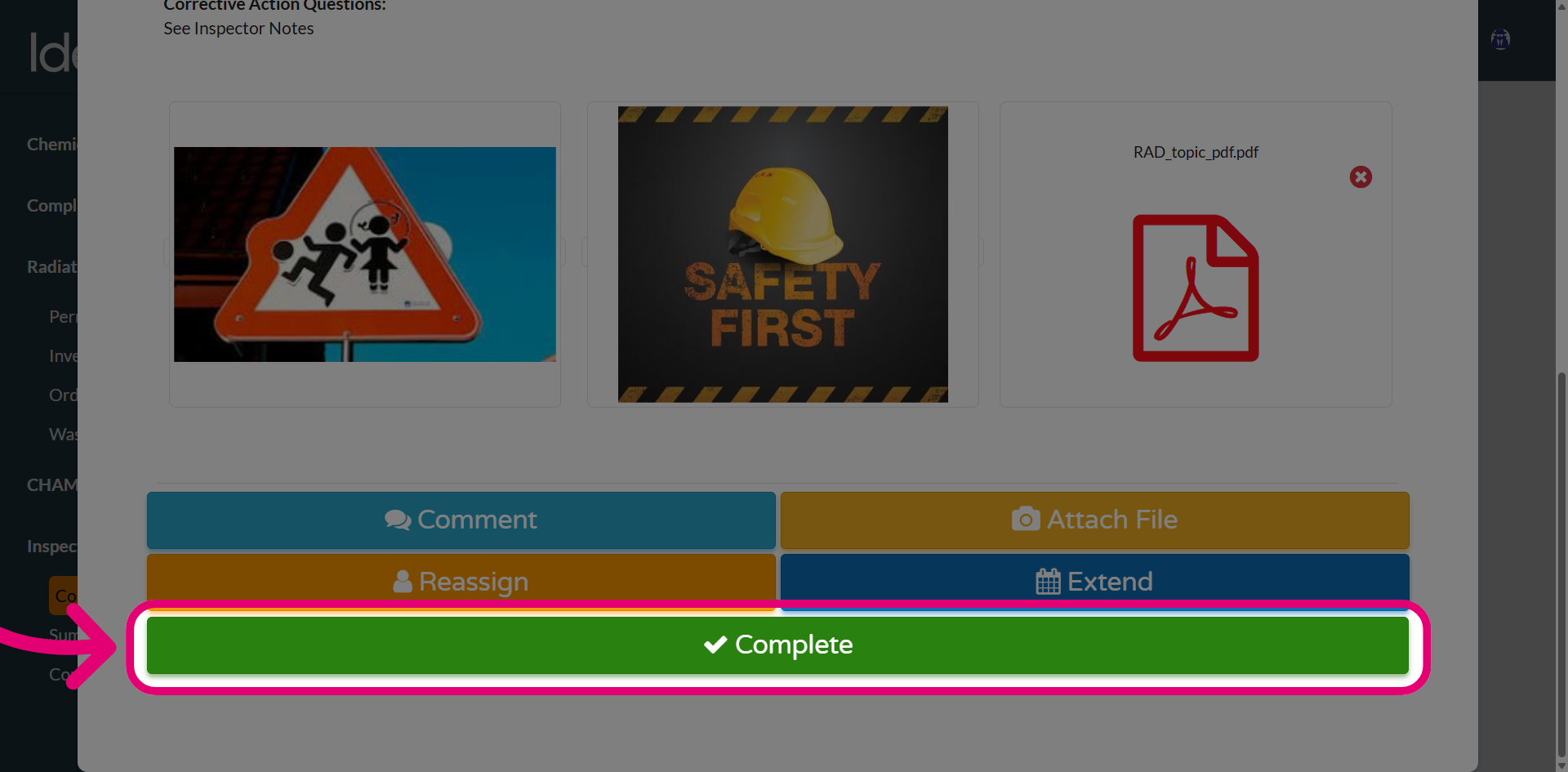
- Review the files attached.
-
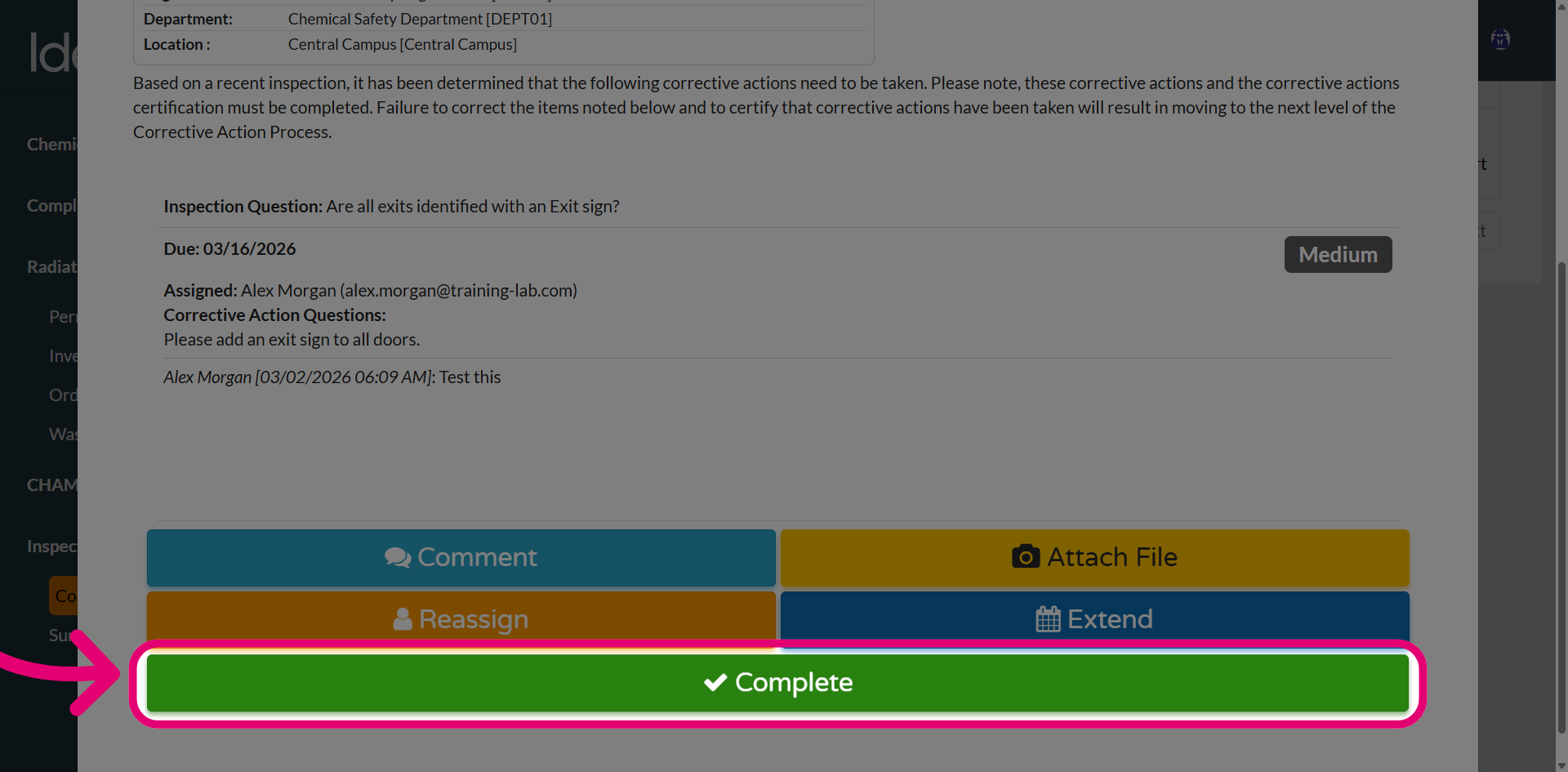
Click Complete.
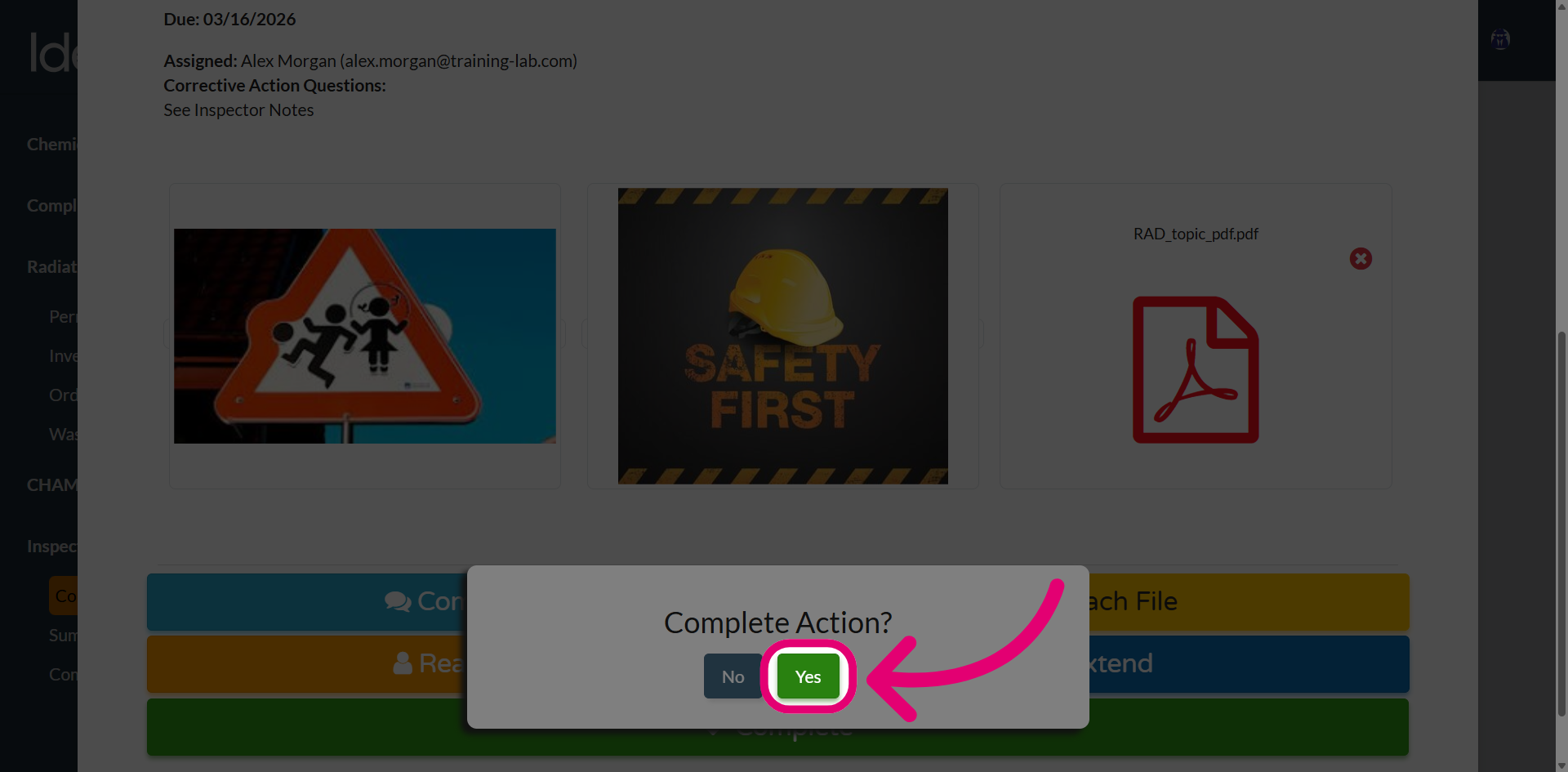
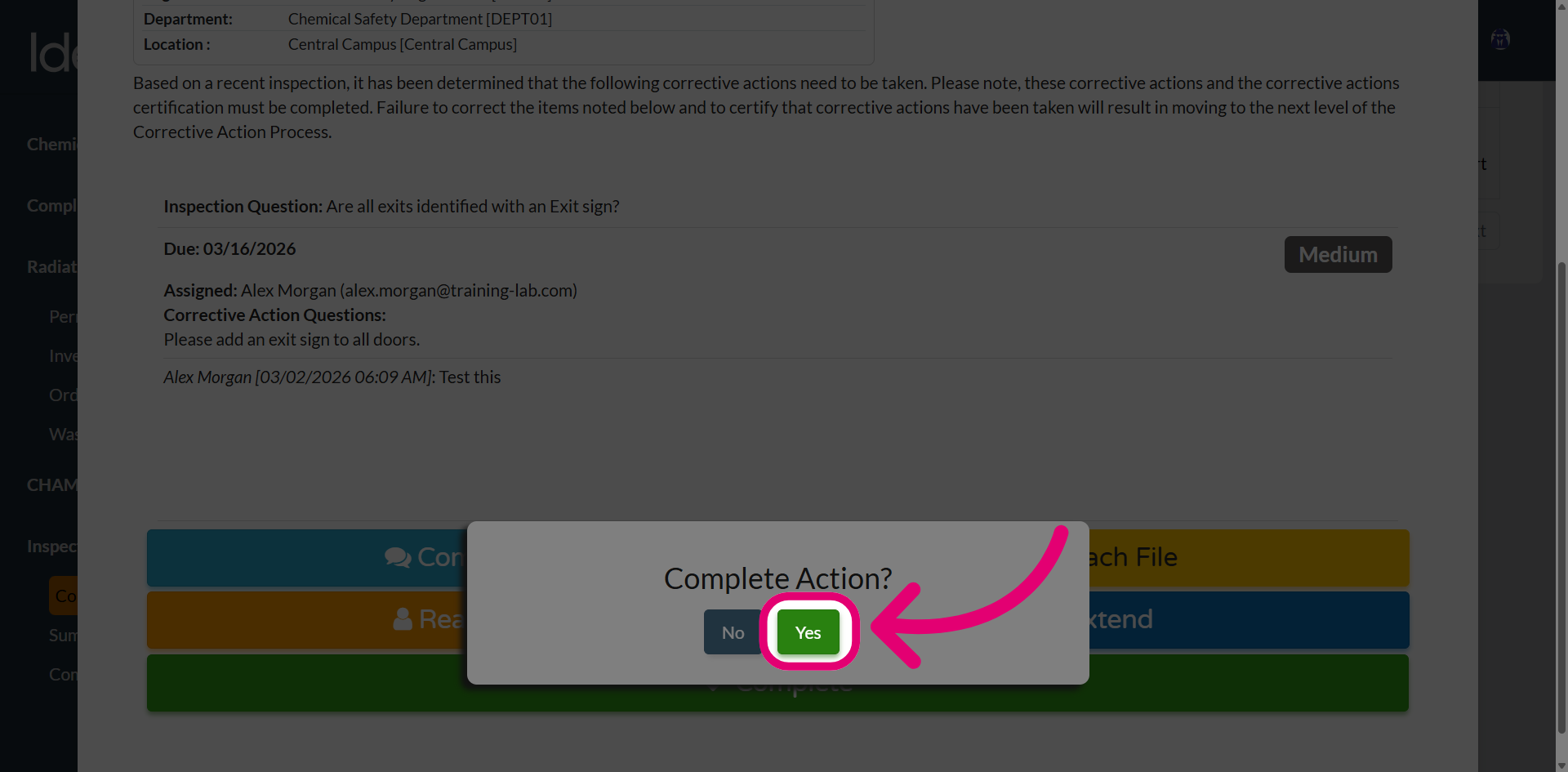
This will generate a confirmation prompt.
- Click Yes.
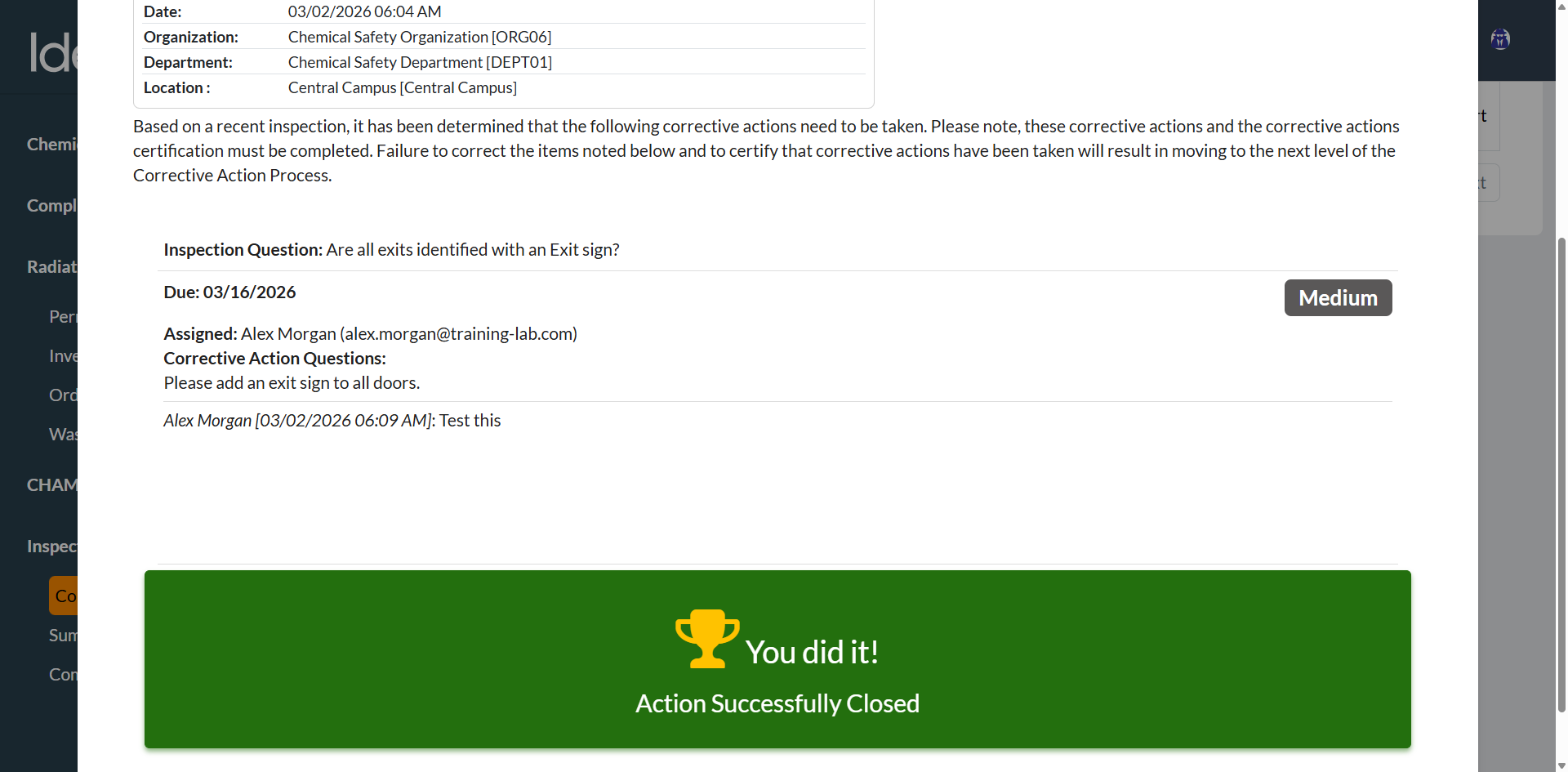
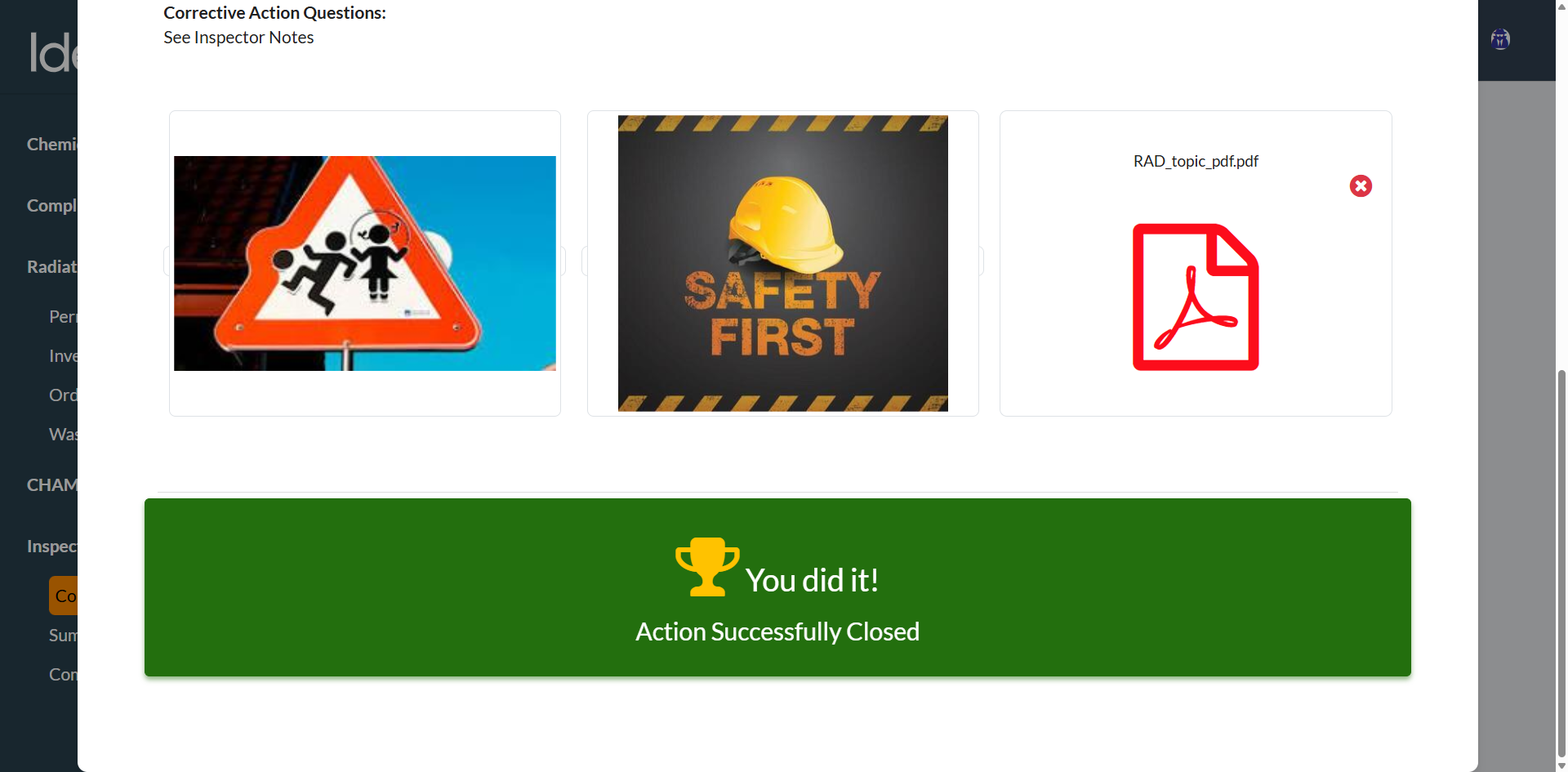
The corrective action will now show as Closed, confirming it's been successfully completed.
1. Completing a corrective action
To complete a corrective action with comments:
- Open Inspection Findings.
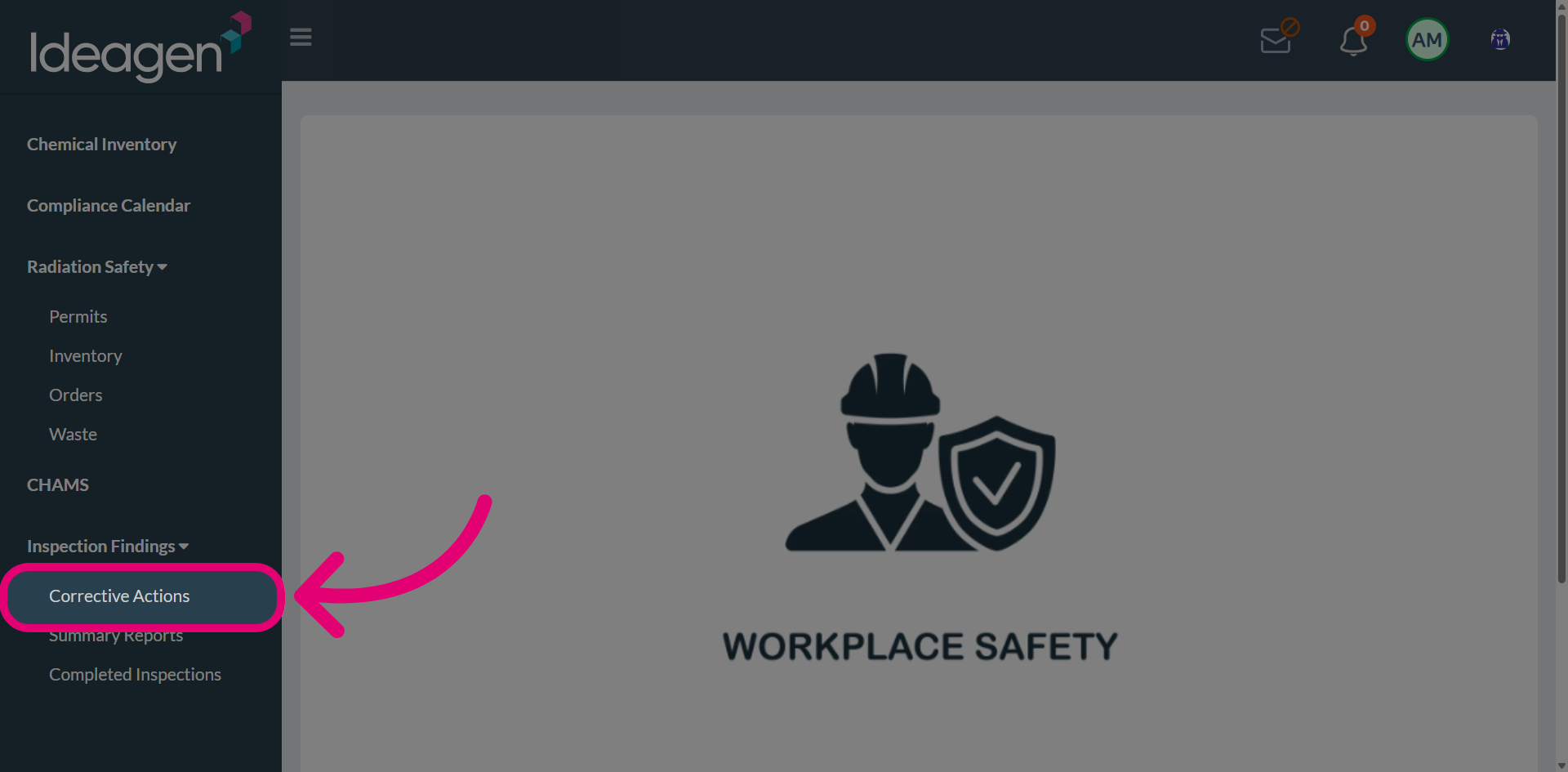
- Select Corrective Actions.
-
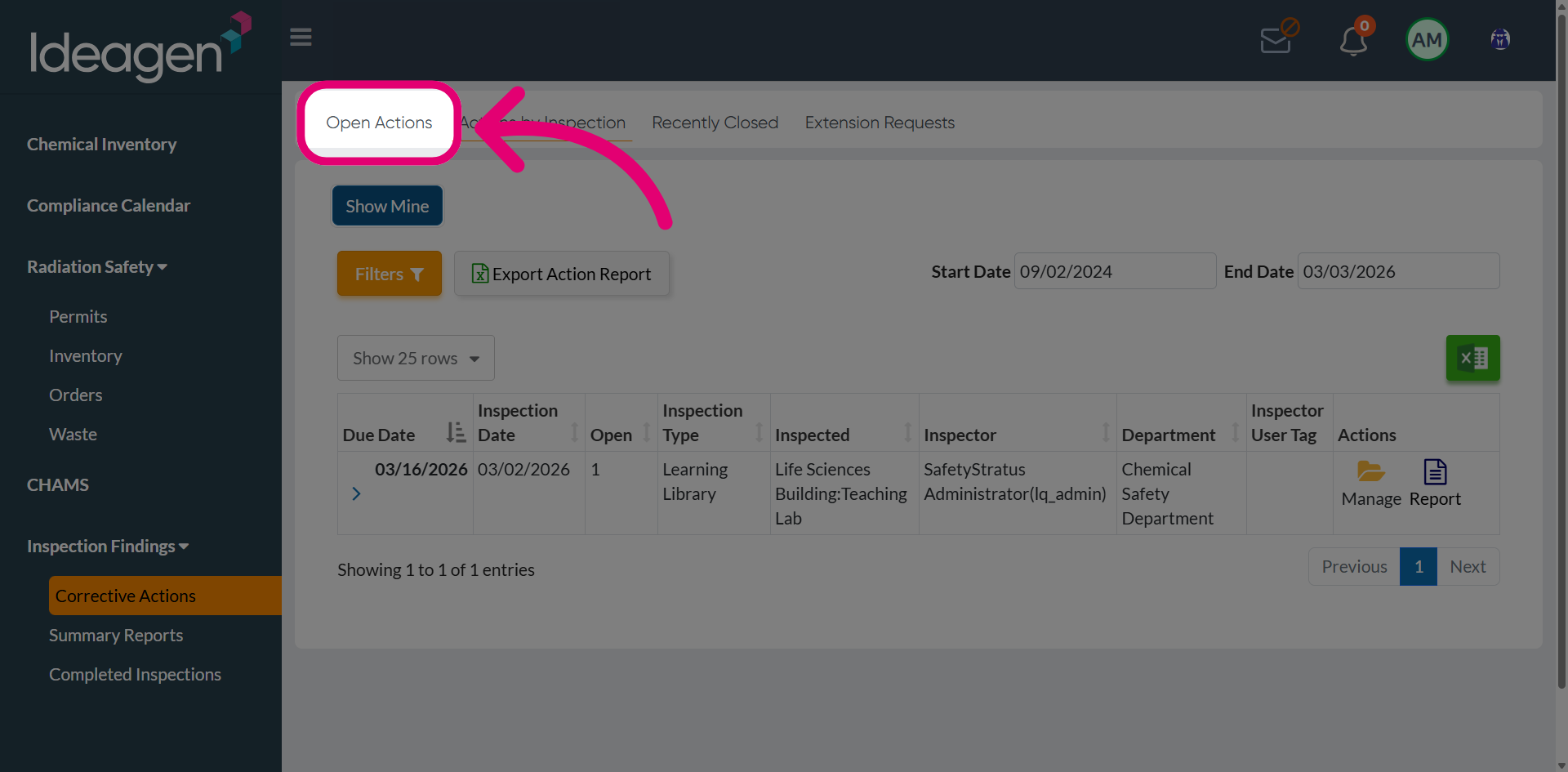
Switch to the Open Actions tab.
This will take you to all corrective actions that are currently active and require attention.
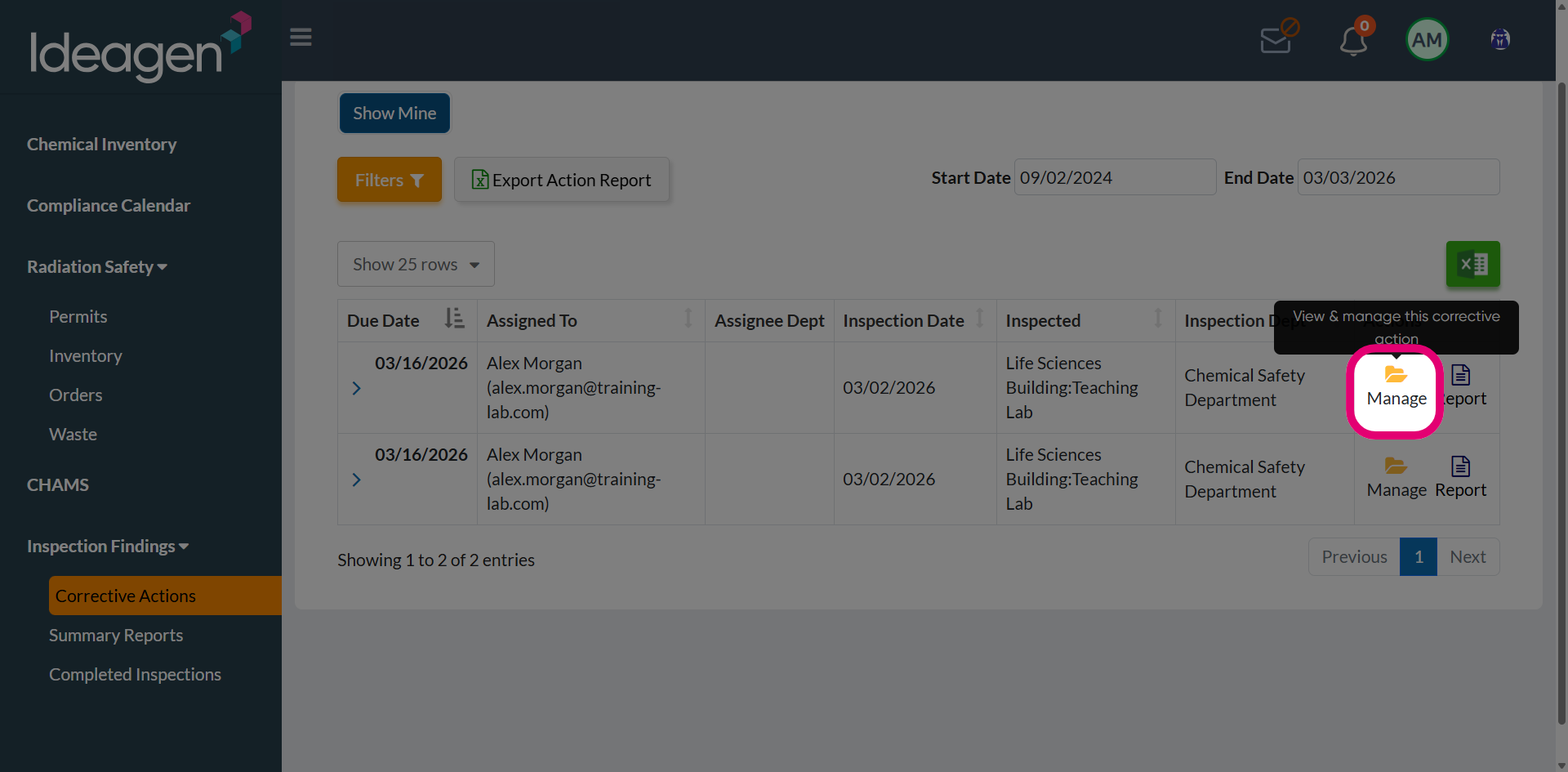
- Click Manage next to the action you want to complete.
- Review the corrective action details.
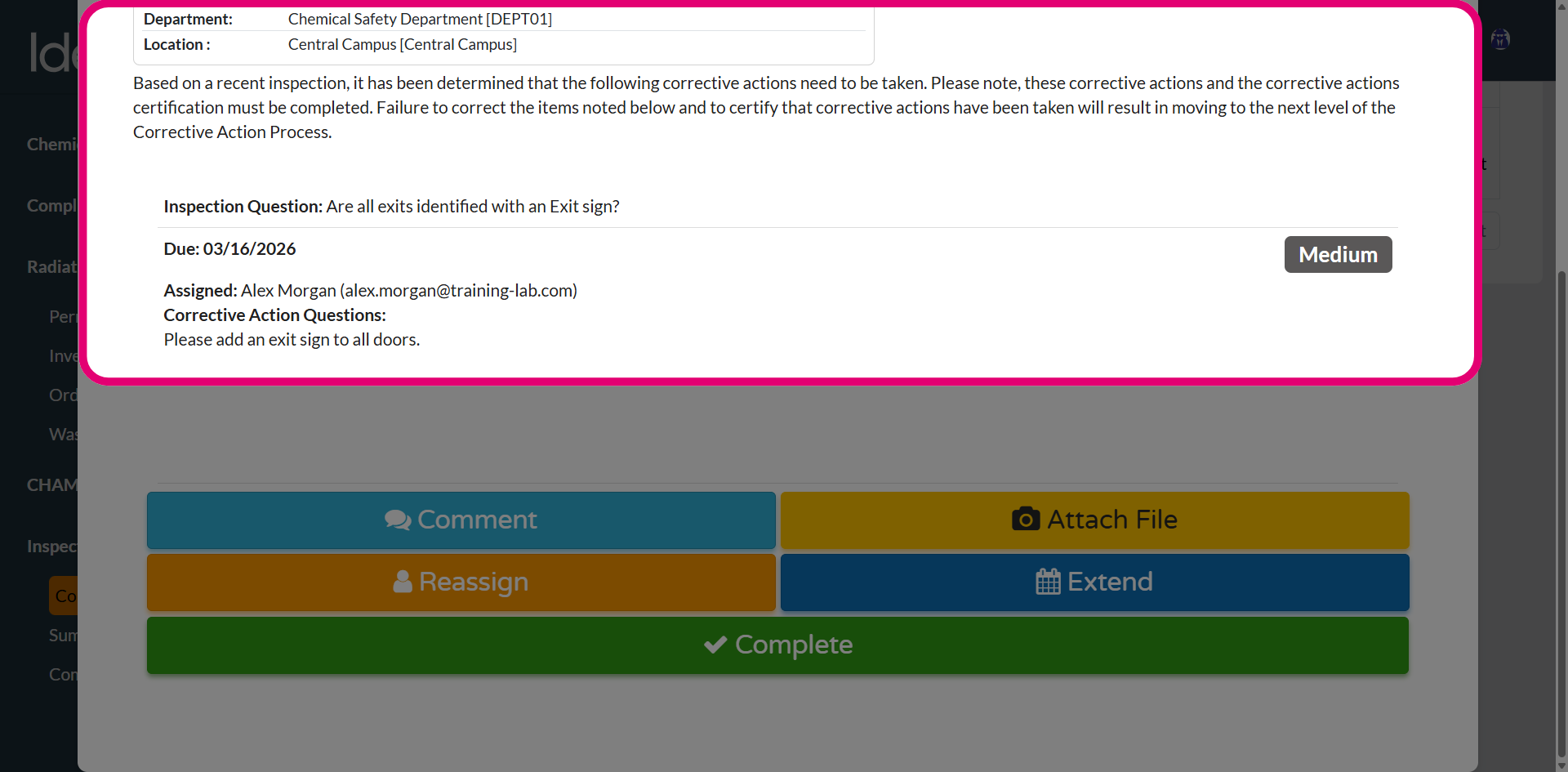
-
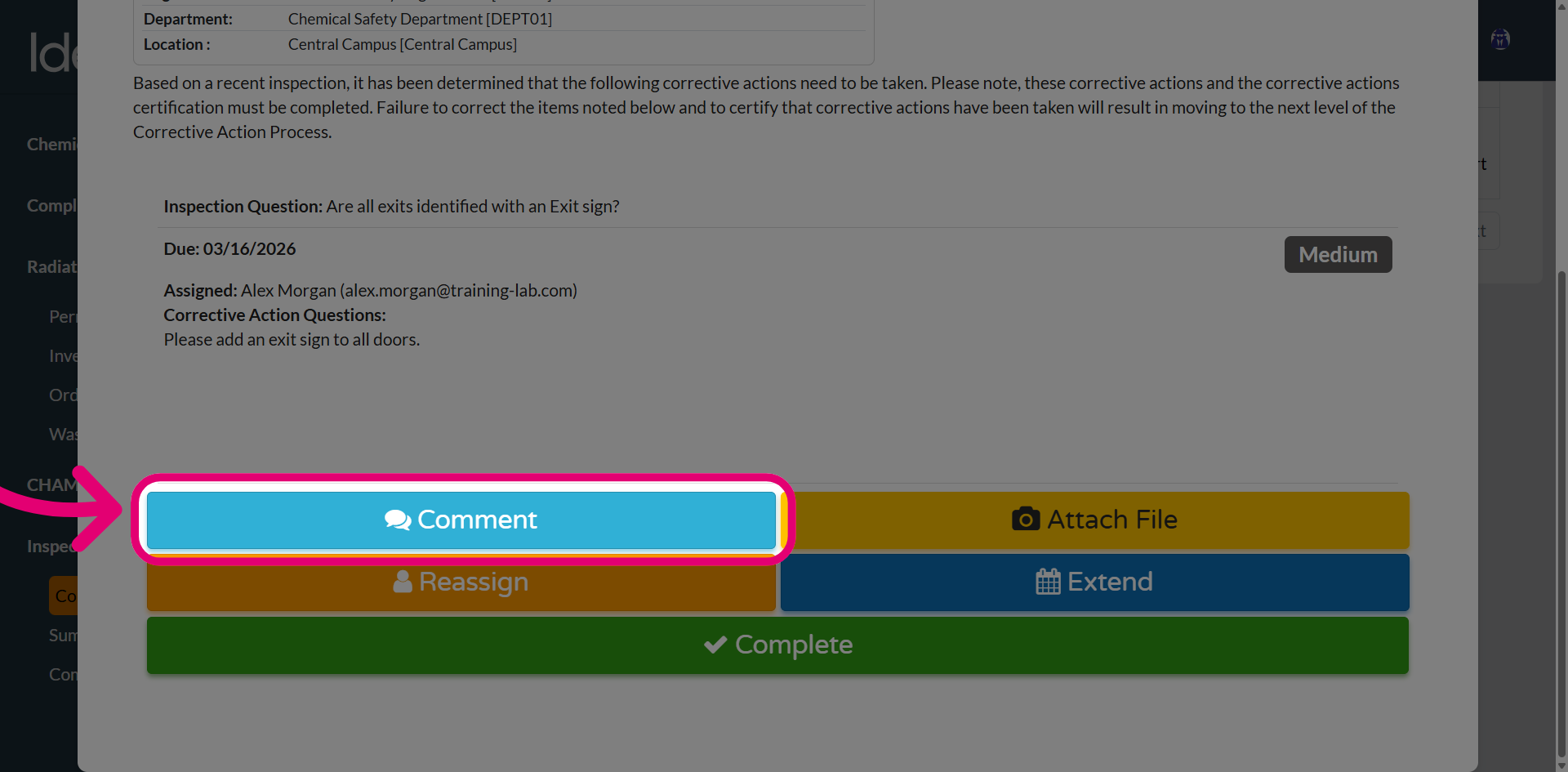
Click Comment.
This will open a comment dialog box.
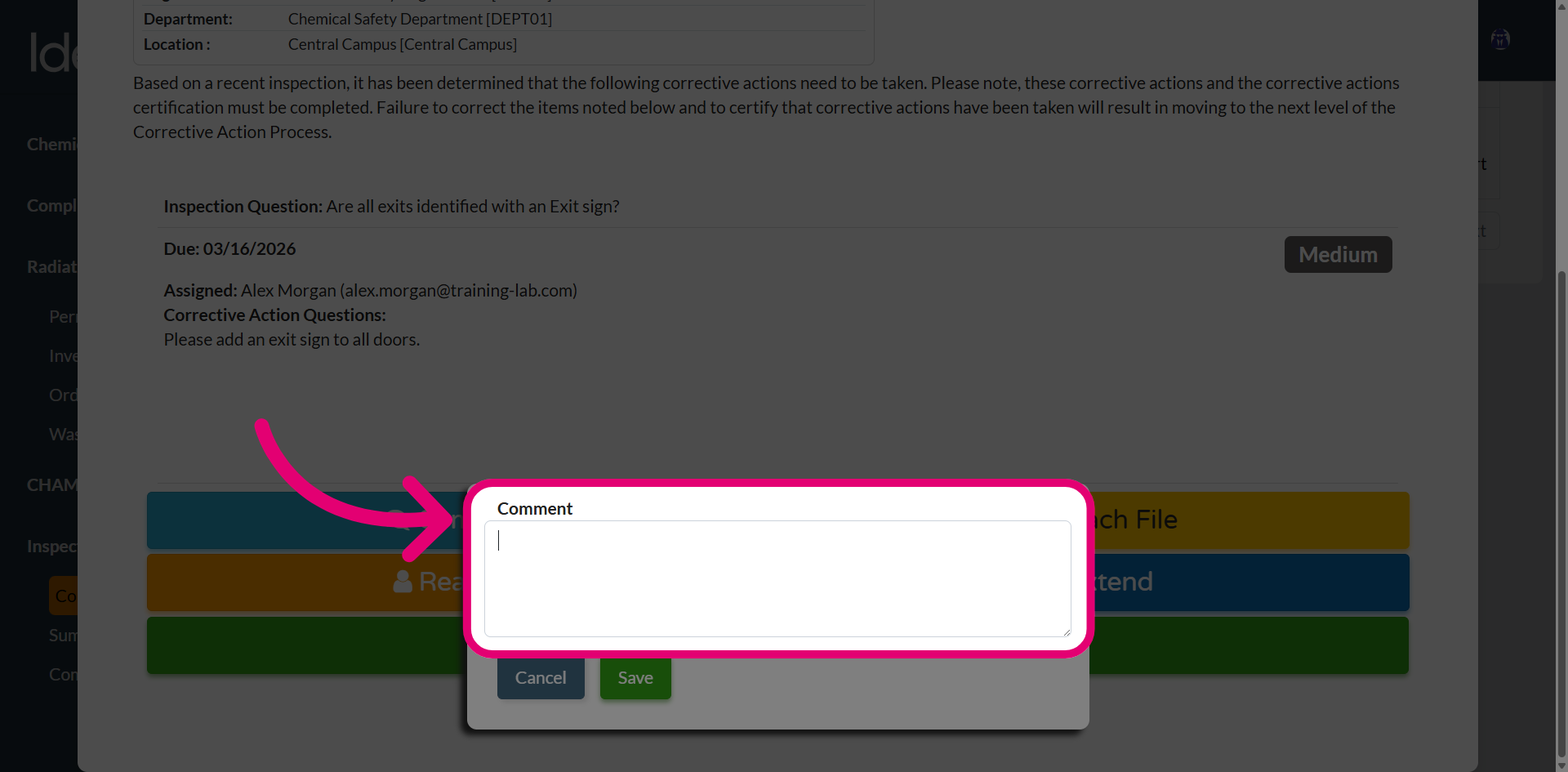
- Enter Comments to document your observations or updates.
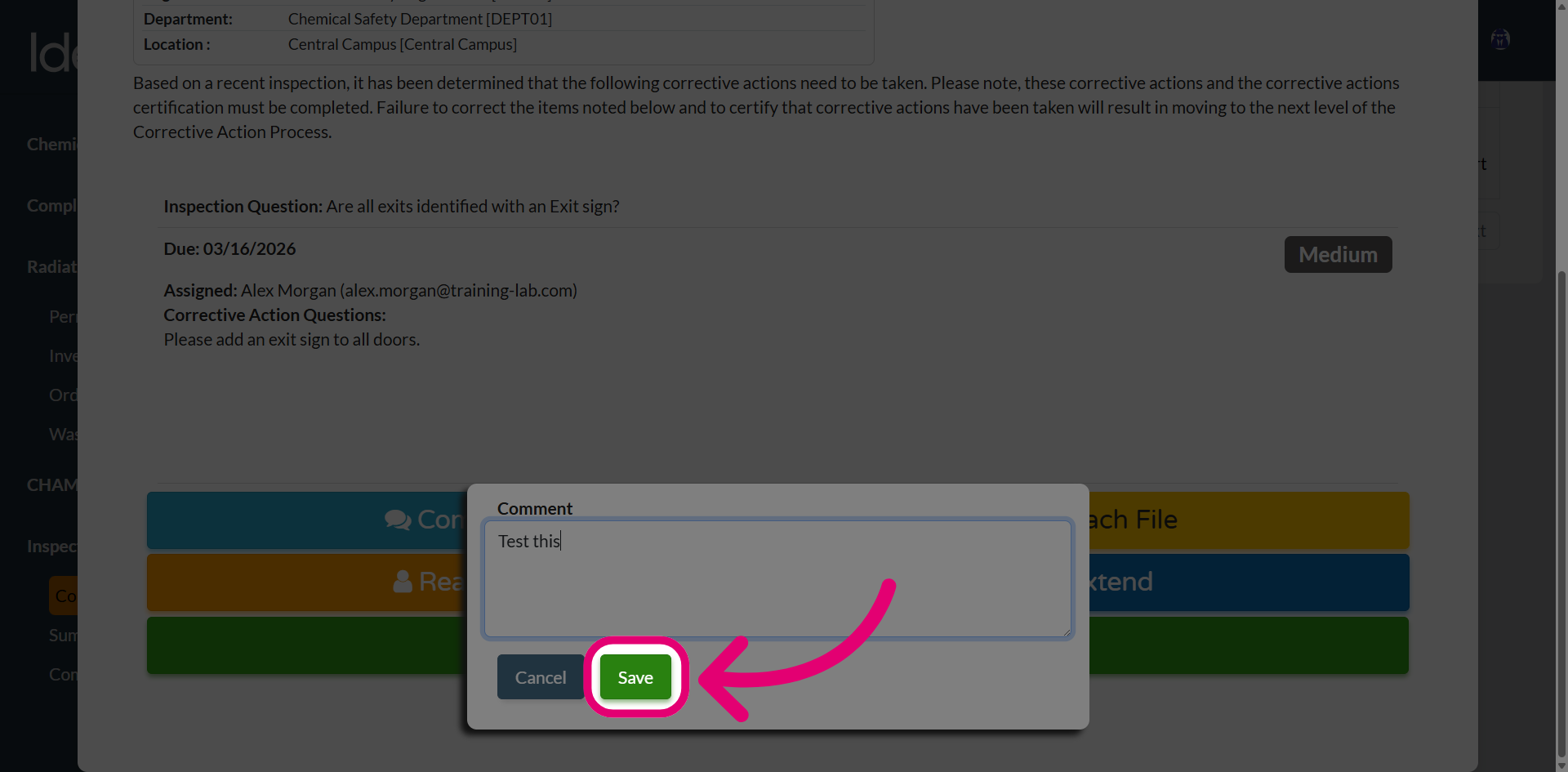
- Click Save.
- Review the added comments.
-
Click Complete.
This will generate a confirmation prompt
- Click Yes.
The corrective action will now show as Closed, confirming it's been successfully completed.