


New article
Recently updated
Editing a user

Who is this article for?
Administrators responsible for user management.
Administrator role is required.
This article explains how to edit an existing user account.
1. Editing a user
To edit a user:
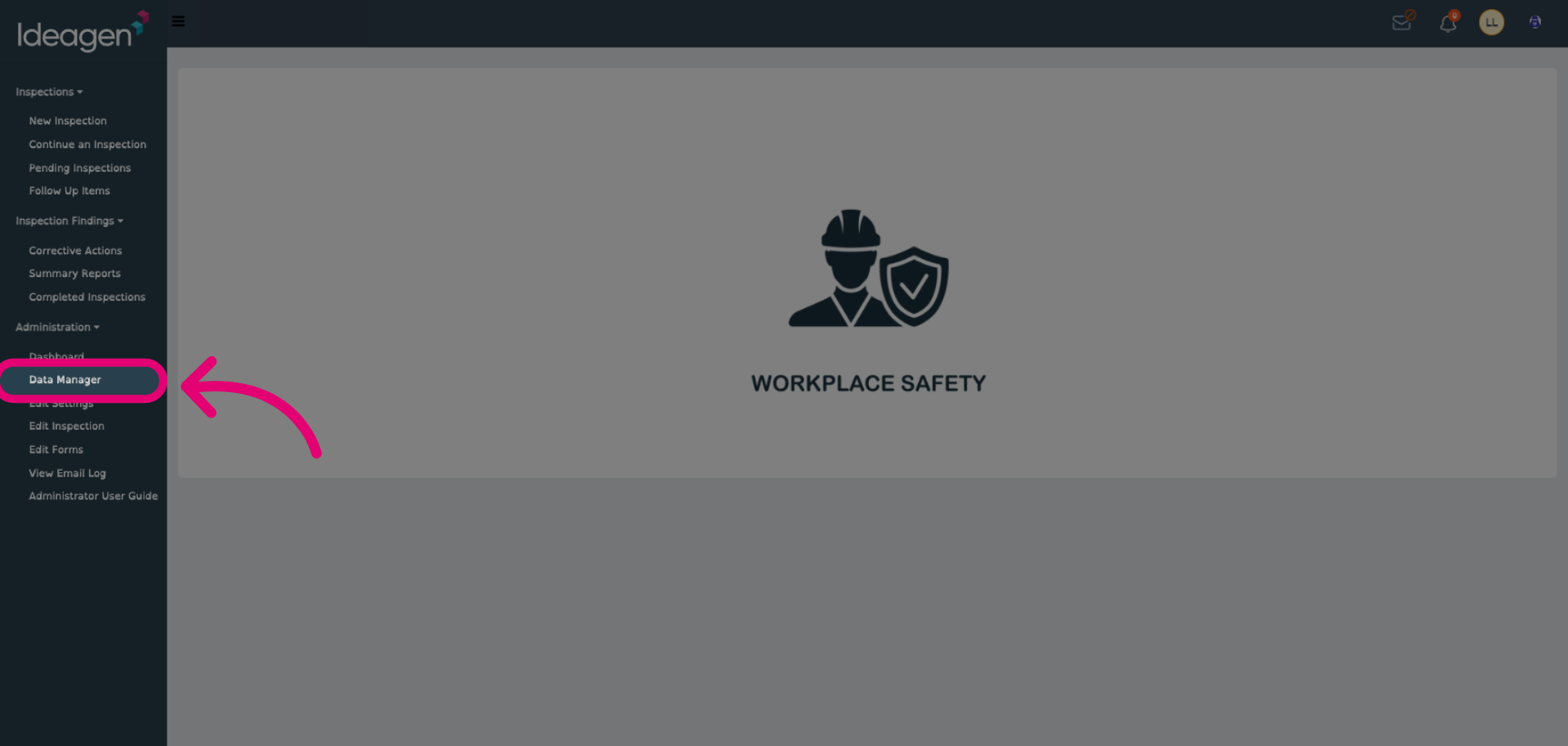
- Open the Administration menu.
Select Data Manager.
- Click Edit User (Pencil icon).
- Update Basic details:
- Contact information
- Department
- Job title
- Update Additional details:
- User Permits - Lists active permits associated with the user.
- Rooms, Assets, Groups - Shows the spaces or assets a user manages or inspects.
- Training - Displays completed or assigned courses.
- Notes - Record internal notes related to the user.
- Update Module-specific details.
For active modules like Chemical Inventory or Risk Assessments, you’ll see related activity logs (e.g., inventory ownership, recent assessments). - Click Save User.
The "Department" field alone doesn’t grant inspection permissions. Inspection rights must be assigned separately under "User Inspection Permissions".