New article
Recently updated
Adding an order

Who is this article for?
Administrators responsible for order management.
Administrator role is required.
This article walks you through creating a new order in the platform, including how to configure order details, add items, and submit orders for processing.
1. Adding an order
To add an order:
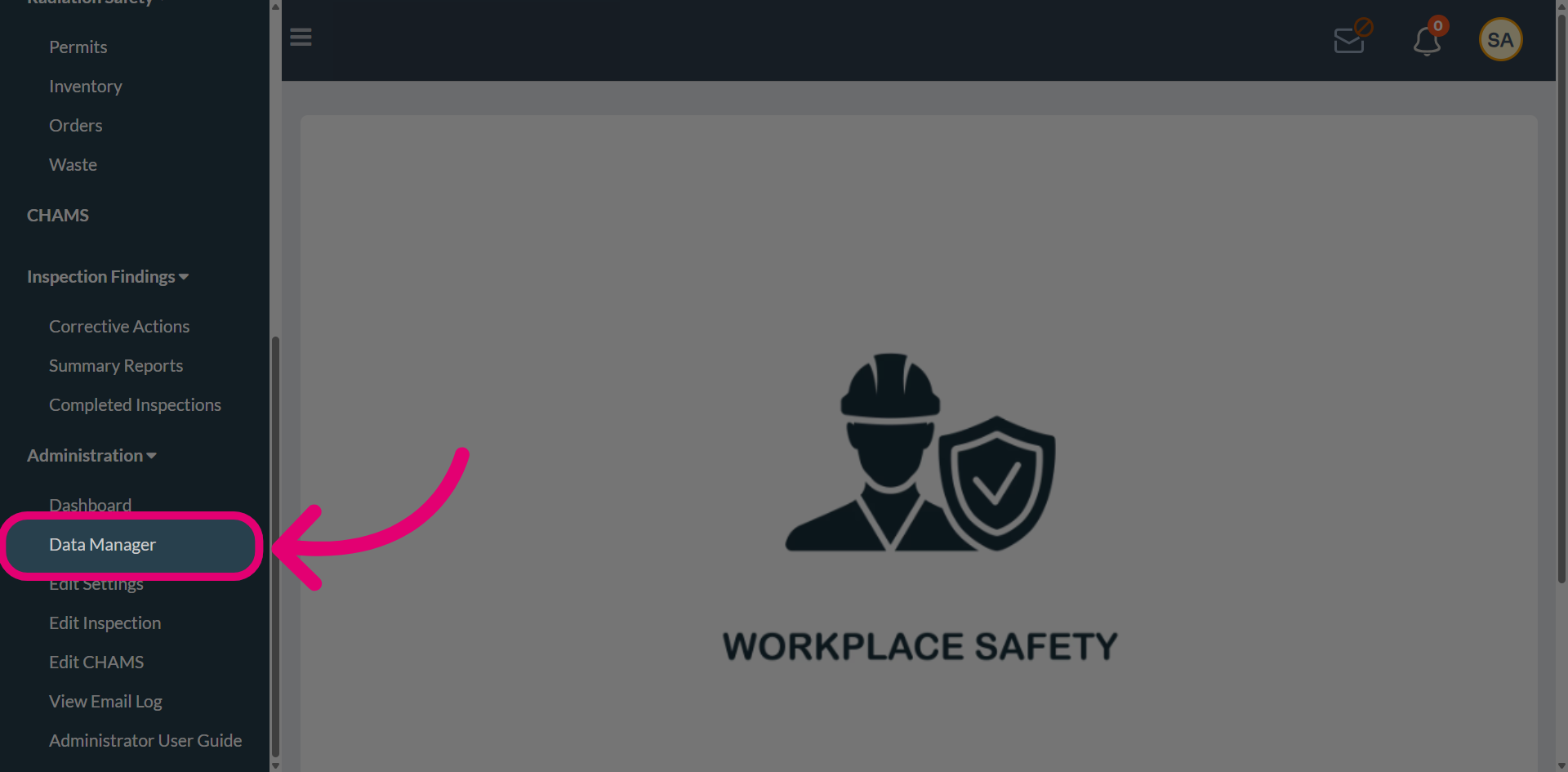
- Open the Administration menu.
- Select Data Manager.
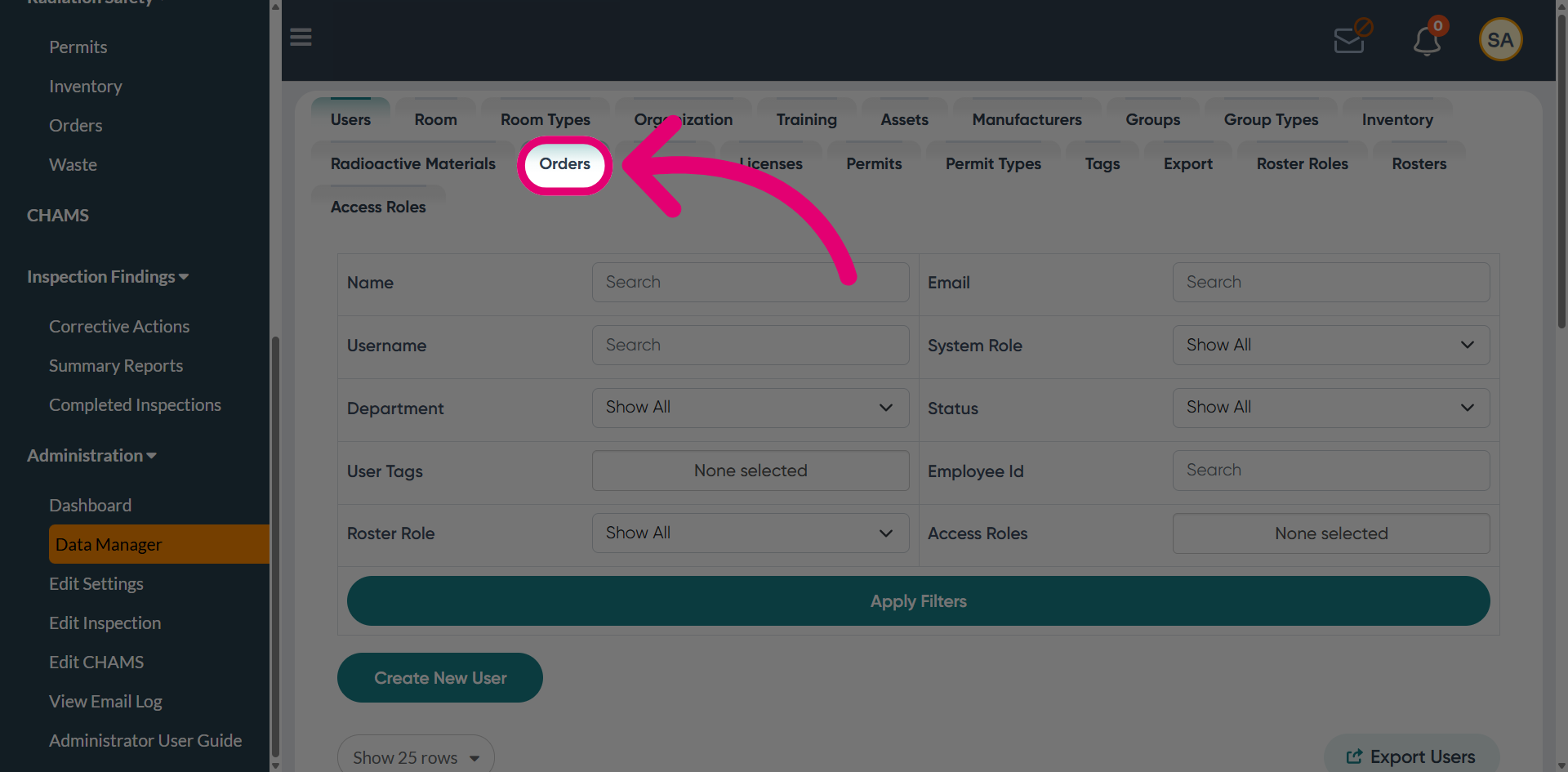
- Switch to the Orders tab.
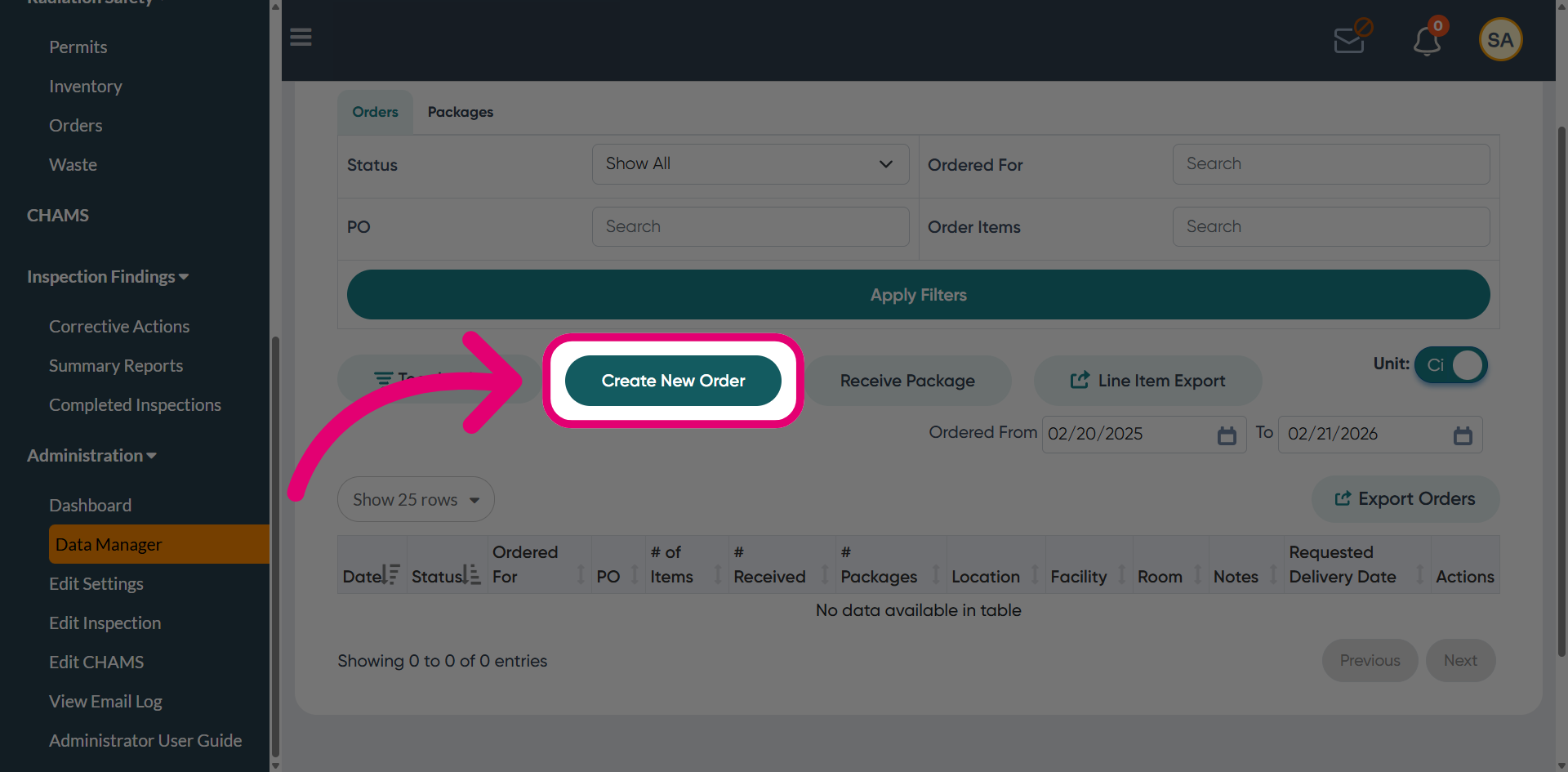
- Click Create New Order.
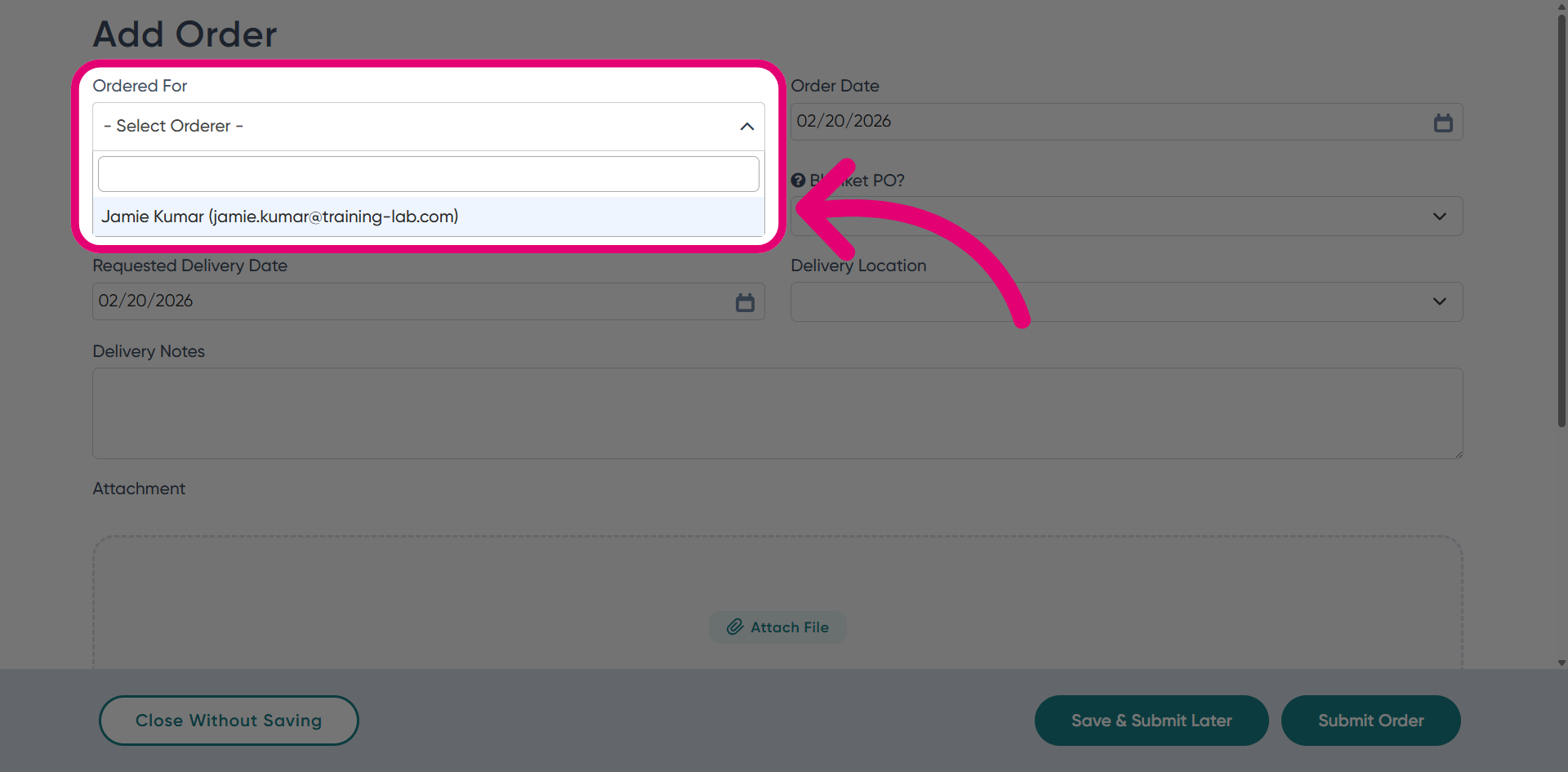
- Select the Created For person from the dropdown.
This is the person ordering the items.
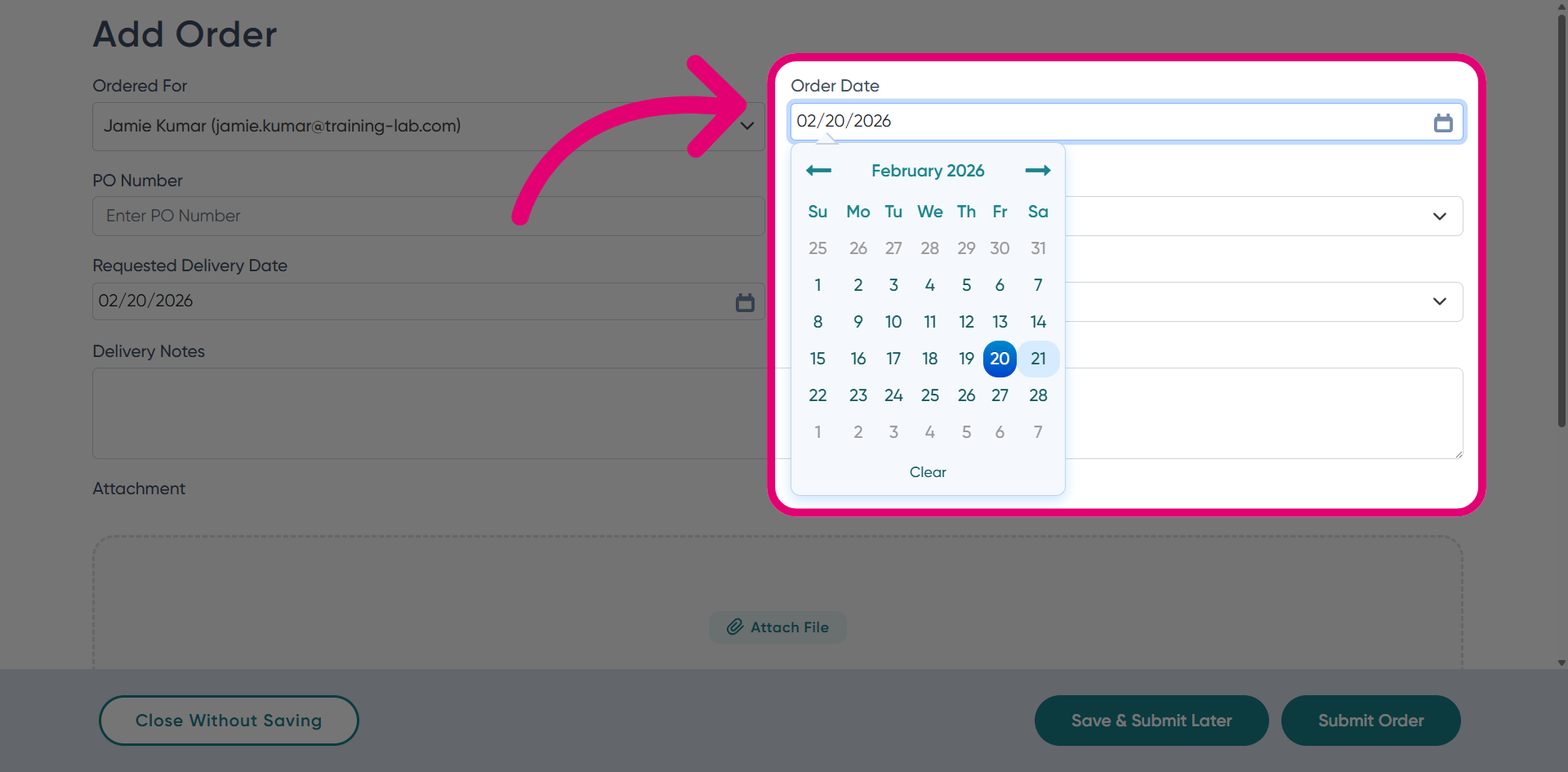
- Choose the Order Date from the picker.
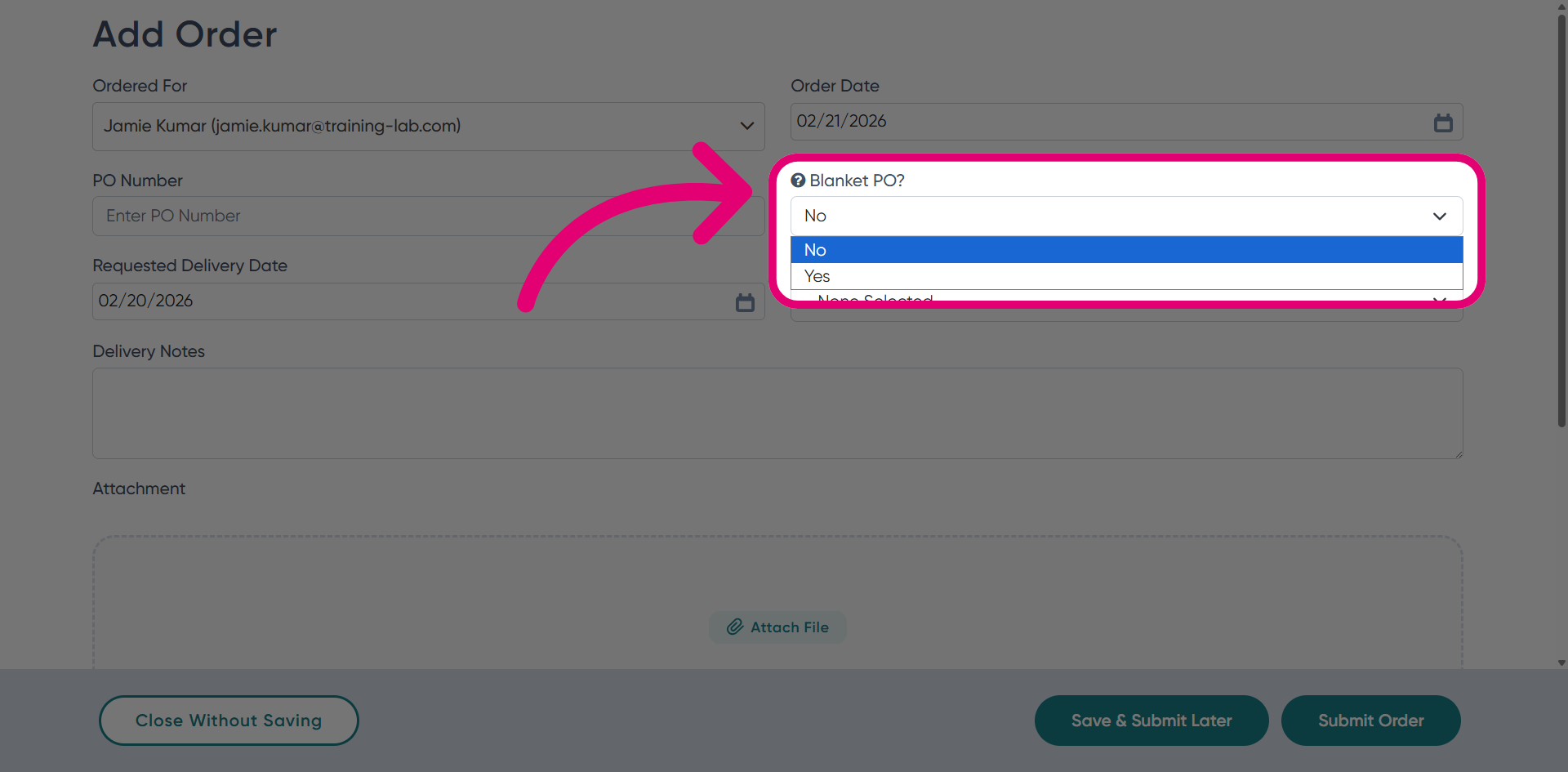
- Select Yes for Blanket PO? if the order needs a blanket purchase order confirmation.
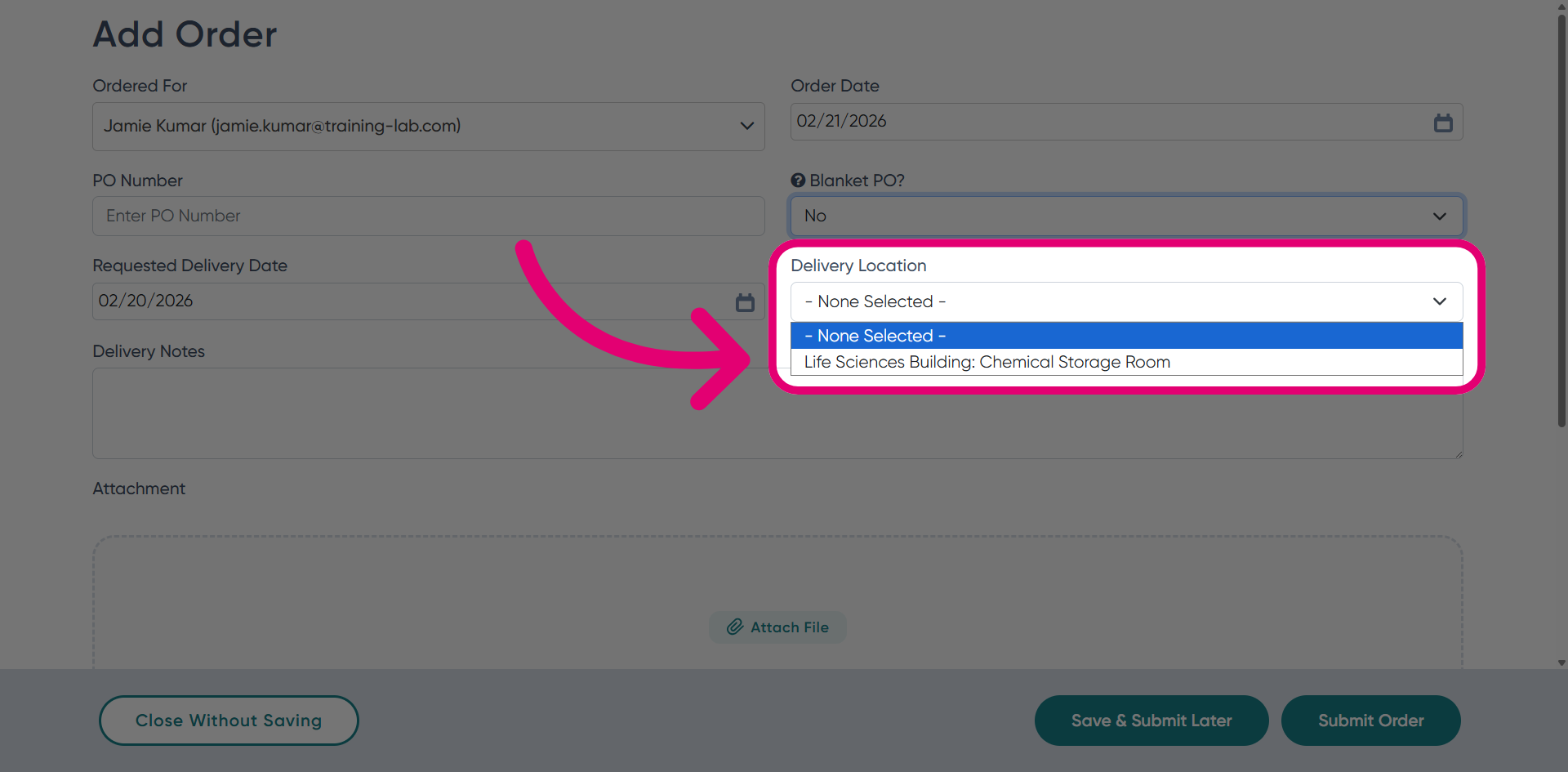
- Select the Delivery Location.
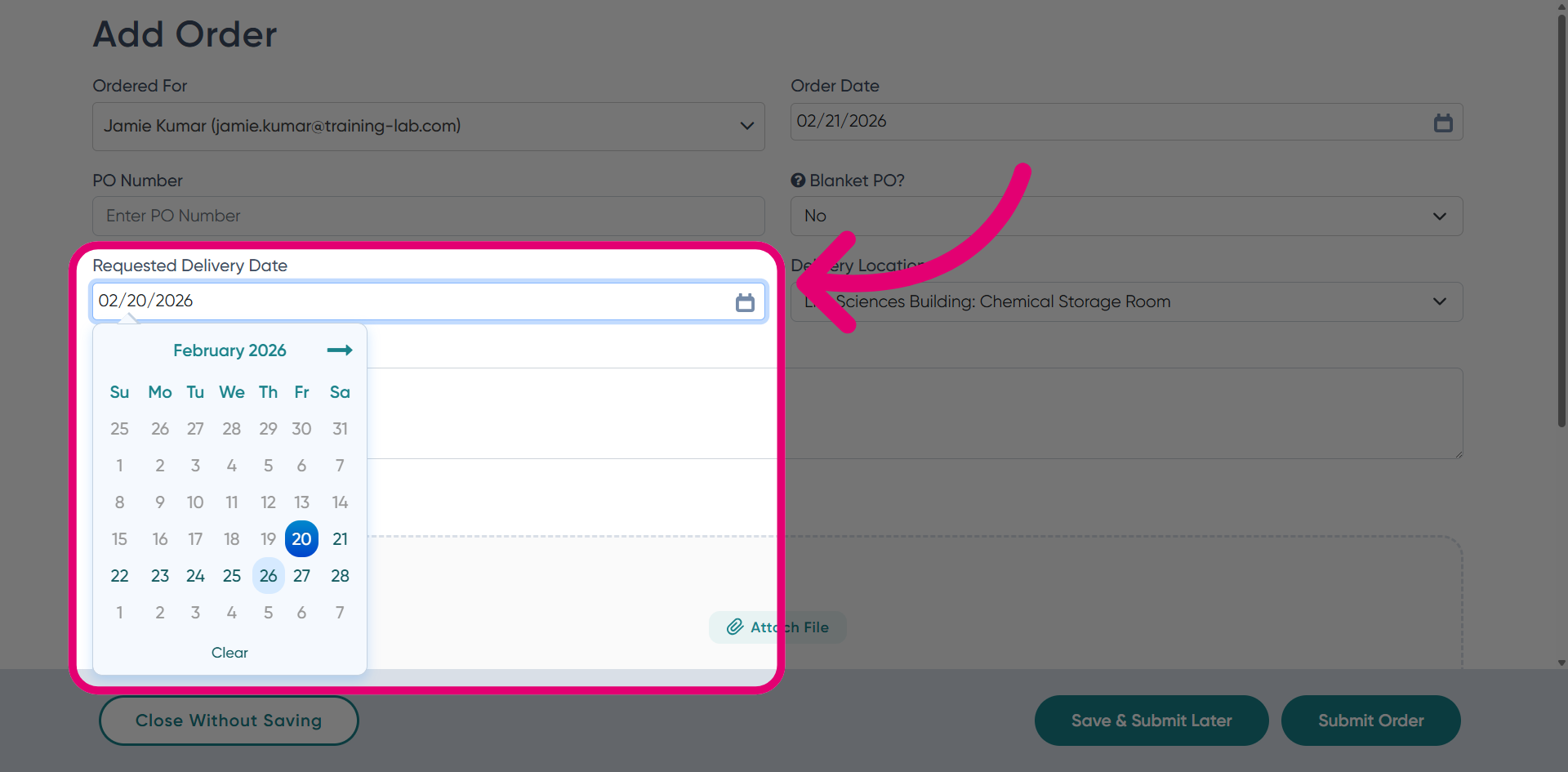
- Set the Desired Delivery Date.
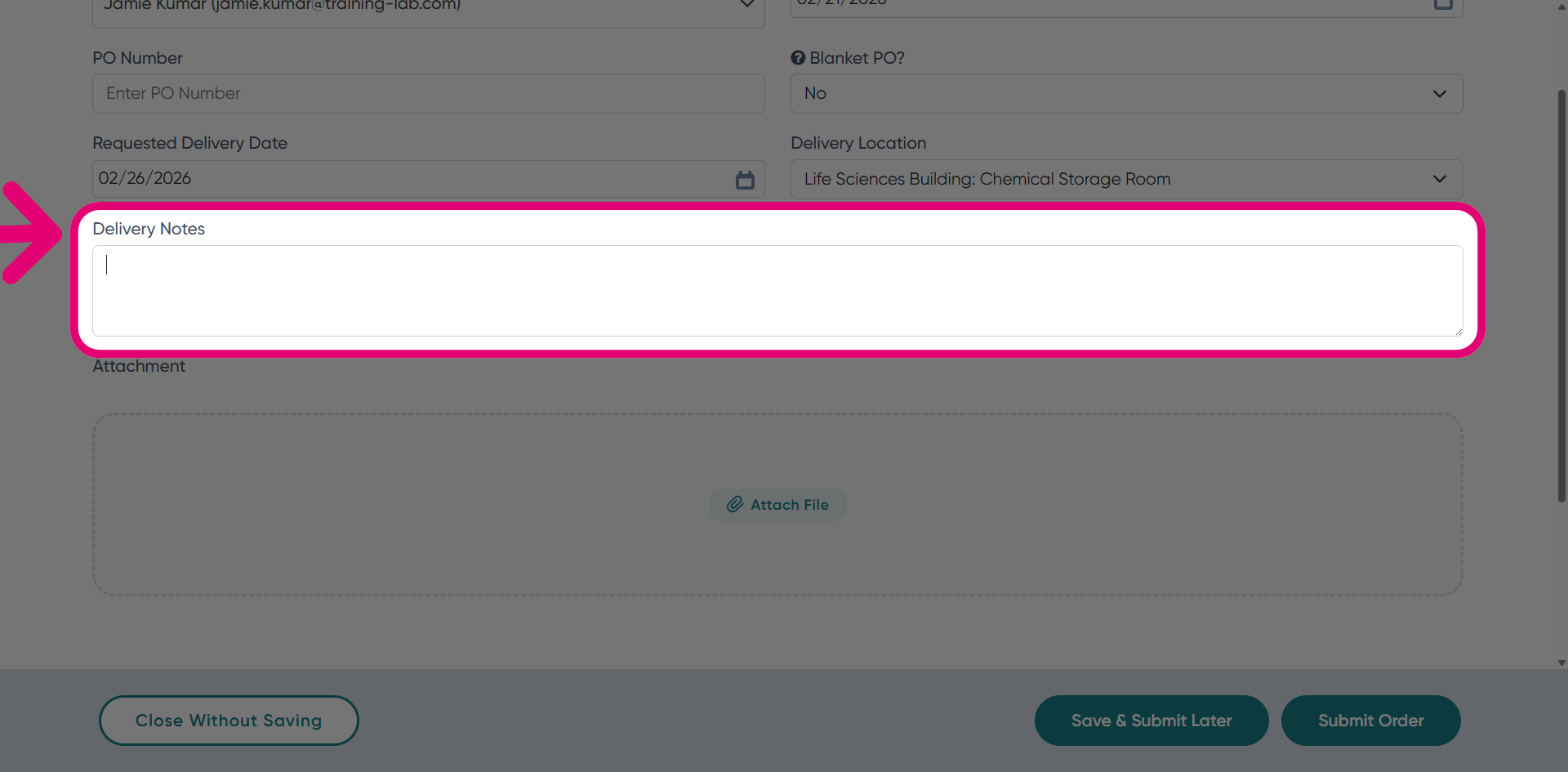
- Add Delivery Notes as needed.
This could be special instructions or comments for the delivery.
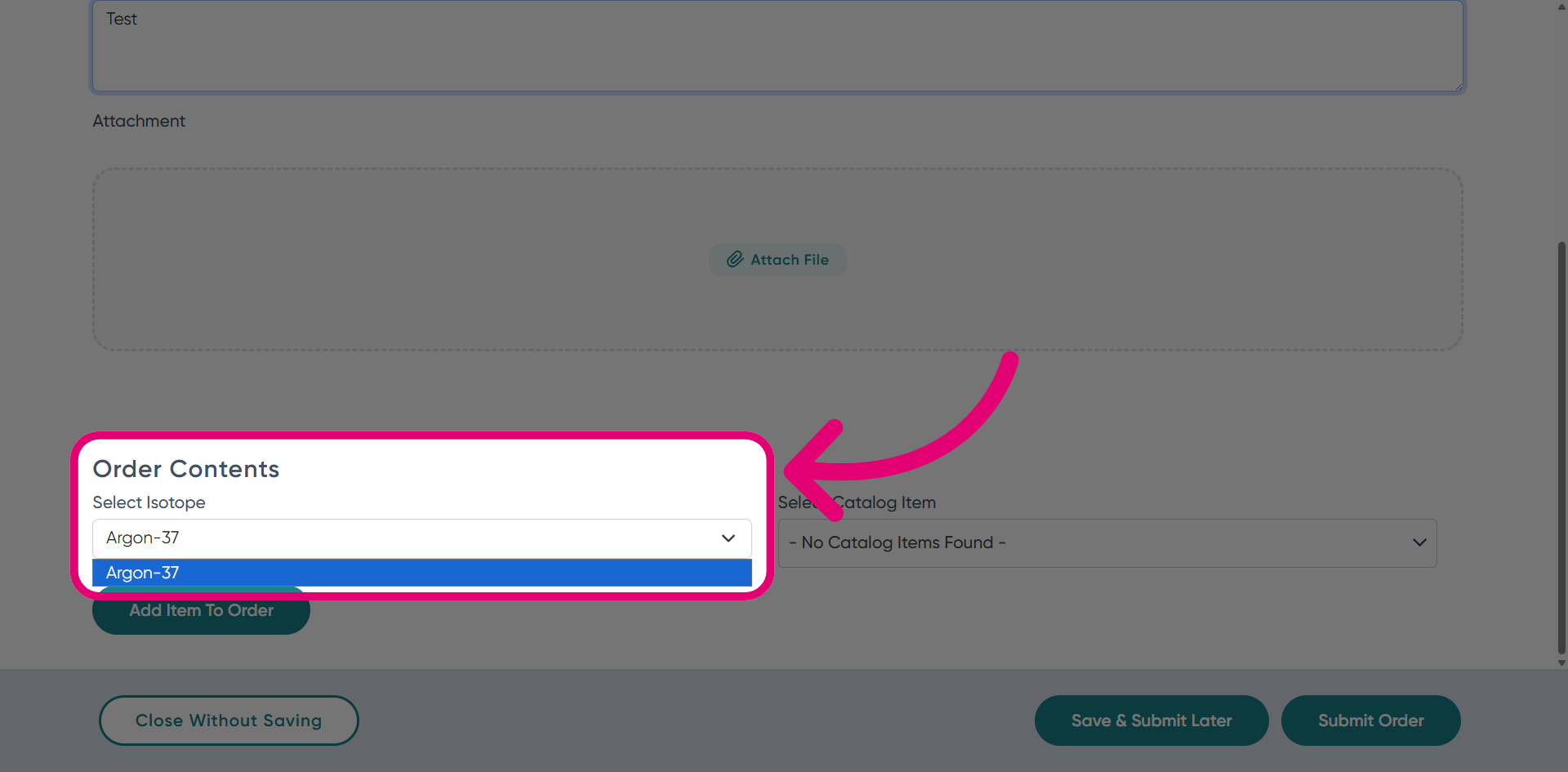
- Define the Order Contents.
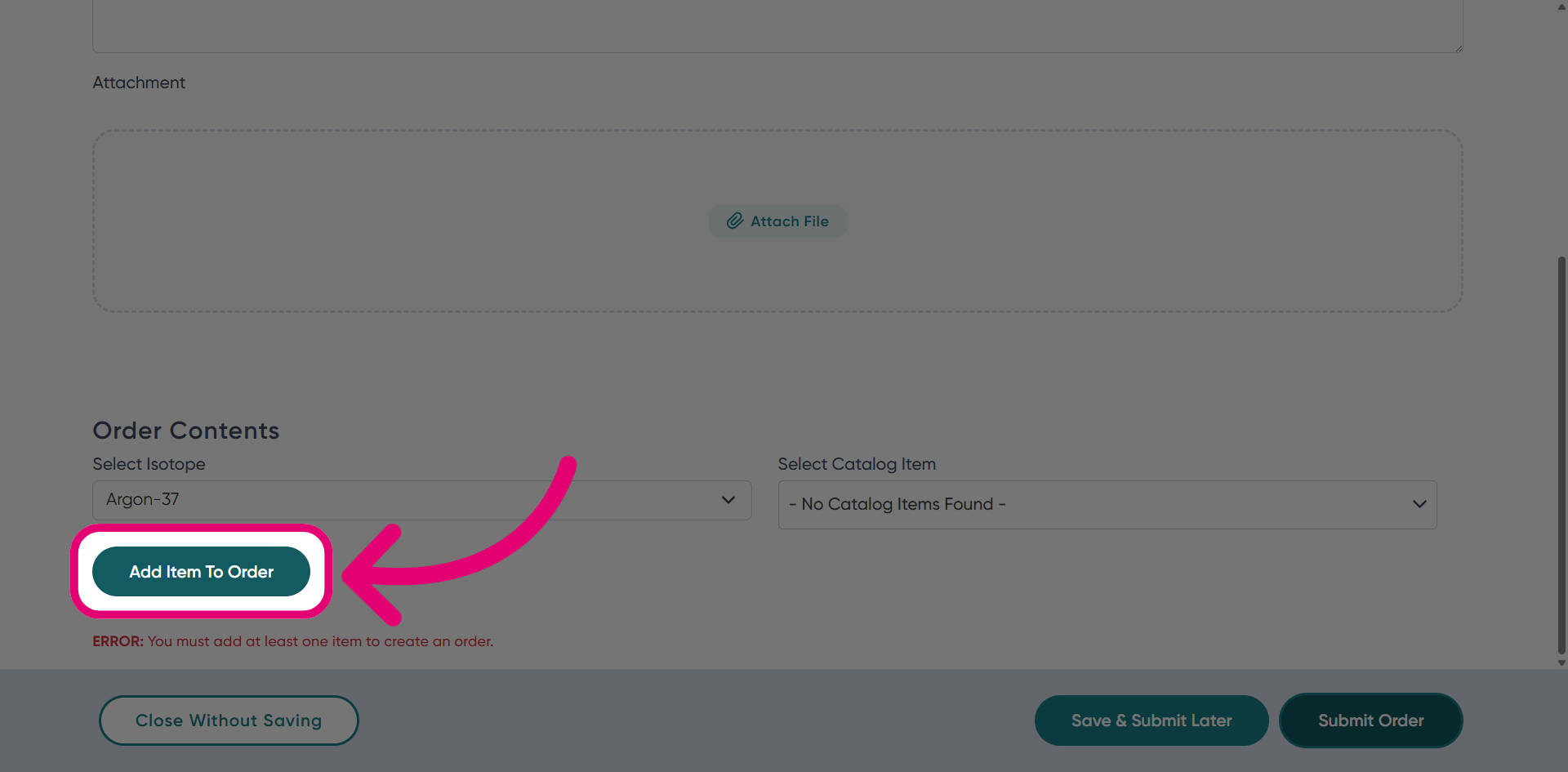
- Click Add Item to Order.
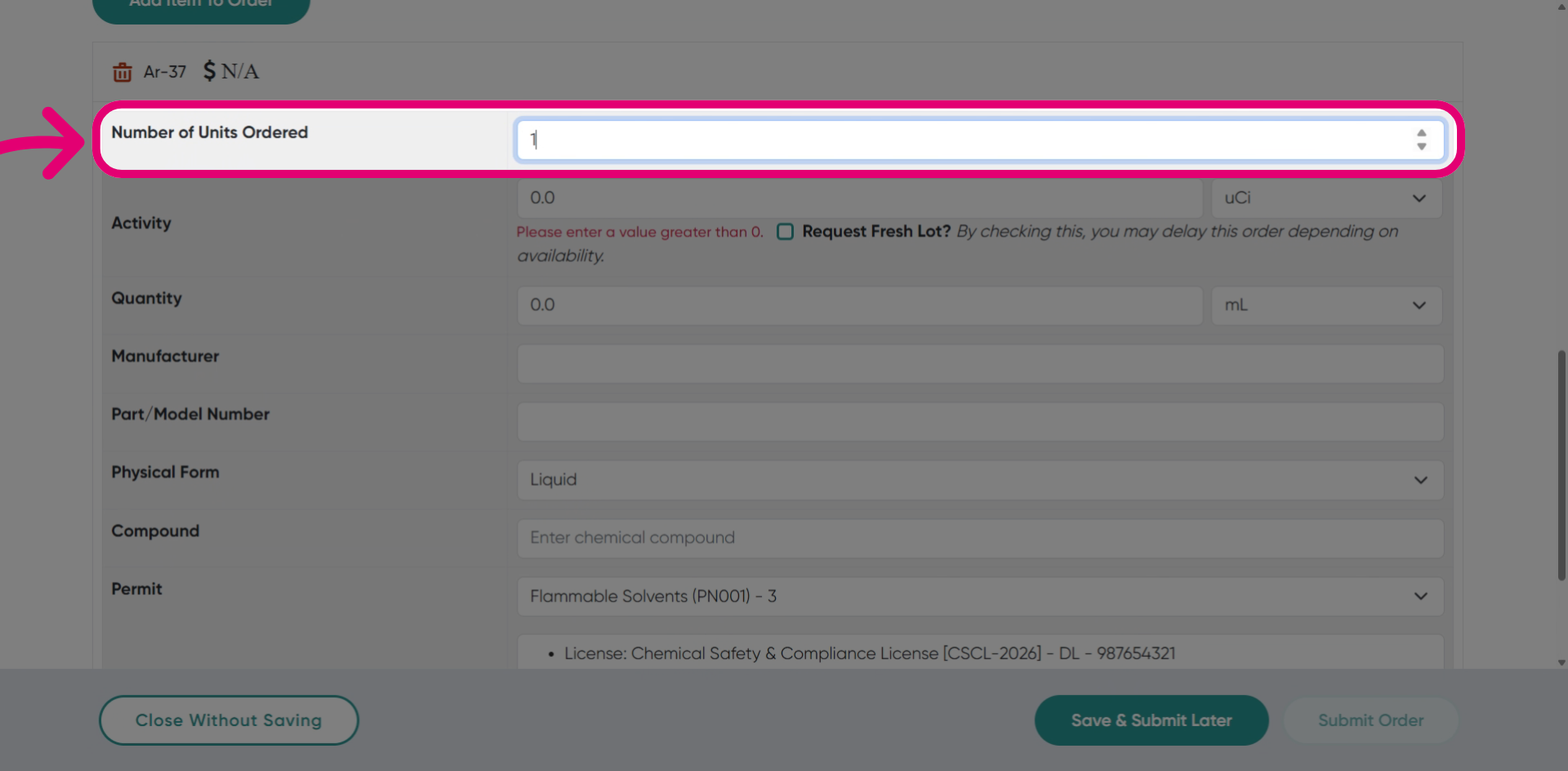
- Enter the Number of Units Ordered.
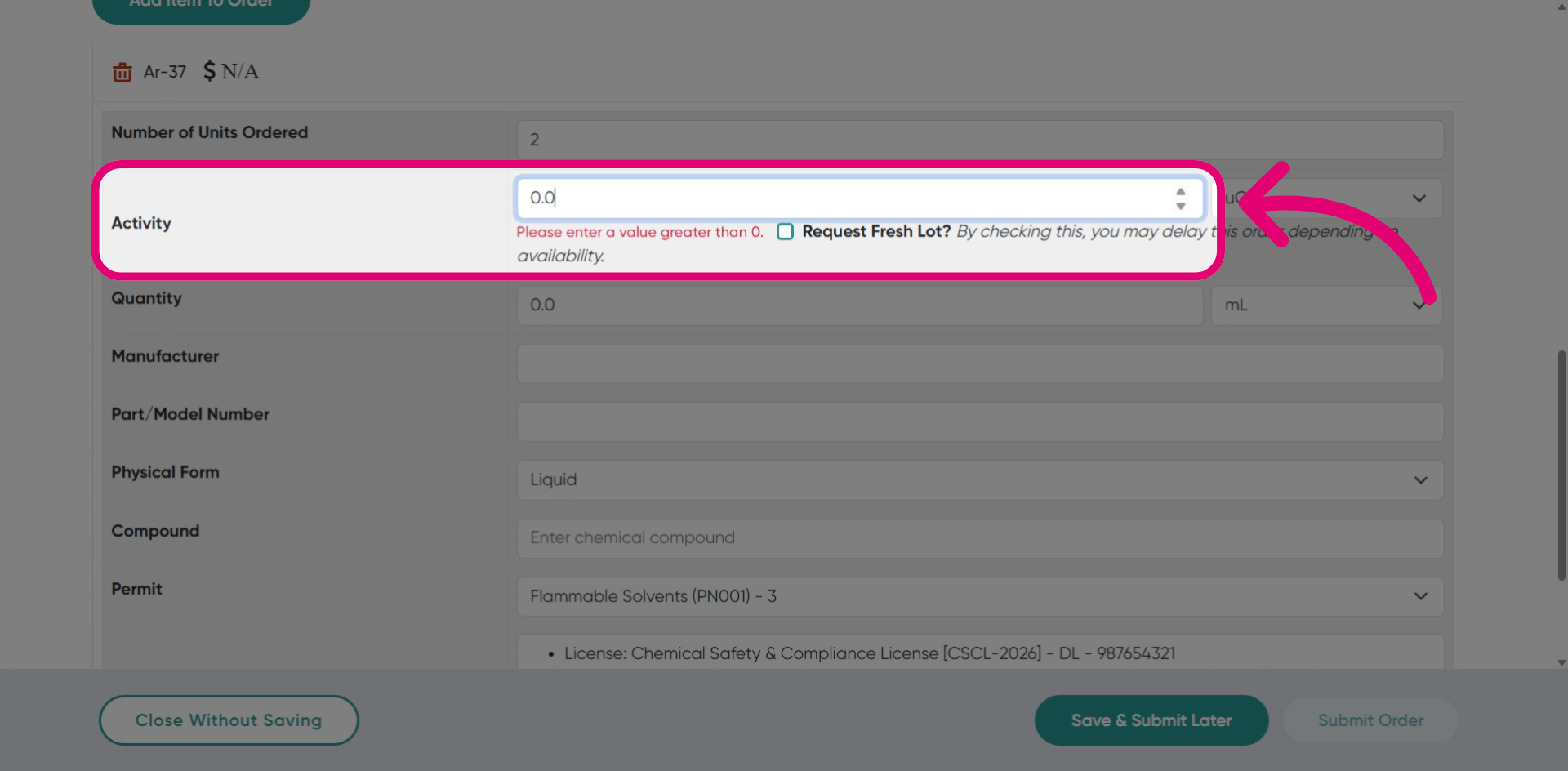
- Enter the item's Activity value.
- Select the Activity unit from the dropdown.
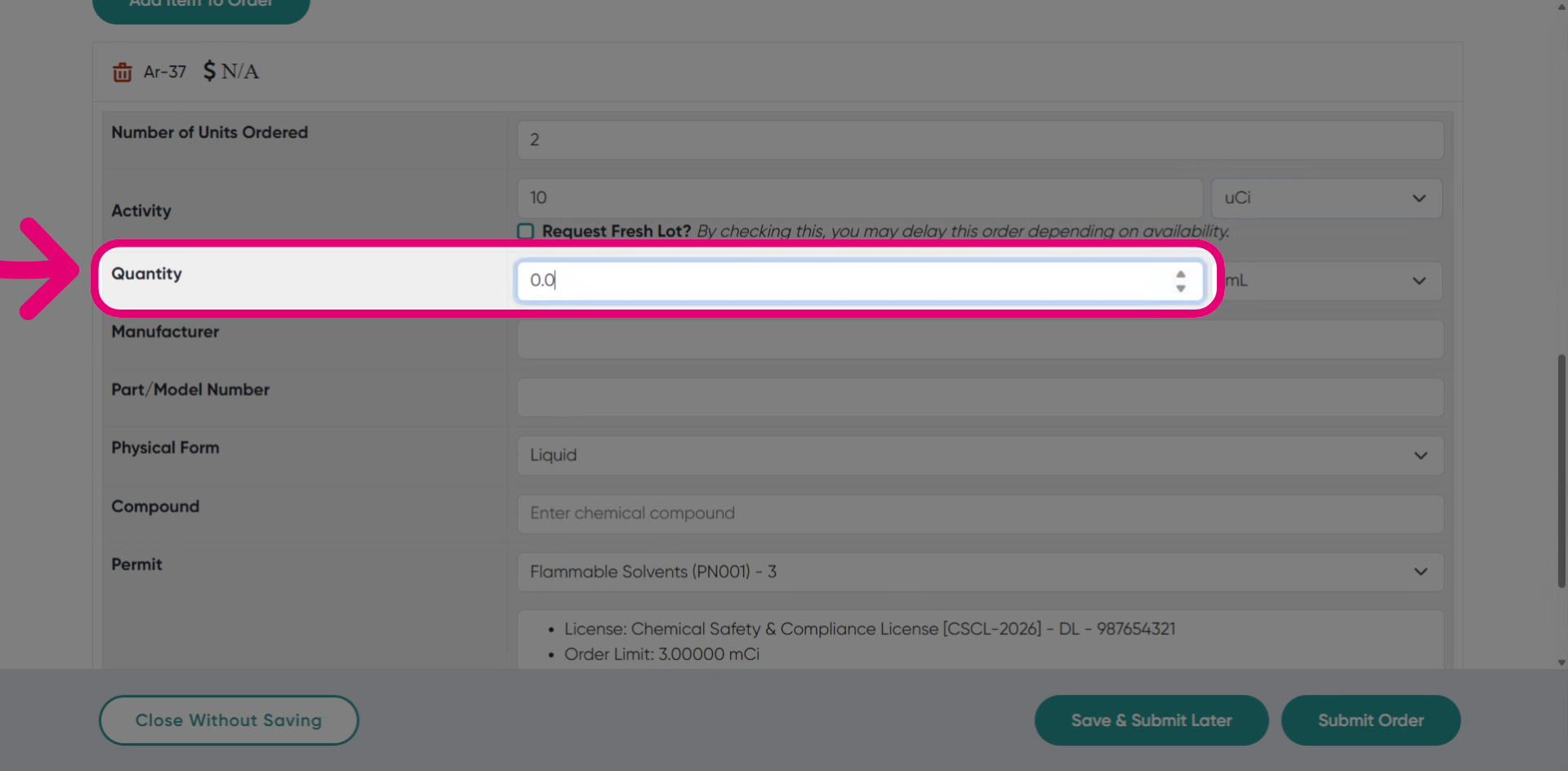
- Enter the Quantity.
This indicates how many units are included in the order.
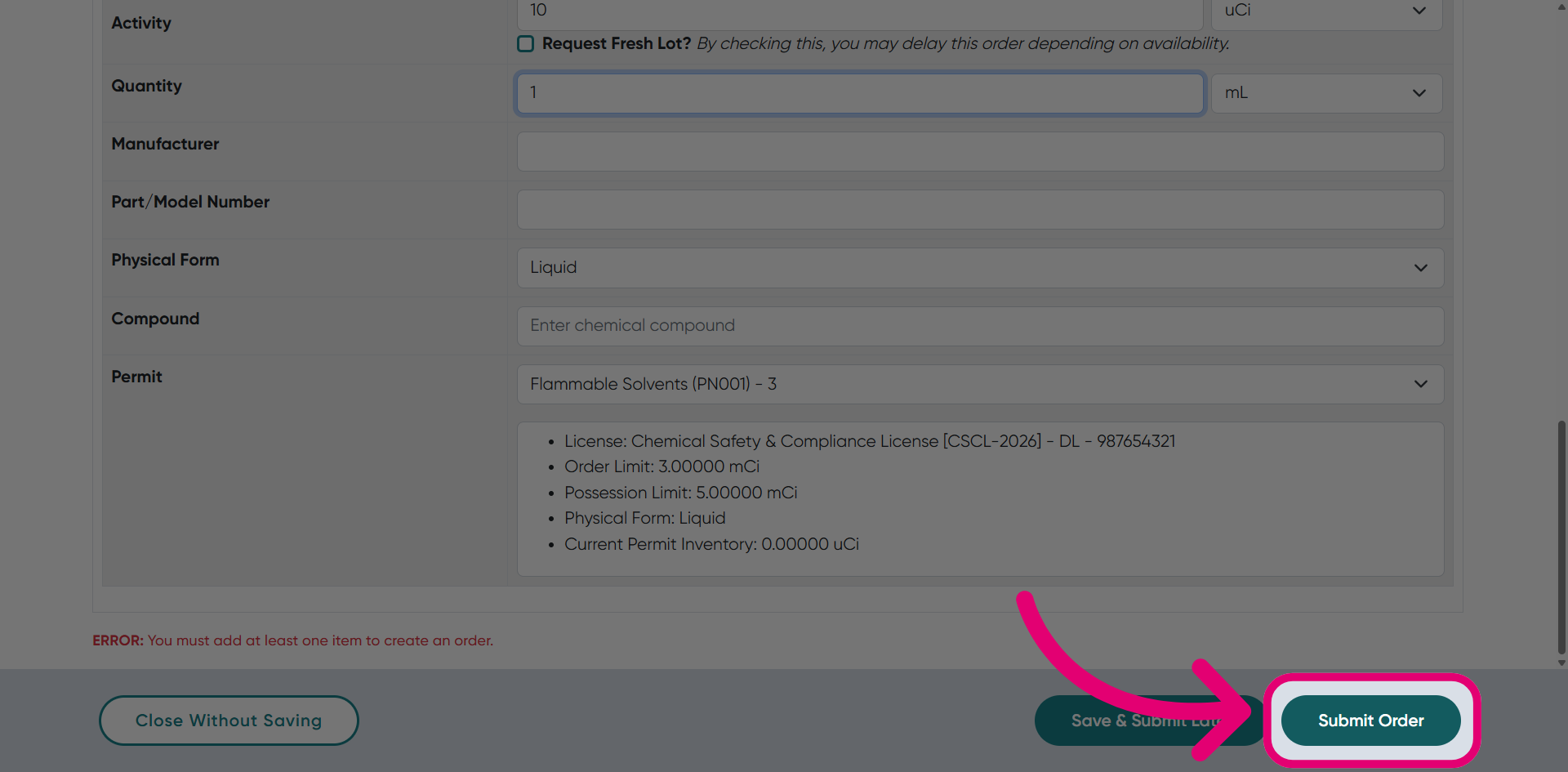
- Click Submit Order.
2. Managing an order
Click Receive Package to manage the receipt of ordered items when they arrive.
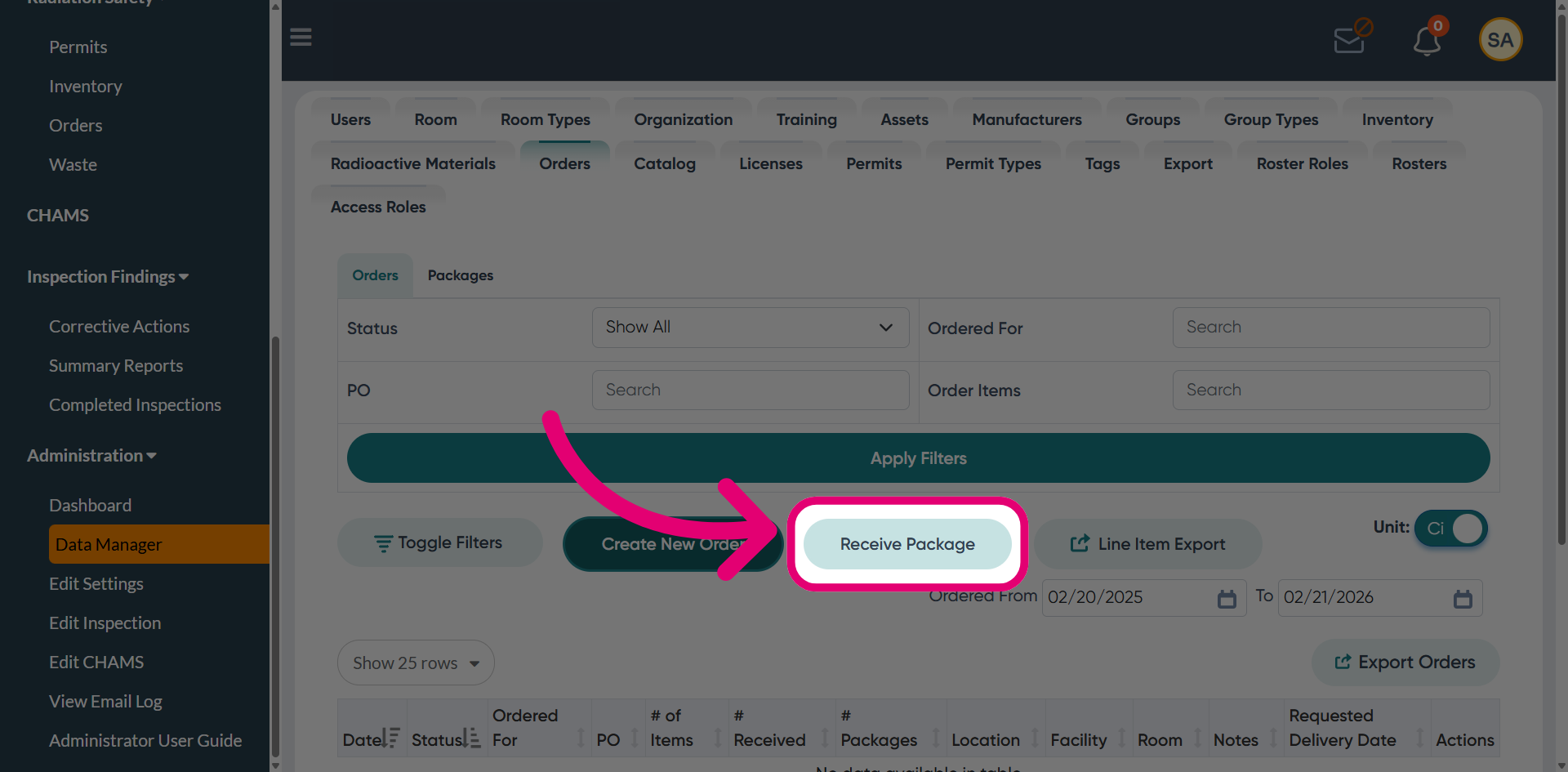
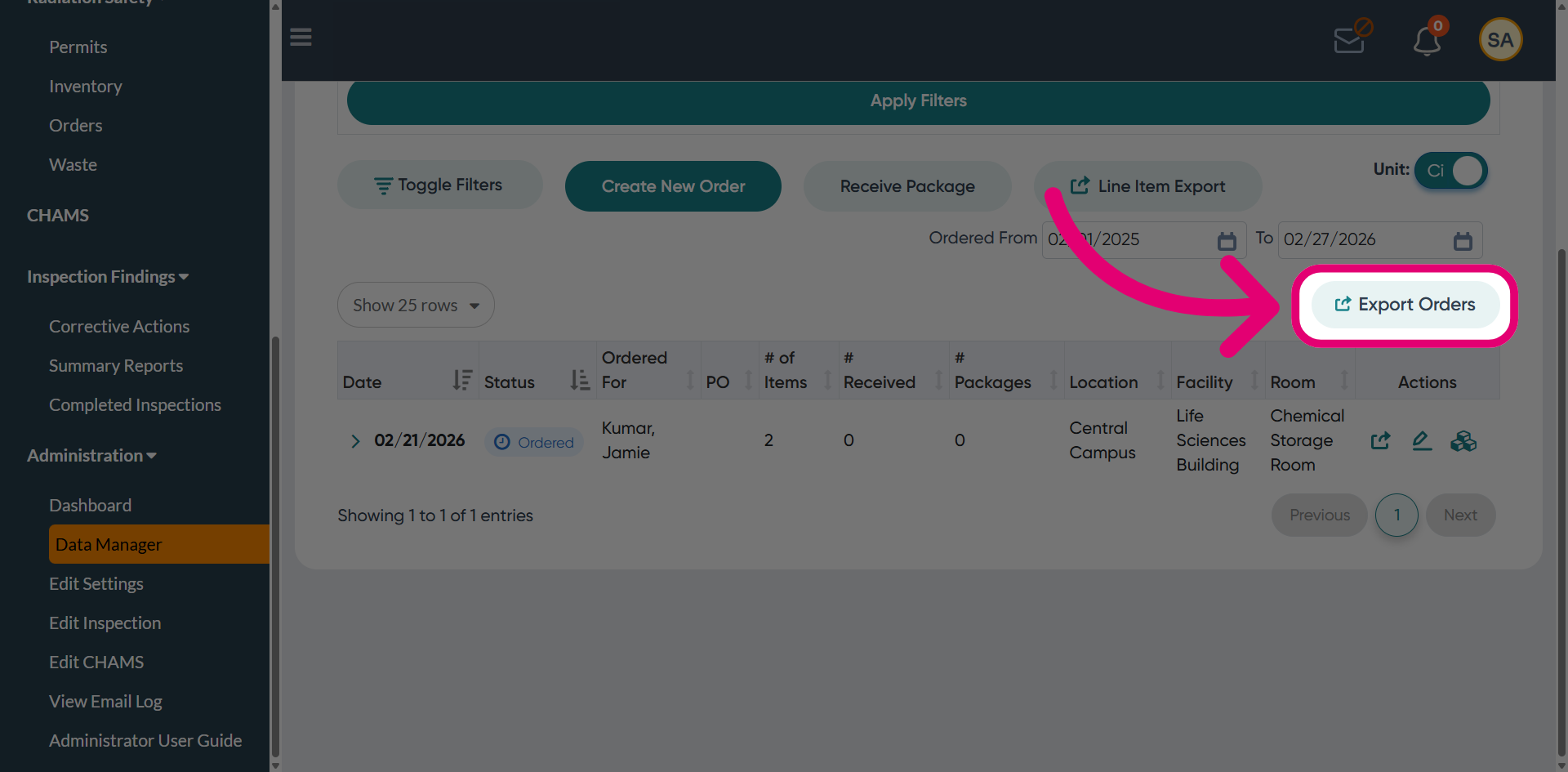
Click Export Orders to generate a list of orders matching your selected filters.