New article
Recently updated
Reconciling out of place items

Who is this article for?
Users performing an inventory reconciliation.
Standard role and Reconciliation permissions are required.
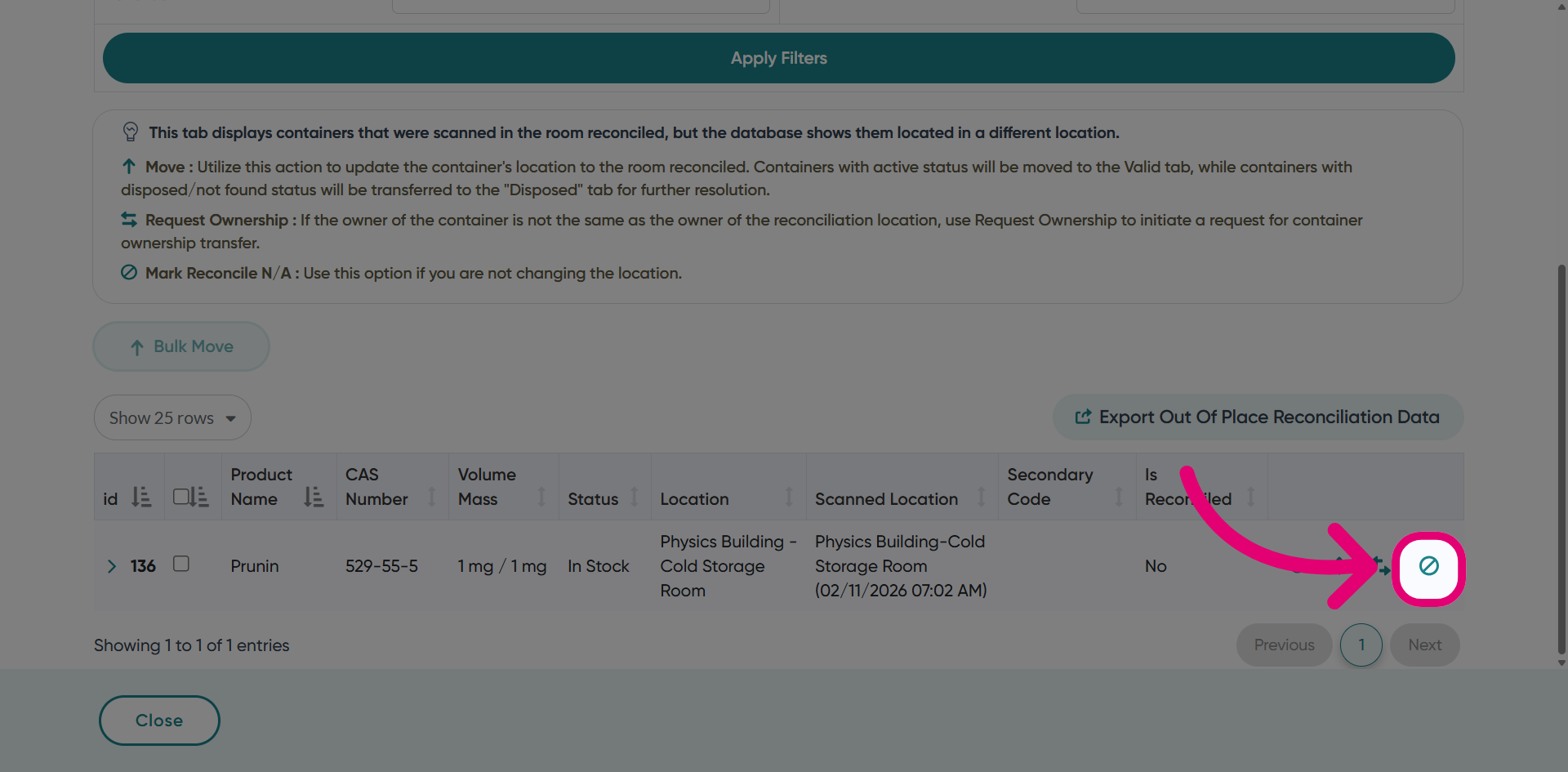
Out of place containers are in the system but assigned to the wrong room or owner.
This article explains how to complete the reconciliation of out of location items in your chemical inventory.
1. Completing a reconciliation
To complete a reconciliation of out of place items:
- Navigate to Chemical Inventory.
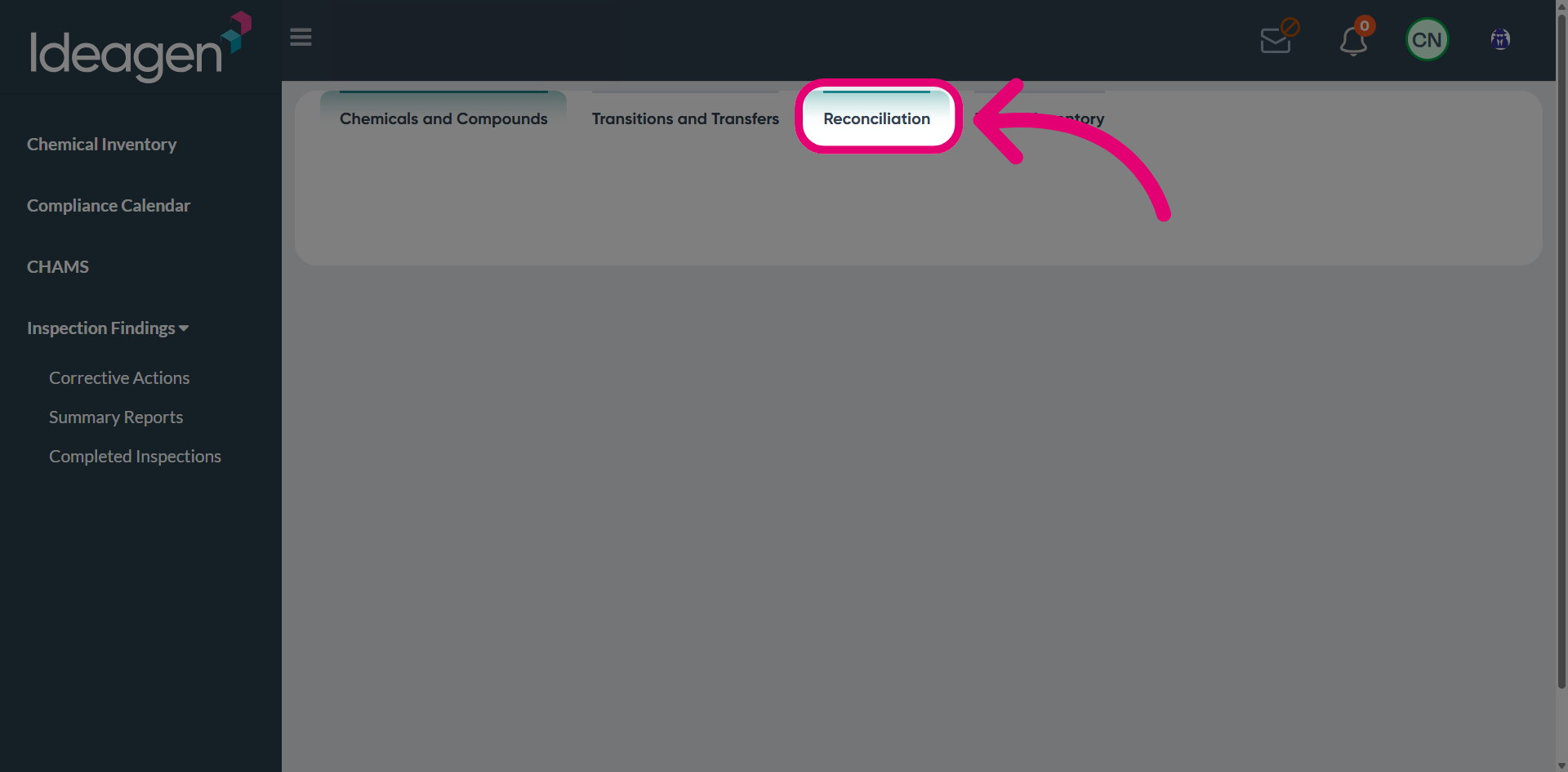
- Switch to the Reconciliation tab.
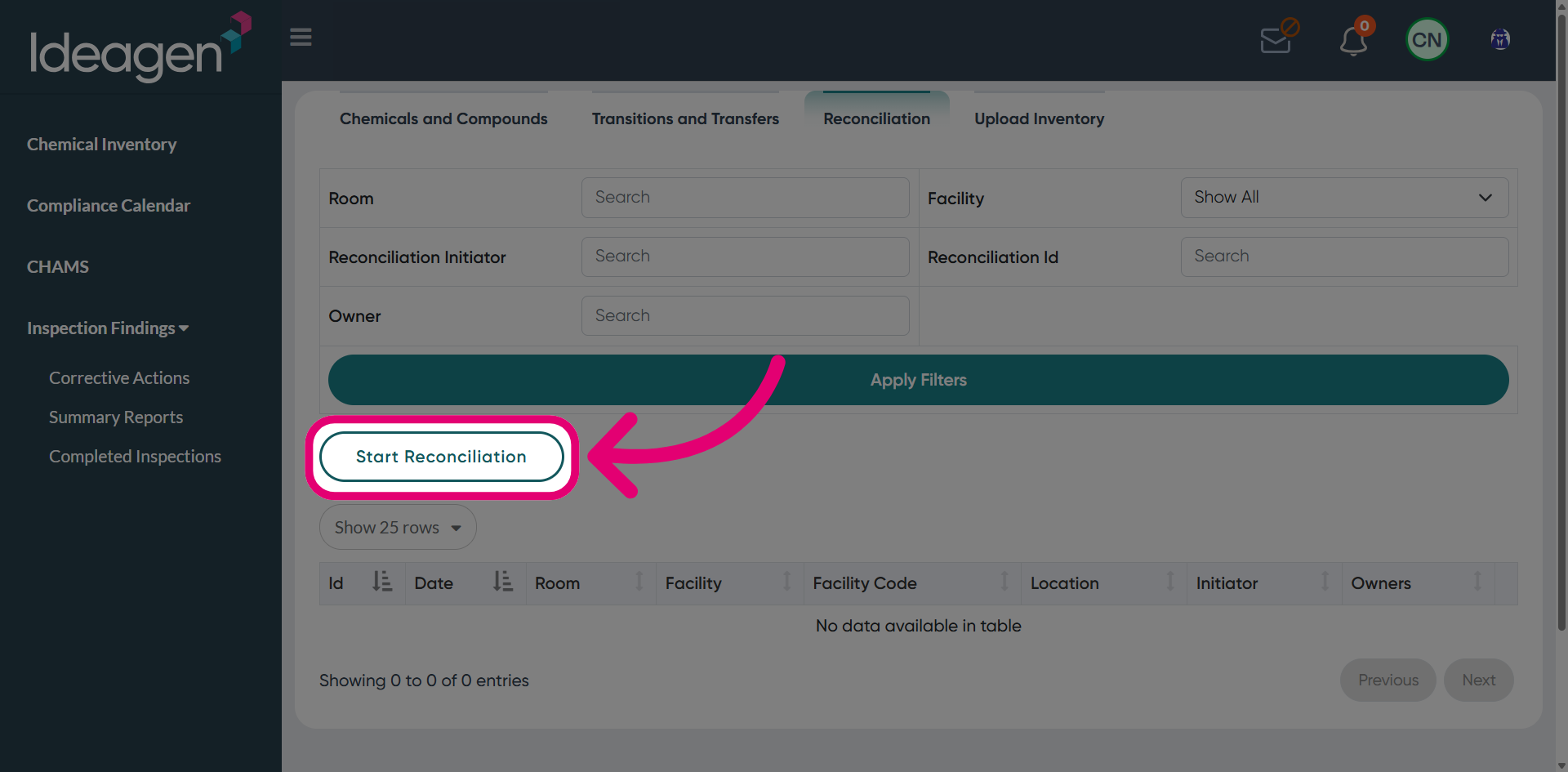
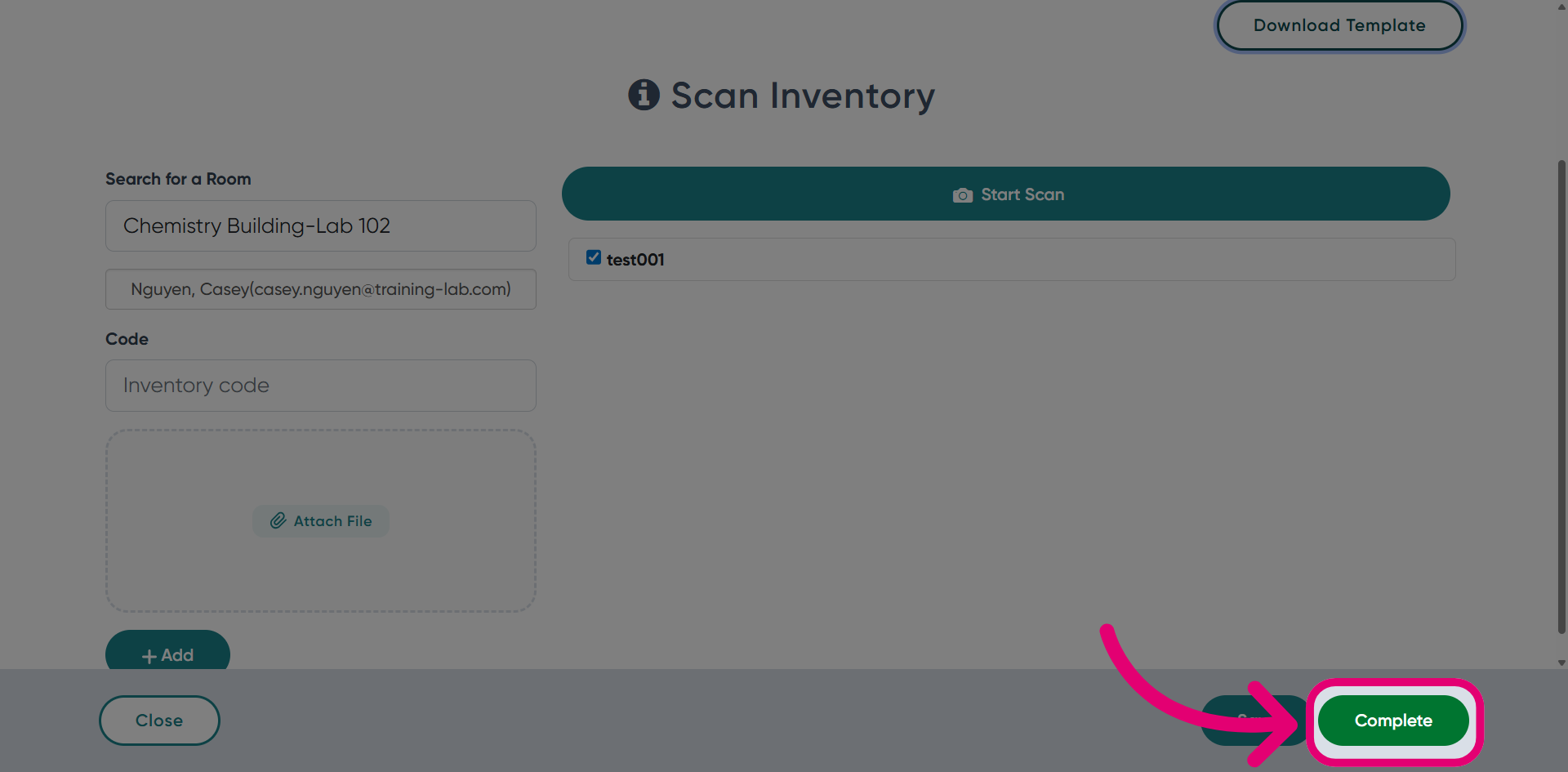
- Click Start Reconciliation.
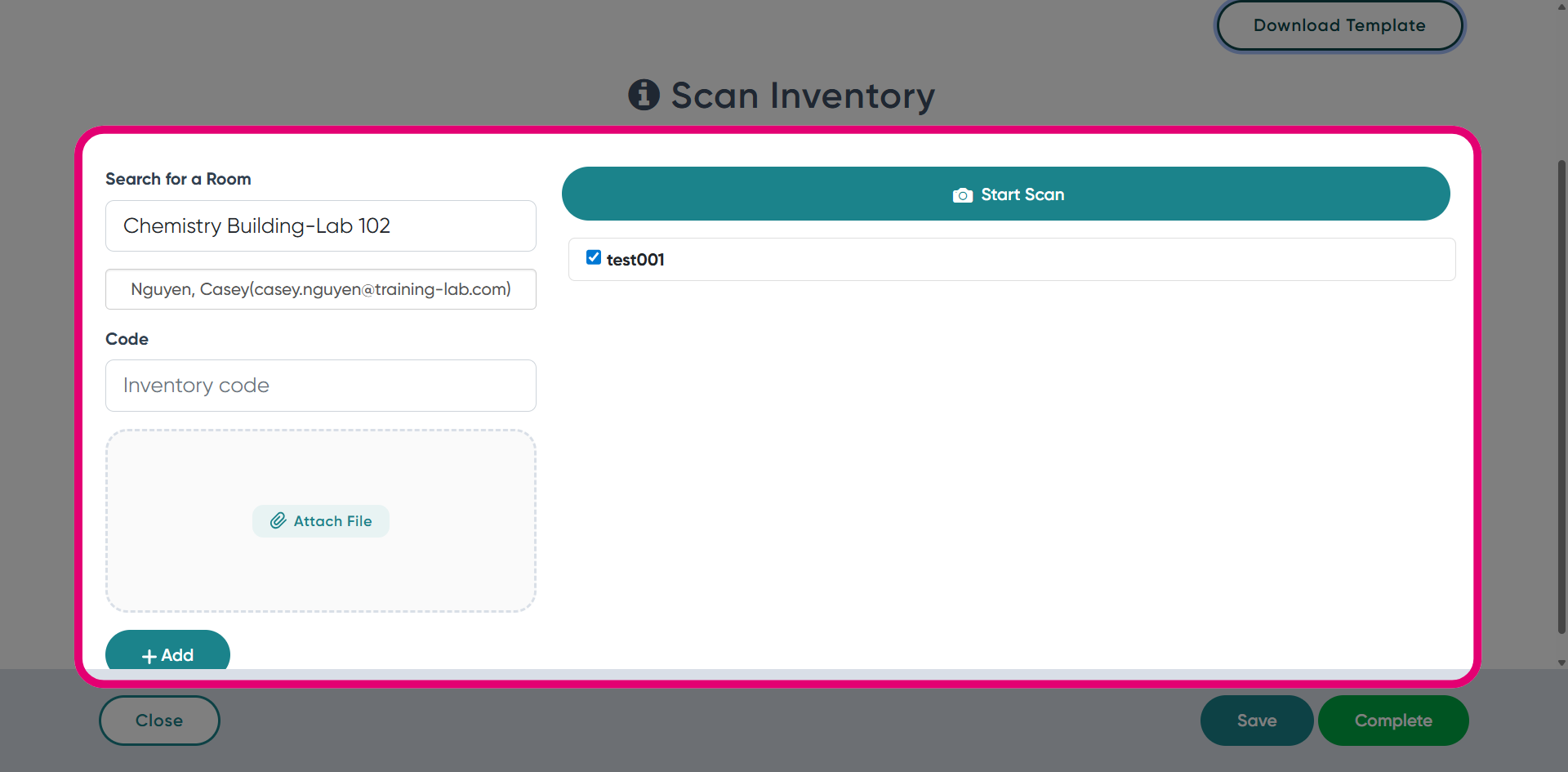
- Find the Room.
- Choose an Owner.
- Enter Inventory Code.
If the inventory code does not belong to the selected room and instead belongs to another location, it will appear under the Missing tab during reconciliation for this room.
- Click Complete.
2. Viewing a reconciliation
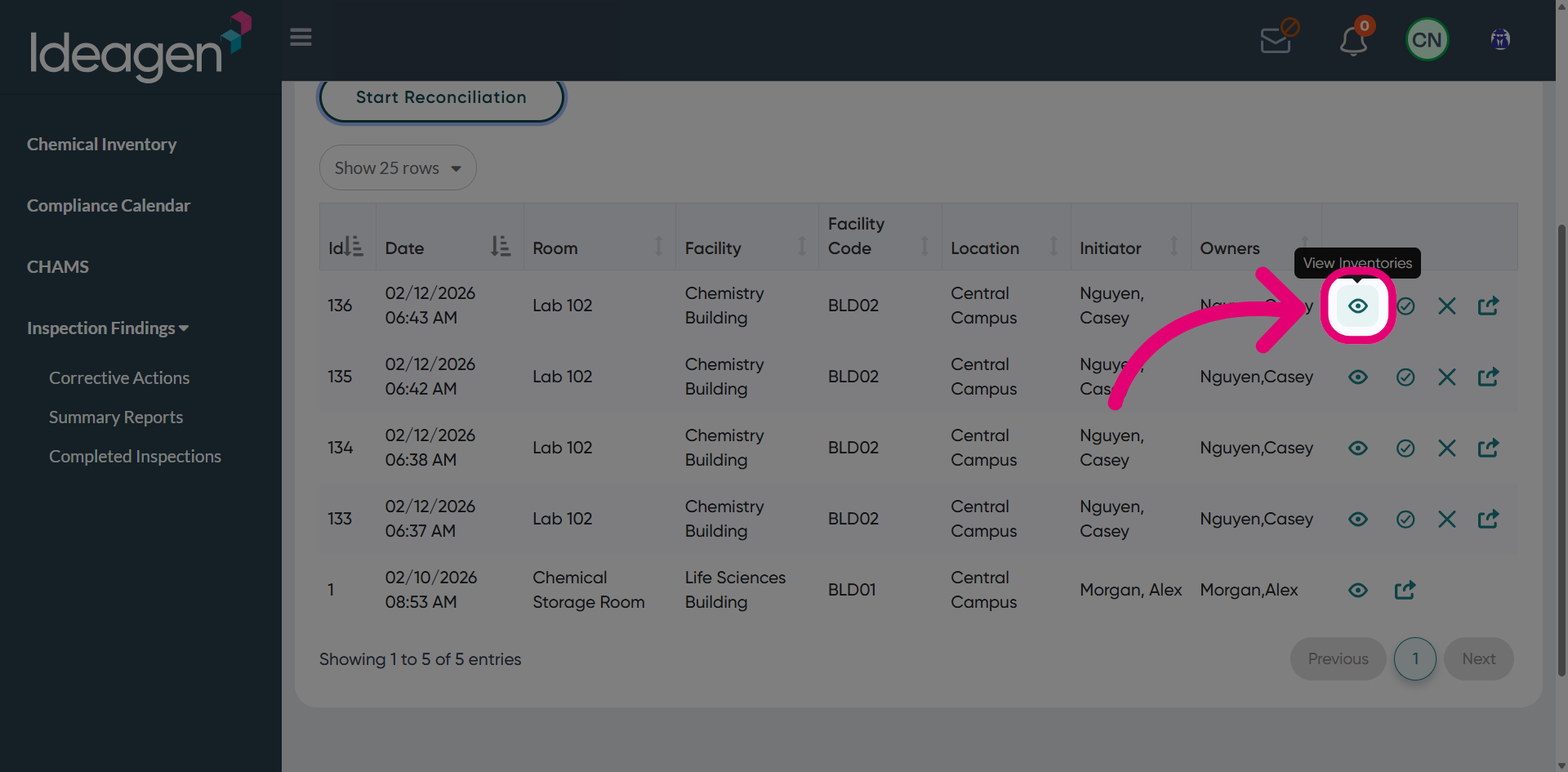
To view a reconciliation:
- Clicking View Inventories.
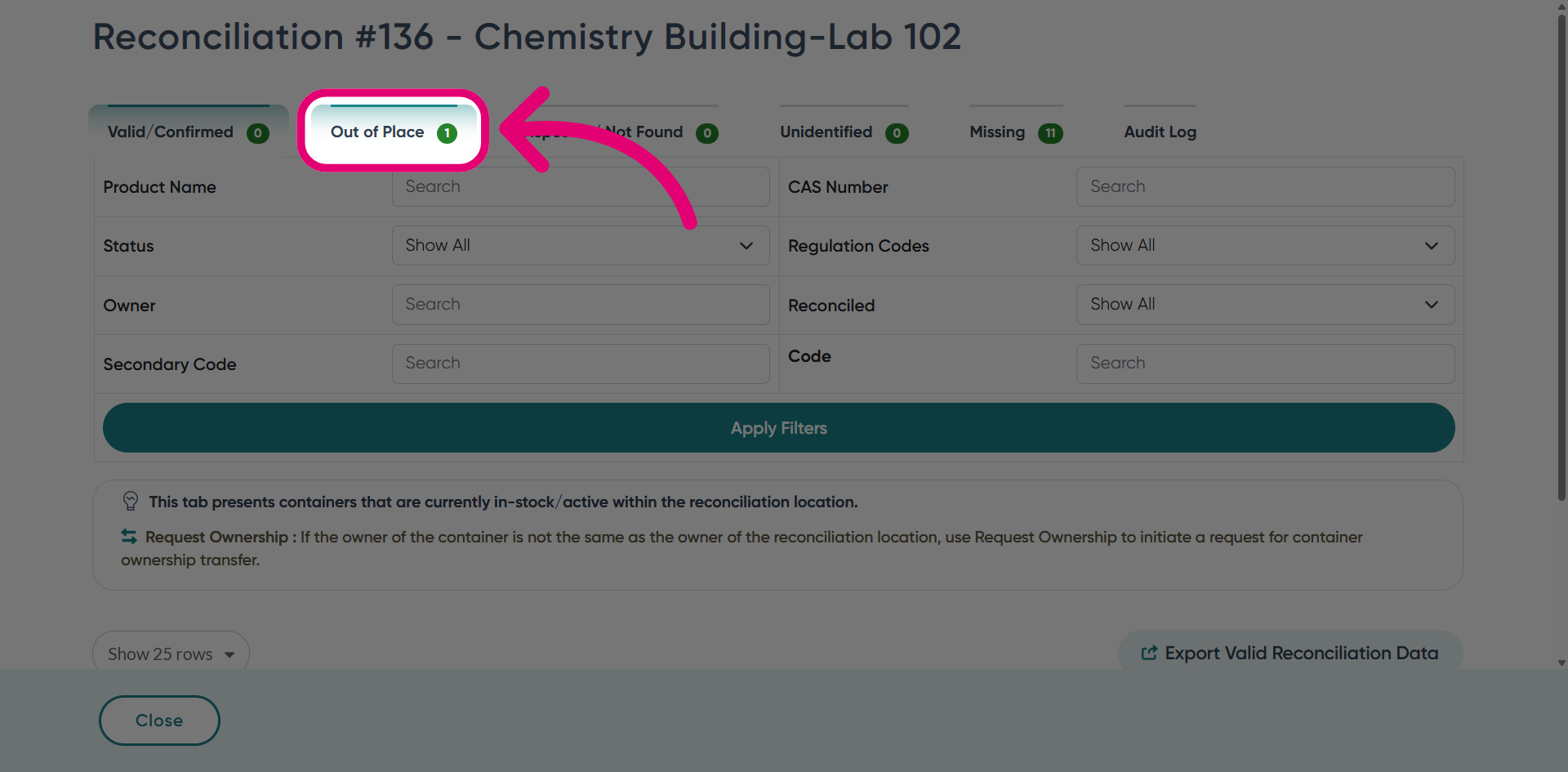
- Switch to the Out of Place tab.
This tab shows items in the reconciled inventory that do not belong to the selected room.
- Scroll down to view the reconciled item in the table below.
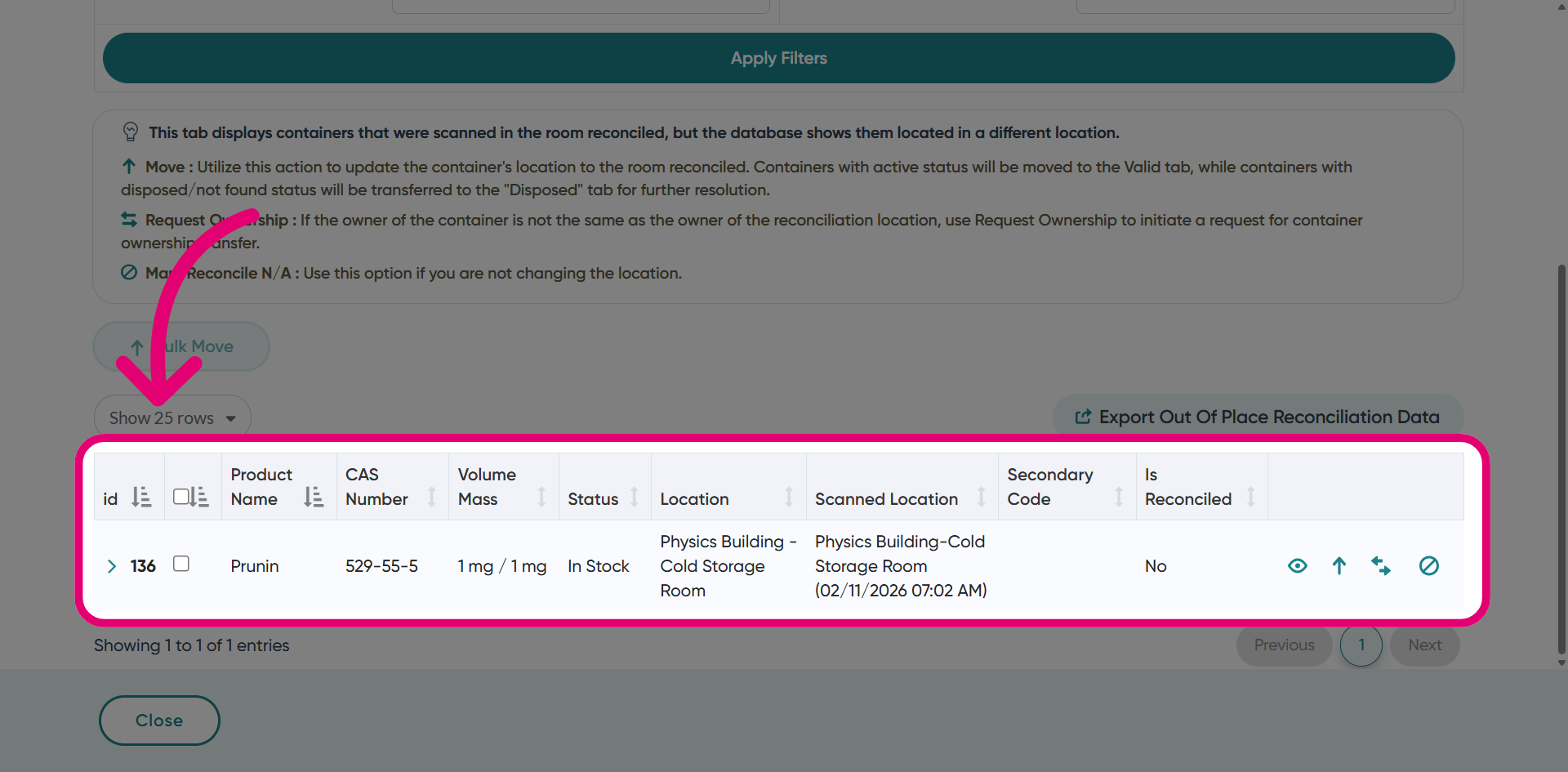
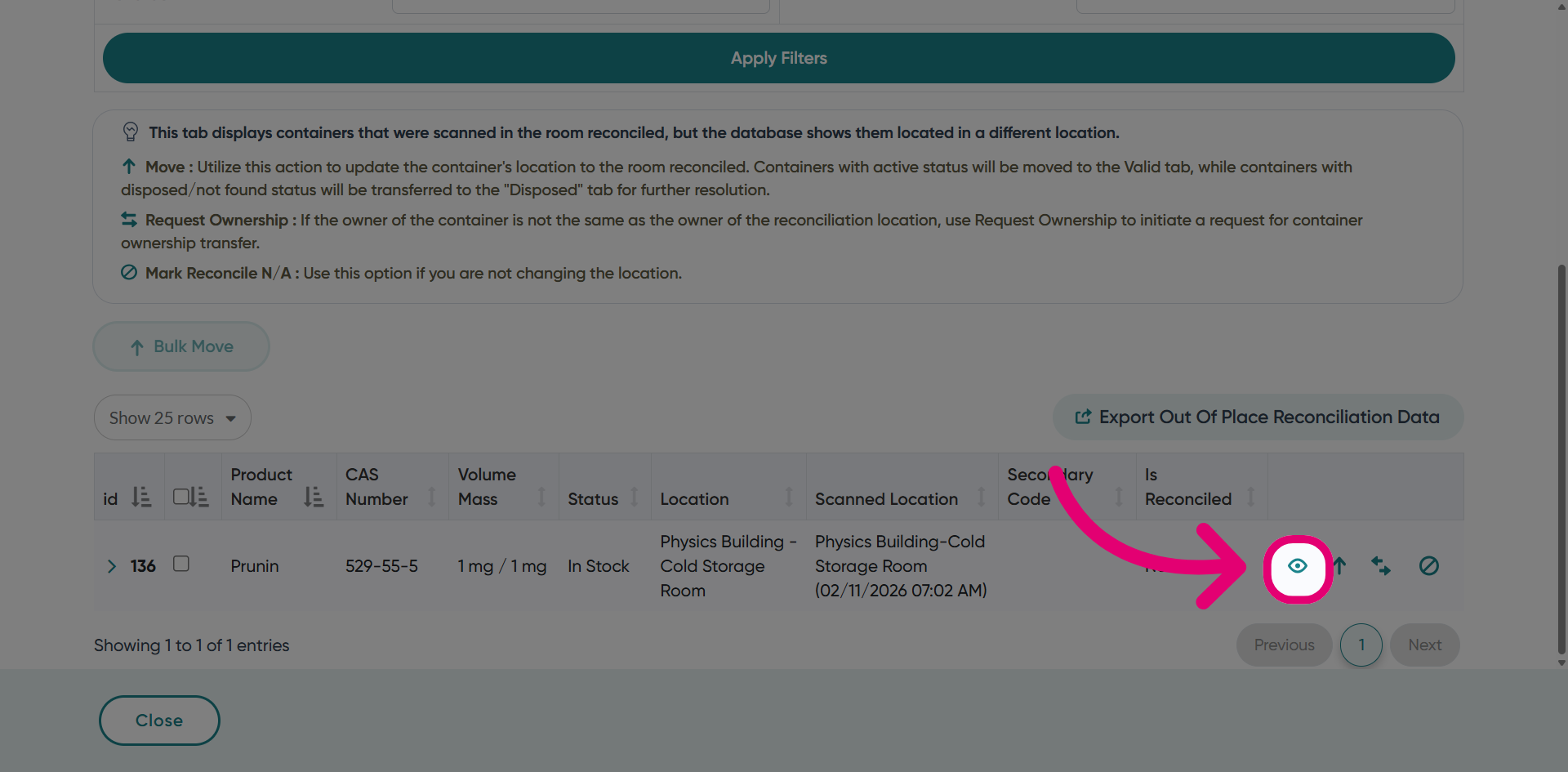
- Click View Inventory to display detailed information about the container to be reviewed, including its assigned location and status.
3. Actioning a reconciliation
3.1. Move Inventory
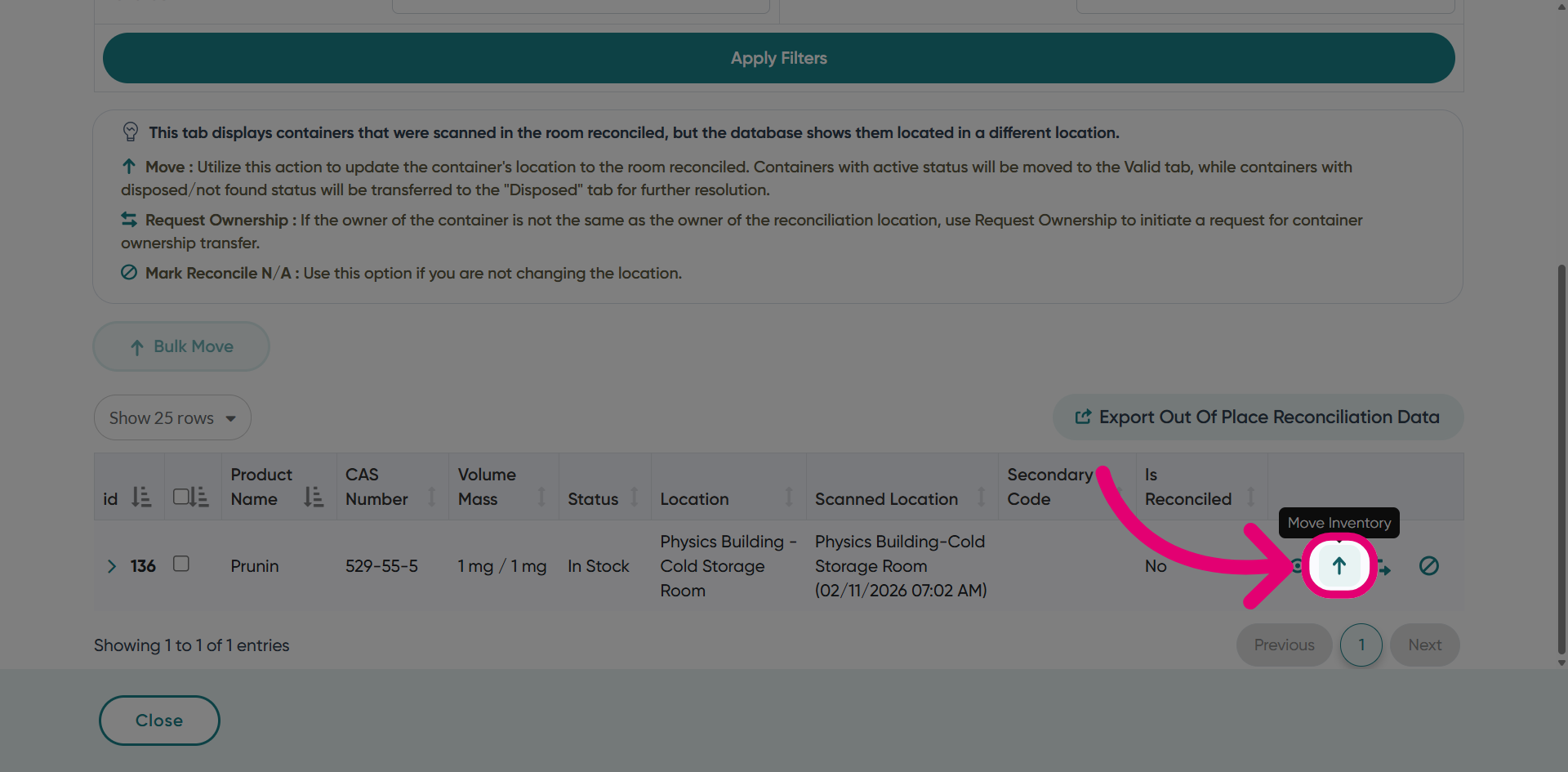
Click Move Inventory to update the container's location to the reconciled room.
3.2. Transfer Inventory
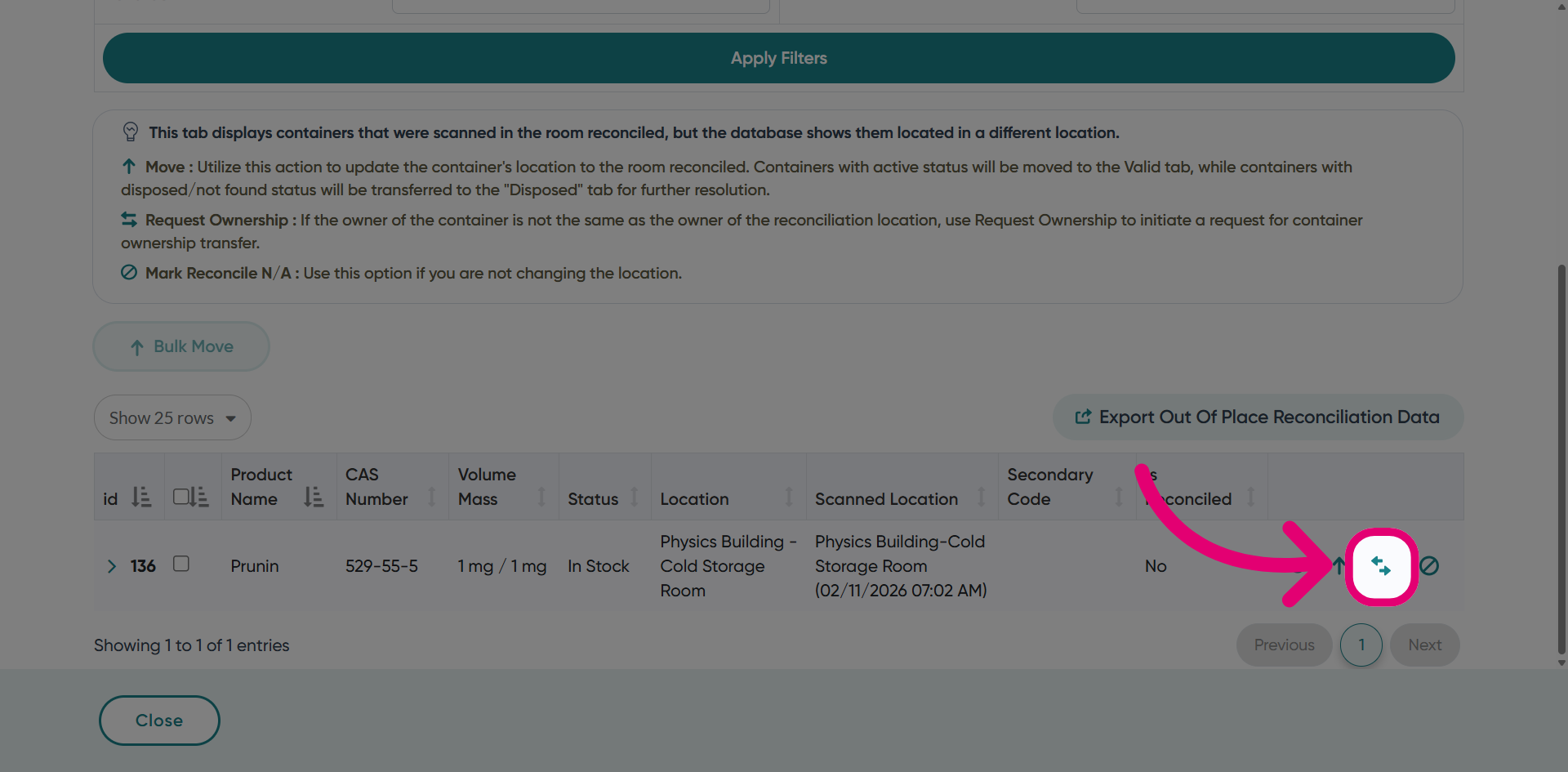
Click Transfer Inventory if the container owner differs from the reconciliation room owner. This initiates a request to transfer container ownership.
3.3. Mark Reconcile N/A
Click Mark Reconcile N/A if no location change is required, allowing the reconciliation process to proceed without updating the container location.