New article
Recently updated
Reconciling missing items

Who is this article for?
Users performing an inventory reconciliation.
Standard role and Reconciliation permissions are required.
Missing containers are assigned to a selected room, but are not scanned during the reconciliation process and are therefore marked as missing.
This article explains how to reconcile these containers.
1. Completing a reconciliation
To complete a reconciliation on missing items:
- Navigate to Chemical Inventory.
- Switch to Reconciliation tab.
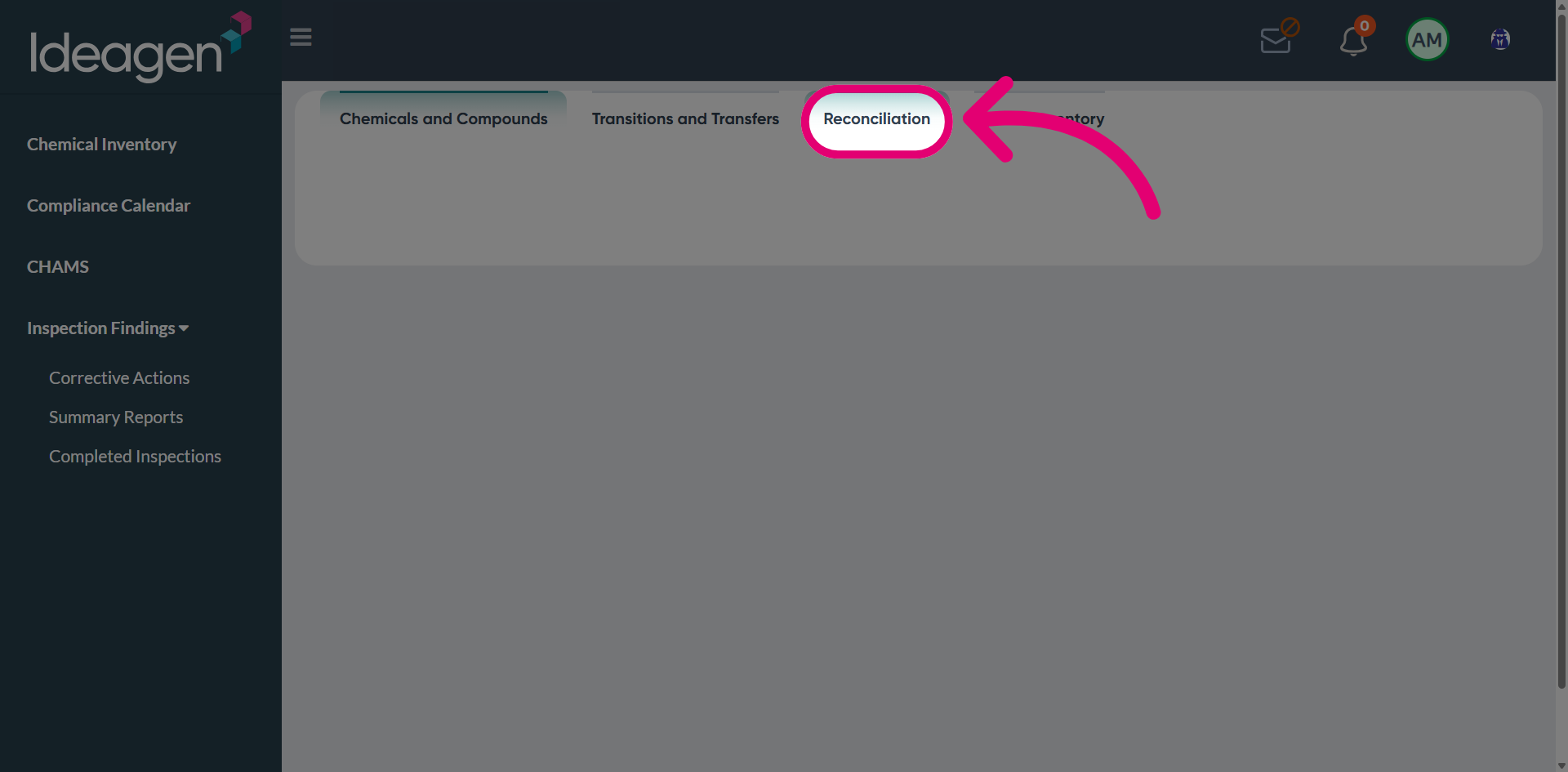
- Click Apply Filters to display all reconciled records.
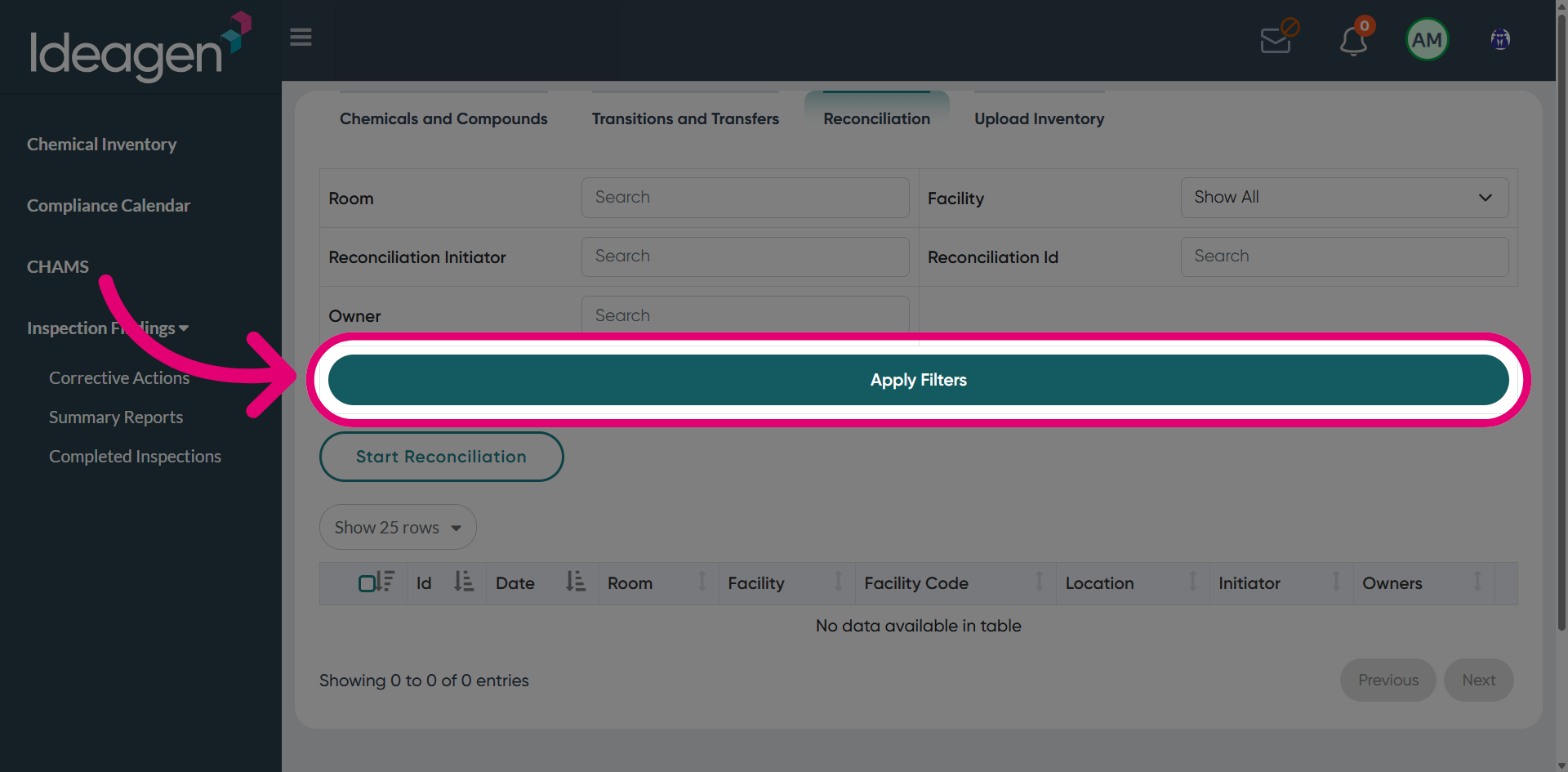
- Click View Inventories.
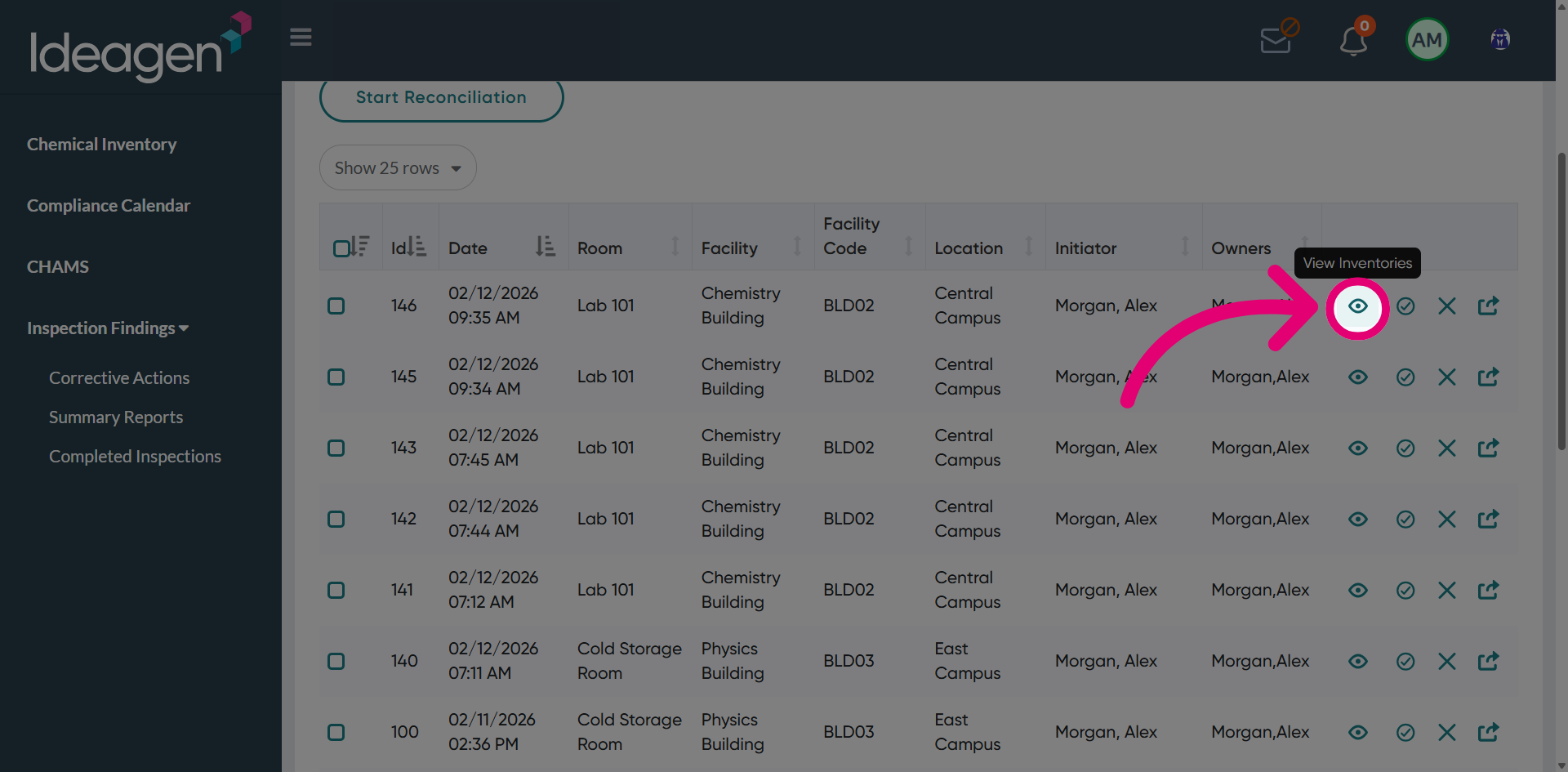
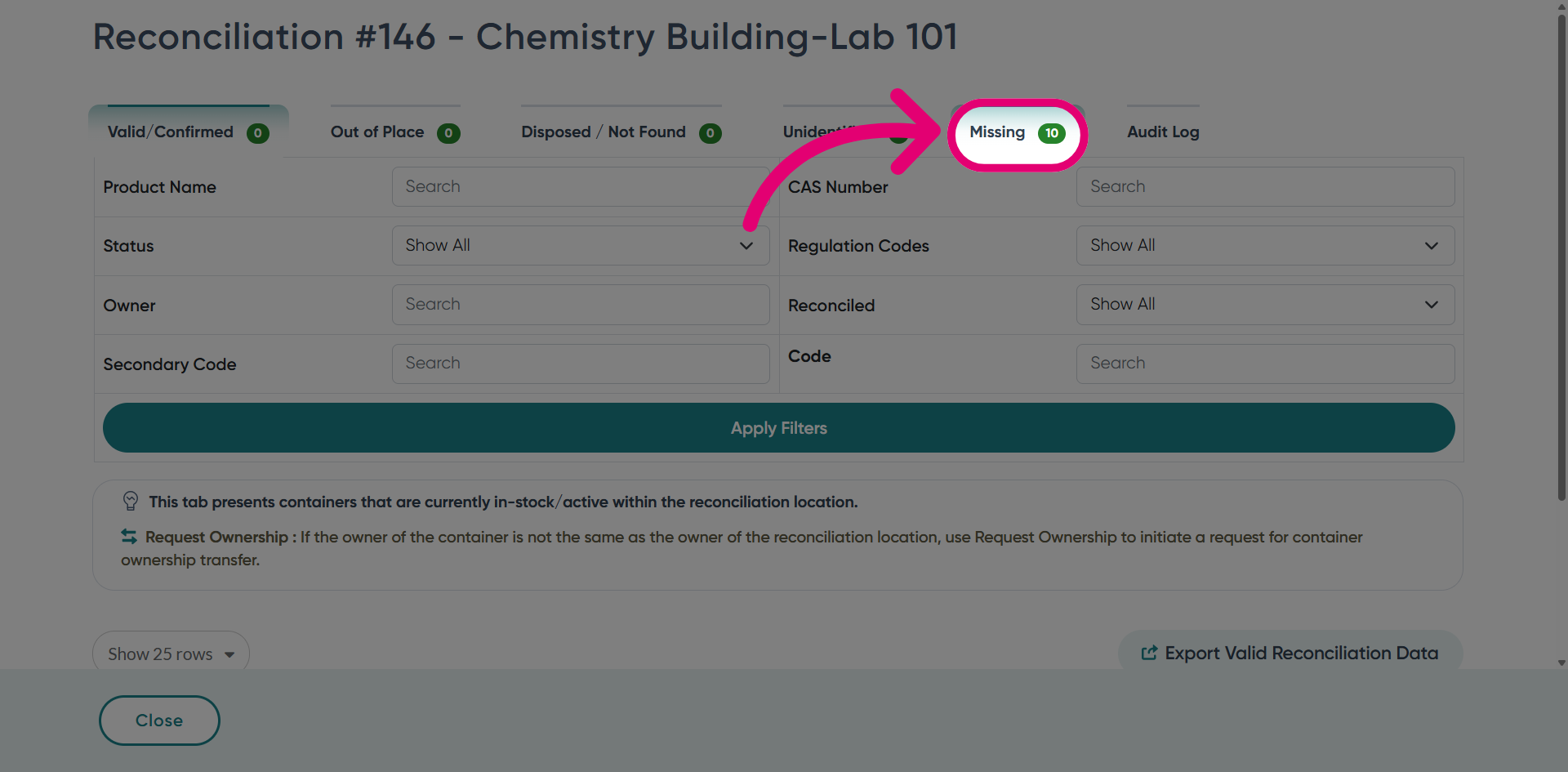
- Switch to the Missing tab.
This tab lists all containers identified as missing in the reconciliation process for that particular room.
- Action the reconciliation.
2. Actioning a reconciliation
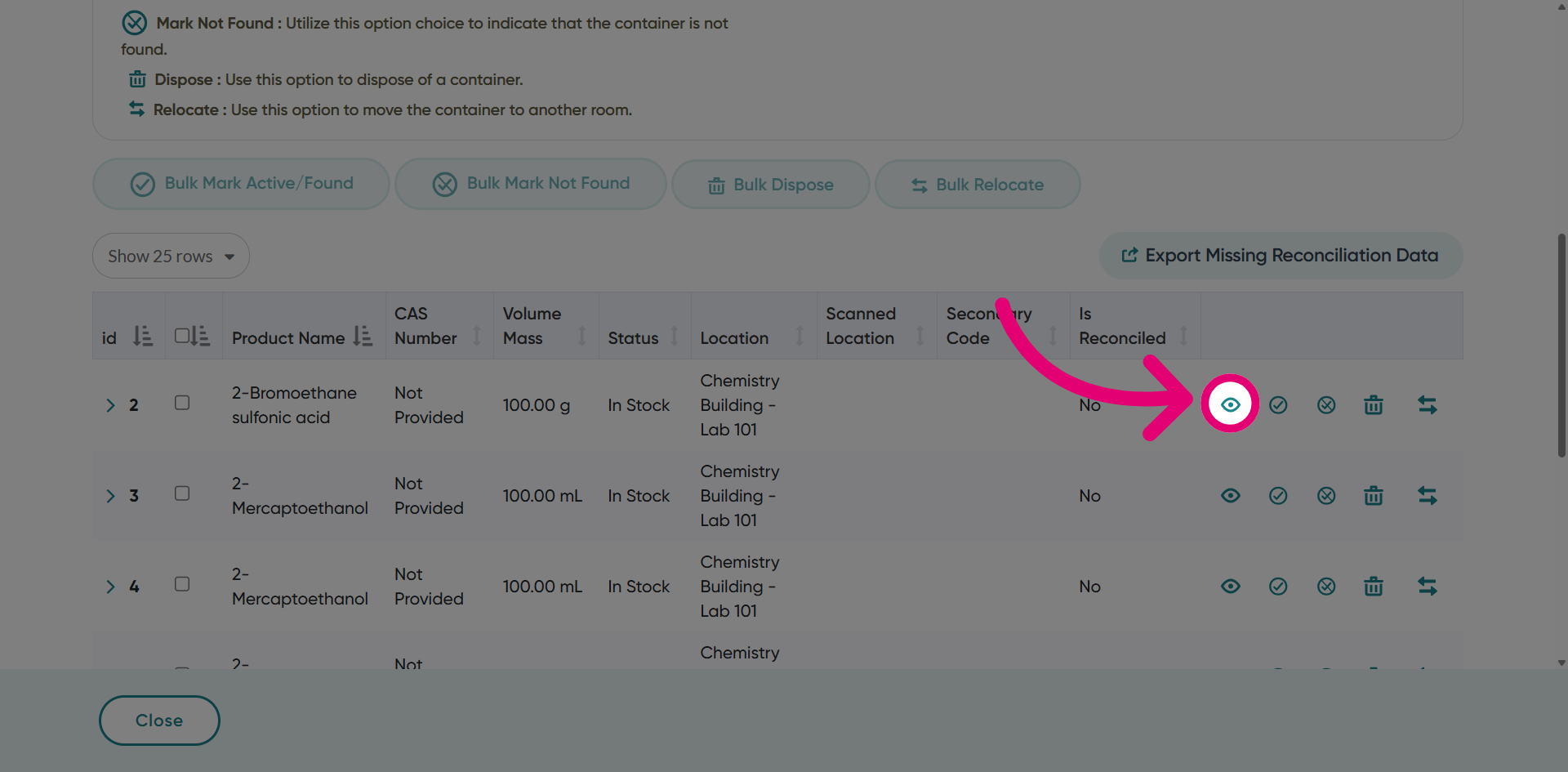
2.1. View
Click View to display the complete details of the inventory record.
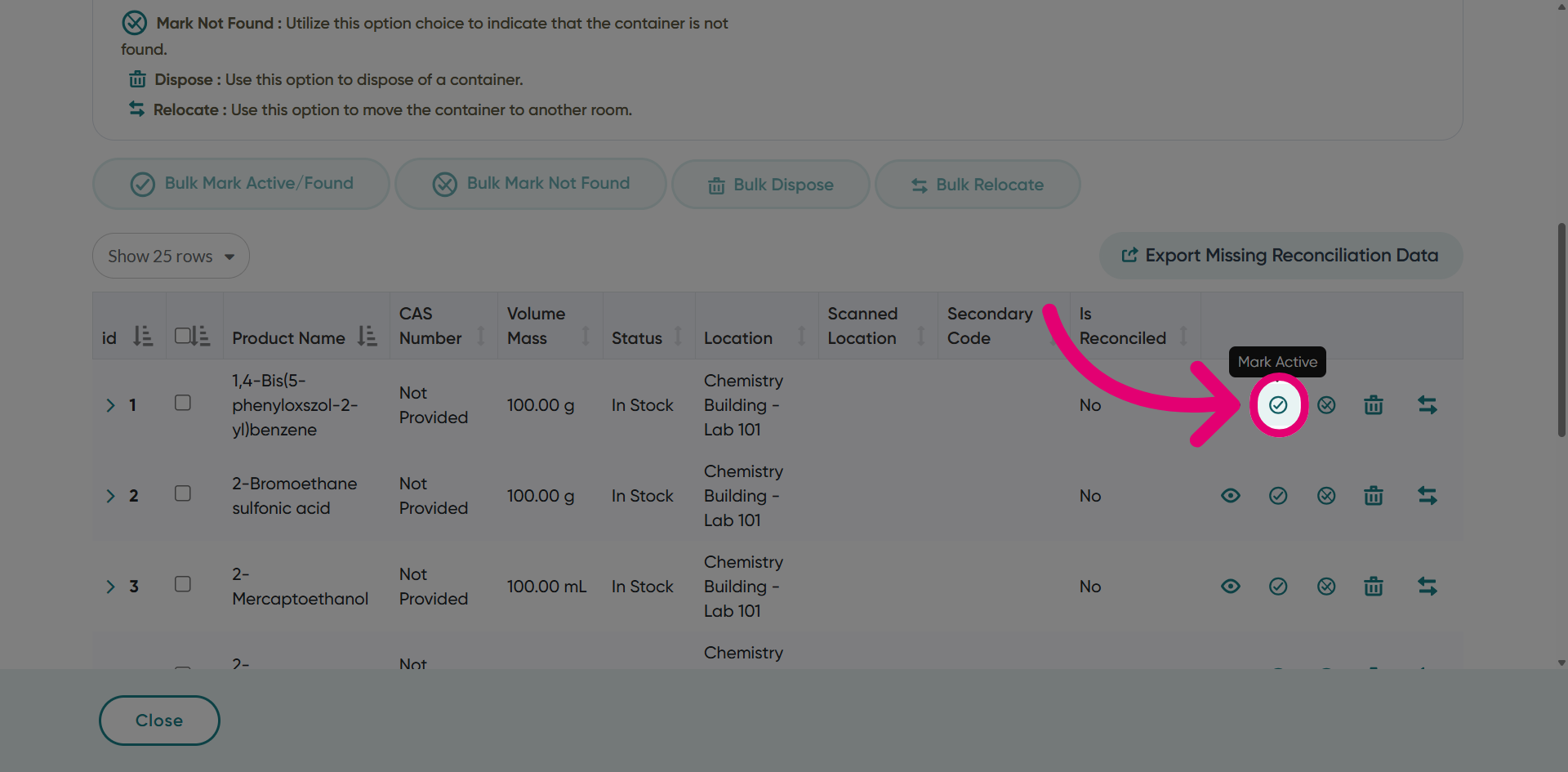
2.2. Mark Active
Click Mark Active if the container has been physically located.
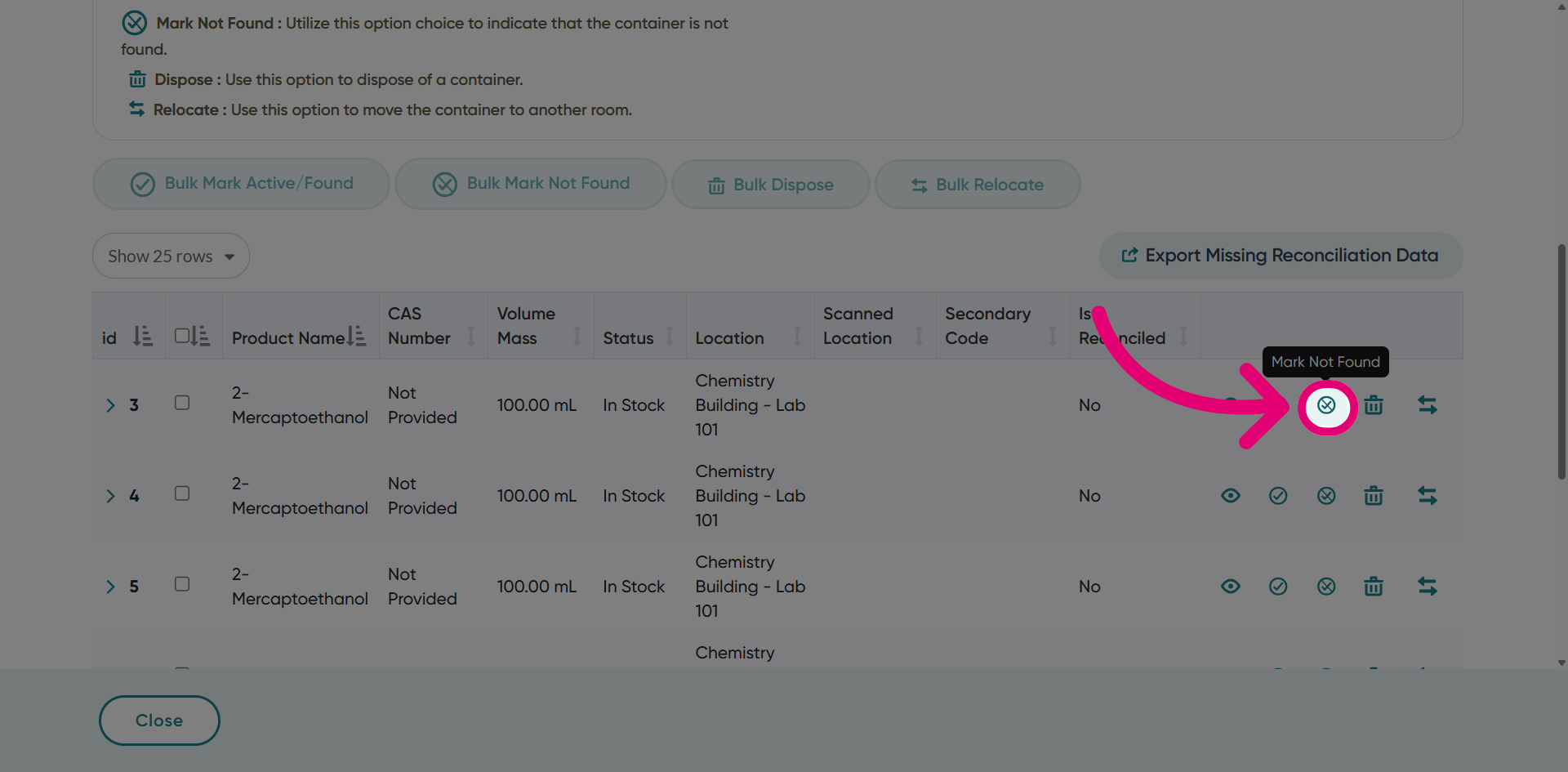
2.3. Mark Not Found
Click Mark Not Found if the container cannot be located during reconciliation.
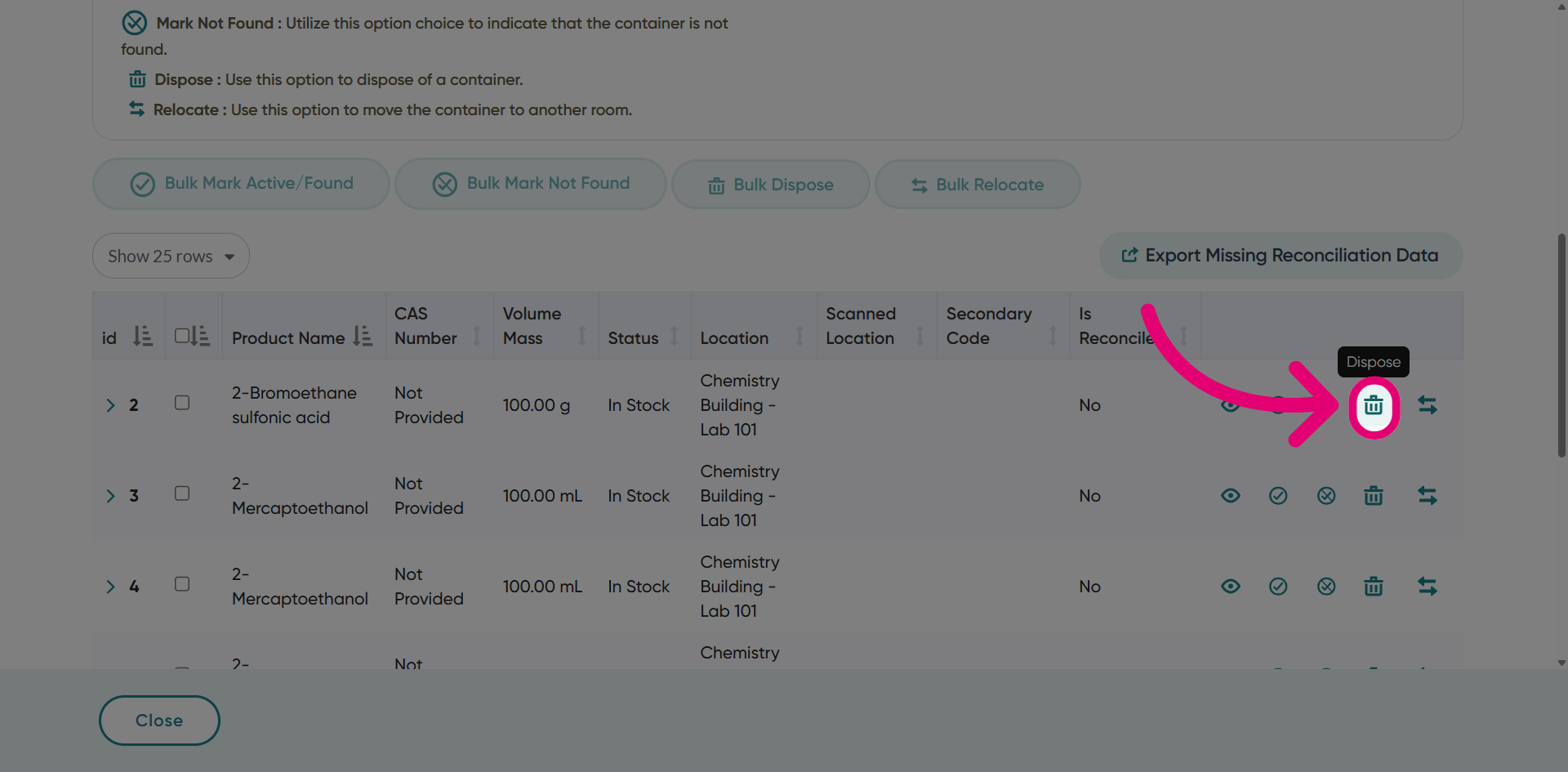
2.4. Dispose
Click Dispose to permanently remove the container from active inventory records when it is no longer in use.
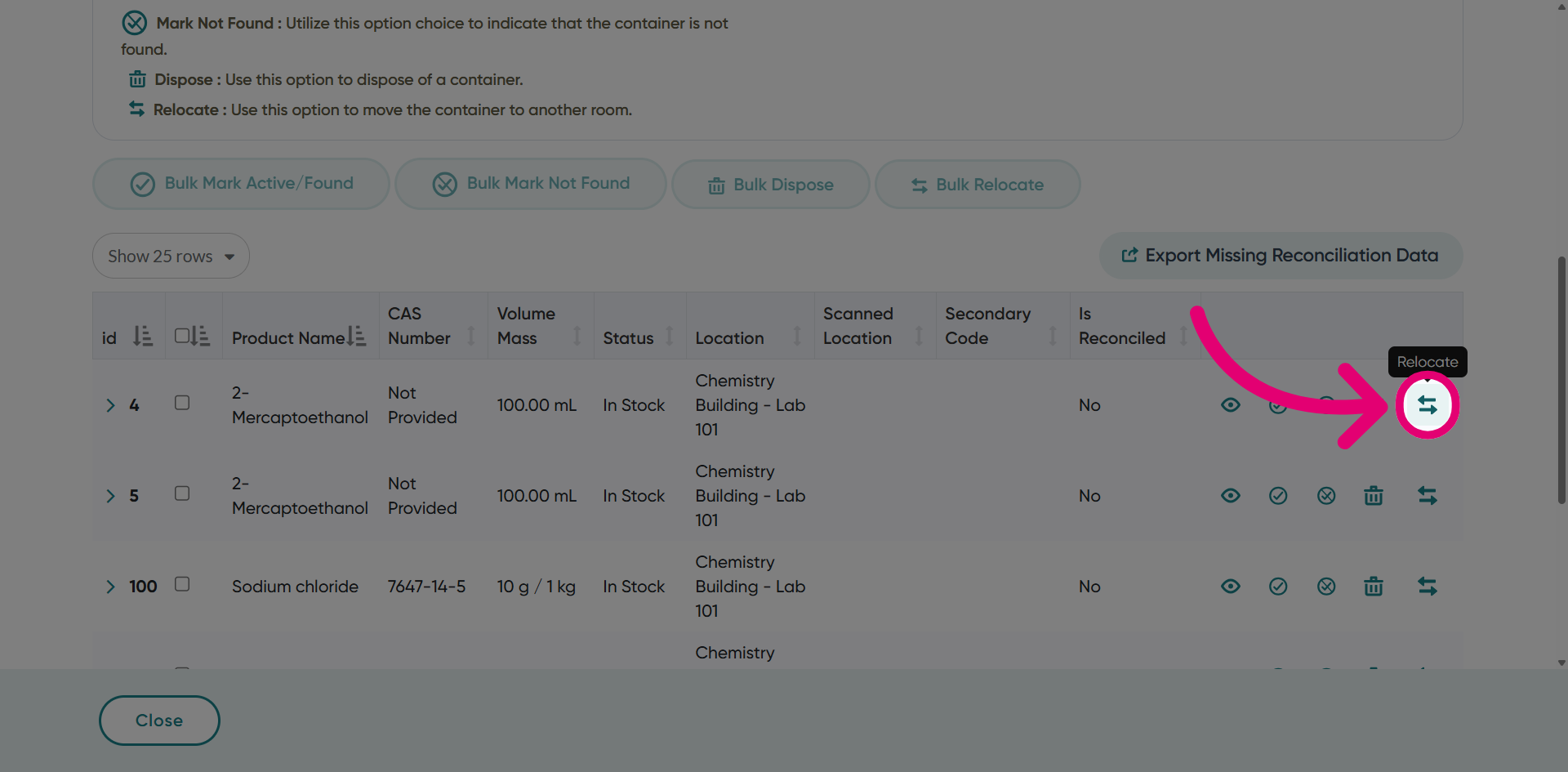
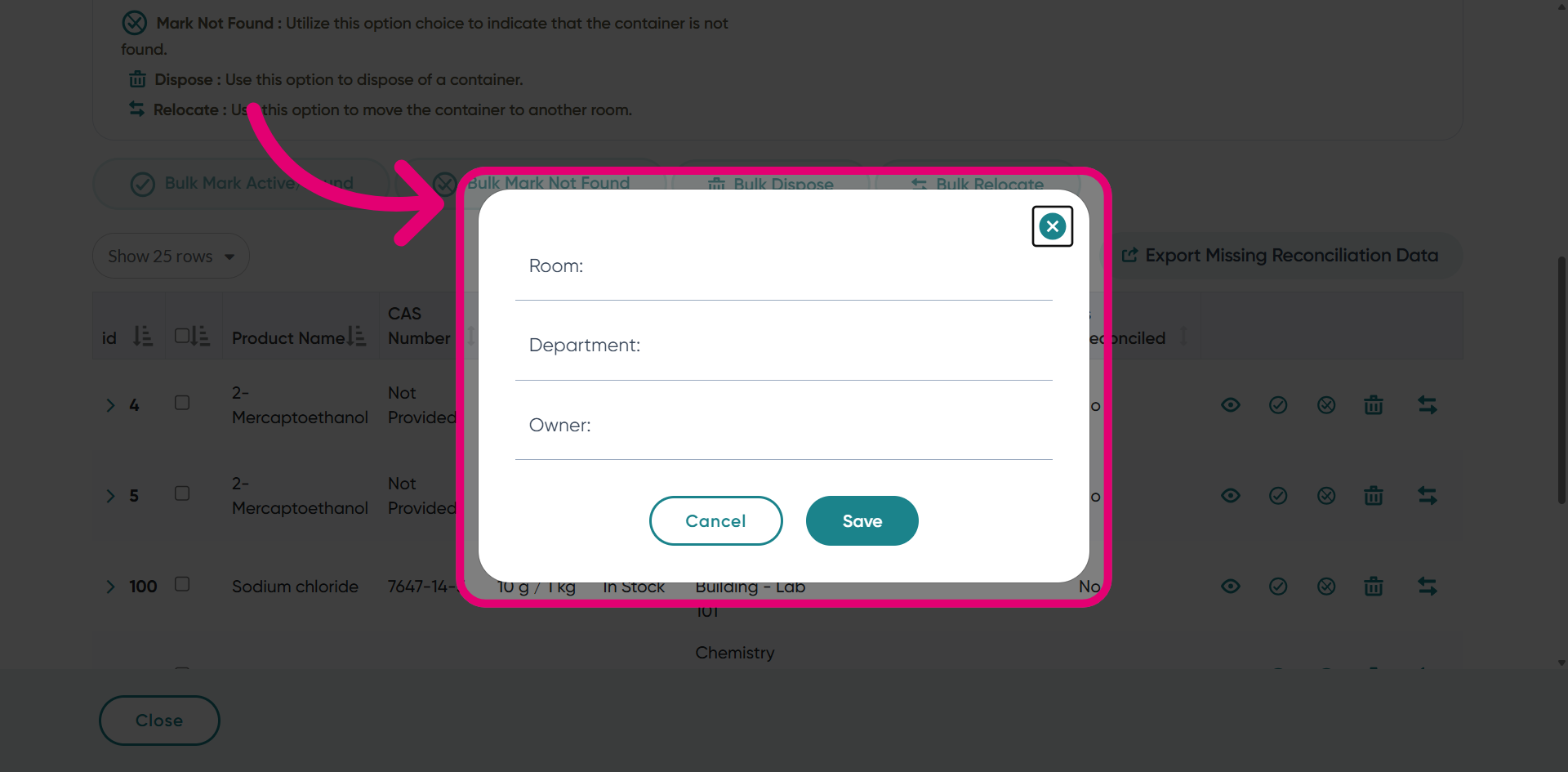
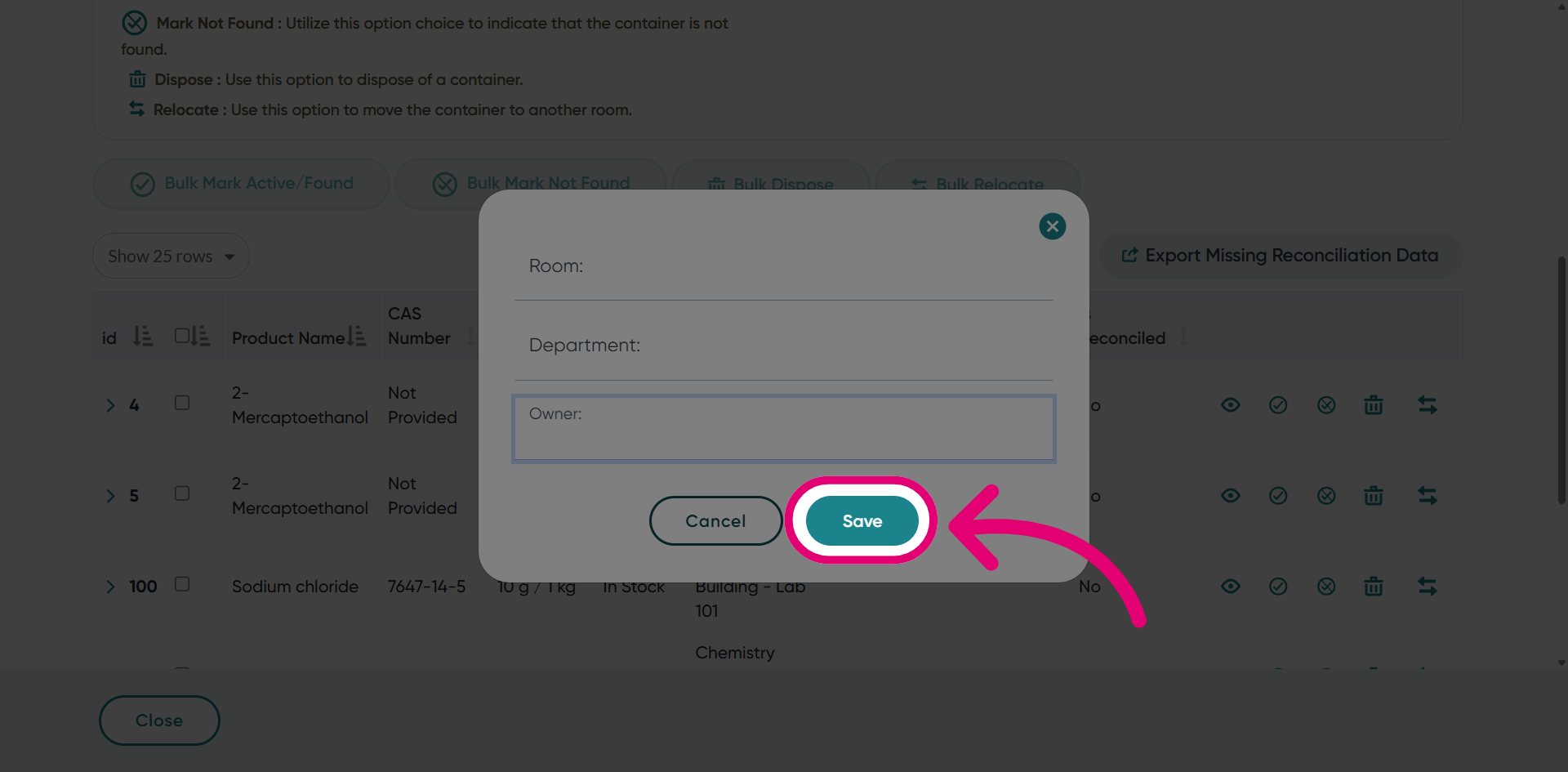
2.5. Relocate
Click Relocate to move the container to a different room and update its assigned location in the system.
2.6. Bulk operations
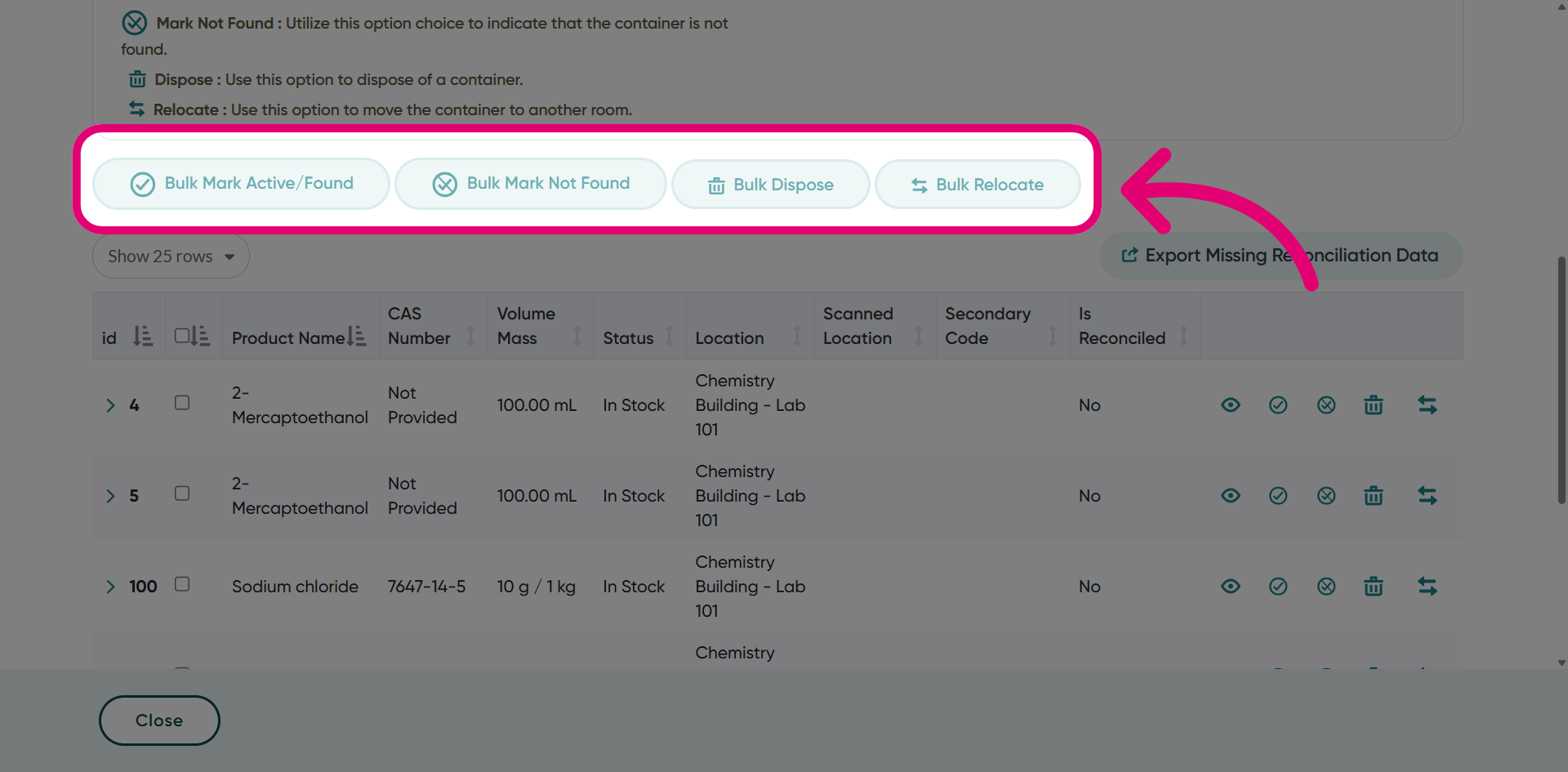
Use bulk operations such as Bulk Mark Not Found, Bulk Dispose, and Bulk Relocate from this tab to process multiple containers at once.