New article
Recently updated
Configuring rules for chemical disposal

Who is this article for?
Administrators who want to learn how to configure rules for chemical disposal.
Administrator permissions are required.
In this tutorial, we will learn how to configure chemical approval rules for disposal in the Chemical Inventory settings to manage and control approval workflows effectively.
1. Configure chemical disposal approval rules
- Go to awstest.labcliq.com
-
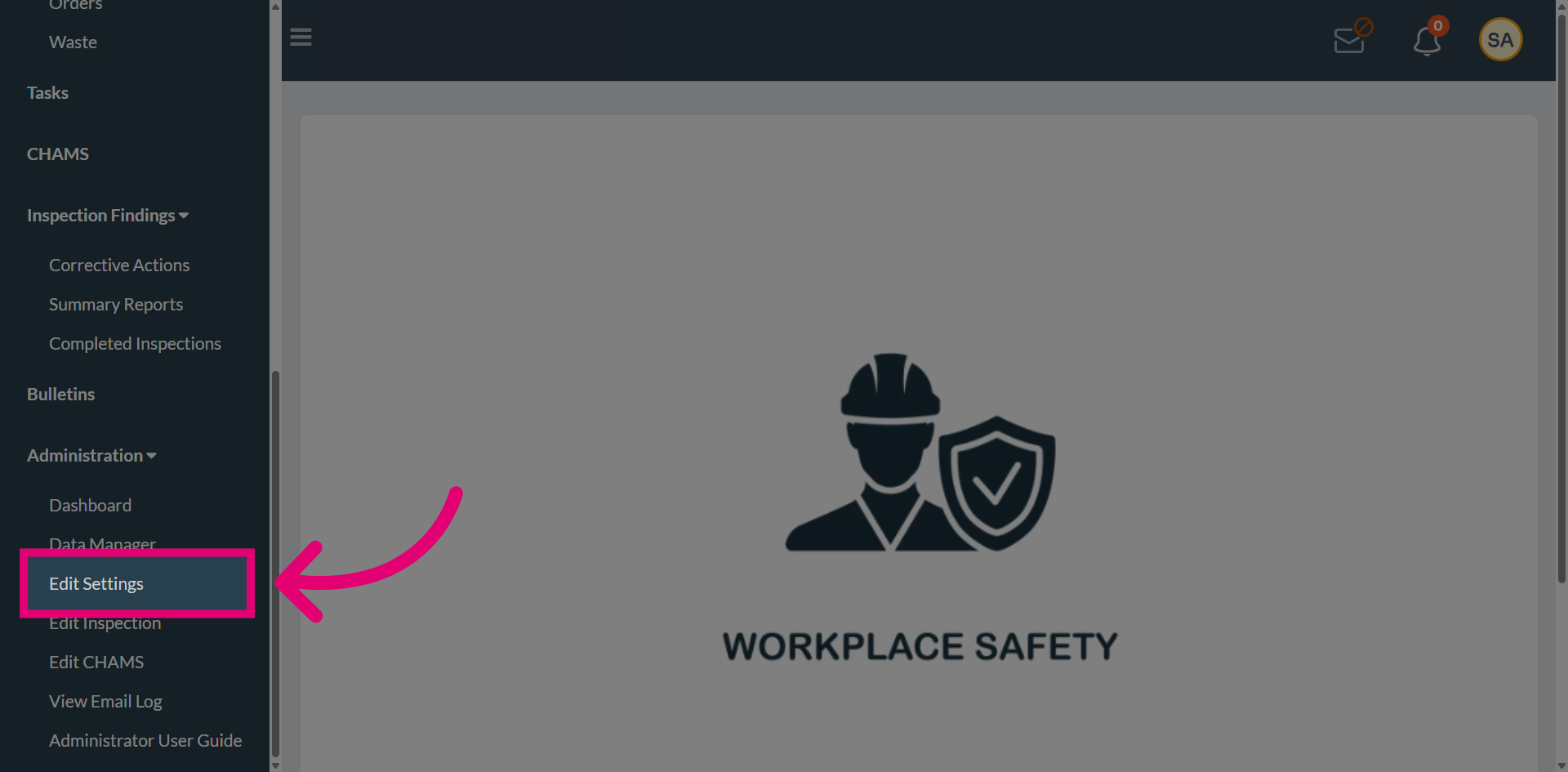
Select Edit Settings to navigate to the configuration settings.
-
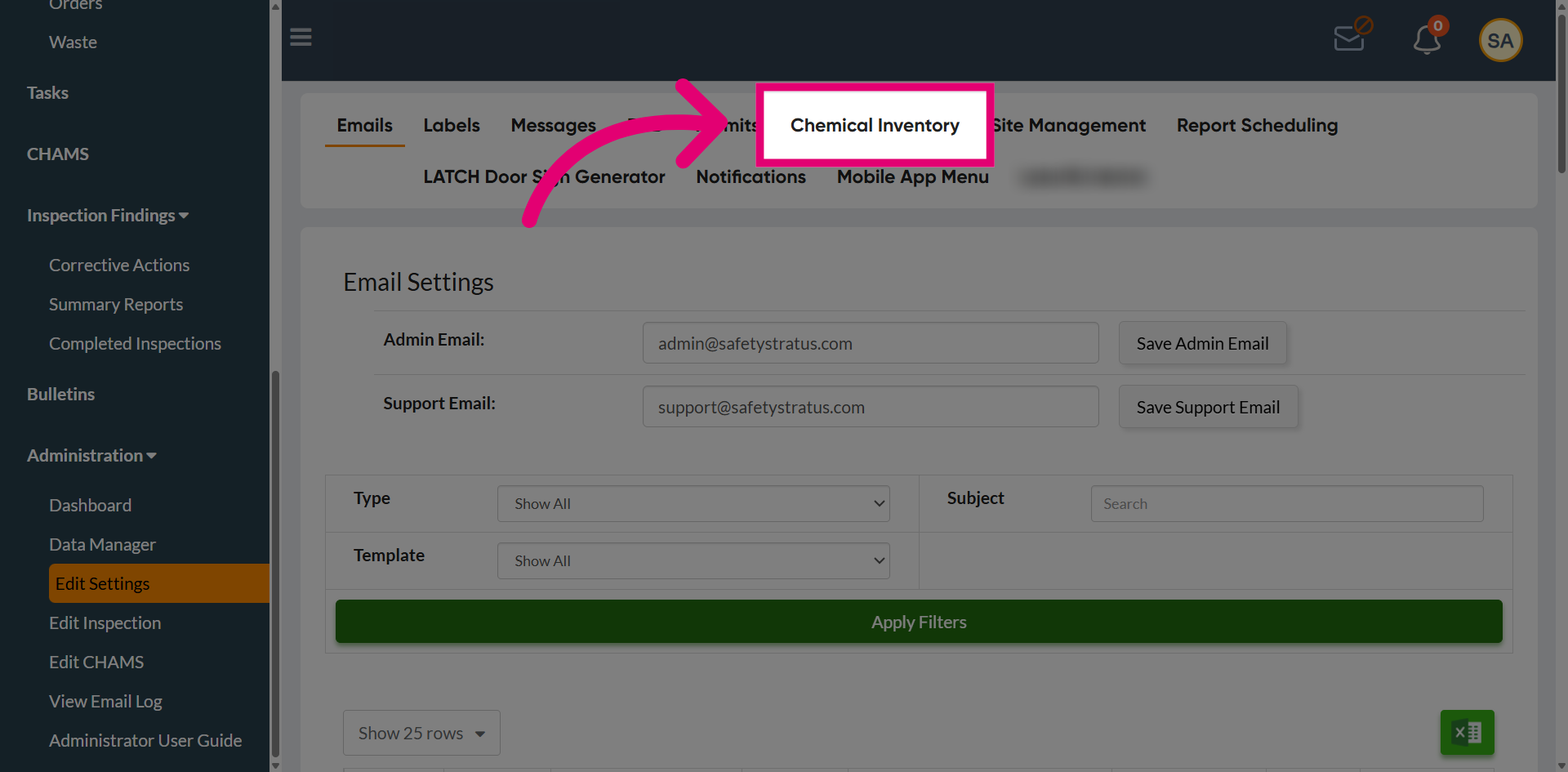
Go to Chemical Inventory to view and manage all chemical-related settings and data.
-
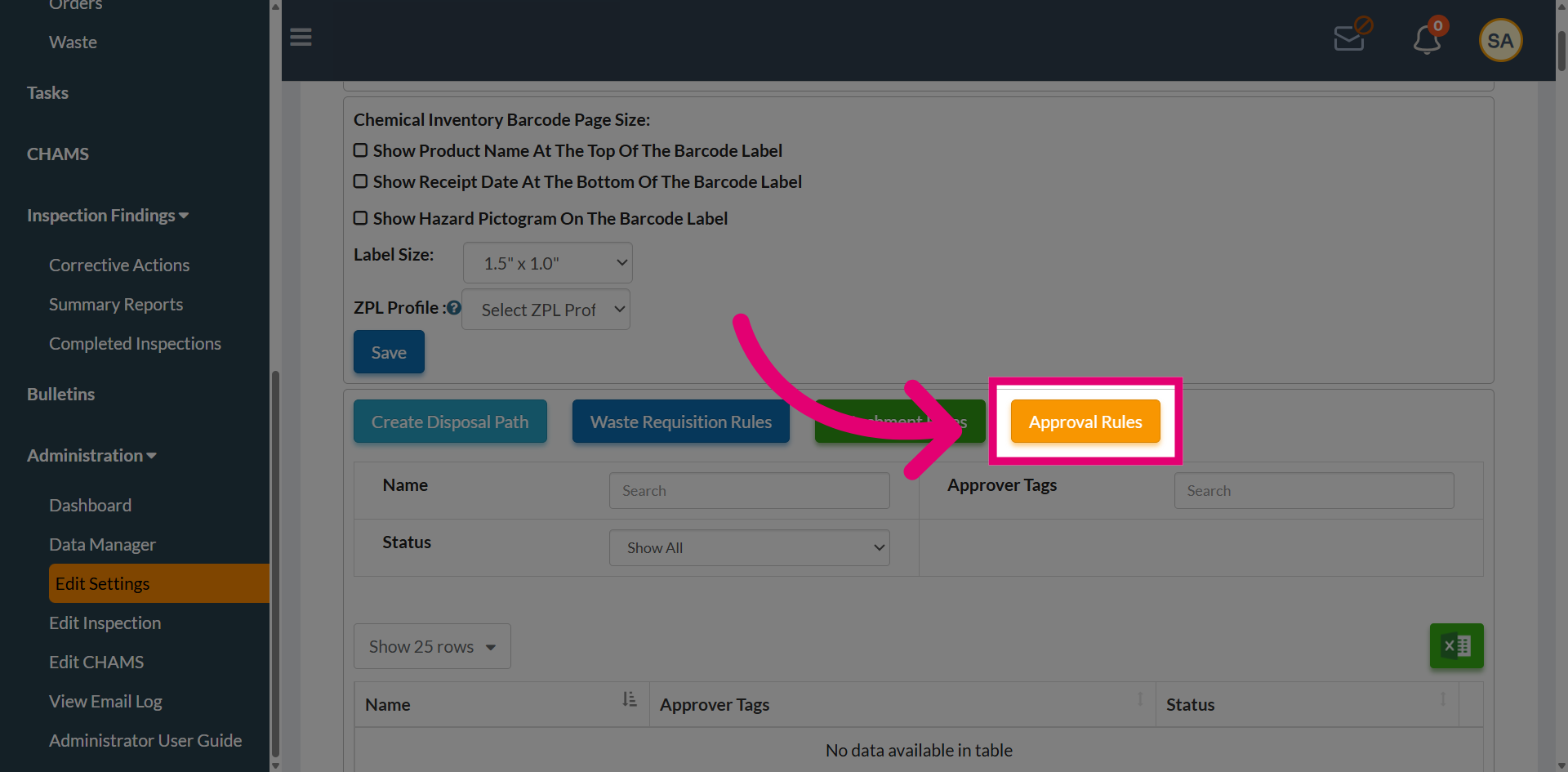
Open Approval Rules to access current rules or set up new chemical disposal approval rules.
-
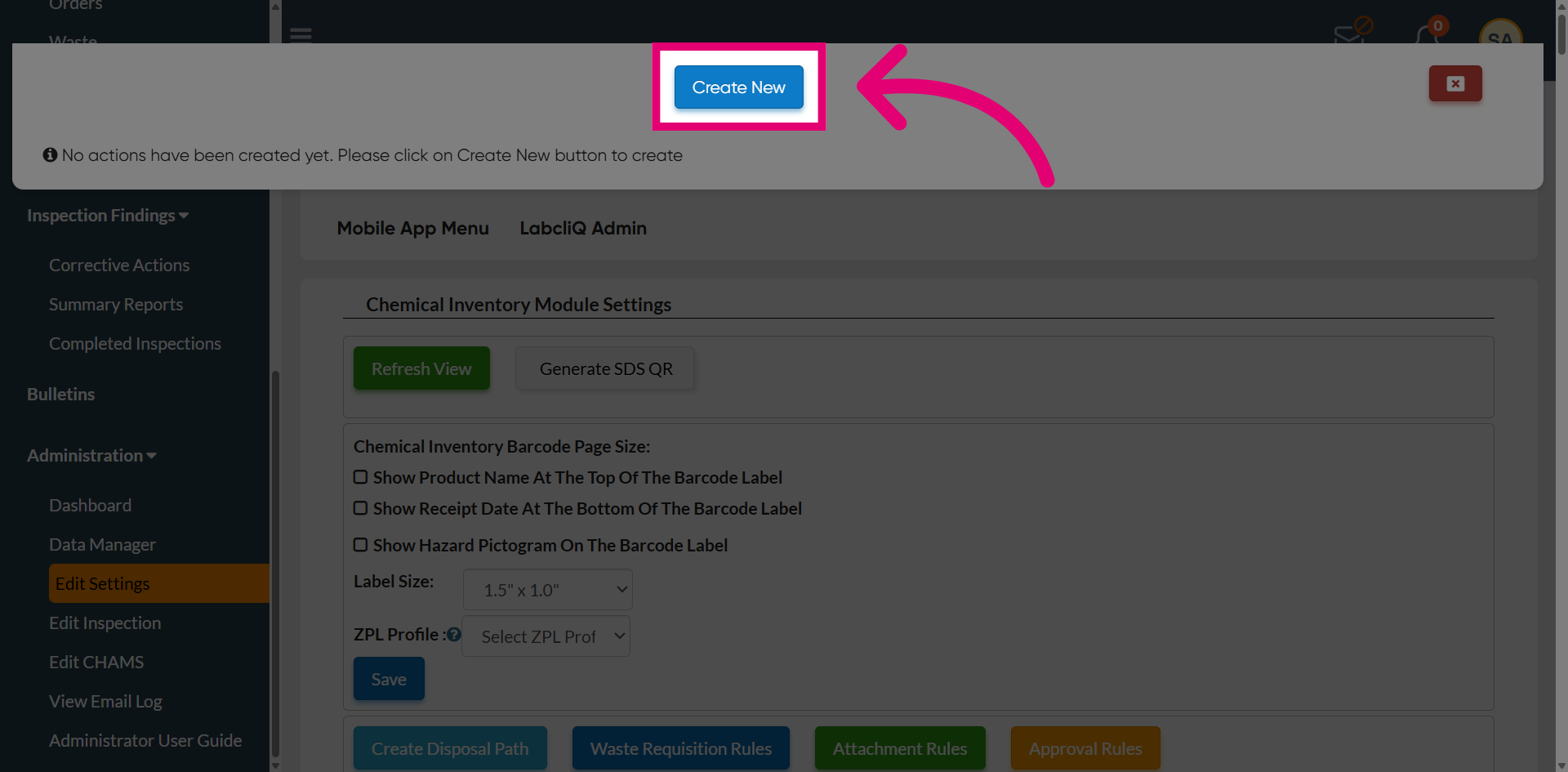
Go to Create New to create and configure a new disposal approval rule.
-
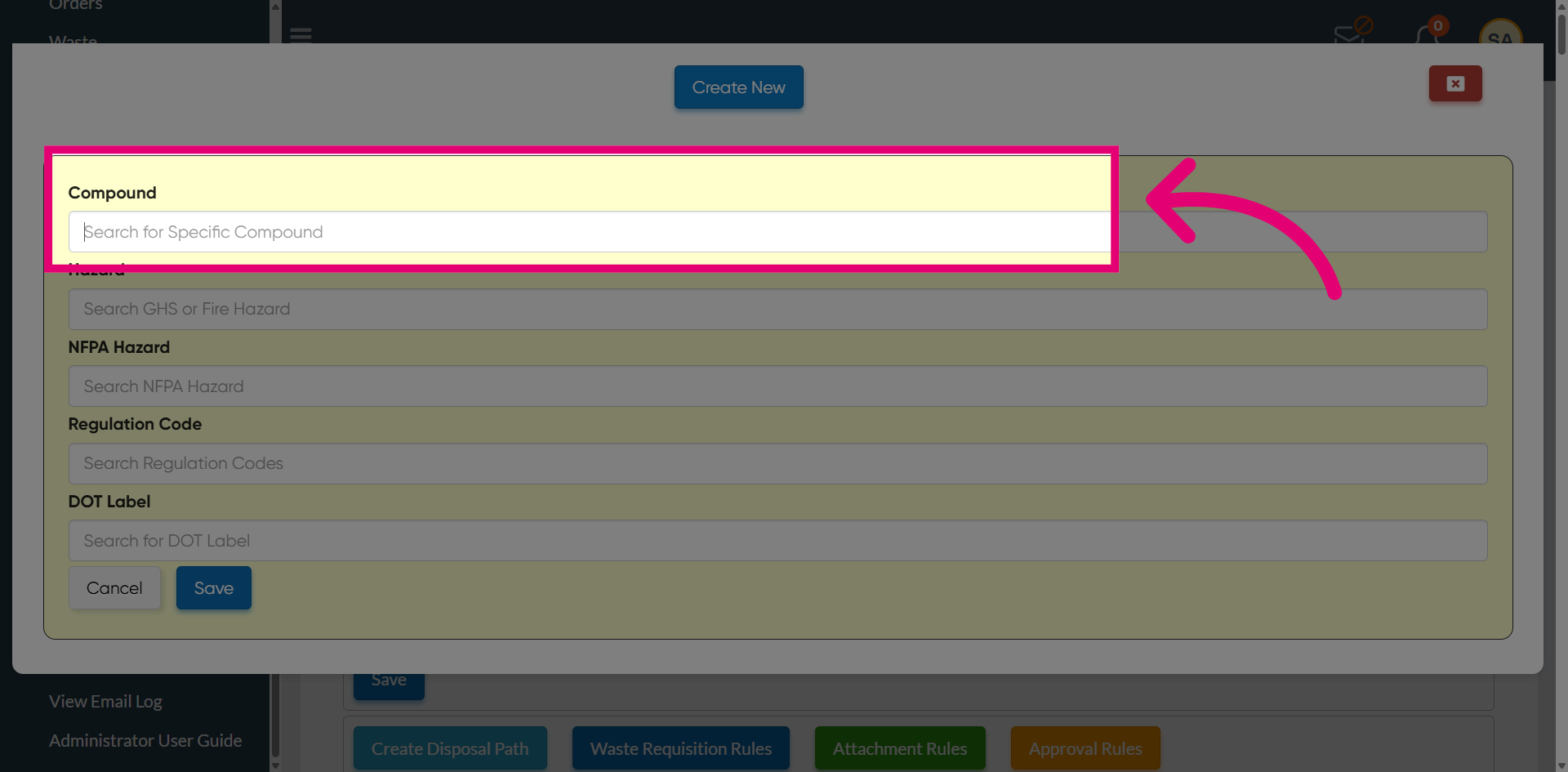
Use the Compound field to search for a specific compound and select from the dropdown to locate the chemical for rule configuration.
-
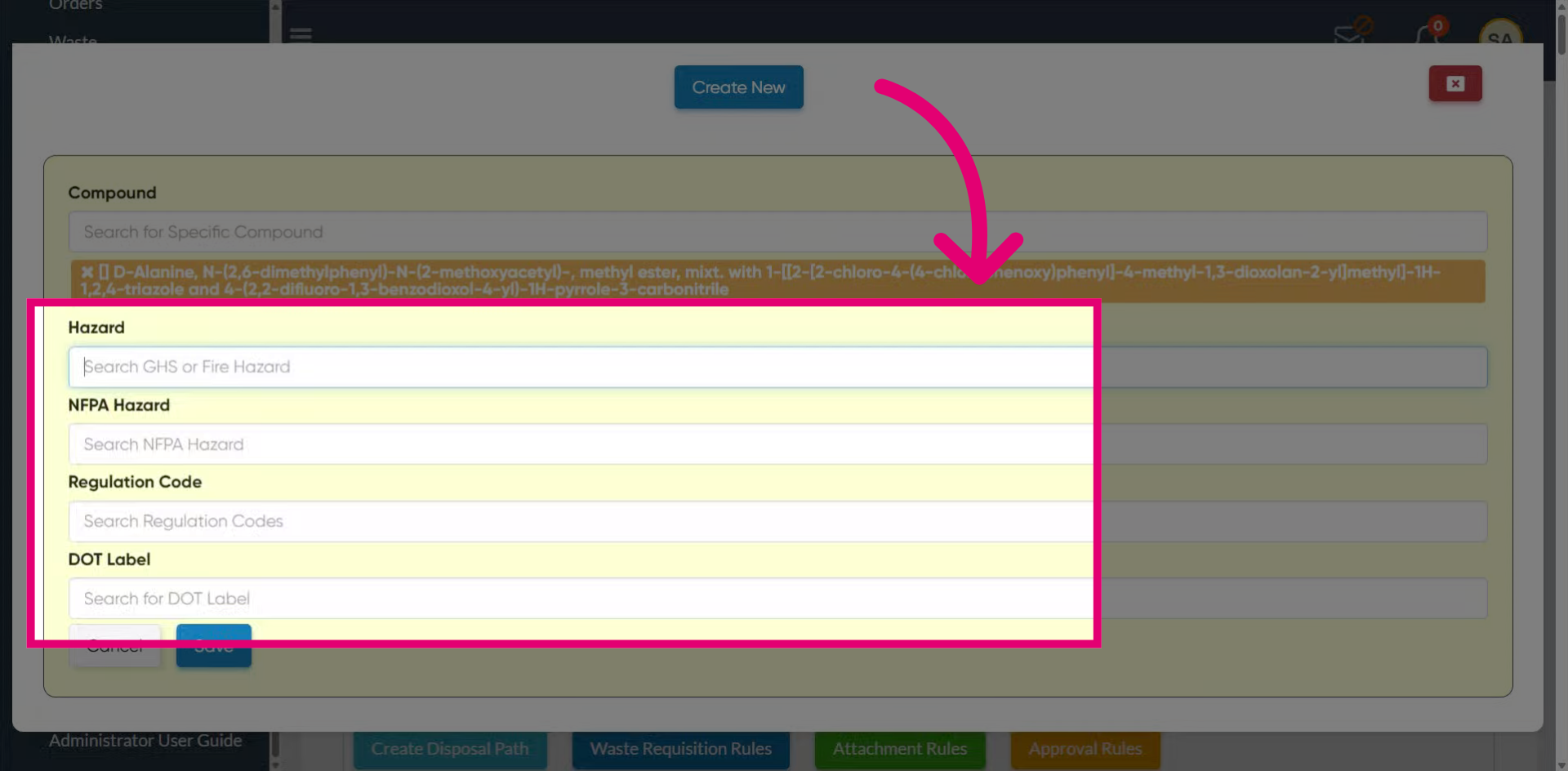
Use Search GHS or Fire Hazard to define the applicable hazard classifications and select from the dropdown.
-
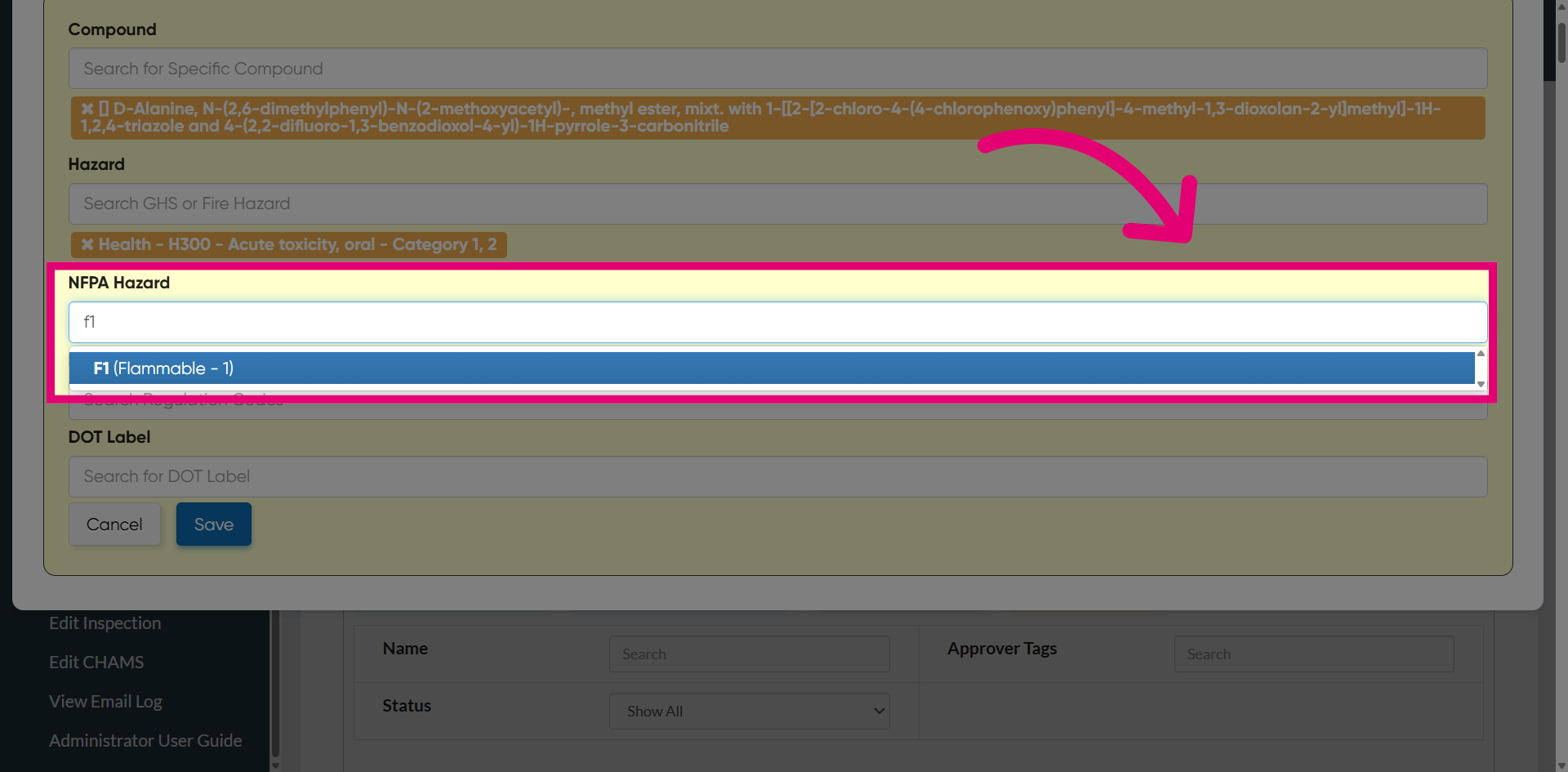
Access NFPA Hazard to assign the appropriate National Fire Protection Association hazard rating.
-
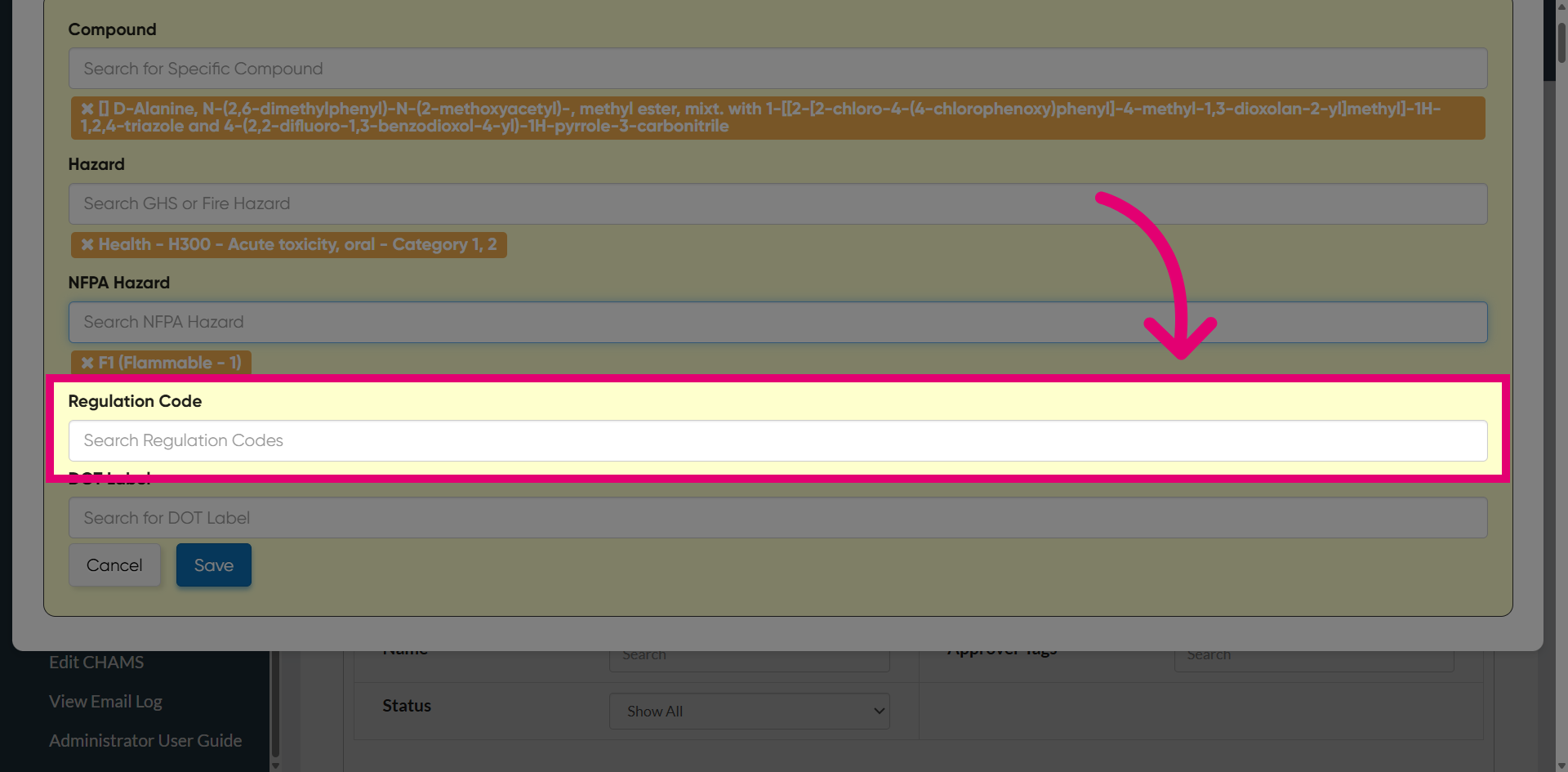
Search Regulation Codes to review and apply relevant regulatory classifications.
-
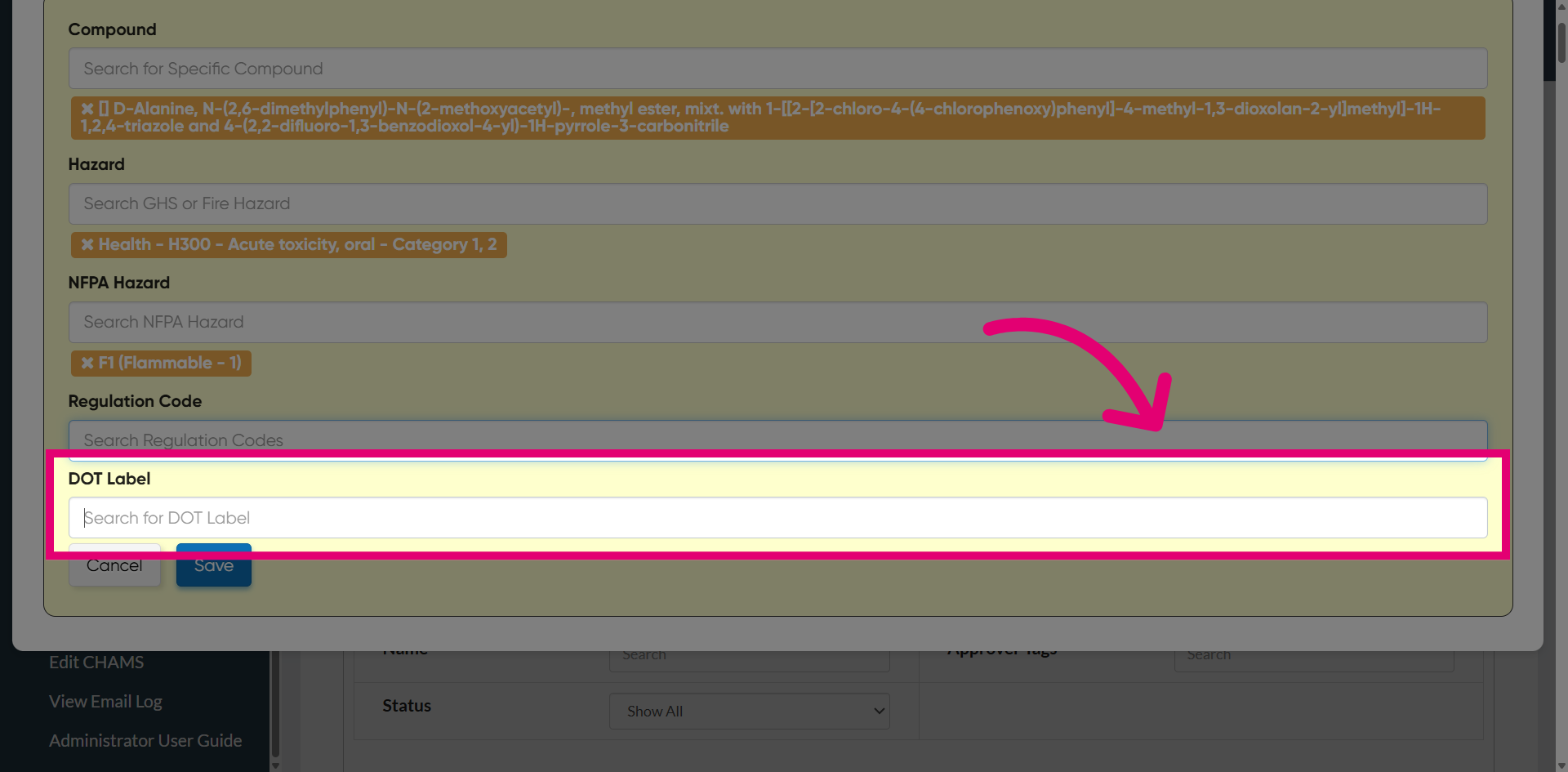
Access DOT Label to identify and assign the appropriate Department of Transportation label for the compound if any.
-
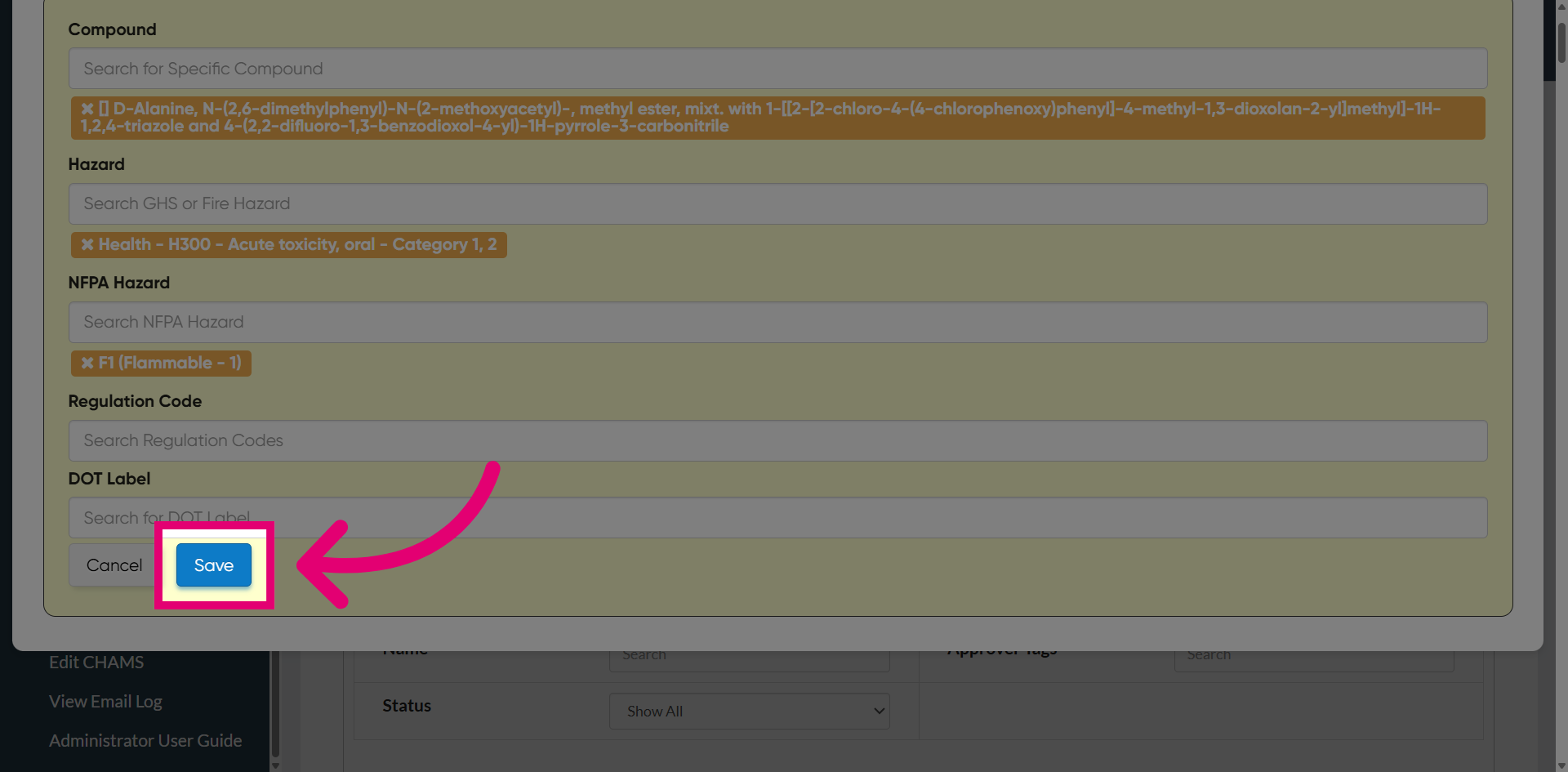
Select Save to apply and store the configured approval rule settings.
-
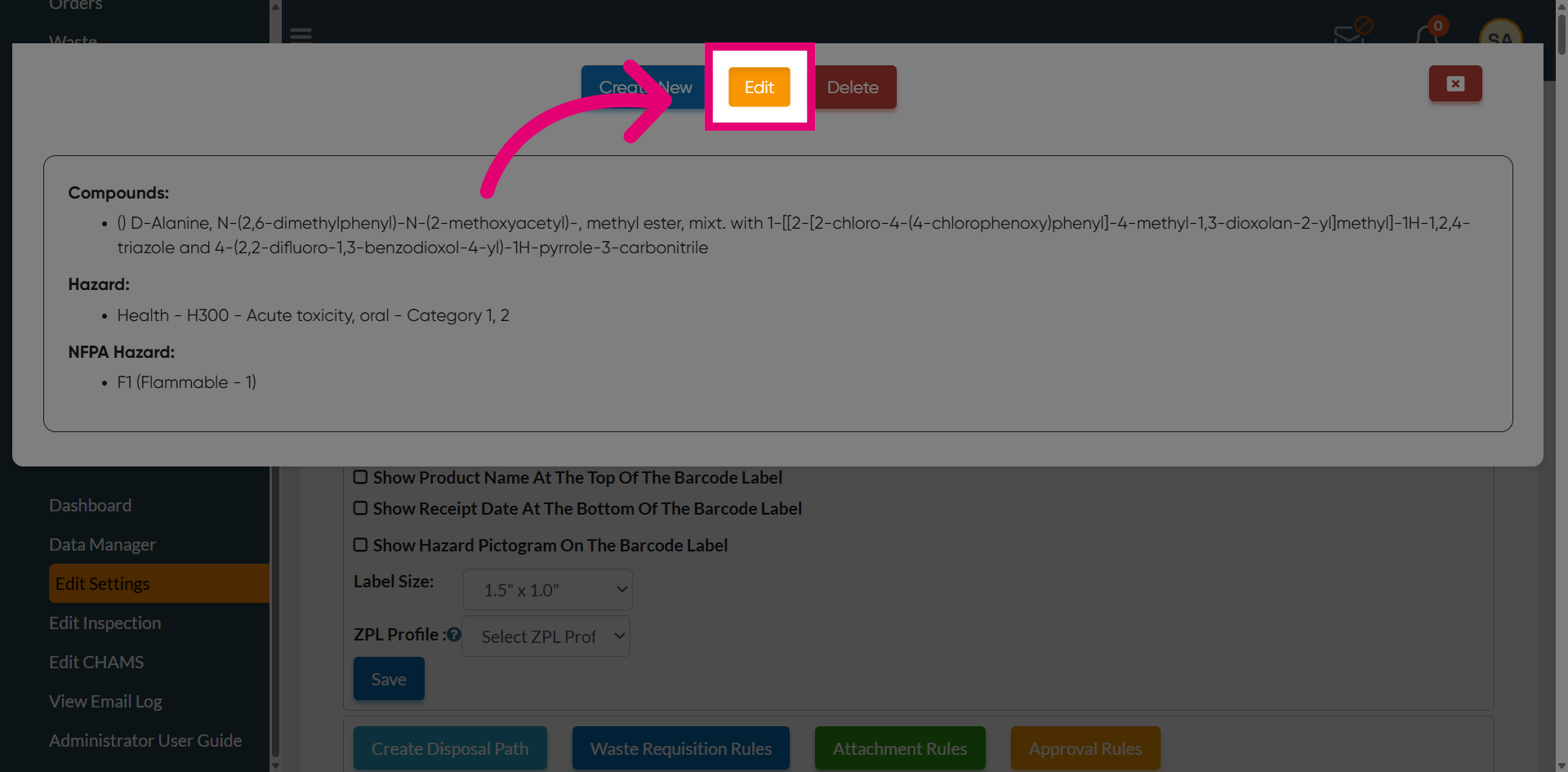
Choose Edit to update or modify an existing approval rule.
-
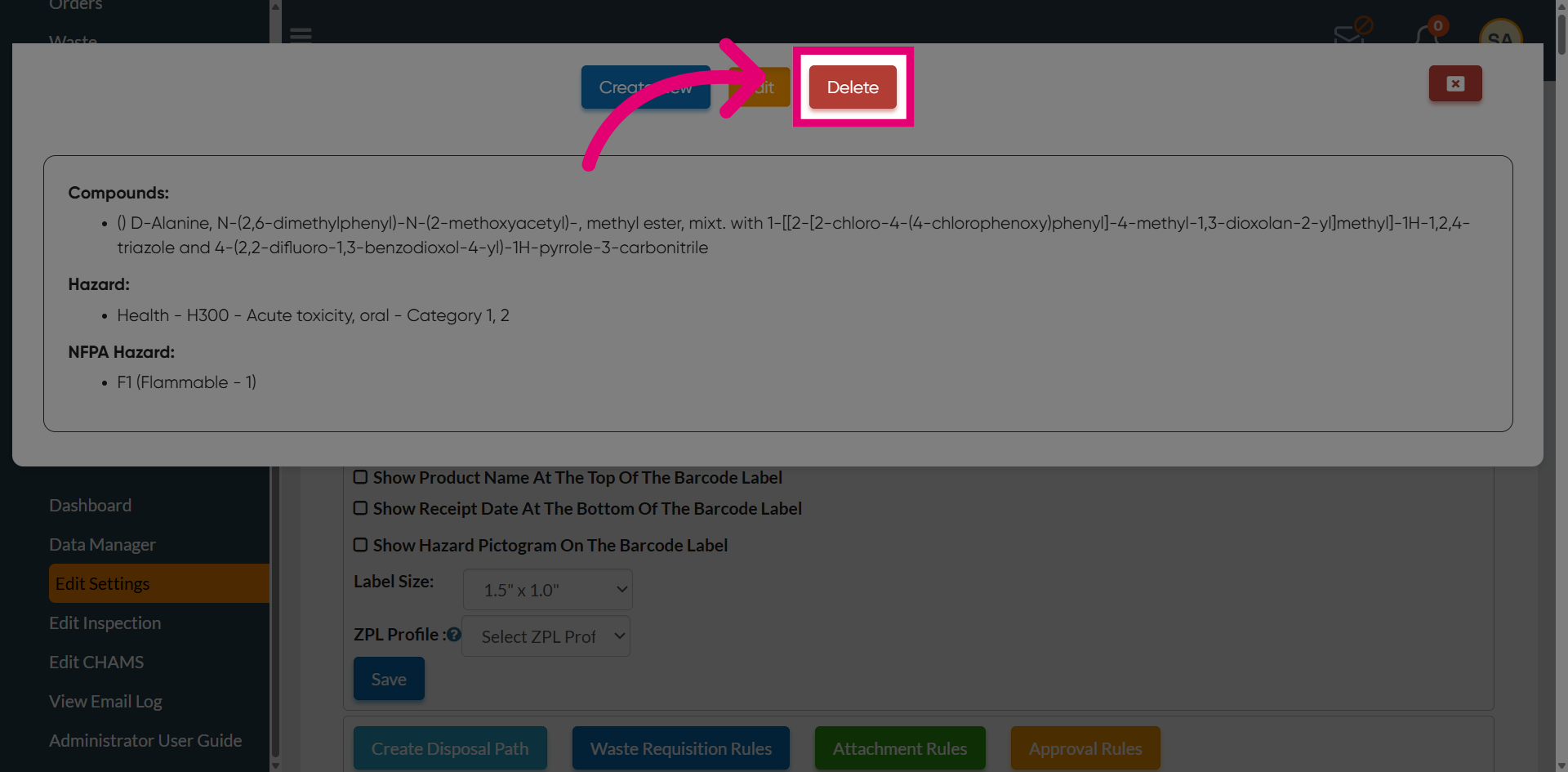
Select Delete to remove an existing approval rule.