New article
Recently updated
Attaching SDS to an existing inventory record

Who is this article for?
Administrators who want to learn to attach SDS to an existing Inventory Record.
Administrator permissions are required.
This article guides you through the process of attaching an SDS to an existing inventory item.
Attaching an SDS
To attach an SDS to an inventory record:
- Log into the system.
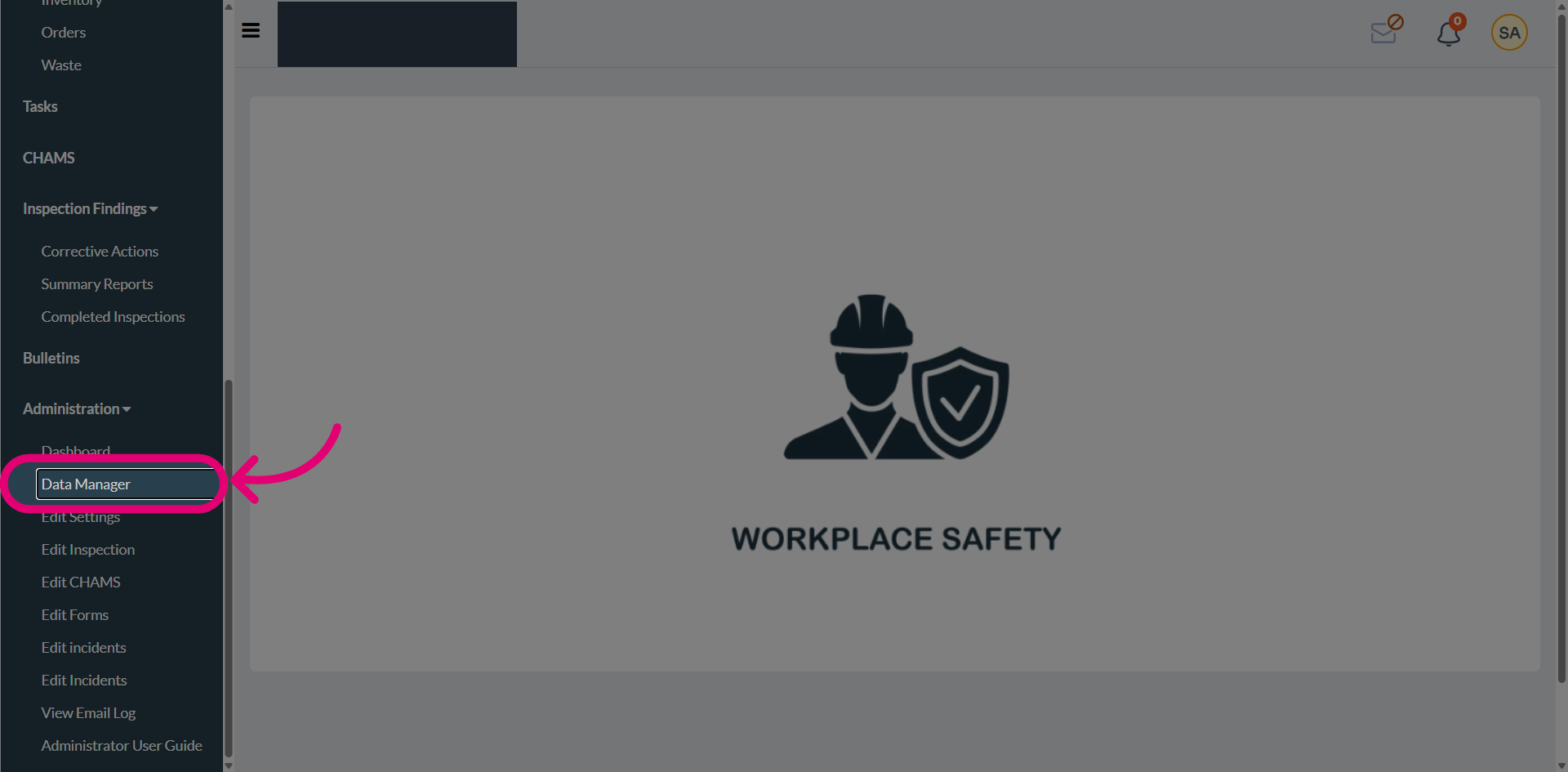
Click Data Manager to access the main management interface for chemical data.
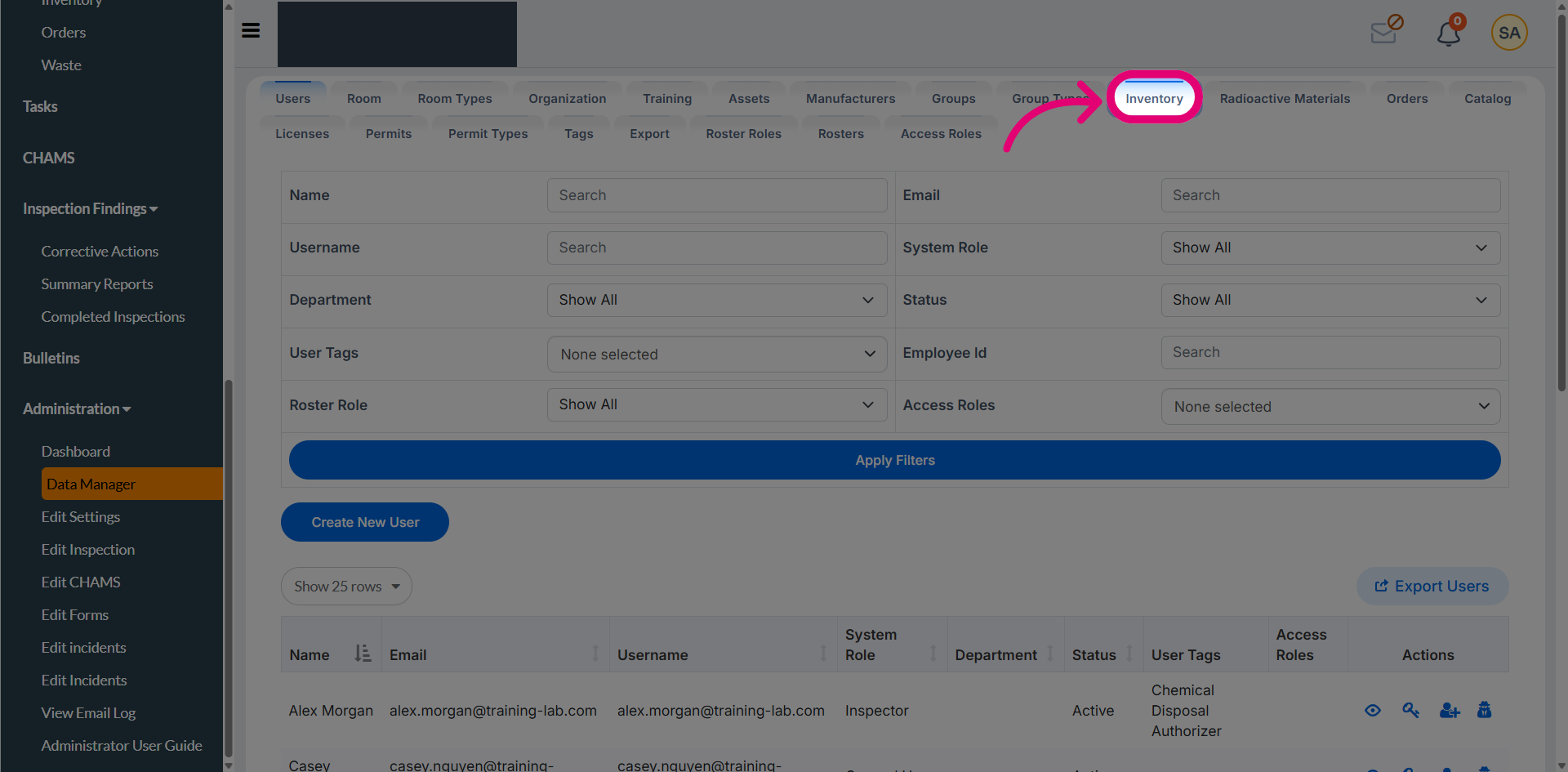
Select Inventory to access and manage your chemical inventory records and the SDS.
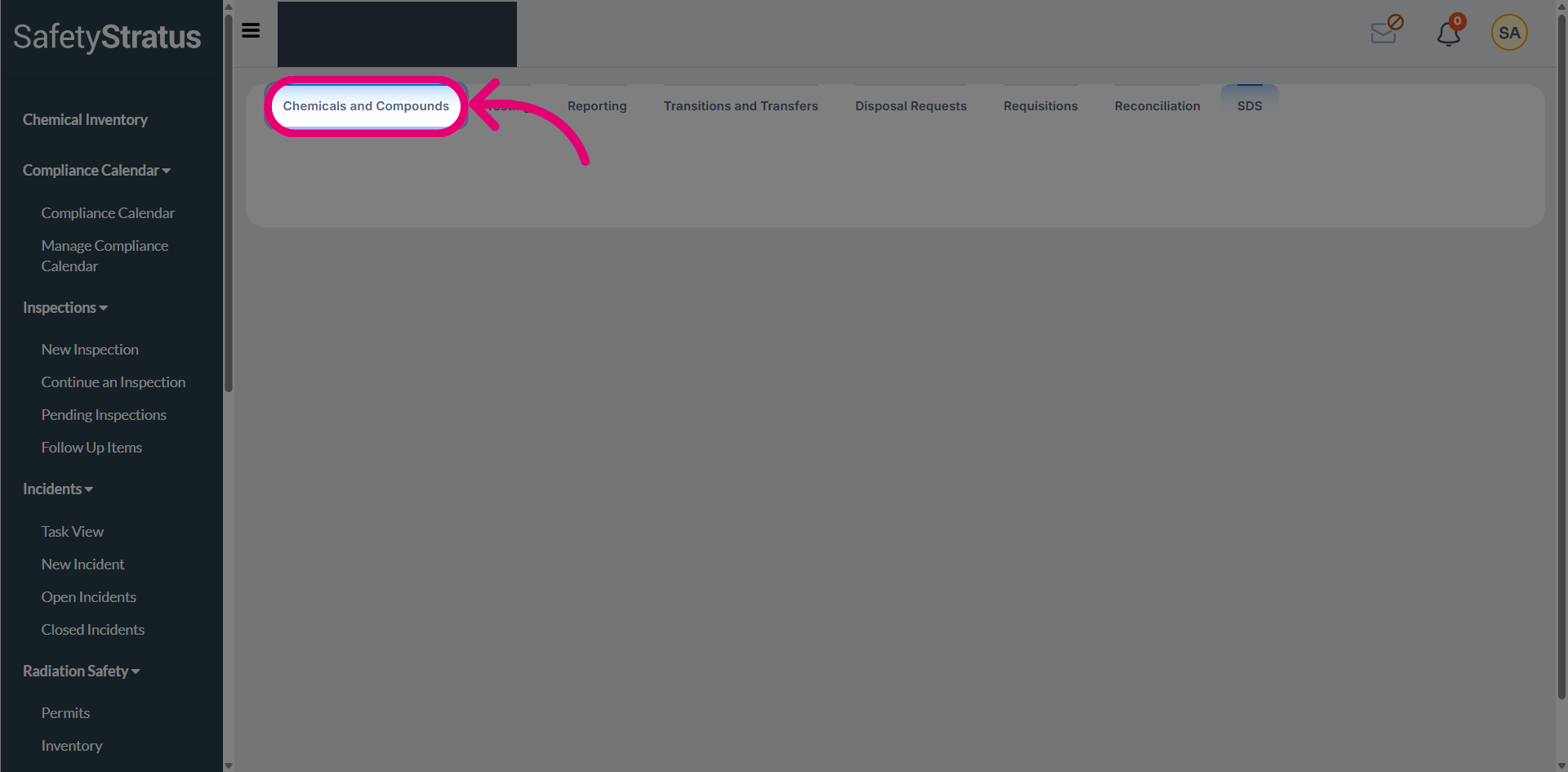
Navigate to the Chemicals and Compounds tab to access the inventory management page.
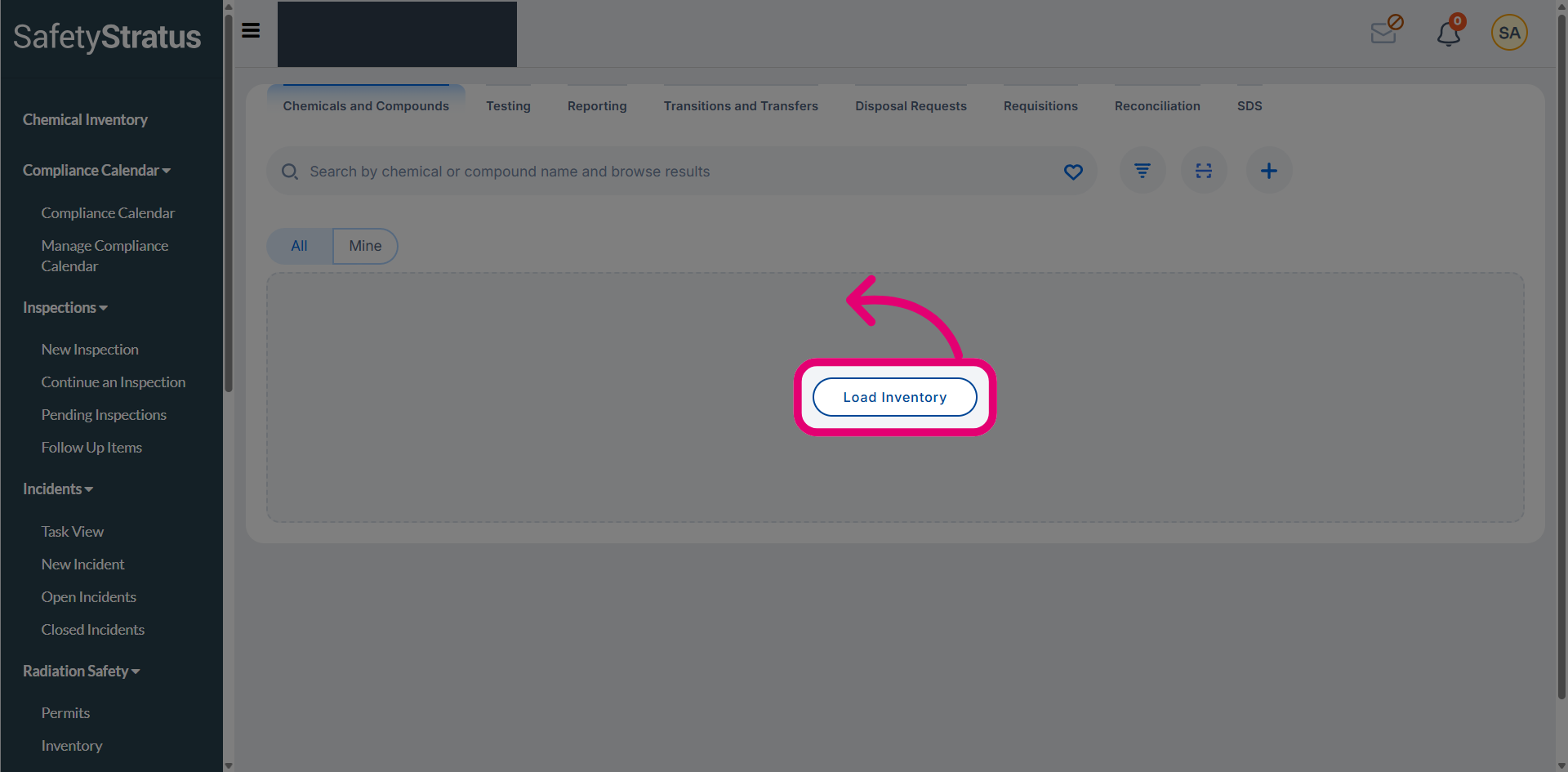
Click Load Inventory to refresh and load the chemical inventory data.
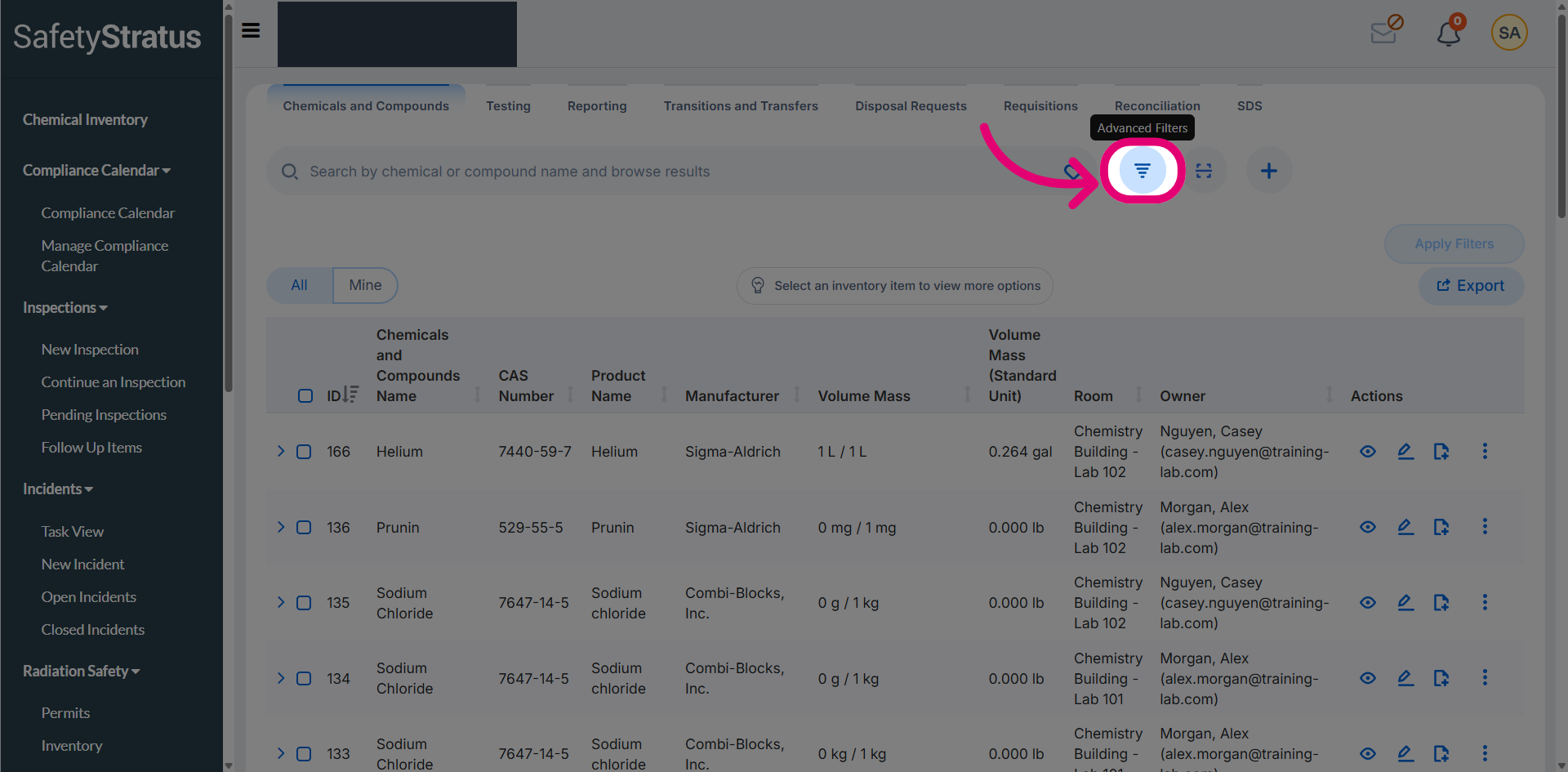
Click Show Advanced Filters to access additional filtering options for the inventory.
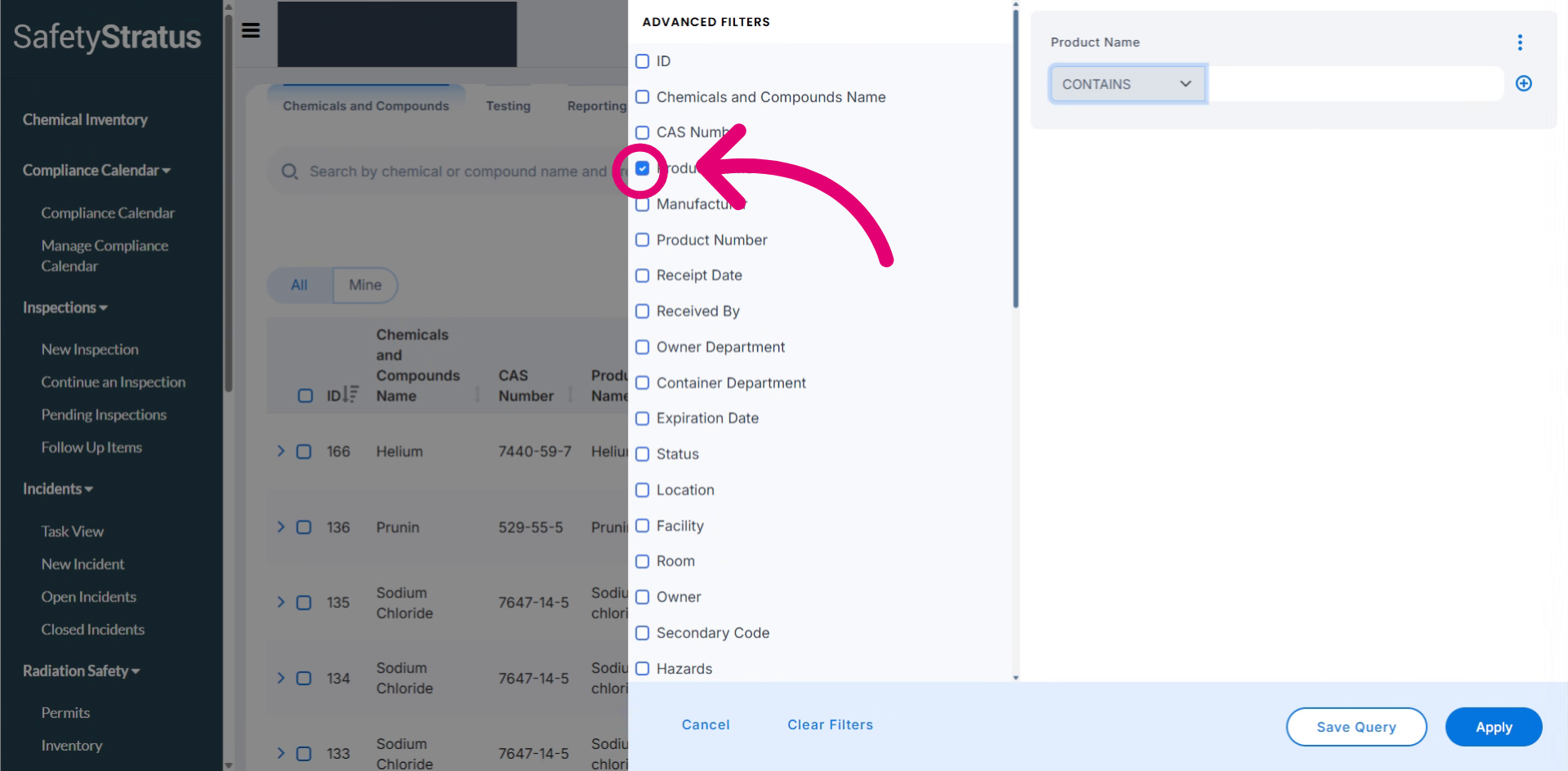
Select the Product Name filter option and paste the product name in the search box to search inventory items by product name, requiring an SDS upload.
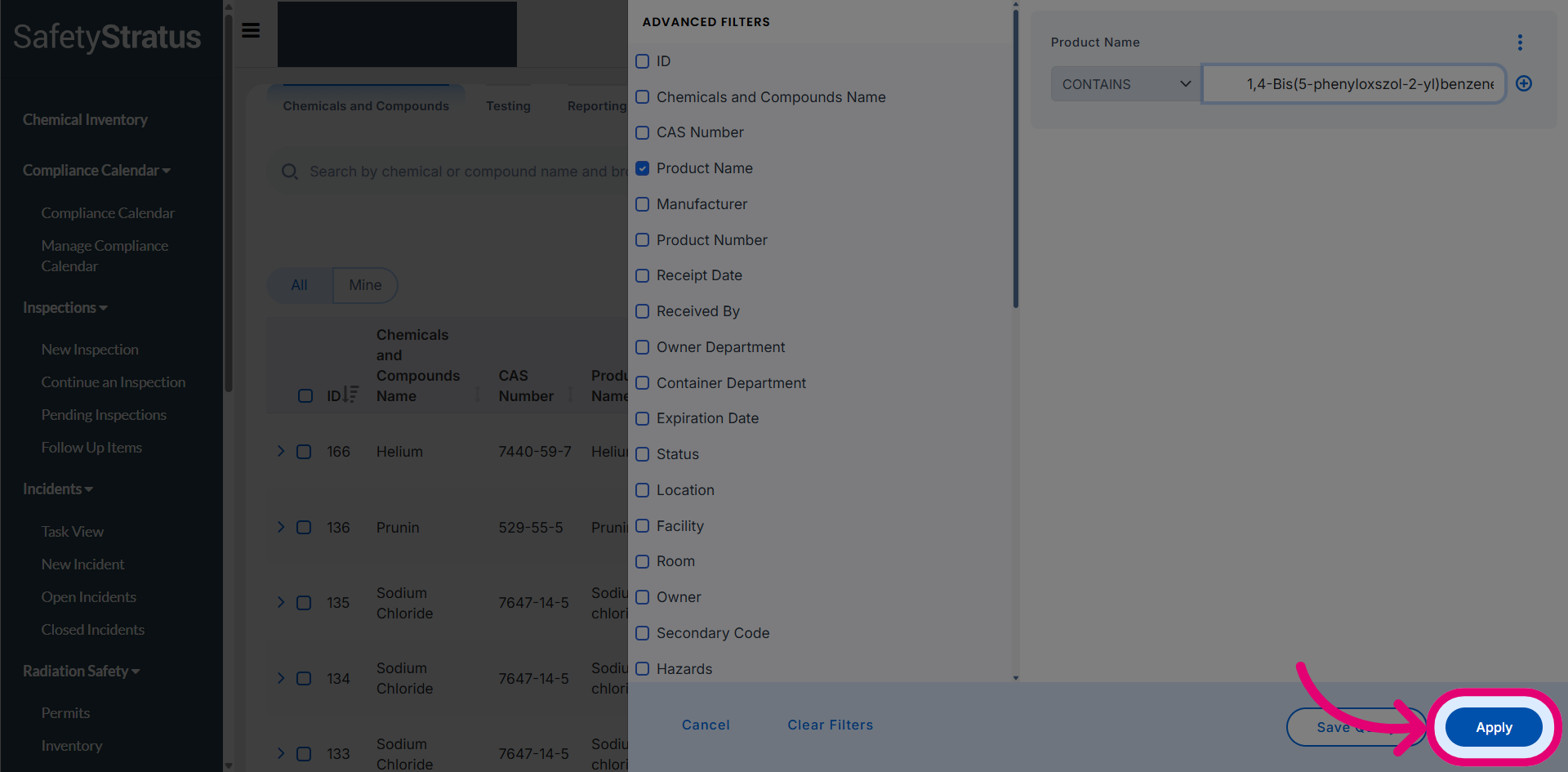
Click Apply to run the filter and display the matching inventory items.
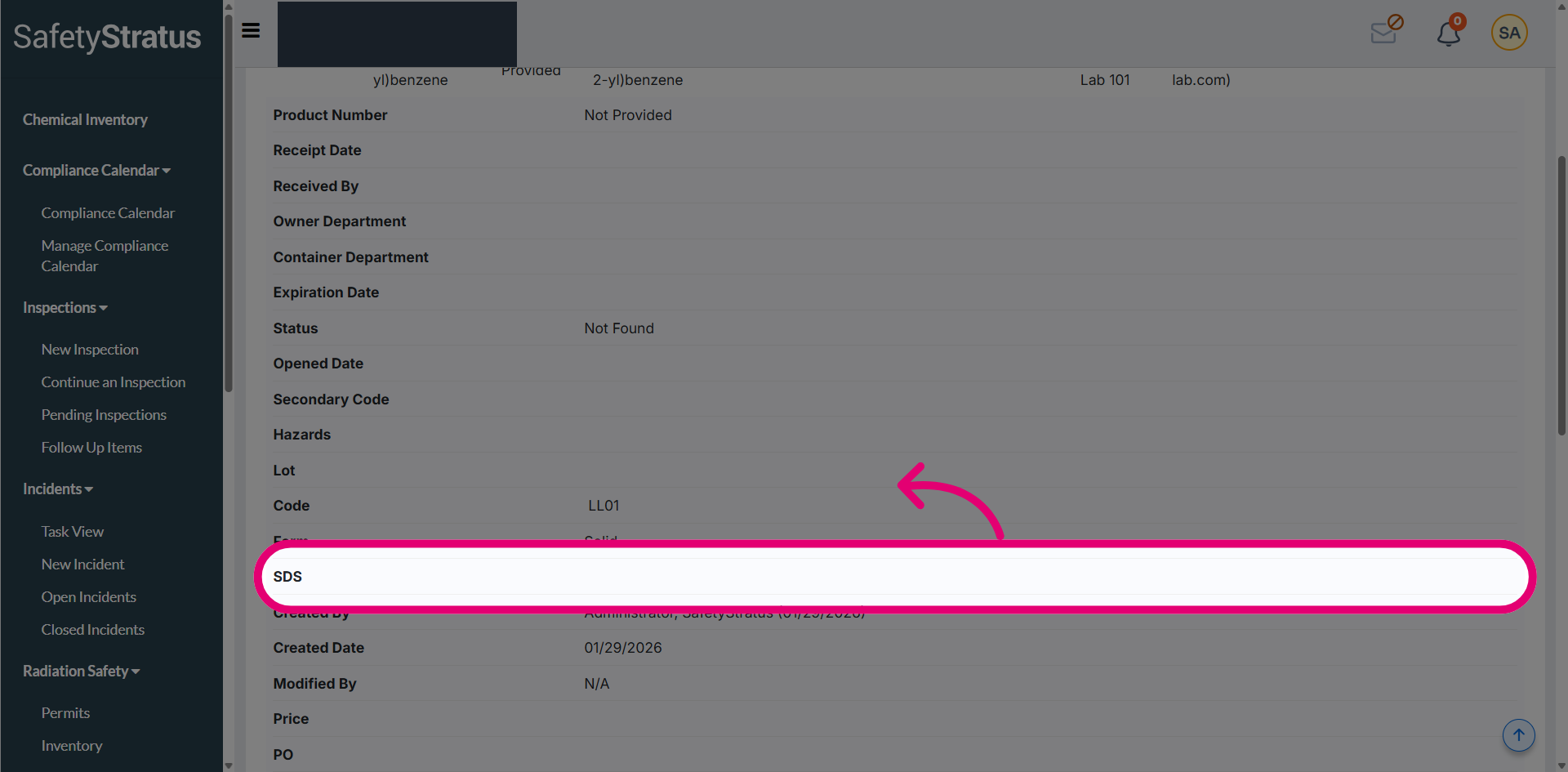
For the selected chemical and compound, the SDS document is not available.
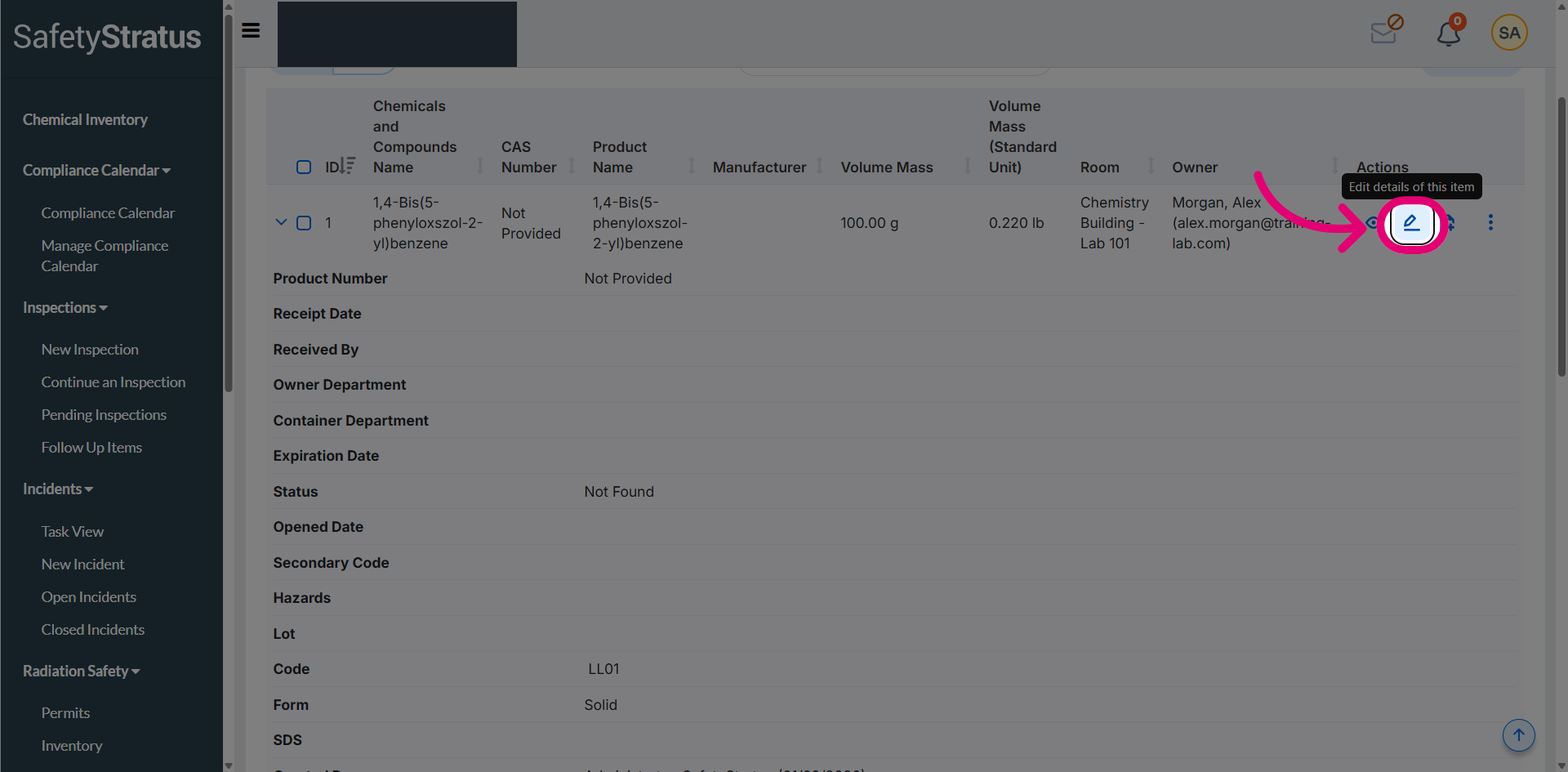
Click the Edit option to open the editing interface for uploading the SDS document.
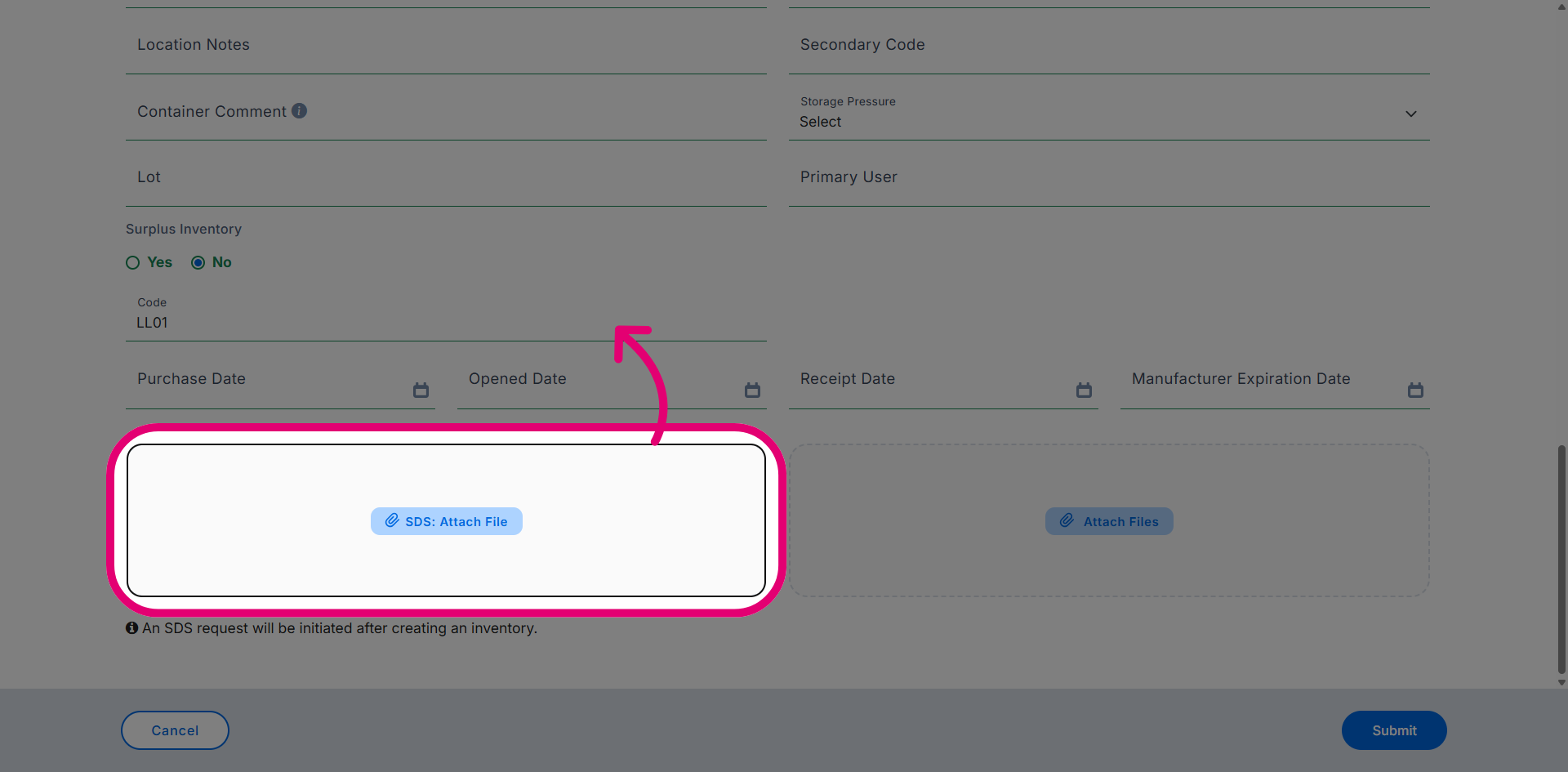
Use the SDS Attach File option to attach the SDS document.
Click Submit to save the uploaded Safety Data Sheet (SDS) to the system.
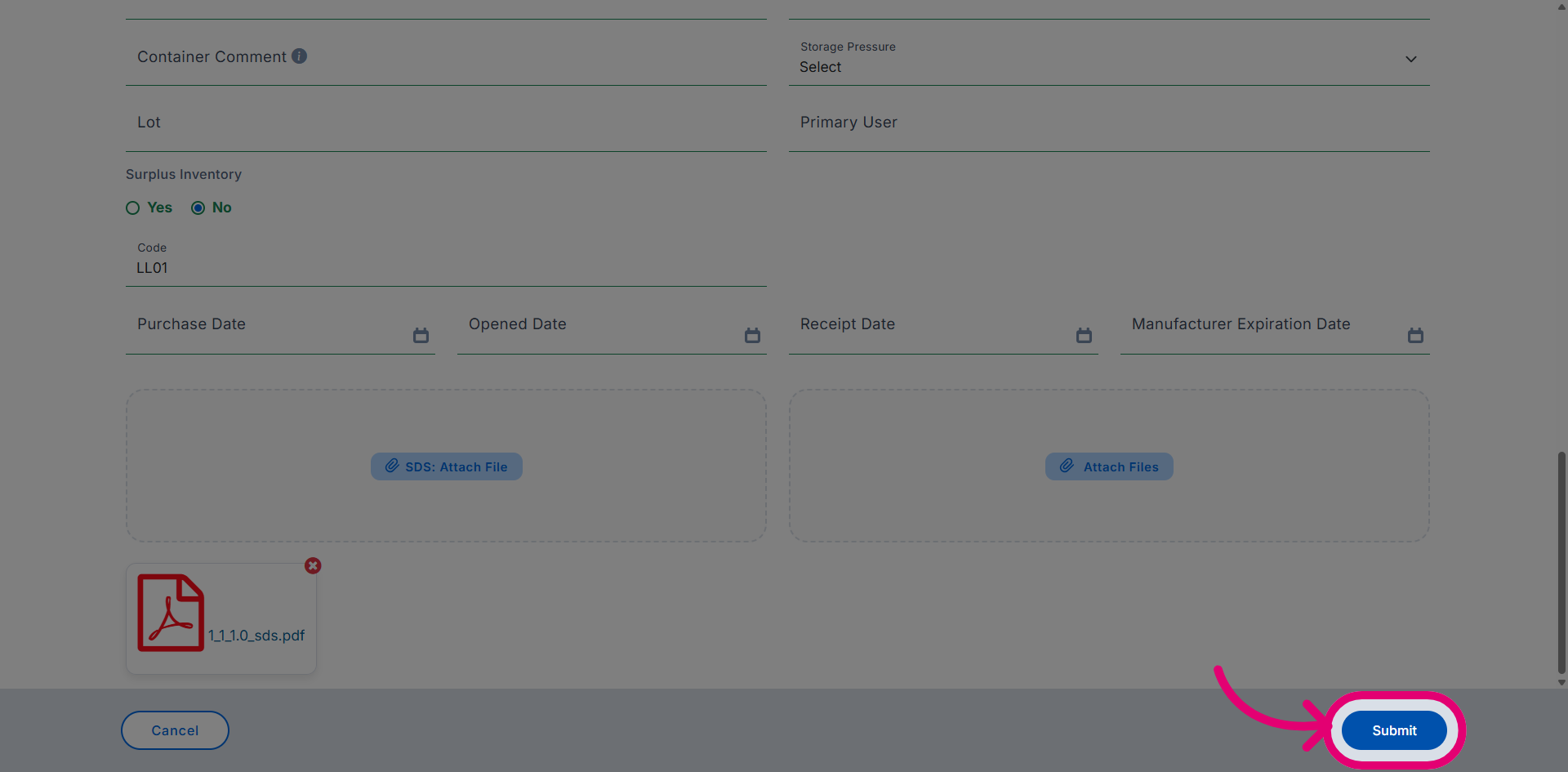
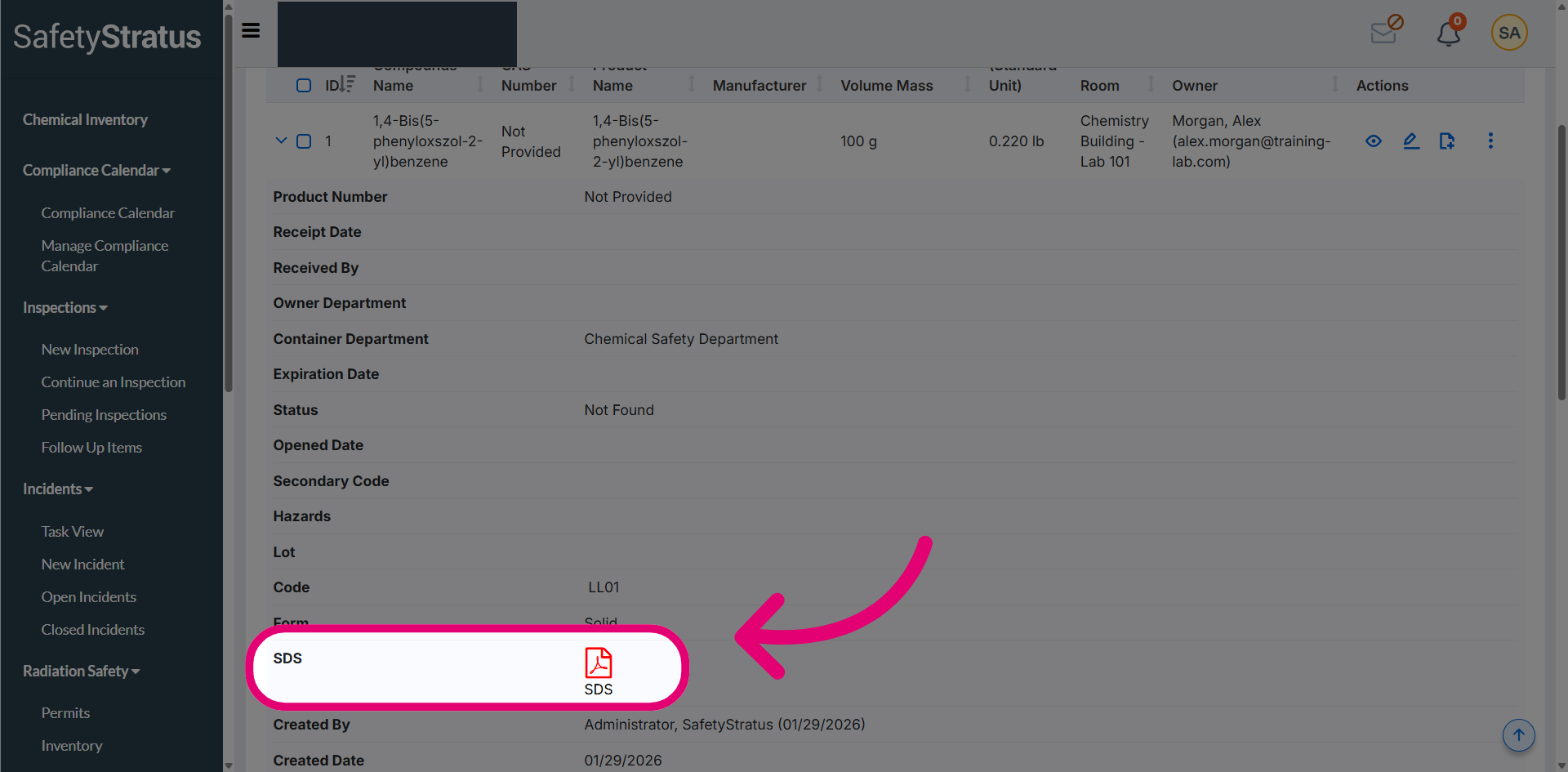
The SDS file is now successfully attached to the chemical.