New article
Recently updated
Scheduling reports

Who is this article for?
Administrators responsible for managing report scheduling.
Administrator permissions are required.
This article explains how to configure report scheduling, allowing summary and action reports to be automatically emailed to selected recipients on a defined schedule.
Scheduling a report
To schedule a report:
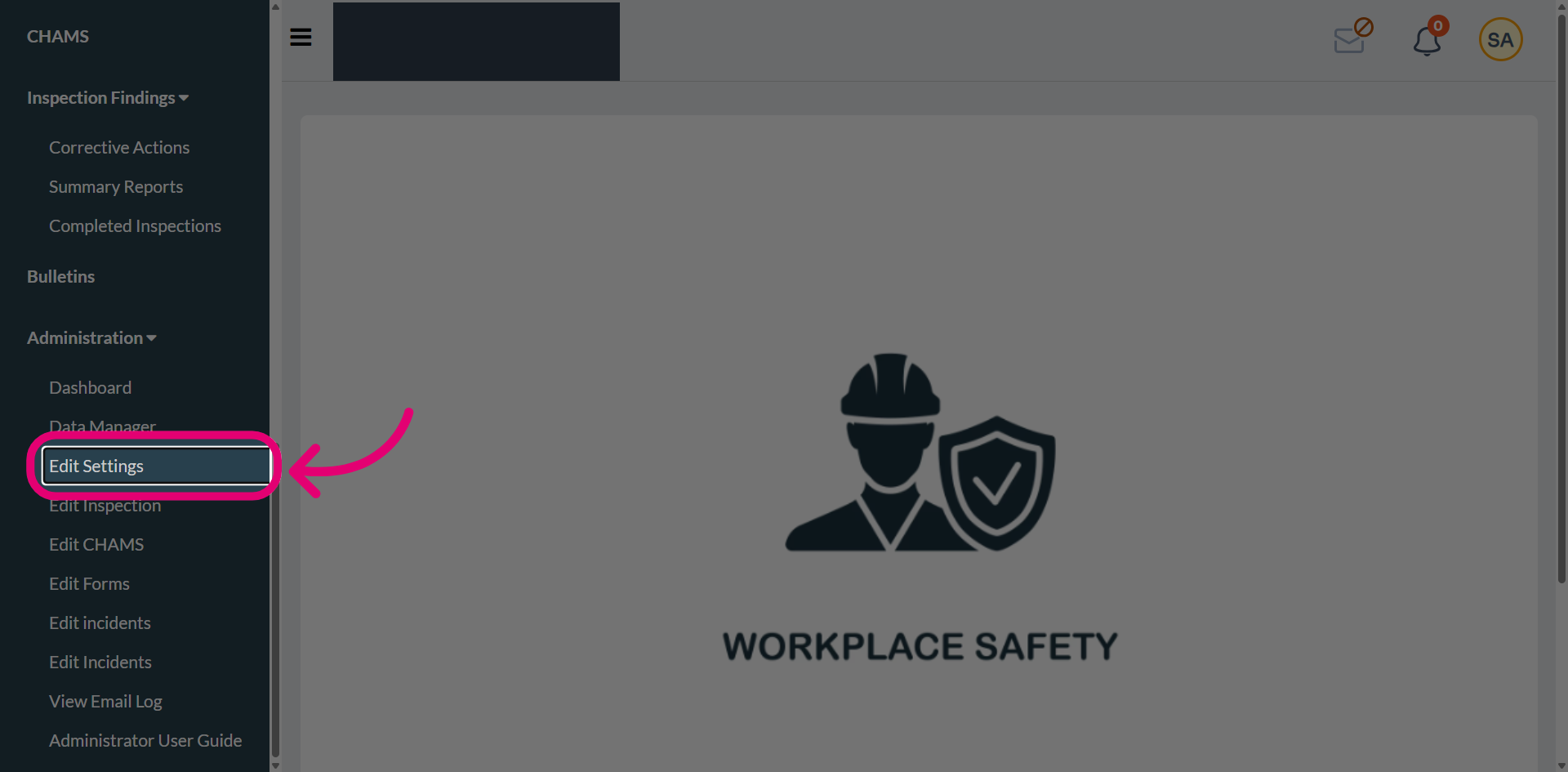
- Open the Administration menu.
- Select Edit Settings.
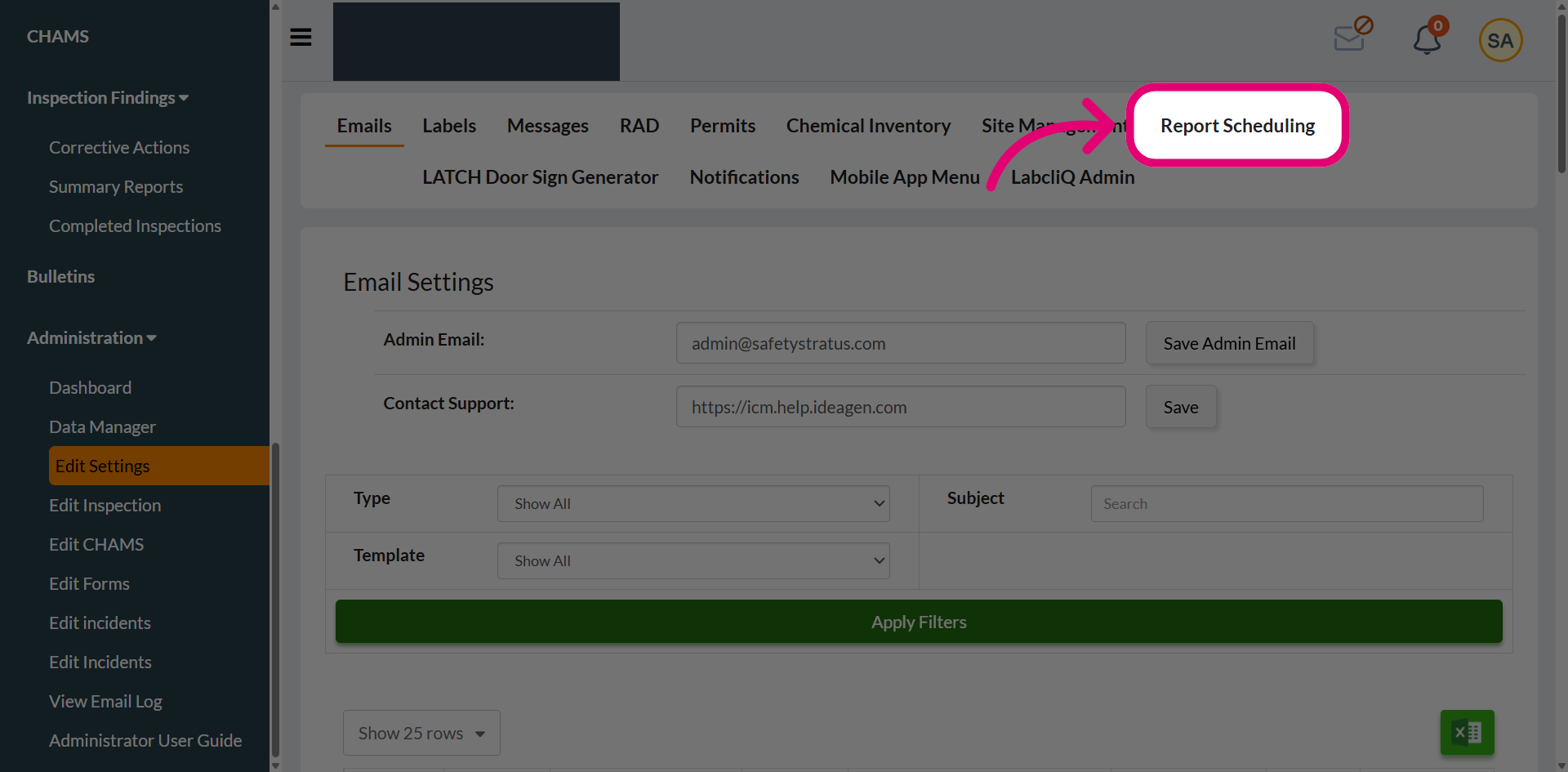
- Select Report Scheduling
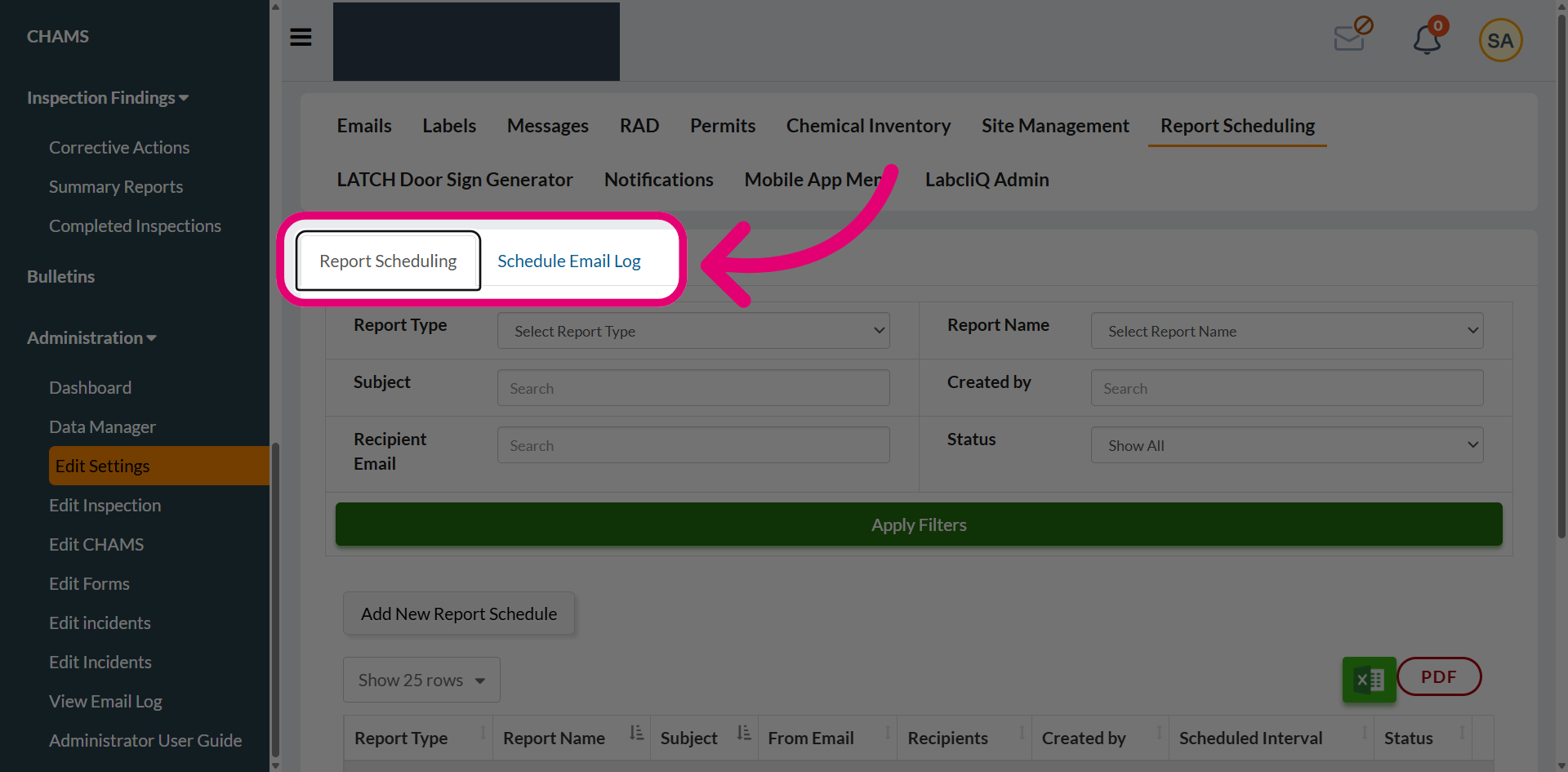
- Review the scheduling tools available.
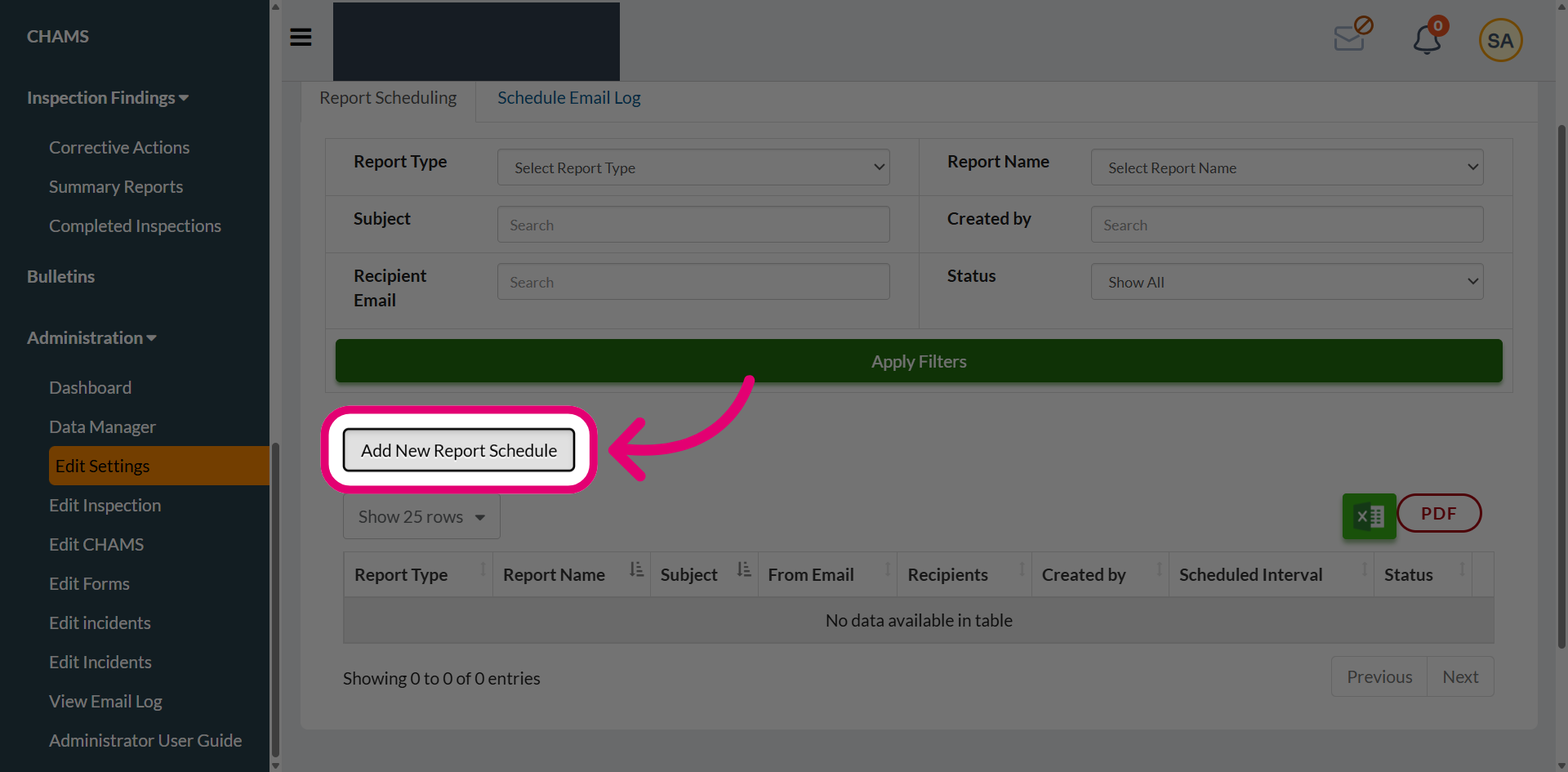
There are two tabs:- Report Scheduling, where you configure and manage all scheduled reports.
- Scheduling Email Log, which shows a history of every email that has been scheduled.
- Click Add New Report Schedule.
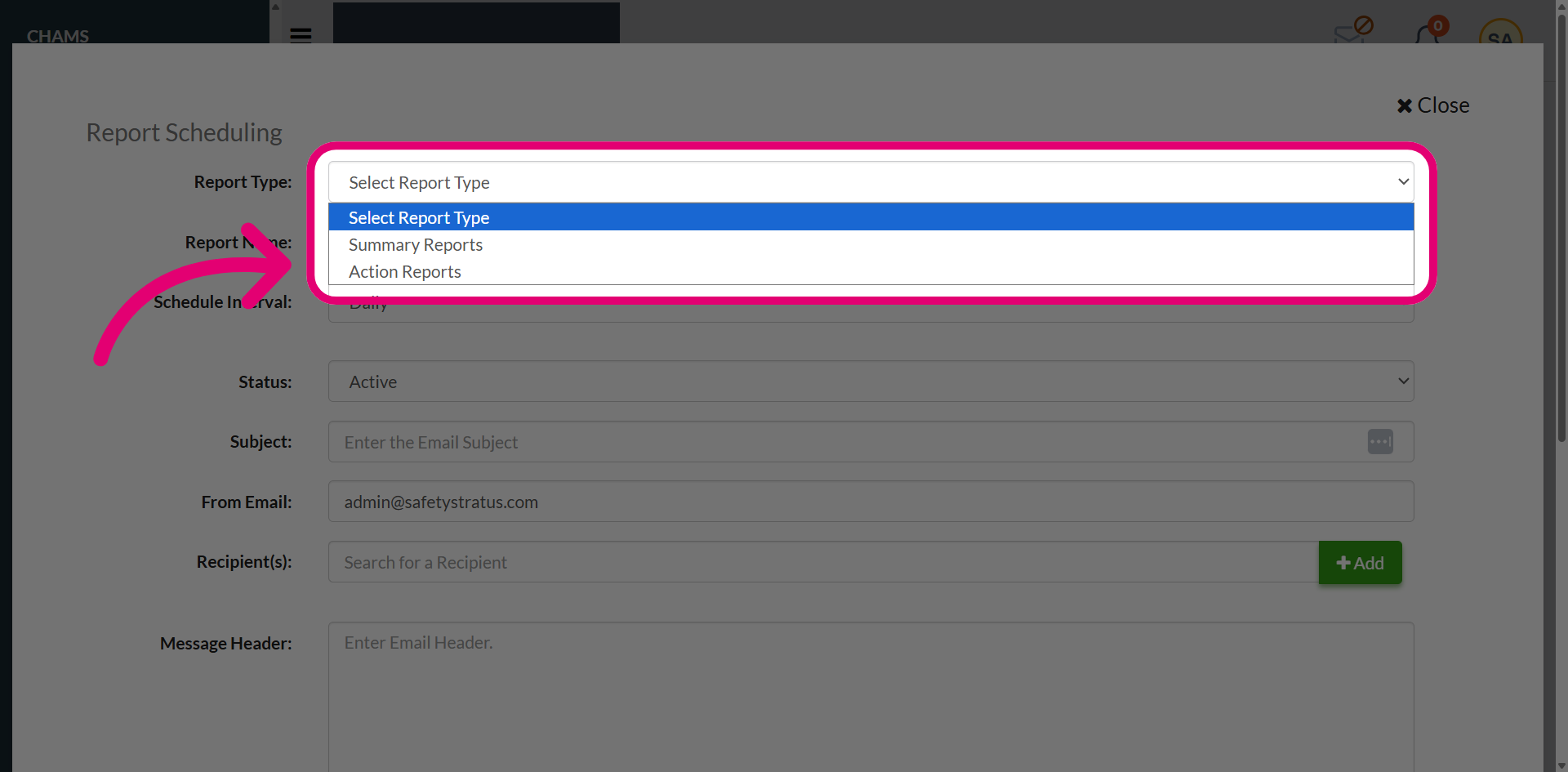
- Choose the Report Type.
You can choose from:- Summary Reports - Provide a high-level overview of inspections, inspection-related activities, or from other modules.
- Action Reports - Focus on findings and open corrective actions.
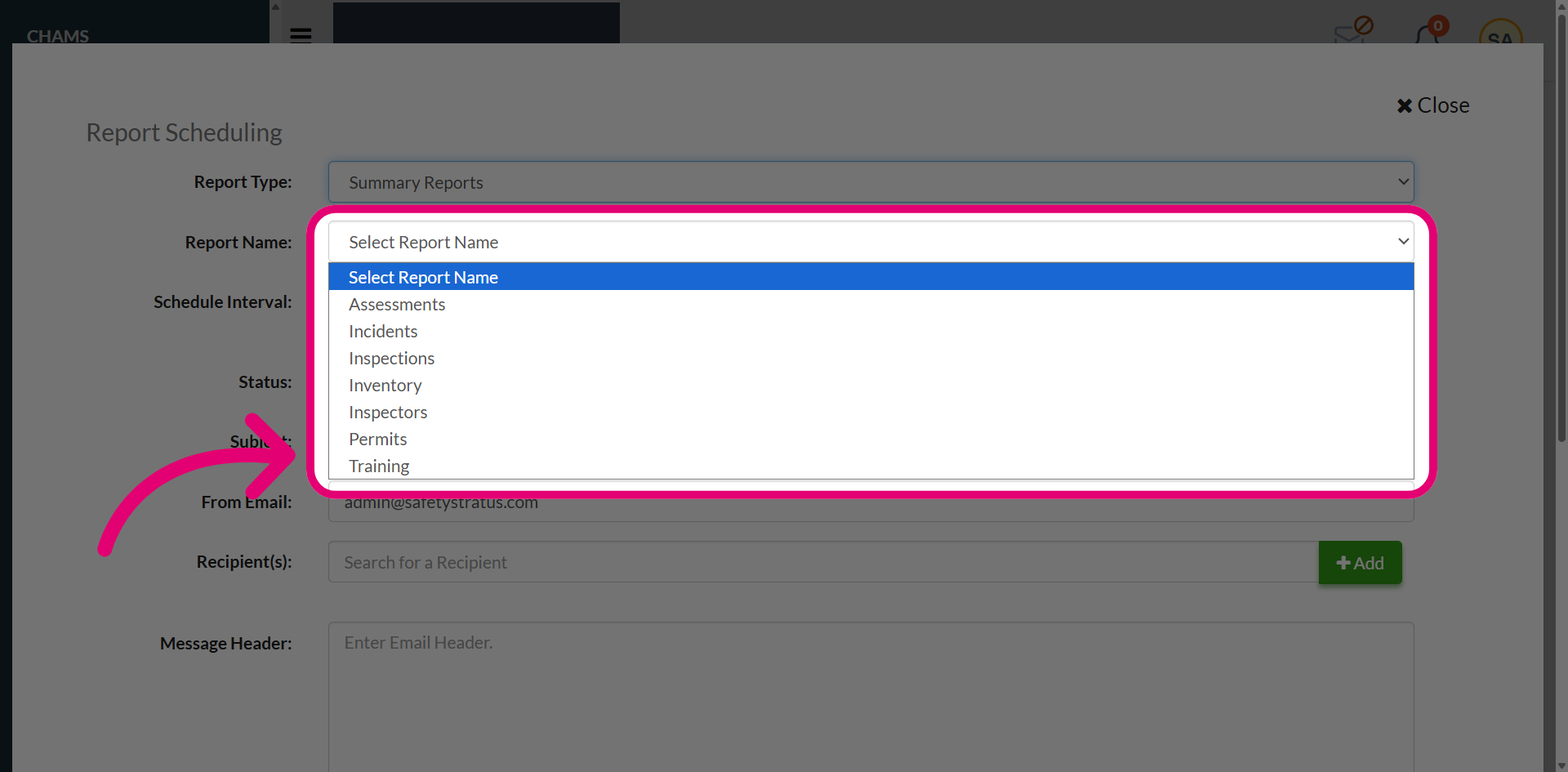
- Select a Report Name from the dropdown.
This changes dynamically based on the selected report type.
Tip
For summary reports, available report names may include different modules allowing administrators to automate delivery of module-specific summary information.
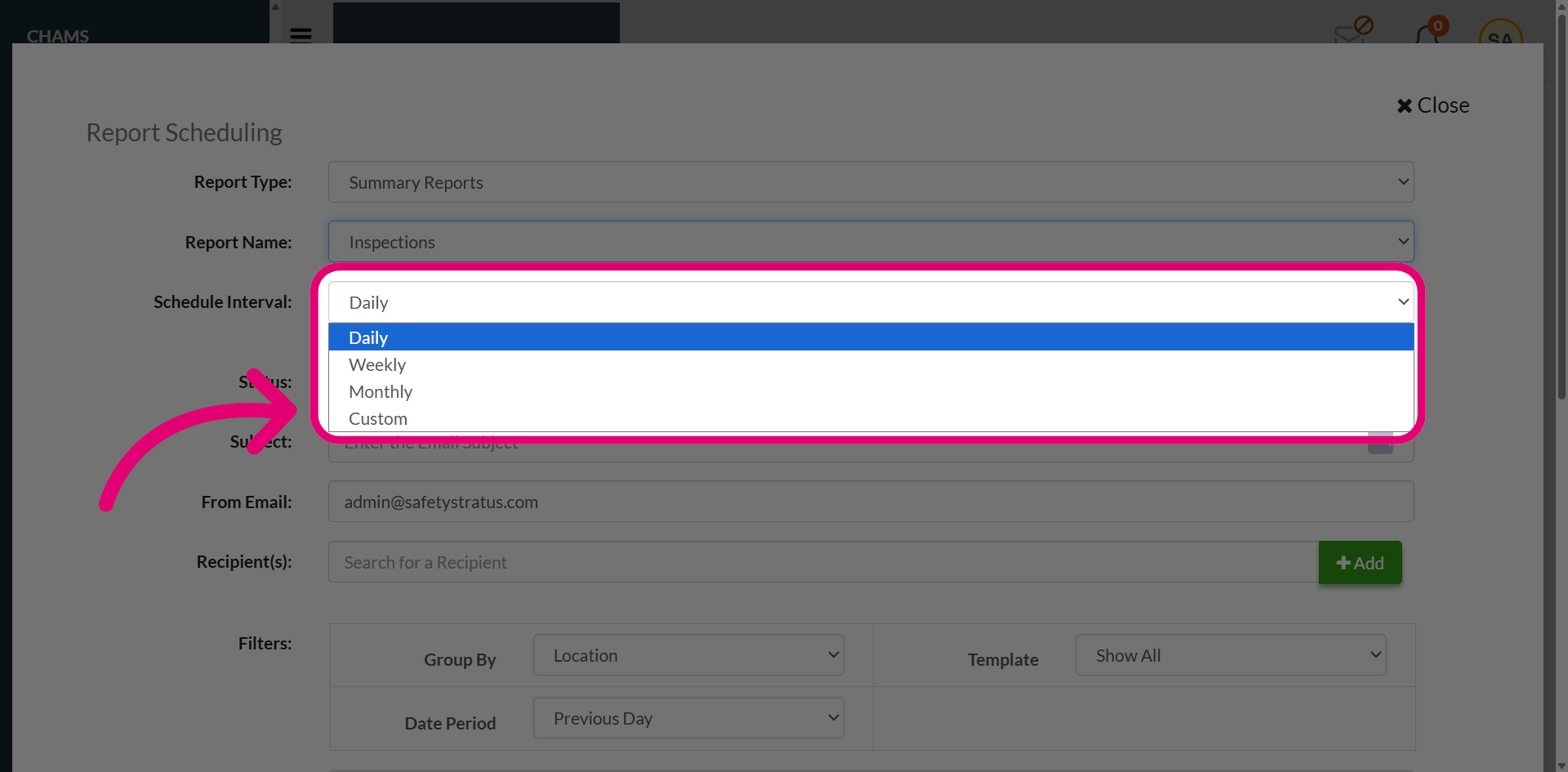
- Set a Schedule Interval
This ensures recipients receive information at the required interval.
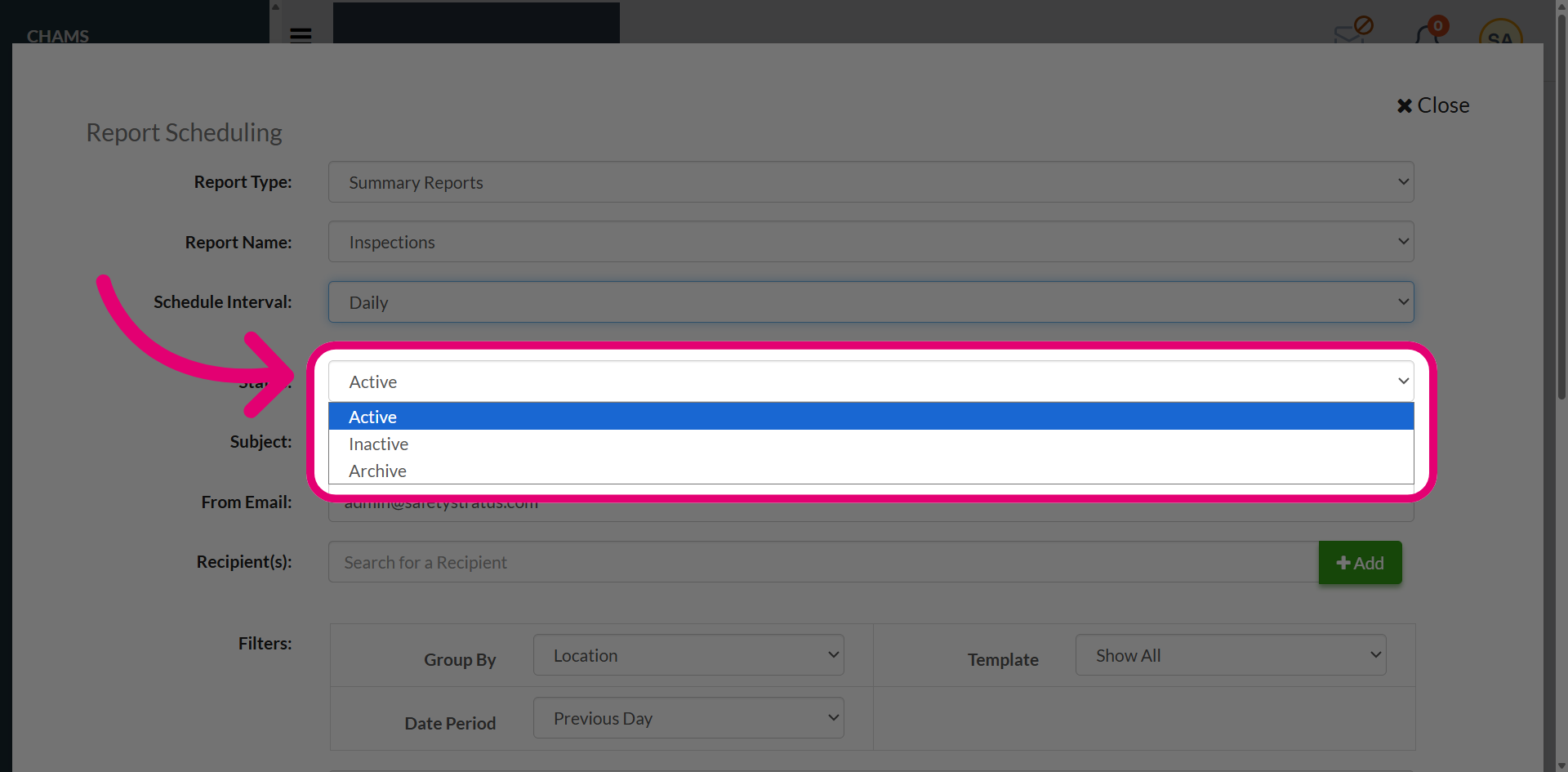
- Set the Status to Active.
An active schedule automatically generates and sends reports according to the configured frequency.
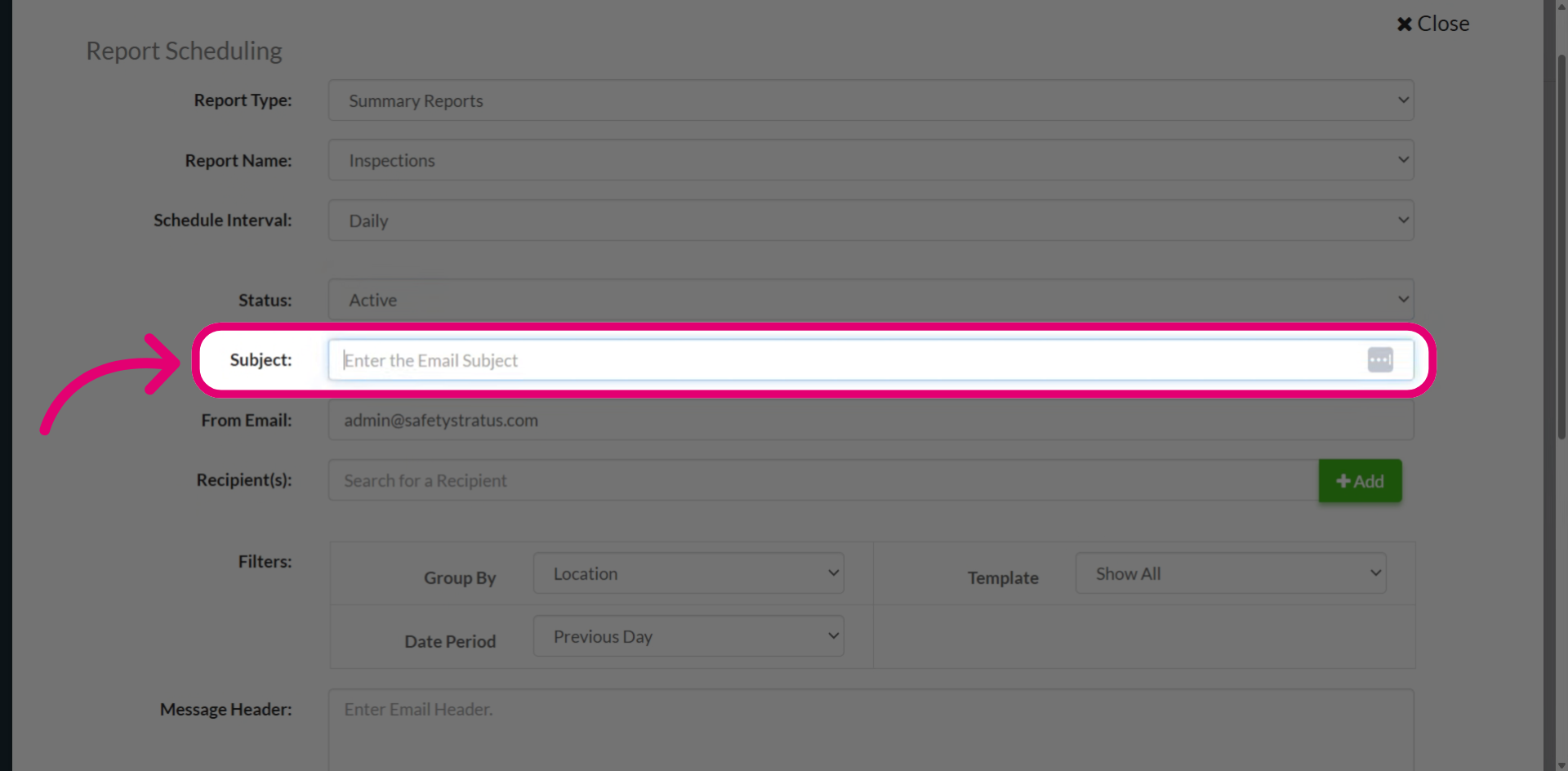
- Enter the Subject line for the scheduled report.
This helps recipients easily identify the purpose and content of the report when it arrives in their inbox.
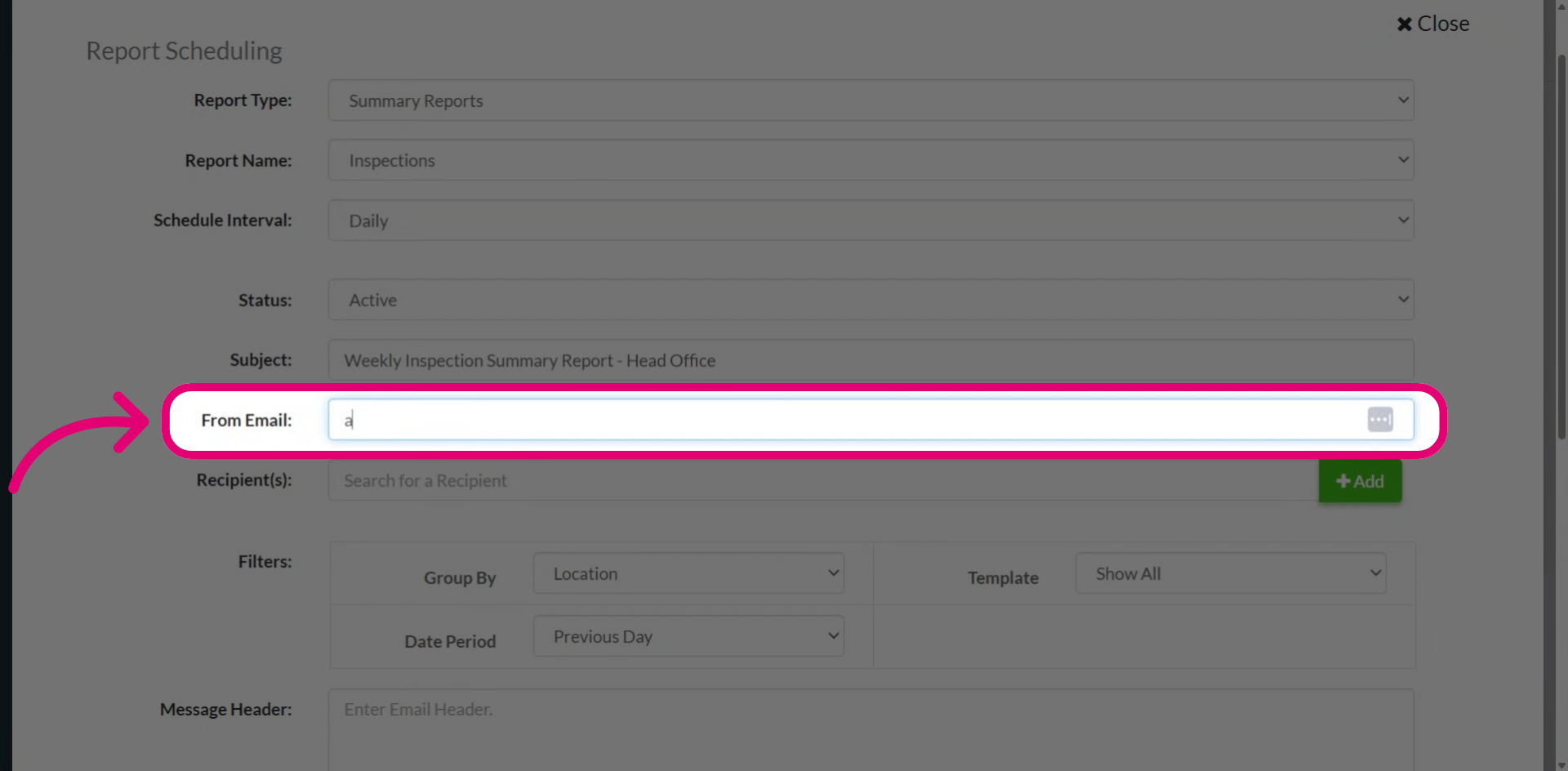
- Enter the From Email
This is the address that will be used as the sender of outgoing emails.
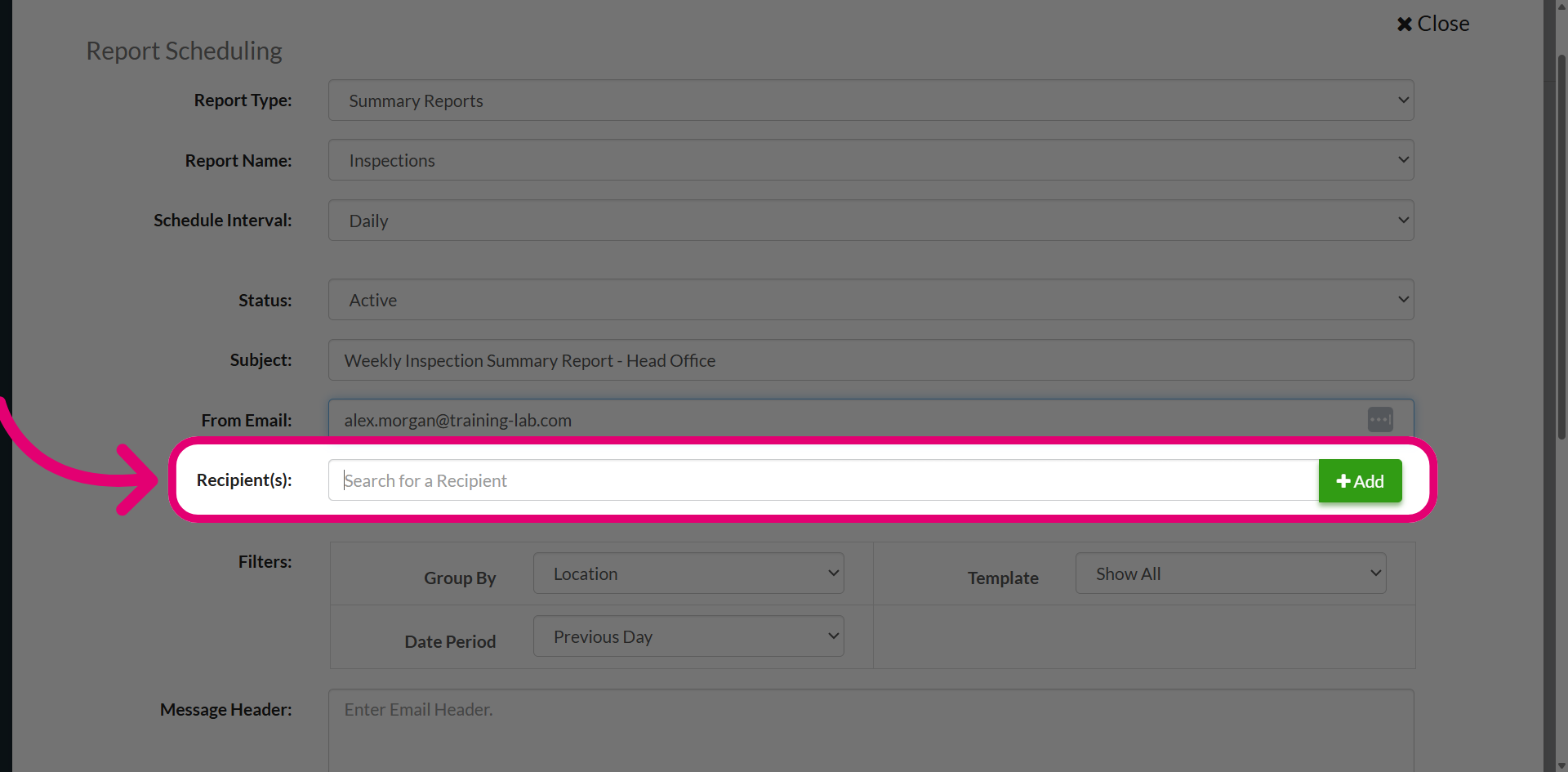
- Add the Recipients.
You can add multiple users.
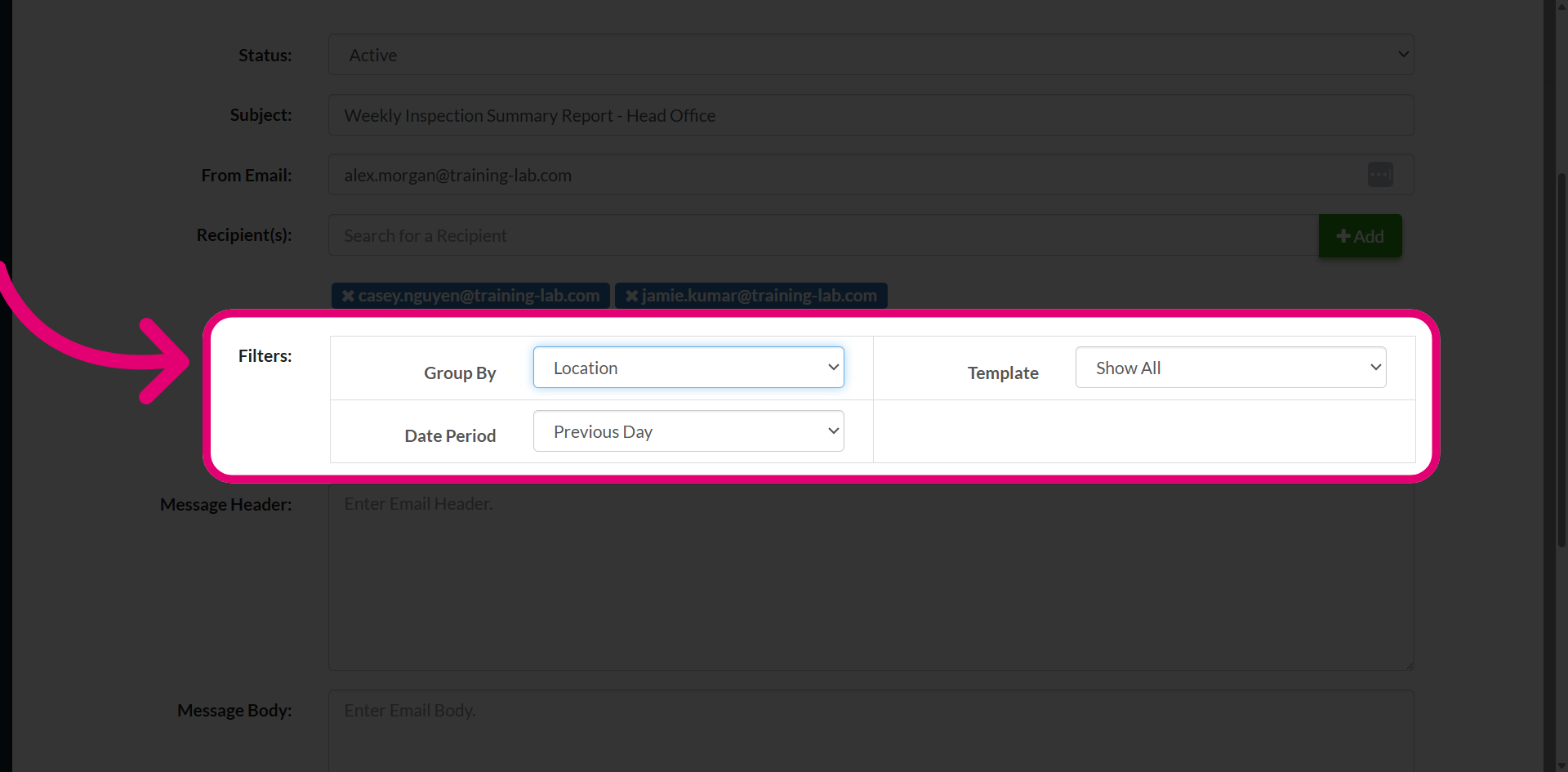
- Set Filters to customise the report content.
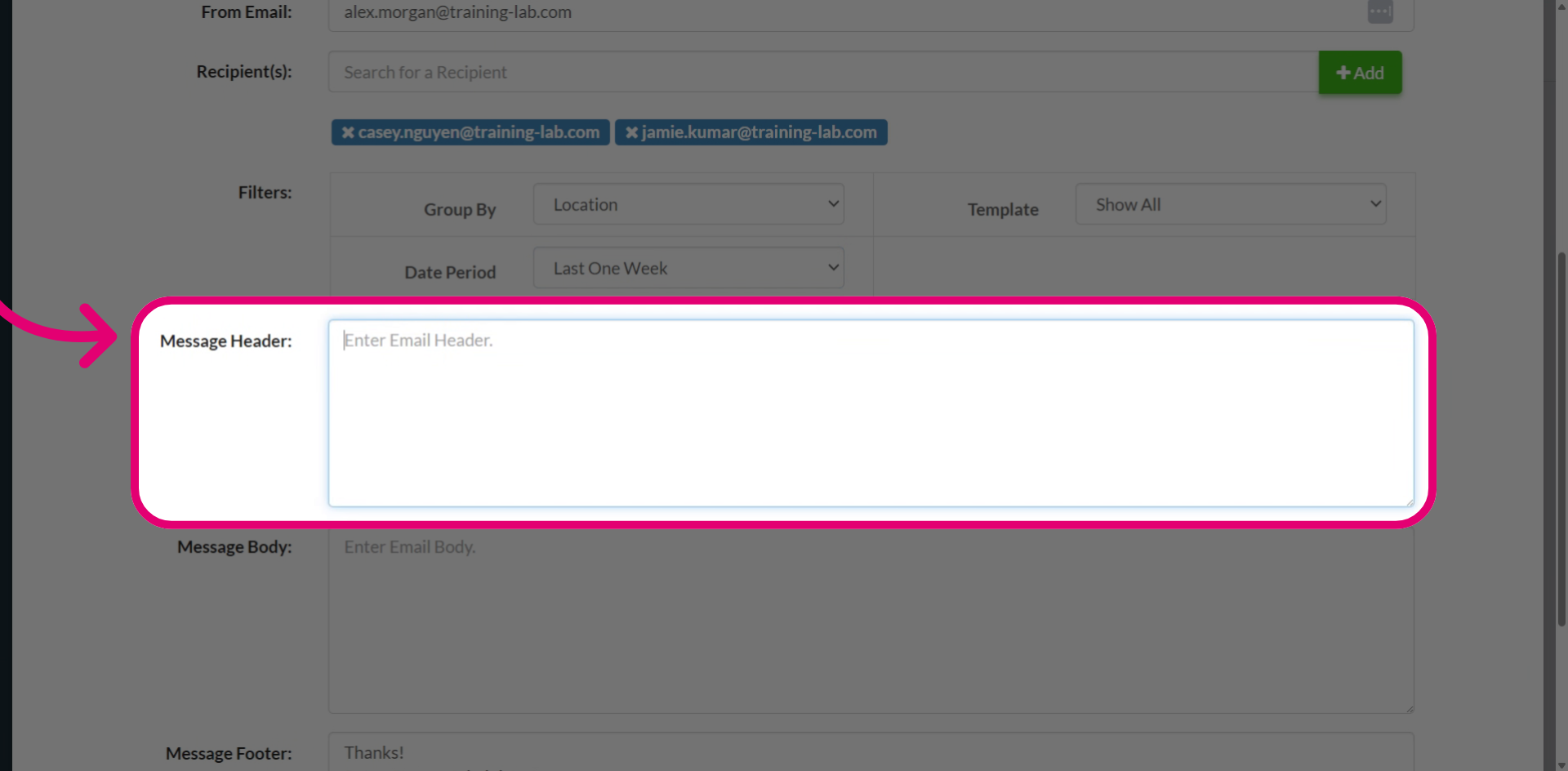
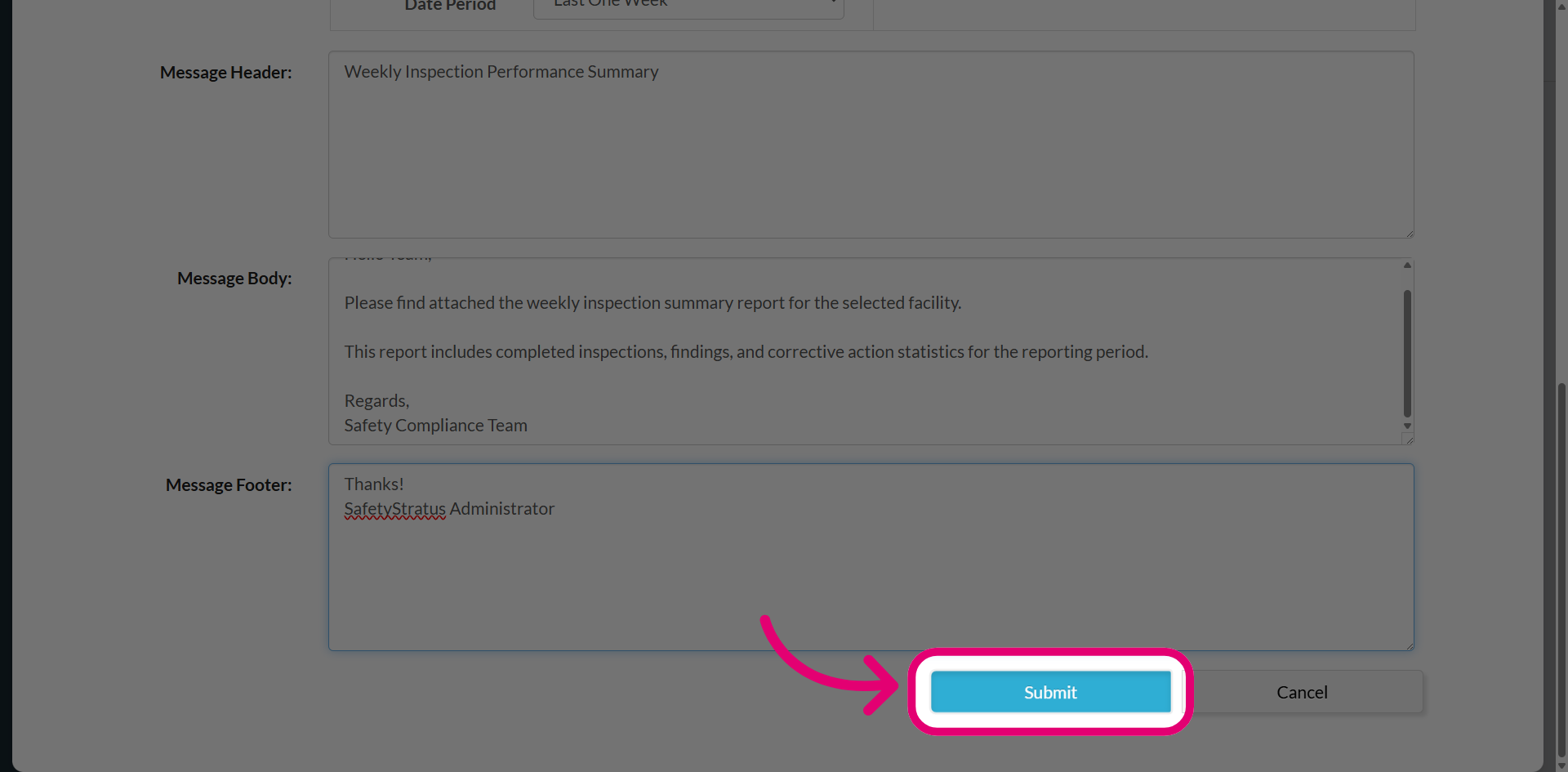
- Enter the Message Header.
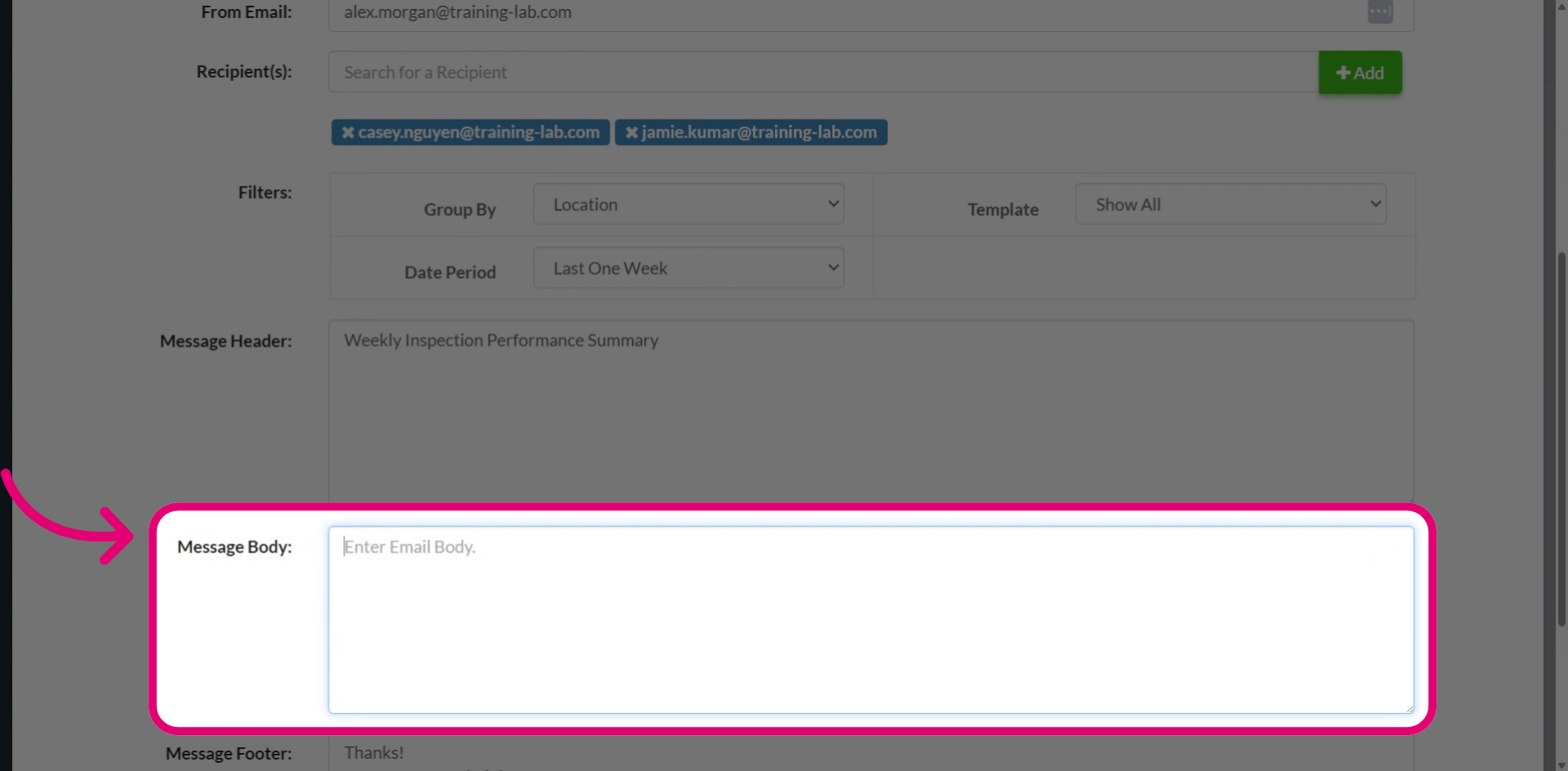
- Enter the Message Body.
You can use HTML formatting to provide additional context or instructions to recipients.
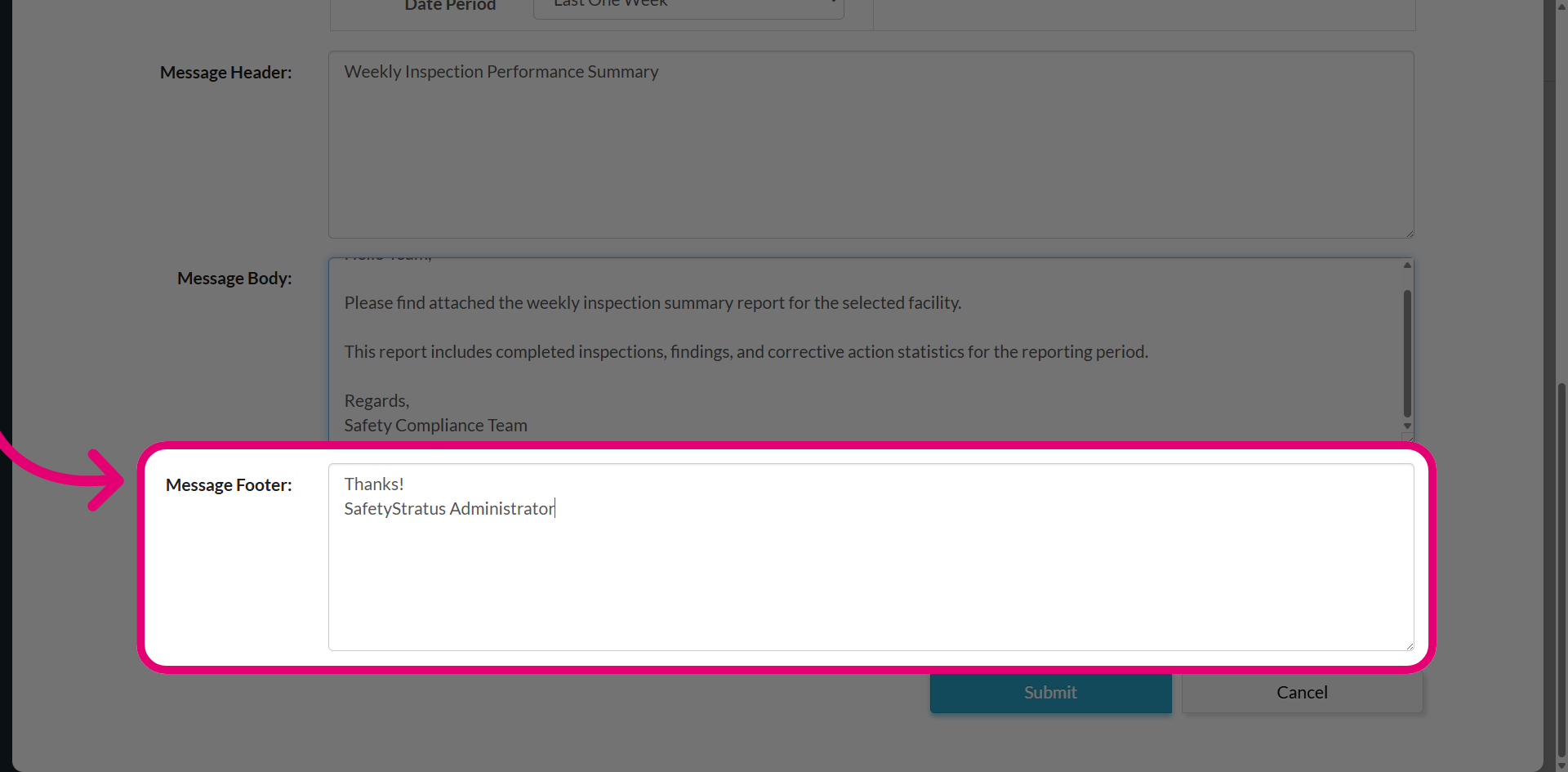
- Edit the Message Footer to change the text included at the bottom of the report.
- Click Submit.
The system will automatically generate and send reports according to the configured schedule.
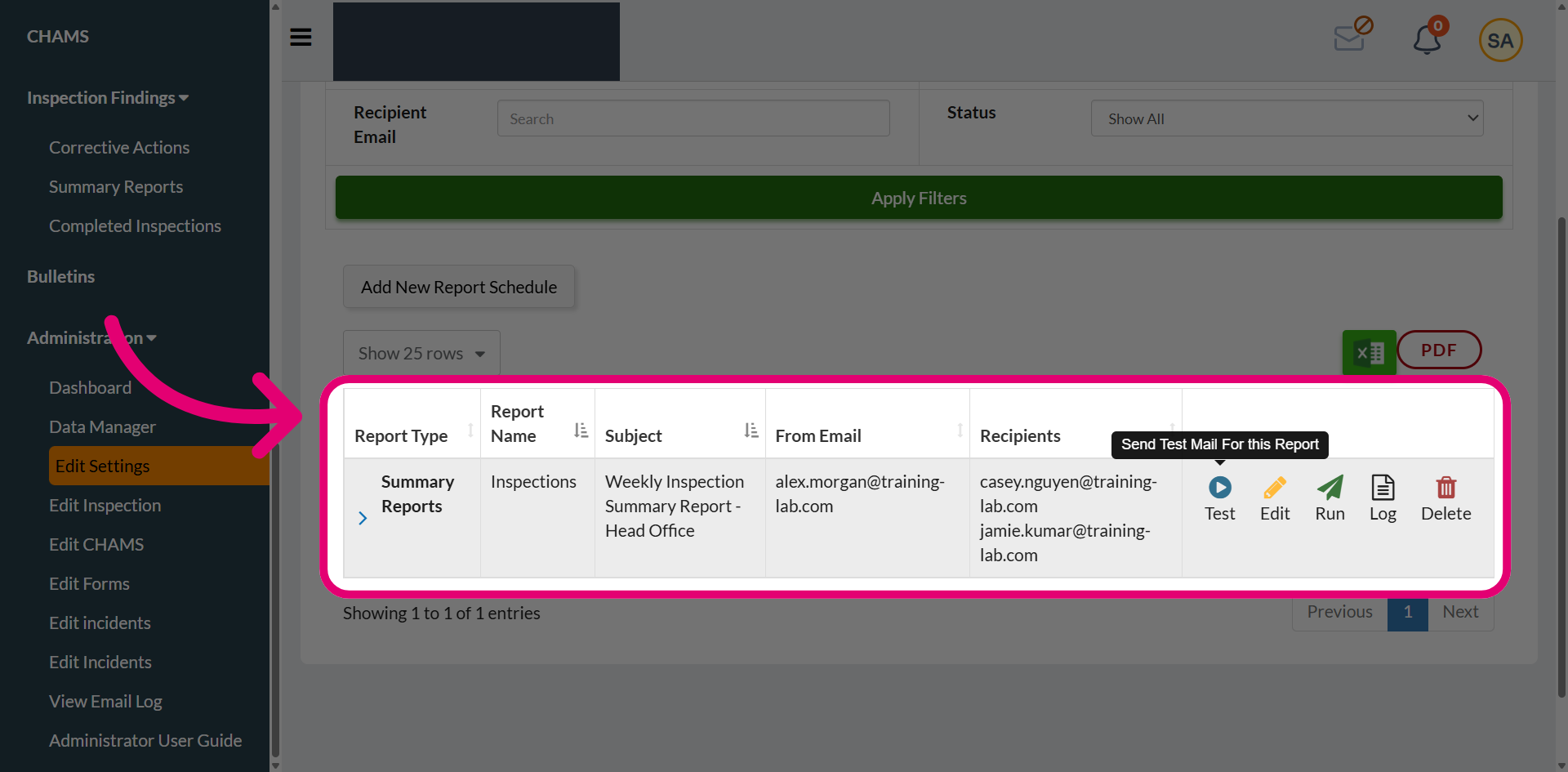
Your scheduled report will appear in the list. From here, you can edit, delete, test, or run the report immediately.