New article
Recently updated
Configuring system messages

Who is this article for?
Administrators responsible for system messages.
Administrator permissions are required.
This article walks you through configuring system messages, including the home message, login messages, and email header and footers.
Configuring system messages
To configure system messages:
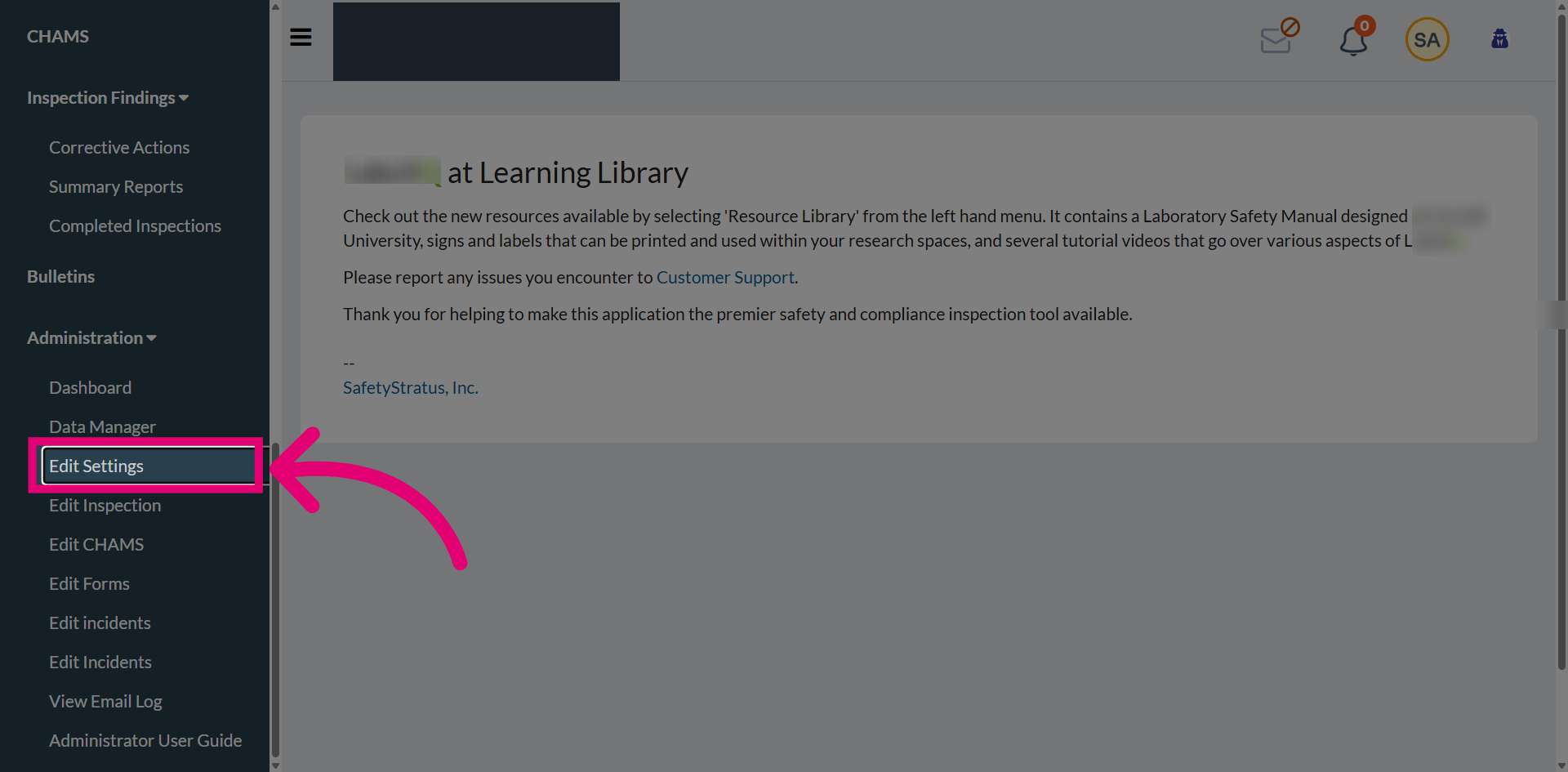
- Open the Administration menu.
- Click Edit Settings.
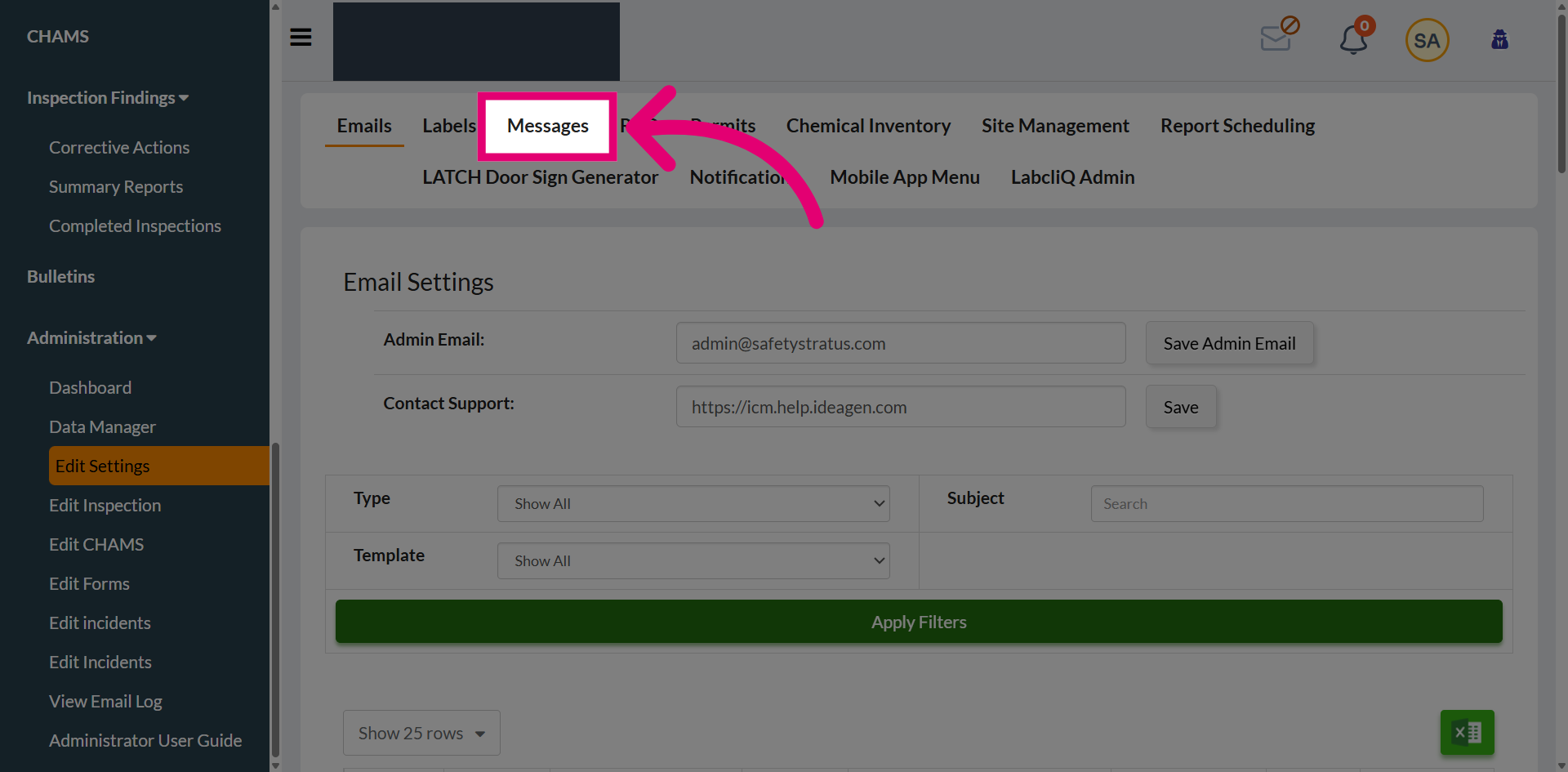
- Go to Messages.
- Configure the available messages.
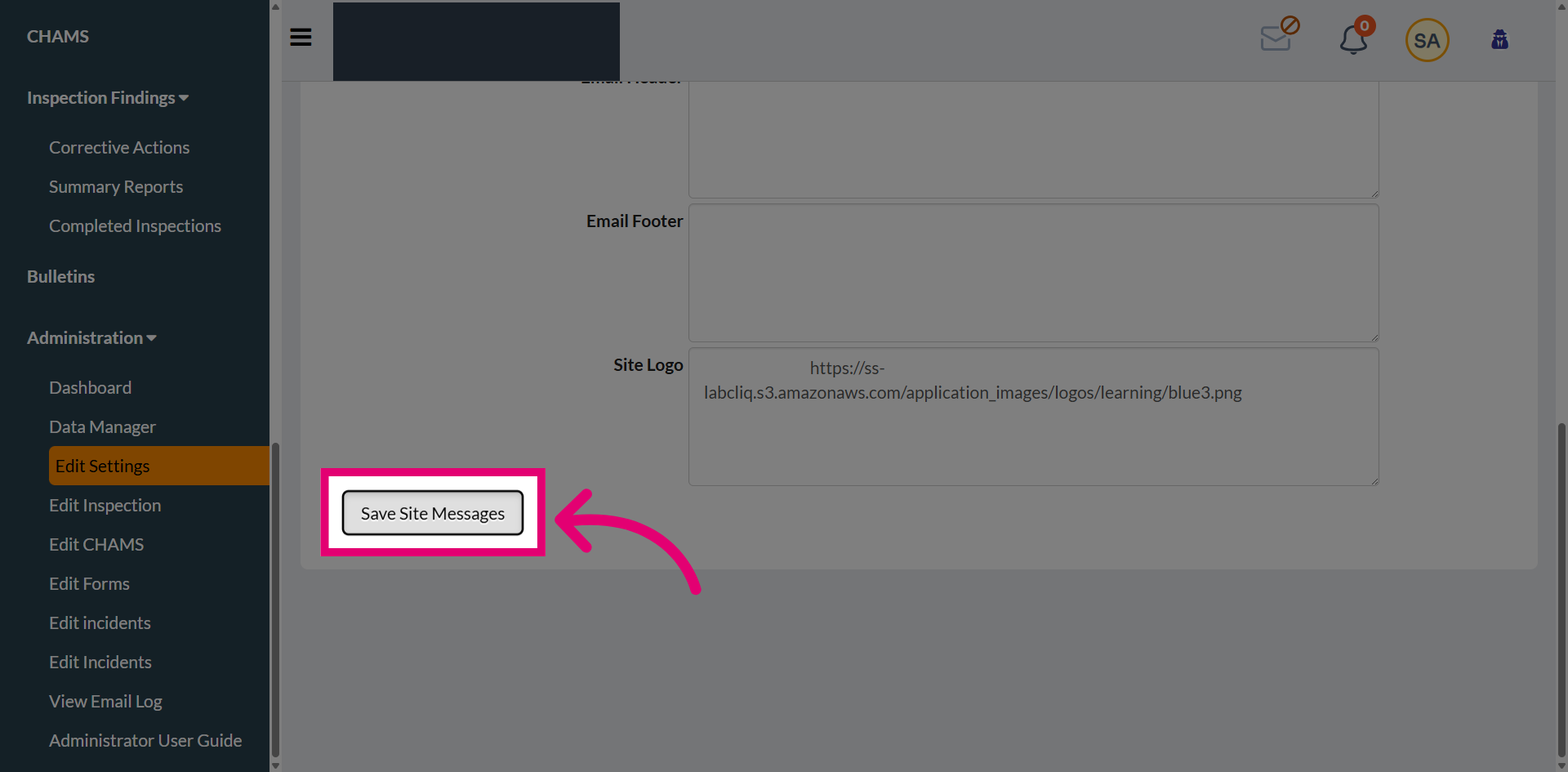
- Click Save Site Messages.
Available messages
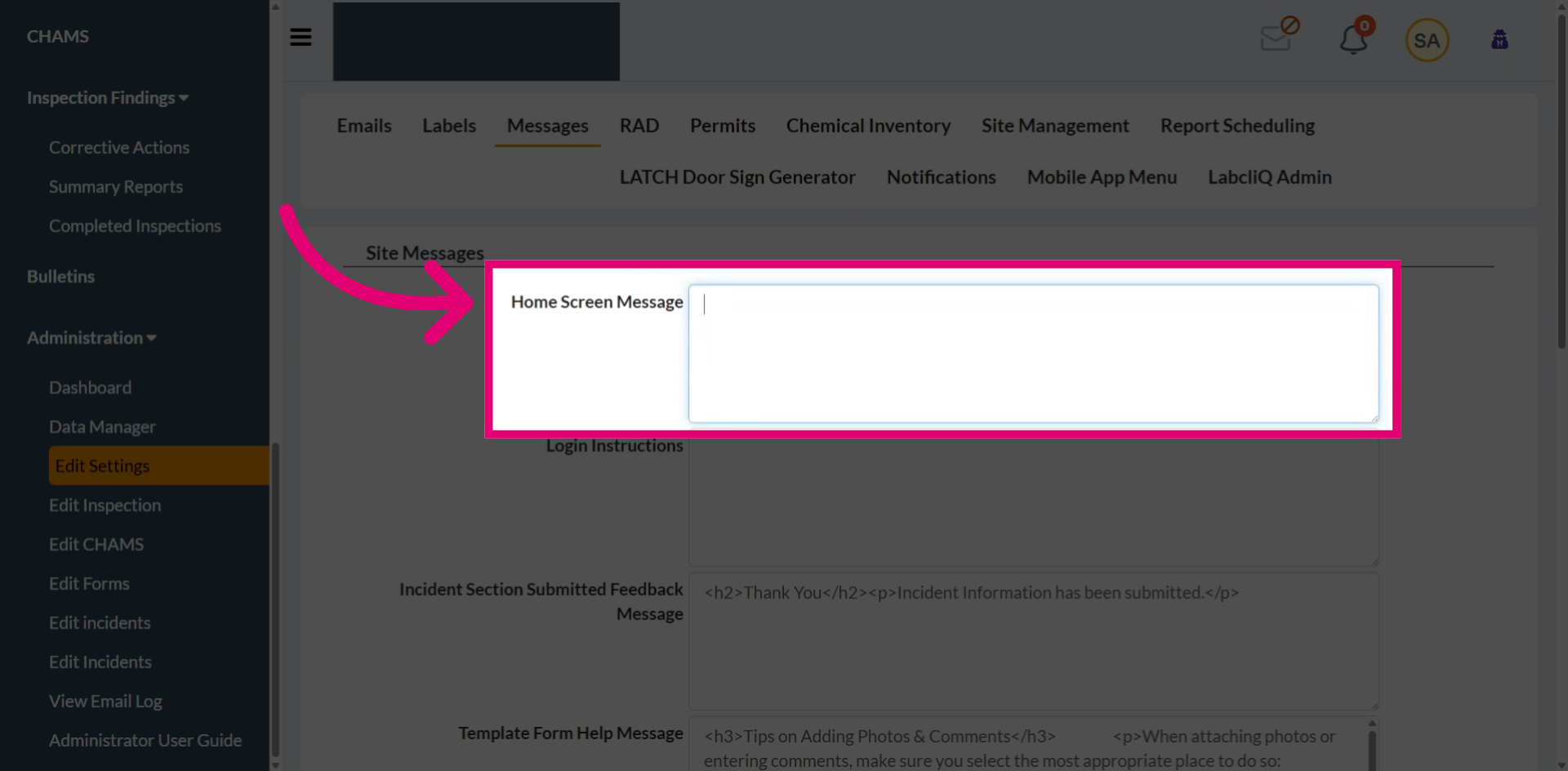
Home screen message
Enter the home screen message you'd like the user to see on the home page after they sign in.
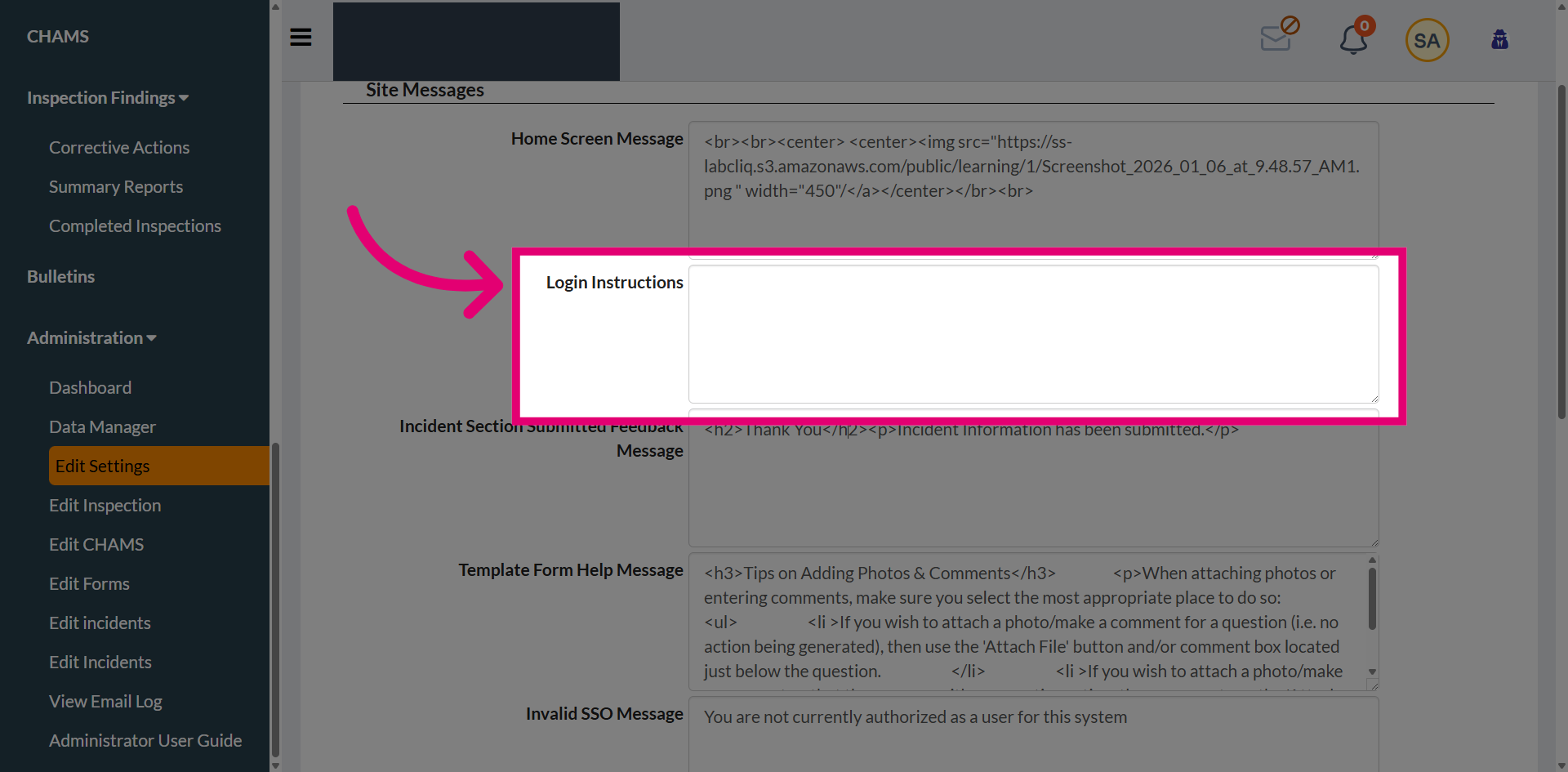
Login instructions message
Enter the login instructions you'd like the user to see on the sign-in page.
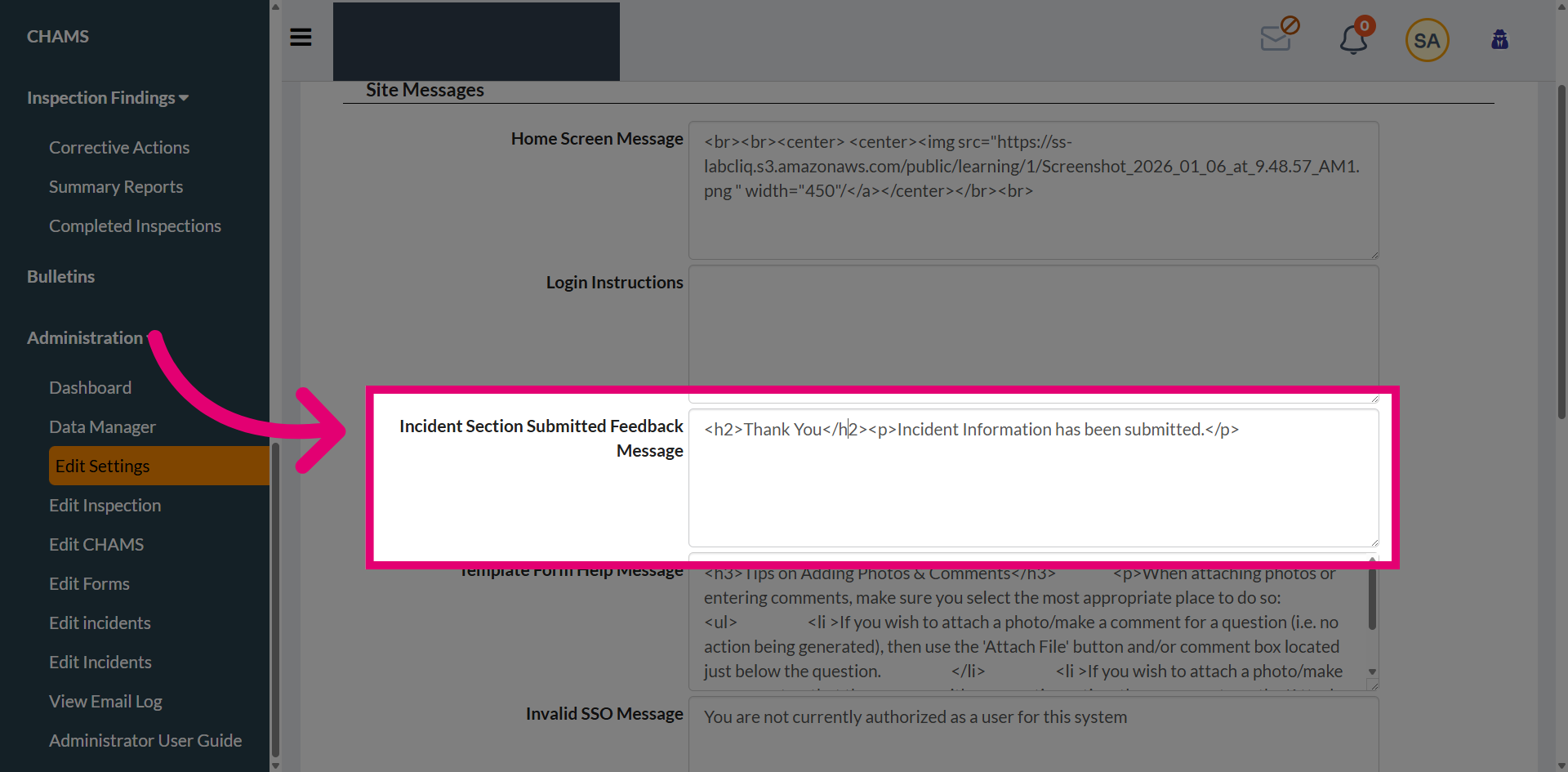
Incident section submitted feedback message
Enter the incident feedback message you'd like the user to see in the confirmation or feedback message after a reassigned incident section has been completed and submitted by the assigned user.
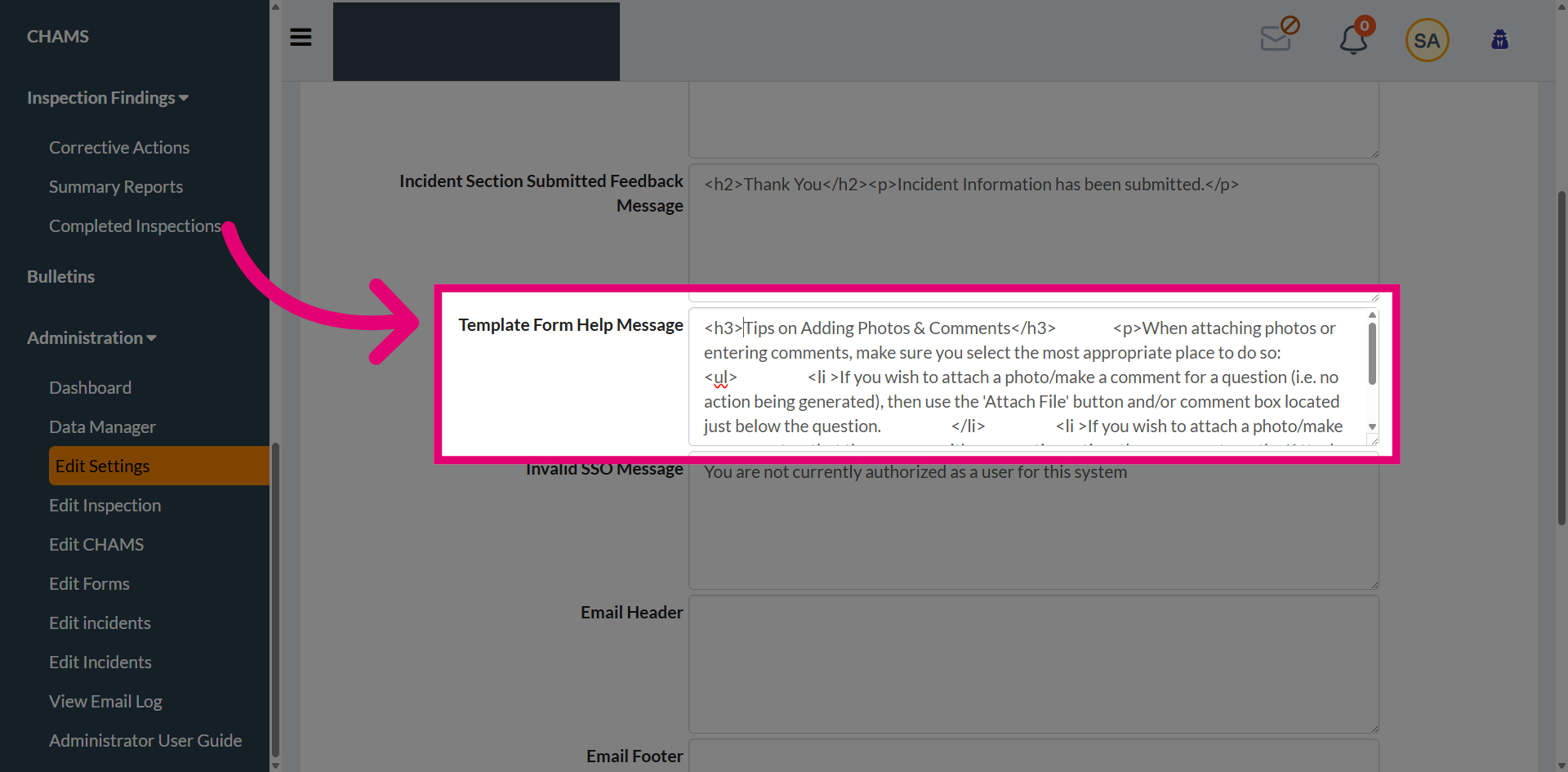
Template form help message
Enter the template help message you'd like the user to see in the question form while performing the inspections.
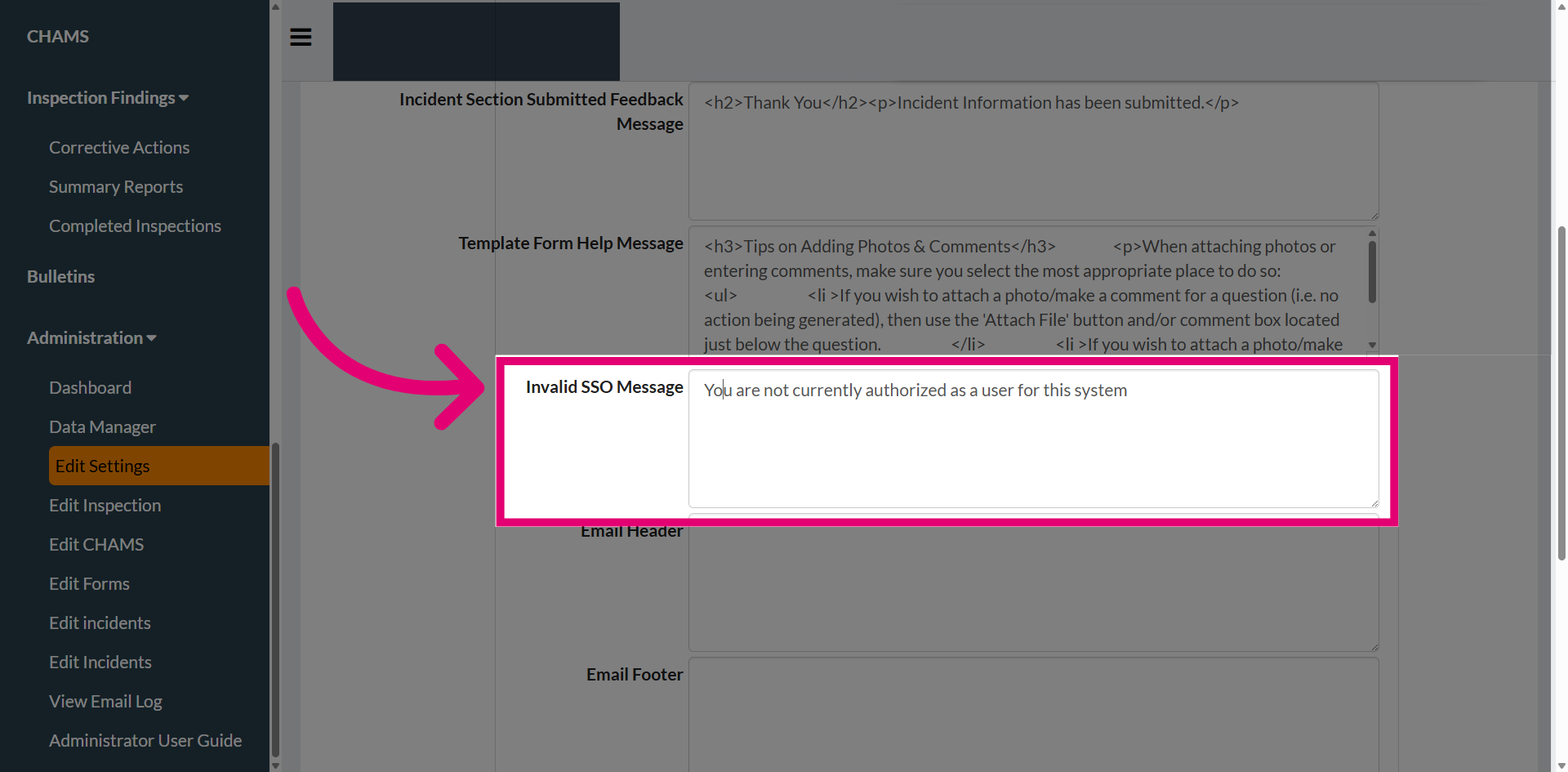
Invalid SSO message
Enter the invalid SSO message you'd like the user to see when their Single Sign-On sign-in attempt is unsuccessful.
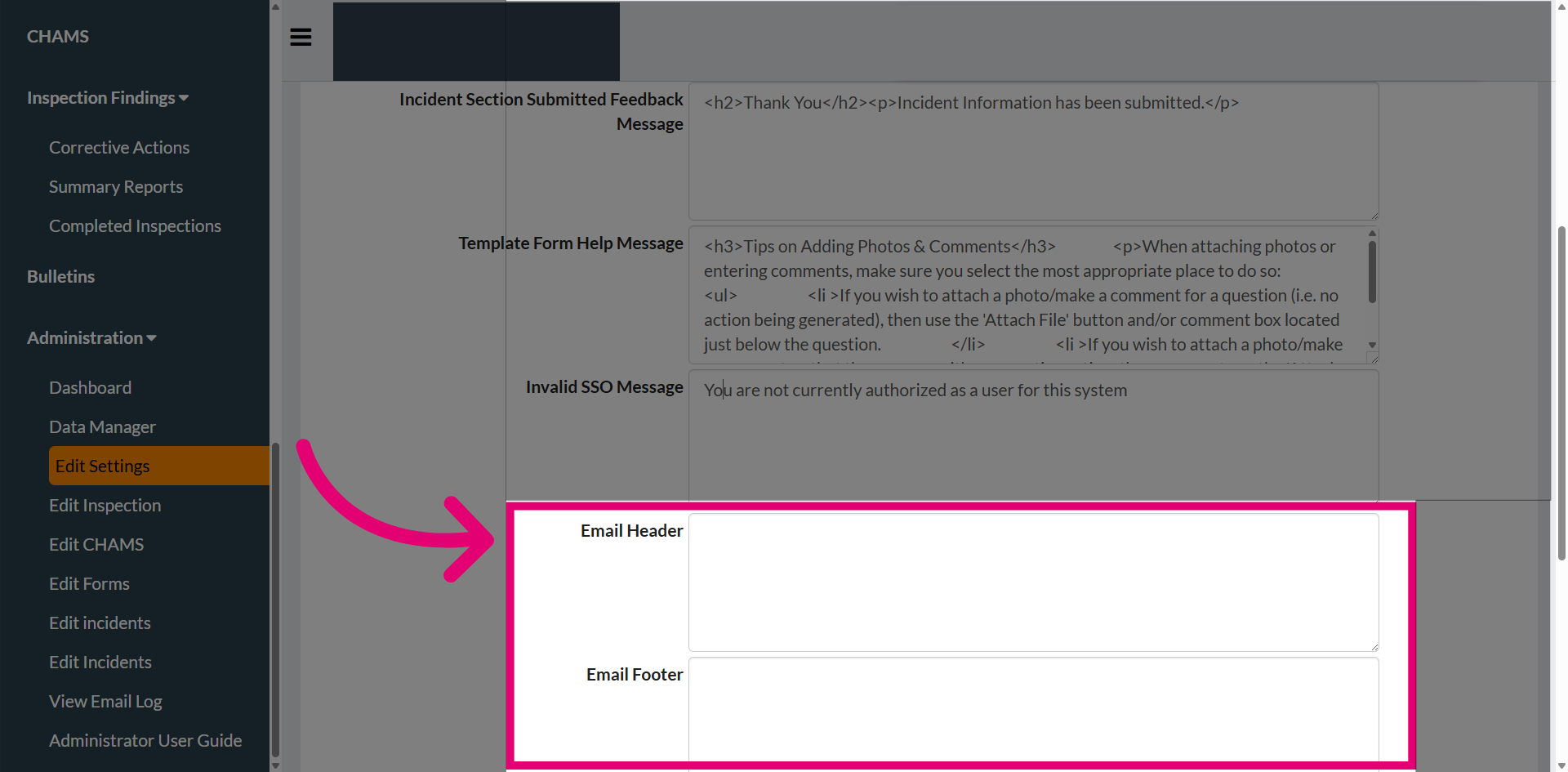
Email header and footer
Enter the email header and footer content you'd like users to see in system emails. These elements need to be added to each email manually.
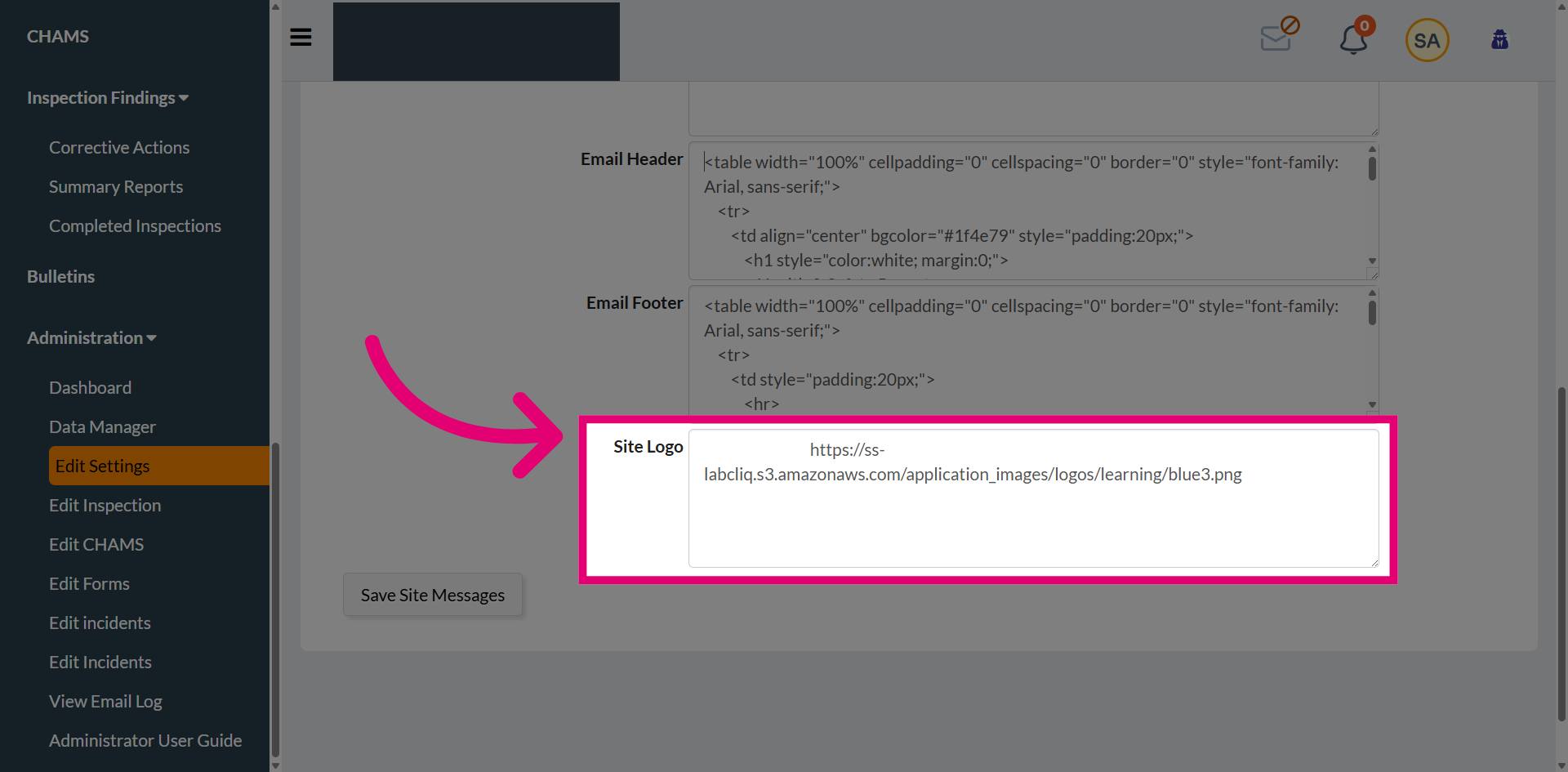
Site logo
Enter the URL with site logo you'd like users to see at the top of the application.