New article
Recently updated
Sending a Corrective Action (CA) link

Who is this article for?
Users responsible for managing corrective actions.
Inspection Findings access is required.
This article walks you through sending a Corrective Action (CA) link, allowing assigned users to access and complete corrective actions directly from the no login link.
Sending a CA link
To send a CA link:
- Open the Inspection Findings menu.
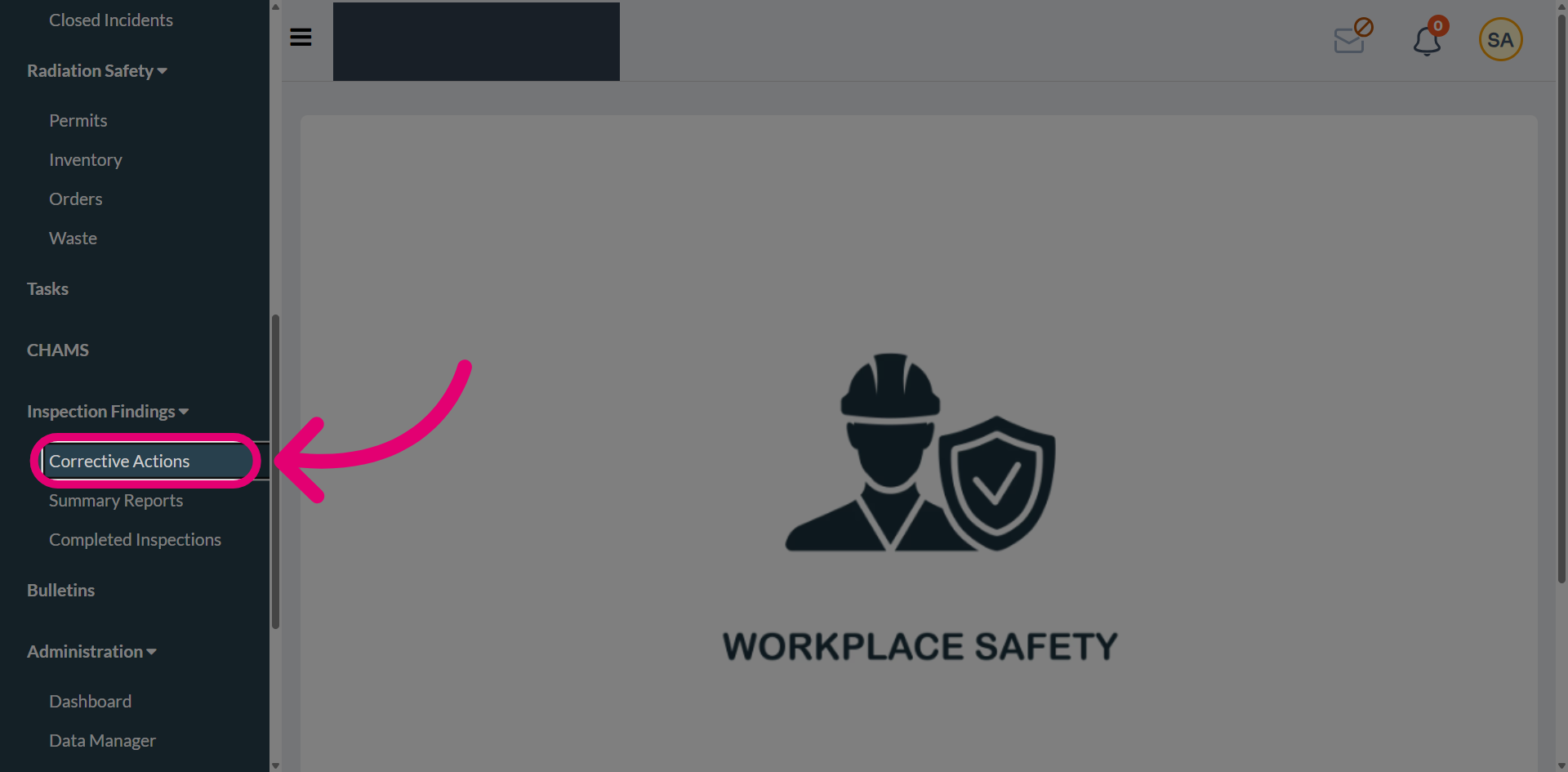
- Select Corrective Actions.
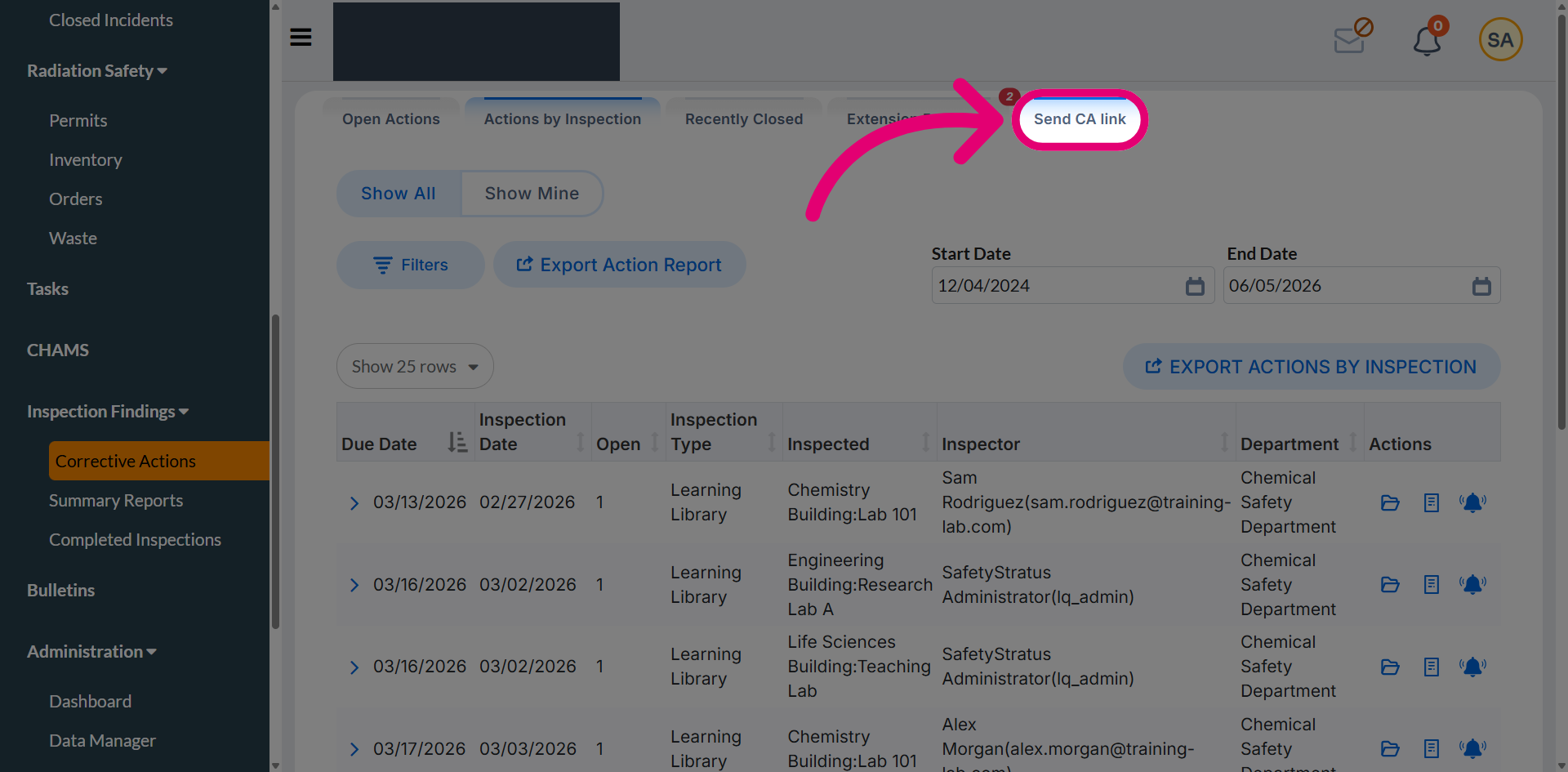
- Click Send CA Link.
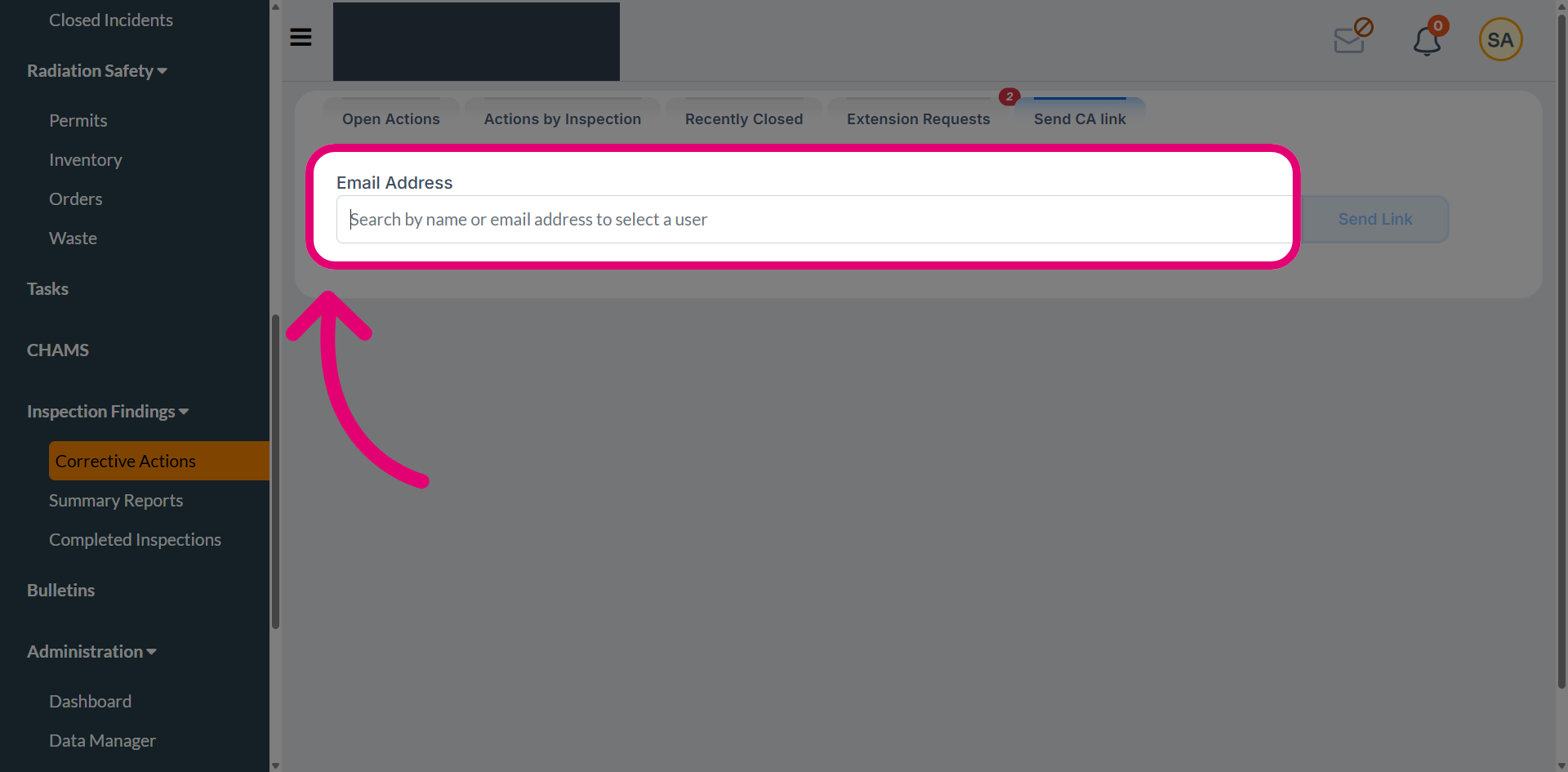
- Enter the recipient's email address.
- Select the corresponding user from the dropdown.
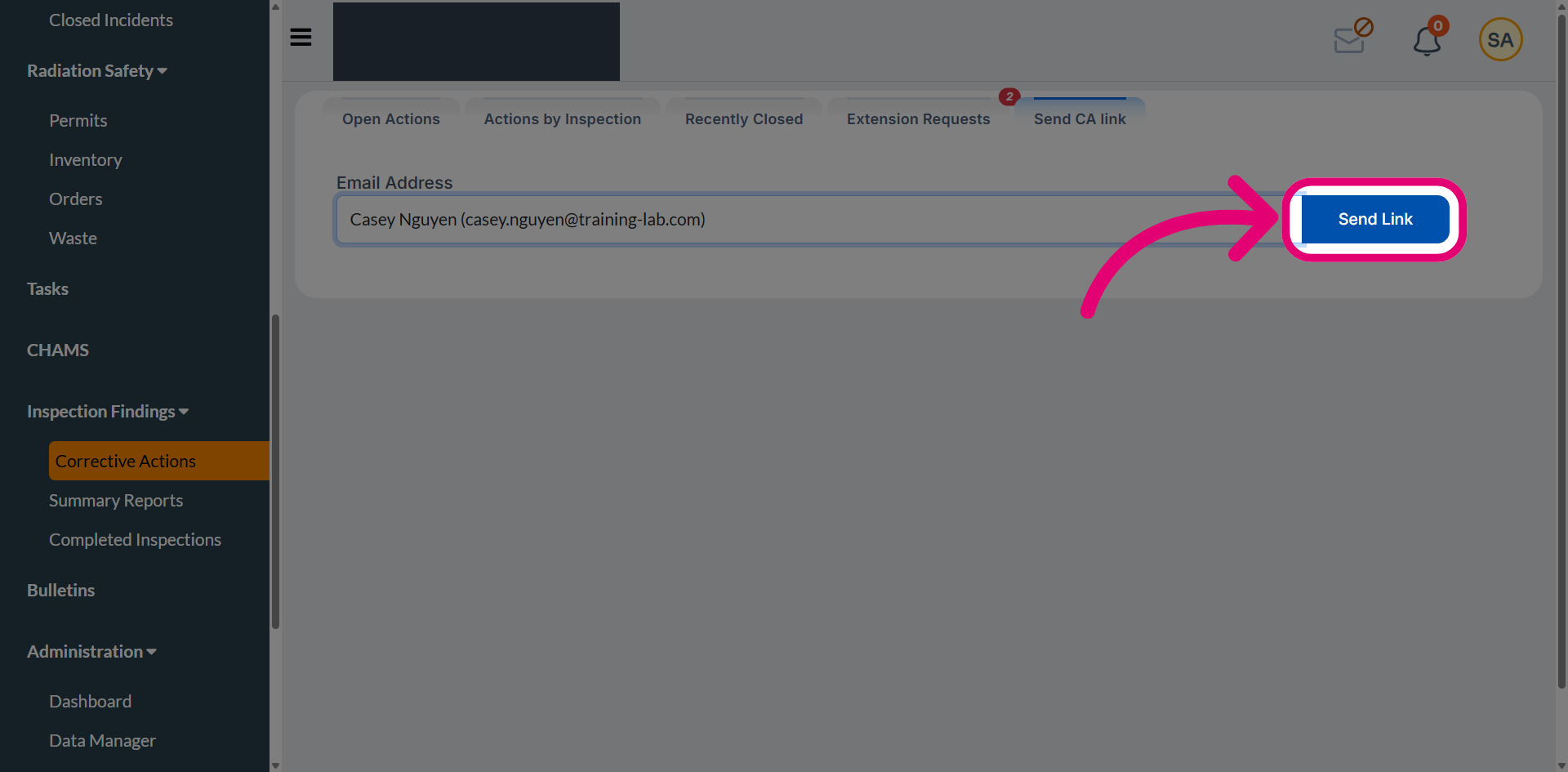
- Click Send Link.
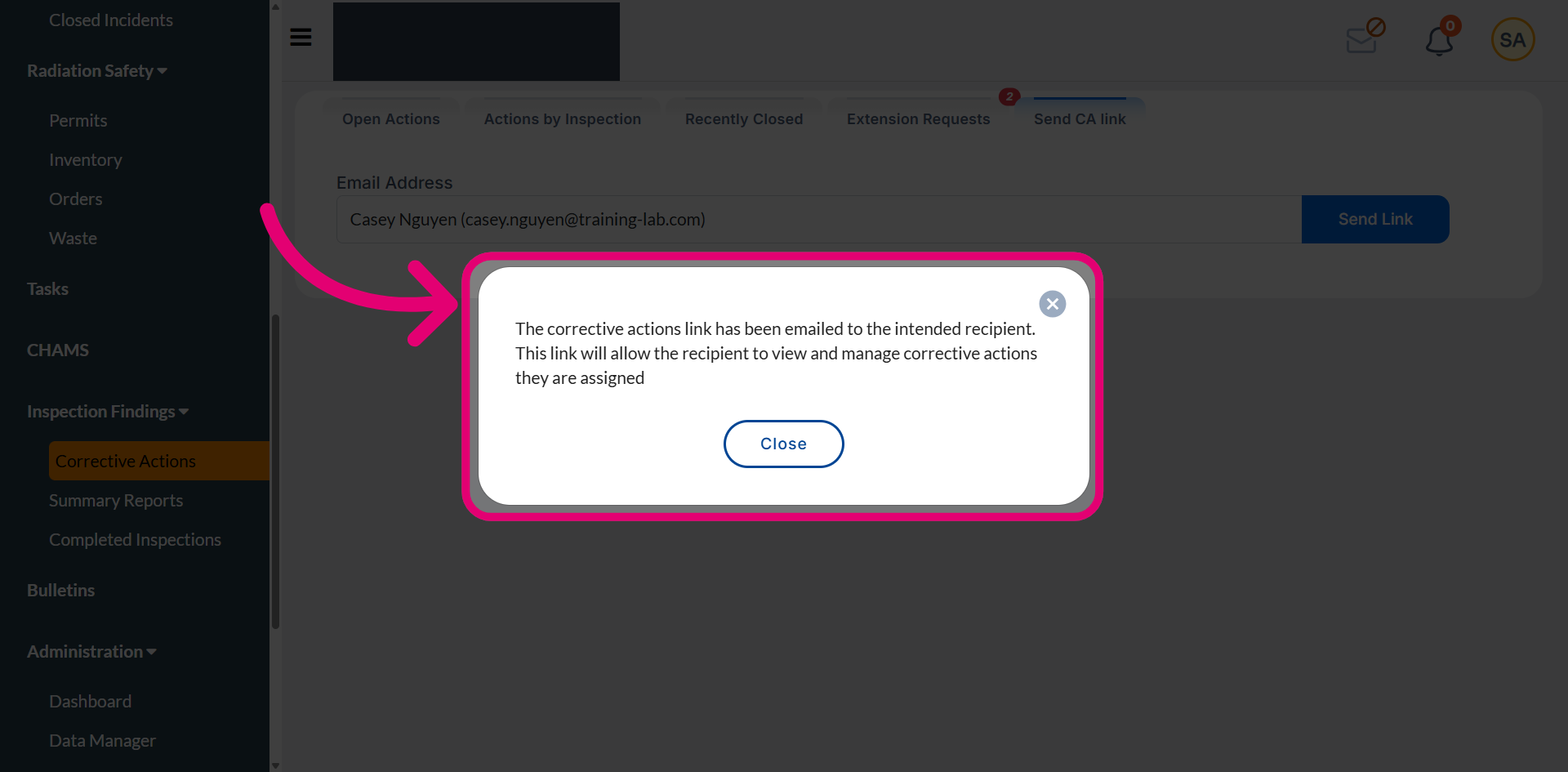
- Dismiss the confirmation message.
Accessing a CA link
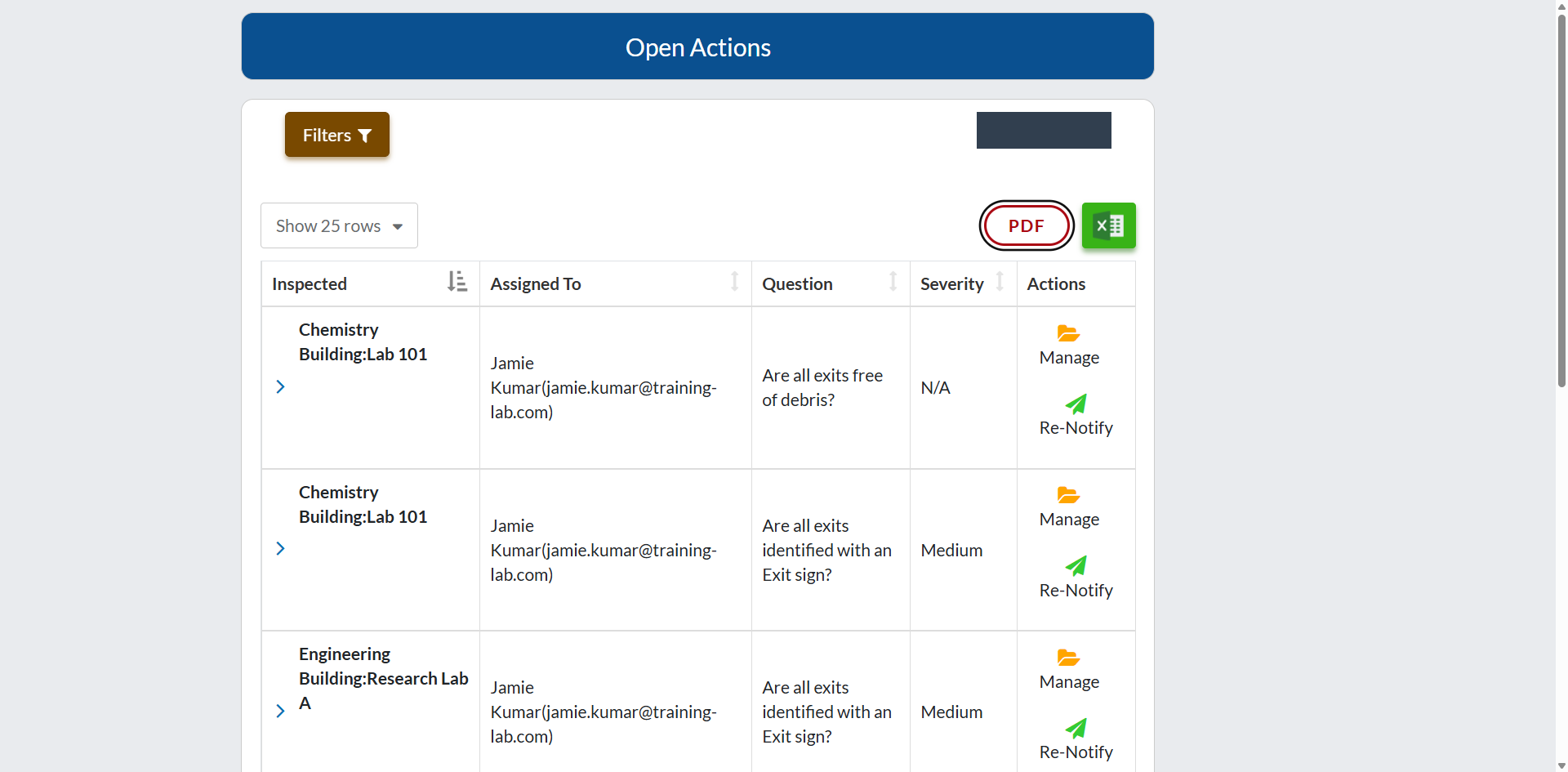
When the recipient clicks the link, they will be taken directly to the action log page.
Exporting actions
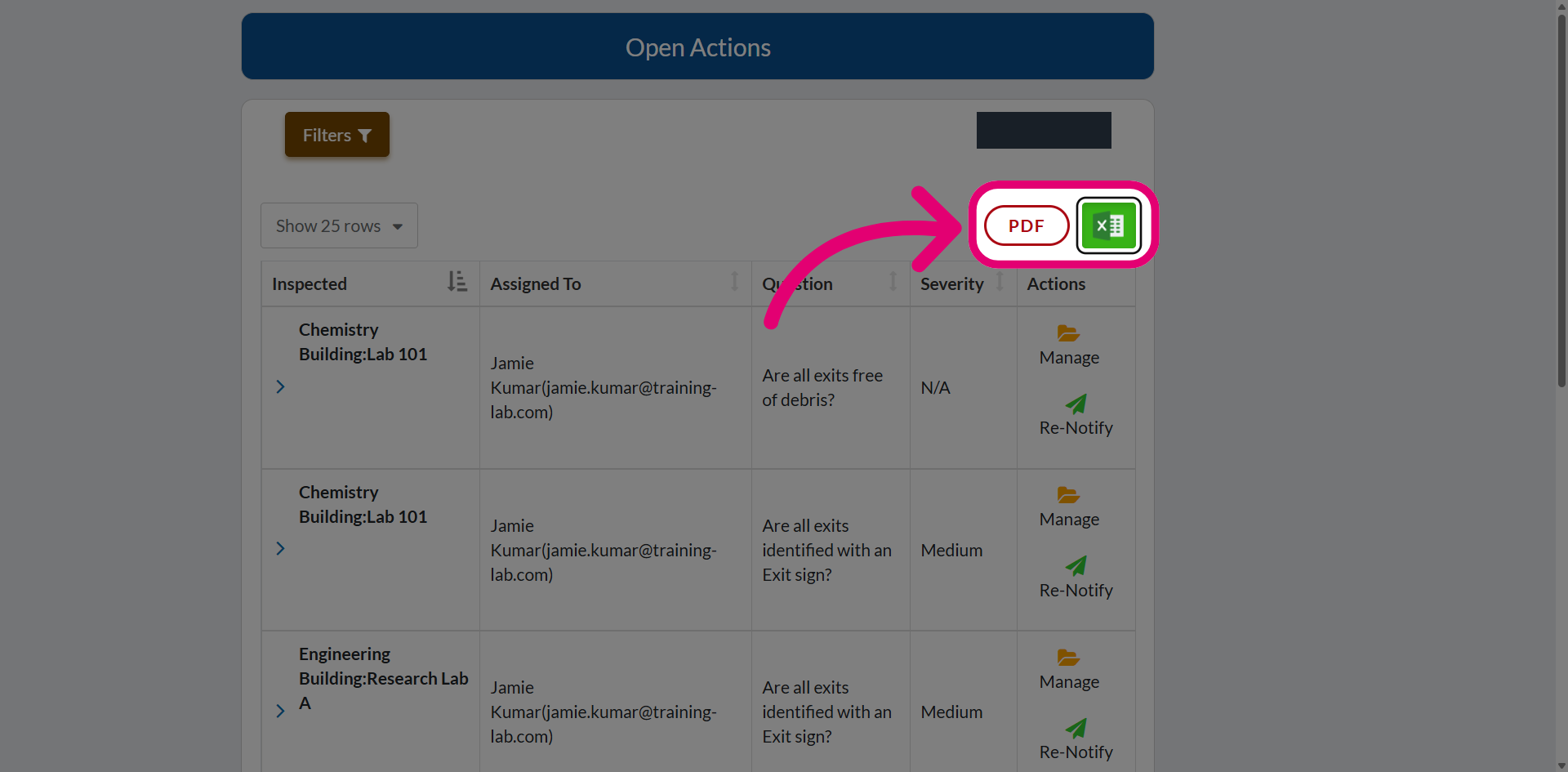
Use the export actions to download the log in PDF or Excel formats.
Re-notifying about action
To re-notify the recipient about a specific action:
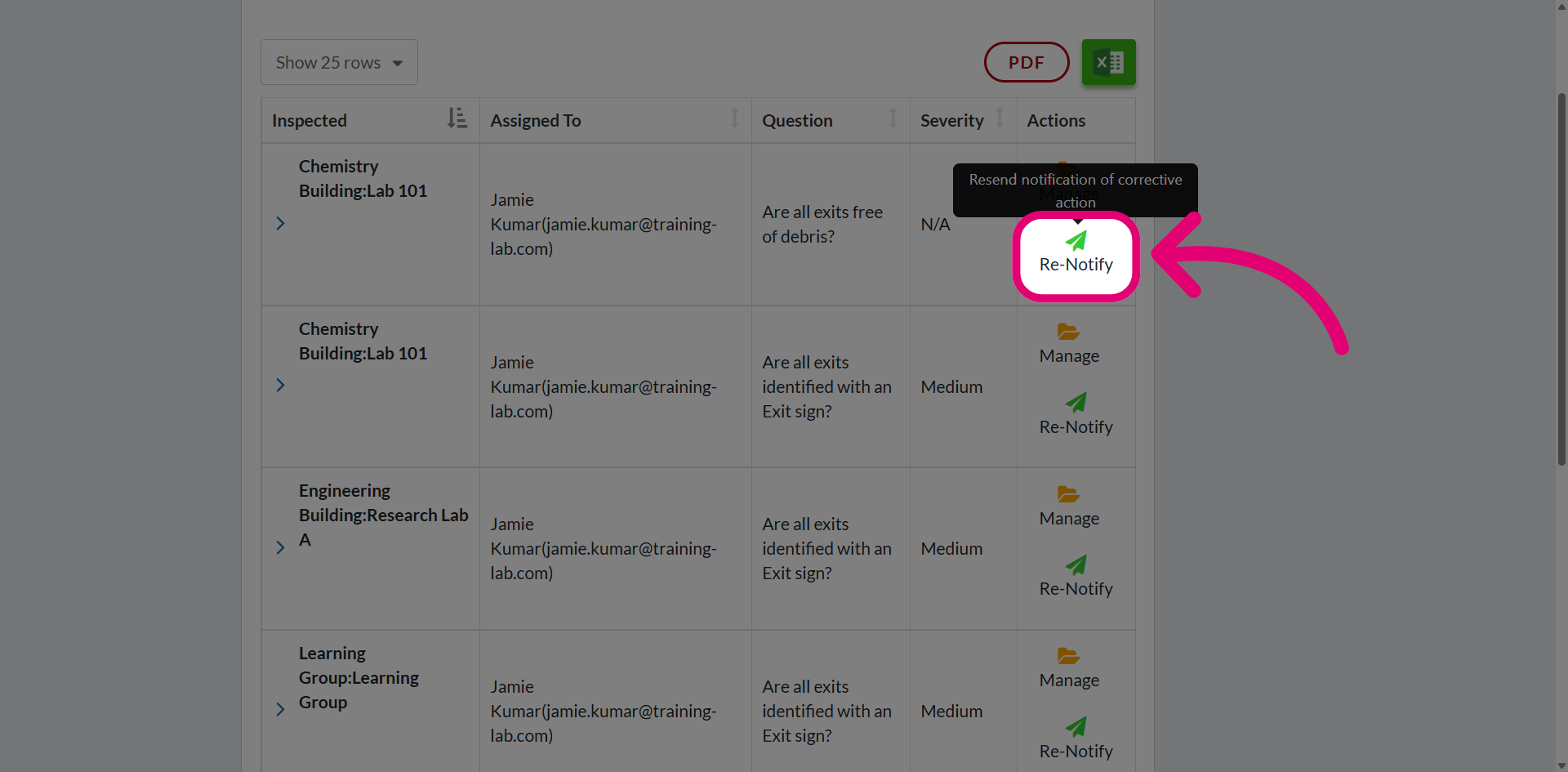
- Click Re-Notify.
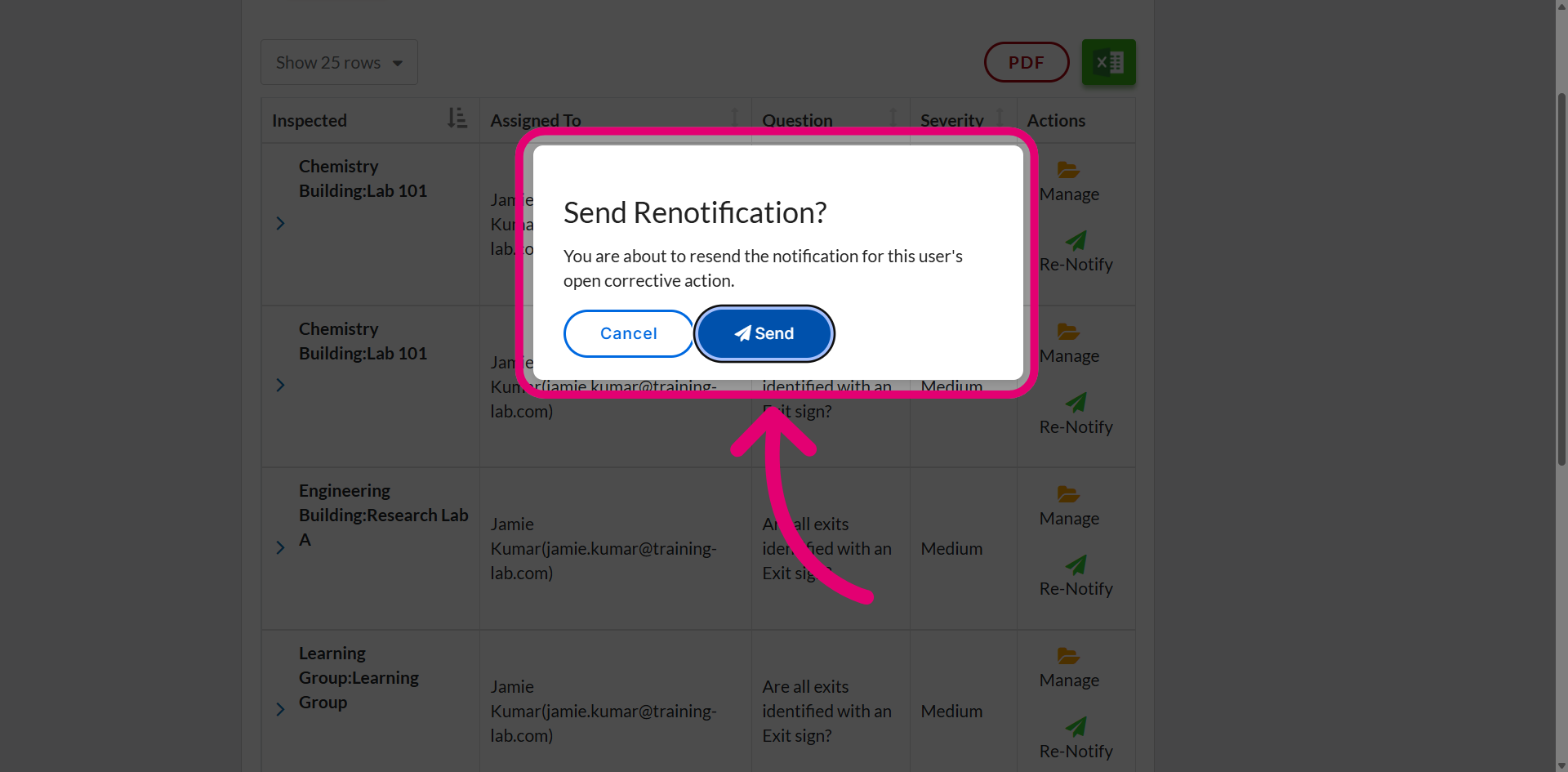
- Click Send.
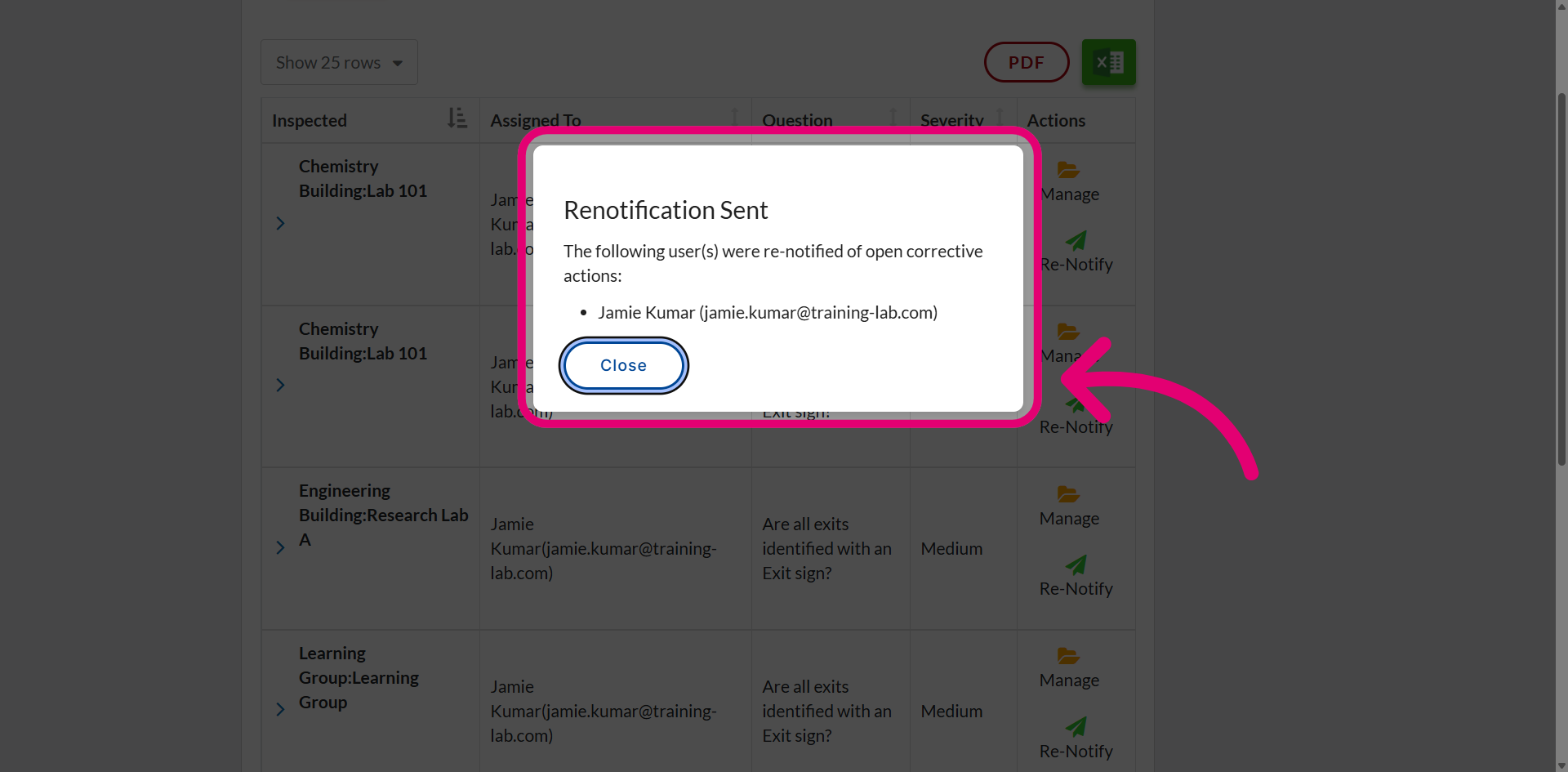
- Dismiss the confirmation message.
Managing an action
To manage an action:
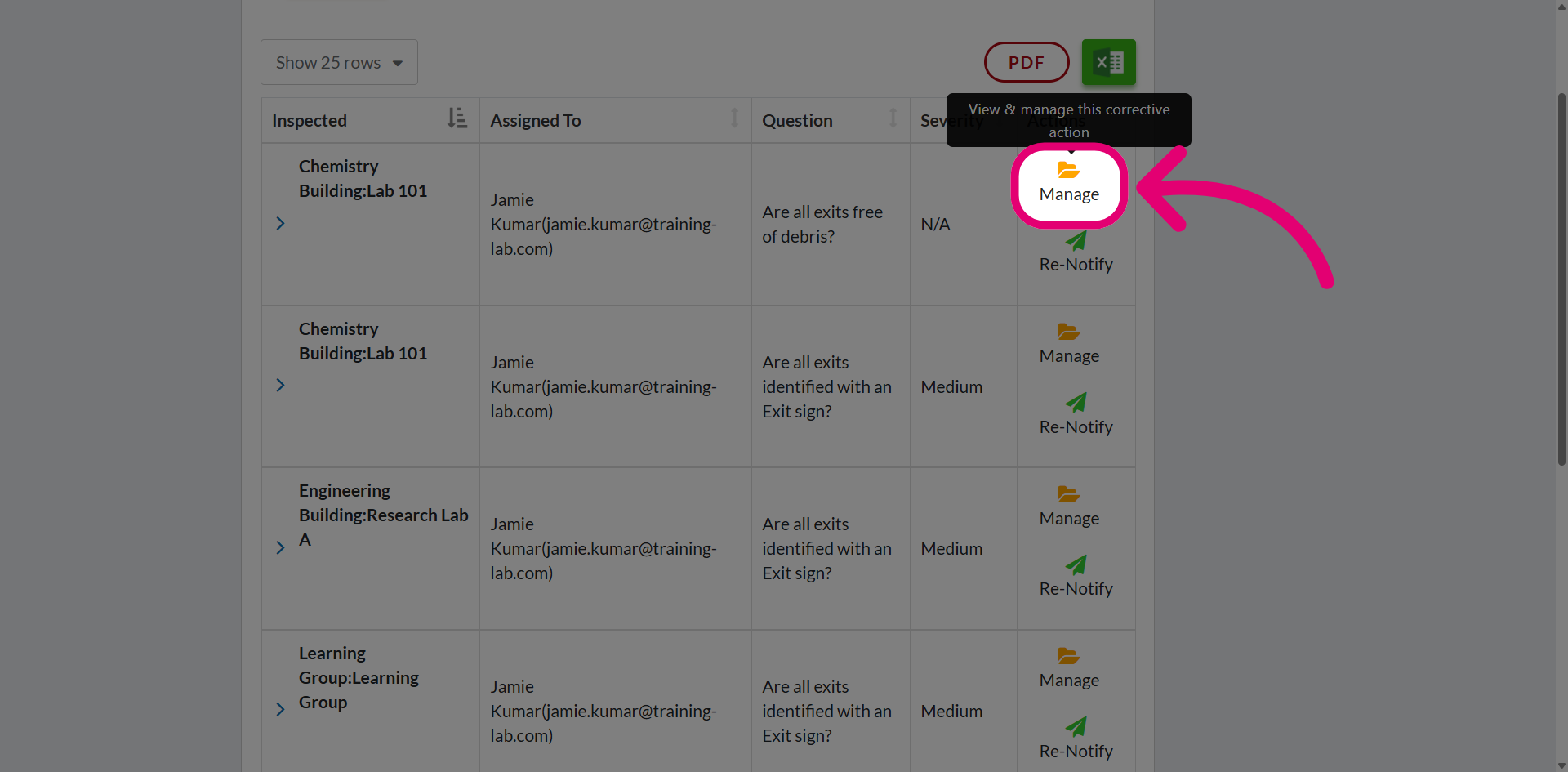
- Click Manage option.
You will be taken to the action page.
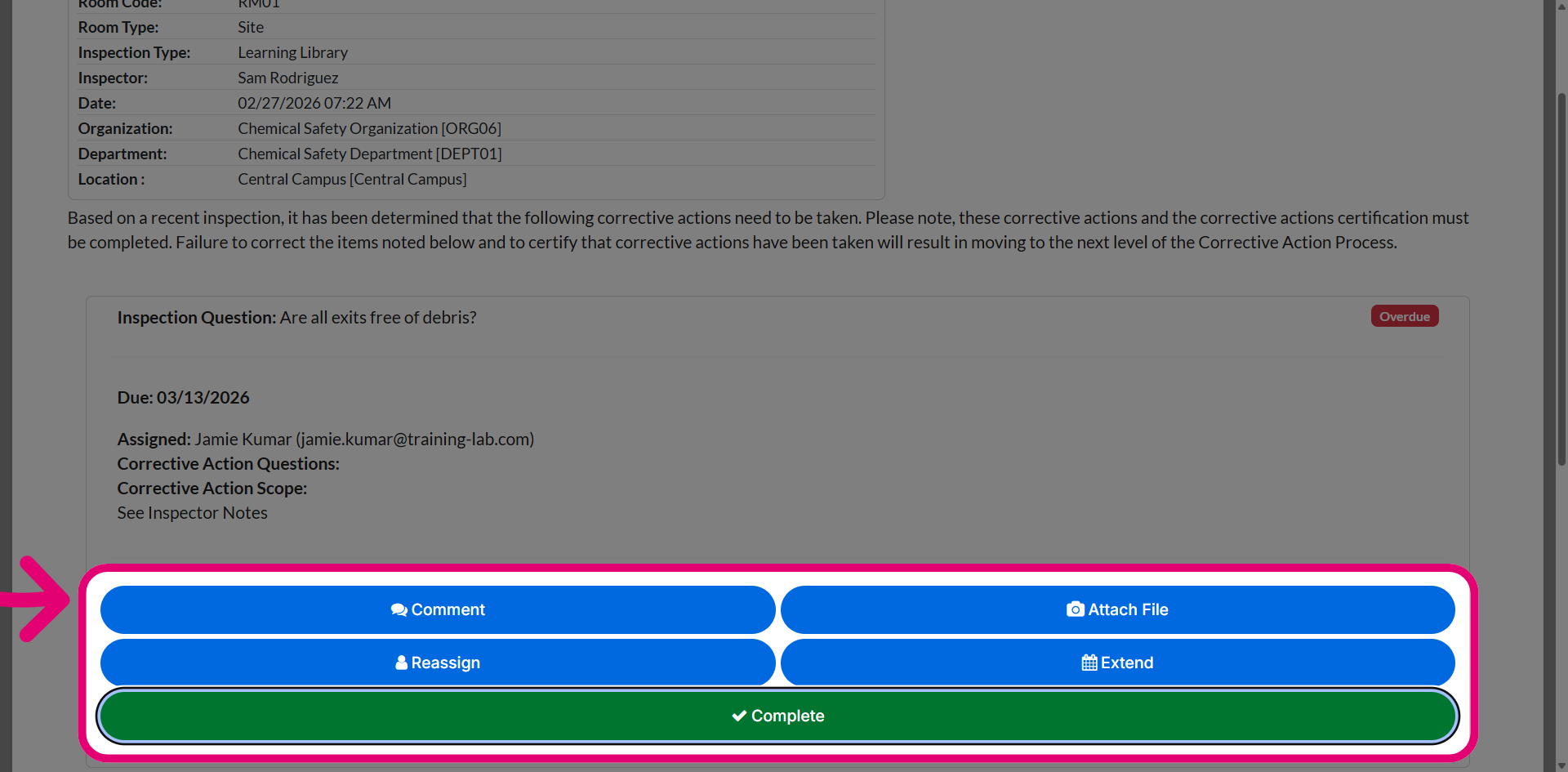
- Use the available options to perform various actions.
You can add comments, attach files, reassign the corrective action, extend the due date, and mark the corrective action as complete.