


New article
Recently updated
Managing training courses and assignments

Who is this article for?
Administrators responsible for training management.
Administrator role is required for some actions.
The Training Tracking module helps administrators manage and track all training-related activities at their organisation, including creating courses, assigning them to users, and monitoring training status with automatic notifications for upcoming expirations or overdue courses.
Creating new training courses
When new training courses are added to your Learning Management System (LMS), you must add them to the Ideagen SafetyStratus application on the Manage Training page.
To access the Manage Training page:
- Go to Data Manager.
- Select Training.
- Choose Manage Training.
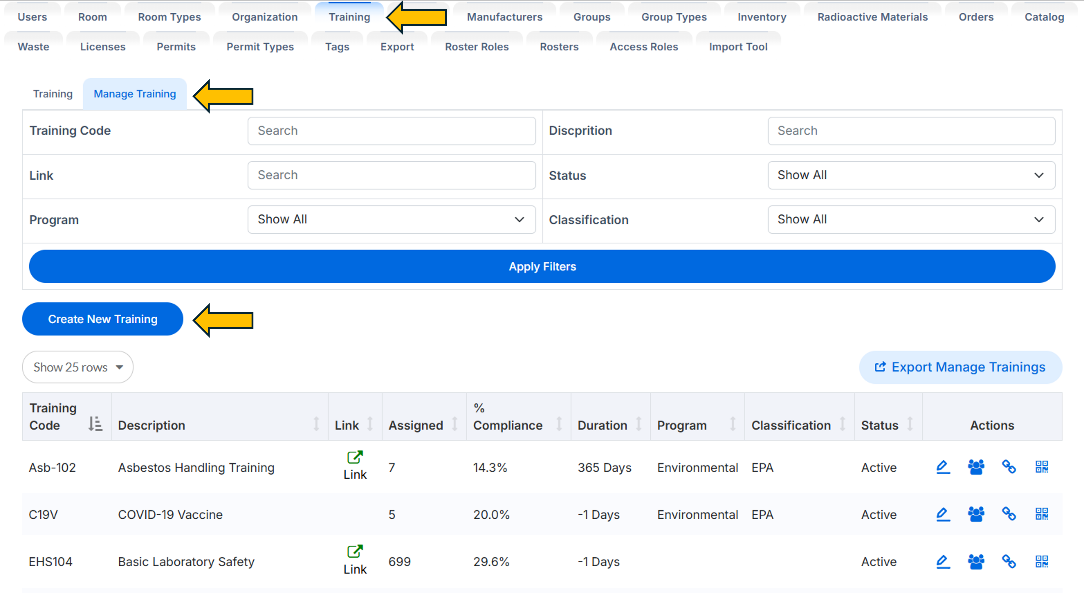
To create a new training course:
- Click Create New Training.
- Enter the Description.
- Enter the Training Code.
- Enter the Duration.
- Click Save.
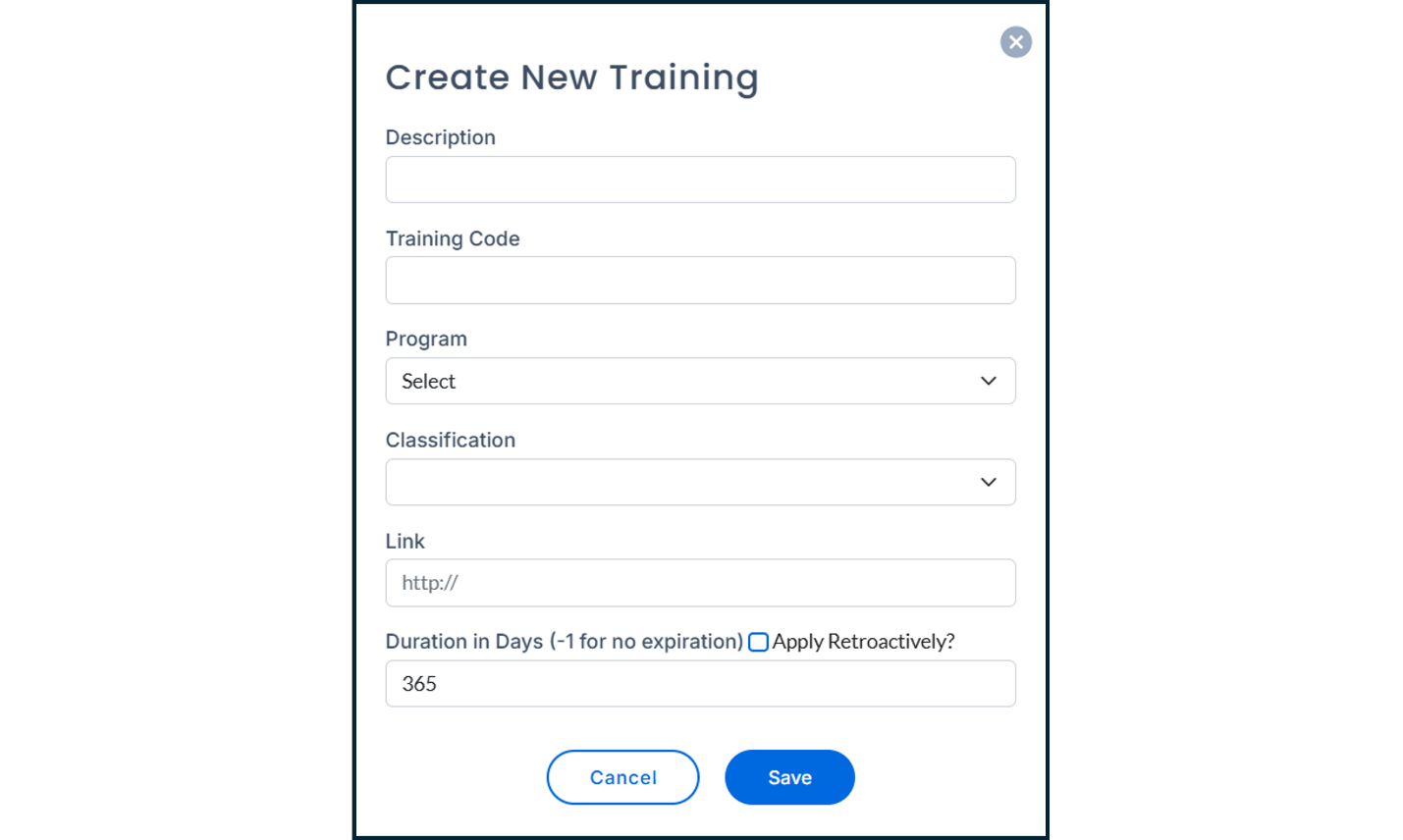
Note: If using the Ideagen SafetyStratus Compliance Calendar, you may select the corresponding calendar Program and Classification to create the training as a calendar event. Additionally, you may Link your LMS system to this calendar event.
Managing training courses
Training courses can be managed through available options in the Actions column.

To edit course details:
- Click the pencil icon for the selected course.
- Update the required information.
- Click Save.
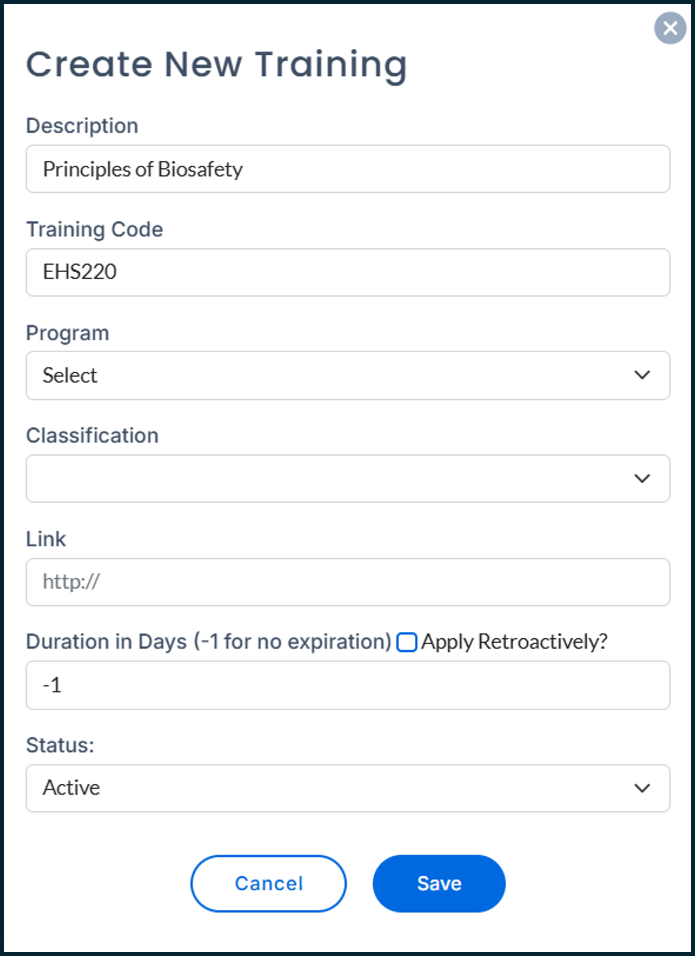
To view user training records:
- Click the people icon for the selected course.

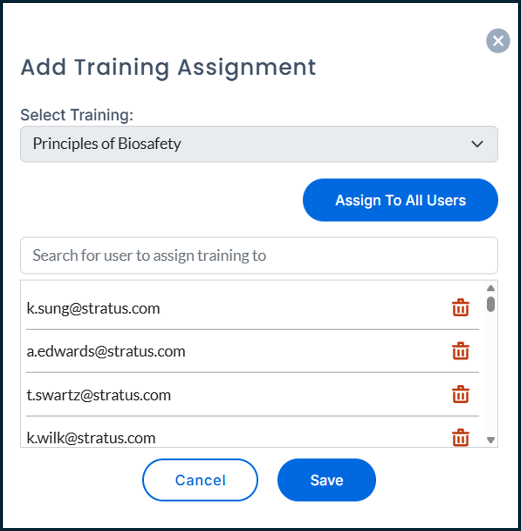
To assign training to users:
- Click the link icon for the selected course.
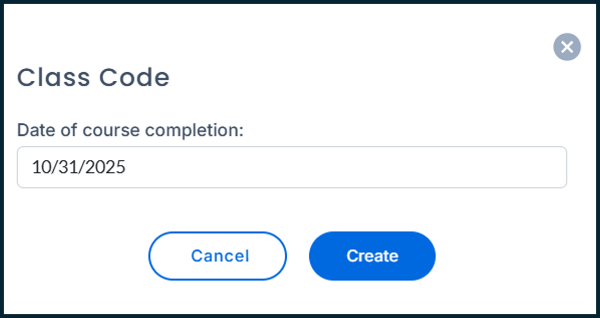
To generate a QR code for course completion:
- Click the QR code icon for the selected course.
- Enter the completion date.
- Click Generate QR Code.
Users assigned this training can scan the QR code to record completion of the training course.

Viewing user training records
The Training tab provides a comprehensive overview of training records for all users assigned training courses.
To access training records:
- Go to Data Manager.
- Select Training.
- Choose Training.
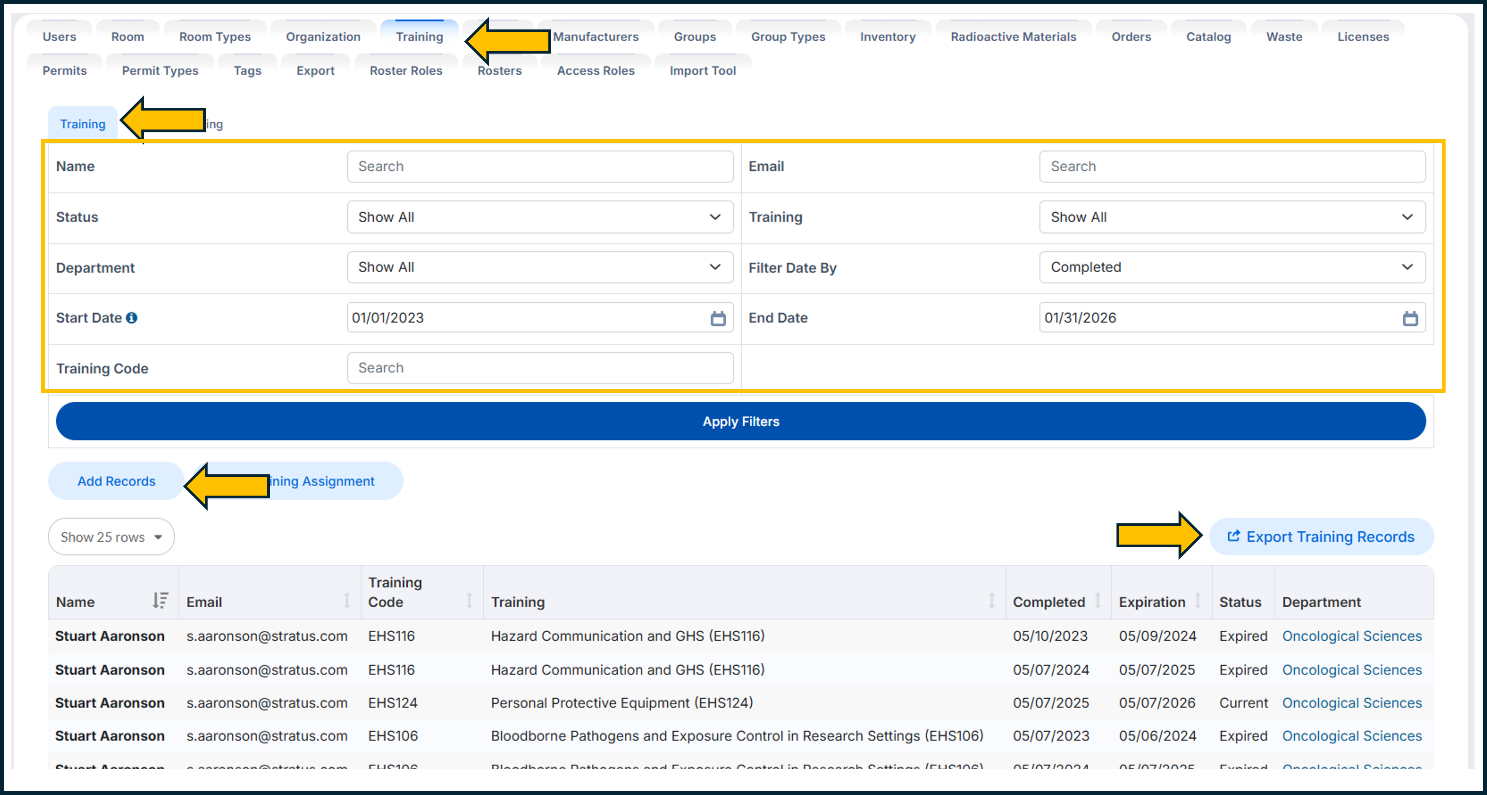
By default, the records display all current and expired records for a date range spanning three months before and after the current date, ordered by their completed date. You can customise this display by modifying the filtering criteria as needed.
To export training records:
- Click Export Training Records.
Adding training records
To add training records:
- Click Add Records.
- Search for a user by their name, username, or email address.
- Select the user from the search results.
- Select the Training to assign.
- Enter the Training Date.
- Click the red Add Record button to add multiple training records if needed.
- Click Save Records.
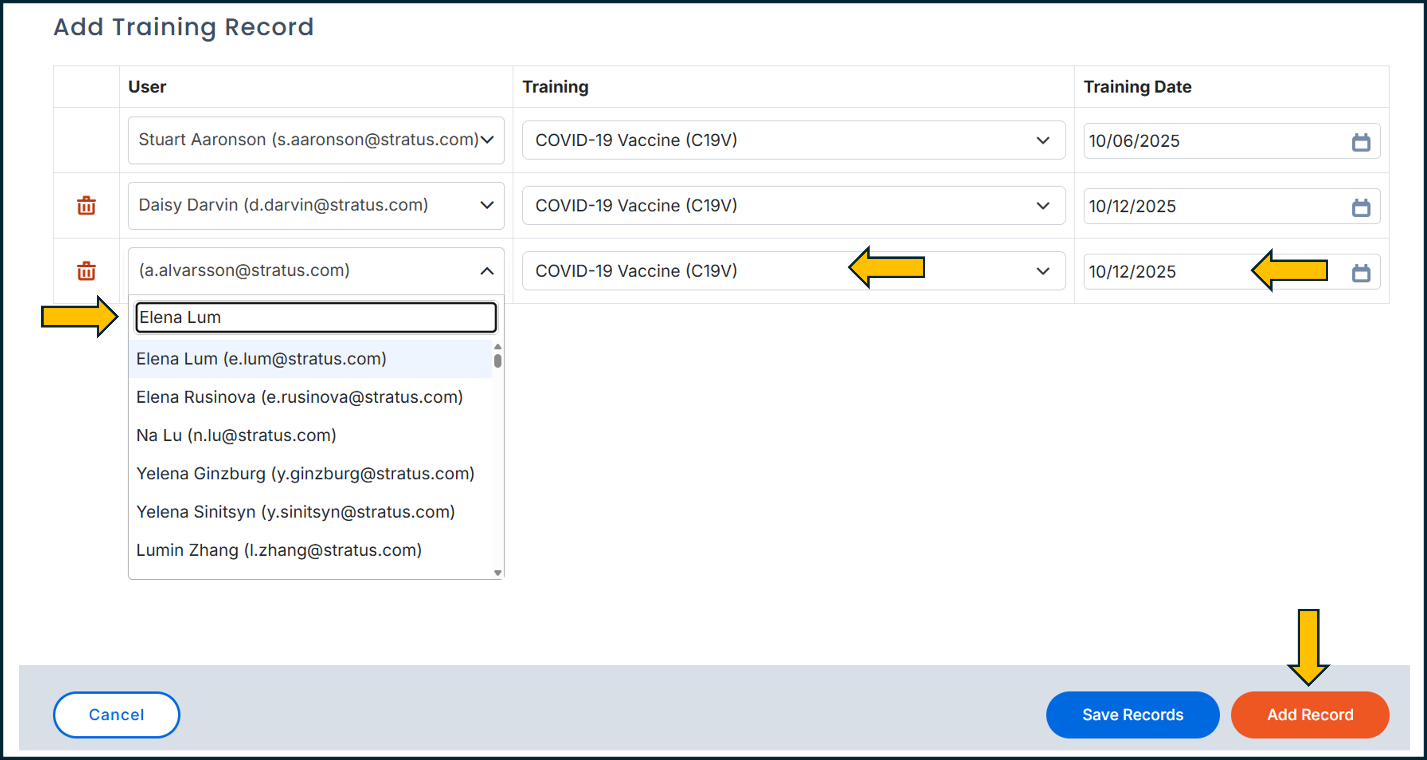
Important: Saved training records cannot be deleted or modified. Ensure users are assigned the correct training courses and completion dates before saving the records.
Adding training records through user profiles
You can add training records directly through individual user profiles.
To add training records via user profile:
- Go to Data Manager.
- Select Users.
- Search for the user.
- Click the view button to open their user profile.
- Scroll down to the Training section.
- Click Add Training Record.

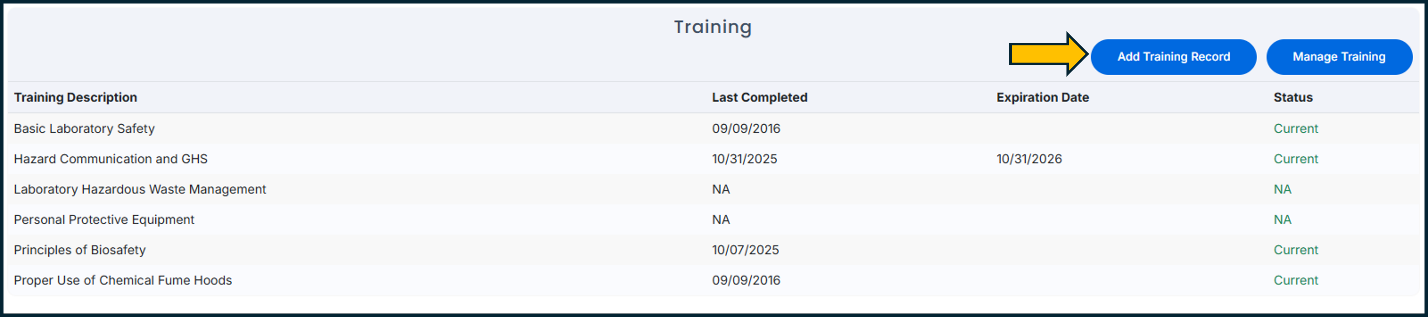
To complete the training record:
- Select the appropriate training course.
- Enter the training date.
- Click the red Add Record button to add multiple courses if needed.
- Click Save Records.
Important: Saved training records cannot be deleted or modified. Ensure users are assigned the correct training courses and completion dates before saving the records.
Adding training records through LATCH
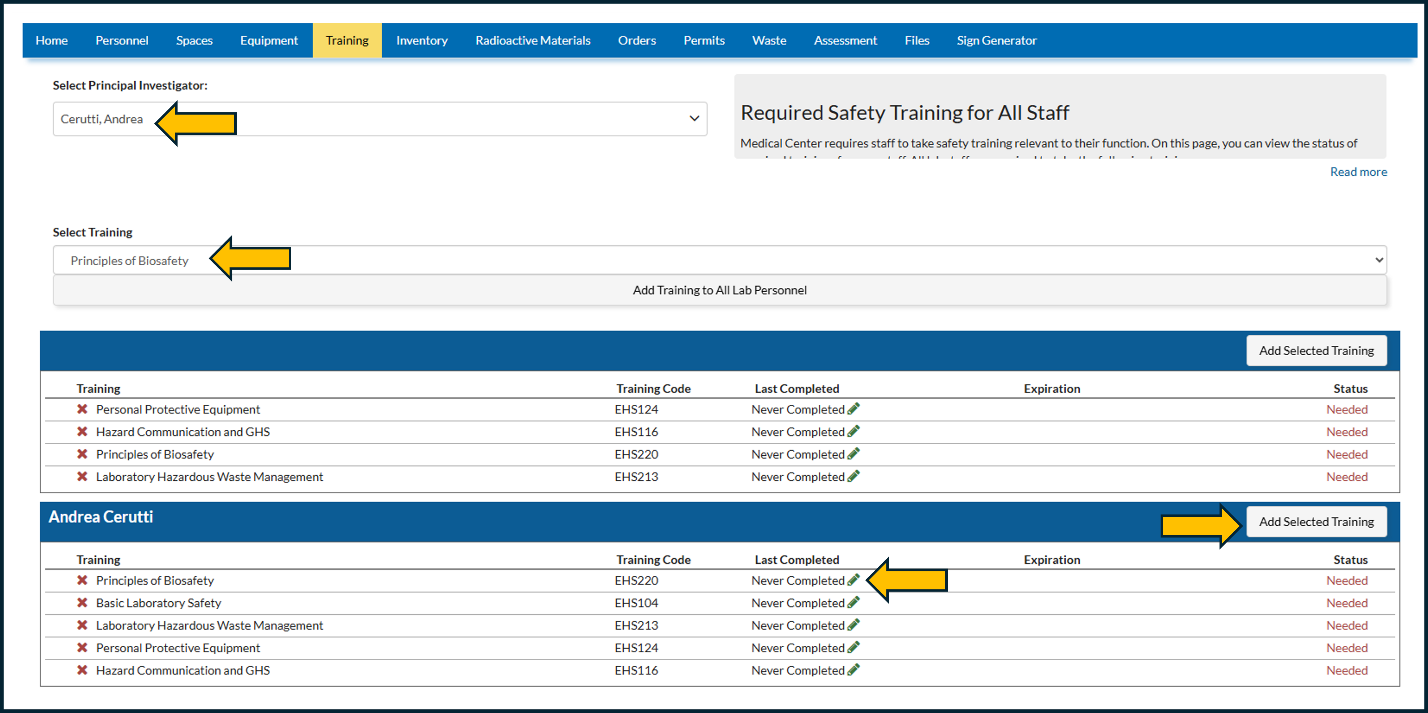
If a user is a Principal Investigator or a lab staff member, you can add new training records through the LATCH module.
To add training records via LATCH:
- Go to LATCH.
- Select Training.
- Search for a Principal Investigator.
- Select a training course from the list of available courses.
- Click Add Training to All Lab Personnel to assign the course to all staff in this Principal Investigator's lab, or click Add Selected Training to assign the training to specific lab members.
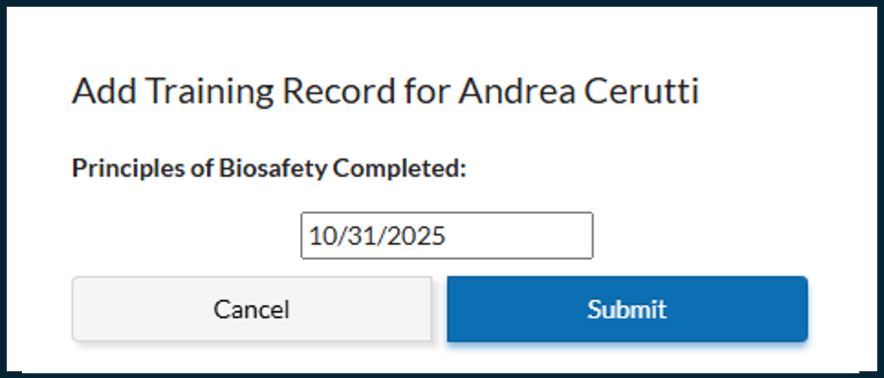
- Click the green pencil icon for each assigned course.
- Enter the completion date.
- Click Save.
Important: Saved training records cannot be deleted or modified. Ensure users are assigned the correct training courses and completion dates before saving the records.